RSS
 

Posts Tagged ‘Images’

How to Add a Sun Flare to Your Images Using Photoshop

29 Oct

If you read my previous article where I give you some tips for doing more spectacular sunset photography, you’ll understand that I love taking photos during the magic hour. For my portraits, I also book my sessions during that time because the light is very soft and flattering. There is one thing I particularly like to do when I process my images and that’s adding a sun flare to my portraits and landscapes. I love to use Photoshop to recreating a scene that would have ideally been there in real life.

How to Create a Sun Flare in Photoshop

I added sun flares to this portrait to add depth.

It’s difficult to not underestimate the effect of a sun flare but it really does make a big difference, especially if you like cinematic results to your images. They’re a great way to add color and depth to your images.

Analyze your image first

The process of adding sun flares is actually quite easy, it only takes two steps and a few minutes. The most difficult thing however is to get a realistic result. You need to analyze your image before doing anything. Start by looking at the position of the sun, how the shadows and highlights are wrapping around your subject.

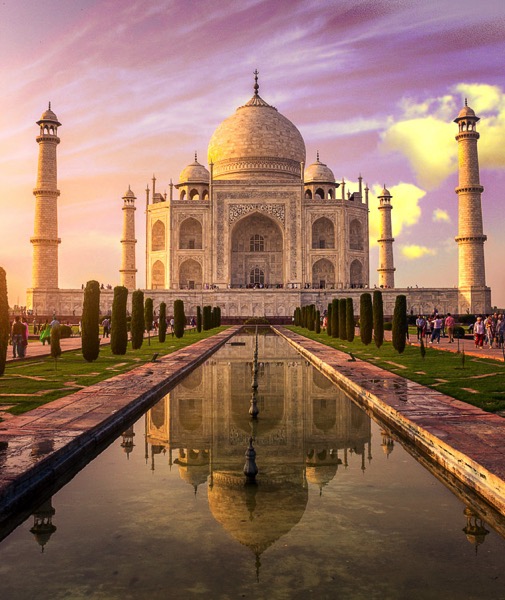
In the image below, I added a sun flare on the left, but before doing that I noticed that the highlights were hitting the Taj Mahal from the left and the shadows were in the right side of the monument. If I were to position the sun flare on the right side of the image, the results wouldn’t be realistic because the highlights and the shadows wouldn’t correspond to the direction of the light of my sun flare. Try to consider the position, direction and intensity of the light.

How to Create a Sun Flare in Photoshop - Taj Mahal

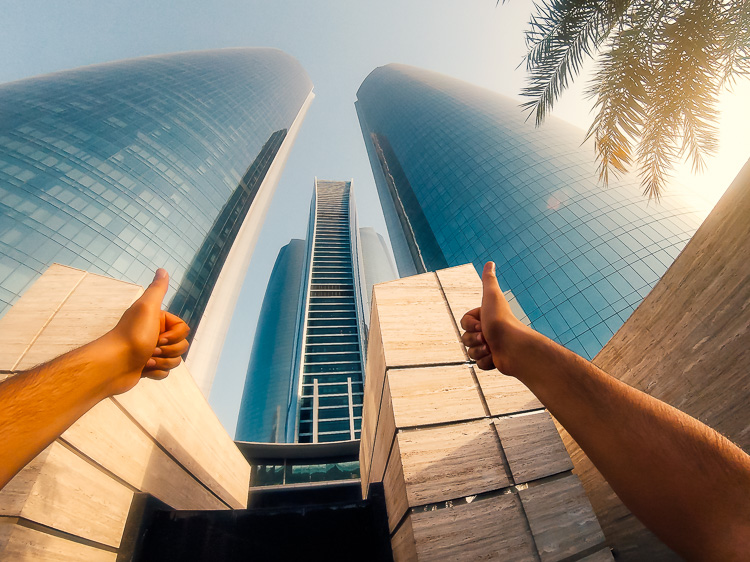
This is another example of a GoPro image I took. I added a sun flare on the right side of the image because the sun was positioned there in real life. We’re not trying to create another sun, we’re just enhancing it with more colors and more intensity.

How to Create a Sun Flare in Photoshop

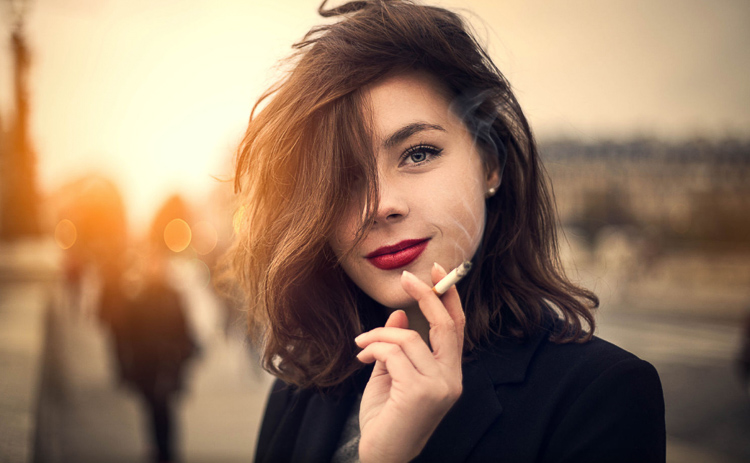
In this portrait, I added a sun flare to the left of the model. The result looks realistic because you can see the orange flair spreading and lightning the hair of the model but her face isn’t affected.

How to Create a Sun Flare in Photoshop

How to create and add a sun flare in Photoshop

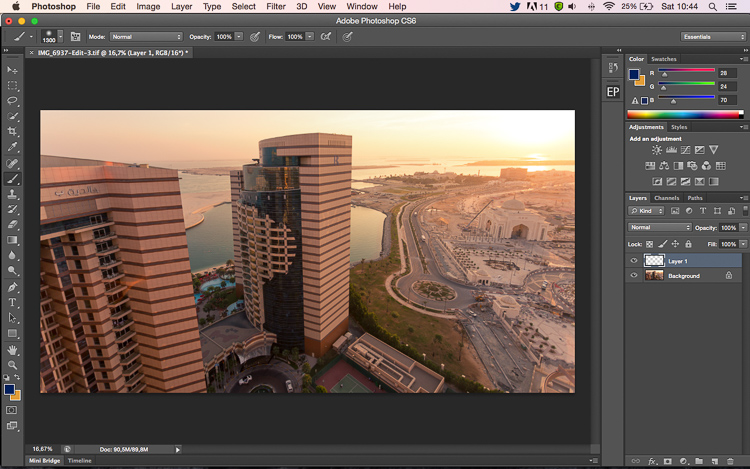
It’s actually quite easy to add a sun flare in Photoshop. Start by opening your file in Photoshop and creating a new empty layer. The next step is to analyze where you want to place your sun flare and how strong do you want the effect to be. In this case, I want to place my sun flare in the top right of the image and make it pretty big. The sun was actually setting in that position but I am not completely satisfied with how it looks. I want to make the flare more vivid and more intense.

How to Create a Sun Flare in Photoshop

Select the Brush Tool and pick a color

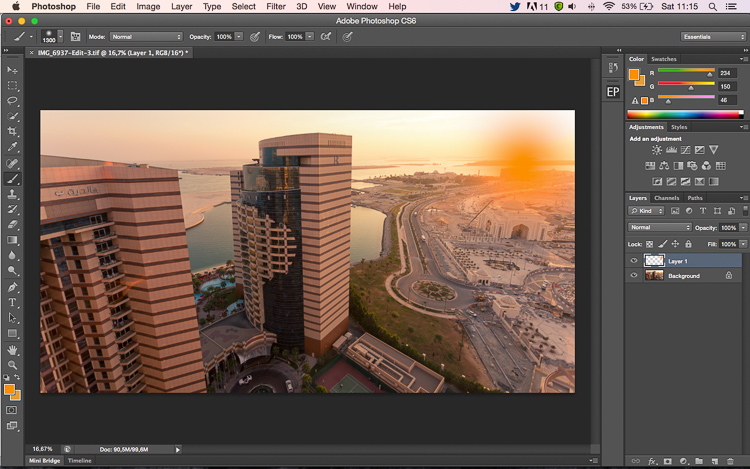
The next step is to select the Brush Tool with an opacity and flow of 100%. Make sure to select a soft brush with a hardness of 0%. I usually like to pick my own color of the sun flare, the color code I use is #fd9424, but there are different ways to pick a color for the sun flare.

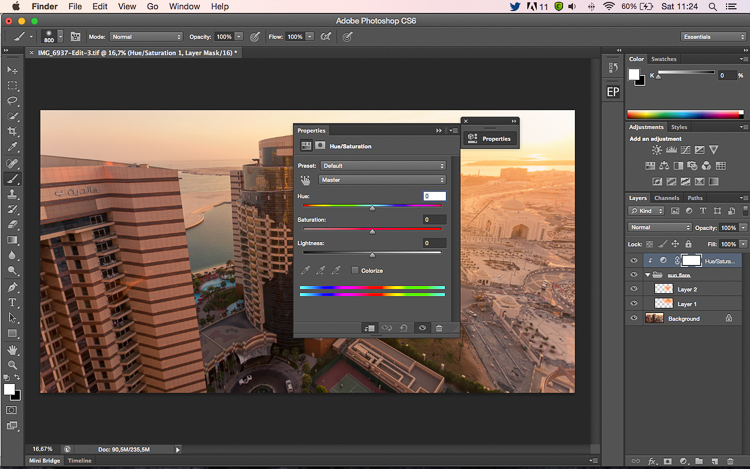
You can use the Eye Dropper Tool and select a color from the image by pressing I on your keyboard or by selecting it in the tool box on the left (the chosen color will automatically be set in your palette). Or after you have created the flare, you can create a hue/saturation adjustment layer only affecting that layer and just playing around until you find a color you like.

How to Create a Sun Flare in Photoshop

Adding your flare

To create the sun flare, the first step is to simply create one brush stroke (you just have to press once). Make sure your brush is quite big. So far your image should look something like this:

How to Create a Sun Flare in Photoshop

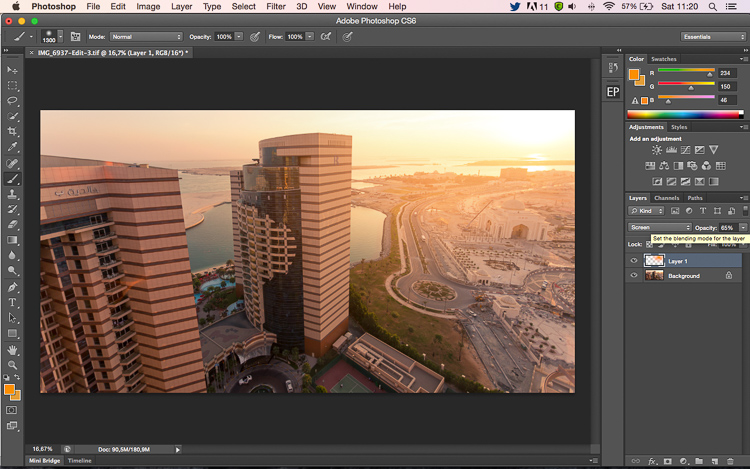
The next step is to go to blending modes for your current layer (the layer with the brush stroke). The default blending mode is normal, you need to change it to Screen. The screen blending mode by definition will invert both layers, multiply them, and invert the result. Your sun flare is going to get brighter and blend in with the sky after you do that.

How to Create a Sun Flare in Photoshop

Transform

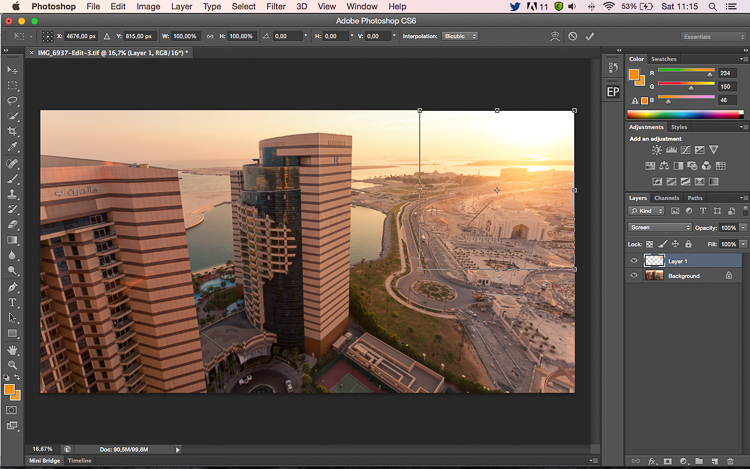
The next step is to select your layer with the sun flare and press CTRL/CMD+T to transform (resize) it. A little box will appear, you want to drag the corners to make it bigger. How big you want to make it depends on your image and your desired effect. The sun flare will affect the whole image if you make it too big and will brighten up the shadows.

Using a brush tool on a new layer is really helpful because you have full control. You can change the position, color, brightness, or saturation of your flare whenever you want by creating new adjustment layers that only affect that layer.

If you think that your effect if too strong, you can reduce the opacity of the layer, if it is not strong enough, you can duplicate the layer. Always remember that the effect should be subtle otherwise if will look quite unrealistic. We are just trying to create a scene taking in consideration how light works.

How to Create a Sun Flare in Photoshop

 whenever you want

Your turn

Now you try you hand at adding a sun flare to one of your images using Photoshop. Please share your images and any questions in the comments below.

googletag.cmd.push(function() {
tablet_slots.push( googletag.defineSlot( “/1005424/_dPSv4_tab-all-article-bottom_(300×250)”, [300, 250], “pb-ad-78623” ).addService( googletag.pubads() ) ); } );

googletag.cmd.push(function() {
mobile_slots.push( googletag.defineSlot( “/1005424/_dPSv4_mob-all-article-bottom_(300×250)”, [300, 250], “pb-ad-78158” ).addService( googletag.pubads() ) ); } );

The post How to Add a Sun Flare to Your Images Using Photoshop by Yacine Bessekhouad appeared first on Digital Photography School.


Digital Photography School

 
Comments Off on How to Add a Sun Flare to Your Images Using Photoshop

Posted in Photography


How to Compose Better Images and Make your Images More Extraordinary

28 Oct

When we think about what goes into making a photograph most often our thoughts leap to camera settings like aperture and shutter speed. “What ISO should I use? Should I incorporate more or less of the foreground and is that tree branch really in the way?” We burden ourselves with the technical, while unfortunately overlooking other elements of the shot which potentially mean more to the outcome of the finished image. In this article, I will share a few of my own images and then break down a few key points that you can use to make your own images more consistently extraordinary. I won’t even mention the word exposure…well, maybe just that once.

dsc07896-edit

Don’t worry, this will not be an overly introspective study of the all the “feelings” which we might pour into making a photo. Instead, this is an examination of the how and why we include what we do in our images and it covers some of the thought processes which drive our own creative visions. Once we begin to have a general understanding of how our artistic nature approaches composition the better we can work towards refining our own techniques.

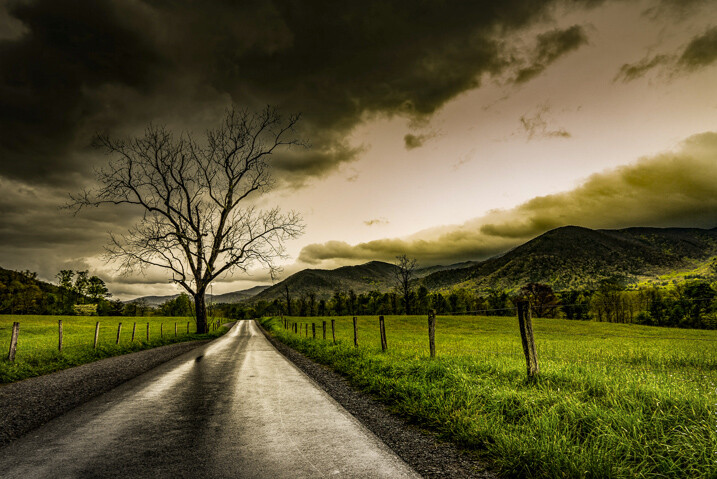
Photo #1: The Brooding

The Brooding

This is one of my personal favorite images. It came about very unexpectedly but it would turn out to be one of the most successful photographs of my career thus far. But why? There must be a reason this image was so well received. So let’s break it down and see what can be learned from the composition.

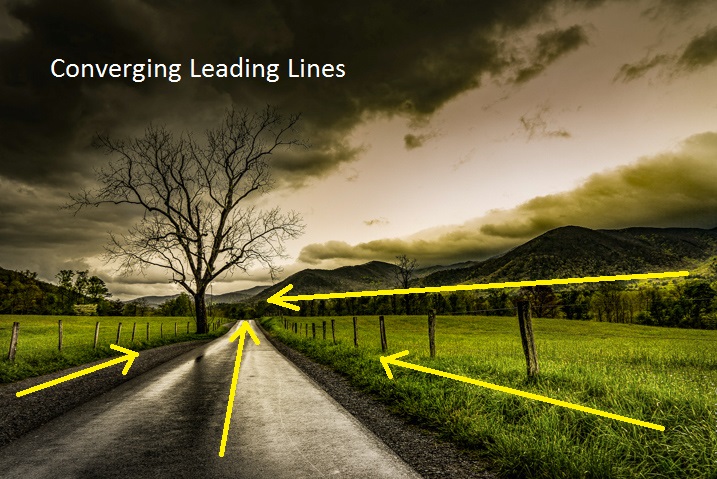
Use leading lines

This is a photographic methodology that has been mentioned many times. Leading lines are simply guideposts within a frame which lead the attention of the viewer to certain elements and essentially direct their attention within the photo itself. Oddly enough, leading lines can be worked into your composition in many ways and there are no set “rules” for using them. But generally, they originate in the foreground and extend into the frame. That isn’t to say that leading lines can’t be horizontal, diagonal, or anywhere in between.

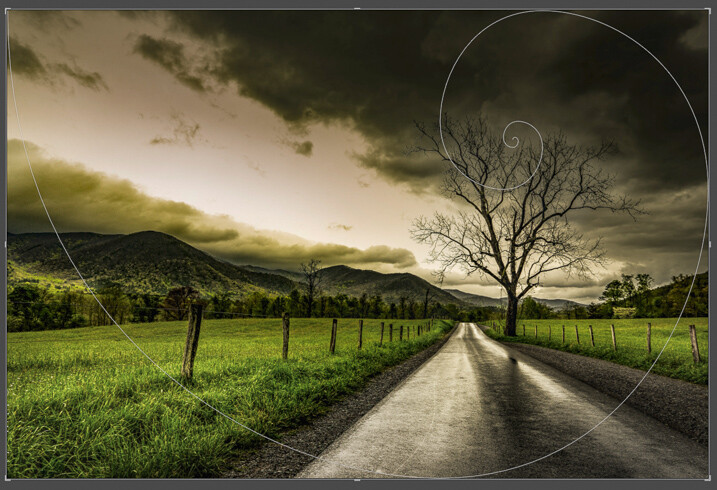
In the case of this image, the lines of the fence and road move from the foreground to the background thereby creating a sense of depth in the mountains. Meanwhile, the horizontal line of the mountains converges with the vertical lines of the road. This helps to highlight the central element of the photo which is the tree.

The Brooding Notes

Don’t fear the weather

It goes without saying that this photo was made during some less than hospitable weather. An incredibly strong mountain thunderstorm had moved through the valley the night before and the rain had just stopped as I made my way out to shoot. Normally, bad weather deters many photographers from venturing out to make images. This is wrong.

When the weather gets rough it brings with it interesting cloud patterns and awesome light that you wouldn’t encounter on clearer days. Not only do the clouds add a sense of moodiness to the photo but the wet asphalt imparts the feeling of the dankness in the morning air after the storm passed. The yellowish post-storm light works well with the hazy mist in the valley which was hanging low after the rain.

Work with proportions

Whenever you begin mentioning words such as proportions, scale, or ratio as they relate to photography – you lose people’s attention. Usually, because it can seem complicated. Stay with me here! Composing your images based on certain aesthetic ratios and proportions isn’t as difficult as it sounds and I’m about to prove it to you. Ratios don’t have to be exact or perfect in every case but can really add that something extra to your photographs.

Golden Spiral Overlay

The image we have here incorporates what’s called the Golden Spiral or a Fibonacci Spiral to add interest and draw attention to the main elements of the composition. It’s a proportion based on the Fibonacci Sequence and it occurs in nature frequently. In this case, the spiral has been tweaked (flipped horizontally) to guide the viewer, yet again, towards the tree and into the distant mountains. Have a look at this overlay set on top of the flipped photo above and you can see how it lines up.

Pretty cool, huh? Try the Golden Spiral or the simpler Rule of Thirds for yourself to see an immediate boost in your compositions.

Photo #2: Summertime

Summertime

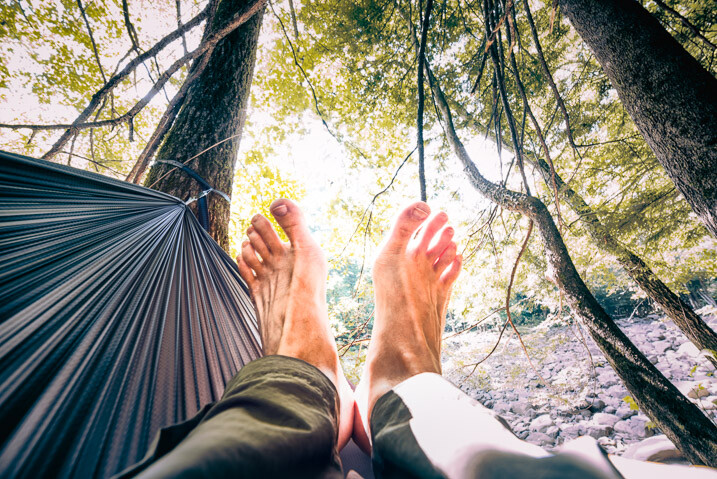
When most people see this photo they either love it, hate it, or say “Adam, your feet are really, really dirty”. It’s true, this was a very impromptu and unorthodox exposure of yours truly as I swayed in my hammock during a hiking trip last summer. Unbelievably, it went on to win First Place Professional in a state magazine a couple months ago. No matter your initial impressions of this image there are still a few important lessons that can be gleaned to help you with your own work.

Find natural framing

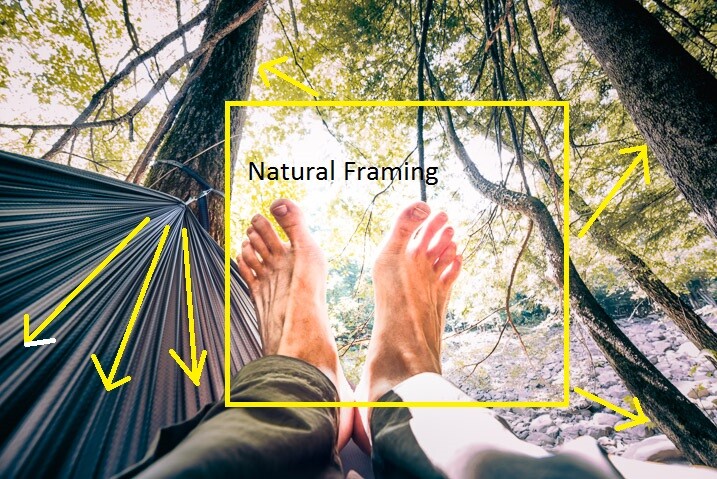
This is a close cousin to using leading lines to enhance the viewability of an image. There are many cases when a strong composition makes use of what is referred to as natural framing. This is when a photographer composes certain elements (not always the main subject) in a way so that they are framed by other elements within the shot. Sometimes this framing is obvious, such as when a portrait photographer positions the client in a doorway or when a landscapist places the sunset between two mountain peaks. Other times natural framing is less obvious, as is the case with this image. Look closely.

Summertime Notes

You’ll notice that my beautiful feet occupy the empty space between the hammock at the left and the trees to the right. The empty space created between the structures offers a place for the central subject to really stand out from the rest of the elements of the photo. The lines created by the hammock also help with the overall framing of the image and gives it a very anchored perspective. Speaking of perspective…

Use perspective

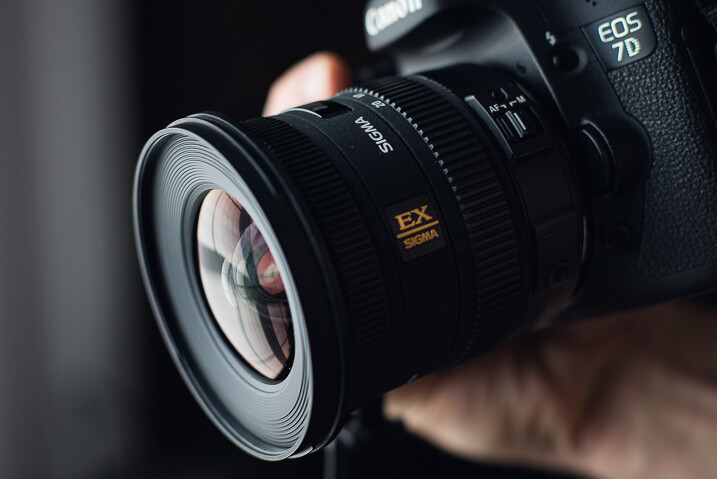
This photo was shot using a Rokinon 14mm F/2.8 super wide-angle lens, mounted on a full-frame mirrorless camera. The 14mm focal length bulges the exterior aspects of the frame. This causes the trees to bend in towards the center of the frame. The camera was held relatively close to my feet so that the entire scene seems relatively compressed around them. The overall effect is one of first-hand perspective and allows the viewer feel as if they themselves are swinging in the hammock on a warm summer afternoon…with dirty feet.

dsc07923

Shoot what you want

When I was about to enter this photo into the contest (in which it eventually took first prize from among 2,000 other entries) there were some politely well-worded reservations expressed by some of my friends. Why would anyone want an image of some dirtbag hiker’s feet? Well, when I shot the image I knew it carried the feeling of summer. The earthy remnants of a day’s trek and the welcomed relaxation of a swinging hammock that chases away all worries. I knew the photo fit the theme of the contest which was Summertime. It was an image which I felt was worth entering even though it was slightly unorthodox.

Shoot the images you want to shoot. Hopefully, this is a lesson you already know and have been putting into practice for some time now. If not, now is the perfect time to start.

Photo# 3: The Stars Fell

Falling Stars

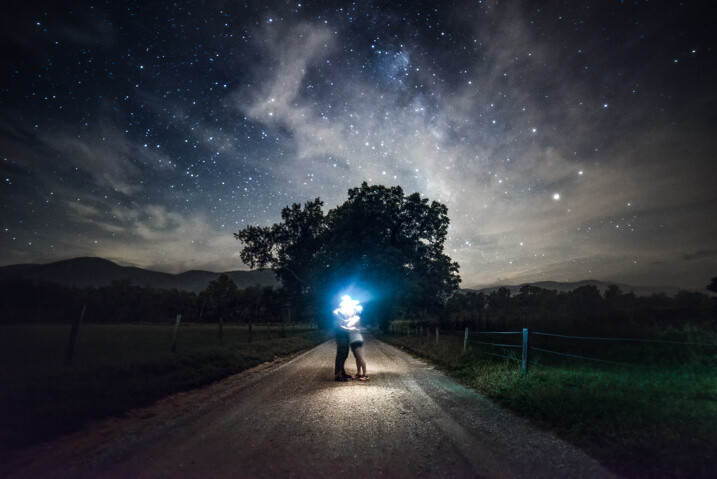
On the night this image was made my girlfriend and I had been out chasing the Milky Way through the mountains. There was nothing planned as far as a self-portrait was concerned. This was one of the last photos to be made that night and it came about completely by accident. It is the only exposure I made of us under the stars, which to me makes it even more special, but I digress.

Incorporate the environment

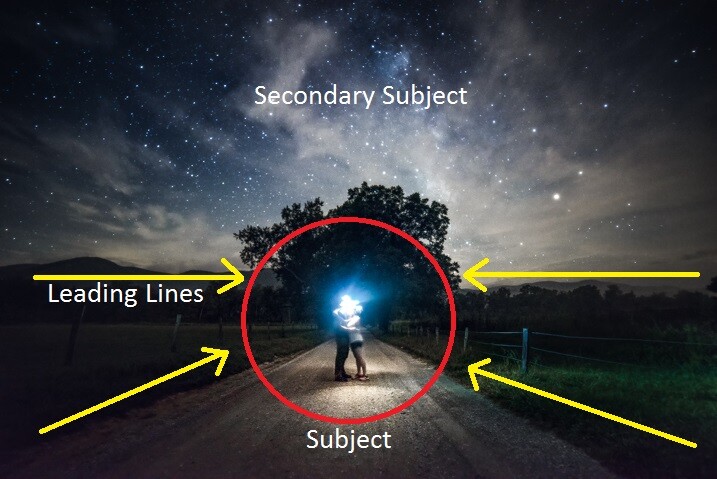
Consider your environment as another subject and use it to enhance the image. This may go without saying when working with landscapes or nature photography, but it can’t be overstated when it comes to portraiture and working with human subjects in general. In the case of this image, the stars wheeling overhead become almost a completely separate subject. Add in the human element and it produces a wonderful duality between man (or woman) and nature.

Here we see a few of the environmental elements which came together in the photo. Some of them may be familiar.

Falling Stars Notes

Open yourself up

Let’s face it, not everything goes to plan. There have likely been many times a shot didn’t pan out, your camera wasn’t set on the ISO you needed, or the light faded before you could click the shutter. Other times everything goes completely to plan. So much goes to plan in fact, that you consider it a job well done and stop thinking creatively.

While it’s great when everything goes right, we shouldn’t stop looking for the next exceptional image. Be open to those great moments that produce great work even if they go beyond what you had set out to do originally.

We were on the verge of packing up and heading back to camp when I had the idea for our spur of the moment self-portrait. I had already produced all the images I wanted to make so we had chalked it up as a success. But as it turns out, the image I never intended to make that night ended up being the best.

dsc08347

Trust your instincts

The reason this photo came about was due to a feeling I had that the image was there before I made the exposure. I was told later that my exact words were, “Want to try something weird?”

Even though it had already been a successful night of shooting the stars I knew there was one more frame to take and that frame should include us. It wasn’t something that was planned but it turned out being one my most cherished images to date.

When shooting any type of image it always pays to go with your gut. More often than not, your instincts will be right. If it feels like a photographic opportunity is presenting itself then it’s usually a good idea to follow your intuition and pursue the idea. Don’t think you have astute instincts? Don’t worry. They will develop and mature as you do as a photographer.

_mg_9049-edit

Conclusion

Remember, strong images are made by more than just perfect camera settings. Begin looking beyond your exposure and aperture to understand how your photos impact you and ultimately the viewer. The methods mentioned above will give you a great start to producing consistently better images time and time again.

googletag.cmd.push(function() {
tablet_slots.push( googletag.defineSlot( “/1005424/_dPSv4_tab-all-article-bottom_(300×250)”, [300, 250], “pb-ad-78623” ).addService( googletag.pubads() ) ); } );

googletag.cmd.push(function() {
mobile_slots.push( googletag.defineSlot( “/1005424/_dPSv4_mob-all-article-bottom_(300×250)”, [300, 250], “pb-ad-78158” ).addService( googletag.pubads() ) ); } );

The post How to Compose Better Images and Make your Images More Extraordinary by Adam Welch appeared first on Digital Photography School.


Digital Photography School

 
Comments Off on How to Compose Better Images and Make your Images More Extraordinary

Posted in Photography


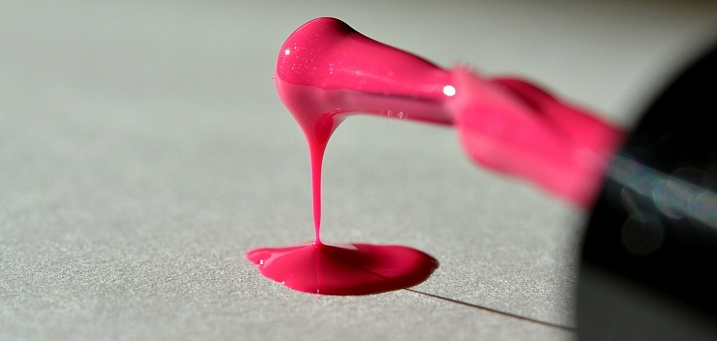
In The Pink – 19 Rosy Colored Images

26 Oct

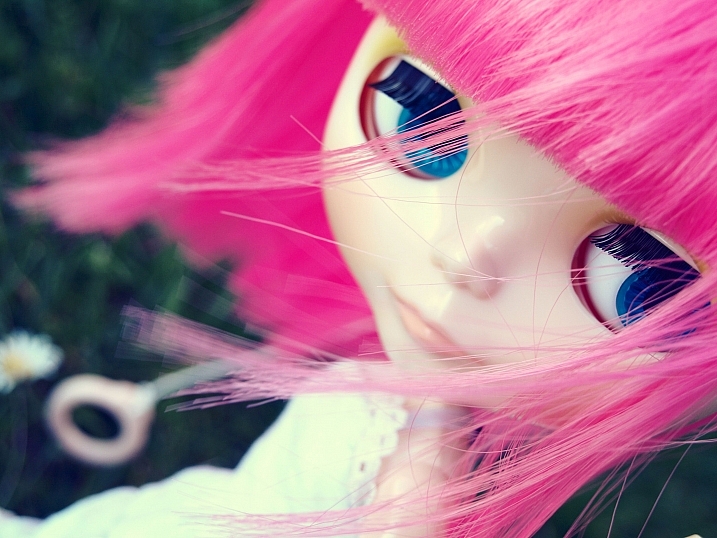
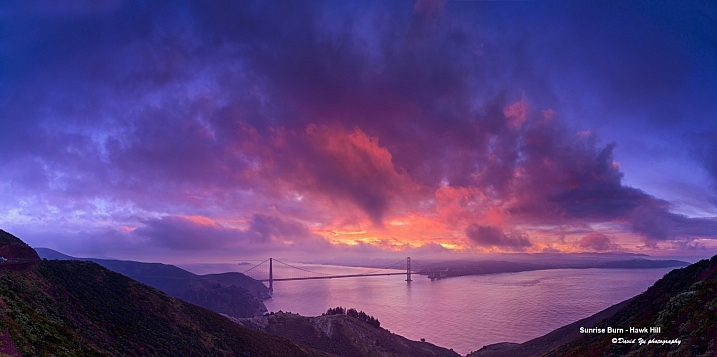
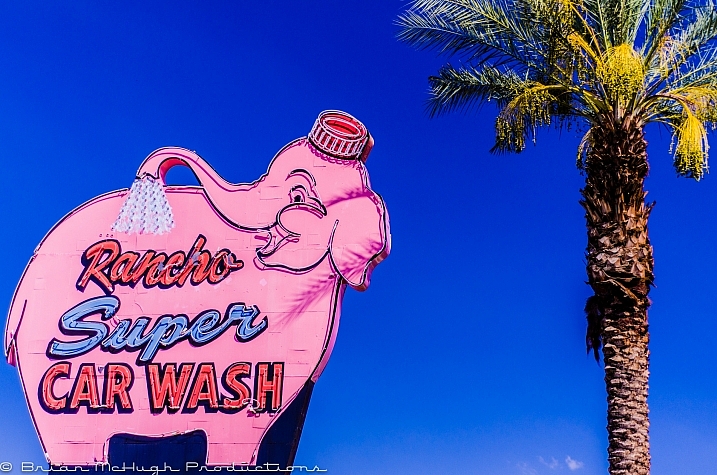
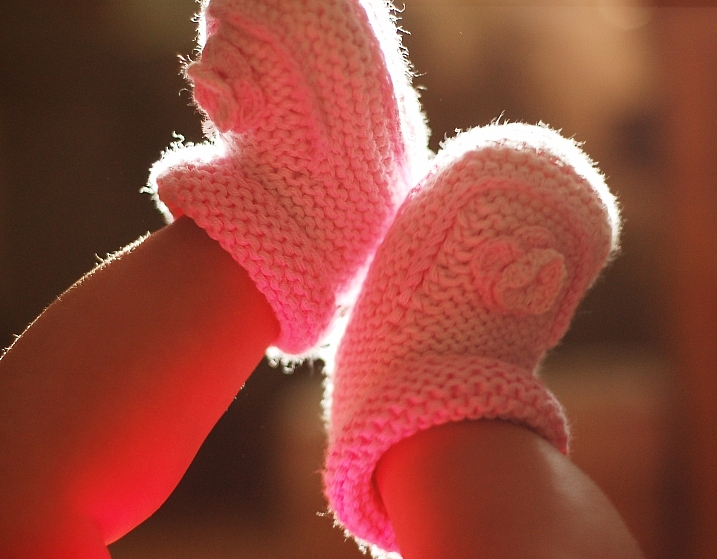
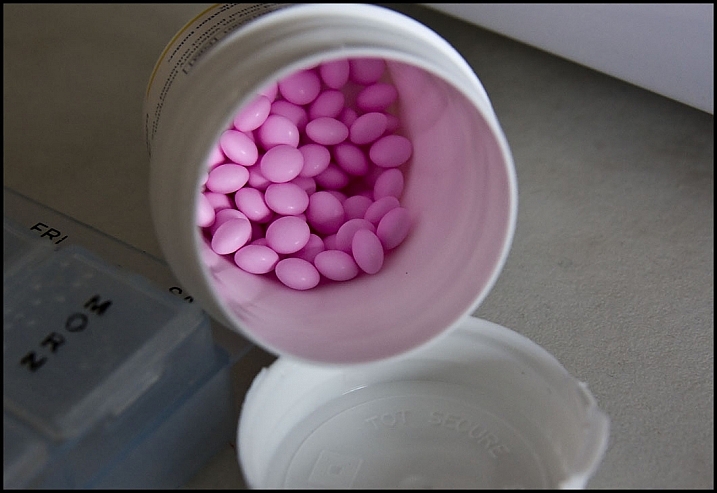
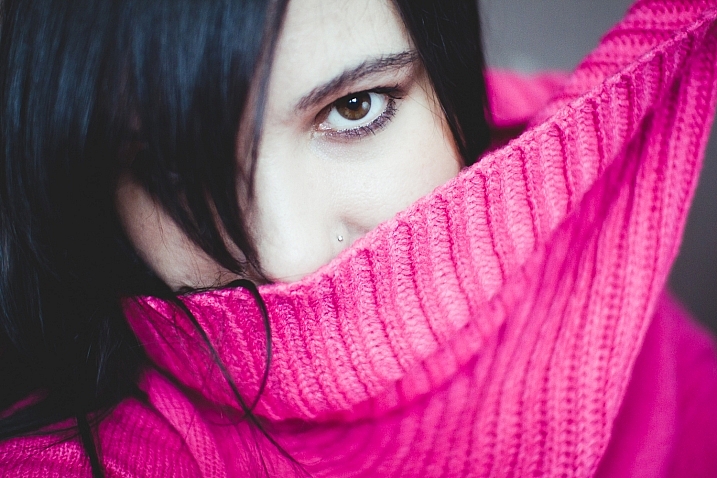
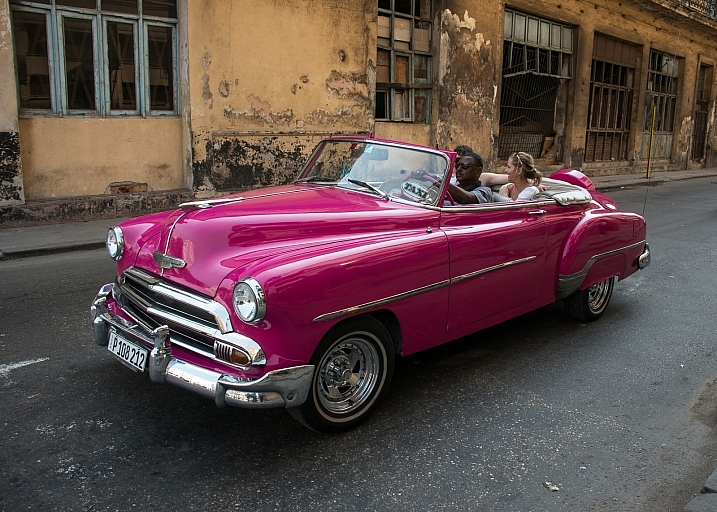
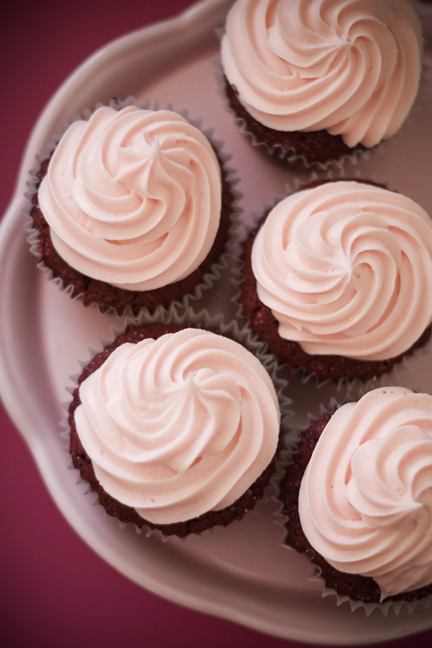
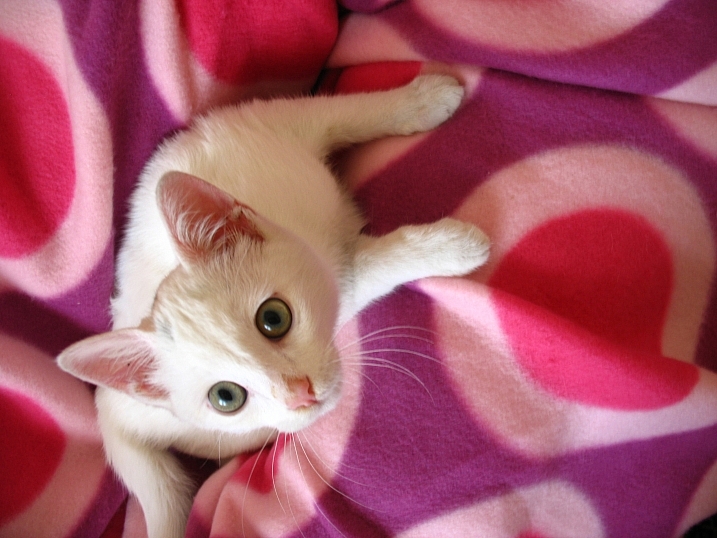
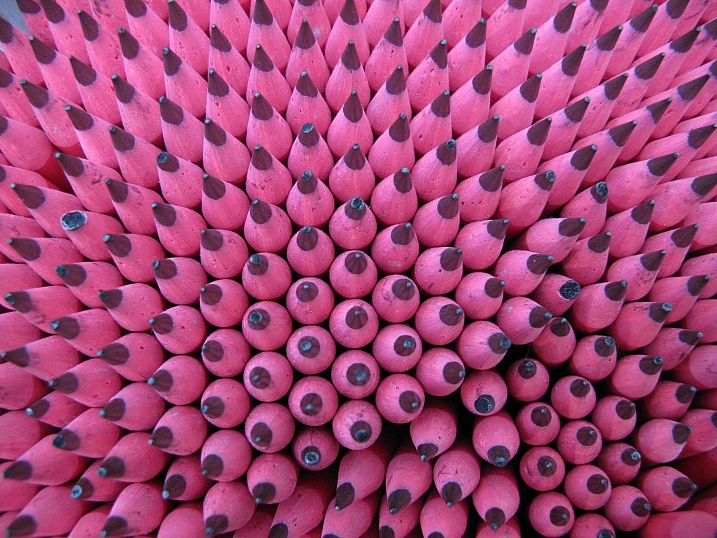
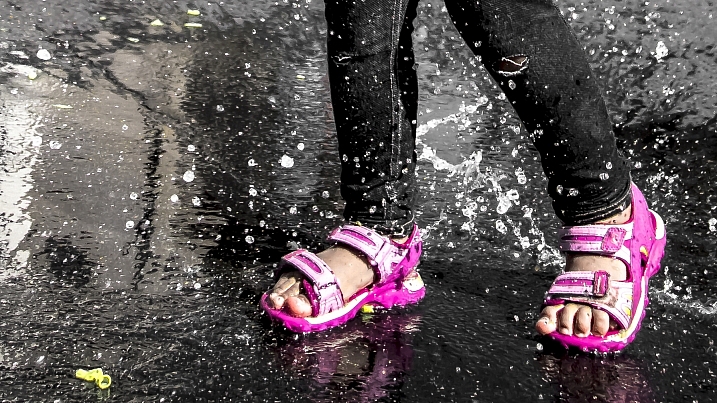
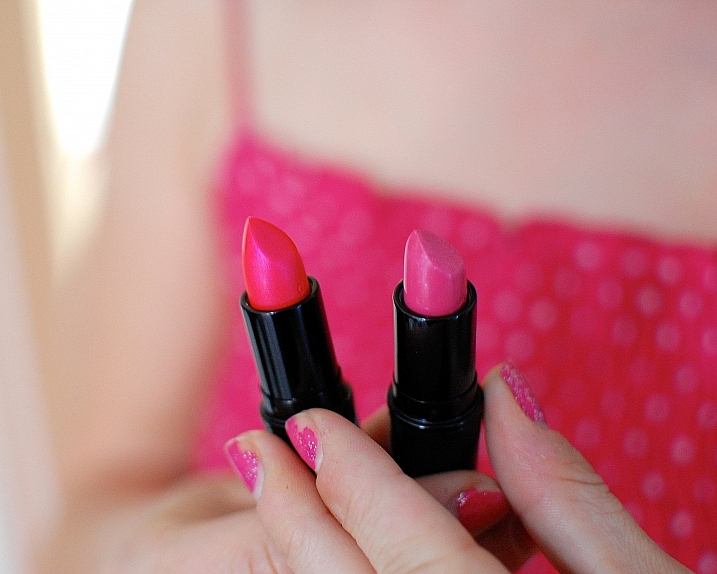
Rose colored glasses, in the pink, tickled pink, pinkie finger and a pink elephant. This color can represent a lot of things. Here are some examples by different photographers who found unique pink subjects to shoot.

Nuwandalice

By Nuwandalice

David Yu

By David Yu

Brian McHugh

By Brian McHugh

SurprisePally

By SurprisePally

Javcon117*

By Javcon117*

Katie Dalton

By Katie Dalton

Liliana

By Liliana

Howard Ignatius

By Howard Ignatius

Shimelle Laine

By Shimelle Laine

Paimei01

By paimei01

Louise Leclerc

By Louise Leclerc

*Ann Gordon

By *Ann Gordon

Ram Yoga

By Ram Yoga

Marchnwe

By Marchnwe

Duncan C

By duncan c

Ian D. Keating

By Ian D. Keating

John Verive

By John Verive

Chris Kennedy

By Chris Kennedy

Patrik Nygren

By Patrik Nygren

googletag.cmd.push(function() {
tablet_slots.push( googletag.defineSlot( “/1005424/_dPSv4_tab-all-article-bottom_(300×250)”, [300, 250], “pb-ad-78623” ).addService( googletag.pubads() ) ); } );

googletag.cmd.push(function() {
mobile_slots.push( googletag.defineSlot( “/1005424/_dPSv4_mob-all-article-bottom_(300×250)”, [300, 250], “pb-ad-78158” ).addService( googletag.pubads() ) ); } );

The post In The Pink – 19 Rosy Colored Images by Darlene Hildebrandt appeared first on Digital Photography School.


Digital Photography School

 
Comments Off on In The Pink – 19 Rosy Colored Images

Posted in Photography


Facebook is planning to relax censorship rules for newsworthy images

25 Oct
 Image: Nick Ut/The Associated Press

Last month Norway’s largest newspaper, Aftenposten, published an open letter on its front page, accusing Facebook CEO Mark Zuckerberg of ‘abuse of power.’ The letter was published as a response to Facebook removing the famous ‘Napalm Girl’ image, taken by photographer Nick Ut, from the newspaper’s Facebook page on the grounds of a blanket ban on nudity in all images posted on the social network.

The picture had been used in an article about the seven most iconic images in the history of war. After receiving a wave of intense criticism following the incident, Facebook has announced in a blog post that it will be relaxing its photo censorship rules around news events:

‘In the weeks ahead, we’re going to begin allowing more items that people find newsworthy, significant, or important to the public interest — even if they might otherwise violate our standards. We will work with our community and partners to explore exactly how to do this, both through new tools and approaches to enforcement. Our intent is to allow more images and stories without posing safety risks or showing graphic images to minors and others who do not want to see them.’

We will have to wait and see how exactly this will be defined but it’s fair to assume that Nick Ut’s picture would have been considered historically significant and therefore safe under the revised guidelines. 

We should expect any changes to take effect within the next few weeks as Facebook is working on replacing its filter algorithms. The company says it will be working closely with experts, publishers, journalists, photographers, law enforcement officials and safety advocates to achieve this. 

What do you think? Is this a step in the right direction for Facebook? Let us know in the comments.

Articles: Digital Photography Review (dpreview.com)

 
Comments Off on Facebook is planning to relax censorship rules for newsworthy images

Posted in Uncategorized


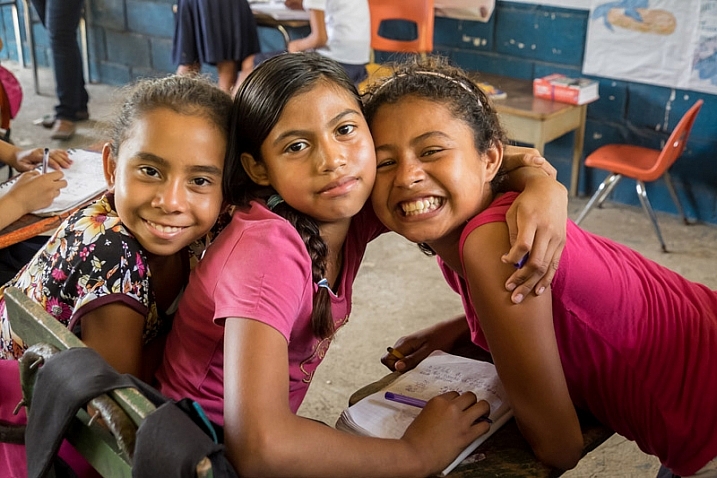
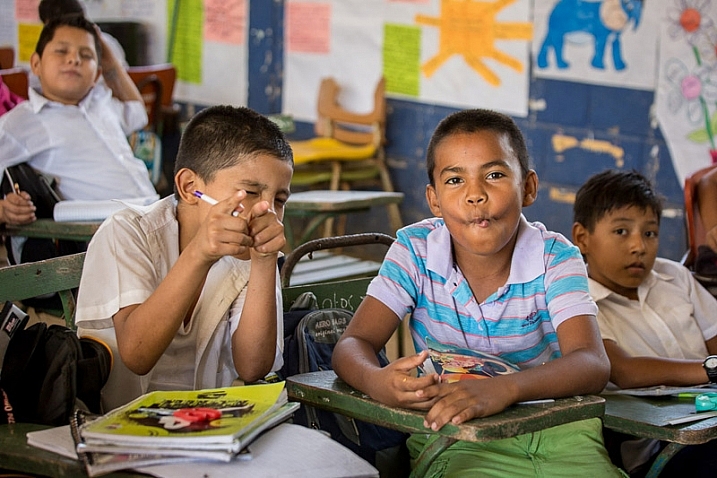
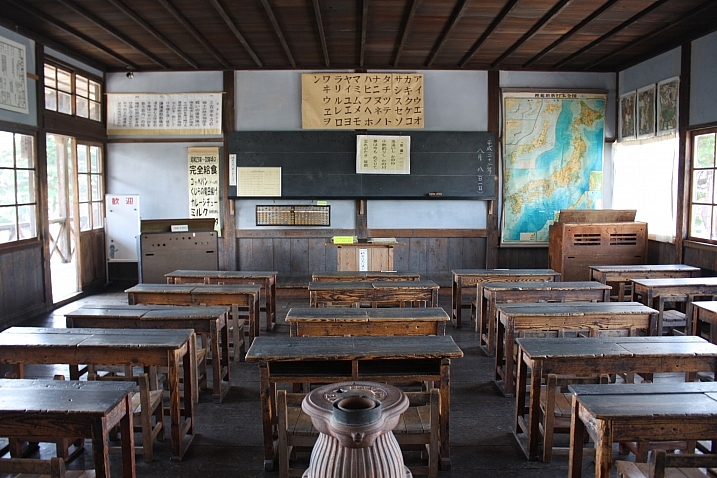
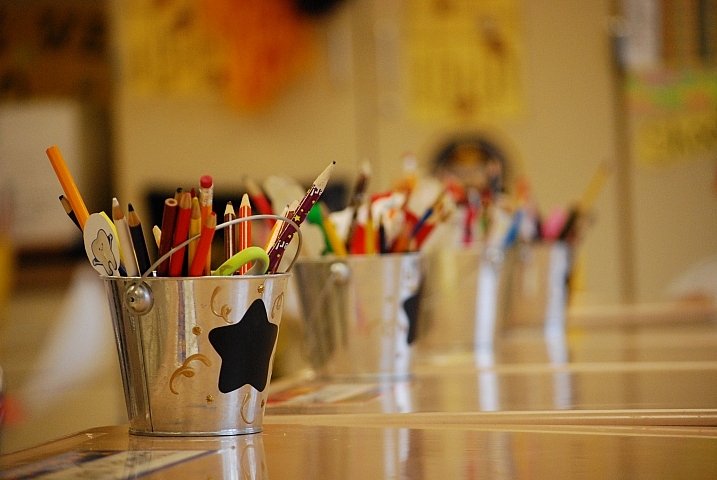
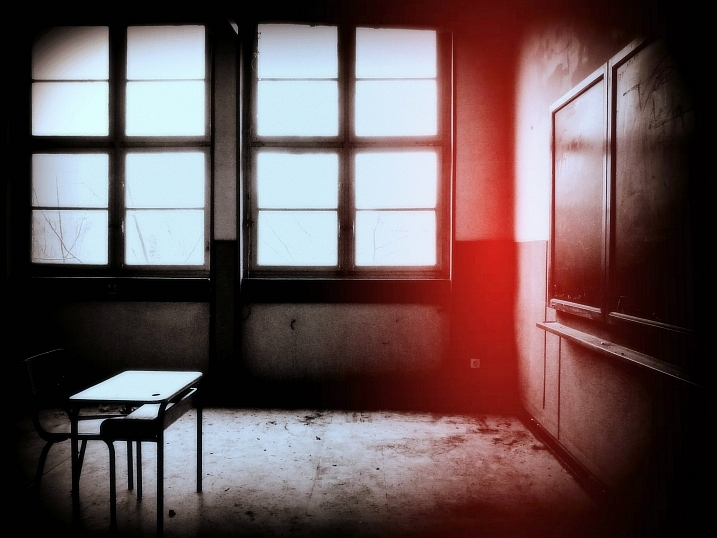
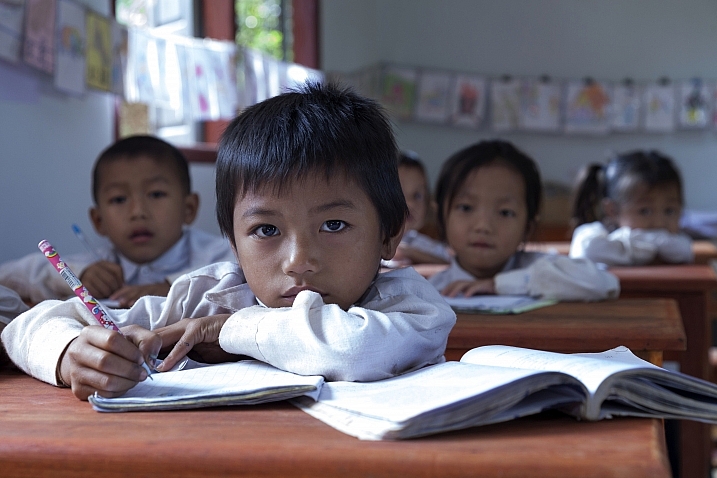
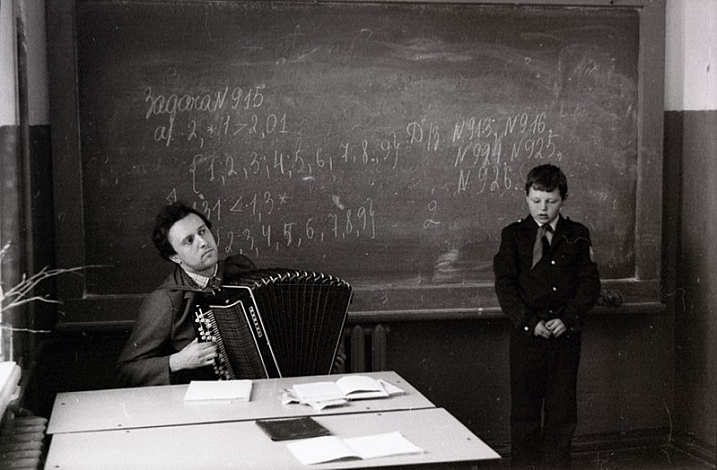
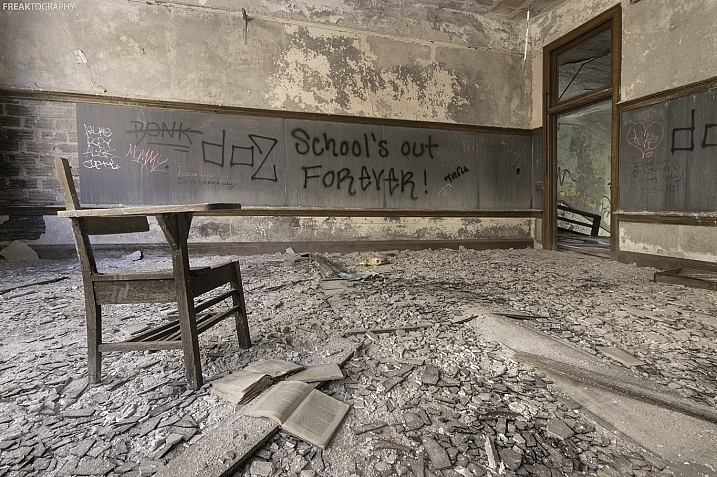
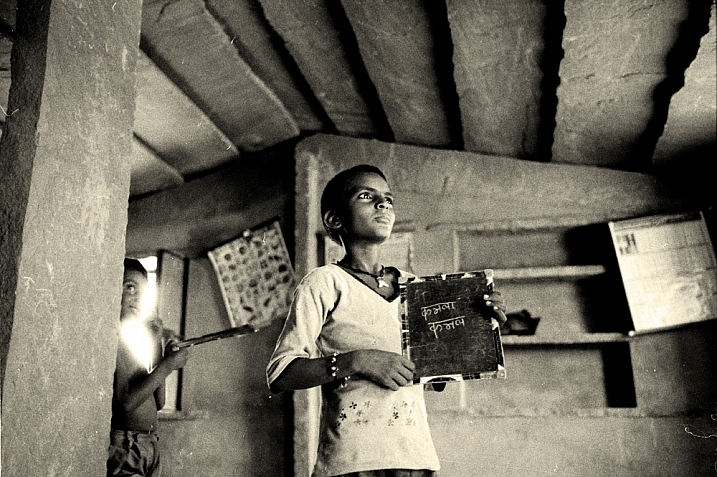
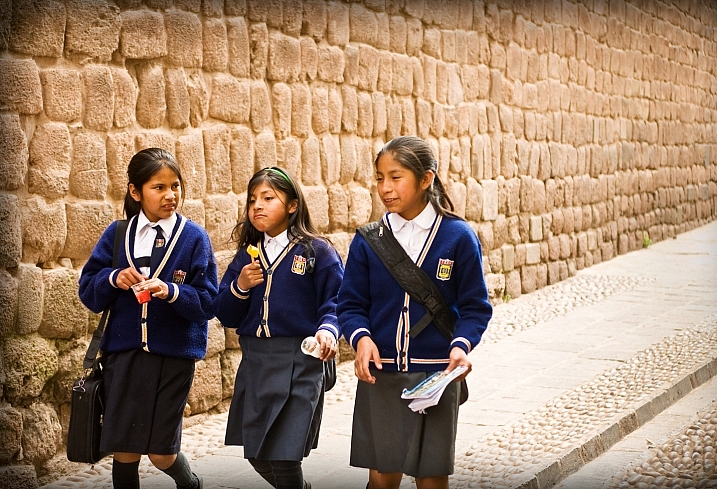
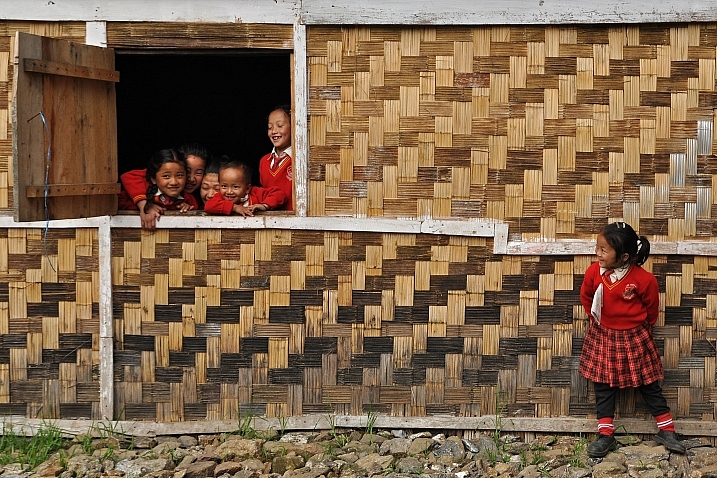
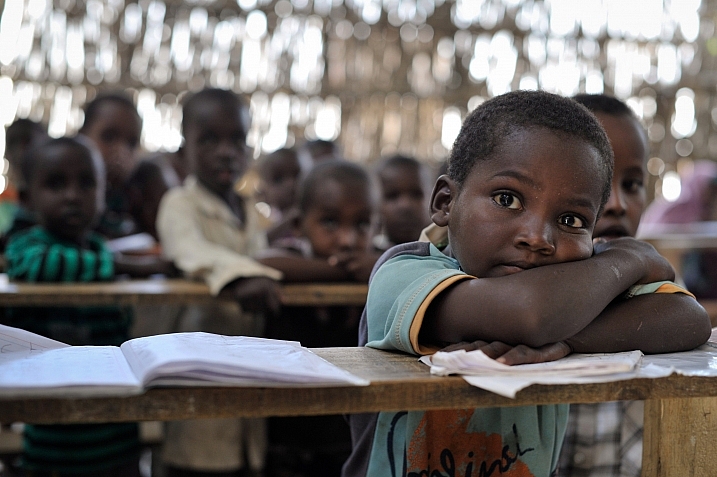
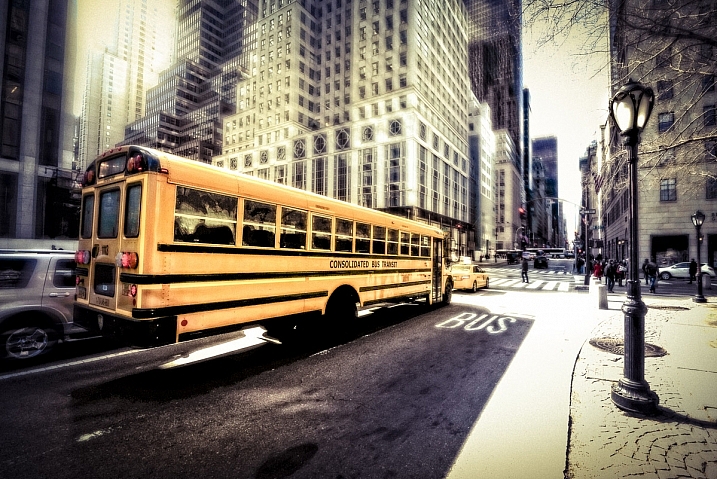
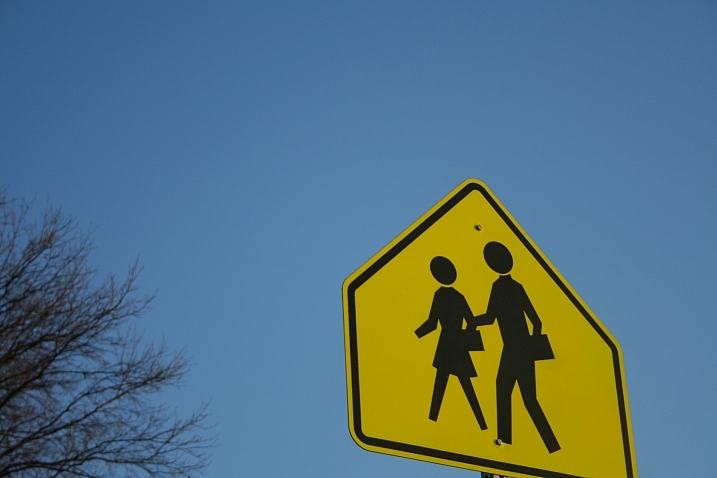
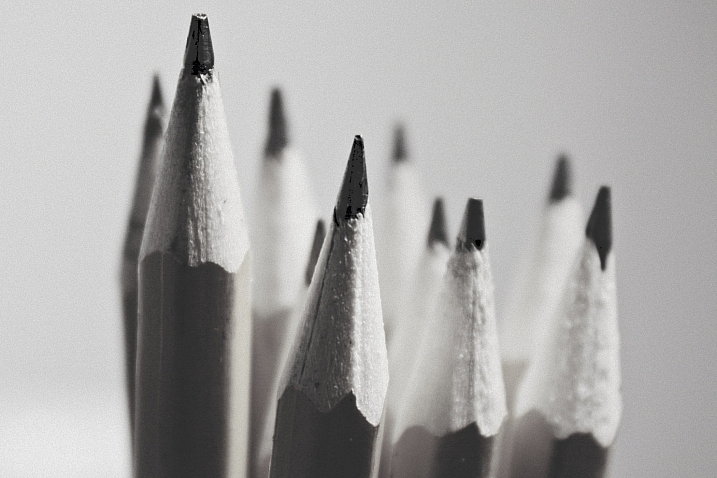
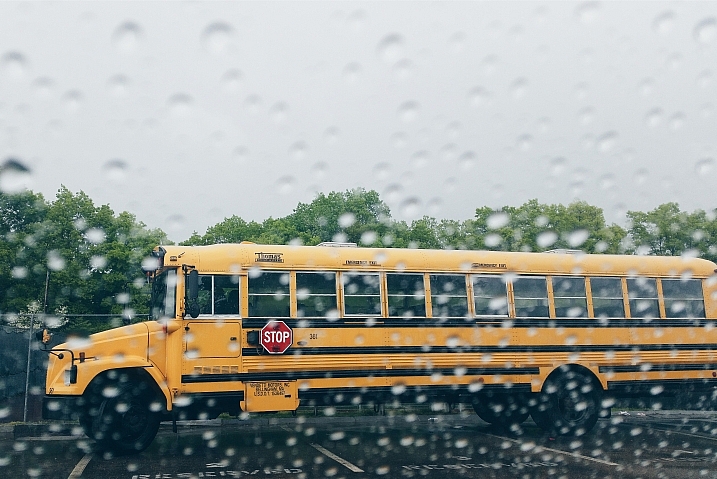
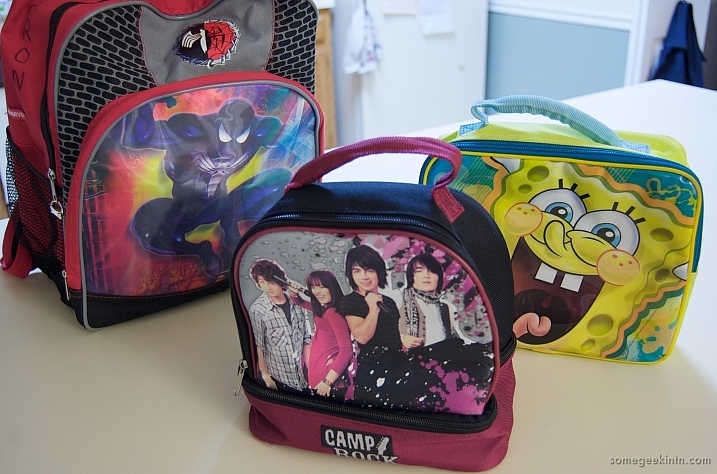
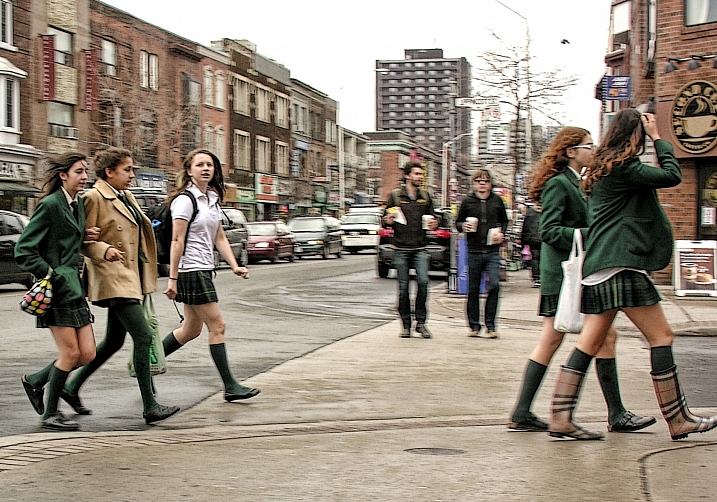
23 Academic Images of School Days

17 Oct

The kids are back in school in most places around the world. So what kinds of images represent school, students, and the education process?

Going to school means different things to each of us. Here’s what it means to these photographers (first two are my images of kids in Nicaragua):

nicaragua-nov2014-0626-2000px-800px

nicaragua-feb14-0279-1100px-800px

Omiya Tou

By Omiya Tou

Nick Amoscato

By Nick Amoscato

Nikita No Komment

By Nikita No Komment

World Bank Photo Collection

By World Bank Photo Collection

Vladimir Fedotov

By Vladimir Fedotov

Freaktography

By Freaktography

Depinniped

By depinniped

Darlene Hildebrandt

By Darlene Hildebrandt

Jesuscm

By jesuscm

United Nations  Development Programme

By United Nations Development Programme

Hansel And Regrettal

By Hansel and Regrettal

Dean Hochman

By Dean Hochman

United Nations Photo

By United Nations Photo

Mal B

By Mal B

Jacob Surland

By Jacob Surland

Jinx!

By Jinx!

Vanessa Lynn.

By Vanessa Lynn.

C.C. Chapman

By C.C. Chapman

Casey Fleser

By Casey Fleser

Eric Parker

By Eric Parker

Melissa

By Melissa

googletag.cmd.push(function() {
tablet_slots.push( googletag.defineSlot( “/1005424/_dPSv4_tab-all-article-bottom_(300×250)”, [300, 250], “pb-ad-78623” ).addService( googletag.pubads() ) ); } );

googletag.cmd.push(function() {
mobile_slots.push( googletag.defineSlot( “/1005424/_dPSv4_mob-all-article-bottom_(300×250)”, [300, 250], “pb-ad-78158” ).addService( googletag.pubads() ) ); } );

The post 23 Academic Images of School Days by Darlene Hildebrandt appeared first on Digital Photography School.


Digital Photography School

 
Comments Off on 23 Academic Images of School Days

Posted in Photography


How to Use a Limited Color Palette to Compose Strong Images

12 Oct

There are lots of ways to use color in photography. One is to look for strong, complementary colors – those on opposing sides of the color wheel – and include them in the same frame. The opposite is to use a very limited color palette.

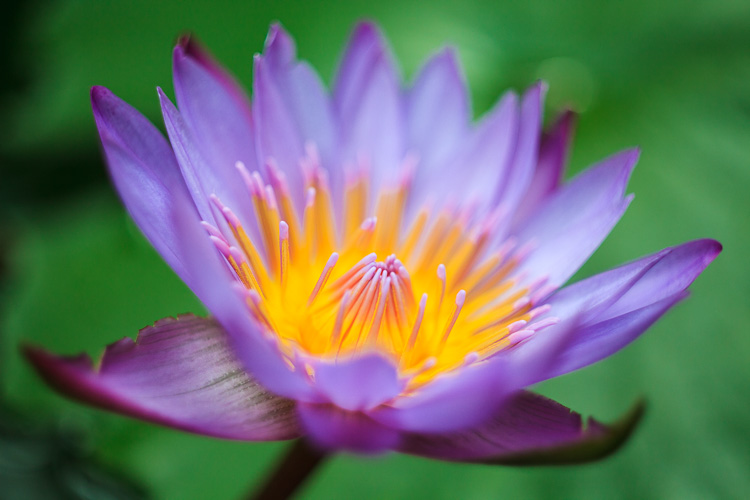
Here’s an example of the first approach. There’s a green background, purple petals, and yellow stamen. Three strong colors, working together to create an image that has good impact, because of color contrast.

Limited color palette

Limited color palette approach

But the approach is the opposite. Instead of including several strong, contrasting colors the idea is to use a much more limited color palette. You can do this with strong colors, as in this example below, where the dominant color is red.

Limited color palette

Or you can do it with much more subtle colors, as in this photo.

Limited color palette

Either way, the result is a strong image with an intelligent use of color.

Many photographers move away from using saturated, contrasting colors towards a more limited and subtle palette as their skills and vision evolve. As you look at the work of other photographers, especially professionals, you’ll find that a limited color palette is a mark of maturity and sophistication.

Color in the landscape

Landscape photography is a genre that is synonymous with saturated color. Back before digital, one of the most popular films for landscape photography was Fuji Velvia – a slide film noted for its contrasty, saturated images.

In the modern era techniques like HDR and software like Lightroom and Photoshop help us create saturated, contrasty images. Often that’s what you’ll see.

But what about exploring the subtleties of light and landscape?

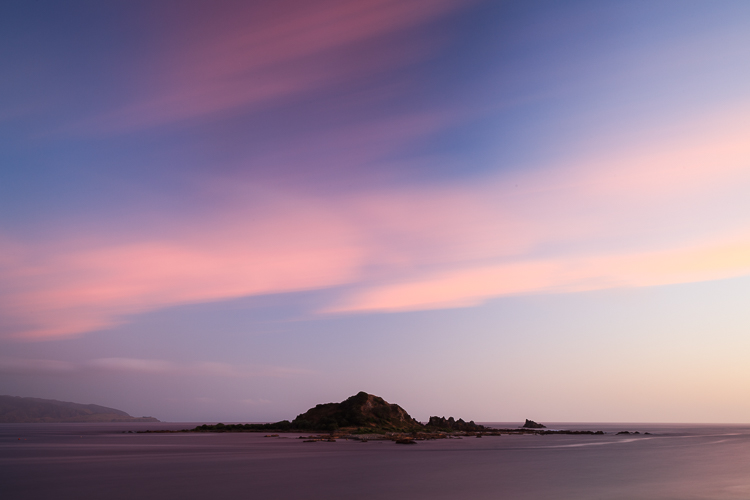
For example, instead of photographing the setting sun try waiting until after it has set. The colors are softer. If you have a clear sky the entire landscape may be bathed in a golden glow. The result is a much more subtle use of color.

Limited color palette

Another technique is to explore the possibilities offered by bad weather.

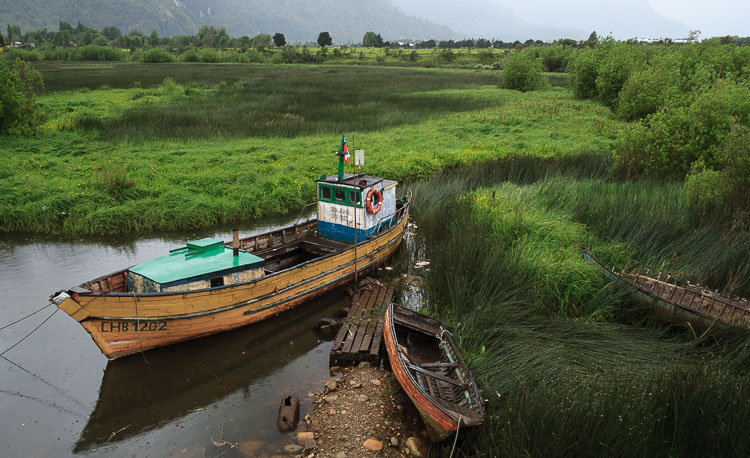
I took the photo below in a town in southern Chile called Puerto Aysen. It rains a lot there, even in summer. When I took the photo it was raining. But the soft light captures the mood of the region well. The color palette is limited and dominated by green. Subtle contrast is provided by the colors of the painted boats.

Limited color palette

Limited color palettes and portraiture

Think about the use of color carefully in portraiture. Here you have much more control than you do with the landscape, as you can ask your model to wear specific items of clothing. You also get to choose the background.

If you haven’t decided in advance what your model is going to wear, a good tip is to ask them to bring along several options. Then you can choose the most appropriate outfit.

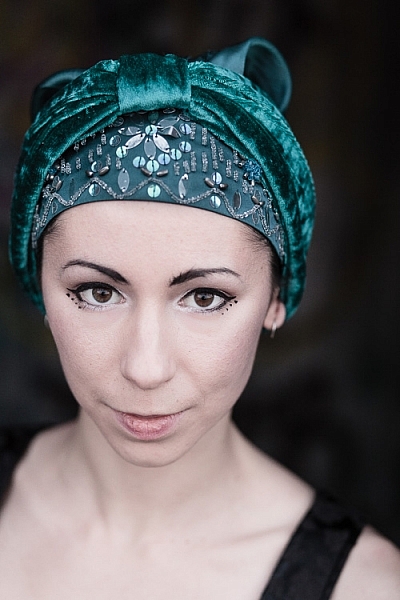
Here, I liked the model’s unusual hat. I positioned her against a neutral background so that the green hat was the strongest, most dominant color in the composition.

Limited color palette

Still life and color

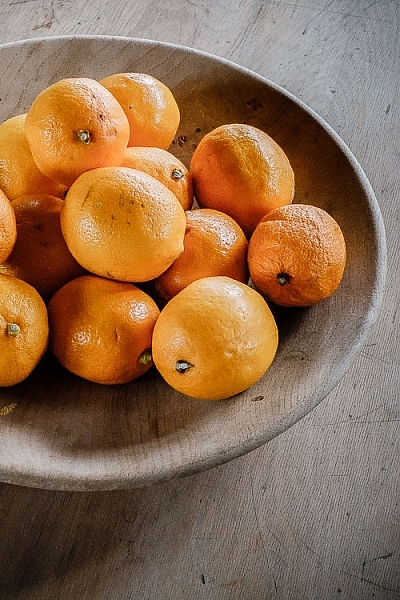
Here’s a simple still life that I took in a restaurant in New Zealand. I liked the way the wooden platter and wooden table went together. The colorful fruit contrasts nicely with the neutral tones of the wood.

The photo shows another composition technique in action, one that I touched upon in the earlier portrait section. It’s the technique of composing the photo so that a single strong color is placed against a neutral or gray background. You then have a photo with a subtle color palette consisting of gray (or neutral tones, like the wooden table) and a single, dominant color.

Limited color palette

This leads to my next point, which is an important one. One of the keys to using a limited or subtle color palette is to develop your observation skills. The photos shown so far have one thing in common – I saw the subtle colors and framed the photo in a way that uses them well.

This an important skill to develop. One thing that elevates the work of the best photographers above everybody else is composition. Observation and composition go together. The more you learn to observe the world, and see how color, texture, tonal contrast, and the other building blocks of composition work together, the better your composition will be. In turn, this helps you create stronger, more memorable photos.

Lightroom and color

Don’t forget that Lightroom gives you several tools for controlling color.

The Camera Calibration panel is very important when it comes to processing Raw files. For most cameras, you will see Profile options like Landscape, Standard, Portrait, Neutral, and Faithful (with variations depending on camera model). Selecting Landscape gives you stronger, more saturated colors. Selecting Neutral or Faithful gives you more subtle, true to life colors.

You can also use the Saturation and Vibrance sliders in the Basic panel to reduce the intensity of colors.

The photos below show the difference it makes.

Limited color palette

Limited color palette

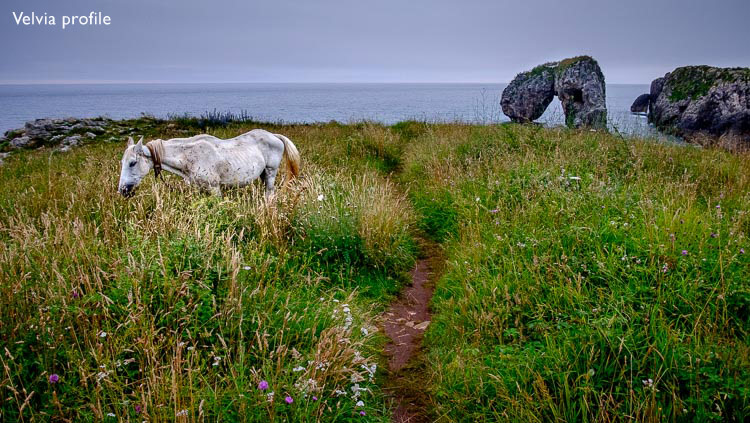
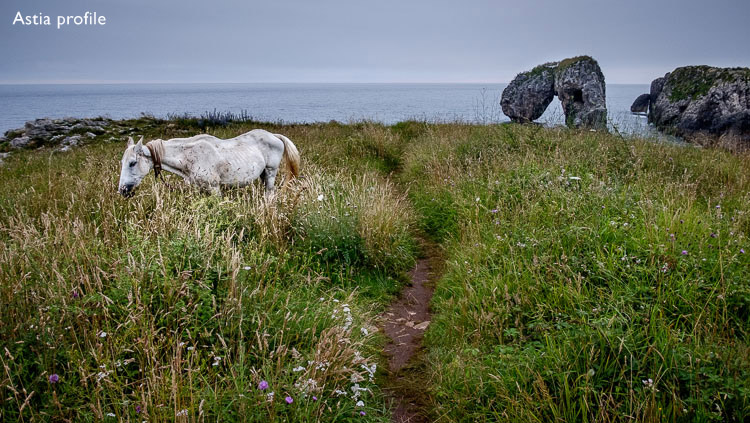
The first was processed with the Profile set to Velvia (the equivalent of the Landscape setting on my Fujifilm X-T1). The second was processed with the Profile set to Astia, which gives softer colors, and Vibrance set to -12. You can see the difference, the colors in the second version are softer and more subtle.

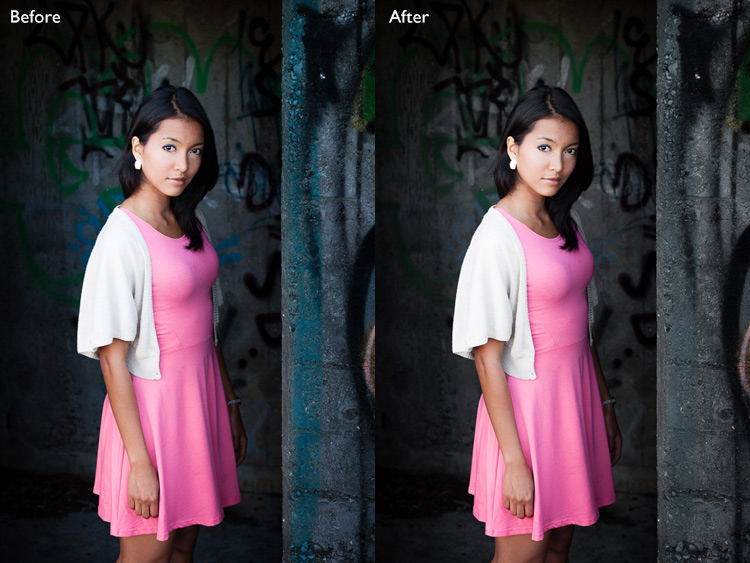
The HSL / Color / B&W panel lets you target and adjust the saturation of specific hues. In this portrait example below, I used the Targeted Adjustment Tool to lower the saturation of the background, reducing the amount of blue in the photo. The result is that the model’s pink dress becomes the strongest color in the image. Reducing the saturation of blue simplifies the color palette and makes a stronger image.

Limited color palette

Hopefully, this article will help you understand that there is more to color than getting as much of it in the photo as possible. There’s plenty of room for using a more subtle approach and limiting the number of colors included in the frame.

Do you have any ideas for ways to use a limited color palette or subtle colors in your photos? Please let us know in the comments.


Mastering Composition

If you’d like to learn more about color and composition then please check out my ebook Mastering Composition: A Photographer’s Guide to Seeing.

googletag.cmd.push(function() {
tablet_slots.push( googletag.defineSlot( “/1005424/_dPSv4_tab-all-article-bottom_(300×250)”, [300, 250], “pb-ad-78623” ).addService( googletag.pubads() ) ); } );

googletag.cmd.push(function() {
mobile_slots.push( googletag.defineSlot( “/1005424/_dPSv4_mob-all-article-bottom_(300×250)”, [300, 250], “pb-ad-78158” ).addService( googletag.pubads() ) ); } );

The post How to Use a Limited Color Palette to Compose Strong Images by Andrew S. Gibson appeared first on Digital Photography School.


Digital Photography School

 
Comments Off on How to Use a Limited Color Palette to Compose Strong Images

Posted in Photography


Winning images from Red Bull Illume 2016

08 Oct

Winning images from Red Bull Illume 2016

© Lorenz Holder / Red Bull Illume

Lorenz Holder of Germany has taken the top prize for a second year in a row in the Red Bull Illume sports and action photography awards. His photo of pro BMX rider Senad Grosic took Overall Winner as well as the Athletes’ Choice award. Read on to learn more about the winning image and see more category winners. An exhibition of the top images is underway in Chicago and will go on tour after October 9th – visit Red Bull Illume’s website for a schedule.

Winning images from Red Bull Illume 2016

© Lorenz Holder / Red Bull Illume. Overall Winner

‘Senad and I were on the way to a different location early in the morning, when we passed this scenic spot. We saw a sign from the street and I had some pictures in mind that I’d seen from this bridge on the internet. When we got there the sun was just above the trees and it was lighting up the full color-spectrum of the autumn leaves in a very soft way.

One thing that was a little annoying was that the lake was covered with leaves which had fallen from trees, so the reflection of the bridge in the lake was just not there. But sometimes you just need a bit of luck – I had been on a fishing trip some days before and still had my fishing-boots and a net in the car. So got the stuff and tried to clean the lake by hand. It took a while until it was almost perfectly clean – at least where it was relevant for the picture. Luckily the sun was still very soft, so we had good light for the shot.

I’d chosen a very low camera position to get an almost perfect mirrored scene on the water surface. The bridge looked like a perfect circle and the light was still very good. When Senad was on the bridge, it took us two or three tries to get the shot. There was also no more time for another try because the wind came up and the perfect reflection on the water was gone.

We jumped back to the car and drove towards our originally planned spot. It was an awesome feeling to have shot this picture with more or less pure luck. Without the sign next to the road, we would have passed one of the nicest photo scenes.’

Camera: Canon EOS 5D Mark III
Lens: EF 24-70mm F2.8L USM
ISO: 500
F-Stop: 8.0
Shutter Speed: 1/640

Winning images from Red Bull Illume 2016

© Daniel Vojt?ch / Red Bull Illume. Sequence by Sony Winner

‘Red Bull asked me to do some portraits and action photos of the Flying Bulls. We had an air to air photoshoot and I knew it would be great for a sequence. An airplane is the only place from where you can see something like this. I did one fast attempt. After I stitched the sequence it was great, but I could still be a little bit closer.

We had another photoshoot on another day so we tried it again but I was much closer to the planes in front. It was cloudy so the final image looks very dramatic. The pilot also turned on the smoke so you can see the trail behind.

The camera I used for this photo was Nikon D5 and Nikkor 16/2.8 fisheye because there was almost no space and I wanted to show inside the part of the airplane I was sitting to show the pilot’s POV.’

Camera: Nikon D5
Lens: 16mm F2.8 AF Fisheye
ISO: 640
F-Stop: 5.6
Shutter Speed: 1/250

Winning images from Red Bull Illume 2016

© Jody MacDonald / Red Bull Illume. Lifestyle Winner

‘When I was young I used to look through National Geographic magazines and dream of adventures like this; train hopping through the Sahara on one of the world’s longest trains. I had dreamt of the oceans of sand, the loud noises of the train, the cold, the wind, the scorching sun, the unknown smells and sounds of the desert and the discomfort that goes with it. So when I was asked to dream up and photograph a trip in harsh conditions, a 700 kilometer journey through the Sahara desert in Mauritania came to mind.

After weeks of planning, our journey began in the capital of Nouakchott, from there my brother and I moved north through the interior to board the Mauritania Railway. Our risky rail journey started from the iron-mining center of Zouérat in the Sahara, and snaked through the barren desert toward the port of Nouadhibou on the Atlantic. We wanted to get to the coast to try to find some unexplored surf breaks and capture the spirit of adventure and exploration through this incredible landscape. Having only a few minutes to hop on the train in the middle of the night, we spent 15 long hours slithering through the desert on the three kilometer train that transports approximately 84 tons of iron ore across a country crippled by terrorism, slavery, and poverty.

I photographed this image with Leica’s new X-U all weather camera with a fixed 23mm lens. I used a shutter speed of 1/500 to stop the motion of the train and an f-stop of 7.1 at ISO 100.’

Camera: Leica X-U (Typ 113)
Lens: 23.0mm F1.7
ISO: 100
F-Stop: 7.1
Shutter Speed: 1/500

Winning images from Red Bull Illume 2016

© Dean Treml / Red Bull Illume. Spirit Winner

‘In this image Josh Neilson of New Zealand is supported by fellow paddlers (L-R) Barnaby Prees, Sam Sutton, Tim Pickering, Ben Brown, Jamie Sutton and Jared Seiler as he waits for a helicopter evacuation after a bad landing off Matze’s Drop, Storulfossen, Norway on July 7th 2014. It left him with a broken L1 vertebrae.

I traveled to kayaking mecca Norway for a few days to shoot and hang with my Kiwi mate Ben Brown, one of the world’s most prodigious adventure kayakers. As fate would have it he dislocated his shoulder the day I arrived, but luckily he was traveling with some brilliant paddlers so I still had subjects to shoot.

On the last day we found ourselves at this spectacular waterfall, where five others made the run, then Josh went off. After a good entry the nose of his kayak was thrust up and he flat landed at the bottom, the impact breaking his back. His colleagues were immediately on hand to assist and stabilize Josh, and Ben, who had previously suffered a similar injury, was able to reassure Josh while a helicopter was summoned. Josh was flown to Lillehammer hospital and then on to Elverum for successful surgery. With determined rehabilitation in New Zealand, Neilson was back in a kayak one year later and subsequently traveled back to Norway to paddle their rivers again.’

Camera: Canon EOS 5D Mark III
Lens: EF 24mm F1.4L II USM
ISO: 400
F-Stop: 2.0
Shutter Speed: 1/2500

Winning images from Red Bull Illume 2016

© Vegard Aasen / Red Bull Illume. Mobile Winner

‘This winter some friends and I went to Hakuba in Japan to ski some deep powder and big mountains. The day this shot was taken was a really windy one but the snow was still really good, so we went out into the backcountry. One of my friends brought his DSLR camera, so I decided to not bring my camera because I wanted to ski instead of taking photos.

We hiked for a while, and discovered a group hiking across the ridge above us. The wind and the clouds looked amazing, so my friend took out his camera and started shooting. I hated myself for not bringing my camera. Luckily I had my mobile phone in my pocket. I could not see anything on the screen, but obviously managed to aim pretty well.

A week later, I scrolled through my phone, while waiting for sushi at a restaurant. I had completely forgotten about the shot, so I was pretty stoked when I found it. I edited it to black and white in Photoshop Express on my phone, and was really happy with the result.’

Camera: HUAWEI P8
ISO: 64
F-Stop: 2.0
Shutter Speed: 1/3200

Winning images from Red Bull Illume 2016

© Dean Treml / Red Bull Illume. Enhance Winner

‘Jonathan Paredes of Mexico dives from the 28 meter platform on the roof of the Copenhagen Opera House during the first practice session of the second stop of the Red Bull Cliff Diving World Series, Copenhagen, Denmark on June 20th 2013.

I remember while I was originally scoping out the location for this event thinking how surreal images could look without the diving platform jutting out, and just the small form of the diver, and the huge cantilevered roof dominating the frame, and even discussed it at the time with my wife (the photographer Romina Amato) who was also there.

As I am editorially focused the integrity of the image is paramount so the platform stayed, but while reading the categories of Red Bull Illume this image jumped into my mind and I figured a quick ‘fix’ to one of my shots couldn’t hurt, so this version of the image really came about thanks to the ‘Enhance’ category. ‘

Camera: Canon EOS 5D Mark III
Lens: EF 70-300mm F4-5.6L IS USM
ISO: 400
F-Stop: 5.6
Shutter Speed: 1/4000

Winning images from Red Bull Illume 2016

© Micky Wiswedel / Red Bull Illume. Wings Winner

‘My buddy Jimbo had been opening new hard routes in the area and we wanted to try and capture some of the climbs. With climbing photography it’s not often you can just walk somewhere to get a good angle – most good shots require some form of rigging. The angle of this image happened by chance. We were setting up for another shot but when I looked back I knew we had to change plans and grab the shot with the sea and horizon in the background, framed by this huge rock roof.

Lighting is also difficult, as climbers prefer to climb in the shade as cooler temperatures provide more friction between skin and rock. This often means overexposed backgrounds and underexposed foregrounds. The best I could do in this situation was to shoot somewhere in the middle.

The route is one of the hardest on Table Mountain. The last ‘crux’ section is near the top – you have a few pieces of protection below but there’s a final jump, or ‘dyno’ for the last hold. The image captures what happens if you don’t manage to stick that hold!

There was always a chance that Jimbo would fall, so I was ready for it. For the couple of seconds leading up to the big move I was holding my breath and ready to fire. I could definitely feel the adrenaline pumping! It’s a pretty big and impressive fall, but luckily far from the ground – that doesn’t make it any less terrifying.

We had planned to grab some cool climbing shots, but in the end this image of Jimbo mid-air was the shot we felt captured the intensity of the climb. Jimbo did send the route that day – after a few more falls.’

Camera: Canon EOS 5D Mark III
Lens: EF 16-35mm F2.8L USM
ISO: 400
F-Stop: 3.5
Shutter Speed: 1/1600

Winning images from Red Bull Illume 2016

© Ale Di Lullo / Red Bull Illume. New Creativity Winner

‘I’d been working on shots through transparent surfaces for a few years but it was during a long drive across Europe that I had this idea. I was forcing myself to think of new angles and nothing really came to mind. But when I said to myself that the best ideas are the simplest ones, that usually you have the answer in front of you, I realized the shot was actually in front of me. It was right there, where most people spend a lot of time everyday – cars!

Nobody had done an extreme sport shot from inside the car having the rider riding on the windshield. I understood that a shot like this had to be made in an iconic spot and the spot had to be in a city so it was clear that New York City with all its bridges was the place. And what could have been better than a NYC cab to shoot from?

Choosing Aaron Chase as the rider was natural. He has been a friend for a long time and happened to be a pioneer of street riding in our sport and is almost a local in New York. It took us one year of preparation, one full day of work, involved a few people and a bit of money. But I kept shooting, all the while fearing I would break the windscreen, and 12 attempts later I nailed this shot.’

Camera: Canon EOS-1D X
Lens: EF 8-15mm F4L Fisheye USM
ISO: 640
F-Stop: 5.6
Shutter Speed: 1/1600

Winning images from Red Bull Illume 2016

© Lorenz Holder / Red Bull Illume. Playground Winner

‘I shot this unique location a couple months before this action shoot as a landscape picture because I just liked the whole structure and the way it was integrated into the landscape. It’s a viewing platform made of steel that has rusted over the years. You can walk up the stairs to enjoy the view over the lakes that surround the area.

I knew somehow, that there was the potential for it to be a location for an action photo. My first idea was to shoot snowboarding in it, but that was just impossible because of the limited space. I almost gave up on the idea, but then I bumped into Senad Grosic in Berlin one day and we talked a bit about spots and stuff. I showed him the landscape picture and he told me that we need to go back there to see what’s possible.

So Senad and I took a road trip and drove all the way to Senftenberg. We discussed and fine-tuned a plan that would look rad on photo. Senad had the idea to be dressed all white to give it more contrast, because I didn’t want to use flashes to keep the structure as evenly lit as possible. The angle is almost the same angle I chose for the landscape picture. It’s actually an architectural picture with the spice of action sports in it.’

Camera: Canon EOS 5D Mark III
Lens: EF 24-70mm F2.8L USM
ISO: 500
F-Stop: 6.3
Shutter Speed: 1/400

Articles: Digital Photography Review (dpreview.com)
 
Comments Off on Winning images from Red Bull Illume 2016

Posted in Uncategorized


24 Images That Show Details of Every Day Life

08 Oct

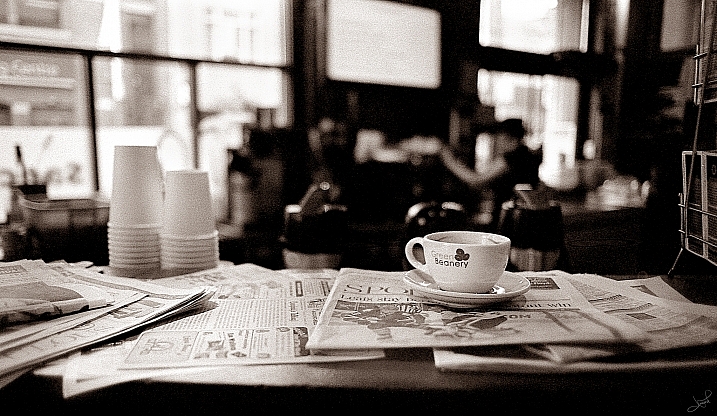
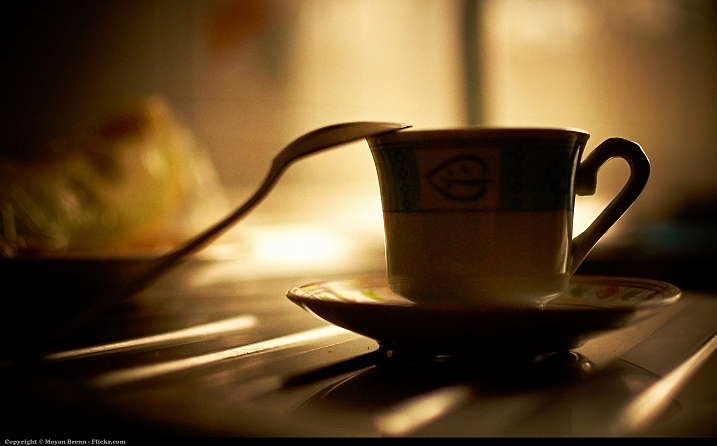
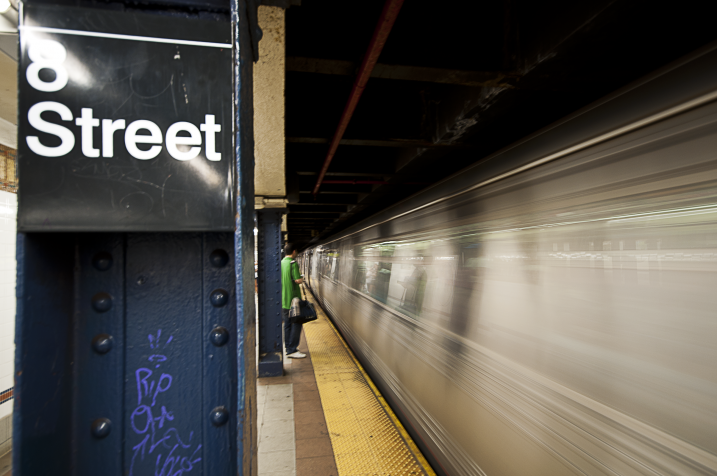
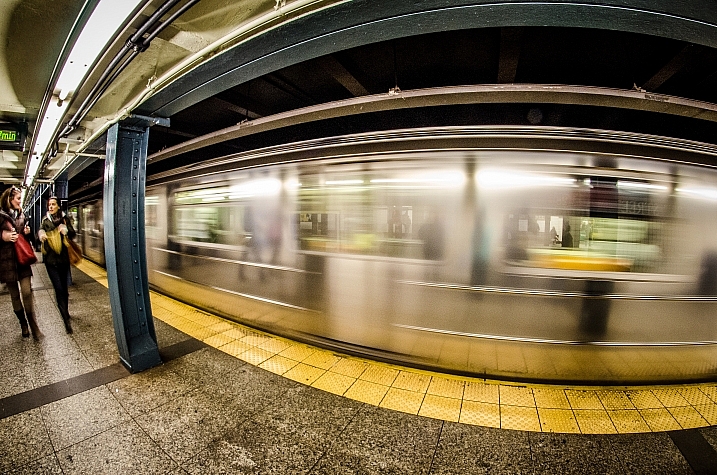
Every day we do a lot of the same things again and again. Yet we overlook things right in front of our faces.

Here is a set of images that show things from our every day lives in a new light. What do you pass every day that you don’t really see?

Henrique Simplicio

By Henrique Simplicio

Freaktography

By Freaktography

Faungg's Photos

By faungg’s photos

Flood G.

By Flood G.

Lee Thatcher

By Lee Thatcher

Nicolas Alejandro

By Nicolas Alejandro

Tsaiproject

By tsaiproject

Patrick

By Patrick

Moyan Brenn

By Moyan Brenn

Tonzn

By tonzn

Greenzowie

By greenzowie

Jose Sepulveda

By Jose sepulveda

M01229

By m01229

Chris Chabot

By Chris Chabot

John Watson

By John Watson

Markus Spiske

By Markus Spiske

Victor

By Victor

Dave Fayram

By Dave Fayram

Emanuele

By Emanuele

Mikepmiller

By mikepmiller

Chris Campbell

By Chris Campbell

Jpellgen

By jpellgen

Janine

By Janine

Staceyjoy

By staceyjoy

googletag.cmd.push(function() {
tablet_slots.push( googletag.defineSlot( “/1005424/_dPSv4_tab-all-article-bottom_(300×250)”, [300, 250], “pb-ad-78623” ).addService( googletag.pubads() ) ); } );

googletag.cmd.push(function() {
mobile_slots.push( googletag.defineSlot( “/1005424/_dPSv4_mob-all-article-bottom_(300×250)”, [300, 250], “pb-ad-78158” ).addService( googletag.pubads() ) ); } );

The post 24 Images That Show Details of Every Day Life by Darlene Hildebrandt appeared first on Digital Photography School.


Digital Photography School

 
Comments Off on 24 Images That Show Details of Every Day Life

Posted in Photography


2 Simple Methods for Adding Color to Your Images Using Photoshop

04 Oct

Most of us have experienced photographing an incredible sunrise or sunset only to get home and realize that the colors in your images are not nearly as good as the colors you witnessed with your own eyes. There can be many reasons to this, such as camera limitations or mistakes you made in the field. However, that’s not what you will learn about in this article. Correcting the colors, or adding color, isn’t something you need to spend hours working on. In fact, it can be done in just a few minutes using Adobe Photoshop and you don’t need to be a Photoshop expert to do it.

Enhance or adding color in Photoshop

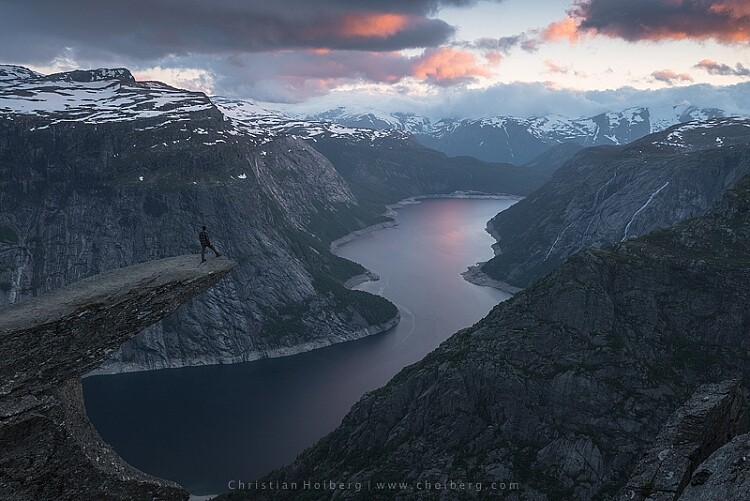
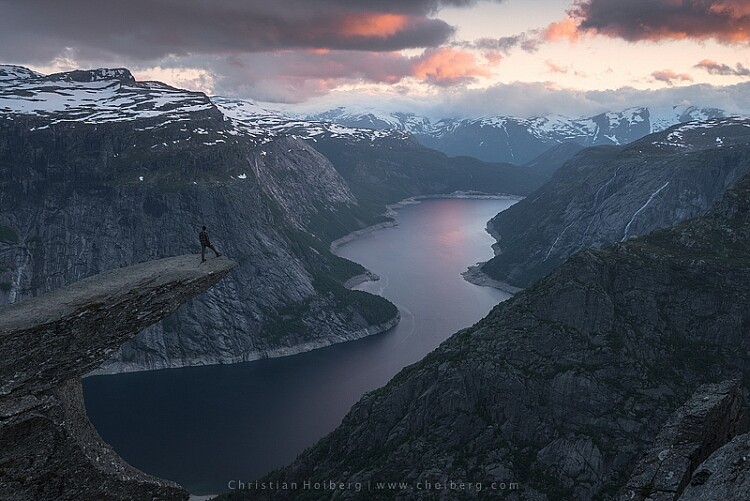
Trolltunga, Norway – We will be adding color to this sky

As we all know there are many ways to get to Rome, there  isn’t only one method of adding colors in Photoshop either. It can, as I mentioned above, be done fairly easy but the more detailed adjustments you wish to make, the harder it will become. In this article, we will be looking at two easy methods to add color in Photoshop.

#1 Adding Color with a Photo Filter

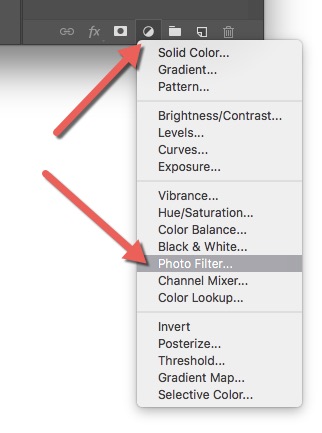
The first method we will look at involves the Photoshop tool called Photo Filter. This is an Adjustment Tool which you can find by clicking the Adjustment Tool icon (the half-filled circle located below the layers palette, see screenshot below). This creates a new layer named Photo Filter 1, which we will be working on.

photo-filter-ps adding color in Photoshop

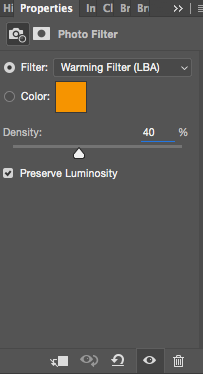
Photofilter adding color in PhotoshopA warming filter is the default setting so, as you might see, the image now has an orange color cast. Personally, I prefer using Warming Filter (LBA) as I find this to have the most natural color that suits my images best (see screenshot on the right). Select this filter by clicking on the Filter dropdown menu. Alternatively, you can select a color manually that might suit your specific image better. If you find the adjustment to be a little too weak you can strengthen its appearance by increasing the Density. I rarely go above 40% Density as the colors then quickly become washed out and results in a look I don’t want.
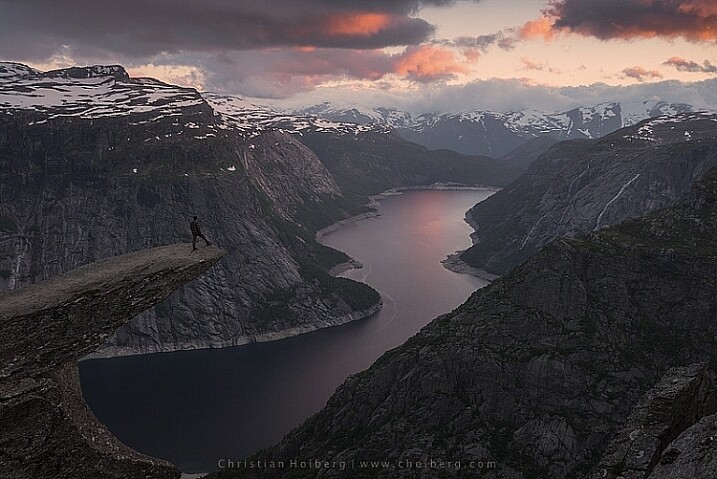
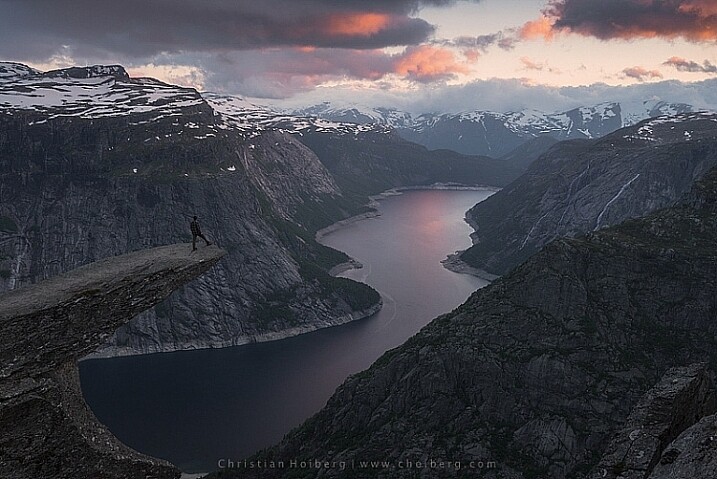
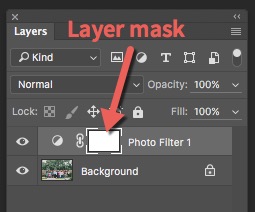
Photo filter applied to the whole image - adding color in Photoshop

Photo Filter applied to the whole image at 40% 

Photo filter - adding color in Photoshop

Photo Filter applied to the whole image at the default 25%

By using this filter we have brought back some of the color in the sky. There’s not a huge difference but we’ve managed to keep a natural look in the image while the sky still looks good. However, there’s one problem. We don’t necessarily want to add the extra color to the landscape itself, we only wanted the sky to be affected.

layer-mask-ps - adding color in PhotoshopLeft of the Photo Filter text there’s a white box. This is the layer mask, basically telling Photoshop what area of the image should be affected by that particular layer. White means that it’s visible and black means that it’s concealed. By default the entire mask is white. To remove the adjustment from the landscape itself follow these steps:
  1. Select the Layer Mask by clicking on it (it will show square brackets around the mask when it is selected, see screenshot on the right))
  2. Select a black brush and set Hardness to 0%
  3. Reduce the opacity of the brush to 80%
  4. With the Layer Mask still selected, carefully paint on the areas you do not want affected by the filter. You’ll see the adjustment disappear from those places as you paint.
adding some subtle color to the sky

The Photo Filter layer masked to only affect the sky.

This is the easiest way to manually choose where the adjustment will be visible. Unfortunately, it’s also the least accurate. You might see some haloing along the edges or perhaps the color bleeds onto the horizon at certain places. By zooming in on the image and using a smaller brush you’ll be able to reduce the amount of haloing or bleed. Other methods, such as Luminosity Masking, are more accurate but also demand a better understanding of Adobe Photoshop.

#2 Add contrast with Curves Adjustment Layer

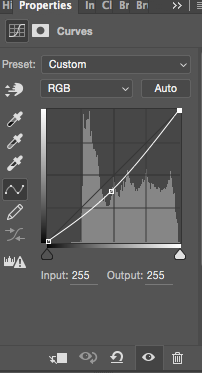
Curves adjustment layerAnother easy method to add colors is by using the Curves Adjustment Layer. Unlike Photo Filter, we will be using Curves to add contrast in the sky. Follow these steps to do a Curves adjustment:
Open a Curves Adjustment Layer by clicking on the Adjustment Layer icon again, and selecting Curves this time.

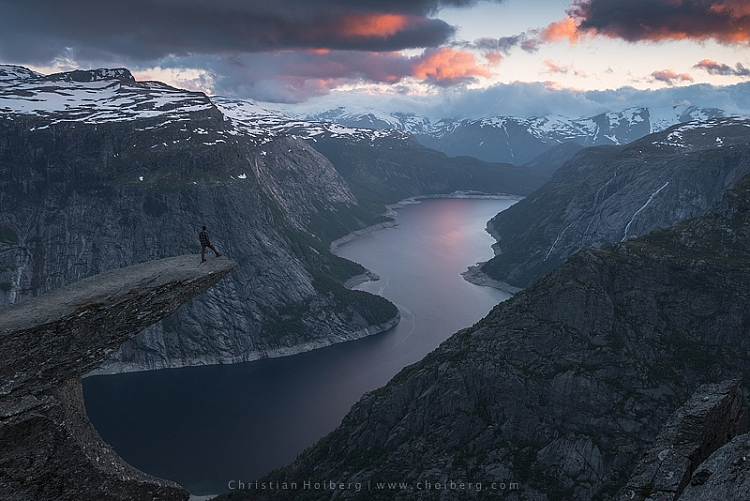
You want to add some contrast and increase the colors slightly by darkening the sky. Do this by clicking in the middle of the line in your Curves layer and pulling it down gently. Make sure that you don’t go too far as that will lead to unwanted grain or color distortions.

That’s it. To remove the adjustment from the landscape create another Layer Mask and follow the same steps as with the previous method above.

adding color in Photoshop

As you might have noticed these are two subtle adjustments. You won’t get a surreal sky by following these methods. Instead, you’ll maintain a natural look and still bring out some of the color you wanted to capture.

googletag.cmd.push(function() {
tablet_slots.push( googletag.defineSlot( “/1005424/_dPSv4_tab-all-article-bottom_(300×250)”, [300, 250], “pb-ad-78623” ).addService( googletag.pubads() ) ); } );

googletag.cmd.push(function() {
mobile_slots.push( googletag.defineSlot( “/1005424/_dPSv4_mob-all-article-bottom_(300×250)”, [300, 250], “pb-ad-78158” ).addService( googletag.pubads() ) ); } );

The post 2 Simple Methods for Adding Color to Your Images Using Photoshop by Christian Hoiberg appeared first on Digital Photography School.


Digital Photography School

 
Comments Off on 2 Simple Methods for Adding Color to Your Images Using Photoshop

Posted in Photography


18 Tranquil Images of Blue to Cool Your Thoughts

30 Sep

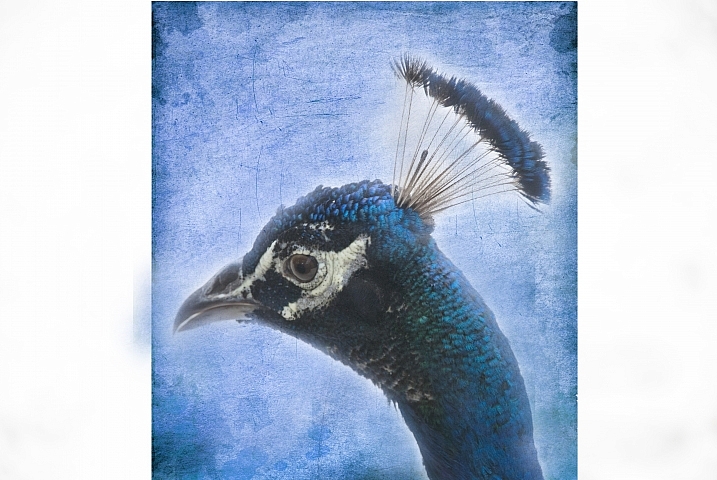
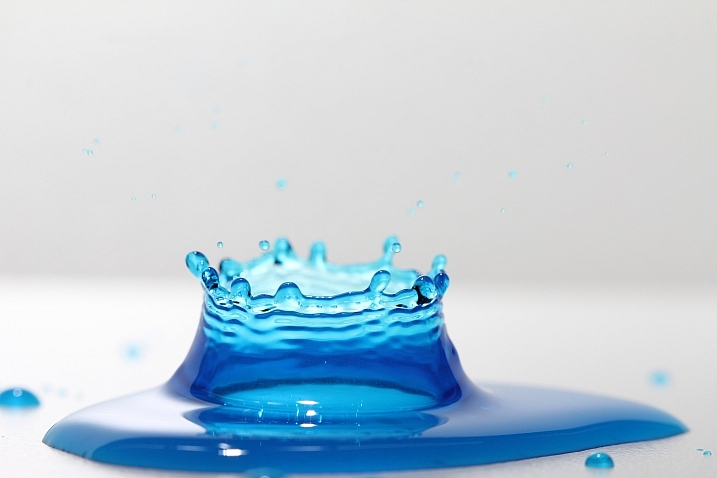
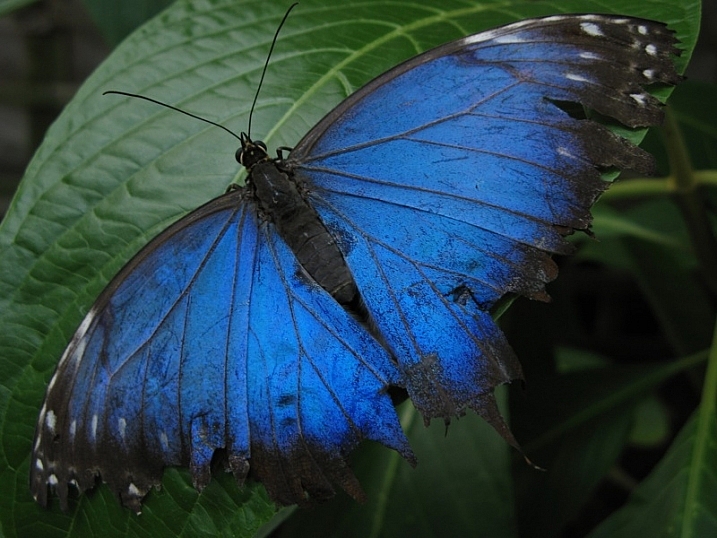
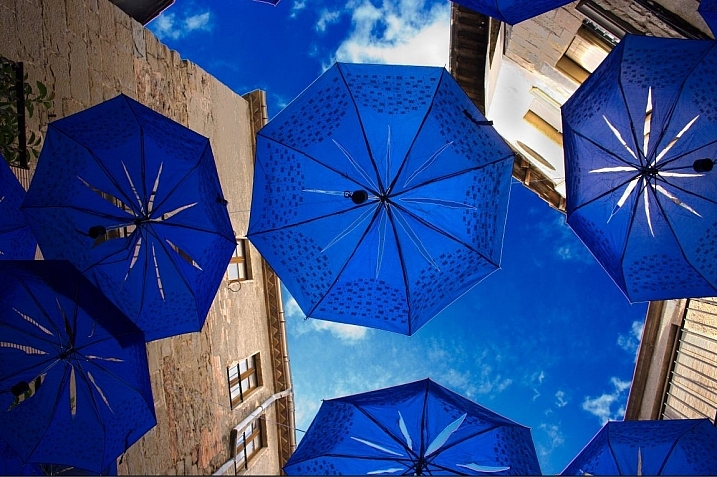
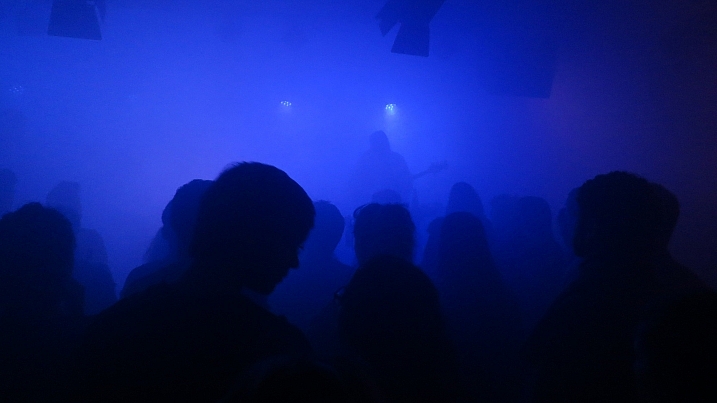
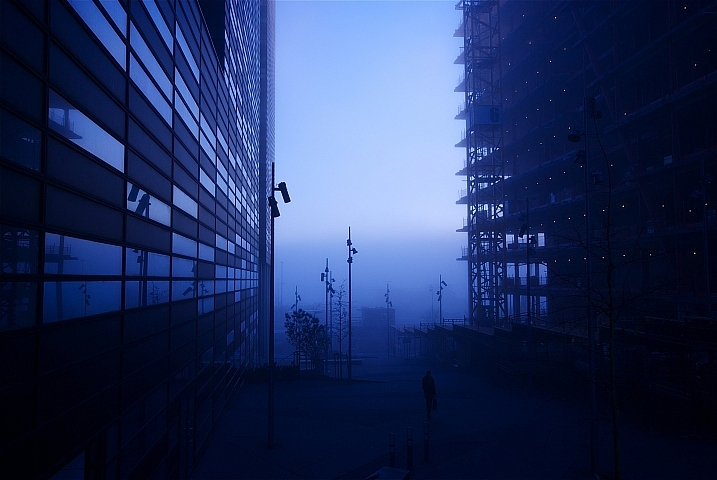
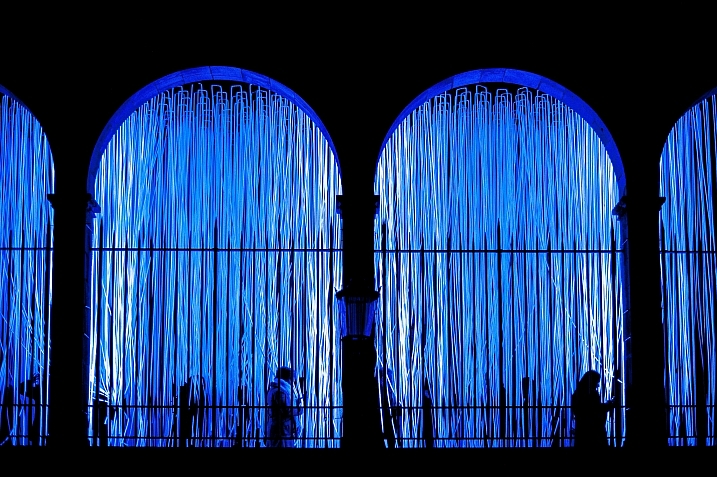
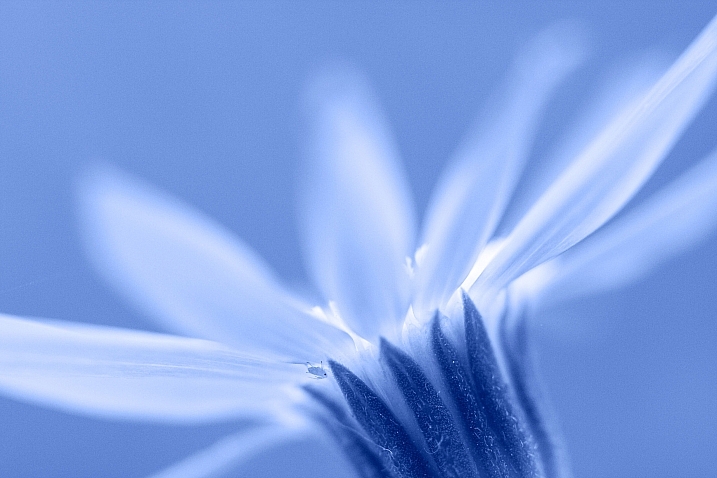
Different colors evoke different emotions and have a different feeling to them. Warm colors like red, orange and yellow feel alive and vibrant. Cool colors like purple, green and blue feel calming and relaxing.

Here is an image collection of various different photographers use of the color blue. View each and see how they make you feel. Do these blue images have a calming effect on you? I feel more relaxed just looking them.

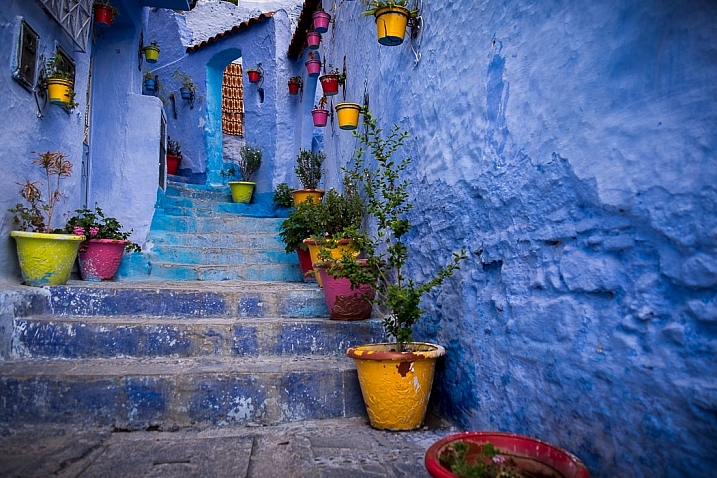
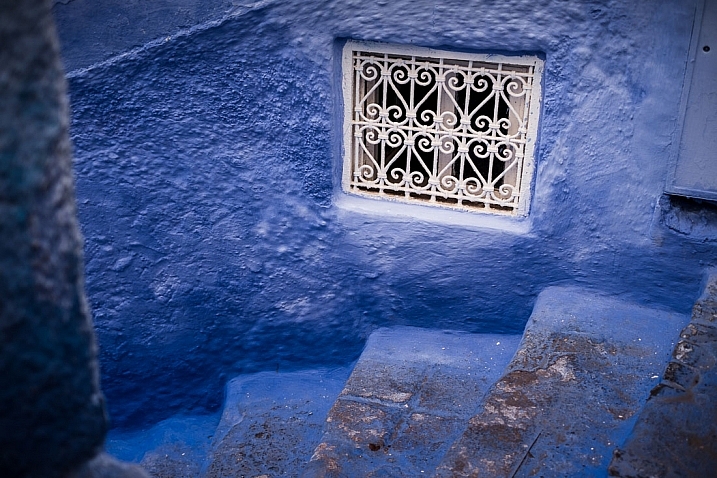
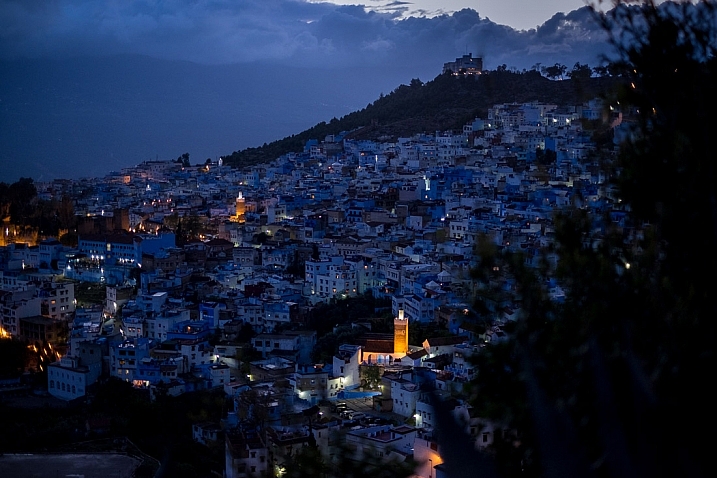
I’ll start off with three of my images from the “blue” city of Chefchaouen in Morocco.

morocco-2016-0610-1100px

morocco-2016-0649-1100px

morocco-2016-0678-1100px

Andy

By Andy

Nick Klein

By Nick Klein

Matt Bradley

By Matt Bradley

Xavier

By Xavier

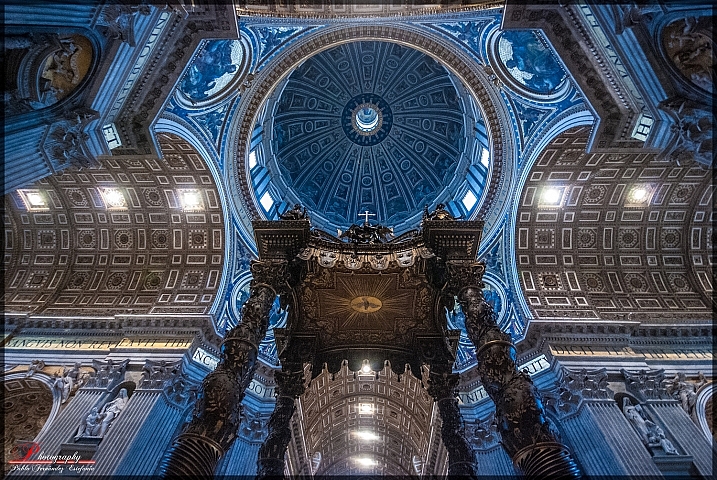
Pablo Fernández

By Pablo Fernández

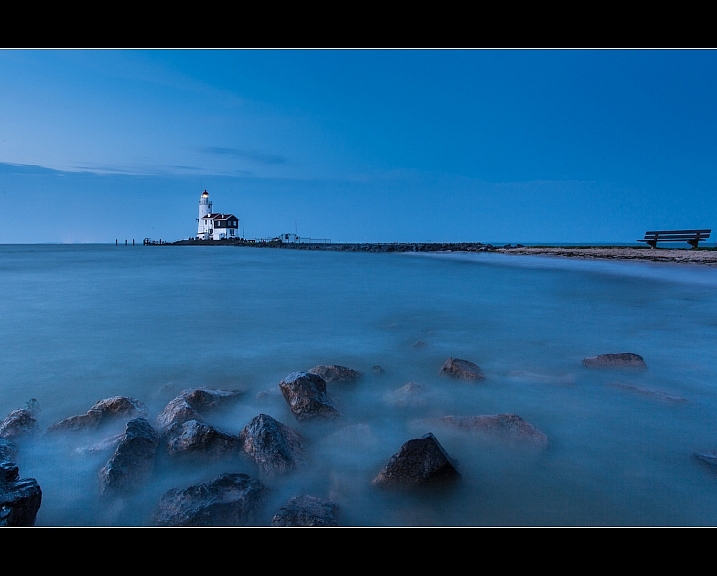
Maarten Takens

By Maarten Takens

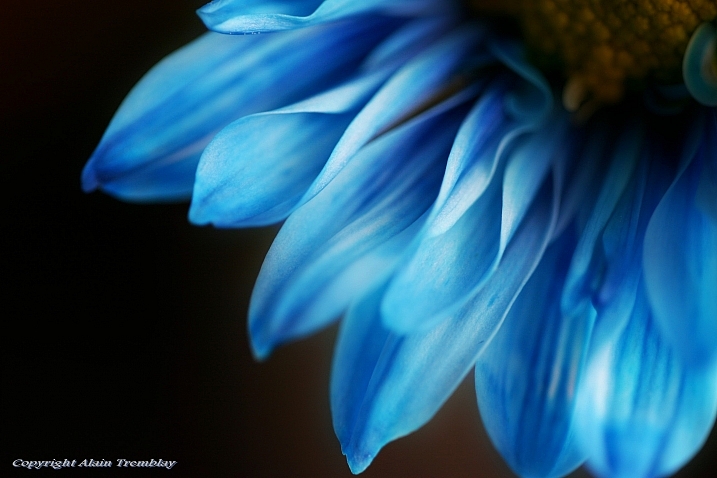
Alain Tremblay

By alain tremblay

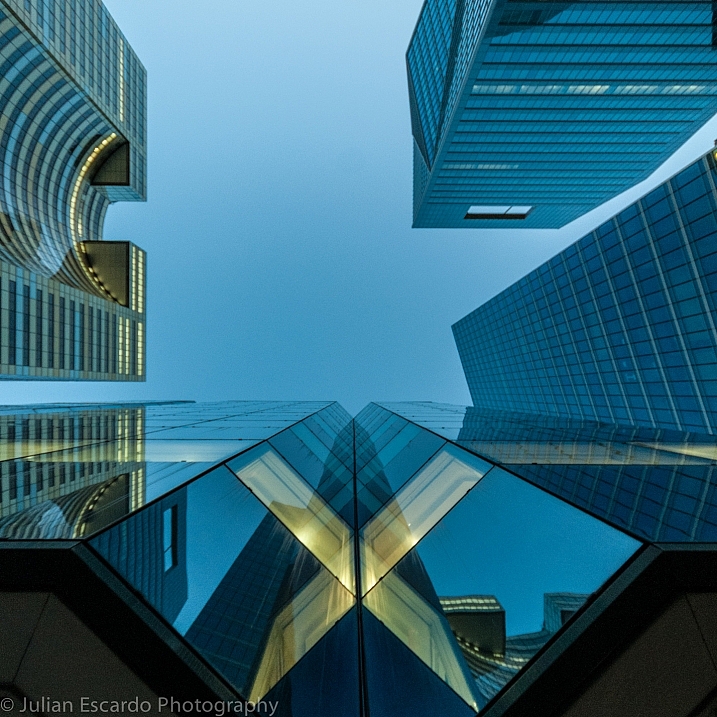
Julian E...

By Julian E…

Martin Fisch

By Martin Fisch

Geir Tønnessen

By geir tønnessen

Modes Rodríguez

By Modes Rodríguez

Mirai Takahashi

By Mirai Takahashi

Genji Arakaki

By Genji Arakaki

Hansel And Regrettal

By Hansel and Regrettal

Davide D'Amico

By Davide D’Amico

googletag.cmd.push(function() {
tablet_slots.push( googletag.defineSlot( “/1005424/_dPSv4_tab-all-article-bottom_(300×250)”, [300, 250], “pb-ad-78623” ).addService( googletag.pubads() ) ); } );

googletag.cmd.push(function() {
mobile_slots.push( googletag.defineSlot( “/1005424/_dPSv4_mob-all-article-bottom_(300×250)”, [300, 250], “pb-ad-78158” ).addService( googletag.pubads() ) ); } );

The post 18 Tranquil Images of Blue to Cool Your Thoughts by Darlene Hildebrandt appeared first on Digital Photography School.


Digital Photography School

 
Comments Off on 18 Tranquil Images of Blue to Cool Your Thoughts

Posted in Photography