RSS
 

Posts Tagged ‘Images’

RNI’s Colibri app gives your digital images a slide-film look

29 Nov

If you think your smartphone photos and other digital images look a little bland straight out of camera, you now have one more app at your disposal to give them more of a film-like appearance. London-based app maker RNI has launched its new Colibri app. Colibri is essentially an image filter app for the iPhone, albeit a slightly special one. The filter algorithms behind the app use machine learning and its makers say Colibri has been fed some of the ‘finest slide film scans’ to create its range of filter options. 

Colobri’s ‘more color, less editing’ tagline indicates that the app is not meant to be an all-purpose editor but instead puts a focus on enhancing the image’s color and tonal properties to simulate a slide-film look. That said, there are cropping and rotation tools available and you can adjust the intensity of your filters, brightness and contrast using a range of sliders.

Of course it’s all a matter of taste, but some the image samples on the RNI website look quite promising. So, if you like this type of effect, Colibri might be well worth its download price of $ 1. If you like this type of film simulation apps but would prefer a little bit more control over the conversion process, you could also have a look at the Filmborn app we reported on recently.  

Articles: Digital Photography Review (dpreview.com)

 
Comments Off on RNI’s Colibri app gives your digital images a slide-film look

Posted in Uncategorized


21 Smoking Hot Images of Fire

24 Nov

Where there is smoke . . .

Olli Henze

By Olli Henze

There’s fire!

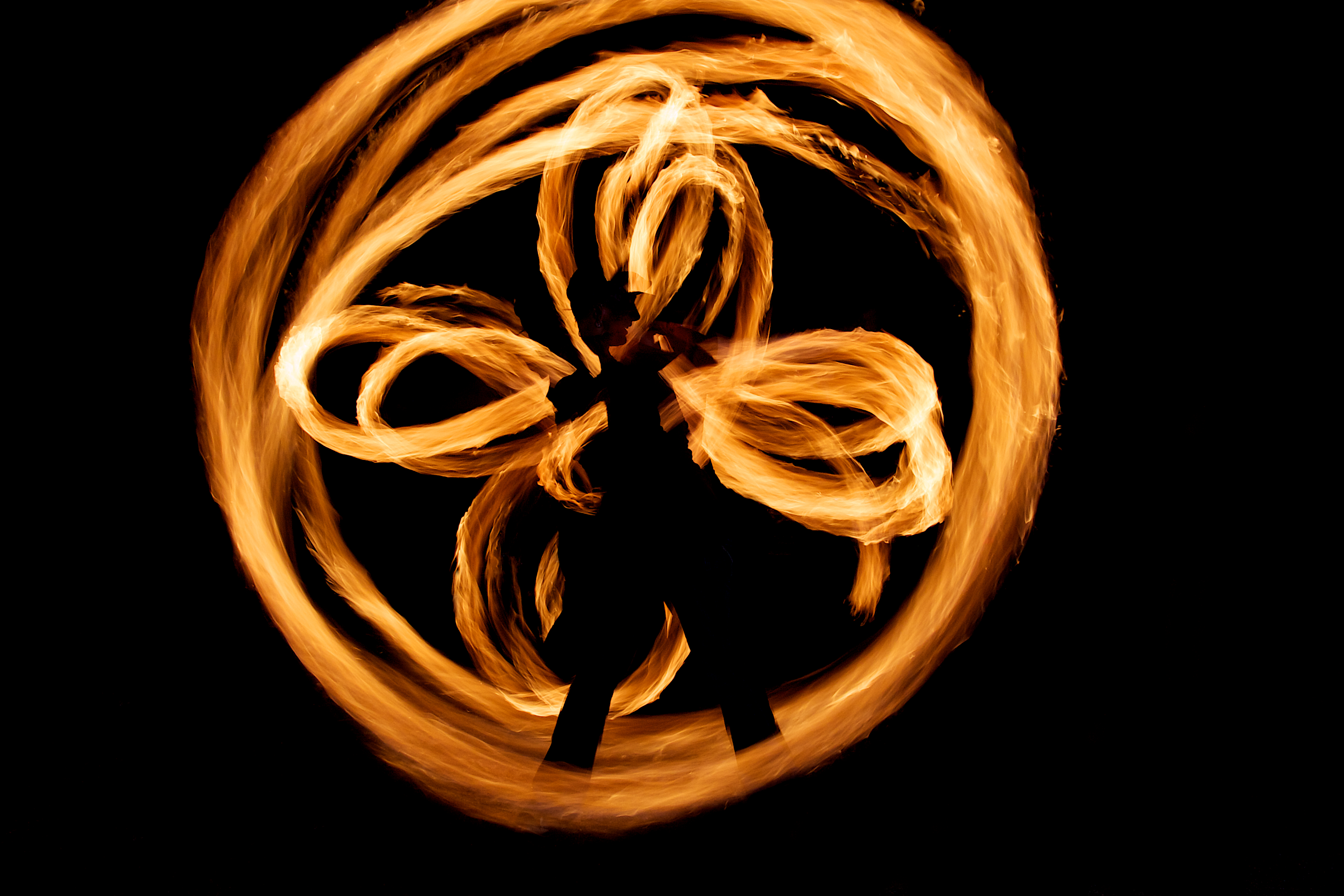
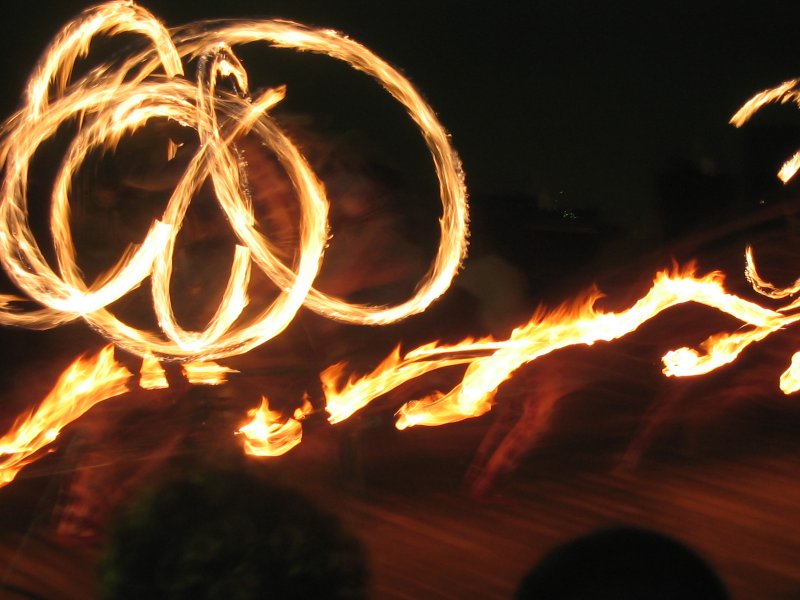
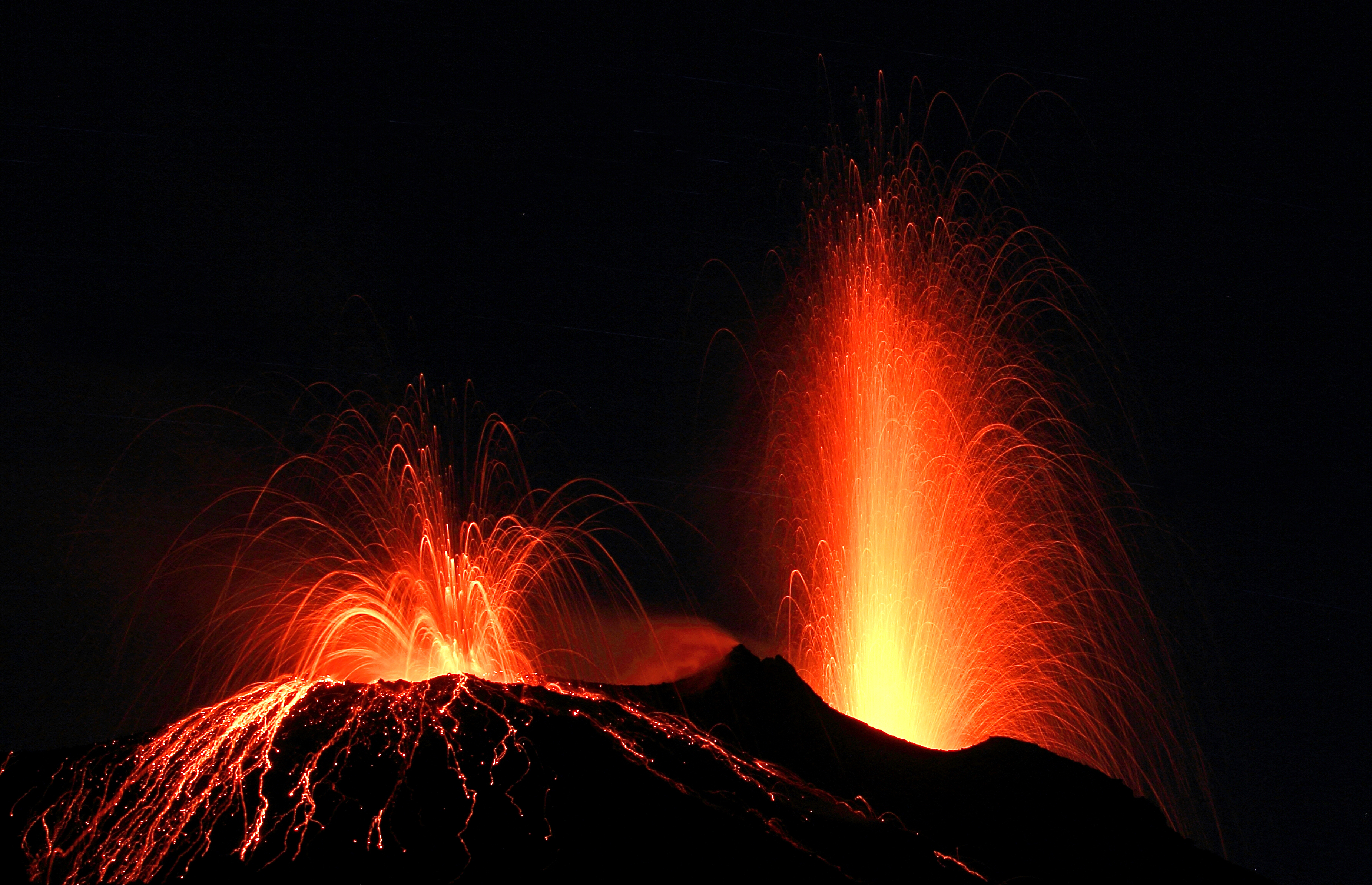
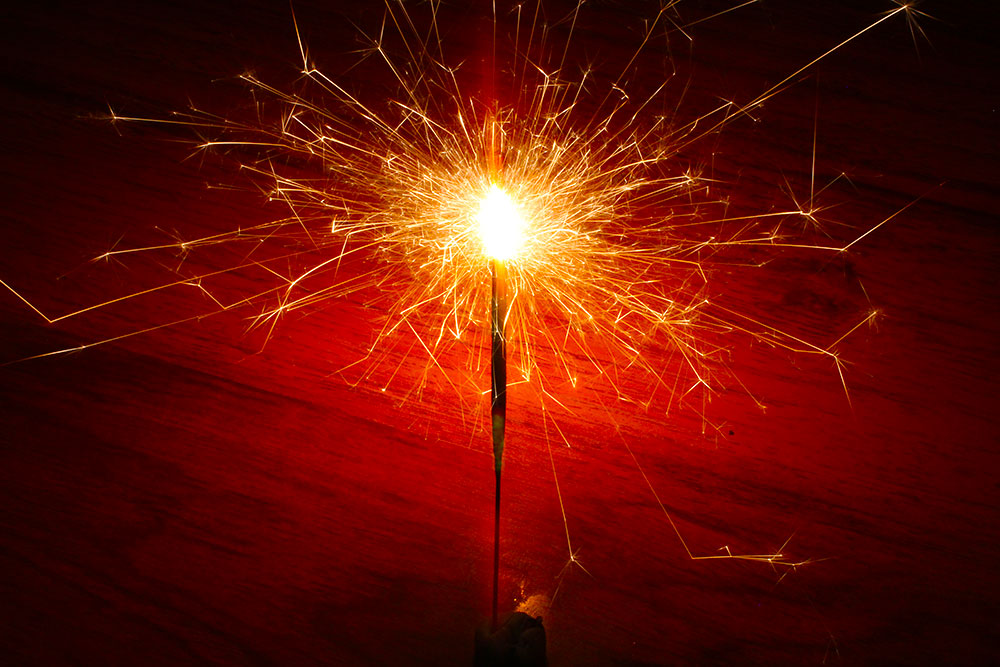
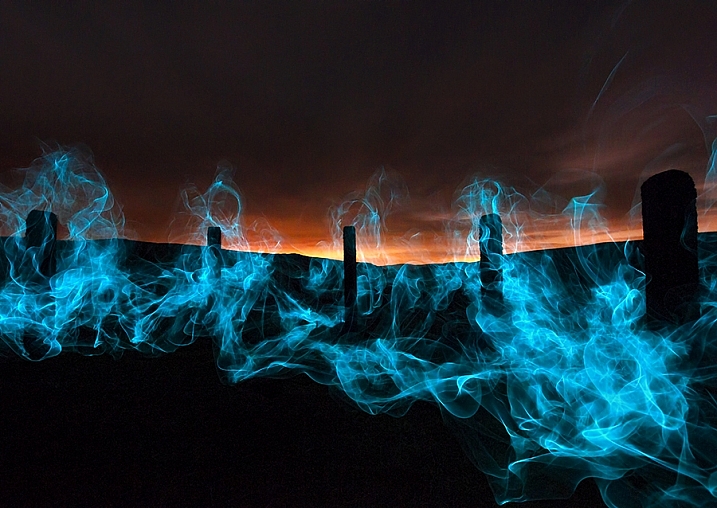
Fire is a tricky thing to photograph. It comes in many forms; campfire, match, bonfire, fire spinning, sparklers, candles, etc. It can also make for some stunning images. Check these images of fire out and see if you agree.

Jan

By Jan

Shawn Kent

By Shawn Kent

Emilio Küffer

By Emilio Küffer

Darkday

By darkday

Annie Roi

By Annie Roi

Darkday

By darkday

José Carlos Da Silva Encarnação

By José Carlos da Silva Encarnação

Marcos André

By Marcos André

Wil Molenkamp

By Wil Molenkamp

Vineet Radhakrishnan

By Vineet Radhakrishnan

Der LichtKlicker

By der LichtKlicker

Umberto Salvagnin

By Umberto Salvagnin

Chuck Grimmett

By Chuck Grimmett

Shan Sheehan

By Shan Sheehan

Fábio Pinheiro

By Fábio Pinheiro

Courtney Carmody

By Courtney Carmody

Andy Miccone

By Andy Miccone

Compassrose_04

By compassrose_04

Victor

By Victor

Adrian Kingsley-Hughes

By Adrian Kingsley-Hughes

Serge Melki

By Serge Melki

googletag.cmd.push(function() {
tablet_slots.push( googletag.defineSlot( “/1005424/_dPSv4_tab-all-article-bottom_(300×250)”, [300, 250], “pb-ad-78623” ).addService( googletag.pubads() ) ); } );

googletag.cmd.push(function() {
mobile_slots.push( googletag.defineSlot( “/1005424/_dPSv4_mob-all-article-bottom_(300×250)”, [300, 250], “pb-ad-78158” ).addService( googletag.pubads() ) ); } );

The post 21 Smoking Hot Images of Fire by Darlene Hildebrandt appeared first on Digital Photography School.


Digital Photography School

 
Comments Off on 21 Smoking Hot Images of Fire

Posted in Photography


Woof! Sony a6500 sample images are here

18 Nov

Having just wrapped up an action packed two days of photographing Austin with the new Sony a6500, I’ve barely had time to sleep, let alone look through my images (Note: it was a Sony sponsored press trip). One thing’s for sure, this camera is fast and seriously capable! It didn’t take much use to realize it operates like a more refined version of the a6300, though retains some pain points.

Also, spoiler alert: the touchscreen is a huge let down – it’s simply not very responsive. More on that soon. For now, here’s some samples from the camera, all JPEGs straight out of camera. Once we get Raw support I’ll update the gallery with some conversions. 

Articles: Digital Photography Review (dpreview.com)

 
Comments Off on Woof! Sony a6500 sample images are here

Posted in Uncategorized


TIME releases 100 most influential images of all time

18 Nov

TIME has released its 100 Most Influential Photos of All Time, a multi-platform project that explores 100 images that have changed the world and shaped the human experience. Of primary interest is an interactive virtual museum of all 100 photos, which also includes essays, 20 original short documentary films, and the never before told stories behind many of the photos.

Along with the website, TIME is publishing a companion book with all 100 images, and will feature the project as its cover story in the November 18th issue of TIME Magazine.

Not only is this an impressive collection, but the stories and videos behind the photos are very interesting, so we encourage you to head over to the site.

Which images stand out to you? Share your thoughts in the comments.

Articles: Digital Photography Review (dpreview.com)

 
Comments Off on TIME releases 100 most influential images of all time

Posted in Uncategorized


PanoMoments cleverly adds the element of time to 360-degree images

14 Nov

PanoMoments’ ‘360-degree living photos’ are a kind of mashup between 360-degree images and Apple’s Live Photos. It’s not quite video, and it’s not a static image: PanoMoments can be created using any robotic panorama head (though the company is producing a specialized one), uploaded to their website for conversion and viewed on the web, with a VR headset or on a mobile device. Varying the time it takes for the device to complete a full rotation gives the resulting product a ‘live photos’ feel or a more time-lapse effect. 

Click to view this PanoMoment. Note that you will need to be running Google Chrome version > 52.x or viewing on a modern Android/iOS smartphone.

The process for creating a PanoMoment begins with the camera of your choice (ideally a larger sensor ILC) and a circular fisheye lens. Using PanoMoments’ PanoCatcher Loop or any panorama head, the camera is rotated 360-degrees while capturing at least 120 images. Convert your images to equirectangular format, upload them to PanoMoments.com and voila – you’ve got a PanoMoment. You can upload up to 20GB worth of images for free, while a ‘Pro’ membership will get you 500GB.

At the moment, PanoMoments’ creators are looking for funding through Kickstarter to help with building costs. Currently, a $ 270 pledge will get you a PanoCatcher Loop along with a 1 year Pro membership.

Head over to their Kickstarter page to learn more and see additional PanoMoments.

Articles: Digital Photography Review (dpreview.com)

 
Comments Off on PanoMoments cleverly adds the element of time to 360-degree images

Posted in Uncategorized


No dual-cam? No problem: Patch app for iOS uses neural networks to create fake bokeh images

11 Nov

Most dual-cam equipped smartphones offer a ‘fake bokeh’ feature. Thanks to the slightly offset position of their two lenses, cameras in devices like the Apple iPhone 7 Plus, Huawei P9 or LG G5, can distinguish between objects in the foreground and background of an image. By applying digital blur to the latter they can simulate effects of shallow depth-of-field you would typically achieve with a DSLR and fast lens.

If your phone just has one camera, there are still a few pure software solutions out there to achieve the same effect. The Patch app for iOS is the latest and uses neural networking to identify the foreground subject in an image and isolate it from the background. If the scene is too complex for the algorithms to work automatically, there is also a manual selection tool that can be used to optimize the results. You can paint in areas that should be sharp, and remove areas that should be blurred. A zooming function allows for greater precision in this task. 

Once the selection is finalized users can choose from 5 different blur strengths to generate the desired effect. Patch does not have any particular camera hardware requirements and therefore works with most iOS devices. If you want to try the app you can download a free version that will leave a watermark on your images from the Apple App Store. A $ 1 in-app purchase will get you an upgrade to the watermark-free version.

Articles: Digital Photography Review (dpreview.com)

 
Comments Off on No dual-cam? No problem: Patch app for iOS uses neural networks to create fake bokeh images

Posted in Uncategorized


Step by Step Plan for Backing Up Your Images While Traveling

11 Nov

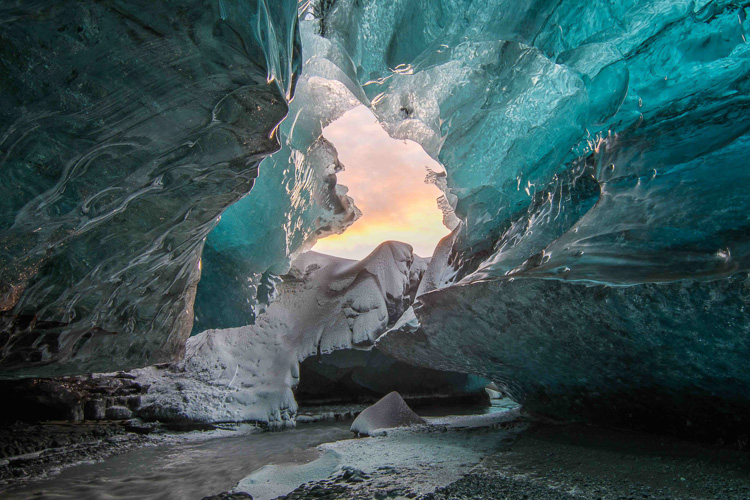
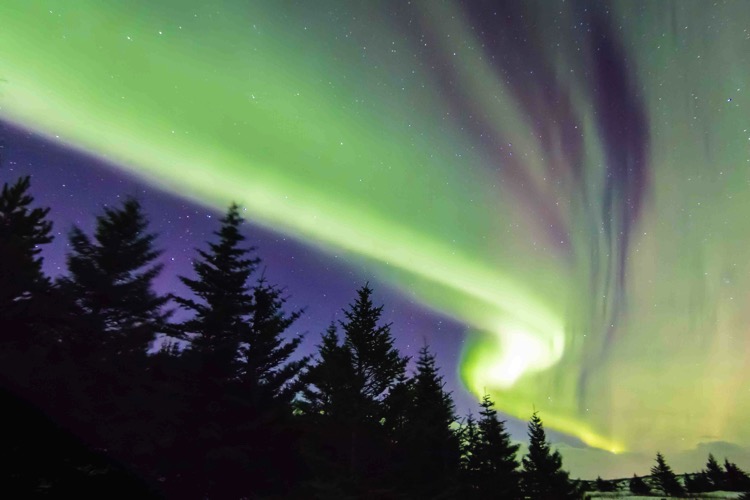
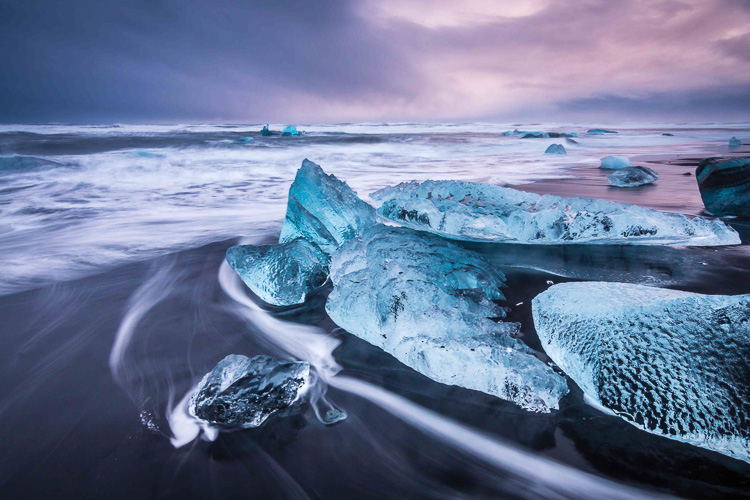
Planning how to back up your images while you travel isn’t nearly as exciting as planning your itinerary or buying gear for your upcoming trip. But it’s an important step in the travel planning process. Especially if you’re going someplace rugged and amazing like Iceland in the dead of winter, having a plan for uploading and backing up your images while you travel will help you ensure that all of your images are securely stored in multiple locations. After all, if you finally get a chance to photograph ice caves and the aurora borealis, you don’t want to worry about getting those hard-won images safely home with you.
Backing up images traveling 01

Following is a step-by-step plan for backing up your images starting with preparing to travel, guidelines for backing up during your trip, and how to complete the process once you return home.

Part I. Before you leave on your trip

Step #1 – Examine, reformat and test all of your memory cards

Before you leave on your trip, make sure that you have plenty of memory cards. I budget approximately two 32gb cards per day. You may need more or fewer, depending on your style of shooting.

First, examine all of your memory cards for damage. If any are visibly bent, warped or deeply scratched, it might be time to retire them.

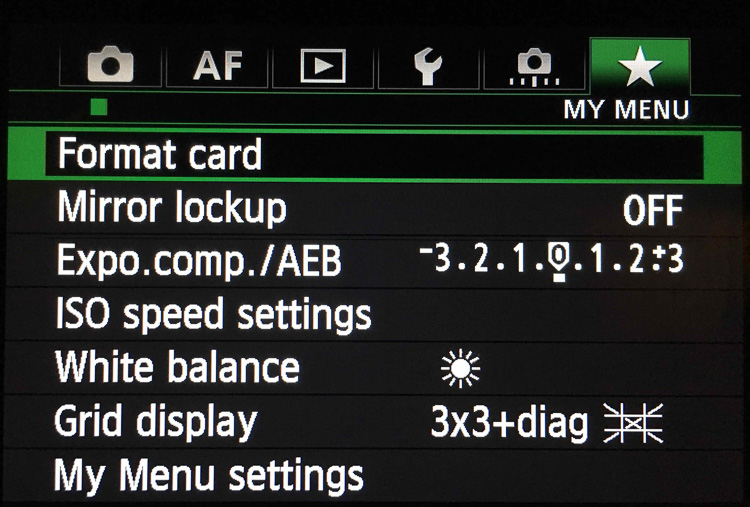
Next, reformat all your memory cards in your camera. Take and save several images on each memory card and then upload the images, one card at a time. This test verifies that each memory card is still in good working order. If a memory card does not pass the upload test, retire it.
Backing up images traveling 02

Step #2 – Buy smaller memory cards to reduce risk

If you need to buy additional memory cards, evaluate using smaller cards like 32gb and 64gb. You have to change memory cards more often while you’re shooting but if one memory card goes bad, you’ll have endangered far fewer images than if a huge 256gb or 512gb memory card corrupts.

Use stickers to indicate if memory cards are full or empty.

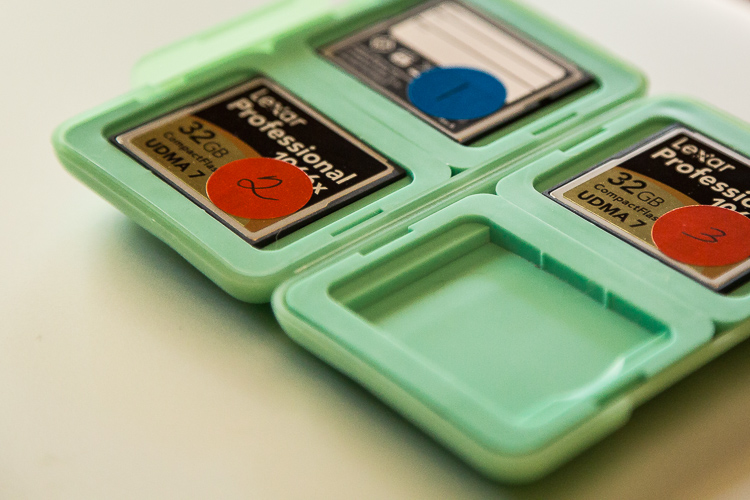
Create a system to keep full memory cards separate from empty memory cards. An easy method is to buy a memory card case or folder with clear pockets. Put blue sticker dots on one side of your memory cards. Put red sticker dots on the other side of your memory cards.

Blue sticker dots mean used or full cards. You can remember this mnemonically since blue, used and full all contain the letter U in them. Red sticker dots mean empty cards. You can this remember this mnemonically since red and empty all contain the letter E in them.
Memory cards case stickers Image C

Step #3 – Number your memory cards sequentially

Before placing the stickers on the cards, I also like to number the sticker dots one through however many cards I have. I file the memory cards numerically in the case. On day number one of my trip, I’m using cards numbered one and two. On day number two of my trip, I’m using cards three and four. By numbering the cards, I ensure I rotate them which further reduces the chance of corruption since no one card is used excessively. Then if I do lose a card, it’s also easier to keep track of which card from which day has gone missing if the memory cards are numbered sequentially.

Lastly, if a card does corrupt, it’s easy to keep track of which one because it’s numbered. I usually pull it out of my case and stow it separately in a secure pocket elsewhere in my bag. If memory card number four goes bad on a trip, I want to ensure I don’t accidentally reformat it or save more images to it before I’ve tried to recover the images.

After you test, number, and sticker all of your memory cards, place them in the case with the red sticker dot facing up. While you’re traveling, place full (used) memory cards back into the case sequentially with the blue dots facing up. If you’ve budgeted the amount of cards you need for your trip correctly, on the last day of your trip, all of the memory cards in your case should have blue dots facing up.

SD or CF cards or both?

If your camera has two memory card slots, evaluate carefully whether or not you want your main memory card to back up to the second card while you’re shooting. My Canon 5D Mark III has two memory card slots. One is a CF card slot and the other is for an SD card. I typically only use the CF card slot because they write faster than SD cards. Since I photograph horses and wildlife and set my camera to high-speed burst mode, I want my images to write to my memory card as fast as possible. Since my camera defaults to the write speed of the slowest card, I leave the SD card slot empty.

While this method works for me, your camera might function differently than mine. You may also have different priorities than I do when you shoot. Landscape photographers, for example, don’t use high-speed burst mode very often. Neither do macro photographers. If you specialize in landscape or macro photography, automatically creating a backup in camera by writing your RAW images to two memory cards simultaneously might be a good failsafe for you.

Step #4 – Buy two identical portable hard drives for travel
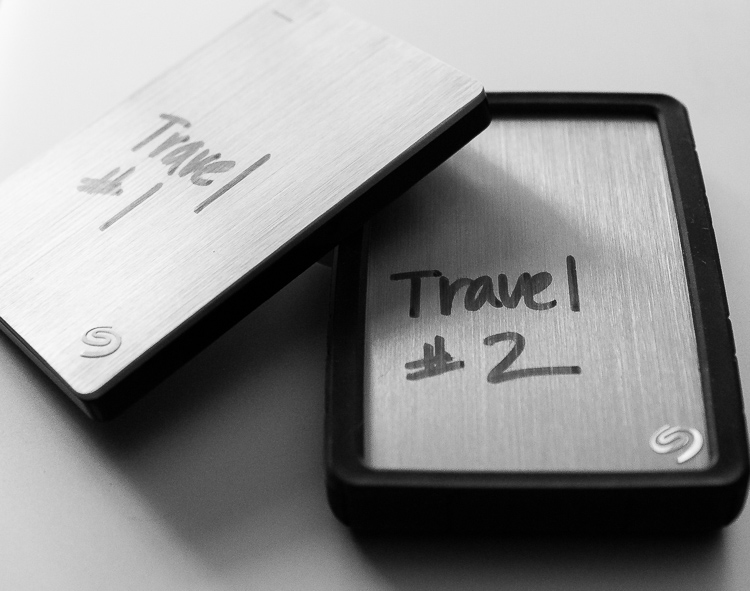
Travel Hard Drives Image D

I recommend uploading your travel images to two identical, high-quality, portable hard drives. I use 1TB drives. One terabyte is typically enough for my style of shooting since I rarely travel for more than 10 days at a time. Digital storage is inexpensive these days. So evaluate the best size portable hard drive for you by reviewing your image files from past trips. Buying more storage than you think you need is more effective in the long run. So if you think you need 500gb drives, buy 1TB. If you think you need 1TB, buy 2TB.

Step #5 – Protect your new hard drives

Now that you have two new hard drives to keep your images safe, you need to physically protect them. Use rubber bumpers or cases to protect the drives in case they fall out of your bag or are dropped. If you’re shopping online, you can usually find the correct size bumper or case listed on the same web page as your hard drive.

Step #6 – Label your portable hard drives

When you are setting up your new portable hard drives, label each one clearly. I literally use a thick permanent marker to do this. Keep the names consistent since you’ll be referencing these drives frequently. Mine are simply called Travel #1 and Travel #2.

Step #7 – Format and set up your portable hard drives

Format your new portable storage drives according to your operating system – usually OSX or Windows. When you’re formatting the hard drives, you’ll probably also be prompted to register them with the manufacturer. Registering your new drives might seem like a silly step but it often activates your warranty or image rescue software so don’t skip it.

Step #8 – Create a backup recipe

Once my new portable hard drives are set up and working, I create a folder on each drive called Travel Photos #1 (on drive Travel #1) and Travel Photos #2 (on drive #2). I use a software program called Chronosync (for Mac) to create a recipe that when it is run, backs up drive Travel #1 to drive Travel #2. There are many options for backup software and I would encourage you to do a little research to find the software that’s best for you.
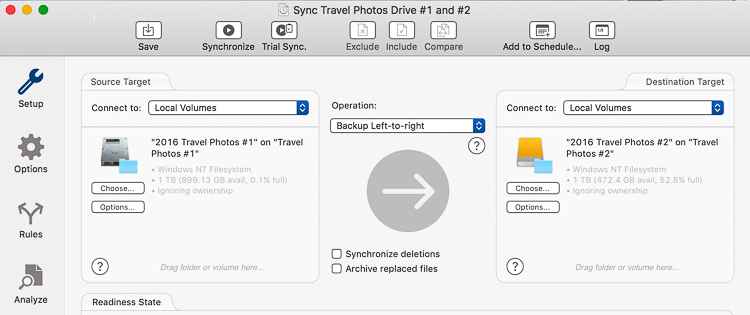
Backing up images traveling 05

Step #9 – Back up and update your laptop

Right before you go, back up the entire contents of your laptop. I use a MacBook Pro so I run Time Machine. After the backup finishes, I have an up-to-date copy of everything on my laptop on a small hard drive that I leave at home. That copy will come in handy if my laptop is stolen or damaged while I’m traveling. Also, I also check for software updates – especially any related to security – and install those as well.

I skip beta versions or major operating system upgrades since sometimes those are glitchy. I want my laptop software as safe and secure as possible while I travel but I don’t want to have to deal with any new OSX headaches.

Now that you’ve done all that prep work, it’s time to pack, hit the road and make some memorable images.

Part II. While you’re traveling

I know that after a long day of travel, the last thing you want to do is unpack your laptop, upload, and duplicate your image files. But get in the habit of doing it anyway. After a while, it will become routine, like brushing your teeth or washing your face, and you won’t dream of skipping it.

When your friends tell you their horror stories about losing images while they travel, you’ll have to work hard to wipe the smug look off your face because you’ll know you’ve minimized your chances of that happening to you.

Step #1 – Upload images with Lightroom

My first step when I upload images is to plug in my hard drive called Travel #1, then I plug in my CF card reader, insert the memory card and open up Lightroom CC. I always use Lightroom to catalog all of my images. When uploading, I tell Lightroom to import the day’s images to the folder called Travel Photos #1 on the portable hard drive called Travel #1.
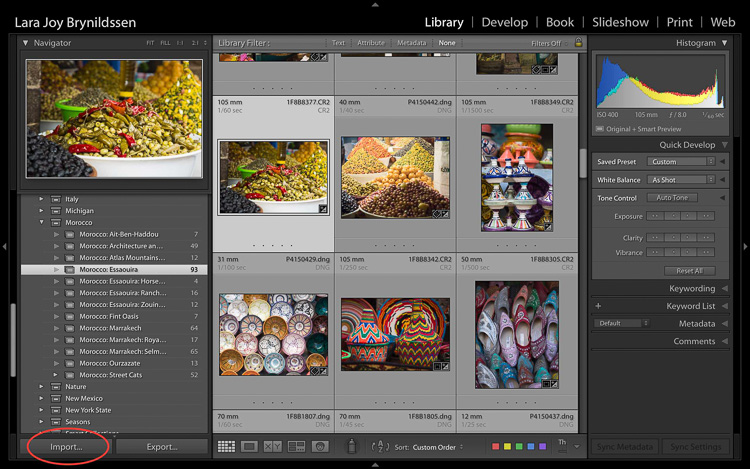
Backing up images traveling 06

Step #2 Option A – Duplicate images on import

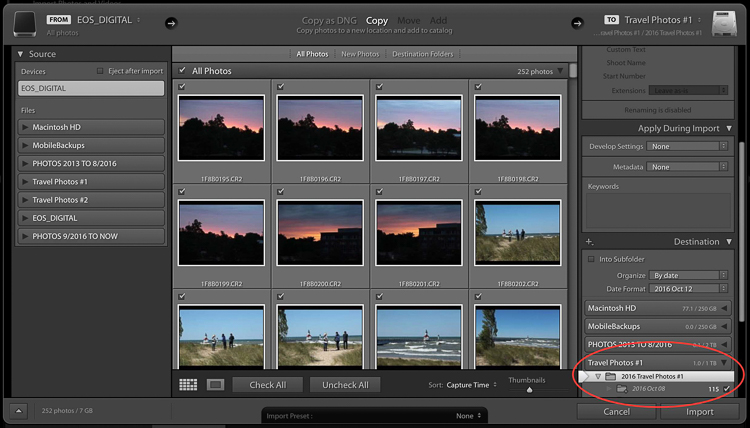
In the Import Dialog, you can check a box to tell LR to “Make a 2nd copy to” and duplicate your images by importing them to two locations at once. If you check that box, you also want to click the tiny arrow to the right, click Choose Folder and select the location you want the duplicate images to be stored.

In my case, I would choose the folder called Travel #2 on the portable hard drive called Travel #2. I normally do not duplicate on import because I only have two USB ports on my MacBook Pro. During the import process, both are in use: one for the hard drive Travel #1 and one for my CF card reader. If you have space in your camera bag, you can carry a USB port hub that enables you to attach more drives to your laptop at the same time.
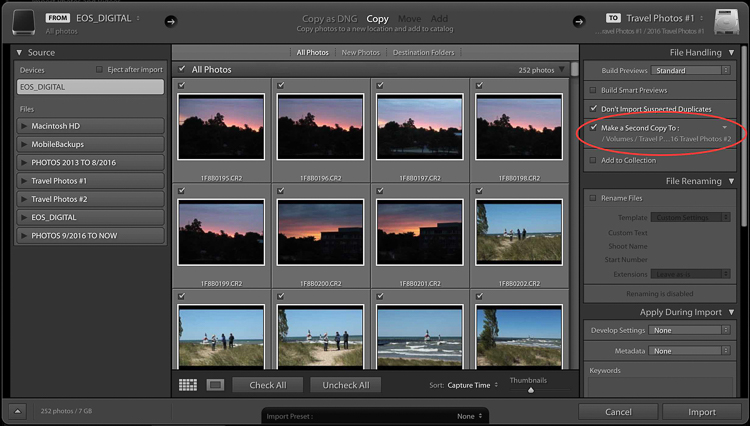
Backing up images traveling 07

Backing up images traveling 08

Step #2 Option B – Use software to create a backup

Since I don’t carry a USB port hub, instead of checking the “Make a 2nd copy to” box in the LR import dialog, I use Chronosync to sync one drive to another. This is the backup recipe we set up above. After the images are loaded to my first drive, I run my Chronosync recipe to duplicate them to the second drive. Once I’m done, I have three copies of each image; one on the original memory card and one on each portable of my portable hard drives, Travel #1, and Travel #2.

Don’t erase your memory cards

If possible, don’t erase the images on your memory cards while you’re on the trip. Instead, save them in the memory card holder you prepared in Part I.

Step #3 – Upload after every shoot

When you travel, I encourage you to upload and back up images after every shoot. If you have one shoot per day at sunset, upload and back up before you head out to dinner.

Tip: This is a good time to plug in and charge your batteries too.

Before you head to bed, verify that the image files are mirrored on each drive. Swap the batteries in your charger before bed too to make sure you’ll be all set to shoot again in the morning.

If you have two photo shoots per day, follow these same steps, except do them twice a day. In addition to uploading before dinner, I upload before lunchtime. I usually sneak in a quick nap then too.
Aurora borealis Image A

Step #4 – Sync images to the cloud

If you have an excellent Wi-Fi connection you might also consider syncing to your cloud service. I normally don’t have very strong Wi-Fi service when I travel so I don’t waste time with this step.

Step #5 – Store your hard drives in different locations

Now that you’ve done all this work setting up this system to back up your travel images, you have one more step to ensure their safety while you travel. You want to keep each of your two drives in different locations. For example, keep one drive in your camera bag and keep one in your luggage.

Always make sure to keep one drive in the bag on (or very near) your person. Keep your luggage with your second drive in your hotel room (or locked in the trunk of the car if you are traveling between locations). In the case of theft, accident, or fire, one copy of your images will be safely stored on the drive in the alternate location.

Part III. When you return home

Once you return home, you need to move your images from Travel Drive #1 to your main photography hard drive. The easiest way to do this is to do it inside Lightroom.

Step by step

Here’s a step-by-step guide for moving your images from your travel drive to your main photography storage drive:

  1. Attach Travel Drive #1 to your laptop.
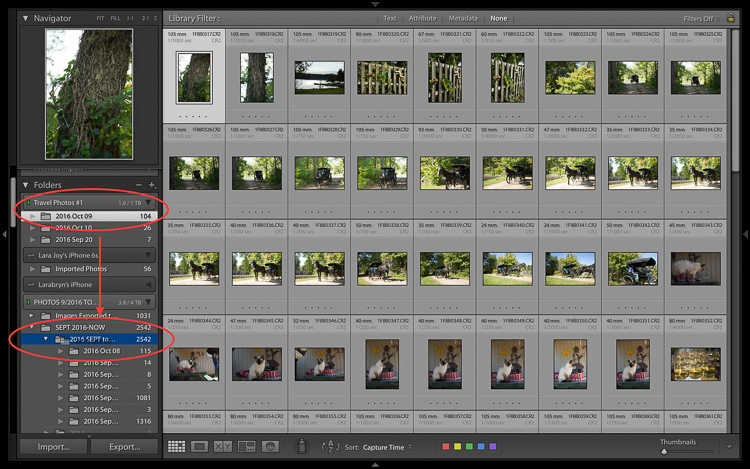
  2. Attach your main photography hard drive to your laptop. In this example, my main drive is called PHOTOS 9/2016 TO NOW.
  3. Open Lightroom CC in the Library module.
  4. One by one, drag and drop each folder of your images from Travel Drive #1 to your main storage drive.
Backing up images traveling 09

  1. Note that at this stage, since I keep all my images organized chronologically I drop my travel images into the folder on the drive labeled 2016 SEPT to DEC. Next year I’ll drop images into the folder labeled 2017.
  2. Be patient while your computer works. It takes a few minutes for Lightroom to show you that this task is complete and your images have been successfully moved to your main storage drive. Tip: This is a good time to clean your gear.
  3. Now that your images are on your main drive, run another backup.
Backing up images traveling 10

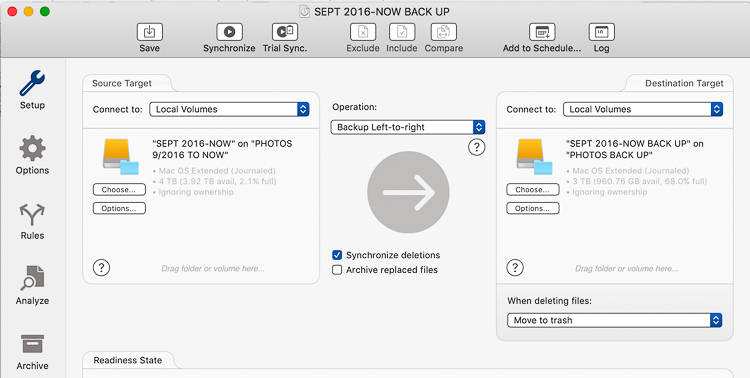
  1. I use a Chronosync recipe to back up my drive called PHOTOS 9/2016 TO NOW to my drive called PHOTOS BACK UP.
  2. After completing this step, verify that the images have been moved. I do this by opening a Finder window on my MacBook Pro and checking that the image file names match on both my main storage drive and my backup drive.
  3. After you verify that you have two copies again, you can wipe your travel hard drives and memory cards to prepare them for your next trip.
  4. At this point, it’s good idea to back up to your cloud service so that you once again have three copies of your images.

Final notes

Since I travel often, I find it easiest to keep my entire Lightroom catalog on my MacBook Pro. If I need to work on a bigger screen, I connect to an external display.

If you keep your main Lightroom catalog on a different computer than the one you travel with, rather than dragging and dropping as I’ve instructed above, attach your travel hard drive and your main photography storage drive to your home computer, open Lightroom and go through the complete import process to your main storage drive. After you’ve imported your travel images to your main Lightroom catalog on your home computer, in addition to formatting your memory cards and wiping your travel hard drive, I’d recommend completely removing the images from the Lightroom catalog on your laptop.

Now you can go unpack and do laundry. Or, if you’re like me, you can start to cull, edit, and create collections with your travel images.
Backing up images traveling 12

googletag.cmd.push(function() {
tablet_slots.push( googletag.defineSlot( “/1005424/_dPSv4_tab-all-article-bottom_(300×250)”, [300, 250], “pb-ad-78623” ).addService( googletag.pubads() ) ); } );

googletag.cmd.push(function() {
mobile_slots.push( googletag.defineSlot( “/1005424/_dPSv4_mob-all-article-bottom_(300×250)”, [300, 250], “pb-ad-78158” ).addService( googletag.pubads() ) ); } );

The post Step by Step Plan for Backing Up Your Images While Traveling by Lara Joy Brynildssen appeared first on Digital Photography School.


Digital Photography School

 
Comments Off on Step by Step Plan for Backing Up Your Images While Traveling

Posted in Photography


19 Delicious Bokeh-licious Images

08 Nov

Bokeh – it’s that word nobody really seems to know how to pronounce, and the thing all photographers love. Those dreamy out of focus blobs that occur when you have shallow depth of field.

Here’s what several photographers did with their bokeh:

Maritè Toledo

By Maritè Toledo

Alejandro Malonda

By Alejandro Malonda

Santiago Muñoz Pérez

By Santiago Muñoz Pérez

Kate Russell

By Kate Russell

Damien Thorne

By Damien Thorne

Katie Wheeler

By katie wheeler

Saleh ???? Alnemari - ??????

By Saleh ???? Alnemari – ??????

Martin Dvoracek

By Martin Dvoracek

Kitty Mao

By Kitty Mao

Susanne Nilsson

By Susanne Nilsson

Vida Dimovska

By Vida Dimovska

Patrick Manac'h

By Patrick Manac’h

Raul Lieberwirth

By Raul Lieberwirth

Pablo Fernández

By Pablo Fernández

Paris

By Paris

Jovan J

By Jovan J

Chris Zerbes

By Chris Zerbes

Sinkdd

By sinkdd

Sam Wolff

By Sam Wolff

googletag.cmd.push(function() {
tablet_slots.push( googletag.defineSlot( “/1005424/_dPSv4_tab-all-article-bottom_(300×250)”, [300, 250], “pb-ad-78623” ).addService( googletag.pubads() ) ); } );

googletag.cmd.push(function() {
mobile_slots.push( googletag.defineSlot( “/1005424/_dPSv4_mob-all-article-bottom_(300×250)”, [300, 250], “pb-ad-78158” ).addService( googletag.pubads() ) ); } );

The post 19 Delicious Bokeh-licious Images by Darlene Hildebrandt appeared first on Digital Photography School.


Digital Photography School

 
Comments Off on 19 Delicious Bokeh-licious Images

Posted in Photography


Power struggle: Hauntingly beautiful images of abandoned cooling towers

05 Nov

A look inside active and abandoned cooling towers

Belgian photographer Reginald Van de Velde has made a project of exploring the inner workings and mechanisms of some of Europe’s awe-inspiring, dormant giants: cooling towers. His images document both active and decommissioned cooling towers, as well as towers slated for demolition.

The interiors of the towers yield astonishing vistas, and as they’re abandoned he’s able to enter explore them, document and admire them. In his imagery he searches for patterns, a sense of scale, repetition, and disruption, rendering landscapes within the massive structures.

‘One thing that fascinates me extremely is the fact that not a single cooling tower is the same,’ Van de Velde says. ‘Each and every one of them has a unique interior design and build! They all look the same from the exterior, but with each visit to a new cooling tower I’m always surprised by a different interior, time and time again.’

To see more of Reginald’s work, visit his website or follow him on Facebook and Instagram.

A look inside active and abandoned cooling towers

Vegetation is slowly taking over the bottom area of this cooling tower slated for demolition, Belgium. Photo by Reginald Van de Velde

A look inside active and abandoned cooling towers

Inside the belly of an active cooling tower: billions of water drops fall down while releasing heat to the environment. Belgium. Photo by Reginald Van de Velde

A look inside active and abandoned cooling towers

The impressive interior view of a giant cooling tower scheduled for maintenance, France. Photo by Reginald Van de Velde

A look inside active and abandoned cooling towers

The spectacular view inside a decommissioned gasometer in Germany, looking upwards. The air vents at the top dome create natural ambient light. Gasometers can reach heights of 150 meters. Photo by Reginald Van de Velde

Inside Active and Abandoned Cooling Towers

Unreal scenery resembling the set of a sci-fi movie. This is the view inside a defunct cooling tower in Belgium. Photo by Reginald Van de Velde

A look inside active and abandoned cooling towers

Warm moist air rises from a central outlet inside an active cooling tower, Belgium. Photo by Reginald Van de Velde

Inside Active and Abandoned Cooling Towers

Snow particles cover the interior mechanism of an abandoned cooling tower in Belgium. Photo by Reginald Van de Velde

A look inside active and abandoned cooling towers

Covered in moss and algae, these beams support the inner structure of a defunct cooling tower, UK. Photo by Reginald Van de Velde

A look inside active and abandoned cooling towers

A structure that resembles the look and feel of a cooling tower: this is the view inside a gasometer, an industrial recipient used for the storage of natural gas. Belgium. Photo by Reginald Van de Velde

To see more of Reginald’s work, visit his website or follow him on Facebook and Instagram.

Articles: Digital Photography Review (dpreview.com)

 
Comments Off on Power struggle: Hauntingly beautiful images of abandoned cooling towers

Posted in Uncategorized


26 Spooky Images for Halloween Week

02 Nov

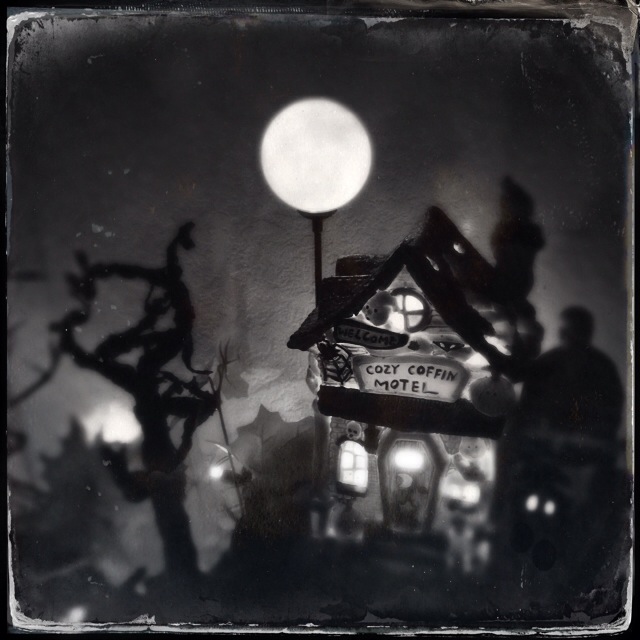
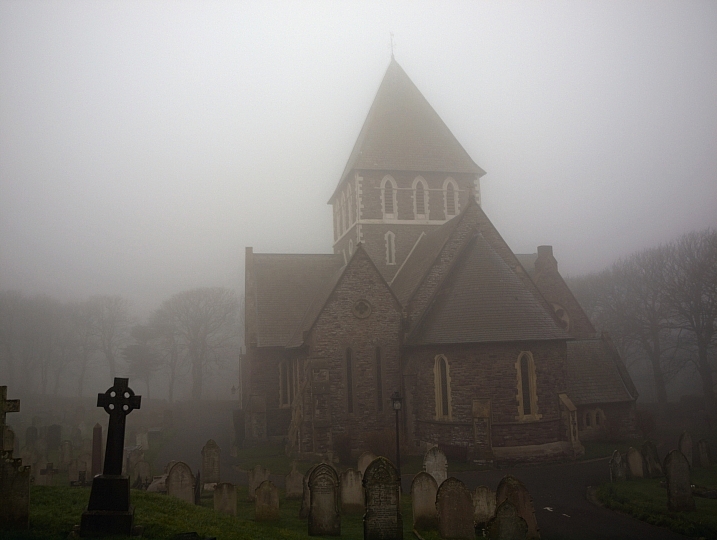
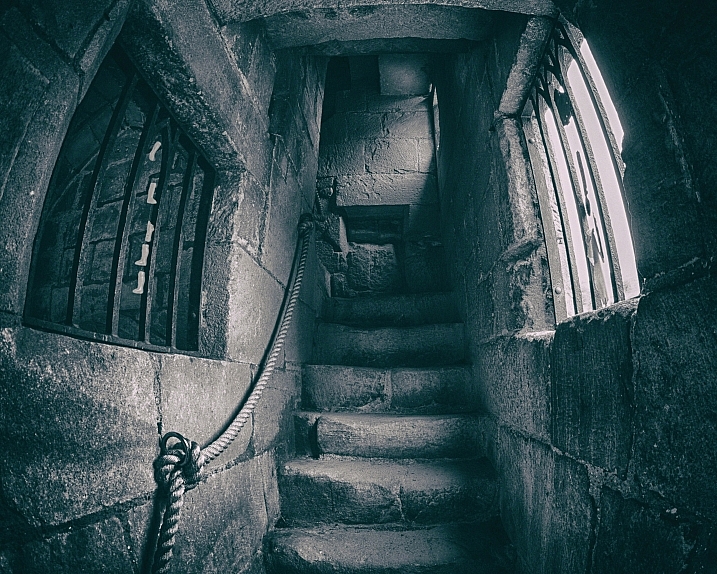
It’s that time of year again when the ghosts and goblins take over and the timid and meek take shelter and hide. Yes, it’s Halloween this coming week.

Depending on where you live, this may be a holiday the kids enjoy, but we adults can have a little fun too. Spooky images of ghosts in the night, apparitions, scary pumpkins and more. Let’s see what these photographers found spooky and captured for Halloween.

Krystian Olszanski

By Krystian Olszanski

Anne Marthe Widvey

By Anne Marthe Widvey

Rachel.Adams

By Rachel.Adams

Chris JL

By Chris JL

Jader56

By jader56

Micadew

By micadew

MattysFlicks

By MattysFlicks

Stefano Corso

By Stefano Corso

Moyan Brenn

By Moyan Brenn

Thomas Hawk

By Thomas Hawk

WxMom

By WxMom

Jpellgen

By jpellgen

Darlene Hildebrandt

By Darlene Hildebrandt

Craig

By Craig

Kevin Dooley

By Kevin Dooley

JLS Photography - Alaska

By JLS Photography – Alaska

Kris Williams

By Kris Williams

Nesster

By Nesster

Thomas Hawk

By Thomas Hawk

Flood G.

By Flood G.

Neil Howard

By Neil Howard

Adrian Kingsley-Hughes

By Adrian Kingsley-Hughes

Andrew Kuznetsov

By Andrew Kuznetsov

Christopher Bligh

By Christopher Bligh

Dan Castleberry

By Dan Castleberry

Hjl

By hjl

googletag.cmd.push(function() {
tablet_slots.push( googletag.defineSlot( “/1005424/_dPSv4_tab-all-article-bottom_(300×250)”, [300, 250], “pb-ad-78623” ).addService( googletag.pubads() ) ); } );

googletag.cmd.push(function() {
mobile_slots.push( googletag.defineSlot( “/1005424/_dPSv4_mob-all-article-bottom_(300×250)”, [300, 250], “pb-ad-78158” ).addService( googletag.pubads() ) ); } );

The post 26 Spooky Images for Halloween Week by Darlene Hildebrandt appeared first on Digital Photography School.


Digital Photography School

 
Comments Off on 26 Spooky Images for Halloween Week

Posted in Photography