RSS
 

Posts Tagged ‘Image’

Does the new Olympus PEN E-P5 firmware reduce image shake?

15 May

ep5.jpg

A year on from the camera’s announcement, Olympus has issued a significant firmware update for its PEN E-P5. The update not only adds a trigger-only ‘cable release’ mode to its Wi-Fi functions, it also provides a feature to combat the biggest problem with the camera. The new ‘0 sec Anti-Shock’ option provides a work-around for the image shake that held the E-P5 back in our original review. Is the new firmware enough to elevate the E-P5 to the select company of Gold award winners? Find out

News: Digital Photography Review (dpreview.com)

 
Comments Off on Does the new Olympus PEN E-P5 firmware reduce image shake?

Posted in Uncategorized


When is Altering Your Image Acceptable? A Debate on Post-processing

13 May

Have you ever used Photoshop’s ‘Content Aware Fill’ tool to get rid of some unsightly object in your otherwise perfect image? Have you ever cropped your image in order to give it a more pleasing composition? I know I’ve done both on many an occasion and I feel no guilt or remorse whatsoever.

The Plastic Bag You Didn’t Notice

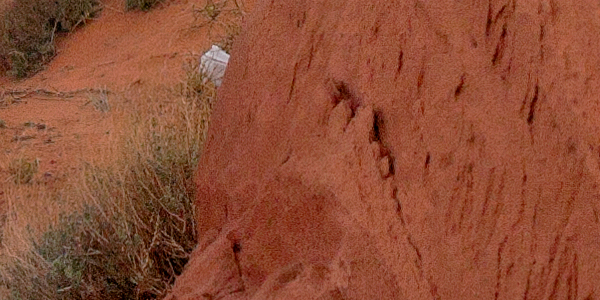
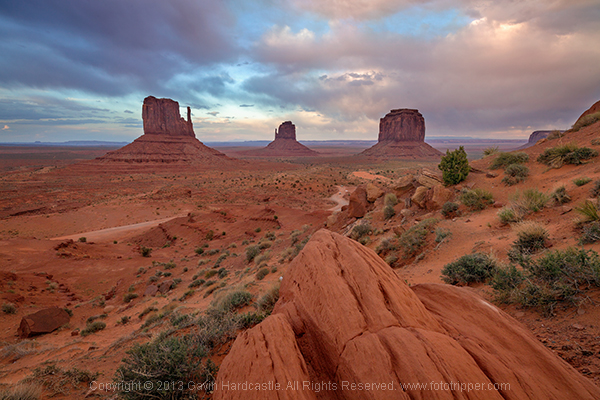
Here’s an example of a shot I took at Monument Valley in Utah. The foreground was completely covered in litter, so while editing I decided to cut out the more obvious offenders like this plastic bag. Should I have left it in? What is an acceptable level of post-processing and alteration?

Monument Valley Landscape Sunset

Monument Valley trash

I’m curious to know where you feel the line should be drawn? Would you judge me for cloning out that plastic shopping bag? Perhaps I should have walked over and picked it up, either way, it’s gone from my shot and I’m happy with the result.

Truth or beauty, the age-old question?

Landscape photographers like myself are always creating composites of multiple images just to get the tourists and other photographers out of our shots, it’s no big deal. Or is it? Are you one of those rigid purists that believes that the camera should not lie, not even a teensy little white lie? But if you are, doesn’t the camera lie the moment you frame your carefully placed shot and hit the shutter?

I can see both sides of the argument. But, given the choice of performing a ruthless crop and getting a keeper, or leaving my image untouched and forever condemning it to a digital graveyard, I’ll go for the former thank you very much.

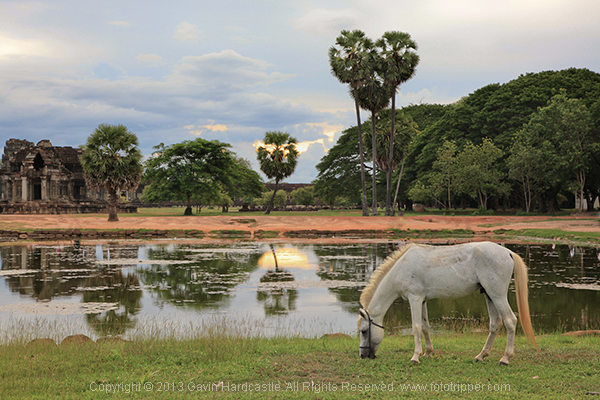
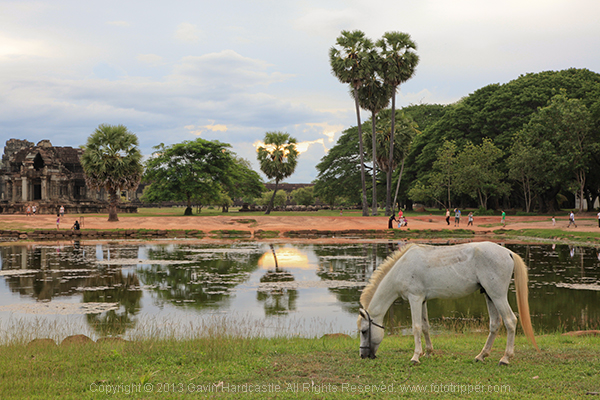
Here’s one of the very first pictures I took with a DLSR from back in 2010. I cut all of the people out of the image because they weren’t adding to the composition in any way. The eagle eyed among you will spot where I got lazy with my ‘people removal’. See the unaltered version below it and tell me if I crossed the line.

Angkor Wat Cambodia Landscape Photography - Gavin Hardcastle

Angkor Wat - Cambodia

Where does it end?

The problem is, where do you draw the line? When do you decide that enough is enough and the image should be left alone? Ultimately it’s down to you as the photographer and your creative vision, but there are instances where photography is used as an accurate historical document. In Photojournalism, we rely on a photographer to tell a story and capture a moment in history, albeit from their own unique perspective and how they choose to frame a shot.

Couldn’t it be argued that a photographer who chooses to omit certain elements, is manipulating the viewer just as clearly as when they chop out an ugly plastic shopping bag in Photoshop?

Consider the real estate photographer who carefully manages to exclude the crack shack next door to the million dollar home, no alteration but still a little white lie.

It’s all so very subjective and the truth is that you’d never know the difference if the photographer didn’t confess.

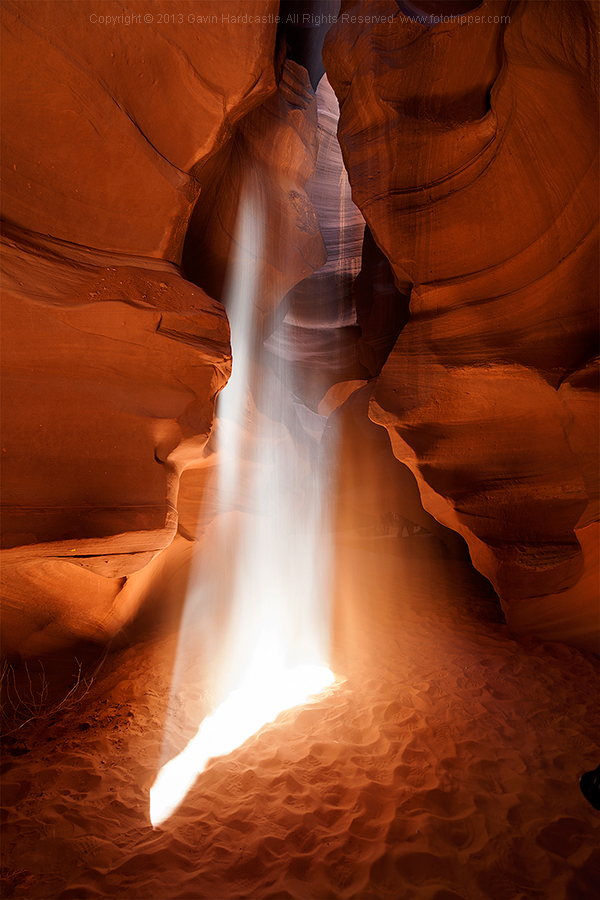
Oh what’s this below? My wife’s 24-105mm lens creeping in to the lower right of my shot, now there’s a surprise. What do you think are the chances that I’m going to be leaving that in my final edit?

Antelope Canyon Landscape Photography

Where do I draw the line?

As a landscape photographer I strive to keep all of the permanent or natural elements of my images intact. I won’t flinch at removing a discarded water bottle that I hadn’t noticed while shooting. I won’t bat an eyelid at cropping out my wife’s left foot as she reliably walks into the corner of my frame just a split second before I hit the shutter.

I draw the line however, at removing or moving objects that are natural or permanent. If there’s a tree or even a lamp post in a less than ideal spot in my composition I will not alter it. I want the viewer of my image to be able to stand in the exact place I stood when taking the shot and know that everything is in its right place. That doesn’t include the used condoms and the KitKat wrapper.

Tell me, where do you draw the line? Let the debate begin!

Share in the comments below where you stand on this subject. Do you do any post-processing on your images, and if so how far do you take it? How far is too far? Let’s discuss it.

The post When is Altering Your Image Acceptable? A Debate on Post-processing by Gavin Hardcastle appeared first on Digital Photography School.


Digital Photography School

 
Comments Off on When is Altering Your Image Acceptable? A Debate on Post-processing

Posted in Photography


Finding Gold in Your Image Archives

24 Apr

No doubt like many other photographers, so many of my images have never seen the light of day. This is mostly for good reason; they are out of focus, poorly composed, badly timed, they just don’t make the cut. Often these images may be good, just not the BEST. I have learned though, that there can be gold hiding in your archives, just waiting to be rediscovered, taken into the develop module and shared with the world. I have found that spending some time digging through old shoots can yield some very positive results.

Make it part of your workflow to revisit your image archives

Maybe you have found that your photo editing workflow follows a predictable pattern, like mine. After importing, adding metadata, then backing up RAW images from a shoot, I like to take a first-pass look at the images, flagging the few that initially jump out, and rejecting those that are clearly unusable. It is easy to then go through again and pick out images that have potential, before filtering the flagged images and comparing them to find the sharpest or most accurately exposed selects. This gives me a small collection of images to edit.

Then comes the fun part! Using any combination of Adobe Lightroom, Photoshop and Nik Software, I edit my images to see what they can become! After editing the selects, I like to back them up both locally and online to my Photoshelter portfolio, which doubles as my image archive in the cloud. Finally, these images are shared on social network accounts. Done, right? On to the next project, assignment, location…

But maybe not. Of the images imported from CF cards, I might end up with between 1-5 images that I’m happy with. So if I come home from shooting an epic landscape with 50-100 images, what happens to the other 95% of my shots? If you’re anything like me, you probably have gigabytes worth of RAW images taking up space on your hard drive. Have you ever revisited a hard drive to find something you may have missed? I make this a regular part of my workflow and I would argue that doing so is well worth your time.

To give you an example, here is an image I made not long after moving to Mount Maunganui, New Zealand a couple of years ago. This is a shot of Tauranga Bridge Marina:

Tauranga bridge marina 1

Having driven past this location dozens of times, I already had an idea of the shot I wanted before I arrived. It was a cold night, and the sky hadn’t lit up in the way I was hoping, so I stayed past sunset and into twilight, my favourite time to shoot. Still nothing very inspiring, so I went home. I followed my usual workflow and ended up with the image above, which I wasn’t entirely happy with, so I moved on to the next thing.

Fast forward six months and I found myself revisiting that folder in Lightroom. I don’t remember what prompted it, but after finding this image, I edited it very differently and ended up with the image below. It was far better received by fans and clients online and became one of my top selling images last summer. Personally, I like this image a lot more than the first.

Tauranga bridge marina 2

Time is on your side

Of course it’s easy in hindsight to kick myself and wonder how I missed it, but this seems to happen on a regular basis. Something about the passage of time can help you to see images in a fresh light. Maybe it’s feeling differently about the image itself, or that particular place, or simply that my post processing workflow has evolved and I can see new potential in images. Whatever the reason, I rarely feel the same about an image a month, six months, or a year later.

Here’s another example from Castlepoint, in New Zealand’s lower North Island:

Castlepoint lighthouse 1

And here’s the image I found and edited more than two years later:

Castlepoint lighthouse 2

Make it a project

It’s natural for any artist or creative to be looking forward to the next project. I think it’s healthy for any artist or creative. It’s a necessary part of growing and developing your craft. I also think, however, that it’s healthy to reflect on previous work and see how far you have come. Searching image archives is a great way of doing this. Despite not having shot film since I was a child, I liken this process to rummaging through boxes of exposed negatives and taking them into the darkroom to find the gold that has never been printed.

I challenge you, if you don’t already, to spend some time rummaging through your archives. Go way back! To some of your earliest photographs! Or even something you shot last year; it doesn’t matter how old they are, just that you are looking at it with a fresh perspective. Make it your next project. You might be surprised what you come up with!

Have you found any hidden gems in your archives? Share with us in the comments below.

The post Finding Gold in Your Image Archives by Rowan Sims appeared first on Digital Photography School.


Digital Photography School

 
Comments Off on Finding Gold in Your Image Archives

Posted in Photography


Oppo launches Find 7 with QHD display and 50MP image option

21 Mar

oppo3.jpg

Several manufacturers were rumored to launch a smartphone with a QHD-display (2560×1440 pixels) at Mobile World Congress in Barcelona but none of the models introduced at the show featured one of the high-resolution screens. Now the wait is over. The Chinese smartphone manufacturer Oppo has introduced the Find 7, the first smartphone to feature a QHD screen. Learn more

News: Digital Photography Review (dpreview.com)

 
Comments Off on Oppo launches Find 7 with QHD display and 50MP image option

Posted in Uncategorized


How to Straighten a Crooked Image in Photoshop

16 Mar
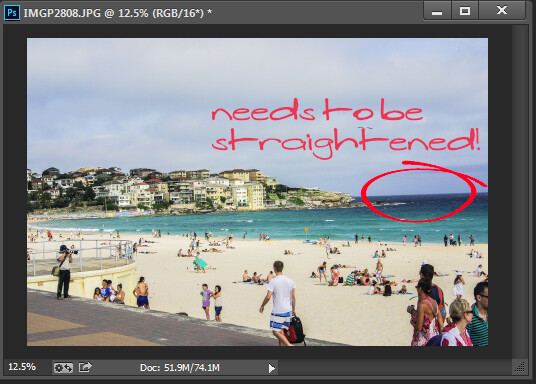
Straighten an image in Photoshop

Straighten an image in Photoshop

While most photo editing programs have a dedicated and easily discoverable Straighten tool, Photoshop does not and never has had. Instead, prior to Photoshop version CS6, it was notoriously difficult to straighten a photo.

This all changed with the new Crop tool in Photoshop CS6 and CC, and it is now much easier to straighten an image – even if it isn’t easy to determine that the Crop tool is how you do it.

I’ll show you how to straighten a crooked image in Photoshop, but before we look at Photoshop CS6 & CC let’s take a trip back in time to see how to straighten an image in Photoshop CS5 and earlier. Of course this process still works in later versions of Photoshop as well.

Straighten an image prior to Photoshop CS6 & CC

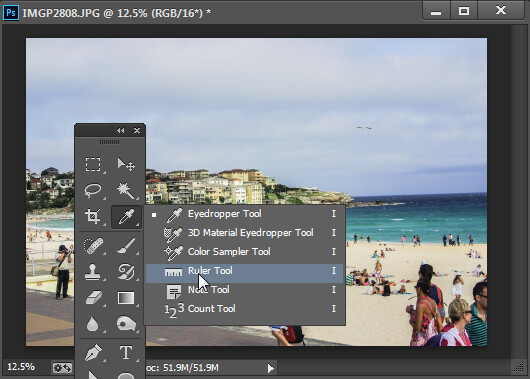
With an image open in Photoshop locate the Ruler tool which shares a toolbar position with the Eyedropper tool.

The Ruler tool shares a toolbar position with the Eyedropper tool.

The Ruler tool shares a toolbar position with the Eyedropper tool.

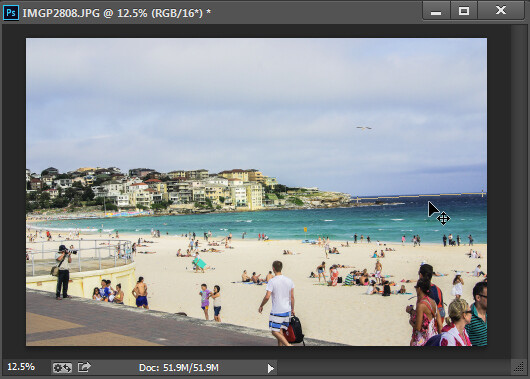
Click and drag along some element in the photo that should be either truly horizontal or vertical. The longer the line you make, the more accurate the adjustment will be.

Drag along an element in the image which should be horizontal or vertical using the Ruler tool.

Drag along an element in the image which should be horizontal or vertical using the Ruler tool

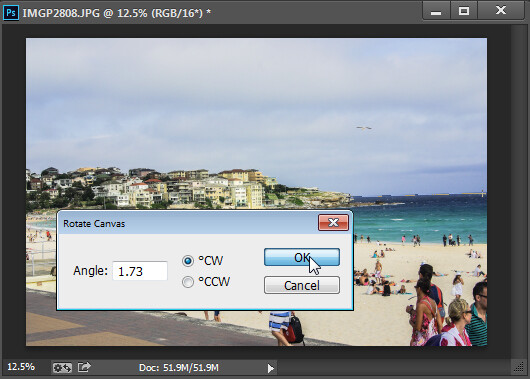
Once you have the ruler line positioned along the line you wish to straighten, choose Image > Image Rotation > Arbitrary and the dialog will show the angle of that ruler line – in other words the angle to rotate the image to straighten it. Press Ok to rotate the photo and straighten it.

Choose Rotate Canvas to rotate the canvas to the selected angle.

Choose Rotate Canvas to rotate the canvas to the selected angle.

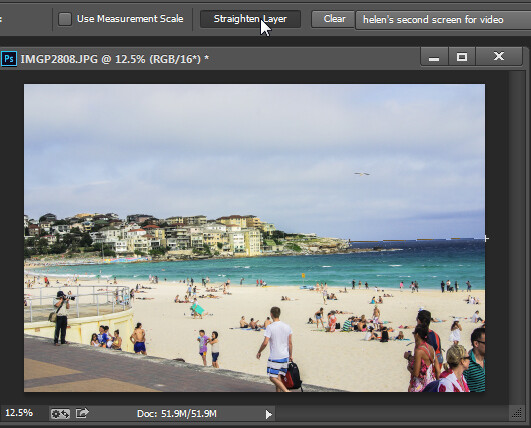
In Photoshop CS5, the process was streamlined slightly by the addition of a Straighten Layer option which appears when you select the Ruler tool. Once you mark out the line to straighten to you can then click this icon to straighten the image (see image below).

Click Straighten Layer in Photoshop CS5 and later to straighten using the Ruler tool.

Click Straighten Layer in Photoshop CS5 and later to straighten using the Ruler tool.

Straighten using the Crop tool

In Photoshop CS6 and CC the Crop tool now has a Straighten tool built into it. So, to straighten a photo, click the Crop Tool (or press C) and click the Straighten icon on the toolbar.

Click Crop and then click the Straighten icon on the Tool Options bar

Click Crop and then click the Straighten icon on the Tool Options bar

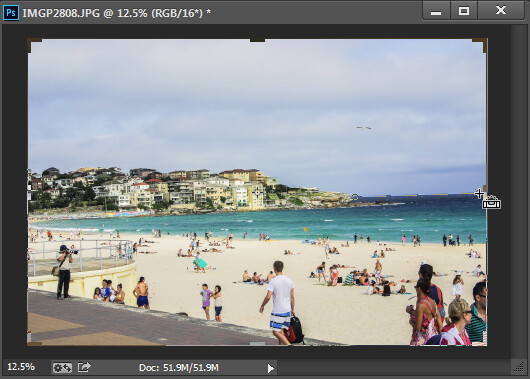
Now drag a line across the photo, along an element which should be horizontal or vertical.

Drag along an element which should be horizontal or vertical

Drag along an element which should be horizontal or vertical

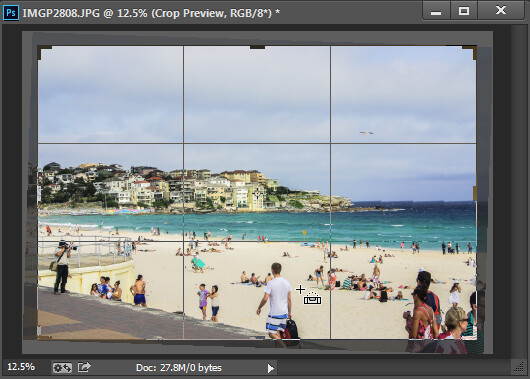
When you let go the mouse the image will be rotated automatically using the line as a guide and the resulting uneven edges of the image will be cropped away.

Press Enter to confirm the crop

Press Enter to confirm the crop

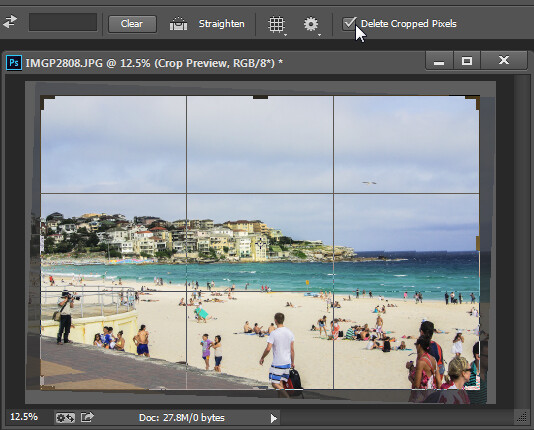
Press Enter to confirm the crop. If you have the Delete Cropped Pixels checkbox enabled then the excess image will be permanently removed.

The Delete Cropped Pixels setting lets you choose whether cropped pixels are deleted or not

The Delete Cropped Pixels setting lets you choose whether cropped pixels are deleted or not

If the Delete Cropped Pixels option is unchecked, the canvas will be reduced in size to match the crop rectangle and the extra image pixels will disappear from sight but will still be accessible.

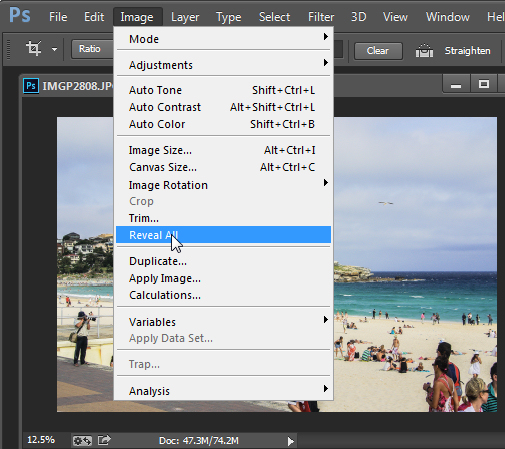
At any time you can reinstate these hidden areas of the image which lie outside the canvas by choosing Image > Reveal All.

Use Reveal All to display contend hidden when  you crop

Use Reveal All to display contend hidden when you crop

For more Photoshop tips try these:

  • 5 Easy Photoshop Tips for Beginners
  • Photoshop Tips – Using the Blend If Feature
  • Adobe Camera Raw (ACR) as a Photoshop Filter
  • What’s new in Photoshop CC for Photographers

The post How to Straighten a Crooked Image in Photoshop by Helen Bradley appeared first on Digital Photography School.


Digital Photography School

 
Comments Off on How to Straighten a Crooked Image in Photoshop

Posted in Photography


Processing an Image in Lightroom 5 – a Video Tutorial

02 Mar

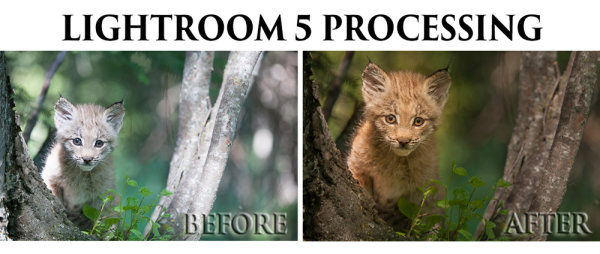
Lightroom5-processing

Of course, I always like to get the photo as perfect as possible, right in the camera.  But, sometimes the situation just doesn’t allow for a lot of adjustments to be made before the opportunity is lost. Today’s image of a Canadian Lynx kitten was one of those situations.

The kitten was in a forest on a bright sunny day with mottled light, pretty much nightmare’ish light.  Fill flash would have helped, but I’m hesitant to use fill flash with most mammalian critters because the flash will often show off hairs that our eyes don’t normally see, thereby rendering an artificial appearance to the critter.  So, instead, I attempted to expose for the highlights, trusting and hoping that my RAW files (later converted to Adobe’s DNG format) would help save the day when I got around to processing the image.  Today, is that day.

Processing an Image in Lightroom 5

So here is a video tutorial on using the features in Lightroom 5 to change a photo that started off looking like this . . .

© Paul Burwell

Before Lightroom Processing

. . . into a photo that looks like this!

© Paul Burwell

After processing in Lightroom 5 – Horizontal Crop

OR even this . . .

© Paul Burwell

After Lightroom Processing – Vertical Crop

To accomplish this we’ll make use of the Crop tool, the Basic Adjustment Panel, the Adjustment Brush, the Radial Filter, the Detail (Sharpening) Panel and the Virtual Copy feature.

We’ll take the photo of the Canadian Lynx kitten that started off pretty bland and forgettable, and end up with a nice looking, intimate portrait of a beautiful cat.  The video will cost you about 30 minutes of your life to watch through from beginning to end, but when you’re done, you’ll have an excellent idea on how to use these tools that come embedded in Lightroom to transform (or save) some of your own, less than stellar images.

Enjoy this video on processing an image in Lightroom 5

For more Lightroom tips try these articles:

  • 3 Uses for the Radial Filter Tool in Lightroom 5
  • Lightroom 5 Tips – Hidden Gems
  • Lightroom Tips for the Develop Module – the Magic Alt Key
  • Comparing Images with Lightroom 5’s Survey View

The post Processing an Image in Lightroom 5 – a Video Tutorial by Paul Burwell appeared first on Digital Photography School.


Digital Photography School

 
Comments Off on Processing an Image in Lightroom 5 – a Video Tutorial

Posted in Photography


How to Handle Image Theft Peacefully

25 Feb

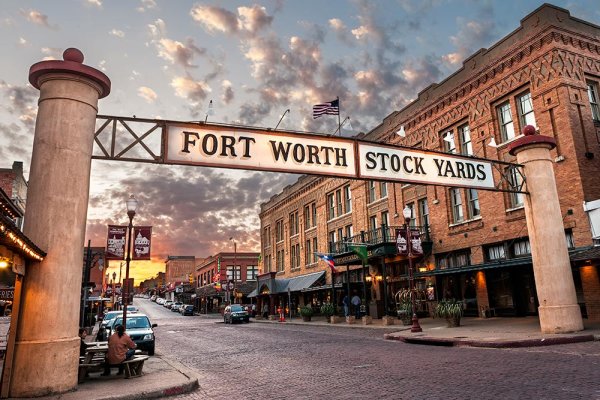
stockyards-entrance

First off, I am certainly not a lawyer and am not giving legal advice in this article, I’m simply telling my story and how I handle image theft. If you have questions about legal advice, please consult with an attorney.

Recently I received a phone call from a family member who believed a local news station was using one of my images as a green screen background. This was interesting considering I hadn’t had any conversations with any news stations recently about such a thing. I asked him to send me a photo of the segment and sure enough, it was mine.

I’ve dealt with my fair share of image theft over the last five years of being a professional photographer and I’ve certainly seen a lot more situations of other photographers getting their images stolen.

One thing that has never sat well with me is when I see some photographers attempt to completely destroy people for using their images without permission. Taking a situation like this to social media and damaging the reputation of the offender should be an absolute last resort, not a first knee-jerk reaction.

Quick Side Story

I had this same image stolen by a well known wedding photographer in the Dallas/Fort Worth area. I am friends with him on Facebook and was just scrolling through my feed when I saw this image being used as a photo booth background. I could not believe my eyes! What many photographers would have done is create a public post calling him out and saying what a despicable thing he had done. This would damage his local reputation and certainly go a long way toward making sure he never did it again.

Instead, I sent him an invoice for use of the image (it was in about 30 photo booth images in his wedding gallery), a cease and desist letter and a short email explaining why he was getting all this. Within 5 minutes he paid my invoice and sent very heartfelt apology letter and also thanked me for solving it privately instead of publicly. Turns out he hired someone to man the photo booth and told the person to only used free and clear images, but the person he hired was uneducated in finding the right images and found mine on Google and just assumed. Sure, he should have done a better job educating the hired help but it was a mistake. Not intentional.

Ok, Back on Topic – How I Handle Image Theft

Instead of calling the news station out publicly and demanding the image be taken down, I simply stepped back and analyzed the situation. I came to three conclusions…

  • The image was indeed used without my permission.
  • It had been shown on national television to hundreds of thousands (if not millions) of people.
  • Whether they stopped using the image or not, I deserved compensation for the use that had already occurred.

Now it was time to make contact. I sent this short email…

Hello,

My name is James Brandon and your news program used one of my copyrighted photographs without permission this evening (I’m attaching a photo in the email). Also attached is a Cease & Desist letter to stop further use. Since the image has already been used and run on air, I’ll be sending an invoice for the unauthorized use of the photo as well. Please let me know immediately how you plan to respond to this matter, so I can act accordingly.  

– James 

I got an email back shortly that simply said, “James, I’m forwarding this to our corporate attorneys.”

I’m guessing the person writing the email didn’t think I had a case and figured his attorneys would confirm that. The next email I got from him was a lot more wordy and apologetic. It said…

Second reply from offending party

James,

I’m so sorry about the use of your photo.  It was an unintentional error. 

The editor thought he had found something in the public domain. Obviously, he was mistaken.  He would never have used it if he’d realized it was copyrighted material.

OF COURSE we will immediately stop using the image.  I’ve already deleted it from our system so it doesn’t get used again. In light of the error, could you please consider waiving the fee you would normally charge for such use? 

– Mitch (name changed for purpose of article)

Decision time

This is where I had to make a decision. I didn’t send them an outrageously expensive invoice for thousands and thousands of dollars. Rather, I went to the Corbis website and used their pricing guide to figure out how much they would typically charge for similar use of a stock image. I then added a small percentage to that amount since it was unauthorized use. Should I just let them off the hook since he apologized? I think that I might have actually considered that option if that latest email had been the first thing he wrote me. I however got the impression that he was very unthreatened by my letter initially and only after talking to his corporate attorneys did he see the need to be nice to me and apologize. So I decided to (politely) press on.

Mitch,

 I appreciate the apology. Since the image has already been used and run on air (and who knows how long), I really don’t see how it’s fair to ask me to waive the fee. I sent you a very reasonable invoice. 

 I will however agree that once the invoice is paid, I will send over a licensing agreement so that you can keep using the image in the future (provided that it is left in it’s original state and not Photoshopped like it was). 

 Thanks. 

 P.S. Do you know where the editor found the image? Was it on my website? 

-James

Assuming that it actually was a mistake, I was more than willing to let them keep using the image if they were willing to pay my invoice. Some would say that’s too nice of me, but that’s just the decision I made. He wrote back quickly…

Hello, again, James. (<—-That didn’t sound very nice. I think he’s getting tired of me)

 The editor thought he was on a site for which we have rights and somehow managed to get onto another site.

 As to the invoice, I understand your need to charge for use of the image, accidental or otherwise.  The fee is quite high, however, considering that it was on the air for only a few seconds. 

 Could you cut the fee in half?  I could submit that invoice TODAY and we wouldn’t need the license to keep using the image.

 Mitch

At this point I was getting frustrated. He spoke with his attorneys and they clearly told him that the news station was in the wrong. Now he’s trying to barter with me. I could have said screw it and gone to social media. I could have gone off on him and demanded my money and threatened a lawsuit. Instead I simply stood my ground and let him know my stance on the situation. I also let him know how I could have handled the situation…

Mitch,

When bartering, there has to be incentive on both sides to negotiate. If we were speaking before the image aired, there would be at least some incentive to get my image up on your news program. In this case, the image has already aired without my permission. I didn’t get a say in that. 

This image has been stolen before, I guess there just aren’t that many photos of the Stockyards sign out there. The other people/companies that used the image paid my invoice without question (for the same price) and didn’t try to negotiate it. They understood they were in the wrong and didn’t want to risk having the matter becoming public. They were also nowhere near the size of your news program. 

What most photographers do in a situation like this is immediately call out the business or person using their image on social media and their website. This gets the photographer’s followers up in arms and they will typically go bombard the Facebook page of the person or company in question. This looks very bad to the person/company’s followers and it usually gets the ball rolling pretty fast to get it resolved. 

I’ve chosen to take a more peaceful approach, and attempt to settle this matter privately first. Please pay the invoice so we can put this matter behind us and move on.

-James 

That was the last contact I had with Mitch. After that email, I got an email from somebody higher up asking for a W-9 and new invoice sent directly to him. I ended up talking to that person on the phone and explained the situation. He apologized for Mitch’s behaviour and for the unauthorized use of my image and said that I had every right to be compensated for it. He also thanked me for handling it privately and not defaming them publicly. He then paid my invoice over the phone and the matter was settled.

Conclusion

There are many ways to handle image theft, but most situations can be handled professionally without the need for burning bridges or destroying reputations. It can also nearly always be resolved without the use of attorney or going to court.

If someone steals an image blatantly and then refuses to take it down or ignores all attempts at making contact, then by all means sound off on social media and send your army. That’s not what happened here. The entire process of finding out about my image being used and getting the issue resolved and the invoice paid took about 6 days. It took some patience but in the end it was resolved peacefully.

What are your thoughts? Was I too easy on them? Too hard? What would you have done differently? Let me know!

For more articles on some legal ins and outs of photography and copyright try these: 

  • Intellectual Copyright – What is considered ‘stealing’?
  • Using Image Watermarks In Lightroom
  • Working with a Second Photographer – Legal Ins and Outs

The post How to Handle Image Theft Peacefully by James Brandon appeared first on Digital Photography School.


Digital Photography School

 
Comments Off on How to Handle Image Theft Peacefully

Posted in Photography


Women To Get A Stronger Image In Stock Photography

22 Feb

women-stock

The stock industry is about to change.

We’ve heard that before but this time the change, if it happens, will be positive, affect content rather than distribution and will give new opportunities to photographers to shoot not just more images but more interesting images.

The change is coming from Sheryl Sandberg. Facebook’s CEO has teamed up with Getty to promote a new collection of images that portray women in a more positive way. Instead of the usual clichéd stock images of women in suits, women holding babies and women laughing alone with salad, the collection will show girls on skateboards, women in the operating theatre and women planing wood. Even men get a look in with dads now shown wearing the bjorn.

The collection currently contains more than 2,500 images which will be returned alongside the usual results for relevant search terms. Buyers can also search the collection exclusively. Ten percent of the proceeds from the photos will go to LeanIn.org, Sandberg’s non-profit organization.

The aim, says Sandberg, is to change the way women and girls are portrayed in the media and to remove many of the old stereotypes that she believes hold women and girls back.

“When we see images of women and girls and men, they often fall into the stereotypes that we’re trying to overcome,” Sheryl Sandberg told The New York Times, “and you can’t be what you can’t see.”

The effect of the shift in imagery could be huge. The three most-searched keywords on Getty are “women”, “business” and “family” and yet buyers often complain they can’t find the images that portray those keywords in the way they want. Writing in The Cut last November, for example, Emily Shornick produced a slideshow of results for the keywords the publication typically needs to illustrate. “Girl power” and “feminist” returned women, often scantily clad, in boxing gloves and gripping dumbbells and power tools; “career women” stand on cliffs or climb symbolic ladders, hold folders and fall asleep on computers; a “businesswoman” is a multi-armed octopus who can hold a baby, a computer, a frying pan and an iron in her many hands. Despite the millions of images available on stock sites, few of the results produced the “feminine sass” the publication was hoping to find when it searched for “girl power.”

The aims of Getty’s new collection then are laudable. More images of women engineers and female coders in the media and in advertising can only be a good thing for encouraging girls to take up the sciences. They may even come as a relief to photographers looking for a shoot more creative than one that involves telling another model in a business suit to hold a laptop and smile.

Do Advertisers Want Strong Women?

The question, though, is whether buyers will go for these new portrayals. The Cut might be looking for sassy images of girl power but how representative is that magazine of buyers in general?

It’s possible, in fact, that despite the advances women have made in the workplace over the last few decades, art buyers have gone backwards.

In 1981, Lego’s famous ad showed a little girl holding a model made of colored bricks. That ad wasn’t just portraying the creativity that its product allowed children to enjoy. It was also suggesting that its bricks were for all children, boys and girls alike. Today’s toy marketing is much more gendered. Stores now are more likely to have pink shelves for girls and blue shelves for boys. In catalogs, girls brush princesses, pet puppies and play with dolls; boys build towers, push cars and experiment with chemistry sets.


toys-stock

That three-quarters of the more feminist images now included in Getty’s Lean In collection aren’t new suggests the company might indeed struggle to make sales. Those photos were drawn from Getty’s main collection where, presumably, they were passed over by buyers who chose instead to purchase images with traditional portrayals.

For photographers, that represents a dilemma. As keen as photographers might be to produce more positive depictions of girls and women, they have to shoot what sells not what they wish customers would buy (especially if that 10 percent donation to LeanIn.org is taken before Getty has calculated their royalties.) Restaurant owners might wish people would buy fruit juice instead of soda, but if people buy soda, they’ll continue to offer it. This wouldn’t be the first time that buyers have complained about the stereotyped nature of stock imagery even as they fill their shopping carts with it.

Getty Can Make The Market

The real strength of this initiative though is that Getty has thrown its weight behind it. The company doesn’t just supply images to a market. It also tries to influence that market. Each year, its research department issues reports on trends in the stock industry. That tells photographers what they might want to shoot if they want to increase their sales but it also tells buyers what they should be buying if they don’t want their ads to look old and out of date. Getty is influential enough to create trends as well as report on them. Current trends, the company says, include a preference for realistic body shapes and more shots of women at work.

Getty’s collaboration with Lean In is a positive move but photographers will need to be careful. It’s easy for Getty to promote a particular kind of image but if the sales of those new images fail to occur it will be the photographers who are left holding the bill for the shoots. Photographers who find that their traditional portrayals of happy salad eaters and boxing businesswomen make them profits shouldn’t have to risk their revenues to please buyers who are afraid to take risks themselves.

The best strategy will be to continue shooting images that you know can find buyers, keep an eye on the trends and the Lean In collection, and ease more positive portrayals into the shoots as you see those becoming popular.

If the stock industry is changing again, we’ll all need to manage that change carefully.


Photopreneur – Make Money Selling Your Photos

 
Comments Off on Women To Get A Stronger Image In Stock Photography

Posted in Equipment


Create a Cast of Light in Your Image using Photoshop or Elements

06 Feb

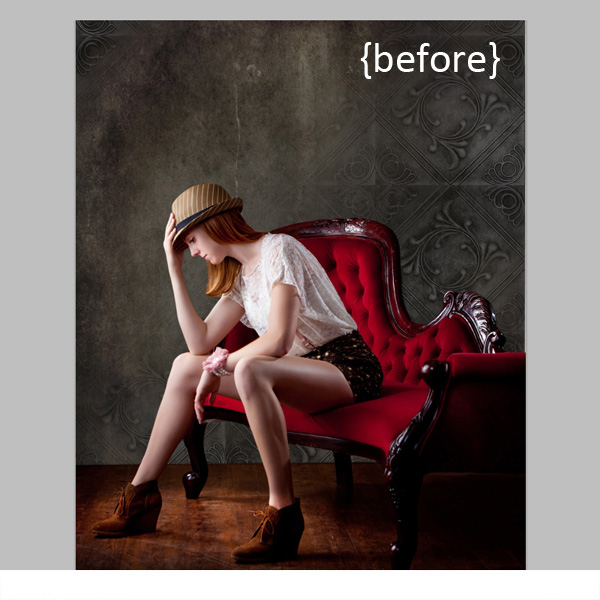
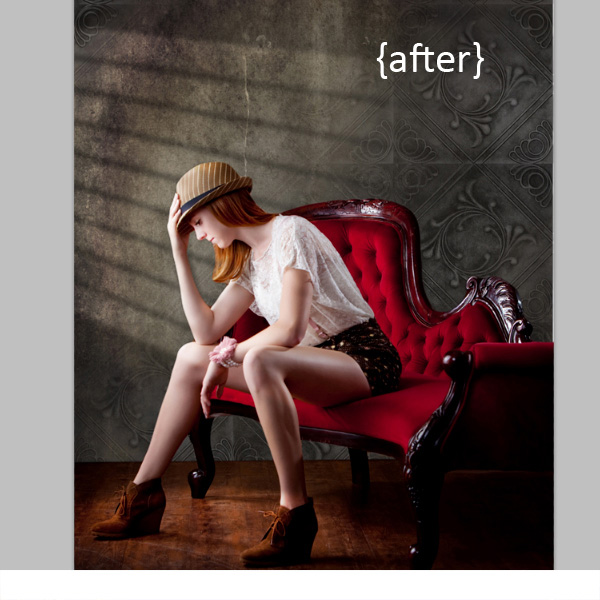
Light sources add depth and interest to your images immediately. By simply adding some window light to this image we added depth and warmth. If you have an image that you love, but it’s falling a little flat, consider adding some light! With just a few simple steps you can add beautiful light to your images.

Follow these steps to create a cast of light – works in Photoshop and Elements

Window Light Cast Before

Window Light Cast After

One thing you’ll want to pay special attention to is pre-existing lighting in your image. Make sure the light source you add works with and compliments your image. You can adjust the angles and direction of your added lights to make them work together so your image is both believable and beautiful.

Let’s get started. Follow these simple steps to make your compositions shine!

Step 1: Start with a light source

This can be an image you’ve taken, something you’ve designed or something you’ve purchased. We are using a light element from our Window Cast Light Set. Choose a light source and shape that you want to bring into your composition.

NOTE: if you want to follow along and try this on one of your images we’re happy to provide our set of Light Casts to you for free. Go here to download them – use the code: FREEBIE when you checkout to get them at no charge.

Step 2: Add the light source to your image

If you have your image and the light source both open in Photoshop, you can use your selection tool to drag the light source to your image. Alternatively, you can also copy (Control + C) the window shape layer in Photoshop (or PSE). Open your image and paste (Control + V) the window shape layer into your image.

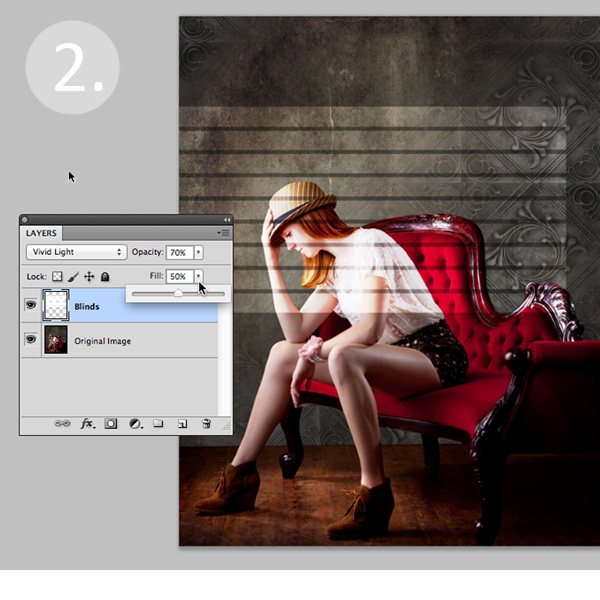
In this case, we placed the light source over our image. Next we adjusted our Layer Blending Mode by setting it to “vivid light” and then adjusted our opacity and fill on the light source until we achieved the desired look. You’ll want to play around with these settings to get the right look for your image.

Window Light Cast La ED2363

Step 3: Adjust the shape of your light

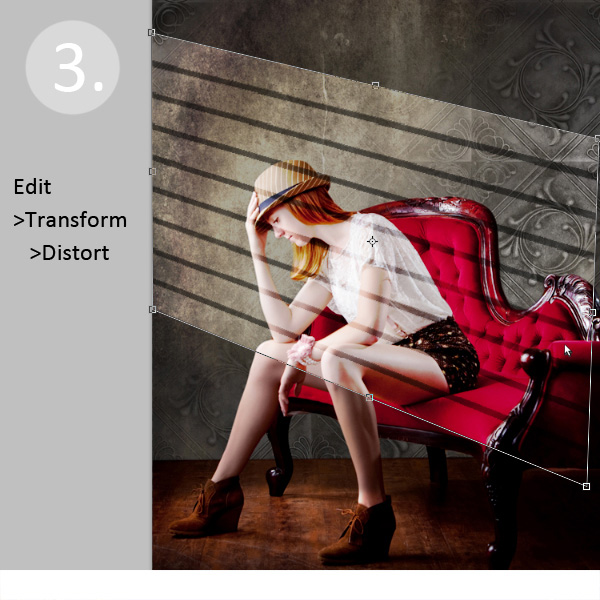
Next, you’ll transform the window shape to your liking. Go to Edit>Transform>Distort and then move the corners to create the
shape that works best with your image.

Window Light Cast Transform

Step 4: Soften your light

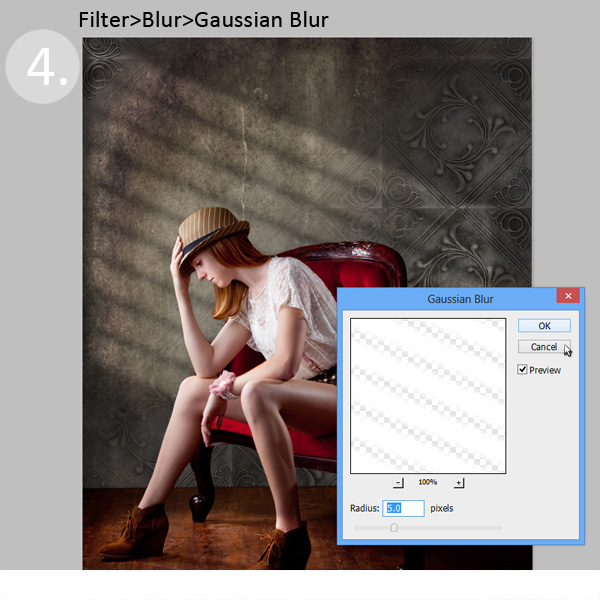
Now you want to soften the edges of your light so that it is not so harsh. Use the Gaussian Blur filter (Edit>Blur>Gaussian Blur) to soften the edges to your taste. In this case, we set the blur amount to 5. Adjust the amount of blur up and down to see how it softens the light in your image.

Window Light Cast Blur

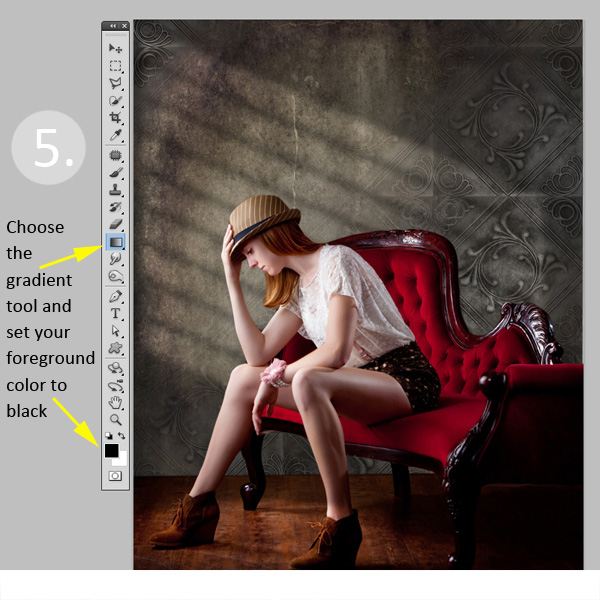
Step 5: Fade your light source for a more natural look

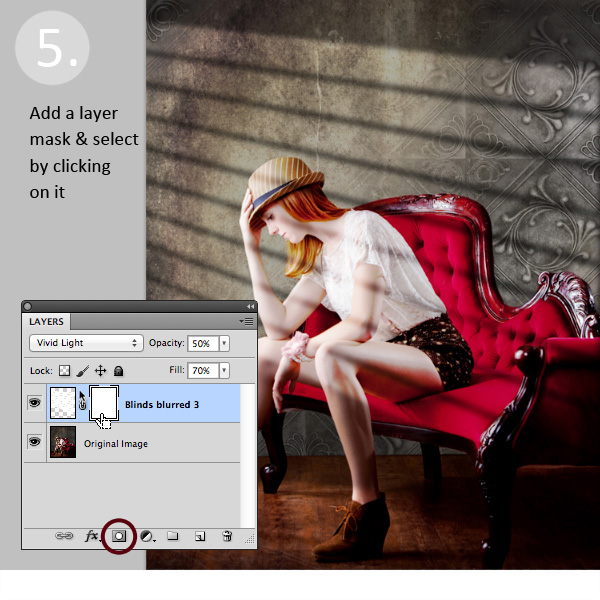
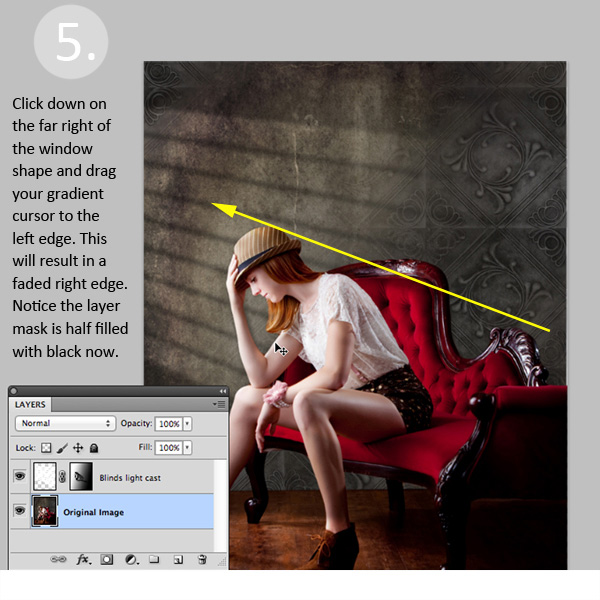
Now you’ll add a Layer Mask to your window shape layer. First, select your layer, and then click the Add Layer Mask Button at the bottom of your Layers Palette. Click on the new Layer Mask in the layer to make sure it’s selected. (VERY IMPORTANT STEP!)

Window Light Cast La ED283A

After adding a layer mask to the light cast layer, set your color palette to black and white, with black in the foreground color. Then use the gradient tool set to “foreground to transparent” to fade the light off.

Window Light Cast Gradient

Simply click into your layer mask and drag your cursor from one end (this will be 0% opacity) to where you’d like to see the light at 100% opacity. If you don’t like your results, fill the mask with white and start over.

Window Light Cast Gr ED2331

Step 6: Position the window shape to your liking.

Use your Selection Tool to adjust the position of your light layer to the desired location in your image. You can also use a soft black brush set to 30% opacity to subtly brush away the window light in the layer mask. We did this to remove extra light from her face.

Congratulations! You’ve successfully added a beautiful, warm light effect to your image to create more depth and interest in your image.

Window Light Cast Before

Window Light Cast After

Your turn!

If you’ve tried out this technique please share your images in the comments below, and please ask if you have questions!

The post Create a Cast of Light in Your Image using Photoshop or Elements by Christina Roth appeared first on Digital Photography School.


Digital Photography School
 
Comments Off on Create a Cast of Light in Your Image using Photoshop or Elements

Posted in Photography


DxOMark tests Nokia Lumia 1020’s Raw image quality

25 Jan

Lumia1020.jpg

When the Nokia Lumia 1520 was launched in October 2013 it was the first smartphone to offer Raw image capture. Now the same feature was recently added to the older model Lumia 1020. Our partners at DxOMark have put the Lumia 1020 through its Raw-based sensor testing. The results are worth checking out. Learn more on connect.dpreview.com. 

News: Digital Photography Review (dpreview.com)

 
Comments Off on DxOMark tests Nokia Lumia 1020’s Raw image quality

Posted in Uncategorized