Microsoft’s Research’s Interactive Visual Media Group has announced the release of Image Composite Editor 2.0. The software’s latest update, taking advantage of the company’s Photosynth technology, can seamlessly stitch together ‘gigapixel images’, create panoramas from video, and automatically fill in areas of missing photographs. Read more
Tag: Image
-
Body Image Of A Model With Sarah DeAnna
Hi FashionPhotograhyBlog.com readers,
Top fashion model, speaker & author of the book “Supermodel YOU“, Sarah DeAnna, joins us once again on FPBlog to share her experiences of healthy bodies and body image in the modeling industry and how she came about to create her book that deals with finding identity and beauty within yourself. Let’s note wait any longer. Here is the interview of Sarah DeAnna speaking to FPBlog…

FPBlog: One of the things that I really admire about you, Sarah, is that you have this gorgeous body. Models have to have gorgeous bodies, but you have this body through good habits and healthy means. You know in our industry, and I often at times I feel guilt about it, is the showing off, depicting the perfect image, body and face, and we then exploit that.
Young girls, who maybe are 5’10” and 115 pounds feel bad about themselves and it can lead to low self esteem or poor body image. Maybe they might try to get as thin as you are through unhealthy measures whether that’s through fasting, drugs or anorexia and that’s really sad. So you have written a book which I’m so happy and proud that you’ve done. Can you tell us about it?
Sarah Deanna: Yeah, it’s called “Supermodel YOU“, and basically it was my response to, like all the things your saying right now. Being in the industry, I just became the “go to girl” for models living in model apartments, backstage at shows or (for) agents (who) would tell the models to call or ask me because “Sarah Deanna is thin and she’s healthy and they’re having problems”. They knew I was eating anything, they knew I was healthy and it just became a passion of mine. Girls would come up to me, I would teach and help them.
So I started researching and I found something (interesting); that they were five keys that determine body weight for every single person and I was able to show how a model, a healthy model (because of our career and because of what we do), how we have mastered these keys. I put it into a book and I have an amazing publishing house (Hay House), support system and writer. I’m just really happy (about it) and it’s out now!
It’s my passion, my dream and I just want to (do it). It’s “Supermodel YOU“ and it’s teaching people how to channel their own inner supermodel. It’s not (about) having somebody else’s body or (the body of) somebody that you see in a magazine, but your dream body, and your body that makes you feel the best, that you’re healthiest at, and I love it.
I cannot wait for people to get it and I hope that the message is understood the right way. (I hope that it is) given how we’re giving it, but (also) understood, that people feel empowered; girls won’t feel like a model is better than them or a person on the street, or a girl in their school or anything (is better than them). I hope they can get how to own their own identity and their own beauty.
FPBlog: That’s great! I’ll read it!
Did you find this interview with Sarah DeAnna interesting? Leave your comments below in the comment section. We would like to know what you thought about the post. If you enjoyed this post, stay tuned as Sarah DeAnna has more insights to share on FashionPhotograhyBlog.com – If you are interested in grabbing a copy of Sarah’s book, “Supermodel YOU” you can find it here. You can also find out how Sarah learned her way through the modeling industry when she first started by reading our previous post with her, titled “Learnings of a Model“.
IMAGE SOURCE:
Feature image & image 1: Photo of Sarah DeAnna, courtesy of Melissa Rodwell for Kurv Magazine
-
Telling a Story in a Single Image – Tips from a Photojournalist
Photography is visual communication medium. You can follow and use some rules, through composition and technique – but photojournalism takes it a step farther and states facts and gives information that is true and real. You need to follow two basic pillars to be an ethical photojournalist. Those principles are: you do not manipulate your scene, and the information you are photographing must be real.
The best recipe you can use for getting a good photo that tells a story is by combining good composition, action, and emotions. If you are able to engage with your subject mixing those three elements you will be able to get a good photograph.
As photojournalist you can display facts and affairs but you will level up your work if you are able to evolve those facts in something emotional and touching. Then is when you photo stars to tell a story.
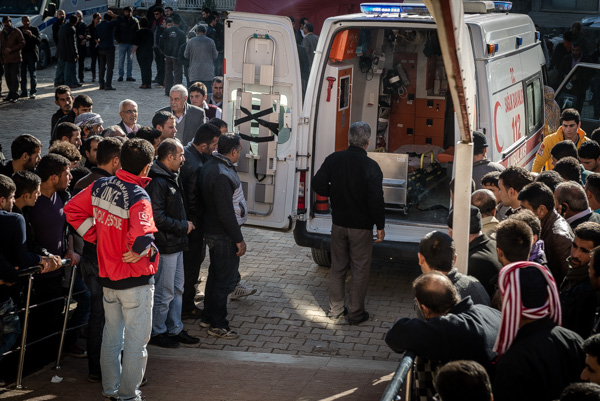
Suruç hospital receives Kurdish fighters from Syria.
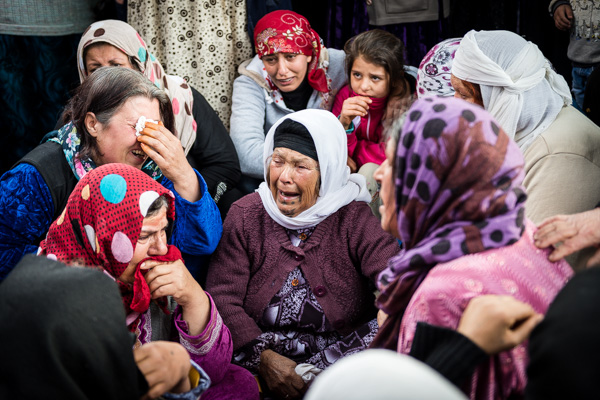
Kurdish women cry for the wounded, treated in Suruç hospital.
Both photos describe real facts, something that is going on. In the first one you see some action, and some mood in the people waiting for the wounded fighters. But in the second one, the emotion is stronger and you see the action coming out from the other women crying around them.
“If you want emotions in your photos you need people around”
Include people in your frame. Look for the faces, not for the backs, but understand that body language in human beings is another way of communication so a full body can also express emotions.
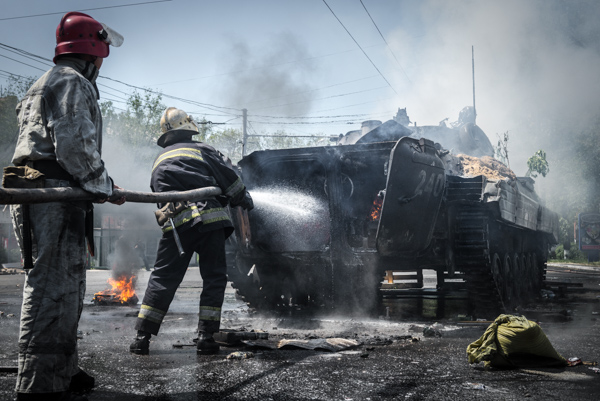
Ukrainian army enters the eastern city of Mariupol leaving civilians casualties as result of the attack.
Firefighters are in action, the fire inside the personal armoured carrier is action too and the whole scene makes the tension of a probable incoming explosion. You need to make the action evident, so you need to get close. The action needs a bigger space in your frame. For that, use your feet – they are your best zoom. You could step back ant shoot the armoured vehicle on fire from the distance, but the main characters of the photo will be lost and the man handling the water and the fire in the foreground is pure action.
You can get a story going on in your photos too, if you are able to engage with your subject. A close portrait with the right attitude is it always good. In these photos you can see a little bit of action in the background but not much. However, you can replace that making a strong engagement with your subject. You can feel in these photos they are arrogant, they are proud of what they are, they stand up not ashamed, and look forward and straight into the camera and their body languages speaks for itself.
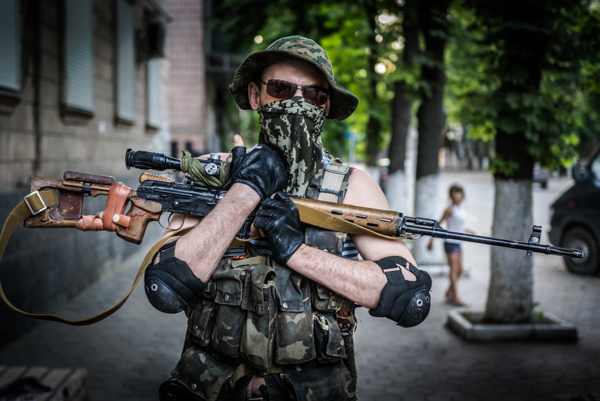
Pro-Russian sniper guards a checkpoint in Slaviansk, eastern Ukraine.
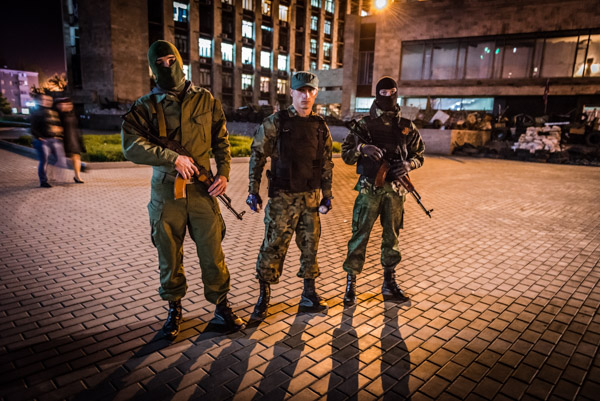
Pro-Russian militias patrol the main administrative building in Donetsk, eastern Ukraine.
When you look for a story in your photos try different angles, do not be afraid of watching things from a different perspective. Get low, as a photographer you need to change your point of view. When photographing kids and animals you always need to get to their level, at the same level you make them to stand up and you give them the major role in frame.
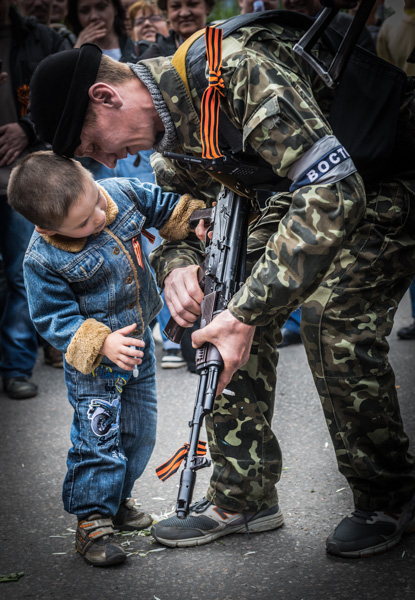
Pro-Russian militia Vostock Battalion celebrates the independency of the Donetsk People’s Republic.
As you can see in these examples the action and emotions are the key. There is no better way to find those emotions than looking forward and getting close to the principal characters of the events.
A good indicator of whether your photography is good is if you do not need to explain anything. A photograph telling a story does not need to be explained. If you want to make the story more complicated you will need to put more elements in harmony in your frame, it is more complicated but is a challenging experience.
How do you tell stories with your images? What can you learn from these tips that you can use in your own photography, even if you do not do true photojournalism?
googletag.cmd.push(function() {
tablet_slots.push( googletag.defineSlot( “/1005424/_dPSv4_tab-all-article-bottom_(300×250)”, [300, 250], “pb-ad-78623” ).addService( googletag.pubads() ) ); } );googletag.cmd.push(function() {
mobile_slots.push( googletag.defineSlot( “/1005424/_dPSv4_mob-all-article-bottom_(300×250)”, [300, 250], “pb-ad-78158” ).addService( googletag.pubads() ) ); } );The post Telling a Story in a Single Image – Tips from a Photojournalist by Felipe Passolas appeared first on Digital Photography School.
-
Got Color? No Way! The Whys of a Monochromatic Image
Ansel Adams, master of black and white photography, once said; “There is nothing worse than a sharp image of a fuzzy concept.” So many people take pictures of just whatever… people eating, in awkward positions, with distracting things in the background, etc., Then, because that shot took a long time to make, or was hard, even though it’s a bad Continue Reading
The post Got Color? No Way! The Whys of a Monochromatic Image appeared first on Photodoto.
-
BPG image format aims to replace JPEGs
There’s no doubt that JPEG is the web’s go-to image format, offering both widespread compatibility and small file sizes, but it’s far from perfect. Alternative image formats have been developed that provide higher-quality compression, but nothing yet has come close to toppling JPEG thanks to its ubiquity. BPG is the latest new format to challenge it. Read more
-
Using Levels in Photoshop to Image Correct Color and Contrast
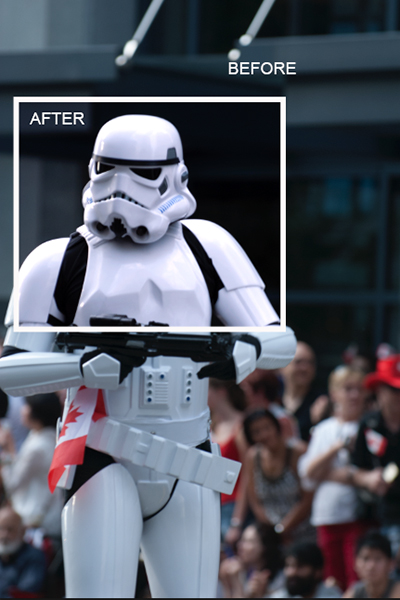
Notice the difference some quick adjustments using the Levels tool can make
Image editing is an important part of making your good images look spectacular. Photoshop and Lightroom are packed with tools to help you get your images to look great after you have downloaded them on to your computer. While there are many different tools in Photoshop to enhance your image, there are really only a handful of tools that you will use on just about every image; one of those is the levels tool. Photoshop has a levels tool, Lightroom doesn’t unfortunately. Each photographer has a different workflow when editing images, my suggestion is to follow a process that is the same for each image. When you open up an image in Photoshop or Lightroom, the first step is to look at the exposure. Is the image over or underexposed? At this stage of the workflow, you could be looking at a tool like the Shadow and Highlights adjustment, the next one to use would be Levels.
What is the Levels tool?
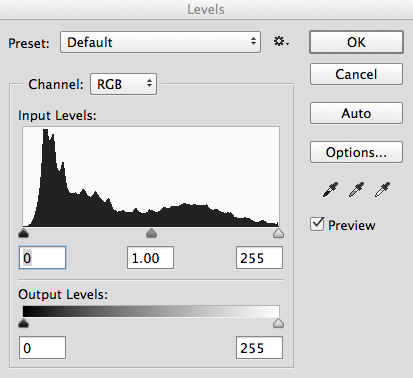
Levels tool in Photoshop
Levels does two things in one tool, it corrects the tonal range in an image and it corrects the colour balance. Adjustments made using the Levels tool are not only about getting the exposure on your image correct; it also has a second function and that is, it can correct for colour too. Yes, there are other tools within Photoshop that can do this, but the Levels tool can make it really quick and easy.
The Levels tool uses a histogram to show a visual representation of the tonal range in your image. There is a lot to be said about a histogram, but the most important thing to remember is that there is no right or wrong histogram. If you are unsure about how a histogram works, check out: How to read and use Histograms. On the histogram in the Levels tool, you will see a numerical range starting at zero on the left hand side of the graph, and 255 on the right. In the Levels function, zero represents black and if you have pixels that are at zero, that means there is no detail, they are totally black. The right hand side at 255 represents total white. If you have pixels at 255 that means they are totally white, with no detail. If the shape of your histogram is leaning to the left hand side, that means you have a lot of dark pixels in your image and your image is possibly underexposed. If the histogram is more on the right hand side that means you have a lot of bright highlights in your image and it is possibly overexposed. The middle slider is the mid-tone or gamma adjustment. All the pixels that are not highlights or shadows, fall into this category.
How does the Levels tool work?
When you open the Levels tool, very often your first instinct is to push the sliders into a position that makes the image look brighter. That can work, but I suggest that you do the following: Before you make any adjustments, take a look at your image and see if you can pick up a colour cast. This is a tint or colour that affects the whole image, and is often unwanted. For example, if you have a wedding photo of a bride shot on an overcast day and while everything looks okay, there may be a slight blue hue in the image from the overcast light. This means that her dress looks a little blue instead of white. In a case like this, a colour cast is something you want to get rid of. If however you have shot a summer sunset and the whole scene is bathed in warm orange light, this could also be seen as a colour cast, but in that case you would probably not want change it. One way to find colour casts in your images is to look at an area of the image that should be white and see if it has a tint. A colour cast will vary depending on the light you shot under; it could be green, magenta, blue, yellow, orange, or anything in between.
How to use the Levels tool
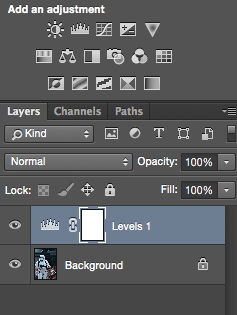
Make and adjustment layer for Levels
You can use the Levels tool on any image that needs the colour or contrast corrected. If you have an image that needs to have the colour cast corrected, like my shot of the Star Wars Stormtrooper does, then do the following:
- Open your image in Photoshop.
- Click on the adjustment layer icon at the bottom of the Layer panel and create a Levels adjustment layer, or click on the Levels tool icon in the adjustments panel which is directly above the layers panel.
Step 1 – If you need to do colour correction
If your image has a colour cast (the example image does, as there is a slight blue colour because it was overcast weather that day), follow these steps. Not all images need to have the colour corrected, if you are happy with the colour in your image you won’t need to do this. If you do have a colour cast in your image, then do the following:
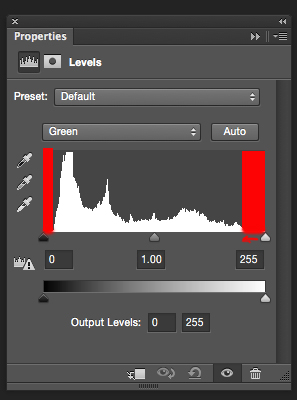
Bring the white and black sliders to the point where the graph starts moving upward
Part 1: In the levels tool, click on the drop down box above the histogram that says RGB. This will open up the three channels individually. Click on RED and bring the white slider and black slider in to part of the histogram where it starts to move upwards. Click on the the RGB drop down box again and click on GREEN and do the same, and finally click on BLUE and repeat one more time. This step will only work if there is a colour cast in your image. If there is no colour cast, the histogram will spread to the edges of the graph. In this image, there was a colour cast and this was how the GREEN channel histogram looked.
The red areas in the screenshot above show you where there was no colour information. By sliding the sliders inward to the edge of the graph, you will start to neutralize the colour cast.
Part 2: You will notice that as you make these adjustments, your image may have a very strong colour cast of the channel you are adjusting. Don’t be alarmed, this will all work out once you make the final adjustments.
Part 3: Once you have adjusted for the colour correction in all three colors, you can now adjust the exposure and contrast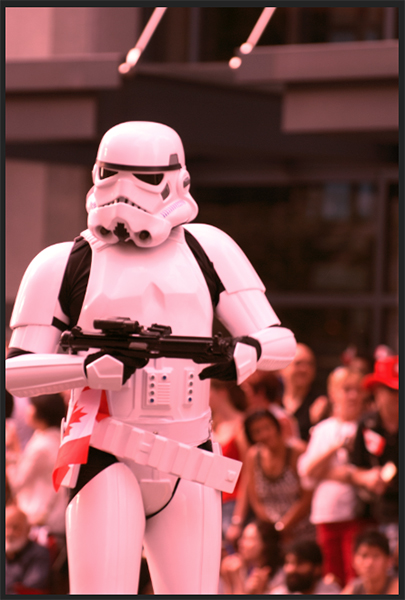
Don’t be alarmed at the crazy colours you might see during the colour cast adjustments, they will work out in the end.
Step 2 – Adjusting for exposure and contrast
The Levels tool can also adjust your image’s exposure and contrast. In other words, you can use it to make the highlights, shadows and mid-tones brighter or darker – an all-in-one tool. The levels tool is really great to make some quick adjustments to your image, here is how:
Part 1: In the RGB channel, move the white slider in from the right to the edge of the histogram. Do the same for the black slider, adjusting it in to the edge of the histogram on the left. The important tip here is to make sure that you don’t overexpose the highlights and underexpose the shadows. This is called clipping and the best way to see if you are clipping any pixels is to hold down the ALT key when you are adjusting the white and black sliders.
2. Once you have those two sliders adjusted, you can slide the mid tone slider to add some contrast to the scene and this will be the final touch to your levels adjustment.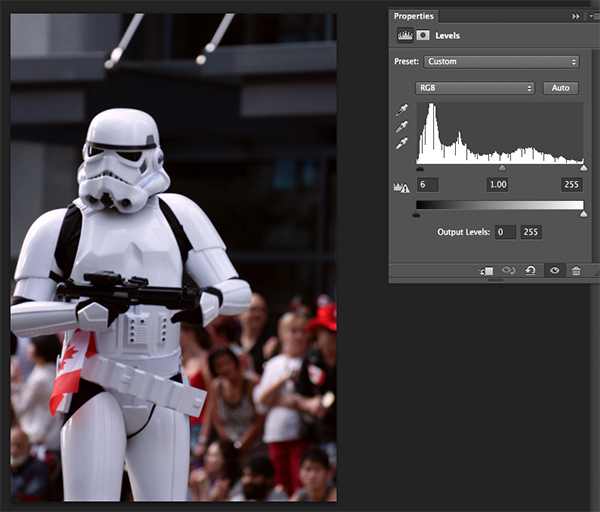
The final adjustment showing colour correction and contrast correction
Some final tips to remember
1. Like any tool in Photoshop, if levels is overdone, you will be able to see it in the image. So, be aware of over adjusting your image.
2. Small adjustments always work better than one big adjustment. Make small changes first and see if that works.
3. Use the ALT key to make sure you aren’t losing detail in the shadows and the highlights by clipping your pixels.
4. Add some contrast to your images in levels, that will give your image a bit more pop and will enrich the tones.The levels tool is a powerful ally to have in your image editing workflow. I use this tool on just about every image I edit. It can really add some contrast and punch to your images so try and use it as often as needed. These techniques take practice, but once you know what to do, the levels tool is quick and easy to use.
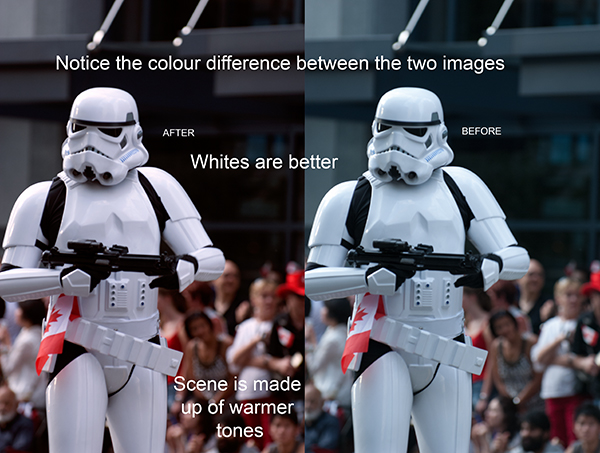
Compare the images side by side, there is a subtle but real difference
The post Using Levels in Photoshop to Image Correct Color and Contrast by Barry J Brady appeared first on Digital Photography School.
-
Google develops ‘coherent’ image identification algorithm
Google is working on an image identification technology at its Research Labs in Mountain View, California. The latest complex algorithm from the search engine giant is able to systematically ‘produce captions to accurately describe images the first time it sees them’, creating coherent sentences rather than individual tags. Read more
-
30 Outstanding Examples of Full-Screen Image Background Sites for Your Inspiration
If you’re looking for a way to make a strong impression and a bold statement with your portfolio, a full-screen background image can do the job for sure. Focusing solely on images while providing easy navigation, this web design technique and photography websites just belong together. This approach can fit any kind of photography portfolio, but dramatic, bold photos are Continue Reading
The post 30 Outstanding Examples of Full-Screen Image Background Sites for Your Inspiration appeared first on Photodoto.
-
Ricoh updates Pentax 645Z firmware for IMAGE Transmitter 2 software
Ricoh Imaging has released new firmware for its Pentax 645Z medium format camera to make it compatible with the latest version of the company’s IMAGE Transmitter software. Firmware version 1.10, which is available to download by users via the Ricoh website, allows Pentax’s second digital medium format camera to be controlled when tethered to a PC via USB cable, so images can be saved directly from the camera into a chosen folder as they are taken. Read more
-
Relonch brings APS-C image sensor to the iPhone
The Relonch camera combines an APS-C sensor with an extremely simple UI and attaches to your iPhone, using your phone for display, image processing, storage, and sharing. A bright F2.0 lens ensures low-light performance. At an output resolution of only 1MP, it’s a niche product, but the concept is exciting. Click through to learn more.