RSS
 

Posts Tagged ‘Image’

Nikon D5 and D500 Review: Exceptional Image and Video Quality

18 Feb

Professional photographers and shutterbugs alike were excited when Nikon Corporation launched in January 2016 the Nikon D5 (the most advanced professional DSLR to date), as well as the Nikon D500 (which replaced the D300S, Nikon’s previous DX-format flagship DSLR). Let’s take a deeper look at each of the new Nikon cameras. Nikon D5: Setting New Benchmarks for Speed, Accuracy, and Continue Reading

The post Nikon D5 and D500 Review: Exceptional Image and Video Quality appeared first on Photodoto.


Photodoto

 
Comments Off on Nikon D5 and D500 Review: Exceptional Image and Video Quality

Posted in Photography


Apple patent describes use of curved image sensor to design small camera module

29 Jan

A patent was recently granted to Apple describing how a spherical image sensor can be used to design a very compact camera module. The sensor is spherically curved and eliminates the need to correct for curvature of field, meaning a simpler, brighter and ultimately smaller lens design can be used. Read more

Articles: Digital Photography Review (dpreview.com)

 
Comments Off on Apple patent describes use of curved image sensor to design small camera module

Posted in Uncategorized


How to Create a Vintage Look for Your Image Using Photoshop

23 Dec

Creating a vintage look for an image is now easy, without having to shoot with an old film camera. Although I would recommend any photo enthusiastic to try! I have a an Agfa camera ISOLA that I use every now and then. I love the contrasty, grainy black and white pictures it allows me to shoot. I usually ask advice regarding the film I can use depending on the sought-after result (contrast- grain – ISO).

With a few easy steps in Photoshop you can make a textured, desaturated vintage look for any of your pictures. I’m going to show you how I did it with a self-portrait, but you can really do it with any picture as this technique really creates a great feeling to any image, whether it is a portrait or a landscape.

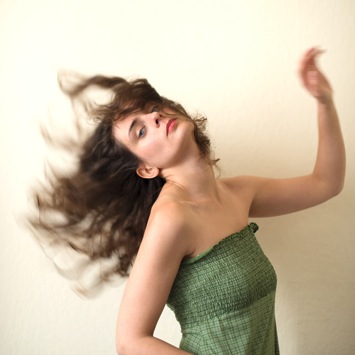
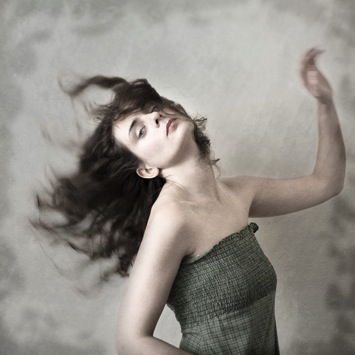
Vintage images are usually not so sharp, so I chose an image with some motion blur. You can add some directly in camera playing with slow shutter speeds and creating some motion. To edit this image, we are going to change the color using a gradient map adjustment, add some textures, and finally add a vignette to get a vintage look image.

Setting the mood for creation before Setting the mood for creation after

Step one: Modifying the color tones using gradient map

There are many ways to desaturate an image. I love the gradient map adjustment because it allows me to desaturate the image, to add some color tones, and also to adjust its contrast. Hopefully, you will love this tool if you haven’t tried it yet.

Vintage images are usually desaturated – it could also be sepia. To get the desaturation you can go to Layer > New adjustment layer > Gradient Map (as shown below).
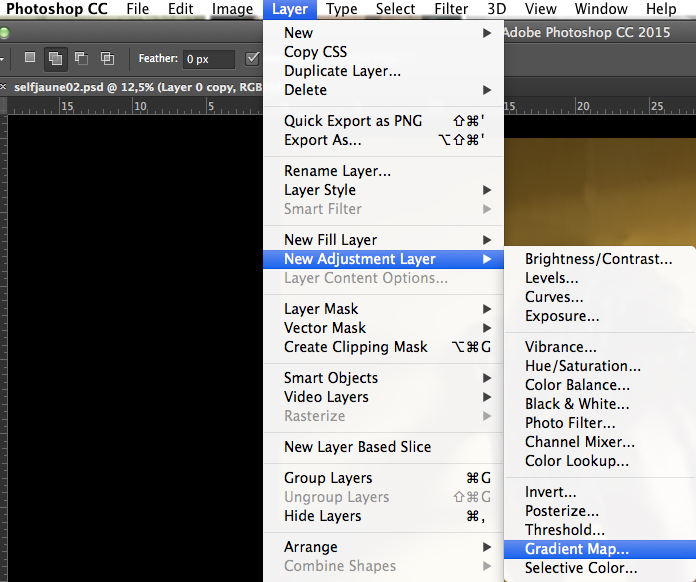
01

Or you can go to your layer tab and select new Gradient Map layer (as below).
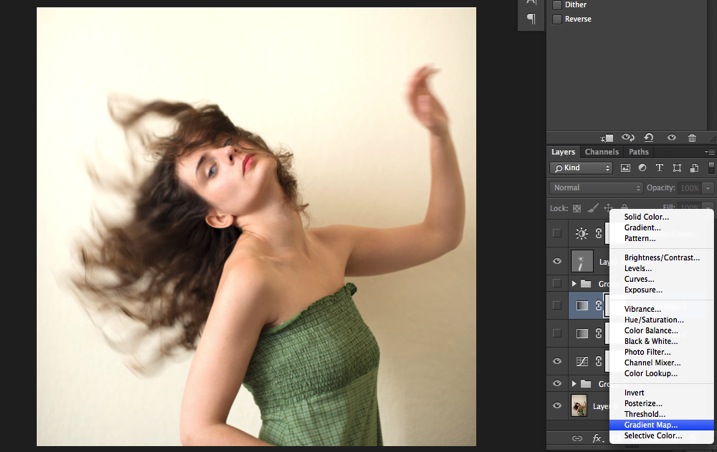
02

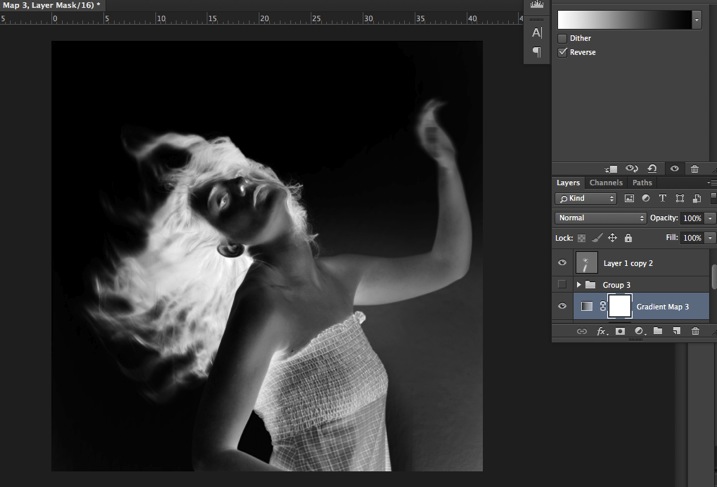
In the properties tab (screenshot below) you can see what gradient has been applied. By default it will be a foreground to background color, so usually black and white (the color squares on the bottom of your tools bar). You can also set the gradient color by changing your background and foreground color.
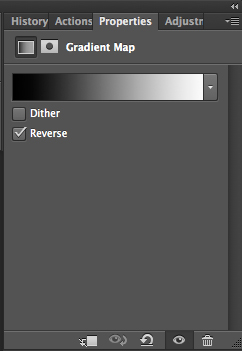
03

Photoshop then offers you 2 different options:

  • The Reverse option will change the gradient and give you a negative of your image, as in this case I add white into the black and black into the white (below).04
  • The Dither option will mix in noise to help blend the gradient more smoothly. So you can check any of those options depending on the effect you want to achieve.

Edit your gradient by clicking on it (click on the gradient color bar); the gradient editor will then open.
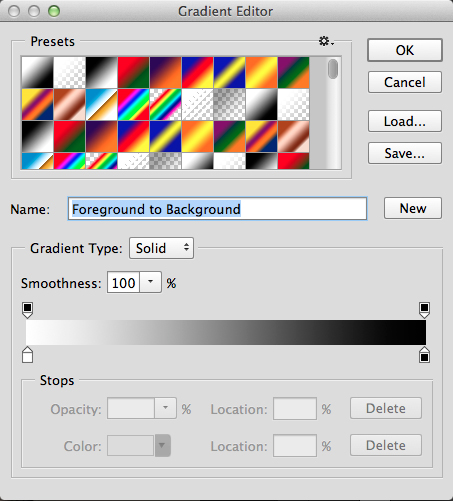
05

The gradient editor window shows you on the left the color applied to your blacks, and on the right the color applied to your whites. To modify the gradient you have two options:

First option, you choose one of the available presets. You click on a preset to apply it to your image. Second option is to create a custom gradient. Simply double click on one of the color stops, and choose a new color among the color pop-up menu.

You can also create a new color stop/intermediate by clicking below the gradient bar to define another one wherever you want (remember on the left are your shadows/black tone – in the middle mid-tones, and on the right your highlights/white tones). Once the new color stop is set you can also move it so it affects more of your dark or light tones.

In case you want to save the created gradient as a preset, name it, then click New after you have finished. It will then appear in your presets.

This is a powerful tool to adjust any color tone in your images. In this case I will first use the black and white gradient. When using this option the image is then turned into a black and white picture.
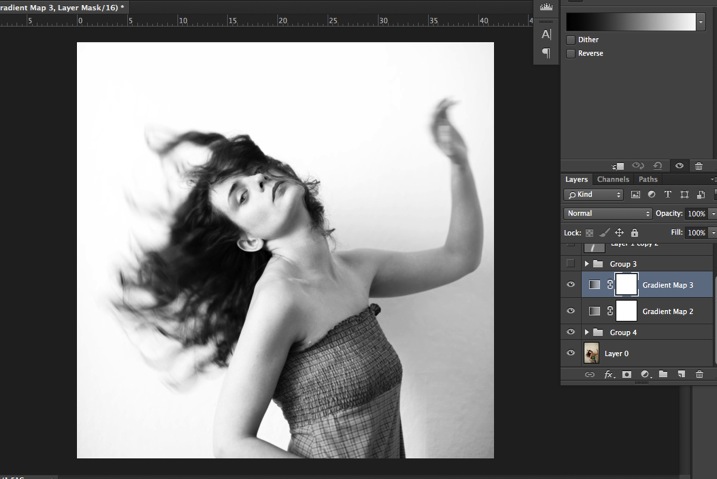
06

As it is not what we intended to do, lower the opacity of the adjustment layer.
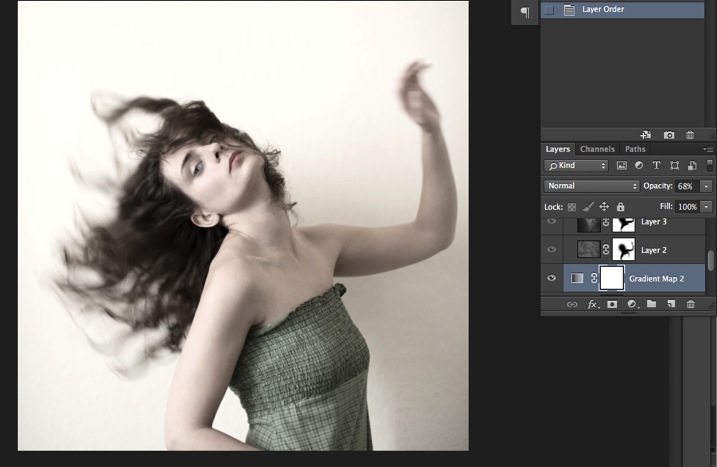
07

I set it to 68% in this case, but you can choose whatever number gives a nice look to your image – play with the opacity to decide which one best suits the image you are editing.

You can add also a touch of color. Keep it very soft to achieve a vintage look. To bring back some color, you can add a second Gradient Adjustment layer. After you add another layer, click on your gradient and choose a yellowish/brownish option to get a sepia tone, one in the presets or make a custom one.
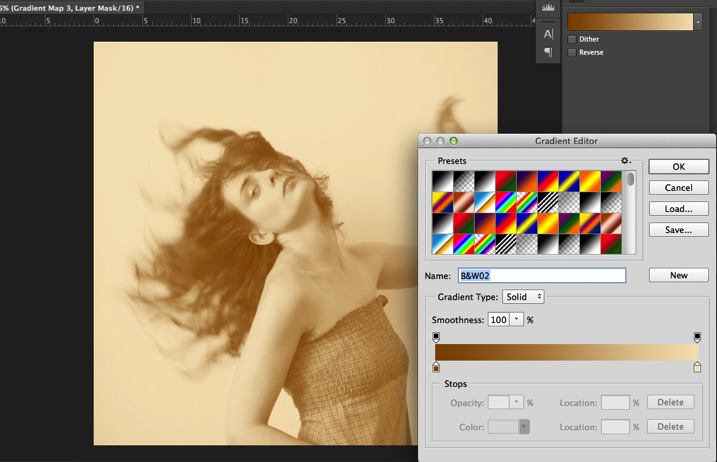
08

Once again you can lower the opacity of the adjustment layer to have a softer effect.
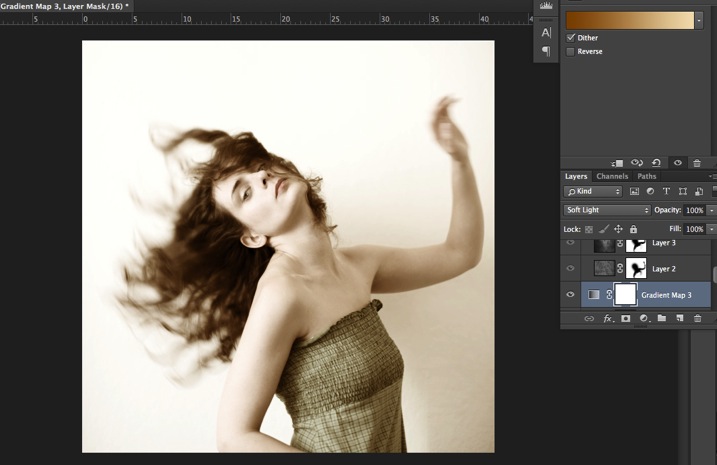
09

You can also add a different color according to the mood you want to set in your image. In this case I decided not to add further color tones so I added only the black and white gradient.

Step two: Adding texture to give the image a vintage feel

Now that you have achieved the color you want, it is time to add some texture to your image.

Personally I always shoot my own textures, but you can also find great textures on the internet on stock image sites. Or shoot your own pictures: walls, old paintings, grounds, wood, leaves, etc., any textured surface you can find. It is very easy, and can help you find some inspiration.
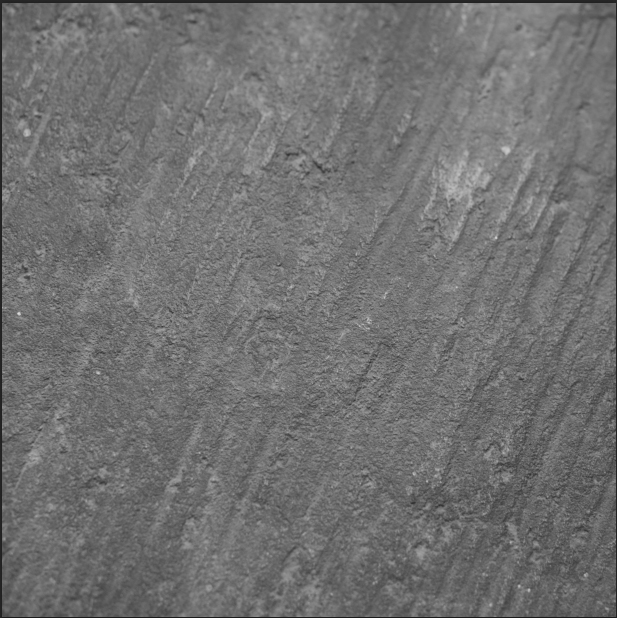
10

You drag and drop using your move tool or copy and paste a textured photo on top of your main picture. Then mix it by using the layer Blending Mode, try Overlay or Soft Light. I really recommend you to go through all the blending options to see how they blend the texture with your image (each image is different, and each mode can create a different look).
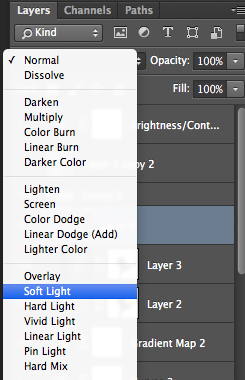
11

I always add textures to my personal works to give a painterly effect to my images. To have a lighter effect you can lower the opacity of your layer. To have a stronger effect you can repeat this step and add several textured layers.

You can modify the effect by adjusting your texture image. Select the texture in your layer’s tab and go to: Image > Adjustment > Curves/Levels.
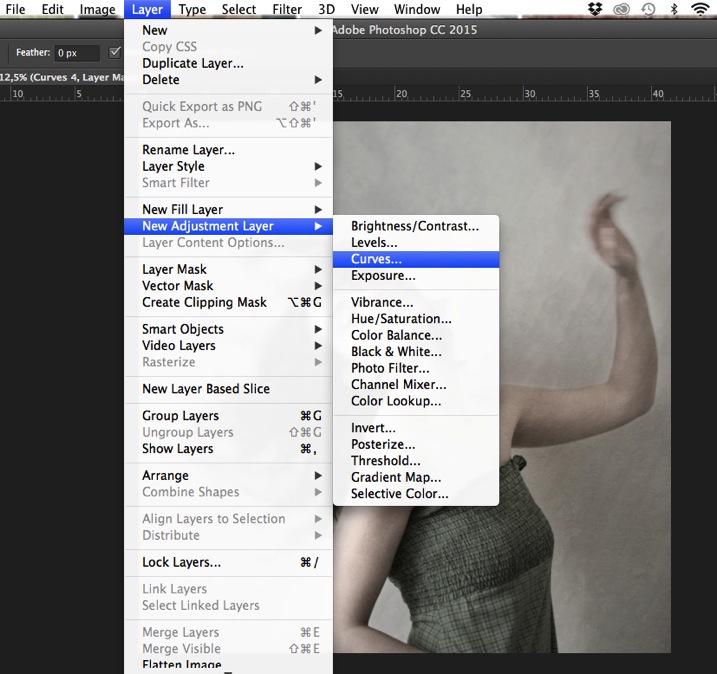
12

Playing with Curves or Levels will help you to bring back, or soften, some details in the texture. You also can add a Gaussian Blur filter if there are details that are too sharp in your texture image.
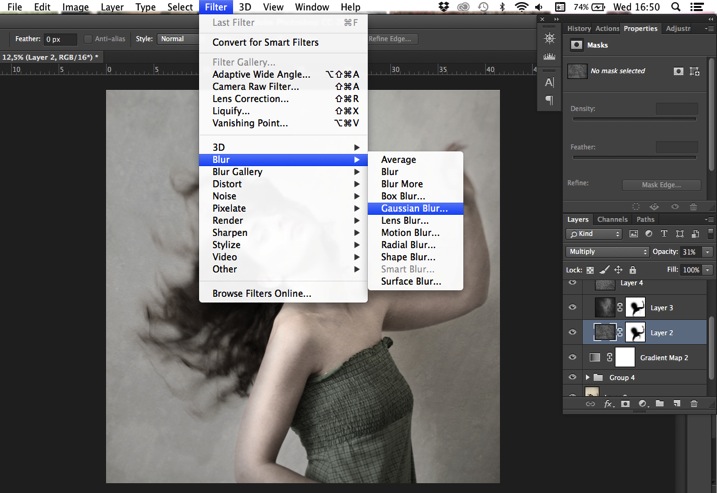
13

Select the area where you want to show or not show the texture. You can add a layer mask on the texture layer and by painting with black or white on the layer mask, you add (show) or remove (hide) areas where the texture appears.

Select your texture layer and click on add a layer mask. Lower the opacity of your brush tool, and keep its hardness to 0% to get very smooth edges. Now you can start painting in black over the areas where you want less or no texture.
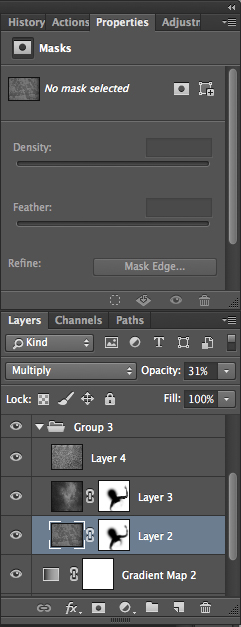
14

Everything is in the details, and Photoshop allows you a full control over your images. Usually to still have a “clean” image, and not to lose some details, you can mask areas such as skin, eyes, lips, etc., when editing a portrait.

So take your time to play with your textures. Try different types of shapes and contrasts. You can desaturate your textured image, or keep it in color. I find it easier when the texture is desaturated so you can fully control the color tones of your image separately, but it is up to you, and to the image you have in mind. As with any creative exercise, it is a matter of taste and style.

Step three: Finishing your image by adding a vignette

Vignetting can be an unintended, and undesired effect, caused by camera settings or lens limitations. However, you can also introduce it for creative effect, such as to draw attention to the center of the frame. You can choose a lens which is known to produce a vignette, or a filter to obtain the same effect.

Obviously, as we are going to do now, you can also add a vignette by post-processing your image in Photoshop. You have many options in Photoshop to vignette your images. In this case we are doing something very uneven so the vignette also helps to create a strange atmosphere.

Grab your lasso tool and draw very random lines around the edges of your image. It looks weird, but it is quite effective.
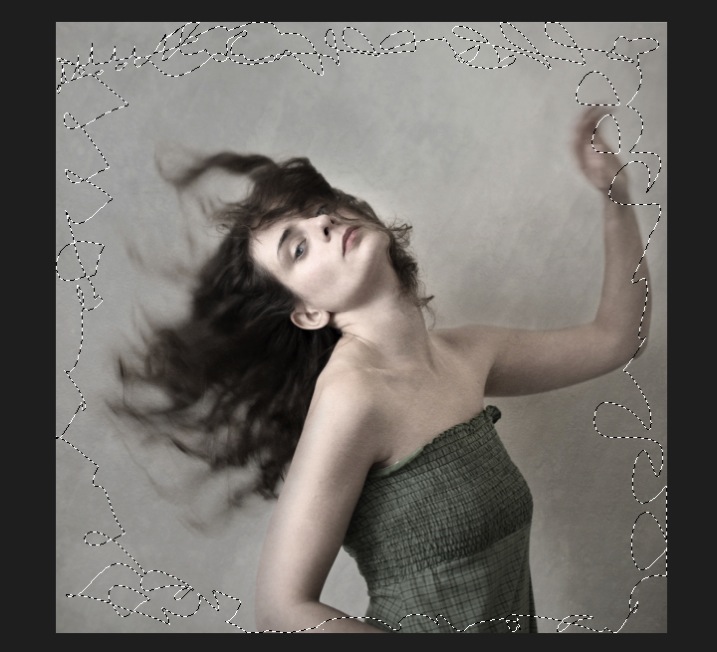
15

Go to Layer > New adjustment layer > curves. Darken your mid-tones by pulling down your curves to about one third (or to any darker/lighter spot according to your taste).
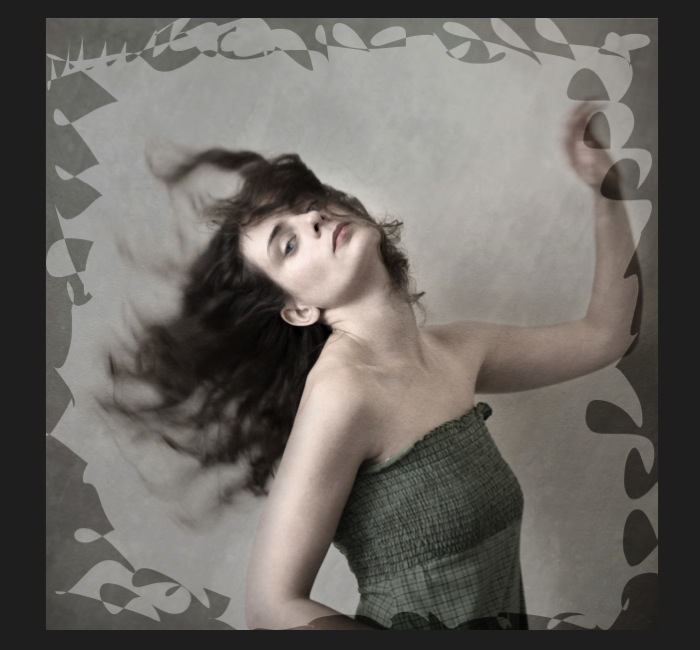
16

Whenever you select an area of your image, and have this selection active when you create a new adjustment layer, Photoshop automatically creates a layer mask on the new layer from your active selection.

Remember – on your layer mask white is where the effect will be applied, and black where the effect will not be applied. Here you want to apply the effect on the edges of the image, not in the center- if need be invert your layer mask by selecting the layer mask and pressing: CMD/CTRL+I.

Then double click on your Curves layer mask and feather your selection (around 87 pixels here).
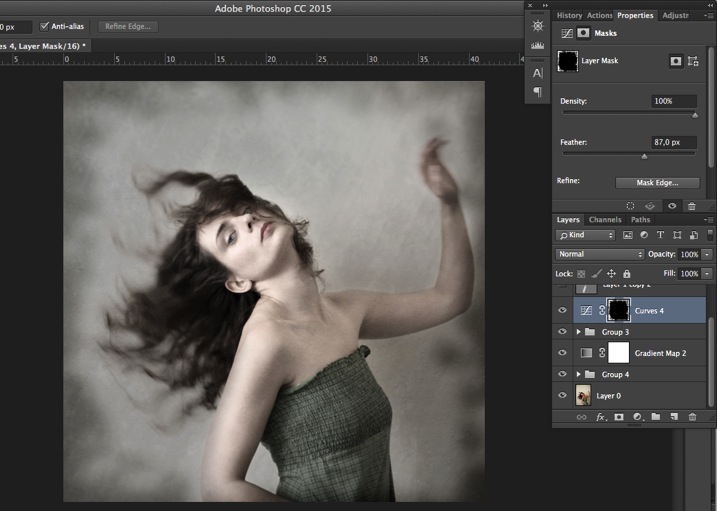
17

You can once again play with the opacity of your layer to lighten the vignette.

I hope you enjoyed this article. Feel free to share in the comments your usual steps to crete a vintage look to your images. Share your images as well using this technique if you give it a go.

googletag.cmd.push(function() {
tablet_slots.push( googletag.defineSlot( “/1005424/_dPSv4_tab-all-article-bottom_(300×250)”, [300, 250], “pb-ad-78623” ).addService( googletag.pubads() ) ); } );

googletag.cmd.push(function() {
mobile_slots.push( googletag.defineSlot( “/1005424/_dPSv4_mob-all-article-bottom_(300×250)”, [300, 250], “pb-ad-78158” ).addService( googletag.pubads() ) ); } );

The post How to Create a Vintage Look for Your Image Using Photoshop by Amélie Berton appeared first on Digital Photography School.


Digital Photography School
 
Comments Off on How to Create a Vintage Look for Your Image Using Photoshop

Posted in Photography


Leica SL firmware update improves image and EVF quality and L-Log gamma

15 Dec

Leica has announced a firmware update for its SL (Typ 601) full-frame mirrorless camera. The company says that firmware v1.2 improves low ISO performance, the quality of the image on the electronic viewfinder, and makes entering Wi-FI passwords easier.

It also corrects an issue with using the Leica Log Gamma curve (L-Log) with internal 8-bit recording, which was previously only capturing the bright tones from the scene. The update has lowered the offset to zero, which will allow the files to incorporate darker tones.

Finally, there’s now an image magnification tool for use with Leica M and R lenses, which is activated by the AE Lock button. The update also ensures that the correct EXIF information is recorded when using R lenses via their adapter.

The update is now available for download and can be installed at a local Leica store. 


Press release:

Leica Camera Announces New Firmware Update for SL Users

Leica Firmware Update 1.2 Optimizes Picture Quality and Improves Handling 

December 14, 2015 – Leica Camera today announced a new firmware update 1.2 for the Leica SL, which includes several fundamental improvements in the camera’s picture quality and handling. To access the firmware update, registered camera users can log into the Leica owner’s area of the Leica website and download the firmware version at: https://owners.leica-camera.com. Leica users can also take their camera to a Leica store and take advantage of the free update installation service. 

The new firmware update 1.2 includes optimization of picture quality at ISO values from 50 to 400, improvements to the image in the electronic viewfinder and greater flexibility when entering WLAN passwords. 

When shooting with Leica M and R lenses, camera users will find that the new firmware update 1.2 activates a loupe (magnifying) function with the auto exposure lock button (AE Lock) to allow fast manual focusing. Additionally, the firmware update guarantees the correct indication of the R-Adapter-M and the R-Lens used in the EXIF data of image files.

Finally, the firmware update offers an improvement in the Leica Log Gamma curve (L-Log) for video, enabling its use for in-camera 8-bit recording. The reduction of the offset will now allow recordings to appear considerably darker. Subsequently, videos recorded with L-Log must be corrected with a gamma correction in an external video editing program. The use of L-Log enables greater leeway for post-production color grading of videos recorded on the Leica SL. 

Leica SL owners can also find a regularly updated and expanded overview of all SD cards compatible for use with their camera at sl.leica-camera.com.

For more information about the Leica SL Firmware Update 1.2 or Leica visit www.leica-camera.com, or follow the brand on Facebook, Instagram and Twitter.

About Leica Camera

Passion for creating perfect pictures. Leica represents a union of craftsmanship, design and experience. It is a beautiful collision of art and engineering, and the future of form and functionality. Leica Camera is an internationally operating, premium-segment manufacturer of cameras and sport optics products. The legendary status of the Leica brand is founded on a long tradition of excellence in the supreme quality and performance of cameras and lenses, and the iconic images that artists and photojournalists everywhere captured with them. Leica Camera AG is headquartered in Wetzlar, Germany.

Articles: Digital Photography Review (dpreview.com)

 
Comments Off on Leica SL firmware update improves image and EVF quality and L-Log gamma

Posted in Uncategorized


Flickr launches 360 degree image viewing app for Samsung Gear VR

10 Dec

Image sharing platform Flickr has announced today its app for the Samsung Gear VR virtual reality headset. It allows you to view the tens of thousands of 360-degree panorama images that have been uploaded by Flickr users in an immersive way that allows for panning by moving your head. Read more

Articles: Digital Photography Review (dpreview.com)

 
Comments Off on Flickr launches 360 degree image viewing app for Samsung Gear VR

Posted in Uncategorized


Panasonic to restart development of image sensors to fast-track 8K video

08 Dec

According to a report from the Nikkei Asian Review, Panasonic has decided to resume image sensor development in order to speed up the drive for 8K video. The company suspended its development program a few years ago, the report says, but now Panasonic is preparing to invest ¥10bn/$ 80.8m to get its R&D back up to speed.

The renewed effort is said to be aimed at producing sensors for 8K video output for its consumer and broadcast cameras, with production models expected on the market by 2018. 

Recently, Panasonic has used its 4K video functions for a range of applications in addition to video, such as 4K Photo, where a still is extracted from a 30fps burst, and the Post Focus feature that allows users to change what is in focus after the picture has been taken. Presently, the stills extracted from clips made using these modes are only 8MP, but if that clip were recorded at 8K video (around 7680 x 4320) the stills would be in the region of 33MP, depending on the image proportions chosen. This is very much in line with Panasonic’s previous promise that we will be extracting 33MP still images from its cameras by the Tokyo Olympics in 2020. 

The report says that the introduction of 8K video in cameras will eliminate the boundary between videos and stills. It will certainly change the way images are created in quite a dramatic way.

Articles: Digital Photography Review (dpreview.com)

 
Comments Off on Panasonic to restart development of image sensors to fast-track 8K video

Posted in Uncategorized


How to Identify Three Common Image Problems and Fix Them in Lightroom

06 Dec

I hear it over and over, “I have a nice camera but my pictures just don’t come out as good as I expect.”

What ensues is an interrogation first about equipment selection, settings, and general technique. More often than not when we finally get down to the nitty gritty, the fact is that many people not only have a difficult time identifying what’s wrong with their photos, let alone determining how to prevent it, or fix it in post-processing.

jumping through hoops

Common problems that plague your images might be able to be fixed, but you might have to jump through some hoops to do it.

Although there are two sides to this topic (one side being nailing the shot in-camera), we are going to take a look at some common image problems that might be plaguing your photos, and ways to fix them in post-processing. This may be helpful if you want to revisit images you have in your library that may be salvageable.

I’ll be referring to Lightroom (LR) as the post-processing software, although the general adjustments can be adapted for use in other software.

#1 Washed Out

The term washed out refers to a photo which seems to have been shot through a translucent fabric. There is a uniform haze which reduces color saturation, sharpness, clarity, and contrast. There are several factors that can contribute to your pictures being washed out. It could be anything from poor quality lenses, to ghosting from shooting directly into a light source (lens flare).

The good news is that with the features and power that we have in LR, this problem can often be overcome.

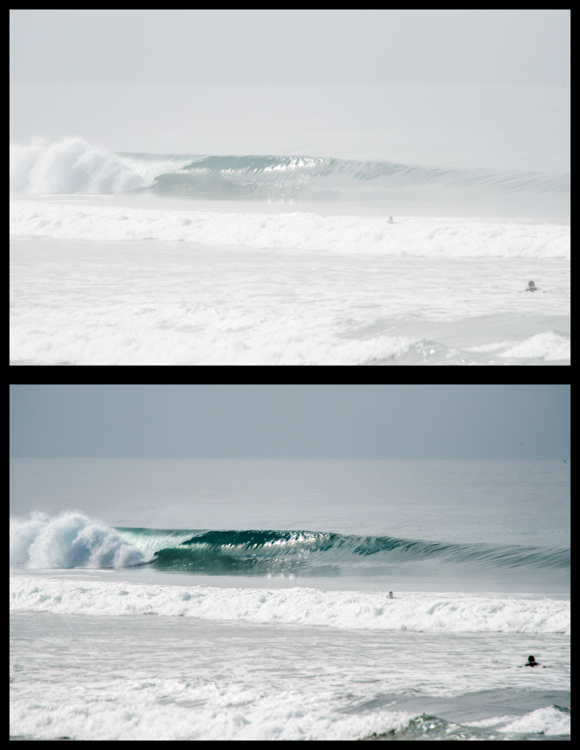
Let’s look at this photo of a beautiful wave, shot early in the morning. It was shot at 200mm with a 2x teleconverter (an effective focal length of 400mm). Teleconverters increase focal length, but are notorious for eating light, and reducing contrast and sharpness.

washed out image

Although teleconverters can wreak havoc on your images, all is not lost.

As you can see, the original shot is not very appealing. In an attempt to bring it back from the brink of unacceptability, I have made the following adjustments:

Basics panel

  • Contrast increased (+)
  • Highlights decreased (-)
  • Shadows decreased (-)
  • Whites increased (+)
  • Blacks decreased (-)
  • Clarity increased (+)
  • Vibrance increased (+)
  • Saturation increased slightly *+)

Tone Curve panel

  • Lights decreased
  • Darks decreased
  • Shadows increased

The trick here is to go back and forth between the different sliders that control darks and lights. For example, I will adjust the Highlights and Whites sliders, go to the Tone Curve panel and adjust the Highlights and Lights, then return to the Highlights and Whites again to fine tune how I want that end of the spectrum to look.

#2 Color or Tint

In my opinion, this is one of the strongest arguments for shooting in RAW format. Shooting in RAW allows you way more control correcting White Balance in post-processing, opposed to other file formats – and incorrect White Balance is the primary cause of off-colored images, or ones with a color tint.

If you haven’t developed an eye for identifying this problem, you might miss it. I see many really nice photos that have a slight tint, which is unintentional. The key is to look at areas of the image which are a neutral color, or white – this is where it is easiest to notice the off-color tint. Note that editing on a monitor which is not color calibrated may limit your ability to achieve correct White Balance.

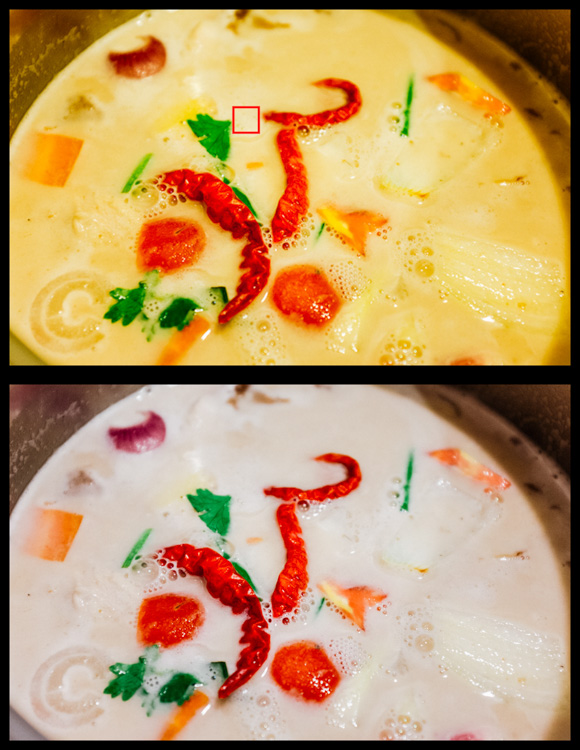
incorrect white balance and tint

Sometimes noticing if an image has incorrect White Balance, or a color tint, can be tricky. I used LR’s White Balance eye dropper tool where the red square is (top image) – it got pretty close, but still a bit too magenta.

The first line of defence is to give LR’s Auto White Balance tool a shot. I find it to be somewhat inaccurate, but a good starting point nonetheless. Once activating the eye dropper tool, a pop-up window will show a magnified view to allow you to select pixels as close to a neutral color as possible.

From this point, you can use the White Balance and Tint sliders to fine tune the image. If there are people in the photo, your goal should be making the skin tones look as natural, and pleasing as possible.

#3 Too Much Variation in Contrast

Being confronted with a drastic contrast range is one of the most common problems you are likely to face in your shooting. After all, this is why many photographers are equipped with a polarizing filter, and why new camera models strive for an expanded dynamic range.

Luckily, you are not stuck with the image that you download onto your computer. If you are shooting in RAW there is a lot of information about details, color, etc., which you can exploit in post-processing.

Let’s take a look at this photo I snapped from inside a bookstore. It was pretty dark inside with the midday sun shining outside the window. Sure, I could have shot bracketed photos to merge into an HDR (high dynamic range) image, used a flash to balance the dark interior with the lighter exterior, or used a polarizer to darken the window portion of the scene. But I only had my camera with one lens, just grabbing some snapshots while out and about for the afternoon, so I didn’t have the means.

high contrast image

The camera struggled with this high contrast scene, but a little work in LR breathed new life into it.

So to what extent can this image be salvaged?

As you can see, the camera actually captured a lot of information, and it was just a matter of telling LR what to do with it. Here is a list of changes made to this image to give you an idea of how to do this yourself:

Basics panel

  • Contrast decreased slightly (-)
  • Highlights decreased (-)
  • Shadows increased (+)
  • Whites decreased (-)
  • Blacks decreased (-)
  • Clarity increased (+)
  • Vibrance increased slightly (+)
  • Saturation increased slightly (+)

Tone Curve panel

  • Highlights decreased
  • Lights decreased
  • Darks increased
  • Shadows decreased

Lastly, I used the Adjustment Brush to mask off the window portion and made these adjustments:

  • Exposure decreased (-)
  • Contrast increased (+)
  • Highlights increased (+)
  • Shadows decreased (-)
  • Clarity increased (+)

Conclusion

Of course, there are a host of other problems you can run into while out shooting, but these are a few of the most common you’re most likely to encounter. Don’t overlook the fact that you should try and get the best image possible while out in the field. Although editing software is very powerful, you will get best results when you don’t have to push the limitations of your editing software.

Hopefully this article has given you some guidance on how to salvage images that you may once have considered lost. Show us some examples of photos that you have saved in the comments below.

googletag.cmd.push(function() {
tablet_slots.push( googletag.defineSlot( “/1005424/_dPSv4_tab-all-article-bottom_(300×250)”, [300, 250], “pb-ad-78623” ).addService( googletag.pubads() ) ); } );

googletag.cmd.push(function() {
mobile_slots.push( googletag.defineSlot( “/1005424/_dPSv4_mob-all-article-bottom_(300×250)”, [300, 250], “pb-ad-78158” ).addService( googletag.pubads() ) ); } );

The post How to Identify Three Common Image Problems and Fix Them in Lightroom by Jeremie Schatz appeared first on Digital Photography School.


Digital Photography School
 
Comments Off on How to Identify Three Common Image Problems and Fix Them in Lightroom

Posted in Photography


Phase One Capture One Pro 9 brings updates to image editing algorithms

02 Dec

Phase One has launched Capture One Pro 9, the latest iteration of its tethering and image editing software. Capture One Pro 9 offers a ‘completely updated contrast engine,’ additional brushes, color editor masks and new keyword tools, among other features. Phase One also now offers three activations of the software for each standard license a photographer purchases. Also on the list of updates is the ability to apply curves locally, the addition of a Luma option to the curve tool palette and a battery status icon for the tool bar to view tethered camera battery life.

Capture One Pro 9 is available now for Mac and Windows for $ 299 / €279 to new customers. Capture One Pro 7 and 8 customers can upgrade for $ 99 / €99. Anyone who purchased Capture One Pro 8 after October 30, 2015 will be exempt from the upgrade fee.


Press release:

Phase One Releases Capture One Pro 9 for Working Photographers

Unleashes Unprecedented Power, Precision and Quality

COPENHAGEN, November 30, 2015 — Phase One, creator of the world’s finest open-platform, high-end camera systems and professional imaging software today released Capture One Pro 9. Known for its outstanding tethered capture capability, high-quality raw conversion, and precision image editing tools, Capture One Pro is already considered by 100,000 of the world’s leading photographers to be the best image capture application. 

Capture One Pro 9 introduces many new image quality precision tools, including a completely updated contrast engine. Capture One Pro 9 also brings powerful new asset management capabilities, including unprecedented sortable keywords capability. It has been designed to help speed the image-management process for volume keyword applications. Besides new physical workflow features, Capture One Pro 9 also gives customers three activations for each standard license to support on-location activation management, as requested by photographers.

NEW IMAGE EDITING TOOLS

Revised contrast engine – Changes have been made to the algorithms of color, saturation and contrast. And the color editor has been revised to align design with the color balance tool. Handles are made easier to use and adjust, and the tool is now scalable when undocked.

Masks from color editor – The color editor now allows the user to make a mask from a color edit.

New Brush pack – Tool changes include the addition of flow, airbrush, straight line brushing, and the ability to link brushes.

Luma curves and local curves – Added to the curve tool palette, Luma curves can be used to create contrast curves without affecting saturation. Also, curves can be used locally.

Battery status for toolbar – This new tool can be placed on the tool bar where it gives a power supply overview to the attached tethered camera, warning photographers of low power during a shoot.

Export EIP for catalogs – Catalog users can now benefit from EIP export for easy transportation of RAW and Settings, off system. In the Export originals panel, there is now an option to Export as EIP. Sessions users can also choose to Export originals. This creates a workflow in which the original RAW and adjustments are not packed – instead a copy is made, packed as EIP.   

DNG colors – This new feature allows Capture One Pro to treat and display supported camera files that have been converted to DNG (and include the RAW file in the DNG package), as if in their original format. 

NEW ASSET MANAGEMENT TOOLS

Keywords Tool – Keywords may be added and removed from images. The standard Capture One tool tips for local reset, local copy apply, pre-sets and help are available for this tool.

Keyword Libraries – Used to manage the list (or lists) of keywords in a catalog or a session. As the Keywords tool adds keywords to images, the document Keyword Library is populated. This forms a keyword list for any and all terms in the current document and is unique for the session or the catalog. 

Sortable Keywords – Unique to Capture One Pro 9, users are able to reorder keywords in the Keywords tool for single image selections.     

Originally developed to render the exceptional image quality captured by medium format Phase One camera systems, today Capture One Pro supports more than 400 different camera models. Capture One Pro is designed with more than enough available “headroom” to satisfy requirements for the highest resolution now and in the future. Whether or not photographers own a Phase One camera, all photographers can benefit from Capture One Pro’s  exceptional image quality and workflow advantages.

“Capture One Pro is essential for all commercial shoots; we use nothing else,” said Jonathan Rose, Company Director, DigiBoutique Ltd.

“Capture One Pro 9 is all about quality of life improvements for working photographers – whether they’re in the studio, or shooting landscape or portraits,” said Henrik O. Håkonsson, President, Phase One. “And those who are switching or stepping up from mainstream software might now find that Capture One Pro meets more, if not all, of their needs, beyond its legendary raw conversion capabilities.”

For illustrative & tutorial videos and details on all the new and improved features in Capture One Pro 9, including new cameras and lenses supported, please go to: www.phaseone.com/tutorials

Availability and Pricing

Capture One Pro 9 is available now for the Mac and Windows operating systems online at www.phaseone.com/store and from Phase One authorized partners worldwide. www.phaseone.com/partners. New with this release, each license permits three activations.

New customers can purchase Capture One Pro 9 for 299 USD or 279 EUR. Owners of previous versions of Capture One Pro 7 and 8 may upgrade for 99 USD or 99 EUR. For customers who have purchased Capture One Pro 8 since October 30, 2015, Phase One is offering a grace period, exempting them from the upgrade fee. Eligible customers should contact support www.phaseone.com/support to have their keys upgraded. 

Capture One Pro is also available by subscription. Capture One Pro 8 subscribers can simply download the new Capture One Pro 9 release. A single-user subscription is 15 USD / 12 EUR per month for a 12-month plan. Please see all subscription options at www.phaseone.com/store

Articles: Digital Photography Review (dpreview.com)

 
Comments Off on Phase One Capture One Pro 9 brings updates to image editing algorithms

Posted in Uncategorized


Ricoh continues to tease Pentax full-frame DSLR with new image and… not much else.

01 Dec

Ricoh’s string of teaser coverage for its upcoming full-frame Pentax DSLR continues today with a new image of the camera and a press release – though not much in the way of more concrete information. Read more

Articles: Digital Photography Review (dpreview.com)

 
Comments Off on Ricoh continues to tease Pentax full-frame DSLR with new image and… not much else.

Posted in Uncategorized


Lytro Desktop 5.0 introduces depth-based image editing

25 Nov

Lytro, maker of the ILLUM light field camera, has announced an update to its Lytro Desktop software. The application used to edit Lytro’s ‘Living Pictures’ in which focus can be selected after capture now allows for exposure, saturation and color edits to specific areas of an image based on depth. Read more

Articles: Digital Photography Review (dpreview.com)

 
Comments Off on Lytro Desktop 5.0 introduces depth-based image editing

Posted in Uncategorized