RSS
 

Posts Tagged ‘Image’

Use These Few Lightroom Sliders To Make Your Image Pop

19 Sep

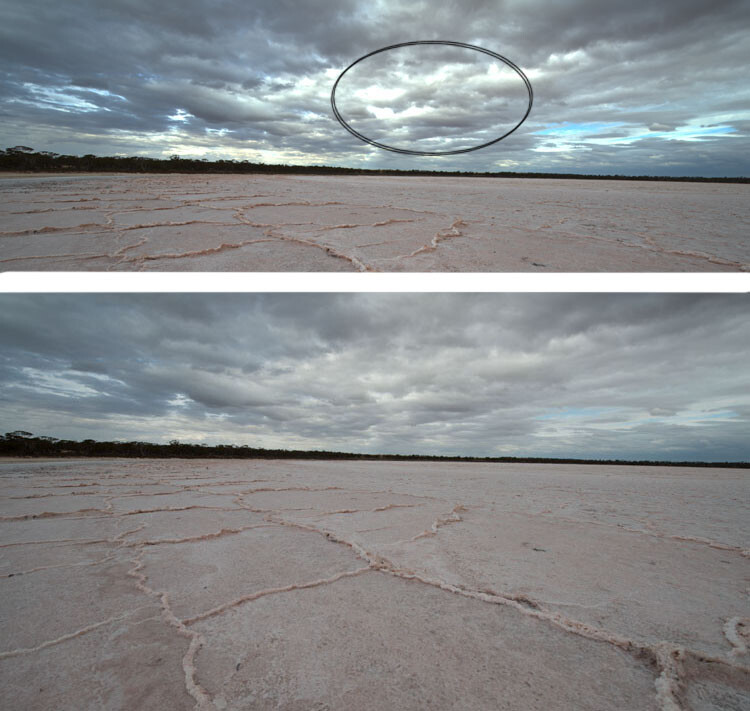
One of the most used tools in Lightroom to bring attention to the subject is the vignette tool. However, unless you are very subtle with the vignette tool it will be very obvious what you did to the image to make the subject pop. If you overdo it, the vignette tool will leave a distinct dark circular frame near the Continue Reading

The post Use These Few Lightroom Sliders To Make Your Image Pop appeared first on Photodoto.


Photodoto

 
Comments Off on Use These Few Lightroom Sliders To Make Your Image Pop

Posted in Photography


Use These Few Lightroom Sliders To Make Your Image Pop

16 Sep

One of the most used tools in Lightroom to bring attention to the subject is the vignette tool. However, unless you are very subtle with the vignette tool it will be very obvious what you did to the image to make the subject pop. If you overdo it, the vignette tool will leave a distinct dark circular frame near the Continue Reading

The post Use These Few Lightroom Sliders To Make Your Image Pop appeared first on Photodoto.


Photodoto

 
Comments Off on Use These Few Lightroom Sliders To Make Your Image Pop

Posted in Photography


Leica S firmware update improves top LCD panel info, adds Adobe-compatible image rating

14 Sep

Leica has released new firmware for its S and S-E medium format cameras that improves the quality of information displayed on the top plate and in the viewfinder. Firmware versions 4.0.0.0 for the S (Typ 007) and 2.5.0 for the S-E (Typ 006) also allows users to mark images with a rating that can be displayed in Adobe’s Lightroom and Bridge applications. With the firmware loaded the cameras will also remember the degree of magnification last used in review mode and automatically default to that next time the magnify button is pressed.

The information panels now provide more icons to indicate what modes the camera is using, and critically offer a measure of how much time capacity is left on the memory card when shooting video and how many more shots are left in the buffer for high-drive shooting in stills mode.

The new firmware is available for download now for customers who like to update for themselves, while others can take their camera to their nearest Leica store or service center.

The firmware can be downloaded from the support section of the Leica website.

Press release

Firmware updates for Leica S cameras now available

New firmware updates are available today for the Leica S-System. Registered owners can log in to the Leica Owners’ Area and download the new firmware version 4.0.0.0 for the Leica S (Typ 007) and 2.5.0 for the Leica S/S-E (Typ 006) medium format cameras, or take their camera to a Leica Store or Leica Customer Care in the UK for a complimentary update service.

Leica works in close collaboration with users on the continuous development and optimisation of its products. As a result, a number of improvements in this latest firmware update are based on the direct recommendations and suggestions of professional photographers.

The new features of Firmware Update 4.0.0.0 include a revised layout for the top plate display panel, which now provides even more information for the user. The new ‘Rating Function’ is supported by Adobe Photoshop Lightroom CC, Photoshop CC and Bridge CC software, and improves the workflow of selecting images – giving users much faster access to the images they have tagged.

With this firmware update, the most recently used zoom setting in review mode is now saved, enabling faster assessment of image sharpness/focus when reviewing a specific part of a picture. Distances displayed on the top panel can also be shown in feet, and it is now possible to see the remaining recording time when shooting video. Also new in this update is the ‘PC’ symbol, which indicates when the camera is connected to a computer. In addition to the above, the first resistance point of the shutter release now displays the number of exposures remaining for sequential shooting (maximum buffer memory) in the viewfinder, and the new ‘mirror-up’ icon appears on the camera monitor screen.

Articles: Digital Photography Review (dpreview.com)

 
Comments Off on Leica S firmware update improves top LCD panel info, adds Adobe-compatible image rating

Posted in Uncategorized


Image Editing Software Overview – On1 Photo 10

31 Aug

Since the advent of digital photography there has been one program that has been the penultimate of all image editing – Adobe Photoshop. There is no denying that it is powerful, but many find it confusing and hard to learn. Another aspect that some people aren’t sure about is the new subscription based ownership. So for many, another solution to the predicament is On1 Photo 10. It’s a program that is not that expensive, and can do most of what the majority of photographers want.

leannecole-on1-enhanced003

Image processed with the Enhance Module in On1 Photo 10

Overview of On1 Photo 10

The On1 Photo 10 editing software has been around for some time, and you may know it more as plugins for Lightroom and Photoshop. However, recently it has been given a new look, and it is now also a standalone program. This means you don’t need another program to be able to use it. You can download it and do all your editing within its confines.

When you open On1 Photo 10, it looks a bit like Lightroom, but that is about it. Locating all the tools is different, but not so different that you can’t find things. When you begin using On1, a window pops up with several videos to teach you how to use it. It is advisable that you watch them and learn. They are not very long, but they are packed with useful information.

On the right side of the panel there are a series of modules that you can edit your photos in. Each one is specific and gives you different options.

Browse Module

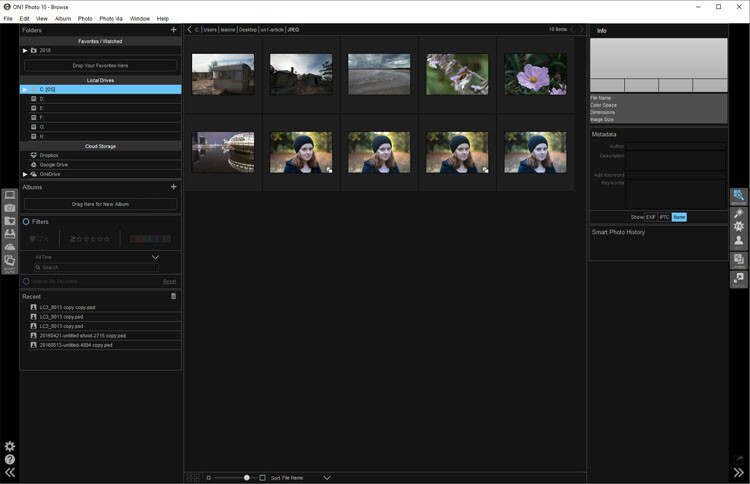
In the Browse section you can look at your photos and catalogue them, decide where you want them, and upload them to Cloud storage facilities like Dropbox, Google Drive, and OneDrive. It is similar to Bridge in Photoshop or the Library Module in Lightroom. You can make the images larger, so you can get a better look at them and decide which ones you want to work on.

When you want to start editing, the other modules are there for you to use.

leannecole-on1-browse-folder

Browse Module, here you can view your photos and move them around.

Enhance Module

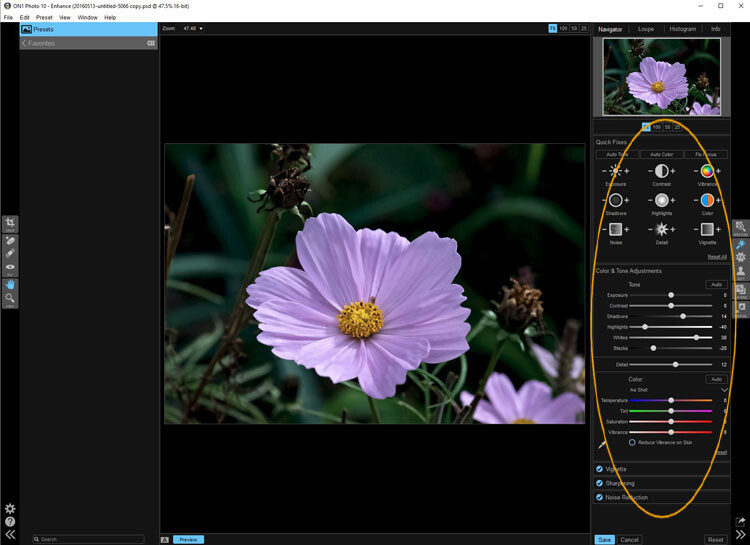
When you open your photo into the Enhance module you can do some basic editing, for example: changing the exposure, adjusting whites, black, shadows, and highlights. It will allow you to fix the white balance and help with noise reduction. This section is where you get your image ready for further work. It is like the preparation area before you go on to do the real work.

Similar to Lightroom, On1 works in a non-destructive manner. If you don’t understand that, it means nothing you do to your image is permanent. If you do something to it and don’t like it, you can go back and reverse the change. When you are just learning photo editing, it is good to work with software that allows you to work this way, without having to worry about ruining your image.

leannecole-on1-enhance-folder

The Enhance Module allows you to do some basic editing to your images.

Effects Module

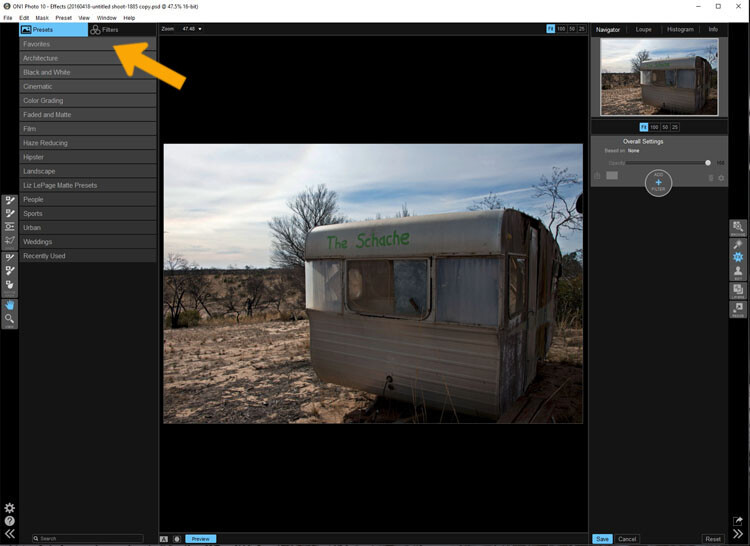
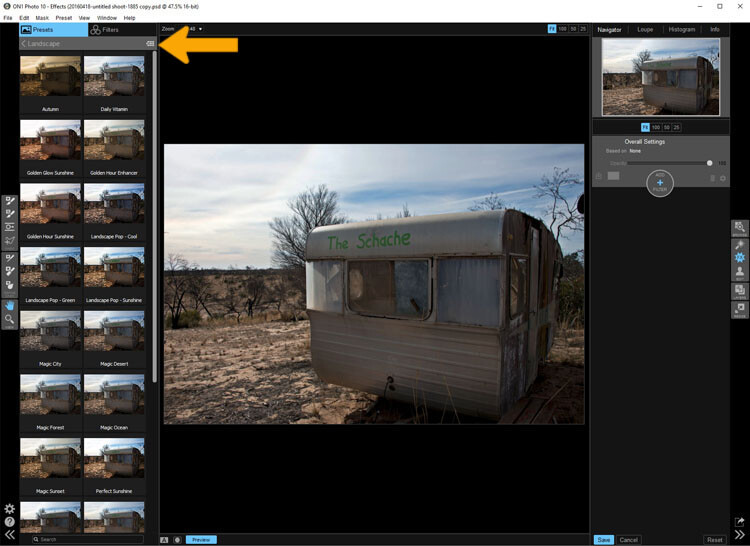
In Effects, you can add filters and presets to your photos. There is a large variety of them, and each one has several options within. You have the option of creating your own and saving them (just as in Lightroom), which is very helpful if you want to use the same one a lot.

There is a difference between presets and filters. On1 explains that presets do multiple effects, while the filters have only one. When using any of them you can make adjustments so it is as strong as you like, or they can be made to have less effect. You get to be the judge of how you want the final result to look.

leannecole-on1-effects-module-1

In the Effects Module you can apply presets and filters to your images.

leannecole-on1-effects-module-2

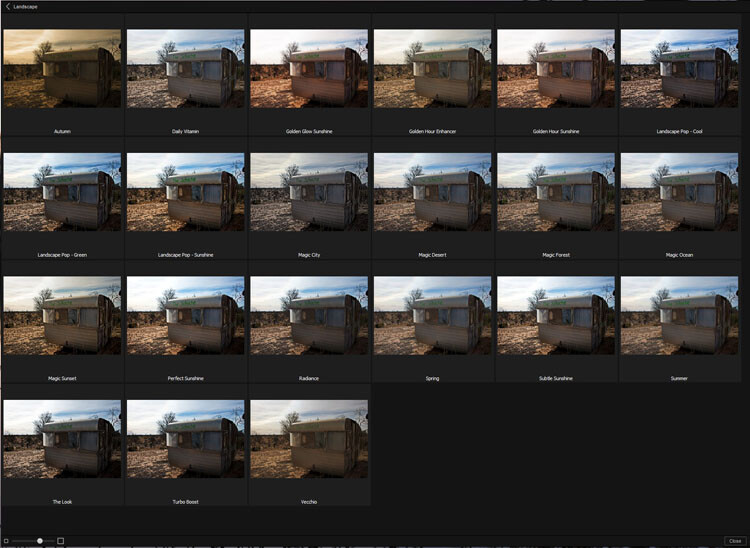
You can see what the presets or filters will do to your image, if you click the grid you will get a larger of view of each option.

leannecole-on1-effects-module-3

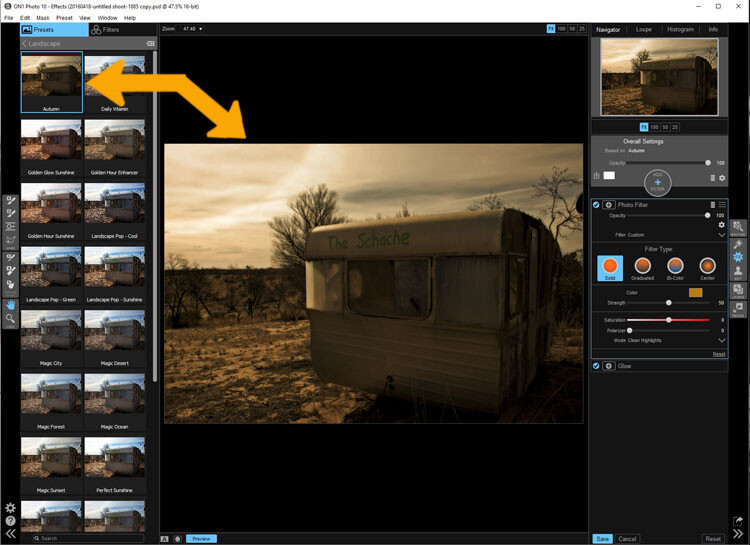
You can see what each preset or filter will do and when you decide which one to use, just click on it.

leannecole-on1-effects-module-4

On1 will then apply it to your image.

Portrait Module

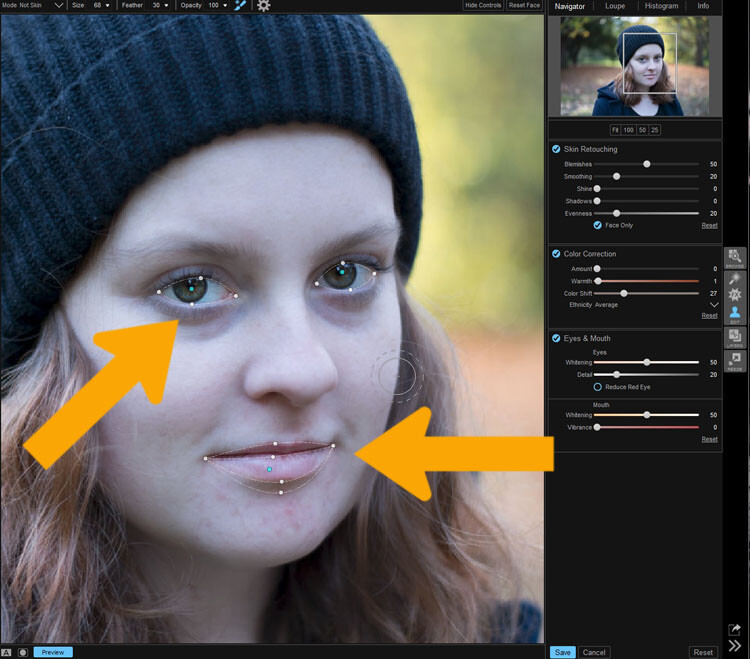
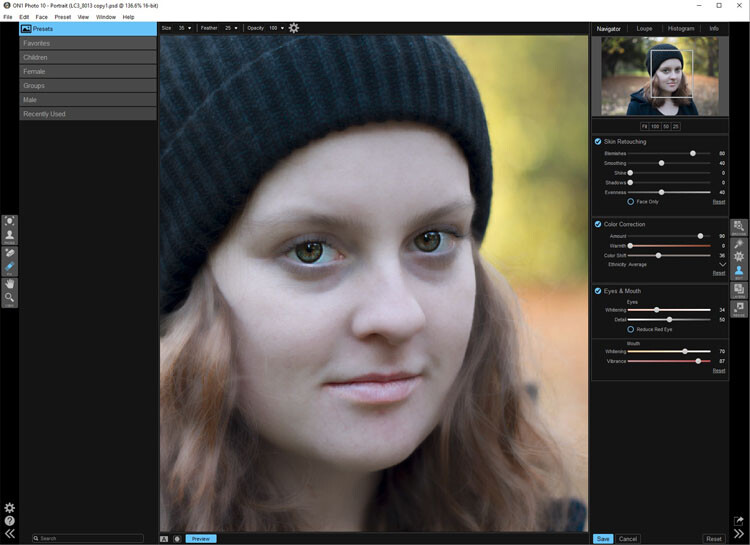
Portrait module is possibly is the hardest one to use. For people who photograph portraits on a regular basis, though, it may seem more intuitive. You have to work out faces, and point out the eyes and mouth to the program. Then it will whiten the eyes, and make the lips lighter. You also have the option of going back over everything and readjusting the settings. While whitening the eyes can be nice, if it is done too much it looks very strange.

leannecole-on1-portrait-module-1

On1 allows you to do specific work to faces, and asks you to highlight the eyes and mouth so it can to its thing.

leannecole-on1-portrait-module-2

You can work on the skin and other parts of the face as well.

Layers Module

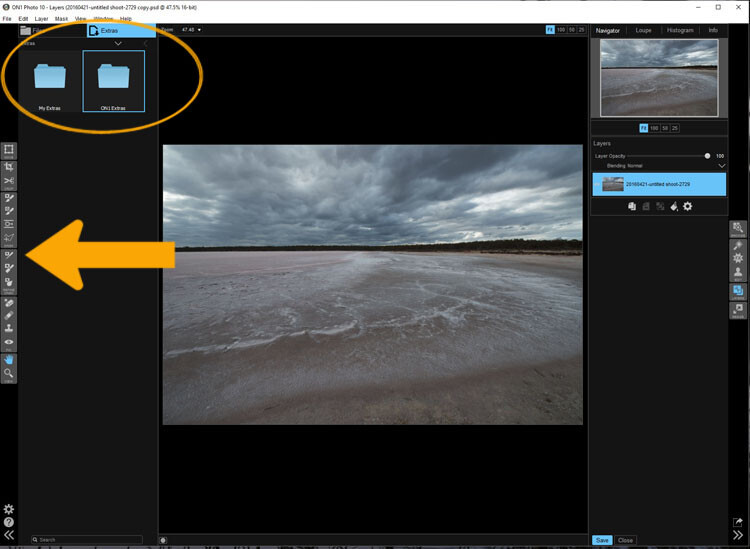
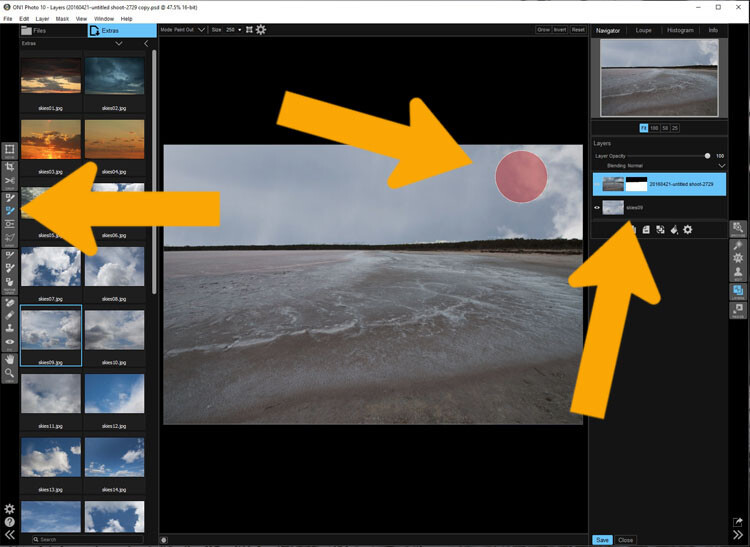
On1 Photo 10 also has the ability to work in layers, so if you like working with texture overlays and replacing skies, you will like this module. It makes these very easy to do, especially the former.

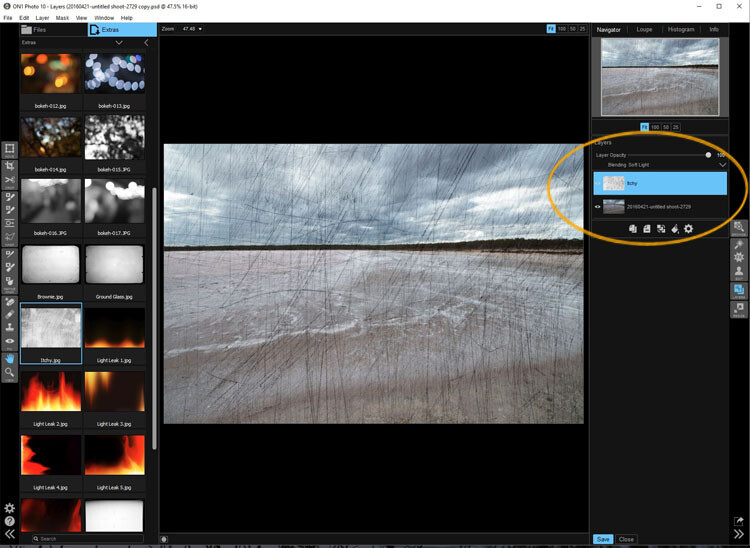
The program comes with a number of textures, backdrops, and borders. You could quite easily just use what it provides, but it also has a section where you can add your own. So, you can upload any textures you have collected and apply them to your images.

As with most sections in On1, you can adjust, and then decide how strong the layer will be. There are blending options and tools are available if you want to remove part of it too.

leannecole-on1-layers-module-1

The Layer Module lets you work in layers, there are also some tools on the left that allow you to do some specific processes.

leannecole-on1-layers-module-2

You can apply textures.

leannecole-on1-layers-module-3

Or you can replace a sky, which is very easy with the masked brush tool.

Resize Module

Figuring out how to resize an image is easy, and fairly straight forward. It is a task that many people usually find difficult. I often see people putting up large images on the internet because they don’t know how to make them smaller. On1 has a separate module where you can make them  the size you want. If you want to resize it for something special, there are options available for that as well. There are no excuses now for loading images that are too big.

Who would use On1 Photo 10?

If you like plugins and seeing the different effects on your images, you will love this software.  It is perfect for someone who is just starting out, and looking for software that is simple and easy to use. Many of the other programs can get you bogged down because of how complicated they are, On1 has great online help and there are a number of videos available to help you work through it.

Experience using On1 Photo 10

I have to admit that while I know how to use many different types of editing software, I had to find some video tutorials to help me find my way around. On1. It is something that you should always do when learning new products, it can help you find the correct way to use them. Fortunately, On1 has a lot of tutorials available to help you learn how to use it.

It could just be my computer, or the size of my files, but I had trouble with the program crashing or freezing. I have a PC and am using Windows 10, so it may not be compatible. I have sent an email to the developers in hope of finding out what keeps causing that. There is however, a 60 day trial version available, which is far more than most other software products. So you can find out if it will work for you or not.

The program does have a tendency to blow out the highlights. In Photoshop you can often fix them, but On1 blows them out even more, and it seems like you are unable to do anything about it. However, it only happens when using RAW images, if you convert them to JPEG it doesn’t appear to happen. Though, it will teach you to be careful with them.

leannecole-on1-highlights-001

You can see with the top image, which was a RAW file how the highlights have been blown out, but it has not happened in the jpeg file.

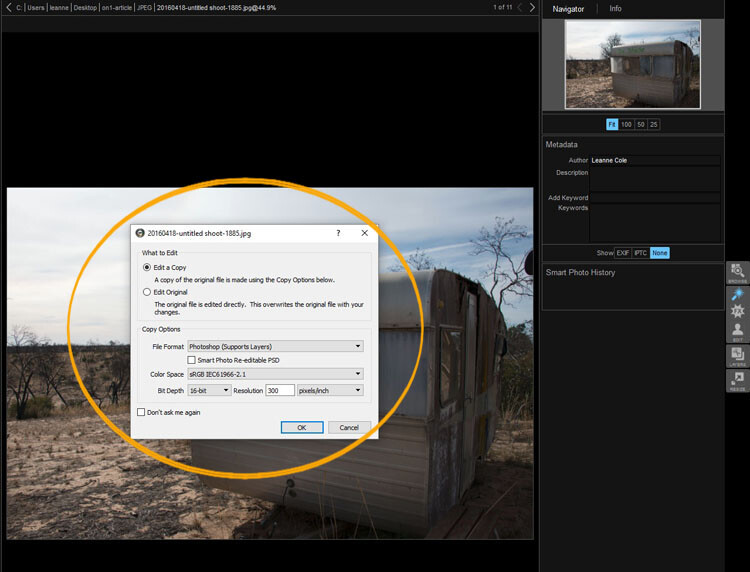
Every time you open an image it asks if you want to edit a copy or the original. When you start you may find that every time you open the image you are creating another copy of it. Take care, and perhaps once you have that first copy, just work on that one.

leannecole-on1-opening-an-image

Read the windows as they open up, and make sure you are aware of what you are doing.

Overall

On1 Photo 10 is a good program, and those interested in doing only basic editing will find it very useful. Those that love the grunge look and adding textures will also enjoy using it. It likely won’t replace Photoshop, but for beginners and people who love using plugins, it’s a great option.

Have you tried it? What are your thoughts?

googletag.cmd.push(function() {
tablet_slots.push( googletag.defineSlot( “/1005424/_dPSv4_tab-all-article-bottom_(300×250)”, [300, 250], “pb-ad-78623” ).addService( googletag.pubads() ) ); } );

googletag.cmd.push(function() {
mobile_slots.push( googletag.defineSlot( “/1005424/_dPSv4_mob-all-article-bottom_(300×250)”, [300, 250], “pb-ad-78158” ).addService( googletag.pubads() ) ); } );

The post Image Editing Software Overview – On1 Photo 10 by Leanne Cole appeared first on Digital Photography School.


Digital Photography School

 
Comments Off on Image Editing Software Overview – On1 Photo 10

Posted in Photography


Putting Image Microadjust to the test on the Canon 5D Mark IV

30 Aug

One of the most discussed features of the Canon EOS 5D Mark IV is Image Microadjust. This uses the slight difference in perspective between the left and right-facing halves of the split ‘dual’ pixels to fine-tune the effective focus point of the images.

Like everyone else, we were interested to see what degree of refocusability this gave.

If you’re wondering: ‘will this let me correct which eye my portrait is focused on?’ The answer is a resounding ‘no’. Indeed, even if the question is: ‘can I shift the focus back from the eye lashes to get the iris sharp,’ the answer isn’t much more positive.

Dual Pixel Image Microadjustment

We set up the 5D Mark IV with EF 35mm F1.4L II USM at F1.4, set up at approximately 25x focal length distance from our LensAlign target. The Dual Pixel Raw file was then processed in Digital Photo Professional (DPP) to see how much the maximum backward and forward adjustments could move focus.

+5 (Max backward adjustment) 0 (No adjustment) -5 (Max forward adjustment)

AF (Lens) Microadjustment

For comparison, here’s the amount of adjustment that can be achieved using AF microadjustment – the traditional method for calibrating your lens to your body to correct back/front-focus issues. The rollover starts at +1 as this is the degree of adjustment needed by this lens on this body.

 +20  +10  +3  +2  +1  0  -1  -2  -3  -10  -20

Real-world difference

To demonstrate the real-world impact image microadjust might have on a traditional head-shot portrait, we shot Carey with an EF 85mm F1.8 at F1.8.

This portrait was very slightly front focused, so we tested the degree to which it can be refocused, backwards. For each of the adjustments, ‘Strength’ was set to 10 to maximize the input from one set of pixels.

+5 (Max backward adjustment) 0 (No adjustment) -5 (Max forward adjustment)

Interestingly, it appears the images become noticeably softer when you apply forward or backward adjustment, which may mask some of the advantages of the focus shift (there’s a chance that slightly better-looking results will be possible if you apply higher levels of sharpening to the microadjusted images). However, the degree of correction we’re seeing is so small that we wonder whether it’s worth the additional effort of having to incorporate the DPP software into your workflow, especially given the relatively long opening times required for each image, even on a fast computer. Or the doubling in file size.

Overall, traditional ‘AF microadjustment’ is a much more powerful tool for achieving pinpoint sharpness and ensuring any particular lens is properly calibrated to your body. Dual Pixel Raw’s primary value, in this particular incarnation, is questionable, as it will only be useful for very minor focus shifts, rather than as a general tool for correcting focus error. That said, the technology itself is promising, and we hope to see more capable future iterations as Canon iterates on the technology.

Articles: Digital Photography Review (dpreview.com)

 
Comments Off on Putting Image Microadjust to the test on the Canon 5D Mark IV

Posted in Uncategorized


How to Create an Effective Workflow and Image Organization

28 Aug

Lets face it, we all love to take pictures, basically to get out there and photograph what makes us happy and gets our creative juices flowing. Many of us, myself included, hate sitting in front of the computer, sorting and sifting through images from a session, wedding, or just personal work. From busy professionals to active hobbyists, having a good solid workflow and method of organizing images is crucial. I am a wedding, lifestyle and travel photographer. So my workflow is slightly different based on the type of session I am photographing, but for the most part I follow the same series of steps. Here are some tips on how to create an effective workflow that can work for your style of photography.

Memorable Jaunts DPS Article Editing and Workflow -4-2

Camera gear

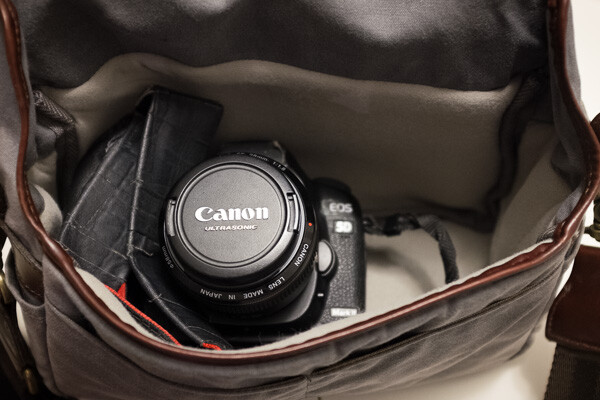
My camera of choice is a Canon 5D MKIII with a Canon 5D MKII as a backup camera. I have to admit, 90 percent of my sessions are shot using the MKIII. I very rarely use the MKII, but when I am photographing a wedding, the MKII is fully loaded and ready to go, in case I need it. I start of each session (wedding or lifestyle) with a fully charged battery and a Transcend 32GB CF card. I own four 32GB CF cards, three 16GB CF cards and two 8GB CF cards.

For weddings that are over 10 hours long, I carry all my cards with me. Each camera will start with formatted 32GB CF card. When I am traveling for work or pleasure domestically, I carry my MKIII but when I am traveling internationally I typically carry both MKIII and MKII. The night before any photoshoot (either wedding, travel, or lifestyle), I charge all my batteries (I have five batteries between my two cameras and luckily they are the same configuration) and format all my CF cards. My bag is packed and ready to go in my office.

Fits a Canon 5D Mark II with 28mm lens.

During the shoot

Depending on the photoshoot timeline, I will swap out my cards during a logical break in the shoot. For example – the bridal portraits, first look, etc., will be on one or more CF cards. I will swap out the used card before the ceremony (even if it is only partially used), so I can photograph the ceremony on a fresh card. I learned this the hard way early on, when I lost an entire session on a card that failed. Luckily it was not a wedding, but a personal shoot that I was able to recreate. Since then I don’t take any chances with failed CF cards, especially for important events like weddings. Used CF cards from a photoshoot are placed in a separate pouch, from fresh CF cards which are placed in another pouch in my camera bag.

After the shoot (local)

When I am back home from a wedding or a lifestyle shoot, the first thing I do is pack away my gear. I separate my camera bodies from my lenses, and pack them away separately. All batteries are removed, including those from my flash. I have heard horror stories where batteries, especially AAAs, have leaked into the flash socket, so I don’t want to have to deal with that mess!

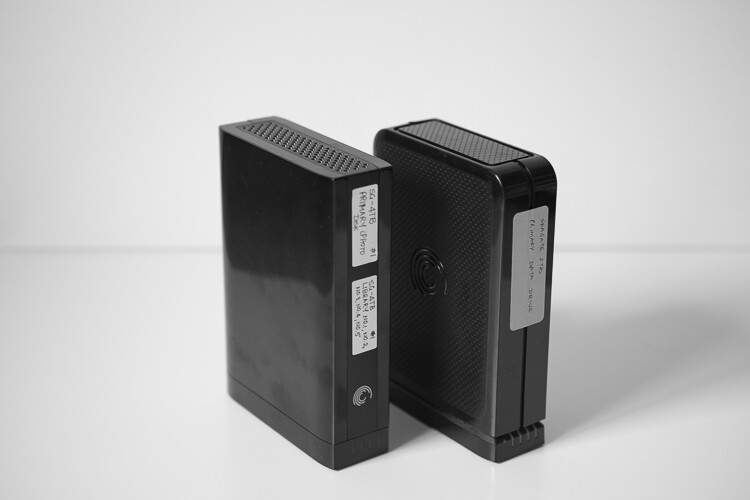
I download the images from my CF cards onto an external hard drive, that acts as a storage for my RAW images. Once the RAW images are transferred to my external hard drive, I then format the cards in camera (not via the computer). I use Seagate external hard drives to store my images. I also download my images into the Photos app on my iMac computer. The Photos library resides on another Seagate external hard drive.

Memorable Jaunts DPS Article Editing and Workflow -2

My external hard drives from Seagate are used to store RAW files from my cards and my Photos library. The RAW files are not deleted but the Photos library are deleted at the end of every year.

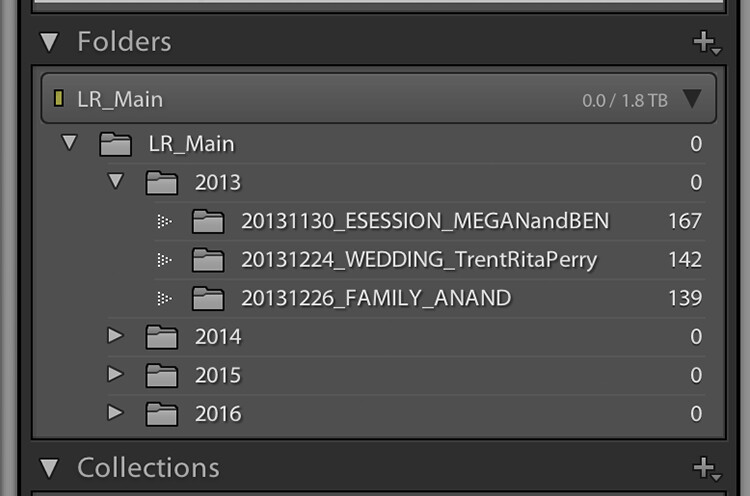
I use iPhoto (now Photos) and quickly sort through the images that I like. Those images are exported as Originals to a folder on my iMac (I name my folders based on the date of the shoot. For example: YYYYMMDD_ClientName_TypeoftheShoot. These selected images are then imported into Lightroom, my preferred editing software.

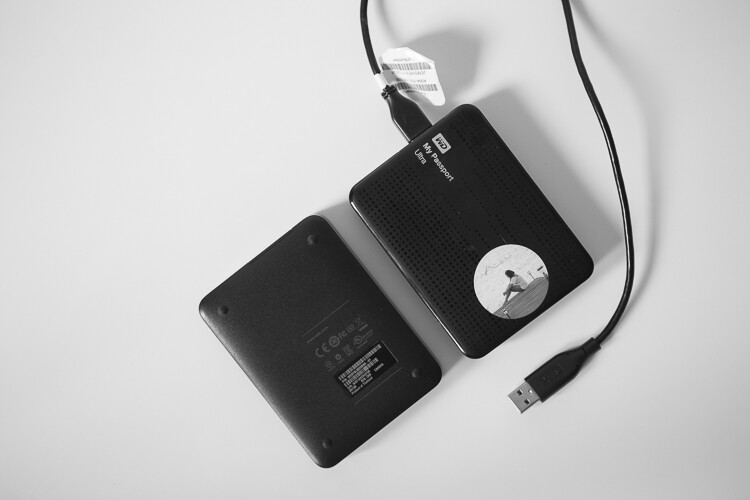
My Lightroom catalog also resides on a WD My Passport Ultra, external hard drive. I understand you may have some concerns over running a LR Catalog on an external HD, because of potential LR speed issues. So far, I have not experienced any issues with LR in terms of speed by having the catalog on an external HD. But if you are concerned about speed then your LR catalog can be put on your computer’s hard drive, and keep a backup on the external HD.

This is more portable than a Seagate and I carry it on extended trips, especially international travel. Once the images are imported into Lightroom (I retain the same name of the folder in Lightroom as well), I delete the folder containing the RAW images from my iMac hard drive. If you are keeping track, my RAW images are stored on two separate external hard drives – one that is a dump of the card and the other in a Photos catalog.

After the shoot (on the road)

When I am traveling for work or pleasure, I carry two WD My Passport Ultra external hard drives. One holds the RAW files from my CF cards, the other holds my Lightroom catalog. My original LR catalog is also backed up on one of my Seagate external hard drives. Once I copy the Raw files over, I follow the similar process as when I’m at home.

When I get home, the raw files from the CF cards used during the trip are copied over to the Seagate that houses all my RAW images, and deleted from the WD Ultra so that it is ready for my next trip. I carry my Lightroom catalog only for extended travel trips, when I know I will be editing images and posting them on social media and/or my blog. For short weekend getaways, I either carry just the WD Ultra just for the raw files or nothing at all, based on the duration of the trip.

Memorable Jaunts DPS Article Editing and Workflow -3

My portable hard drives are used to save my RAW files when I am traveling, as well as my Lightroom catalog when I am traveling for an extended period of time.

Editing and delivery workflow

80% of my editing is done in Lightroom. I use Photoshop sparingly if I have to make any advanced editing like head swapping, and or removing large objects from images. I have invested in the Adobe Creative Cloud for LR and Photoshop. It’s the bundle package deal for $ 10 per month for photographers (get both for only $ 7.99 as a dPS reader). I am able to use both on both my iMac, which is my primary editing device, as well as my MacBook Pro, which is my travel companion.

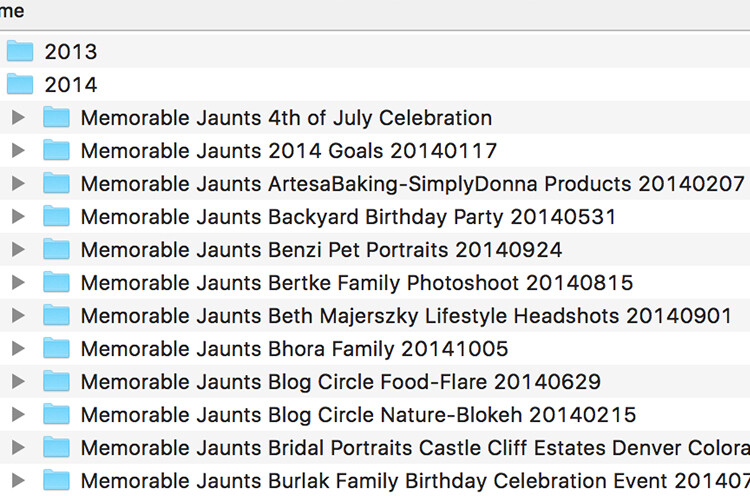
After editing is complete, I export my client images onto the same WD Ultra external hard drive as my Lightroom catalog. The client folders are also arranged by date of the session. This time my naming standard is as follows: Memorable Jaunts_ClientName_YYYYMMDD – all images will have the same naming convention as the folder, along with an image sequence number. The images are also uploaded to my portfolio site, in a gallery which is password protected. I share the password with my clients, for viewing their images and ordering any prints. I use Zenfolio to host my client galleries. I have been with them since I launched my business in 2010, and have had a very good experience with them (and no, I did not get paid to say this about them, my views are my own).

Memorable Jaunts DPS Article Editing and Workflow 01

My naming convention for my Lightroom Catalog – the folders are ordered by Year and then by date for each of my sessions

When I am traveling, I follow the same process, and edited images are saved in the same WD Ultra external hard drive. Should I need to touch-up or re-edit an image when I am back home, I simply connect the same external hard drive to my iMAC, launch the LR catalog, and I am good to go.

Client galleries are live online for two weeks, and then they are deleted. At the end of every year, I delete old client processed images from my external hard drive. I retain client session raw files for three years before I delete them from my Seagate external drives (both the original CF card download as well as the Photos catalog) to make room for new sessions. My personal images (images of my family and personal travel) follow the same process as my client sessions. Except these images are never deleted, they are too precious to me and live on forever on my external hard drives!

Client galleries are live online at Zenfolio for two weeks, and are then deleted from that site. At the end of every year, I delete client processed images from my external hard drive. I retain client session RAW files for three years before I delete them from my Seagate external drives, to make room for new sessions. This is something that I communicate with all my clients when when they receive the link for their online gallery. If any of my clients request additional time to store and/or purchase their images, that is something I will most certainly accommodate 

My wedding photography packages all include edited images on a personalized flash drive. Whereas my family portraiture clients have the option of purchasing digital images, if they want them for future use. If you don’t want to delete client images in the event that a client may come back to you after a few years (for example in case of death in the family, etc.), you can invest in a large external storage unit like Synology system for backing up, or use Amazon s3 in a cloud environment. 

Memorable Jaunts DPS Article Editing and Workflow -4

The naming convention for my processed files

Summary

As you can see, my workflow and image organization is not too complicated. I tried a few different variations, both in terms of file naming conventions, as well as file storage options, but I find working off external hard drives is fast, easy, and safe. It does require investment in external hard drives, but I typically pick some up when they are on sale.

I encourage you to use this, or some variation of this workflow, and tweak it to make it your own. Having a workflow will help you be better organized, spend less time in front of the computer, and more time out there doing what you love the most – shooting.

googletag.cmd.push(function() {
tablet_slots.push( googletag.defineSlot( “/1005424/_dPSv4_tab-all-article-bottom_(300×250)”, [300, 250], “pb-ad-78623” ).addService( googletag.pubads() ) ); } );

googletag.cmd.push(function() {
mobile_slots.push( googletag.defineSlot( “/1005424/_dPSv4_mob-all-article-bottom_(300×250)”, [300, 250], “pb-ad-78158” ).addService( googletag.pubads() ) ); } );

The post How to Create an Effective Workflow and Image Organization by Karthika Gupta appeared first on Digital Photography School.


Digital Photography School

 
Comments Off on How to Create an Effective Workflow and Image Organization

Posted in Photography


Google uses neural networks to improve image compression

27 Aug

A research team at Google has developed a way to use neural networks to compress image files in a more efficient way than current methods, such as the JPEG standard. The team built an artificial intelligence system using Google’s open source TensorFlow machine learning system, and then used 6 million random reference photos from the internet that had been compressed using conventional methods to train it.

The images were split into small pieces measuring 32 x 32 pixels each. The system then analyzed the 100 pieces with the least efficient compression; the idea being that it could learn from looking at the most complex areas of an image, making compression of less complex sections much easier.

After the initial training process the AI system is then able to predict how the image would look like after compression and then generates that image. What makes this method really stand out from others is that the network can intelligently decide which is the best way to compress individual areas of a given photo for the best overall result. The method still needs some work, as final results can sometimes look unpleasant to the human eye and the system are not yet capable of testing for this. Nevertheless, the project looks like an important step into the right direction and if the algorithms can be further refined you might soon be able to save even more images on your memory card or built-in device storage.

Articles: Digital Photography Review (dpreview.com)

 
Comments Off on Google uses neural networks to improve image compression

Posted in Uncategorized


New infrared image of Orion Nebula surprises ESO researchers

12 Jul

ESO/H. Drass et al. Music: Johan B. Monell (www.johanmonell.com)

A new image from the European Southern Observatory in Chile is making researchers reconsider what they thought they knew about the Orion Nebula. The image comes courtesy of the Very Large Telescope’s HAWK-I infrared imager, and provides the deepest view of the nebula ever recorded. According to ESO, the imagery ‘reveals many more very faint planetary-mass objects than expected.’

Multiple infrared exposures were layered to get this new look into the nebula, and you can see a comparison of how the infrared images compare to visible light. ESO has made the videos available for download in resolutions up to 4K.

Articles: Digital Photography Review (dpreview.com)

 
Comments Off on New infrared image of Orion Nebula surprises ESO researchers

Posted in Uncategorized


Interview: “The best image as fast as possible” – Motorola’s approach to smartphone imaging

11 Jul

Modern smartphones are essentially pocket-sized mini-computers, capable of dealing with many tasks that not very long ago would have been processed on desktop or laptop computers. The camera module is just one component of many, but more and more consumers are carefully considering camera performance in their buying decision.

Manufacturers have been well aware for quite some time and are investing heavily to make sure the cameras on their devices can compete with the best. The device division of mobile communication pioneer Motorola for example, which was taken over by Chinese PC makers Lenovo in 2014, first assembled a dedicated camera and imaging team in 2013 when it was still part of Google.

Since then the brand has launched a number of new devices in its Moto range with a clear focus on imaging performance and features. Most recently the Moto G Plus and the Moto Z and Moto Z Force were the first new models to be officially launched under the Lenovo name. In our first impressions review we were pleasantly surprised by the image output of the mid-range Moto G Plus. Both high-end models, the Moto Z and its sister model Moto Z Force, come with advanced smartphone camera features such as optical image stabilization, on-sensor phase detection autofocus and manual control.

Val Marchevsky and Kathy Mahoney in the Motorola image testing lab Peter Matsimanis

We had a chance to speak to some key members of the Motorola imaging team – Kathy Mahoney, Senior Director of Imaging Experiences at Motorola, Val Marchevsky, Senior Director of Engineering – Head of Camera Team, and Peter Matsimanis, Senior Development Manager Imaging – to find out more about the company’s approach to imaging and camera development. Read on to find out what they had to tell us.


How would you describe Motorola’s strengths and weaknesses in the area of smartphone imaging?

One of our core strengths is our dedicated camera and imaging team. Motorola has rapidly enhanced our imaging expertise over the past few years thanks to our internal team which has grown to include software and hardware engineers with diverse backgrounds (color science, optics, computer vision and beyond), in addition to external camera/imaging veterans. This team has reimagined the company’s approach and attitude toward camera technologies, ultimately delivering some of Motorola’s best imaging solutions to date, including our very own intellectual property, like Temporal Frame Stacking and PDAF (phase detect autofocus), which continues to drive major improvements and stands out within the industry.

As for a weakness, I’d say not forming this non-traditional team sooner! Since building our team in 2013, we’ve re-emerged as an industry leader and key player. A lot has changed – for the better – and we look forward to continuing to create industry leading technology that delivers on consumers’ demands for more affordable, thinner smartphones and faster, higher quality cameras. 

Is there any knowledge exchange happening between the imaging team at Lenovo/Motorola and the manufacturers of “traditional” cameras?

In recent years, we’ve added top imaging talent to our team from traditional camera manufacturers like Kodak and HP. We also work closely with suppliers that have great knowledge of traditional cameras, as well as being ODMs for those traditional camera manufacturers. We have also been able to transfer a significant number of top engineering talent from within Motorola to our imaging team, in order to capitalize on their system integration expertise and to also provide cutting edge solutions to enhance the user experience.

Leveraging 80+ years of embedded systems development, we’ve designed cameras that are truly best-in-class. Our plan for the future is to create common imaging experiences across all our products that will universally delight consumers around the world.

What are consumers most looking for in terms of image quality and how is Motorola currently meeting these needs and/or innovating behind them for the future?

Consumers are looking for great image quality in all conditions – low light, bright light, landscapes, selfies, sporting events and more. At Motorola, we’re constantly evaluating imaging solutions to identify those that will deliver under all of these conditions and ultimately provide consumers with a higher quality experience that enhances the memories captured with their smartphone cameras. This includes improving image detail, color accuracy and white balance for all of our devices.

What camera and imaging features are most important to consumers? And how is Motorola working to improve these features in future devices?

We feel what consumers are looking for and what’s important to them go hand-in-hand. Ultimately, what most people really want – and deserve – is a camera that automatically delivers amazing photos and videos that capture the full essence of their experience. We’re focused on continuing to develop enhanced hardware and intelligent algorithms that deliver unbelievable quality and simplicity, but also enable creative freedom.

In which areas can we expect smartphone cameras to make the biggest improvements in the short and long term?

In the short term, we’ll see strides towards improved performance to deliver bright, detail-rich, noise-free photos and videos in low light environments. Many smartphones on the market take low light pictures that are bright, but lack detail due to over-cleaning. We know that to achieve high-quality low light performance, you need to capture more light with bigger pixels and faster apertures. We see this trend continuing. We also expect to see this capability across all price tiers, and we feel Moto G Plus is paving the way.

In the longer term, at Motorola, we continue to address areas of concern for hardware with lasers, better lenses and lower megapixels with large pixels to enhance low light image quality. We also continue to hone in on smart camera experiences, utilizing computer vision and artificial intelligence to provide users the best image, as fast as possible.

Intelligent software not only maximizes the capabilities of hardware, but also leverages the depth of information available from the device. By using device sensors to detect the environment (light, motion, location, etc.), the software is able to deliver better quality images and richer experiences. It turns your camera into an access point for instant information that can help quickly analyze and identify your surroundings.

The Moto 4G offers impressive camera specs for a mid-range device, including a 1/2.4″ sensor and an AF system that uses both on-chip phase detection and a laser to measure subject distance.

The Moto G Plus is, in most respects, a mid-range device, but comes with a high-end camera specification. What was the decision process behind this design and specification?

Consumers depend on great imaging performance each and every day for all of their communication needs, and it was a priority for us when designing Moto G Plus to offer excellent camera systems. Moto G Plus has a 16MP camera, fast apertures, laser and PDAF focus technologies and a wide-angle front camera lens, rivaling some of the best premium smartphone cameras on the market. Putting this technology in the hands of a diverse global consumer audience is a unique opportunity, and we find it particularly rewarding to help them capture life’s most important moments.

The Moto G Plus comes with three focus methods: contrast detect, phase detection and laser. How difficult is it to combine those and what are the benefits of this combination? 

Moto G Plus has an extremely responsive focus system that delivers crystal-clear photography under all conditions; low light to bright light, subjects close-by and distant landscapes. To do this effectively requires multiple focus technologies and the real-time intelligence to know which is best for current conditions. Picking just one or two is simply not good enough. Our philosophy is to maximize output from each focus system and use modern computational methods to calculate the ideal lens position.

Phase Detect Autofocus does a great job quickly finding focus in bright light settings and when the object of interest is farther away, like in landscapes and at sporting events. Laser focus, sometimes referred to as “time-of-flight,” picks up in low light environments and when subjects are close-by, like restaurants and nightclubs. Contrast focus augments each of these technologies to ensure precise focus across a range of light and subjects.

Getting all three to work synergistically is not an easy task, which is why most competitors pick either PDAF or laser (not both), and then augment with contrast. We believe every picture can and should be the best it can, which is why we’ve included all three technologies in Moto G Plus. We’ve also invested in a tremendous amount of simulation tools, deep learning and advanced statistic engines to ensure Moto G Plus covers the endless range of photos and videos consumers want to capture. We will continue to drive advancements in these multi-focus technologies to advance the speed and accuracy of Moto smartphone cameras going forward.

Are manual camera controls, like the Professional mode on Moto G Plus, a niche feature or something that more users will be expecting in a device in the future?

Consumer needs are extremely diverse, especially on a global scale. Most people simply want a great camera – just point and shoot in any condition, but there are others who are more avid photographers and want more out of their mobile imaging experience. We’ve heard from this particular group of photographic aficionados through blogs, the Google Play store, and even directly, that they want features like the professional mode on Moto G Plus that provides greater control and options to create a specific look without a point-and-shoot or DSLR. We’re making great progress towards addressing even more of these needs, and are providing a wider variety of options for more amateur photographers as well to capture every moment exactly how they want to capture it.

The latest generation of Moto devices, including the Moto Z pictured above and the Moto G Plus, all feature manual control over essential shooting parameters, such as shutter speed, ISO and white balance.

Kathy, you have many years of experience at digital imaging pioneers Kodak. How have you leveraged your past experience in your current role at Motorola?

Kathy: I was fortunate enough to be a part of the start of digital imaging with Kodak, working alongside many talented and intelligent imaging engineers. That experience gave me a solid foundation of understanding around what it takes to deliver truly high-quality imaging systems.

Fundamentally, delivering great imaging is so much more than ‘counting megapixels.’ Cameras are complex and require many technologies to deliver great photography. For example, strong low-light performance demands systems that can capture more light, including big pixels and fast apertures, while attaining fast accurate focus requires multiple focus technologies and the smarts to know which one to use under the current conditions.

My past experiences also helped me realize how important photography really is to consumers’ daily lives, as well as the impact (and consequences) of poor quality. Imaging is how we communicate, relive and memorize our life experiences. I am passionate about ensuring Motorola’s camera technology continues to deliver amazing experiences that consumers can count on to be there when they need it.

What lessons have you learned throughout your career in imaging and photography? What words of wisdom would you give to someone just starting in the field?

Kathy: Throughout my career I have learned how important it is to follow your dreams and choose opportunities that you are passionate about. With passion, you’ll always achieve incredible results. Having worked on some of the first commercial digital cameras, the first photo kiosk, digital minilabs, thermal printers, retail printing systems and online photo services, I have spent my career helping people capture, share and relive their lives.

Articles: Digital Photography Review (dpreview.com)

 
Comments Off on Interview: “The best image as fast as possible” – Motorola’s approach to smartphone imaging

Posted in Uncategorized


Tips for HDR Night Photography to Retain Maximum Image Detail

07 Jul

Night photography is very popular, and if you go out to take photos on on any given night here in my hometown of Melbourne, you will find other photographers doing the same thing. Night photography can create magical images and you are able to see things with the camera, that you can not see with your eyes alone. Your camera can do a better job at taking in the lights than you can.

leannecole-night-photography-nightHDR-start

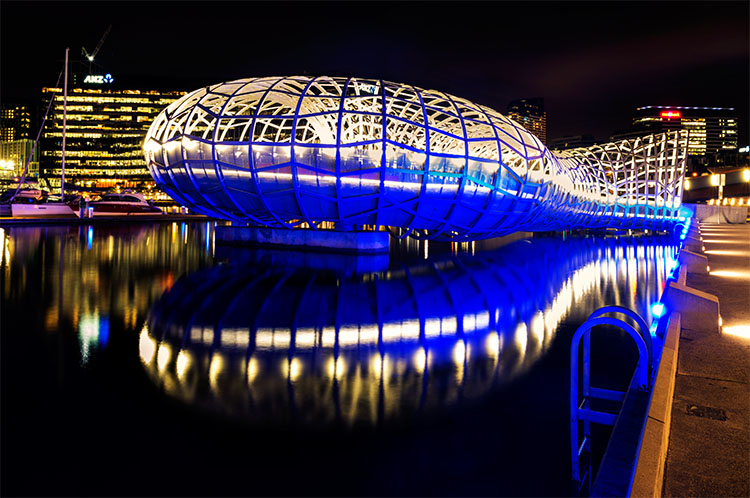
HDR image of Docklands, Melbourne.

Taking photos with your phone, or on a compact camera, is never going to give you those amazing results you see of night photos. You really need to do long exposures; set your camera up on a tripod and do exposures from a couple of seconds, to several minutes.

One major problem with taking photos at night is the sharp contrast between the highlights and shadows. If you try and get detail in the shadows, you will often blow out your highlights. If you do expose for the bright parts, then you won’t get any detail in the rest. Most people don’t mind this. However, if you want your night images to really sing, you should start looking at what you can do to make them stand out.

Comparing shots with different exposures

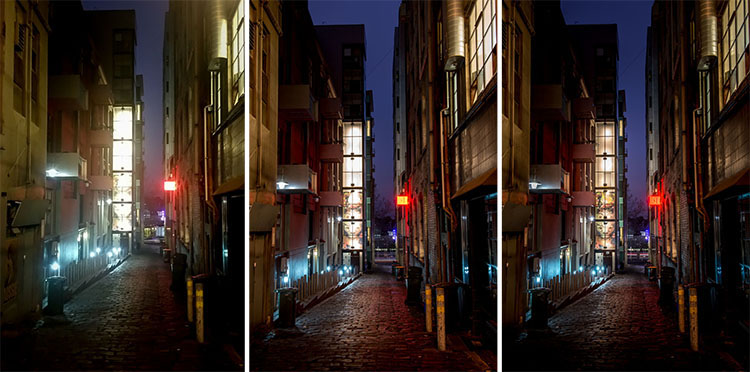
Here is a side by side comparison of images all taken at the same time, but with different methods. The first was taken with a phone, the second is a single exposure, the one the camera says is correct. Lastly, the third image is an HDR using four out of five bracketed shots.
leannecole-nightphotography-comparison

Three images of the same scene, (left) phone, (middle) camera correct exposure, and (right) HDR.

Hopefully you can recognize the difference and appreciate just how unique each approach is.

Photos with your phone

You see a lot of people in the city taking photos with their phones. If it is all you have, then you have to be content with what you get. However, you are never going to get amazing night photos simply with a phone or most compact cameras. Often the photos are too grainy, you will only get a few of the highlights, and none of the depth that a longer exposure will give you.

To get great night photos you need to have a camera on which you can control the ISO, aperture and shutter speed.

The first image (below) was taken with the Samsung Galaxy Note 4. It is not a bad image for a phone, but it is noisy and not as sharp.
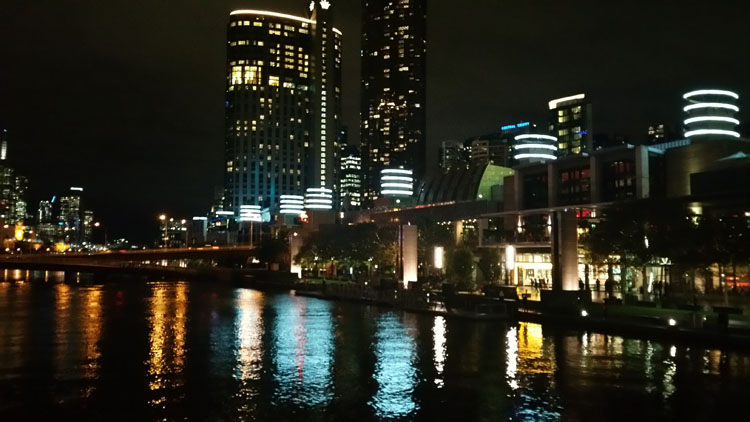
leannecole-night-photography-phone

Image taken with phone of Melbourne at the Casino.

Using a DSLR or Mirrorless Camera

When you can control what your camera is doing, then you can use a low ISO, the aperture you want, and get a shutter speed of a couple of seconds to several minutes. You will get a lot more detail doing this, however, you do need more equipment.

A tripod or somewhere solid to set your camera is important to prevent camera shake. If you want to do exposures longer than 30 seconds you will need a remote shutter release, that will allow you to lock your shutter open for however long you choose to expose. Both are pieces of equipment that you will use a lot so they are worth getting.

This image was taken with a DSLR at the correct exposure, according to the camera.
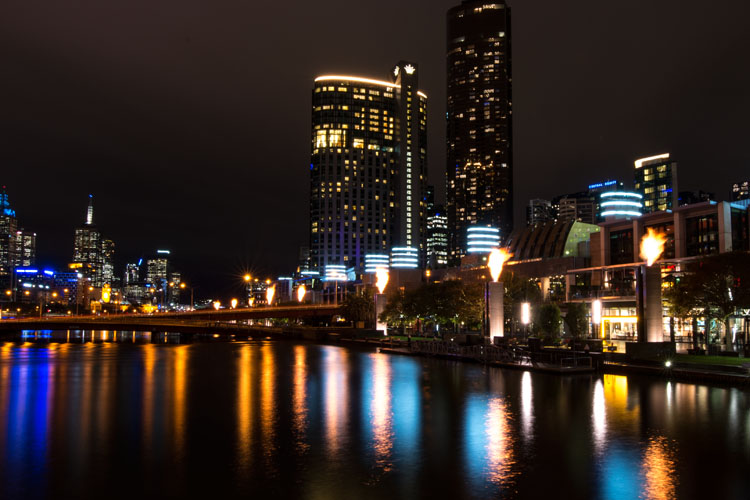
leannecole-night-photography-3

Single image of Melbourne at the Casino.

Bracketing

Bracketing your photos is thought to be a process that people only do for HDR. However, photographers have been using this technique for a very long time. In the days of film, you would have had to work it out for yourself, but most digital cameras have the ability to take bracketed exposures, and do the calculating for you.

The process involves taking a series of photos, usually three or five. When you do this, you are taking one image that is the correct exposure, and additional images that are under and overexposed. The amount of time for each image changes, while aperture and ISO remain the same, and the shutter speed is altered by the camera.

There are good reasons for bracketing, one being that it gives you more options. Sometimes the exposure the camera says is the right one, is in fact not. The overexposed image or the one that is under can be the better choice.
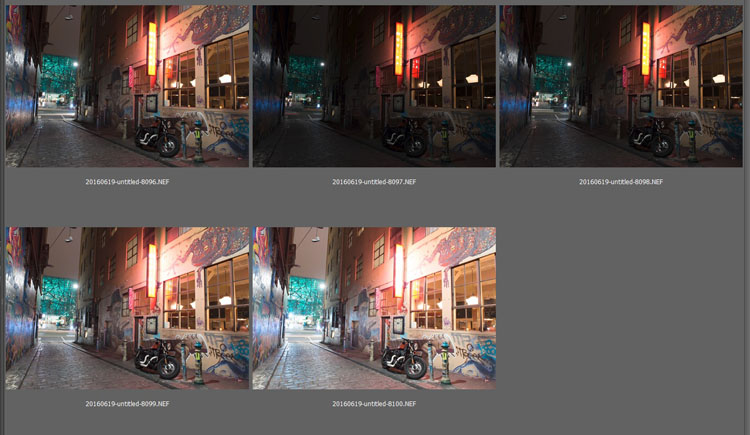
leannecole-nightphotography-bracketed

Five bracketed photos ready to use.

There are, of course, disadvantages to bracketing. You end up with many more images, especially if you are doing five each time. If you are shooting in RAW you may encounter storage problems. However, I find that the positives far outweigh the negatives.

High Dynamic Range (HDR)

HDR has been popular for a few years and we have all seen those hyper real images that some people create. They have given the process a bad name, but if it is used in the situations it is meant for, it can be very effective.

High Dynamic Range is used to correct the problem of having very bright and overly dark areas. Cameras do not work the same way as our eyes, and they cannot make the necessary adjustments that your brain and eyes do. Your camera will either expose for the highlights and make the shadows too dark, or it will do the opposite.

HDR software takes the well exposed highlights and shadows, and puts them together in one finished image so that nothing is lost in either area. You can do it manually (using luminosity masking or layer blending), but there is good software out there which can do it for you.

Here is an HDR image of the same scene above, using four of five bracketed shots. Notice how much more detail is retained in the highlights.
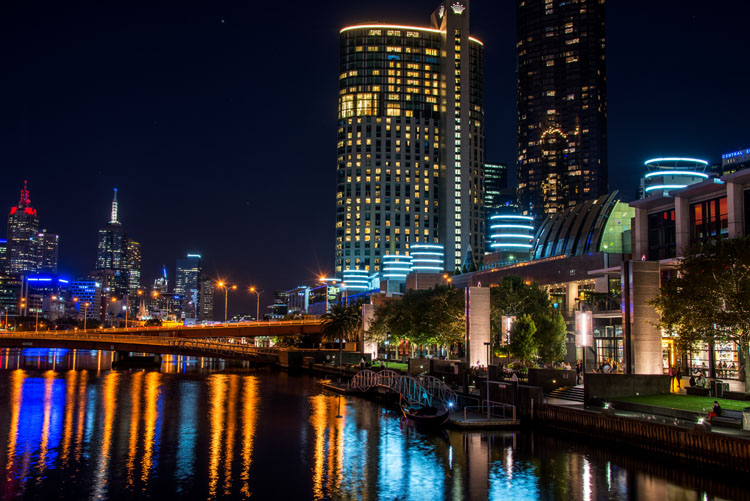
leannecole-night-photography-hdr-example

HDR night image of Melbourne at the Casino.

HDR Software

There are many different types of software that can process your HDR images for you. The most popular has been Photomatix Pro, though Lightroom and Photoshop can also be used, and they have improved significantly over the years.

Lightroom does a fairly decent HDR image and I often use it. However, you do have to be careful that the image is processed properly. Sometimes it misses spots, but most of the time it is effective.

Lightroom HDR

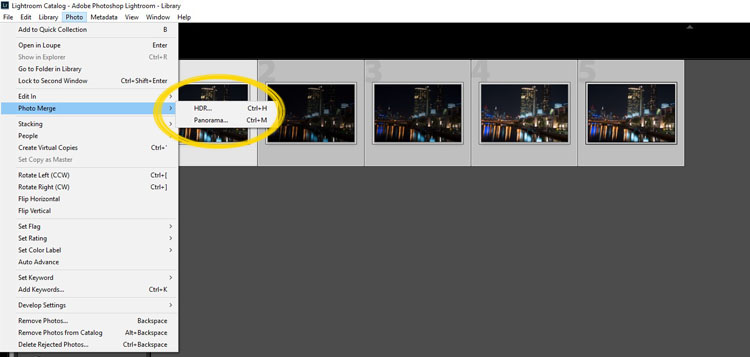
It is easy to use Lightroom’s Merge to HDR. Select the images you want to process and highlight them. Go to Photo > Photo Merge > and click on HDR (you can also find it by right clicking with the images selected).
leannecole-night-photography-101

Selecting photos and merging for a HDR in Lightroom.

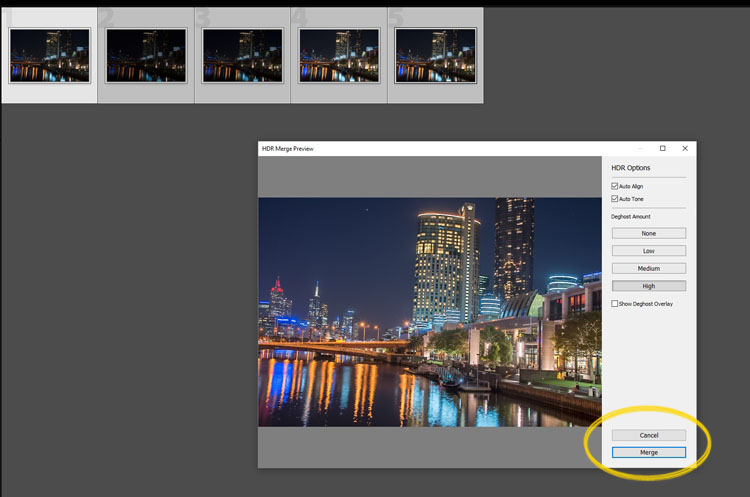
A separate window will come up. You can select whether you need deghosting or not (use it if something has moved between shots like trees or people). If you have used a tripod to take the image then you shouldn’t need deghosting, although it doesn’t hurt to use it regardless.
leannecole-night-photography-102

Lightroom loading the photos ready for you to click Merge

Watch for the Merge icon to come up and then press it.

Often the image will appear at the end of the folder, sometimes just after the images. You may have to search for it (sort by file name and it should appear next to your originals).

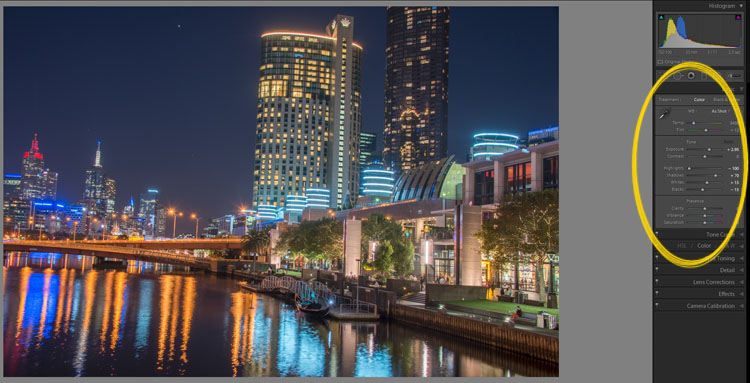
Once it is done you will see that it does not look great.
leannecole-night-photography-103

What the image looks like when Lightroom has processed it using Auto Tone.

Lightroom shows you the adjustments that it has made using Auto Tone, but there is no reason why you can not change them.

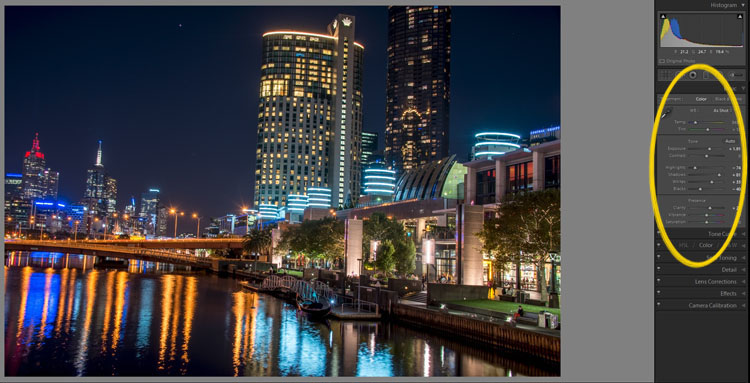
I have found that it will often have the exposure up too far, but you are able to turn that down slightly. You can turn the shadows down a little, and you usually need to add more black to the image. Compare the image above and below and you can see what changes have been made.
leannecole-night-photography-104

What it looks like after you have made changes to the adjustments.

Once you have the image as you want it, you can do further adjustments in Lightroom or press Ctrl+E and continue editing it in Photoshop.

Long Exposure Night Photography

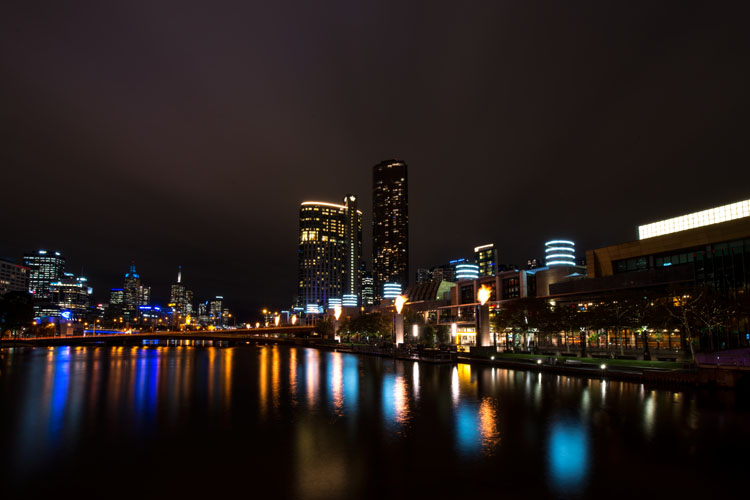
There is nothing wrong with doing long exposures as well. You do not need filters, but you can do images that are more than 30 seconds. Using a tripod and a remote shutter release, you can put your shutter speed on Bulb, and try taking some exposures for a minute or longer.
leannecole-night-photography-longexposure

A one minute exposure of Melbourne at the Casino.

You do have to be careful that you don’t blow out the highlights too much. Try different times and see what you can get.

Examples

Night photos taken with any of these techniques can give you great results. You should try them all and see which ones you like, and what works best for your style.

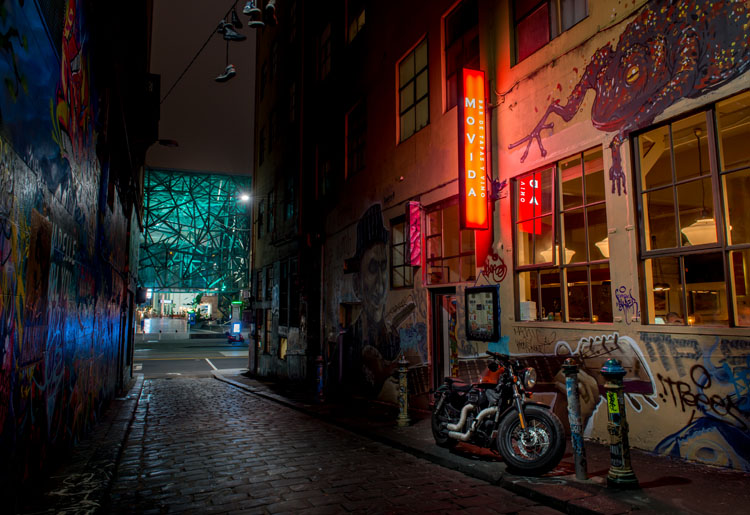
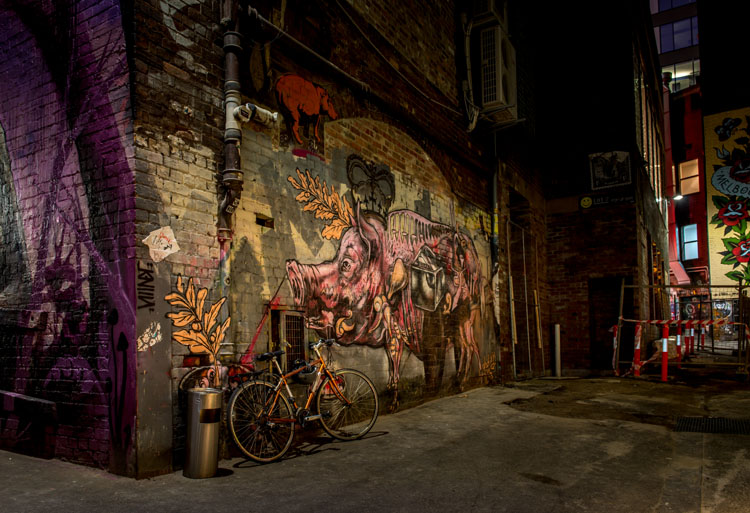
Following are some more night shots with descriptions of how they were done.  Good luck and be safe out there.
leannecole-night-photography-example3

Hosier Lane in Melbourne, HDR image with 4 images.
leannecole-night-photography-hdr-example2

HDR image of laneway in Melbourne.

leannecole-night-photography-example4

Single image at docklands with a one minute exposure.

googletag.cmd.push(function() {
tablet_slots.push( googletag.defineSlot( “/1005424/_dPSv4_tab-all-article-bottom_(300×250)”, [300, 250], “pb-ad-78623” ).addService( googletag.pubads() ) ); } );

googletag.cmd.push(function() {
mobile_slots.push( googletag.defineSlot( “/1005424/_dPSv4_mob-all-article-bottom_(300×250)”, [300, 250], “pb-ad-78158” ).addService( googletag.pubads() ) ); } );

The post Tips for HDR Night Photography to Retain Maximum Image Detail by Leanne Cole appeared first on Digital Photography School.


Digital Photography School

 
Comments Off on Tips for HDR Night Photography to Retain Maximum Image Detail

Posted in Photography