RSS
 

Posts Tagged ‘Guide’

Networks of New York: Field Guide to Internet Infrastructure

13 Feb

[ By WebUrbanist in Travel & Urban Exploration. ]

network guide

We tend to think of the internet as something akin to aether, present all around us in the void – or perhaps something traveling down a series of tubes – the reality is much more complex, rich and intriguing.

networks of new york

In an upcoming book titled Networks of New York: An Internet Infrastructure Field Guide, Ingrid Burrington presents an urban variation on a naturalist’s handbook, giving you the tools to tour the real-life objects that are often obscured or simply hidden in plain sight all around cities.

network internet infrastructure handbook

From the author, “New York’s network infrastructure is a lot like the city itself: messy, sprawling, and at times near-incomprehensible. However, the city’s tendency toward flux is a strange blessing for the infrastructure sightseer: markings and remnants of the network are almost everywhere, once you know how to look for them.”

network field guide notes

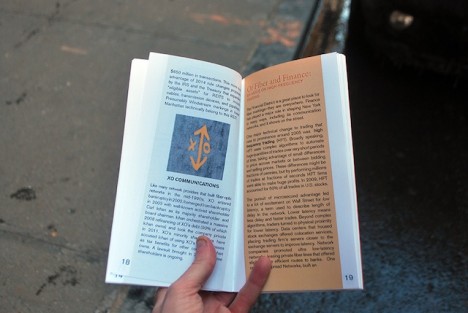
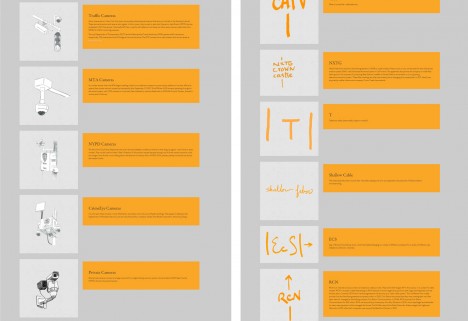
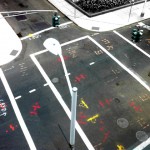
The story starts with manhole covers and progresses through street markings, which follow a federal color-coding standard: “Orange refers to the broad catch-all of ‘Communications, alarm, signal lines, cables and conduit.’ This means that orange lines can be internet cables, television cables, telephone lines, or other kinds of conduits.”

network deciphering symbols systems

“The markings are sometimes really sloppy, and often in fragments. Sometimes you’ll see several different labels in the same place. A lot of these cables are bundled up together running through ducts under the city.” Suddenly all of the strange acronyms are comprehensible, including but not limited to: CATV, NXTG, T, ECS, RCN, MCI, L3, XO and FO.

field guide example

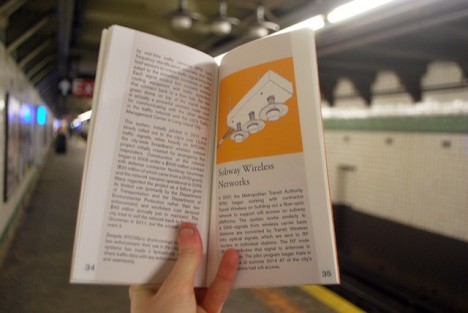
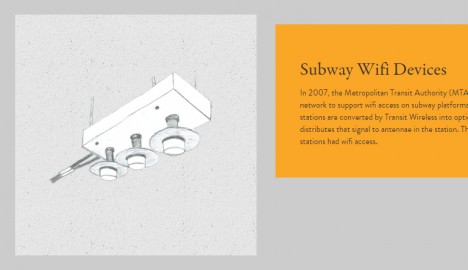
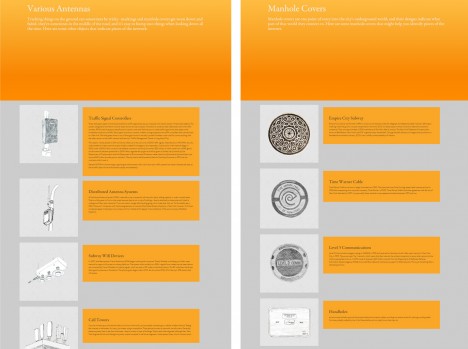
The book also branches out to cover different kinds of antennas security cameras we are so used to seeing but many of which we do not understand the purpose of at a glance, from subway wifi devices and distributed antenna systems to CrimeEye, MTA and NYPD surveillance camers.

field guide examples

Finally, the authors builds up to the biggest elements of the built environment: architectural structures housing various large-scale elements of internet infrastructure along the city. Some of these are well-known, but the book brings to light a series of buildings less frequently visited, and provides tips on how to identify others.

field guide illustrations

Recognizing “these buildings when looking on the street is not always easy, but one telltale sign is to look for signs of ventilation and cooling systems. Alternatively, look for windows, or more accurately, the absence of them. (Note: on much larger buildings, in particular skyscrapers, vents also could just be a sign of a mechanical floor, the centralized space dedicated to maintaining utility needs for the entire building).”

Share on Facebook


[ By WebUrbanist in Travel & Urban Exploration. ]

[ WebUrbanist | Archives | Galleries | Privacy | TOS ]


WebUrbanist

 
Comments Off on Networks of New York: Field Guide to Internet Infrastructure

Posted in Creativity


A Starter’s Guide to Film Photography: What You Need to Know

28 Jan

Photography has never been more accessible than it is now in the digital age. Every cell phone features a camera, and those cameras are quickly becoming more advanced. DSLRs are becoming more affordable while offering increasingly higher quality and functionality. And the advent of mirrorless cameras are packing more photo punch into smaller and easier to use packages. So why would Continue Reading

The post A Starter’s Guide to Film Photography: What You Need to Know appeared first on Photodoto.


Photodoto

 
Comments Off on A Starter’s Guide to Film Photography: What You Need to Know

Posted in Photography


A Beginner’s Guide to Working With Flash Off-Camera

23 Jan

FF HeroBW

I spent the first three years of my photography career avoiding the use of speedlights off-camera because I couldn’t wrap my head around the concepts and science behind them. I tried to cover it up saying things like “I’m a natural light photographer.” or “I really don’t like the aesthetics of flash photography.”

But then, I reluctantly invested in a flash for my first Nikon. This was the 90s, pre-digital, pre-autofocus, and pre-TTL. I had to calculate how much flash to use via a chart on the top of the flash. The formula was complicated, but if you knew how to split an atom, you were pretty much set.

Each shoot I went on that required flash was preceded by a sleepless night filled with anxious dreams about turning up to the shoot naked. And the thought of having to use flash also had a mild to moderate laxative effect on me.

Luckily those days are long gone and shooting flash has never been easier. In this tutorial, I’ll show you the quick and easy steps I take to shoot portraits using off-camera speedlights.

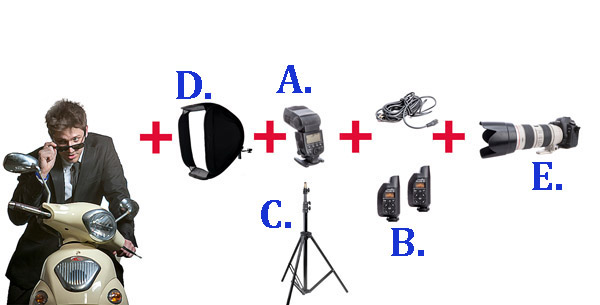
The Gear Essentials

A. Speedlights:

I use speedlights most often when I’m travelling and need light portable flashes, when I’m working on location without access to power, or when I’m working in small, confined locations where studio flashes would be too powerful or cramped.

I work with two Canon 580EX IIs. A great alternative if you are looking to save a few bucks is the Yongnuo YN-560 II. It has a very similar look to the Canon 580EX II and Nikon’s SB speedlight series.

B. Remote Triggers:

Remote triggers allow you to fire speedlights when they’re not mounted on your camera and are essential when using flash off-camera.

The cheapest and most reliable way to fire your speedlight off-camera is using a sync cord — basically you connect your speedlight to your camera via a long cable. The drawbacks of using a cable are that it reduces the distance you can be away from your flash, and can create a tripping hazard. Having said that, I still carry a couple of spare sync cables in my kit because remote triggers do fail from time to time, and the cords have saved my butt on a few occasions.

The next option is cheaper infrared triggers. They do the job of setting your flash off remotely, but they’re sensitive to bright sunlight and external factors such as alert lights on emergency vehicles and forklifts, etc., so they can go off without warning. I started out with a $ 30 set of triggers and used them for a couple of years before trading up to PocketWizards, which I’ve been using for the last eight years. A good entry level flash trigger is the YONGNUO RF-602 (approximatel $ 30).
Fill Flash Diagram 1W

C. Light Stands:

There are three options when it comes to mounting speedlights off-camera:

  1. First, you can use a light stand. Light stands vary in price from $ 20 to $ 200+ dollars, depending on the make and construction.
  2. Second, you can use a GorillaPod and mount your speedlight to a door or place it on top of something near your model.
  3. Third, you can mount your speedlight to an extension pole (or monopod) and have someone hold the light above your model. I like to do this because it gives me more options when shooting, and it also means there aren’t any light stands in the way of my shot.

D. Light Shapers:

Using a speedlight as a bare light source creates a very hard style of lighting similar to harsh sunlight. This looks great in certain situations, but I prefer to soften and control the light source by using a small or medium soft box over the flash unit. This creates a much softer, more flattering and realistic-looking light source.

A good one to start with is the LumiQuest Mini Softbox. It attaches to your speedlight with Velcro and folds flat for easy storage.

E. Camera with Hot Shoe Mount:

You will need a Camera that works in manual mode with a hot shoe mount.  The hot shoe mount is just a sexier way of saying that little square bit of metal on top of the camera that an external flash or wireless trigger slides into.

The Way

I used to believe that great portraits needed artificial lighting regardless of the environment. I often added two or three lights to my portrait shoots because I thought anything less was lazy or unprofessional. I actually felt guilty when I shot with natural light because I thought it was cheating.

Fortunately, I’ve gotten over that false notion and now understand that finding great light and being able to use it are learned skills, so is knowing when to use fill-flash in a portrait.

Nowadays, whenever I set up portrait shoots, I always look for opportunities to use great natural lighting first. It’s the most beautiful and flattering light for portraits, so if it ain’t broke, no need to fix it.

Having said that, there are many occasions when natural lighting is only just okay or even complete caca — and sometimes a portrait needs more mood or drama than the available light can provide.

The following is an example of how I used flash off-camera to light a heavily backlit image. My objective was to create an image that looked naturally lit. This technique can be used for any portrait that requires fill-flash using off-camera flash.

Daylight 001 Daylight 800ISO 001

Flash on camera 002

A. Here you can see that my model was heavily backlit, which makes a great silhouette, but not such a great portrait.

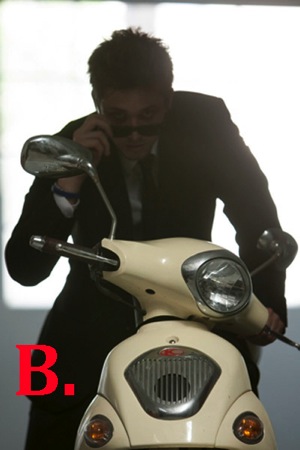
B. I attempted to correct the lighting by increasing my ISO, which overexposed the background and brings more detail to the motorbike, but leaves the model’s skin tone flat, dull and underexposed. It also added extra noise in the blacks. At this stage, I could also have used a reflector to bounce light back onto the model to help create a better skin tone.

C. A quick fix to this problem would be to shoot flash on-camera using TTL, which uses the camera’s metering system to calculate the correct amount of light needed to create the portrait.

As you can see in my example, the Canon 580EX II did an okay job of lighting my model, given I was about five meters (16′) away using a 200mm lens.

The thing I don’t like about using flash on-camera for portraits is that it tends to make them look unnatural and have flat, lit look. By using my flash off-camera, I can control the direction and amount of light going onto my model to achieve a more natural look.
FF Diagram

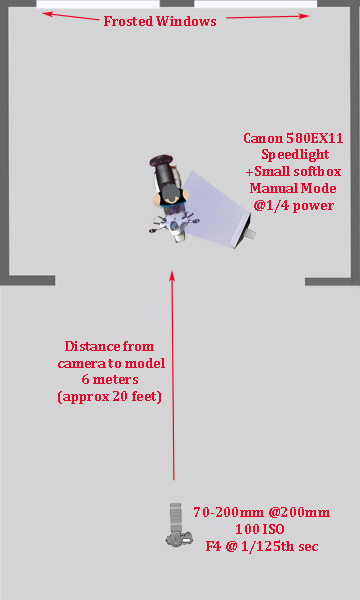
Here’s a bird’s eye view of my setup

My speedlight was positioned approximately one meter (three feet) from the model. I set it at a 45 degree angle because I wanted to make my model look like he was lit from the side.

I was working with a 70-200mm zoom lens set at a focal length of 200mm because I wanted to blur all the details in the background and work within a narrow focal range.

My camera was approximately six meters (twenty feet) from my model.

My ISO was set at 100 at f/4. I was working at f/4 rather than wide open at f/2.8 because I find it very difficult to make the eyes look sharp at f/2.8, at that distance, and in that extreme lighting condition.

Setting up the Gear
580EX+Lumiquest+stand 1

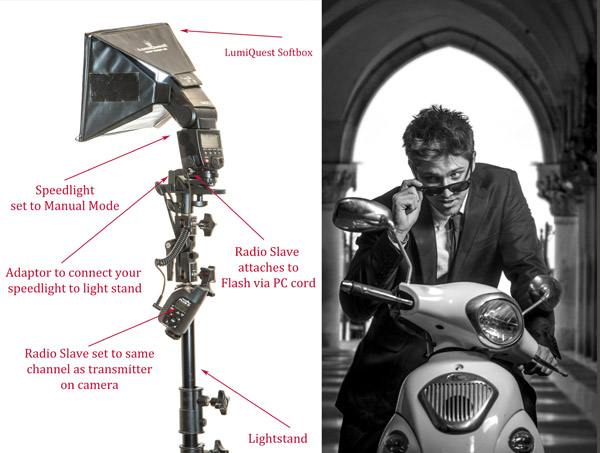
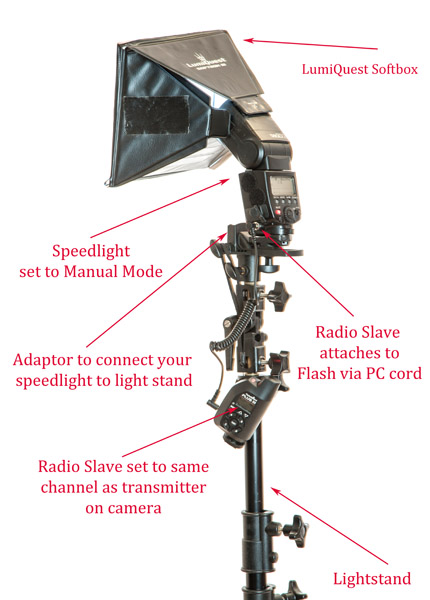
Setting up speedlights and radio slaves

For this motorbike model shoot, I mounted my speedlight to a light stand via an adaptor and used a small LumiQuest Softbox to soften and shape my light.
580EX+Power

PocketWizard+camera 1

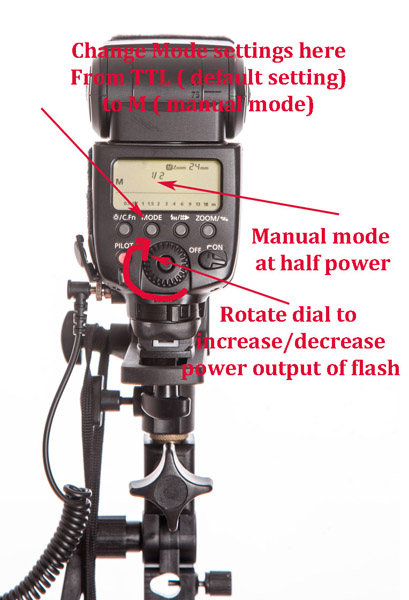
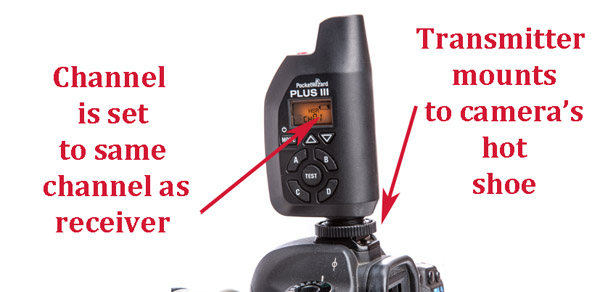
To manually adjust the flash output of your speedlight, first switch the setting from its default of TTL to M (manual mode). As a general guide, I start with the following settings:

  • Full sun: 1/1 (full)
  • I would use a power setting of 1/1 (full) if you are shooting in full sun and need f/16 or higher.
  • If you are shooting wide open at f/2.8 or f/4, start at around 1/16th-1/32 power.

The above diagram is based on Canon’s 580EX II. For any other camera, check your manual for instructions on how to increase and decrease power. It should be very similar.
Fill Flash  001

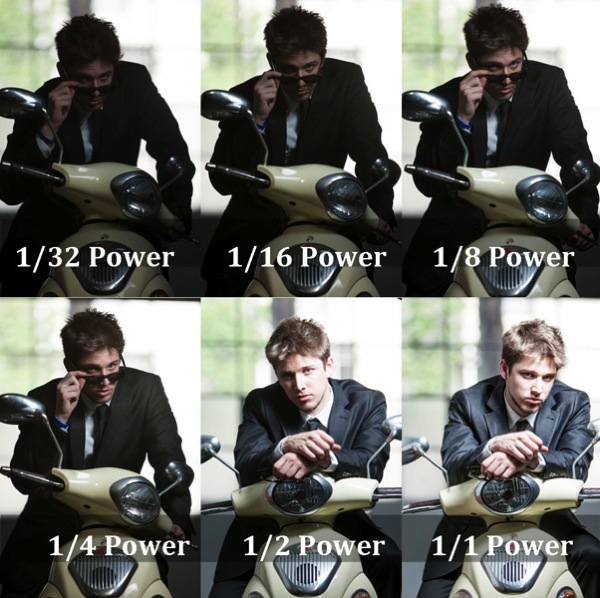
  • Flash at 1/32 power is underexposed, skin tone looks muddy and there’s no detail in the blacks.
  • Flash set at 1/16th power is starting to look better.
  • Flash set at 1/8th power is looking good, but I prefer a slightly brighter skin tone.
  • Flash set at ¼ power is the correct reading for the look I was going for.
  • Flash set at ½ power gives a slightly overexposed skin tone, which is perfect for most portraits as it is a very flattering light (no model will ever tell you they love seeing all the detail in their pores and skin tone).
  • Flash set at full power is overexposed—there’s very little detail in the skin tone and the blacks are too light (gray).

A Step-by-Step Guide to How I Lit This Shot:
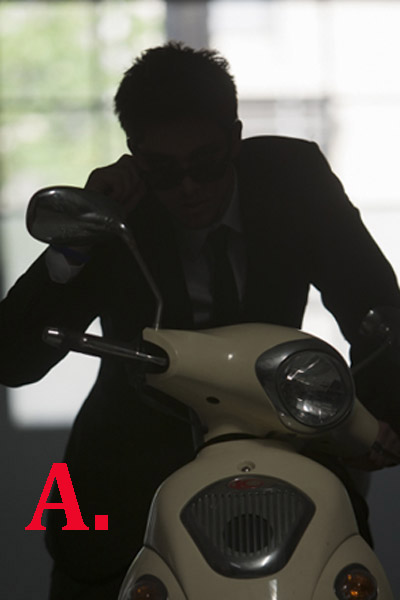
Daylight 001

Caption: My ambient reading was 4 at 1/125th second.

  1. Take an ambient reading to determine correct exposure for the background. In this case, my ambient reading was f/4 at 1/125th and ISO 100. This exposure will now remain fixed. I will next add light to create a nice skin tone.
  2. I ask myself if adding flash will improve or detract from the shot. In this case, the answer is a definite yes, it will improve my shot.
  3. I bring in my flash and set it up as per the diagrams above.
  4. The quickest and easiest way to figure out the best settings is to use a light meter (If you don’t have a light meter, you can still work with off-camera flash. It will just take a bit longer to work out your exposure). I believe the light meter is an essential tool in good portrait photography and would never leave home without one. When you use a light meter you know you have most accurate readings, and lighting becomes really easy.
    I suggest you set up your lights per the diagram, start at a power setting of 1/32, and gradually increase your power in small increments (1/32, 1/16, 1/8, ¼, etc.) until you get the desired results.
  5. Set your light meter to non-sync and press the button on the side of the meter. The non-sync button will flash on and off indicating it’s ready. If you don’t have an assistant, I suggest taking a radio slave off-camera and using it to test fire your flash so you can take a reading. Hold the meter in front of your subject’s face and point the sensor dome towards the camera.
  6. Keep increasing or decreasing the amount of light until you have it a half stop, to one stop over the ambient setting.
  7. If you want a clean, beauty-style shot with lots of shadow detail, add +1 stop of fill-flash and shoot at your ambient meter settings.

This is something I strongly urge you to practice with as many patient friends, family, and pets as possible so you can build up your confidence and really get to know your equipment.

Here’s the final image, the new background is from a shoot I did in St Marks Square, Venice last year. I merged the two images together using Photoshop.
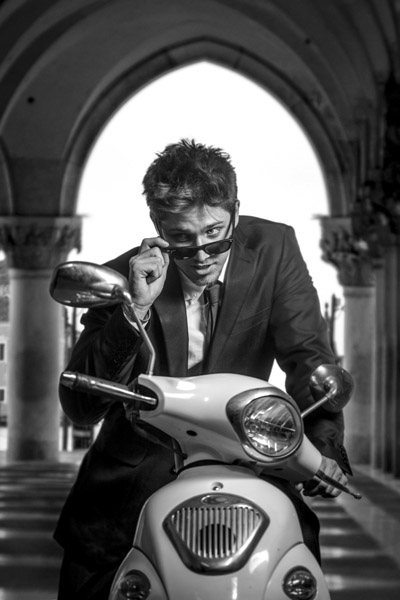
FF FINAL BW

Glauco Junior Solleri, Vespa courtesy Glow Studios

What are your experiences of working with off-camera flash? I’m keen to hear about the flashes, modifiers and flash triggers you rate highly and anything you’d like to add to the discussion.

googletag.cmd.push(function() {
tablet_slots.push( googletag.defineSlot( “/1005424/_dPSv4_tab-all-article-bottom_(300×250)”, [300, 250], “pb-ad-78623” ).addService( googletag.pubads() ) ); } );

googletag.cmd.push(function() {
mobile_slots.push( googletag.defineSlot( “/1005424/_dPSv4_mob-all-article-bottom_(300×250)”, [300, 250], “pb-ad-78158” ).addService( googletag.pubads() ) ); } );

The post A Beginner’s Guide to Working With Flash Off-Camera by Gina Milicia appeared first on Digital Photography School.


Digital Photography School
 
Comments Off on A Beginner’s Guide to Working With Flash Off-Camera

Posted in Photography


3…2…1…Actions!! A Guide to Using Photoshop Actions to Speed-Up Your Workflow

06 Jan

Do you find yourself doing the same processes in Photoshop over and over again? Do you wish you knew a way to quickly do amazing things to your photos without going through a bunch of steps? If you haven’t entered the world of ACTIONS yet, let me be your guide! I’m going to teach you how to install Photoshop Actions that you purchase or download on the web, and even better, how to create your very own Actions.

197

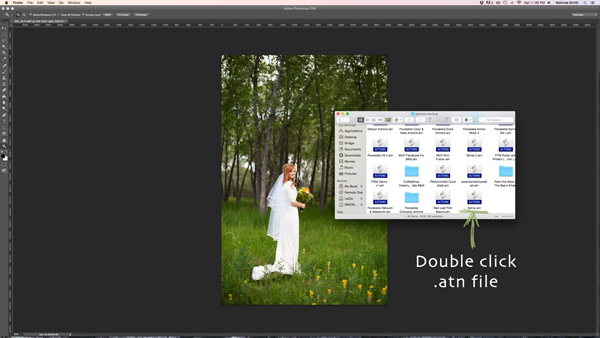
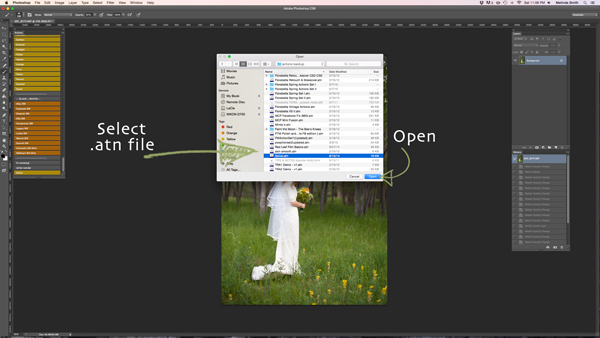
Find the “.atn” file and double-click it.

There are tons of places to find Actions on the web. Some cost a lot, some are free. There are a lot of great ones, and a lot that aren’t really worth using. I look for Actions that fit my style, and are fully adjustable. Which means that I can turn every layer off or on, adjust the opacity of each layer, and customize to fit my style and each individual photo.

Installing Photoshop Actions

Once you’ve purchased and downloaded your Action, make a backup file somewhere, just in case. Then, open the folder, find your Action (it will be a file with .atn extension), and double click it.

(You do not need to have a photo of a gorgeous bride open in Photoshop as you do this, but it never hurts!)

198

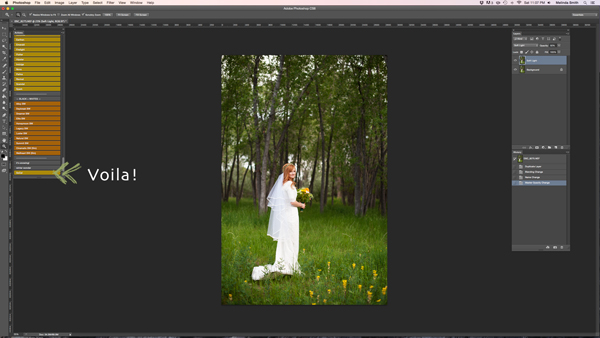
This might seem too easy to be true, but most of the time this works. It’s automatically installed into Photoshop when you double click. Easy as that! If for some reason that doesn’t work, or you like to do things the hard way, you can use the following method.

199

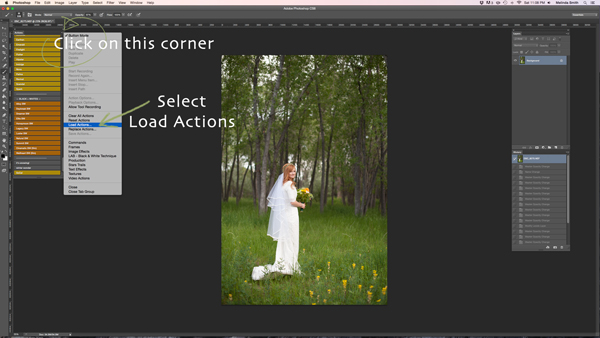
Make sure your Actions Palette is open. You can do this by clicking “Window” at the top of Photoshop, and making sure the check mark next to “Actions” is on. If you don’t see a check mark, just click on “Actions” and your Action Window will appear.

Click on the upper right hand corner of your Actions palette, and a drop down menu will appear. Select “Load Actions”.

200

Then, you’ll navigate to find and select that .atn file, click “Open”, and it will be installed. Now your Action is ready to be used. All you have to do is open a photo, click on your Action, and it will run through a bunch of steps in a very short amount of time (running times may vary based on the number of steps in the Action and the speed of your computer). Be aware that not every Action will look great on every photo, and many times Actions need to be adjusted before they look right. Be careful not to overuse Actions. They are great tools, but can ruin a photo quickly if you don’t practice adjusting and learning what Actions work with different types of photos.

How to create Photoshop Actions

Now that you know how to install someone else’s Actions, I want to teach you how to be a Photoshop rock star and create an Action of your own. You can create Actions for so many different things, from a simple sharpening Action, to a complex multi-step stylized Action.

184

For this demonstration I’m going to show you how to make a simple “soft light” layer to add a boost to your photos. Go ahead and open Photoshop and make this Action along with me. Once you see how the steps work, you can experiment with making more Actions for all the things that you find yourself doing over and over again. You will need to have a photo open when creating your Action, so choose a beautiful bride, or any photo you’d like.

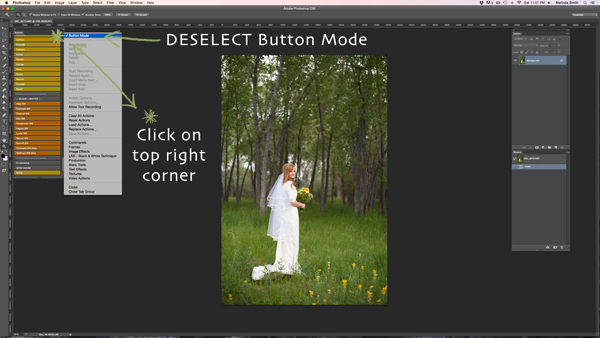
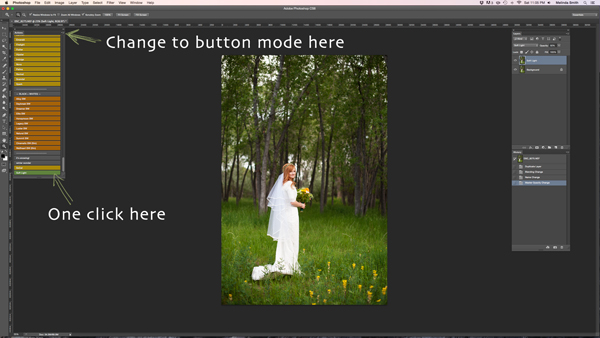
Your Actions palette may be in button mode, or it may not. I like mine in button mode for normal use, but you have to change out of button mode to create Actions. Click on the top right corner in your Actions palette, and make sure that the check mark next to “Button Mode” is deselected.

185

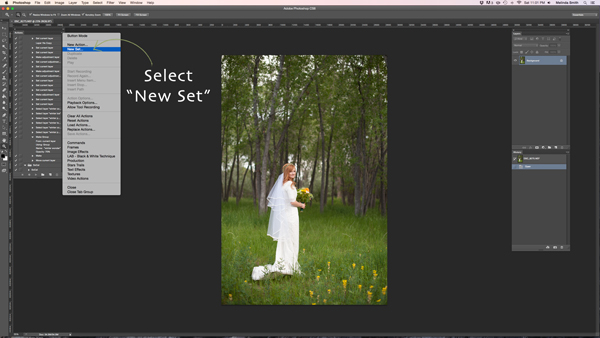
Before you create an Action, you will want to make your own Action folder set, so that everything stays organized. Select “New Set” from your drop-down menu.

186

You can name your set anything you’d like. A great set to start with would be a simple “My Actions”, so you will know which ones you created. Later you can divide them into multiple categories if you’d like.

187

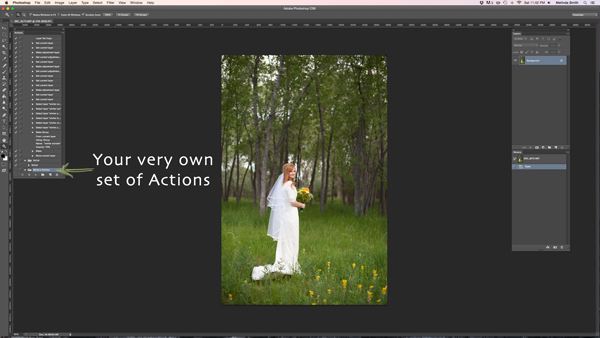
Right in the Actions palette is your very own set of Actions. You are now that much closer to Photoshop rock star status! Make sure your set is selected for the next step. If it’s highlighted, you’re ready to go.

188

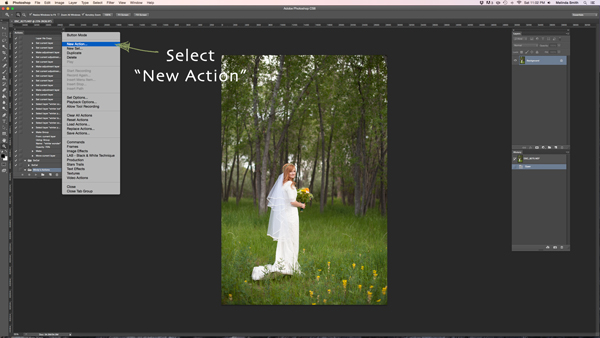
Select “New Action” from the menu. We are going to create an Action inside your Action set.

189

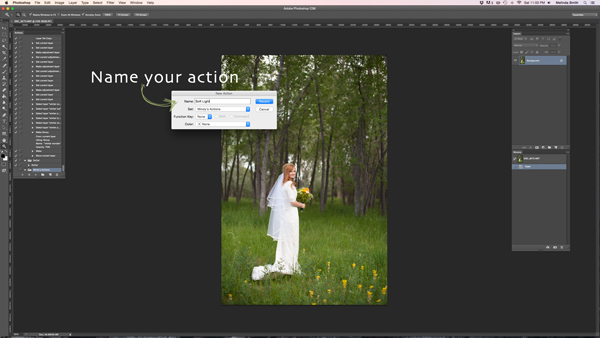
Now you’re going to name your Action. It’s good to pick a name that lets you know exactly what it does, or describes the results of the Action well, so you won’t be wondering later. Since this Action will be a “Soft Light” layer, I just named it “Soft Light”.

190

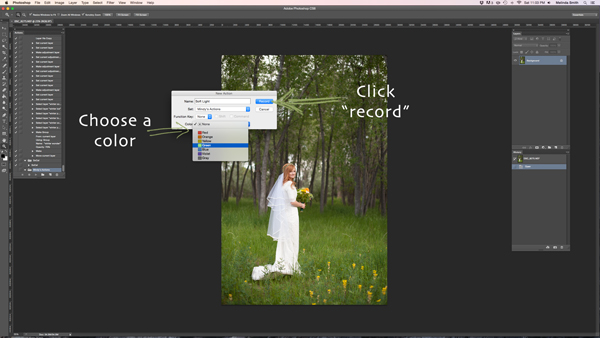
If you’d like to, you can also choose a color for your Action, this only applies if you are in Button Mode. This helps with Action organization. You can make all of your Actions within your set the same color, so you can easily find different sets of Actions, or you could only choose a color for your frequently used actions, so they are quick to find. Now you’re ready to start recording. Just click record. Don’t worry, you can go as slow as you need to. It just records the process that you are going through, but doesn’t record the time it takes you to do it. It will play much faster than it takes you to record it.

191

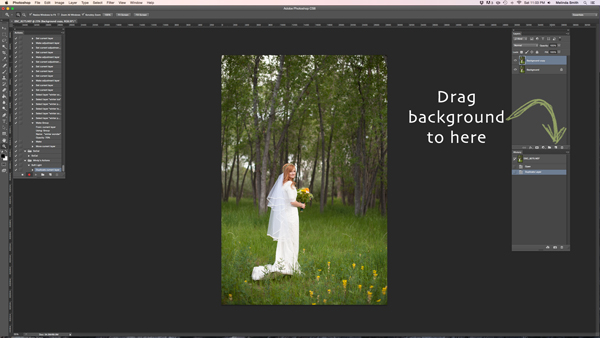
We are going through the steps of making a Soft Light layer right now. It’s super simple, but it’s a great one to make for your very first Action. Just drag your background to the “create a new layer” icon (the square with a corner folded over), and it will make a duplicate of your background.

192

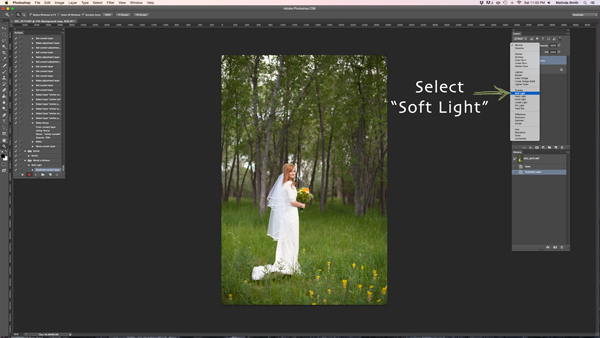
Make sure your “background copy” layer is selected, then click on the Blending Mode menu. (It will say “normal” on the button. It’s at the top left of your Layers Palette.) Find “Soft Light” and select that blending mode.

193

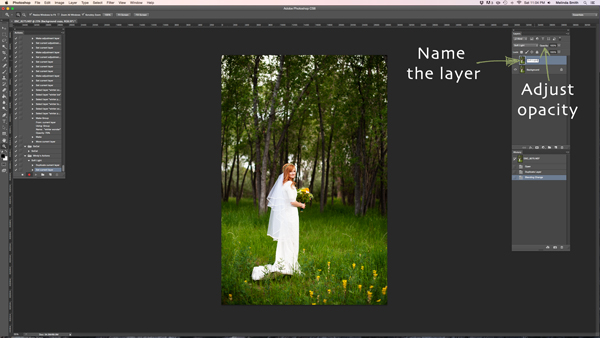
I like to name the layer when I make Actions, so that I can easily know what each layer does when I run the Action later. Just double click on the name of that background copy and type in a new name for that layer. I went with “Soft Light” because I’m very original and creative.

I also adjusted the opacity to around 50%, just because I know that on most photos I won’t want it 100% strong (adjust to your own taste and style). When you run the Action, you can always adjust the opacity to suit the individual photo, but I suggest you put the opacity at a level that you use most, because often that will save a step when you run it later.

194

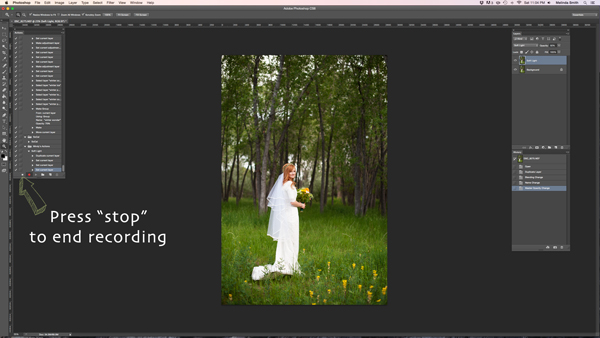
Now we are done with our Action and we just need to press “stop” to end the recording. It is the square just to the left of the red recording button.

195

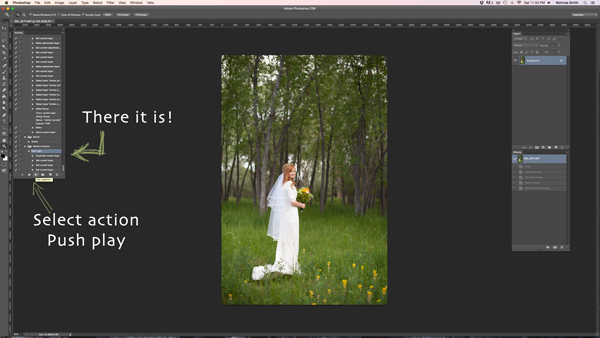
There’s your Action. Pretty exciting, isn’t it? You can try it out by making sure your Action is selected, and pushing “play” at the bottom of the actions palette. You’ll be amazed how quickly your “soft light” action goes through those steps. It doesn’t take long to do all those steps without an Action, but it’s almost instantaneous with one. Once you get a lot of your regular go-to steps turned into Actions, you’ll find that it takes a lot less time to edit each photo.

196

If you want to change back to button mode, it will really streamline things. All you have to do is click once on the Action. You don’t have to push play, or scroll a lot through open steps to find your Action. Give it a try.

Let me know how you did creating your first Action along with me. If you’re an Action-creating enthusiast, I’d love to hear what Actions you have made, and which Actions have been most helpful to your workflow.

googletag.cmd.push(function() {
tablet_slots.push( googletag.defineSlot( “/1005424/_dPSv4_tab-all-article-bottom_(300×250)”, [300, 250], “pb-ad-78623” ).addService( googletag.pubads() ) ); } );

googletag.cmd.push(function() {
mobile_slots.push( googletag.defineSlot( “/1005424/_dPSv4_mob-all-article-bottom_(300×250)”, [300, 250], “pb-ad-78158” ).addService( googletag.pubads() ) ); } );

The post 3…2…1…Actions!! A Guide to Using Photoshop Actions to Speed-Up Your Workflow by Melinda Smith appeared first on Digital Photography School.


Digital Photography School

 
Comments Off on 3…2…1…Actions!! A Guide to Using Photoshop Actions to Speed-Up Your Workflow

Posted in Photography


2014 Holiday Gift Guide: $100-500

18 Dec

If you’re looking for something special but you don’t want to empty your bank account, these gifts for photographers will do the trick. While a wireless hard drive or a film scanner lacks the wow factor that an African safari can provide, these gifts will bring plenty of joy to any photographer’s holiday.

Articles: Digital Photography Review (dpreview.com)

 
Comments Off on 2014 Holiday Gift Guide: $100-500

Posted in Uncategorized


2014 Holiday Gift Guide: $25-100

18 Dec

Photographers are a hard lot to shop for. While it’s tempting to pick up a gift card from your local camera shop and call it a day, we’ve done some digging and come up with photo-related gift ideas for photographers of all skill and aspiration levels. If you’re looking for something stocking-sized (and priced) our guide will put a smile on the face of your favorite photographer. 

Articles: Digital Photography Review (dpreview.com)

 
Comments Off on 2014 Holiday Gift Guide: $25-100

Posted in Uncategorized


2014 Holiday Gift Guide: $500 and up

18 Dec

If the photographer in your life is the kind that already has everything, it might be time to pull out all of the stops. From neat new gadgets to once-in-a-lifetime experiences, the gifts in this guide will wow any photographer.

Articles: Digital Photography Review (dpreview.com)

 
Comments Off on 2014 Holiday Gift Guide: $500 and up

Posted in Uncategorized


Deal 5: Your Guide to Natural Light Photography for $7 (65% off)

17 Dec

On the 5th day of Christmas dPS gave to me… another amazing $ 7 eBook and bundle option!

Yesterday saw our servers pushed to their limit with a $ 7 USD eBook deal so today we’ve decided to roll our best selling eBooks of all time at that sweet price of… $ 7.

That eBook is…

Natural Light: Mastering a Photographer’s Most Powerful Tool by renowned travel photographer Mitchell Kanashkevich.

NewImage

Natural Light is one of the best guides on the market written specifically with beginner to intermediate photographers in mind. Written in easy to understand language, this eBook will certainly help you improve the quality of your photographs… using nature’s free gift to photographers – sunlight!

Today it is yours for just $ 7 – 65% off!

Bundle Mitchell’s 3 Ebooks for $ 19

Want more? Mitchell has written 3 great eBooks for dPS so today if you’d like to explore his full library you can pick up them all for just $ 19 USD.

Mitchell bundle

The bundle includes:

  1. Natural Light: Mastering a Photographers Most Powerful Tool
  2. Transcending Travel: a Guide to Captivating Travel Photography
  3. Captivating Color: A Guide to Dramatic Color Photography
  4. Mitchell’s eBooks are perfect for the beginner just starting out or a more intermediate photographer looking for a refresher. They are beautifully illustrated and full of great practical advice.

    As with all of our eBooks they come with a 60 day money back satisfaction guarantee.

    These 3 eBooks have a RRP of $ 60 but today they’re available for $ 19 (68% off).

    As with all our deals – this one lasts just 24 hours. Grab this one here today.

googletag.cmd.push(function() {
tablet_slots.push( googletag.defineSlot( “/1005424/_dPSv4_tab-all-article-bottom_(300×250)”, [300, 250], “pb-ad-78623” ).addService( googletag.pubads() ) ); } );

googletag.cmd.push(function() {
mobile_slots.push( googletag.defineSlot( “/1005424/_dPSv4_mob-all-article-bottom_(300×250)”, [300, 250], “pb-ad-78158” ).addService( googletag.pubads() ) ); } );

The post Deal 5: Your Guide to Natural Light Photography for $ 7 (65% off) by Darren Rowse appeared first on Digital Photography School.


Digital Photography School

 
Comments Off on Deal 5: Your Guide to Natural Light Photography for $7 (65% off)

Posted in Photography


The Ultimate Guide to Depth of Field in Photography

15 Dec

Depth of field basically means how much of your picture, from foreground to background is sharp. So there you have it, see you next week, bye, byeeeeee….Oh, are you still here? That wasn’t enough? Ok, so depth of field depends on several things, all centering arount the f stop of your camera, one of a triumvirate of things that allow Continue Reading

The post The Ultimate Guide to Depth of Field in Photography appeared first on Photodoto.


Photodoto

 
Comments Off on The Ultimate Guide to Depth of Field in Photography

Posted in Photography


Gift Guide 4Our Last All New Guide of 2014

15 Dec

Your house is lit, the tree is up, the stockings are hung, and the boxes are wrapped.

But wait, are those boxes and stockings still empty?! Fill ‘em up with photo gear and capture the holiday memories.

In our very last gift guide of the year, we’ve got 7 all new gift ideas.

See Photojojo’s Gift Guide #4 of 2014
(…)
Read the rest of Gift Guide 4
Our Last All New Guide of 2014 (0 words)


© Britta for Photojojo, 2014. |
Permalink |
No comment |
Add to
Our Last All New Guide of 2014″>del.icio.us

Post tags:


Photojojo

 
Comments Off on Gift Guide 4Our Last All New Guide of 2014

Posted in Equipment