RSS
 

Posts Tagged ‘Good’

5 Good Reasons You Should Get the Latest Lightroom Upgrade

02 Nov

If you’re a photo-fanatic, there is a lot to keep up with. New camera models are being announced way too often, firmware updates, fancy new lenses keep popping up, and on and on.

Lightroom_icon

I didn’t even mention software yet but now that I have, let’s see what’s new with our old pal Lightroom (LR) and its latest upgrade.

Since this is the default program that you’re likely to find running on almost every photographer’s computer, it’s worth discussing what you might be missing (or not if you’re a minimalist post-processor) if you haven’t upgraded to the latest version – LR 6 or the Adobe Creative Cloud (CC).

If you are like me, you will be happy to hear that the general interface has survived untouched in the latest versions. That is to say, in many respects the program has retained the same look and features, and the tasks which you are accustomed to doing, are the same.

So what do you get for your $ 79 (that’s the price of upgrading from an earlier version) or what more do you get for your $ 149 if you haven’t yet jumped on the LR bandwagon? Let’s take a peek at some of the added features that may prove most useful.

If you are still clicking away on LR 4, the long list of reasons to upgrade is even more compelling than the jump from LR 5 to LR 6 – here are some good reasons to get the latest Lightroom upgrade.

Radial Filter

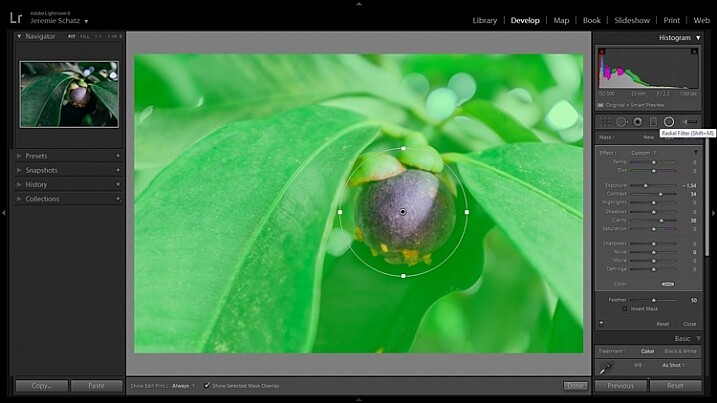
Lightroom's radial filter

The Radial Filter reveals a new level of editing control.

Probably one of the most welcome features that LR users are grateful for (I know I am), is the Radial Filter (shift+m). This filter allows you a higher degree of flexibility in masking for dodging, burning, and the other adjustments available within the Adjustment Brush.

One handy way to increase the effectiveness of the Radial Filter is after making your initial adjustments, right click on the pin and duplicate the filter. Once it is duplicated you can then choose Invert Mask from the adjustment panel and make another set of changes – perhaps making opposing changes to further the effects you applied with the first filter (this invert selection feature is lusted after for LR’s adjustment brush).

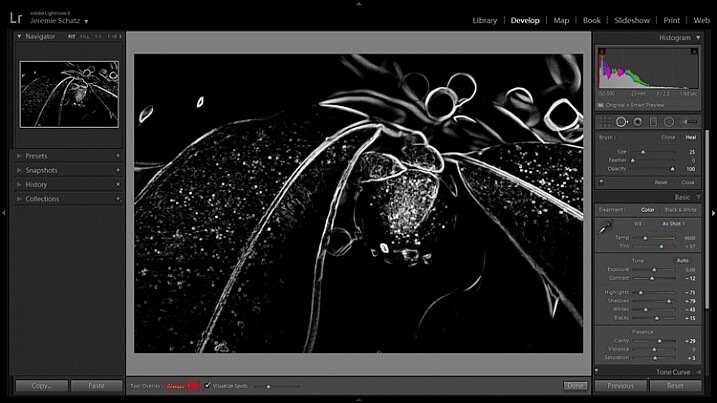
Visualize Spots

Lightroom's visualize spots tool

The Visualize Spots filter helps you catch dust spots and other blemishes that you may otherwise overlook.

If you are a user of the Spot Removal tool, you are going to be psyched for a handy little addition called Visualize Spots. This little check box toggles between the normal view and an inverted black and white image which clearly highlights sensor dust or skin blemishes which you may want to eliminate (if you don’t see that option hit the T key to show the toolbar).

I find this feature quite handy when editing on my laptop, as it can be easy to overlook spots on the small screen, or because of glare. It may save you the hassle of having to toss out a big print because you overlooked spots.

Facial Recognition

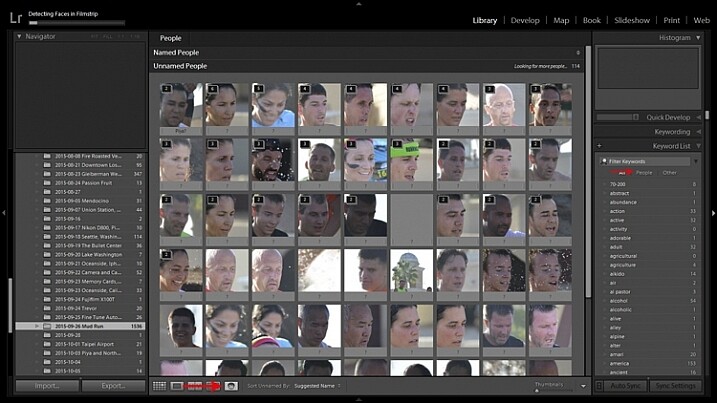
Lightroom's facial recognition feature

LR’s new Facial Recognition feature can locate people throughout your entire collection.

Facial recognition has also been added to LR’s suite of updates. This is a feature that has existed in other software for some time (such as Picasa all the way back to 2009) so LR was a little behind the curve on this one – better late than never though.

Certainly this addition made many people happy, as it means one less keyword to have to enter into metadata. When activating this mode (keyboard shortcut O) LR searches selected photos for all recognizable faces and compiles a list. You can then plug in names for the different faces which LR can then use to search for in your entire catalog.

Furthermore, LR adds these names as a keyword in metadata and has created a new sub-menu for people within the Keywords panel.

Overlay Guide

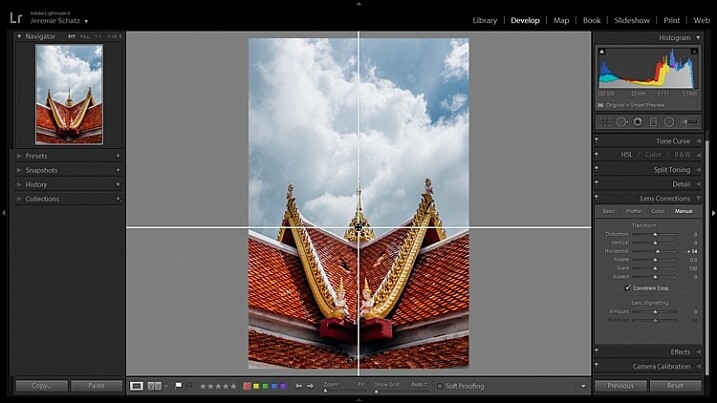
Lightroom's guide overlay feature

The Overlay Guide is more flexible and less cluttered than the grid overlay.

A simple addition that I find handy is a new movable overlay guide.

All it does is give you a vertical and horizontal line, that create a sort of crosshairs, which you can move around for composition and alignment purposes. It is useful as a less cluttered guide, used in conjunction with transform lens corrections.

It would have been nice to just have this nested in with the crop overlays, instead you have to access it through: View>Loupe Overlay>Guides.

Smart Previews

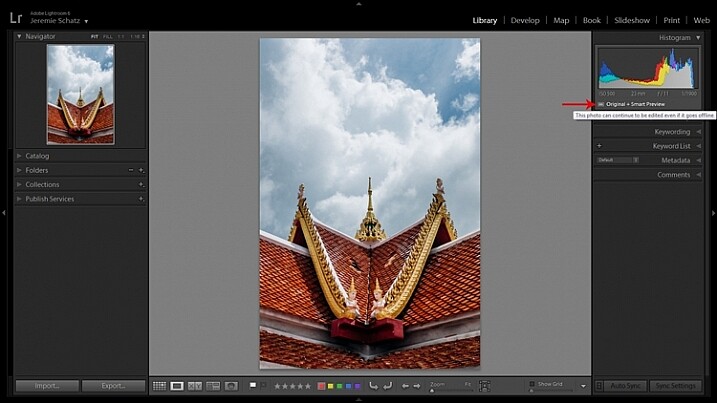
Lightroom's Smart Preview feature

Smart Previews allow you to make edits to offline photos.

Smart Previews are one of those features that I always wished LR had, and my wish finally came true.

This feature enables you to create compressed copies of images which can then be used to make offline edits. This works great if, like me, you store your original images on an external drive but want to be able to make edits on the go.

If edits are made to Smart Previews in LR, your original image will be updated with those new changes when it comes back online (when the external hard drive is reconnected).

You can set LR to automatically create Smart Previews for images upon import, otherwise you can create them manually for any images, folders or collections that you wish. To create Smart Previews, go to: Library>Preview>Build Smart Previews.

Conclusion

Naturally, this is not an exhaustive list of all of LR’s newer features. There are quite a few other sensational new additions such as HDR and Panorama Merge, Cure Pet Eye Effect, Slideshow improvements, new auto-cropping features, not to mention increased performance.

Have you recently upgraded? What are your favorite new features?

googletag.cmd.push(function() {
tablet_slots.push( googletag.defineSlot( “/1005424/_dPSv4_tab-all-article-bottom_(300×250)”, [300, 250], “pb-ad-78623” ).addService( googletag.pubads() ) ); } );

googletag.cmd.push(function() {
mobile_slots.push( googletag.defineSlot( “/1005424/_dPSv4_mob-all-article-bottom_(300×250)”, [300, 250], “pb-ad-78158” ).addService( googletag.pubads() ) ); } );

The post 5 Good Reasons You Should Get the Latest Lightroom Upgrade by Jeremie Schatz appeared first on Digital Photography School.


Digital Photography School

 
Comments Off on 5 Good Reasons You Should Get the Latest Lightroom Upgrade

Posted in Photography


5 Tips to Take Your Landscape Photography from Good to Great

15 Sep
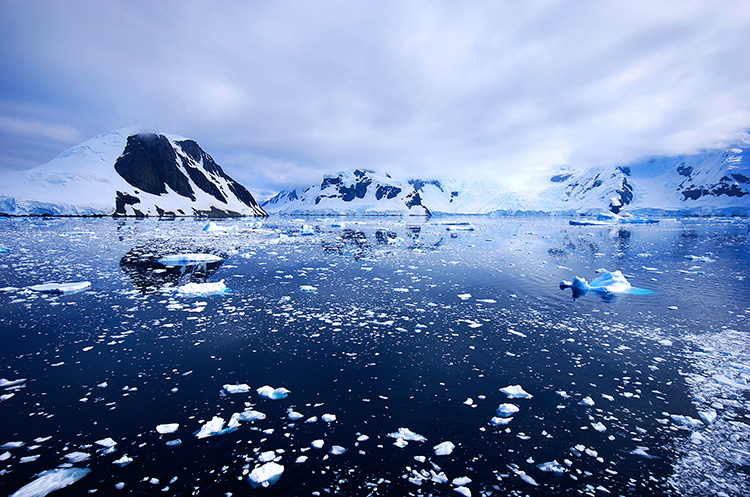
The beauty of the scenery in Antarctica

The beauty of the scenery in Antarctica

Landscape photography is one of the most favoured genres of photography. It also happens to be the one genre that is not easy to master. The reason is simple, to become really good at landscape photography, you need to spend hours trying to master it. Most photographers are not able to dedicate that amount of time, so it becomes frustrating. Many photographers end up being disappointed with their images, but there are few things that you can do to make sure you get better results, in a short space of time.

1. Foreground interest

This is a common tip, but one that makes a lot of sense. Having a subject in the foreground, anchors the image. It tells the viewer where to look first and once they have looked at that, their eye will explore the rest of the image.

You can place your foreground subject anywhere in the lower third of your image, but it might be a good idea to put it more to the left side of the frame. This is not a rule (I really don’t believe there are any rules in photography), but rather a suggestion. We read text from left to right, so if your foreground interest is on the left hand side, it makes it feel easy for the viewer to interact with the image. The foreground interest could be anything, a piece of driftwood, a rock, a tree, anything that works for the scene.

Foreground interest anchors a scene

Foreground interest anchors a scene

2. Color in your scene

Your image will have inherent color based on the time of day and subject you are shooting. If you are shooting a forest, your scene might be predominantly green, if you are doing a seascape, there may be lots of blue because of the colour of the water.

Be aware of the colour in your scene and work with the opposite colors on the visual colour wheel. As an example, there are three primary colors that your camera sees, they are: Red, Green and Blue. The additive colors (opposite colors) are Cyan, Magenta and Yellow. To be clear, Cyan is the opposite color to Red, Magenta is the opposite to Green and Yellow is the opposite to blue. These opposing colors can work well in a scene, particularly yellow and blue.

Look at the colors in your scene and decide what you want to emphasize. To make sure you have great colours to work with, you will want to shoot during the golden hours and emphasize the warm colors.

Rich colours will enhance the drama in your image

Rich colors will enhance the drama in your image

3. White Balance

When you are shooting landscapes, you will want to be shooting at golden hour, or the blue hour. These are the times of day when the light works really well for dramatic landscape shots. In the golden hours, the light will be warm tones of yellow, orange, or red. Check your white balance setting when you are shooting at this time. If your camera is set to Auto White Balance, it will cancel out much of the warm tones in your image as it tries to neutralize any color casts you may have in your scene.

If the golden hour light is really strong in your scene, Auto White Balance will make the scene look really bland and colorless. Try and shoot on Daylight White Balance instead. That way, the camera will be capturing the light as it truly is in the scene. You could even turn your white balance to cloudy or shade to enhance the warm tones even more. Use this settings as a creative tool, it can really make a good impact on your image.

Use white balance creatively, this image was shot using shade white balance

Use white balance creatively, this image was shot using the Shade preset.

4. Movement

Some of the best landscape images have some form of movement in them. The movement can be caused by water, wind, or both. Subjects that work well with movement are rivers, waterfalls, seascapes and even stars. A long exposure image of the sea with water looking all silky and wispy is ethereal, and adds drama to the image. We don’t see this smooth silky water naturally with our eyes, it is only possible with the camera. The results are often very appealing, and it gives a serenity to the scene that is almost magical. You will need a tripod to get this right, you will also need to use a longer exposure of a few seconds. Timing is also important, particularly with seascapes. You may have to time the shot for when the water comes rushing over the rocks, or up the beach. That way, the image will be filled with silky streaks of water and it will look amazing.

Movement in water can make a scene look dramatic

5. Less is more

Landscape images become more dramatic if there is a very clear subject in them. If you are unsure about what should be included in your scene, ask yourself this question as you look around the scene, “Does that rock, tree, river, etc., add to the scene or not?” If you think it is not adding to your scene, remove it. Even if you are unsure, remove it and take a shot to see how the image looks. In many images, less is more. If you have less items in your scene, there is less to distract the eye, there is less that can make the scene confusing, so give it a try. Set up a shot, take a photo and then start minimizing the distracting elements.

Sometimes, less is more

Try these five tips and share your results in the comments below. Do you have any other tips to add?

googletag.cmd.push(function() {
tablet_slots.push( googletag.defineSlot( “/1005424/_dPSv4_tab-all-article-bottom_(300×250)”, [300, 250], “pb-ad-78623” ).addService( googletag.pubads() ) ); } );

googletag.cmd.push(function() {
mobile_slots.push( googletag.defineSlot( “/1005424/_dPSv4_mob-all-article-bottom_(300×250)”, [300, 250], “pb-ad-78158” ).addService( googletag.pubads() ) ); } );

The post 5 Tips to Take Your Landscape Photography from Good to Great by Barry J Brady appeared first on Digital Photography School.


Digital Photography School

 
Comments Off on 5 Tips to Take Your Landscape Photography from Good to Great

Posted in Photography


Gone Fur Good: 10 Abandoned Petting Zoos & Game Parks

16 Aug

[ By Steve in Abandoned Places & Architecture. ]

abandoned-petting-zoo-1a
Generations of adults cherish childhood memories of these now-abandoned petting zoos. As for the animals fed & petted there, maybe they remember, too…

abandoned-petting-zoo-1c

White Pines Deer Park near Oregon, Illinois is remembered fondly by several generations of kids who enjoyed feeding the 200-odd deer kept in a spacious enclosure. “It’s excellent,” stated 8-year-old T.J. Turner in the summer of 1992. “Deer come right up to you. Outside you never get to pet them or see them.” Inside too, nowadays.

abandoned-petting-zoo-1b

abandoned-petting-zoo-1d

Flickr user BillsExplorations visited what remains of White Pines Deer Park in February of 2013, about two decades after the park closed in the mid-1990’s. Though it adjoins White Pines Forest State Park (an Illinois Nature Preserve since 2001), Bill didn’t see any deer roaming about – blame it on carelessly disposed-of Polaroid film waste.

Gotta Flat

abandoned-petting-zoo-2

Flickr user Quinn Dombrowski (quinn.anya) brings us this curious “Flat Petting Zoo”… says they sell furs there. Better not tell PETA or Elaine Benes.

Benson’s Hedges

abandoned-petting-zoo-3b

abandoned-petting-zoo-3d

Benson’s Wild Animal Farm in Hudson, New Hampshire, opened in 1926 and closed in 1987 following a decades-long decline. In 2009, the town of Hudson acquired the property and it’s gradually being redeveloped as a public park and nature area sans petting zoo.

abandoned-petting-zoo-3a

abandoned-petting-zoo-3c

Some of the much-deteriorated old buildings including the Old Lady in the Shoe’s house are to be restored though non-native plants, animals and animal-petters are no longer welcome.

Next Page – Click Below to Read More:
Gone Fur Good 10 Abandoned Petting Zoos Game Parks

Share on Facebook


[ By Steve in Abandoned Places & Architecture. ]

[ WebUrbanist | Archives | Galleries | Privacy | TOS ]


WebUrbanist

 
Comments Off on Gone Fur Good: 10 Abandoned Petting Zoos & Game Parks

Posted in Creativity


12 Steps to Becoming a Good Photographer

10 Jun

The true key to growing as a photographer is to dedicate and immerse yourself in it on a consistent basis. Passion and enjoyment are key to becoming great at your craft.

That beings said, there are many things to consider in order to progress through this journey as effectively as possible. If I were to start all over again, these are the stepping stones that I would have preferred to have taken, beginning with the technical and ending with the conceptual.
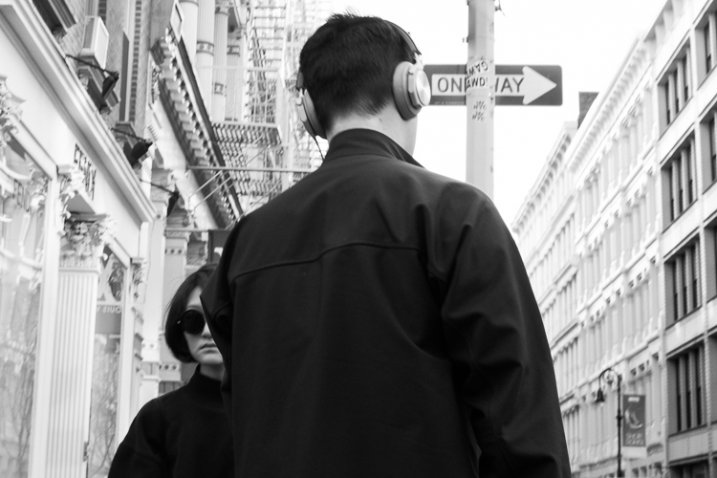
SoHo, NYC.

Part 1: Learning the Technical

1. Look at Light

When you start out in photography, it seems obvious to say that learning to use your camera is the logical first step. However, thinking this way can actually confuse you. The camera is just a tool that has the ability to record light.

When you walk out the door to photograph, the first thing you should think about is light, and not the camera. What time of day is it? How strong is the light and what direction is it coming from? Is it sunny or cloudy? Is the light soft or contrasty? Is the sun in front of, or behind you? Where are the artificial light sources and what colors do they give off?

This is the first thing that a seasoned photographer will look for every time they begin to shoot, and constantly be aware of while they are shooting. They do this for a reason. The light will affect how they shoot and the settings that they use. Even a slight change in direction to your light source can completely change how an image will look. You can’t learn how to use your camera correctly if you do not first understand the light.

2. Learn Your Camera Settings
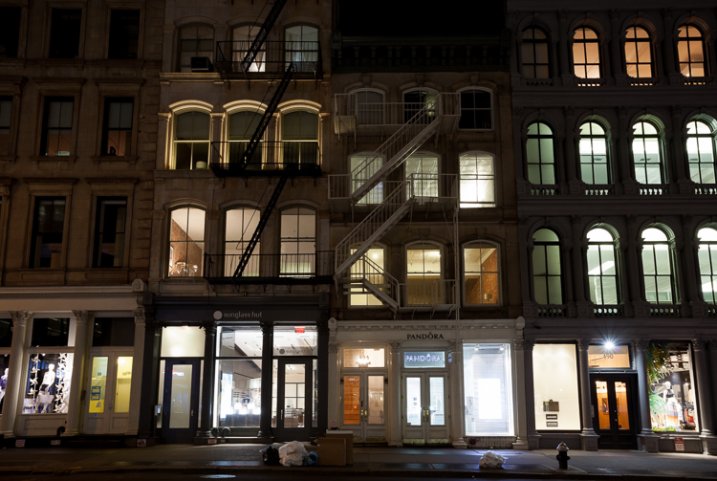
SoHo at Night, NYC.

SoHo at Night, NYC.

Once you evaluate the light and environment, and figure out how you want the image to look, that is when you want to think about camera settings. For instance, do you want as much of the image as possible to be sharp, or do you want a lot of bokeh in the background? Do you want to zoom in and have a compressed look to the image or would you rather use a normal or wide angle lens? Do you want it to be a high-key shot, or on the darker side?

That is when you change your settings to achieve the desired effect. It sounds like a lot of work just to take a single photo, and it is. However, if you start out shooting this way, eventually it will become second nature. It is just like learning a basketball shot or a golf swing. Doing it the correct way might feel unnatural and weird at first, but eventually it will come naturally and quickly, and you will be much better off for having spent time at the beginning to focus on it.

Take your camera off Auto and experiment with either shutter priority, aperture priority, or manual mode. Some photographers take pride in shooting manual, and sometimes it makes sense to shoot that way, but manual is no better than shutter or aperture priority modes, and in many situations it can be a worse way to shoot. It all depends on the situation.

Experiment with different zooms on your lens, with different apertures and shutter speeds, and experiment with different ISOs to see how the digital grain (noise) looks. Do not be afraid to raise your ISO when you do not have a tripod. Go back to look at your photos in Lightroom, zoom in to the details, and look at the settings to see how they altered the way your images look.

3. Composition and Form
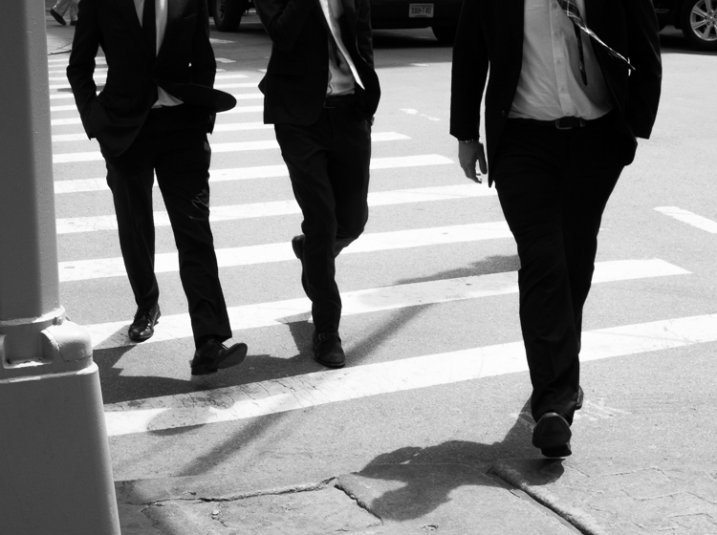
Three Men, SoHo, NYC.

Three Men, SoHo, NYC.

Now is the time to think about composition. Some newer photographers tend to have a bad habit – they look up, see something interesting, then they photograph it quickly and move on. Yes, sometimes you’re on the move and this is the only way to shoot, but take some time to compose your image in the best possible way. The difference between a snapshot and a work of art is thought. If you see an interesting scene, you need to think about how to best capture it. Where is the best place to stand? Can I include other elements into the scene to create a more complex composition?

I prefer to think about composition in this way – if I made a larger print, put it on my wall, and a friend came over and saw it for the first time, where would their eyes begin and how would they move through the image? How would it feel to them? Where are the lines in the image? What is the relationship of the main subject to the background? Is rule of thirds better here or is it better to center the main subject? Are there interesting shapes in the image? Do the edges of the image look good and keep the viewers eyes from moving out of the composition? Is there a foreground, middleground, and background in the image and does the image even need that?

The difference between a decent image and a great image could be moving a foot to the left. This is another idea that can seem overwhelming at first, but will come to you more naturally the more you pay attention to it.

4. Color
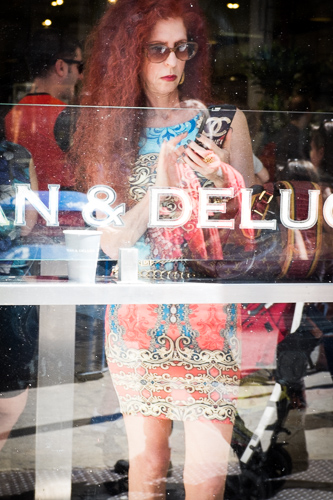
Dean & Deluca, SoHo, NYC.

Dean & Deluca, SoHo, NYC.

Color (or lack there of) is a very important element of photography. Look at a color wheel and study how the colors work together. What do different colors represent? Do the colors add to the image or detract from it? I enjoy creating both black and white, and color images, and this is one of the first questions I think about when I am editing.

What is the color quality of the light? Is it cool or warm, is there a color cast, and does that add or detract from the image?

In addition to thinking about color while shooting, you will find yourself significantly improving your ability with color while you are editing. Play around with color temperature to see if you like an image warmer or cooler. Desaturate it, or add a little saturation, to see how it feels. How does changing the contrast affect the colors?

For doing quality color work, make sure that you have a good monitor that has been recently color corrected. All your work will be for naught if your monitor shows colors that are different from the file and final print.

5. Learn Lightroom

Editing is vitally important to developing your vision and becoming a good photographer. I suggest using Lightroom, as it is the industry standard and it works well for so many photographers. Photograph in RAW to get the most flexibility and quality in your images and explore all of the RAW development settings. Try to recreate the looks of other photographers to get a feel for how their editing was done.

Be diligent about organizing your archive. A little time spent each time you upload images will save you so much time in the future. Star your good images (Lightroom allows 1 through 5 stars) so they are easy to find, and create collections based on ideas that you grow over time. Viewing your work in this organized fashion will help you develop your skills much faster than if you have a messy archive.

6. Print

Maybe my views are rooted in the past and nobody is going to print in the future, but I do not feel like an image is truly complete until it has been printed and framed. That is the final step to all of this, and it is a great feeling to put an image on your wall.

Photography Inspiration Corkboard

36×48 inch Corkboard

But there is another aspect to why you should print. It is one thing to see how your images look on a monitor, but it is a completely different experience to see them in their final, printed form. This will allow you to see how the light, the color, and your camera settings all affected the final image. You will learn a lot about how to shoot, from the art of printing. Try different papers, and view your prints under different lights.

My favorite printer is the Epson 3880, but you do not need to do the printing yourself. Create a relationship with a local printer, or one of the reputable companies online, and have them made for you. If you do not print frequently, it can be much more affordable to have your prints made for you than making them yourself. But, don’t forget that doing the printing yourself can be very fun and satisfying, and it gives you the ability to make slight changes and see how they look right away.

Try creating a photography corkboard. I have a 36×48 inch board next to my workstation and I swear by it. Fill it up with 5x7s and 4x6s and constantly change it. See how the images play off each other, which images last, and which you lose interest in. Use this as a playground for your prints.

Part 2: Developing Your Photographic Voice and Style
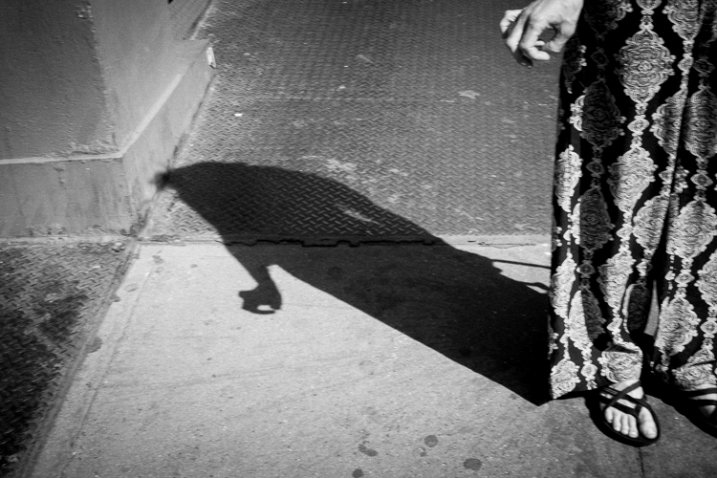
Nerves, SoHo, NYC.

Nerves, SoHo, NYC.

Once you have gotten this far you are in a very good spot. Technically, you know what you are doing, your prints look beautiful, and they are well composed. But what’s next?

The next step is to figure out how to take unique and interesting photographs. It is now time to spend more effort thinking about what it is that resonates with you in photography, and what makes an image stand out in your mind.

7. Photograph!

This is so simple, but it is the key to everything and needs to be said. So many people only take their cameras out on trips or vacations. They go to places that are specifically for photographing, such as mountain ranges, zoos, gardens, safaris, cute towns, or cities with great architecture. While this is great to do, push yourself further than that. Take some photographs during the course of your everyday life. Even use a cellphone when you are unable to take your main camera with you.

The best photographers can take great photographs in the most ordinary of places. Practice this. Go out, anywhere, or specifically go out to someplace that you think will be terrible for photography, and figure out how to take an interesting photograph there. This practice will help you so much in your development. You can understand light and camera settings cold, but if you are not out photographing in a variety of situations on a somewhat consistent basis, then you are selling yourself short as a photographer.

8. Galleries, Photo Books, and Reading
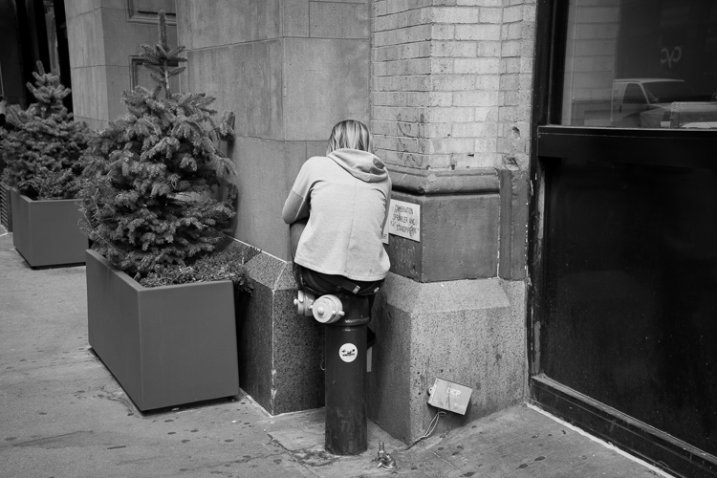
Disconnected, NYC.

Disconnected, NYC.

One of the best ways to develop your own voice and style is to look at the work of others. Go to galleries, purchase photography books, and study the images of great photographers. The internet is a great place to view photography, but it is so easy to get lost. Galleries and books are curated for a reason. Study the images, think about how they were done, and figure out the context behind them. Sometimes images will hit you whether or not you know the context behind them, but other times it can be important to learn about the photographer and the history that are behind the image. This will add another layer to your appreciation.

Try out the different styles of photographers that you like. Try to shoot like them to learn how they did it and why. Pick and choose your favorite elements from different photographers and merge them to create your own style.

Purchase some prints. I’ve heard this a few too many times (sorry for the gender stereotyping) but it’s usually a wife saying something to me like, “I’d love to get this for our wall, but if my husband sees me buying the work of another photographer, he’ll kill me!” The average home has a lot of walls; enough for many artists.

Yes, there is something satisfying about seeing an image, then going and figuring out how to create it for yourself, but it is really important to appreciate the works of others. Buy prints from other photographers to display along with books. Immerse yourself in the works of others to create your own inspiration.

Finally, one of my favorite ways to gain inspiration is to read about things unrelated to photography. Learn about where and what you are shooting. Read poetry, read current events, read anything. This practice is about growing your voice outside of photography; the two are related.
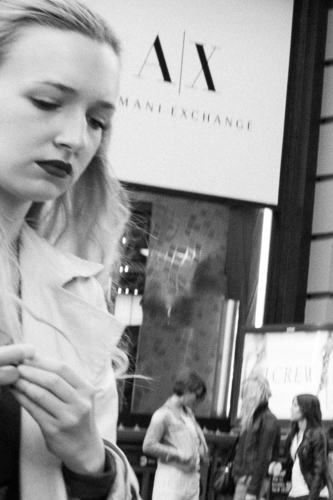
Nerves, SoHo, NYC.

Nerves, SoHo, NYC.

9. Keep Coming Back

Pick an area or a subject and immerse yourself in it. Go back to the same place at different times, in different light, and keep photographing it. This is very important for your growth since it will allow you to learn the area or subject like the back of your hand. Your images will take on more depth. There are photographers who have spent 40 years photographing in the same area.

10. Curate a small group of photographers and friends to show your work

The internet is an amazing place for sharing your work and learning about photography. However, it is also a very impersonal place. Everyone sees thousands of images a day from hundreds of people. While it’s definitely possible, it can be tough to get a proper critique and evaluation of your work over the internet.

Find a few people and put together a group to show physical images to every once in awhile. You ultimately want to shoot for yourself, but seeing how others relate to your images is important for your growth. The more they get used to your work and your style, the better comments and thoughts they will have for you.

These people do not have to be photographers. They can be friends, creatives, even significant others. A good tough critique from your partner can be very valuable. It can sometimes be tough to hear at first, but figure out how they really feel about an image. Your partner will know you well enough to be honest and not hold back, and that will be good for you to hear. Figure out what they like, and what they don’t like.

11. Put together an edit of similar images

One of the most beautiful aspects of Lightroom is that it allows you to create collections of images outside of your normal file structure. Start to group and sequence your images that relate to each other. Begin to turn them into a project. You can see how the images in this post relate to each other. This was done over time, not all at once. You can, and should, think about projects from the very beginning and go out to photograph them, but often projects and ideas will come about naturally during the process of daily shooting.

Doing this will help you notice these moments when photographing in the future and over time you will develop ideas organically into beautiful projects.

12. Develop a voice in your photography
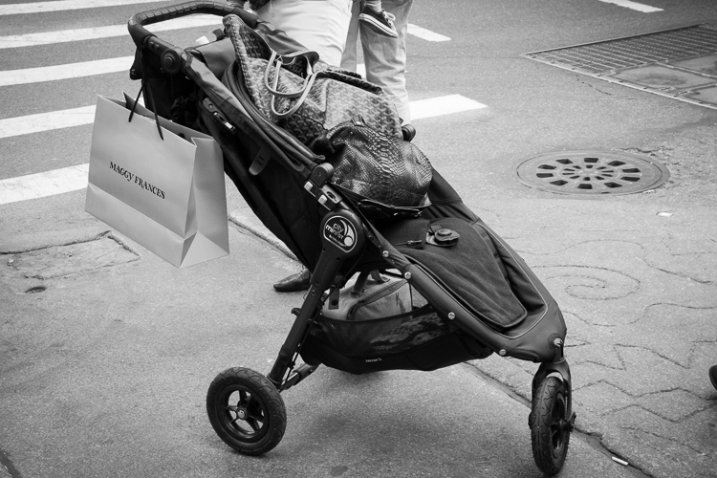
Stroller, SoHo, NYC.

Stroller, SoHo, NYC.

If you have done the rest of these steps, your voice and style will develop organically over time. Think about it, and pay attention to it as you progress, but do not force it. Let it come to you over time. You can learn to use your camera quickly, but you cannot become a good photographer overnight. Take your time and try to improve a little bit each day and you will make huge strides over the course of a few years.

Have you followed these steps? Do you have any others you’d add as part of the learning and growth process? Please share in the comments below.

googletag.cmd.push(function() {
tablet_slots.push( googletag.defineSlot( “/1005424/_dPSv4_tab-all-article-bottom_(300×250)”, [300, 250], “pb-ad-78623” ).addService( googletag.pubads() ) ); } );

googletag.cmd.push(function() {
mobile_slots.push( googletag.defineSlot( “/1005424/_dPSv4_mob-all-article-bottom_(300×250)”, [300, 250], “pb-ad-78158” ).addService( googletag.pubads() ) ); } );

The post 12 Steps to Becoming a Good Photographer by James Maher appeared first on Digital Photography School.


Digital Photography School

 
Comments Off on 12 Steps to Becoming a Good Photographer

Posted in Photography


Gramming for Good

19 May

Your Instagram presence is a superpower just waiting for that perfect opportunity to shine in selfless acts of kindness.

Welcome to your Hero moment. Gramming for Good is a new project that matches up talented ‘grammers with non-profit organizations, so you can use your visual power for good.

Sign up to participate here. Gramming for Good will match you up with a non-profit organization that suits your style and interests. Take over their account for a week, donate old gems from your photo collection, or spark a long-term collaboration and extend your impact.

If you’re in the Bay Area, check out Gramming for Good’s event coming up on June 11th.

Villains need not apply (we’ll keep you updated on when Tinder for Minions launches.)

Photo by Gramming for Good


© Erin for Photojojo, 2015. |
Permalink |
No comment |
Add to
del.icio.us

Post tags:


Photojojo

 
Comments Off on Gramming for Good

Posted in Equipment


How to get more from your printer – besides good quality prints!

26 Nov
Canon Pixma MG6350 All-in-one-printer

Canon Pixma MG6350 All-in-one-printer

If you like to print hard copies of your photos at home, how do you decide which inkjet printer to buy? With such a myriad of printers on the market it can be daunting which one to choose. However, similar to buying a camera, one main consideration will be how much do you want to spend.

I bought a Canon PIXMA MG6350 a little over a year ago.

As luck would have it, my local computer shop had the white version in stock for nearly 50 Euros ($ 62USD) less than the black one. The white one was my first choice.

This is a high-end, multifunction, inkjet printer. It is an all-in-one color printer with two paper trays. This means that it can print, copy, and scan and it also has WiFi and Airprint. I believe the latter lets you print from a smartphone or tablet but I haven’t tried it yet.

The lower cassette can hold up to 125 sheets of A4 (US letter) size paper, while the upper tray is for photo paper (20 sheets) of 10 x 15cm (3.9 x 5.9 inches) or 13 x 18cm (5.1 x 7.1 inches). So it doesn’t hold a great deal of paper but I only ever load one sheet at a time.

Its physical size, measuring 466 x 369 x 148mm (18.34 x 14.5 x 5.8 inches)was a perfect fit for my shelving unit. My Manfrotto travel tripod measures 18 inches when folded and this is exactly the width of the printer. It’s not small but at least it doesn’t have a top paper feed which can be awkward if the space between the shelves isn’t adequate enough.

It’s solid but it is not light, it weighs approximately 8.4 kg (18.5 lbs). Also, this printer is noisy.

Canon printer with Manfrotto travel tripod

Manfrotto travel tripod on top of Canon Pixma MG6350 All-in-one-printer

Canon Pixma MG6350 All-in-one printer

Canon Pixma MG6350 printer-perfect fit on these shelves

Inks

The branded inks aren’t cheap. This is often the case with home, small office printers, whereby the consumables are not cost efficient. The Canon Pixma MG6350 uses a six-tank ink system. A full set of standard 15ml tanks will cost you around 62 Euros ($ 77.50 USD). The 22ml XL versions cost around 85 Euros ($ 106 USD), and are better value for money. The Canon Pixma MG6350 has a print resolution of up to 9600 x 2400 dpi.

Generic third party inks have improved in their quality. It will be a case of trial and error to see which ones are better than others. The upside is that they can work out much cheaper. Currently, the non-branded full set XL versions cost 52 Euros ($ 65 USD) for this printer, so it is worth taking at look at them.

DPI/PPI/MP

In printing, DPI (dots per inch) refers to the output resolution of a printer or imagesetter. The more dot’s the higher the quality of the image.

PPI (pixels per inch) refers to the input resolution of a photograph or image. Although these two terms are used in the same context, they are different but are analogous to each other.

The real digital “resolution” of your photos are its pixels, the total of those is expressed as megapixels. For example, if your camera shoots 2848 x 4288 natively. Multiply these two figures and this represents the megapixels of your camera. In this case, it is 12.2 MP.

Images viewed on the web have an output value of 96dpi (for PCs) and 72dpi (for Macs). However, this is where it can get confusing. An image displayed on your monitor with a resolution value of 72dpi, and the same image saved out as 300dpi will look exactly the same on screen (the resolution on your monitor is fixed). But if you were to print these images, this is where they would look very different. The image saved out as 300dpi will be a quarter the size of the image at 72dpi but the image will be better quality and won’t have that pixelated (jaggies) look.

So why bother saving images for the web at 96/72dpi? Because they load faster and it saves on bandwidth.

The standard output resolution(dpi) for printing when using inkjet printers is normally 240dpi (good), 300dpi (better) and 360dpi (better yet).

To change the the resolution of a file in Photoshop, you first choose Image from the File menu and then Image Size. Make sure to uncheck Resample Image. If you need to make the image smaller or larger than leave Resample Image checked.

However, if you want to change the resolution and the document size (print output size) at the same time here’s what you do. In this example, I want to change this file sized 9.49” x 14.29” at 300ppi to a 4” x 6” at 360ppi.

  1. Choose Image > Image Size (Alt+Ctrl+I). The Image Size dialog box appears.
  2. Deselect the Resample Image option, and change the Resolution to 360ppi. Notice that the Document Size changes to 7.9″ x 11.9″ because you’re moving the pixels closer together.
  3. Select Resample Image option and change the Document Size Width to 4 inches.
  4. Click OK. Now you have a file that is 4″ × 6″ at 360ppi.
Resampling and image resizing in Photoshop

Animated gif illustrating how to change resolution and size of image in Photoshop

Scanning

The Canon Pixma MG6350’s flatbed scanner has an optical resolution of up to 2400 x 4800 dpi, and is Twain compatible. This means that you can scan an image through Photoshop rather than using proprietary software. What I like about this flatbed scanner is that the flap can extend upwards allowing for books and larger items.

This was particularly useful a few months back, I was presented with this very old portrait image to make a copy. As you can see, the actual image is much larger than the surface area of the scanner.

Old large image on scanner bed

Old large image on scanner bed

Old portrait image-actual size-larger than scanner bed

Old portrait image-actual size-larger than scanner bed

Tip: Scan the image in as four separate files, working from top left to top right and then bottom left across to bottom right to ensure all the image has been scanned. Don’t worry if they overlap. Depending on the size of your photo, it is better to increase the DPI.

For this image, I increased the DPI to 400. Save out the images as PNGs. This format is lossless, whereas JPEGs are a lossy compression which means that some detail is lost. The size of the image worked out at 6056 x 6983 pixels. This is a high resolution image.

You then bring the four separate images into Photoshop. Go to File>Automate>Photomerge. A dialog box appears. By default, Auto is chosen which is fine. Make sure Blend Images Together checkbox is ticked too.

Photomerge dialog box in Photoshop CS6

Photomerge dialog box in Photoshop CS6

Photoshop usually does a fantastic job of blending images together. It also creates the layer masks. This will be a huge time saver. Then save out your file as a PSD and work on cleaning up the image.

Photomerge action completed showing scanned image with layer masks

Photomerge action completed showing scanned image with layer masks

Photo Papers

When it comes to photo papers, the better quality branded papers are excellent. They are consistent and produce much better quality prints over non branded cheaper versions. My choice is the Ilford Galerie range (especially the Prestige Smooth Pearl paper), Hahnemühle FineArt Pearl-finish, and the Canon Luster range.

However, I do use cheaper photo papers for my girls’ school projects. And if you are feeling in a creative mood, like I was, you can print up ID tags for your kids’ school bags using an old plastic gift/iTunes card, some double-sided tape, a colored cable tie and an O-ring.

Another gift idea is the iron-on transfer papers. These papers allow you to print your photo onto a t-shirt. In the past I have given these as last minute birthday presents. They have always gone down as a treat.

T-shirt+name-tag

T-shirt+name-tag

WiFi

That fact that this printer works from WiFi is a plus. This helps prevent your desk looking like a spaghetti junction of cables from other connected peripherals.

CD/DVD Labels

A feature that I hadn’t realized came with the printer was neatly tucked under the second paper tray. This is the direct-to-disc tray for printing CD, DVD and Blu-ray labels.

This is a much more favourable option over the self adhesive labels. These are known to peel and get stuck in the optical drive.

While Apple is doing away with optical CD and DVD drives from their range of desktops and laptops. This technology is becoming defunct, especially as flash drives are getting cheaper to buy. Nonetheless, it makes for a good presentation to give someone a CD with photos and a cool label on it. This could be a potential client or gift to someone you like.

Do you have any other printer tips you’d like to share?

The post How to get more from your printer – besides good quality prints! by Sarah Hipwell appeared first on Digital Photography School.


Digital Photography School
 
Comments Off on How to get more from your printer – besides good quality prints!

Posted in Photography


Twice as good? What you need to know about the Canon EOS 7D Mark II

23 Sep

Five years is a long time in the camera world, but that’s how long Canon’s EOS 7D was on the market – buoyed by a midlife firmware update that kept it impressively competitive against APS-C offerings from other manufacturers. Canon has not been idle in the past few years, it seems, and the new EOS 7D Mark II is a huge upgrade over the original 7D, offering improvements to every aspect of its feature set. We got hands-on with a pre-production sample recently. Click through to see more.  

Articles: Digital Photography Review (dpreview.com)

 
Comments Off on Twice as good? What you need to know about the Canon EOS 7D Mark II

Posted in Uncategorized


Infographics 101: Selfie Boom – The Good, The Bad, and the Ugly

06 Sep

Unless you’ve been hiding under a rock (or just never check social media), you’ve likely heard of, or even participated in, the selfie trend. Although the trend first started back in the MySpace days, things really took off when Apple released the front-facing camera on the iPhone 4 in 2010. Since then, elementary schoolers, teenagers, and young adults alike have Continue Reading

The post Infographics 101: Selfie Boom – The Good, The Bad, and the Ugly appeared first on Photodoto.


Photodoto

 
Comments Off on Infographics 101: Selfie Boom – The Good, The Bad, and the Ugly

Posted in Photography


Photos for a Good Cause!

05 Sep

It’s a bird! It’s a plane! It’s you, with your camera!

Photography is your super power, so why not use it for good?

Turns out there are tons of amazing organizations that need your amazing photo skills! Read about three of our faves, then get to helping.

Make the world a brighter place using nothing but your smarts and your camera.

Choose a Charity and Start Helping (…)
Read the rest of Photos for a Good Cause! (372 words)


© Taylor for Photojojo, 2014. |
Permalink |
No comment |
Add to
del.icio.us

Post tags:


Photojojo

 
Comments Off on Photos for a Good Cause!

Posted in Equipment


When to Trick Your Camera to get a Good Exposure

28 Jul

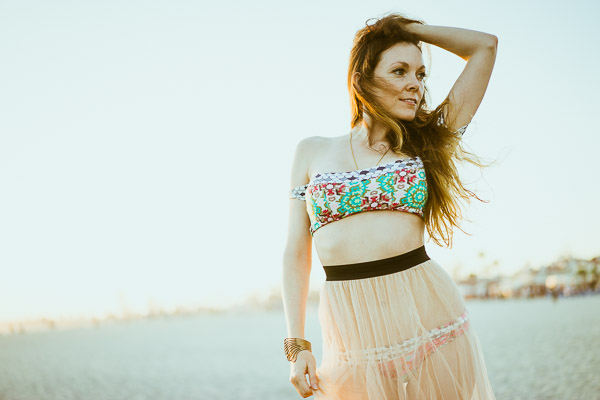
Hacking_photography_somerstyle-9526

I bought the Sony A7 camera recently and have been taking it out quite a bit to get a feel for it.

My wife is starting a fashion blog so I thought I would take her out for a fashion shoot at the beach. I was shooting a high-contrast scene and realized. . .

The camera doesn’t always know what’s best

Your camera always has the best intentions, but it doesn’t always get it right. Sometimes the sensor will think you want to expose a scene one way when you actually want it to expose it another.

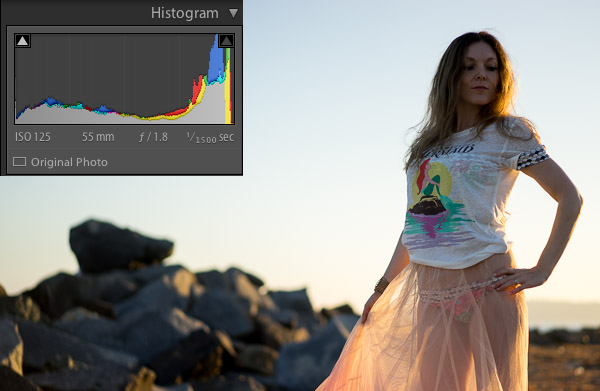
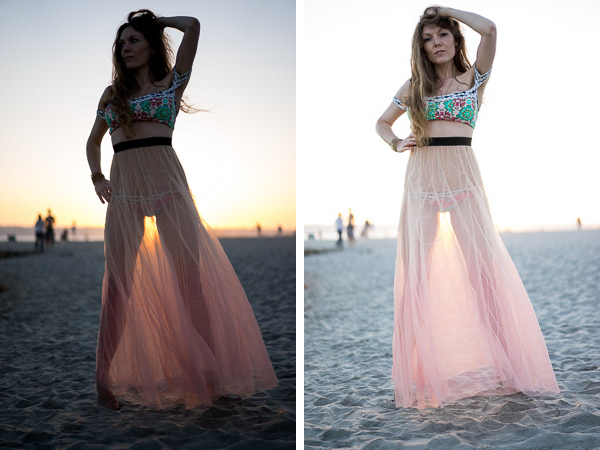
I’ll show you an example. I put the camera on aperture priority and shot this:

Hacking_photography_somerstyle-9425

To most people, this image would be considered underexposed because the model is dark. This happens because the scene has a lot of contrast. In other words, there is a lot of bright pixels (the sky) and a lot of dark pixels (the rocks, ground, and model).

Why doesn’t the camera always get the exposure correct?

The camera sensor is trying to create an average of dark pixels to light pixels. The histogram shows the dark pixels on the left of the graph and the bright pixels on the right.

A “properly exposed” photo means the balance between the blacks and whites is mostly even. The graph isn’t pushed into the left wall which would be very underexposed, or pushed into the right wall which would be very overexposed. The problem is that to expose properly for the model we need more bright pixels, we need to increase the exposure. Sometimes you will need to trick the camera to get a good exposure.

Using exposure compensation

Sometimes you just need a little bit more or a little bit less. In this case I had the ISO and the aperture exactly where I wanted them. I had my camera set up so the front dial controls the exposure compensation.

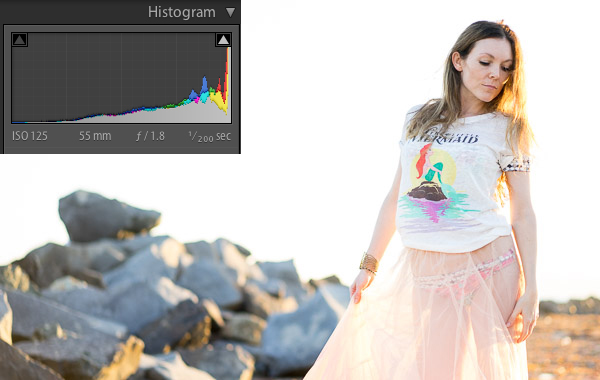
In this case, exposure compensation is set up to slightly change the shutter speed to either increase or decrease the exposure. I twisted the exposure compensation dial until the image looked good which was a shutter speed of 1/200.

Hacking_photography_somerstyle-9426

This looks much better. The model is properly exposed now but the sky is now overexposed. Because the sky is now white, you can see the histogram is pushed to the far right.

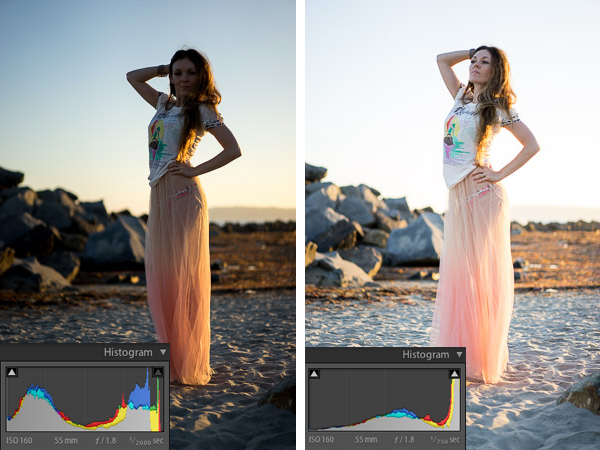
This typically means the image is overexposed but in this case it’s simply because the sky has a lot of white pixels in it that register on the right of the histogram. Let’s see it in another example:

Hacking_Photography_Somerstyle

I just used the exposure compensation to bump up the exposure again so the model was properly exposed and the sky was overexposed in the image on the right.

This happens a lot when subjects are backlit

Hacking_Photography_somerstyle_diptic

When you shoot with the sun behind your subject, the camera will sometimes struggle to decide whether to properly expose the background or the subject. The camera is trying to figure out which one you want exposed.

If you are shooting for a silhouette you can underexpose the subject to create a dark outline of their figure. If you want to properly expose the subject you will overexpose the background in high contrast light.

Decisions, decisions

Ultimately it’s up to you how you would like the image to look. I like the high-key look of some of these images. The final touch once you have the light and exposure the way you like it is to edit the image.

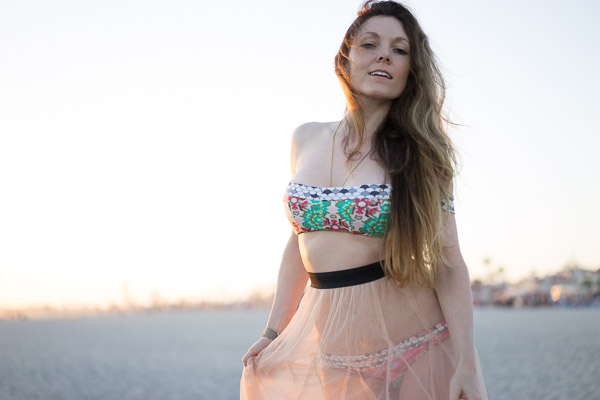
Here is one of my favorite photos straight out of camera:

Hacking_photography_somerstyle_pre-9523

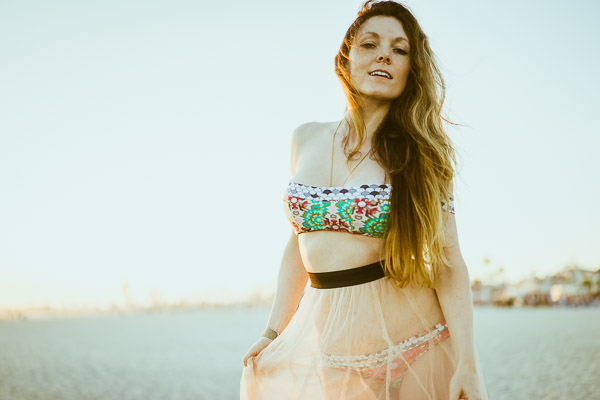
I used one of the 1-Click Hacking Photography Lightroom presets in the Old School Color set called “Warm Film” and came up with this final image:

Hacking_photography_somerstyle_post-9523

Overall it was a good shoot on the beach with my wife, I had fun running more tests on the Sony A7, and created some great images in the making!

The post When to Trick Your Camera to get a Good Exposure by Mike Newton appeared first on Digital Photography School.


Digital Photography School
 
Comments Off on When to Trick Your Camera to get a Good Exposure

Posted in Photography