RSS
 

Posts Tagged ‘Getting’

Nikon KeyMission 360 records itself getting chewed on by a tiger

13 Aug

It looks like this tiger was about as frustrated with the Nikon KeyMission 360 as we were when we reviewed it. Obviously frustrated after missing golden hour because she couldn’t get the camera connected to her Android phone, she just gave up and chewed the crap out of it…

Joking aside, Russell Edwards of RSE Photography captured this strange video when the Nikon KeyMission 360 he put just inside the sumatran tigers’ enclosure caught the attention of a curious female. But if the fact that the tiger chewed on the camera doesn’t really amaze you, the fact that the camera survived largely undamaged should.

“To my amazement the kit survived apart from the “lookalike” joby gorilla pod that the tiger treated like it’s doomed prays bones, with literally only a few noticeable tiger teeth marks on the km360,” writes Edwards on YouTube. “The tiger was A-okay and the km360 still works as it should. So if any one is interested in how tough that action cam is, well check out the footage for yourself.”

To see a few pictures of the mostly-undamaged KeyMission 360, head over to Nikon Rumors.

Articles: Digital Photography Review (dpreview.com)

 
Comments Off on Nikon KeyMission 360 records itself getting chewed on by a tiger

Posted in Uncategorized


Getting the shot: macro photos of paint and water that look like CGI

24 Jun

Vibrant colors of acrylic paint billow into clouds inside a water tank. © Photo by Alberto Seveso

Illustrator and photographer Alberto Seveso’s paint photography is out of this world. His images – macro photos of billowing clouds of color – look like they were generated by an animation program. But as he tells DPReview, it’s all very real.

The process itself, says Seveso, is quite easy: just pour varnish or acrylic colors into a water tank and take a burst of photos. Understanding exactly how to do that – what light you need, what works, and just as importantly, what doesn’t work – is the time-consuming part.

‘I spent a lot of time building all the stuff I use to shoot varnish into the water, and it’s still a work in progress,’ Seveso tells DPReview. ‘It’s very important to find the right light and, the hardest part, find the perfect mix between varnish and water and the way to pour this mix into the tank… not too fast not too slow.’

For his pictures, he uses either a Canon EOS 60D or Canon 7D Mark II with a Canon EF-S 60mm F2.8 macro lens attached. The tank is lit by either fluorescent light (personal projects) or higher quality tungsten Fresnel lights (for commercial assignments), two on either side of the tank, placed in front of either a black background or a softbox if he’s shooting on white.

You can see the setup for yourself in the BTS shots below:

$ (document).ready(function() { SampleGalleryV2({“containerId”:”embeddedSampleGallery_9818299609″,”galleryId”:”9818299609″,”isEmbeddedWidget”:true,”standalone”:false,”selectedImageIndex”:0,”startInCommentsView”:false,”isMobile”:false}) });

And here is a video Sony made to show off Seveso’s paint work (and sell some phones and tablets while they’re at it):

Seveso says he was inspired to create this kind of photography in 2009, when he saw ‘something similar but classic,’ probably ink drops in water.

‘I realized there was more to explore, different materials to mix, so I started to experiment with different kinds of liquid like acrylic colors, different types of oils, sparkling water, gels, metallic colors, ice, food coloring, and other things,’ he says. ‘Over the years, I’ve tried to develop a personal approach to this technique, developing the project in a very personal way and trying to focus on the details.’

Translation: macro photography.

These close-up, colorful photographs have become Seveso’s calling card. And what a gorgeous calling card they are.

$ (document).ready(function() { SampleGalleryV2({“containerId”:”embeddedSampleGallery_4295038061″,”galleryId”:”4295038061″,”isEmbeddedWidget”:true,”standalone”:false,”selectedImageIndex”:0,”startInCommentsView”:false,”isMobile”:false}) });

Before we let Alberto go, we asked him one more question. Does he have any advice or tips for people who would like to try this kind of paint photography for themselves?

His answer?

‘Practice,’ he told us emphatically. ‘It takes a lot of practice to understand the exact mix between liquids to get separate colors, details and color filaments – this is perhaps the hardest part.’

To see more of Alberto’s work, visit his website or follow him on Behance, Facebook, and Instagram.

Articles: Digital Photography Review (dpreview.com)

 
Comments Off on Getting the shot: macro photos of paint and water that look like CGI

Posted in Uncategorized


6 Tips for Getting Sharper Wildlife Photos With a Super Telephoto Lens

29 May

In recent years, super telephoto lenses by third-party manufacturers such as Sigma and Tamron have been made available on the market for really reasonable prices. Earlier on, photographers had no choice but to spend a huge amount in order to buy a super telephoto lens, but now these third-party lenses make it more affordable. One such super telephoto lens is the Sigma 150-600mm f/5-6.3 DG OS HSM, which allows you to get much closer to a distant subject.

Using a super telephoto lens for wildlife photography is in itself a skill to master as you may not get sharp and clear results when you first pick up the lens. The tips below will help you get work better with a super telephoto lens so you can capture sharper wildlife photos going forward.

Wildlife photography telephoto lens 01

#1 – Choose the correct shutter speed

Selection of the best shutter speed is one of the most important tasks when doing wildlife photography. There is a standard rule which says that the shutter speed should be equal to or faster than the focal length of the lens you’re using. So, if you are shooting with a 500mm focal length, then you need a shutter speed of at least 1/500th or faster (1/1000th, 1/2000th, and so on).

Shooting at a shutter speed slower than 1/500th can introduce camera shake and thus will affect the sharpness of the image. However, if your lens features image stabilization technology, you can then shoot at a slower shutter than the focal length. How much slower will depend on the performance of the technology for that particular lens.

NOTE: This rule is applicable for full-frame digital cameras. If you are using an APS-C sensor camera, then you also have to multiply the focal length by the crop factor of your camera brand (1.5x for Nikon, 1.6x for Canon, etc). In this case, the focal length would become 750mm with a Nikon APS-C sensor camera and thus a shutter speed of 1/750th of a second or faster needs to be used to get sharp photos.

Wildlife photography telephoto lens 07

Usually super telephoto lenses such as the Sigma 150-600mm f/5-6.3 DG OS HSM perform the best from 150mm to 500mm, and as you go beyond 500mm the sharpness starts to lessen. So try and avoid using a focal length which is towards the maximum limit of a telephoto lens.

#2 Use the right aperture value

In wildlife photography, depth of field plays a great role in helping to make the subject stand out from the background. In case you are not aware, shooting with wider aperture (smaller aperture values like f/2.8) helps you to achieve shallow depth of field. This results in a photo where the subject is sharp and well segregated from the background, which itself will be out of focus.

But this does not mean that you blindly shoot using the smallest available aperture value. Instead, I recommend that you shoot at the aperture value which is the sweet spot of your lens. Usually the sweet spot of a lens is 2-3 stops higher than the smallest aperture value. So it would be around f/11 if you are using the Sigma 150-600mm f/5-6.3. Shooting at the sweet spot aperture value allows you to get maximum possible sharpness in the photo, along with decent depth of field. By the way, you would likely be shooting at a focal length such as 500mm or so, and in that case, you would get shallow depth of field even at f/8 or f/11.

Wildlife photography telephoto lens 03

#3 – Selecting ISO sensitivity

ISO sensitivity is one of the sides of the exposure triangle which needs to be adjusted as per the shutter speed and aperture value required for the shoot. In the case of wildlife photography, you will have to compromise on the ISO sensitivity over the other two elements of the exposure triangle. Why?

You will have to use a fast shutter speed in order to freeze the motion of the subject and an aperture value which is not that wide in order to capture sharper photo. This is the reason why you might have to increase the ISO sensitivity value in order to capture a well-exposed photo. So the ISO should be the last exposure setting that you adjust in order to correctly expose the frame.

Wildlife photography telephoto lens 04

#4 – Use a tripod or monopod for stability

Considering the fact that the super telephoto lenses are really heavy, it is important and advisable to mount them on a tripod or a monopod. Almost all telephoto lenses have a tripod collar for mounting the lens on a tripod or a monopod. This will enable you to concentrate more on the surroundings and the movement of the animals/birds instead of worrying about carrying the weight of the lens.

If you shoot handheld at telephoto focal lengths such as 300mm, 400mm and so on, you are bound to get shake in your photos. As a precautionary measure, it is better to carry a tripod or a monopod along every time you plan to shoot wildlife.

Wildlife photography telephoto lens 05

#5 – Image Stabilization mode in your lens

In a situation when you need to pan your camera along with the moving animal or bird, make sure that you have switched on the image stabilization on your lens. This is helpful in case you are shooting handheld, as it reduces the shake that is caused while panning or tilting the camera. Image stabilization mode can be found on lenses as IS on Canon lenses, VR on Nikon lenses, OS on Sigma lenses, VC on Tamron lenses and OSS on Sony lenses.

But in case you are using a tripod or a monopod as advised above, switch off the image stabilization mode on the lens. If you keep it switched on, the image stabilization feature introduces minor shake which in turn reaches the camera mounted on a tripod or a monopod. So in order to eliminate this minor shake you must switch off the image stabilization mode on your telephoto lens.

Wildlife photography telephoto lens 02

#6 – Explore Back Button Focus

If you are not already using the back button focus method to lock the focus on the subject, then you must be half-pressing the shutter release button to do the needful. When you use the shutter release button to lock focus, you are further contributing introduction of minor camera shake.

By using the back button focus technique, you can dedicate one of the buttons located on the back of your camera to focus. By doing so, you are then balancing the weight of the camera as you press the button on the back side. Not only does it reduce camera shake, it also helps you shoot at much faster rate as compared to the traditional approach.

Wildlife photography telephoto lens 08

Conclusion

Shooting with a super telephoto lens is a delight, but it is also really important that you understand the technical aspects of using it to get sharp results. Do not be disappointed if your initial shots are not as sharp as you expected them to be.

Make sure that you are using the right shutter speed and aperture values, these two elements of the exposure triangle contribute the most to the sharpness of your photos. If possible, use a tripod or monopod and mount your telephoto lens on it to avoid any possible camera shake. In case you are shooting handheld, switch-on the image stabilization feature on the lens to further reduce the shake caused during panning or tilting of the camera.

Wildlife photography telephoto lens 06

Do you have any additional tips for getting sharper wildlife photos using a super telephoto lens? If so please share them in the comments section below.

The post 6 Tips for Getting Sharper Wildlife Photos With a Super Telephoto Lens by Kunal Malhotra appeared first on Digital Photography School.


Digital Photography School

 
Comments Off on 6 Tips for Getting Sharper Wildlife Photos With a Super Telephoto Lens

Posted in Photography


Upper Yosemite Falls Moonbow – Getting The Shot

12 May
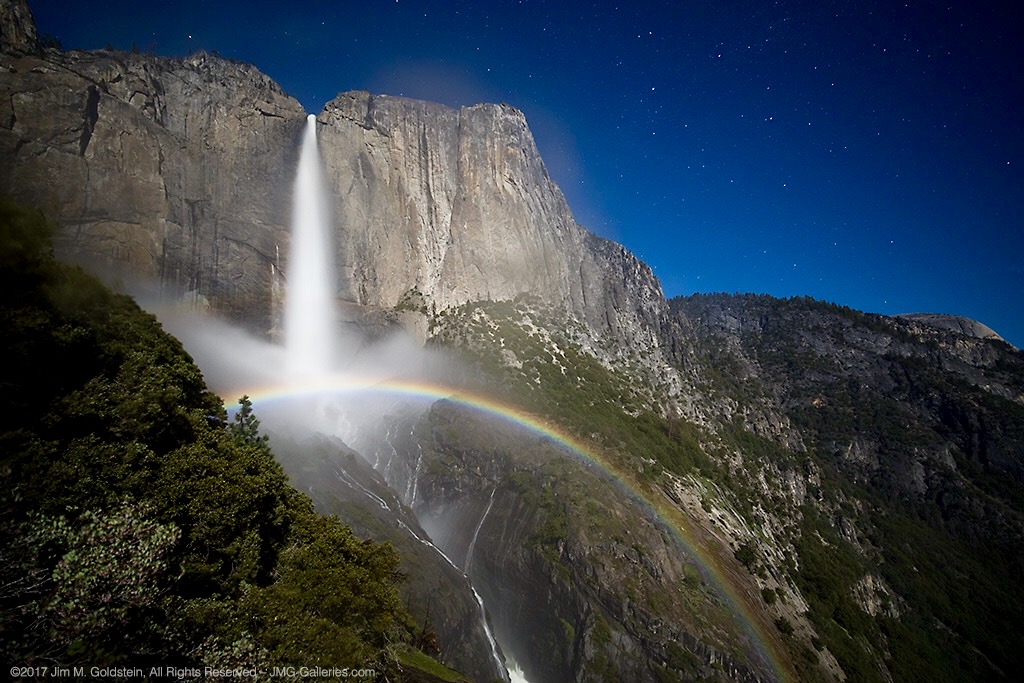
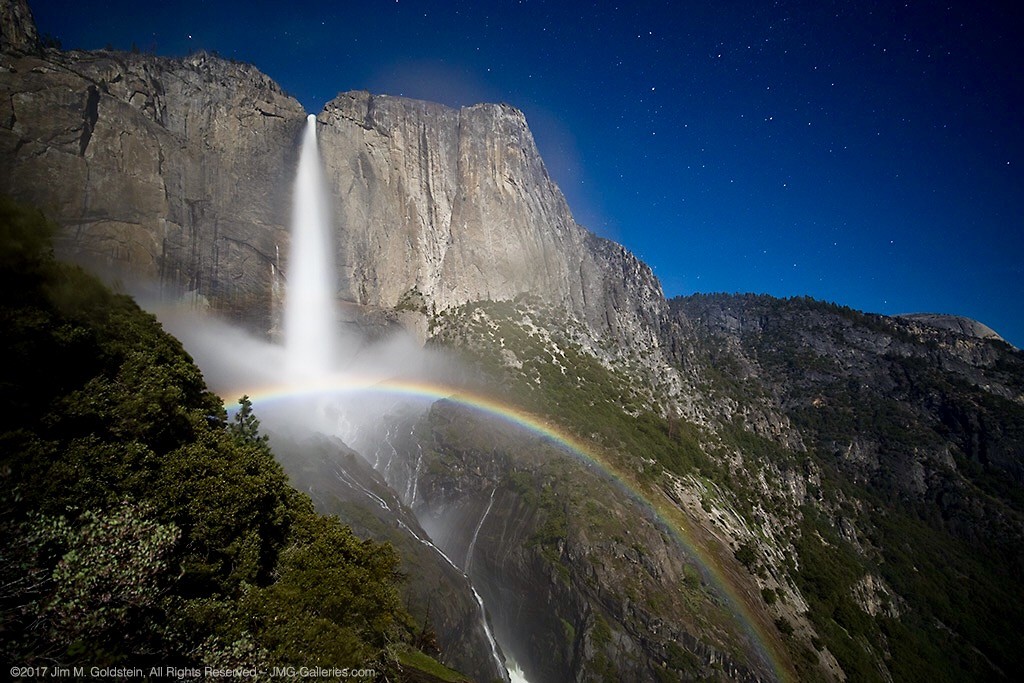
Upper Yosemite Falls Moonbow - May 9 2017

A large moonbow arcs across the mist from Upper Yosemite Falls, Yosemite National Park

There are quite a few photos in my portfolio that I look back upon and question my sanity due to the absurd conditions I’ve endured to capture them. This particular photo is up there on the insanity scale.  This past winter has seen extraordinary snowfall levels in the Sierras and now that Spring has rolled around the water levels are quite high in Yosemite Valley due to the snow melt.  That translates to huge waterfalls and under the right conditions moonbows (rainbows at night via moonlight).

I’ve taken moonbow photos from the Upper Yosemite Falls trail several times, but this year was like none other. I took up position in a new spot this year with a good friend Brian Hawkins. Our hike started off innocently enough with a hike that started at 4:30PM and later ended at 5:30AM. The reason for the long duration of the shoot was a combination of bringing a lot of gear (3 Canon DSLRS, 2 tripods and 4 lenses plus extra layers of clothes) and the interest in shooting multiple time lapses + stills. Time lapse sequences run a couple hours and the moonbow wasn’t going to appear until 11:30PM.

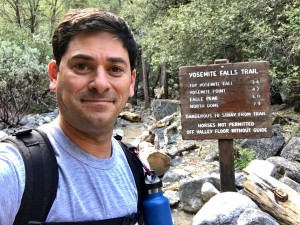
Start of the Upper Yosemite Falls moonbow hike (4:30PM)
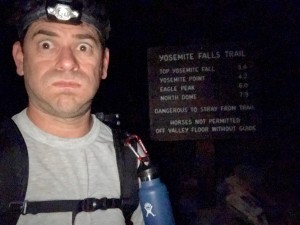
End of the Upper Yosemite Falls moonbow hike (5:30AM)

Now that I type it all out It really is rather nuts. I of course don’t think this before the hike because I have selective memory issues or quite simply my elevator doesn’t go to the top floor when it should.

Hiking with a full photo backpack means slow going on a hike that is 1.5 miles with a 1250 foot elevation gain. Leaving “early” affords me the time to properly stake out the right location, set up all 3 camera, eat and start shooting. On the way up the focus is squarely on the task at hand and making it to the setup spot early.

Waiting in heavy mist and gusty winds.

Are we having fun yet? Waiting in heavy mist and gusty winds. Only 4 hours to go.

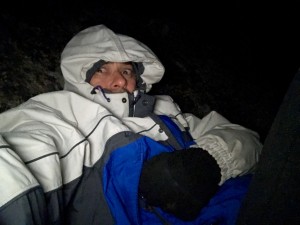
The most painful part of the excursion is the wait. This year this was particularly true given the setup spot quickly became inundated with heavy mist from the falls when the wind kicked up (10mph gusts). Without exaggeration we were waiting in a windy rainstorm. A sane person might consider moving to avoid the heavy mist, but once you’ve invested the time to setup multiple cameras and climb down steep side trails it quickly becomes a less attractive option. This of course was constantly second guessed through out the night as conditions remained miserable. Eventually we called uncle and left the cameras running but took shelter an 1/8th of a mile away on the main trial to stay dry.

So what does one think during the hours of waiting for the moonbow to appear and during the moonbow sequence run? Let me tell you in order of thought.

  1. I am so freaking wet and cold.
  2. I should have brought more layers to stay warm and dry.
  3. It’s so wet I’m not sure any of this footage will come out.
  4. I don’t think I could have carried anything more.
  5. What the f*ck are you thinking that this would be a good idea!
  6. I’ve never seen conditions so good for moonbows, but it’s too good. There’s too much water.
  7. What was that noise!? F*ck it better not be a mountain lion. Crap it was just my jacket hood rubbing against my head.
  8. I can’t feel my fingers. I should use those hand warmer things. Cr*p they’re in my camera bag back in the heavy mist. Forget it I’d rather have cold hands than get wet again.
  9. I wonder if my batteries died. I better go check.
  10. Upon returning repeat all the above thoughts
  11. I am so freaking cold. I am never going to do this again. I don’t know what I was thinking.
  12. Now that it’s so wet and windy how am I going to retrieve all my gear
  13. Holy sh*t! I can’t believe I’m here at 3AM

Then after all of this I get to my camera to see the most amazing sight, Yosemite Falls roaring full of water with the biggest moonbow I’ve ever seen. All those earlier thoughts are lost as I get more stills taken. The results, like the photo above, are like a narcotic that wipes my mind clear. With the photo high in place packing up is less cringeworthy albeit still miserable. Trying to remember, pack and not leave behind gear and accessories for 3 cameras is tough enough, but particularly mentally challenging when cold and tired. Fortunately years of experience and more importantly being a little too anal for my own good make this a little easier.

Unlike years past the extra effort of trying to dry off gear took some extra time. It also required another round of gear packing. By the time this was all complete the hike down could begin at 3:50AM.

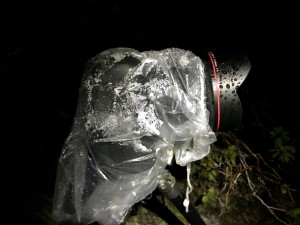
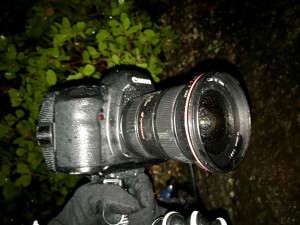
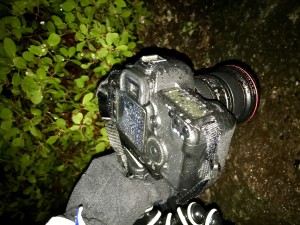
Canon 5D Mark IV + Canon 11-24 drenched from the heavy mist off the falls.
Canon 5D Mark II + Canon 16-35mm Mark II drenched from the heavy mist off the falls.

The hike down was cold, but dry and thus in my mind warm. On the way down thoughts of mountain lions hiding in the shadows quickly subside, instead focusing on not twisting an ankle due to fatigue or carelessness. Also important is to not step on the many millipede that crawl across the trail. In between dodging millipedes I’m left wondering how well my footage and still came out. Cold and tired I’m thinking it’s doubtful anything could have come out and back to questioning why I thought this was a good idea.

Fast forward 7 hours as I write this and it’s become apparent several shots came out, but I won’t know how much until I’m back home. Between three cameras it’s likely it worked out. I really shouldn’t do this again, but come next year I’m sure all this will be mentally blocked and I’ll be making a similar hike / moonbow shoot just like I did in 2011, 2012, 2013, 2014, 2016 and this year. Apparently I’m a slow learner.

Authors Note: Excuse the typos if any as I typed this on my phone and I’m still very sleep deprived.

The post Upper Yosemite Falls Moonbow – Getting The Shot appeared first on JMG-Galleries – Landscape, Nature & Travel Photography.


JMG-Galleries – Landscape, Nature & Travel Photography

 
Comments Off on Upper Yosemite Falls Moonbow – Getting The Shot

Posted in Equipment


20 Tips for Getting People to Smile in Photos

29 Apr

One of the biggest challenges every photographer faces it getting people to smile naturally for a photo. Sure, you can ask someone to say “cheese!” and he or she will likely comply. But you’ll also probably end up with a cheesy smile that doesn’t look natural or attractive. After all, there’s a HUGE difference between a genuine smile and a fake one.

As a professional event photographer, spontaneously getting complete strangers to smile is a big part of my job, and I’ve picked up some proven techniques that I’ll share with you in this article. Note that I’ve broken up the sections into tips for photographing people by themselves, as couples, in groups, and children, but you can certainly mix and match. Also, be careful to always consider your audience and adjust your technique accordingly.

For Singles

1. Approach with a smile

A smile and friendly demeanor are contagious. Before you ask someone else to smile, make sure that you’re smiling yourself and approach with a friendly tone. If you want to get a real smile out of someone, you need to set the tone by approaching them with a giant, genuine smile on your face.

20 Tips for Getting People to Smile for a Photo

2. Offer a compliment

One of the quickest and easiest ways to get someone to smile is to boost their confidence. This is something you can easily do by offering a compliment based on a feature or quality you observe about them. Are they wearing an attractive outfit or an unusual piece of jewelry? Do they have a friendly smile or laugh? Offer a compliment!

3.  Smile with your eyes

How do you know if a smile is genuine or fake? It’s all in the eyes. A fake smile tends to only have the lower half of the face engaged, with the lips curled into a smile. But if the eyes aren’t squinting as well, you can tell the smile is forced and not very genuine. If your photo subject’s smile is looking a bit off and you can’t tell why, ask them to smile with their eyes, or “smize” as Tyra Banks would say.

4. Fake laugh!

To illicit a genuine smile, your photo subject needs to feel comfortable and relaxed. The best way to break the ice is to get them to laugh. Ask for a fake laugh, saying something like this, “Let’s see who’s got the biggest, loudest fake laugh! On the count of three, 1, 2, 3, LAUGH!” The whole point here is not to capture the fake laugh, but to get the resulting real laughs and smiles that you’ll get after the fact. It’s also important to note that your own enthusiasm for the activity and tone of voice is what makes this technique work.

20 Tips for Getting People to Smile for a Photo

5. Show me your happy face! Silly face! Sad face!

Most photo subjects respond the best if you give them specific instructions. Help them loosen up and feel less self-conscious by having them go through a series of facial poses. You might think this one only works with kids, but certain types of adults will totally get into this exercise.

6. Instead of “Say cheese,” say…

Most people expect to hear “say cheese” before getting a photo. Surprise them by saying something else, such as, “money” or “whiskey” for adults, or “pickles” or “chocolate” for children. Use your discretion and pick a word that suits your audience.

7. Tell them a joke (or ask them to tell you a joke)

One of the most obvious ways to get people to laugh or smile is to tell a joke. The trick is finding a joke that is appropriate for the audience. Personally, I use the joke below all the time for my corporate event photo shoots, and it almost always gets a laugh out of people. But I wouldn’t use this joke with children; I’d maybe use a knock knock joke instead.  You can also flip the tables and ask your photo subject to tell you a joke.

Q: “What’s the quickest way to make money as a photographer?”

A: “Sell your camera!”

20 Tips for Getting People to Smile for a Photo

For Groups

When photographing groups, you can use any of the above techniques for singles, but you can also add quite a few extra tricks to get creative, engaging shots.

8. Whisper a secret to the person standing next to you.

The idea is to get the people in your group engaging with each other. This technique can also elicit grins and giggles as people tend to whisper nonsensical noises to each other.

9. Everyone look at each other.

This works best for groups of at least three or more people. The reason why it works is that the instructions are vague. No one is really sure who to look at, and the resulting expressions tend to be smiles and laughs. This is great for capturing candid shots. Use it to loosen people up, and then move onto to the next few tips to work them into a more serious, smiling pose.

20 Tips for Getting People to Smile for a Photo

10. Everyone look at ____.

It’s essential to know everyone’s names or titles for this one to work. By calling out someone specifically in a group, you’re making them the center of attention and it’s often funny to the rest of the group to see how that person reacts.

11. Everyone look at me!

Follow this up after #8 or #9. After getting the group to engage with each other and laugh, they’ve loosened up. At this point, you can turn their full attention back to the camera and get everyone looking at you with a real smile on their faces. You can also take it a step further by saying something playful and silly like, “You guys don’t look happy enough! Make those smiles bigger!”

12. Action for a silly photo

Almost every single group photo will result in the group wanting to take a silly picture after the serious one. The problem is, most groups don’t know what to do for a silly photo. Help them out by throwing out some suggestions. My favorites for adults are:

  • Everyone clink your glasses together and say, “cheers!” if they’re holding drinks.
  • Hands in the air and raise the roof!
  • Point at the camera!
  • Thumbs up!
  • Give me your best impression of ____ (a celebrity, animal, etc)

20 Tips for Getting People to Smile for a Photo

For Couples

You can use many of the above group techniques for couples, but you’ll also want to have a few other tricks up your sleeve.

13. Tell me about how you met / first knew you were in love.

Talking about intimate, happy moments with couples is a great way to get them in-tune with each other and eliciting romantic smiles.

14. Give her a kiss on the cheek/forehead/nose.

Most happy couples will definitely smile when asked to be intimate with each other for the camera.

20 Tips for Getting People to Smile for a Photo

Photo by Jonathan Gipaya

15. Ask them to dance.

Get the couple moving and focus their attention away from the camera, especially if they are having a hard time relaxing. Almost any couple dancing together will be in good spirits. This also gives you a chance to grab some candid, action shots.

For Children

16. Stare at each other without laughing.

The minute you tell kids to be serious without laughing, you’re more likely to get the opposite effect. This is a simple, yet highly effective way to get kids to smile.

17. Play a game.

If you have the time and the space to get kids to play a game, take advantage of it! Have them play Simon Says, Duck Duck Goose, tag, or any other age-appropriate games that will get them engaged and having fun.

18. On the count of three, jump as high as you can!

Jump shots are always fun for kids and even certain types of adults. Make it more fun and engaging by turning it into a jumping contest to see who can jump the highest.

20 Tips for Getting People to Smile for a Photo

19. Stick your tongue out.

Admittedly, photos of kids sticking their tongues out often aren’t what you’re trying to achieve. But if you stick your tongue out at them or turn it into a game of who has the longest tongue, this can lead to laughs and smiles, which you definitely want to capture in photos.

20. Bunny ears.

You may not even have to ask kids to do this for you. Bunny ears seem to be a universal photo prank that even adults play on each other and seem to find funny.

In Conclusion

There you have it, 20 ideas to help people smile for a photo. Get out there and try some of these techniques and see how they go! But always be sure to gauge how your photo subjects are reacting to your suggestions. You might have to adjust your tone of voice and photo directions for different types of people.

Have any ideas to add to the list? Mention them in the comments below!

The post 20 Tips for Getting People to Smile in Photos by Suzi Pratt appeared first on Digital Photography School.


Digital Photography School

 
Comments Off on 20 Tips for Getting People to Smile in Photos

Posted in Photography


More videos added to product overviews and getting started guides

26 Apr

Are you shopping for a new camera? Or just looking for some advice about how to use your current favorite model? We’ve just added several new informational videos to our range of product overviews and getting started guides, including guides to how to get started with the Fujifilm X-T20 and Nikon D3400.

You can find all of our recent overview and getting started guide videos from the links below, and subscribe to our YouTube channel to ensure you never miss a new video!

Watch our series of product overview videos

Watch our new ‘Getting Started Guides’ 

Articles: Digital Photography Review (dpreview.com)

 
Comments Off on More videos added to product overviews and getting started guides

Posted in Uncategorized


The dPS Ultimate Guide to Getting Started in Lightroom for Beginners

16 Apr

Note: this is one of the most comprehensive articles we’ve written on Lightroom. Read it below or get a free downloadable copy to print and/or refer to later by adding your email address below and we’ll send you a copy.


Download “The dPS Ultimate Guide to Getting Started in Lightroom for Beginners”

We respect your email privacy

If you’re new to Lightroom you may be wondering what it does, how it differs from other programs (like Photoshop), and how to use it to its full potential – this article will answer a lot of questions and help you get started.

The reason that Lightroom has become so popular is because it is a workflow application. You use it to manage your photos the moment they are downloaded from your camera’s memory card and saved on your hard drive. Once they are inside Lightroom you can organize them into Collections (a type of virtual folder) and process RAW, JPG, and TIF files.

You can also add photos to a map to organize them by location, create a photo book or slide show, print photos, or export them to other programs for further processing. Lightroom remains at the heart of your workflow as you do it all.

The Ultimate Guide to Getting Started in Lightroom for Beginners

Lightroom can be used for printing photos as well as processing and organizing them. It’s the complete workflow tool.

The Lightroom Catalog

The Lightroom Catalog is a database containing a preview of every photo you have imported into Lightroom. It also contains a record of each photo’s metadata (which includes all processing done to it) and the location where it is saved on your hard drive. Lightroom works by saving the edits you make to your photos as a series of text commands in the Catalog. This includes any and all processing instructions you set up for each image.

The benefit of working this way is that it saves a lot of hard drive space. This is especially true when working with RAW files, as there is no need to convert them to 16-bit TIF files first (as you do in Photoshop) to work on them. All processing in Lightroom is non-destructive, meaning you can undo any steps or everything, and return to the original state of the file at any time.

Lightroom Modules

Lightroom has seven modules (Library, Develop, Map, Book, Slideshow, Print, and Web). You can only work in one module at a time. This article concentrates on the Library and Develop modules, as they are the most important to learn first, and one you’ll use most often.

Scroll down to the end of the article for links to other articles I have written that explain how to use the other Lightroom modules. I’ve also linked to other articles throughout this guide that expand on the points within.
The Library Module

The Library module is the heart of Lightroom. It’s where you view, search, filter, and organize your imported photos. For example, if you want to find all your photos taken with a particular camera or lens, that’s easy in Lightroom (it takes seconds).

The Ultimate Guide to Getting Started in Lightroom for Beginners

This example search shows all the photos taken with my Fuji X-T1 camera and a 35mm lens in 2016.

But the real benefit of the Library module is that it lets you organize your photos any way you want. It does this by using Collections, a type of virtual folder system.

Folders are limited for organization purposes. Let’s say you took some photos of a friend called Peter in New York in September. You can only save those photos in one folder on your hard drive (which may be named Peter-New York-September or something similar).

But in the Library module you are free to add the photos to as many Collections as you want. In this example, you could have a collection named Peter, another called New York, and another named September. In fact, you can add the photos to as many Collections as you want. You have complete freedom to organize your photos how you see fit.
How to Import Photos Into Lightroom

As Lightroom is built on a database (the Catalog) you have to import photos before you can do anything with them. During the import process, Lightroom adds your selected photos to the Catalog and generates previews for viewing. Imported photos stay in the Catalog forever (or until you remove them) and don’t have to be imported again.

If this is the first time you have used Lightroom, then it will look something like this when you open it. There are no photos to see because nothing has been imported yet.

Lightroom tutorial 03

The screen is divided into four. This basic layout is repeated throughout the seven modules.

1. The Module picker: The bar at the top that tells you which module is currently active. Click the grey triangle (arrow) at the top to make it disappear, saving screen space.

2. The side panels: The left and right-hand panels containing all the Library module tools. Click on the grey triangles (arrows) to hide them.

3. The Filmstrip: This displays thumbnails of the photos in the currently selected Folders, Collection, or search results. Click the grey triangle (arrow) at the bottom of the screen hide it.

4. The Content window: This is the central display area. You view photos here after they have been imported into Lightroom. Use the keyboard shortcut Shift + Tab to hide all four side panels and see only the middle content window portion. This is handy when you are sorting and flagging images.

More on sorting and flagging images in Lightroom here: 4 of the Most Important Elements of the Lightroom Library Module.

Importing Photos into Lightroom

If this if your first import you will probably be adding photos that you have already downloaded from memory cards to your hard drive. You can also import photos directly from a memory card, or a connected camera or smartphone.

If you have already saved your photos in folders it is best to import one folder at a time. This gives you time to organize your images as you go along. Be aware that Lightroom will make you wait a long time while it builds previews if you import too many images in one go.

This is what happens during the import process:

  • Lightroom notes where the imported photos are saved and adds this information to the Catalog.
  • Lightroom reads each photo’s metadata and saves that in the Catalog. This includes the camera settings and file names, data that is used to help search images.
  • Lightroom creates a preview of each imported photo and saves it on your computer’s hard drive.
  • The previews are saved in a previews (.lrdata) file.

Please note the following: This is important and often trips up first-time Lightroom users. Your photos are not stored in the Catalog. Backing up the Catalog does not back up your images. Nor are your photos stored in the cloud if you’re a Lightroom CC subscriber. The Catalog only stores the metadata and processing information.

Always remember that your photos are saved on your hard drive. You can only back up your photos by backing up the hard drive on which you’ve saved them.

The Import Window

Get started by clicking the Import button. Lightroom opens the Import window. It’s divided into four areas.

The Ultimate Guide to Getting Started in Lightroom for Beginners

1. Source: This designates from where Lightroom will be importing the photos. All devices and hard drives connected to your computer are shown here.

2. Photo thumbnails: Ticked photos will be imported into the Lightroom Catalog when you press the Import button. You can choose Check All or Uncheck All at the bottom of the thumbnail window. To select several in a row tick one, hold the Shift key and select another – Lightroom will tick all of the images in between. To select random images hold the CMD/CTRL key and click each one individually.

3. Import options: These tell Lightroom what to do with the photos. You have four options, they are:

  • Copy as DNG – Lightroom copies your files and converts any non-DNG Raw files to the DNG format. Only select this if you understand the benefits (and disadvantages) of using the DNG format.
  • Copy – Lightroom copies the selected files without changing the format. Use this to copy files from a device or memory card over to a hard drive.
  • Move – Lightroom moves the selected files from their current location to a new one. This is the same as Copy, except that Lightroom deletes the originals afterwards. This option is NOT recommended if you are downloading from your memory card! Always use Copy for that, so that if anything goes wrong during the import process you still have your original images on the car.
  • Add – Lightroom adds the selected photos to the Catalog, without copying them. Use this if the imported photos are already saved in the correct place on your hard drive (i.e. you aren’t downloading them from a card).

4. Destination: Where you tell Lightroom to save the imported photos and what to do with them along the way.

If you select the Add option you’ll see two panels here. File Handling (where you can select the preview options and save a second copy to another drive) and Apply During Import (which allows you to apply Lightroom develop presets to all the images being imported, this can save a lot of time if you wish to apply things like Lens Corrections, a slight edge vignette, etc., to all your images).

If you select Copy as DNG, Copy or Move you’ll also see the File Renaming (where you can rename and number your images) and Destination (tell Lightroom where to put your actual images) panels.

Further reading: Make Lightroom Faster by Using DNG.

Putting it Together

Now it’s time to import your first photos. This initial workflow assumes that you’re importing files that you have already previously saved to a hard drive.

  1. Under “Source”, navigate to the folder containing your photo files.
  2. Select the Add option from the top section.
  3. Open the File Handling panel (on the right, click on the heading to open and close panels). Set Build Previews to 1:1.
  4. Open the Apply During Import panel and set Develop Settings and Metadata to None. This is just to keep your first import simple.
  5. Click the Import button. Lightroom takes you to the Library module and starts importing the selected photos. It takes a while to create the 1:1 previews, but the wait is worth it as it makes viewing your photos much quicker.

The Ultimate Guide to Getting Started in Lightroom for Beginners

At some point, you’ll want to import photos directly from a memory card, camera, or Smartphone. There are a couple of extra steps in this process.

  1. Under “Source”, navigate to your memory card containing your photo files.
  2. Select Copy (instead of Add) at the top of the Import window.
  3. Set the File Handling and Apply During Import panel settings as above.
  4. Ignore the File Renaming panel (advanced users only).
  5. Under “Destination Folder”, select where you would like to save the imported photos. You can create a new folder by right-clicking on an existing one and selecting Create New Folder.
  6. Click the Import button when you’re ready.

The Ultimate Guide to Getting Started in Lightroom for Beginners

How to Organize Your Photos in Lightroom

Photos are saved in folders (on your hard drive) and organized in Collections (in Lightroom). You can view both Folders and Collections in the Library module, but you can only view Collections in the other modules. This is one of the reasons why you will want to use Collections to organize your images.

You can create as many Collections as you like. The more you use Collections, the more you will appreciate how useful they are.

Lightroom has several types of Collections

Collections: Virtual folders to which you can add any photos imported into Lightroom.

Collection Sets: Another type of virtual folder. You can add Collections and other Collection Sets to a Collection Set, but not photos. They are for organizing Collections.

Smart Collections: Collections populated automatically according to criteria set by you. Lightroom already contains several Smart Collections, you can add more as you see fit.

Published Collections: These have a lot of uses, but the most common is for sending images to photo sharing websites like 500px and Flickr. This is for advanced users only.

For Further reading on this topic, check out:

  • How to Upload Photos to Flickr and 500px Using Lightroom 5 (the information applies to Lightroom 6 and Lightroom CC as well).
  • How to Publish Images Directly to Instagram From Lightroom.

Book, Slideshow, Print, and Web Collections: Created in Book, Slideshow, Print, and Web modules. These collections keep track of images used in these modules for specific projects you create.

This screenshot shows the icons used to represent Collections in Lightroom.

The Ultimate Guide to Getting Started in Lightroom for Beginners

  1. Devon (1) is a Collection Set that contains a Collection.
  2. Speke’s Mill Walk (2) is a Collection containing photos.
  3. Print (3) is a Print Collection.
  4. Web Gallery (4) is a Web Collection.
  5. The Collection Set Smart Collections (5) contains . . .
  6. The default Smart Collections (6) that come with Lightroom.

The numbers on the right tell you how many photos are in each Collection. We will concentrate on Collection Sets and Collections in this article.

Creating Collection Sets

1. Go to the Collections panel and click on the plus (+) icon. Select Create Collection Set.

The Ultimate Guide to Getting Started in Lightroom for Beginners

2. Give the Collection set a name. This might be something like the year or the country where the photos you imported earlier were taken.

The Ultimate Guide to Getting Started in Lightroom for Beginners

3. Right-click on the Collection Set you created and choose Create Collection. Give it a name (relevant to the photos you just imported), tick the Set as Target Collection Box and click Create.

The Ultimate Guide to Getting Started in Lightroom for Beginners

4. Go to the Catalog panel and click Previous Import. Lightroom displays the images you imported earlier in the Content window. Go to Edit > Select All to select all the photos and press the B key. Lightroom adds the selected photos to the Target Collection – the one you just created.

The Ultimate Guide to Getting Started in Lightroom for Beginners

Further reading

Now that you understand the basics of the Library module, you can learn more about organizing and searching your photos with these articles.

  • 5 Essential Things You Need to Know About the Lightroom Library Module
  • Use Lightroom Collections to Improve your Workflow
  • How to Organize Your Photos in Lightroom
  • Making Sense of Lightroom’s Grid View
  • The Hidden Secrets of Lightroom 5’s Loupe View
  • How to Find Your Best Images With Lightroom 5’s Compare View
  • Comparing Images with Lightroom 5’s Survey View
  • How to Create and Use Smart Collections
  • Four Advantages of Using Lightroom Collections
  • How to Use the Filter in Lightroom’s Library Module

The Develop Module

Now that you understand the basics of the Lightroom Library module, it’s time to get started post-processing some photos. To do so, select an image by clicking on it, then press the D key. This keyboard shortcut takes you straight to the Develop module.

The layout of the Develop module is similar to that of the Library module. The Filmstrip (bottom) and Module Picker (top) are the same. What have changed are the panels on the left and right-hand sides.

The Ultimate Guide to Getting Started in Lightroom for Beginners

When you’re ready, hide the Module Picker, Filmstrip and left-hand panels by clicking on the grey arrows (triangles). Your screen should look something like this – the photo you’re working on is in the centre of the screen (the content window) and there are some panels on the right.

The Ultimate Guide to Getting Started in Lightroom for Beginners

The panels on the right contain most of Lightroom’s RAW processing tools. You can jump around these in whichever order you want, but it makes sense to use a purposeful workflow and approach them in a logical order.

I’m going to show you my workflow. Follow this to start with (it works) but don’t be afraid to switch things around if you find a way that works better for you.

This article isn’t long enough to cover every tool in the Develop module, but I will cover the most important ones, and include links to articles that explore the other tools in more depth.

Camera Calibration Panel

There are two important settings you will want to take note of in this panel:

  1. Process: This should be set to 2012 (Current).
  2. Profile: The options here match the color profiles of the camera used to take the photo (and vary by manufacturer), plus the Adobe Standard option. Select the most appropriate for your photo. This should be done at the beginning of your post-processing as the profile affects both color and contrast.

The Ultimate Guide to Getting Started in Lightroom for Beginners

Don’t worry about the other sliders in the Camera Calibration panel they are for advanced users only.

I set Profile to Camera Landscape for this photo. This is the best profile to use as it brings out the soft blue hues of the early evening sky.

The Ultimate Guide to Getting Started in Lightroom for Beginners

By comparison, this version using the Camera Standard profile, is not as effective. There is a big difference between the colors in both photos, which shows why it is important to set the most appropriate profile at the beginning of your workflow.

The Ultimate Guide to Getting Started in Lightroom for Beginners

Lens Corrections Panel

Some photographers like to work with this panel near the end of their workflow. I place it near the beginning because it’s important to correct barrel distortion in landscape and architectural photos, otherwise you can’t straighten horizons using the Crop tool accurately.

To get started there are only two things you need to do inside the Lens Corrections panel. Both are found under the Profile tab.

1. Tick the Remove Chromatic Aberrations box. This tells Lightroom to automatically remove any chromatic aberrations in the photo. {Link to this URL with the highlighted text https://digital-photography-school.com/chromatic-aberration-what-is-it-and-how-to-avoid-it/ }

2. Tick the Enable Profile Corrections box. Lightroom should automatically detect the lens used to take the photo and apply the correct profile to eliminate barrel distortion and any edge vignetting that is present.

The Ultimate Guide to Getting Started in Lightroom for Beginners

There are two things to note here:

  1. The screenshot shown is from Lightroom CC. If you have Lightroom 6 or an earlier version of Lightroom the Lens Corrections panel has a different layout.
  2. Don’t tick the Enable Profile Corrections box if the Built-in Lens Profile applied message is displayed underneath. Some cameras have built-in lens profiles that are automatically applied by Lightroom. You won’t find profiles for them in the menu.

The Ultimate Guide to Getting Started in Lightroom for Beginners

If you have Lightroom 5 or earlier, the Built-in Lens Profile applied message isn’t displayed, even if the photo has one. If you can’t find the profile for your lens in the menu, it is either an old lens that Adobe hasn’t profiled or a new lens with a built-in profile (this mainly applies to lenses from Mirrorless camera systems).

Ignore the other tools in the Lens Corrections panel for the moment, they are for more advanced users.

Basic Panel

The Basic Panel is quite important as the work you do here establishes the tonal values and colors of your photo. Most of your post-processing is done here, and the tools in the other panels are used for refining the image.

White Balance Sliders

The Ultimate Guide to Getting Started in Lightroom for Beginners

Here you can use one of the presets (Auto, Daylight, Cloudy, etc.) or adjust the Temp and Tint sliders yourself. Move the Temp slider left to make the image cooler or move it right to make it warmer. The Tint slider is for removing green or magenta color casts (usually caused by fluorescent lights).

Alternatively, select on the eyedropper icon and click a neutral grey or white area in the image. Lightroom analyzes the pixels under the cursor and sets the White Balance sliders to remove any color cast (making the image color neutral).

There are three ways to use White Balance:

  1. Create an image with neutral color.
  2. Give the image a warm color tone. You might do this with a landscape taken during the golden hour (when the light is naturally warm) or a portrait (as warm colors are more flattering for skin tones than cool ones).
  3. Create a cool color tone to give the photo a cold feel (perhaps for a landscape photo taken in the winter).

Once you have decided which of these three paths you want to go down, you can adjust the sliders to suit. For example, I gave this portrait a warm tone by setting the White Balance to the Shade preset.

The Ultimate Guide to Getting Started in Lightroom for Beginners

Here, I set White Balance to Daylight. This gave the portrait a blue cast which is much less pleasing to the eye.

The Ultimate Guide to Getting Started in Lightroom for Beginners

Presence Sliders

There are two more sliders at the bottom of the Basic panel that affect color. They are called Vibrance and Saturation. Move them left to reduce the color intensity, or right to increase it.

The Ultimate Guide to Getting Started in Lightroom for Beginners

The Saturation slider affects all colors equally. The Vibrance slider has a greater affect on saturated colors. Play around with them on a few different photos to get a feel for how they work. Be careful – these sliders are best used for desaturation of colors (lowering the intensity) rather than increasing them (which often looks false).

The Clarity slider emphasizes texture when you move it right, and reduces texture when you move it to the left. Setting Clarity to +20 or +30 improves most photos (but beware of using it on portraits where it can over-emphasize skin texture and wrinkles and become unflattering to the subject). It may also change the brightness of the image.

This photo has Clarity set to zero.

Lightroom tutorial 16a

This version has Clarity set to +30, bringing out the texture in the bricks and roof tiles.

Lightroom tutorial 16b

Further reading: Four Ways to Improve Your Photos with the Clarity Slider.

Tone Sliders

The Tone sliders are for adjusting brightness and contrast. If you’re feeling lucky press the Auto button to see what happens. If you don’t like the effect simply go to Edit > Undo to step backward.

Lightroom tutorial 17

  • Exposure slider: Move it left to make the photo darker, right to make it brighter.
  • Contrast slider: Move it left to decrease contrast, right to increase it.
  • Highlights slider: Move it left to make only light tones darker, or right to make them lighter.
  • Shadows slider: Move it left to make only dark tones darker, or right to make them lighter.
  • Whites and Blacks sliders: Don’t worry about these sliders at this stage.

The best way to learn how to use the tone sliders is to use them and see what happens. Take the following photo as an example. This is how it looked before making any adjustments.

Lightroom tutorial 17a

In this version I set Shadows to -68 to make the bottom part of the image darker, and Highlights to +43 to make the sky lighter. Notice that this effectively increased the overall contrast of the image as well.

Lightroom tutorial 17b

Tone Curve Panel

This is an easy one for newcomers to Lightroom, as my recommendation is that you avoid it for the moment. You can work just as effectively with the Tone sliders in the Basic panel.

There’s just one exception to this – some of you may be comfortable with the Tone Curve because you have used in extensively in another program like Photoshop. In that case you can go right ahead and use it in Lightroom too.

Lightroom tutorial 19

HSL / Color / B&W Panel

The sliders in this panel give you much greater control over the colors in your image. You can also use them to convert your photo to black and white. The complexities of this panel are a little beyond the scope of this article, so I’ll point you towards the following articles to learn more.

Further reading:

  • Mastering Color in Lightroom using the HSL Tab
  • How to Convert Photos to Black and White in Lightroom
  • Understanding the HSL Panel in Lightroom for Beginners

Lightroom tutorial 20

Split Toning Panel

This is another panel that is useful both when working in color (for color grading – adjusting the overall color balance of the image) and in black and white (for toning photos). Once again, it’s a little advanced for Lightroom newcomers, but you can learn more with these articles.

Lightroom tutorial 21

Further reading:

  • How to Split Tone Black and White Photos in Lightroom
  • How to Create a Vintage Look using Lightroom
  • Understanding the HSL Panel in Lightroom for Beginners

Detail Panel

The controls in this panel have two purposes. The Sharpening sliders are there because RAW files are slightly soft (they are unsharpened) straight out of the camera. The Noise Reduction sliders are for reducing noise caused by using high ISO settings or long exposures (longer than five minutes).

Lightroom tutorial 22

The best thing to do is leave them at their default settings. They are good enough for most photos.

Effects Panel

The Effects panel is used for adding vignettes, adding grain (to imitate the look of film) and (with the Dehaze slider, available only in Lightroom CC) for removing atmospheric haze.

Lightroom tutorial 23

It’s another panel you can skip over for the moment. This will give me space to tell you about something that will really help improve your photo processing in Lightroom – making local adjustments.

Local Adjustments

Local adjustments are kind of a big deal in Lightroom because they are what elevate your post-processing technique from good to great. There are very few photos that can’t be improved by some sort of local adjustment.

First, let’s look at a definition. A global adjustment is one that affects the entire image. All the Develop module tools you have learned to use so far are global adjustments.

Local adjustments affect only part of the image. If you have a Photoshop background, then you know that you can make local adjustments in Photoshop using selections or masks. The theory is the same in Lightroom, but the tools are different.

Lightroom has three tools for making local adjustments; the Graduated Filter, the Radial Filter and the Adjustment Brush. You have the same options for each one.

Lightroom tutorial 30

The most obvious use of a local adjustment is to make part of the image lighter or darker (using the Exposure slider). But you can also adjust contrast (with the Contrast slider), color (with the Temp, Tint or Saturation sliders) or emphasize texture (with the Clarity slider). The more you use your imagination the more uses you will figure out for local adjustments.

The Graduated Filter

This tool is named after graduated neutral density filters used by landscape photographers to make the sky darker. The Graduated Filter inside Lightroom does something similar. The key to making the most of the Graduated Filter is to look past its most obvious use in landscape photography, and think about how it can be used elsewhere.

To start, click the Graduated filter icon (marked below), or use the keyboard shortcut M. The Graduated filter panel opens beneath the histogram.

Lightroom tutorial 29

Add a Graduated filter by clicking on the photo and holding the left mouse button down. Hold it and drag the mouse down over the image.

The Graduated filter is marked by three lines, which spread farther apart as you move the mouse. The further apart you pull the lines, the softer the graduation of the effect you’re applying will be. You can move the Graduated Filter by clicking and dragging the grey pin at the center.

This may sound complicated, but a few minutes playing with the Graduated Filter tool is all that’s required to get the hang of it.

I used three Graduated Filters on the following image. This is what I started with:

Lightroom tutorial 24

This is the result:

Lightroom tutorial 25

These screenshots show you the location of each Graduated Filter (shown in red) and the settings used for each one.

Lightroom tutorial 26

Lightroom tutorial 27

Lightroom tutorial 28

The Radial Filter

The Radial Filter was introduced in Lightroom 5. It creates a circle or oval shaped selection. You can apply the affect to the area inside or outside the selection.

Click on the Radial Filter icon (marked below) or use the keyboard shortcut Shift+M. Hold the left mouse button down and drag the mouse across the photo to create the filter.

Lightroom tutorial 31

You can change the size and shape of the Radial Filter by clicking and dragging the four white squares around the edge. Rotate it by moving the cursor to the edge of the filter until it changes from a hand or plus icon to a double curly arrow. Click and drag on the arrow to rotate the Radial filter.

Use the Feather slider to set the softness of the gradient at the edges of the Radial filter. The default setting of 50 seems to work well, but you can change it as needed.

Lightroom applies the adjustments to the area outside the Radial filter by default. Tick the Invert Mask box to apply the adjustments to the area inside it instead.

One use for the Radial filter is to darken the edges of your image to draw the eye towards the subject. Here’s an example, using a photo of a dandelion that I decided would look better if I made the green area darker. This is what I started with:

Lightroom tutorial 32

Original image.

Lightroom tutorial 33

This is the difference with the Radial Filter applied.

This screenshot shows the location of the filter, the area affected by the adjustment (in red), and the settings used.

Lightroom tutorial 34

Further reading:

  • Lightroom’s Secret Weapon: The Radial Filter and How to Use it.
  • Understanding the Radial Filter in Lightroom.

The Adjustment Brush

The Adjustment Brush is for making local adjustments that can’t be easily carried out with either of the Graduated or Radial filters. Click the Adjustment Brush icon (marked below) or use the keyboard shortcut key K. The Adjustment Brush panel opens up underneath the histogram.

Lightroom tutorial 35

You’ll find sliders for setting the size, softness (feather0, and strength of the brush at the bottom. Start by selecting Brush A (if it’s not already selected). Use the [ and ] keys to adjust the brush (you can also use the Size slider).

Use the Feather slider to adjust the softness of the brush (or hold the Shift key down and use the [ and ] keys). The size of the Adjustment Brush is displayed with two circles. The inner circle shows the area fully covered by the brush. The outer circle shows the feathered area. The gap between the two circles changes as you adjust the Feather setting (make it bigger for a more gradual effect).

Lightroom tutorial 36

Here’s an example of the how to use the Adjustment Brush. I wanted to emphasize the texture in the baboon’s face. The Adjustment Brush is the best tool to use for this because I could paint over an area that matched the shape of his face.

This screenshot shows the masked area (in red) which will be affected. I set Clarity to +51 to bring out the texture in the animal’s skin and fur.

Lightroom tutorial 37

Lightroom tutorial 38

This is the starting image.

Lightroom tutorial 39

This is how it looks with the adjustment made.

You can create another Adjustment Brush by clicking on B and changing the settings. You can switch between the A and B brushes whenever you like. If you want another that is different just click New and you can add as many Adjustment Brushes as you need.

If you paint over an area you don’t want to effect, just select Erase then paint over the parts where you want to remove the mask.

Flow controls the opacity of the brush; density sets the maximum strength. For now, keep both at 100 (you can learn more about these controls if you get into advanced retouching techniques) and vary the strength of the effect with the slider settings.

Leave the Auto Mask box unticked for now. It’s bit of a specialized tool that often doesn’t work very well.

Further reading:

  • How to Retouch a Portrait with the Adjustment Brush in Lightroom
  • 5 Tips for Using the Lightroom Adjustment Brush Tool
  • How to Create and Import Custom Adjustment Brush Presets for Lightroom

Combining Local Adjustment Tools

In Lightroom 6 and Lightroom CC you can use the Adjustment Brush to refine the mask created by the Graduated and Radial filters. This is an advanced tool that is very useful for creating precise selections.

Further reading:

  • New Graduated and Radial Filter Features in Lightroom 6
  • How to Save Images Using Export in Lightroom

The Other Lightroom Modules

Lightroom has several other modules, which aren’t possible to cover here. These articles will help you learn more about the Map, Slideshow, Print, Book, and Web modules.

Further reading:

  • How to Create a Simple Blurb Photo Book in Lightroom
  • Two Useful Lightroom Print Module Custom Layouts
  • How to Create a Simple Slideshow in Lightroom
  • An Overview of Lightroom Web – What is it and who is it for?

Conclusion

Lightroom may seem intimidating when you are new to the program, but the reality is that once you understand the basics of importing and processing images it really is surprisingly straightforward to use. The lessons learned from this article lay a foundation on which you can build to truly master Lightroom. This powerful program will become the center of a new and efficient workflow that saves you time and is easy and enjoyable to use.

If you have questions about the content of this article then please let us know in the comments below. I’ll do my best to help.

For more Lightroom learning you can also check out our course Lightroom Mastery here on dPS.

Author bio: Andrew S. Gibson is a long time Digital Photography School contributor and the author of the Mastering Lightroom ebooks.

Note: did you enjoy this guide to Lightroom? – get a free downloadable copy to print and/or refer to later by adding your email address below and we’ll send you a copy.


Download “The dPS Ultimate Guide to Getting Started in Lightroom for Beginners”

We respect your email privacy

The post The dPS Ultimate Guide to Getting Started in Lightroom for Beginners by Andrew S. Gibson appeared first on Digital Photography School.


Digital Photography School

 
Comments Off on The dPS Ultimate Guide to Getting Started in Lightroom for Beginners

Posted in Photography


Just added: New product overview videos and getting started guides

01 Apr

Are you shopping for a new camera? Or just looking for some advice about how to use your current favorite model? We’ve been working on a series of product overview videos for a couple of years, and we’ve just added a new series of informational videos to our YouTube channel.

Called ‘Getting Started Guides’, these videos are intended to give you a quick breakdown of the key features of several recent releases, and some quick tips on how to get the most out of them. You can find all of our recent overview and getting started guide videos from the links below, and subscribe to our YouTube channel to ensure you never miss a new video!

Watch our series of product overview videos

Watch our new ‘Getting Started Guides’

Articles: Digital Photography Review (dpreview.com)

 
Comments Off on Just added: New product overview videos and getting started guides

Posted in Uncategorized


Wedding Portraits – 5 Tips for Getting Out of a Creative Rut

16 Mar

As a professional photographer, it is normal to take a fair amount of pride in your work. In an ideal world, everyone would take pride in their work; but photographers in particular are usually people who own their business, who are doing something they love and who are creative by nature.

It can be particularly frustrating when you feel that you aren’t doing your very best work. Even if the customer is happy, you want to keep doing your best and you want to keep growing and learning in your craft. Getting compliments or rave reviews are great, but that feeling when you take your latest and best image is unforgettable.

Wedding portraits creative rut 03

Wedding portraits is something that is particularly challenging in this regard. Your job is to capture the newlywed couple on the happiest day of their lives, which usually means photographing them face-on while they grin into the camera. Maybe you’ll ask them to embrace, to hold hands, or to stand in front of one another. But ultimately, you’re essentially doing the same thing in every photo. There is less freedom to be creative and to have a vision; which makes it easy to get into a creative rut.

How can you grow and expand when all these photos are essentially the same thing? As they say, the devil is in the details. Actually, it is precisely the limitations that this type of photography places on you that will allow you to challenge yourself to become even more creative.

Wedding portraits creative rut 08

Here are five pointers that will help you get out of that creative rut and take some truly memorable wedding portraits.

#1 – Look for Inspiration

Wedding portraits creative rut 09

Tip number one is to look for inspiration on the web. Social media like Instagram and Pinterest are excellent for this. Just take a look at the ways in which other photographers have handled their wedding portraits and see if there is anything you can learn or borrow from them.

As Steve Jobs famously said, “Good artists copy, great artists steal.” Don’t be afraid to try and improve on what has come before you. Save some screenshots on your phone, or print out a list or shots you’d like to go for. Trying something brand new usually means failing a few times, but that’s what makes it an adventure!

#2 – Get a Second Shooter

Our second tip is to find a second shooter. If you feel that your creative juices are running a little dry, then how about inviting another cameraman along for the day? Get them to have a go at the same shots and you might find that they give you some fresh ideas that you can try. Even if you don’t end up taking their advice directly, this will help you to step out of your comfort zone and that’s when new ideas start flowing!

Wedding portraits creative rut 04

Ask your second shooter for some advice on locations. Try and find someone familiar with the venue, or maybe a photographer that has some ideas about great locations to shoot. Let him take the lead, and if you see him start something, see if you have a finishing flourish to take your portraits to the next level.

#3 – Remember the Basics

When you’ve been doing this gig for a long time, it’s easy to forget the most basic aspects; things like composition, framing, and lighting. Our third tip encourages you to bring it back to basics and remember some of the tips you learned when you were first starting out. You’ll often find you can inject fresh inspiration into your shoots.

Wedding portraits creative rut 01

Try going for a classic or timeless look. Forget the props, crazy locations, special effects, and confetti canons. Try and see what you can do with your best lens, and most basic posing. You may find yourself asking why you’re trying to take the same photo that’s been taken by every wedding photographer before you. And the answer may just astound you!

#4 – Work With Your Resources

For our fourth tip, let’s talk about your environment. Every wedding is different, whether that is because of the weather, the dress code, color scheme, or the crowd around you. Don’t fight it – work with it! Rain or clouds can be a dramatic backdrop for a photoshoot for example. A big crowd of onlookers can make for an interesting new perspective.

Wedding portraits creative rut 11

But the biggest resource you have at your disposal during your wedding sessions is the couple! No doubt they have a lot of ideas and suggestions for their photos – after all, they’re the ones paying the bills. Don’t be the snobbish professional who knows best. Listen to your customers and you may just find they can teach you something. At the very least, it may bring some fresh new ideas to the table.

#5 – Leave Your Ego at the Door

This final tip is really the point you need to focus on here; your job is to make the subjects of your photos happy. You might be tired of taking the same old shots over and over again but if that’s what the couple wants, then it doesn’t really matter.

Wedding portraits creative rut 05

It’s an easy mistake to think that you need to be more creative and dramatic with your photography, while forgetting that the customer actually just wants a nice picture that will look good on their bedside table.

Your creativity here should serve a purpose, and that purpose is to make your customers happy. Forget about showing off what an original and inventive photographer you are – at least for the portraits. If you want to be creative, then you can always get in a few artsy shots of the bride’s shoes and the wedding rings. Letting go, and giving the client what they want should always come first.

Wedding portraits creative rut 02

Wedding portraits creative rut 07

Closing Comments

So there you have it – five tips that can help you rediscover the fun and creativity for your wedding portraits; look for inspiration, get a second shooter, get back to basics, use what you have, and focus on the customer. Let us know in the comments below what you do when you find your creative juices are running dry.

The post Wedding Portraits – 5 Tips for Getting Out of a Creative Rut by Michael David Reichmann appeared first on Digital Photography School.


Digital Photography School

 
Comments Off on Wedding Portraits – 5 Tips for Getting Out of a Creative Rut

Posted in Photography


Why Getting Outside Your Comfort Zone is Good for Your Photography

23 Feb

Getting outside your comfort zone is good for your photography. The single, biggest factor that has helped me to improve my photography was becoming comfortable with being uncomfortable. This has been across all areas of photographic work, from weddings, corporate through to my absolute passion, travel photography.

googletag.cmd.push(function() {
mobile_slots.push( googletag.defineSlot( “/1005424/_dPSv5topic-rhs(300×250)”, [300, 250], “pb-ad-124309” ).addService( googletag.pubads() ) ); } );

Getting Outside Your Comfort Zone 15

Let me explain. From the very beginning I had the same concerns as many beginners in photography, where do I even start? I had built-up an imaginary wall about how I would understand the theory and mechanics of the photographic process as well as being creative in how I approached my photo work. All questions that only served to stop me from getting out there and experimenting so that I could learn by doing and implementing the theory I had poured over so many times.

The moment I let go of concern over the results I would achieve, and more importantly, what other people thought of my images, was the moment I felt free to experiment and make mistakes. That’s where the real learning happens, as I soon discovered.

Play the long game plan

I also realized early on, that becoming proficient in photography is a long game plan. It doesn’t happen overnight. It also requires effort and focus to be able to approach each challenge with a willingness to keep trying until understanding and outcome produce results that meet expectation. After my first year of taking photos, I had improved, and that improving continues to this day. Why? Because I continue to push myself outside of my comfort zone to improve as an image maker.

There is nothing better on the road to discovery and learning than feeling like you have a good understanding of what you are doing while enjoying the breakthroughs of understanding. And ultimately, capturing the images you set out to. However, it is important to remember that staying comfortable in what you are doing and how you are doing it, will reduce your growth and further understanding of different types of photography or more specifically, different approaches.

Getting Outside Your Comfort Zone 20

A few years ago this theory was clarified for me while I was working in Antarctica. We were fortunate to have two National Geographic Photographers on the ship with us who were generous enough to do a couple of presentations during days at sea. One point, in particular, helped me to understand in a different way, what I had already been doing since the early days of my image making. And the beauty is, you can apply this approach to most scenarios, be it landscape, travel, wedding, portrait, or commercial photography.

The 80/20 rule

Devote 80% of your image making time to getting the images you set out to do. Play it safe to a certain degree to be sure you come home with your planned shots. Then for the remaining 20% of the time, throw caution to the wind and experiment with no expectation of any outcome. If you think about this approach, 20% of your image making time adds up to quite a bit. Pushing yourself with the 20% will not necessarily lead you to capture amazing new images every time, but it will allow you to have little discoveries along the way that can add up to thinking of new ways or approaches for the future.

Experimenting with shutter speed, white balance, aperture, ISO, focal length, and movement are all options that can result in new ways of doing and seeing things. Ultimately, this will help you to understand the best approach to a given scenario with controlled, positive results.

Getting Outside Your Comfort Zone 10

The list of possibilities is endless. But without regard for the outcome, you are left with a more innocent, concern-free approach to getting creative and pushing the limits of your knowledge and current space of understanding.

Side benefits of learning outside your comfort zone

The side benefits of further learning of my chosen craft, even if they seem unrelated, have also helped with my ability to shoot under pressure. In regards to my travel photography, I have attributed my ability to get solid images under challenging circumstance with limited time, to having shot and assisted on a lot of weddings. For me, weddings have proven to be the ultimate space for growth with my image making ability, and it is easy to see why.

When shooting weddings you have no control over weather, lighting, time of day, or the environment you are shooting in. You have the responsibility of capturing images in often very challenging environments. It also means you are shooting a lot, with purpose, which I’ve always been a big advocate of for helping improve your photography.

Now I’m not suggesting to go out and shoot a few weddings just to help improve your photography in other areas. Photographing weddings is something you have to want to do. You especially have to respect the responsibility that comes with taking on such a big day in people’s lives. You have no second chance and have to be at the top of your game to consistently get it right. Over time, though, assisting or working as a second shooter for an established wedding professional would be a good way to test the waters to see if this is an area of photography you would like to pursue.

Getting Outside Your Comfort Zone 23

Some practical exercises

You can, of course, replicate these same scenarios without the time pressure or expectation of outcome only a client can have.

An option would be to visit and photograph the interiors of some local churches to gain an understanding of what it means to shoot in low light. Then slowly walk from the inside of the church to the outside (assuming this is during daylight hours) and adjust your exposure to achieve correctly exposed images over what will be a massive change in light levels. This is an extreme example but there will absolutely be situations in the future where the learnings gained from this type of exercise will be put to good use.

Getting Outside Your Comfort Zone 02

Getting Outside Your Comfort Zone 01

Another great exercise is to visit a city (which could be yours) and set up your camera just before sunset when there is still plenty of light. Then slowly take images of the same scene over the next two hours as the sun sets and the lights come on in the city. The best option for this exercise is to have your camera on a tripod so the scene remains the same and you are able to get a solid idea of how the changing light conditions affect your results.

This exercise not only helps you to understand the process of changing exposure on your camera but gives you a solid idea of the mix between natural and man-made light during the change over from night to day.

Getting Outside Your Comfort Zone 06

Getting Outside Your Comfort Zone 07

Getting Outside Your Comfort Zone 08

Getting Outside Your Comfort Zone 09

Getting Outside Your Comfort Zone 11

Visit your local beach maybe an hour and a half before sunset and take images during the changing light conditions. You will see a number of things during this experiment as there are big changes in lighting and color. You will have a greater understanding of what you need to do to continue making correctly exposed images based on the changing lighting conditions which would be different to the city example I gave earlier. Look closely at the changing color and corresponding white balance and the effect it has on your images.

To take this a step further, take your kids or some friends down to the beach and use them to experiment with taking portraits at this time of day.

Getting off Automatic

If you are currently using your camera on an automatic setting, you can start to experiment with a more manual approach to your image making. Let’s assume for a moment, you are using automatic settings for everything on your camera, aperture, ISO, and shutter speed.

Play with aperture

One option would be to experiment with Aperture Priority (setting your camera so you take control of the aperture). You can experiment and start to see what different effects you will have in your images by using specific apertures. Set up an object, focus on it and then cycle through all of the different apertures to see what happens. This is a fantastic exercise to apply to portraiture so you have a better understanding of what results you will achieve based on your chosen aperture.

Getting Outside Your Comfort Zone 31

85mm lens on a full frame camera, ISO 2000, 1/50th, at f/18.

Getting Outside Your Comfort Zone 32

Shot with an 85mm lens on a full frame camera, ISO 2000, 1/320th, at f/8.

Getting Outside Your Comfort Zone 33

85mm lens on a full frame camera, ISO 2000, 1/2500th, at f/2.8.

Play with focal length

Changing focal lengths on a fixed subject is also a great exercise to help develop your learning. The portraits below are perfect examples of a fixed subject with fixed camera settings. The only change was moving backward while zooming in (going to a longer focal length) the subject. The difference between the resulting images is clear.

Getting Outside Your Comfort Zone 35

24mm lens on a full frame camera, ISO 1000, 1/250th, at f/5.6.

Getting Outside Your Comfort Zone 36

50mm lens on a full frame camera, ISO 1000, 1/250th, at f/5.6.

Getting Outside Your Comfort Zone 34

210mm lens on a full frame camera, ISO 1000, 1/250th, at f/5.6.

Play with shutter speed

The same can be done with shutter speed. A popular subject for longer exposures is waterfalls, allowing you to blur the water to achieve a misty look. Keep in mind, a tripod is essential for this type of image. When you have time, find a local waterfall or flowing stream (preferably on an overcast day). Set up your camera on a tripod and cycle through the shutter speeds to see the differing results you will achieve based on long and short exposures and the effect it has on the water.

Getting Outside Your Comfort Zone 14

Practice, practice, practice

The above exercises may seem a little boring, but it is only through continued practice that you will understand with confidence, what you need to do to achieve the images you want. Over time, and through experience, it becomes an instinctive response to what is in front of you based on knowing, or having an idea of what result you are after.

There are many benefits to exploring locations in your area. You are able to revisit them on a number of occasions during different weather, times of day, and different seasons. You can really test yourself and build your understanding and experience in dealing with these differing light and brightness scenarios.

Travel photography

The other area where you may have limited time and no control over the variables earlier mentioned is travel photography. Often when traveling, these limitations will leave you feeling a level of pressure to get the image. It is the practice, understanding, and development you implement before you go traveling that will help you capture images with confidence, even when the time of day and lighting are not at their best.

Getting Outside Your Comfort Zone 29

Getting Outside Your Comfort Zone 30

For example, if you’re traveling to Africa to photograph wildlife, you’ll be using long lenses a lot more than if you are doing a church tour of Italy where wide lenses would often be the order of the day. The important thing here is to push yourself and get out there as much as possible to replicate, as best you can, the type of shooting you will be doing in order to build that skill set before you travel.

Getting Outside Your Comfort Zone 26

Getting Outside Your Comfort Zone 25

Challenges of travel

Travel also often leaves you tired due to the realities of what you need to do to get to your location or full days trying to see and experience as much as possible. Try to be as healthy and fit before you go in order to maximize all the photo opportunities traveling can bring. There is nothing worse than coming home feeling like you have missed opportunities due to needing to rest or not using your time efficiently.

Successful travel photographers are always well-researched and prepared to go as much as possible. The know that they need to maximize their time in order to come home with a full body of work that will help justify all that goes into a travel gig. This usually means starting before sunrise and working through to night time to capture specific locations in all their various forms.

This has been the case for me on many occasions. When working in Antarctica and South Georgia, we had a lot of exploring time in the zodiacs (small inflatable boats). On one particular occasion, we were advised of a one hour cruise which turned into 3.5 hours due to the many photo opportunities we had. It was a cold day and snowed the entire time. That added to the challenge of shooting, often with a long lens from a moving craft amongst 10 other people also working hard to get the shot in the confines of a small boat. Once we were all loaded safely back on board, almost all participants went inside immediately, either for a warm shower or warm drink, and rightly so, it was very cold.

Getting Outside Your Comfort Zone 17

Getting Outside Your Comfort Zone 21

Another photographer and I stayed outside the ship to see if there were any other photo opportunities that presented themselves before we pulled anchor and continued on our way. The images above were just a few that made the effort completely worthwhile. We pushed ourselves and were rewarded with many great images which no one else captured. We were only outside for a further 30 minutes, however, the response from fellow passengers upon seeing our images confirmed we had made the right decision to continue pushing on and taking advantage of the conditions in front of us. This has been a consistent factor with all of my photography based trips over the years.

When you travel, you are surrounded by so many photographic opportunities. Remember to take full advantage of these and everything that travel offers. Of course the most important thing is to enjoy yourself, however, if images are a top priority, be sure to take advantage of the time you have and be out and about as much as possible.

Getting Outside Your Comfort Zone 40

Conclusion

It is also worth researching other photographers to see what they have done in the same locations you are planning to visit. Look at what you like and don’t like, then try and photograph the same scene in a way not yet done by others.

Growth in photography, as with most things, comes from pushing yourself to improve, going beyond your comfort zone and identifying areas you can experiment with and learn from.

googletag.cmd.push(function() {
tablet_slots.push( googletag.defineSlot( “/1005424/_dPSv4_tab-all-article-bottom_(300×250)”, [300, 250], “pb-ad-78623” ).addService( googletag.pubads() ) ); } );

googletag.cmd.push(function() {
mobile_slots.push( googletag.defineSlot( “/1005424/_dPSv4_mob-all-article-bottom_(300×250)”, [300, 250], “pb-ad-78158” ).addService( googletag.pubads() ) ); } );

The post Why Getting Outside Your Comfort Zone is Good for Your Photography by Damian Caniglia appeared first on Digital Photography School.


Digital Photography School

 
Comments Off on Why Getting Outside Your Comfort Zone is Good for Your Photography

Posted in Photography