RSS
 

Posts Tagged ‘Getting’

Getting Creative with Aperture and Colour

19 Sep

Creative use of aperture and colour


Andrew S. Gibson is the author of Mastering Photography: A Beginner’s Guide to Using Digital Cameras, on offer now at Snapndeals for a limited time.

You are probably already familiar with the effect of aperture on your images. If not, here’s a quick recap: for any given focal length and camera-to-subject distance, use a wider aperture to get less of the image in focus. There’s a fair amount of science behind that statement (some of it subjective, such as the definitions of depth-of-field and sharpness) but the end result is that you can use wide apertures to limit depth-of-field and add a real creative edge to your images. Note that you’ll get the best results with a prime lens as they have wider maximum apertures.

I’m writing about using wide apertures in this article because they are exciting. You can use them to do wonderful things with composition, focus and colour. Today I’m going to concentrate on the relationship between aperture and colour, something that I hadn’t really thought about before until someone pointed it out in a comment on a previous article. It made me realise that a wide aperture alone isn’t enough to make a good image. Light (as always in photography) is important, and (unless you’re working in black and white) so is colour.

Creative use of aperture and colour

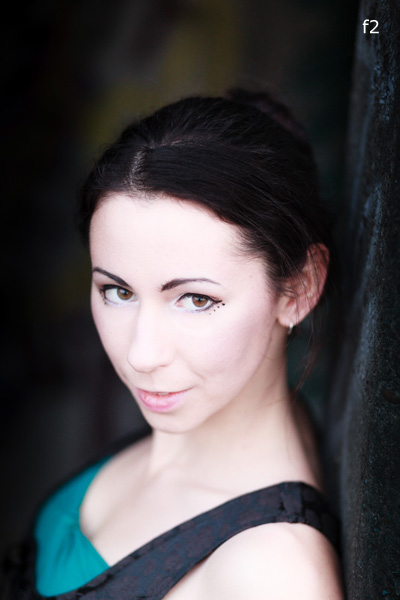
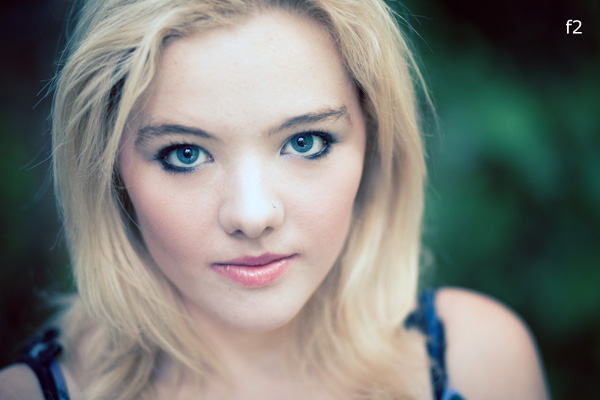
Here’s an example. I used an 85mm lens and an aperture of f2.0 to create a portrait with very little depth-of-field. Now, look at the model. She has fair skin and dark hair. She’s wearing a black top over another green top. There is very little colour. I emphasised that by placing her against a grey coloured background. I darkened the background in Lightroom and reduced the saturation. The end result is a portrait with a lot of neutral light and dark tones and very little colour. The colour has become a subtle and understated part of the composition.

Creative use of aperture and colour

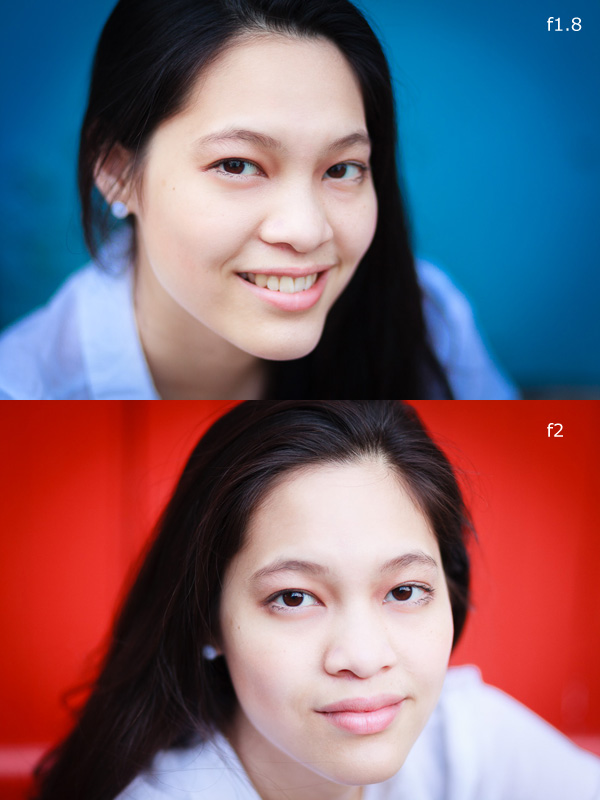
Here are two more portraits. They were taken during the same shoot, just with different backgrounds. In both cases I moved the model away from the background so that it would go out of focus. The idea here was to have fun and play around with the colours. Unlike the previous example the colours are strong, rather than subtle.

The background in both portraits was a painted door. Perhaps it’s also another example of seeing – where many photographers would see a door I saw colour, because I understood that I could throw the doors out-of-focus by choosing the right lens and aperture.

Creative use of aperture and colour

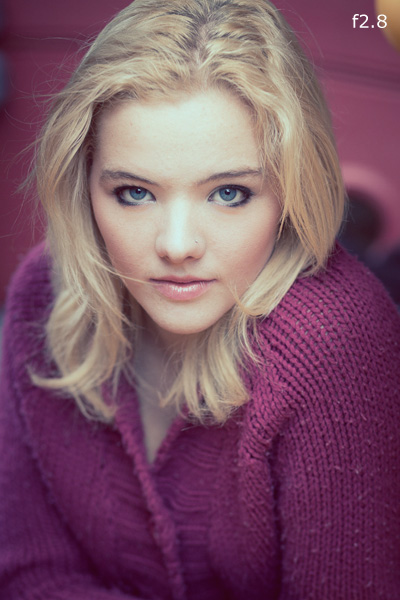
This portrait has a different approach. We took the photos in a children’s playground, and I noticed that the model’s jumper was nearly exactly a match with the colour of one of the plastic climbing frames. I was able to position her so that the colour of the background (out of focus again) matched her jumper.

The key in all these photos is first in observing the colours (seeing what is actually happening in the scene) and then finding interesting ways to work with the colour palettes presented by the combination of clothes worn by the models and the environment we were in. None of these were pre-conceived concepts. I was simply reacting to the circumstances given to me.

It’s also part of learning about how lenses and aperture work. Once you understand that you can make the background go out of focus by moving your model away from it and using a short telephoto lens with a wide aperture, you can start seeing what the camera sees, rather than what you see when you use your own eyes.

Mastering Photography

Creative use of aperture and colour

Would you like to learn more about aperture and the other important settings on your digital camera? My latest ebook, Mastering Photography: A Beginner’s Guide to Using Digital Cameras introduces you to digital photography and helps you get the most out of your camera. It covers concepts such as lighting and composition as well as the camera settings you need to master to take photos like the ones in this article. It’s available now at Snapndeals for a special price for a limited period.

Post originally from: Digital Photography Tips.

Check out our more Photography Tips at Photography Tips for Beginners, Portrait Photography Tips and Wedding Photography Tips.

Getting Creative with Aperture and Colour


Digital Photography School

 
Comments Off on Getting Creative with Aperture and Colour

Posted in Photography


Getting Aerial: Mark di Suvero at Crissy Field

16 Sep

I’ve been tinkering with aerial photography and videography since NAB in April. Unfortunately where I live the wind can make the experience risky. Still this past weekend I decided to brave the America’s cup crowds at Crissy Field and get an alternate view of the Mark di Suvero sculpture exhibit. I look forward to getting a little more air time the next time the winds die down.


Copyright Jim M. Goldstein, All Rights Reserved

Getting Aerial: Mark di Suvero at Crissy Field

The post Getting Aerial: Mark di Suvero at Crissy Field appeared first on JMG-Galleries – Landscape, Nature & Travel Photography.


Related Stories

  • Getting Aerial: Mark di Suvero at Crissy Field – Enclosure
  • The Egg Factory – Bisti Bandlands, New Mexico
  • The Egg Factory – Bisti Bandlands, New Mexico – Enclosure
Feed Ads by FeedBlitz
powered by ad choices


JMG-Galleries

 
Comments Off on Getting Aerial: Mark di Suvero at Crissy Field

Posted in Equipment


Getting Great Portraits At Sunset

14 Sep
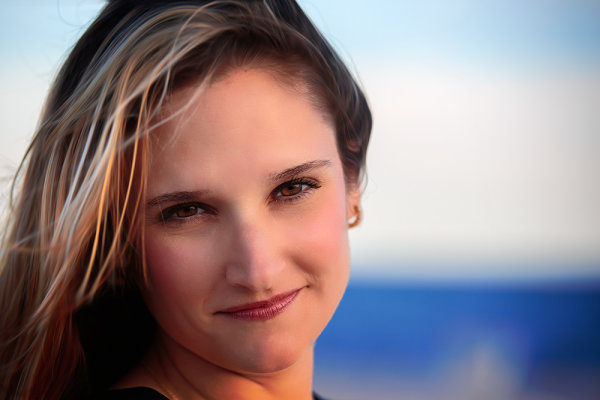
As the sun dipped down I was able to completely remove the flash and use the sun as my main light source, with no fill. I simply moved around my subject, asking her to turn her head a little so I could see the changes in the light on her face, and position her so that the light was the most pleasing.  EOS 5D Mark III, EF 70-200 f/2.8L IS II. ISO 100, f/2.8, 1/250.

As the sun dipped down I was able to completely remove the flash and use the sun as my main light source, with no fill. I simply moved around my subject, asking her to turn her head a little so I could see the changes in the light on her face, and position her so that the light was the most pleasing. EOS 5D Mark III, EF 70-200 f/2.8L IS II. ISO 100, f/2.8, 1/250.

I try to take advantage of natural light for shooting portraits whenever I can.  It’s important to recognize the ways different types of natural light affect your images.  A few months ago I wrote about shooting portraits in midday sun.  This past week I was approached by a close friend who wanted a portrait taken.  After discussing ideas, we decided the beach at sunset would be our setting. Sunset can be as problematic as midday sun for a variety of reasons.   As sun dips lower in the sky, the light gets softer as atmospheric haze diffuses it. In addition, the color temperature warms up, giving a nice warm glow to your scene. However, even an hour before sunset, the light can still be harsher than preferred, casting odd shadows, or creating a harsh backlight. Using flash as fill can help, but as the sunlight takes on a warmer tone, the flash will appear to be too blue. So how do we solve these issues?

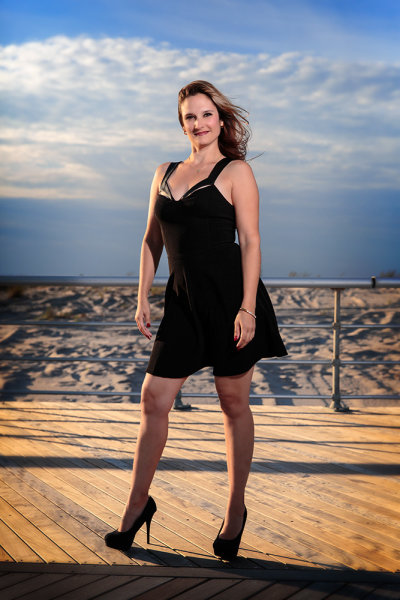
This was one of the first shots taken, on the boardwalk at the beach.  The sun was harsher than I wanted so opted to use wireless flash.  I positioned my friend with the sun at her back and over her right shoulder, and the flash to her front left.  I also had the flash set to high speed sync. I then set the flash to E-TTL, with flash exposure compensation set to even.  I set the camera's exposure compensation to -1, in Aperture Priority.  Doing this lessens the sun's impact on the image, helps darken the sky, and the background overall. Exposure was ISO 100, f/4, 1/4000.

This was one of the first shots taken, on the boardwalk at the beach. The sun was harsher than I wanted so opted to use wireless flash. I positioned my friend with the sun at her back and over her right shoulder, and the flash to her front left. I also had the flash set to high speed sync. I then set the flash to E-TTL, with flash exposure compensation set to even. I set the camera’s exposure compensation to -1, in Aperture Priority. Doing this lessens the sun’s impact on the image, helps darken the sky, and the background overall. Exposure was ISO 100, f/4, 1/4000.

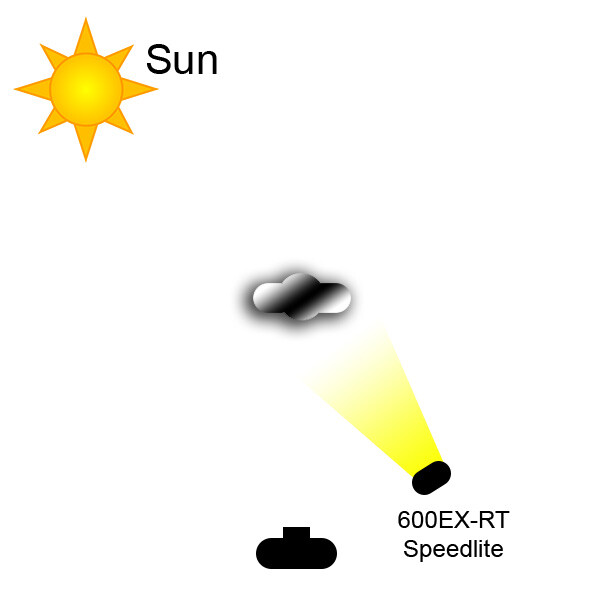
Let’s deal with the harsh light, an hour or so before sunset first.  First, as I mentioned in my earlier post, you can use a scrim or reflector and modify the sunlight that way.  However, this time it was just me and my friend, so I had no one to hold the scrim or reflector and the wind on the beach was too gusty to risk putting the reflector on a stand. I had to use flash.  I was able to use off-camera flash, wirelessly.  I was shooting a Canon EOS 5D Mark III with an ST-E3 wireless flash transmitter mounted to the camera’s hot shoe. I used a 600EX-RT speedlite off camera, mounted on a lightstand.  Again, due to the wind, a softbox or umbrella was out of the question, so I left the flash bare.  There are several ways to compensate for the cooler color temperature of the flash.  You can use what’s known as a warming gel, or CTO (color to orange) gel, on the flash to match the temperature of the sunset.  This is fairly simple solution.  The other solution is simply to set your white balance for the flash, which will have two effects.  One, it will warm the illumination from the flash.  Second, it will warm the sunset light even more, which can be quite pleasing if not overdone.

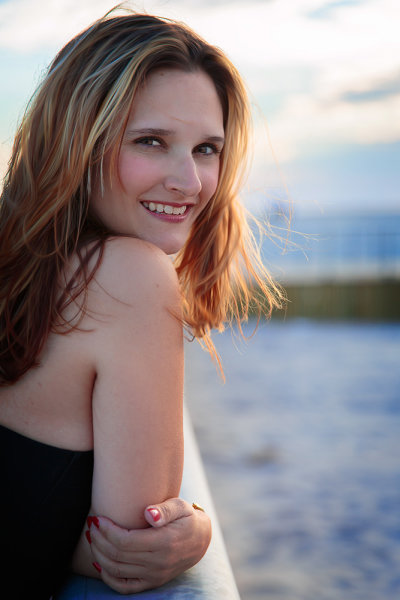
As the sun dipped down I wanted to turn the flash off and go for a more natural look. The light was still a bit harsher than I wanted so I started shooting backlit. I tried some fill flash, but the light was casting unflattering shadows and not meshing well with the available lighting. Turning the flash off, I positioned my subject so she was facing away from the sun, but had some sand in front of her that reflected enough light back into her face to create some soft catchlights in the eyes.

Finally, the sun dipped down and softened enough that I could ask my subject to look directly into it. This creates a soft, warm look on the face with nice shadows.  Pay attention to how the light falls on your subject when doing this. Ask your subject to slowly turn her head so you can see how the light on her face changes as she does so.  This will give you an idea of how you want her to pose, using the sun as a point of reference for her positioning. The shot in question is the first image in the article.  I also used this technique in the last image, for a wider shot.

Another way to deal with the harsh sun is to shoot backlit. I had tried some fill flash on this shot but it just didn't look the way I wanted it to. The flash caused the noise to cast an unnatural shadow that I found unflattering. I turned the flash off and positioned her so the sand created some fill in her face.  EOS 5D Mark III with EF 24-70 f/2.8L II. ISO 100, f/2.8, 1/400.

Another way to deal with the harsh sun is to shoot backlit. I had tried some fill flash on this shot but it just didn’t look the way I wanted it to. The flash caused the noise to cast an unnatural shadow that I found unflattering. I turned the flash off and positioned her so the sand created some fill in her face. EOS 5D Mark III with EF 24-70 f/2.8L II. ISO 100, f/2.8, 1/400.

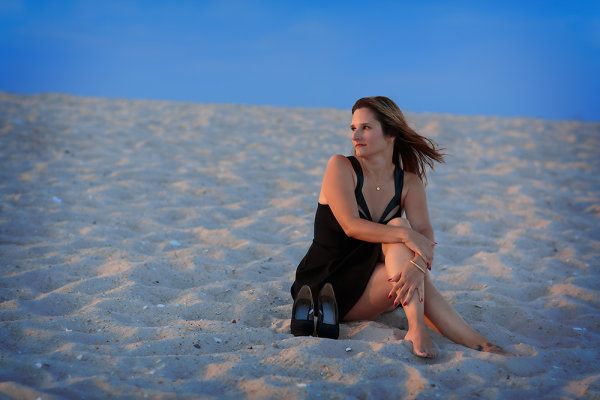
This was one of the last shots of the day.  The beach was nearly empty and I wanted to use the texture of the sand, the deep blue of the sky, and the red glow of the sun to create a graphically strong image. I positioned her so that if she turned her head her face would be lit by the sun and the sun would create a rim of light on her side. EOS 5D Mark III with EF 85mm f/1.2L II. 1/320, f/2.8, ISO 100.

This was one of the last shots of the day. The beach was nearly empty and I wanted to use the texture of the sand, the deep blue of the sky, and the red glow of the sun to create a graphically strong image. I positioned her so that if she turned her head her face would be lit by the sun and the sun would create a rim of light on her side. EOS 5D Mark III with EF 85mm f/1.2L II. 1/320, f/2.8, ISO 100.


Quick lighting diagram for the shot using off camera flash.

Quick lighting diagram for the shot using off camera flash.

Post originally from: Digital Photography Tips.

Check out our more Photography Tips at Photography Tips for Beginners, Portrait Photography Tips and Wedding Photography Tips.

Getting Great Portraits At Sunset


Digital Photography School

 
Comments Off on Getting Great Portraits At Sunset

Posted in Photography


4 Quick Tips For Getting The Most Out of Lightroom Presets

25 Jul
Image created with Daylight to Sunset preset

Image created with Daylight to Sunset preset

This post was written to coincide with my latest deal over at the DPS sister site – Snapndeals. Over the years I’ve created and stockpiled tons of presets in Lightroom, just for personal use. I finally made them available to the public earlier this year at the request of many of my blog readers and the feedback has been amazing! The collection on Snapndeals includes all of the presets I have released (80 total in 7 different groups) and they are all, of course, fully customizable. I put a ton of work into these and I really think you will love them!

So Lightroom presets are something I’ve become really obsessed with. I use them with pretty much 100% of my family photos and about 70-80% of my other images. Sometimes it’s just one click and I can take an image from it’s RAW state to a completely post processed and finished image. Other times I can apply a preset and be about 80-90% finished. From there it’s just a few minor adjustments to get the image looking great but the total time saved by adding the preset is still incredibly valuable. So here’s a few tips for using my new JamesB Lightroom Presets to help your workflow and create amazing images. Let’s go!

1) Spend Some Quality Time Familiarizing Yourself With The Presets

I’ve found that using presets becomes more efficient the more you use them. If you use them rarely, you aren’t very familiar with the presets you own. Therefore, when it comes time to use one you have to wade through them all to find the right one which can take a lot of time (especially with a collection of 80 presets like this one). When you use presets regularly you memorize where each one is, you know where your favorite presets are and how to get to them fast, you know which presets will work better for certain images. When you get into this mindset, your workflow in Lightroom really becomes optimized. And who among us doesn’t need more time on our hands?

I broke the presets into 7 different groups and each group has presets that were specifically designed for different genres/styles of photography. That doesn’t mean you can’t use a portrait preset on a landscape image, I’ve done that several times. But more often that not, I use travel presets for travel images. Portrait presets for portrait images.

2) Create A New Folder For Your Absolute Favorite Presets

Screen Shot 2013-06-21 at 10.10.11 AMOver time, you’ll discover that there are certain presets that you use quite often. Feel free to create a new folder in your presets catalog and the drag your favorites into that one. A few of my favorites are Day At The Zoo and Bright and Sunny from my “Family Lifestyle” set, B&W Film Grain and B&W High Contrast from my “Monochrome” set, Sweet Pea Vintage in my “Nostalgia Film” set and Rome in my “Travel” set.

Creating a new folder in the presets panel is easy, although not very intuitive if you haven’t done it before. Clicking the + mark at the top right won’t do it, that’s just for creating new presets. You have to hover over your presets and right click, choose New Folder and then give the folder a name. Then it’s as easy as dragging the presets from one folder to another.

3) Don’t Be Afraid To Fine Tune

The Develop module can be pretty intimidating to those who haven’t used it before. There are a LOT of options over there. A lot of ways to make a photo look great, and a lot of ways to make a photo look terrible! When you add a preset, you’ll be able to see the changes that it made over on the right side of Lightroom. If the photo doesn’t look just how you were hoping, go over and play around with the sliders a bit to get it just where you want it. The truth is, there’s no preset out there that will work perfectly for every photo, so most of the time you will have to make slight adjustments.

4) Create Your Own!

Once you’ve used presets for a while, you will start to get more and more comfortable tweaking and fine tuning them to your taste. The more comfortable you get, the more you will start using certain looks time and time again. Feel free to use some of my presets as a base or a starting point. Then add to it, change it up, tear it down and rebuild it, then create new preset that’s all your own. I do this quite often and not only is it a great learning experience, to see how much work goes in to creating a great preset, it’s also a lot of fun!

Be sure to grab a set of the presets for yourself, I promise you’ll love them!

A Few Samples Of Images Created Using My Presets

_MG_2302 1DS_3478 1DS_5603 1DS_6004 Death_Valley_Cactus-X3


Post originally from: Digital Photography Tips.

Check out our more Photography Tips at Photography Tips for Beginners, Portrait Photography Tips and Wedding Photography Tips.

4 Quick Tips For Getting The Most Out of Lightroom Presets


Digital Photography School

 
Comments Off on 4 Quick Tips For Getting The Most Out of Lightroom Presets

Posted in Photography


6 Tips for Getting Better Parade Photos

27 Jun

My last article I went over 15 tips for successful fireworks photography. This week I’m following up with 5 tips for better parade photos. I figured it is the season for parades and they’re so much fun I want to give you a few quick tips to help you get more engaging, stunning photos at any parade.

#1 Location, location, location

Find a good spot by getting there early and checking out the parade route. This seems like a no-brainer, but the lighting can be tricky especially if you’re in a spot where the floats and people are half in the sun, and half in the shade. So select a spot where you can either get them all in the shade (and have a shady background too), or all in the sun. Don’t be afraid to move if you find the location you selected isn’t working, for whatever reason. Maybe the lighting is bad, or the background is too busy or too bright. Then see tip #2 below!

#2 Use your feet

Unless this is prohibited by parade marshals or the local police (check first if you aren’t sure so you don’t get in trouble), don’t be stuck to sitting on your butt on the curb.  Get up and move around. Most people that attend parades find a spot and basically camp out there for the duration. But what do you see the real photojournalists doing? The guys and gals that work for the newspapers? Right, you see them following the parade and getting right out on the street.

use-feet-parade

Notice where I am standing here? In between the dancers, they literally walked around me!

**NOTE: do not get yourself in trouble, if the parade marshal or police tell you to cease and desist please listen to them and follow their guidelines. Perhaps find out ahead of time if you need special permission to walk the parade route.**

#3 Join the parade and a part of it

I followed this float for 5 blocks because their music was so good!

I followed this float for 5 blocks because their music was so good!

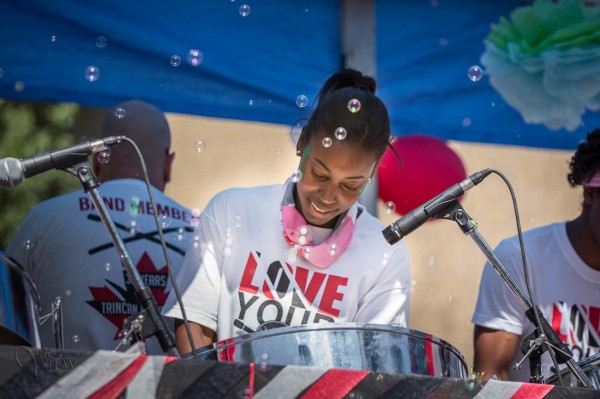
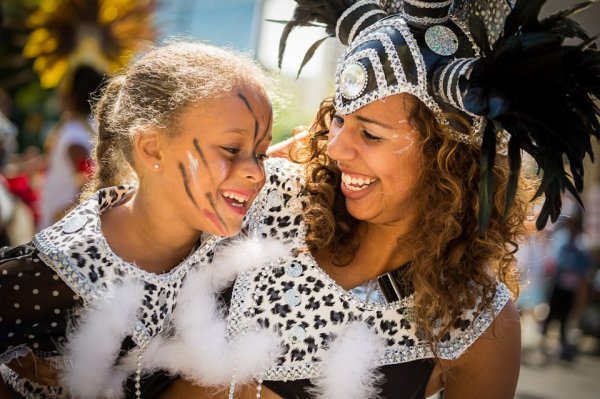
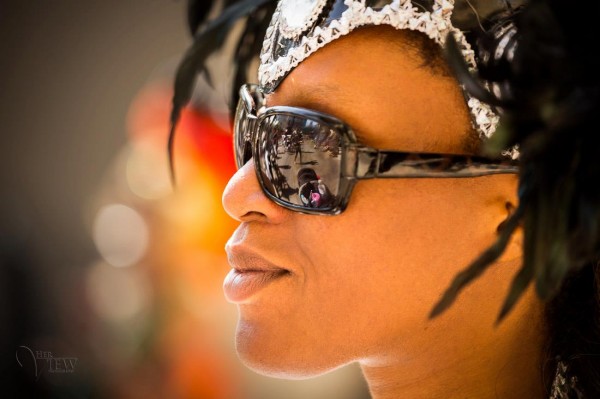
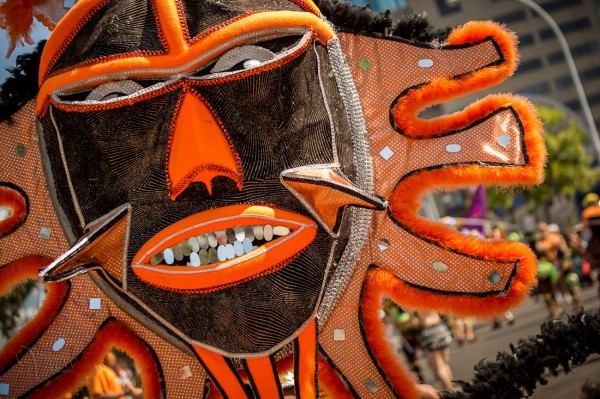
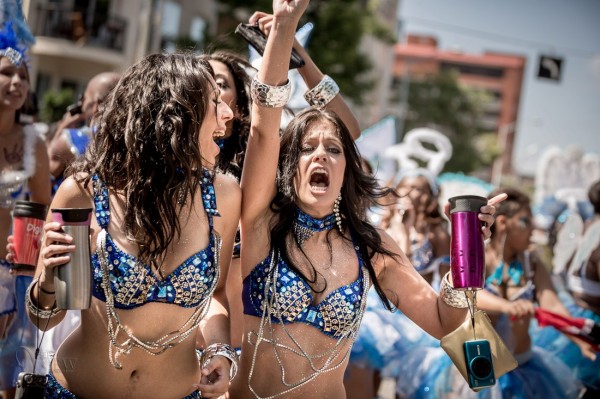
Joining the parade either officially, or unofficially can get you closer to the action. Volunteer to be security, or help out and ask if you can bring your camera along. You may get access to backstage areas, or being on the street in places that you might not otherwise get to go.  Many parades, at least here anyway, encourage people to get up and join in and march along behind the bands, or dance behind the floats with the great music. That’s part of what makes parades to universally fun. We have a parade called “Cariwest” which is a celebration of Caribbean culture and music. They highly encourage people to follow them and dance along the entire parade route. I love to attend this parade because it’s so colorful and I can get close to the action. Try to find ones like this, often in smaller cities or towns the rules are more relaxed, so get out of the big city if need be.

#4 If in doubt, back-light your subjects

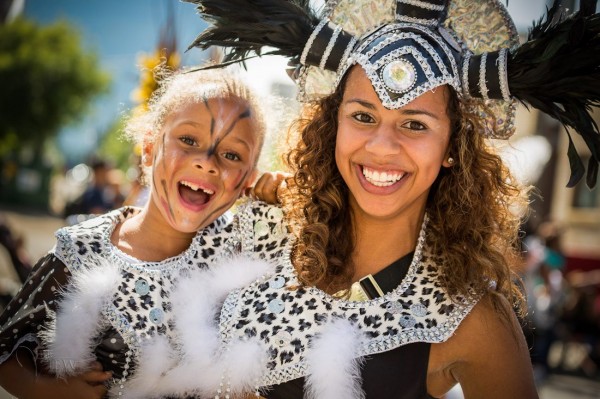
As I mentioned earlier you can encounter some really tricky lighting situations at a parade. I tend to like to put the sun behind my subjects, then I expose so they are well lit and the background gets overexposed or blow out. I’m fine with that as opposed to the opposite of drab photos in the shade with no sense of drama and separation. The sun creates a rim light (outline on the subject) and separates them from the usual boring buildings behind them.

back-lighting1 back-lighting2

#5 Use a telephoto lens but get in close

Often in my beginner photography classes my students assume that the longer telephoto and zoom lenses are for photographing things far away. While that is sometimes the case, as in wildlife or birds, they have other great uses as well. See my article on “How to achieve blurred backgrounds in portraits” as those tips apply here as well. Using a longer lens and large aperture, will help you get the distracting background of the parade route more out of focus.

get-closer

I also suggest you get physically closer to the people you’re photographing. This will do two things . . .

First it let’s them see you’re taking their photo, and allows interaction with them if only by eye contact. They know they’re on display in the parade and expect to have their photo taken many times. So if you are hesitant or tentative taking people’s photos this is a perfect opportunity because you have a whole stream of willing subjects literally parading in front of you (sorry pun intended). Sometimes you’ll get a great reaction when they see your camera like the series of images below. She turned, saw me, and I captured a few shots as she rotated and pointed right at me. If I were out on the street edge, likely that wouldn’t have happened.

Second, it will simplify your images and allow you to focus more on one thing at a time. Parades can be visually stimulating, and overly busy so getting in closer will help solve those problems. Pick one person, or one part of a float and get closer.

Float details

Float details

#6 Try to create a series of images that tell a story

Over on my own site I wrote “What is your message? Storytelling photography” and gave some examples. As you photograph the parade try and create a series of images that tell the story of the event, and relate it to someone that wasn’t there. What do you see, hear, feel, taste and touch? What is the main thing you want tell people that see your images of the parade? Journalists will say that you need to cover: wide, medium and long. What that means is show the big picture by shooting some wide shots; show the medium range like one person or one float; and show long or tight shots like details of costumes of floats or musical instruments.  Try to also capture some action images, dancers in mid-bounce, drummers with hands or drumsticks all a blur in motion. A story also needs a beginning, middle and end. Think of those things while you photograph and you may surprise yourself with the results.

peak-parage-action

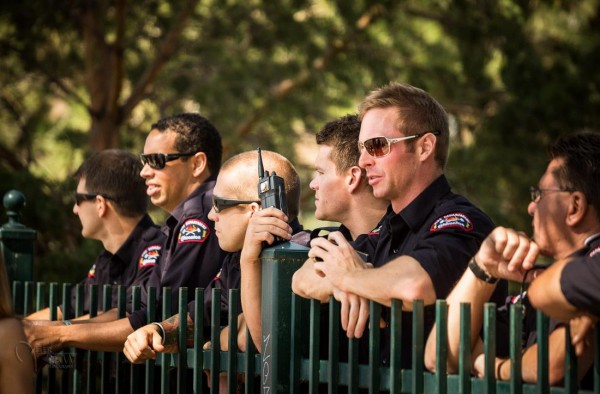
Hmm, is it just me or are these firemen enjoying the parade just a little too much?!

Hmm, is it just me or are these firemen enjoying the parade just a little too much?!

Bonus tip

Don’t forget to drink lots of water, stay hydrated, and have some FUN with it!

Have a great summer (if you’re in the northern hemisphere) and enjoy it while it lasts.

Post originally from: Digital Photography Tips.

Check out our more Photography Tips at Photography Tips for Beginners, Portrait Photography Tips and Wedding Photography Tips.

6 Tips for Getting Better Parade Photos


Digital Photography School

 
Comments Off on 6 Tips for Getting Better Parade Photos

Posted in Photography


Getting Landscapes Sharp: Focus Stacking

07 May

A key aspect of successful landscape photography is image sharpness.  Usually, it is desirable to ensure that all elements of a scene, whether close or far, are captured in sharp focus.  This can prove to be challenging and, if not achieved with the click of the shutter, cannot be corrected later during post processing.

One approach that is often taken is to use the smallest aperture available, e.g. f/22, to obtain the largest depth of field.  Whilst maximising the depth of field is a good intent, using such a small aperture will actually result in softer images due to an effect known as diffraction.

Most lenses are at their sharpest when used at apertures between f/8 and f/11 and whilst hypefocal focussing may allow you to capture an entire scene acceptably sharp in one image using these apertures; it is always still a compromise between a number of factors and there will be times when you cannot generate enough depth of field to capture a whole scene at optimum sharpness.

That is where focus stacking comes in.

Focus stacking is the technique of stacking (or blending) a number of images that have been focussed at different points throughout a scene to give a final image that contains the sharpest portions of the originals, seamlessly blended into one.  It isn’t as laborious as it sounds and can give really good results, rendering scenes far sharper than possible in just one exposure.

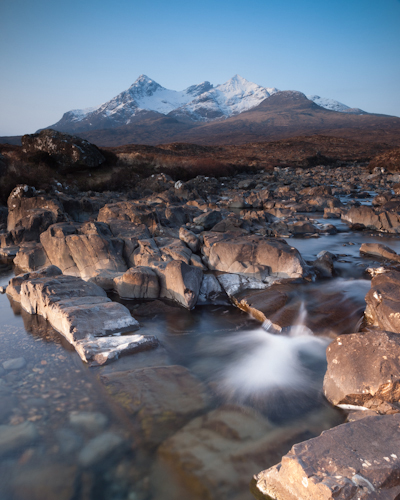
Focus Stack Initial Image

The initial image, shot at f/8, lacked front-to-back sharpness as there was not sufficient depth of field. ISO100, f/8, 2 secs

In the field…

As you will be stacking the images into one, aside from the point of focus, you want the individual photographs to be identical in all other respects.  Therefore, it is best to have the camera positioned on a tripod and use a remote release.

Using your optimum aperture (can easily be determined for a given camera/lens combo using focus charts, however you will most likely find that f/8 is a good starting point), take the required number of images focussed at different points throughout the frame.

A minimum of two images are required, i.e. one focussed for the foreground and one focussed for the background, however an additional third image, focussed for the middle ground can also be a good idea.

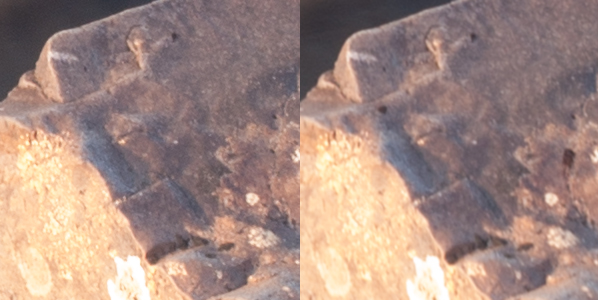
Focus stack comparison foreground

A comparison of a 100% crop of the foreground from two images, one focussed for the foreground (left) and one focussed for the background (right).  Both shot at ISO100, f/8, 2 secs.

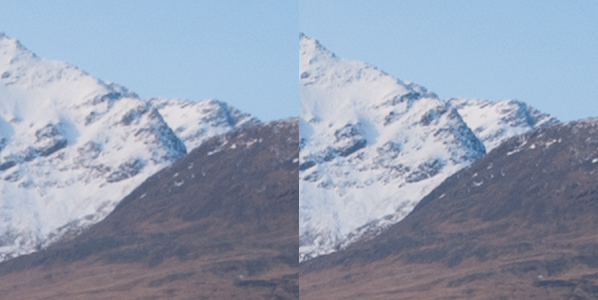
Focus stack comparison background

A comparison of a 100% crop of the background from two images, one focussed for the foreground (left) and one focussed for the background (right).  Both shot at ISO100, f/8, 2 secs.

Back at home…

Open the two images in Photoshop and create a new file that contains both images as different layers, in the one file (to make life easier, name the layers accordingly, e.g. near, far).

Select both layers and go to Edit > Auto-Align Layers to ensure both images overlay perfectly.  Select the ‘Auto’ option, and deselect the ‘Vignette Removal’ and ‘Geometric Distortion’ options.

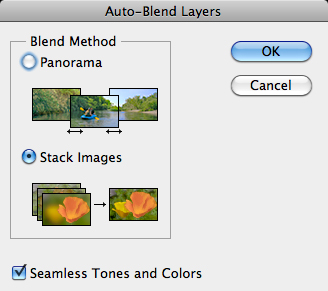
Then select Edit > Auto-Blend Layers, and choose ‘Stack Images’, ensuring ’Seamless Tones and Colours’ is selected.

Focus stack auto blend dialog box

The Auto-Blend dialog box

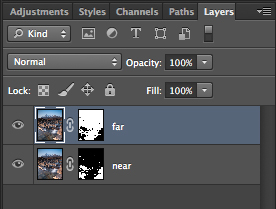
At this point, Photoshop will determine the sharpest portions of each image to incorporate into the final image, and apply a mask to each layer.  Below you can see the layer masks applied to the two images.  In this instance, you can see the rocks in the lower portion of the image are the main area selected by the layer mask for the ‘near’ layer whereas the rocks in the middle distance and the background mountains are incorporated from the ‘far’ layer.

Focus stacks layer masks

The automatically generated layer masks, applied to each layer, includes the sharpest portions of each layer (shown in white).

It is worth checking the image at 100% zoom to ensure that there are no strange artefacts caused by poor blending of any moving grasses or branches.  These can be fixed by manually painting white or black on to the relevant layer mask (remember: white reveals, black conceals).  For those using Elements, if you are only using 2 or 3 images, it is possible to do the blend manually using layer masks and white/black gradients.  In some instances, it actually gives better results, with fewer ‘blending artefacts’ to do the blend manually.

Once you are happy with the blend, merge the layers to give your final, focus stacked image.

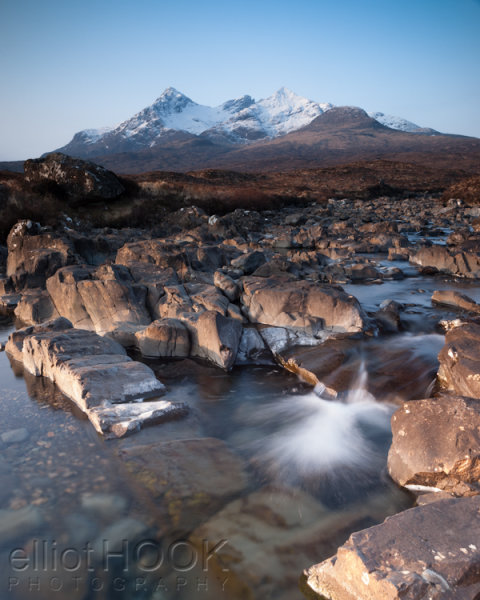
Focus Stack final image

The final image with good sharpness from the foreground rocks right through to the mountains in the background

It may not be immediately apparent when showing images at web resolutions, but the difference in the overall sharpness when using optimum apertures and focus stacking is astounding when printing images.  To be able to focus stack, it only takes a little more forethought when out capturing the scene, and a few short processing steps when back at your computer so why not give it a go the next time you are out photographing landscapes.

Post originally from: Digital Photography Tips.

Check out our more Photography Tips at Photography Tips for Beginners, Portrait Photography Tips and Wedding Photography Tips.

Getting Landscapes Sharp: Focus Stacking


Digital Photography School

 
Comments Off on Getting Landscapes Sharp: Focus Stacking

Posted in Photography


Getting The Image You See In Your Head: Blending vs HDR

18 Apr
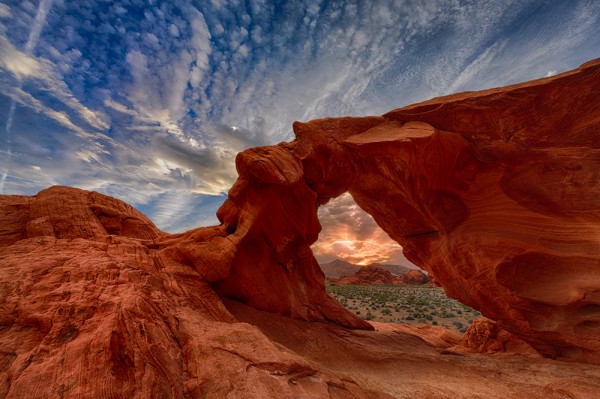
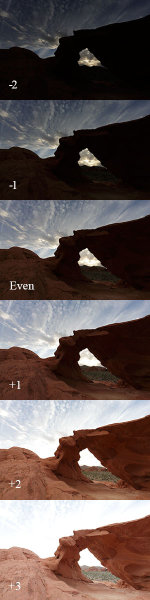
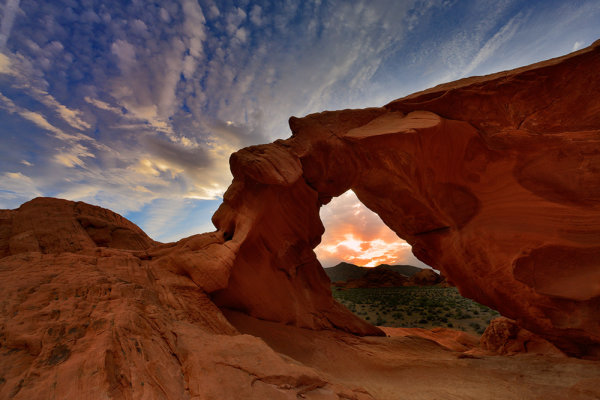
This shot is an HDR shot blended from 6 bracketed shots.  Each shot is one stop different from the next. The exposures range from -2 through +3. Aperture was set to f/16. The shutter speed ranged from 1/125 at -2, to 1/4 at +3.

This shot is an HDR shot blended from 6 bracketed shots. Each shot is one stop different from the next. The exposures range from -2 through +3. Aperture was set to f/16. The shutter speed ranged from 1/125 at -2, to 1/4 at +3.

Often times when I’m photographing landscapes, the image the camera sees versus the image in my head are quite different.  Sometimes that image in my head doesn’t mesh with what the camera capture, because the dynamic range is far too great.  The contrast between the highlights and shadows is just too great.  Such was the case with this shot I took a week ago of Arch Rock in Valley of Fire State Park in Nevada.

These are the six shots I used for the HDR blend. I also used the even exposure, and the +2 exposure, for the two image manual blend I did in Photoshop.

These are the six shots I used for the HDR blend. I also used the even exposure, and the +2 exposure, for the two image manual blend I did in Photoshop.

With the sun setting directly behind it, exposing for the sky would have rendered the rock a silhouette.  This may have been fine had I intended a silhouette shot- which I did capture and intend to use. But ultimately I wanted some detail in the rock, I wanted detail in the sky, and I wanted to maintain the drama of the spectacular desert sunset that I was witnessing.  Because of the way the landscape was laid out before me, graduated neutral density filters were not going to work for this shot.  If I wanted to bring down my highlights and keep detail in the shadows, I was going to have to either blend two shots, or use an HDR program to get the result I was looking for. HDR stands for High Dynamic Range, meaning an image where the range of tones is higher than what the camera can accurately record.

I really wasn’t sure which processing technique would give me the best results.  And sitting there in the desert, I didn’t want to place any bets on it.  So I bracketed my shots using the auto exposure bracketing mode on my EOS-1D X.  I shot in Av mode, at f/16, with the EF 14mm f/2.8L II lens. I bracketed for 7 exposures, but ended up only using six. The -3 exposure really didn’t add anything to the HDR, so that was dropped from my processing.   I use Nik HDR Efex Pro 2 for my HDR processing to blend the exposures, and then finish in Photoshop, adjusting color, saturation, etc.  Nik HDR Efex Pro offers a variety of presets, but I always try to keep the HDR processing fairly subtle. I don’t like the over the top look that some get, but I do like the image to pop a bit. I try to minimize any halos, and keep the tones fairly smooth.

Before I processed the HDR image, I also tried a simple two shot blend in Photoshop. I first processed the even exposure and adjusted for color and saturation.  Then, I took the +2 exposure, and processed in the same way, dropping that image on a new layer in photoshop over the even exposure. I then apply a layer mask to the +2 layer, and paint the entire mask black to hide the layer.

Then, using white, I painted the arch back in to reveal the arch at +2 against the sky at even exposure. This takes a lot of patience since with the exposure difference, it’s very easy to see halos if the masking isn’t done carefully. One way to ease the transition is to run a gaussian blur filter on the mask to soften the edges. How much will depend on what the mask is like. You may need to run the gaussian blur more than once to get it just right.

Looking at the two images, the HDR blend seems to have a smoother transition from lights to darks, as well as a richer overall look. I know there is a lot backlash against HDR, and I understand it’s not everyone’s cup of tea. But I believe in using any tool available in order to express what I felt when I looked upon the scene as it happened.  Every scene will be different, and will lend themselves to different processing techniques. Understanding what techniques are available to you can help you overcome the shortcomings of technology and allow you to express your creativity to the fullest.

This shot was done by blending an even exposure with a shot exposed at +2.  The +2 exposure was masked off in Photoshop so only the areas I needed to show through did.

This shot was done by blending an even exposure with a shot exposed at +2. The +2 exposure was masked off in Photoshop so only the areas I needed to show through did.


Post originally from: Digital Photography Tips.

Check out our more Photography Tips at Photography Tips for Beginners, Portrait Photography Tips and Wedding Photography Tips.

Getting The Image You See In Your Head: Blending vs HDR


Digital Photography School

 
Comments Off on Getting The Image You See In Your Head: Blending vs HDR

Posted in Photography


Getting off Auto – Manual, Aperture and Shutter Priority modes explained

04 Apr

Macro image of a digital camera's controls set on autoYou may have heard that once you get a DSLR you need to learn to shoot in manual and only ever use that mode. That if you are using the Aperture or Shutter Priority you’re cheating and if you want to be more like a pro you have to shoot in Manual only, all the time. To that I say “horse pucky”! (if you’re old enough to remember M.A.S.H. you’ll get that reference).

What you’ll learn from this article:

  • what each of the A (Av), S (Tv) and M modes are, a definition of each
  • what types of situations I would choose each of them and why
  • some advantages of A (Av) and S (Tv) over manual
  • some advantages of Manual and when it’s the only choice
  • some things to look out for

The three manual shooting modes what are they?

  1. Manual mode: this mode puts you in full control of the three settings on your camera that control the exposure (commonly known as the exposure triangle).  ISO, aperture and shutter speed. In manual you will be making all of those choices.
  2. Aperture priority:  (A on Nikon, Av on Canon) this mode has you in control of two of the three exposure controls:  ISO and aperture.  The camera will select an appropriate shutter speed to give you a correct exposure.
  3. Shutter priority: (S on Nikon, Tv on Canon) this mode once again puts you in control of two of the three exposure settings, this time it is ISO and shutter speed.  The camera will select the aperture for a correct exposure.

There are of course other factors involved that will affect the exposure such as what Metering Mode you’re using and Exposure Compensation. More on the latter later.

Shot in Aperture mode to control Depth of Field

Shot in Aperture mode to control Depth of Field

How do you decide which mode to use?

I actually use the Aperture and Shutter priority modes more often than I use Manual. How I decide which mode to use is based on my subject matter and what is my goal of the image as follows:

  • I choose Aperture Mode when I want to control depth of field (DoF) as my top priority.  Such as to create shallow DoF for a portrait, people photos, or any time I want a blurred background (choose a large aperture like f2.8 or f1.8). That also applies if I want a larger DoF as well such as for a landscape photo, group portraits, or shots where I want maximum detail and sharpness (choose a smaller aperture like f11 or smaller)
  • I choose Shutter Mode when my top priority is controlling motion, either freezing or blurry it. So freezing for subjects like sports or action and I will choose a faster shutter speed such as 1/500th or faster depending on the subject. Subjects like flowing water, waterfalls, or panning a moving subject I will select a slower shutter speed like 1/15th for panning and 2-5 seconds for flowing water. (for more on this topic read my article Using Shutter Speed to Freeze or Blur Motion)
  • I switch to Manual Mode in a few specific instances: doing a portrait where the subject is not moving; night photography; pretty much any time I’m using a tripod; doing HDR bracketed exposures (even though my camera does 7 on AEB I still use Manual when on tripod); when using studio lighting; certain times when using a speedlight (such as working in a dark room and I want to maintain some ambient light levels)

Here’s some example images taken with each of the modes as explained above.

Shot in Aperture mode to control Depth of Field

Shot in Aperture mode to control Depth of Field

Shot using Shutter Priority to use a panning technique and slow shutter speed

Shot using Shutter Priority to use a panning technique and slow shutter speed

Shot in manual mode for night photography challenges

Shot in manual mode for night photography challenges

Things to watch out for and keep in mind

ISO: remember that when you select either A or S mode you are still choosing the ISO
I usually select my ISO first, based on the lighting conditions I’m shooting in.  If it’s bright sunlight I go to 100 or 200.  If it’s subdued light, shade or overcast I might bump it up to 400. For indoors or dimly lit rooms I may go to 800 or higher up to 3200 if necessary (you need to test to know the upper limits of your ISO and where you’re comfortable shooting with your camera, mine will yield pretty decent results even at 6400 and beyond).How I know I’ve gone high enough with the ISO, is if I have a fast enough shutter speed to eliminate camera shake when hand holding.  If I’m on a tripod, I’m usually shooting a ISO 100 or 200 because I can use any shutter speed safely.

Check your shutter speed when in A mode
Just because the camera is picking the shutter speed does not mean it will give you a nice sharp image. Yes it will choose a shutter speed to give you the correct exposure, but if you set up your camera for ISO 100 at f16 in dark room you’ll wind up with a pretty slow shutter speed like 1/2 of a second perhaps, and without a tripod you’ll get blur from camera shake.So keep your eye on the shutter speed the camera is picking and if it is too slow (I suggest you follow the 1/focal length rule for minimum shutter speed – for more on getting sharp images read my article 5 tips for Getting Sharper Images) readjust the ISO, the aperture or both – picking a higher ISO will help, so will choosing a larger aperture like f4 as that will let the camera pick a faster corresponding shutter speed.

Multiple bracketed exposures using Manual for HDR processing

Multiple bracketed exposures using Manual for HDR processing taken during my Drumheller Workshop

Watch for exposure warning notices in A or S modes
Your camera is pretty smart but it can only work within its own limitations. So it will tell you if you’ve gone outside that boundaries of what it can adjust for you.  This will show up as a flashing warning in your viewfinder. I’ll give you an example for both Aperture and Shutter modes.

Scenario #1 in Aperture mode if you choose say ISO 800, F1.8 on a bright sunny day the camera will tell you there is simply too much light and give you a flashing shutter speed (your fastest) like 1/4000th of a second.  If you take the photo it will be overexposed which is what the camera is warning you above.  Choose a lower ISO or smaller aperture and try again until the warning is gone.

Scenario #2 in shutter mode in a darkened room with settings of ISO 400 and 1/1000th of a second you will likely get a flashing aperture shown in your viewfinder (the largest your lens goes to such as f3.5 or f5.6).  To correct this you need to choose a slower shutter speed and likely a larger ISO as well until that warning disappears.Side note: this is why kit lenses with a maximum aperture zoomed in of f5.6 become somewhat limiting. Grab yourself a simple 50mm f1.8 for low light conditions, it’s an inexpensive great lens to have in your bag

Painting with Light during night photography on my Drumheller workshop

Painting with Light during night photography on my Drumheller workshop

Exposure compensation in Manual
There is often confusion among students about using Exposure Compensation when in Manual mode.  This behaves differently depending in the camera you have, in Canons for example it just doesn’t apply, as it is has no affect. When using a Nikon if you shift the Exposure Compensation to say +2 what it does it adjusts the scale you see in your viewfinder to reflect that so if you then set the exposure to match the “0″ mark it will give you a +2 exposure. I’d personally find that even more confusing, so if you want +2 just set your exposure in Manual so that it shows +2 on the scale.

Summary

Steps I use are these:  

  1. choose ISO first
  2. decide whether motion or depth of field are most important and choose my shooting mode
  3. set my shutter speed or aperture for the results I want
  4. check for warnings and slow shutter speeds
  5. review image and correct as necessary

Tell me what you do and if you find this information helpful.

Post originally from: Digital Photography Tips.

Check out our more Photography Tips at Photography Tips for Beginners, Portrait Photography Tips and Wedding Photography Tips.

Getting off Auto – Manual, Aperture and Shutter Priority modes explained


Digital Photography School

 
Comments Off on Getting off Auto – Manual, Aperture and Shutter Priority modes explained

Posted in Photography


Guardian photographers share tips for getting a portrait in ten minutes

09 Mar

Kofi-Annan-010.jpg

British newspaper The Guardian is known for its editorial photography, but like all working pros, the staff photographers sometimes only get a few minutes to capture their subjects. In an article posted on the Guardian’s Photo Blog, several of the paper’s photographers share their tips for getting portraits in a hurry. Click through for some pictures, and a link to the article at guardian.co.uk.

News: Digital Photography Review (dpreview.com)

 
Comments Off on Guardian photographers share tips for getting a portrait in ten minutes

Posted in Uncategorized


5 Tips to for Getting Sharper Images

05 Mar

An important element of photography is getting sharp, crisp images. You may be struggling with focus, especially if you are fairly new to DSLR photography. It is extremely frustrating to go out shooting, assuming you’ve got nice clear, sharp images, only to get home to find out they aren’t quite as sharp, or even in focus, as you had hoped.

There are several things you can do to improve your chances of getting sharper images. Here are a few to get you started, if you have other tips please share them in the comments below.

Five steps for achieving sharp images

#1 Pick the focus point manually
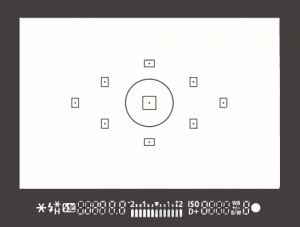
focus-pointsOn most SLRs, and some of the mirrorless or four thirds cameras, there is an option of selecting what point it uses to focus. Meaning, when you look through the camera and see some flashing dots or squares (or something similar to the image on the right), those are your focus zones or spots. Make sure it is NOT set for the camera selecting which of those spots are targeted for focusing. When the camera chooses where to focus it can often pick the wrong thing. If you have a subject that is behind something in the foreground the camera will usually pick the closest object, which is not your intention, and you’ll end up with the wrong thing in focus.

Find the setting that allows you to adjust which target focus zone the camera uses to focus. Depending on the camera make and model, that can usually be adjusted with a dial or joy stick on the back of the camera, while you are looking through the view finder. This frees you to choose the most appropriate zone or spot for your subject or scene.

#2 Select the right focus mode
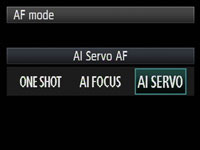
Canon-focus-modesMost cameras have a few different types of focus modes. On Canon you’ll see them as Single (One Shot), AI (stands for Artificial Intelligence) Focus and AI Servo. On Nikon the modes are AF-S, AF-C and AF-A.  Choose the one that bests fits for the subject you’re photographing.

Single (or AF-S) means that the camera will focus and lock on a single object and will not refocus until you release your finger from the shutter button. AI Servo (AF-C) is for continuous focusing when you have a moving subject.  In this mode when you depress the shutter button half way, the camera will continue to focus on the subject as it moves away or towards you. It does not lock focus until you press the button down fully and take the photo. In AI Focus (AF-C) the camera will choose between the previous two based on whether the subject is moving or not.

#3 Set your minimum shutter speed accordingly

min-shutter-speedThere is much debate about this subject in terms of how slow is too slow for hand holding your camera. Some instructors will say 1/60th of a second, I tend to use another rule of thumb which is 1 over the focal length of your lens. So if you are shooting with a 200mm lens, then 1/200 is how fast you need to be shooting to get rid of blur caused by camera shake. The longer lens you select, the more amplified any movement will become. If you are shooting with a cropped sensor camera, remember that 200mm is now acting like a 350mm so that changes your minimum shutter speed to 1/400. If you use a lens that has image stabilization then you can often stretch it a little bit more, say one or two stops, depending on how steady your hands are. You also want to make sure you are holding your camera in the most stable position with your left hand UNDER the body and lens (sort of cupping it) and both elbows in tight to your body. Then, hold your breath and shoot!

#4 Make use of back button focusing

Another much debated topic is whether or not to use the back button focusing option now available on most DSLRs. I’m not here to get into that debate, if you want to know more about it you can read 3 Reasons Why You Should Switch to Back Button Focus by James Brandon. The basic idea is that instead of using your shutter button to focus, you separate the focus function to a button on the back of the camera, that you press with your thumb.
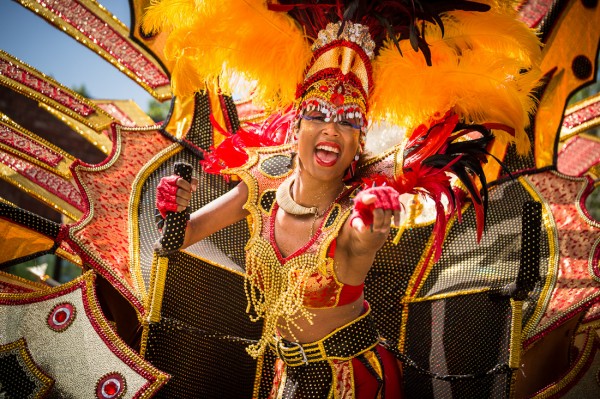
Taken using back-button focus

Taken using back-button focus

I use it for many things including; portraits where I want the subjects off centre and don’t want to do “focus, lock, recompose” for every frame, any time I want to focus on a moving target (you have a better chance of getting it sharp this way than with the shutter button focus), for HDR photography when I’m bracketing and don’t want the focus to shift accidentally between shots, for night photography when I focus with the assistance of a flashlight and don’t want it to move afterwards (other option is switch to manual focus every time but it’s too easy to forget to focus at all then).

It does take a little getting use to, but after a friend of mine that shoots sports for the local newspaper showed me how to use it properly I never looked back. So when she says it’s better for action focus on critical, fast moving subjects, I listen cause she knows what she’s talking about!

#5 Use a tripod and remote trigger or release

Tri-pod = three legs. Three is better than two right? In some the case of photography – yes! The tripod is your friend.

I think you know what they are and what they’re for, but not many photographers own one or use it. Placing your camera on a tripod will help you get sharper images, if you’re doing it right. Get a good sturdy one, don’t cheap out on a $ 49 tripod on sale at the big box store and put your $ 2000 SLR on it. Do you put cheap tires on your high end sports car – I think not! A flimsy tripod won’t do you any good if it can’t hold the weight of your camera and is constantly slipping or loosening. Worse case scenario has your whole rig crashing to the ground, not good. Invest in a good one, do some research, make sure it is made for still photos not video, and it can hold the weight of your camera. A lightweight one made of carbon fibre is a good option, but expect to pay more for that option.

In addition to a tripod I also suggest getting a remove trigger or shutter release. They come in a few varieties including ones that attach directly to the camera, wireless ones, and even fancy programmable ones for doing timed exposures and auto exposure brackets. Like anything, the more fancy shmancy features you want, the more $ $ $ you will pay. But do get one, because it allows you to fire the camera without touching it, thus reducing any possible vibrations during the exposure. I also tell my students to turn of the IS (or VR) on their lens once the camera is on tripod. This is because the IS/VR runs a little motor inside the lens that vibrates it to help compensate for camera shake. On tripod you do NOT want your lens vibrating, even a tiny bit. The camera manufacturers would like us to believe that their cameras are smart enough to know when that’s happened and turn off the IS automatically. Maybe they are. Maybe they aren’t. I like to take no chances, so I just turn it off.
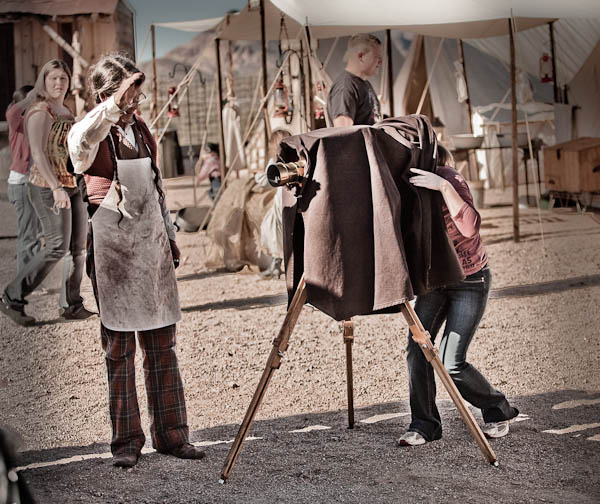
Me playing with a view camera at a mock western town in AZ. The guy posing as the photographer let me have a look through it, for old times sake.

Me playing with a view camera at a mock western town in AZ. The guy posing as the photographer let me have a look through it, for old times sake.

When I started photography school (technical college) the first camera they allowed us to use was a 4×5″ view camera. If you’ve ever seen one you’ll know it’s not possible to use it without a tripod. In hindsight, some 25 years later, I think those photo school instructors were actually pretty smart! At the time I just thought they wanted us to suffer hauling all this heavy gear around. By putting the camera on a tripod you will instantly slow down and put more time into setting up your shot. With the advent of digital and the popularity of SLRs and now even micro four thirds and mirror-less cameras, it’s become so easy to just grab the camera and fire off a few images. So besides the obvious benefit of stabilizing your camera so you can shoot at slower shutter speeds then we discussed in #3 above (if you want to do night photography it’s essential), using a tripod also forces you to put a little more time and effort into it. I find when that happens it often results in a better image aesthetically as well as technically.

Well this was a longer tip than I expected to write, whew!  To sum up, if you are having trouble with blurry images, try these tips out for yourself. I’m pretty sure you’ll have a bit more success.

So give it a go, and let me know how it’s working for you!

Post originally from: Digital Photography Tips.

Check out our more Photography Tips at Photography Tips for Beginners, Portrait Photography Tips and Wedding Photography Tips.

5 Tips to for Getting Sharper Images


Digital Photography School
 
Comments Off on 5 Tips to for Getting Sharper Images

Posted in Photography