RSS
 

Posts Tagged ‘Getting’

Getting Roser To Amanda Lim

27 May

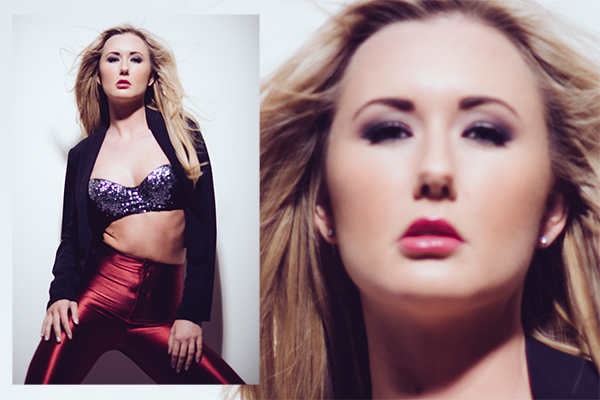
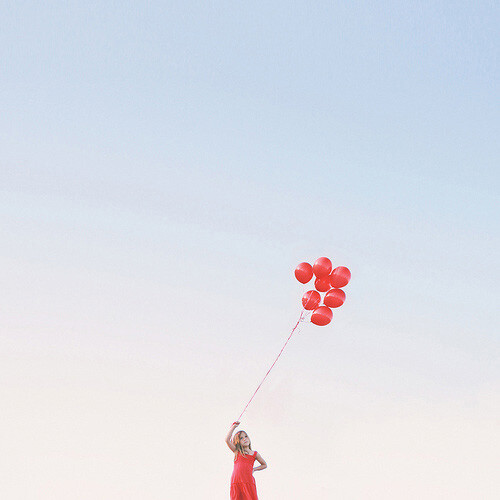
Amanda Lim photos from her "Roser" series on Fashion Photography Blog (FashionPhotographyBlog.com)

FashionPhotographyBlog.com was able to catch up with our first Photo of The Week winner, Amanda Lim to find out what she is up to now after taking her winning photo and we were pleased to hear about her recent successes.

So where did it Amanda’s photographic journey all began, she kindly shared it with us “Growing up I was always curious and creative. I drew, I painted, and I was lucky to have some beautiful friends to photograph and won some photography awards. Shortly after, I followed a conventional path to university, got bored studying something that wasn’t interesting to me. I bought a camera, started shooting again and that’s when I had this epiphany, this was what I was meant to do, it made me happy. I instantly fell in this loop of love and obsession.”

Amanda Lim photos from her "Roser" series on Fashion Photography Blog (FashionPhotographyBlog.com)

That was how it all started but where on her journey is she currently now as a fashion photographer, Amanda reveals that “At this present moment I am simply doing what I love and longed to do my whole life – I’m exploring and travelling the world. I am travelling to as many destinations around the world. I was travelling and working in China with an agent for various clients, a highlight there has been shooting for Vogue China. During my travels, I am working to capture and indulge in the beauty of nature. I am becoming more interested in portraiture, and dreaming up a list of people I would love to photograph.”

Amanda Lim photos from her "Roser" series on Fashion Photography Blog (FashionPhotographyBlog.com)

I had been receiving a lot of comments about the original story behind Amanda’s winning photo so I had to ask, she replied that “I was going through a difficult time and that was my fuel for inspiration. That shoot was from 6 years ago during my earliest beginnings when I was experimenting with different things.”

And what about the inspiration for her present work such as her “Roser” series showcased in this article that displays such serenity, she says “I love strong, defiant women – it’s a quality I wish to define in all my subjects…. I love my women strong yet delicate and I like to portray them intimately and vulnerable to the lens…  I muse over face. Music also plays a huge inspiration.” From her inspiring ideas, she needs a team to her execute them and Amanda likes to keep her team manageable, “I like to work in small teams, the energy keeps harmonious.”

Amanda Lim photos from her "Roser" series on Fashion Photography Blog (FashionPhotographyBlog.com)

To create her amazing shoots Amanda explains that “I work mostly on medium format, Hasselblad H3D and a couple of prime lenses. I also have a Fuji Xe-1 that is inseparable to me. With lighting, I use what is available to me: whether it is natural daylight, flash, tungsten, LED.

To find out more about Amanda Lim and to find more about her shoots you can find her or ask her questions on Tumblr (www.amandalimphotographs.tumblr.com)

Amanda Lim photos from her "Roser" series on Fashion Photography Blog (FashionPhotographyBlog.com)

Photo Credits:

Photographs from Amanda Lim (amandalim.com.au) From her “Roser” series.

Do you like Amanda’s new work now compared to her previous entry? Please comment below.


Fashion Photography Blog

 
Comments Off on Getting Roser To Amanda Lim

Posted in Uncategorized


Real Estate Photography – a Guide to Getting Started

20 May

real-estate-photography-home-front-lighting

Photography has never been more important to selling real estate than it is today. The markets are heating up again and demand for real estate creates demand for photography. This is good news to photographers, but like any business, there is plenty of competition. If you are new to real estate and architecture photography, here are some general guidelines to start you on the right path.

Camera Equipment

A camera, lens, and tripod, are all that is required to get started, but you might quickly learn that many competitors are very proficient at using supplemental lighting and Photoshop techniques.

Your camera should allow you to add a cable release, a flash, different lenses, and wireless triggers. Wide angle lenses are required. For cropped sensor cameras a lens around 10-22mm or 12-24mm is perfect, and for full frame sensor cameras, a lens around 16-35 mm will do the job.

Tilt-shift lenses help avoid converging vertical lines such as wall edges and door frames leaning in or out. There are several tilt-shift lenses available from Canon’s 17mm, the 24mm from Canon and Nikon, and others. While these lenses are wonderful to use, they are fixed focal length so if you need  a perspective that is for example; 19 mm or 27 mm or somewhere in between, a 16-35mm zoom lens is a great companion to a tilt-shift lens.
real-estate-photography-converging-lines

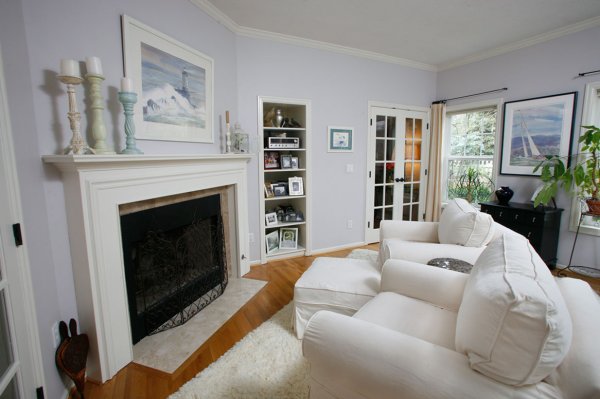
This image before processing shows diverging vertical lines, seen best by the edge of the fireplace, from using a 16-35mm lens tilted down to add foreground and minimize ceiling.

Shooting techniques vary from exposure blending, HDR, wireless flash, and light painting with multiple exposures. No matter your shooting style the camera should not be moved to guarantee image alignment of multiple exposures. The camera’s self-timer, a cable release, or wireless triggers insure no camera movement. The iOS App or Camranger also triggers the camera and provide a preview of the photo on a smart device.

Approaching the Property

The first image a potential buyer sees (usually) when reviewing properties online is an exterior photo. That photo is important so take the time to find the best angle and best light. Ask the realtor what are the important features to highlight. They usually want exterior photographs from front and rear, a deck or patio, landscaping and gardens, pool or hot tub, a barn, shop, or other outbuildings. Each feature should be emphasized in the composition by using the surroundings, like beautiful gardens leading to a cool garden shed.
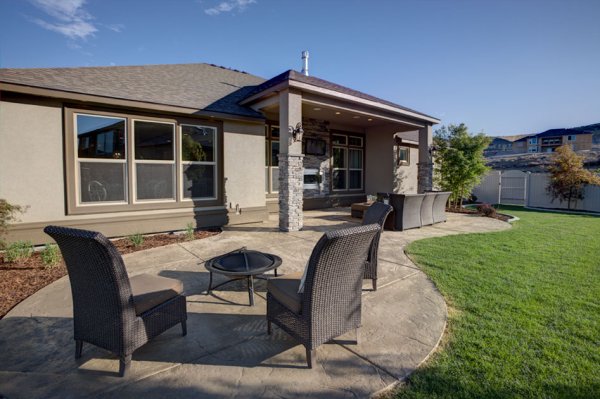
  The client was most interested in the outdoor theater under cover on the back porch, which I captured, but I also captured this image showing the patio furniture and giving a broader view of the backyard.

The client was most interested in the outdoor theater under cover on the back porch, which I captured, but I also captured this image showing the patio furniture and giving a broader view of the backyard.

Exterior Lighting

Most outdoor subjects benefit from early or late day lighting, including real estate. Using Google Maps and Google Earth can help you determine the best time of day prior to the photo shoot.  Searching only takes minutes and provides an idea whether a home faces the sunrise or sunset, or neither.

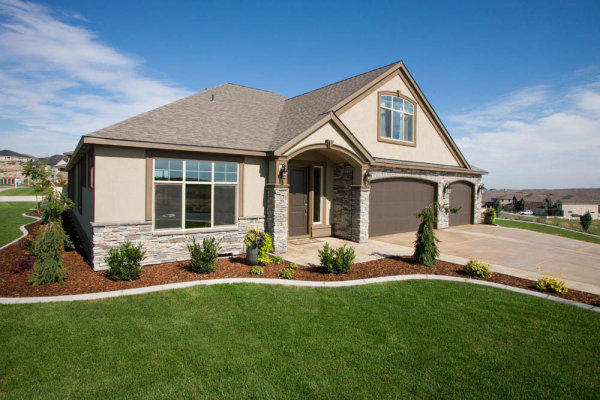
Light hitting the front of a home is perfect as seen here after sunrise. In winter, some homes facing south never have the sun hitting the front of the home To avoid shooting into the sun, photograph from the same end of the house as the sun.
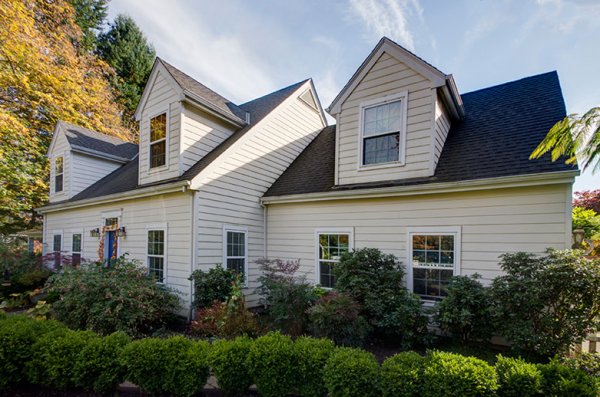
Light hitting the front of a home is perfect as seen here after sunrise.

In winter, some homes facing south never have the sun hitting the front of the home To avoid shooting into the sun, photograph from the same end of the house as the sun.

 This home has a huge yard and a street lined with cars. Photographing from the left put the sun right above the roof but moving to the right side was a better perspective and the sun was out of view.

This home has a huge hedge behind the camera and a street lined with cars. Photographing from the left put the sun right above the roof but moving to the right side was a better perspective and the sun was out of view.

Overcast skies can eliminate any problems with sun’s position, but shooting on poor days is a decision best discussed with the realtor.  The advantage is you can shoot any time of the day but the disadvantage is white skies can lessen the impact of an otherwise great exterior image.
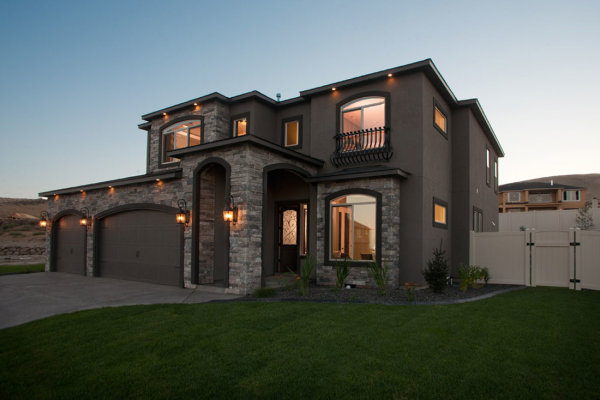
The dusk/dark technique

The dusk/dark technique

The dusk/dark technique is often requested by clients because it helps sell properties. The image is photographed outside and from the best angle to showcase the house. The technique is to turn on all the lights in a room and shoot at a certain time. After sunset the sky’s exposure will balance with the room lights’ exposure. A better approach is to add lights to the rooms creating even lighting, and working this way means not having to wait for that perfect balance between room lights and outdoor light.

Interior Photography

Homes come in all shapes, sizes, styles, and conditions. I always tell my clients that I am not in the house cleaning business, so I send them a task list with my suggestions on prepping the home prior to the photo session. Once inside, I set out to photograph the main rooms: the living room, kitchen, dining area, master bedroom, master bath, are all ‘must shoot’ rooms. There could also be a library, office, large walk-in closet, and more. The client can often tell you what they deem important. Next, seek the best perspective for each room.
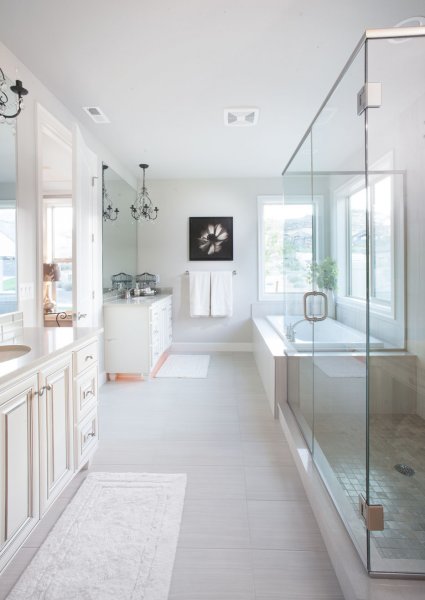
The master bathroom

The master bathroom

I describe my approach as using the inside elements: furniture, windows, and room layout, to create visual flow. I generally try to avoid composing something large in the foreground that prevents the eye from flowing through the room.
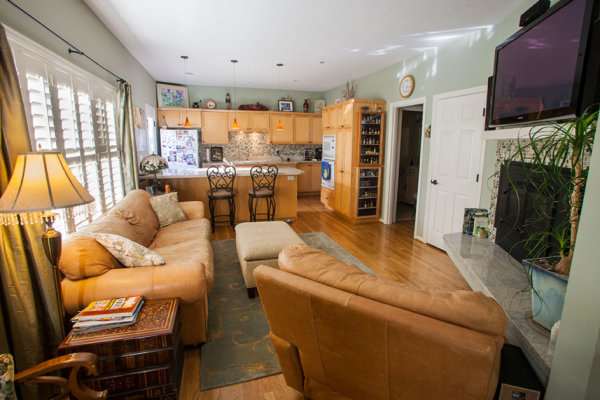
This is the first test shot I took of this room and the foreground chair blocked the flow through the room.
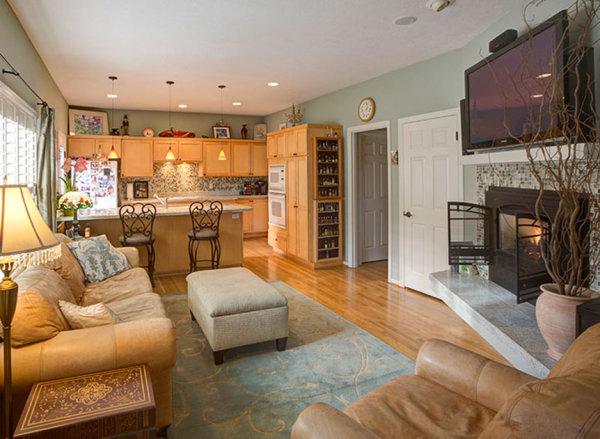
This is the first test shot I took of this room and the foreground chair blocked the flow through the room.

real-estate-photography-interior-after

By rotating the chair and lowering the camera height slightly, the eye can flow through the room easier. This image also has the vertical lines corrected.

Camera Height and Vertical Edges

There is broad agreement among clients and photographers, that if there is to be a rule it will state: verticals must be correct! In most interiors there are edges and corners of walls, door frames, and windows that have vertical sides and these edges need to truly be vertical. When you use a tilt-shift lens this problem is solved, but tilting the camera up or down with a non-TS wide angle lens makes vertical edges converge or diverge and they no longer appear straight.

One widely used approach is to level the camera using a hot shoe bubble level, making edges straight. While this is a simple solution, it is not always the best solution when using a non-TS lens. A level camera at chest height can result in foreground subjects, like furniture being cutoff at the bottom with too much ceiling at the top. Lowering the camera height will improve this problem but how low can you go and still have an effective photo?
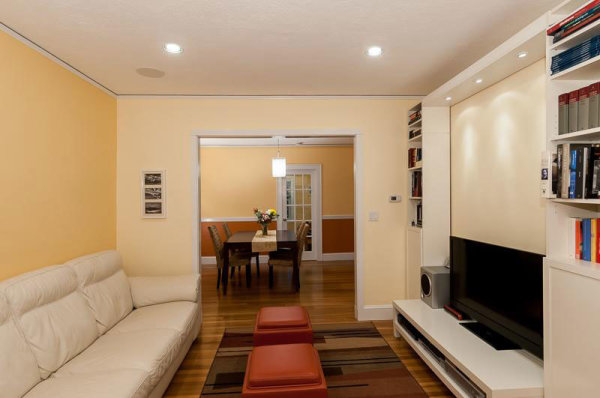
This image by one of my online course students; Simone Brogini, illustrates this point. His camera is chest high and his camera is leveled to avoid diverging lines. The problem as I mentioned to him was that the foreground furniture is cutoff and there is too much ceiling that lacks interest.

This image by one of my online course students; Simone Brogini, illustrates this point. His camera is chest high and is levelled to avoid diverging lines. The problem as I mentioned, is that the foreground furniture is cutoff and there is too much ceiling that lacks interest.
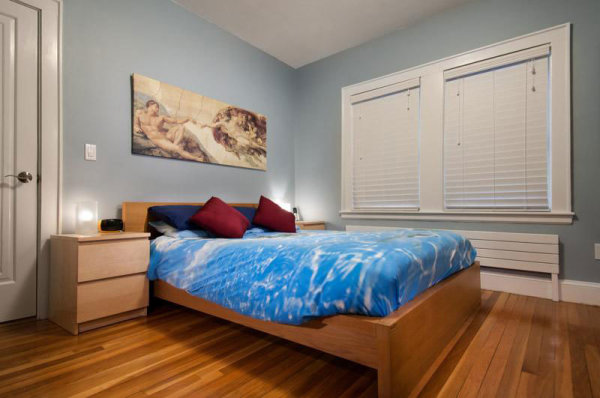
 Simone also shot this bedroom image the same way. It looks pretty good but I advised him again that in my that camera height might be just a little too low as the bed and furniture get only about 1/3 of the frame and the wall and windows uses 2/3 of the frame.

Simone also shot this bedroom image the same way. It looks pretty good but I advised him again that in my opinion the camera height might be just a little too low, as the bed and furniture get only about 1/3 of the frame and the wall and windows use 2/3 of the frame.

So what is the perfect camera height? There are many opinions. Some suggest chest height while others suggest door knob height or even lower, all to avoid diverging verticals lines. I prefer chest height or close and correcting vertical lines using other methods like a tilt-shift lens or the Lens Correction Tool in Photoshop (or Lightroom).
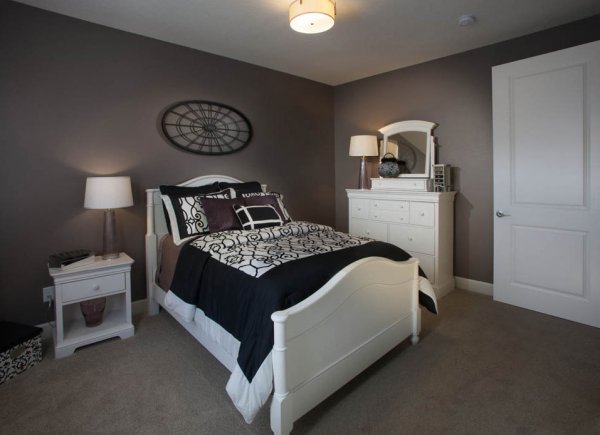
This image shows the use of the Lens Correction Tool. The bed and furniture consume 2/3 of the frame and provide a fuller view of the room.

This image shows the use of the Lens Correction Tool. The bed and furniture consume 2/3 of the frame and provide a fuller view of the room.

Getting Good Exposure

The perfect interior exposure is challenging when balancing bright window light, with darker interiors. You can deal with scene contrast many ways; one is to shoot when outdoor light levels are lower. Midday light will be much brighter outside than during or after sunset, or on a cloudy day. Turning on every light inside increases the interior brightness, and if the outdoor brightness is lower a RAW file can often capture the scene in one frame.
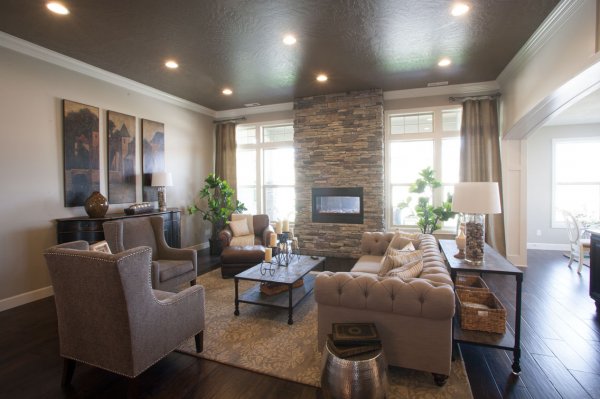
  This room has a dark ceiling, dark furniture, and window flare and hot spots. To much contrast for one capture.

This room has a dark ceiling, a dark floor, a window flare and hot spots with too much contrast for one capture. (see corrected version below)
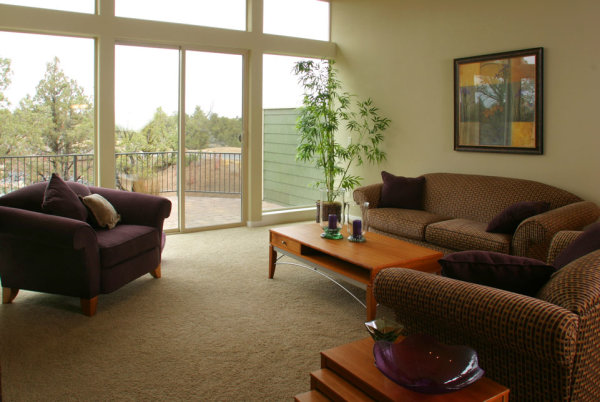
  On a overcast day, the interior exposure is quite good as well as the window exposure. A flash was bounced off the ceiling on the right.

On a overcast day, the interior exposure is quite good as well as the window exposure. A flash was bounced off the ceiling on the right.

To make sure I have all the exposures for a great image, I determine my ‘base exposure’, the image that has most of the data centred in the histogram. Then I bracket widely in +/- one stop increments of varied exposures so I have variety just in case I need them. Lightroom and Photoshop, and certainly other programs, allow selective lightening and darkening of shadows and highlights on a single image, but if the contrast is too much, I can blend those bracketed images into a great final image.
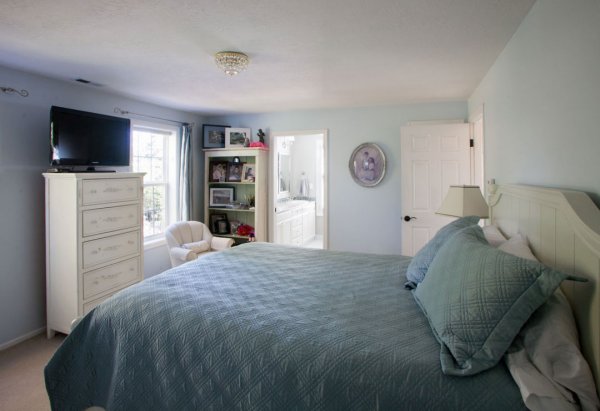
The Adjustment Brush was used to bring down the brightness of the left window. There is still a little flare around the window, but this worked for the real estate website.

The Adjustment Brush in Lightroom was used to bring down the brightness of the left window.

Interior Lighting

Just like a finely lit portrait, interiors can benefit greatly from nicely styled lighting. HDR can manage scene contrast but it does not create highlights and shadows in areas that have no directional light. If you have a dark cabinet against a dark wall, adding supplemental light can bring out that needed detail.

Most interiors have two light sources: window light and interior lights, both constant light sources. You can add constant lights or use strobe or flash. Constant lights, unlike flash, are like the lamp on the table or window light. Changing your exposure to darken window light also changes the exposure brightness of your constant lights. Flash is not a constant light! If you change your shutter speed to darken the window light exposure, flash exposure will not change and for this reason; flash or strobe provides flexibility when lighting interiors.

Photographers shooting for architects or magazines often have plenty of time to photograph a property with finely crafted lighting techniques, but a real estate photographer’s time is usually limited, making flash the perfect tool. Some photographers have mastered the balancing act of using direct on-camera flash to fill in a scene while others use on-camera flash in a bounce capacity.
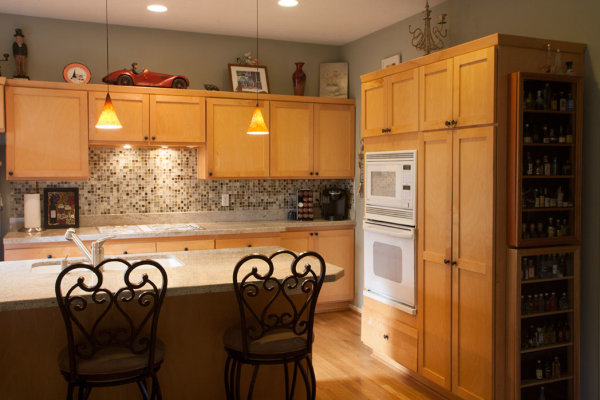
Here the only light is coming from a window on the left and the ceiling fixtures, leaving dark areas in front.
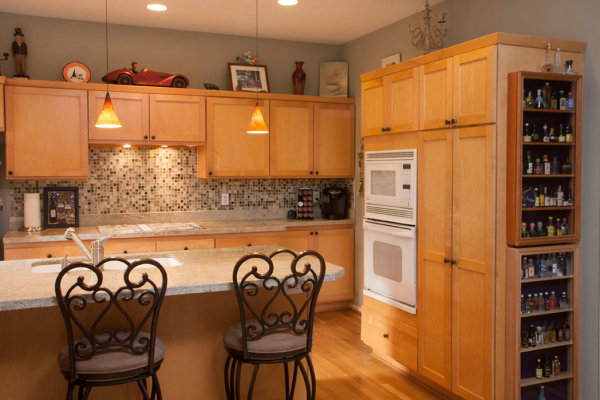
Here the only light is coming from a window on the left and the ceiling fixtures, leaving dark areas in front.

Adding bounce flash, hand held just to the right of the camera, filled in those darker areas effectively.

Adding bounce flash, handheld just to the right of the camera, filled in those darker areas effectively.

Also popular are multi-flash wireless set ups allowing the flash to be placed around a room for styled lighting. Also growing in popularity is the ‘light painting’ approach where areas are selectively lit and the exposures are blended.

This image utilizes the Light Painting approach to interior lighting.

This image utilizes the Light Painting approach to interior lighting.

One side effect with outdoor lighting mixing with interior lighting is ‘lighting color balance‘. This is different than camera White Balance settings. Camera White Balance is set to either specific areas of your scene or set to average all light sources together.

There is a blue color cast above and right side of the window as well as the floor on the left.

There is a blue color cast above and right side of the window as well as the floor on the left.

When you have mixed light, such as daylight colored window light mixing with tungsten colored ceiling lights, and then throw in a fluorescent kitchen light, you have a veritable palette of different colors mixing together. Walls closest to windows will be blue while the wall closest to a lamp will be amber and the ceiling in the kitchen will have a green tint.
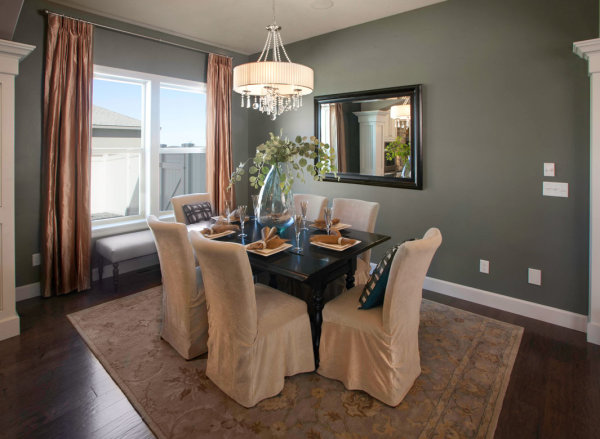
The final image shows color correction in those areas as well as verticals and window flare.

The final image shows color correction in those areas as well as corrected verticals and removal of window flare.

In some cases the effects of mixed light will be minimal and other times require attention. You can prevent mixed color in many cases by color matching the inside lights to the same color or use Photoshop color correction techniques to change color of specific areas.

The End Product

Once you have completed the assignment you will need to deliver the image files. Clients may have different preferences, but mine usually request low resolution for the web and high resolution for print publication.

Be sure to save your files in the proper file format and size for the intended use. Most Multiple Listing Service’s specify what is accepted format and acceptable sizes. I use Photoshop and the Save for Web option for the low resolution and TIFF format for high resolution.  Then final delivery of the files is made by Dropbox or a comparable online service.

Summary

Things to remember doing real estate photography:

  • You are not photographing for yourself; you are photographing for clients who will expect professional quality work.
  • Don’t get ALL the best gear, get only what is required to do the job well.
  • Master the creative side of photography such as angles, perspectives, and composition.
  • Master the technical side of exposure, HDR, supplemental lighting, color matching, and exposure blending.
  • Be careful when processing real estate images, like removing power lines, to avoid misrepresenting the property. 

There are many styles and techniques you can use to photograph architecture and real estate and you should master them all. Real estate photography is architecture photography and you can photograph a home for a real estate agent for $ 200 or photograph a model home for a home builder for $ 1000 or more.  Start small, plan big!

The post Real Estate Photography – a Guide to Getting Started by Charlie Borland appeared first on Digital Photography School.


Digital Photography School

 
Comments Off on Real Estate Photography – a Guide to Getting Started

Posted in Photography


Getting Sharper Images – an Understanding of Focus Modes

14 May

The longer you shoot, the larger the repertoire of subjects and assignments you photograph becomes. You start off photographing flowers in the garden, your neighbour’s dog, your sister’s kids, your friend’s wedding and then before you know it you’re doing product shots for your friend’s new company. All this happens over time and there is one pretty fundamental skill that must remain paramount throughout out your process, properly focused images. Sure we’ve all been there, we’ve all taken that shot once in while which is slightly soft (a polite photographer’s term to describe out-of-focus images). But, it’s a great shot so we keep it anyway, even tho we would still have preferred it to be tack sharp.

MG 3504flat

In focus images have been one of the most fundamental rules of photography right from the dawn of the craft. In the early 1900s it was a craft in its own right, but in the 1960s Leica introduced a rudimentary autofocus system that changed everything. Since then, autofocus has developed dramatically and it’s no longer a feature on cameras, it’s a given.

So, bringing autofocus up-to-date you have a few options to choose from in your modern DSLR. Those are some of the features I will cover in this article, along with when to use them. Both Canon and Nikon have very similar settings, albeit incorporating different technologies the results are very similar. There are also other brands like Sony and Olympus etc., that also follow suit, but here I will be discussing the four main focus modes in Canon and Nikon.

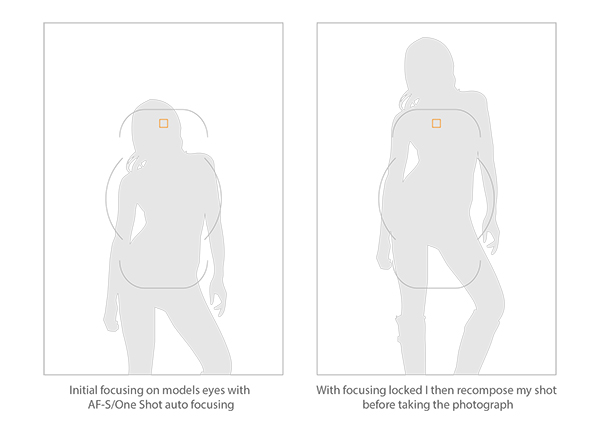
This image above was shot utilizing the AF-S (Nikon) or One Shot (Canon) autofocus mode on the camera. Here I focused on the models eyes and then recomposed my image so that she was over to the left of the frame, allowing for more space in the image in the direction she is looking.

Single Shot Mode

First off, you have the mode that’s probably been around the longest – Canon’s One Shot and Nikon’s AF-S. Both of these will do pretty much the same thing. This mode is predominantly used for stationary objects like model shoots (most of the time – more on when not to use it for model shoots later) and anything that doesn’t require your subject to move around too much in the frame. You half press the shutter in this mode, and then you can recompose the image. For example, you focus on the model’s eyes, then recompose to put her on the left hand side of the image. This autofocus mode will get you through most situations.

Active or Continuous Focus Modes

Next we have the step up from the single focus to Canon’s AI Servo, and Nikon’s AF-C modes. Essentially what this setting does is to continuously track your initial focus point and readjust the focus accordingly. This setting is ideal for moving subjects like active children, and pets that are constantly on the move.

Auto Modes

Finally out of the autofocus settings we have Canon’s AI Focus, and Nikon’s AF-A. Both of these settings actually leave it up to the camera to decide which is best out of the other two focusing modes to use. In this mode it will either choose to continuously track your chosen subject should it decide to move, or focus lock if you would like to recompose. In theory, then I needn’t of bothered explaining the other two settings as surely this is the best of both worlds? Not quite. I personally have tested this mode a fair amount with stop-start subjects and although the camera does a good job of keeping up with them it’s always more accurate to use continuous focus mode. The same also goes for its ability to determine when a subject has stopped and when to focus lock for recomposing. Personally I never use this mode as although it has the best of both, it also has the worst of both.

Infocus600px

Image above taken with an 85mm f/1.8 prime lens using manual focus. Shooting in manual focus negates the need to recompose and loose focus in autofocus modes.

So, although I have just covered the three basic settings here very briefly, there is, of course, a whole of host other technological advancements in autofocus that I haven’t covered. I know Nikon has extensive, matrix and 3D autofocusing features. As well most modern DSLR have incorporated the “back button autofocus” which also helps with focus locking. But going over all of that is not the purpose of this article.

Manual Focus Mode

The last focus mode I wanted to cover and one that is rarely used is the Manual focus mode. This mode strikes fear into the heart of nearly all modern photographers and that’s simply because they’ve probably never used it. Do you ever need to use it? That is something that only you can decide and is probably based on the type of photographs you take. If you only ever take portraits of energetic kids or fast paced sports, then autofocus is probably always your go-to mode. If however you shoot still life, architecture, landscapes and other detailed, relatively motionless subjects, then manual focus is probably a good way to go.

There are a few reasons for this. Landscape photographers will want to find the hyperfocal distance of their scene to maximize the amount of in-focus points (depth of field) in the image. This is based on an equation so autofocusing on a specific object is not always the way to go. Still life photographers will usually have their camera locked-down on a tripod so they will not want to focus and recompose once they’ve set up the shot, so it’s just far easier to focus manually. There is also another reason to want to use manual mode on some cameras and certain situations, and that was the catalyst for this article.

Outoffocus600px

This version of the image was shot using the autofocus mode AF-S/One Shot, and meant that after I had focused and recomposed the shot, the model’s eyes were left out of focus.

I recently purchased an 85mm f/1.8 prime lens, and I wanted to test the lens out and see what the sharpness was like at f/1.8. I predominately only photograph models so I set up my test and went about taking some shots at f/1.8 using my usual AF-S/One Shot autofocusing mode. When I got my shots back to the computer to take a look, I was surprised to see that most of them were very soft. It took a few minutes to realize my error and since then I’ve adjusted how I shoot with these parameters.

Recompose600px

Here you can see that the selected focal node is still situated in the middle of the viewfinder even though I have elected the outer most one when shooting in the portrait format.

I haven’t done a lot of very shallow depth of field shots up until this point so I hadn’t seen the now exaggerated results of my
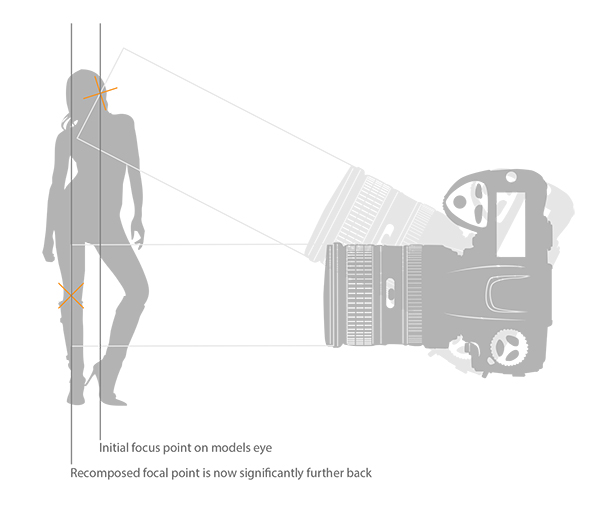
poor focusing technique previously. At f/1.8 you have a very, very shallow amount in focus (depth of field). For example, a head shot with the eyes in focus, the tip of the subject’s nose will be out of focus. For the test I was photographing the model at 3/4 length and shooting up at her so my camera height was probably about her waist height. I was about 6 feet (2 meters) away from her and I was focusing on her eyes with my focal point in camera then recomposing my shot to capture the 3/4 length crop. The problem with most cameras is that although they have a lot of focusing points, they’re all clustered in the centre of the viewfinder so even though I chose the outer most focal point I still have a dramatic amount of recomposing to do.

Focusstack600px

The diagram above clearly illustrates what’s actually going on when you recompose an image after focusing in AF-S/One Shot autofocus mode. The actual part of the image that was in focus, is now out of focus.

This isn’t normally a noticeable problem when recomposing at f/16, but at f/1.8 that dramatic shift in the focal plane means the resulting image is very soft around the model’s eyes. As I recomposed it actually repositioned my focal point further back behind the model, meaning the back of her head and hair were in focus but not her eyes.

There aren’t too many ways around this pesky little issue, especially as you may not notice it on the back of the camera’s little screen. One thing that did resolve it though was by switching to manual focus. I could then compose my shot and manually focus on the model’s eyes, resulting in a fantastically sharp image where I wanted it to be sharp.

Granted there were a few things conspiring together here to really exaggerate the issue. Firstly, I was shooting at f/1.8, that’s always going to rely on critical sharpness. Secondly, I was down low shooting up. This always exaggerates the focal plane shift when recomposing and lastly I was stuck with limited focal nodes. There are many technical reasons why modern DSLRs don’t allow focal nodes towards the edges. A lot of smaller frame cameras like the mirrorless, APS-C and micro 4/3 cameras all have selectable focal nodes covering the viewfinder, but alas, DSLR technology isn’t there yet. Until it is, it’s a good idea to be aware of what’s going on in autofocus modes on your camera, and be prepared and ready to switch to manual focus when required.

Good Luck!

The post Getting Sharper Images – an Understanding of Focus Modes by Jake Hicks appeared first on Digital Photography School.


Digital Photography School

 
Comments Off on Getting Sharper Images – an Understanding of Focus Modes

Posted in Photography


Getting Real with HDR – a Step by Step Tutorial for Realistic Looking HDR

11 May
Try to make your HDR images look as realistic as possible

Try to make your HDR images look as realistic as possible

If you have been photographing for more than a year or two, you will have heard about HDR (which stands for High Dynamic Range). We have probably seen them, the “overcooked”, over processed HDR images that float around the photo websites. For some photographers, the process seems to force them to overdo their images and after a while that seems to be the only result they are trying to achieve. Do a Google search on “bad HDR” and you will see what I mean. The images have halos,  the colours are surreal and look metallic, the contrast is off and in short, the image is really messy.

When I first shot HDR, I fell into this trap too. These results caused many photographers to say that HDR is not a useful technique and is really gimmicky. That perception is partly true. HDR in the hands of someone who cannot use it effectively can result in some weird looking images, however, HDR done properly can produce some incredible results. To see some good examples of HDR done properly, visit the website HDR Spotting and take a look at the editors picks. There are some astounding images there. The colours are amazing, the contrast is perfect and the detail in the shadows and highlights, sublime. That is what HDR should be. It should be the best combination of the highlights and the shadows properly exposed, the image should look as real as it can. So, how do you get this right you might be asking, read on to find out.

What is HDR?

As I said earlier, HDR stands for High Dynamic Range. Your cameras sensor has the ability to capture light and colour. The extent to which your camera can do this is called the dynamic range. More specifically, if your camera can render lots of details in the shadows and the highlights in the same shot, then it has a high dynamic range. Over the past few years, digital sensors have become so much better at capturing more detail. This is a huge benefit for photographers and of course for HDR photography. This means that we can get more details out of every image and as a result, the HDR images will be that much more detailed.

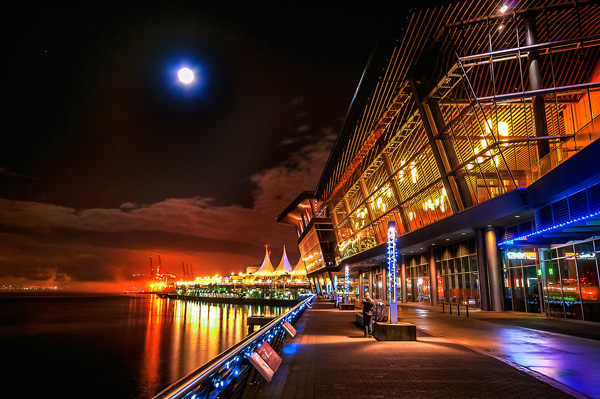
Lions Gate Bridge Vancouver - HDR image

Lions Gate Bridge Vancouver – HDR image

How do I shoot HDR?

Making an HDR image involves 3 distinct and separate processes. I will go into detail on each one, but at a high level, they are as follows:

  1. Image Capture
  2. HDR Processing
  3. Image editing in Photoshop

Lets start with image capture first. This is the photography part of this process. It’s pretty simple really. Set up for your shot as you normally would. Make sure you have your subject well composed and you are ready to go. The difference between HDR and normal photography, is that with HDR you will take either three to five bracketed images of the same scene. The reason for the number of images is that you will blend these images together in a dedicated HDR product.

My recommendation for HDR software is Photomatix Pro. It is a programme that has been around for many years now and has some really good editing functions. It’s probably the most widely used software when it comes to HDR. Photoshop also has an HDR function, but in my opinion, its not as refined as the Photomatix Pro yet. Don’t get me wrong, I am a huge Photoshop fan, it is an incredible tool, I am sure that Photoshop will have something within their functions that will be competitive in time, but for now, I still use Photomatix.

Step #1 –  Image capture

These are the steps I follow when I intend to do an HDR shot. They are not rules, nor are they inflexible, they just work for me. You need to find what works for you and gives you the best results, this method has helped me get my best results, so try it out. Tweak it and change it as you need.

  1. Use a tripod – it is a good idea to put your camera on a tripod for HDR, especially if you are shooting in low light. I have done some handheld HDR but only in bright conditions. The tripod will also help you get your composition right.
  2. Put your camera into Manual mode “M”
  3. ISO Settings – it is a good idea to keep your ISO settings at 100 or as low as your camera will go. That way you will avoid introducing unnecessary noise into your images. The process of HDR allows you to capture the dynamic range of light and colour in the scene. Using high ISO settings is great when you are trying to shoot a low light scene and capture it in one shot, but for HDR you will want to keep it as low as possible.
  4. Set your aperture to anywhere between F/8 and F/ 11 and don’t adjust your aperture between shots.
  5. Adjust your shutter speed so that you are exposing the scene perfectly according to your cameras light meter.
  6. Capture one image at this reading
  7. Underexpose by one or two stops (depending on the scene) and capture another image by adjusting your shutter speed.
  8. Do this twice on either side of the perfectly exposed image.

This will result in five images being captured.

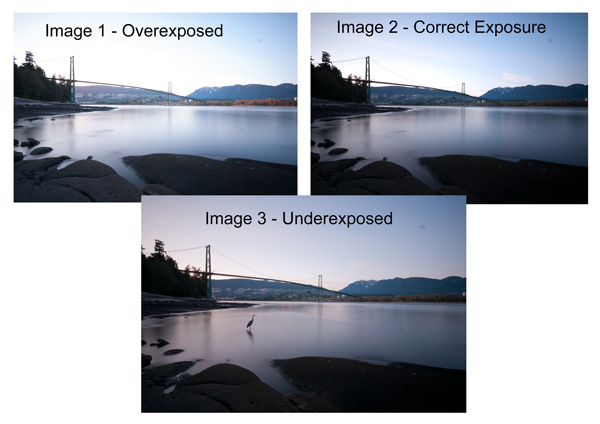
Below are the three images I used in making the HDR image you see above. Take a look at how the colours and exposure don’t look good at all.

3 Different exposures for the HDR image above

3 Different exposures for the HDR image above

Some photographers use five shots for their HDR shots, some use seven or up to nine. I have found that three to five shots seem to work best for most scenes. I have only used nice shots on a few occasions, but have not been happy with the results. The colours seem to be “muddy” and unclear once processed. If necessary, shoot seven images and see how that works.

Once you have completed the shoot, download the images to your computer. It is important NOT to edit the images before blending them into an HDR image. Some of the shots might look over exposed or under exposed, thats OK, in fact they must look like that. The software will deal with these issues, so don’t be concerned that the images look bad out of camera, they need to be processed and then the magic begins.

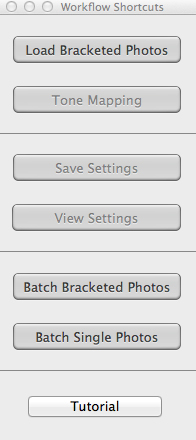
Click on - Load Bracketed Photos

Click “Load Bracketed Photos”

Step #2 – HDR processing

I will be explaining the Photomatix software in this article. I have tried HDR with each new version of Photoshop and I am still happier with the results I get from Photomatix Pro. You can download a trial version of Photomatix from their website. It is fully functional, the only thing is that the trial version puts a watermark on the image. This is OK for trying it out, you will see exactly what the software can do, if you think it is worth it, then you can buy it. Ok, so here is how you take your images into Photomatix Pro

  1. Open Photomatix Pro (or if you’ve set it up as a Lightroom plugin, select your bracketed images, right click and choose “edit in” and Phototix Pro)
  2. Click  ”Load Bracketed Photos” and then click on “Browse” and select the images you have taken (you can also drag and drop them into the box)
  3. Click OK once the images appear in the box
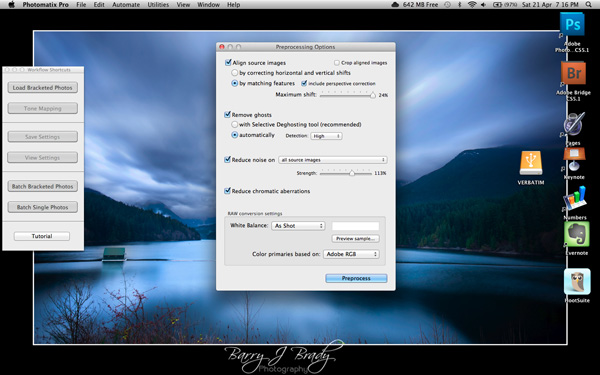
Select the options displayed on the screen above

Select the options displayed on the screen above

Preprocessing options are available.  Make selections on the box as shown in the screenshot above. Then click preprocess and Photomatix Pro will begin to tone map the images into a composite 32-bit image. This process is generally quite quick, between 30 seconds and a minute.  Once complete, click on the Tone Mapping button.

Use the “Remove ghosts” function if you have people or moving objects in your images. If you don’t have this, then you wont need to use this function.

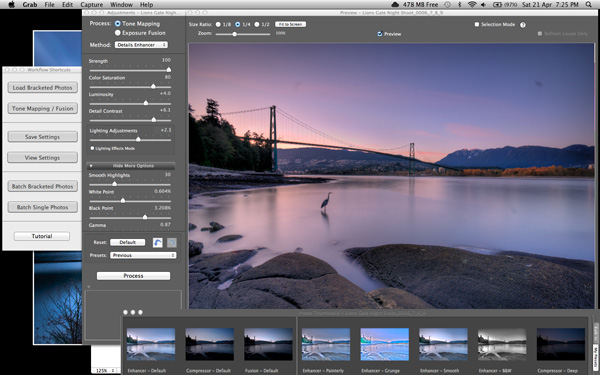
The HDR editing screen

On this screen, you are able to select a variety adjustments that will create an overall change to the image. There are no absolutes here. Each adjustment makes minor or major differences to the image and the combination of the adjustments provides diverse options.

HDR-Screen-600

At the bottom of the screen you will see different “treatments” (or presets) which you can use as a starting point to your image editing process. I would avoid using these as they are generally overdone. Try and use the functions on the left hand side to edit your image.

Below are the details about each function on the left hand side of the screen and what each does. One of the best ways to see what a function does is to slide it all the way over to the left and then to the right and see how it affects your image, but here are the details:

General Settings

  • Strength – affects the degree to which contrast and detail are enhanced in the image. A value of 100 gives the maximum amount of enhancement. To get a more natural effect, move the slider to the left. The default value is 70.
  • Color Saturation – controls the saturation of the RGB color channels. The greater the saturation, the more intense the color. Move the slider right or left to change the setting. A value of zero produces a grayscale image. The value affects each color channel equally. The default value is 46.
  • Luminosity – controls the compression of the tonal range, which has the effect of adjusting the global luminosity level. Move the slider to the right to boost shadow details and brighten the image. Move it to the left to give a more “natural” look to the resulting image. The default value is zero.
  • Detail Contrast – controls the amount of contrast applied to detail in the image. Move the slider to the right to increase the contrast of the details and give a sharper look to the image. Note that increasing the contrast also has a darkening effect. Move the slider to the left to decrease the contrast of details and brighten the image.
  • Lighting Adjustments – affects the overall ‘look’, controlling the extent to which the image looks natural or surreal. When the Lighting Effects Mode box is unchecked, move the slider to the right to make the image look more natural and to the left to make it look more ‘painterly’ or ‘surreal’. Use this carefully as it can have an unpredictable effect on your image.
  • Lighting Effects Mode – the checkbox lets you switch between two modes for the Lighting Adjustments setting,where each mode produces slightly different results. Checking the box tends to produce results with a type of ‘Magic Light’ effect.

More Options

  • Smooth Highlights – reduces the contrast enhancements in the highlights. The value of the slider sets how much of the highlights range is affected. This control is useful for preventing white highlights from turning grey or uniform light blue skies becoming dark blue-grey. It is also useful for reducing halos around objects placed against bright backgrounds. The default value is zero.
  • White Point and Black Point – these sliders control how the minimum and maximum values of the tone mapped image are set. Moving the sliders to the right increases global contrast. Moving them to the left reduces clipping at the extremes. The White Point slider sets the value for the maximum of the tone mapped. The Black Point slider sets the value for the minimum of the tone mapped image.
  • Gamma – adjusts the mid-tone of the tone mapped image, brightening or darkening the image globally. The default value is 1.0.
  • Temperature – adjusts the color temperature of the tone mapped image relative to the temperature of the HDR source image. Move the slider to the right to give a warmer, more yellow-orange colored look. Move the slider to the left for a colder, more bluish look. A value of zero (default) preserves the original color temperature of the HDR source image.

Advanced Options

  • Micro-smoothing – smoothes local detail enhancements. This has the effect of reducing noise in the sky, for instance, and tends to give a “cleaner” look to the resulting image. The default value is 2. Important note: The Loupe may not properly show the effect of the Micro-smoothing setting when the area magnified is uniform. If you want to see the effect of the Micro-smoothing setting at 100% resolution on a uniform area such as the sky, you will have to select an area that contains an object in the scene in addition to the sky.
  • Saturation Highlights – adjusts the color saturation of the highlights relative to the color saturation set with the Color Saturation slider. Values higher than zero increase the color saturation in the highlights. Values lower than zero decrease it. The default value is zero.
  • Saturation Shadows – adjusts the color saturation of the shadows relative to the color saturation set with the Color Saturation slider. Values higher than zero increase the color saturation in the shadows. Values lower than zero decrease it. The default value is zero.
  • Shadows Smoothness – reduces the contrast enhancements in the shadows. The value of the slider sets how much of the shadows range is affected. The default value is zero.
  • Shadows Clipping – the value of the slider sets how much of the shadows range is clipped. This control may be useful to cut out noise in the dark area of a photo taken in a low-light situation. The default value is zero.

Once this part of the process is finished, then it is time to take the image into Photoshop. Save the tone mapped image and then re-open it in Photoshop.

Step #3 Image Editing in Photoshop

This is a very basic workflow. It will enhance the lighting and tonality in your images. These techniques are discussed here at high level.

Shadows and Highlights

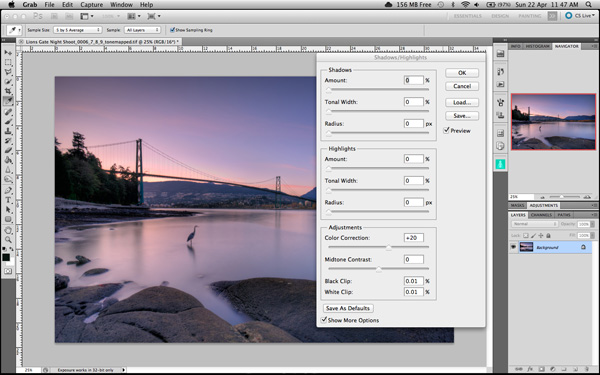
Photoshop has a function called Shadows and Highlights. Use this tool to bring out detail in the shadows of your image. Use it carefully, if you overdo the treatment on the shadows, there may be some unsightly image degradation or “noise”. This function is not great for adjusting highlights, so use it for the shadows only. This tool is found in Photoshop as follows: IMAGE > ADJUSTMENTS > SHADOWS AND HIGHLIGHTS. The adjustments of AMOUNT, TONAL WIDTH and RADIUS should all be kept aligned close to one another to ensure that the adjustment looks realistic.

Shadow and Highlights function in Photoshop

Shadow and Highlights function in Photoshop

Levels Function

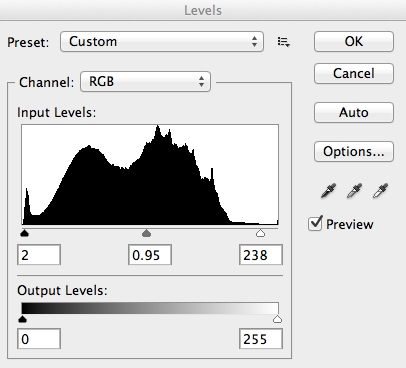
The levels function in Photoshop is for adjusting the lighting in an image. This means that if your image is a little dark you can push up the exposure slightly and see more details in the image. The levels function shows a representation of a histogram. Move the sliders in to touch the edge of the histogram as a general rule. This will ensure that your image has a good representation of highlights and shadows.

The Levels functioning Photoshop

The Levels functioning Photoshop

Hue and Saturation

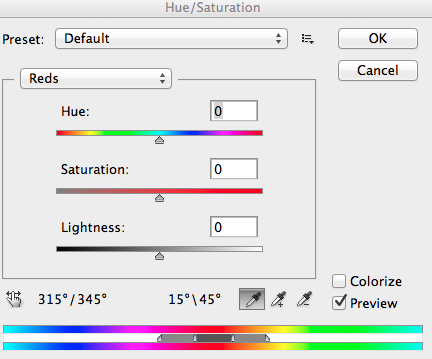
Once the exposure and lighting has been adjusted and looks correct, then you may begin adjusting the colour in the image. The tool to use will be the Hue and Saturation tool. The important tip here is not to adjust the master channel but rather to adjust by each channel independently. To do this, click on the top toggle button that says “default”. A drop down menu will appear and each colour channel will be available from there. Slide the Saturation Slider to the left to desaturate (remove colour) or to the right to saturate. That way you have the best control of the colour in your image.

Hue and Saturation Function in Photoshop

Hue and Saturation Function in Photoshop

Dodging and Burning

These functions are localized adjustments. By using a brush tool, you are able to make certain areas of the image darker and other areas of the image lighter. This is useful for adding the finishing touches to your image. There is also the sponge function which is a saturation tool which can saturate colours at a local level.

Sharpening

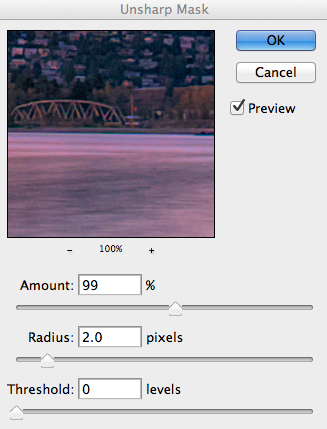
Almost every image that comes out of a digital camera requires sharpening of some sort. The easiest and quickest tool to use is the Unsharp Mask tool and it works effectively.

Unsharp Mask Tool in Photoshop

Unsharp Mask Tool in Photoshop

The Unsharp Mask has three separate sliders: Amount, Radius and Threshold. As a general rule you can keep the Amount anywhere between 80 and 120%, Radius can be set between 1.0 and 3.0 pixels and Threshold is generally at zero. Adjust the sharpness of the image according to each image requirement and beware of degrading the image by over sharpening. You will easily notice if an image is over sharpened by the appearance of a “halo” around certain edges in the image. The idea is to sharpen the image but not make it overly sharp and lose image quality.

Once you are done, save your image and thats it! Have a go, try different settings in different light, let me know what you think and how your images turn out. If you have any questions, drop them into the comments box below.

Please leave your comments and questions below. If you want more HDR tips, try some of these articles:

  • HDR Vertorama Photography – How to Create Mind-bending Images
  • Five Minutes to Realistic HDR using Lightroom and a 32-Bit Plugin
  • The 10 Steps Every HDR Photographer Goes Through
  • Exposure Blending Using Luminosity Masks Tutorial

The post Getting Real with HDR – a Step by Step Tutorial for Realistic Looking HDR by Barry J Brady appeared first on Digital Photography School.


Digital Photography School

 
Comments Off on Getting Real with HDR – a Step by Step Tutorial for Realistic Looking HDR

Posted in Photography


Time-Lapse Photography Equipment Guide to Getting Started

04 May

Currently for a limited time only get the Stage R Versatile Motion Control for Timelapse and Film and get FREE eBook – on now at SnapnDeals!

“Never forget that all the great photographs in history were made with more primitive camera equipment than you currently own.” – Brooks Jensen

No doubt that first time you said “Hey, wouldn’t it be fun to dabble in DSLR photography? You know, just as a hobby.” Your financial counsellors, or your spouse for that matter, broke out in budget busting hives.

There probably isn’t a more gear focused group of enthusiasts out there, but don’t worry, taking that step into time-lapse photography doesn’t require much gear to begin – and the extra gear that can really take your time-lapse to the next level is more affordable and easier to use than ever before.

Whether you are a brand new time-lapse photographer or an experienced shooter looking to unleash full creativity with time-lapse motion control, this article will provide a launch pad for your next steps into one of the most emotionally connecting, and at the same time freeing, creative photographic endeavours.

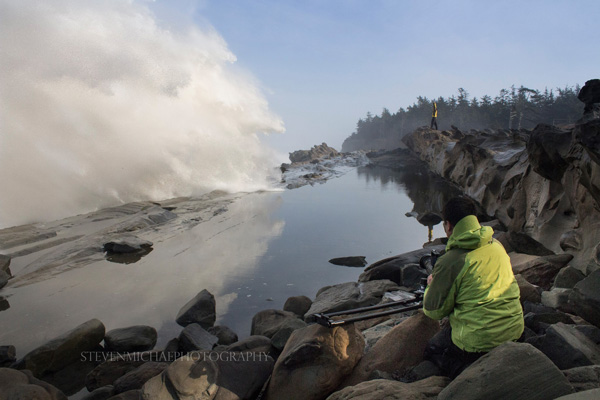
Steven Michael Photography 600

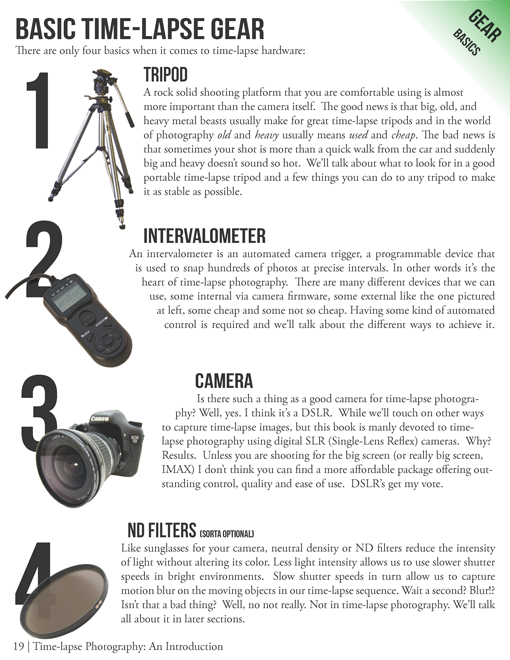
Your minimum gear checklist for time-lapse photography

Chances are good if you’re already a DSLR shooter you almost have everything you need to get started. These four things are essential.

  1. A tripod
  2. An intervalometer
  3. A Camera
  4. An ND filter

timelapse-gear.png

A closer look at a good time-lapse support system

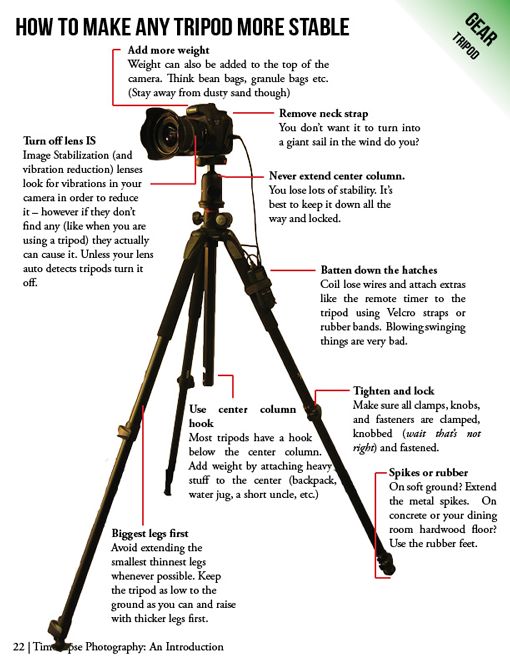
Rock solid stability (or precise controlled movement) is just about the most important and most essential component for good time-lapse photography. Keep in mind a good tripod that meets your needs will outlast several cameras so consider budgeting a little more time and possibly cash to this category.

  • Consider the materials used – weight and strength
  • Check the load weight – avoid sagging and flexing
  • Height – eye level without using the centre column
  • The right tripod head for your work – ball heads versus pan and tilt

timelapse-tripods.png

Unleashing your creativity with advanced time-lapse equipment

Time-lapse photography is benefiting from a dramatic flow of new ideas. The level of innovation, especially over the last few years, is incredible. Not only are we quickly fixing problems that have plagued photographers for years, but advanced camera controls and processing tools that used to be cost prohibitive, are now becoming affordable for the most basic hobbyist.

Advanced camera exposure control

The Timelapse+ can operate as a universal intervalometer for nearly any camera that supports a remote shutter release, and IR remote, or USB tethering. Bulb-ramping is its claim to fame. The Timelapse+ can perform keyframe-based, guided, or fully automatic bulb ramping – and for cameras supported by USB control, the Timelapse+ can also seamlessly integrate ISO control to smoothly ramp across a wide exposure range, making the “holy-grail” transition from day-to-night or night-to-day easier to achieve. Extended and long-exposure HDR sequences are also made easy with the Timelapse+.

Simple and powerful advanced time-lapse sequence rendering with LRTimelapse:

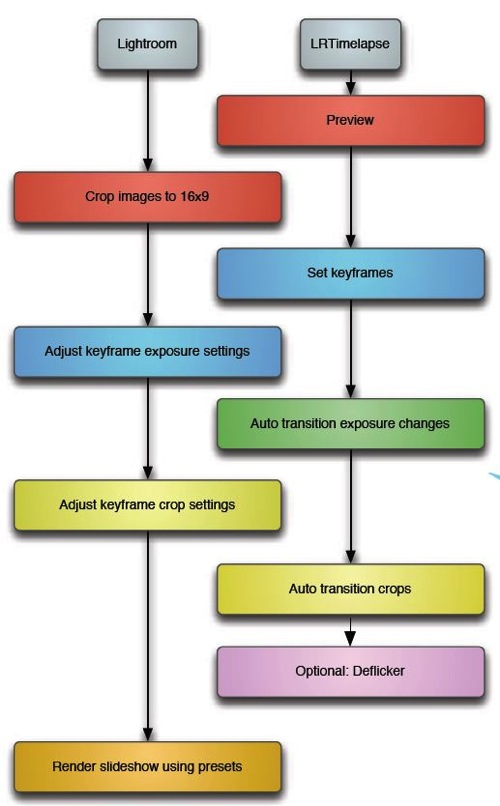
In a nutshell LRTimelapse takes changes and corrections you make in Lightroom and then smoothly applies them throughout the entire time-lapse sequence. By altering either the first and last image, or several images throughout the sequence, LRTimelapse can quickly fade the changes we need to only the parts we want. Deflickering can also easily be accomplished in the exact same way by flattening out big exposure jumps.

Here’s a simple workflow for editing timelapse images and rendering a movie using Adobe Lightroom and LRTimelapse.

Lrtimelapseworkflow

Advanced motion control

The last few years have shown incredible advances in the field of manual and controlled camera movement, so much so that the
average photographer can now afford motion control devices that were once only available to big budget productions. We’re talking precise, rugged and lightweight panning (left and right), tilting (up and down), and dolly movements with simple controls, such as a smartphone app, that make setup easy and intuitive. Control over motion and time combined with an interesting subject can produce what I believe to be an awesome trifecta of emotion eliciting imagery – some of the most engaging and lasting photography you’ve seen.

Yosemite HD II, an incredible example of time-lapse and motion:

Dolly motion shots can add multiple points of interest by highlighting components of a scene’s unchanging foreground and the larger time-altered background. The movement shots in the wave video move the camera along the jagged rocks, while the waves are slowed in the background. Some of the most popular time-lapse clips feature this kind of extreme moving contrast in many shots too. By moving the camera slowly from left to right on a horizontal track, or flipping the track system almost vertically to instead change the elevation of the camera, we can highlight stationary foreground objects in incredible ways.

The next two axes of movement can be accomplished by camera rotation – aptly named a motorized panning and tilting head. Then combining panning and tilting on a camera slider to achieve 2, or 3 axis of movement simultaneously can dramatically elevate the interest level in a shot.

zion 3axis motion control

2 axis motion control

Do you think advanced time-lapse work should be left to the pros?

Eric Warren of Matadornetwork.com posed a related question:

“Pros are the guys you call when you want to put a time-lapse in your car commercial. And while we tend to put pros up on a pedestal, they are often bogged down by their clients’ needs. Most commercial advertising doesn’t push the envelope of an art form.

That job often falls to the independent artists, building their own equipment, and often not [caring] about whether their work is going to sell. Not that I want to be too demanding here, but I want to see something mind-blowing. Either something I’ve never seen before or something familiar, shown in a new way (one thing time-lapse excels at.) ….

Consider this a call to all you independent filmmakers out there ready to push the limits of one of the most striking visual art forms.”

Time-lapse has a way of slowing the world for the photographer while at the same time accelerating it for everyone else. Shooting time-lapse alters the way you think, it challenges your view of the world and teaches you things about our world you can bring back and share with everybody else.

Get out and start shooting. Render some footage and break some rules. Most importantly know that you are not alone. The time-lapse community is more connected today than ever before. You have friends all over the world ready to help you get the shots you imagine.

Currently for a limited time only get the Stage R Versatile Motion Control for Timelapse and Film and get FREE eBook – on now at SnapnDeals!

The post Time-Lapse Photography Equipment Guide to Getting Started by Ryan Chylinski appeared first on Digital Photography School.


Digital Photography School

 
Comments Off on Time-Lapse Photography Equipment Guide to Getting Started

Posted in Photography


Getting Started in Newborn Photography

19 Feb

Newborn photography has been around in the United States for fifteen or so years, but it’s only taken hold here in the UK in the last three to four. And take hold it certainly has!

All professional photography involves a multitude of skills and newborn photography is no different, with one very important exception. It is the only area of photography that involves the photographer being completely responsible for the safety and welfare of the subject – the baby. As a newborn photographer you will hold, comfort, soothe, pose, wrap, and often even feed and clean up after your subject, even with the parents present.

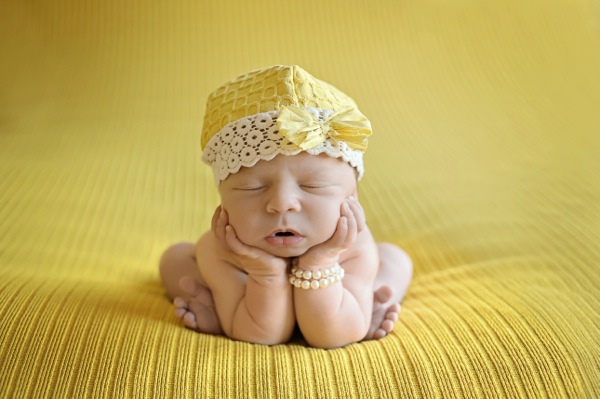
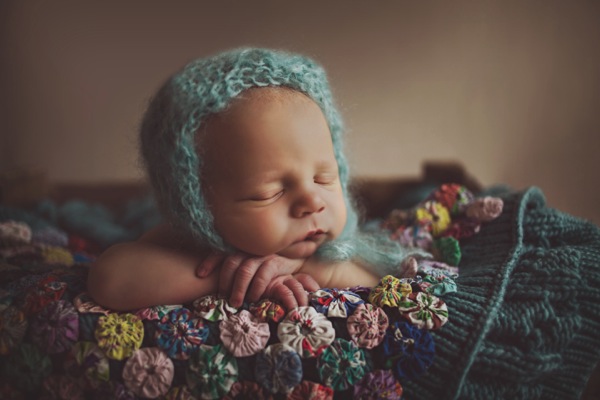
Newborn photography tips 06

It is because of this difference that it is so specialized, and requires the right set of skills. Not having those skills is about more than the risk of poor images – someone’s safety is at stake.

So having decided it’s for you, you’ll have a huge number of questions. Here I aim to answer some of the biggest, and most important ones.

Newborn photography tips 02

DO I REALLY NEED TRAINING?

The short answer is yes. It doesn’t matter how skilled you are at photography, because the skills required to be safe and of a good standard as a newborn photographer are really very different than anything you have done before. If you decide to become a wedding photographer with no training, the worst that may happen is you let down a couple on their big day. As bad as that could be, no one will get hurt.

Newborns are delicate and must be handled correctly. They can suffer circulation problems, are poor at regulating their temperature, and cannot tell you when they are feeling uncomfortable, which means they are relying on you to take care of them at all times. The correct training will teach you safe handling techniques, how to spot signs of baby not being happy for many reasons, as well as general safety and other important areas.

Newborn photography tips 03

WHY DOES A SESSION TAKE SO LONG?

The average session is 3-4 hours, and you will soon realize why when you have done a couple of your own. The session is taken up by everything BUT taking photos. When I do a session my camera is in my hand for less than ten minutes the entire time. The session will involve settling, cuddling, reading baby, soothing for sleep, and gentle posing. They baby runs the show, of that there is little question, and as each baby is different, so is each session. Try to rush it and clock watch, and you’ll put yourself under huge pressure, and babies pick up on stress, which could cause you to have an unsettled baby on your hands. As a general rule, most newborn specialists will do just one session a day.

Newborn photography tips 04

WHAT IS THE BEST AGE FOR A NEWBORN SESSION?

If you have children, you may well remember that newborns sleep a lot, at least through the day, and seem able to sleep through pretty much anything too. But that changes really quickly, and by week three babies are waking more easily, and spending more time awake each day. You cannot pose a baby that is awake, so a sleeping newborn is what you need, meaning you need to aim for under two weeks, and under ten days is even better.

Sleep isn’t the only issue that dictates though. Newborns are gorgeously squishy, floppy and bendy under ten days old, which, coupled with being sound asleep, makes them perfect for gently posing into those adorable positions parents love. Much after two weeks and they begin to gain muscle tone, which means they lose the flexibility that makes such posing possible.

So that covers not doing a session too late, but you need to know why doing it too early isn’t good either. Newborns don’t usually look their best after birth, and it can take time for their faces to settle. Also, feeding needs to be established because until a baby is feeding well, he won’t sleep well. My advice would be don’t do a session under 5 days of age.

Newborn photography tips 01

HOW DO I MARKET NEWBORN PHOTOGRAPHY?

You are selling emotions. That is really the bottom line with newborns. The parents are melting with wonder and love at their new baby, and emotions are running their lives completely. If you can build a relationship with your clients that taps into their emotions, and leaves them feeling that you can truly relate to them and their baby, they will be more inclined to not only book you, but trust you.

Talk in a way that shows their baby means almost as much to you as he does them. Ask them lots of questions about their baby, and life since his arrival. New parents can talk all day about their baby, so showing he interests you will really endear you to them. Use emotive language on your site and Facebook page. Rather than saying “I like doing baby shoots” say “I simply adore capturing images of beautiful, squishy babies!”

Look after the parents when they are with you. Provide drinks and snacks, and comfortable seating. Mum will be sore and they are both likely to be exhausted.

Word of mouth is one of the best marketing tools in this genre. Mums talk, and will recommend you if they came away feeling that their baby was safe, respected and adored. The testimonials that will get you more bookings will not be the ones where mum says the pictures are good, but rather the ones where she gushes about how lovely the experience was while with you.

Newborn photography tips 05

WHAT WILL I NEED AS A BEGINNER?

Keep it simple. Training will show you the basic equipment you’ll need, like beanbag and backdrop stand, as well as a small selection of throws, hats, headbands, and wraps. The most important area for your development as a newborn photographer will be developing safe handling of the baby in your early months. The confidence in posing takes time, and that is where your focus should be, not on having all the props and the biggest selection of hats. What will set you apart as a top newborn photographer will never be the amazing set up you design – it will be how good your posing is, and how comfortable your baby looks in the images.

So in summary, I would suggest you take your time setting up as a newborn photographer. Research good training, and consider that in this area especially, you get what you pay for.

Newborn photography tips 07

For more on newborn photography and business see these articles:

  • The Ultimate Guide to Going Pro as a Photographer
  • How to Photograph Newborns
  • Newborn Photography Tips for Beginners
  • Different ways to Photograph your Baby
  • The Sensitive Side of Newborn Photography

The post Getting Started in Newborn Photography by Maddy Rogers appeared first on Digital Photography School.


Digital Photography School

 
Comments Off on Getting Started in Newborn Photography

Posted in Photography


Getting to grips with the GH4: a quick summary

07 Feb

GH4.png

We were visited recently by Panasonic product experts and got some time to handle Panasonic’s latest still/video hybrid camera – the Lumix DMC-GH4. We’ve dug through its feature set to get a feel for what it offers and have summarized what’s new and improved. And, although it’s the 4K-capability that will grab all the initial attention, there’s also plenty for 1080p shooters and even still photographers to take notice of. Click through to read more…

News: Digital Photography Review (dpreview.com)

 
Comments Off on Getting to grips with the GH4: a quick summary

Posted in Uncategorized


Personalities and Portraits – and Getting Them to Mix

04 Feb

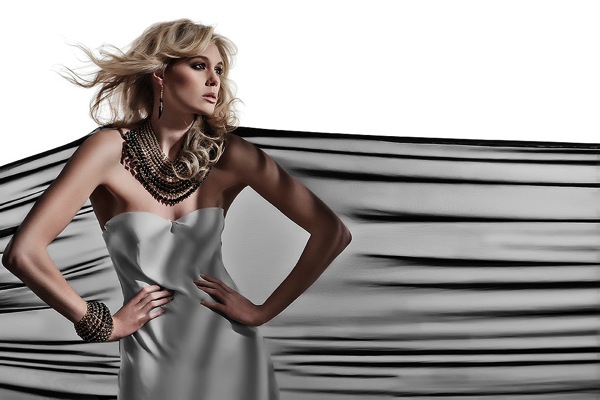
Portraiture can be a lot of fun; capturing entertaining characters and drawing out quieter personalities, but sometimes it can be a challenge as those ‘entertaining’ characters can soon become too much to handle and getting the shyer folk to even look in your direction can be like getting blood out of a stone. So here are a handful of tricks, tips and techniques to use when dealing with four of the most problematic personality types.

Personalities and portraits . . .

©Natalie Denton 2013

©Natalie Denton 2013

The loud ones – identified by volume and wise cracks

You know the type; the person who is constantly wise-cracking and trying to make everyone around them laugh, usually at the expense of you, the photographer. You’ll tend to find this person when you take group shots, and there’s always one at a wedding.

Often these people are only acting that way because they are deflecting their own insecurities and are actually really uncomfortable with having their photograph taken so they go overboard and say very witty things like “I’m ready for my close up now” or “If you sell these images to Vogue I want a cut.”

In these situations, it’s better to go along with it rather than get prickly or confrontational. Smile, and have a joke. A splash of playful banter will probably put them at ease, and you’ll soon notice real smiles on the faces of the people around them, which helps to make the resulting shots look much more genuine and natural. If you’re photographing this person as part of a group, it might help you to break off into smaller groups first and photograph this person with their close friends or family first, helping them to relax. Better still, try and get a portrait of them on their own, away from others which will soon bring them down to earth and ease down their barriers, especially if there’s no one for them to entertain. That way when it’s time for the group shot, they’ll be more relaxed and have more respect for you and your work. You can even use them to your advantage in getting them to round people up and getting others into line.

The shy ones – identified by nervous laughter and lack of eye contact

Having photographed numerous shy brides over the years I’ve realized there are a number of ways you can put those who aren’t comfortable in front of the camera, at ease. The first thing to do is to test the water. Take a few shots and see how they respond. Some slowly relax into it, and these first few timid frames can often make for stunning imagery (especially in black and white) – and if this is who they are as a person they may embrace the resulting pictures. The problem is, while a few frames of the model looking away from the camera can be charming, after a while the lack of diversity and eye contact can become awkward and restrictive.

©Natalie Denton 2013

©Natalie Denton 2013

Put the camera down and take time to talk to them about something else, like the scene around you or the clothes they are wearing. Making them laugh can always help to break the ice and commenting on how great they look as you reap the images can help to settle their nerves. I usually then take a little time to show them a few of the images collected so far, on the back of the camera, and explain how they look stunning in them.

Ultimately the trick with the shy ones is ‘slowly, slowly, catch the monkey’. There’s no point rushing them or being over the top with them. Keep your manner calm yet confident and reassure them that they are doing well. Start with them in a group and then move them away on their own, after a while they’ll start to relax and the images will shine as a result. Then move them back into a group and you can bet your bottom dollar the second round of group shots will be ten times more sincere, relaxed and memorable than the first.

The wannabe model types – identified by pouting and uncontainable enthusiasm

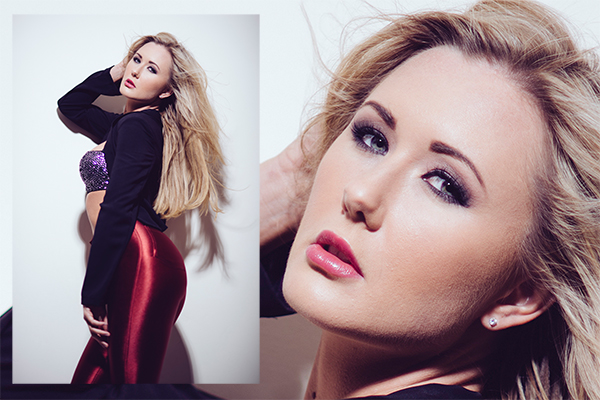
Usually this type of subject has watched too much model-focused reality TV and thinks they are the next undiscovered talent. Normally these (tends to be younger females in my experiences, but not exclusively) people are pleasant just extremely excited and want to try a whole portfolio of expressions and outfits, in a catalogue of scenes and scenarios. If you’ve got the time and they’ve got the energy then great – this is surely a recipe for success.

©Natalie Denton 2013

©Natalie Denton 2013

Yet when you are restricted by time, or if this individual is overshadowing a group shot, then you might need to step in to calm things down. Furthermore if the images are looking too posed and fake, there’s a risk the client won’t be happy with them. So the key is to tame them, without killing off their enthusiasm.

For most people, having your picture taken is a novelty and as such after a few frames they will usually start to relax, settle and tone the drama down. It can help to praise others (usually younger siblings or the parents) in the group; pulling them out of the wannabe’s shadow. If things get too ‘posey’, suggest some more natural poses and reference famous celebrities who are known for more subtle trademark looks. Distract their attention by having the family or group interact by doing something fun together –  as though you weren’t there; such as a game of catch, piggy back races or if weather permits – a water fight, and catch them off guard. Often people look much more attractive in these candid exposures than the posed ones. Show them evidence of this on your camera and you’ll soon have them acting like a professional rather than a wannabe.

The fellow photographer – identified by taking their own shots and eagerness to divulge camera trivia at every turn

Enthusiastic or secure fellow photographers- great. Know-it-all or insecure photographers – bad. It’s this latter category who can be the hardest of all types of people to photograph, because ultimately they think they can do a better job than you – usually to the disagreement of the client, otherwise they wouldn’t have hired you.

©Natalie Denton 2013

©Natalie Denton 2013

The best thing to do is to indulge them, if time permits, and throw a little peacocking into the mix. Take the time to discuss their gear, find out what they like to shoot and let them impart any pearls of wisdom they wish to share. Now comes the fun part, you get to show how talented you are by giving them advice and taking their image. Show it to them and discuss the lighting and exposure values you’ve used and explain why you used them. They are sure to be impressed (again, they would have been hired if they were better than you) and they’ll probably back off and let you do job, but may hassle you for tips or a discussion on something incredibly geeky such as hyper-focal distances, after the shoot.

Bottom Line

At the end of the day; as humans, we share similar quirks and personality traits but everyone is different and that’s what makes portraiture so appealing. It’s the chance to capture these little idiosyncrasies in a beautiful visual representation. So go on! Embrace the ‘loud ones’, excite the ‘shy ones’, flatter the ‘wannabe models’ and indulge your ‘fellow photographers’, as long as you’re having fun doing it, then where’s the harm?

For more help on doing portraits and relating to your subjects try these:

  • How to Help Your Clients Feel Comfortable In Front of Your Camera
  • How do YOU get Portrait Subjects to Relax?
  • Posing for Portraits: A Quick Way to Get Inside Your Subjects Head

The post Personalities and Portraits – and Getting Them to Mix by Natalie Denton (nee Johnson) appeared first on Digital Photography School.


Digital Photography School
 
Comments Off on Personalities and Portraits – and Getting Them to Mix

Posted in Photography


Getting to Know Picasa – a Free Image Editor and Browser by Google

20 Dec

Getting to know Picasa

If you’re looking for an image browser and editor that is feature packed and easy to use then Picasa just may be the only bit of software you’ll ever need. It may not have all the advanced features you would expect from some of the more well-known image editors but it is a nice piece of software that punches way above its weight, and what’s more, it’s free and available for both Mac and Windows platforms.

Photo editing picasa 01

Before I get started I will state unequivocally that I have never in the past or present worked, in any capacity, for Google or any of its subsidiaries. Furthermore, I have never received payment of any kind for writing about their products. I wish!

I recently ran a digital photography course in Perth, Western Australia and was asked by my boss to use Picasa as the editing software. I was sceptical at first about what I could achieve with freeware, mainly because I was used to working with the Adobe Creative Suite, and initially protested. But after downloading and trialling Picasa, I was pleasantly surprised to find it’s actually quite a useful and feature-packed piece of software.

So what exactly is Picasa?

According to Google, it’s software that helps you “organize, edit and upload photos”. When you download and install Picasa, the first thing the software will do is trawl through your computer, and attached hard drives, looking for image files such as jpegs, bitmaps, tiffs. In fact Picasa recognizes most image file types, including Photoshop PSD. So what you’ll end up with is a large library of pictures organized chronologically in folders, which is handy for finding that holiday snap you took several years ago. How long this all takes will depend on how many images you have on your computer or hard drive, so be patient and wait until it has finished collating.

Browsing

Once Picasa has catalogued all your pictures you can then start to browse, organize, and edit, as well as having the option of grouping them into Albums. One of the nice things about Picasa is that it’s non-destructive. So edits you make to photos can be undone. Picasa also stores all edits as separate files so your original pictures are left intact. Picasa also scans your hard drive and updates itself whenever you add more pictures so it’s always up to date.

Picasa main screen 01

Picasa’s main browsing interface is simple and easy to navigate

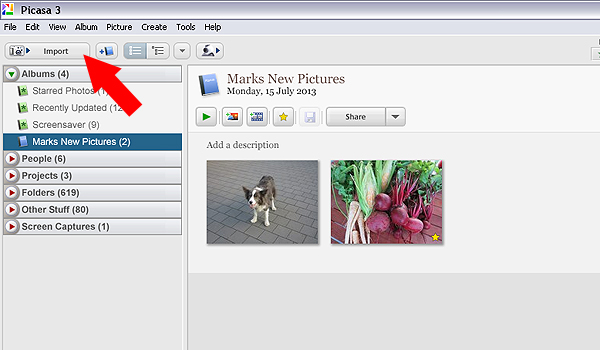
You also have the ability to import photos directly from cameras and portable drives using the import function in the top left hand side of the browser. Simply connect the device to your computer and navigate to the photographs on your device. Once you have all your pictures imported, and in their respective folders, you are ready to start editing.

Picasa import button 02

Use the import function to download from a digital camera or portable hard drive

Editing and effects

To begin editing you simply double click on a picture in the Picasa browser. This activates the editing functions and you can begin making changes to your selected photograph.

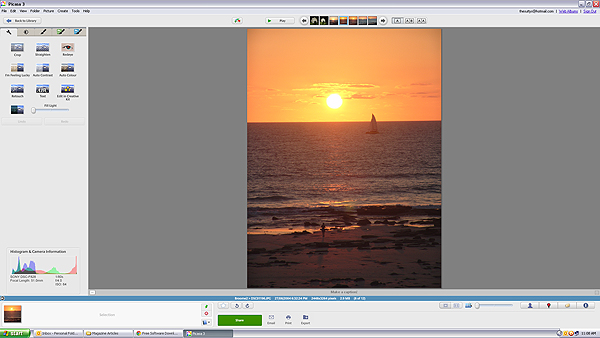
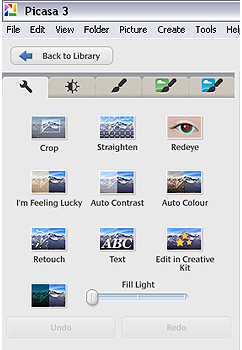
There are five tabs at the top left-hand side of the editing window:

Use the import function to download from a digital camera or portable hard drive

Use the import function to download from a digital camera or portable hard drive

TAB #1 COMMONLY NEEDED FIXES

The tools in this tab gives you control over cropping, straightening, red-eye removal, basic brightness and contrast adjustments. There are some automated features too such as “Auto contrast” and “Im feeling lucky”, which all deliver varied results. The “Edit in Creative Kit” feature has been discontinued but there is the opportunity to edit online inside Google+. There’s also a “Text” tool for adding some titles and information to your selections as well as a “Retouch” tool for fixing blemishes and scratches.

TAB #2 CONTRAST ADJUSTMENTS

The second tab gives you more brightness and contrast options and a greater level of control. It includes sliders to adjust the amount of fill light and shadows in your picture, and you also have the ability to change highlights. There’s a temperature control feature but in reality this simply adds either a blue or sepia tint to the picture which simulates daylight or interior colour temperatures.

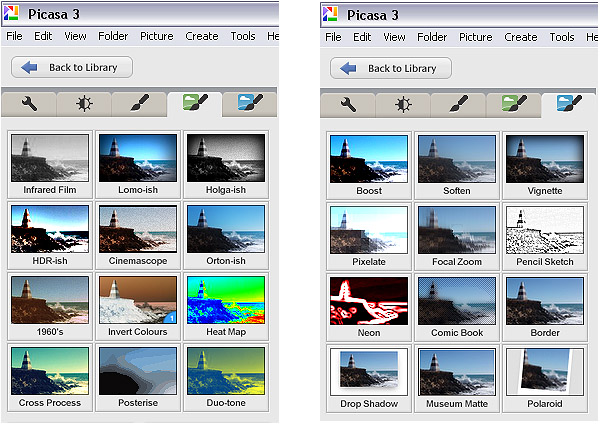
TAB #3 FILTERS

The third tab is where Picasa starts to offer some cool features. Here you will find a series of twelve preset filters such as sharpening, film grain and black and white. Most of the filters are adjustable so you can control the amount of each effect applied to a photograph.

TABS #4 and 5 MORE FUN FILTERS

Similarly, tabs four and five continue to offer you even more fun filters to apply to your photographs, with twenty four additional styles.

Picasa effect previews 04

The image filters in Picasa offer a wide range of modern and classic effects

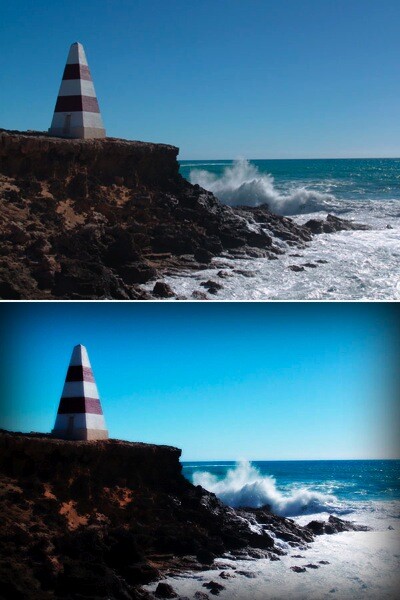
In the picture below I applied the Orton-ish filter and a Vignette to get a softening, yet dynamic effect.

Picasa before and after 05

Video

So, you’ve messed around for a few hours and now have a dozen images you want to show off to friends and family. Well Picasa’s bag of tricks doesn’t stop there. In fact, there’s some very useful output options available should you want to either print, make a video, or simply upload your pictures to the web.

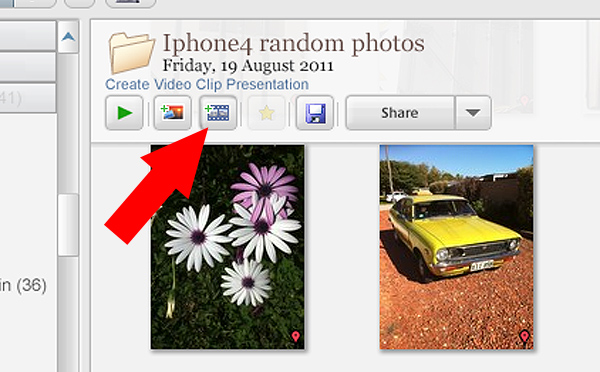
Picasa create video icon 06

Making videos is simple and fun in Picasa. Just click the “Create Video Clip” icon to get started

By selecting a group of pictures in the browser and selecting “Create Video Clip Presentation’ it puts your selected pictures onto a simple video timeline. You can then add titles, and even import a music sound track to go with your pictures. If you’re not happy with the selection order you can shuffle the pictures, and then output the file to one of several video formats, including high definition 1080P.

There’s also the option of making a collage for print, screen or for the web. There are tons of options and it takes very little time to come to grips with how it all works.

Other features

If you think that’s impressive, wait, there’s more! If you have a free Google+ account you can upload and share your pictures right from the Picasa browser, to Picasa’s Web Albums photo sharing site with very little effort. Just make sure you familiarize yourself with the privacy settings before you start uploading and always read the terms and conditions.

On the downside,

On the downside Picasa has limited raw editing features, so if you want to try something more advanced then you will have to look elsewhere. That said there’s enough features in this little program to keep most people happy.

Bottom line on Picasa

Picasa is really a fun and easy program to use and the learning curve isn’t too steep. If you need an application that is primarily for browsing and organizing, then this is a handy program. Although the editing capabilities are basic there are some useful features such as geotagging, keyword tagging, face recognition and a range of exporting options. But if you are a serious photographer that needs a program that can do some heavy lifting then perhaps you’ll need something more robust.

Picasa will certainly appeal to a broad demographic and it is really intended to perform many of the most common photographic tasks. It can also speed up the process of getting your pictures online. While I was reluctant to start using this program I have warmed to it. So if you need a photo organizer and editor that’s quick, easy and – dare I say – fun to use then perhaps give it a go.

Download it:

  • Picasa for Windows
  • Picasa for Mac OSX

The post Getting to Know Picasa – a Free Image Editor and Browser by Google by Mark Sutton appeared first on Digital Photography School.


Digital Photography School
 
Comments Off on Getting to Know Picasa – a Free Image Editor and Browser by Google

Posted in Photography


How to go Beyond the Regular Composition Advice for Getting the Best Shots of your Kids

01 Oct

A Guest post by Rachel Devine – author of Click! How to Take Beautiful Photos of Your Kids.

dps_rd_post_image3c.jpg

If you search for advice on how to take better pictures of children there are certain gems that are sure to appear on any list of tips. “Get on their level” and “Get Closer”, are the two that come to mind right away and they are both solid ways to improve your kid shots. Let’s look first at why these work and then how to expand those ideas to create infinitely more interesting images.

The top tip on any list you find is often going to be “Get on their level”. There is a reason that it should be as it is great advice and will make a big difference immediately. If you get down on the same level as a child to take their portrait, you give them power by allowing them to look into the camera straight on. Kneel down so that you become the same height as the child. Chat with your subject and engage them before just going right into taking their photograph. When the time is right, lift your camera and ask the kids if they can see themselves (or a fairy or a pony or any other magical subject) in your lens to get direct eye contact.

Photography is a visual language and the angle with which you shoot the photograph is an integral part of the structure of your story you are telling. Think of composition as part of the “grammar” of this language and that the choices that you make should serve a purpose. Photography is a common language that even kids can understand and when you make the effort to physically go down to their level you are showing them a certain respect.

Tech tip: Use a long lens so that you can put some distance between the camera and the child’s face. That is just another layer of respect.

Once you have begun to incorporate the “Get on their level” angle into your regular routine, here are four other ideas to break the cycle of the adult eye level shots:

dps_rd_post_image1.jpg

Over Their Shoulder: You are down on their level, you have taken a straight on portrait, now move around the child and have a look at what they are doing. Immerse yourself in their world and let your camera see what they see.

Tech tip: If you have a fast 50mm lens, use it now and include some of the child in the frame. If they are busy, you will need to use a faster shutter speed to freeze the motion. Using a fast 50mm lens means you will be able to open up the aperture to allow you to use that faster shutter speed indoors and avoid triggering your flash.

dps_rd_post_image2.jpg

dps_rd_post_image2b.jpg

Go Low: Kids are short and you may have gotten on your knees to get their eye level, but now, go further. Come on, you can do it, lie down. You may be amazed at what the world looks like from the ground. Babies tend to hate tummy time, but if you get down with them, they may even enjoy it more and you can end up with some wonderfully funny faces. Or, how about that mountain of toys on the playroom floor? You think it looks bad from where you are standing? It is massive from down here!

Tech tip: Keep your aperture as wide as your lens will let you go so you can blur some of the floor in the foreground of these shots. That will help you isolate your subject even more.

dps_rd_post_image3.jpg

dps_rd_post_image3b.jpg

Bird’s Eye: Breaking the adult’s eye level angle is not always just about sitting “criss-cross applesauce” or laying on the floor. It is about carefully observing the world that your child inhabits. It may be the same one as you, but it sure can appear different when you make an effort to look from unexpected points of view. Climb (carefully!) up above the kids and shoot directly down on mealtime, playtime, naptime, story time or bath time…anytime really. I have balanced (carefully! yet precariously) on the edges of various bathtubs, crib railings and dinner tables to get some of my favorite shots. It may be easier to grab a step stool though.

Tech tip: Use the widest focal length that you have and really get a sweeping scope of the children in their environment. Just watch out for your own feet getting into the frame.

dps_rd_post_image4.jpg

dps_rd_post_image4b.jpg

Reflections: Use reflections to not only capture yourself with kids, but to catch their expression when they don’t realize the camera is trained on them. You don’t need a house full of mirrors to do this either. When you start looking, you will find shiny surfaces all around you.

Tech Tip: Show yourself in the shot. Set the camera to closest subject auto focus mode and take the camera away from your face before you press the shutter button.

dps_rd_post_image5.jpg

dps_rd_post_image5b.jpg

Almost as often, when searching for ways to improve your photos of children, you will be told to “Get closer.” Children’s faces are so perfect and beautiful that it is great advice for you to fill the frame with them. Isolate the tiniest of details by photographing in close on things like newborn lashes, pursed toddler lips going in for a kiss or the drips of a juicy orange picked right from the tree. These shots make for beautiful additions to your collection of images.

Tech tip: Use a macro lens, close-up adapter (or the little flower icon for point and shooters) to get the closest focus possible.

dps_rd_post_image6.jpg

dps_rd_post_image6b.jpg

Far Away: Now that you have that powerful and fantastic full frame eye contact shot of your child, step back and let the kids in your photos breathe. You will need to really step back and feature the children in their big world. This angle will emphasize their smallness, but their confidence at being alone in the frame will be their strength.

Tech tip: Use color and negative space well. A messy shot will not be as powerful.

Image by Peta Mazey

Enjoy this post? Check out Rachel’s new eBook – CLICK! How to Take Beautiful Photos of Your Kids

Rachel Devine is an international commercial kid photographer and daily life photo blogger from the states. She currently lives in Melbourne, Australia. Rachel and Peta Mazey are the photography duo behind “Beyond Snapshots”. They teach and mentor (in person and online) photographers of all levels on how to take better photographs of life. Their book will be published next year on Amphoto/Random House.

Post originally from: Digital Photography Tips.

Check out our more Photography Tips at Photography Tips for Beginners, Portrait Photography Tips and Wedding Photography Tips.

How to go Beyond the Regular Composition Advice for Getting the Best Shots of your Kids


Digital Photography School
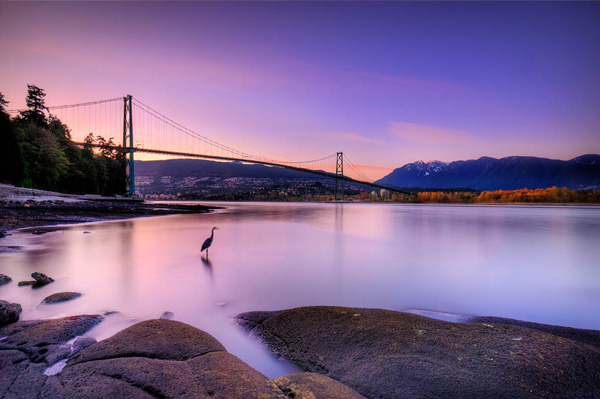
 
Comments Off on How to go Beyond the Regular Composition Advice for Getting the Best Shots of your Kids

Posted in Photography