RSS
 

Posts Tagged ‘Four’

Olympus working on 8K video for Micro Four Thirds

11 Mar

In an interview with French publication Focus Numerique senior representatives from Olympus have revealed a number of interesting insights about what consumers can expect from the Japanese manufacturer in the future, for example Micro Four Third image sensor that support 8K video. 

General Manager of Olympus Product Planning, Mr. Akira Watanabe, said: we can assure you that there is no problem in developing sensors at 33 million pixels for filming in 8K. We started the 4/3? saga with a sensor at 5 Mpx In 2003. Now the same sensor is at 20 Mpx with a much higher image quality especially for the management of electronic noise.”

In the same interview Mr. Watanabe suggests that Olympus might be working on its own version of a Bluetooth-based app, the likes of which Samsung pioneered and has recently been implemented by Nikon. He also thinks that Olympus will be able to offer a handheld high-resolution image mode in the future. It’s impossible to know how close Olympus is to bringing those new features and technologies to market but for users and fans of the brand it’s certainly reassuring to know they are in development.

Articles: Digital Photography Review (dpreview.com)

 
Comments Off on Olympus working on 8K video for Micro Four Thirds

Posted in Uncategorized


In memoriam: Olympus brings down the curtain on the Four Thirds system

11 Mar

It probably shouldn’t be a surprise but it’s still a little sad to see it in print: the latest catalogue from four-thirds.org states that production of Olympus’s Zuiko Digital line of Four Thirds lenses has been discontinued.

It’s been six and a half years since the launch of the last Four Thirds mount camera, so it’s understandable that Olympus has decided to move on, but we thought we’d look back at Four Thirds: what it meant and where it led.

The first Four Thirds camera: the Olympus E-1. Built around a 5MP Kodak CCD, the E-1 arrived around two years after Olympus first announced a collaboration with Kodak.

Where it all started

In 1999, Olympus engineer Katsuhiro Takada selected the 4/3″-type sensor as being the optimal size to allow smaller cameras capable of high quality images. Olympus developed the lens mount and communication protocols and was joined by other makers including Kodak, Fujifilm and Panasonic. The Four Thirds system website was launched fourteen years ago tomorrow.

Four Thirds was the first ILC system specifically designed for digital. This not only meant a wholly new lens system, providing the focal lengths that make sense for the sensor size (at a time when most camera companies were making do with selling film lenses mounted on smaller sensors), but also adopting a policy of making telecentric designs, which project light straight onto the sensor, rather than at increasingly challenging angles, towards the edge of the sensor.

Panasonic’s first Four Thirds camera: the still beautiful DMC-L1.

Unfortunately, the telecentric lens designs often ended up being relatively large, meaning that the system didn’t end up being significantly smaller than APS-C cameras. Unfortunately, the decision to use 4/3″-type sensors also meant that the viewfinders in most of the models were even smaller than those that still plague most low-end APS-C DSLRs.

My personal favorite. The Olympus E-620 was the Four Thirds camera that, to my mind, offered the best balance of size and capability.

While the Four Thirds system is no longer with us, it’s worth giving credit for the innovations it played host to. For a start, it was the first interchangeable lens system to offer live view. It wasn’t the slickest of implementations: seemingly unsure whether live view was supposed to offer an immediate digital preview (with phase detection still available) or provide the precision of contrast detect AF and live view magnification, the E-330 offered both. And was duly given short shrift by DPReview founder Phil Askey in his review.

It may be out of production, but the Olympus US website says the 90-250mm F2.8 is still in stock. It’ll cost you $ 5999.99

The system evolves

However, the most significant development to come out of Four Thirds, though, was its successor, Micro Four Thirds, the world’s first mirrorless interchangeable lens camera system (indeed the system for which the term was coined). Micro Four Thirds persisted with the Four Thirds type sensor but by abandoning the mirror box (and the telecentric design philosophy) was able to fully deliver on the size benefits that had originally been promised.

Without a mirror to move out of the way, live view came into its own and a whole new class of camera was born.

Lessons from the Four Thirds system led directly to the creation of the world’s first mirrorless system: Micro Four Thirds. And between Panasonic’s GH5 and Olympus’s E-M1 II, a lot of interesting things doing on, 18 years after the sensor size was chosen.

Credit should be given to Olympus for working to provide cameras (specifically the E-M1s) that were designed to continue to give good performance for those users who’d bought the highest-end Four Thirds lenses.

Long live Four Thirds

The history of photography is full of defunct systems and obsolete mounts. Even though the curtain has come down on Four Thirds, you can still buy a camera that will make good use of its lenses. The king is dead…

Articles: Digital Photography Review (dpreview.com)

 
Comments Off on In memoriam: Olympus brings down the curtain on the Four Thirds system

Posted in Uncategorized


These are the four cameras that won Oscars in 2017

01 Mar

Four Oscar winning cameras of 2017 

Before things got really confusing at the 89th Academy Awards last night, we got an overview of the Oscars given out earlier in the month at the Scientific and Technical Awards. Notably, four cameras earned recognition for helping to usher in the digital age of filmmaking. 

So, which cameras were Oscar winners? And the award goes to…

 1. Arri Alexa 


ARRI
 was honored ‘for the pioneering design and engineering of the Super 35 format Alexa digital camera system.’ 

Arri Alexa cameras were used on the nominated and award winning films Arrival, Moonlight, Lion, Hell or High Water, and Manchester by the Sea.

2. RED Epic


RED Digital Cinema received an award for the the RED Epic thanks to its upgradeable full-frame sensors. The RED Epic Dragon was used on the award-nominated films Hacksaw Ridge and Hidden Figures.

3. Sony F65 CineAlta

The Academy recognized Sony for the development of the F65 CineAlta camera with its unique sensor design and ‘true’ Raw recording capability.

 4. Panavision Genesis

Finally, Panavision and Sony were recognized for the design of the Genesis digital motion picture camera, which allowed for it to become one of the most widely adopted digital cameras for cinematography.

Articles: Digital Photography Review (dpreview.com)

 
Comments Off on These are the four cameras that won Oscars in 2017

Posted in Uncategorized


Uno II interchangeable camera backpack has four swappable interior panels

25 Feb

Bag maker NIID has launched a Kickstarter campaign in hopes of funding the Uno II, a backpack geared toward photographers and other creatives. It calls the Uno II the first ever interchangeable backpack, allowing owners to swap the interior bag component with an alternative ‘panel.’ A total of four panels are offered, one designed for a variety of camera gear, one for art supplies, one for work items (the standard panel) and one for sports gear.

Typically, different activities require different types of bags, and that can result in owning a few different backpacks that take up space. Uno II aims to solve that via a two-part design: an exterior zippered component that swaddles the interior panel, and the interior panel which contains pockets and slots for various items. When assembled and zipped, Uno II becomes an ordinary backpack with shoulder straps.

The camera panel can, for example, be used to transport a camera body and a couple lenses, a small tripod, and other smaller items like storage cards or spare batteries. Similarly, the work panel is made for holding items like tablets and laptops, while the sports panel can accommodate workout clothes and more. The art panel differs quite substantially, featuring elastic bands to hold brushes, pencils, paints, and similar things, as well as a mesh pocket for smaller items.

The Uno II is made with linen-textured Eco-polyester with a water-repellant coating, anti-theft zippers, a small hanging clip for attaching things like keys, a Flex Power Dock, and a rain shield for use in heavy rain. This model bag will also be offered, if the campaign is successful, in both a smaller 20L capacity and a larger 30L capacity.

Thus far, the company has exceeded its $ 15,000 goal with nearly $ 53k in funding and 27 days remaining in the campaign. NIID is offering backers a single early bird Uno II backpack with a standard panel in exchange for an $ 89 or greater pledge. Shipping to backers is estimated to start this upcoming June.

Articles: Digital Photography Review (dpreview.com)

 
Comments Off on Uno II interchangeable camera backpack has four swappable interior panels

Posted in Uncategorized


Four Advantages of Using Lightroom Collections

29 Jan

In this article, I will explain Lightroom Collections, a very powerful cataloging feature. We’ll focus on how using Lightroom Collections and Collection Sets can help you build a significant portfolio of your best work. Then we’ll move on to the difference between Standard and Smart Previews and how combining Smart Previews with Collections makes it even easier to review and process your best work. Next, we’ll learn how Lightroom Mobile dovetails with Collections and finish up with a few tips on using both of them to share your images. It’s a lot of info (it’s a long one) so buckle up.

Four Advantages Lightroom Collections

A little background first

A year ago at a photography conference run by a consortium of local camera clubs, I had the pleasure of introducing Lightroom expert Tim Grey to the audience. After I introduced him, I sat in on his seminar. He asked everyone to raise their hands if they organize their image files chronologically by date. Knowing that most experts agree this is a terrible way to organize your files, very few attendees admitted to organizing this way. I raised my hand because of course, I do. It just makes my brain happy to be chronological. Mr. Gray asked me how I could ever keep track of or find images by date, so I explained how I also used Lightroom Collection Sets and Collections. He laughed at me and told me to put my hand down. He felt I didn’t really organize things chronologically at all.

Use Lightroom Collections to Build Your Portfolios

The main goal of Lightroom Collections is to create cohesive groupings of your best images. Naming and how you sort and organize your images is up to you, based on how and what you shoot. The key to building a portfolio using Collections is to include only your absolute best images. If you shoot 10,000 images on a two-week photo trip, the images you put in your Collections are the top 1%, the best-of-the-best. These are the ones you share online, upload to sell as stock images, prepare an exhibit or your work, or make some prints for your own walls.

How to Create Collections and Collection Sets

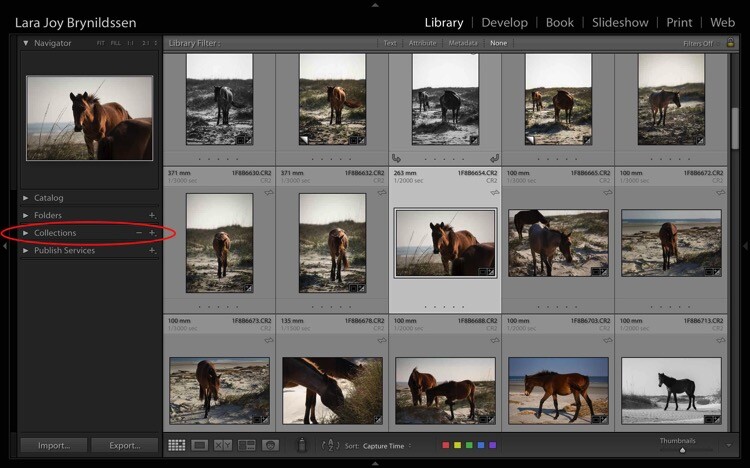
You can find Collections in the Develop Module, on the left-hand panel between Folders and Publish Services. To create a new Collection or Collection Set, click the + (plus sign).
Four Advantages Lightroom Collections 1

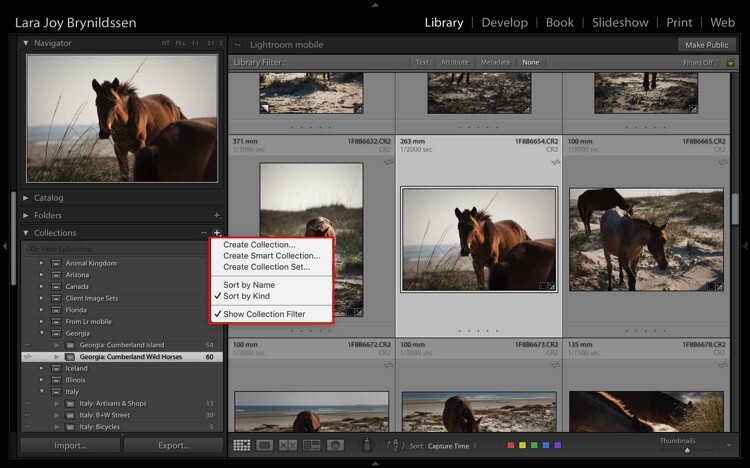
Once you click the + (plus sign), a dialog box pops up. Click Collection Sets to create a container that will hold multiple, related Collections. Or, if you just have one group of images that isn’t related to anything else, click Collections.
Four Advantages Lightroom Collections

NOTE: In this article, we’re focusing on Collections, not Smart Collections, which work a bit differently. Read this for more on that topic: How to Create and Use Smart Collections in Lightroom.

Collections Versus Collection Sets
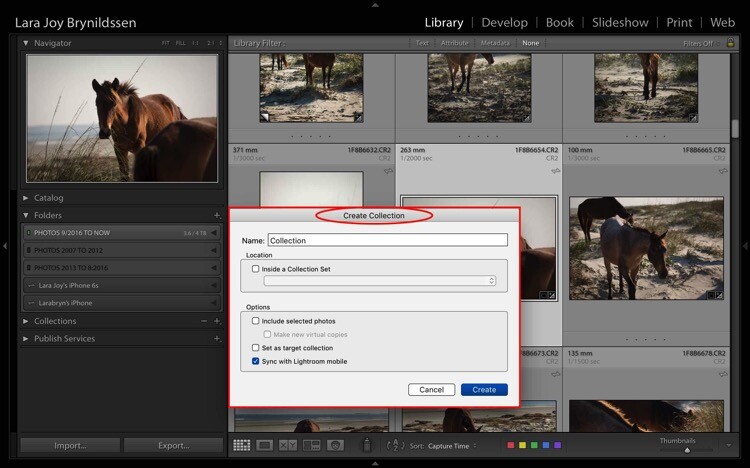
Four Advantages Lightroom Collections 1 2

This is the dialog box for creating a Collection.
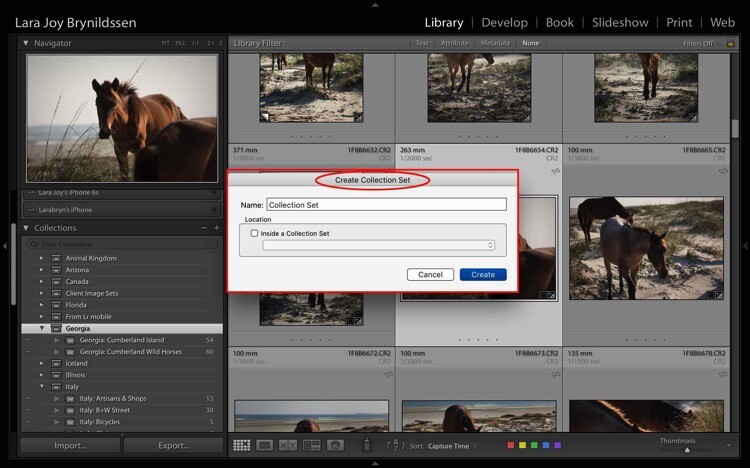
Four Advantages Lightroom Collections 1 3

This is the dialog box for creating a Collection Set.
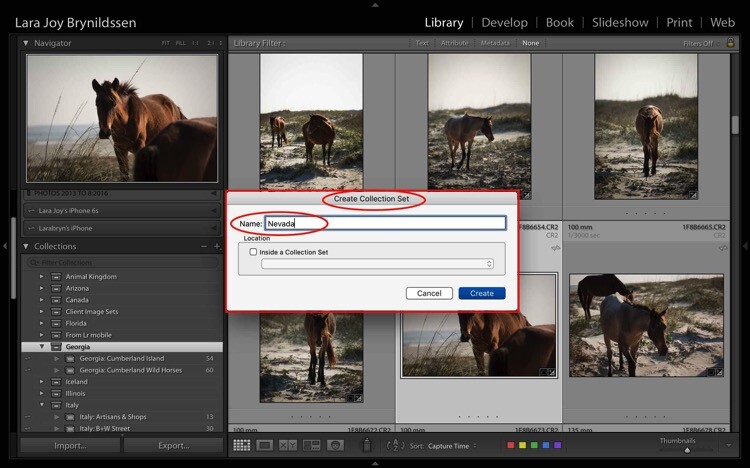
Four Advantages Lightroom Collections 1 4

I’m headed to Nevada soon so I created a new Collection Set for Nevada. To do this, type the title of your Collection Set in the 1st box and click Create.
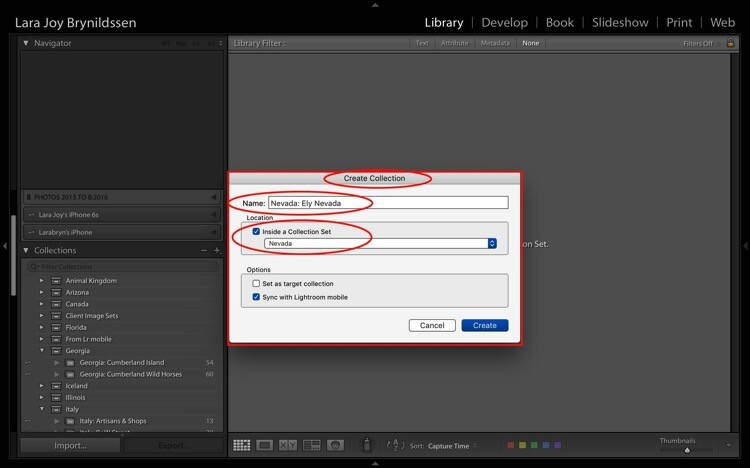
Four Advantages Lightroom Collections 1 5

When I’m in Nevada, I’ll be staying in Ely so I created a Collection within my Nevada Collection Set for Ely.

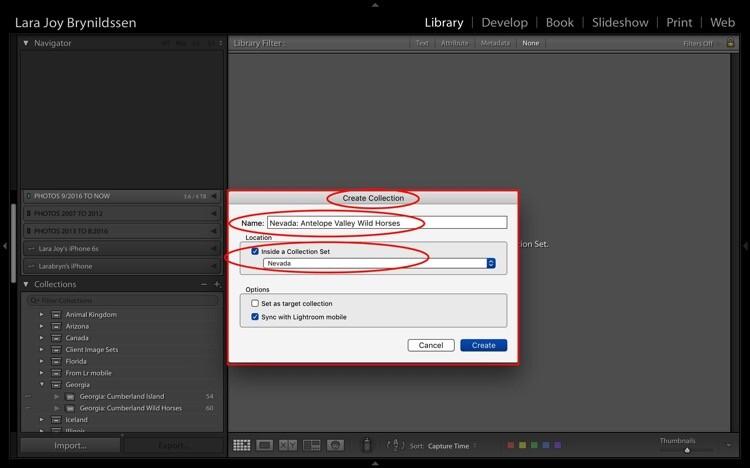
To do this, first, check the box indicating that this Collection sits inside the Nevada Collection Set. When titling Collections, repeat the title of your Collection Set (e.g. Nevada: Ely Nevada). This is important because it helps maintain the file structure in Lightroom Mobile. (More details on that in a few paragraphs.) Make sure you also check the box to Sync with Lightroom Mobile.
Four Advantages Lightroom Collections 1 6

Second Collection for wild horse images.

I’ll also be photographing the wild horses in the Antelope Valley HMA, so I created a second Collection within my Nevada Collection Set for that called – Nevada: Antelope Valley Wild Horses (as shown above).

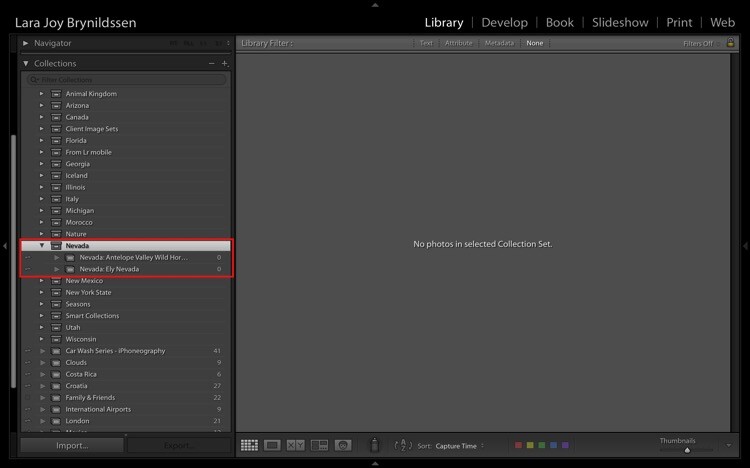
Now you can see the new Nevada Collection Set within the Collections tab on the left panel (below). Note that the icon for the Collection Set is like a large file box. The icons for the two collections inside of it are smaller, like file folders. Both say that they contain zero images because I haven’t added anything to them yet.
Four Advantages Lightroom Collections 1 7

How to Name Your Collections Sets and Collections

As you can see, I most frequently organize based on location. My Collection Sets are often names of countries or American states. That works for me since I travel a lot to make my images and I often go back to the same places over and over again. When I create a collection of my best images of Italy, I’m not interested in whether I made the image in 2013, 2014, 2015 or 2016. I’m interested in whether it’s the best image I’ve ever made in that region of that subject.

If you’re a macro flower photographer, it might make more sense for you to name your images by flower type and color. E.g., your Collection Set could be called Peonies, and your Collection names would be Peonies: Pink, Peonies: White, Peonies: Purple.

You would be able to continue that naming structure across all flower types that you photograph: Zinnias, Dahlias, Daisies, etc. By naming this way, if you get a request for an image of a pink peony, you know exactly where to find it. Click your Peonies Collection Set and scroll down to the Collection called Peonies: Pink.

If you want to have more comprehensive portfolio-like collections, you can have a Collection Set called “Best of”. Your Collections can be called Best of: Peonies, Best of: Zinnias, etc. You can even have a Collection called Best of: All Flowers, which would be the most superlative macro flower images you have ever made.

Collections Add a Second Level of Organization to Your Files

Basically, Collections are a secondary organization structure for your images. The first (for me) is chronological organization. Think of those folders as archives. All images live there. Collections are a second tool to harness the best of those images and make them easier to find. How you name them doesn’t matter as much as consistency. By consistently naming your Collections, you’ll be able to take the most advantage of their features and quickly locate your portfolio-worthy images.

Think of a Collection like a bookmark. Each time you create a Collection, you’re basically bookmarking the images inside of it so that you can quickly and easily find them by clicking on that Collection. You can bookmark each image as many different ways as you want by adding them to multiple Collections. A flower image could be in your Collection called Peony: Pink. It can also be in Best of: Peonies and Best of: All Flowers.

The main purpose is always to include your best work. You never want to scramble to find that great image you think you took two years ago in in Italy but you’re not sure exactly when? Or what town? By using Collections, you’ll always know exactly how to find that awesome image which is worth its weight in gold.

Adding Images to Collections

Four Advantages Lightroom Collections 1 7 3

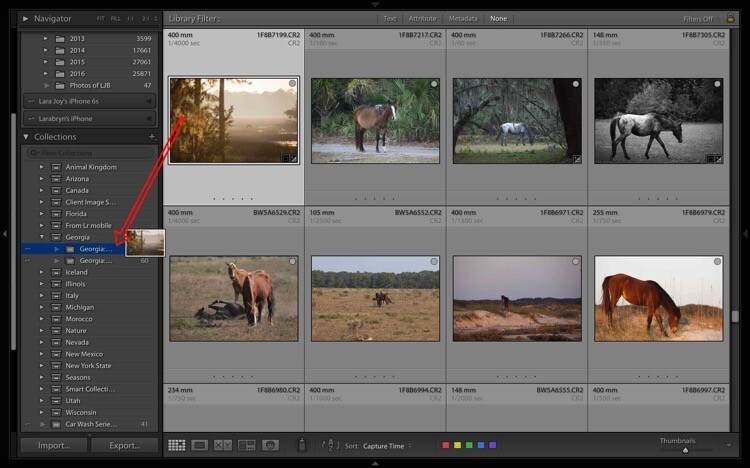
Now that you know how to create and name Collections, and why they’re useful, YOU need to add some images to them. First, select an image. The one above is from a group of images I made on a recent trip to Georgia (USA). I like it and have processed it, so now I select and drag the thumbnail to the Georgia: Cumberland Island Wild Horses Collection. Once the Collection name is highlighted, just release the image and it will drop into the Collection.
Four Advantages Lightroom Collections 1 7 1

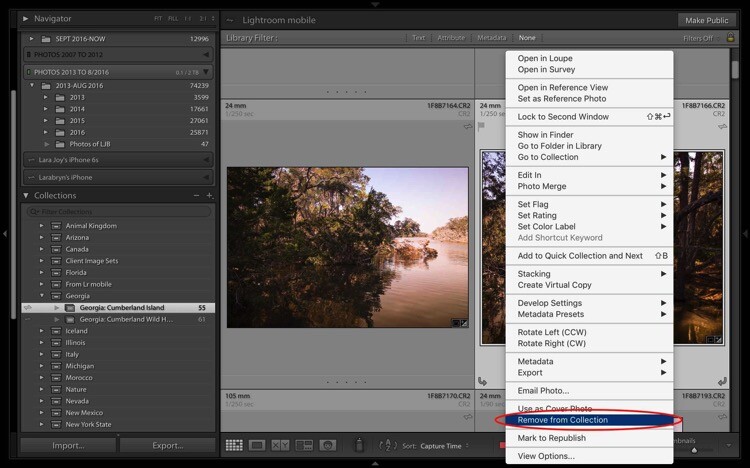
To remove an image from a Collection, first select it. You can see it’s highlighted in pale gray, which means it’s been selected. Right-click and when the menu pops up, scroll to the bottom and select Remove from Collection. Voila! The image will be removed from the Lightroom Mobile Collection too.
Four Advantages Lightroom Collections 1 7 2

Bonus Feature That Makes Collections Even More Useful

If you are looking through your Collections and find the perfect image, but wish it was shot in vertical rather than landscape format, you need to be able to find the original folder where your image file lives. Luckily, Lightroom builds in a neat little trick to help you to quickly jump to that folder.
Four Advantages Lightroom Collections 1 8

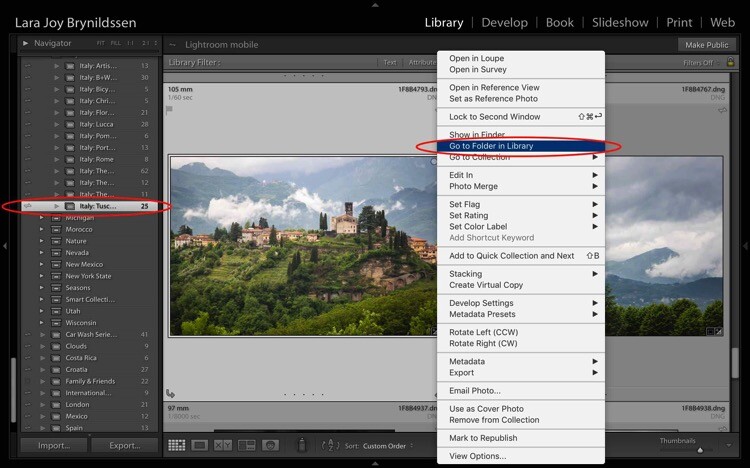
For example, in the Italy: Tuscany Collection, there is a beautiful landscape looking over Barga with lush green grass and heavy clouds sitting on the mountains above the village. To check whether this image is available in a vertical orientation, select the image and right-click to bring up a menu. Scroll to the top of the menu and click; Go to Folder in Library.
Four Advantages Lightroom Collections 1 9

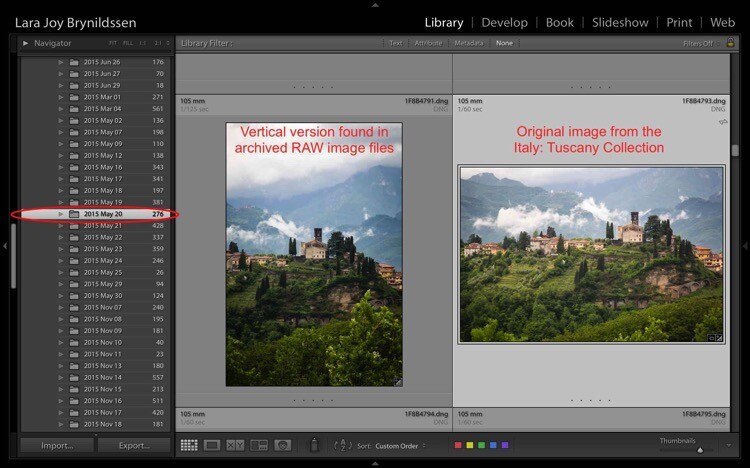
Lightroom takes us from the Italy: Tuscany Collection to the main folder where all of the RAW images taken that same day actually live on the hard drive. You can see in the left side panel we’re now in the 2015 May 20 folder. I think of these folders as archives. They contain all the RAW images I shoot, even the so-so ones or the ones that are near duplicates of other, better images. And – good news – there is a very similar image in a vertical orientation.

Standard Previews Versus Smart Previews

Whenever you upload images using Lightroom, Lightroom creates a small Standard Preview. This preview is like a tiny little jpeg allowing the program to quickly show you your image. If you want to edit that image, Lightroom usually needs to be able to access the original image file.

If you have just a few images, you can keep the files on your computer’s hard drive but since you’re an avid photographer, you probably have your images saved on external drives. The more images you take, the more external hard drives you probably have containing all of your images. If you’re looking for your best Italy images from the last 10 years, you might have to look through images on four hard drives. That can get a little unwieldy. To solve this problem, create Smart Previews for all of the images that you have organized in your Collections.

Creating a Smart Preview

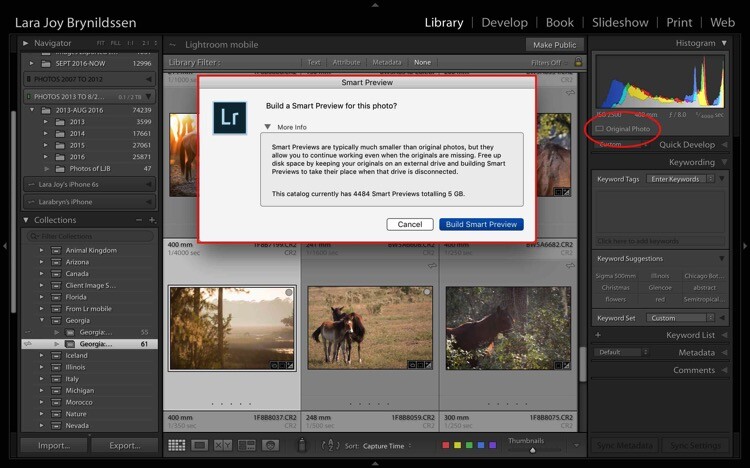
To create a Smart Preview, click on the icon next to where it says Original Photo in the right side panel. A dialog box will pop up. Click Build Smart Preview.
Four Advantages Lightroom Collections 1 10

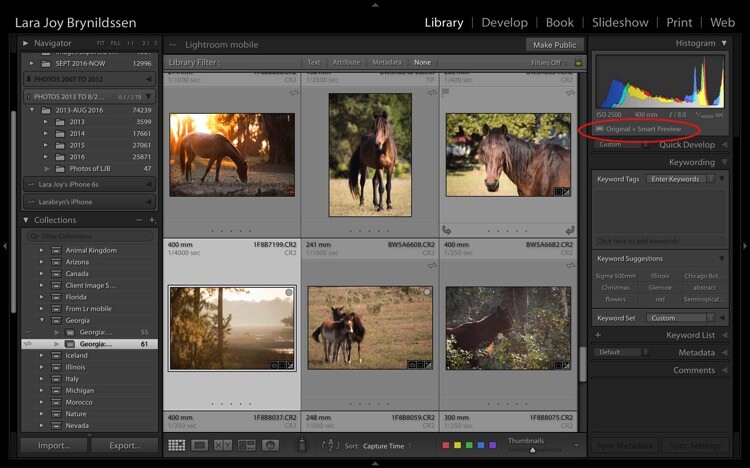
Now in the right side panel, you can see that the icon has changed and the text now reads Original + Smart Preview.
Four Advantages Lightroom Collections 2

A Smart Preview is a larger jpeg than the Standard Preview. The advantage is that it lives on your computer with your Lightroom Catalog files. A Smart Preview takes up far less space than an actual image file but it still contains plenty of information available in it for you to increase the size of the image on your screen, to magnify the details, and even to process it within the Lightroom Develop Module. Any changes you make to the Smart Preview will carry over to your original image once you connect your hard drive too.
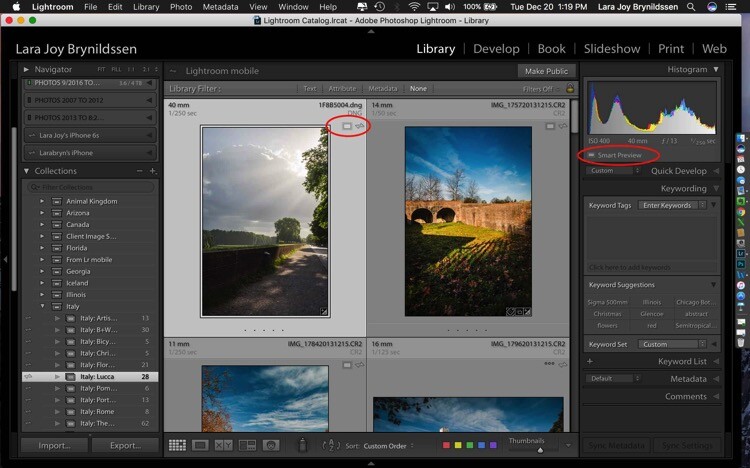
Four Advantages Lightroom Collections 2 1

This file is a Smart Preview. You can see the icon on the image and also in the side panel on the right.

If you click on that icon, Lightroom shows a dialog box letting you know the image isn’t available but that Lightroom knows where it should be. In this case, if I attach the external hard drive and click Locate, Lightroom will find the image for me. Note that LR is also telling me that I can process the image without the original which is exactly what I want.
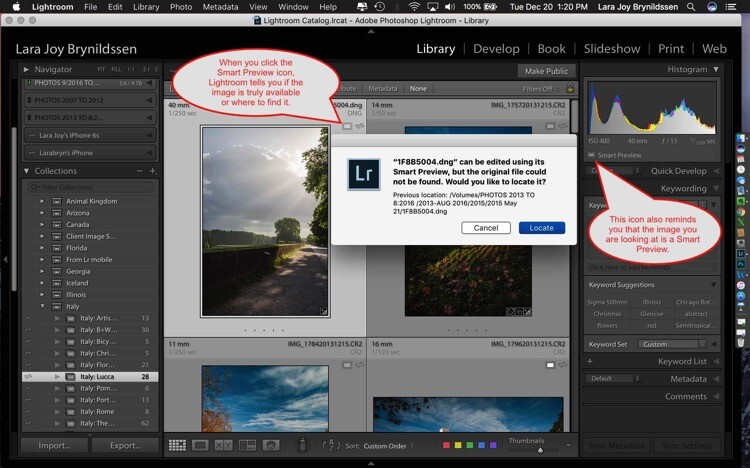
Four Advantages Lightroom Collections 2 2

NOTE: You cannot export an image if you are only working from a Smart Preview. You also cannot edit it outside of Lightroom (e.g., like Edit in Photoshop).

Here you can see that since the external hard drive for this image is attached to the computer, the full image file is available. Lightroom doesn’t show the Smart Preview icon in the Grid View since you’re working with the actual file. In the side panel on the right, LR does show you that this image has a Smart Preview available.
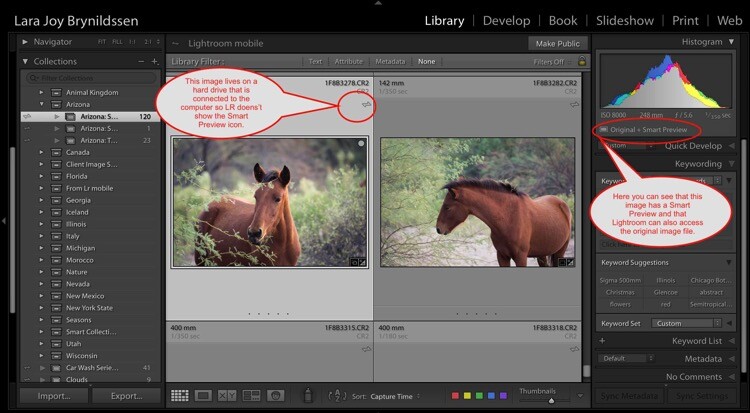
Four Advantages Lightroom Collections 2 3

How are Smart Previews Helpful?

Let’s say you’re printing images for a solo exhibition, and want to showcase your images of Italy. There’s no need for you to slog through the 25,000 images on your miscellaneous external hard drives. All you need to do is open Lightroom, click on Collections, and scroll down to your Italy Collection Set.

Because you’ve made Smart Previews for all your images, you don’t even need to have the hard drives which contain the actual images connected to your computer. This is the key to pairing Smart Previews with Collections. Even if your external hard drives are at home and you only have five minutes before you head back to work, you can begin selecting exhibition images on your laptop. Once you get home and can connect to your external hard drives, you can finish the selection and start printing.

How Lightroom Mobile Dovetails with the Collections Feature

If you are an Adobe Creative Cloud member you are getting so many more features than constant updates to Photoshop and Lightroom. One of those features is Lightroom Mobile. The mobile app doesn’t have the processing power of the full version but I don’t typically use it to edit images so that’s not an issue for me. I use it mainly to have my best images at my fingertips all the time.

Sync with Lightroom Mobile

To Sync with Lightroom Mobile, you need to be logged in to your Adobe CC (Creative Cloud) account and you have Sync turned on. Click your nameplate in the upper left corner to ensure you are logged in and Sync is on. My nameplate has been customized, yours might simply say Lightroom. Here you can see that Face Detection and Address Lookup are off but that Sync is on. If you’re ever confused about the on and off positions, just hover your cursor over the box or triangle. A dialog box will pop up letting you know if that feature is on or off.
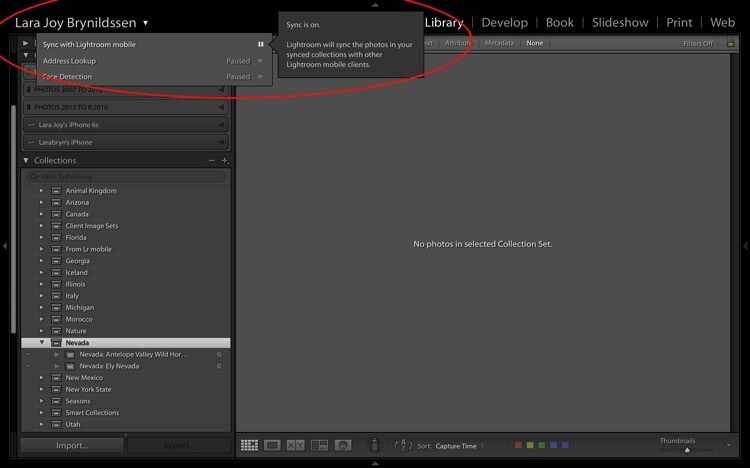
Four Advantages Lightroom Collections 3

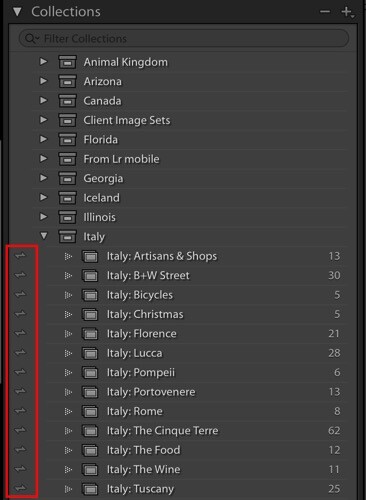
On the left of each collection is a double-sided arrow (see below). This indicates that these Collections are being synced with Lightroom Mobile.
Four Advantages Lightroom Collections 3 1

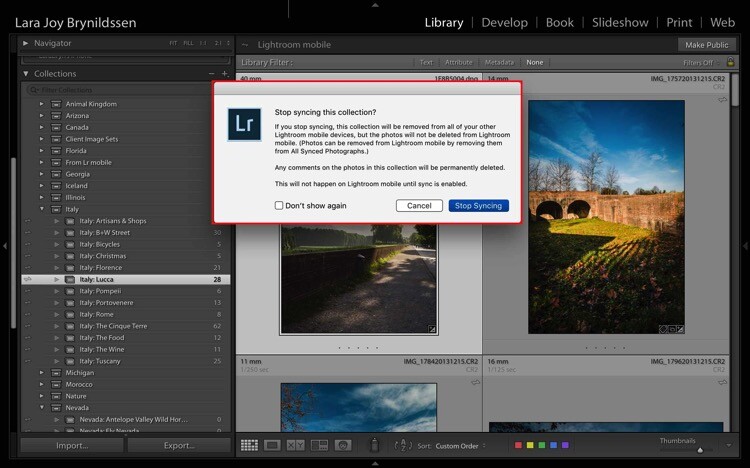
You can toggle Sync with Lightroom Mobile on and off by clicking this arrow. When you turn syncing off, Lightroom will double check with you and let you know that it will remove these images from Lightroom Mobile too.
Four Advantages Lightroom Collections 3 2

If you leave Sync with Lightroom Mobile on, Lightroom will sync the images in your Collections to the mobile app. This is a good time to install the app on your phone and tablet if you haven’t already. Now that you’ve installed the mobile app and logged in, your phone or tablet will be busy grabbing copies of those collections.

While Lightroom Mobile is working, you’ll see the cloud icon in the upper left-hand corner will have three moving dots. When the dots stop moving, the mobile app should be synced with your desktop or PC.

Four Advantages Lightroom Collections 3 3

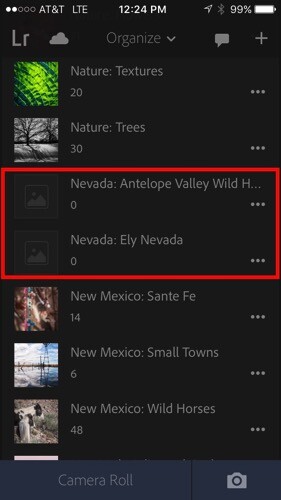
Remember earlier when we created a Nevada Collection Set? And then created a Nevada: Ely Nevada Collection and a Nevada: Antelope Valley Wild Horses Collection? Here they are in Lightroom Mobile.
Four Advantages Lightroom Collections 3 4

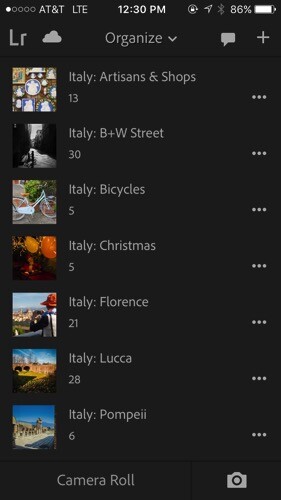
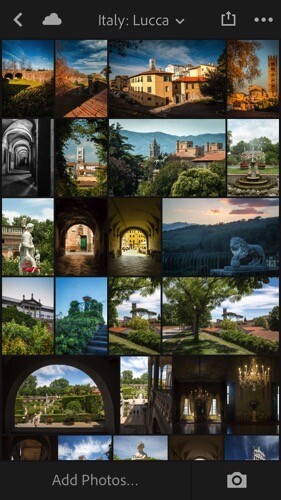
We’ve been working a lot with the Italy Collection Set too and you can see all of those folders here on the mobile app.
Four Advantages Lightroom Collections 3 5

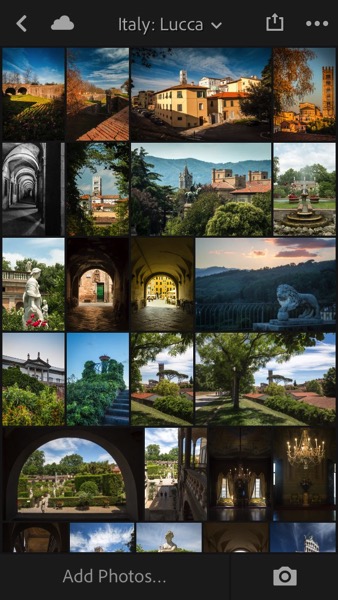
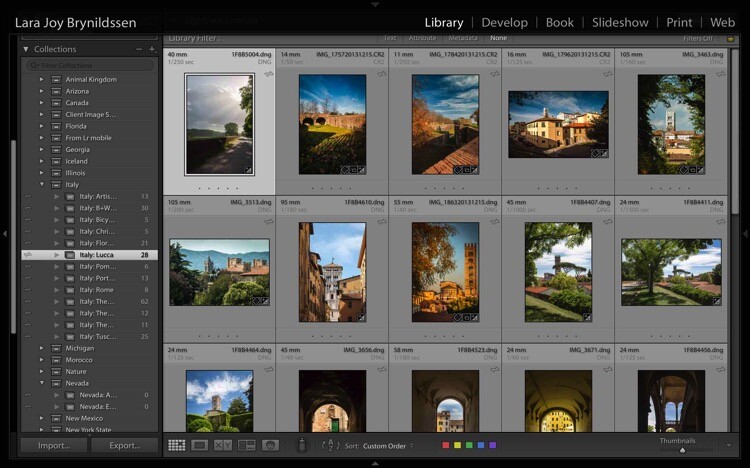
When you click on one of the folders – for example, Italy: Lucca – you’ll see that the images are exactly the same as they are on the desktop version.
Four Advantages Lightroom Collections 3 6

Four Advantages Lightroom Collections 3 7

Why Collection Names are Important in Lightroom Mobile

Remember back when we were setting up our Collection Sets and Collections on the desktop version? We repeated the name of the Collection Set in each Collection. It seems a little clunky to do it that way but hopefully now that we’re in Lightroom Mobile, you can see why we’ve chosen to name things that way. Lightroom Mobile doesn’t have Collection Sets. Instead, the mobile app organizes everything alphabetically by title.

If we hadn’t repeated the name of the Collection Set when we named our Collections, the names wouldn’t be specific enough. For example, I might not know what images are in a file called Artisan Shops if I don’t know those shops are in Italy. Now, by adhering to this slightly clunky naming structure, if someone (i.e. a publisher, client, gallery owner, friend or fellow photographer) wants to see your Italy images, you can open the app on your phone, scroll down the alphabet to Italy and show them the most important group of images.

NOTE: You can actually change the organization method in Lightroom Mobile by clicking the Organize menu. For our purpose of building portfolios of your best work, it’s best to stick with the default, Alphabetize by Title.

Using Collections to Share Images from the Desktop Version of LR

For many of us, sharing our images is the very heart of why we do what we do. Lightroom has built some handy features right into Collections to make it as easy as possible to share our portfolios.

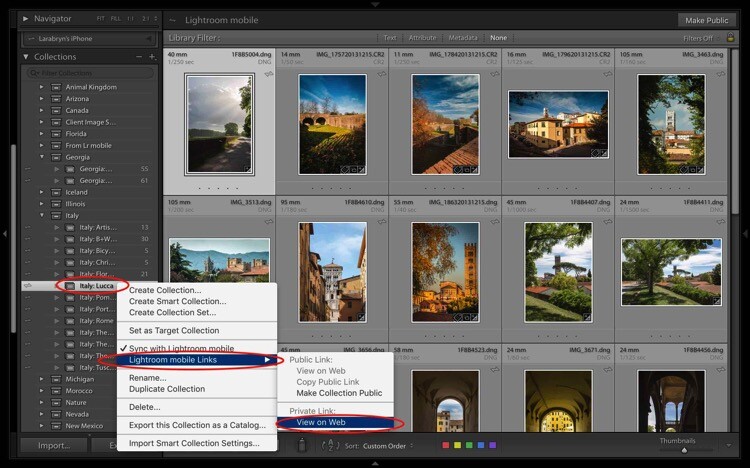
Let’s start with the desktop or full version of Lightroom. The first way we can share a Collection or portfolio of images is by right-clicking on a Collection. Let’s click on Italy: Lucca. A dialog box pops up. Click on Lightroom Mobile Links. Then, in the second dialog box, under Private Link, click on View on Web.
Four Advantages Lightroom Collections 4

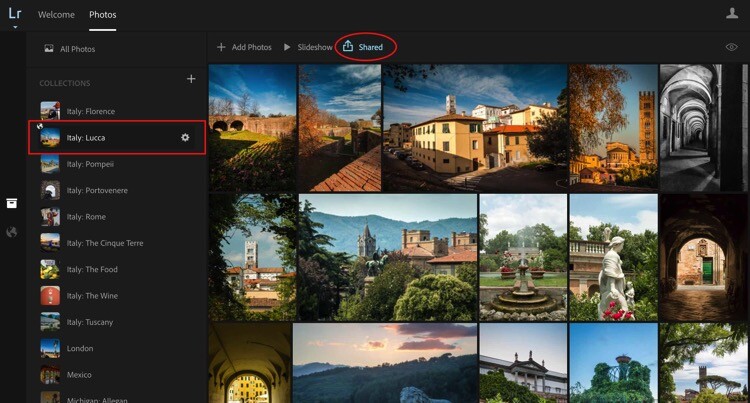
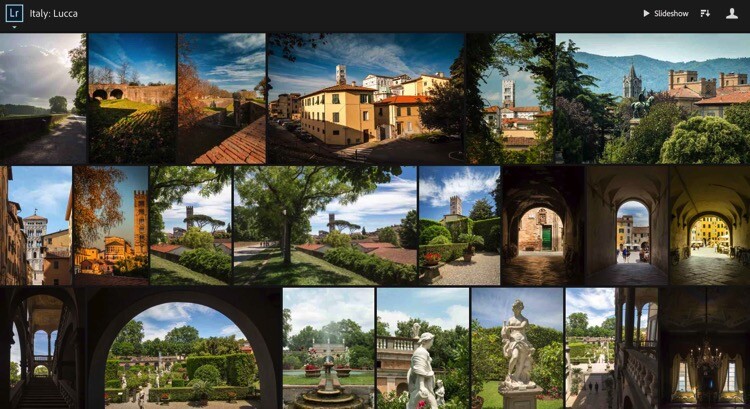
That takes us online to Adobe.com. If you’re not signed in, you’ll need to sign in now. You can see that once again, we’re in the same collection where we started. It’s titled the same and the images are in the same order. You can easily share by clicking on the Shared icon that is a box with an arrow sticking out of it.
Four Advantages Lightroom Collections 4 1

Once you click that icon, another dialog pops up. This dialog gives you a link to share. Here’s the link to my Italy: Lucca Collection. https://adobe.ly/2h76GJn. There are also a few options you can choose to specify how much about your images you want to share.
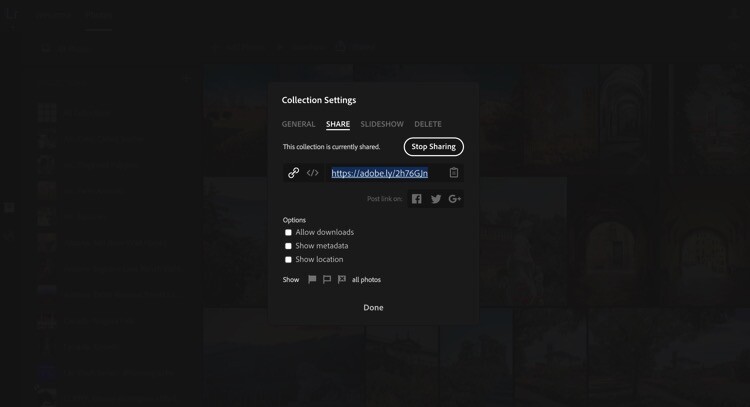
Four Advantages Lightroom Collections 4 2

Depending on where you’re sharing your Collection and why the only box I would suggest you almost never check is Allow Downloads. If you prefer to be credited for your work and to be paid, do NOT check this box or allow anyone to download your images.
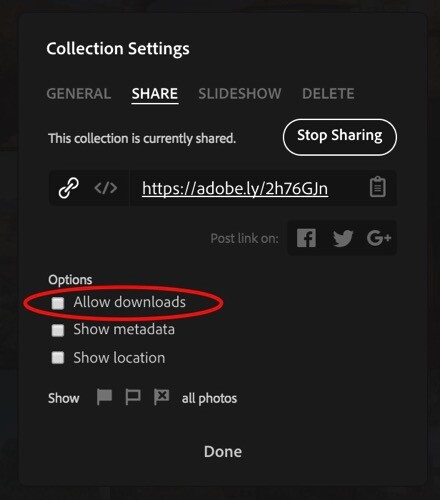
Four Advantages Lightroom Collections 4 2 1

You can share your entire Collection on Facebook, Google+, or Twitter too. Tap the icon for your favorite social media site and follow the prompts. Lightroom will post the link to your entire Collection.
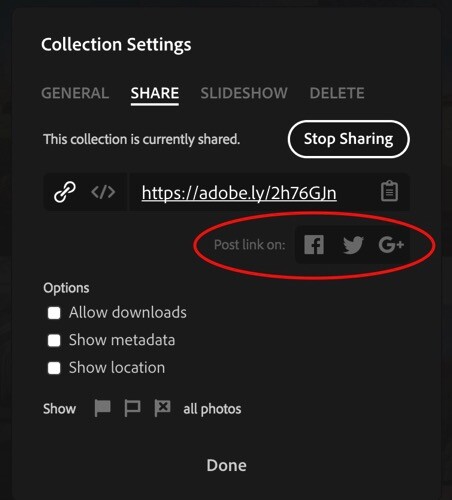

Four Advantages Lightroom Collections 4 2 2

Four Advantages Lightroom Collections 4 3

Four Advantages Lightroom Collections 4 4

Four Advantages Lightroom Collections 4 5

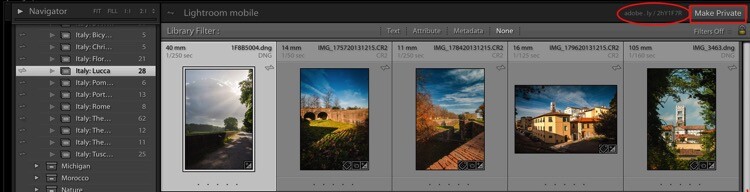
Another way you can share your images from the desktop or full version of Lightroom is to click the Make Public button in the top right corner.
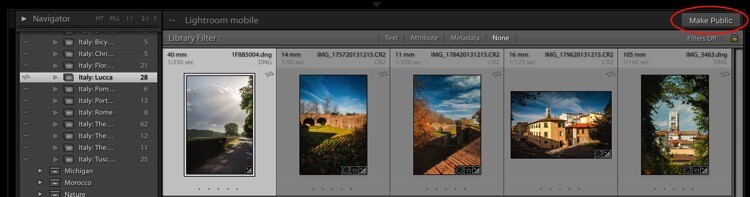
Four Advantages Lightroom Collections 4 6

Once you click that link, Lightroom will generate a public link.
Four Advantages Lightroom Collections 4 7

When you click a public link, Lightroom again takes you to Adobe.com only this time, you’re not the only one who can see it. Anyone online can see your public Collection as a web gallery. To make the Collection private again, just click the button that says Make Private.
Four Advantages Lightroom Collections 4 8

Using Collections to Share Images from Lightroom Mobile

You can also share from the Lightroom Mobile in almost exactly the same way, with the same options.

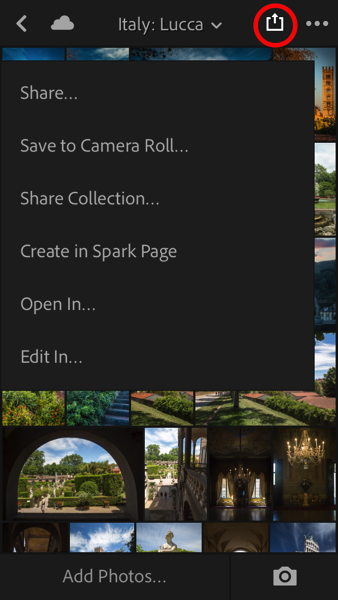
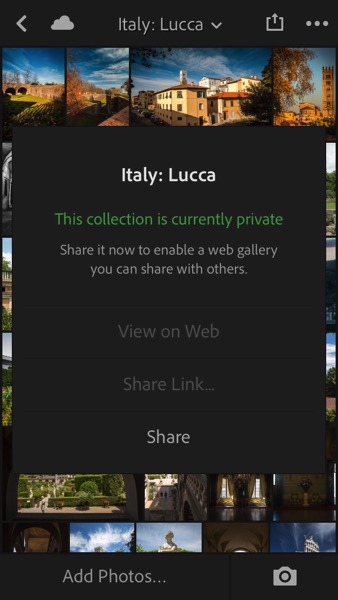
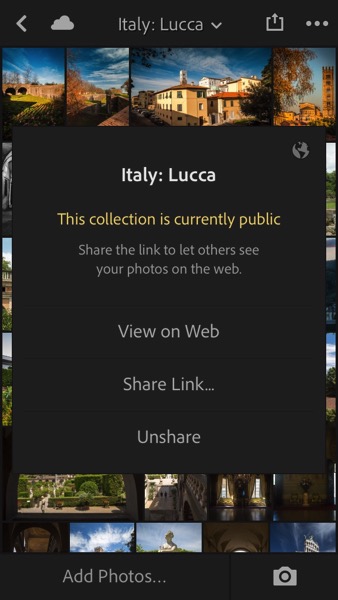
Here we have the Italy: Lucca Collection. When you tap the Share button (the box with the arrow sticking out of it), you pull up a dialog. Tap Share Collection. Another dialog box pops up giving you the option to make the Collection Public by tapping Share at the bottom of the dialog. If you change your mind, tap Unshare.

Four Advantages Lightroom Collections 4 9 Four Advantages Lightroom Collections 4 10
Four Advantages Lightroom Collections 4 11 Four Advantages Lightroom Collections 4 12

Why do you even need these links?

You might be thinking at this point that while it’s pretty cool to have shareable links to your Collections, you don’t really need them. That brings us back to the idea of building a portfolio. Regardless of whether you are an amateur photographer hoping to go pro someday, or whether you are a very serious enthusiast, building a portfolio is going to help you improve your photography.

More than that, sharing your portfolio enables you to get feedback on what you think are your best images. If you have a trusted mentor, you can share a link to one of your Collections with her, she can view the images, comment, and you can use her feedback to improve.

These links can also be used to share the image files from your shoot if you are a pro and work with clients. If you’re looking to sell your travel images, you can share a link with a local tourism bureau or to a travel magazine when you pitch a story. Or, if you were in Italy with friends and want them to see why exactly you always carry 30 pounds of camera gear with you when you travel, send them a link to one of your Italy Collections. They’ll re-live the trip as they scroll through your images and maybe even offer to carry some of your gear the next time you travel together.

Sharing to Instagram from Lightroom Mobile

Your sharing options from Lightroom Mobile are similar to the sharing options from the full desktop version and also include Facebook, Twitter, and email. One of the best ways to use the Lightroom Mobile app is to share to Instagram. Since uploads to Instagram can only be done from your phone, if you want to share images from your DSLR, it’s always a bit of a trick getting them over to your phone in a quick, easy way. Lightroom Mobile is the perfect solution.

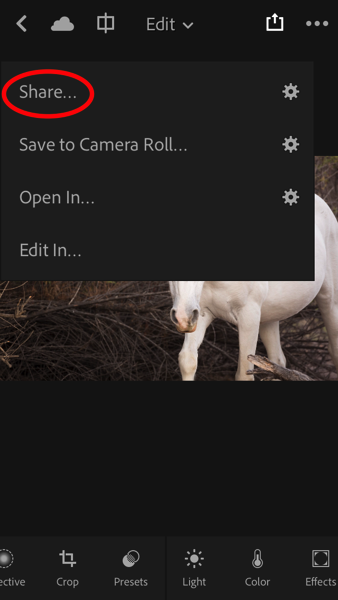
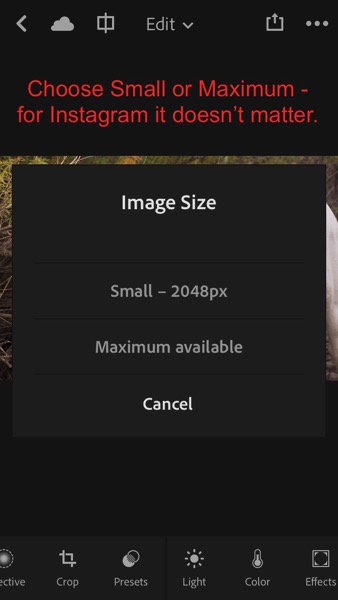
My Instagram feed is only images of horses so let’s jump to Arizona: Salt River Wild Horses Collection. Click on the image you want to share. Tap the Share button (the box with the arrow sticking out of it). In the dialog box that opens, tap Share…. Then, in the Image Size dialog box that opens, tap either one (it doesn’t matter so much for Instagram). Finally, in the next box that opens, click the icon that says Import with Instagram.

Four Advantages Lightroom Collections 5

Four Advantages Lightroom Collections 5 1 Four Advantages Lightroom Collections 5 2
Four Advantages Lightroom Collections 5 3 Four Advantages Lightroom Collections 5 4
Four Advantages Lightroom Collections 5 5 Four Advantages Lightroom Collections 5 6

You might also see an icon that just says Instagram. I don’t use that one because it gives fewer options. The Import with Instagram button takes you right into the app with all the native options to Instagram. Now you’re all set. Caption and hashtag as you normally would and go on your merry way.

NOTE: I’ve really just posted that image to Instagram. Go find it and give it some love so I can give you bonus points for reading all the way through this very long article.

Four Advantages Lightroom Collections 5 7

As long as you consistently sync to Lightroom Mobile, you can easily share your images to Instagram on a daily basis and eventually, your feed will be a living portfolio of your best images.

How do you use Lightroom Collections Sets and Collections?

The goal with this article was to show you how to set up and use Lightroom Collections to build your portfolio, to demonstrate the utility of Smart Previews, to clarify how to sync with Lightroom Mobile, plus a few tips on using Collections to share your images.

Do you use Lightroom Collections? Do these ideas work for you?

Share with me in the Comments below. I’d love to know how you build and share your portfolios.

googletag.cmd.push(function() {
tablet_slots.push( googletag.defineSlot( “/1005424/_dPSv4_tab-all-article-bottom_(300×250)”, [300, 250], “pb-ad-78623” ).addService( googletag.pubads() ) ); } );

googletag.cmd.push(function() {
mobile_slots.push( googletag.defineSlot( “/1005424/_dPSv4_mob-all-article-bottom_(300×250)”, [300, 250], “pb-ad-78158” ).addService( googletag.pubads() ) ); } );

The post Four Advantages of Using Lightroom Collections by Lara Joy Brynildssen appeared first on Digital Photography School.


Digital Photography School

 
Comments Off on Four Advantages of Using Lightroom Collections

Posted in Photography


Five reasons to buy the Sony RX100 V (and four reasons to reconsider)

27 Nov

Introduction

The Sony RX100 V is the world’s most advanced pocketable camera with a 1″-type sensor, and it’s also the most expensive. With a spec sheet that is unmatched in its segment (and in some cases, in the entire market), the RX100 V is going to be looked at by a great many folks, and is indeed going to be a great camera for a wide variety of photographers. But there are also photographers for whom the RX100 V is probably not your best choice – so we’ve put together some reasons you might want to pick one up, and also reasons you might want to save those pennies for something else. Let’s dive in.

Reason to buy: You need to capture very fast things

The 24 fps burst rate lets you capture just the right moment. Photo by Rishi Sanyal

You might be interested in an RX100 V if you photograph or record very fast-moving things, primarily because of the camera’s ridiculous 24 fps burst speed for stills and 960 fps mode for slow-motion video. But because of the zoom range, you’ll have to be fairly close to the action – our own Barney Britton has been saying the V is the world’s best crash cam. Or maybe you’re a watermelon-exploding enthusiast. Okay, or maybe you want to catch just the right moment of your kid’s break dancing class. Whatever it is, kick the AF into continuous and ‘Wide’ area, the burst rate into 24 fps, and motor away.

Reason to reconsider: Postage-stamp-sized batteries

CIPA-rated to 220 shots, the battery life is, generally speaking, a weak point on the RX100 V.

The Sony RX100 V soldiers on with the same NP-BX1 battery pack that the very first RX100 used, and with the massive increases in processing power and capability that Sony has shoehorned into the body, the claimed battery life is a third less than the original model. What’s more, the RX100 V continues Sony’s tradition of slow battery discharge if the battery is left in the camera, so if you’re only looking to use the camera occasionally, you may find you’re all ready to capture the moment, but the camera isn’t ready for anything but a charge.

And if the RX100 V is already proving difficult to fit into your pocket (I can’t be the only guy wearing skinnier-than-normal jeans these days), you might be loathe to carry another battery or two as well.

Reason to buy: You need a B video cam that can run and gun or be built up as needed

You could conceivably use the HDMI out on the RX100 V to build a rig up, or just use it as a run-and-gun pocket video cam.

The RX100 V is probably not the best choice out there for a primary video cam for most people (though this is not always going to be true), but with 4K video, focus peaking, zebra, log gamma and oversampled 4K, the only thing you’ll be missing is better audio – and there’s always an external solution for that.

Don’t discount that you can also do clean HDMI out, and then combined with said external audio solution, have a pretty powerful package, even if it takes some work to get there.

Reason to reconsider: You have big hands

If Sasquatch was after a camera, it wouldn’t likely be the RX100-series (a big, double-grip DSLR might be a better bet). The RX100 V comes, out of the box, with no grip, a slippery casing, and buttons smaller than the sensors of point and shoots of yester-decade. Although a touchscreen isn’t always the answer, we feel that being able to utilize such a big block of space on the rear of the camera as a control point is something Sony will have to do sooner or later to improve usability as the features keep coming. 

Reason to buy: You want the best point-and-shoot there is

The RX100 V’s 315 on-sensor phase-detect AF points cover 65% of the frame.

With AF-C in wide mode and rapid continuous shooting in Raw + JPEG, the only thing between you and something you want to photograph is the RX100 V’s startup time, which isn’t too bad (unless you’ve just changed the battery).

Sony’s told us that plenty of folks buying their RX100 cameras are actually mid-to-high end DSLR owners. And while there’s an argument that that demographic may want maximum control all the time, there’s also something to be said for leaving the big camera at home and just focusing on a moment in front of you as it unfolds instead of prepping settings and always watching, and always re-prepping, and repeat.

Reason to reconsider: You just don’t need it

Stock up on storage if you plan on using those 24 fps bursts.

I will confess – the allure of 24 fps burst shooting while at the Sony launch event for the RX100 V was somewhat tempered by the 128GB memory card I used, as well as the total picture count at the end of the night – near 3,000. That ended up being more than I would shoot with any other camera, simply because I could. One thing’s for sure – there’s no arguing that 24 fps will help you catch just the right moment in the middle of whatever is happening in front of you. But there’s also no arguing that it will just be overkill for many people, and many people’s hard drives. Even dropping the burst rate to 10 fps ended up being enough for me.

Reason to buy: You want the best image quality in the smallest pocketable package

You already have a cell phone with you all the time anyway, and it probably takes decent pictures. Well, the RX100 V will at least fit into a coat pocket (or cargo pants…those are still around, right?) and take photos that will blow any smartphone out of the water.

True, ‘digital bokeh’ simulations are catching on, and will actually offer more blur artificially than the RX100 V can manage optically. But they still can’t match the dynamic range, sharpness and sophisticated JPEG performance in low light that the RX100 V offers. Digital bokeh or not, physics is still physics, and the 1″-type sensor will collect way more total light than any current cell phone.

(There’s also one smaller 1″-type sensor camera on the market, the Canon G9 X, which is capable of good stills quality – but with a necessarily slower lens and less processing power to keep the whole package more compact.)

Reason to reconsider: You just need more zoom

The 24-70mm equivalent zoom lens on the RX100 V may be quite bright, but it may be too short for many people. If you’re hoping to shoot your kids’ soccer matches from the sidelines, there are way better options out there (the Panasonic ZS/TZ100 comes to mind).

Sure, the 24-70mm focal length is an absolute staple for professional wedding and press photographers, but you also often see those very same photographers carrying another huge camera with a 70-200mm equivalent zoom, just to cover absolutely everything. You can get by for a great many things with the RX100 V, but if you’re planning on getting one single camera to do it all, from travel photography to portraits to landscapes, there is probably a better option out there for you.

Reason to buy: You absolutely must have a viewfinder

All RX100 models since the Mark III have had a built-in, pop-up electronic viewfinder.

The RX100 V (and Mark III/IV) are the only truly pocketable 1″-type sensor compact cameras with a decent built-in viewfinder. Panasonic’s ZS100/TZ100 is also a fairly compact camera, but its field-sequential EVF is pretty lackluster. If you do lots of shooting in bright light outdoors, or just find that framing your masterpiece with fingerprint smudges and facial oils overlaying it is unacceptable, the RX100 V’s pop-up viewfinder is worth a peek.

Articles: Digital Photography Review (dpreview.com)

 
Comments Off on Five reasons to buy the Sony RX100 V (and four reasons to reconsider)

Posted in Uncategorized


Entaniya 250 Micro Four Thirds fisheye lenses feature 250-degree FOV

21 Oct

Tokyo-based maker of VR lens accessories Entapano is working on the Entaniya Fisheye 250 MFT lens, a model with a 250-degree field of view that it aims to make available in three varieties: 2.3mm F2.8, 3.0mm F2.8, and 3.6mm F4.0. All three lenses feature 18 elements in 12 groups with four extra-low dispersion lenses and a 1.6kg / 3.5lb weight without front or rear caps. The company cautions these specs are ‘subject to change,’ however, as the lens is still in development.

Entaniya Fisheye 250 MFT 3.6 sample image taken with Olympus Pen F, provided by Entaniya

The company details the Entaniya Fisheye as being suitable for producing different types of VR content depending on which lens version is used. The lenses are made in Japan, where the company estimates its price at ¥388,000 / $ 3,730 / €3400. Entapano has the released date scheduled for ‘end of 2016.’

Articles: Digital Photography Review (dpreview.com)

 
Comments Off on Entaniya 250 Micro Four Thirds fisheye lenses feature 250-degree FOV

Posted in Uncategorized


Sigma 30mm F1.4 DC DN Contemporary Micro Four Thirds Lens Review

12 Oct

The Sigma 30mm F1.4 DN DC Contemporary was announced February 2016, and sits atop Sigma’s line of DN mirrorless lenses, with a two-stop advantage over their previous 30mm F2.8 offering.

As a Micro Four Thirds lens, it is one of only several current autofocus F1.4 prime lenses available, with its closest competitor being the Panasonic Leica Summilux DG 25mm F1.4. While the Panasonic offers a field-of-view equivalent to a ‘classic’ 50mm lens, the Sigma ends up around 60mm. While that makes its focal length possibly a bit long for street shooting, it helps a little when it comes to portraiture and close-up work.

Let’s see how the basic specifications between the Panasonic Leica 25 and Sigma 30 compare:

  Panasonic Leica Summilux DG 25mm F1.4 Sigma 30mm F1.4 DC DN | C
Price $ 598 $ 339
Image Stabilization No No
Max Aperture F1.4 F1.4
Minimum Aperture F16 F16
Aperture Ring No No
Diaphragm Blades 7 9
Minimum Focus 0.30 m (11.81?) 0.30 m (11.81?)
Maximum Magnification 0.11x 0.14x
Motor Type Micromotor Stepper motor
Full Time Manual Yes No
Weight 200 g (0.34 lb) 265 g (0.58 lb)
Dimensions (DxL) 63 mm (2.48?)  X 55 mm (2.15?) 65 mm (2.56?) X 73 mm (2.87?)
Sealing None None
Filter Thread 46mm 52mm

Regardless of where it sits in terms of focal length and usability, the Sigma enters the opposite of a crowded marketplace as an autofocus F1.4 Micro Four Thirds prime. It also gets the advantage of being the cheapest autofocus F1.4 Micro Four Thirds prime available, even undercutting the price of some F1.8 options as well. 

Thankfully, the Sigma doesn’t feel entirely cheap. The barrel is well made with a satin black finish and ridges for grip when mounting or removing the lens. Sadly, the plastic hood feels a little inexpensive, and doesn’t feel like it clicks in to position with much confidence. Build quality of the lens itself is on par with the Pana-Leica, with both having smooth, sturdy focus rings with rubberized ridged grips.

The extra bit of diameter and length on the Sigma make it a bit bulky and unbalanced when mounted to some of slimmer Micro Four Thirds cameras, like the Olympus PEN series, or the E-M5 II. When mounted to a larger SLR shaped body, like the GH4, the Sigma fits nicely.

We’re assuming the extra size, relative to the Panasonic stems from it needing to be large enough to cover an APS-C sized sensor, in its E-mount incarnation.

Does the discounted price mean the Sigma comes with discount performance? Can it shake off past stigmas about third party lenses and go toe-to-toe with a lens touting one of the most revered names in the business? Let’s take a closer look at the numbers.

Articles: Digital Photography Review (dpreview.com)

 
Comments Off on Sigma 30mm F1.4 DC DN Contemporary Micro Four Thirds Lens Review

Posted in Uncategorized


Sigma 30mm F1.4 DC DN Contemporary Micro Four Thirds Lens Review

11 Oct

The Sigma 30mm F1.4 DN DC Contemporary was announced February 2016, and sits atop Sigma’s line of DN mirrorless lenses, with a two-stop advantage over their previous 30mm F2.8 offering.

As a Micro Four Thirds lens, it is one of only several current autofocus F1.4 prime lenses available, with its closest competitor being the Panasonic Leica Summilux DG 25mm F1.4. While the Panasonic offers a field-of-view equivalent to a ‘classic’ 50mm lens, the Sigma ends up around 60mm. While that makes its focal length possibly a bit long for street shooting, it helps a little when it comes to portraiture and close-up work.

Let’s see how the basic specifications between the Panasonic Leica 25 and Sigma 30 compare:

  Panasonic Leica Summilux DG 25mm F1.4 Sigma 30mm F1.4 DC DN | C
Price $ 598 $ 339
Image Stabilization No No
Max Aperture F1.4 F1.4
Minimum Aperture F16 F16
Aperture Ring No No
Diaphragm Blades 7 9
Minimum Focus 0.30 m (11.81?) 0.30 m (11.81?)
Maximum Magnification 0.11x 0.14x
Motor Type Micromotor Stepper motor
Full Time Manual Yes No
Weight 200 g (0.34 lb) 265 g (0.58 lb)
Dimensions (DxL) 63 mm (2.48?)  X 55 mm (2.15?) 65 mm (2.56?) X 73 mm (2.87?)
Sealing None None
Filter Thread 46mm 52mm

Regardless of where it sits in terms of focal length and usability, the Sigma enters the opposite of a crowded marketplace as an autofocus F1.4 Micro Four Thirds prime. It also gets the advantage of being the cheapest autofocus F1.4 Micro Four Thirds prime available, even undercutting the price of some F1.8 options as well. 

Thankfully, the Sigma doesn’t feel entirely cheap. The barrel is well made with a satin black finish and ridges for grip when mounting or removing the lens. Sadly, the plastic hood feels a little inexpensive, and doesn’t feel like it clicks in to position with much confidence. Build quality of the lens itself is on par with the Pana-Leica, with both having smooth, sturdy focus rings with rubberized ridged grips.

The extra bit of diameter and length on the Sigma make it a bit bulky and unbalanced when mounted to some of slimmer Micro Four Thirds cameras, like the Olympus PEN series, or the E-M5 II. When mounted to a larger SLR shaped body, like the GH4, the Sigma fits nicely.

We’re assuming the extra size, relative to the Panasonic stems from it needing to be large enough to cover an APS-C sized sensor, in its E-mount incarnation.

Does the discounted price mean the Sigma comes with discount performance? Can it shake off past stigmas about third party lenses and go toe-to-toe with a lens touting one of the most revered names in the business? Let’s take a closer look at the numbers.

Articles: Digital Photography Review (dpreview.com)

 
Comments Off on Sigma 30mm F1.4 DC DN Contemporary Micro Four Thirds Lens Review

Posted in Uncategorized


Kipon introduces reducer to fit Nikon F and Leica R lenses to Micro Four Thirds bodies

13 Aug

Japanese lens and accessory maker Kipon has introduced a pair of focal length reducers that allow users to mount Nikon F and Leica R lenses to Micro Four Thirds cameras to give a 1.4x crop factor. The company says that the Kipon Baveyes NIK-m4/3 0.7x and Baveyes L/R-m4/3 0.7x reducers make a 50mm lens designed for full-frame systems act as a 70mm equivalent once the focal length doubling effect of the Micro Four Thirds system is taken into account. Kipon also claims that the reducer makes the mounted lenses a stop faster too.

Without the lenses in the reducer a 50mm Nikkor lens mounted on a Micro Four Thirds camera would behave as a 100mm due to the smaller size of the system’s sensors, so the wide-angle elements in the adapters reduce the apparent crop factor applied to the adapted lens. The company gives an example of a 35mm lens mounted via the adapter producing the angle of view one would expect from a 49mm lens on a full-frame body.

The price of the adapters has only been released in Japanese Yen, and is quoted as ¥23,000 plus tax, which is approximately $ 230/£180.

For more information see the Kipon website and a translated version the press release.

Articles: Digital Photography Review (dpreview.com)

 
Comments Off on Kipon introduces reducer to fit Nikon F and Leica R lenses to Micro Four Thirds bodies

Posted in Uncategorized