RSS
 

Posts Tagged ‘Five’

Five Photography Rules You May Want to Ignore

02 Nov

A few years ago when I purchased my first Canon dSLR I took a free 2-hour class on digital photography from a local school. They offered free seminars as a way to market their series of intensive 6-week photography courses. I was new to digital photography at the time, having learned on 35mm film. During the class I scribbled away in the notebook the instructor handed out. I was given several photography rules to follow, but is that the best advice?

My camera-loving orange tabby Carter, shot in low light, requiring a relatively high ISO of 1600 to get a fast enough shutter speed to hand hold.  ISO 1600, 1/125th, F4 @ 105mm.

My camera-loving orange tabby Carter, shot in low light, requiring a relatively high ISO of 1600 to get a fast enough shutter speed to hand-hold. ISO 1600, 1/125th, f/4 @ 105mm.

The thing about photography is that it’s a series of decisions starting with the brand of gear you choose and it funnels down to your favorite subject, your preferred shooting mode, your shutter speed, aperture and ISO. By applying popular advice to all situations, you eliminate too many of the key creative decision about how your images look. Go ahead and disagree with or ignore rule-of-thumb photography advice. The choices you make allow you to create images that feel right to you – and that’s the real sweet spot.

So let’s look at five supposed photography rules and see if you agree or disagree with them.

1. Set the ISO at 400

One of my instructor’s key points was to set the ISO at 400 and forget it.”

Since I didn’t know anything about digital photography, it like pretty good advice, so I tried it. I also made a lot of blurry images. Set at ISO 400, and limited by a wide open aperture of f/3.5 on my kit lens, I often couldn’t gather enough light for a shutter speed fast enough to prevent motion blur. I flipped back to Auto Shooting Mode (Full Auto or Program) and suddenly my images were sharp again.

I dissected the settings on the Auto Mode shots and – you’ve probably guessed this already – the main difference while in Auto Mode was that the ISO was higher, enabling a faster shutter speed and reducing motion blur.
five-photography-tips-to-ignore-n

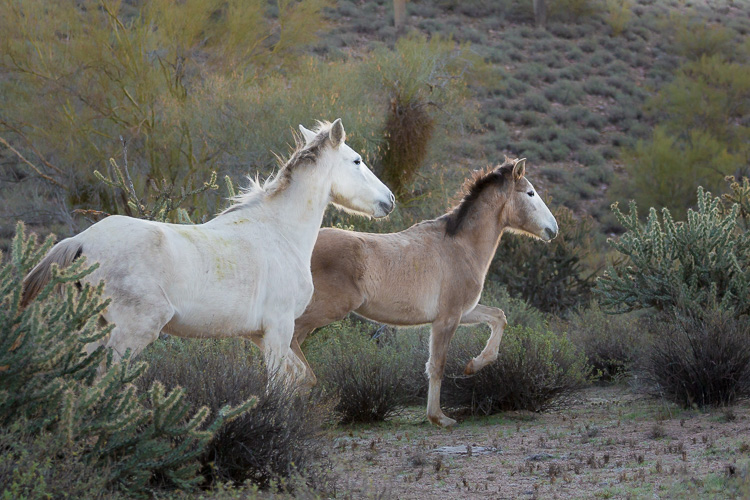
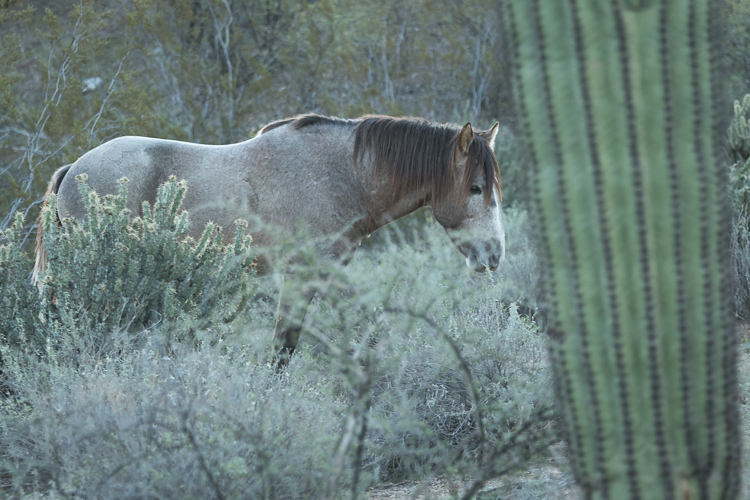
While this image wouldn’t have made the cut because of the awkward composition, the horse is also a bit blurry because my ISO was too low, allowing my shutter speed to lag. It wasn’t fast enough to freeze the motion of the moving horse. ISO 800, 1/160th, f/5.6, 176mm.

Increasing your digital ISO makes your camera’s sensor more sensitive to light, meaning you can shoot at smaller apertures and/or faster shutter speeds in low light conditions. Like film, increasing your ISO can create a grainier, noisier image. But unlike film, digital cameras have extraordinary ISO capacity. High-end cameras like the Canon 1Dx Mark II have an ISO capability of 51,200 expandable to 409,600! Sticking to ISO 400 is like pretending you’re still shooting film and disregarding all the recent digital technology advances.

Earlier this year I was in Mesa, AZ photographing the Salt River Wild horses at dawn. During blue hour, I started with my ISO too low, my shutter speed lagged, and I shot a whole series of blurry images (see image above). Purely by luck, at ISO 800, only this one didn’t have motion blur.
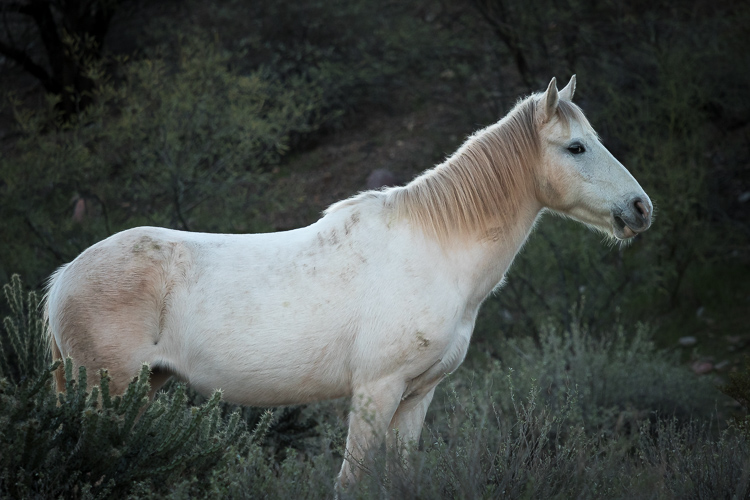
Five Photography Tips to Ignore A

ISO 800

The next day, I started at ISO 12,800 to keep my shutter high enough to prevent motion blur, gradually decreasing my ISO was the sun grew brighter.
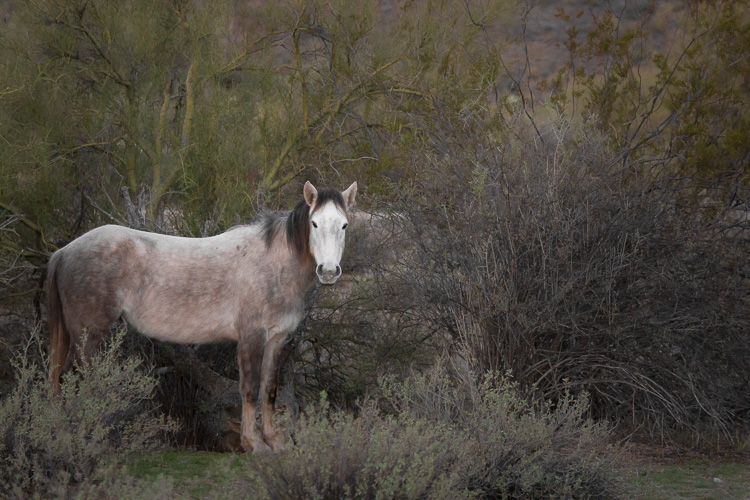
Five Photography Tips to Ignore B

ISO 12,800

Five Photography Tips to Ignore C

ISO 1250

While these images might be noisier than those shot at ISO 400, noise is almost always preferred to motion blur. Digital noise can be managed, while an unintentionally blurry picture can rarely be saved.

Setting your ISO to an unrealistically low value and leaving it there is the sort of advice or rule I’d encourage you to ignore.

2. You never need to shoot faster than 1/500th of a second

There’s a famous teaching photographer (I mentioned him here too) who says that you never need to shoot faster than 1/500th of a second. I ignore his advice too. Here’s why.
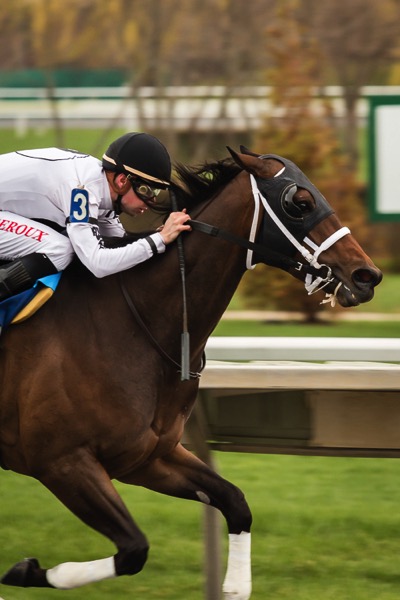
Five Photography Tips to Ignore D

Shutter speed 1/500th

This image, shot at 1/500th of a second, shows motion blur in the horse’s legs. Sometimes you may want to intentionally include motion blur in your images because it shows speed in a dynamic way, and in this case, that’s what I wanted. If I wanted no motion blur, I would need to have chosen a faster shutter speed.
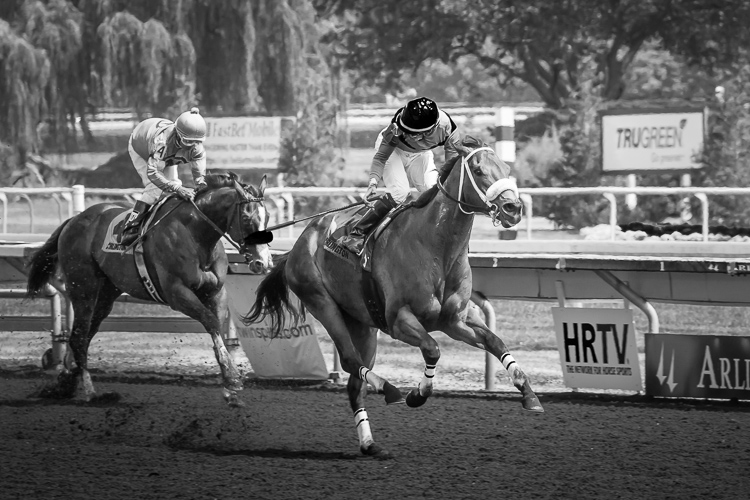
Five Photography Tips to Ignore E

Shutter speed 1/640th

This image, shot at 1/640th of a second, is sharper. It has very minimal motion blur in the legs but again, it still shows motion blur.
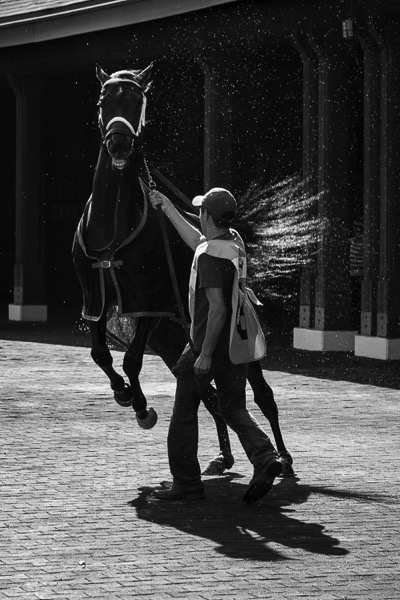
Five Photography Tips to Ignore F

Shutter speed 1/1000th

If you shoot at 1/1000th and above, you can get crisp, blur-free images of fast-moving objects or animals in motion. In this image, even the water droplets are frozen in time.

Depending on your creative goals, you may want to experiment and shoot from 1/100th, all the way up to 1/8000th of a second. That’s the reason to ignore this rule. Adhering to 1/500th of a second as your maximum shutter speed takes too many of your creative choices away from you.

3. Serious photographers always use tripods

Has your instructor or mentor told you that to be serious about making images, you must always use a tripod? That’s another piece of advice you might want to ignore, unless the type of work you make truly requires a tripod. Night photography, for example, typically requires a tripod because of the longer shutter speeds.
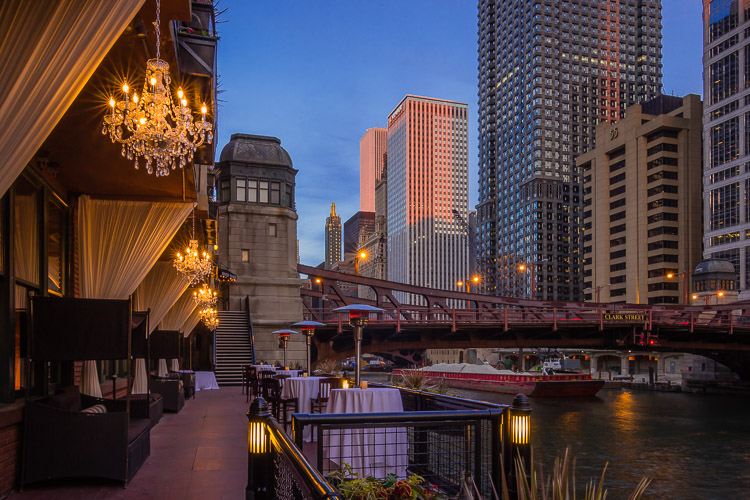
Five Photography Tips to Ignore G

Night photography – with a tripod

Long exposure photography, astrophotography and shooting landscapes at dusk or dawn are all good examples of when to use a tripod in order to make excellent images.

Macro photography often requires a tripod but sometimes doesn’t. This image was made hand-held.
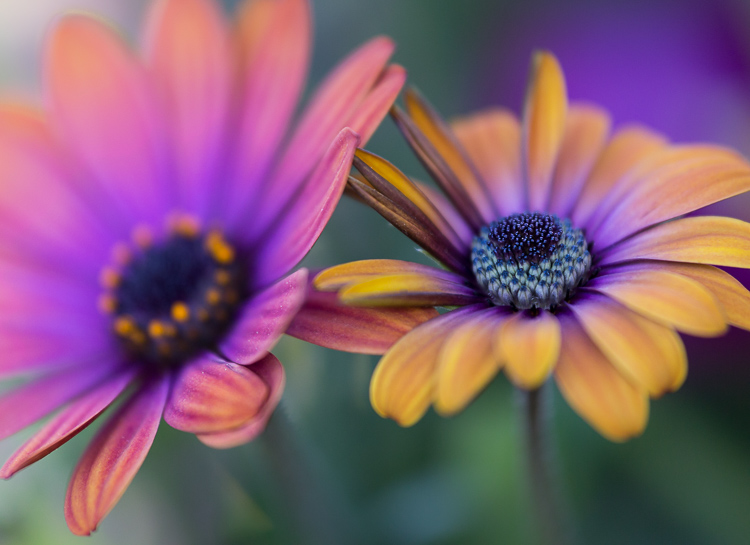
Five Photography Tips to Ignore H

Macro photography – handheld

Street photography never requires a tripod. The most serious street photographers I know use small camera bodies with prime lenses. What makes them serious is that they carry their cameras all the time and are always ready to shoot. For a street photographer, lugging around a tripod actually seems a little ridiculous, doesn’t it?
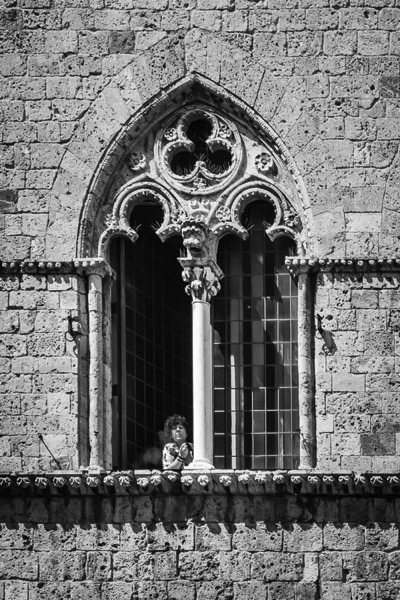
Five Photography Tips to Ignore I

Street photography – handheld

I’m a very serious photographer and I almost never use a tripod. I have two: a Travel Flat Benro tripod and a Gitzo with a Really Right Stuff BH 40 Ball Head. I always have one in the car or in my suitcase, but I rarely use either one anymore.

Does that mean I’m no longer a serious photographer? No, of course not. I travel all over the world to photograph horses and wildlife. I’m very serious about the images I make. The thing is, my images don’t usually require a tripod. Using one is sometimes even counterproductive when photographing fast bursts of action.

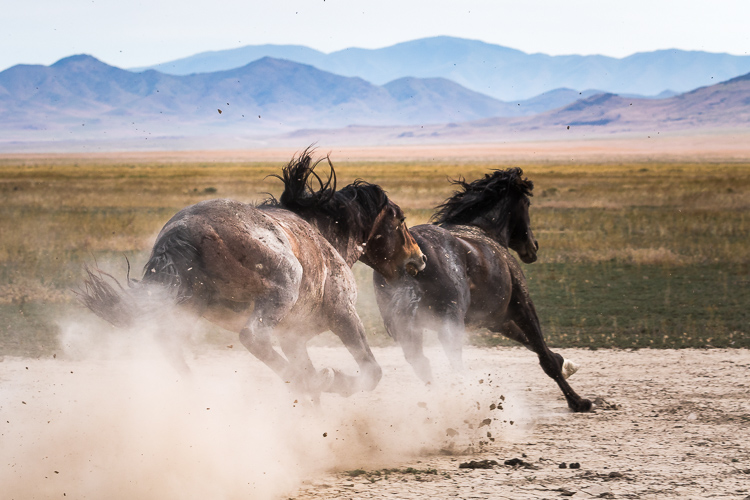
When two wild stallions start to fight out in the desert, I begin to shoot while adjusting my body position to look for the best angles for the scene to improve my composition. Sometimes a wild stallion spat can last for mere seconds. If you had to pause to adjust your tripod, you’d likely miss the action.
Five Photography Tips to Ignore J

Wild stallions – hand-held. ISO 250, 1/800th, f/8 @ 98mm

Being a serious photographer isn’t about the gear you choose to use or not use. Being serious is about making images with intention. Your intention might be totally different than the photographer using the tripod. If it is, ignore his advice to use one.

4. Only shoot in Manual Mode

Most of the professional, money-making photographers I know actually shoot in Aperture Priority so I think this rule is more the advice of old-fashioned, learned-on-film photographers. These photographers grew up using Manual Mode since that’s the only option that was available. They didn’t have the choice of Auto, Aperture or Shutter Priority Modes.

So that’s the rub. You do have a choice. You also have stellar gear that is going to make the right exposure choice 90% of the time. Why not learn to use all the modes on your camera?

At a cocktail party for your bestie’s 40th? Use Auto Mode to make sure you get the shot. Shooting fast action? Use Shutter Priority. Shooting in quickly shifting light? Use Manual Mode and set your ISO to Auto. Shooting a portrait? Experiment with Aperture Priority and then give your camera’s Portrait Mode a try.

Five Photography Tips to Ignore K

Self-portrait shot in Portrait Program Mode. 100, 1/100th, f/3.5 @ 50mm

Cameras today have amazing functionality. Anyone telling you to exclusively use Manual Mode may have different photography goals than you do. If your goal is to make sure you make the best images possible, ignore their advice and learn all of your camera’s capabilities backwards and forwards.

5. Only shoot in your lens’s sweet spot

If you’re keeping track, by heeding all of this well-intentioned advice, your camera is in Manual Mode and attached to a tripod. Your ISO is set at 400 and you’re using a maximum shutter speed of 1/500th. There has to be a rule about aperture and focal length too, right? There is.

The sweet spot is a combination of the aperture and focal length where your lens functions at its absolute best. If you’ve read reviews about zoom lenses you may have read something along the lines of; “Wide open at f/5.6 at the maximum focal length of 400mm, the corners get soft and there’s a noticeable loss of sharpness throughout.” Photographers write reviews like that so that you can avoid shooting in the so-called soft end of your lens and gravitate towards its sweet spot.

You can evaluate the sweet spot of your lens by making a series of images of the same subject, in the same lighting conditions, using each aperture at every focal length and comparing the results. (Read: How To Find Your Lens’ Sweet Spot: A Beginner’s Guide to Sharper Images for a full description of how to do this.) That sort of evaluation sounds soul-crushing and unnecessary to me. If you buy a zoom lens, you’re buying it because you need that focal length in your bag. Why run a test on your lens that might make you hesitate to use it at its maximum focal length?

Five Photography Tips to Ignore L

The real sweet spot is making images that feel right to you. ISO 2500, 1/80th, f/4.5 @73mm

Instead how about learning the capabilities of your lens by truly using it? Over time, you may gradually learn that the sweet spot is 100mm at f/8, because every image you shoot at that aperture and focal length is amazing. Rather than avoiding the rest of your lens’ focal length range and aperture combinations, you can shoot a second image using the sweet spot. If there isn’t time to shoot a second image, that’s okay. Just be grateful you had a lens capable of capturing the image at all.

Bottom line

The bottom line is that as you progress in your photography journey, you get to make the decisions. What advice and rules will you follow, and which will you toss out?

Be disagreeable with me! What photography rules have you been taught that you ignore now? Please share your experience in the comments below.

googletag.cmd.push(function() {
tablet_slots.push( googletag.defineSlot( “/1005424/_dPSv4_tab-all-article-bottom_(300×250)”, [300, 250], “pb-ad-78623” ).addService( googletag.pubads() ) ); } );

googletag.cmd.push(function() {
mobile_slots.push( googletag.defineSlot( “/1005424/_dPSv4_mob-all-article-bottom_(300×250)”, [300, 250], “pb-ad-78158” ).addService( googletag.pubads() ) ); } );

The post Five Photography Rules You May Want to Ignore by Lara Joy Brynildssen appeared first on Digital Photography School.


Digital Photography School

 
Comments Off on Five Photography Rules You May Want to Ignore

Posted in Photography


You’ve got mail: Five photo postcard apps tested

04 Jul

In this age of sharing images via email, social media and text messages, one form of photo communication has sadly been left behind. It is something we all used to look forward to getting from anyone who was traveling. I’m speaking of the humble postcard.

Be it a trip as mundane as a work conference in Kansas City or as exotic as a trek through the Amazon rainforest, getting a postcard in the mail was something that we all looked forward to from friends and family. Even today, if I want to make my grandmother happy, sending even the cheesiest of postcards will bring a smile and a thank you. Perhaps more surprisingly, my kids go completely nuts when someone sends them a postcard. At 6 and 8, they both already have email addresses, but the postcards all go right up on the wall above their beds.

But what if we could merge the old-school and the new-school? What if, instead of relying on the spinning metal rack of cards at a roadside diner or airport giftshop, you could easily send a postcard of an image you took yourself? Through the magic of smartphone apps, doing so is far easier than you might expect.

Putting them to the test

I tried out five different postcard apps on an iPhone 5s: Touchnote, Postcard, Ink, Postagram and Snapshot Postcard. All of the apps are free and charge only for sending cards. I sent myself three postcards from each app using the same three images. One of the images was taken with a DSLR and another with a Micro Four Thirds camera, then transferred to my iPhone. The third image was a photo taken with the iPhone’s rear-facing camera. The data regarding pricing was reported by the app companies themselves. I did my best to make it clear what the costs would be for both US and International users. If the company reported specific non-US pricing, it is listed. But if they did not, pricing will be in whatever your local exchange rate is from USD.

Touchnote
www.touchnote.com

Cost: $ 2.99/£2.99/€2.99
Usable worldwide: Yes
Cardstock: 110 lb glossy
Android/iOS: Both
Additional products: Greeting cards

As with all of these apps, Touchnote has iOS and Android versions. What is unique is that it also has a web interface so you can order while at your desk. This is actually surprisingly handy if you intend to send non-phone images regularly. Full-bleed, white border, square or 1-6 multi image layouts are available. Images can be cropped, zoomed and rotated within the app. In addition to traditional messages on the back of the postcard, Touchnote allows you to add up to a 33 character caption on the front side as well. There is a confirmation email after you send a card and you can see (as well as copy for future use) all of your past sent cards in a nice timeline view.

Postcard by PrintMe
www.printmeapp.com/card

Cost: $ 2.99/£1.79/€2.49
Usable worldwide: Yes
Cardstock: 300 gr/qm (aprox 110 lb) luster
Android/iOS: Both
Additional products: Greeting cards, photo books, calendars

Postcard by PrintMe aims to be more of a ‘photo products’ app than the others in this article. That said, its postcard options are plenty strong on their own. Full-bleed, white border, and multi-image layouts are available, as well as many ‘occasion/holiday’ designs. The image can be zoomed and cropped, but not rotated.

Rare in these apps is Postcard’s ability to change the font for your message on the back. Sadly, there is no drop-down list, you just have to keep pressing the ‘font’ button over and over. Still, it is one of the only apps that give you any font option at all. Much cooler is the ‘signature’ box option which allows you to sign your name on-screen and have it print on the card. Finally, though I did not test it, Postcard offers the option to pick up folded greeting cards, but not postcards, next-day at Walgreens locations.

Postagram
www.sincerely.com/postagram

Cost: $ 0.99 domestic $ 1.99 international
Usable worldwide: Yes
Cardstock: 12 pt (approx 92 lb) with thick glossy laminate
Android/iOS: Both
Additional products: None

Looking to differentiate itself from the other apps out there, Postagram is unique both because it is designed around a, presumably, Instagram-inspired square image layout, and also because that square image comes pre-perforated and ready to pop out in a sort of trading-card style. Your message is printed on both the back of the image ‘card’ and on the front side as well. In a nice touch, you can choose a secondary 0.75 inch x 0.75 inch ‘avatar’ style secondary image to appear in the corner. Which is neat for including an image of yourself along with your landscape image from a trip somewhere, for example. Currently the non-image area of the Postagram cards are black. However, an upcoming app update will offer more colorful options.

Both Ink (described below) and Postagram are from the same company, so if you have set up an account on one, it will work on the other. They apps are also virtually identical in design and features, with the few small differences owing mostly to the differing focus of each product. There are some basic Instagram-style image filters available as well as the ability to zoom and crop. Rotating your image does not seem to be an option. To make sending multiple cards faster, you can copy a past card and update the address/message. There is a clever payment option that allows you to take a photo of your credit card instead of entering in the numbers manually. Both apps are very good with order-received/card-sent confirmations. I will say that unless you turn them off, they are both a little heavy on the marketing notifications (‘It’s a week until Mother’s Day!’ etc).

Ink
www.sincerely.com/ink

Cost: $ 1.99 within the USA, $ 2.99 International, $ 2.99 extra for “Premium” option
Usable worldwide: Yes
Cardstock: 12 pt (approx 92 lb) with thick glossy laminate, Premium cards are 120lb with eggshell finish
Android/iOS: Both
Additional products: None

Ink is designed as more of a greeting-card style postcard app, with many pre-formatted designs for various holidays and occasions that you can add your image to. But they also offer standard postcard options as well as full-bleed, white border or multi-image layouts. Ink postcards are the largest of any tested here, at 5×7 (vs roughly 4×6 for the others). They also offer an upgraded “Premium” card that is printed on heavier matte cardstock and comes in an embossed envelope with a real stamp.

SnapShot Postcard
www.snapshotpostcard.com

Cost: $ 1.99 domestic $ 2.99 international (first card is free from anywhere)
Usable worldwide:  Yes
Cardstock: 110 lb glossy
Android/iOS: Both
Additional products: None (though they do have a greeting card app, SnapShot Greeting Card, as well)

SnapShot Postcard is the only one of the apps that offers a quick ‘getting started’ video as part of its signup flow. While none of these apps are what I would call confusing for anyone who is used to mobile apps, a quick video walkthrough is pretty handy for those who aren’t as tech savvy. Another area where SnapShot Postcard is ahead of the others is that you can send your first card free. Trying a product before you buy is always a nice thing. While user interface is not particularly fancy, all the basics are there in the app. You can set a return address, place a caption on the front, and crop/zoom/rotate (with a handy ‘shake to reset’ function). You can choose borders or full bleed for your images. The borders are fairly cheesy and there isn’t any ‘white’ border option, so full-bleed is going to be your best bet. You are asked if you would like to send the same card again to a different address, handy for vacation or family photos where you might send the same card to many people. There is a nice order history, but you cannot copy old cards. 

Articles: Digital Photography Review (dpreview.com)

 
Comments Off on You’ve got mail: Five photo postcard apps tested

Posted in Uncategorized


MindShift Gear’s Multi-Mount Holster bags offer five wearable configurations

05 May

$ (document).ready(function() { SampleGalleryV2({“containerId”:”embeddedSampleGallery_5331517593″,”galleryId”:”5331517593″,”isEmbeddedWidget”:true,”standalone”:false,”selectedImageIndex”:0,”startInCommentsView”:false,”isMobile”:false}) });

MindShift Gear has launched four Multi-Mount Holsters for photographers in need of a versatile bag that can accommodate a DSLR or mirrorless camera, a lens, and a few accessories. The Multi-Mount Holster 10 is the smallest of the four, with the Multi-Mount Holster 20, 30, and 50 being incrementally larger while retaining the same general design and features.

The entire line of Multi-Mount Holsters can be used in five different configurations: as a belt around the waist, over the shoulder, over the chest, in front on a harness and as a fanny pack. Each holster has a Stabilizer Strap System for securing the bag into the chosen configuration while helping distribute weight. All four models feature a seam-sealed rain cover and interior weather-block under the zippered lid. The Multi-Mount Holster 30 and 50 also have an expandable front pocket.

Other notable features include a removable LCD screen protector, YKK zippers with an anticorrosion coating and enamel finish, a 420D nylon exterior with a ‘Durable Water Resistance’ finish, a security loop in the main compartment for securing a camera, and a clip-on point for water bottles on the shoulder strap. The 30 and 50 models can also hold keys, memory cards, and more in the front pocket.

Each bag offers the following capacities:

Multi-Mount Holster 10 ($ 89.99)

  • Holds one large (un-gripped) Mirrorless body and one standard zoom lens or prime
  • Holds one compact DSLR (Rebel, 3300 or 5300 series) and one lens
  • Compatible Lenses: Prime lens; Kit Lens; 16-85mm (Canon or Nikon) with hood REVERSED; 16-35mm f/2.8 (Sony)

Multi-Mount Holster 20 ($ 99.99)

  • Holds one standard-size DSLR (5DM3 or D810) and one standard zoom lens or two primes
  • Holds one large (un-gripped) Mirrorless body and one standard zoom lens or two primes
  • 16-35mm f/2.8 with hood EXTENDED (Canon); 16-35mm f/4 VR with hood EXTENDED (Nikon); 24-70mm f/2.8 with hood REVERSED (Canon or Nikon); 17-55mm f/2.8 with hood REVERSED (Canon or Nikon)

Multi-Mount Holster 30 ($ 109.99)

  • Holds one standard-size DSLR (5DM3 or D810) and one standard zoom lens
  • Holds one gripped DSLRs (1Dx or D4s) and one standard zoom lens
  • 24-70mm f/2.8 with hood EXTENDED (Canon or Nikon); 70-200mm f/2.8 with hood REVERSED (Canon or Nikon); 300mm f/4 with hood REVERSED (Canon or Nikon); 80-400mm f/4 AF-S/G with hood REVERSED (Nikon)
  • Front pocket holds SB-910 (Nikon Speedlight); 600 RT (Canon Speedlite)

Multi-Mount Holster 50 ($ 119.99)

  • Holds one gripped Pro DSLR (Nikon D3/D4 series or Canon 1D/1Ds/1DX series) and one standard zoom lens
  • Holds one standard DSLRs with L-bracket (Nikon D800/D700) and one standard zoom lens
  • 24-70mm f/2.8 with hood EXTENDED (Canon or Nikon); 70-200mm f/2.8 with hood REVERSED (Canon or Nikon); 300mm f/4 with hood REVERSED (Canon or Nikon); 80-400mm f/4 AF-S/G with hood REVERSED (Nikon)
  • Front pocket holds SB-910 (Nikon Speedlight); 600 RT (Canon Speedlite)

Articles: Digital Photography Review (dpreview.com)

 
Comments Off on MindShift Gear’s Multi-Mount Holster bags offer five wearable configurations

Posted in Uncategorized


Panasonic updates five Lumix G lenses with Dual IS support

15 Dec

Panasonic has released firmware updates for five Lumix G lenses, adding support for the maker’s Dual IS technology. The feature was introduced in the Lumix DMC-GX8 camera; with this update, a total of eleven lenses are compatible with that model’s Dual IS system, including the Leica DG Macro-Elmarit 24mm F2.8 Macro and collapsible Lumix G Vario 12-32mm F3.5-5.6.

Panasonic’s Dual I.S system uses both the GX8’s body I.S and lens I.S together for improved image stabilization, ‘achieving a more powerful handshake correction,’ according to Panasonic. The new firmware is available for the following five lenses:

  • Panasonic Leica DG Macro-Elmarit 45mm F2.8 Macro ASPH Mega OIS (H-ES045) Ver.1.0?Ver.1.1
  • Panasonic Lumix G Vario 45-150mm F4.0-5.6 ASPH Mega OIS (H-FS45150) Ver.1.1?Ver.1.2
  • Panasonic Lumix G Vario HD 12-32mm F3.5-5.6 Mega OIS (H-FS12032) Ver.1.0?Ver.1.1
  • Panasonic Lumix G Vario 35-100mm F4.0-5.6 ASPH Mega OIS (H-FS35100) Ver.1.0?Ver.1.1
  • Panasonic Lumix G X Vario PZ 14-42mm F3.5-5.6 ASPH Power OIS (H-HS043) Ver.1.0?Ver.1.1

The updated firmware is available for download from Panasonic’s website.

Articles: Digital Photography Review (dpreview.com)

 
Comments Off on Panasonic updates five Lumix G lenses with Dual IS support

Posted in Uncategorized


HandeVision announces five lenses for its Iberit family – full frame lenses for mirrorless cameras

10 Dec

German/Chinese optics brand HandeVision is set to introduce five new lenses next year that are designed for full-frame mirrorless cameras. Each with a maximum aperture of F2.4, the focal lengths the company is planning to release in its Iberit series will be 24mm, 35mm, 50mm, 75mm and 90mm. 

The company says it has concentrated on making the lenses small and lightweight to suit small and light cameras, but has used brass, aluminum and stainless steel in the construction of the barrels and mounts. 

The lenses, which look more than a little like Leica M lenses, are all manual focus and offer aperture rings with markings for F2.4-16. Although they have a 44mm imaging circle that covers a full frame sensor, the lenses will be released with mounts for APS-C cameras, such as the Sony NEX and Fuji X system. These lenses will offer electronic aperture control. The 35mm, 50mm and 75mm lenses have six-blade apertures, while the iris in the 90mm uses 10. There is no specification as yet for the 24mm lens.

The first set of lenses will be made for Leica M, Sony E and Fuji X cameras, though the company doesn’t specify what other mounts will be available eventually. A Micro Four Thirds mount Ibelux 40mm F0.85 lens already exists, but there is no mention of whether MFT mount versions of these new models will be introduced at any point.

January 2016 is given as the launch date for the 35mm, 50mm and 75mm lenses, and the 24mm and 90mm lenses will be available ‘later in the year.’ Prices are a bit vague at the moment, but HandeVision says the lenses will cost between $ 480 and $ 660 depending on the model. 

HandeVision is a brand created through cooperation between German lens manufacturer IB/E Optics and the Chinese company Shanghai Transvision Photographic Equipment Co – the company behind the Kipon brand. 

For more information visit the HandeVision website. 

Focal Length   35mm  50mm  75mm  90mm
 Angle of View  63.4  46.8  32.2  27
 Aperture  2.4-16 2.4-16  2.4-16  2.4-16
 Close Focus (M/NEX,FX)  0.7/0.35m  0.7/0.6m  0.7/0.6m 0.7m 
 Iris Blades  6  6  6  10

 Length 
(M/NEX, FX)

 35/45mm  55/65mm  35/75mm  69/79mm
 Diameter  58mm  58mm  58mm  58mm
 Filter Thread  M49x0.75  M49x0.75  M49x0.75  M49x0.75
 Weight (M/NEX, FX)  NA  250/310g  270/330g  NA
 Elements/Groups  6/6  6/6  5/5  4/4

Articles: Digital Photography Review (dpreview.com)

 
Comments Off on HandeVision announces five lenses for its Iberit family – full frame lenses for mirrorless cameras

Posted in Uncategorized


David Stewart’s ‘Five Girls’ wins £12,000 Taylor Wessing Photographic Portrait Prize

18 Nov

A photographer who has charted the growing up of his daughter and four of her friends has won the Taylor Wessing Photographic Portrait Award with a re-staged picture he entered into the 2008 competition. Five Girls 2014 shows the group six years on from an original image that was taken right before their GCSE school exams (11th grade). Read more

Articles: Digital Photography Review (dpreview.com)

 
Comments Off on David Stewart’s ‘Five Girls’ wins £12,000 Taylor Wessing Photographic Portrait Prize

Posted in Uncategorized


Five Techniques for Creating Impressionist or Abstract Photography

25 Oct

Whether you are new to photography, or have been photographing for a while, I’m sure you’ve gone through times when the ideas weren’t flowing, and inspiration was nowhere to be found. This happens to all of us. So how do you find ways to stay inspired and get the creative juices flowing again? Try abstract or impressionist photography. Finding inspiration isn’t about stepping outside of your box, it’s about stretching your limits, and abstract photography is the best way to learn to see things in a completely new and different way.

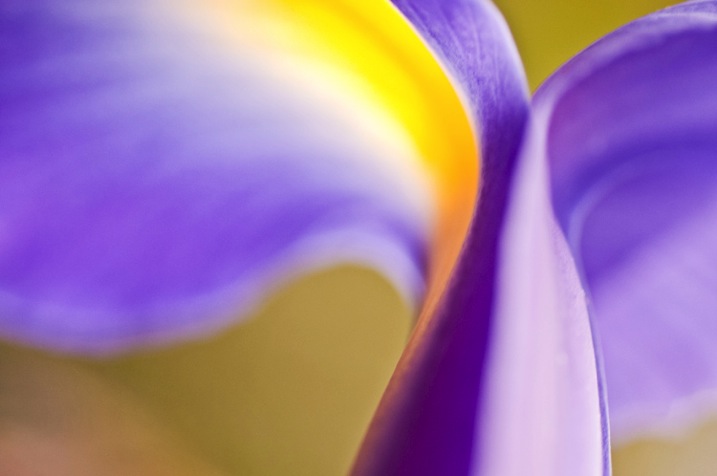
1 Look for shapes Irys by Eva Polak

Abstract and impressionist photography leave things to the imagination and help you concentrate on texture, form, and colour. Instead of making everything look real, I invite you to use bold colours, shapes, and lines to make exciting images.

So let’s start exploring the creative process of abstract photography. Here are five easy techniques that will help you to learn new skills and get your creative juices flowing.

1. Look for shapes, patterns and textures

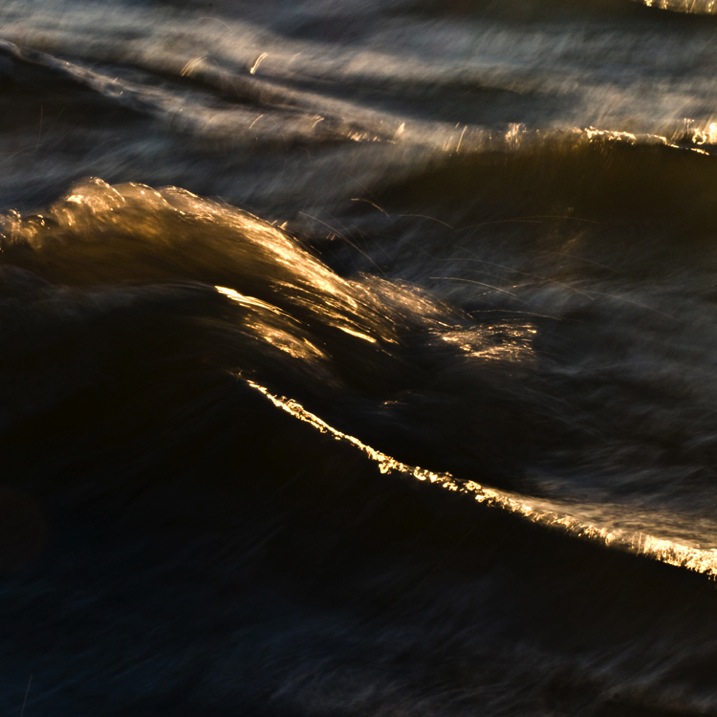
As you go about your daily activities, notice the shapes around you. Your house is full of interesting shapes, patterns and textures that can be used to make abstract photos. Look closely at different objects around you and consider whether there are any reoccurring shapes or themes within the object – then use them to your advantage. Lines can be used very effectively in a photograph, as the eye will tend to follow a line through a shot. Look at the undulating pattern the wave makes (see below), as it breaks into shore. In the city, look for patterns formed by the buildings. Discover different textures in flowers arrangements in the park (see photo above).

1 Look for shapes Waves by Eva Polak

2. Look for reflections

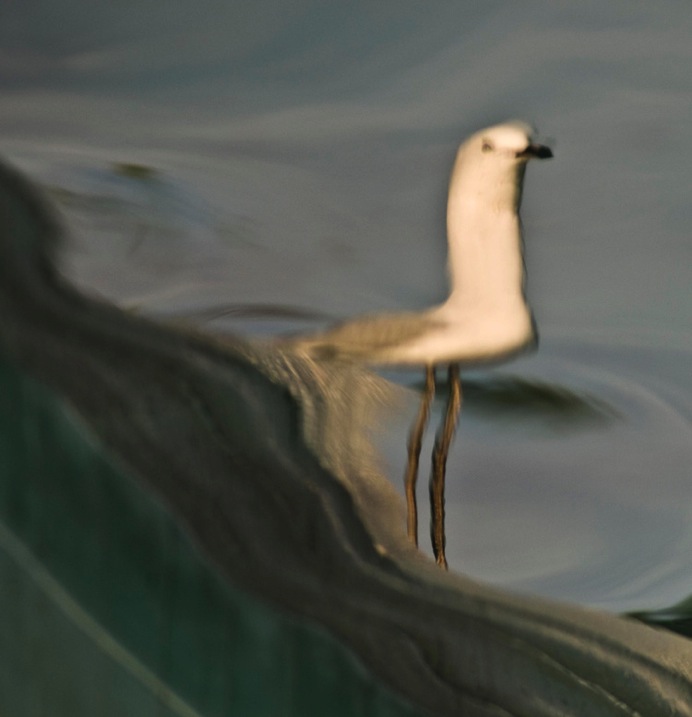
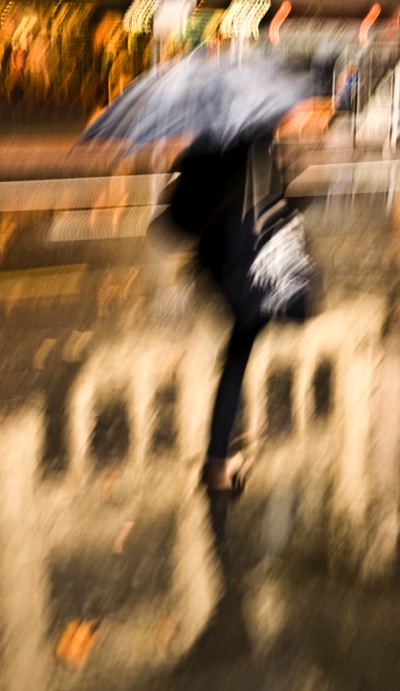
Reflections are one of the best ways to create abstract and impressionist photography. If you look carefully, you’ll see they are everywhere. As you walk around, look for smooth surfaces. Think about how you can use reflections to capture a viewpoint that you simply couldn’t have shot otherwise. Pay attention for colourful reflections in rain-soaked streets, they will create shimmering images with an impressionistic quality. Also, still lakes and rivers can create some wonderful reflective surfaces. When a surface is textured or shaped, unusual and interesting reflections can appear.

2 Reflection Seagull by Eva Polak

2 Reflections Rainy streets by Eva Polak

3. Defocus

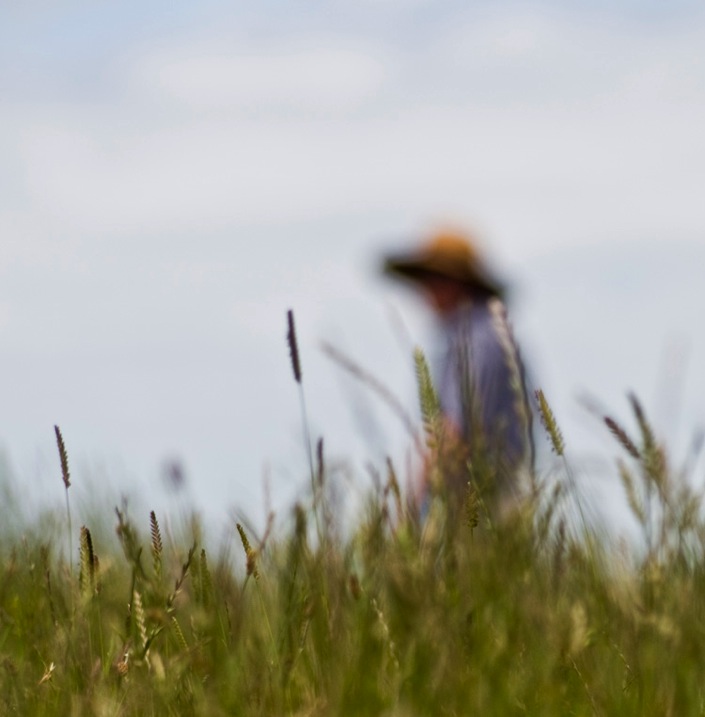
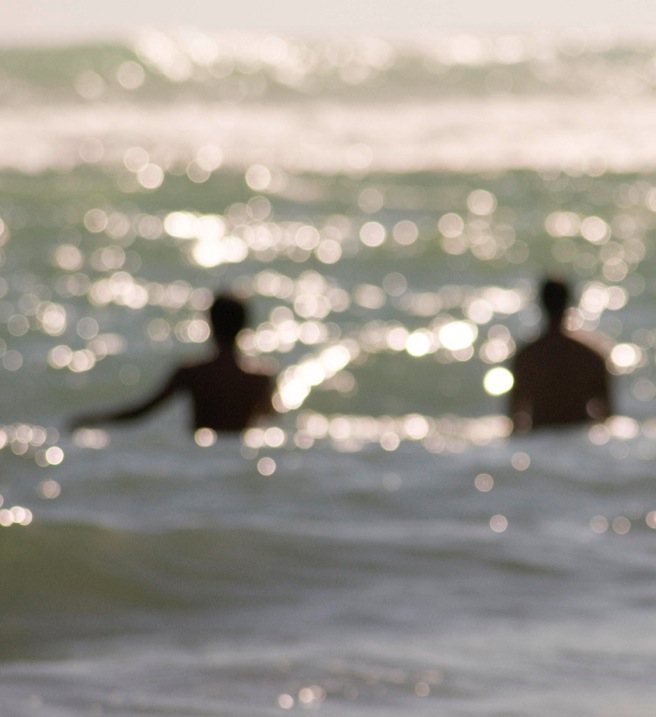
Pulling the lens out of focus is a quick way to give a scene an impressionistic look. Use Aperture Priority mode that allows you to set your lens to the widest aperture (small numbers such as f/2.4 or f/4). This is critical because you want a very shallow depth of field. Switch your lens to manual focus and start looking at things through the camera. Turn the focus ring until everything is blurry. Try varying the focus on the same scene to find out how much blur suits your subject best.

3 Defocus Lonly  by Eva Polak

3 Defocus Swimmers by Eva Polak

4. Pan your camera

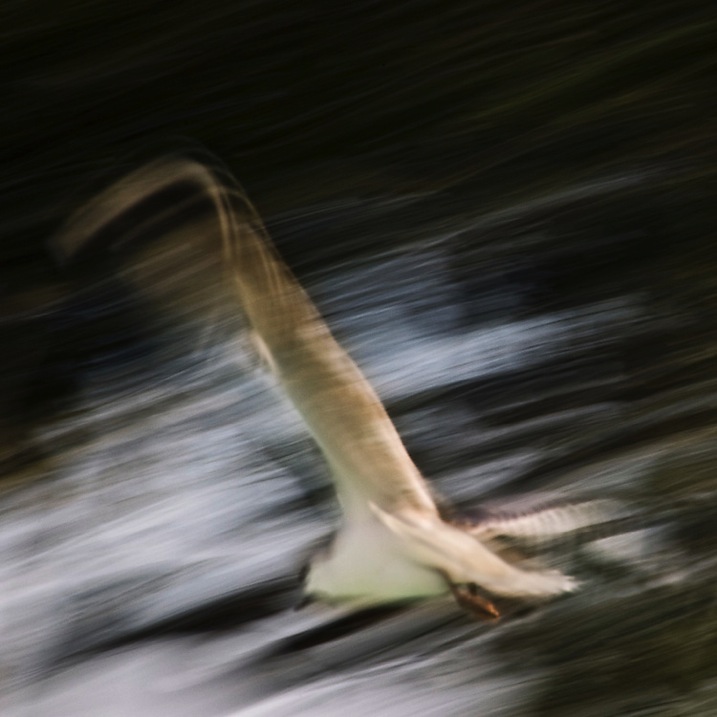
Panning is a fun technique to learn, and although it takes some practice, it is relatively easy to get started. You can pan running people, bicycles, cars, or just about anything that is moving. Once you have your subject, set the camera to shutter priority with the shutter speed between 1/10th and 1/60th of a second. As your subject approaches, focus on it and start tracking with your camera until you are confident that you are moving in sync with the subject.

4 Pan your camera Flight by Eva Polak

The trick to a successful camera-panning image is in finding a suitable subject. Strong vibrant colours are ideal, and lines through the frame will keep the colours distinct and separated. Apart from panning moving subjects you can use this technique to create beautiful seascapes and landscapes. The subject distortion will emphasize horizontal lines when panning horizontally, and vertical lines when panning vertically.

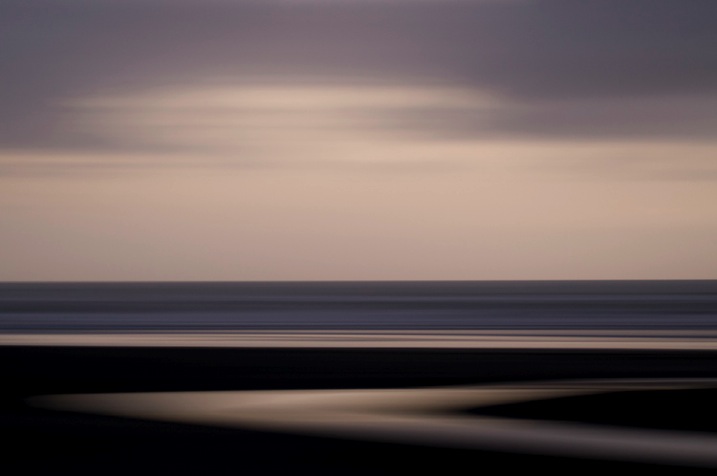
4 Pan you Camera  Wattle Bay  Eva Polak

5. Zoom

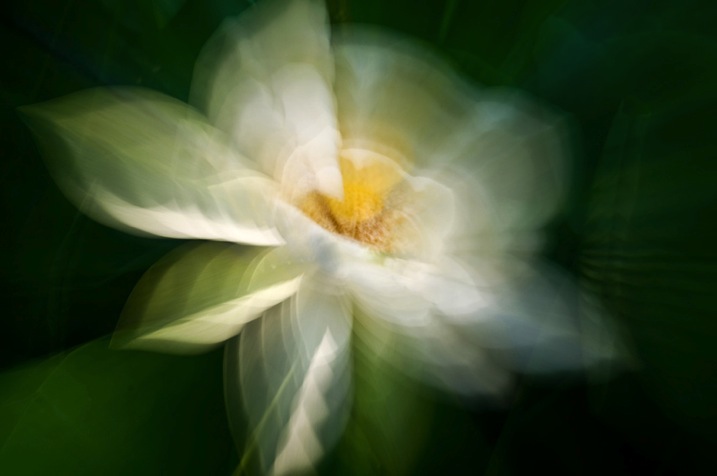
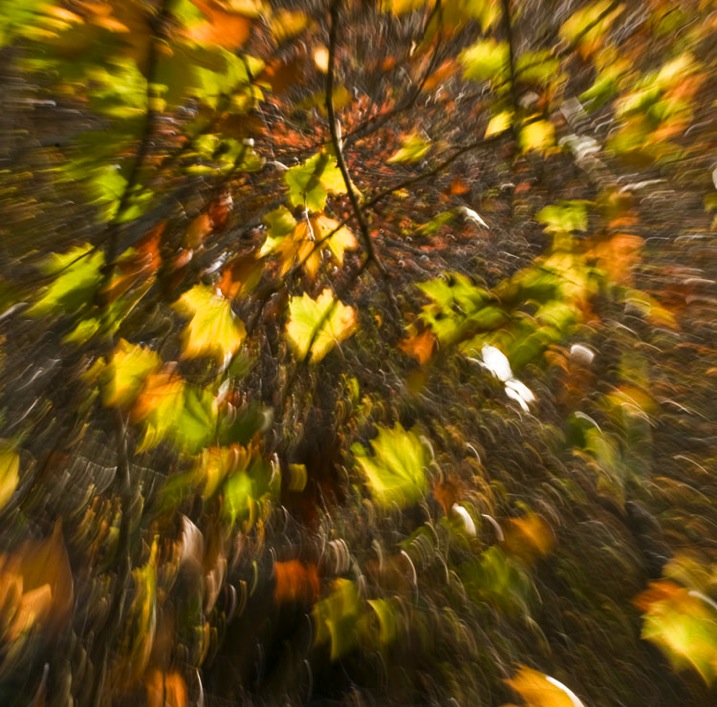
A zoom burst, or zoom blur, is another technique which is simple, fun, and easy to achieve. It involves changing the focal length of your lens (zooming in or out) while you take a photo, causing the shot to blur from the centre outwards, as if the scene is bursting towards you.

5 Zoom Water lily by Eva polak

To use this technique you’ll need a DSLR (or mirrorless camera) with a zoom lens. Set your camera to Shutter Priority. A shutter speed of 1/10th of a second is a good starting point. Compose your photo as you normally would, then just zoom the lens as you press the shutter. The key to success with this technique is to get the amount of zoom burst right. Experiment with zooming speed and direction.

5 Zoom Autumn Leaves by Eva Polak

Spend some time with each technique to discover its full potential. Photograph a lot and often. Don’t judge what you do. Analyze your images and try to improve upon them. But, most of all, have fun!

Tips to remember:

  • Keep an open mind; abstract photography is about seeing the potential in things that other people miss.
  • Spend time exploring everyday subjects and scenes; it’s surprising how many interesting abstracts you will find.
  • Look at familiar things from unfamiliar angles, and you will see them in a completely different light.
  • Forget about what something really is and concentrate on its shape and colour.

googletag.cmd.push(function() {
tablet_slots.push( googletag.defineSlot( “/1005424/_dPSv4_tab-all-article-bottom_(300×250)”, [300, 250], “pb-ad-78623” ).addService( googletag.pubads() ) ); } );

googletag.cmd.push(function() {
mobile_slots.push( googletag.defineSlot( “/1005424/_dPSv4_mob-all-article-bottom_(300×250)”, [300, 250], “pb-ad-78158” ).addService( googletag.pubads() ) ); } );

The post Five Techniques for Creating Impressionist or Abstract Photography by Eva Polak appeared first on Digital Photography School.


Digital Photography School

 
Comments Off on Five Techniques for Creating Impressionist or Abstract Photography

Posted in Photography


Five Useful Lightroom Keyboard Shortcuts

16 Apr

Lightroom shortcuts

Adobe makes life easier for Lightroom users by building in keyboard shortcuts. You probably know some of the more important ones by heart (e.g.: T to reveal or hide the Toolbar, \ to toggle between before and after views, and O to reveal the Adjustment Brush overlay). But I’m also betting there are quite a few shortcuts you didn’t even know existed. Here are some of the more useful, lesser known ones.

1. Reveal all Shortcuts

Keyboard shortcuts are difficult to remember, especially if you don’t use them that often. But if you press Ctrl + / (PC) or Cmd + / (Mac), Lightroom displays a list of the shortcuts available in the current module. When you’re done, click anywhere on the shortcut list to hide it.

Lightroom shortcuts

Library module shortcuts.

Lightroom shortcuts

Develop module shortcuts.

Note: The rest of these keyboard shortcuts are for the Develop module. Not all of them are shown on the shortcuts list.

2. Rotate the Crop Overlay

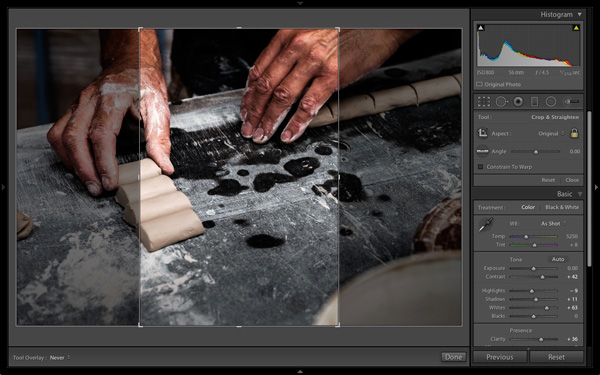
If you’ve ever tried to make a portrait crop from a landscape image you’ll have experienced the frustration of trying to rotate the Crop Overlay (press R to go straight to that tool).

Lightroom automatically gives the Crop Overlay the same orientation as the photo, with no immediately obvious way of rotating it. To do so, simply press X.

Lightroom shortcuts

By default the Crop Overlay is automatically given the same size and orientation as the original frame.

Lightroom shortcuts

Press X to rotate the Crop Overlay and make an extreme crop.

3. Resample Spot Removal Tool

The good thing about the Spot Removal Tool (which you can activate by pressing Q) is that Lightroom is quite good at guessing which part of the image it should sample, in order to heal the selected area. But it doesn’t get it right all the time. If you don’t like the result, press the / key and Lightroom will choose a different area to sample. Repeat as often as you like.

Lightroom shortcuts

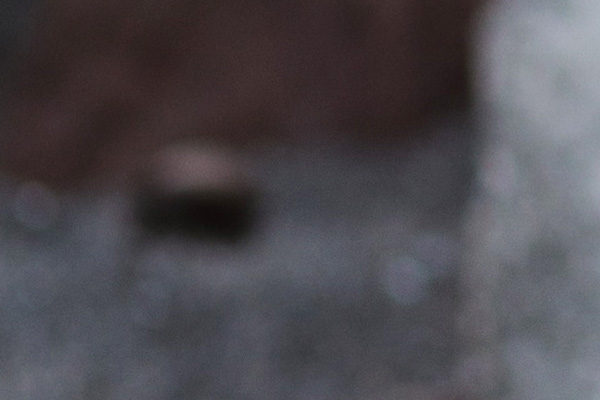
In this example I wanted to get rid of this dark blob in the background because it’s a distraction.

Lightroom shortcuts

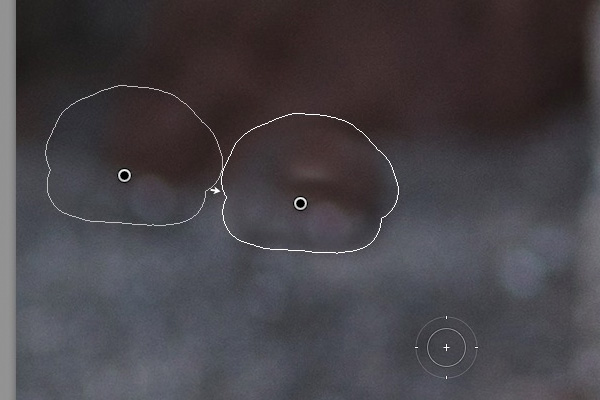
Lightroom’s first guess doesn’t really work.

Lightroom shortcuts

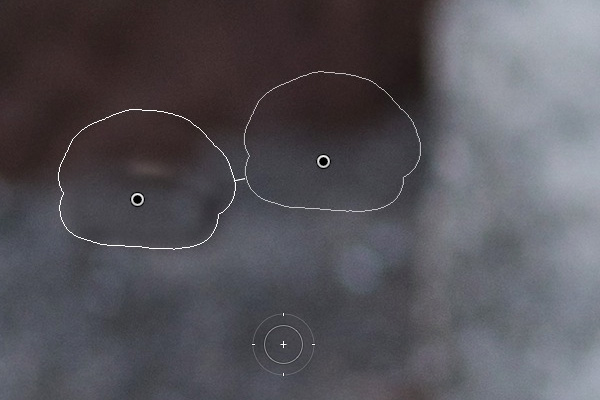
But the second one is much better. You can of course fine-tune it by moving the pin indicating the sampled area manually.

4. Automatic White and Black points

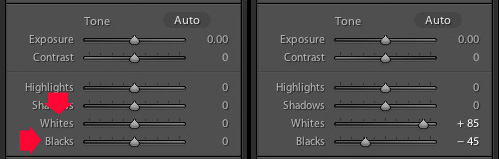
If you double-click on the Whites and Blacks sliders in the Basic panel, Lightroom resets them to zero. If you hold the Shift key down while you do it, Lightroom calculates the best settings, working out where to position both sliders so that the histogram stretches all the way from the left side of the graph (shadows) to the right (highlights) without any gaps. This quick fix makes most photos look better right away. The flatter the original photo, the more extreme the settings required.

Lightroom shortcuts

Double-click the Whites and Blacks sliders while holding the Shift key down. Make sure you double-click the words and not the slider itself.

5. Flip a Graduated Filter

Press the apostrophe key to flip (invert) a Graduated Filter. One practical use for this is as follows:

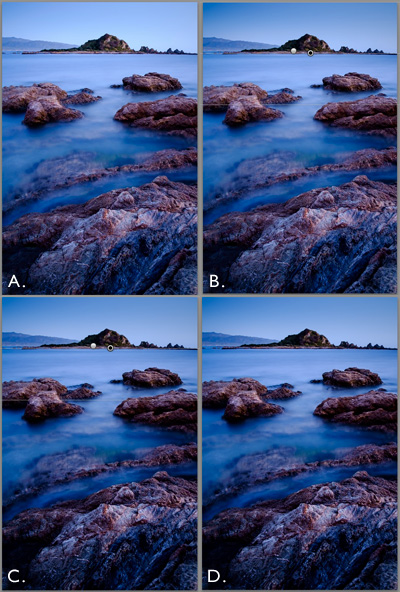
  • Create a Graduated Filter over the sky of a landscape image (hold the Shift key down while you do so to keep the Graduated Filter straight) and move the Exposure slider left to darken that area.
  • Right-click on the Graduated Filter’s pin and select Duplicate. This creates a new Graduated Filter with exactly the same settings as the first.
  • Press the apostrophe key to flip the Graduated Filter. Now the minus Exposure setting is applied to the foreground. We don’t want to make the foreground darker, so double-click the Exposure slider to return it to zero. Now we are ready to use this new Graduated Filter to enhance the foreground.
  • Move the Clarity slider right to emphasise the texture in the foreground. You may also need to move the Exposure slider left if this brightens the foreground too much.

The net result is that you have applied two Graduated Filters, one to the sky, and the other to the foreground.

***By the way, the apostrophe shortcut also works with the Radial Filter.

Lightroom shortcuts

(A) Original photo. (B) Graduated Filter with minus Exposure applied to sky. (C) Duplicated and flipped Graduated Filter applied to foreground, with plus Clarity and minus Exposure. (D) Final result.

Your turn

What keyboard shortcuts do you use in Lightroom and why? Please let us know in the comments.


The Mastering Lightroom Collection

Mastering Lightroom ebooksMy Mastering Lightroom ebooks will help you get the most out of Lightroom 4 and Lightroom 5. They cover every aspect of the software from the Library module through to creating beautiful images in the Develop module. Click the link to learn more or buy.

googletag.cmd.push(function() {
tablet_slots.push( googletag.defineSlot( “/1005424/_dPSv4_tab-all-article-bottom_(300×250)”, [300, 250], “pb-ad-78623” ).addService( googletag.pubads() ) ); } );

googletag.cmd.push(function() {
mobile_slots.push( googletag.defineSlot( “/1005424/_dPSv4_mob-all-article-bottom_(300×250)”, [300, 250], “pb-ad-78158” ).addService( googletag.pubads() ) ); } );

The post Five Useful Lightroom Keyboard Shortcuts by Andrew S. Gibson appeared first on Digital Photography School.


Digital Photography School

 
Comments Off on Five Useful Lightroom Keyboard Shortcuts

Posted in Photography


Shooting Better Waterfalls: Five Tips for Improving Your Waterfall Photography

14 Apr

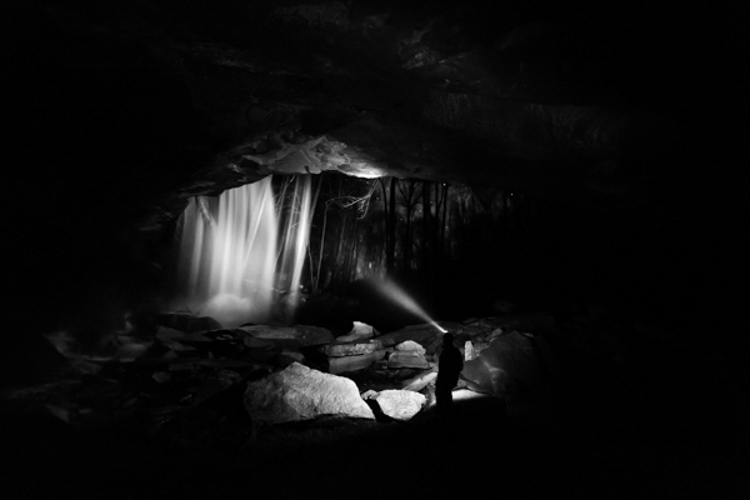
Cave Selfie

Perhaps there isn’t a more sought after and photographed subject than water. More specifically, waterfalls. When you really think about it, waterfalls are one of the most basic and simple things that we can find in nature. They are just streams or rivers that happened, by one geological occurrence or another, to find themselves flowing over some height of cliff or stone or other drop-off. Still, we remain captivated by the simple beauty and serenity that can come from being near, and photographing a waterfall.

That’s where we, as photographers, often slam face first into a huge creative and artistic wall. How can you make an interesting photograph of something that has already been so extensively covered by countless other photographers? While there is unfortunately no secret formula for all waterfall photo sessions, there are some very simple and useful tips that can help you create better, and more unique images, of these phenomenal natural occurrences. Let’s dive in (get it?) and get started on the path to better waterfall photography.

Have a plan

I always stress the importance of research and preparedness before any photographic excursion regardless of what the subject or goal might happen to be. This is especially true when you, the outdoor photographer, are readying yourself to photograph waterfalls. There is simply no denying that the more you know about a location, the better your odds will be of coming home with images that you are happy to claim as your own.

Conduct some quick research and find out what the main waterfall or waterfalls are in the area you plan to visit. Google (or another search engine) will be your absolute best friend in this regard. Try to find as many images as you can before you set out so that you can be inspired and have a head start on coming up with your own unique compositions that haven’t been tried with that particular spot.

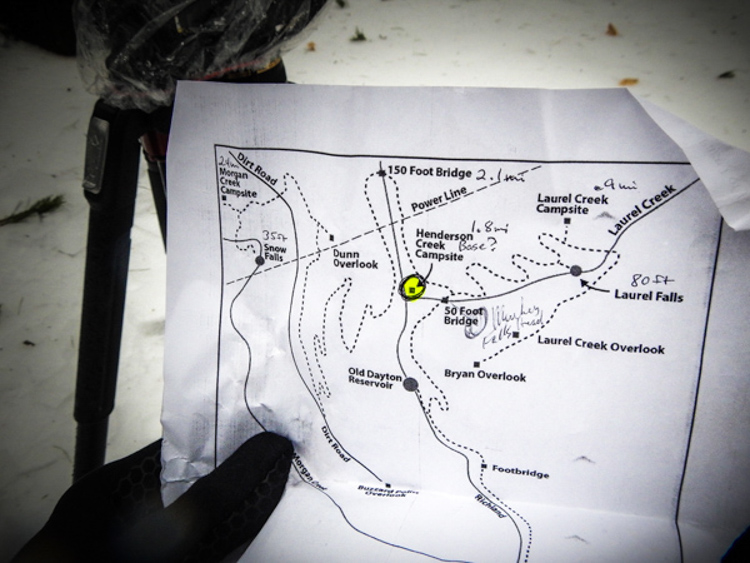
Map

Also, if at all possible, print out a map of the area and highlight the waterfalls that you feel are the most promising for you on that particular day and focus on those first. Don’t waste time trekking into a place that probably won’t yield a good result. Know before you go, and you will make better use of your time and become a much more efficient shooter.

Use a tripod

The topic of using a tripod can sometimes scare you off just from the sheer repetition of the statement. For whatever reason it seems like this essential bit of knowledge is where most beginner photographers find themselves in a state of complete denial. Believe me, I know how uncomfortable, to downright physically painful and tiring it can be to carry a tripod on your person for an extended amount of time. Still, though not always convenient, a tripod will always help you in the long run to produce better photographs. There is simply no other way to limit camera shake without having a solid shooting platform – there just isn’t. You will need such a platform for the longer exposure times often used when encountering waterfalls. End of story.

Another fact that beginners, and even some seasoned photographers, fail to grasp is that the quality of the tripod plays an essential role in its overall use to you. You will need a tripod that locks securely and reliably, and can handle the weight of whatever camera rig you happen to be shooting, as well as the shooting conditions. I can’t tell you how many long exposure images I ruined due to drifting of the tripod head because all I had available was a suboptimal tripod.

The biggest gripe I hear concerning tripods is that the good ones are too expensive. It’s true that a quality tripod will not be cheap. However, it is just as true that you can still obtain one without being outrageously expensive. Shop around and find a tripod that has good reviews, fits your current needs, and will also grow with you as a photographer. Do you really need carbon fiber? Do you need the most advanced ball head? Ask yourself questions like that and your purchase will make less of a dent on your pocketbook. A good tripod will last you years and yield incredible benefits. It will literally pay for itself and be one of the best investments you will make.

Make the waterfall the secondary subject

Foreground Focus

This image puts the colors of the moss and the detail of the foreground as the first point of interest and less on the waterfall itself.

This tip may seem a little counter intuitive but stay with me. It’s fairly straightforward to walk up to the front of a waterfall and snap a quick photo to take home. That’s great if that’s all you want. But let’s face it, you wouldn’t be pouring through all the great content here on dPS if all you wanted was to make average photos. You want to shoot with a purpose, and make photographs instead of taking snapshots. One of the best ways to do this is to think about the subject differently than the average photographer, and waterfalls offer a great opportunity to do this.

When you arrive at a particular falls you should really study the scene. Give yourself a few minutes before you even start thinking about making an exposure. Watch how the water flows and interacts with the other pieces of the scene. It may be rocks, boulders, sand, trees or any number of artifacts found in such places. Don’t let the waterfall itself distract you from the other photographs that could be there.

After all, the waterfall is not the only thing you notice so why should it be the only thing you show your audience? Look for ways to include different parts of the scene and even have the falls take a back seat if that makes a stronger image. Pay attention to what is often overlooked by other photographers. If you do this you will almost always be able to present the waterfall in a way that has never been seen before.

Pay attention to color

Color is a great way to grab the attention of your viewers and pull them into a photograph. Never underestimate the creative power of color when photographing waterfalls. Water is an incredible thing because it not only reflects the different colors around the surface such as the sky and leaves, but also the colors that come from underneath as well.

Use Color

The first step to getting the most interesting colors from a scene is to always shoot in RAW if at all possible. Shooting RAW will allow the most information to be recorded by your camera sensor, which will in turn give you much greater latitude for getting creative later with your post processing. Experiment with creative white balance and see what happens. Enhance the vibrancy and saturations in some areas and decrease them in another. You will be surprised how much more lively and interesting a waterfall can become with simply letting your imagination run free, and by using color creatively.

On the flip-side of the color coin, is that some waterfalls work much better when photographed in black and white. I have often said that I prefer images that tell a story through black and white, unless the color of the scene can speak louder. If you find yourself shooting a waterfall that lacks a lot of native color then why not put your pre-visualization skills to work (you’re still practicing that, right?) and try to imagine how the image could appear in black and white? Look for contrasts between light and dark areas on rocks, and contrasts within the water itself. Are there any interesting textures or reflections?

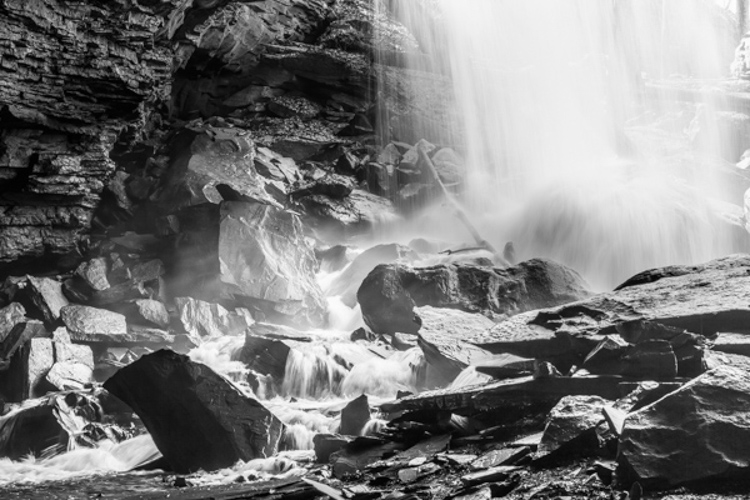
Here’s an unprocessed RAW version of a waterfall. Notice there’s not much color to boast about.

Virgin Falls RAW

Here we see the same image after a little cropping and black and white conversion.

Virgin Falls Processed

Lastly, with this photo, the textures and light really made the image so I converted it to black and white as well.

Rocks and Falls

Never discount the power of a monochrome image. Black and white waterfall work can be extremely profitable especially when you’re shooting in the drab and often colorless winter months.

Don’t forget to protect your gear

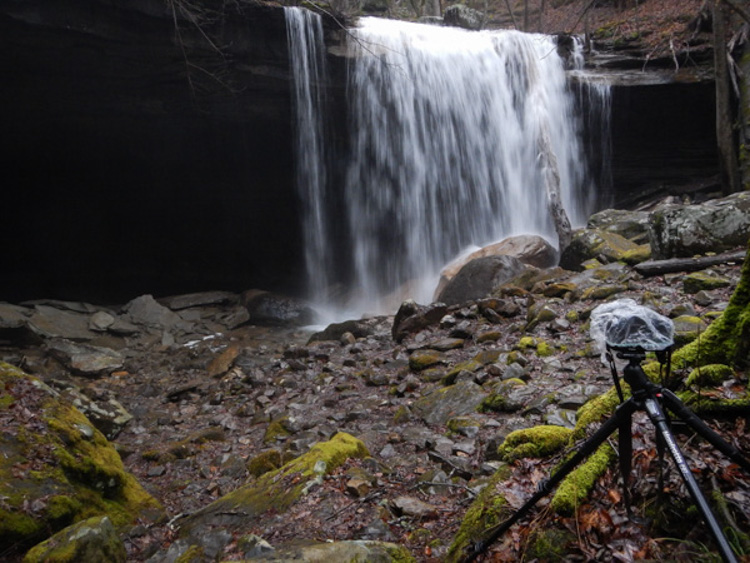
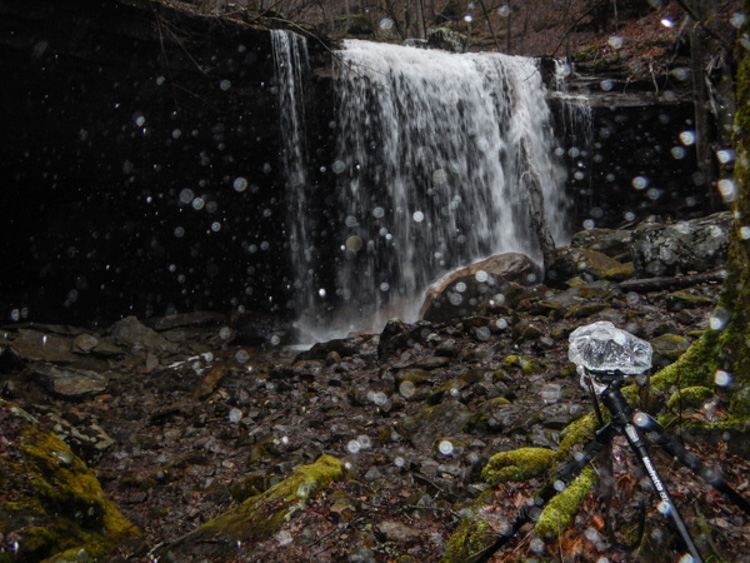
This isn’t really a tip, but rather a lesson that should be learned and become second nature to the serious waterfaller. When shooting a waterfall of any large size and flow there will always be moisture in the air, whether it is visible to you or not. The shear force of the water impacting the terminus of the fall, with render small droplets into the air that will absolutely ruin your shot and potentially destroy your camera and lenses.

Without Water Drops

The air surround a thirty-five foot waterfall without flash.

Water Drops

Then with a flash firing to show the moisture in the air.

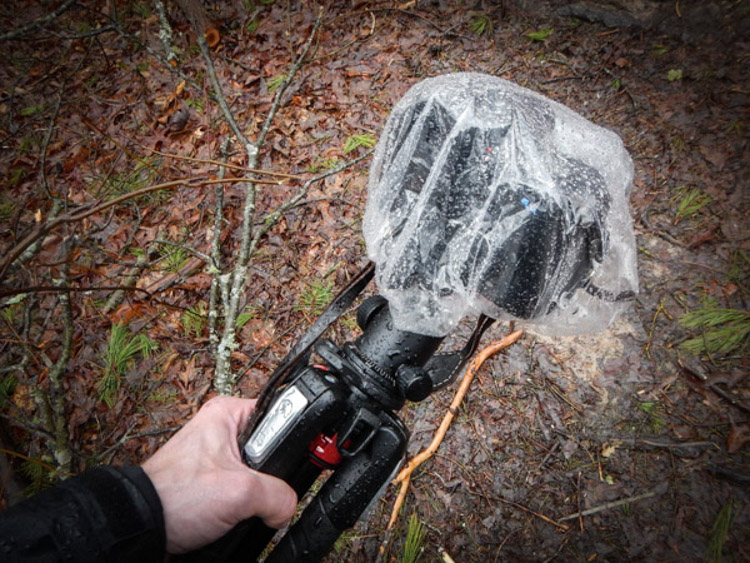
Always use some protective barrier to protect your camera and lens while you set up for your exposure, and for transport around the waterfall. This barrier doesn’t have to be fancy. Personally I use pre sized slip-on plastic container covers that you can pick up at virtually any grocery store. They are perfectly waterproof and fit snugly around my camera and are unnervingly cheap.

Protect Gear

The same goes for your lenses. Even if they are in your camera bag, always protect them from the moisture. Again, low tech is often your best option here. I simply wrap my lenses in a cloth and place them individually into resealable sandwich bags. The cloths will help to absorb any condensation that builds up from temperature changes and were a hard learned lesson for me. Lastly, minimize the amount of time you leave the cap off your lens, and always carry a good lens cloth for wiping the front between takes.

Shooting even small waterfalls can be very rewarding, and are a great way to just get out and enjoy nature. Learning to shoot them creatively, however, can be a little more challenging. That doesn’t mean that it has to be difficult or intimidating. Just remember these five simple tips and you’ll be ahead of the game when it comes to waterfall photography:

  1. Research and plan beforehand.
  2. Don’t desert your tripod.
  3. Think of the waterfall as part of a whole and not the only part of a scene.
  4. Learn to use color creatively or when to get rid of it altogether.
  5. Always protect your gear from the elements.

Now go out and do what you love to do!

googletag.cmd.push(function() {
tablet_slots.push( googletag.defineSlot( “/1005424/_dPSv4_tab-all-article-bottom_(300×250)”, [300, 250], “pb-ad-78623” ).addService( googletag.pubads() ) ); } );

googletag.cmd.push(function() {
mobile_slots.push( googletag.defineSlot( “/1005424/_dPSv4_mob-all-article-bottom_(300×250)”, [300, 250], “pb-ad-78158” ).addService( googletag.pubads() ) ); } );

The post Shooting Better Waterfalls: Five Tips for Improving Your Waterfall Photography by Adam Welch appeared first on Digital Photography School.


Digital Photography School

 
Comments Off on Shooting Better Waterfalls: Five Tips for Improving Your Waterfall Photography

Posted in Photography


Contest – Win One of Five Defrozo Prize Packages

06 Apr

For this contest, Defrozo is giving away five prize packs

Defrozo is a team of web developers and photographers currently seeking contributors on Kickstarter in order to finish their one-stop photography marketing platform by October 2015.

Defrozo 1b

Defrozo is built to help photographers grow by offering seven essential tools, from a website manager to shopping cart, and even a CRM (customer relation management) system, for better display and marketing of their work online.

There are going to be five winners to this giveaway. Each winner will receive a Prize Pack designed to help both enthusiast and pro photographers create an engaging, relationship-driven online brand that generates leads, referrals, and sales.

Each prize pack includes the following:

1. Item 1: Kickstarter Ultimate VIP Pack+ ($ 50 value)

Defrozo 2b

Get our most popular Kickstarter reward for free. This includes:

  • Two years of Defrozo top-tier subscription plan, Ultimate free
  • Private development time access
  • Kickstarter Edition website theme
  • Three eBooks kit
  • Founder Medal on your Defrozo website
  • Personalized Wallpaper
  • Thanks in social media

2. Item 2: Photography Marketing Triple Set

Strengthen your brand by using three professional marketing templates produced by Defrozo’s respected partner, TemplateMonster. Set includes:

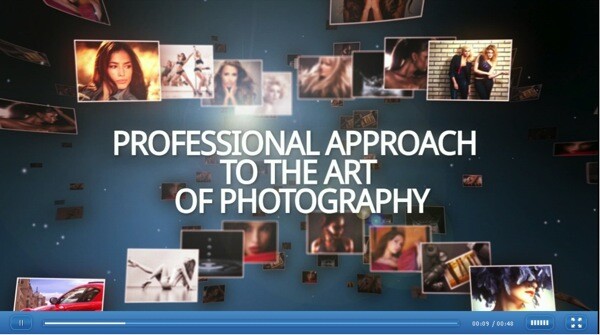
  • Photographer Portfolio After Effects Intro ($ 85 retail value). Full HD video intro template to make your presentations more dynamic and engaging. View live demo here.Defrozo 3b
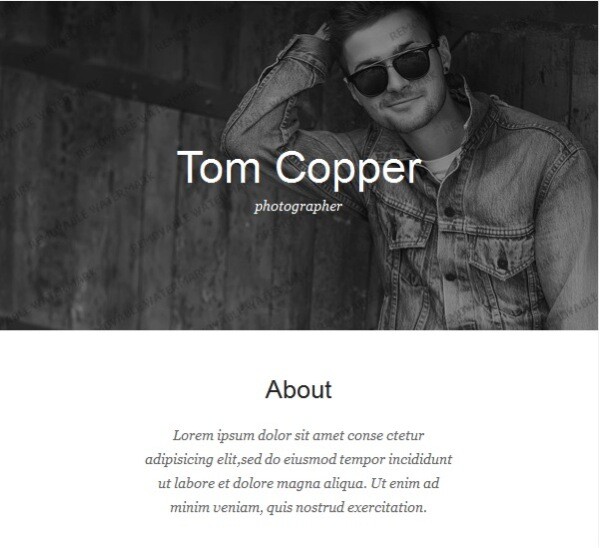
  • Responsive Newsletter Template ($ 25 retail value). MailChimp-ready, responsive template to boost your email marketing. View live demo here.Defrozo 4b
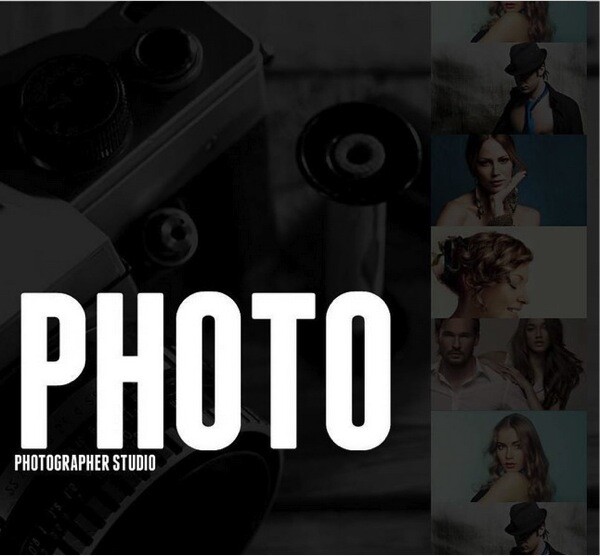
  • Photo Studio Facebook HTML CMS Template (retail value $ 59). Custom tab template to take your Facebook business page to the next level. View live demo here.Defrozo 5b

How to win

To win this contest you’ll need to:

  • Visit the Defrozo Kickstarter page and learn more about the product and its benefits for your photography career.
  • Leave a comment below and tell us which features and tools you’d like to see in the full version of Defrozo (scheduled for the release in October 2015), and more importantly, HOW you would use them to highlight and market your photography. Please note: there is a limit of ONE entry per person.
  • Do this in the next six days and after April 14th, the team at Defrozo will choose the best five answers and we will announce the winners in the following days.
  • The deadline to enter is April 12th, Midnight PDT (GMT-7). Comments left after the deadline will not be considered.

By best – the Defrozo Co-Founders are looking to see if you have an understanding of what Defrozo is about and how it best suits your needs, so you’ll need to check out the project’s Kickstarter page to put yourself in the best position to win.

There’s no need to write essay length comments to win, but we’re looking to hear your feedback about Defrozo and how it would help your development as a photographer.

This competition is open to everyone around the world, no matter where you live, but there is only one entry per person.

To enter, simply leave your comment below.

Defrozo is a community-driven platform which means that your feedback and suggestions will be used by the developers to build a truly versatile and effective system capable to solve many problems photographers face day to day.

Don’t forget to share this post with your friends and like Defrozo on Facebook for special offers and announcements on all Defrozo events.

Disclaimer: Defrozo is a Paid Partner of dPS.

googletag.cmd.push(function() {
tablet_slots.push( googletag.defineSlot( “/1005424/_dPSv4_tab-all-article-bottom_(300×250)”, [300, 250], “pb-ad-78623” ).addService( googletag.pubads() ) ); } );

googletag.cmd.push(function() {
mobile_slots.push( googletag.defineSlot( “/1005424/_dPSv4_mob-all-article-bottom_(300×250)”, [300, 250], “pb-ad-78158” ).addService( googletag.pubads() ) ); } );

The post Contest – Win One of Five Defrozo Prize Packages by Darlene Hildebrandt appeared first on Digital Photography School.


Digital Photography School

 
Comments Off on Contest – Win One of Five Defrozo Prize Packages

Posted in Photography