Sony announced the Xperia Z5 Premium today, boasting a 5.5″ 4K display. It was unveiled alongside the Xperia Z5 and Xperia Z5 Compact, and each offers a new 23MP 1/2.3-inch Exmor RS BSI CMOS sensor with an F2.0 lens. A new hybrid AF system claims to acquire focus in 0.03, which would make it the fastest AF system on any current smartphone camera. Read more
Tag: Features
-
Olympus OM-D E-M10 II features 5-axis IS, redesigned controls
Olympus expands its digital OM lineup today with the Olympus OM-D E-M10 II. Updates include a 5-axis image stabilization system (though not the same as the E-M5 II or E-M1’s), a new 2.36M-dot OLED EVF and a 4K time lapse mode. Read more
-
Top 10 Features to Bring Your Seascape Photos to Life
Seascapes are awesome opportunities for photography. In fact, it will probably be your first impulse upon seeing the ocean to pull out your camera (or wish you had it with you). It takes some skill, however, to turn a beautiful coastal scene into something more than a snapshot. If you are not careful, your coastal photo can be a boring picture of sand and water.
One of the keys to success for coastal photography is finding something interesting along the coastline to put in your picture. It would be great if there was an abandoned boat every 100 meters, but there isn’t. And we don’t all live near Big Sur or the Cliffs of Moher. Therefore, you often have to hunt for features to make your seascapes come alive. When you find such a feature, look at it from different angles, often with your camera to your face (you’ll be surprised at how different things sometimes look through the viewfinder or through the LCD).
To get you started, here are some suggestions of coastal features to look for:
1. Old piers and docks
Abandoned piers and docks solve a huge problem with most coastal photography in that they add a center of interest to your photos. Many times you have a beautiful background created by the coastal scenery, but nothing else. You want an actual subject for your photo, the pier gives you that.
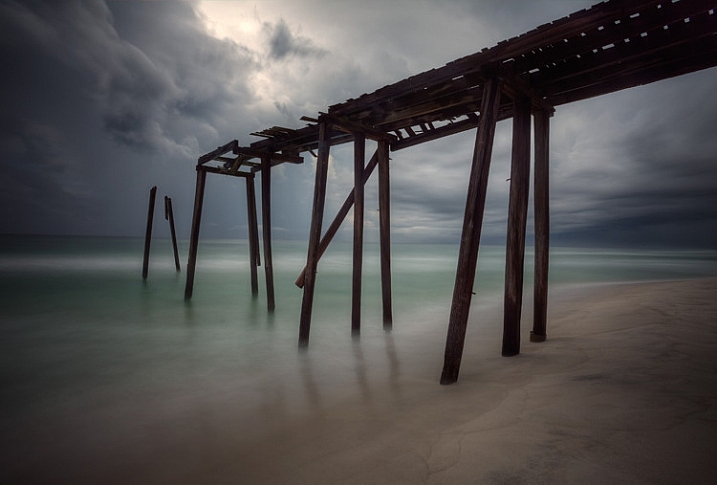
Abandoned piers and docks also provide a great opportunity for you to blur out the water, which creates a strong contrast between the blurred water and the sharp pier. To do this, make sure you have a 10-stop neutral density filter. Using this filter will reduce the amount of light allowed into your camera, and cause the camera to use a much longer shutter speed than it would otherwise. That long shutter speed blurs (or smooths) the water.
2. Lighthouses
A less common feature, but one that you should always look for, is a lighthouse. These add a great subject to an otherwise uninteresting scene.
Obviously, you won’t find lighthouses everywhere, but you’d be surprised how many there are if you look for them. In the U.S., the state of Maine alone has over 60 lighthouses, California has about 30. You can check to see if there is a lighthouse near your destination by using the map created by the Lighthouse Friends.
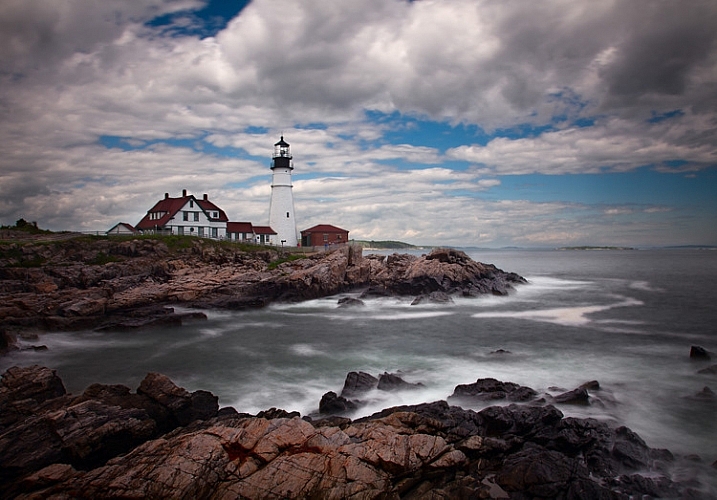
Oftentimes access to lighthouses is restricted to certain hours because they are on public property. This can be an issue if you want to shoot before sunrise or after sunset, as most of us do. Be sure to check the access and/or opening times.
3. Sunrise and sunset
Whereas your location may not have something like an abandoned pier or a lighthouse, no matter where you are there will always be a sunrise and sunset. You may not get the most dramatic of sunrises or sunsets on the day you are out shooting, but you will always have one. If you are not doing this already, it is the number one improvement you can make to your photographs, and it costs nothing.
If you don’t ordinarily shoot into the sun, do so on occasion to add drama and interest. You can also use the sun as a center of interest.
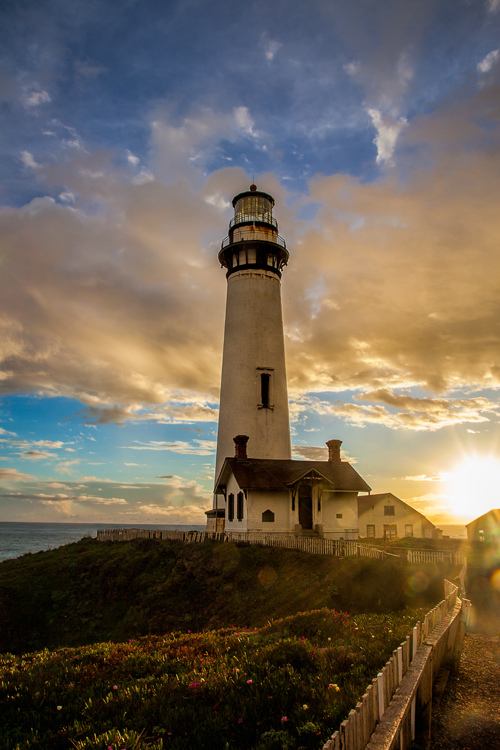
Be sure to arrive well before sunrise or hang around after sunset. The skies are often more dramatic during these times than during the actual sunrise or sunset itself.
4. Interesting rock formations
Remember that in coastal photography, the top half of your picture is often a given; it will be the water and sky. In those cases, the only variable is the foreground. Therefore, you should spend a lot of time looking down to get the best foreground possible.
When you do that, one thing to look for – which is available no matter your location – is interesting rocks, or rock formations. Spend a lot of time looking for them, and as you do so, look through your camera frequently. The camera sees things differently than you.
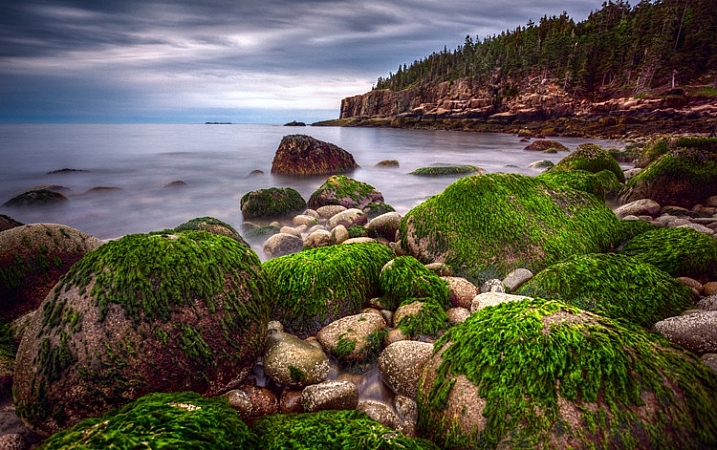
To make the rocks stand out, get let low to the ground and get right behind them. This is sometimes inconvenient or uncomfortable, but it is worth it. Be sure to use a wide angle lens to capture the whole scene.
5. Patterns in the water
Sometimes the water itself is enough to create an interesting photo. For this to be the case, you will need to capture the pattern of the waves or the currents in the water.
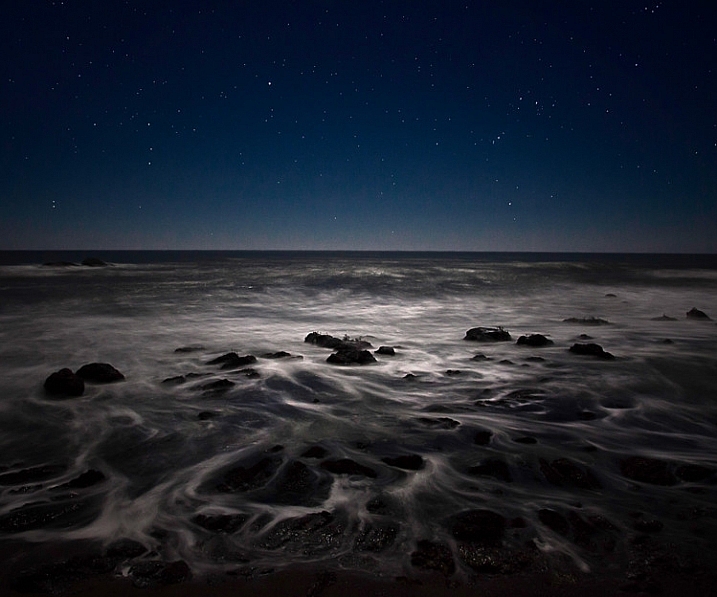
Use a slow shutter speed to capture the patterns of the waves and currents. At night, your shutter speed might naturally be slow enough to do this because of the low-light environment. During the day, however, you will need a 10-stop neutral density filter to use a slow enough shutter speed.
6. Animals
Seacoasts are home to a vast array of wildlife. In some places, livestock are allowed to roam freely along coastal regions. If nothing else, you can count on birds being present at the coast. Use one of these animals as a center of interest for your photo when you capture the scene.
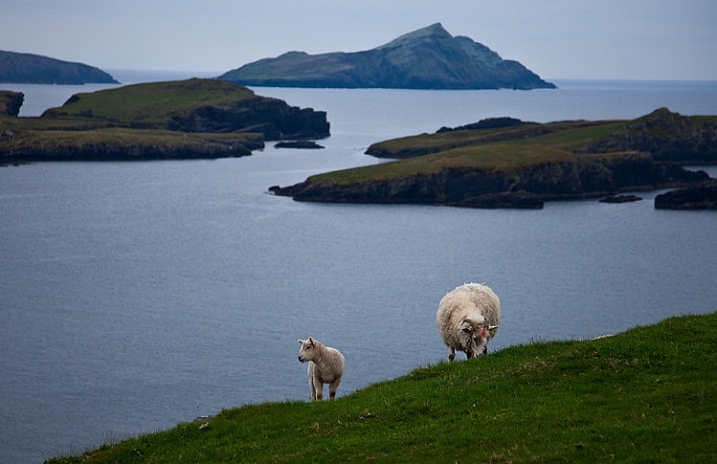
You will need to use a reasonably fast shutter speed to capture the animal and make it sharp. If you like to shoot from a tripod and use a neutral density filter when capturing coastlines, you will have to change things up. Creating a blur to the water will also blur the animal, which will ruin the shot.
7. Powerful waves
On some days, the waves are enough to create a nice photo. In particular, after a storm or high winds, the waves may come crashing in and give you something interesting to work with.
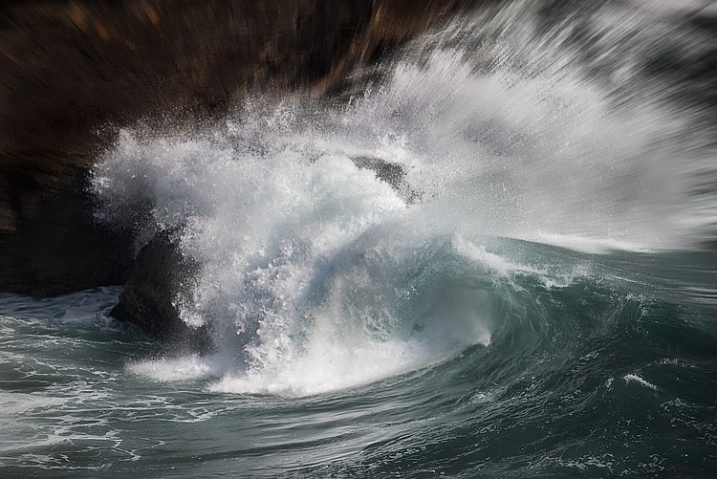
Use a fast shutter speed (at least 1/250th) to capture the power of the waves. If you use a slower shutter speed it will blur the wave, which will create a sense of movement, but not show the power of the wave. This will probably not be a problem most days, but if you are working in low light you will need to increase your ISO, or open up your aperture a bit to get the shutter speed fast enough.
8. People (for a sense of scale)
You can have the most dramatic scenery in the world in your picture, but if your viewer cannot instantly determine the scale of the scene, it might be lost. Nothing solves this problem more than having a person in your picture. We all know how big people are, and seeing a person in the picture instantly helps put the size and scale of the scenery in perspective.
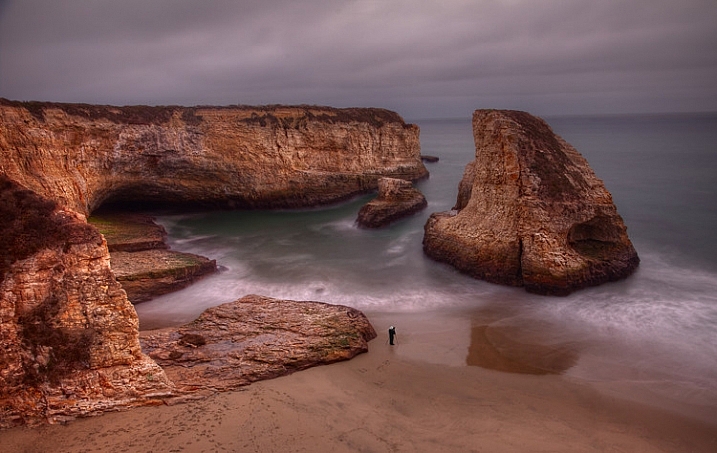
Next time, rather than cloning out that person who wandered into your picture, leave them in. Better yet, look for opportunities to include a person in your scene to add a sense of scale.
9. Reflective water
If you are shooting up or down the coastline (i.e. perpendicular to it), land features will sometimes reflect on the water or wet sand. These reflections can make a nice foreground for your picture. Capturing reflections usually requires that:
- You are photographing just before sunrise or after sunset
- You use a long exposure, which will blur the water and make the reflection show up
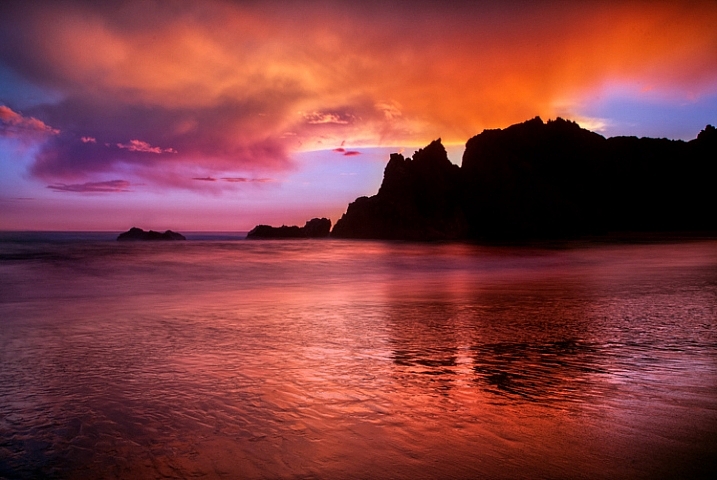
It need not be a perfect reflection (it rarely will be, since the water is moving so much), but just something that captures the colors and tones in general. You will use these to create a foreground that is more interesting than just a bunch of sand. Slow down your shutter speed and see what develops.
10. Clouds
Another item found along the coast that does not depend on your location or geography is clouds. More often than not, the clouds will give you something to work with. Coastal regions – being a transition between land and sea – often develop the most interesting clouds anywhere, and conditions can change rapidly.
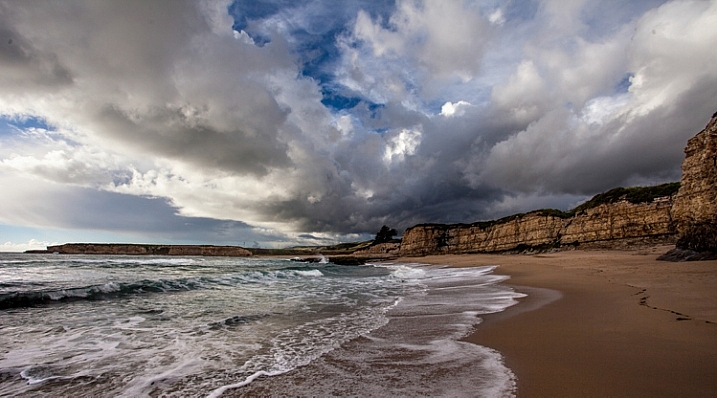
If you are focusing on the clouds as the subject of your picture, make sure that the top two-thirds (2/3) of your picture (at least) is above the horizon line. Be sure to use your polarizing filter if you are shooting near midday.
Next steps
There is nothing to do now but get out there and photograph the coast. Start with the features in this article, then go find your own. There is no end to the interesting things you can find along the coast. If you have a favorite that I didn’t list, be sure to leave it in the comments below.
googletag.cmd.push(function() {
tablet_slots.push( googletag.defineSlot( “/1005424/_dPSv4_tab-all-article-bottom_(300×250)”, [300, 250], “pb-ad-78623” ).addService( googletag.pubads() ) ); } );googletag.cmd.push(function() {
mobile_slots.push( googletag.defineSlot( “/1005424/_dPSv4_mob-all-article-bottom_(300×250)”, [300, 250], “pb-ad-78158” ).addService( googletag.pubads() ) ); } );The post Top 10 Features to Bring Your Seascape Photos to Life by Jim Hamel appeared first on Digital Photography School.
-
Red launches firmware 6.0 with stills-focused features
Red has launched firmware version 6.0.23 for its cameras, a significant update over previous version 5.3.42 that brings some useful features for still photography. Included is a Motion + Stills mode that makes it possible to mark frames for still extraction while recording video. Read more
-
Samsung NX500 firmware upgrade improves autofocus and enhances video features
Samsung has released a firmware update for its NX500 mirrorless camera. Among other things, the update enhances autofocus performance in several areas, increases the 4K video bit rate to 70Mbps, and reads out a larger areas of the sensor for improved 1080/60p video quality. More details
-
Adobe Creative Cloud trials reset to offer preview of 2015 features
Adobe recently updated its Creative Cloud suite of software, and to give users a chance to test the new features it has reset its product trials. This includes trial versions of Illustrator CC, InDesign CC, and Photoshop CC. Users, even those who have previously taken advantage of Adobe’s 30-day free trial, can start a new trial by opening the software application and clicking ‘Update’. Read more
-
New Graduated and Radial Filter Features in Lightroom 6
Every time a new version of Lightroom comes out the first thing I look for are features that make the Develop module better, or easier to use. The ones I like best in Lightroom 6/CC are the improvements to the Graduated and Radial Filters. Let’s take a look at them.
Addition of mask overlay
In earlier versions of Lightroom you couldn’t tell with any precision which parts of the image were affected by the Graduated and Radial filters.
In Lightroom 6 you can toggle the mask overlay with the O keyboard shortcut, or by ticking the Show Selected Mask Overlay box in the Toolbar. Previously this was only available in the Adjustment Brush, it has now been added to both the Graduated and Radial Filters.
This screenshot below shows how it works. I wanted to make the background darker without affecting the dandelion head. The best tool to use for this is the Radial filter, but you need to be able to place it precisely. The mask overlay makes this easy.
As you can see, the effect of feathering meant that I needed to create a much bigger Radial filter than you might at first think.
Note: The Radial Filter was introduced in Lightroom 5 and is not available in earlier versions.
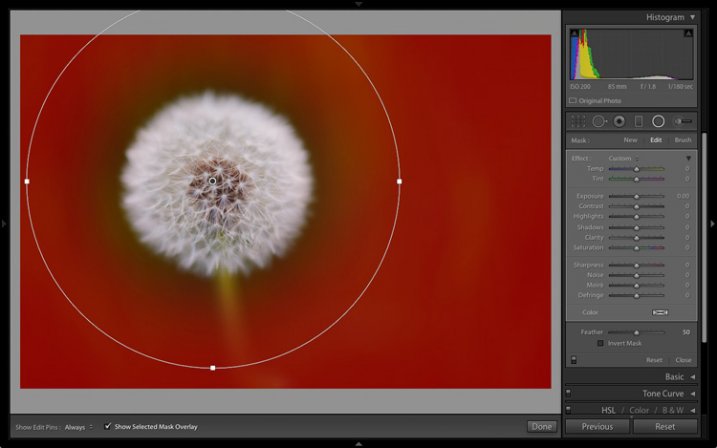
Mask overlay enabled.
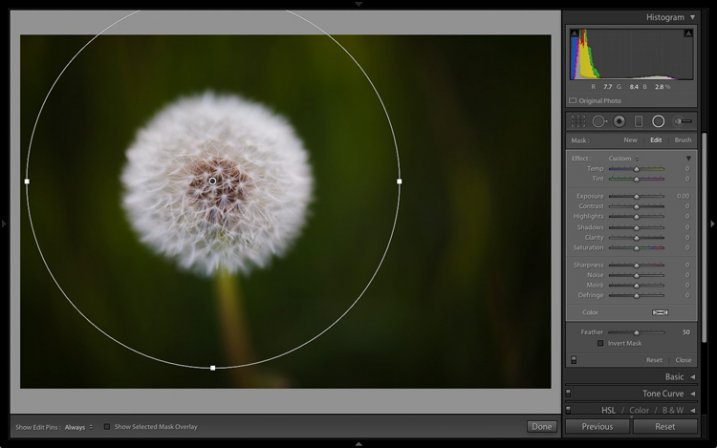
Mask overlay disabled.
With the Radial filter in place, it is easy to make the required local adjustment. I moved the Exposure slider left to make the background darker.
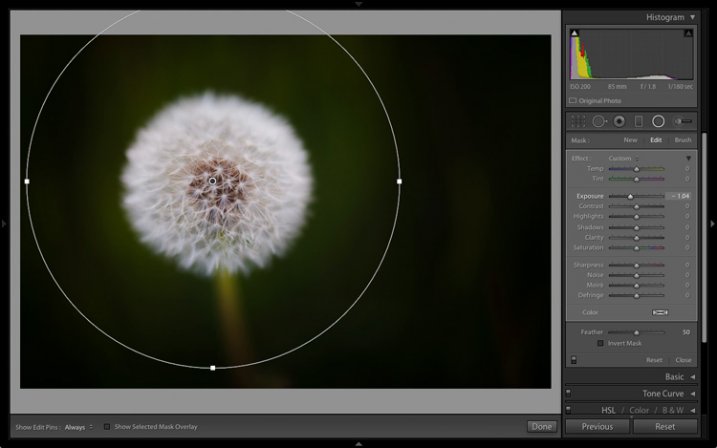
This also works when you tick the Invert Mask box to apply the effect inside the Radial filter. In this situation the effect of feathering means you need to make the filter smaller than the area you want to cover. With the mask overlay enabled it is easy to place it precisely.
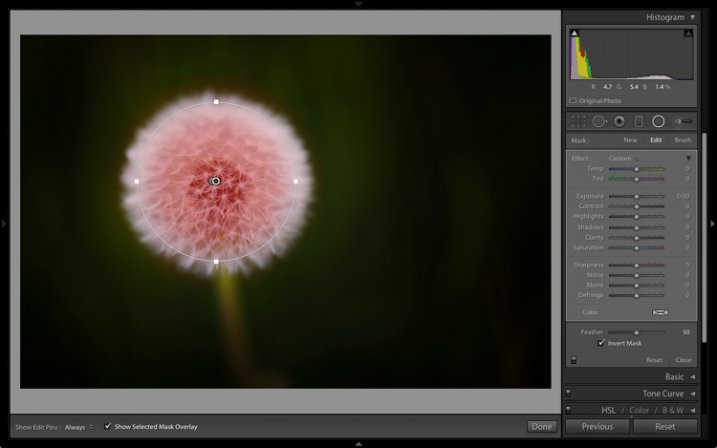
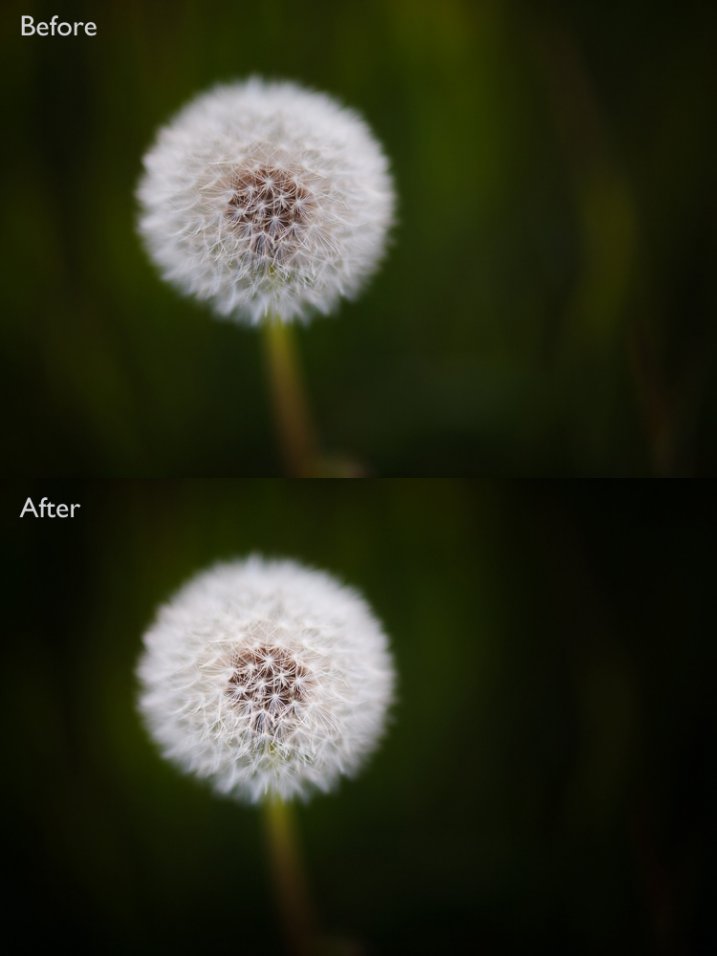
Then I increased Clarity and Exposure to bring out the texture of the dandelion head and make it brighter.
The other benefit of adding the mask overlay to the Radial filter is that it enables you to see the effect of the Feather setting. This was very difficult to judge before.
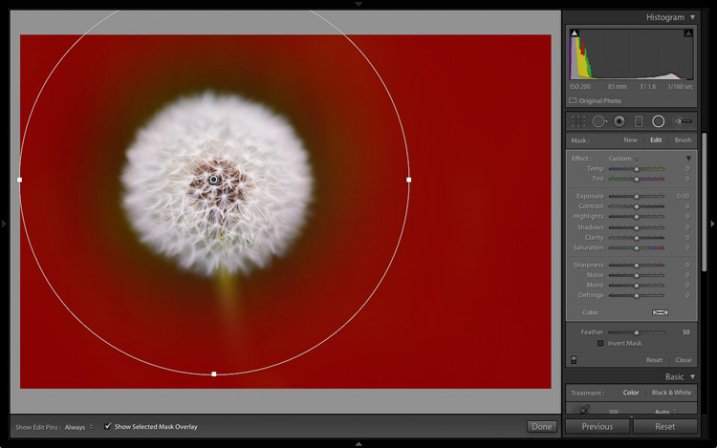
Feather: 50
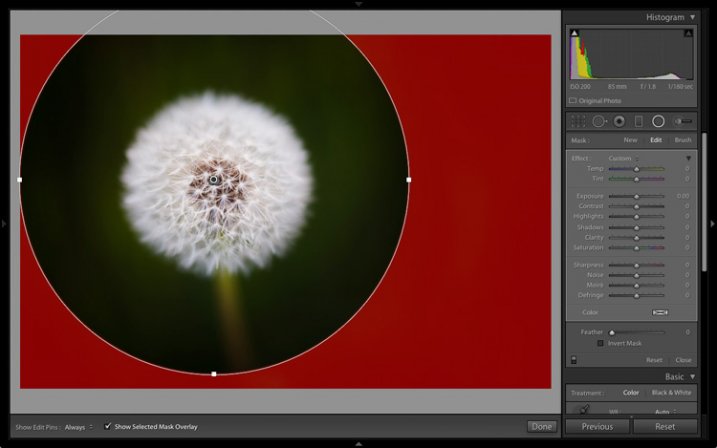
Feather: 0
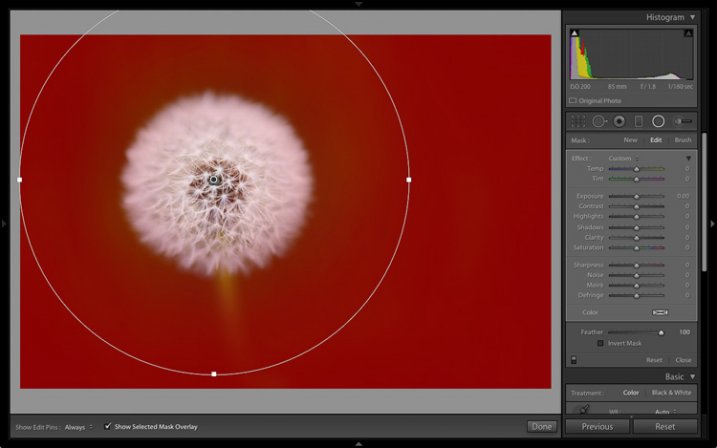
Feather: 100
Note: You can use the Shift+O shortcut to change the colour of the mask overlay.
Addition of Adjustment brush
A problem with the Graduated and Radial filters in earlier versions of Lightroom is that the shape of the mask is fixed. In Lightroom 6/CC Adobe has added the ability to combine the Adjustment brush, with both the Graduated and Radial filters.
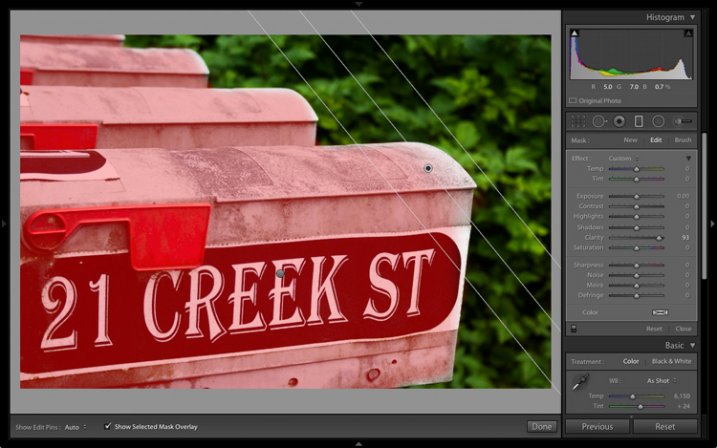
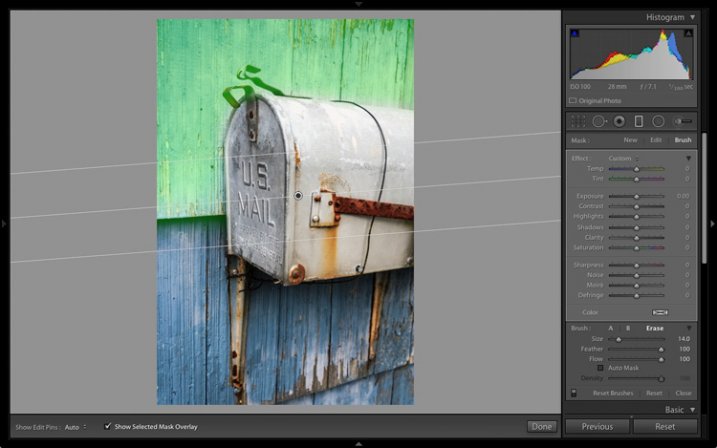
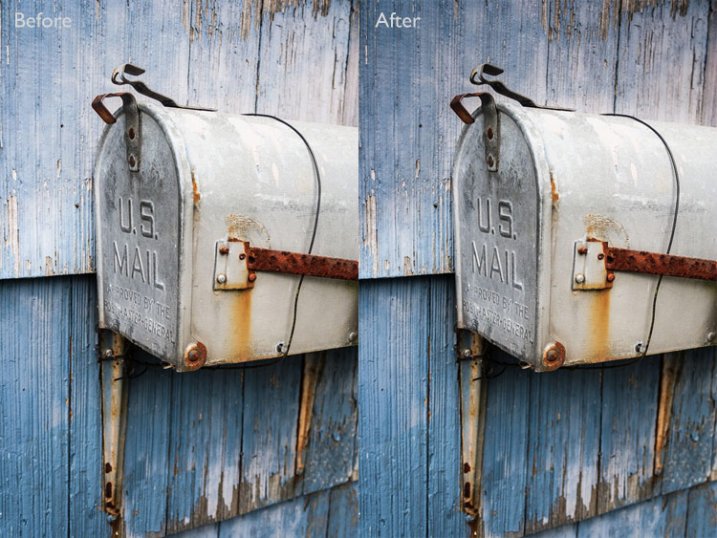
Here’s an example of how it works. In this photo I wanted to make the top half of the wall darker without affecting the mailbox. In previous versions of Lightroom the only option was to use the Adjustment brush to paint in the irregular area. Now you can use the Graduated Filter instead.
This screenshot shows the area affected by the Graduated Filter (I changed the overlay colour to green as it’s easier to see on this image).
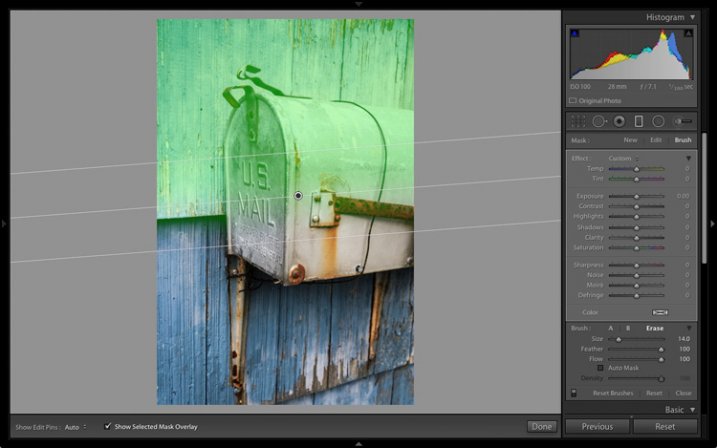
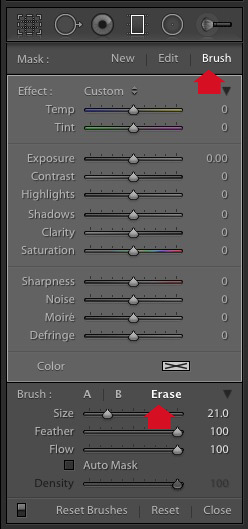
To apply an Adjustment brush, got to the Graduated filter panel and click the Brush option at top right. In this example I also chose the Erase option as I wanted to remove some of the mask overlay.
This the amended mask overlay, revealing the mailbox.
This is the result.
Your turn
These improvements are my favourite as they will make it much easier to process my photos in the Develop module. But what about you? Have you upgraded to Lightroom 6/CC yet? If you have, what are your favourite new features? Please let us know in the comments.
The Mastering Lightroom Collection

My Mastering Lightroom ebooks will help you get the most out of Lightroom. They cover every aspect of the software from the Library module through to creating beautiful images in the Develop module. Click the link to learn more or buy.
googletag.cmd.push(function() {
tablet_slots.push( googletag.defineSlot( “/1005424/_dPSv4_tab-all-article-bottom_(300×250)”, [300, 250], “pb-ad-78623” ).addService( googletag.pubads() ) ); } );googletag.cmd.push(function() {
mobile_slots.push( googletag.defineSlot( “/1005424/_dPSv4_mob-all-article-bottom_(300×250)”, [300, 250], “pb-ad-78158” ).addService( googletag.pubads() ) ); } );The post New Graduated and Radial Filter Features in Lightroom 6 by Andrew S. Gibson appeared first on Digital Photography School.
-
Fujifilm X-T10 cuts X-T1 features down to size
Fujifilm has announced the X-T10 – a smaller, beginner-friendlier version of its flagship X-T1. Using the same 16MP APS-C X-Trans image sensor as its big brother, the X-T10 is equipped with new subject tracking AF modes introduced via firmware to the X-T1. Read more
-
Town 30 Emissary camera bag features lens cap mount and customizable pockets
Toronto-based Town 30 has launched the Emissary Series camera bag on Kickstarter, where it is seeking funding for production of the photography-centric bags. The Emissary is geared specifically to photographers’ needs with attachable pockets, a removable laptop compartment, a locking mechanism inspired by film-advance levers and a lens cap mount. Read more
-
CyPhy’s LVL 1 camera drone features six rotors for stability
CyPhy Works, a company helmed by iRobot co-founder Helen Greiner, has introduced a camera drone with a few unique features. Called the CyPhy LVL 1, its six-rotor design promotes better stability over common quadcopters and its camera is integrated into the body of the drone. Read more