RSS
 

Posts Tagged ‘Exposure’

Histograms: Your Guide To Proper Exposure

30 Apr
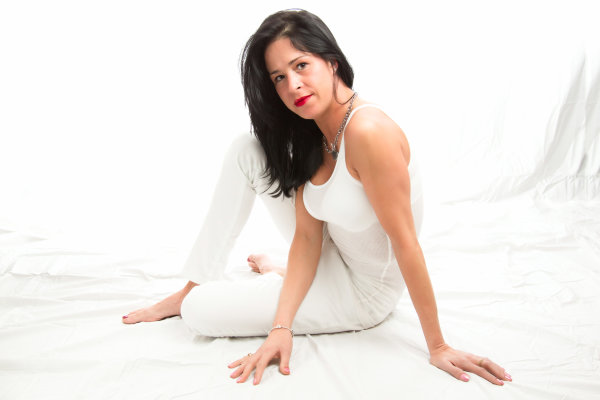
The finished image was a nice, high key portrait. See below for details on the histogram.

The finished image was a nice, high key portrait. See below for details on the histogram.

To many newbie photographers, getting the proper exposure in camera is the biggest challenge they face. While letting the camera do the work for them turns out fine most of the time, there are many times where the camera can require some help.  Knowing just how to give your camera that help is key to getting an image you’ll want to keep.  The best way to judge an exposure (or a potential exposure, when using Live View) is to use your camera’s histogram.
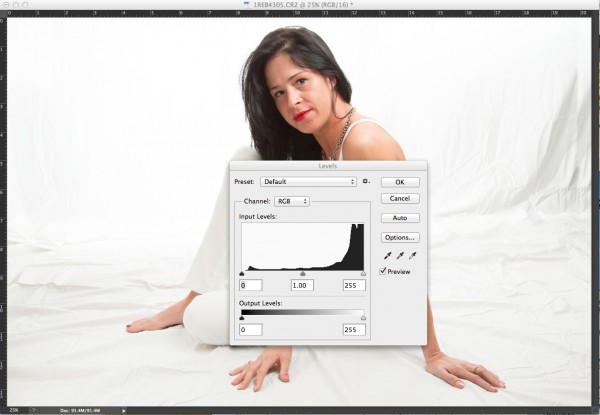
In this high key portrait, the histogram shows a majority of pixels on the right side, representing brighter pixels. This is to be expected due to the white background and outfit worn.

In this high key portrait, the histogram shows a majority of pixels on the right side, representing brighter pixels. This is to be expected due to the white background and outfit worn. The pixels in the middle of the histogram represent the subject’s skin tones, while the small dark peak on the left represents her hair. Notice also, that this histogram does show some highlight clipping. In some images, this may be a problem, but since this is a high key portrait and the background is the bright white area, and the skin tones are good, this is not a problem for this image.

A histogram, in it’s simplest terms, is simply a graph showing the brightness levels of pixels in the image. The right side of the graph represents bright pixels, while darker pixels are shown on the left side.  Pixels representing midtones are in the middle, of course. A histogram runs, from left to right, showing values from 0- black, to 255- white.  The height of the histogram represents how many pixels are recorded at a given brightness level. The primary aspects of the histogram that one should be concerned with are the left and right edges.  Any pixels that recorded as bright white (255) or as pure black (0), would be pushed up against the edge of the graph.

Since a histogram is simply a representation of the tonal range of a given image, there really is no right or wrong histogram. The histogram will change based on the tones in an image. A high-key portrait, for example, would show pixels mainly to the right side of the histogram. A low-key image would show pixels mainly to the left side of the histogram. An image with a wide tonal range would show pixels across the entire histogram.

As I mentioned, when judging exposure, the primary areas of the histogram to be concerned with are the right and left edges. Pixels in these areas are rendering as bright white, or dark black.  Generally speaking, unless an image is intended to show bright white or pure black areas, pixels pushed up to the very edge of the histogram could indicate an exposure problem.  This is also known as “clipping”. For instance, when a large number of pixels are pushed against the right side of the histogram, in essence, being cut off by the edge of the histogram, it is said that the highlights are clipped.
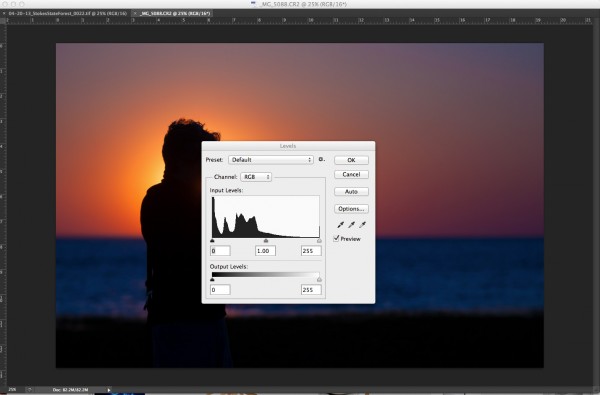
In this image, since the subject is in silhouette, and there are lots of dark tones, we expect to see most pixels on the left side of the histogram.

In this image, since the subject is in silhouette, and there are lots of dark tones, we expect to see most pixels on the left side of the histogram.

When judging the histogram, one must take into account the subject matter of the image. If the image should show bright white areas, yet the histogram shows the pixels as rendering more middle grey, due to the way the camera’s meter sets the exposure, you can then use exposure compensation or adjust your exposure manually to increase exposure and achieve the desired result.  The same is true for darker images that the camera overexposes because the meter is trying to achieve middle grey.  By reducing exposure, either manually by changing your shutter speed, aperture, or ISO, or by using exposure compensation, you can darken the image to achieve the desired image. The histogram of this new image will reflect the change to exposure.

Now, here’s the big secret. If you use Live View on your camera, you can view a live histogram, that will update and reflect changes in exposure when your exposure changes. This means you can judge what your current exposure is, and watch in real time how changes to that exposure will affect your image. It’s a great way to get a feel for how even a slight adjustment in shutter speed, aperture, or ISO can affect your exposure.
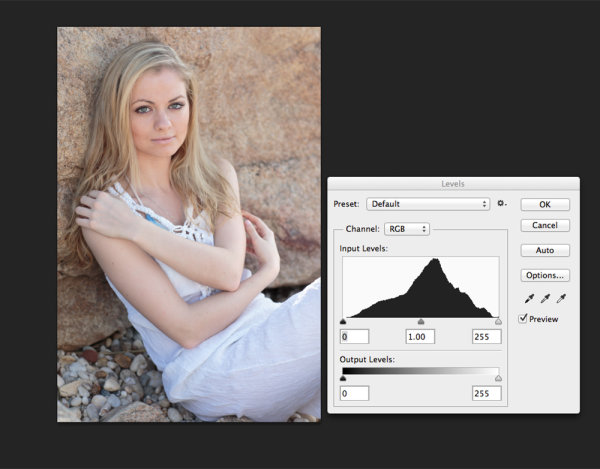
This portrait shows more midtones than anything else, so we see more of a classic peak near the center of the histogram, with the pixels falling off as they get to the edges of the histogram. You can see that neither the highlights or shadows are clipped .

This portrait shows more midtones than anything else, so we see more of a classic peak near the center of the histogram, with the pixels falling off as they get to the edges of the histogram. You can see that neither the highlights or shadows are clipped .

Post originally from: Digital Photography Tips.

Check out our more Photography Tips at Photography Tips for Beginners, Portrait Photography Tips and Wedding Photography Tips.

Histograms: Your Guide To Proper Exposure


Digital Photography School

 
Comments Off on Histograms: Your Guide To Proper Exposure

Posted in Photography


How To End Exposure Problems and Master Metering Modes in 5 Minutes

27 Mar

You pull out an impressive piece of equipment. Her eyes widen. Did she lick her lips? The pressure’s on now. Yes, she definitely licked her lips. When you declare with total confidence, to a beautiful woman, that you’re a  photographer, there are potential benefits and downsides. Suddenly she wants you to take photos of her in the night sky, with Continue Reading

The post How To End Exposure Problems and Master Metering Modes in 5 Minutes appeared first on Photodoto.


Photodoto

 
Comments Off on How To End Exposure Problems and Master Metering Modes in 5 Minutes

Posted in Photography


Digital Photography 1 on 1: Episode 26: Metering Part 2: Exposure Compensation

13 Feb

This week is the second episode in a four-part series about metering. In this episode, Mark will explain exposure compensation. He will also demonstrate this and show us how to use it correctly.

Info : mockmoon.sblo.jp music (MP3) download : soundcloud.com movie (MP4) download : vimeo.com Recording live : Ustream address www.ustream.tv Location : Panoramio adress www.panoramio.com


Flash Photography Exposure Basics

11 Feb

Flash photography is a skill not many try to master. Its like people just don’t want to learn it and just muddle through with their camera and flash on auto. I’m here to tell you: its super easy!!! The basics of flash exposure: Shutter speed affects ambient light only ISO and aperture affect ambient light AND flash Flash distance, power, and modifiers all change its output. When you understand that concept its easy. If you want to adjust the flash change ISO, aperture, flash power or flash distance. If you only want to change the ambient light in the scene then adjust your shutter speed. I have all my students start out in manual exposure mode with the flash on manual too. That way you are controlling the flash and learning how it works, not just getting by.
Video Rating: 4 / 5

Facebook: facebook.com Our new YouTube channel: youtube.com Fenchel & Janisch DSLR Tutorial Series: Choosing the best / right lens for you! A lot of people are asking us, which lens is the best? A tough question and the answer isn’t so easy. First off, let’s talk about which lens you need for which purpose. You have to define what you want to shoot or what kind of story you want to tell: Are you shooting a fictional short film or are you running through the city taking snapshots of people and random events? Voice Over: Moritz Janisch Copyright 2011 by Fenchel & Janisch Filmproduktion GbR Twitter: twitter.com More DSLR videos on our channel: www.youtube.com Official website: www.fenchel-janisch.com
Video Rating: 4 / 5


Canon 60D Open Shutter / Long Exposure

08 Feb

Here, I take different shots using my Canon 60D with the open shutter/ long exposure techique. I try different aperture settings at this time of night (21:00 – 21:30). My first shoot is at a place called Arthers Seat on the Mornington Peninsula. My second shoot was from a overpass walkway looking down on a freeway a few clicks from my first shoot. I hope this video helps some Canon 60D owners.
Video Rating: 4 / 5


How to use auto exposure bracketing on your Canon EOS 40D Digital SLR

05 Feb

How to use auto exposure bracketing on your Canon EOS 40D Digital SLR, from the Canon 40D Digital Field Guide


Google+ Long Exposure Photowalk! Thanks to Chris MacAskill and SmugMug!

11 Jan

We had a great Google+ long exposure photowalk this past weekend.

Chris MacAskill and his team from SmugMug came out on Sunday morning and put together a wonderful behind the scenes sunrise photo shoot at the Golden Gate Bridge. Check it out!


Thomas Hawk Digital Connection

 
Comments Off on Google+ Long Exposure Photowalk! Thanks to Chris MacAskill and SmugMug!

Posted in Photography


How To Create A Multiple Exposure Effect In Post

23 Dec

Using this technique you can create a stippled effect common to impressionist painters by blending multiple layers of a single image.

To do this technique, you will need to use a photo editor that supports layers. I use Photoshop Elements but you can also use Gimp, which is free, and many other photo editors.

Don’t let the layers thing scare you away, ok? In fact, if you are leery of layers trying this technique should, ironically, make it all become clear.

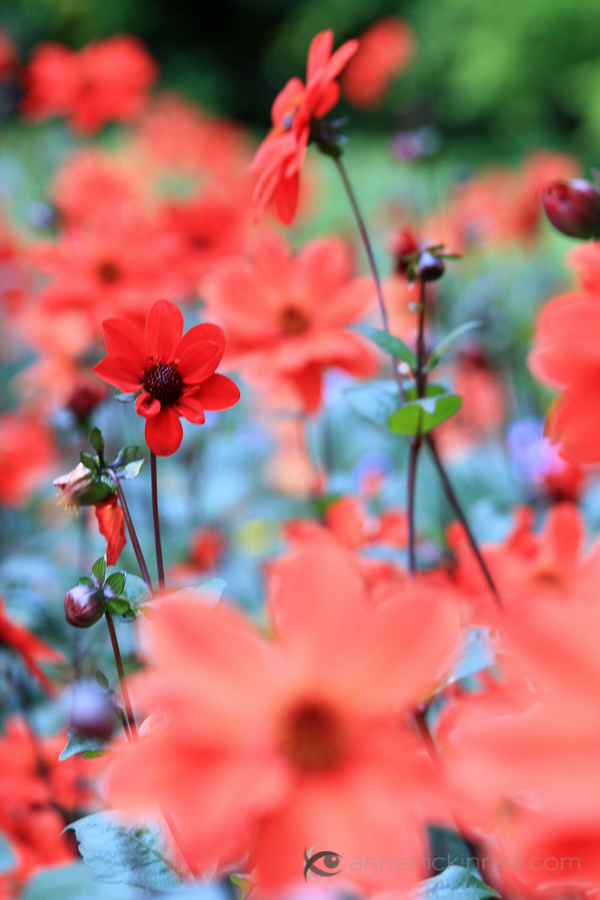
Pick an image to start. I particularly like this effect on flowers and foliage but it works for other subjects too. Here is the image I will use to start.

Red Flowers Original

Follow these steps:
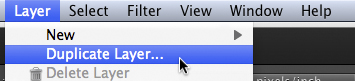
1. Duplicate the background layer (Layer>Duplicate Layer)
Duplicate Background Layer


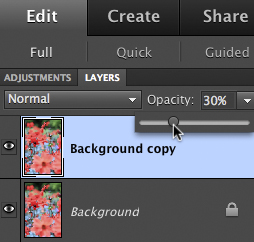
2. Reduce the opacity of the new layer to 30%
Reduce Layer Opacity


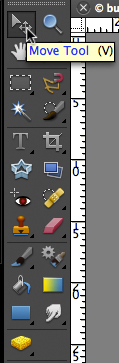
3. Use the move tool (usually an arrow) and move the layer slightly in any direction
Move Tool


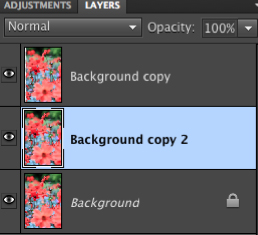
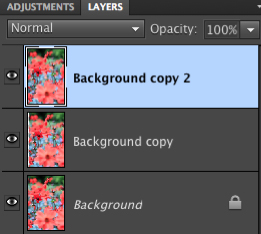
4. Duplicate the background layer again (it’s on the bottom of the layer list)
5. Drag the new layer to the top of the layers list
Layer List 1Layer List 2


6. Reduce the opacity of the new layer to 30%
7. Use the move tool to move the layer slightly in a different direction
8. Repeat steps 4-7 any number of times
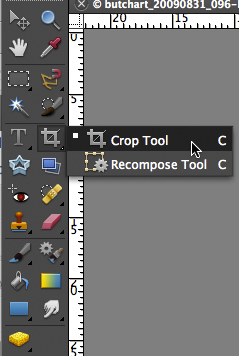
9. When you are happy with the result, use the crop tool to crop the edges of the image where you can see the borders of the moved layers.
Crop Tool

Here’s a little video that shows me performing these steps.

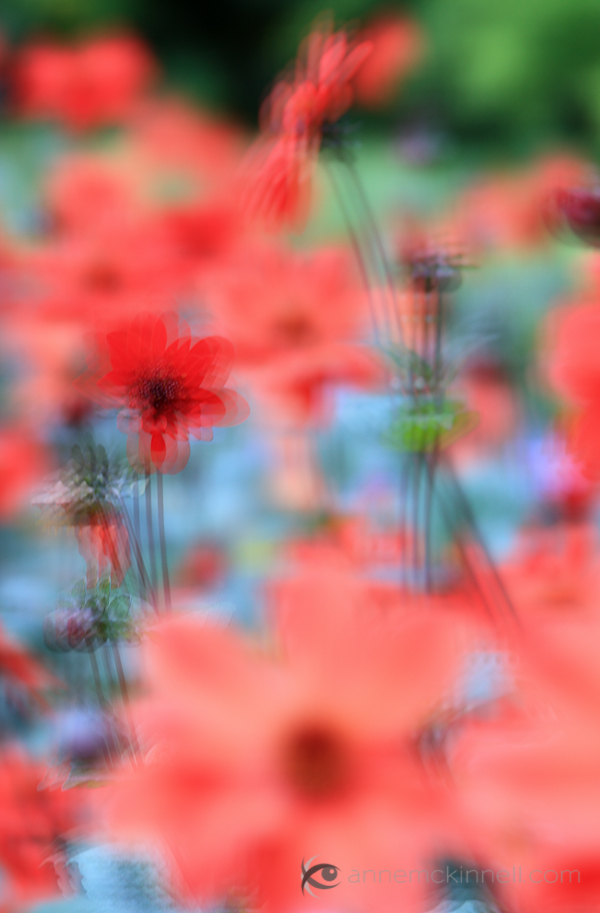
And the final image:

Red Flowers with Multiple Exposure Effect

There are many different ways you can accomplish a particular effect in photoshop (or your photo editor of choice). I try to use the simplest methods I can find to keep it simple.

Post originally from: Digital Photography Tips.

Check out our more Photography Tips at Photography Tips for Beginners, Portrait Photography Tips and Wedding Photography Tips.

How To Create A Multiple Exposure Effect In Post


Digital Photography School

 
Comments Off on How To Create A Multiple Exposure Effect In Post

Posted in Photography


When to use Exposure Compensation. Canon Nikon tips tricks

19 Dec

Exposure Compensation www.elitevideo.com . When do you use it? The answer is, When you are taking a series of photos in a setting that has a lot of darkness around a subject, or a lot of brightness around your subject. If it is too dark or bright around your subject, then every picture you take will be over exposed or under exposed, because the camera does not know what light level to concentrate on. With exposure compensation, You are telling the camera, “Give me a little more or a little less light that you have been in this situation- on every shot.” The best way to determine if you need exposure compensation is to do a test shot in the enviornment that you will be shooting. For example Snow (lots of white), a theater (lots of dark), etc.
Video Rating: 5 / 5


Correcting For Under Exposure and Boosting Dynamic Range with an Environmental Portrait in Lightroom 4

17 Dec

Introduction

This tutorial is a demonstration of the SLR Lounge Lightroom 4 Preset System. With over 200 presets, the LR4 Preset System has been critically acclaimed as the most powerful and intuitive preset system available for Lightroom 4. DPS users can get 10% off by using the DPS10 coupon code upon checkout. Click the link above to learn more/purchase.

Overview

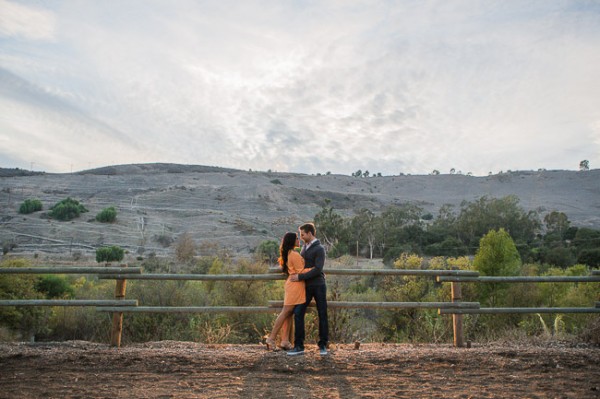
Often times when shooting environmental portraits we “expose to the right”, meaning we are pushing our highlights to the right of the histogram without blowing out too much of our highlights, or clipping too much of our shadows. Depending on the type of scene, this can lead to what looks like an underexposed image directly out of the camera since we are trying to preserve the majority of our highlight detail. However, since most of the range in the highlights and shadows are still retained, we can bring it out through post production. In this step-by-step tutorial, we will demonstrate how to not only correct the exposure in this type of portrait, but also how to increase its dynamic range.

Lightroom 4 Preset System Mixology

This effect can be achieved quickly in under a minute with the SLR Lounge Lightroom 4 Preset System, If you don’t own the preset system, please skip to Step 1 to learn how to do it manually.

1. MY MIXOLOGY > 25 HDR Strong
2. BASE ADJUSTMENTS > 23 Light Soften Skin (Detail)
3. BASE ADJUSTMENTS > 34 Medium Boost (Contrast)
4. BASE ADJUSTMENTS > 62 Light Noise Reduction (Noise Reduction)
5. Add +.30 Exposure
6. 13 Nature | Color Adjustment Brush
7. 12 Sky | Cloud | Ocean Adjustment Brush

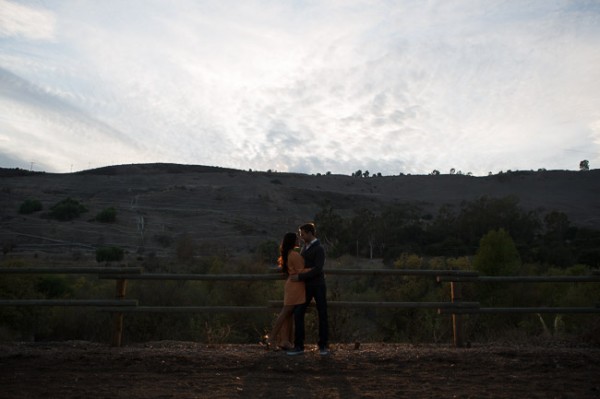
The Original Image

Step 1. Applying our Basic Adjustments

What we usually recommend when working in Lightroom is to work your way down the Develop Module Panels starting from the Basic Adjustment Panel.

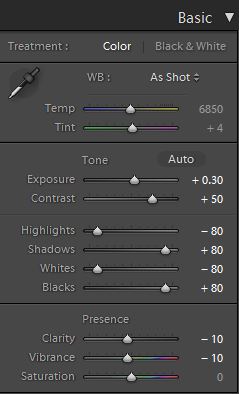
Because the image is underexposed, one of the first steps that we need to do is to correct the exposure by adding +0.30 stop to Exposure. In order to increase the dynamic range, we are also going to bring down the Highlights and Whites by -80 and lift up the Shadows and Blacks by +80. When applying this technique to your own photos, you may be better off dialing in your Highlights, Whites, Shadows and Blacks and then adjusting the Exposure as necessary.

At the same time, when we increase the dynamic range, the contrast flattens out, so we do need to add Contrast to compensate.

Because we are working with a portrait, we want to have nice, smooth skin tone that is not overly saturated, so let’s decrease Clarity and Vibrance by -10. Your Basic Panel adjustment and image should look like the following:

02 Basic Adjustments

Step 2. Adding Additional Contrast via Curves

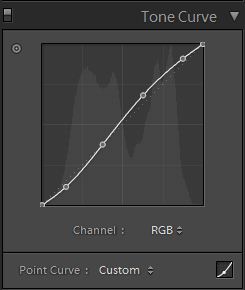
The image can still use some more contrast, so let’s add a subtle contrast-boosting “S” curve.

03 Tone Curve

Step 3. Sharpening and Noise Reduction

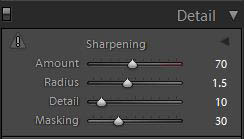
With the SLR Lounge Preset System, we typically apply the following Sharpening setting to our image:

Detail

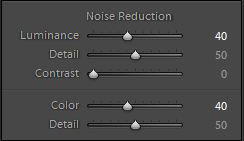
We are also going to add Noise Reduction because we to smooth out any noise that is introduced from the dynamic range boost. We use this setting for Noise Reduction:

Noise-Reduction

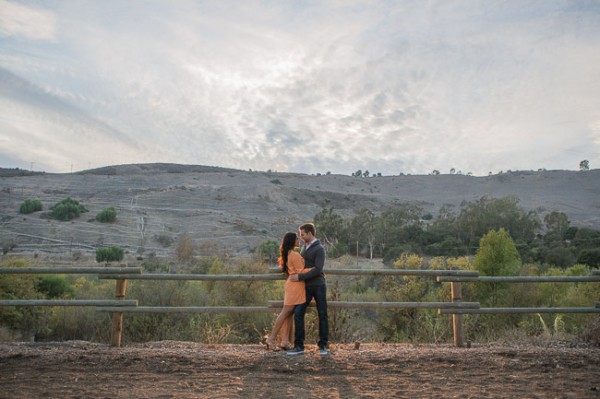
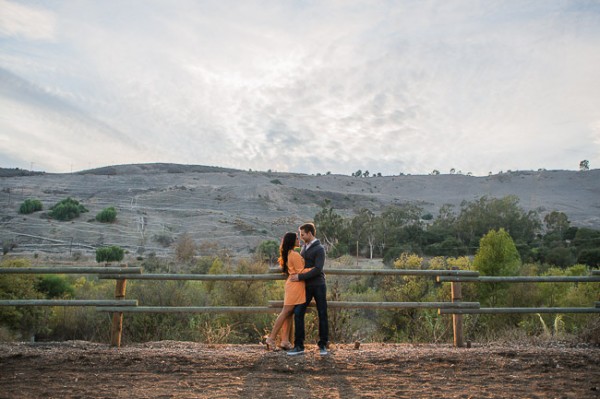
Here is how your image should look like after applying all of these adjustments.

04 Detail

Step 4. Using Adjustment Brushes for Sky and Landscape

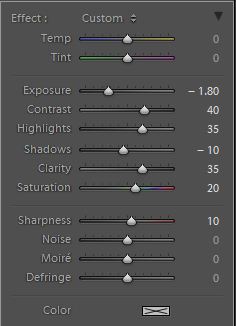
Even though we boosted the dynamic range of this image, the sky is still overblown. The LR4 Preset brush we use for the sky is called “Sky | Cloud | Ocean.” This brush lowers the exposure, highlights, and shadows, and increases contrast, clarity, and saturation in the sky. Here is our settings for this brush.

Sky Cloud Ocean Brush

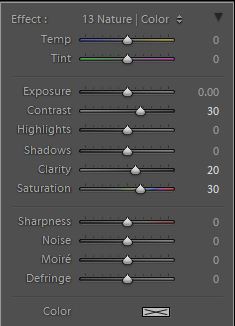
Finally, we want to add more midtone contrast and saturation to the foliage in order to make them pop. Here is how the settings look like for the “Nature | Color” LR4 Preset Brush that we applied to the landscape. This also increases contrast, clarity, and saturation.

Nature Color Brush

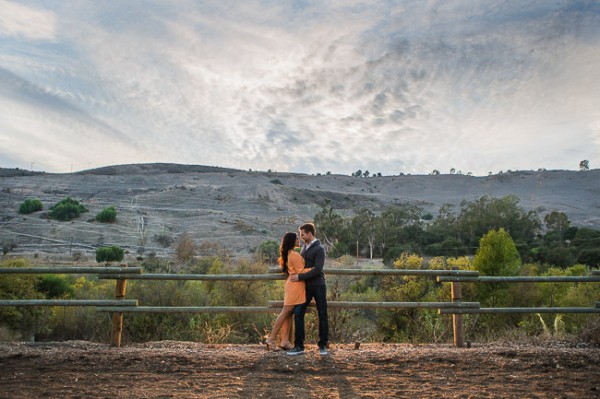
Now that all our adjustments have been applied, let’s take a look at the before and after images to compare the original underexposed image against the final image.

ORIGINAL

HIGH DYNAMIC RANGE PORTRAIT

05 Finished

The Lightroom 4 Preset System

The SLR Lounge Lightroom 4 Preset System is designed to enable users to achieve virtually any look and effect within 3-5 simple clicks. From basic color correction, vintage fades, black & white effects, tilt-shift effects, faux HDR, retouching, detail enhancing, and so much more. The sky is the limit with what has been dubbed the most powerful and intuitive preset system available. Click the link above to learn more/purchase.

Post originally from: Digital Photography Tips.

Check out our more Photography Tips at Photography Tips for Beginners, Portrait Photography Tips and Wedding Photography Tips.

Correcting For Under Exposure and Boosting Dynamic Range with an Environmental Portrait in Lightroom 4


Digital Photography School

 
Comments Off on Correcting For Under Exposure and Boosting Dynamic Range with an Environmental Portrait in Lightroom 4

Posted in Photography