RSS
 

Posts Tagged ‘Exposure’

Alien Skin Software announces Exposure 6 plugin

29 Apr

Cliff_Mautner_Exposure_6_2__Medium_.jpg

Alien Skin Software has released the latest version of its flagship photography effects software. Exposure 6 now includes a ‘Bokeh’ focus and lens-simulation feature, an updated image processing engine for instant previews, enhanced user interface for quick workflow, and unlimited creative texture control. The analog film emulation and creative effects software integrates with Photoshop, Photoshop Elements, Lightroom, and Aperture or can be launched as a stand-alone program. Learn more

News: Digital Photography Review (dpreview.com)

 
Comments Off on Alien Skin Software announces Exposure 6 plugin

Posted in Uncategorized


11 Accessories for Long Exposure Photography

25 Apr

Many ways

Every so often I get an email from a blog reader asking “if there is one accessory that you would recommend for long exposure photography, what would it be?”

I wish the answer was a simple one, but of course it is not.

There are so many accessories that I carry every time I go making long exposure photographs. There are also many accessories I carry on a regular basis no matter what, and some I carry here and there depending on the location. So with that all said, here are some of my favorite items, and must have accessories for long exposure photography.

#1 Comfortable Shoes

It all starts with comfortable shoes because you will likely be standing for a while or walking around excessively. I personally wear Under Armour sneakers, that were designed for the New York City police department, because they are extremely comfortable and made for officers to be on their feet all day. They also have the traction when needed, like in sand or on wet pavement.

However, when I know that I will be photographing extremely close, if not in, water then I do not use those sneakers. At that point I switch to standard waterproof boots or just remove the sneakers and go in barefoot. Wearing non-waterproof shoes while getting your feet wet is a horrible feeling. So be mindful of your surroundings as Master Yoda says.

#2 Mobile Cable Release

A cable release is pretty much a “must have” for long exposure photography. After 30 seconds most cameras do not have the necessary shutter speeds built-in to capture the scene, through a thick neutral density filter like a 10-stop.

I’ve been surrounded by photographers who use cheap off-brand cable releases that stop working after the first use. I’ve also seen fancy intervalometers run out of batteries, making the cable release a dangling useless piece of plastic.

So my backup plan is a cable from Trigger Happy. The beauty is that it’s a thin, lightweight, cable that can easily be packed in any bag or pocket. You then connect it through the headphone jack of your phone (iPhone or Android) and have a cable release that way. Triggertrap is another amazing mobile cable release brand and many times I will switch between apps because the Trigger Happy cable works fantastic with Triggertrap as well.

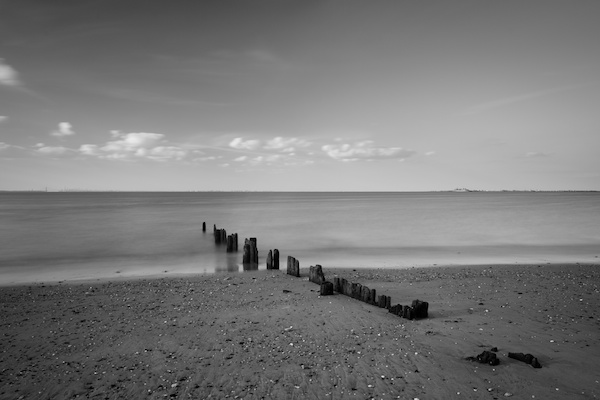
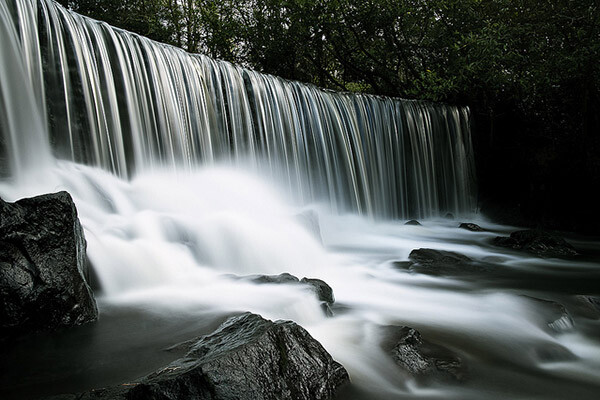
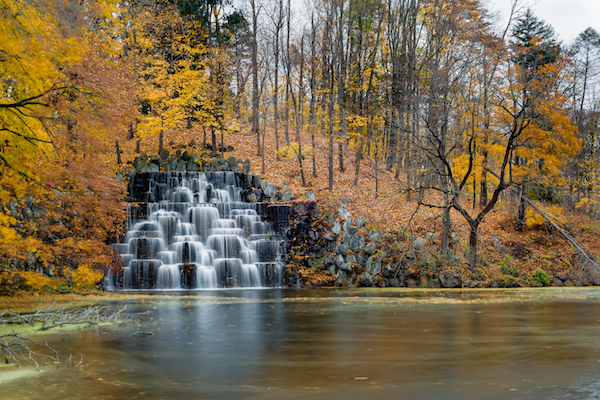
Duke waterfall

#3 Meal Bars

This is too easy to forget. You wake up super early for sunrise or head out the door just before sunset, hoping to catch that last bit of glow in a glorious long exposure. But then you get to the location and realize, “Holy smokes I didn’t eat anything.”

So this way too often overlooked meal bar idea is a must have no matter what. I even recommend this for standard exposure shooting, on photowalks, or wherever. Having at least one meal bar can boost your energy and fill that hunger craving.

#4 Water Bottle

Going along with the meal bar idea is a water bottle. Depending on where you are shooting, stores may not be an option for grabbing a quick thirst quencher. There are also those eco-conscious photographers out there (including myself) that prefer not buying a throw away water bottle.

Typically I carry a Nalgene water bottle that has a decent size loop at the top. Using a carabiner it is attached to my belt or bag so that I’m not physically carrying it, but it’s always with me.

#5 Rain Cover

A rain cover is one of those accessories that I have whether I’m photographing long exposures or anything else. I personally use the Think Tank Photo rain covers, but there are so many awesome ones out there including the OP/TECH plastic covers which I consider emergency products.

Although many modern mirrorless and DSLR cameras contain weather sealing (check your manual if you aren’t sure if yours has it or not), they are not waterproof and can still be impacted by the rain. So having the ability to throw a rain cover over your camera can help ensure that the camera lasts a very long time.

Another rain cover option is the Storm Jacket by Vortex Media.

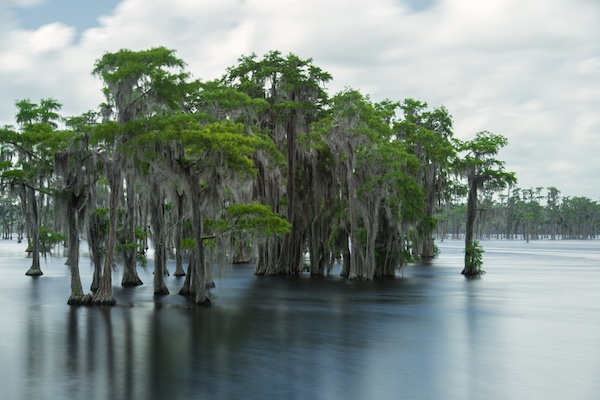
What floats georgia

#6 Lens Cloth

Going along with the rain cover is a lens cloth. If you are going between cold and warm temperatures then your camera will fog up for a bit. If it’s raining then you will likely have water droplets on your neutral density filters. So having a simple lens cloth with you is good to wipe the fog or droplets from the filters.

#7 Cold Weather Mask

Another product I keep with me during the colder seasons, is a cold weather mask. More specifically, this one from Under Armour. The reason I like this one is because it can squeeze into the same pouch as my Think Tank Photo rain cover. Additionally, the mask covers enough of my head and face to keep me warm. Of course, if it’s a super cold day like in a “polar vortex” then I would of course prepare for that in addition to the weather mask.

#8 Tripod Weight

Most tripods with a center column have a hook underneath which makes it easy to hang something weighted. Tripods without a center column usually have an option to attach a hook underneath as well.

The reason you want to weigh down your tripod is because of the extended shutter time. If you accidentally touch your tripod you could move it by accident. So weighing down the tripod can help prevent unintentional movement, thus saving your long exposure.

I’m not saying to bring a heavy weight with you. Instead I’m saying to use your camera bag. You will likely have enough gear in the bag that can make a good 5-10 lb (2.3-4.6 kg) weight. Use the tripod hook and a loop on your bag to create the weight.

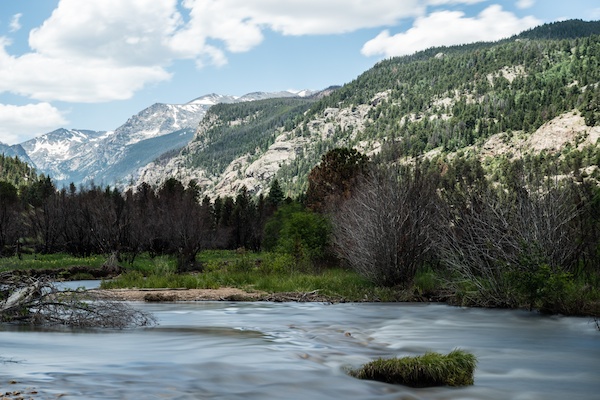
Rocky mountain national park

#9 Extra Camera Batteries

This one should be a no brainer but you’ll be surprised how many photographers forget to carry extra batteries. Always keep in mind that the longer the shutter speed, the more your battery will drain. I tend to carry three batteries with me, at a minimum. Usually one in the camera body and two extras in my bag.

#10 Red Laser Pointer

Yup, you read that right. You won’t be making a presentation while you wait for your ten minute exposure to finish. But, depending on how dark it is outside and how dark your neutral density filter is, a red laser pointer can help you find a place to focus. If you know a tree is in the distance, put the dot on the tree and focus on it.

You might be wondering why I recommend a laser point rather than a flashlight. A flashlight is also a good idea, but a laser pointer is lighter and can travel in a much further distance than the average flashlight.

#11 Mobile Battery Backup

Your mobile devices drain very fast. Especially if you are using an App like PhotoPills to calculate exposures or find the right spot for sunset. Or, if you are using your phone as a cable release as mentioned above, then your battery will drain much faster. So I highly recommend having a battery backup.

I typically carry two with me at all times. One has two USB ports, allowing me to help charge a friend’s phone also if needed. The other is the Bolt which was a Kickstarter project. I keep that one as well because it’s lightweight, small and doubles as a wall charger.

Port monmouth pillars

Bonus Tip

Before I finish up this article I want to share a shooting tip for long exposure photographs. Quite often I see photographs where the sky and water is so smooth, which is fantastic. Many times the exposures are spot on and the post processing is beautiful and tasteful. However, sometimes there is something missing from the composition. That being, a point of focus.

Long exposure photographs are some of my favorite types to make and view. However, with such smooth, ghosted and blurred subjects in the scene, not having something in focus can really make a viewer’s eye wonder.

So instead of just capturing a scene of full motion, try to include an object in perfect focus. Stop people’s eyes from wondering and give them a starting point.

Do you have any other long exposure photography tips or accessories to sure? Please do so in the comments below.

The post 11 Accessories for Long Exposure Photography by Scott Wyden Kivowitz appeared first on Digital Photography School.


Digital Photography School

 
Comments Off on 11 Accessories for Long Exposure Photography

Posted in Photography


Exposure Blending Using Luminosity Masks Tutorial

18 Apr

There will be a time when the wizards behind your camera technology conjure up a sensor so powerful they will swallow up any scene and spit it out just as it was – no over, or underexposed areas. Until then, in order to produce an image with a high dynamic range of light, you have to work with the sensors available to you and create your own post-processing magic.
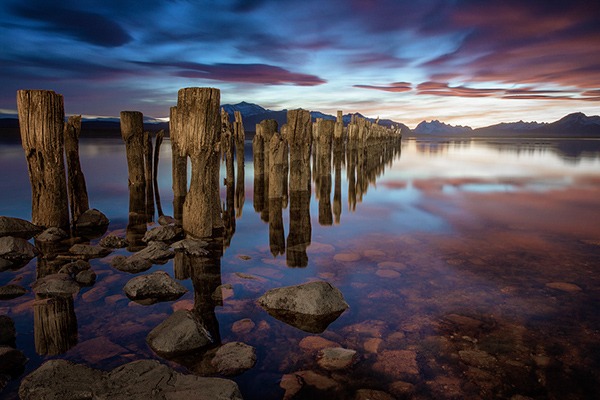
Pink sunset

Image created by blending two exposure with luminosity masks, one for the sky and one for the foreground.

While you, and many photographers, may have relied heavily on HDR programs in your exposure blending quest, many more are now beginning to turn to luminosity masks as a cleaner alternative. Through the use of luminosity masks you can create stunning, balanced images that encapsulate a vast dynamic range of light. They give you incredibly fine control over your imagery in almost every area.

While some HDR programs nowadays produce very natural, clean HDR images, luminosity masks do not affect the original files at all, so there is literally zero image degradation during the blending process. That is why so many digital photographers are beginning to make luminosity masks a staple in their workflow.

What are Luminosity Masks?

Luminosity masks break an image down into various channels of luminosity. In other words, they allow you to make very specific selections in Photoshop based on how bright or dark an area is. Let’s say you were looking at a beautiful nighttime cityscape shot. Everything is exposed correctly apart from the street lights, which are completely blown out. You also have a darker exposure in which the street lights are ideally exposed.

Through luminosity masks you can make an accurate selection of the street lights because you can hone in on their brightness, or luminosity values. With this selection you can simply replace the overexposed streets lights with the correctly exposed ones in the darker image.

What You Need to do Luminosity Masking

Firstly, creating your own luminosity masks is a complex and cumbersome process. However, I have a free Photoshop Luminosity Mask Action Set that will do all of the work for you. You can download it here: Free Luminosity Mask Action Set.

Secondly, it is imperative that you have a good understanding of Masking in Photoshop. If you’re a little bit unsure of the process, you can visit Adobe’s site which has a useful video tutorial for you to follow: Masking in Photoshop.

Which exposures to blend?

Ideally, the exposures you choose to blend should cover the full range of light in a given scene. Your brightest exposure should contain information in the darker areas, while your darkest exposure should contain information in the brightest areas. You are not limited to the number of exposures you can blend. Sometimes, in scenes of extremely high contrast, you may need to use as many as five to ensure a smooth transition between exposures and to cover the full range of light in the scene.

The order you choose to layer the exposures in Photoshop is dependent on your personal preference and the exposures you’re working with. Usually working with your normally exposed image as the base layer will derive the best results, but sometimes you may need to work with a darker or brighter exposure as your base layer.

Once you’ve decided on your exposures and have layered them in Photoshop, you now must decide which exposure you will run the actions on. Generally this will be done on your normally exposed image because it will offer the widest range of usable masks. For example, if you ran the luminosity mask actions on a darker exposure, you would gain a full range of dark and mid-tone luminosity masks, but very few, if any, workable bright masks, because the darker exposure is lacking in highlights. The converse is true for a strongly overexposed image.

Blending Exposures Using Luminosity Masks Tutorial

Today you’ll work with two exposures. One is ideally exposed for the sky and sea (download the underexposed image here), while the other is exposed for the foreground elements (download the overexposed image here).
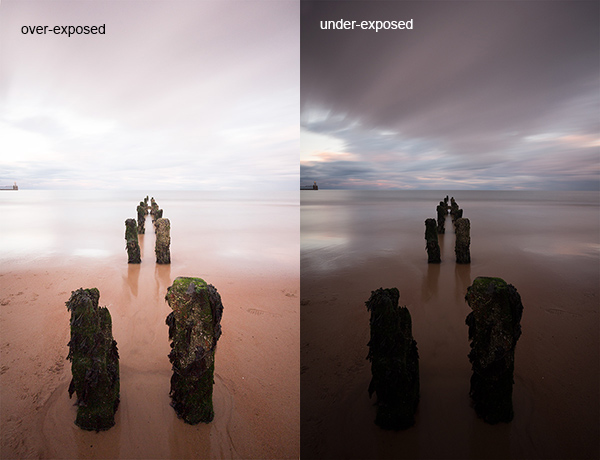
Original files

You want to combine the sky and the sea in the underexposed image with much of the foreground in the overexposed image. To do this, you need to find a way of selecting the sky and the sea (i.e., the blown out areas) in the overexposed shot. Once you’ve done that you just need to replace it with the sky and sea of the darker exposure.

Steps in Photoshop For Blending Exposures

1. Install the Photoshop Action set

Instructions on how to install actions can be found here: Get Creative With Photoshop Actions

2. Import your two images into Photoshop

Bring both images into Photoshop as layers, placing the underexposed image on top. Align the images by selecting both of them on the layers panel, and going to Edit > Auto-Align Layers.

3. Turn off the top layer

Uncheck the eye on the layers panel next to the underexposed layer. This will make it invisible and ensure that the luminosity mask actions will run on the overexposed layer only.

4. Run the Masking Action

Go to your Actions panel, which looks like a Play button on the toolbar. Open it up and go to the set called JM Luminance Masks. Click on the arrow to the left of that. You will now see an option called Generate Luminance Masks. Select it and press the Play button at the bottom of the Actions panel to begin the process.
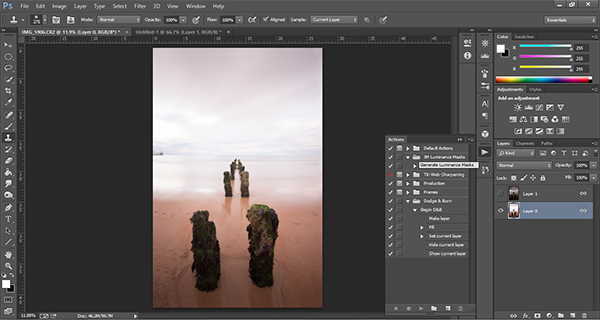
Luminosity mask actions

5. Add a Layer Mask to the Dark Underexposed Layer

Now, check the eye next to the underexposed layer, so that it is visible again. Make sure that layer is selected, then go down to the bottom of the Layers panel and, while holding Alt (Option on a Mac), left click the Add a Mask icon. This will create a black layer mask on the underexposed layer, making it invisible again.

6. View Luminosity Masks

To see the Luminosity Masks that you’ve generated, go to your Channels palette, next to the Layers panel (if it is not showing go to: Window > Channels and it will appear). You’ll see 18 monochromatic channels, ranging from Brights 1-6, Darks 1-6, Midtones 1-6. Every one of these channels is a potential mask.
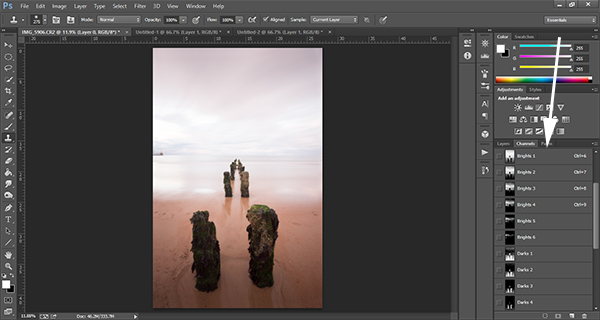
Luminosity mask channels

7. Comparing and Selecting a Luminosity Mask

For this set of images, you only need to use one mask in order to blend the sky from the darker exposure into the overexposed image. In this instance, you’ll need to select Brights 3.
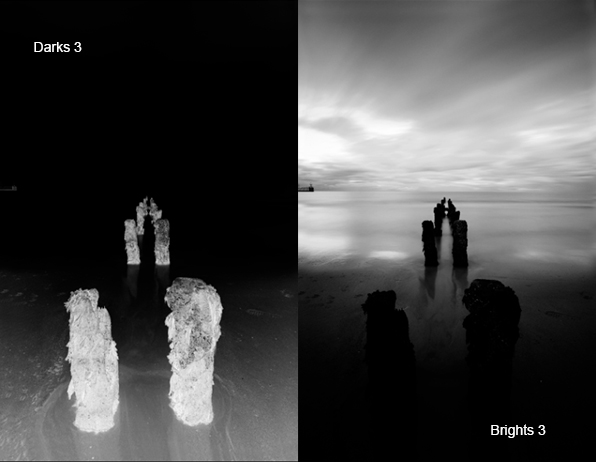
Comparing Masks

Just as with normal masking, the brighter the pixel the stronger the selection. In other words, in the image above, if you used Brights 3 you are selecting much of the sky and sea, but none of the foreground which is completely black. Conversely, if you selected Darks 3, for example, you would only be making a selection of the foreground sand and the poles that lead out to sea.

When choosing the appropriate mask, you are looking to isolate different areas. Therefore, it’s important that the mask you choose has the greatest contrast between the areas you wish to select and the areas you wish to ignore.

For example, if you were working on an image of a nice green field on sunny day, but the sky was blown out and you wished to exchange it with the sky from a darker exposure. You would run the luminosity mask actions and choose the mask where the field was black and the sky was white. This would ensure you would only select the sky and not the field in the foreground.

To turn Brights 3 into an actual selection, you just need to hold Control (Command on a Mac) and click the left mouse button on the thumbnail of the Brights 3 channel. Marching ants will appear to indicate your selection. Press “Control + H” to hide the marching ants.

8. Get Ready to Paint on the Mask

Now switch back to your Layers panel and select the underexposed layer. Make sure you select the mask, and not the actual layer itself.

9. Set up the Paint Brush Tool

Choose the Paint Brush tool on the toolbar and make sure the foreground colour is set to white. Choose the correct brush size. This will depend entirely on the area you’re working with in a given image, but usually, a larger brush is better. A brush size of 2,000 pixels was used here. Set the opacity depending on the strength of the masking you wish to use. For example, with this image, you will mask the sky with an opacity of 100%, but the overexposed areas in the water and foreground will only be masked at 40% opacity. This is because you don’t want to darken the sea too much.

10. Painting or Applying the Mask

Now you’re ready to begin masking. Freely move your paint brush around the areas you wish to affect. Since you are masking with a luminosity mask selection you don’t have to worry about going over the edges. Try varying opacities in different places. Even if your brush opacity is set to 100%, you can still run your brush through certain areas a few times to strengthen the effect.

By holding Alt (Option on a Mac) and clicking on the layer mask you’re working on, you can see exactly what the mask now looks like. The image below is the final layer mask after you’ve finished painting. Remember that white equals visible and black equals invisible. So the sky in this layer is completely visible, the sea is grey so it is partially visible. Since the foreground is black, which means invisible, you will be left with a foreground that is 100% from the overexposed layer below.
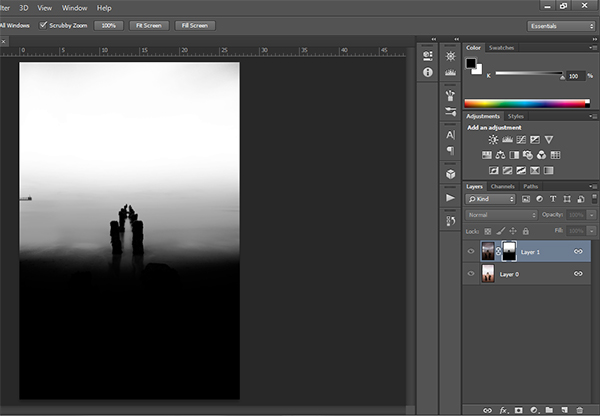
Final Mask

After a small contrast adjustment and a selective vignette added, here’s the final image along side the original overexposed image you were working with.
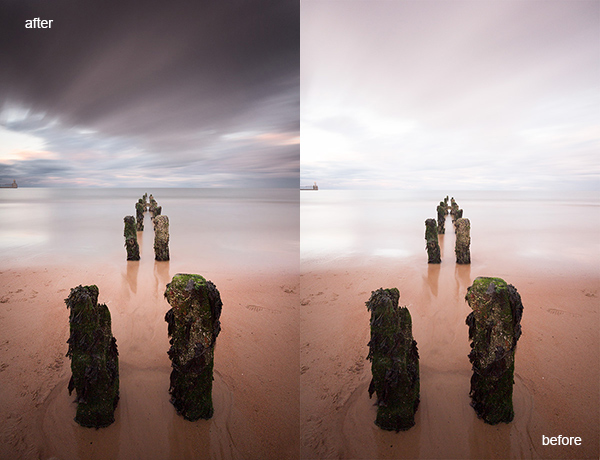
Final images

You now have a nicely balanced image with a good range of dynamic light and tones.

Deleting the Luminosity Masks

While working in Photoshop, the more layers you work on, the larger the demand on Photoshop and your system. Large workflows can seriously slow down your operating system. To ease the load, you should delete the luminosity masks once you’ve finished working with them.

To do this, go back into your Channels palette and select Brights 1. Then hold down Shift and press your left mouse button on Brights 2 to select this too. Do the same with each luminosity mask below. Once all are selected, click your right mouse button on any of the selected masks and choose the Delete Channels option. This will remove the selected channels.

Summary

At first, luminosity masks seem complex and sometimes daunting, but in truth, this whole workflow took less than 5 minutes. After a little bit of practice you begin to get an intuitive sense of how to use these powerful tools, and once you do, you gain extensive control over your images that can change your photography forever.

Have you tried this method of blending images, if so share your thoughts or images in the comments below. Or do you prefer the HDR tone-mapping process? Do you think HDR is dead or maybe it should be? Or perhaps you are somewhere in the middle in the 10 steps every HDR photographer goes through? What are your thoughts?

Check out the newest dPS ebook – Loving Landscapes A guide to landscape photography workflow and post-production – a brand new dPS ebook by the authors of Living Landscapes

The post Exposure Blending Using Luminosity Masks Tutorial by Jimmy McIntyre appeared first on Digital Photography School.


Digital Photography School

 
Comments Off on Exposure Blending Using Luminosity Masks Tutorial

Posted in Photography


Olympus patent hints at selective exposure in ‘Live Time’ mode

15 Mar

2014_39116_fig05.png

Earlier this week, Japanese patent blog Egami reported that Olympus has patented a technology that would allow the photographer to selectively adjust exposure of different scene areas during an exposure. This might allow for a more balanced exposure of scenes where cameras might normally struggle. Click through for an explanation of what we think the patent might mean for photographers. 

News: Digital Photography Review (dpreview.com)

 
Comments Off on Olympus patent hints at selective exposure in ‘Live Time’ mode

Posted in Uncategorized


Understand Exposure in Under 10 Minutes

13 Mar

DPS-Annie-Tao-Exposure-article-perfect-exposure-exampleThere are countless Photography books and classes that explain exposure, yet after reading or attending them, your photos may not have improved because…well, let’s be honest… some of us Right-Brainers aren’t super technical!

I recently taught a small photography class to newbies. I thought hard about how I could explain exposure in the simplest way possible. I found that a parallel example of something relatable was the best way to convey the different aspects that impact exposure.

I tested this theory by explaining exposure to my 8-year old daughter and then quizzed her. She proved the theory was a success by grasping the concepts within 10 minutes. So I’d like to share my lesson with you so you can understand exposure in under 10 minutes!

A 10-minute lesson that will change your Photography

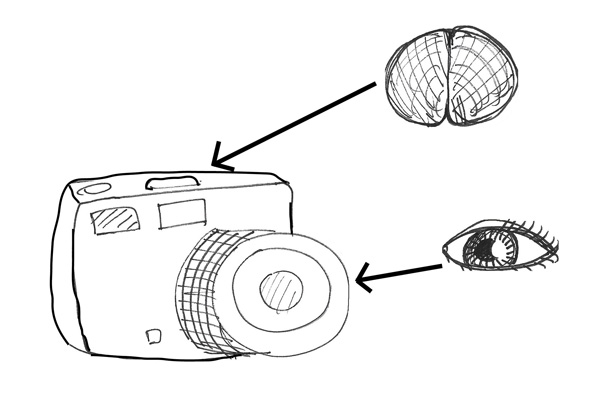
Your DSLR camera is like your head with the LENS being your vision and the camera BODY is your brain. Your vision sees things and your brain records the details.

DPS-Annie-Tao-Exposure-article-camera-metaphor

Just like when you look at something – let’s say, a flower – your eyes see it and send information to your brain that the flower has long petals and that it is yellow. If you looked at it too quickly or it was too dark, for example, the information your brain records is compromised.

The “exposure triangle” is about how 3 things — aperture, shutter speed and ISO — work together to provide enough light for your brain (the camera) to record what you see. You need the right combination of these 3 components to have perfect exposure.

DPS-Annie-Tao-Exposure-article-perfect-exposure-example

Good exposure

For example, if you don’t let in enough light, you won’t see things very well because it’ll be too dark (underexposure).

DPS-Annie-Tao-Exposure-article-underexposure-example

Too dark, or underexposed

If you let in too much light, then it’ll be too bright and you can’t see a lot of the details (overexposure).

DPS-Annie-Tao-Exposure-article-overexposure-example

Too bright, or underexposed

APERTURE = how WIDE you open your eyes

A small aperture (a large f-stop or f-number, like f/22) is like squinting. A large aperture (a small f-stop or f-number, like f/1.4) is like having “bug eyes”.

Quiz:  If you are shooting in low light, how wide do you open your eyes? Will you see well at night if you are squinting (small aperture)?

Quiz:  What happens on a super bright day if your eyes are wide open and they’re open for a long time (slow shutter and large aperture)? Can you see well then?

DPS-Annie-Tao-Exposure-article-fish-with-eyes-open-wide-and-squinting

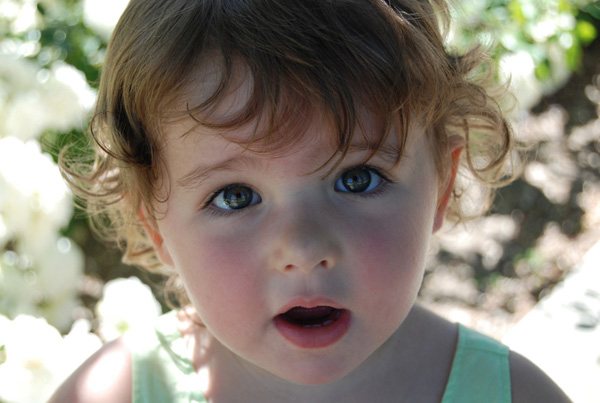
Aperture is how big you open your eyes – bug eyes, or squinting

SHUTTER SPEED = how LONG you open your eyes

A fast shutter, like 1/1000th of a second, is blinking super fast. A slow shutter speed, like 2 seconds, is keeping your eyes open and then blinking. The thing to remember is:  your brain is recording everything when your eyes are open. So if you or something you’re looking at is moving, and your eyes are open a long time (slow shutter), then your brain will record a blurry image.

Quiz:  If you want a crisp shot of someone jumping, how long do you need your eyes open? What will freeze the shot:  a quick blink (fast shutter) or a slow one (slow shutter)?

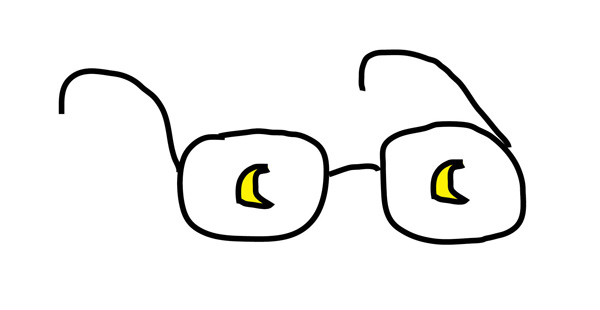
DPS-Annie-Tao-Exposure-article-moonglasses

ISO special glasses

ISO = special glasses that help you see in the dark

ISO is like the opposite of sunglasses. Let’s call them MOONglasses!  ;)

The higher the ISO, the thicker your moonglasses, so the more you are able to see in low light. You need thick moonglasses (high ISO) when shooting indoors or at dusk. You need very thin moonglasses (low ISO) when it’s a sunny day.

Quiz:  do I need thick, thin or medium moonglasses if I’m shooting at the beach on my lunch break?

All 3 of these things work together

Here is an example:  You are photographing your sleeping cat who is snuggled on the couch. There is not much light coming through the windows or additional ambient light. To see well, you have medium-to-thick moonglasses on (such as ISO 600). You need to have your eyes open pretty wide (large aperture, such as f/1.4). However, you don’t have great vision (you have a kit lens that only goes up to f/4.5), so you need more light to see. Thus, you leave your eyes open longer (slow shutter speed, such as 1/30th sec).

Final Quiz:

  1. In the same scenario, your cat notices you are snapping photos, so she starts walking away and leaps off the couch. You still want to photograph her. Which would you change:  how open your eyes are (aperture), how long you leave your eyes open (shutter speed), or thickness of your moonglasses (ISO)?
  2. If you increase your shutter speed because you want to freeze the image, what else would you need to change? (If you changed nothing else, the image would be too dark because you let in less light.)

Once you get the basic concept of exposure and how the three components of the exposure triangle (aperture, shutter speed and ISO) work together, turn your DSLR camera to “manual” and practice the specific settings based on different circumstances.

Want more on exposure?  Try these:

  • Your First DSLR – now what?!
  • Getting off Auto – Manual, Aperture and Shutter Priority modes explained
  • Introducing the Creative Triangle
  • Using Manual Mode: Exposure Lesson #4
  • Photo Nuts and Bolts – a dPS ebook

The post Understand Exposure in Under 10 Minutes by Annie Tao appeared first on Digital Photography School.


Digital Photography School
 
Comments Off on Understand Exposure in Under 10 Minutes

Posted in Photography


Exposure: Chef April Bloomfield on smartphone food photography

02 Feb

Screen_Shot_2014-01-27_at_5.33.06_PM.png

Chef April Bloomfield is an avid smartphone photographer who has made something of an art posting largely behind-the-scenes shots of the work done in her kitchens. Rather than express horror at the low quality of food photographs swirling out on the Internet, Bloomfield embraces the medium, advising potential culinary photographers to hold out for good lighting or hold off altogether. Click through for a sample of her images on Connect.

News: Digital Photography Review (dpreview.com)

 
Comments Off on Exposure: Chef April Bloomfield on smartphone food photography

Posted in Uncategorized


Exposure: Alex Washburn looks for where the Autopista Ends

21 Jan

Screen_Shot_2014-01-20_at_10.17.42_AM.png

Alex Washburn used to be a photographer for Wired.com until she quit her job, put her belongings into storage and set off on a journey around the world. Last October she and her boyfriend embarked on an epic trip by motorcycle from San Francisco to the southernmost tip of South America. At present Alex is somewhere in Columbia, posting images to her Instagram account as she journeys south. Click through to see a selection of her stunning travel photographs. 

News: Digital Photography Review (dpreview.com)

 
Comments Off on Exposure: Alex Washburn looks for where the Autopista Ends

Posted in Uncategorized


5 Tips for Better Long Exposure Landscape Photography

03 Jan

David’s Long Exposure and DoF eBook Long Exposure and Shooting Shallow DoF eBook Bundle (Long Exposure comes with Lightroom Presets) is currently 43% OFF at SnapnDeals – grab it now! (only until January 16th AUS time)

Even if you are an experienced landscape photographer you will know there is lots to consider when approaching the area of long exposure, landscape photography.

The following five tips are just some of the things I have learned, (often the hard way) on my own journey with landscape photography and I hope you are able to take advantage of them and apply them in your own work.

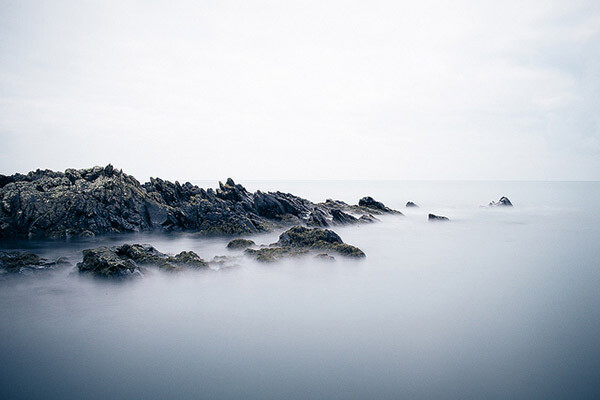
Long exposure landscape photography 05

5 Tips for Better Long Exposure Landscape Photography

1 – Consider the scene without the camera

When arriving at a location you may find yourself rushing to your camera bag in haste to set up your gear. With long exposure photography your mind can often be busy doing the math, calculating exposure times, juggling tripods and fiddling with filters.

Take your time and behold the scene, forget you are capturing a long exposure image and get the framing right. I use the Lee filter system on my Fuji X cameras, which is easy to attach and remove the Neutral Density (ND) filter to the camera between shots. I often remove the filter and capture shorter exposure images to review on the LCD screen. If these images don’t look good there is little chance of the long exposure version looking look.

Don’t be fixated on getting the water looking smooth; instead fixate on framing the water in the photograph to create contrast and make the scene visually interesting.

Long exposure landscape photography 04

2 – Maximize your images with morning or evening light

If you are using an ND10 filter you will know how brilliant they are at stopping light from reaching the camera sensor. Although, theoretically it is possible to capture long exposure images even during the sunniest part of the day, it generally isn’t the best time to shoot.

Prioritize the late evening or early morning for capturing long exposure images so you don’t rely on the ND filter doing all the work. You will find you have much more creative control and will capture more atmospheric images by shooting at the extremes of the day.

Long exposure landscape photography 02

If you are shooting the ocean, then the second part of this tip is to research tide times. I’ve ventured out on more than one occasion to shoot a jetty to find it would be hours before the tide was in. There are various services online that will tell you high and low tide times for your specific area.

3 – Use the rule of thirds

As with the first tip I really recommend that you spend time studying your location. Imagine your image as three separate layers. The top and bottom layers need to contain something of visual interest with the middle layer tending to be the smoothed out water. Sandwiching of the smooth water between foreground and background detail can add a real sense of drama to a long exposure scene.

Long exposure landscape photography 06

4 – Keep your gear clean

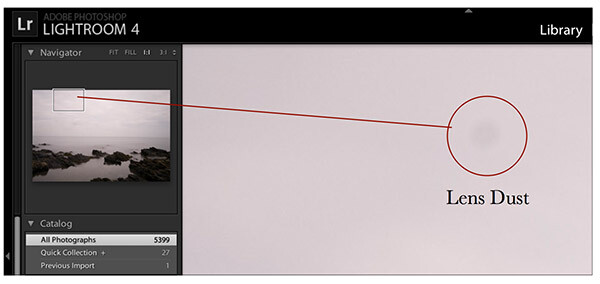
Having the camera shutter open for long durations means any dust or dirt on your lens or filter has a greater opportunity to impact on your image. Your post-production software (such as Adobe Lightroom) will go some way to automatically clean up dust but quite often larger spots are visible in long exposure images that wouldn’t be obvious in normal conditions. Having a lens cloth handy and cleaning the filter (both sides) in-between shots can result in less post-production work later on.

5 – Enhance in post-production

When it comes to postproduction processing for long exposure photography I recommend focusing on three areas. Initially you should correct any colour cast created by the ND filter. This is a relatively simple process; in Lightroom use the ‘temperature’ slider to warm the image to a more natural hue.

You should then zoom in and check for any dust spots, these are generally more obvious in the highlights, such as the skyline. Use the Spot Removal tool (Shortcut Q) to remove these blemishes easily.

Long exposure landscape photography 01

Finally my top tip is to use the graduated filter tool in Lightroom 5 (shortcut M) to soften the water. You can do this by clicking on the horizon and dragging to the base of the water. Once you have created the filter you can then soften the smooth water by reducing the level of ‘Clarity’. You can also do the opposite of this technique to increase the ‘clarity’ of your skyline.

Long exposure landscape photography 03

Summary

These five tips, I hope will go some way to improve how you approach long exposure photography, but the most important thing to remember is to relax. There is something ultimately therapeutic about the experience of capturing long exposure images of landscapes, moving water or the night sky, isn’t that what the creative process is all about?


long-exposure-bookcover-250David’s Long Exposure and DoF eBook Long Exposure and Shooting Shallow DoF eBook Bundle (Long Exposure comes with Lightroom Presets) is currently 43% OFF at SnapnDeals – grab it now! (only until January 16th AUS time) 

The post 5 Tips for Better Long Exposure Landscape Photography by David Cleland appeared first on Digital Photography School.


Digital Photography School
 
Comments Off on 5 Tips for Better Long Exposure Landscape Photography

Posted in Photography


Long Exposure Photography Tutorial

01 Dec

“That Nikon Guy” aka Mark Granger does a great job of showing how to use long exposures in different situations to get some stunning effects.

Make sure to watch all the way to the end for his extra special tip on traversing the rocks! Worth a chuckle.

Share your long exposure images

If you have some examples of long exposure photography, please share them in the comments below.

Post originally from: Digital Photography Tips.

Check out our more Photography Tips at Photography Tips for Beginners, Portrait Photography Tips and Wedding Photography Tips.

Long Exposure Photography Tutorial

The post Long Exposure Photography Tutorial by Darlene Hildebrandt appeared first on Digital Photography School.


Digital Photography School
 
Comments Off on Long Exposure Photography Tutorial

Posted in Photography


How To Freeze Moving Subjects in a Long Exposure Photo

20 Nov

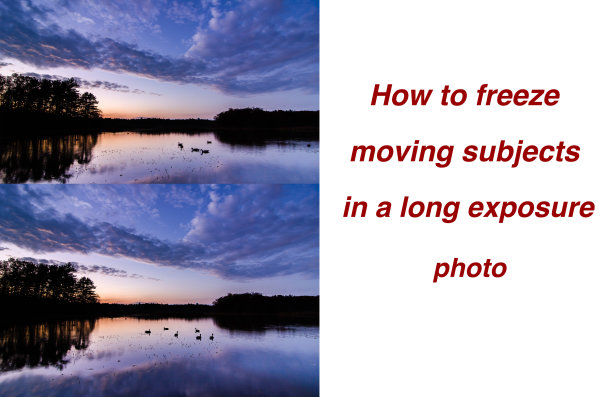
So you have this idea for a photograph where you’ve smoothed out the water on a lake using a long exposure, but want to capture the wildlife swimming on said lake frozen in place – or something similar?  I had that same vision and I’m going to show you how I accomplished it below, so you can follow along.

freeze subjects in long exposure photo

When trying to capture this kind of photograph in a single frame you’re pretty much out of luck. You can either capture a long exposure shot to smooth out the water, OR increase your ISO and capture a shot using a faster shutter speed to freeze your subject. No matter what you do in camera though, one piece of this puzzle will be out of line with the other.

So how do you freeze your subjects in a long exposure scene? Simple – with a little bit of post production.

Part One – Photograph Two Different Images

You will need two frames to work with in post production; one with a fast shutter speed to freeze the moving subjects, and one with a long exposure to smooth out the water in the scene. You don’t want to change the Depth of Field between the two frames, and need to make sure that the overall exposure remains the same, so you are left with changing the ISO setting to achieve the results you want.

The long exposure shot will be taken at ISO 100 and whatever settings will be required to get the optimal exposure for the scene in front of you and the faster shutter speed shot will be taken with a higher ISO setting allowing you to achieve a fast enough shutter speed to freeze the motion of the subject you want stationary.

In the example photograph the long exposure was taken at 1.3 seconds, and the high ISO photograph was shot at ISO 4000. This allowed me to get an exposure of 1/30th of a second (still fairly slow, but workable for the desired result).

Part Two – Combining the Images in Photoshop

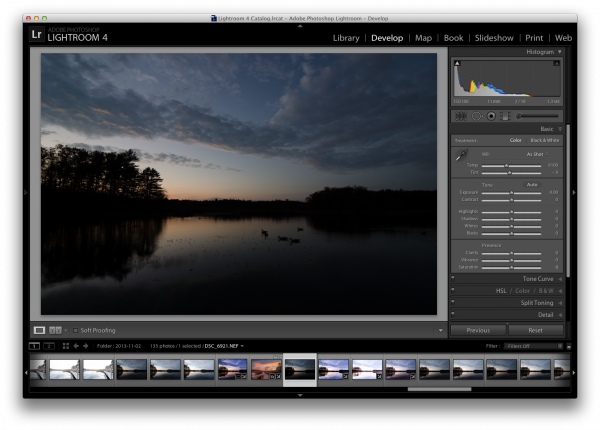
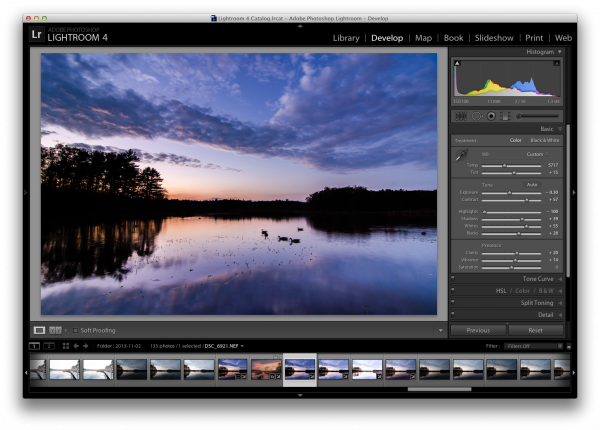
Here’s the first, unprocessed image, straight out of camera. Before you get to freezing the moving subjects you need process the original photo. I will be working in Lightroom 4 to demonstrate.

Original Long Exposure

Original long exposure photo in Lightroom

After applying a few graduated filters, some adjustment brushes, and playing with the basic sliders I was able to achieve a result that is pleasing. If you’d like to see exactly how I created this – you can watch the entire process here.

Now that you’ve got the photograph properly exposed you’ll notice that the problem is very evident in the photograph – the moving subjects just wouldn’t sit still for the long exposure. So it’s up to post production magic to solve this issue.

Processed Photo

Process the long exposure image to your liking

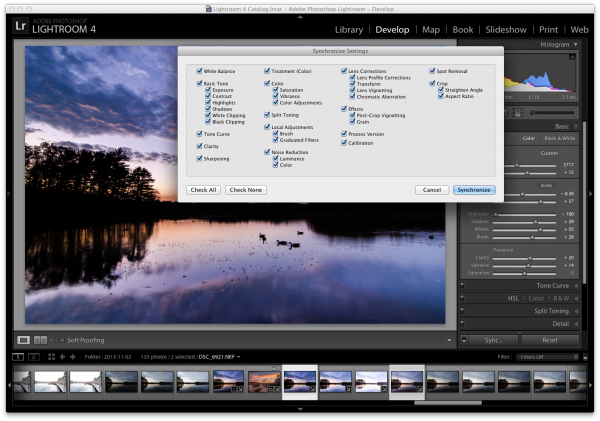
Use Lightroom’s “sync” feature in the Develop Module to bring the settings from the photo above over to the high ISO photo that you will be using . This will allow you to make sure everything stays the same (color, contrast, tone, etc.) between the two images when you get to creating the composite later.

sync

Sync settings from the processed long exposure shot with the high ISO shot used to freeze the subject

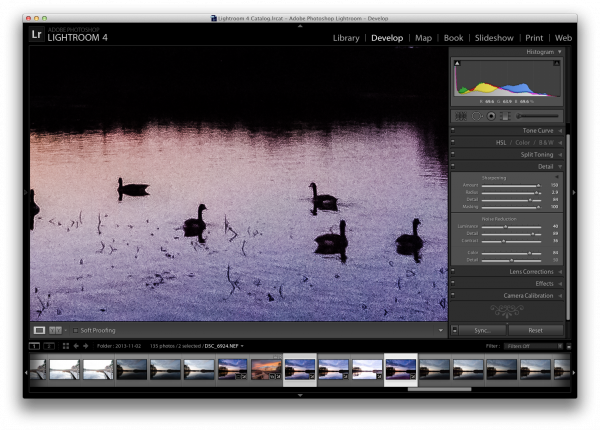
I suggest applying some minor adjustments to the high ISO image to get the subjects to stand out more (as they are going to be the only piece of the high ISO used in the final version).

One of the main areas of focus for this example image was to create lines that are as hard as possible for the subjects, so that they stand out very nicely in the composite. To do this, go into Lightroom’s detail section and push up the sharpening quite a bit. You may also want to do some noise reduction to try and compensate for the high ISO exposure with increased noise.

High ISO Exposure

Make some minor adjustments to the high ISO shot and export both images for further processing in Photoshop

While Lightroom is great for processing photos, it is limited in that you can not create composites or work with layers, which is exactly what is needed to finish this project.

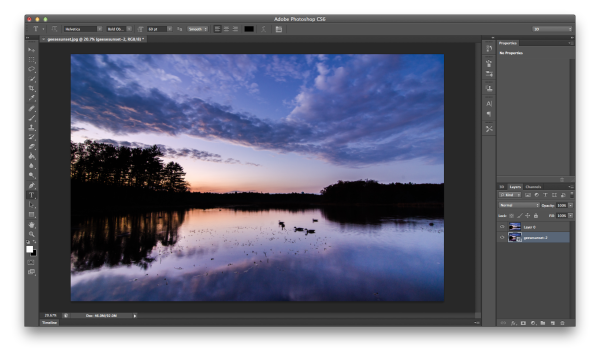
Therefore it’s time to bring out the big guns and jump on over to Photoshop. Below, I’ve loaded the two files as layers, (select the two thumbnails in LR, right click on them, and choose “edit in>Open as layers in PS) with the long exposure layer on top and the high ISO layer on the bottom.

Jump into Photoshop

Open both photos as layers in Photoshop – I typically put the high ISO image on the bottom as we will be using less of that image in most cases.

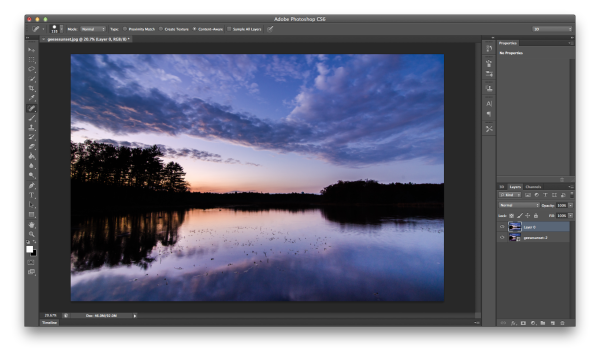
I like to clean up the long exposure shot as well as I can first, so I went ahead and got rid of the blurry geese by performing a simple clone job. Go ahead and do that on your image as well if suitable.

Clone

Clone the blurred subject from the long exposure shot

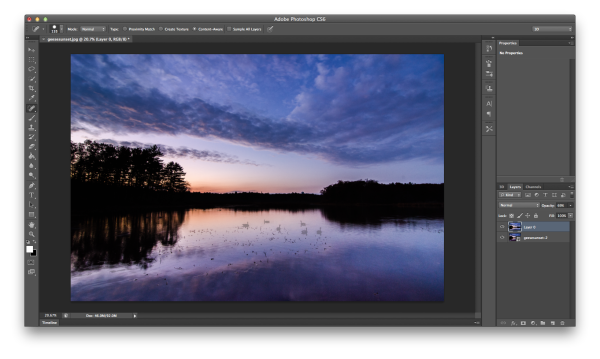
Next reduce the opacity of the long exposure layer (which I’ve arranged as the top layer). This will allow you to see the high ISO layer as a reference point, while still being able to see most of the long exposure shot as well.

Reduce Opacity

Reduce the opacity of the long exposure layer allowing you to see the high ISO layer below

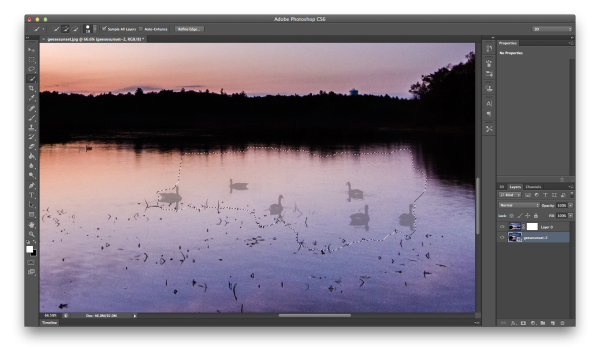
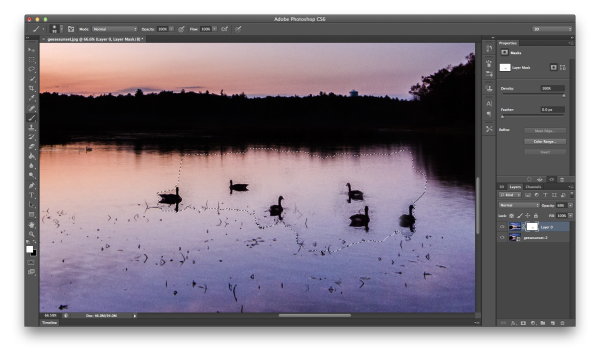
With the high ISO layer selected, use Photoshop’s selection tool to make a rough selection of the subjects in the frame. Next add a layer mask to the long exposure layer, which you will be using in the next step.

Select high iso subject and add layer mask

With high ISO layer selected, select your ‘frozen’ subject and add a layer mask to the long exposure layer

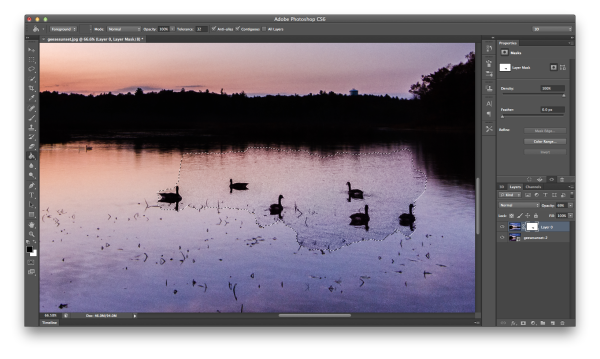
Once the subjects have been roughly selected, fine tune the edges of the selection to make sure you’ve got everything you need. Then select the layer mask you added to the long exposure layer and fill in the selection with a black paint bucket fill (make sure your swatches are set to default black/white and use the tool at 100%). This is a very crude way of getting the geese into the long exposure shot, but does the job quickly and it works.

Bring Frozen Subject Forward

With the layer mask selected for the long exposure layer, use the paint bucket to fill in the selected region

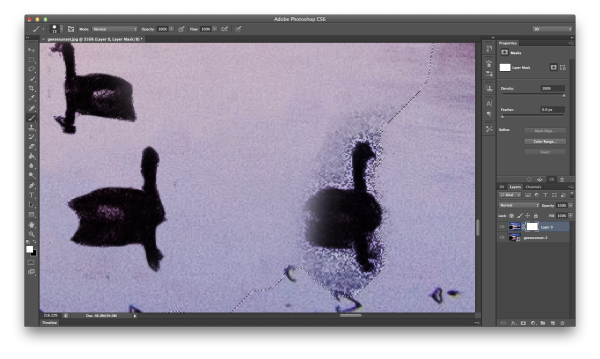
Now that you have your subjects visible within your frame, bring the opacity of the long exposure layer back to 100% and start the clean up. I recommend you work in broad strokes first using a wide brush with the color white selected. This will allow you to get most of the areas between the subjects from long exposure frame back, instead of the noisy high ISO frame.

Clean Up part one

Using a white paint brush clean up the areas in between and around the subject in broad strokes first

Once you have a basic rough clean up done, it’s time to zoom closer and use a finer point brush to do the detail work. It’s a time consuming process. But, this must be done, or the final image will end up looking like two images put on top of one another, and not one cohesive, final image.

Detail Work

Once you’ve roughed out the clean up – zoom in with a small brush and continue the clean up on a more detailed level

You’re on the home stretch now!

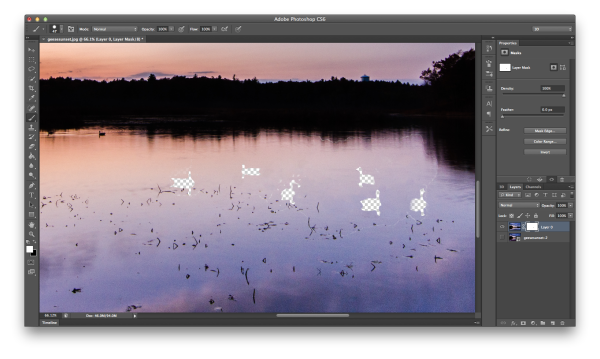
Do one final check of the image by hiding the high ISO image (click the little eyeball next to the layer). By doing this, places the mask has been applied will now be transparent, and you’ll easily be able to tell if there were small areas that need fixing.

Final Clean Up

As a final clean up – hide the subject layer and see if there were any spots that need a final adjustment

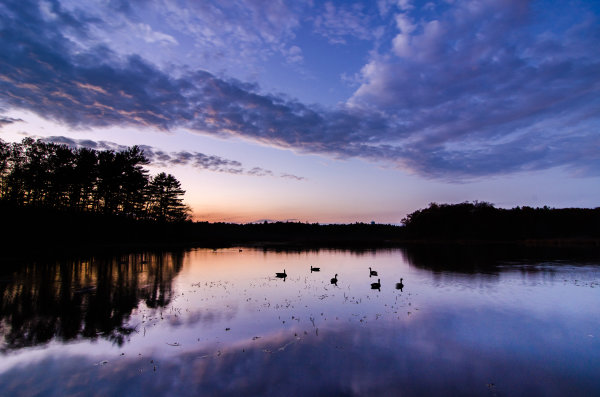
After the final touch up and a few other minor tweaks in photoshop you’re ready to merge layers, save the image and show your friends. (you can also save a layered version if you think you might want to edit it more later)

geesesunsefinal

Save and share your final shot

Summary and more reading

I hope you got something out of this step by step walkthrough – for more information on how to mask in Photoshop, which is really what this entire process boils down to, check Photoshop Masks 101. If you’ve ever created a long exposure, high ISO composite, I’d love to see it in the comments!

Post originally from: Digital Photography Tips.

Check out our more Photography Tips at Photography Tips for Beginners, Portrait Photography Tips and Wedding Photography Tips.

How To Freeze Moving Subjects in a Long Exposure Photo

The post How To Freeze Moving Subjects in a Long Exposure Photo by John Davenport appeared first on Digital Photography School.


Digital Photography School
 
Comments Off on How To Freeze Moving Subjects in a Long Exposure Photo

Posted in Photography