RSS
 

Posts Tagged ‘Effect’

CamFi Matrix Time software makes it easy to shoot the ‘bullet time effect’

15 Jul

China-based camera trigger company CamFi has announced the launch of CamFi Matrix Time, a software application that is free for all of the company’s users. As the name suggests, the software is designed to produce the ‘bullet time effect’ made famous by The Matrix, doing so without the high cost typically associated with this effect.

CamFi makes wireless digital camera controllers, and its new Matrix Time software works in conjunction with those controllers. With the software, users can set up a multi-camera arrangement to shoot one after the other with less than a 1/100th-second delay. The images captured by each camera are then automatically grouped and compiled into a video featuring this special effect.

The company explains that its Matrix Time product can easily set all of the cameras in the multi-camera setup to the same shutter speed and aperture; a live view from the cameras in the software, meanwhile, enables operators to arrange the angle of each camera before shooting. All in all, it seems like a very simple and straightforward way to capture a complex special effect.

Of course, there is a catch… actually two. First, while the Matrix Time software is free, each CamFi Wireless Camera Controller costs $ 130 USD / $ 185 CAD / £110. And second, for now, CamFi Matrix Time is only available for the Windows operating system.

Articles: Digital Photography Review (dpreview.com)

 
Comments Off on CamFi Matrix Time software makes it easy to shoot the ‘bullet time effect’

Posted in Uncategorized


How to Create a Double Exposure Effect Using Photoshop

21 Jun

What is a double exposure effect?

In days of yore, back when DSLR cameras were SLR, a roll of film was inserted in the back of your camera to give you 24 or 36 exposures. A double exposure was created in-camera by taking two different photos on the same frame of film.

How to Create a Double Exposure Effect Using Photoshop

The Double Exposure Effect created in Adobe Photoshop using Blend Modes, Layer Masks and of course two or more images.

When I did shoot with an SLR camera, I managed to achieve this effect more by accident than intent. In order to take another shot, you had to manually wind onto the next exposure!

With the onset of digital, this technique is very easy to replicate in Adobe Photoshop. If you don’t have Photoshop, get GIMP, it’s free to download and use. If you do a search on YouTube, there are plenty of tutorials on making double exposure effects to choose from. The more popular tutorials seem to use images of a portrait and a landscape.

However, you can use any images you want as this is quite a stylistic technique.

The ingredients

In essence, all you need are two images.

One of these images will have to be cut out using a layer mask so that the other image can be clipped to it.
Then it’s a case of using the blending modes, reducing the opacity, and other color effects to produce the desired result. Depending on what images that you use, experiment with the different blending options to see which effect you like the best.

The technique – step-by-step

In this article, I will show you a step-by-step tutorial on how to create your very own double exposure effect using Photoshop. The hardest part will be selecting the two images that you want for the composition.

Select your images

For my first image, I’ll be using this photo of the Hook Lighthouse. I took this shot a couple of years ago while on holidays along the hook peninsula in Wexford, Ireland.

How to Create a Double Exposure Effect Using Photoshop

Hook Lighthouse on the Hook Peninsula in Wexford in South of Ireland.

However, I didn’t get to snap any seagulls. This is exactly what I wanted for my second image, a close up side shot of a seagull.

I found one on Pixabay. If you don’t have images ready to hand. You can go to sites such as Pixabay or Unsplash. These two sites alone have excellent quality images to choose from and you can download any image for free (note: please read the usage terms for the Creative Commons license and be sure to follow them).

How to Create a Double Exposure Effect Using Photoshop seagull

Seagull image from Pixabay.com

Cut out the subject from the background

So, first I needed to make a selection of the seagull. The Quick Selection Tool did a good job and I finished it off by using the Refine Mask. I was able to save this out on its own layer with a layer mask.

How to Create a Double Exposure Effect Using Photoshop

Using the Quick Selection Tool and Refine Mask in Photoshop to isolate the subject from the background.

I decided to add a blue background in keeping with the nautical theme but also the seagull is predominately white, so he stands out more.

How to Create a Double Exposure Effect Using Photoshop background

I added a blue background after I isolated the seagull from the original background.

Add the second image and adjust the Layer Blend Mode

I brought the lighthouse image in as a Smart Object above the seagull layer and resized it. Next, I dragged the seagull layer mask to the lighthouse layer (which copies and applies it to the second layer) and changed the Blend Mode to Vivid Light. Finally, I then reduced the opacity to 68%.

How to Create a Double Exposure Effect Using Photoshop

I used the Blend Mode – Vivid Light which produced some funky colors on the beak of the seagull. But I liked the effect it created on the lighthouse image in comparison to the other Blend Mode options.

How to Create a Double Exposure Effect Using Photoshop

The Layers Panel in Photoshop and how the double effect in Photoshop is achieved.

Adjustments

At this stage, the colors on the seagull went a little too funky, especially around the eye and its beak.

So, I added a Hue & Saturation Adjustment Layer, checked the colorize tick box, and dragged the Hue slider to 183 and increased the Saturation to 10.

I added a Hue & Saturation Adjustment Layer to get rid of the funky colors that the Vivid Light Blend Mode created around the beak of the seagull.

The lighthouse rocks were still a little too sharp, but I didn’t want to reduce the opacity of the overall image any further. So I duplicated the seagull layer and dragged it to the top of the layer stack. I chose a big soft brush and I dabbed a couple of times on the layer mask around the rocks and the lighthouse to give it more of an opaque/ghostly look.

Final image

A GIF animation illustrating the different stages in creating a double exposure effect.

I had hoped to put a video together to accompany this article. But honestly, Adobe Creative Cloud have done a great job with a video on their YouTube channel, in illustrating this technique in under 45 seconds!

Now it’s your turn, let’s see what you can do. Why not give this technique a go? Please post your questions, comments and results in the section below.

Disclaimer: the author was not sponsored by Adobe, Pixabay or Unsplash. Words and opinions are those of the author only.

The post How to Create a Double Exposure Effect Using Photoshop by Sarah Hipwell appeared first on Digital Photography School.


Digital Photography School

 
Comments Off on How to Create a Double Exposure Effect Using Photoshop

Posted in Photography


How to Create a Rim Light Effect Using Photoshop

20 Jan

Lighting is a huge integral part of a movie’s success. The same applies to photography. It’s all about the light or lack of it to create the drama in an image. Rim lighting, as the term suggests, is also called edge or back lighting. In this article I will show you how to create this dramatic style of lighting.

how to create a rim light effect in Photoshop

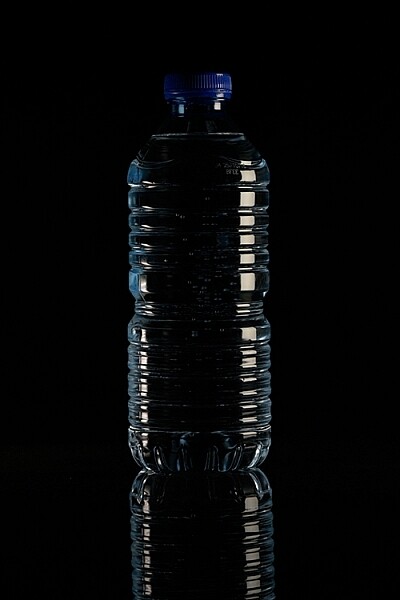
A rim light effect created in-camera and an Inner Glow effect added in Photoshop.

Rim lighting adds drama

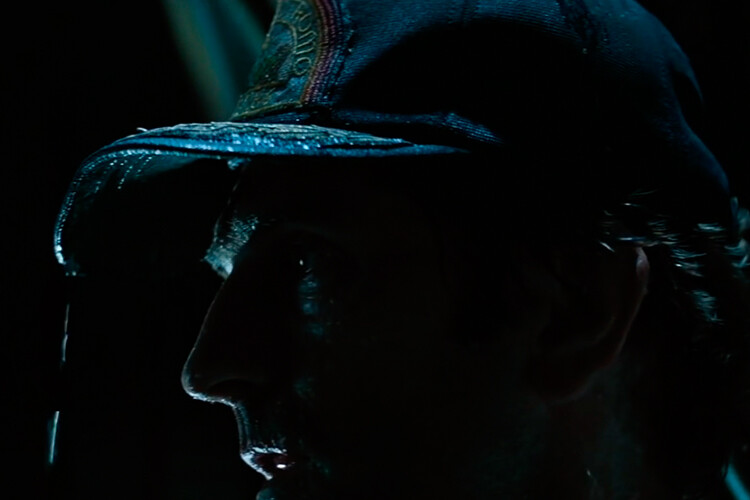
There’s a particular scene in the movie Alien (1979) in which the character played by Harry Dean Stanton goes to find Jones the cat. That scene had me glued to my chair with both hands up to my mouth and fingers lodged between my teeth. You just knew something bad was going to happen but it was drawn out with unbelievable tension.

How to Create a Rim Light Effect Using Photoshop Alien

Alien Courtesy of 20th Century Fox

The lighting throughout the movie was low key to give that moody atmospheric feel.

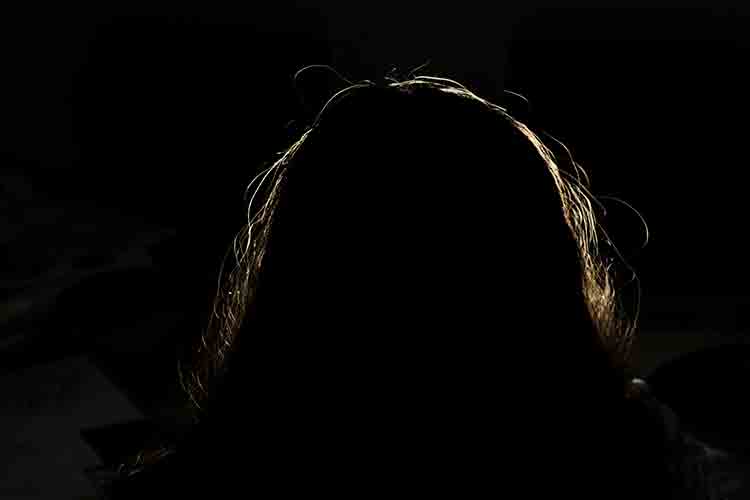
A good example of rim lighting is using two side lights or one light from behind the subject, as in the image below.

How to Create a Rim Light Effect Using Photoshop

In this photo the light is behind the subject creating an edge or rim light around the subject’s head. This is also called a hair light.

Before I demonstrate how to create a rim light effect in Photoshop. I want to show you just how easy it is to get a rim light effect in-camera, so you can try it out in the comfort of your own home.

Create a rim light effect in-camera at home

I used the following setup to create my rim light:

  • One bottle of water
  • One glossy black tile
  • Two lights
  • A camera mounted on a tripod

I picked up a sample black glossy tile from a local tile shop, where I was able to purchase just the one. As for the lighting, strip softboxes are ideal for this type of rim lighting. You place a strip softbox on each side, and slightly behind (closer to the background), the subject.

Unlike standard softboxes, strip softboxes are narrow and rectangular in shape. But, for the purpose of this article so that you can easily do a similar setup in your own home, use whatever light sources that you already have at your disposal.

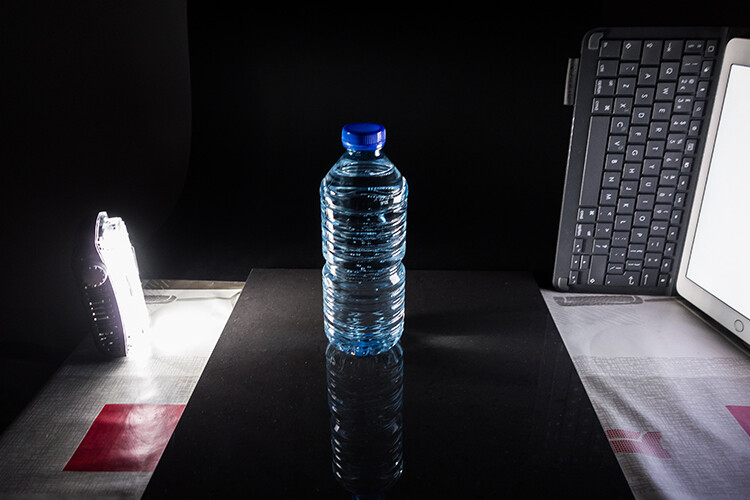
Using my iPad placed vertically to one side of the bottle, I opened the Soft Box app which is free to download and set it to white. I placed an LED light on the other side of the bottle. My kitchen table was used for the setup.

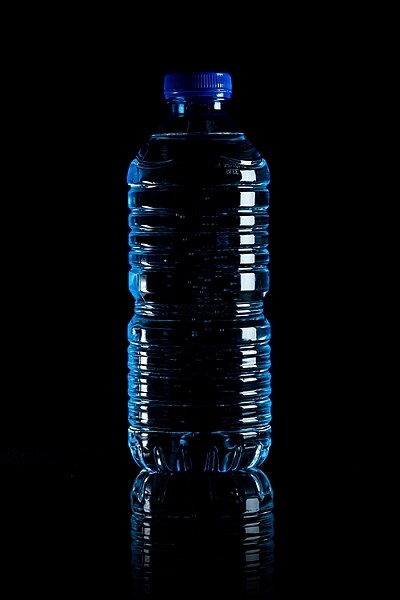
As you can see in the photo below, I was able to angle the lights so that I could control the rim light hitting the bottle. My camera settings were: ISO 2000, 1/60th of a second, at an aperture of f/5.6.

How to Create a Rim Light Effect Using Photoshop

A simple setup that you can do at home to create a rim light effect in-camera using a black glossy tile, a prop, and two lights.

NOTE:

If you don’t want to use two lights and you have a regular softbox, try placing it directly behind the object and cover the center of the softbox with a strip of black card (that will become your background). You will need to experiment to get the rim lighting around the object.

how to create a rim light effect in Photoshop

This is the bottle of Water straight out of the camera.

Let’s dive into Photoshop.

Creating a rim light effect in Photoshop

The key to adding the rim light effect in Photoshop is Layer Styles and having the subject isolated from the background. Before any layer style can be applied, it is necessary that the image that you are applying the style to has been carefully cut out. Use whatever selection tool you want but I would recommend using the pen tool.

Layer style

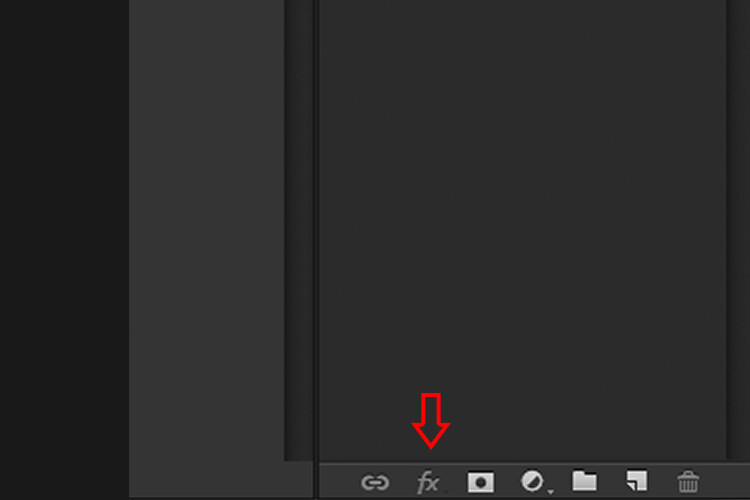
Let’s take a look at Layer Styles. With Photoshop open, go over to the Layers Panel. Scroll down to the bottom and you will see a group of icons. You will see this icon, fx second to the right. Click on that and a pop-up dialog box will appear with different preset style options.

How to Create a Rim Light Effect Using Photoshop layer styles

The Layer Styles presets are accessed by clicking on the fx icon located at the bottom of the Layers Panel.

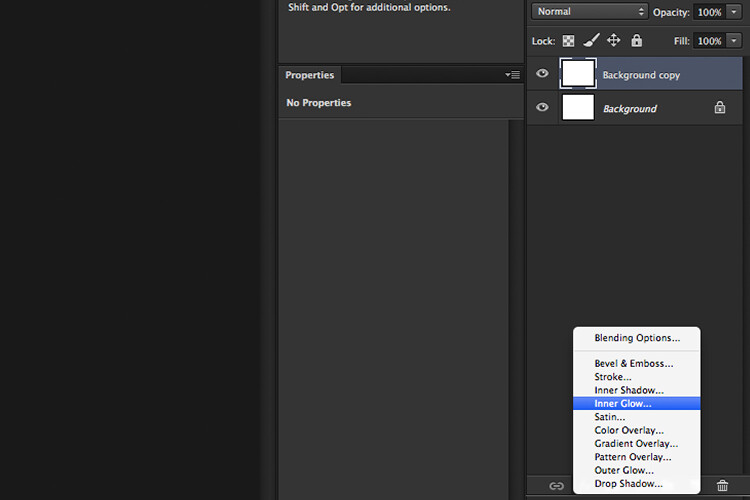
How to Create a Rim Light Effect Using Photoshop - The Inner Glow preset

The Inner Glow preset

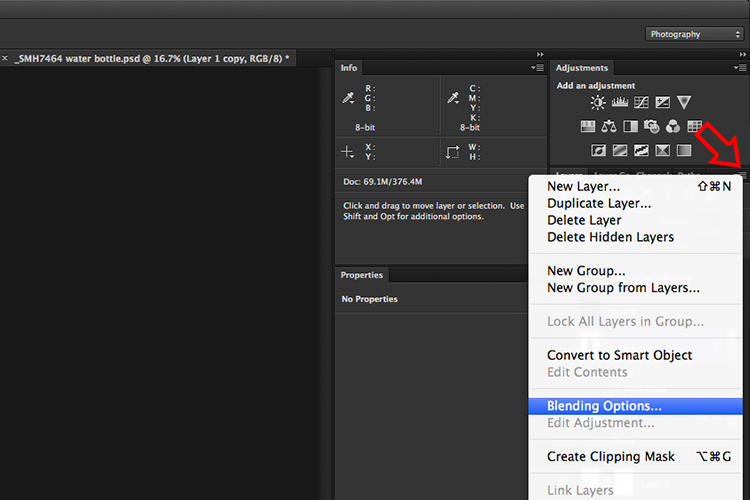
Alternatively, you can access the Layer Styles by going back to the top right corner of the Layers Panel and clicking on the downward arrow icon with horizontal lines beside it. Scroll down to where it says Blending Options. The same Layer Style option box appears and just click on Inner Glow.

How to Create a Rim Light Effect Using Photoshop

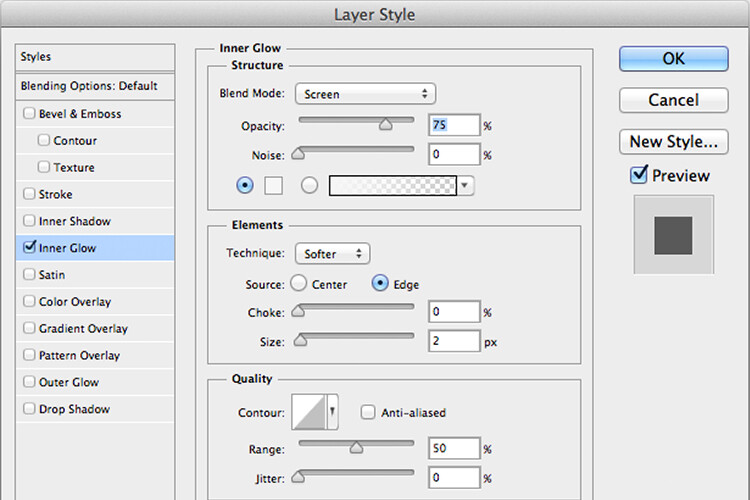
When you click on any of the Layer Style options, the settings are all preset options, but they can be easily edited. In this example, leave some of the settings as they are and only adjust the following three:

  1. Choke – similar to feathering
  2. Size
  3. Opacity

Experiment until you get the desired effect, then click the OK button.

How to Create a Rim Light Effect Using Photoshop

The Layer Style pop-up dialog box with the default settings.

adding a rim light effect in Photoshop

A rim light effect is added in Photoshop using Inner Glow from the presets in the Layer Styles.

Using Color Dodge Blend Mode instead of Screen

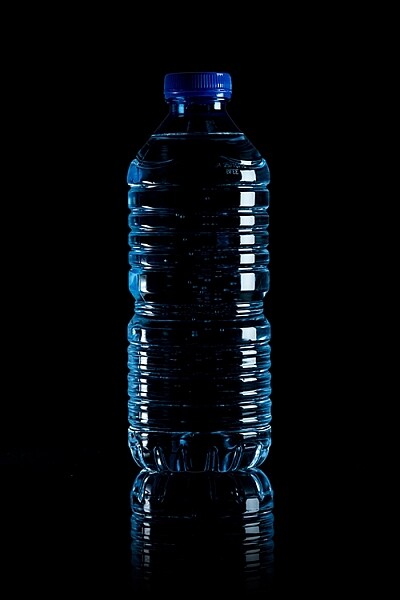
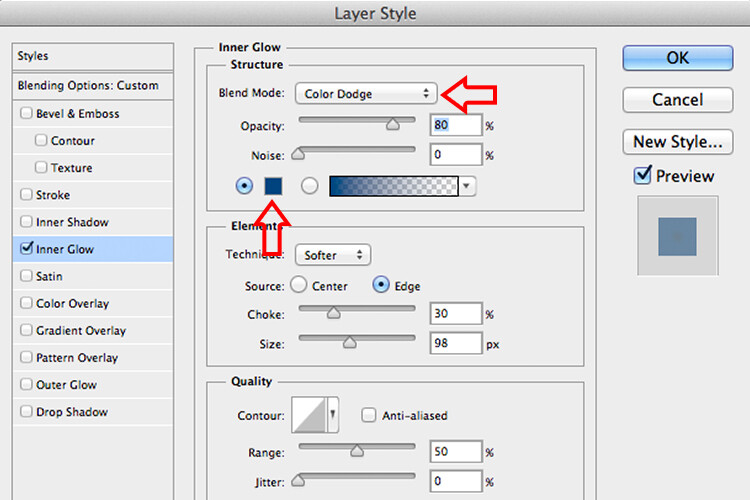
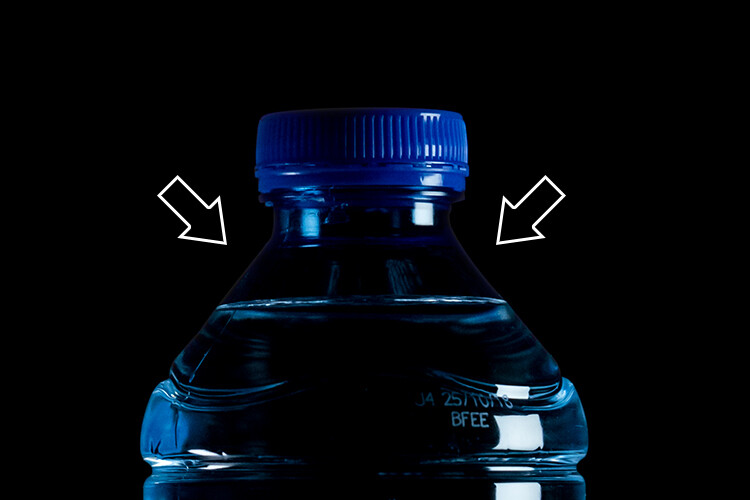
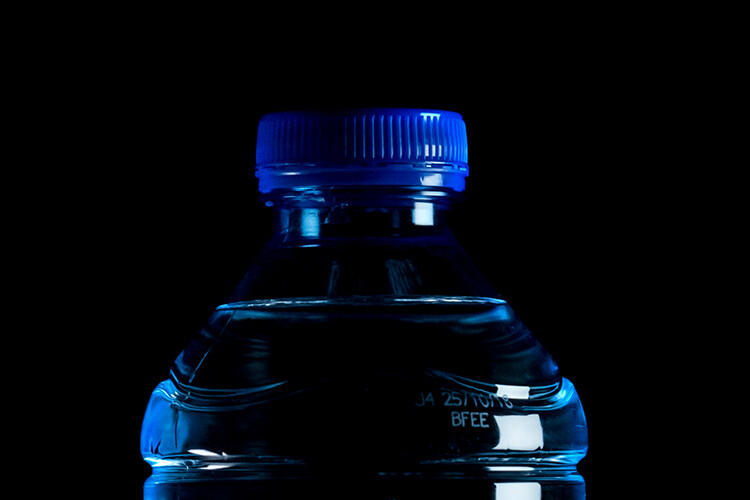
My preference when using this Layer Style technique is to change the Blend Mode from Screen to Color Dodge. I used this on the bottle of water in the title shot. To illustrate the subtle differences between the two Blend Modes, see the two photos below. The first image is the Inner Glow with Screen as the

The first image is the Inner Glow with Screen as the default setting. For the second image, I changed the Blend Mode to Color Dodge.

alt=

Changing the Blend Mode to Color Dodge

How to Create a Rim Light Effect Using Photoshop inner glow

Rim light effect created in Photoshop using Inner Glow from the presets in Layer Styles.

How to Create a Rim Light Effect Using Photoshop

This rim light effect is created using Inner Glow from the Layer Style presets but I changed the Blend Mode to Color Dodge.

Creating a rim light from scratch using Photoshop

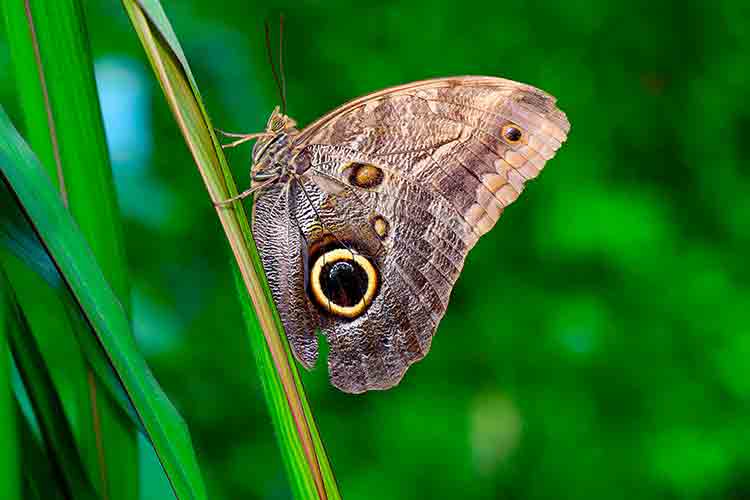
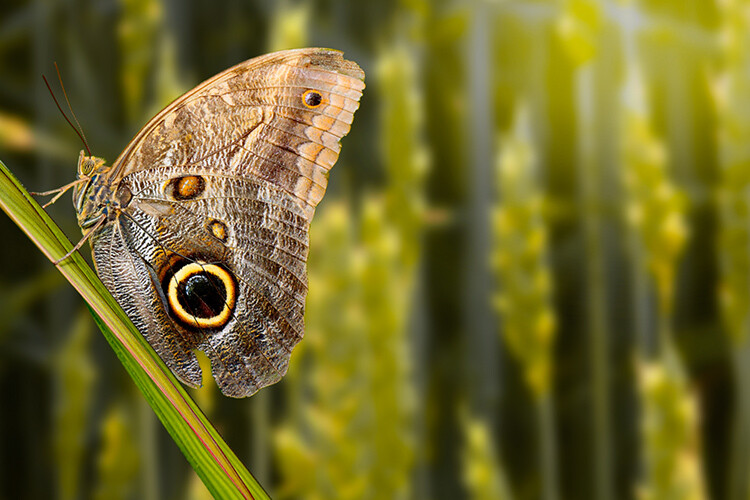
However, this technique really does shine when you have to create the rim light effect totally in Photoshop. For example, take this Owl Butterfly image that I got from www.pixabay.com. It has no rim light effect on it at all.

How to Create a Rim Light Effect Using Photoshop owl

Owl Butterfly from Pixabay 1668956 – dowload the image if you want to follow along.

I isolated the Owl Butterfly from the background using the Pen Tool and placed it against a different background shot to which I added a Gaussian Blur.

How to Create a Rim Light Effect Using Photoshop owl

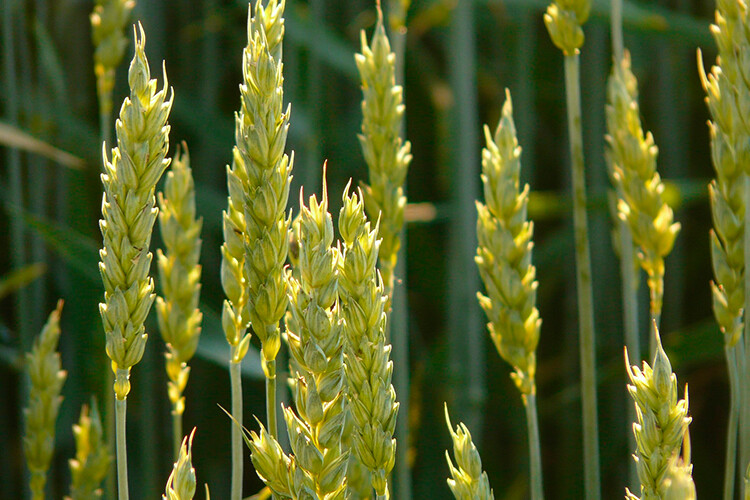
Wheat from Pixabay 8244_1920

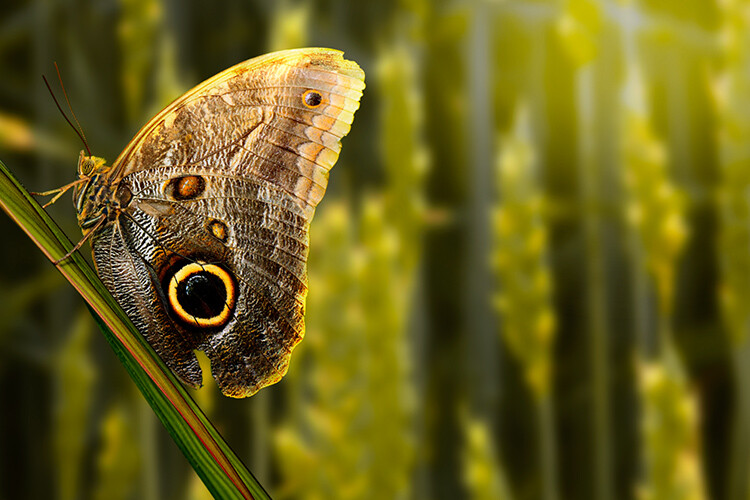
As I had the Butterfly on its own separate layer, I added an Inner Glow from the Layer Styles and changed the Blend Mode to Color Dodge and chose a darkish yellow. I wanted a backlight to appear on the wings of the Butterfly caused by the setting sun in the background.

How to Create a Rim Light Effect Using Photoshop owl before

The Owl Butterfly was cut out using the Pen Tool in Photoshop and placed it against another background image. I blurred the background using Gaussian Blur.

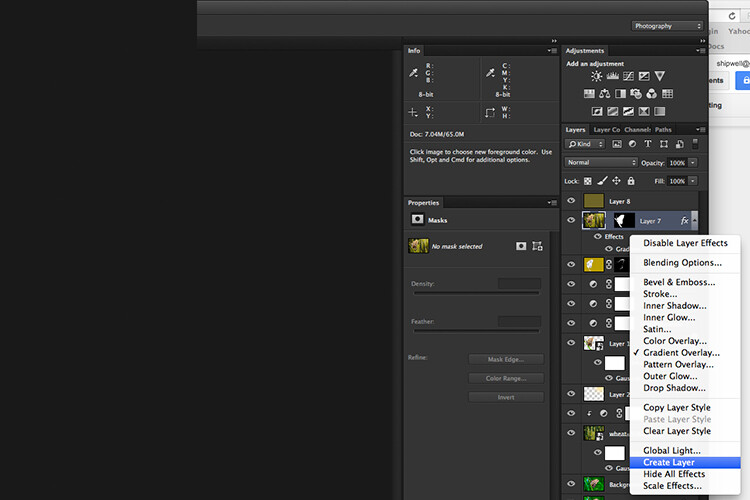
I put this Layer Style effect on its own separate layer. Then I applied a layer mask and brushed in the yellow glow on the wings to give it a more realistic look. I did a bit more retouching by adding a gradient Overlay and then applied the Filter>Blur>Average to blend the colors from the two images.

How to Create a Rim Light Effect Using Photoshop layer style

By placing the Layer Style effect on its own separate layer. I was able to apply a layer mask and brush the Glow effect onto to the wings of the Butterfly.

How to Create a Rim Light Effect Using Photoshop owl after

An Inner Glow was added using the blend Mode set to Color Dodge. I then added a Gradient Overlay to darken the bottom part of the Butterfly and I applied an Average Blur to blend the color of the two images.

Your turn

I hope I have been able to show you how effective creating a rim light in Photoshop can enhance your images. Do you use this effect on your images? Feel free to give it a try and post your results below, I will try to answer any questions and would love to see your images.

googletag.cmd.push(function() {
tablet_slots.push( googletag.defineSlot( “/1005424/_dPSv4_tab-all-article-bottom_(300×250)”, [300, 250], “pb-ad-78623” ).addService( googletag.pubads() ) ); } );

googletag.cmd.push(function() {
mobile_slots.push( googletag.defineSlot( “/1005424/_dPSv4_mob-all-article-bottom_(300×250)”, [300, 250], “pb-ad-78158” ).addService( googletag.pubads() ) ); } );

The post How to Create a Rim Light Effect Using Photoshop by Sarah Hipwell appeared first on Digital Photography School.


Digital Photography School

 
Comments Off on How to Create a Rim Light Effect Using Photoshop

Posted in Photography


How to Create an Infrared Effect in Photoshop

10 Sep

Note: For this tutorial I am using Photoshop CS6, however every version from CS2 up will work for this technique.

What is Infrared Photography?

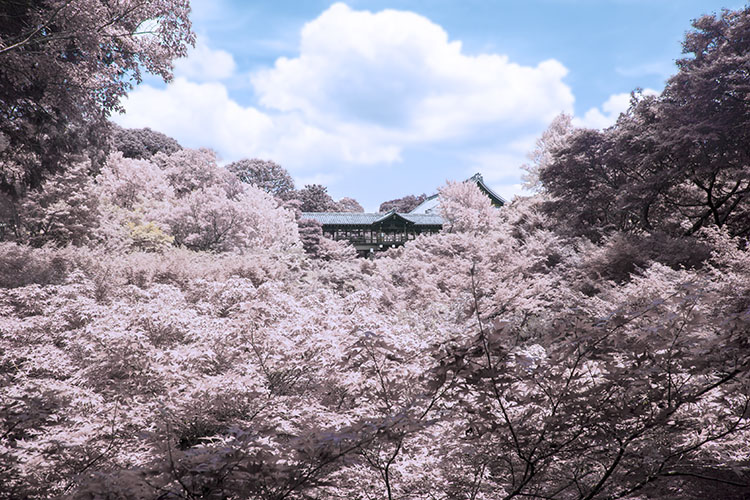
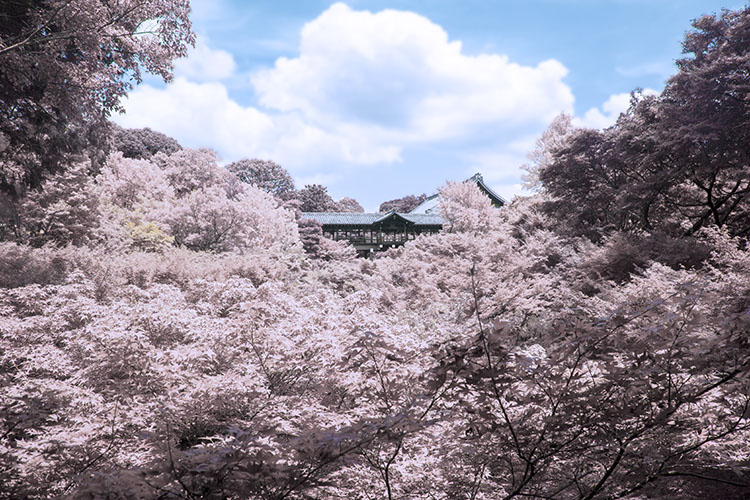
Infrared (IR) light lies just beyond the visible spectrum, so we can’t actually see it with the naked eye. However, IR photography allows us to view this spectrum with a camera, to capture a whole new world of invisible light.

13Done

In basic terms, anything that reflects a lot of infrared light, will appear red in IR photography. As healthy vegetation absorbs blue and red-light energy to fuel photosynthesis and create chlorophyll, organic matter is the most popular subject for IR photography. The surrealistic effects that are created when IR comes into contact with plants and grass makes the method very popular for with landscape photographers, and is a great way to diversify your portfolio.

There are a few ways to capture IR photos in-camera

As most digital cameras are somewhat sensitive to IR waves already, screw-in filters are a reasonably straightforward way to make IR photographs. They are, however, fairly expensive and significantly reduce the amount of light that reaches the sensor of your camera, thus also increasing exposure times. Infrared light also focuses at a slightly different point than visible light. Once the filter is on, you won’t be able to see much at all, a combination that makes for a difficult time focusing. Autofocus is also rendered useless.

You can also use a film camera with special infrared film. This type of film is quite expensive and requires special handling, but shooting IR photos with it requires no modification to your camera.

Your third option is to pay for your digital camera to be altered to capture infrared light exclusively. But the procedure is expensive, and involves altering the internal layout of the camera, meaning it will never photograph light in the visible spectrum again.

This simple tutorial will show you how to mimic the distinct, surrealistic effect of in-camera IR photography, without the hassle or expense of buying an IR filter, IR film, or doing a camera-overhaul.

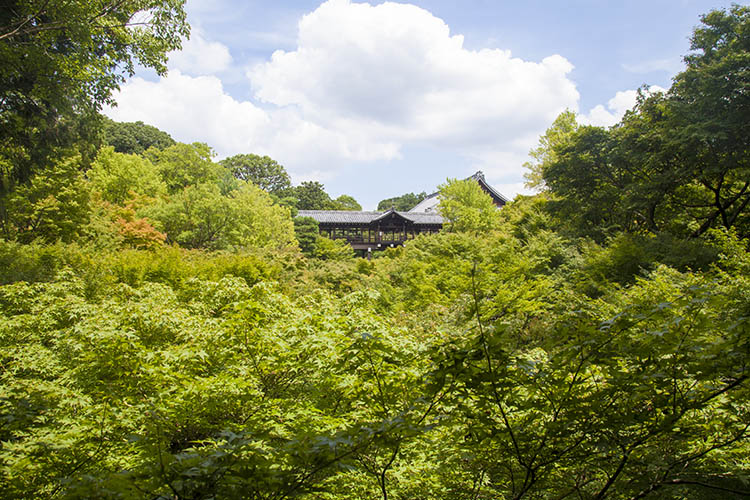
1Originalimage

Step 1 – Open our image in Photoshop

Open up your image with Adobe Photoshop. The image I’ve chosen for this tutorial has plenty of organic material in it, so the finished result will be pretty intense. However, if a subtler effect is what you are after, simply pick an image with less dense greenery. As demonstrated in the conclusion, sometimes less can be more with this effect.

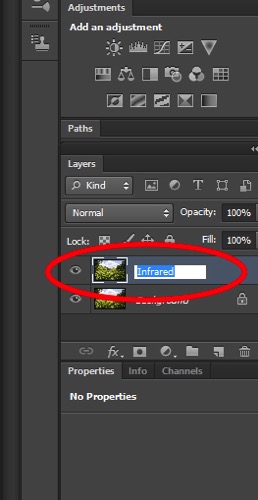
Now, duplicate the image layer via Image > Duplicate Layer or by using the shortcut CMD/CTRL + J. Rename this layer “Infrared” via the command box or by double-clicking on the layer name.

2Rename

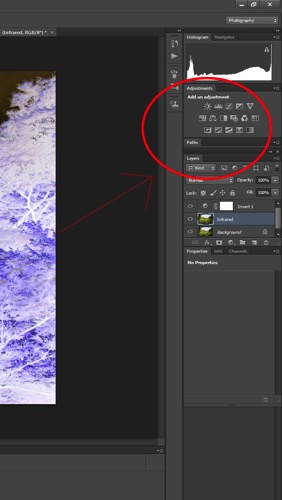
Next, invert the colors of the layer you just named “Infrared” by using the Invert option in the Adjustments Layer Panel. We will be using a few tools in the Adjustment Layer Panel. This method adds layers over the original image rather than directly editing it, which reduces the overall image quality and its ability to be altered again later if you change your mind. This is called non-destructive editing.

3Adjustmentlayers

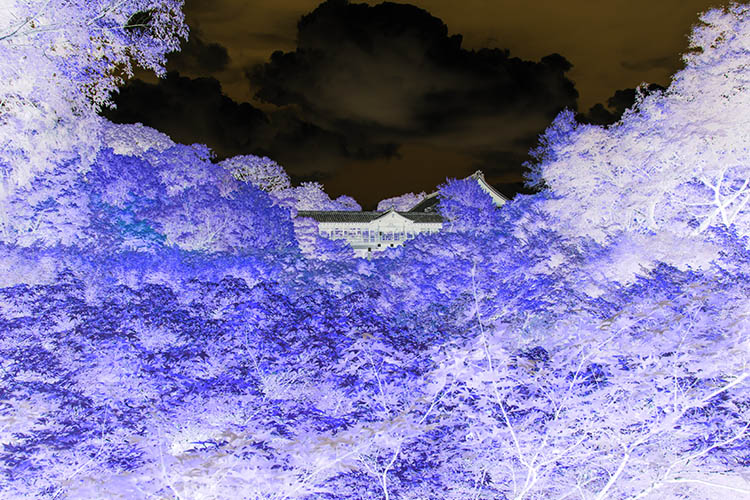
Once the layer is inverted it will look like a color negative.

4Inverted

Step 2 – Blending Modes

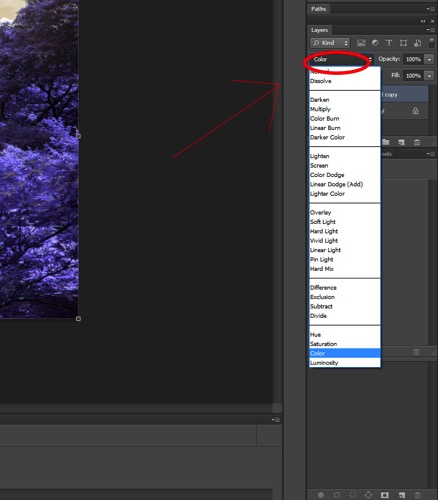
With the Invert Adjustment Layer selected, change the Blending Mode to Color, from the dropdown menu in the layers panel.

5Blendingmodesdropdown

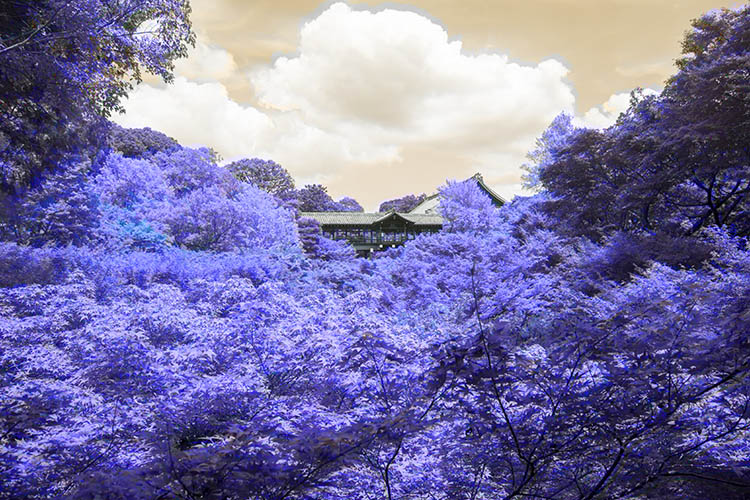
The image should now have a nice orange and blue tone.

6Color

Step 3 – Channel Mixer

Select Layer > New Adjustment Layer > Channel Mixer, or select the Channel Mixer icon in the adjustment layers panel.
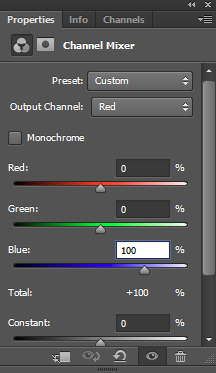
Now, in the Channel Mixer, first set the output channel to red, and move the red slider to 0. Move the blue slider to +100.

7colorbalance1panel

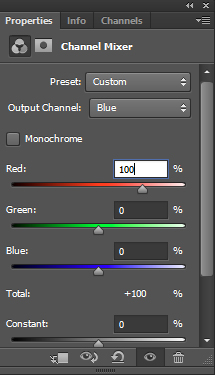
Then set the output channel to blue. Increase the red to +100 and move the blue slider to 0.

8colorbalance2

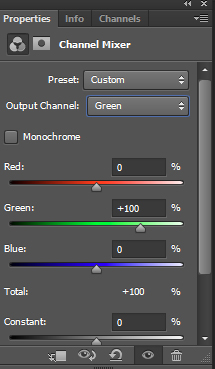
Leave the green output channel as it is, making sure that the green slider it is set to +100.

9colorbalance3

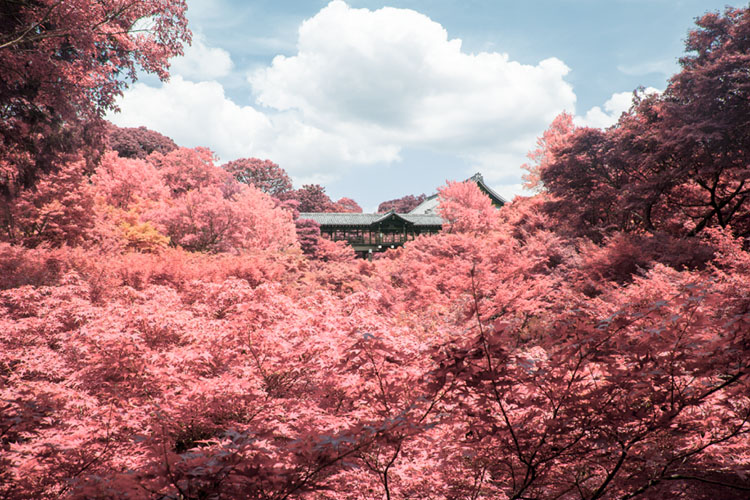
The image will now look a lot more saturated, color wise.

10Channelmixer

Step 4 – Hue and Saturation

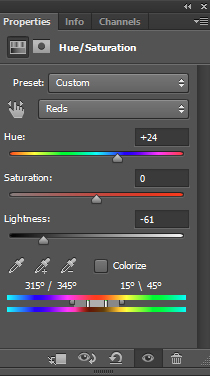
This step is going to vary depending on what photo you have selected, but the overall goal is the same: isolating the pink/red colors and converting them to whitish/yellow color.

Make a Hue and Saturation adjustment layer via the Adjustment Layer Panel. Select the red channel. Reduce the saturation down so the result is almost grey.

Following this, adjust the hue slider until you get a hint of yellow. Feel free to play around with the other channels slightly to get the best results.

11HueSaturation

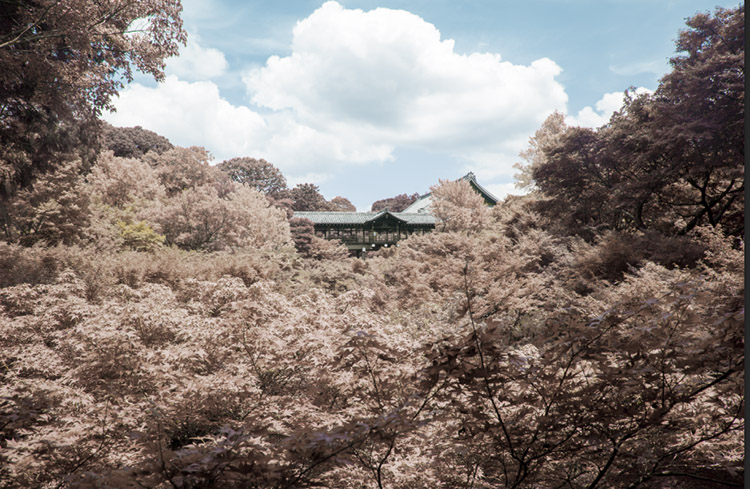
My image now looks more faded and subtle:
12Afterhuesaturation

Step 5 – Finishing Touches

To finish up, I adjusted the contrast of the image using the Curves Adjustment Layer on the Adjustment Layer Panel.

13Done

Other Examples

Here are some examples of other landscapes I’ve used this technique on:

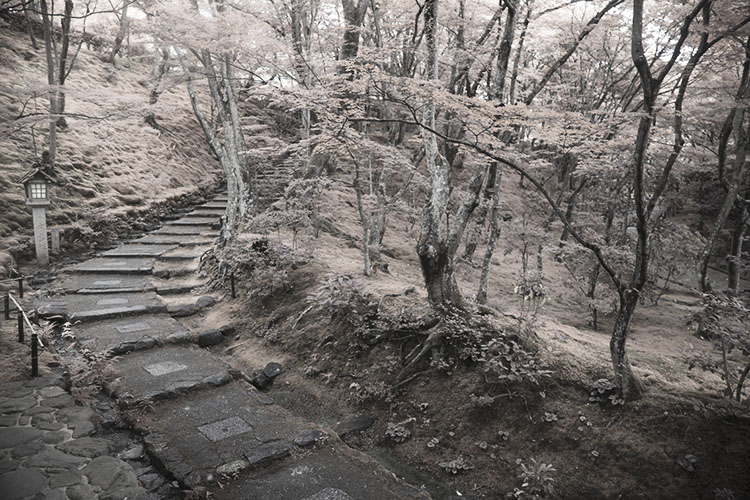
The image below started with little or no blue tones. The final image takes on the appearance of a black and white, hand painted with a slight yellow tone.

14Example1

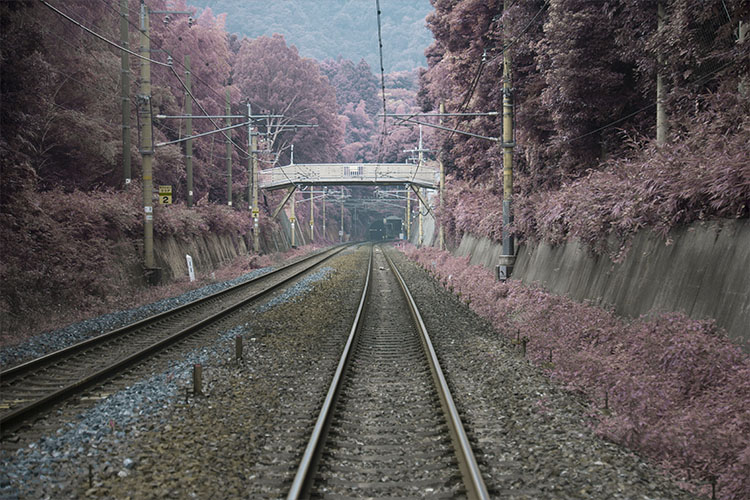
Inorganic material isn’t really affected by the IR treatment, so only the grass and plants in this image take on a surreal hue.

15Example2

I hope this tutorial was useful as a quick trick to diversify your landscape work.

Enjoy playing around with this technique, because the results are often unpredictable and can lend a completely different perspective to an image. Please share your questions and IR image results in the comments section below.

googletag.cmd.push(function() {
tablet_slots.push( googletag.defineSlot( “/1005424/_dPSv4_tab-all-article-bottom_(300×250)”, [300, 250], “pb-ad-78623” ).addService( googletag.pubads() ) ); } );

googletag.cmd.push(function() {
mobile_slots.push( googletag.defineSlot( “/1005424/_dPSv4_mob-all-article-bottom_(300×250)”, [300, 250], “pb-ad-78158” ).addService( googletag.pubads() ) ); } );

The post How to Create an Infrared Effect in Photoshop by Megan Kennedy appeared first on Digital Photography School.


Digital Photography School

 
Comments Off on How to Create an Infrared Effect in Photoshop

Posted in Photography


Broncolor launches range of softbox edge masks for rim light effect

26 May

$ (document).ready(function() { SampleGalleryV2({“containerId”:”embeddedSampleGallery_2696643628″,”galleryId”:”2696643628″,”isEmbeddedWidget”:true,”standalone”:false,”selectedImageIndex”:0,”startInCommentsView”:false,”isMobile”:false}) });

Swiss lighting brand broncolor has announced a range of diffuser panels for its softboxes that help to create a rim light effect when the subject is positioned in front of the softbox. The Edge Masks feature a large black panel in the center of the diffuser that prevents light from passing, but leaves strips all the way around the panel for the flash to pass through. The idea is that people posed in front of the panel will appear on a black background but highlighted with a rim of light all around them.

The panels are designed to replace the usual white diffuser of the softbox, which is removed when the Edge Mask is in place. The effect is relatively easy to achieve using any softbox and a panel of black material, but these are a bit more convenient and look more professional.

The company has also launched a 110cm parabolic umbrella that can be used to vary the focus of the reflected light. The umbrella has a particularly long arm that allows the light source to be placed at a range of distances from the reflective material.

The Edge Masks come in a range of sizes and are available now, as is the Focus 110 umbrella. The Edge Masks are priced from £42/$ 54 to £84/$ 113, while the umbrella costs £150/$ 210.

For more information visit the broncolor website.


Press release:

New Light Shaping Tools – Edge Masks & Focus 110

Hot on the heels of the new Siros L battery powered studio monobloc, broncolor have also released two brand new lights shaping tools – the Edge Mask diffuser and Focus 110 umbrella.

Edge Masks
Using the broncolor range of softboxes just became even more creative and flexible. The new Edge Mask helps turn the rectangular sizes of the softboxes in to a rim light, allowing for subjects to be photographed in-front of and against the softbox, with the light wrapping around the subject from behind. This is a popular technique previously only created by flagging off the softbox with a board, but the Edge Mask provides a professional, easy and uniform method for creating the effect. Simply attach the Edge Mask to your existing softbox as you would an external diffuser.

Focus 110
The new parabolic Focus 110 umbrella (110cm diameter) provides a quick an easy way of producing a focusable parabolic light effect. Simply pop it up and use the lamp heads umbrella holder to slide and focus the shaper.

Pricing and availability
The new Edge Masks and Focus 110 are ready and available to ship now!

33.612.00 – Edge Mask for Softbox 35 x 60 – £35 ex. VAT
33.613.00 – Edge Mask for Softbox 60 x 100 – £40 ex. VAT
33.614.00 – Edge Mask for Softbox 90 x 120 – £50 ex. VAT
33.615.00 – Edge Mask for Softbox 120 x 180 – £70 ex. VAT

33.576.00 – Focus 110 – £125 + VAT

Articles: Digital Photography Review (dpreview.com)

 
Comments Off on Broncolor launches range of softbox edge masks for rim light effect

Posted in Uncategorized


Creating a Lens Flare Effect and Dust Particles in Photoshop

07 May

This article isn’t about how to magically transform your images using Photoshop. The real magic of Photoshop is trying to convince the viewer that no effects were added at all, and that the image was captured in camera. Photoshop can add that little extra to your imagery. Conversely, it can also ruin an image if it’s overdone.

I shoot to capture the best possible image as I can get at the time, but more often than not, time is not on my side. If I am shooting for a client, time is money. Deadlines and strict schedules are uppermost when dealing with a client. When shooting outdoors, I am dealing with natural light which is constantly changing and weather conditions, which may force me to shoot faster or abandon the shoot completely.

So, when I get to look at my image(s) on the computer, I take the time to critically review them. As I shoot RAW, I need to apply basic post-processing to all my images. In some cases, I may need to add an extra enhancement, but that will depend on the image and what I need it to say.

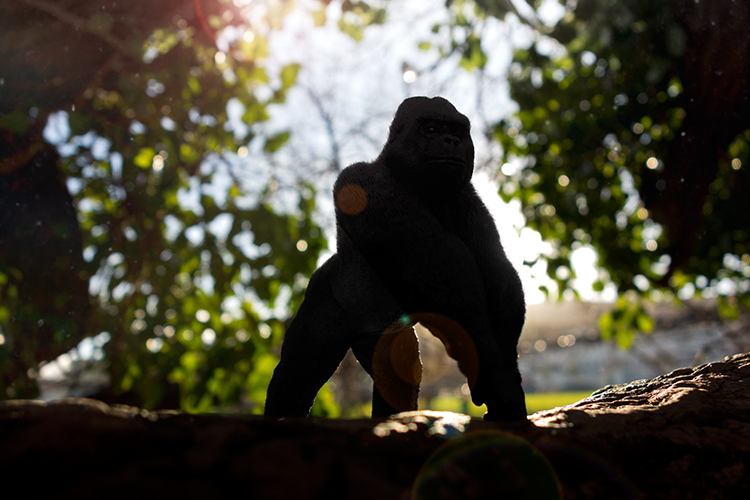
Gorilla-with-lens-flare-and-dust-particles

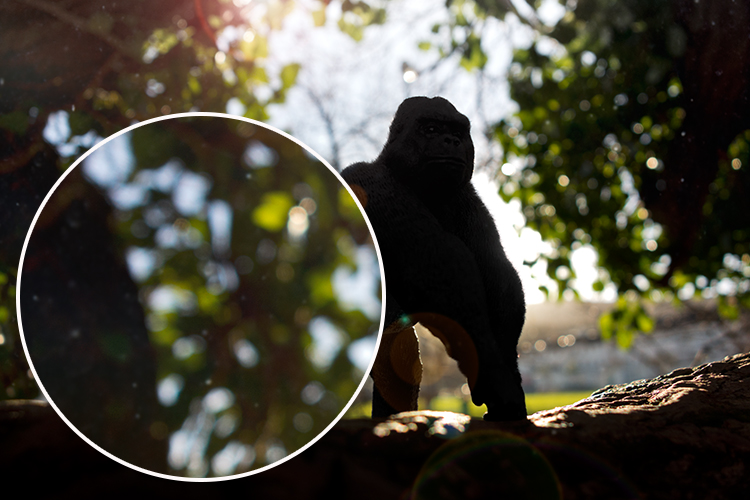
Lens Flare and dust particles added using Photoshop

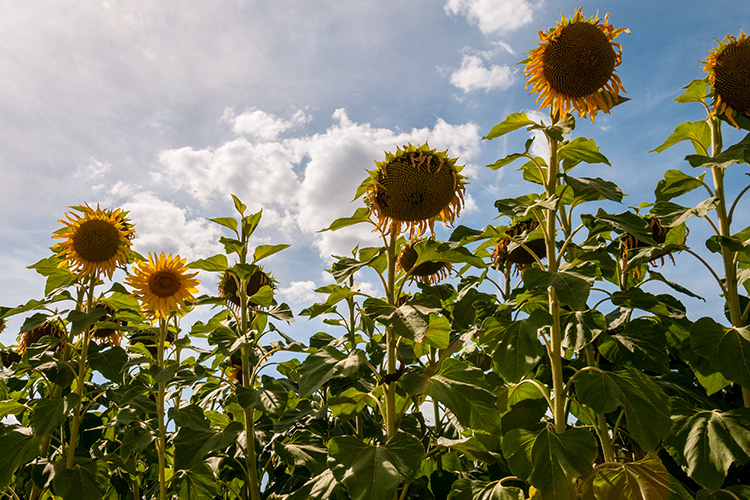
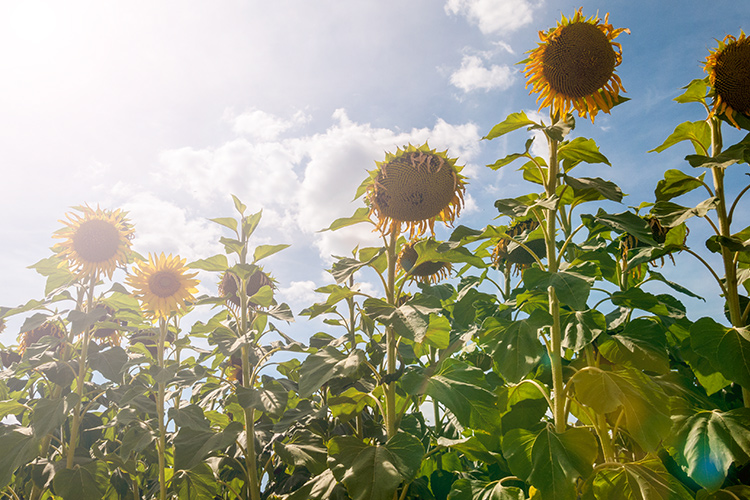
This is the power of post editing. To be able to add an enhancement to the image, to give it that extra drama or a desired effect that you wanted to convey in your image in the first place. It can be as subtle as adding dust particles, or a bit more dramatic such as a lens flare effect. Both of these effects, whether you use one or both together, can add that little bit of oomph!

When applying any Photoshop effects, It’s not just about technique, although the know-how is important, but it is the application which is key:

  • How to execute the technique – different methods to achieve the same end result
  • When to use it – some images suit this technique over others
  • By how much?
Before

Before

After

After

The above may sound quite obvious and fundamental, but I can’t stress it enough, especially if you are new to creating effects in Photoshop.

  • HOW = the technique. I will demonstrate how to create a lens flare effect non-destructively in Photoshop using the Lens Flare filter. I will also describe how to create your own simple custom dust particle brush. Plus, I’ll show you my own unique in-camera method to capture dust particles.
  • WHEN = you deciding if this technique will work on the particular image in question. Just because you know how to use a technique doesn’t mean you have to apply it to every image. Yes, by all means practice on your images until you have refined the process.
  • HOW MUCH = knowing how little of the technique to apply – less is more. Don’t be afraid to reduce the opacity on the layer that you have applied the technique on.

This is where beginners can get carried away when learning post-processing techniques in Photoshop, for the first time. As tempting as it is, you want to show off your new skill and see the effect on your image in a dramatic way, try and keep it subtle.

What is Lens Flare?

Flare is particularly caused by a very bright light sources either in the image – which produces visible artifacts – or shining into the lens but not in the image – which produces a haze. Most commonly, this occurs when shooting into the sun (when the sun is in frame or the lens is pointed in the direction of the sun), and is reduced by using a lens hood or other shade. – as seen in Wikipedia

If applied well, the lens flare effect really does convey that good-feeling summer shot.

The Lens Flare Filter in Photoshop

Filter-render-lens-flare

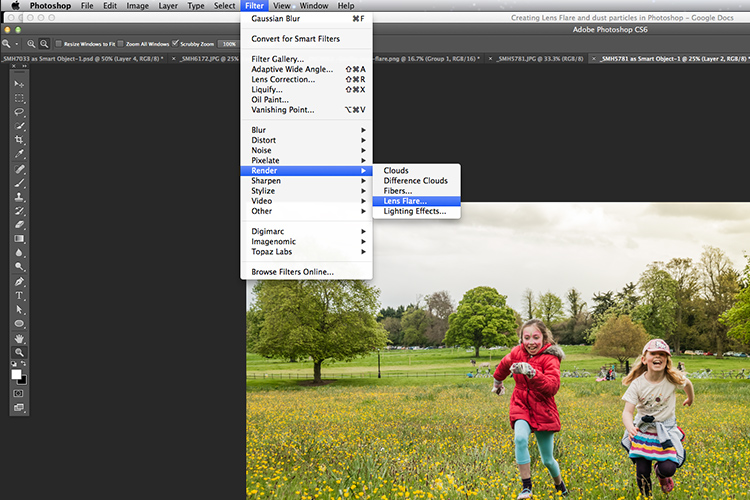
The Lens Flare filter is found under Filter > Render > Lens Flare.

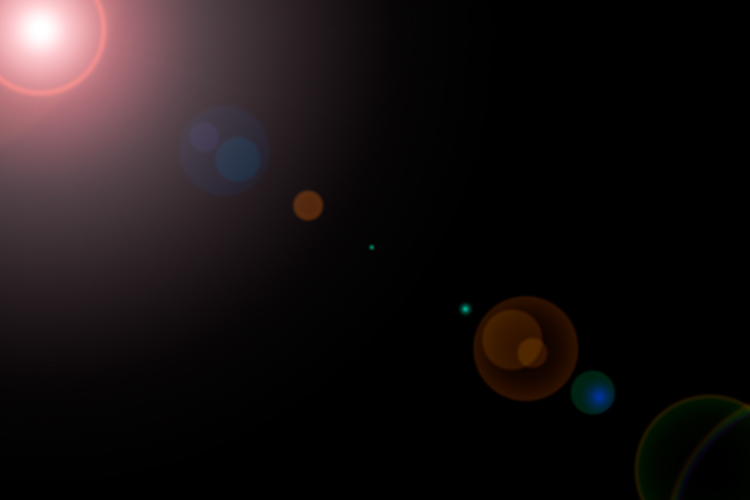
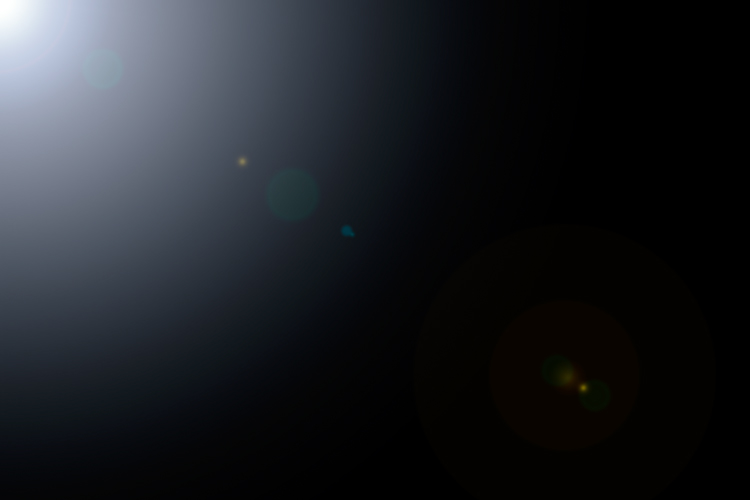
The Lens Flare is found under Filter>Render>Lens Flare. However, this doesn’t work in the same way as an Adjustment Layer, as in non-destructively. The effect works directly on the image itself. It also won’t work on an empty layer. So, create a new layer above the image and fill it with black. Change the blend mode to Screen. Go up to the Menu Bar and go to Filter > Render > Lens Flare.

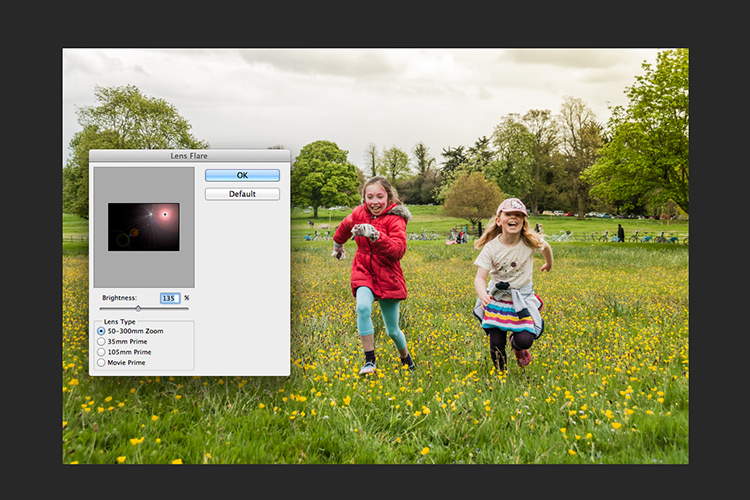
As you can see in the image below, a small pop up dialog box appears with a preview window, and shows the four different types of lens flare available. Click inside the preview window to move the Lens Flare to whatever position you want.

Filter-render-lens-flare

The Lens Flare dialog box.

50-300mm-zoom-lens-flare

This is the 50-300mm zoom Lens Flare effect on a layer filled with Black.

105m-prime-lens-flare

This is the 105mm Lens Flare effect on a layer filled with Black.

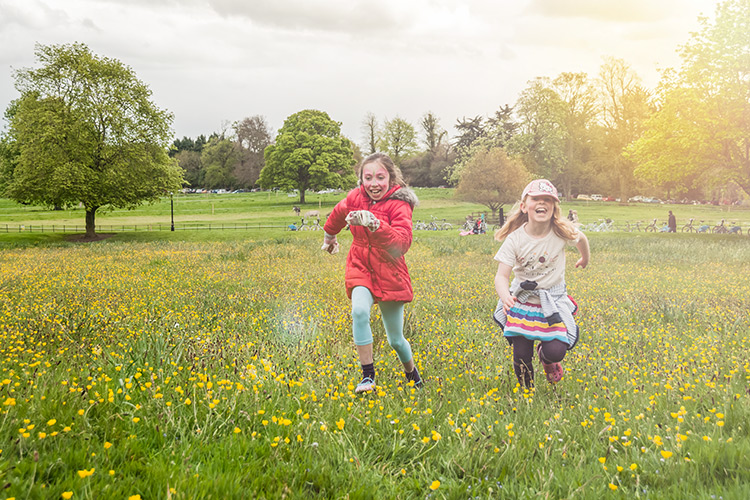
Becky-and-Amy-with-lens-flare-applied

Lens flare applied

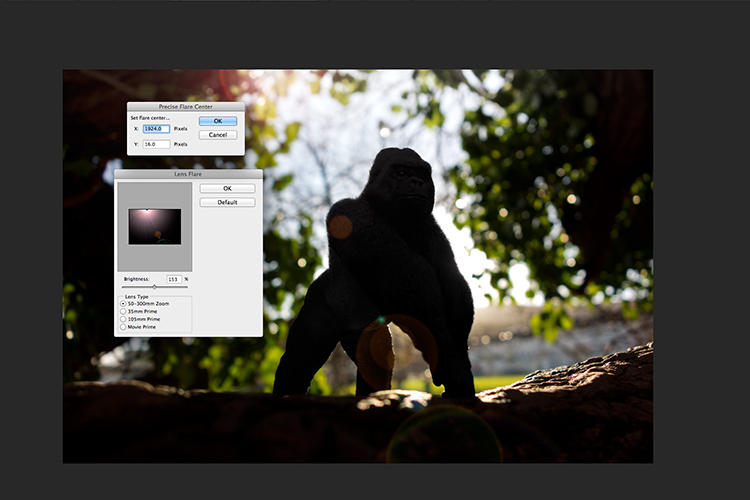
Tip: To get a more precise position for the lens flare, bring up the Info Panel, and move your cursor over the spot on your image where you want the flare to be positioned. The x and y coordinates tell you the exact position in pixels. When you have the Lens Flare dialog box open, click on the preview window while holding down the Alt/Option button, and the precise Flare Center dialog box appears. Type in the x and y coordinates and click OK.

Gorilla-precise-flare-center

The precise Flare Center dialog box appears when you click on the preview window of the Lens Flare while holding down the Alt key on a Mac (Option on PC).

How to create your own custom dust particle brush in Photoshop

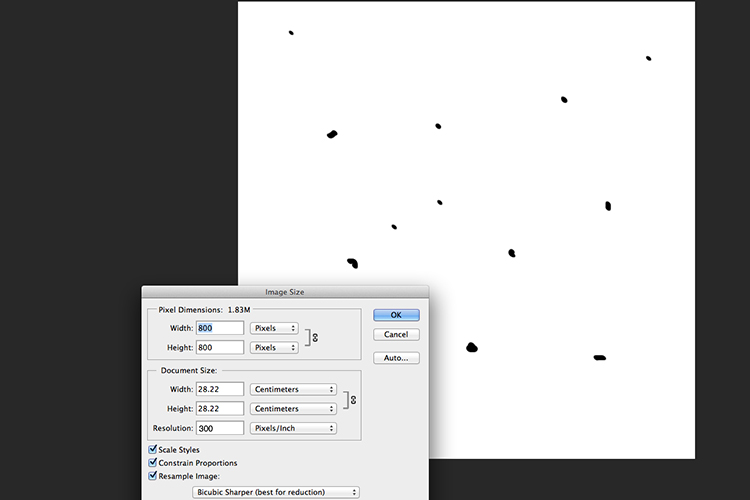
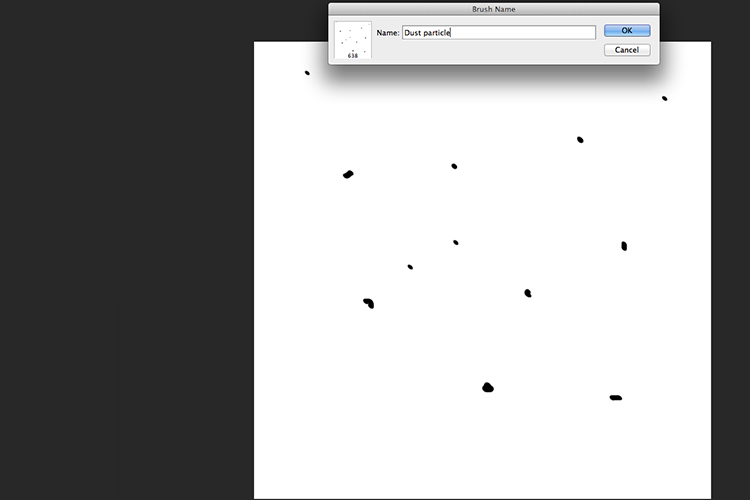
To create your own custom dust particle brush in Photoshop is relatively simple. Open a new document in Photoshop, I made mine 800×800 pixels on a white background, set the dpi to 240 or 300. Use a small brush, hardness set to 25%, and use the color black. Create random small dots on the canvas. Not too many. Go up to the Menu Bar > Edit > Define Brush Preset. Type the name of your new brush and click OK.

creating-new-document-custom-dust-particle-brush

Create a new document with a white background 800px x 800px.

naming-dust-particle-custom-brush

Go to Edit > Define Brush Preset and name your new custom brush.

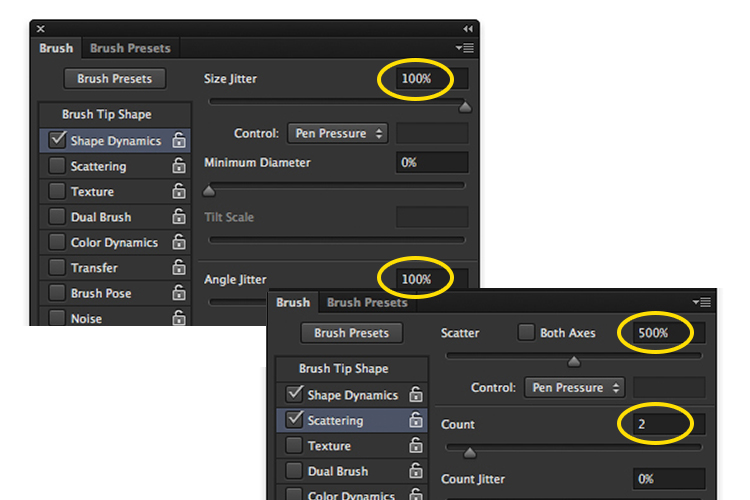
Before you start using your brush, you need to change a few properties of the brush so that it behaves like dust particles. Go up to Window > Brush. This brings up the brush dialog box. Use the following brush settings (see below screenshots also) Change the spacing to 100%, click on the Shape Dynamics box and move the Size Jitter and the Angle Jitter sliders to 100%. Next click on the Scattering tick box. I moved the Scatter slider over to 500%. Tick on Both Axes. Keep the Count Jitter at 2.

custom-brush-settings

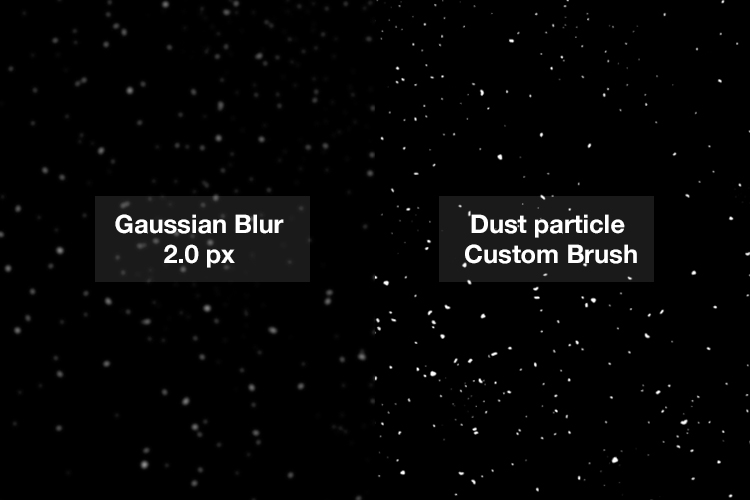
Create a new blank layer over your image and fill it with black. Using the custom brush, set to white, start creating dust particles across the canvas. Change the blend mode to Screen and now you can see the dust particles as white specks. Add some Gaussian Blur and reduce the opacity down to around 75%. You can always add a new layer to build up the effect too.

Dust-particles-with-custom-brush

How to create dust particles in-camera

I have to admit, this technique made me smile. I had been wracking my brains for a while for a possible solution to capture dust in-camera. The other morning, I got up early, as usual, to get my girls off to school. I looked out the kitchen window, the skyline was a lovely orange from the sun.

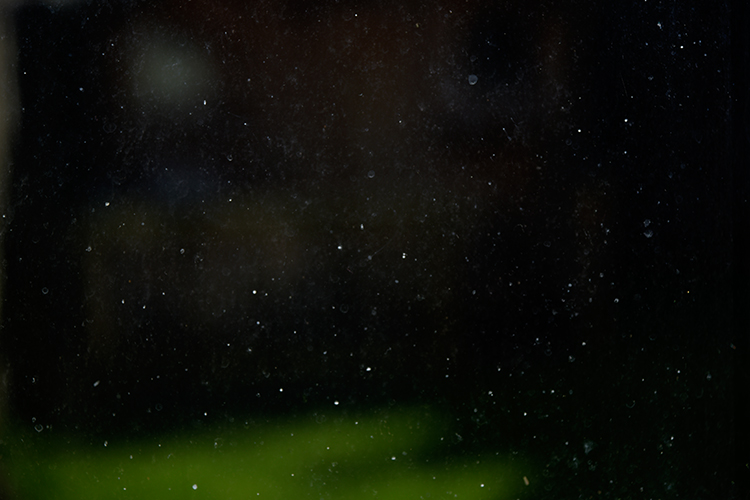
I then noticed all the specks (dirt) on the window and I had an eureka moment, I grabbed my camera and I focused on the specks using an aperture f/4. I also underexposed it by two stops. I wanted the specks to show through a dark background. I brought this image into Photoshop and applied a Levels Curve Adjustment to darken the image even more. I placed this image on the photo of the Gorilla. I then changed the blend mode to screen. I added some Gaussian Blur and reduced the opacity. Not bad for what is essentially dirt on a window.

Dust-particles-on-a-window

Dust and dirt particles on a window.

small-toy-plastic-gorilla

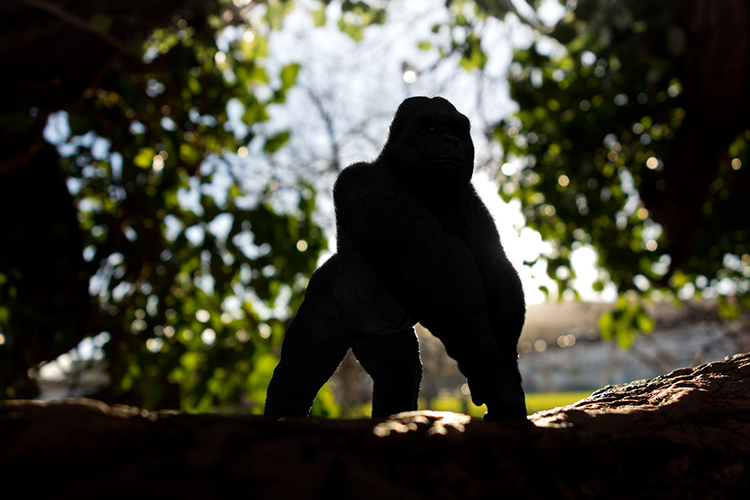
The image of the Gorilla without the Lens Flare effect and dust particles.

zoomed-in-dust-particles

Zoomed in area to show the dust particles I took of my own window!

Disclaimer: I had to persist with dirty windows for weeks in the name of photography. That’s my story and I am sticking with it!

Have you got a technique for creating your own flare or dust particles in Photoshop? If so, please share in the comments below.

googletag.cmd.push(function() {
tablet_slots.push( googletag.defineSlot( “/1005424/_dPSv4_tab-all-article-bottom_(300×250)”, [300, 250], “pb-ad-78623” ).addService( googletag.pubads() ) ); } );

googletag.cmd.push(function() {
mobile_slots.push( googletag.defineSlot( “/1005424/_dPSv4_mob-all-article-bottom_(300×250)”, [300, 250], “pb-ad-78158” ).addService( googletag.pubads() ) ); } );

The post Creating a Lens Flare Effect and Dust Particles in Photoshop by Sarah Hipwell appeared first on Digital Photography School.


Digital Photography School

 
Comments Off on Creating a Lens Flare Effect and Dust Particles in Photoshop

Posted in Photography


How to Create a Silky Water Effect in Post-Processing without Using Filters or a Tripod

17 Apr
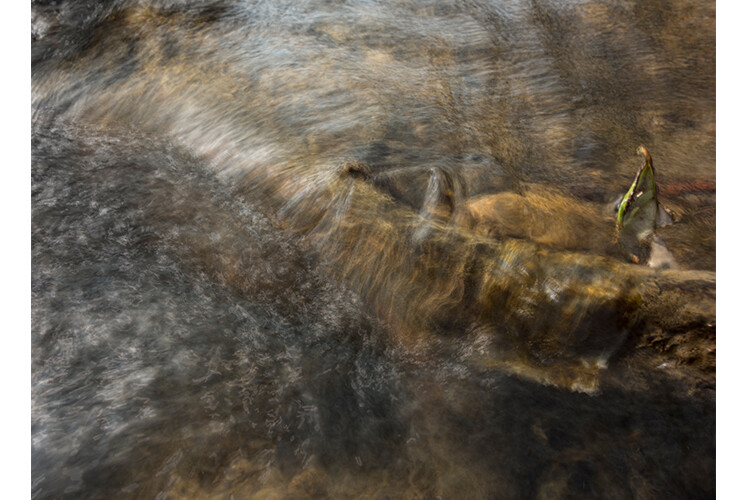
Affiniy-photo-mean-stack-mode

Smooth water effect edited in Affinity Photo using the Live Stacks feature.

Even if you don’t shoot landscape photography, photos of waterfalls with the smooth water and glassy appearance are awesome. The gist to achieving this, and I do stand corrected if I have this wrong, is as follows:

  • Slow shutter speeds – the need for a tripod
  • A remote shutter release or your camera’s timer
  • Wide angle lens and the camera settings using a small aperture of f/22, ISO 100
  • Neutral Density and/or polarizer filters, as you’ll be shooting long exposures during the day
  • Of course the scene and by all accounts patience too

However, I personally don’t own ND or polarizer filters. These type of filters are required for long exposures during the day, so that your shutter speeds are slow enough, possibly one minute or more to get that misty look. On top of which, you have to get the exposure right, which requires a bit of math and experimentation. ND filters block out the light in terms of stops.

So taking long exposures during the day is an involved process, especially if you want to create that smooth, silky water effect in-camera. But, is there a way to simulate this effect in Photoshop or other post-processing software? Yes there is! It does require that you take multiple shots. I’m not advocating that this technique in post editing is a replacement to going out and achieving long exposures out in the field, far from it. But, I hope this technique may serve as a stepping stone or inspiration to go out and capture silky waters, clouds etc., in-camera.

This article will demonstrate how you can achieve a similar result by taking a bunch of photos in continuous mode without using any filters or a tripod. Although, I would recommend you use a tripod.

First, I’ll demonstrate this effect using a manual method in Photoshop CS6 (standard version). There is an automated way to do this with the Stack Mode feature, which I believe is in Photoshop CC. If you have previous versions of Photoshop, the Stack Mode feature is only available in extended versions, not standard, unfortunately. However, Gimp has this Stack Mode feature and it’s free. Then, I will compare the manual method in Photoshop with Affinity Photo, using Live Stacks. I was really impressed with this feature.

Photoshop manual method

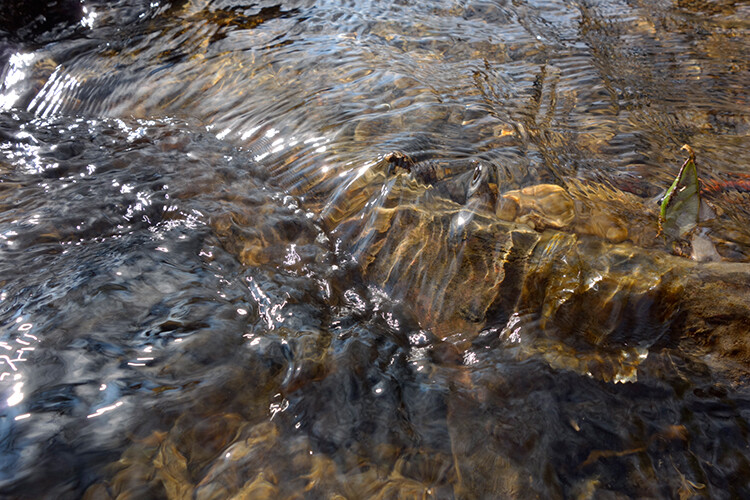
Let’s begin. On the day I took these images, I was pressed for time. So I took a series of shots in continuous mode, and handheld the camera while I focused on this part of a small river. I would recommend that you use a tripod and give yourself some time. It will be easier to align the images later.

small-river-handheld

I took a bunch of images in continuous mode of this small river, close-up deliberately for this article.

You will need to load your images as layers into one document in Photoshop, as follows:

file-scripts-load-files-into-stack

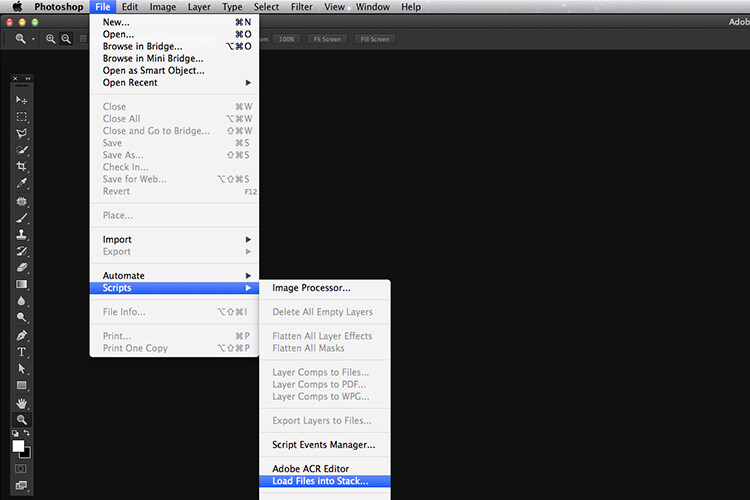
Loading multiple images into one document in Photoshop. File>Scripts>Load Files into Stack

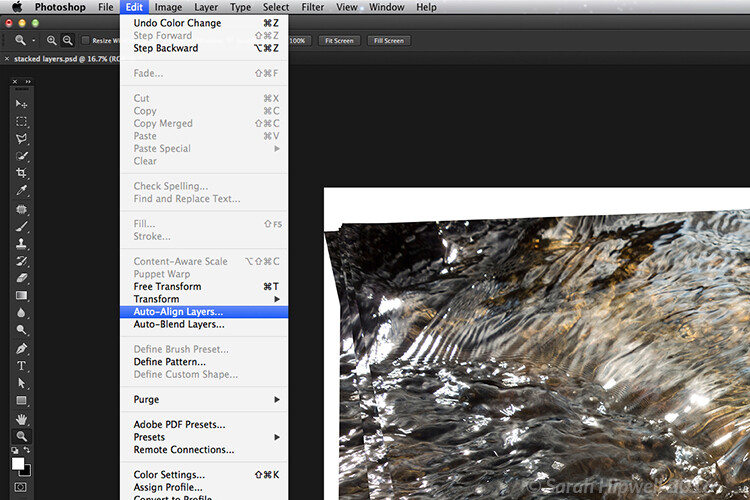
Go up to the Menu Bar > File > Scripts > Load Files into Stack. As I didn’t use a tripod, I selected all the layers to align them. Go to Auto-Align under Edit. As you can see, Photoshop had its work cut out trying to align the images.

images-after-auto-align-photoshop

I handheld my camera when I took a bunch of shots in continuous mode. As you can see from this screenshot, I needed to use Auto-Align Layers in Photoshop. If you use a tripod the alignment will be much easier.

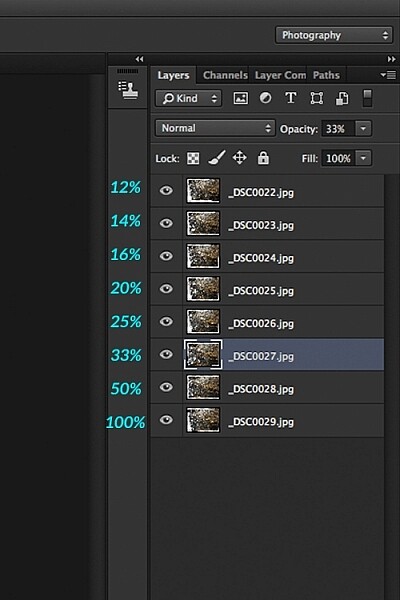
Now that the layers are stacked on top of each other. Start at the bottom and leave this layer at 100%, go to second layer above and reduce the opacity by 50%(100÷2=50). Continue with the next layer and reduce the opacity by 33%(100÷3=33).

percentages-opacity-reduced

Reducing the opacity of each layer by dividing the number of the layer into 100%. The bottom layer remains at 100%. The second layer is 50% and so on.

Therefore, depending on the amount of layers you have, and where they come in the stack, divide this number into 100. So if you had 30 images, the opacity for the top layer in the stack will be 3% (100÷30=3). Remember the bottom layer is always 1=100%. What this is doing is averaging out the layers. This may sound complicated, but in practice, it’s more straightforward. Although it is a bit more tedious than the automated way.

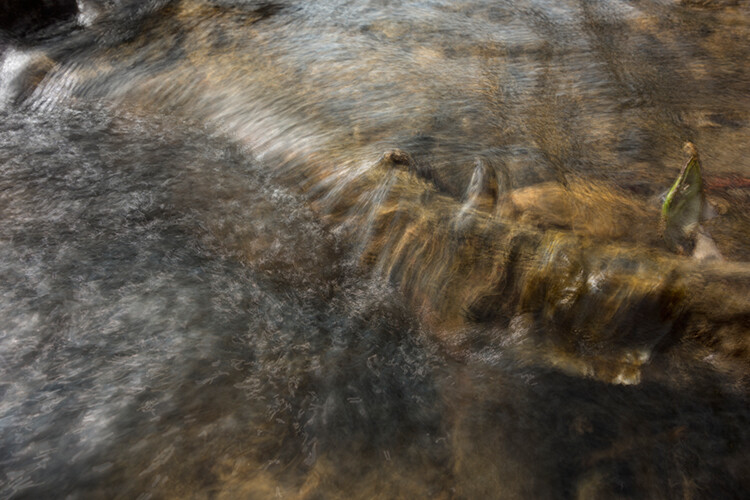
This is the effect of averaging out the layers in Photoshop - reducing the stacked layer's opacity by X amount. I also had to crop this image, whereas the same image when edited in Affinity Photo kept more of the image. See below.

This is the effect of averaging out the layers in Photoshop – reducing the stacked layer’s opacity by X amount. I also had to crop this image, whereas the same image when edited in Affinity Photo kept more of the image. See below.

I have been keeping a close eye on Serif’s Affinity Photo. So I took the plunge and purchased it for (€39) $ 44 USD. That was a discounted offer. At such an affordable price, I was curious to see how this software performs and what it can do.

In Affinity Photo, there is a Live Stacks feature which is similar to Stack Mode in Photoshop. It was easy and simple to use, and the process was fast.

Affiniy-photo-mean-stack-mode

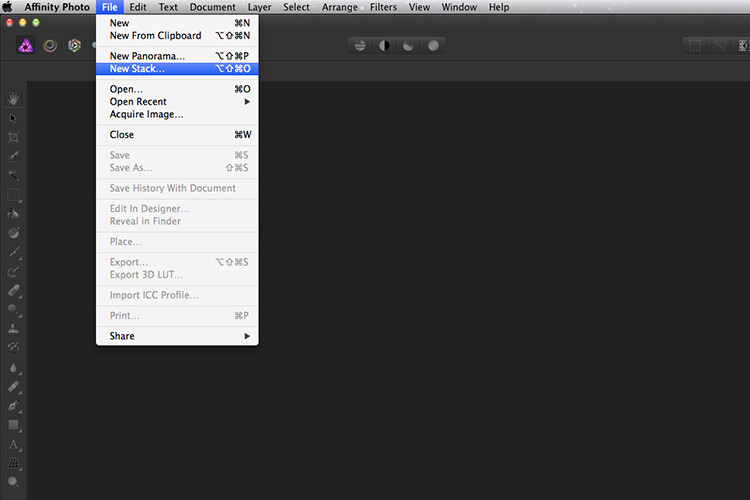
Affinity-photo-new-stack

The equivalent Stack Mode feature in Photoshop is called Live Stacks in Affinity Photo.

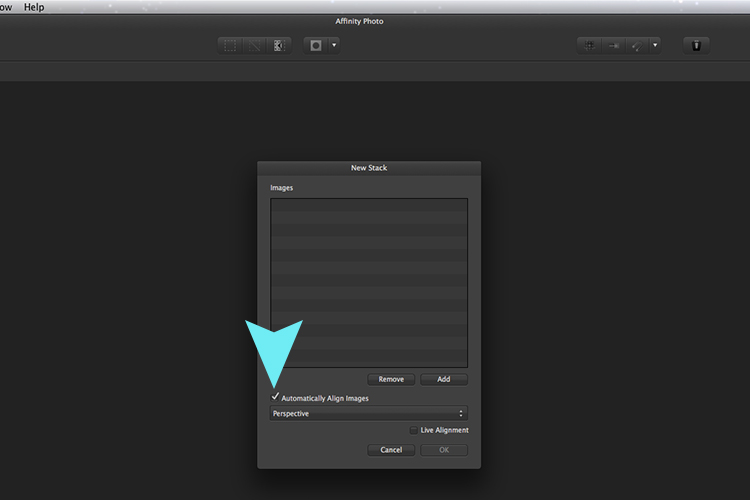
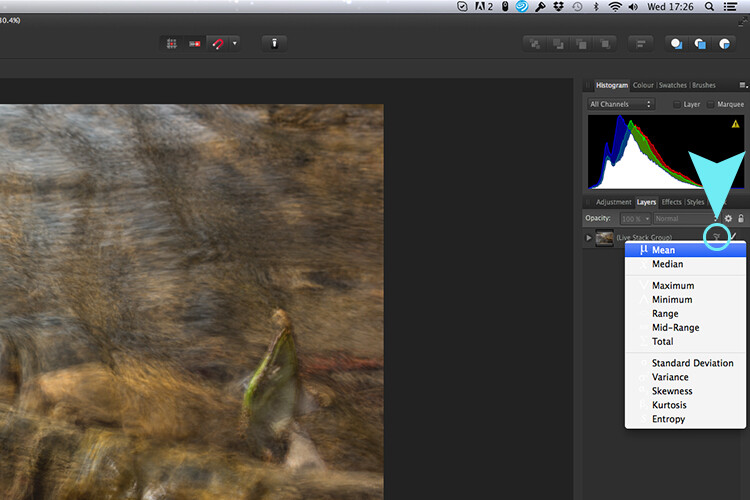
Go to File > New Stack. The pop up dialog box appears where you select your images. Make sure Automatically Align Images box is ticked. Click Ok. This takes a couple of seconds. It defaults to Median in the Live Stack Group, but scroll up to the next one and this is Mean. That’s the one you want.

Affinity-photo-auto-align-images

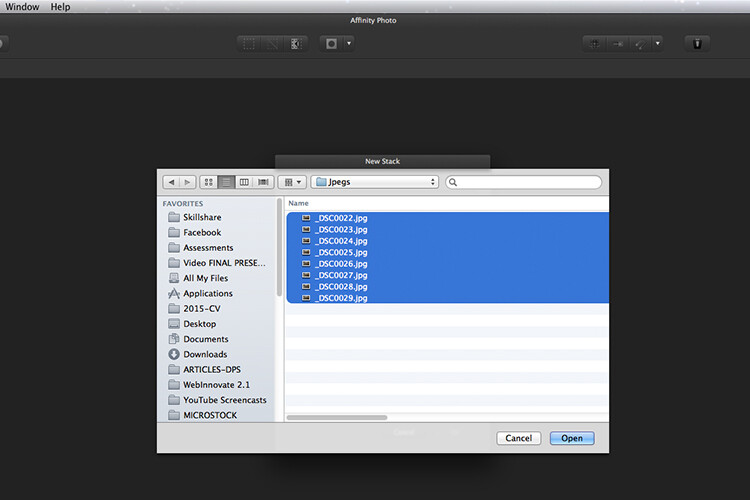
images-selected-after-new-stack

When you create a New Stack, the pop up dialog box appears. Select your images on your computer and click Open.

Affinity-photo-live-stacks-mean

The stacked images are grouped into a folder called Live Stack Group. The different stack options are located by clicking on the small icon, circled in blue. It defaults to Median but I changed it to Mean.

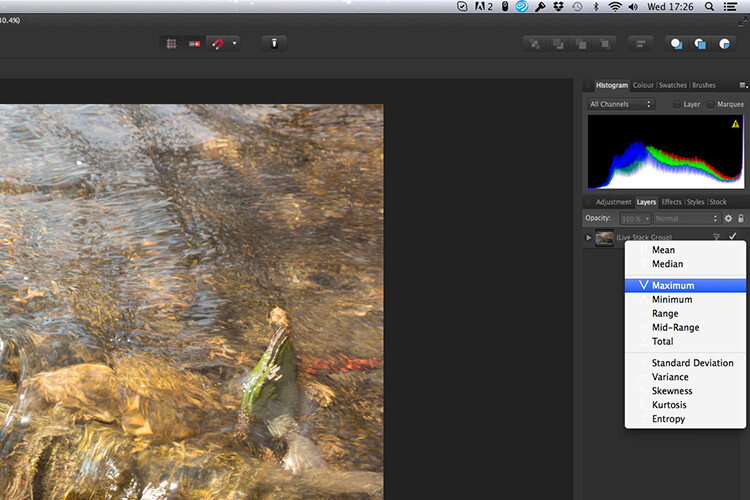
The cool thing about this feature is when you scroll through each of the different stack modes, it shows the different results live.

Affinity-photo-live-stacks-maximum

Different stack options can be scrolled through one by one, and the results can be seen live, which is impressive.

When I compared the two results from Photoshop and Affinity Photo, I could see no obvious difference, with the exception that I had to crop the image of the river more in Photoshop, whereas the auto alignment in Affinity Photo meant I didn’t lose much of the image at all.

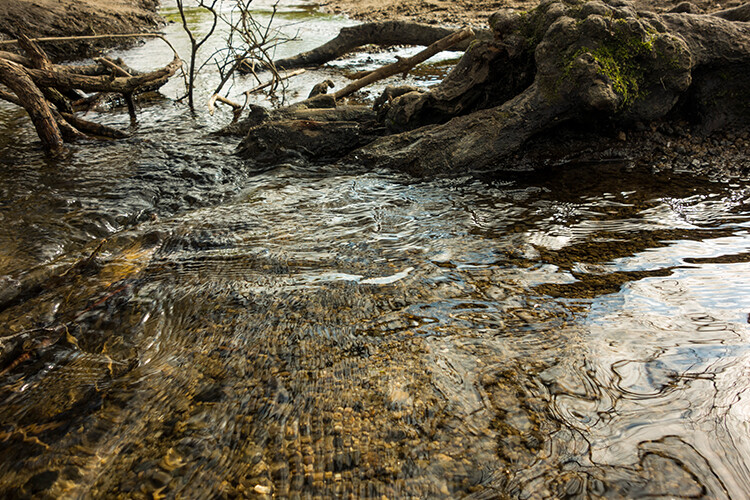
second-river-original

Here is another example of moving water.

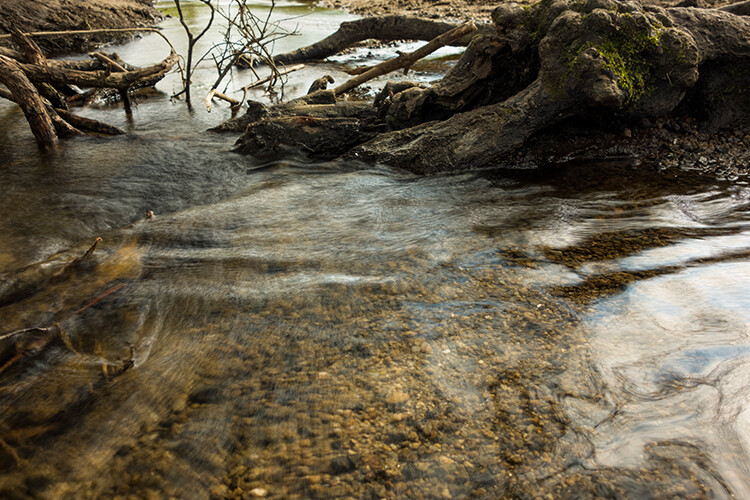
The same image as above edited in Affinity Photo using Mean in Live Stacks. I got the same result using the manual method in Photoshop.

The same image as above edited in Affinity Photo using Mean in Live Stacks. I got the same result using the manual method in Photoshop.

Take away tip:

In my examples, I didn’t use a tripod. I would recommend using one. I also took only a series of 8-10 shots. I would recommend taking at least 15 or more.

I found this technique interesting and fun, and I am now inspired to go out and take images of waterfalls. The good thing about this technique is if you don’t have ND or polarizing filters, it doesn’t prevent you from going out and taking shots of waterfalls. Then when you get back to your computer, you can create your own silky, smooth effect.

Let’s see some of your examples below.

googletag.cmd.push(function() {
tablet_slots.push( googletag.defineSlot( “/1005424/_dPSv4_tab-all-article-bottom_(300×250)”, [300, 250], “pb-ad-78623” ).addService( googletag.pubads() ) ); } );

googletag.cmd.push(function() {
mobile_slots.push( googletag.defineSlot( “/1005424/_dPSv4_mob-all-article-bottom_(300×250)”, [300, 250], “pb-ad-78158” ).addService( googletag.pubads() ) ); } );

The post How to Create a Silky Water Effect in Post-Processing without Using Filters or a Tripod by Sarah Hipwell appeared first on Digital Photography School.


Digital Photography School

 
Comments Off on How to Create a Silky Water Effect in Post-Processing without Using Filters or a Tripod

Posted in Photography


Tips for Shooting Through Objects to Create a Special Effect

19 Mar

Photography is as much a study of the creative, as it is a study of the technical. Often, knowing all the technical ins and outs of your camera, still does not guarantee a stellar image – an image that evokes emotion, one that makes you stop in your tracks and take a second look. Such images are created by thinking outside the box, by experimenting with new techniques and ideas that may seem crazy, ridiculous, or even somewhat unbelievable! Lucky for us, we photographers are known to be a little bit crazy, so trying new and innovative techniques should not surprise us too much.

One such really cool and innovative technique, to add a little bit of creativity and flare in our imagery, is shooting through objects. This technique is, quite literally, to have a small object between the front of the lens and your subject. This is often used to frame the subject, in order to draw attention to it/them, soften the edges of the image, or add a cool color special effect, to an otherwise ordinary image.

Memorable Jaunts DPS Article Shooting through objects for special effects 01

The whole idea of shooting through objects, is to have an out of focus foreground and be able to shoot through it, but at the same time keep the subject sharp. This effect is best achieved by placing the object close to the lens, either by hand holding it, or by resting it against the lens. Placing the foreground object further away from the actual subject and closer to the front of your lens, makes it easier to blur.

Although any lens will work, the shorter your lens focal length the closer the foreground object will need to be to the front of the lens, making it much easier to hand hold. If the object you are shooting through is large, it is easy to miss the focus on the actual subject. In these situations, it is best to focus on the subject, lock focus by switching to manual focus (MF/AF toggle buttons are located on the lens body in most cases or using back button focus) and then bringing the foreground object close to the lens for the blur effect. Sometimes it is possible to use the out of focus foreground to hide distracting things in the background.

Memorable Jaunts DPS Article Shooting through objects for special effects 06

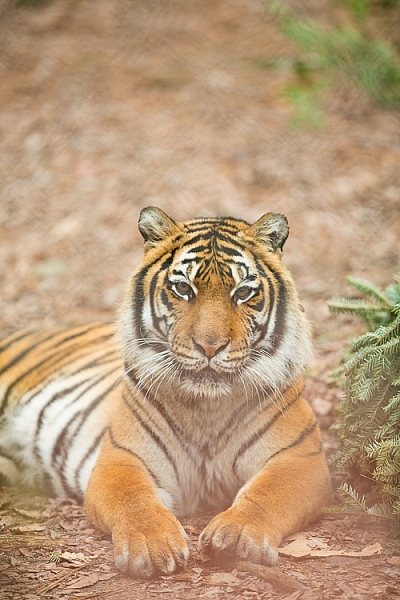
In the above image, this tiger in North Carolina’s Tiger Rescue facility, was holding a perfect pose and staring dead straight at me. Thankfully, I had a fence between me and the tiger (I am sure he was viewing me as a tasty snack!) and I loved the blur shapes seen in the top of the frame. I also handheld a piece of candy wrapper towards the bottom of the lens to give a little pink tint to the bottom of the image. The only post-processing done here, was to bring up the blacks and add a little contrast to the image.

The shoot-through technique works especially well with leaves, flowers, and even small pieces of glass. The possibilities are quite endless when it comes to finding things to shoot through. If you are feeling uninspired, sometimes bringing something as simple as a small strip of fabric, or a piece of clear plastic, can completely change the outcome of your final photograph. Look around your photography location and you are bound to find something to shoot through. Even if you often shoot in the same location, you may find something new each time. Flowers bloom at different times of year, leaves change color, and sometimes even dry twigs add an element of interest.

Memorable Jaunts DPS Article Shooting through objects for special effects-SidebySide01

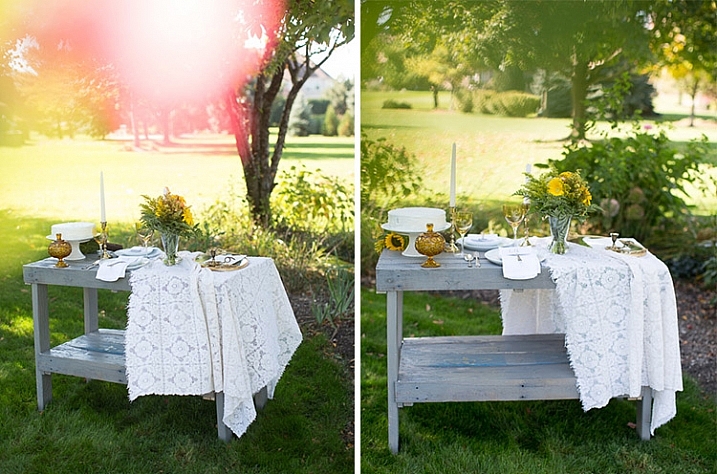
Always use these effects to taste. In the side-by-side above, I initially used a pink flower to see if I could get a cool, light leak effect in the frame. But somehow that did not appeal to me. So in the next frame, I took a leaf and held it up to the top of the lens. I loved this effect, as if I was shooting through the bushes but still retaining the details in the bottom half of the image.

Memorable Jaunts DPS Article Shooting through objects for special effects-SidebySide02

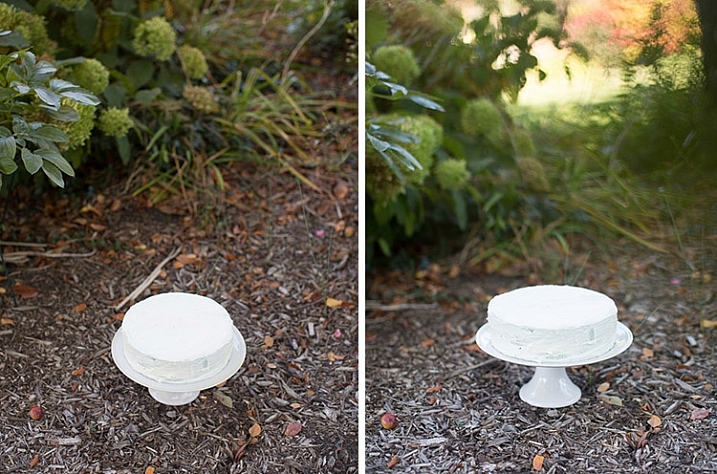
In the images of cakes above, the first is a standard, run-of-the-mill, top shot of the cake. But when I changed my angle and used a leaf to shoot through, I loved the blur effect it produced at the top of the frame.

Shooting through objects adds an element of interest to photographs. When you use colored pieces of glass or flowers, you get an effect similar to a light leak (from film days). Some photographs also appear to have been processed with unique filters, except all these effects are straight out of the camera (SOOC), not added during post-processing. When you use clear glass, plastic bags, or even sheer fabric, photographs appear to have additional texture and depth.

Memorable Jaunts DPS Article Shooting through objects for special effects-SidebySide03

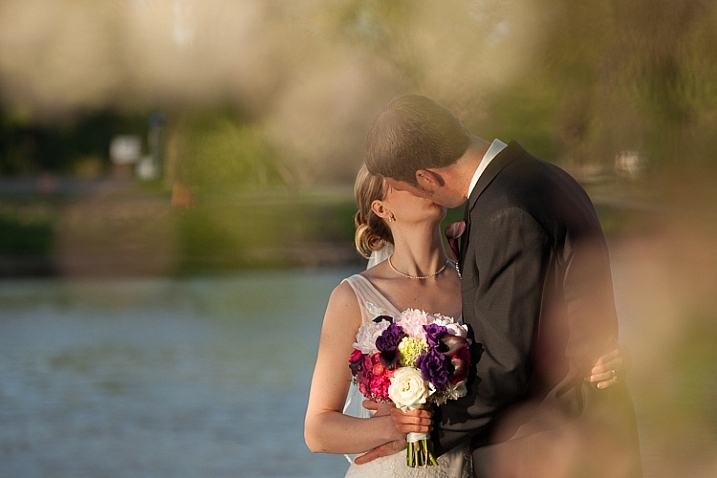
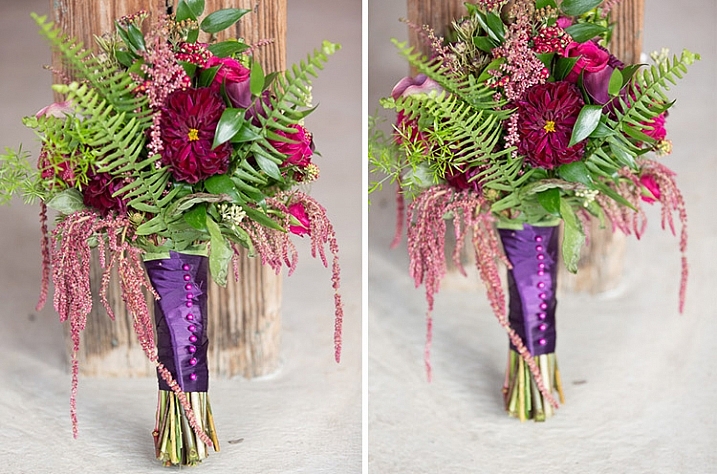
The bridal bouquet on the left is a straight shot. The one on the right has a clear piece of plastic (it was used to cover the cake topper) – I held it to the bottom on the lens to add a little texture and interest.

Memorable Jaunts DPS Article Shooting through objects for special effects 05

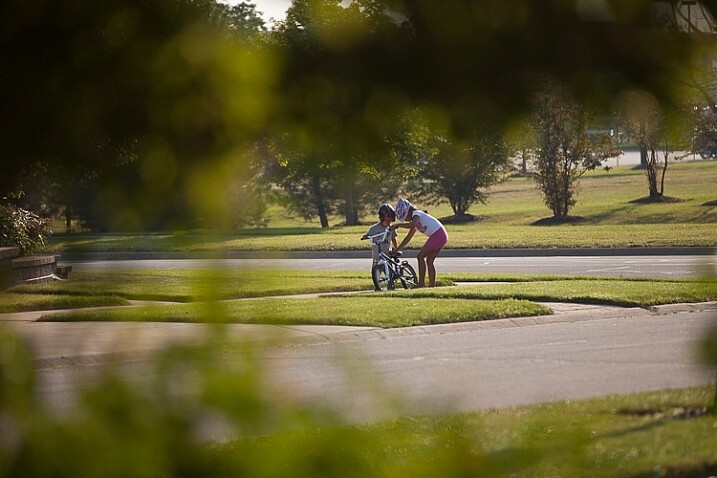
I love this image of my kids – my daughter is teaching my son to ride his bike. By shooting through the bushes, I caught them unawares, as well as used the bushes to frame the subject (in this case my kids!).

Memorable Jaunts DPS Article Shooting through objects for special effects 03

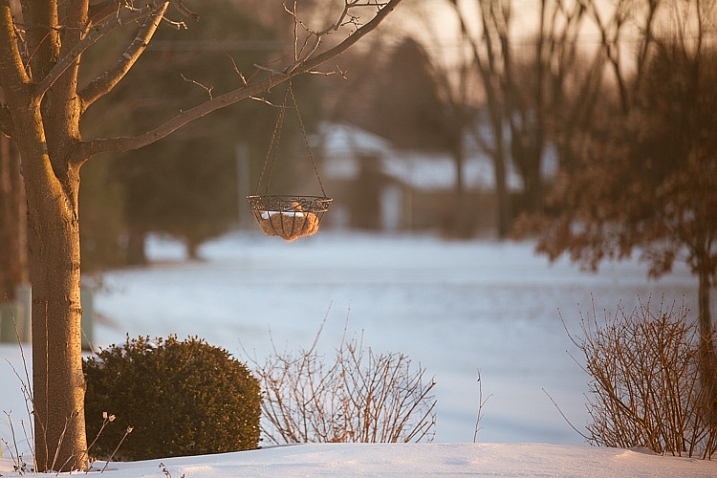
The sun was setting in my backyard, and to exaggerate its warmth, I added an orange piece of plastic (my flash gel cover). No post-processing needed!

While this is not a technique that should be used on every photograph, there are so many options for framing, introducing texture, and adding interest when you add an unexpected element into your photographs. Use this tool when you want to break free from the mundane and the ordinary, you might be pleasantly surprised with the results!

This week on dPS we are featuring articles on special effects. Check out the others that have already been published here:

  • How to Photograph the Full Band of the Milky Way
  • Fire Spinning with Steel Wool – A Special Effects Tutorial
  • Special Effect – How to Create Multiple Flash Exposures in a Single Frame
  • Stacking Light Trails for Night Photography Special Effects
  • 26 Unique Special Effects Photos to Spark Your Creativity
  • Weekly Photography Challenge – Special Effects

googletag.cmd.push(function() {
tablet_slots.push( googletag.defineSlot( “/1005424/_dPSv4_tab-all-article-bottom_(300×250)”, [300, 250], “pb-ad-78623” ).addService( googletag.pubads() ) ); } );

googletag.cmd.push(function() {
mobile_slots.push( googletag.defineSlot( “/1005424/_dPSv4_mob-all-article-bottom_(300×250)”, [300, 250], “pb-ad-78158” ).addService( googletag.pubads() ) ); } );

The post Tips for Shooting Through Objects to Create a Special Effect by Karthika Gupta appeared first on Digital Photography School.


Digital Photography School

 
Comments Off on Tips for Shooting Through Objects to Create a Special Effect

Posted in Photography


Special Effect – How to Create Multiple Flash Exposures in a Single Frame

18 Mar

Many photographic techniques, rightfully, tend to focus on polished images. They vary anywhere on the spectrum from getting sharper images to capturing accurate skin tones. These techniques are important. However, sometimes they’re not very much fun. Sometimes, that’s precisely what you need to have, and exactly what photography should be – fun.

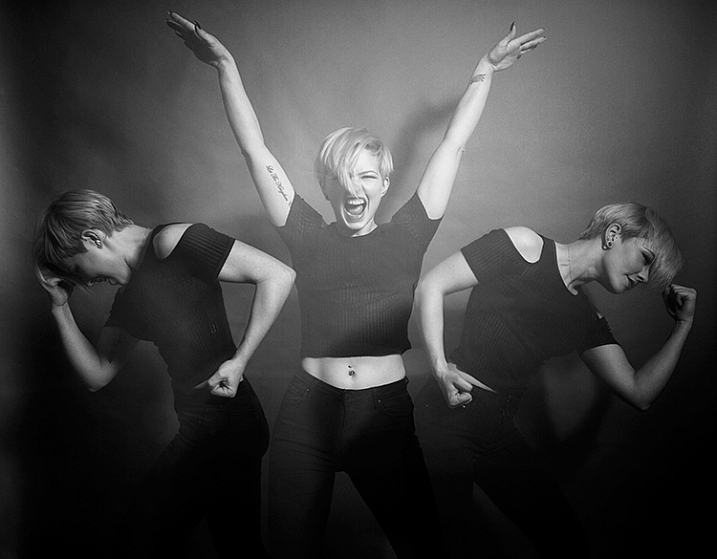
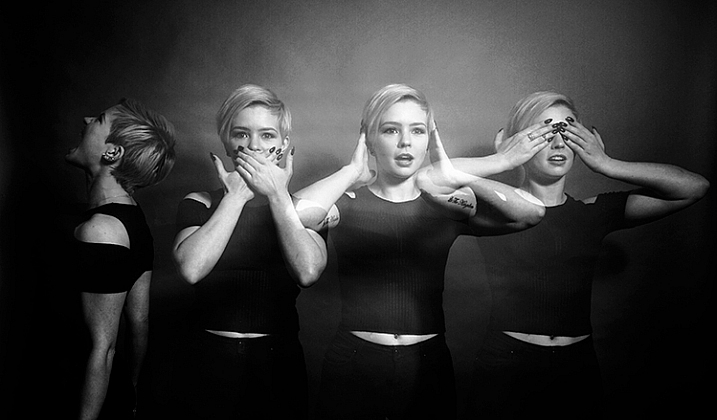
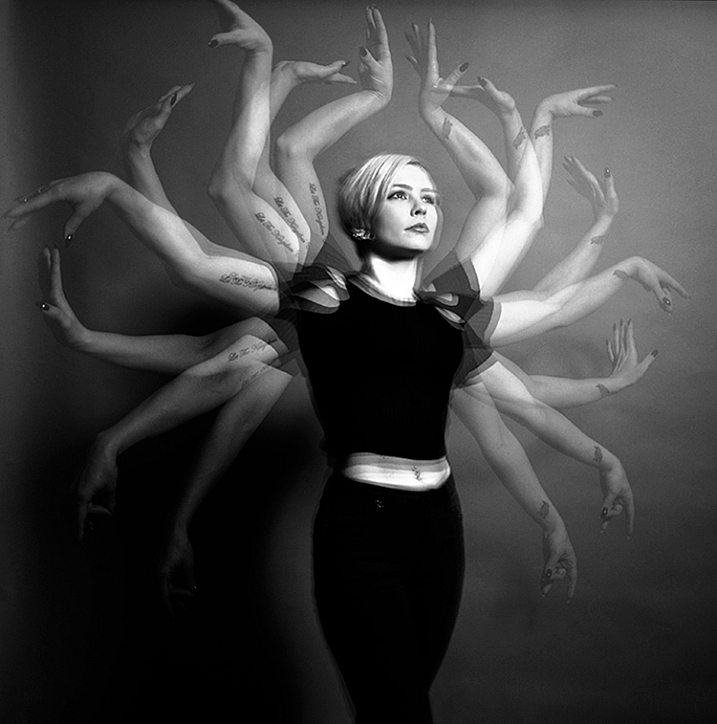
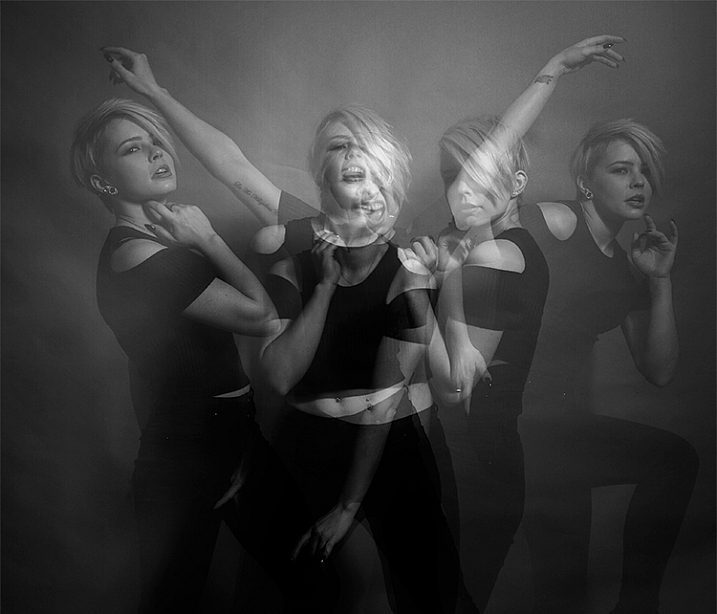
This article will guide you through a fun special effect technique that will allow you to capture multiple exposures in a single frame, using the test button on your strobes or flashguns. Using this method, you will gain a new tool to add movement, and a sense of action in your studio photography.

how-to-multiple-flash-exposures-2793

What you need

  • A dSLR on manual settings (set from 2-10″ or bulb exposure)
  • A very dark room (or nighttime outdoors)
  • A tripod
  • A human subject
  • A strobe or flashgun (speedlight) with a test button (to manually fire the flash)
  • Someone to serve as an extra pair of hands (not required but it helps a lot)

Setting it up

how-to-multiple-flash-exposures-2795

Aperture

Because you’re using flash, the aperture setting is the most important in this technique. As long as your shutter speed is slower than your camera’s flash sync-speed, aperture is what controls how the flash exposure is recorded, and it also dictates what power output to set on your flash. I suggest using an aperture somewhere between f/8 and f/16, to get the best results. A smaller aperture will also help to minimize the effect of any ambient light in your images.

Camera settings

With your camera on a tripod, set the dial to manual mode, the ISO to 100, and your shutter speed to between two and six seconds. To test if your shutter speed is suitable, take a test shot without any flash. As long as the image is completely black at the end of the exposure, it will work for this technique.

This time can be changed and extended later, depending on how many movements you want to capture.

Lighting

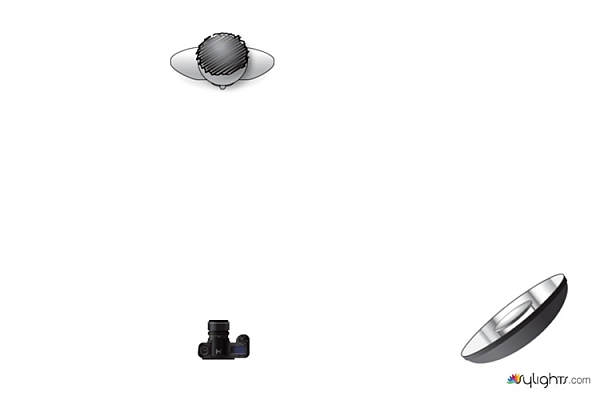
To start with, try to keep your lighting simple. A single light source will give you unlimited potential. This technique will work with multiple lights, but it is best to build up to that over time, as you get used to how the technique works.

As for lighting placement, the choice is yours. The lighting will, and should, depend on the final intent of the image you are trying to create. However, if you’re unsure, try starting with your light high above, and in front of, your subject. That will provide a good starting point to make adjustments from there.

Use a light meter, or manually calculate the exposure, to set your flash output, so it matches your chosen aperture.

how-to-multiple-flash-exposures-diagram

Simple lighting set-ups, like this one used in these images, can be the most effective.

Direction

With everything set up, you need to explain to your subject how to move. The easiest way to explain this is, “Pose, wait for the flash, pose, wait for the flash, and pose again”.

In more detail – you want to wait for your subject to adopt the first pose, set the focal point, and start the exposure. Press the test button on your strobe to fire the flash. After this first flash, your subject should move to their second position as quickly as possible, where you will press the test button again. Repeat as many times as required.

Keep trying

The hardest part of this technique is that it is incredibly hit and miss. Getting your subject to move into positions that create pleasing compositions, without be able to evaluate while it’s happening, is tricky. It takes time and patience. You will need to shoot a lot of frames, and most of them will be unsuitable. Just keeping making as many attempts as you can, until you think you have something, then take some more.

how-to-multiple-flash-exposures-2781

Tips

Here are a few things to keep in mind that will make your attempts easier.

Start small

Sometimes it’s hard judge how movements will appear in the final image. By trying to squeeze too much in, you might end up with a cluttered mess in your images. Start with two or three movements to gauge where things are and build it up from there.

how-to-multiple-flash-exposures-2787

Trying to include too many movements may result in a cluttered mess like this image.

Remote triggers

If you have a remote trigger for your strobes with a manual button on it, you can hold it in your hand and fire the flash. This is much more preferable than having to move between the camera and your light source during each frame.

Recycle rate

If you want to squeeze more than two or three movements into a six second exposure, try to ensure that your flash isn’t set to full power. By reducing the power output, you’re also decreasing the amount of time it takes your flash to refresh. This will allow you to fire the strobe more times in the short timeframe.

Clarity

There is no one way to process images from this technique, and all of that is up to you. However, if you want crisper, more pronounced outlines of your subject, the clarity slider in Lightroom or Adobe Camera RAW will help a lot.

Neutral backdrops

how-to-multiple-flash-exposures-2793-2

Colored backdrops will overpower images using this technique.

For color images, try and stick to a black or grey background. Because your subject is moving to different positions, the background continues to expose once your subject has moved. If you use a colored background, as I did with these images, that color will dominate your exposures. Of course, this can be used judiciously as a feature of the image should you choose.

Two second timer

If you can’t rope someone into being your assistant for the day, set your camera to use the two second timer, to give you time to move between the camera and the strobe.

Keep going

Once you’ve had a go at this technique with people, feel free to try and think of ways to use it with other subjects. For example you could use it to capture a hammer at different points in its swing, or perhaps a basketball at different parts of its arc. The choices are endless. Be creative with it, have fun, and if you give it a go please share your images below, as well as any questions you may have.

This is the third of a series of articles we will be featuring this week on dPS all about special effects. Check out the others here:

  • How to Photograph the Full Band of the Milky Way
  • Fire Spinning with Steel Wool – A Special Effects Tutorial

googletag.cmd.push(function() {
tablet_slots.push( googletag.defineSlot( “/1005424/_dPSv4_tab-all-article-bottom_(300×250)”, [300, 250], “pb-ad-78623” ).addService( googletag.pubads() ) ); } );

googletag.cmd.push(function() {
mobile_slots.push( googletag.defineSlot( “/1005424/_dPSv4_mob-all-article-bottom_(300×250)”, [300, 250], “pb-ad-78158” ).addService( googletag.pubads() ) ); } );

The post Special Effect – How to Create Multiple Flash Exposures in a Single Frame by John McIntire appeared first on Digital Photography School.


Digital Photography School

 
Comments Off on Special Effect – How to Create Multiple Flash Exposures in a Single Frame

Posted in Photography


How to Add a Texture Overlay to Your Images for a Stunning Effect

07 Feb

Adding a texture overlay to your images is an amazing creative tool. It adds another dimension of depth in the image; it makes it dreamy and adds a painting flavor. It also creates a timeless feeling, especially useful when you want to give a vintage look to your pictures.

You will really love this effect, it can be used in your personal work, and also sometimes in your commissioned work when you have some creative freedom over the result.

Adding a texture overlay is very easy. In this article I will explain how to create your own textures, then how to edit them to have infinite creative possibilities.
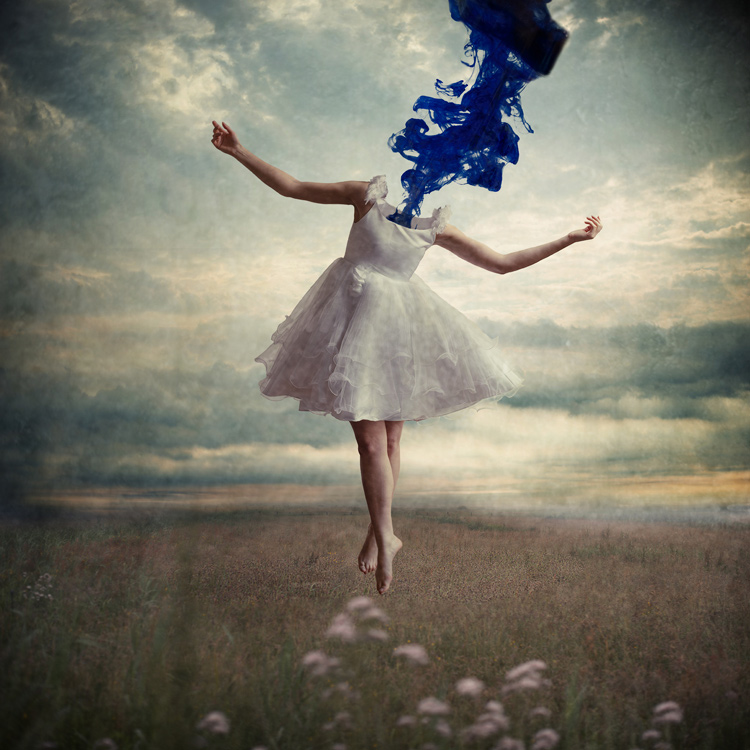
05 texture 100 percent

First – shoot your own textures

You can find many free textures online, for example on Deviant Art, or on any stock photo website. This is east, and sometimes helpful, although you can have copyright issues. The textures you will find online for free, are not always at high resolution. You will mainly find small files, not always the best to work with. But, I must say that so far I have never had any issues regarding textures size, even when printing my work in large format.

Shooting your own textures can be very fun, and a great creative exercise. Okay sometimes you will feel weird because people will not understand what you are shooting down on the pavement, nor they will see the point in photographing an old and dirty rain gutter. But it is well worth it.

It is very easy to find great textures around you and build you own texture stock. You only have to take a walk with your camera to find textures. Look for some old painting on the walls, wood on the doors, or any bench in the street. You can also find metal objects with great texture and colors. You are looking for whatever has scratches, and can add an organic and natural feeling to your work. You can use stones, such as marble or granite, but also canvas or any other fabric with a nice texture as well.
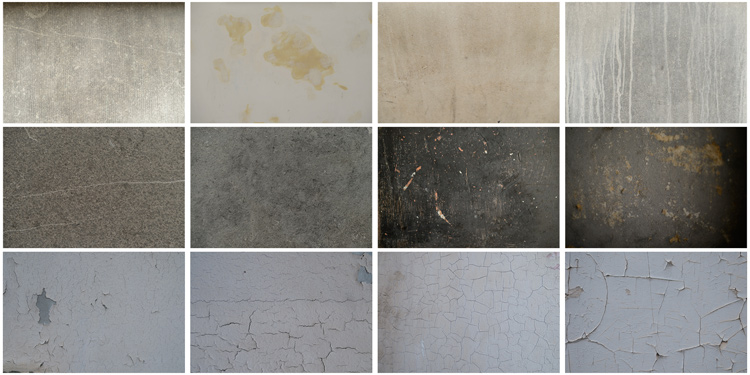
01 textures

When shooting your texture, pay attention to your exposure compensation, as you want to have a contrasty, image to get more difference between the darks and lights. Also, you want to make sure everything is more or less sharp, so pay attention to your focus, depth of field, and angle from which you are shooting. This way the texture will be more homogeneous on your final image (and as you will see later in this same article you can adjust the texture in many ways).

To help you start your own textures library, you can find a link to download some textures you can use for free at the bottom of this article. I found many good textures for free online, so it is my way to pay forward this kind of generosity I found among photographers.

You can create your own textures at home

In Brussels it is freezing cold and rainy during the winter, so maybe you are the same as me, you do not want to go outside.
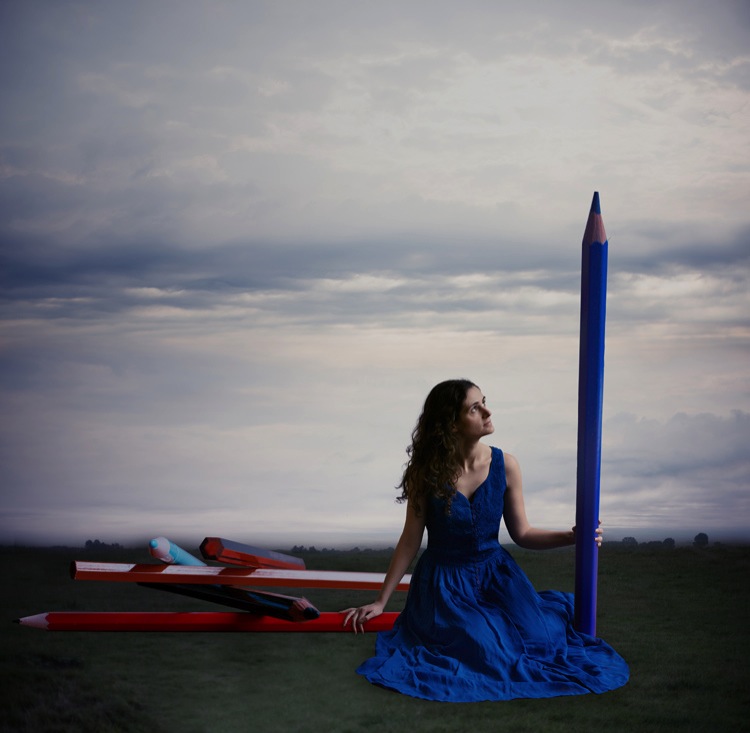
03 blue tale 01 no texture

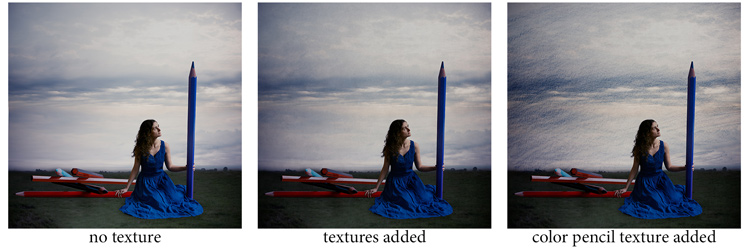
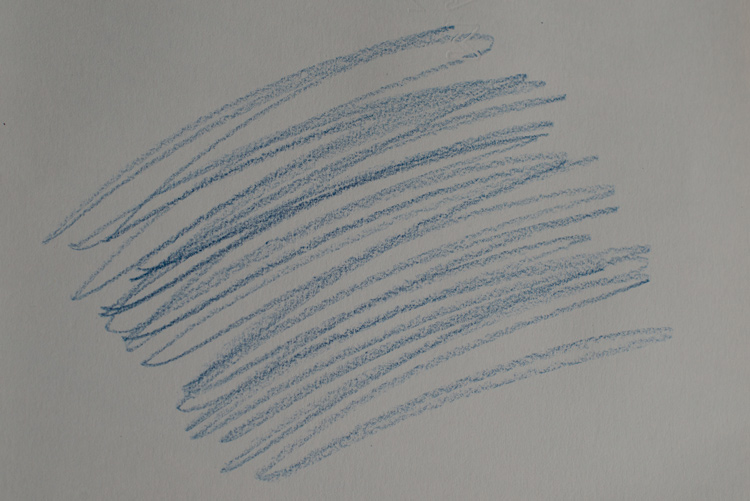
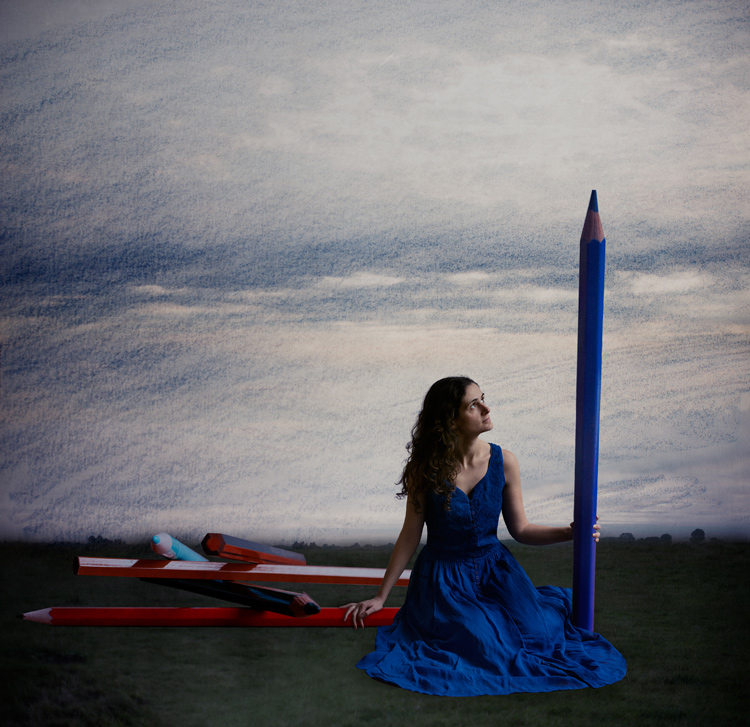
When you look for a specific effect you can make your own specific textures. For example, in the picture A Blue Tale (above) I wanted to play with a pencil color effect. Therefore I created the following texture to be added to the clouds.

I simply colored a piece of paper with a blue pencil crayong to have those lines and a texture effect. In this case, the preparation of the texture is fully part of the creative process, to put all those details together to create the image.
02 color pencil texture

03 blue tale 03 color pencil texture added

03 blue tale textures

You can also play with paper, painting, burn some paper (although I recommend being very careful).

Now that you have your textures ready to be used, let’s open them in Photoshop. You can also use the ones that I shot for you down my street. To add a texture you can simply grab your moving tool and drag and drop it on your picture – or by doing copy/paste on your image.

Play with the Blend Modes

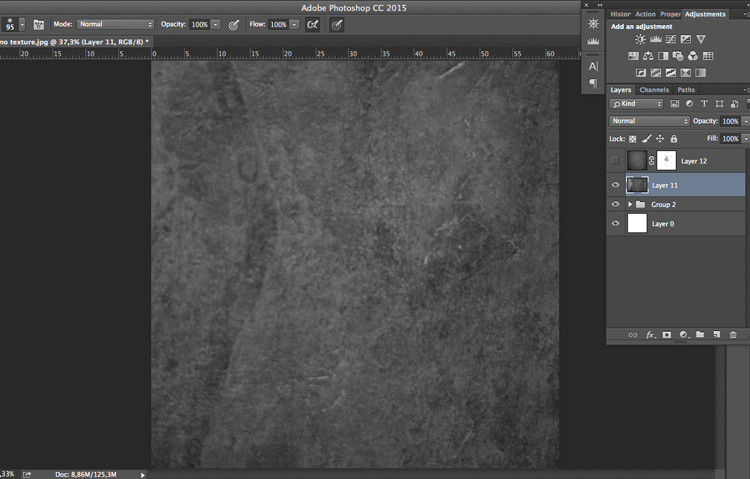
You can change the Blend Mode to change the look. When you add a texture to your image it will first look as follows, you see only the image of the texture on top of your image.
04 texture normal 100 percent

Play around with all the options Photoshop offers. Some texture/image combinations it will look weird, and others will look amazing.

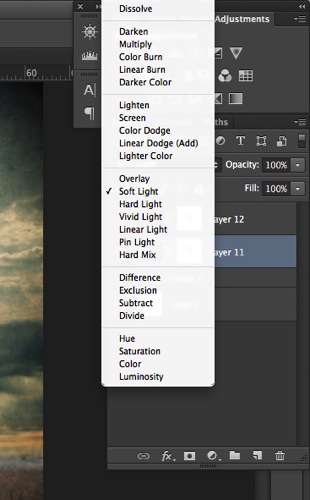
Select your texture and hold down the Shift button, and + or –, to change quickly Blend Modes to go through them one by one, and test on your image. It allows you to see what every single Blend Mode will do to your texture – great way to quickly learn which one you like best.

  • The darkening group will help you to get rid of all light tones.
  • The lightening group will allow you to get rid of your darks.
04 Blend Modes panel

Most of the time, I choose the Soft Light Blend Mode – but you can choose any option, depending on your taste and the sought-after effect.
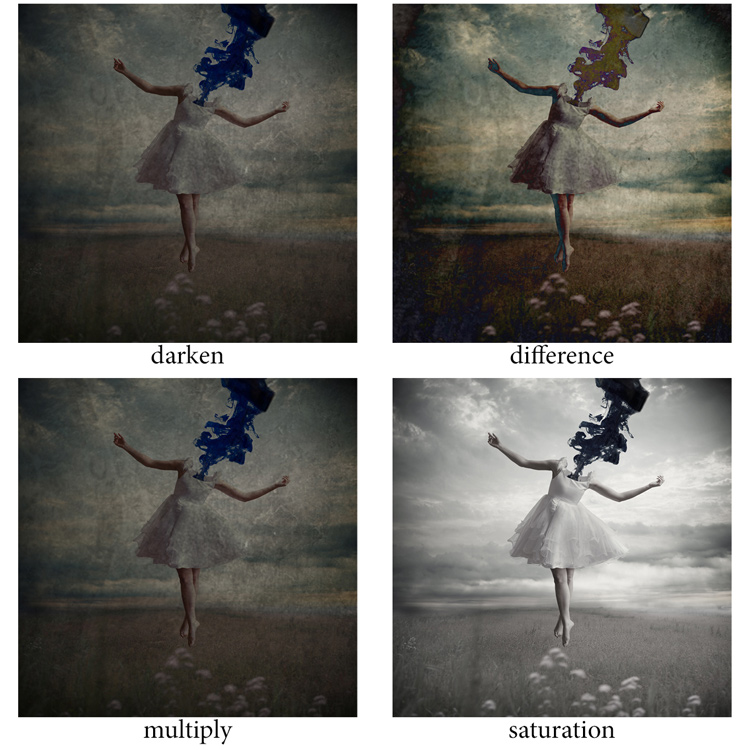
04 Blend Modes

Modify your texture

Move and resize the texture layer. Grab your Move Tool to place the texture as you wish on the image. Use Cmd/Ctrl+T to activate the Free Transform Tool and resize the texture layer, or flip it, to adjust it to the underlying picture.

You can add a Levels Adjustment with Cmd/Ctrl+L, to add some more detail contrast in your texture. You can also adjust the color. Usually I add the color in my image and prefer a desaturated texture. Hit Cmd/Ctrl+U to play with its color – if you want to desaturate it or change the color tones.

Play with the layer opacity

Turn down the opacity to see what best suits the chosen texture and image, in this case we’ll turn it down to 82%. Once you have found the right opacity you can always go back and change it whenever you want.
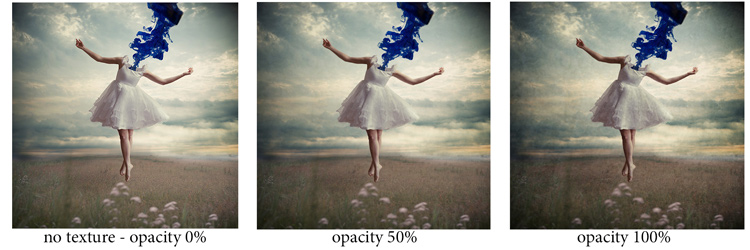
05 opacity

Add a layer mask on the texture layer

Applying texture over the whole image is great to give an artistic feel when the person is far away or it’s applied on a landscape. But, usually you want to avoid strong texture on your main character, especially if it is a close-up portrait, so you will want to soften the texture, or to erase it completely on areas such as the skin and eyes.
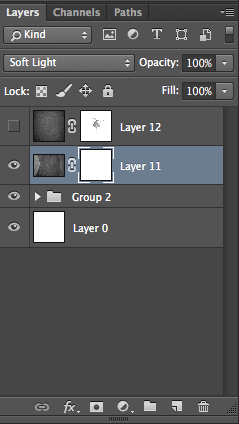
06 add layer mask

Add a layer mask on the texture layer and paint in black, playing with your brush opacity, size, and hardness to erase the texture where you want. Paint white your layer mask with a very soft edge brush, and low opacity, to bring back some texture on the subject edges to blend it with the background.
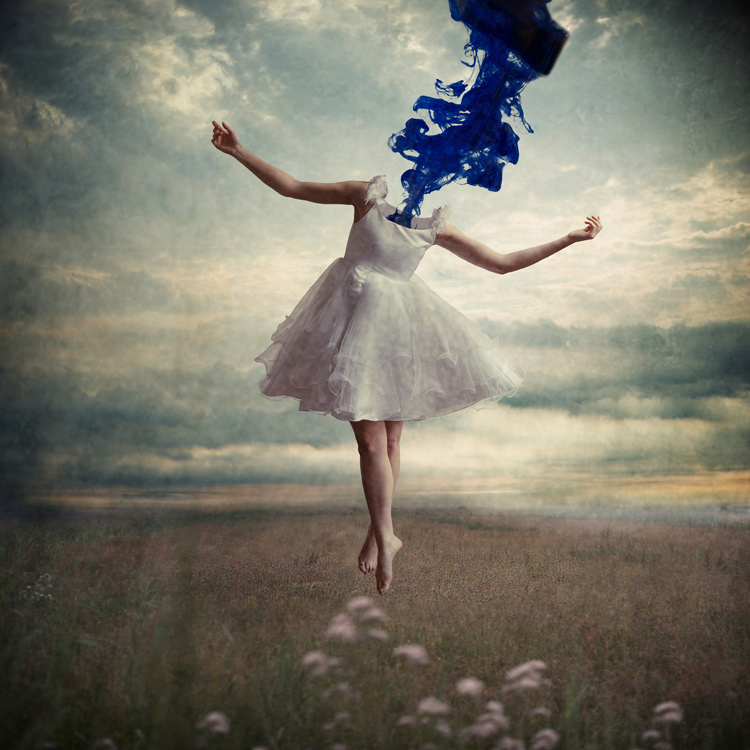
05 texture 100 percent

Add some more textures

You can lower the opacity of your textures and add as many of them as you whish to get the visual affect you want. If you want to see the full edit of this picture you can have a look at my speed editing video below:

I hope you will now want to add texture overlays to some of your work, or at least give it a try. It’s a great technical and creative exercise.

You can start with the free textures I prepared for you (click here to download them), and with some time start to shoot your own. Feel free to share the results or your technique in the comments below.

Editor’s note: if you have questions or issues downloading the textures, please contact Amelie on her site as they are not being hosted here on dPS so we cannot sort that for you. Thank you.

googletag.cmd.push(function() {
tablet_slots.push( googletag.defineSlot( “/1005424/_dPSv4_tab-all-article-bottom_(300×250)”, [300, 250], “pb-ad-78623” ).addService( googletag.pubads() ) ); } );

googletag.cmd.push(function() {
mobile_slots.push( googletag.defineSlot( “/1005424/_dPSv4_mob-all-article-bottom_(300×250)”, [300, 250], “pb-ad-78158” ).addService( googletag.pubads() ) ); } );

The post How to Add a Texture Overlay to Your Images for a Stunning Effect by Amélie Berton appeared first on Digital Photography School.


Digital Photography School

 
Comments Off on How to Add a Texture Overlay to Your Images for a Stunning Effect

Posted in Photography