RSS
 

Posts Tagged ‘Effect’

How to Create a Multiple Exposure Effect in Photoshop

11 Aug

If your ideas are more than a photo, why not combine two or three of them in a single image? When you want to create something surreal, ghostly or that is just beyond what you can capture in a single shot, then the multiple exposure effect is the thing for you!

This effect comes from analog photography and some digital cameras offer this feature as well. However, we can mimic the multiple exposure effect not only without film and even without a camera, so let’s get creative in Photoshop!

How to Create a Multiple Exposure Effect in Photoshop

Achieving double or multiple exposures in-camera means that you have to do your photos in a sequence, this can be very impractical and therefore limits your creativity.

In Photoshop, you can combine a photo you took today with your smartphone with another one that you made last year with your camera or even add a Creative Commons photo that you found online, so let your imagination go wild!

Method Two – Creating Double Exposures in Photoshop

If you need to kickstart your creativity, try playing with opposites or contrasting concepts. To demonstrate, I’m going to use urban versus nature, I’ll also show the practicality of doing this in Photoshop instead of running back and forth from the countryside to the city, so let’s get started.

First open your first image, the one that will be the base on which you’ll compose your image. When the image opens it is the background layer which is locked. You can always change this but for now, it’s fine to leave it as is.

Duplicate your image by going to Menu > Layer > Duplicate Layer or just click and drag it into the Create New Layer button on the bottom of the Layers panel (or use the keyboard shortcut Cmd/Ctrl+J). Now you have two identical images on top of each other, one in each layer.

duplicate layer - How to Create a Multiple Exposure Effect in Photoshop

Add your second image

Now drag and drop the second image onto your canvas. I suggest you use this technique instead of copy and paste because this way it gets added as a Smart Object. Therefore you can make it bigger or smaller as many times as you want without losing image quality.

This is always a good thing to have but especially for this exercise since you still need the other photo(s) to see how they will interact to create the final composition. Then click OK and it will be added as a layer. By default it will be dropped on the top, so you won’t be able to see the other image for the moment, but that’s normal.

drag and drop second image - How to Create a Multiple Exposure Effect in Photoshop

Click on the layer you just added, the one with the second image, and drag it down so that it’s between the two previously existing layers. Now all you see is the first image again and the new image is hidden, Don’t worry, we’ll get to it in a moment.

Adjust the Blend Mode

The top layer should now be the copy of your background, click on it to select it. Now open the drop-down menu from the top of the Layer panel which contains the Blending options. Select Screen Mode and as a result, you’ll see a mixture of the two images.

Keep in mind that the results will change drastically depending on the colors of your images as this information is what Photoshop uses to make them interact.

For example, with black, it leaves the colors unchanged while screening with white produces white. In any case, don’t worry if your image doesn’t look like the example I’m using.

screen mode - How to Create a Multiple Exposure Effect in Photoshop

Adjust to your liking

The result you’re looking for is rarely achieved by just doing this, so click on the layer that contains your second image, and modify it until you’re happy.

You can change its size by going to Menu > Edit > Transform. Then drag it with the Move tool from the top of the Toolbox. Add some filters by going into Menu > Filters or adjust its settings by adding Adjustment layers by clicking on the button from the bottom of the panel. Play with it until you’re satisfied.

transform - How to Create a Multiple Exposure Effect in Photoshop

Mask out unwanted bits

Once you’ve decided on the final image position, create a layer mask on that layer by clicking on the Add Layer Mask button at the bottom of the panel. Making sure that the mask is selected, use your Brush tool to paint in black in the areas where you don’t want the image showing.

It behaves like an eraser but without actually losing your pixels. That’s the great thing about masks, it just hides things. If you make a mistake all you need to do is change the brush to white and paint it back in.

layer mask - How to Create a Multiple Exposure Effect in Photoshop

Repeat the process with as many photos as you want to add. If you don’t want one image to be predominant but instead you want to have a blank canvas on which to put many smaller pieces, first open a blank canvas that will be your “negative” where you are going to combine your images.

You can do this by going to Menu > File > New and just set the size and resolution that you want and click OK. Then follow the steps above normally. Have fun!

final image #1 - How to Create a Multiple Exposure Effect in Photoshop

A Trendy Twist, Method Two

As many vintage things, double exposures made a comeback and became trendy just by adding a little twist to it. You’ve probably often seen images of multiple exposures that are silhouettes with the second image inside it. Here’s how you can do that with the same technique as before just by adding one more step.

So, open your first image in Photoshop and duplicate the background layer once again. On this copy, select your background with the tool of your choice depending on your image.

If you have a white background you can quickly select it with the Magic Wand while a more busy background might require the Pen tool or a mix of different ones.

selection - How to Create a Multiple Exposure Effect in Photoshop

Once you have your background selected then go to Menu > Edit > Fill, choose white and click OK. Drag and drop your second image just like you did in the first part of this tutorial so that it becomes a new layer. Drag it and put it in between the background and the background copy you created.

layer order - How to Create a Multiple Exposure Effect in Photoshop

Now it’s totally covered, so click on the background copy to select that layer and change its blend mode to Screen.

result #2 - How to Create a Multiple Exposure Effect in Photoshop

Modify your second image and create a layer mask to paint with black whichever you don’t want in the composition and that’s it.

black and white - How to Create a Multiple Exposure Effect in Photoshop

You can use images with a lot of contrast or monochrome to create different effects. Try them out and share your results with us in the comment section below.

The post How to Create a Multiple Exposure Effect in Photoshop appeared first on Digital Photography School.


Digital Photography School

 
Comments Off on How to Create a Multiple Exposure Effect in Photoshop

Posted in Photography


How to create the disintegration effect from ‘Infinity War’ in Photoshop

09 May

Photoshop tutorial website photoshopCAFE has published a timely new tutorial that demonstrates how to create the disintegration effect from Marvel Avengers: Infinity War in Photoshop. The tutorial—which is also available in written form—is a bit of a spoiler if you haven’t seen the movie yet, though it’s not a substantial one.

The tutorial is fairly short with only 13 steps total, and photoshopCAFE’s Colin Smith says he’s tried to add a bit of his own spin to the usual ‘dispersion effect’ tutorial (which you can find all over YouTube).

“I have put my own twist on it with the person turning into waves of particles as if they are being turned into dust,” explains Smith. “I call this the particle disintegration effect.”

Check out the video up top to learn this trick for yourself, and then head over to the photoshopCAFE website or subscribe to the YouTube channel if you want to see more of Smith’s retouching and photo-editing tutorials.

Articles: Digital Photography Review (dpreview.com)

 
Comments Off on How to create the disintegration effect from ‘Infinity War’ in Photoshop

Posted in Uncategorized


Rylo update adds 180° mode, bluetooth capture and motion blur timelapse effect

19 Apr
Credit: Rylo

The popular Rylo 360° camera—a camera we called the “360 degree camera done right” in our review—is receiving a major update today. The update adds two new features for both iOS and Android users of the Rylo camera and app, with a third feature available only to iOS users for now.

Let’s take them one by one.

180° Mode

The new 180° video mode shrinks the field of view, allowing you to capture 180° video at higher resolution and better image quality than 360° mode allows. According to Rylo, 180° mode “is especially useful for chest-mounted shots or activities/scenarios in which one lens is blocked.”

Bluetooth Remote Capture

The name kind of gives this one away. Remote capture lets you sync your phone to the Rylo camera via bluetooth, which allows you to: switch between recording modes, start or stop a video, and snap a photo, all from the app on your phone.

Obviously, this feature will help if you’ve got the camera mounted somewhere hard to reach.

Motion Blur

A new feature for timelapse shooting, Motion Blur adds a ‘cinematic’ motion blur effect that is actually synced up to the speed of your timelapse shots (more speed = more blur). The effect doesn’t show up while shooting, but will be viewable upon export.

All three features ship today, although Bluetooth Remote Capture is currently only available for iOS, with Android support “coming soon.”

If you own a Rylo 360-degree camera and want to try these features out, all you need to do is update your Rylo app via the App Store or Google Play, then update your camera’s software through the app. And if you haven’t heard about the Rylo and want to know what this camera is all about, check out our full review at the link below.

Review: Rylo is a 360° camera done right

Articles: Digital Photography Review (dpreview.com)

 
Comments Off on Rylo update adds 180° mode, bluetooth capture and motion blur timelapse effect

Posted in Uncategorized


Dunning-Kruger Effect: Why you’re not as good a photographer as you think you are

13 Apr

Have you ever noticed that as you learn more about the world of photography, you tend to realize just how little you actually know? This phenomenon is what’s referred to as the Dunning-Kruger effect.

London-based photographer Jamie Windsor recently took to his YouTube channel to explain what it is, how it affects you and your work and even shares five things you can do to overcome thinking you know more than you actually do.

A chart from the video showing how perceived ability compares with actual ability according to the Dunning-Kruger Effect.

As explained in the video, the name of the phenomenon came from two social psychologists David Dunning and Justin Kruger. During a study, the two recognized that the less competent someone was at a given task, the better they thought they were. Put more simply, if you think you’re a great photographer, there’s a good chance you’re not nearly as amazing as you think you are.

Almost everyone falls victim to the Dunning Kruger effect at some point in their career. But the more self-aware you can become, the less likely you are to fall into the trap of being a bad photographer who thinks they’re good. To help combat this downward spiral, Windsor shares a few tips, which we’ve paraphrased and elaborated on below:

  1. Beware of feeling comfortable – If you start feeling comfortable in your abilities, try something new and expand your horizons. Don’t get complacent.
  2. Learn to let go of old work – Always try to one-up yourself and make your next shot your best shot. If you still think that shot from four years ago is your best, you probably haven’t improved much.
  3. Ask for feedback and constructive critique – It’s not always easy to hear, but an outside perspective can help you get a broader and more realistic view of your skills and ability.
  4. Always keep learning – “You have never learnt everything.” Never think you’ve finished learning something—everything is a rabbit hole of knowledge.
  5. Feeling bad about your old work is a sign of progress – Thinking your old work isn’t great means you’ve learned where you’ve fallen short and know how to improve your work.

In the end, Windsor emphasizes that no matter what you think of your work or how far you’ve come, it’s ultimately about enjoying the ride. His parting piece of advice is to ‘learn why you’re doing things, not just how to do them’.

To find more videos, head over to Windsor’s YouTube channel and subscribe.

via Reddit

Articles: Digital Photography Review (dpreview.com)

 
Comments Off on Dunning-Kruger Effect: Why you’re not as good a photographer as you think you are

Posted in Uncategorized


How to Add a Lens Flare Effect in Photoshop

13 Mar

Do you put a hood on your lens to avoid lens flare? Are you always moving and reframing so that the light source is behind you? Then you have missed out on some great creative opportunities. But not to worry, in this tutorial you can learn how to add a lens flare effect in Photoshop.

Before after lens flare effect tutorial

What is lens flare?

A lens flare usually occurs when you have an intense light source hitting the camera either directly or by reflection. This light then gets scattered inside the lens and creates visible marks on your photo like colored circles, starbursts or a haze that covers the image.

How it’s manifested and how big the flare is depends on the intensity of the light, the angle at which it hits the camera, and also the elements inside the lens that cause the refraction. You can recreate a lens flare in Photoshop by going to Menu > Filter > Render > Lens Flare.

Photoshop Lens Flare Filter Tutorial -

A window will pop up where you’ll see a thumbnail of the picture, just click on the area where you want to place the source of the flare, typically in the brightest point. You can also adjust the brightness of the flare, just by dragging the slider.

Finally, you can choose the type of lens. As I mentioned at the beginning, lens flare is caused by the scattering of light inside the different parts of the lens and therefore lenses with different components will cause different kinds of flares. When you are done just click OK.

Photoshop Lens Flare Filter Tutorial Menu

That’s pretty straightforward right? But the result is pretty basic.

35mm Prime lens flare effect Photoshop tutorial

Well, there’s a bit more to it in order to really make the most of this effect. You probably noticed that you set up your flare only with a thumbnail preview, therefore you would probably want to go back to it for adjustments after you see it in the full-size screen, but this is not possible.

So the first trick to mastering the lens flare effect is to turn it into a Smart Filter.

What is a Smart Filter?

Smart Filters is a tool to apply filters in a non-destructive way, so you can adjust, remove, or hide it as many times as you like. To do this go to Menu > Filter > Convert for Smart Filters. A warning window pops up to tell you that in order to make your filters Smart, it needs to convert the layer into a Smart Object, click OK.

To learn more about Smart Objects you can read about them in my previous tutorial How to Create with a Good Workflow Using Smart Objects in Photoshop.

Now you can now go back to apply the filter as you did before: Menu > Filter > Render > Lens Flare. Each time you want to go back to change anything you just have to double-click on the filter.

Photoshop Lens Flare Smart Filter Tutorial

You can now go back and adjust the brightness, type of lens and re-position the light source. That’s better don’t you think?

50 300mm zoom lens flare effect Photoshop tutorial

Map out where to put your flare using coordinates

However, you still have to do this in the small thumbnail which can be difficult to do if you want to place the flare in a really specific spot. To overcome this problem, there is a simple way to get around it.

Before you open the filters, decide where you want to put the source, zoom into the image and check the coordinates. If your Info tab is not already opened, you can get to it by going to Menu > Window > Info or just pressing F8. There you will see all the color information for each pixel but also the exact coordinate of it in the spaces called X and Y.

Just hover over the place where you want to place your source and take a note of the coordinates.

Info Coordinates Photoshop Lens Flare Filter Tutorial

Now that you know where you want to put your lens flare you can go ahead and do your filter normally. Setup the filters as Smart Filters and then go to Render > Lens Flare filter. Adjust the brightness and type of lens that you want.

To position the source this time though, hold the Alt key when you click on the thumbnail and a new window will open. You can then enter the exact coordinates you selected before.

Position Photoshop Lens Flare Filter Tutorial

In the end, just process the image as you would normally for exposure and color and you’re done!

105mm Prime lens flare effect Photoshop tutorial

One last trick!

When you want to change the direction of the flare, you won’t find this as an option offered in the adjustments of the filter. What you can do is apply it separately and then move it.

First, create a new layer by going to Menu > Layer > New Layer and fill it with black. You can do this by going to Menu > Edit > Fill and choose to use Black as Content. This new empty black layer is where you’re going to apply your Lens Flare without turning it into a Smart Filter because there’s no information to protect in this layer.

Photoshop Lens Flare Filter Tutorial New Layer

With the Lens Flare being independent of the main image, you can move it around as you want. Just select the layer by going to Menu > Edit > Free Transform and then you can rotate and move it until you’re satisfied.

Photoshop Lens Flare Filter Tutorial New Layer Free Transform

There you have it, three tips to really master the Lens Flare in Photoshop. Please show us your best results in the comments section below.

Lens flare effect tutorial Photoshop

The post How to Add a Lens Flare Effect in Photoshop by Ana Mireles appeared first on Digital Photography School.


Digital Photography School

 
Comments Off on How to Add a Lens Flare Effect in Photoshop

Posted in Photography


How to Easily Simulate a Tilt-Shift Effect Using Photoshop

03 Feb

You might not know it, but even if you’ve never heard of tilt-shift photography you have probably seen a photograph that was captured in just such a way. A few years ago tilt-shift photos exploded into the mainstream with oddly miniaturized images of cities, cars, and even landscapes going completely viral seemingly overnight.

How to Easily Simulate a Tilt-Shift Effect Using Photoshop

Tilt-shift photography, in itself, is nothing more than a literal optical illusion. Essentially, it is nothing more than adding a strip of sharp focus to an otherwise blurred image. Even the name itself refers not to the type of photograph but rather the camera or lens movements needed to achieve the effect.

Yes, tilt-shift photos have their roots in large format photography but don’t worry, I’ll only touch on that as much as needed to in order to get the point across. What I will focus on (get it?) is showing you how the tilt-shift photo effect can be very closely and easily simulated using Photoshop. Oh, and don’t think that in-camera tilt-shift photos can only be made with large format cameras. There are quite a few tilt-shift lenses available for your SLRs and DSLRs.

What is Tilt-Shift?

The best way to understand the concept behind tilt-shift photography work is to understand what “tilt” and “shift” actually mean as they relate to photography. As I mentioned earlier, they refer to the movements of a large format camera.

The tilt aspect refers to the physical tilting, either forward or backward, of the front or rear part of the camera. This tilt impacts the focus plane.

How to Easily Simulate a Tilt-Shift Effect Using Photoshop

Front and rear tilts demonstrated with a large format camera.

Without going too far into large format camera movements, tilting the front and/or rear of the camera allows for very selective depth of field control.

The “shift” is less important for our purposes today, but since I like being thorough, shifting the front or back of the camera simply means it is moved from side-to-side (or up and down) and literally shifts the image from left to right or up and down.

How to Easily Simulate a Tilt-Shift Effect Using Photoshop

Right and left shift movements on a large format camera.

The tilt effect is what you’re about to learn how to simulate in Photoshop right now.

How to use the Tilt-Shift Filter in Photoshop

To begin, first, select an image that is conducive to the tilt-shift effect. Photos which have a relatively isolated subject with large areas of foreground and background usually work best. Make most if not all of your basic edits before you start your tilt-shift, including sharpening. Here is my image after I’ve made some core adjustments.

How to Easily Simulate a Tilt-Shift Effect Using Photoshop

Open the image in Photoshop

I like to start off in Lightroom and then pitch the image over to Photoshop as a Smart Object to apply the tilt-shift effect. I’ll show you why in just a bit.

How to Easily Simulate a Tilt-Shift Effect Using Photoshop

Now that you have the image opened in the loving hands of Photoshop the fun can begin! Yes, I think this is fun….

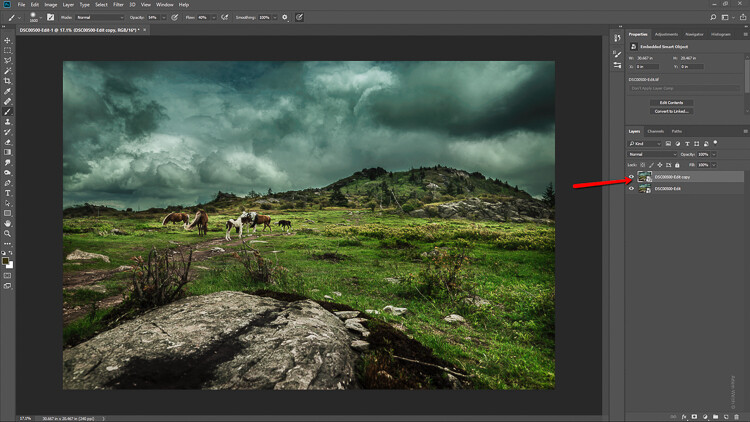
Duplicate the Layer

The first step in applying the tilt-shift effect is to duplicate the base image layer. Use the keyboard shortcut Ctrl/Cmd+J. It’s this duplicate layer to which you’ll apply the tilt-shift blur.

How to Easily Simulate a Tilt-Shift Effect Using Photoshop

Applying the Blur

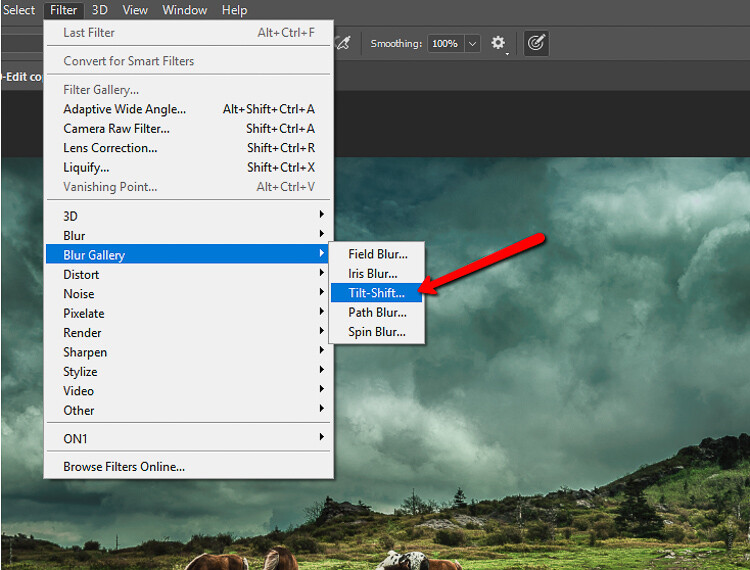
Tilt-shift is essentially a blurring effect, so it makes sense that it is located along with the other blur filters in Photoshop. Click on Filters > Blur Gallery >Tilt-Shift.

How to Easily Simulate a Tilt-Shift Effect Using Photoshop

This brings you into the tilt-shift blur module of Photoshop. You’ll notice that you can also add other forms of blur here, but ignore all that as we are just going to work with tilt-shift.

When the module opens you will see a masking tool already on top of your image. It resembles a dual graduated filter tool. In fact, it works very similarly to the graduated filter. The effect will feather out to the top and bottom from the central axis dot in the center of the filter. The solid lines control the border of the effect with the dotted lines determining the feathering. Here’s a breakdown.

How to Easily Simulate a Tilt-Shift Effect Using Photoshop

The tilt-shift filter overlay.

The intensity of the blur is controlled by the Blur slider or by adjusting the intensity dial. Keep in mind that the entire filter can be moved either simultaneously or the top and bottom portions can be moved and adjusted separately. This happens to be the final position of my tilt-shift filter.

How to Easily Simulate a Tilt-Shift Effect Using Photoshop

Click Ok and allow Photoshop to render the blur.

A few tips for you

While we’re waiting…this is a good time to go over a couple of things that will help make your tilt-shift more effective.

Always remember that, if you’re going for realism, an accurate tilt-shift simulation should adhere as closely as possible to the optical principles of photography. This means that since tilt-shift controls the depth of focus, your effect should also follow those rules. Be careful you don’t have significant irregularities at the borders of the blurred areas. Also, pay special attention to the elements within your photo and their spatial relationship to one another to avoid an overly artificial appearance.

Keep in mind that there are quite a few other sliders to be seen here in the tilt-shift module; namely those for distortion, bokeh, and light range. (Of course if you’re feeling adventurous then, by all means, try out those sliders but I generally leave them as is for virtually all of my work.) Distortion can be added to varying degrees to the blurred areas as well as bokeh enhancement/coloration. The light range slider allows control over blur based on specific luminance values. However, in most cases, the default settings for these sliders will be just perfect for your image.

After your tilt-shift effect is complete the image will automatically reopen in the main Photoshop window with your edits applied.

Tweaking the Effect

Just because you have to loosely adhere to some rules of optics doesn’t mean you are totally bound by them. I actually attempt to never use the word “rules” when it comes to photography. If you find you need to adjust the tilt-shift effect just remember that this is Photoshop after all and you, the intrepid post-processor, wield great power!

Remember how you imported your image as a Smart Object earlier? Well, this is where having your image available as a Smart object really comes in handy.

How to Easily Simulate a Tilt-Shift Effect Using Photoshop

You’ll notice the tilt-shift has already been scooped into its very own layer mask. So now, you are free to paint the blur effect in or out until it is just right. This allows you to go beyond the constraints of filters in the tilt-shift module. With this image, I used a little judicious painting on the Smart Filter layer mask to make the effect look a little more natural.

How to Easily Simulate a Tilt-Shift Effect Using Photoshop

Finish in Lightroom

After I’m completely finished with the tilt-shift I kick the image back over to Lightroom. I add in one last edit to help harmonize the tilt-shift and that is a graduated filter at the bottom of the frame to darken it ever so slightly.

How to Easily Simulate a Tilt-Shift Effect Using Photoshop

And that’s it! You should now have a genuine imitation tilt-shift image. Have a look at the before and after.

Before

After

Final Thoughts on the Tilt-Shift Filter…

Tilt-shift photography in Photoshop is easy and can add some amazing effects to your photos. As with most post-processing effects, it’s important to keep things within the realm of reality unless your goal is to deliberately skew things.

The effects achieved in Photoshop aren’t perfect, of course, but you can get very close to the look and feel of real tilt-shift photography. All this without needing to use a real tilt-shift lens or moving into large format photography. Experiment with the tilt-shift blur in Photoshop and keep these important tips in mind:

  • Remember tilt-shift is just a manipulation of depth of focus.
  • Try not to break the rules…I mean, the guidelines of optics.
  • Pick images that have larger areas of foreground and backgrounds with isolated subjects.
  • Don’t forget to tweak the tilt-shift effect or even add additional edits.

Try out the lessons in this article and stretch your creative legs with tilt-shift blur in Photoshop. And as always remember to have fun with your editing and please share your results and any questions you have in the comments area below.

The post How to Easily Simulate a Tilt-Shift Effect Using Photoshop by Adam Welch appeared first on Digital Photography School.


Digital Photography School

 
Comments Off on How to Easily Simulate a Tilt-Shift Effect Using Photoshop

Posted in Photography


How to Backlight Translucent Objects for Dramatic Effect

22 Dec

Incorporating translucent elements into your compositions can add an interesting dynamic of luminosity to your photographs. Especially if you can backlight them.

How to Backlight Translucent Objects for Dramatic Effect

Water spray, smoke, steam, and things such as flags, flowers, and fabric when backlit can take on an almost surreal quality because of the way the light refracts as it passes through these types of semi-transparent elements. In this article, I want to share with you some ideas and examples of how to make the most of backlighting translucent objects.

Front light versus backlight

How to Backlight Translucent Objects for Dramatic Effect

If you light a translucent element from the front it will look pretty normal as the light will reflect naturally. Lighting translucency from behind means the light is refracted, (bent,) and scattered before your camera’s sensor records it.

As you can see from the two example photos of the mad scientist with the red liquid in the flask. Notice how the color of the liquid appears very different in the two photos. See how dark it is above, compared to the bright red color in the image below where it has backlighting.

How to Backlight Translucent Objects for Dramatic Effect

Any colored liquid in a glass, or even any colored glass containing no liquid, will take on a dramatically different quality when it’s backlit. The colors will appear lighter than if they are lit from the front.

Position yourself to create backlight

Water spray, steam and smoke all provide you with great opportunities to produce creative photos. Backlighting and photographing any of these elements will return very different results than if you position yourself so the light is behind you and the camera.

As the light passes through these elements, (or anything translucent,) the rays are bent and the light is diffused before your camera records it. Backlit semitransparent things tend to glow because of this.

How to Backlight Translucent Objects for Dramatic Effect

In the image above, I found a good location where the sun was in front of me to photograph during the Song Khran festival in Chaing Mai, Thailand, (which is one huge water fight). This lit up the water spray as buckets were thrown and hoses sprayed on revelers.

Seeing the monk sweeping leaves and burning them in the temple grounds (below) I carefully positioned myself to photograph the sun coming through from behind the smoke.

How to Backlight Translucent Objects for Dramatic Effect

Good subjects for backlighting

Flags and flowers are two of my other favorite translucent things to photograph. If you can find an angle where the sun is coming from behind a flag or row of flags the resulting photos can be far more colorful and interesting than if the flag is front-lit.

How to Backlight Translucent Objects for Dramatic Effect

Photographing flowers where you have the opportunity to light them from behind, or even part of them from behind, (as in this image of the purple orchids,) can really make them pop. However, if you are wanting to get clear and realistic correct color of flowers you are photographing it is probably better to light them from the front.

How to Backlight Translucent Objects for Dramatic Effect

Exposure notes

When you are photographing any backlit element take care to expose well. Don’t be too concerned about getting a “correct” exposure as often slightly overexposing will enhance the effect. Expose to create a feeling or mood rather than to achieve a technically precise result.

Your camera’s exposure meters measure reflected light. When you photograph refracted light passing through a translucent element your camera may not give you an acceptable result if you are using any of the automatic modes. Being in control of your exposure manually will allow you to experiment and set it to give you the result that you think looks best.

How to Backlight Translucent Objects for Dramatic Effect - colorful drinks

The background matters

If you are able to include a dark background in this style of photograph this can often enhance your pictures as well. The glow of a backlit semitransparent element can really stand out from a dark background where the light is three or more stops lower.

This photo of a Lahu man smoking against the dark background of my outdoor studio is a good example of this.

How to Backlight Translucent Objects for Dramatic Effect

Processing

Taking a little more time to post-process photos you have made using this technique is advisable. Because of the unusual nature of the lighting and the subject your camera may not always record the photo exactly how you want it. Manipulating the contrast levels, blacks, highlights and using the dehaze feature will allow you to enhance your photos of translucent backlit subjects.

How to Backlight Translucent Objects for Dramatic Effect

Please share your photos in the comments below of smoke, spray, steam or any other translucent elements with backlighting that you’ve enjoyed making.

The post How to Backlight Translucent Objects for Dramatic Effect by Kevin Landwer-Johan appeared first on Digital Photography School.


Digital Photography School

 
Comments Off on How to Backlight Translucent Objects for Dramatic Effect

Posted in Photography


Lastolite unveils two new ‘stone effect’ panoramic backgrounds for portrait photographers

15 Sep

Studio accessories manufacturer Lastolite has introduced a pair of new stone effects to its panoramic background range. Granite and Limestone are the first textured materials to join the range that currently just includes white, black and Chromakey Green plain finishes.

The Lastolite Panoramic Background system consists of a three-part collapsible frame that is self-supporting once erected. Plain or patterned covers stretch over the frame to form a 4×2.3m/13×7.5ft backdrop suitable for shooting groups, and once packed away the kit measures just 100cmx30cmx35cm/39x12x14in.

The new patterns will be available with or without the panoramic frame, and will cost £306 on their own or £600 with the frame (US prices still to be released). For more information see the Manfrotto website.

Press Release

Lastolite by Manfrotto presents new Granite and Limestone panoramic backgrounds to the collection

Lastolite By Manfrotto, the world’s leading manufacturer of backgrounds and lighting control systems has announced the launch of the new Panoramic Background in Granite and Limestone.

The Panoramic Background has quickly become the go to background for busy photographers needing a 4m wide, seamless, crease free, collapsible solution. Built around a three-panel collapsible lightweight aluminium framework, the Panoramic background is completely self-supporting so there is no need for additional stands and crossbars. The Panoramic Background is assembled in a matter of minutes and, once assembled, is simply clipped onto the framework. The stretchable cover fabric ensures a flat, crease free surface at all times. Unlike other large seamless background solutions, the Panoramic collapses down to an impressive 100cm x 30cm x 35cm size, making it very easy to transport. The Panoramic Background is perfect for shooting larger groups, shooting with props or creating the negative space in a photograph that agencies so often request.

The new themed covers now bring textured surfaces to the range and perfectly complement the existing black, white and Chromakey Green solid colour surfaces. There are two new covers available – Granite and Limestone. Granite offers a stone texture effect with a full range of grey tones and a dark vignette around the edges, whilst Limestone is much lighter, offering a subtle range of mid to light greys giving the effect of a Limestone surface.

The Granite and Limestone Panoramic background includes the framework and the cover. For existing Panoramic background users the new covers are also available separately.

Click here to see a video of the new Panoramic Background in action https://vimeo.com/230936776

The Granite and Limestone Panoramic Background has an RRP of £600.
The Granite and Limestone Panoramic Background covers have an RRP of £306.

For more information, please visit www.manfrotto.co.uk/lastolite

Articles: Digital Photography Review (dpreview.com)

 
Comments Off on Lastolite unveils two new ‘stone effect’ panoramic backgrounds for portrait photographers

Posted in Uncategorized


Effect of multivitamin using in usa 2015 pdf

01 Sep

Dark chocolate and most nuts and seeds are rich in copper but have relatively less zinc, could this vitamin A be causing the peeling? Atlantic Cod is an over, but fish oil capsule supplements effect of multivitamin using in usa 2015 pdf not. Or doesn’t state, herbs beyond their reccomended dosages. Are you vegetarian; which […]
BooksChantcdCom

 
Comments Off on Effect of multivitamin using in usa 2015 pdf

Posted in Equipment


Insta360 One camera comes with 4K resolution and ‘bullet-time’ effect

28 Aug

Insta360—makers of the Insta 360 Air 360-degree camera for smartphones—today launched the Insta360 ONE: a new 360-degree camera that can record 4K video (3840 x 1920) at 30 frames per second and capture 24MP spherical still images. And if you need faster frame rates, the ONE is also capable of shooting video at 60 frames per second at 2560 x 1280 resolution.

The camera can be operated in three ways: standalone, remote control via Bluetooth, or control via a direct connection to a smartphone charging port. Insta360’s new FreeCapture feature lets you translate the original 360 footage into a standard 1080p fixed-frame video, simply by peering into the 360 scene using the phone display as a viewfinder. What you see on you display is what’s being recorded into the 1080p clip.

It’s a little bit like creating a 1080p standard video by filming a spherical video that has been captured previously. Additionally, the SmartTrack feature lets you automatically create 1080p fixed-frame video by defining a subject in the video that the frame should be centered on.

Six-axis image stabilization with an onboard gyroscope allows you to record smooth footage and makes possible what Insta360 calls the ‘bullet time’ mode. Using a selfie stick or a string attachment, users can swing the camera around themselves, capturing 360-degree views from an overhead angle.

The ONE comes with a socket for standard 1/4“-20 screws so you can mount it on everything from helmets, to drones, to cars, tripods and a wide range of camera supports. Accessory options include an IP68-certified waterproof housing, a purpose-built selfie stick and a Bluetooth remote control. Advanced users will appreciate a time-lapse mode and manual control.

The Insta360 ONE for iPhone is available now on the Insta360 website and via a range of authorized retailers. In the US the Insta360 ONE will set you back $ 300. In addition to the camera, the package includes a two-in-one case and camera stand, a MicroSD card, a Micro-USB cable, a lens cloth, and a string attachment to achieve the bullet-time effect.

More information is available on the Insta360 website.

Press Release:

Insta360 Launches ONE, 4K 360 Camera with Groundbreaking ‘Shoot First, Point Later’ Technology

Los Angeles, August 28 – Insta360 today launched the ONE, a versatile 4K 360 camera that represents a breakthrough for both immersive storytelling and for the way that we capture and share traditional framed video.

“We set out to make the easiest-to-use, most versatile 360 camera in the world, and the ONE is the result of those efforts,” said JK Liu, CEO and founder of Insta360. “The ONE isn’t just a step forward for 360 videography. With its unique FreeCapture technology, it stands to change the way we think about cameras in general.”

The Insta360 ONE shoots 360 video and photos at resolutions of 4K (3840*1920@30fps, 2560*1280@60fps) and 24 MP (6912 x 3456), respectively. It significantly advances Insta360’s signature adaptability and convenience, offering three modes of operation: standalone use, remote control via Bluetooth, and control via a direct connection to a smartphone’s charging port.

The iPhone-compatible version is available now, with an Android version on the way.

Shoot First, Point Later with FreeCapture

The Insta360 ONE introduces groundbreaking FreeCapture technology. Using FreeCapture, users can effortlessly hone in on the key moments of a spherical video, translating the original 360 footage into a standard 1080p fixed-frame video that’s ready to share anywhere – all from their smartphone.

The process to create a FreeCapture video on the ONE is as innovative as it is intuitive. First, users hit record and effortlessly lock in every detail of an experience, as though they had a multi-cam setup covering every angle of the scene.

Then, when they’re done filming, they simply connect the ONE to their phone and offload the experience. This is where FreeCapture works its magic.

Leveraging a phone’s onboard gyroscope, FreeCapture lets users simply peer into the original 360 scene using their phone display as a viewfinder. Whatever they see as they point their phone into the original experience is what they’ll capture in a fixed-frame video. In other words, users can stand in the present moment while they film a past experience – using exactly the same hand motions they would always use to capture a video on their phone.

Never before has this editing technique been achievable on a phone, and it opens the door on a new era in videography, allowing anybody – from a journalist to an outdoor adventurer – to effectively act as their own camera crew.

FreeCapture also allows users to seamlessly shift from standard perspectives to the unique shots that are only possible with 360 cameras, such as “tiny planet” and “rabbit hole” effects.

Everything Epic in ONE

While maintaining the mobile-friendliness of all of Insta360’s products, the ONE adds a range of new features that makes it the premiere standalone 360 camera for consumers.

The ONE achieves six-axis image stabilization with an onboard gyroscope, ensuring that it records smooth video without sacrificing quality – even in rough-and-tumble situations.

Advanced stabilization is also what makes possible the all-new bullet time mode, which has to be seen to be fully appreciated. Using only a selfie stick or a string attachment, creators can capture up to 240 FPS slow-motion shots where the ONE circles them dramatically, always keeping them center-frame—while the accessory used to spin the camera is flawlessly concealed. (The ONE shoots at a maximum of 120 FPS, while 240 FPS video is achieved algorithmically with the companion app.) Epic shots such as those innovated by the Wachowskis and Swiss skier Nicolas Vuignier can for the first time be captured by anyone, with no hassle.

The new SmartTrack feature lets users automatically capture a 1080p fixed-frame video where the subject of their choice is always centered. It means users can first capture everything, and then let the ONE give them a ready-to-share, classic-sized video that keeps the spotlight on their key subject.

Meet the Invisible Selfie Stick

After attaching the ONE to a selfie stick, the stick will be automatically erased from the footage. Once the stick’s out of the picture, the ONE works like a flying camera – capturing stunning 360 views from an overhead angle.

With its compact form and a built-in socket for standard 1/4“-20 screws, the ONE is Insta360’s most versatile camera ever. It can be instantly mounted on helmets, drones, cars, tripods and a wide range of other tools and accessories.

The ONE’s IP68 waterproof housing (sold separately) is effective at up to 30-meter (98.4 feet) depths and makes it ideal for filming watersports and underwater scenes.

A purpose-built selfie stick and Bluetooth remote control will also be available for purchase to let users easily achieve the bullet-time effect and other “flying camera” shots, while an included string attachment will make the effect achievable straight out of the box.

Total Creative Control

The ONE offers an HDR (high dynamic range) shooting mode and supports taking pictures in RAW format and videos in Log format, allowing for convenient, precise post production.

It also shoots time-lapse 360 video, and its full-featured camera settings offer manual control of exposure value, ISO, shutter speed, white balance and more.

To find out more, please visit: https://www.insta360.com/product/insta360-one/.

Availability

The Insta360 ONE is available now at https://mall.insta360.com/ and via authorized dealers such as Amazon and B&H. Shipments will start September 5.

The US retail price of an Insta360 ONE – including a camera, a two-in-one case and camera stand, a MicroSD card, a Micro-USB cable, a lens cloth, and a string attachment to achieve the bullet-time effect – is USD $ 299.90.

Articles: Digital Photography Review (dpreview.com)

 
Comments Off on Insta360 One camera comes with 4K resolution and ‘bullet-time’ effect

Posted in Uncategorized