RSS
 

Posts Tagged ‘Editing’

Lytro Desktop 5.0 introduces depth-based image editing

25 Nov

Lytro, maker of the ILLUM light field camera, has announced an update to its Lytro Desktop software. The application used to edit Lytro’s ‘Living Pictures’ in which focus can be selected after capture now allows for exposure, saturation and color edits to specific areas of an image based on depth. Read more

Articles: Digital Photography Review (dpreview.com)

 
Comments Off on Lytro Desktop 5.0 introduces depth-based image editing

Posted in Uncategorized


Photographer’s Guide to Using Graphic Tablets for Lightroom Editing

24 Nov

There are several gadgets we can use to improve our performance in Adobe Lightroom, if our intent is to post-produce images quickly and neatly with professional results. However, there is no better tool for a talented photographer than a good graphic tablet. Read on to learn how a graphic tablet can be used with Adobe Lightroom and how it can Continue Reading

The post Photographer’s Guide to Using Graphic Tablets for Lightroom Editing appeared first on Photodoto.


Photodoto

 
Comments Off on Photographer’s Guide to Using Graphic Tablets for Lightroom Editing

Posted in Photography


Snapseed for Android update brings DNG Raw editing

30 Oct

Google has announced Snapseed version 2.1 for Android, introducing the ability to edit Raw DNG files. While quite a few high-end Android smartphones have allowed Raw shooting for some time, editing those files hasn’t been easy. This update to the extremely popular Snapseed app will certainly change that. Read more 

Articles: Digital Photography Review (dpreview.com)

 
Comments Off on Snapseed for Android update brings DNG Raw editing

Posted in Uncategorized


Can the iPad Pro be a serious editing tool for imaging professionals?

03 Oct

When the original iPad was launched, speculation began about when tablets would replace laptops for most users. That has yet to happen, and in the hands of photographers tablets are more often used for presentation rather than image editing. The iPad Pro has the hardware to become a serious image editing device, but will it become one in reality? Lars Rehm weighs in. Read more

Articles: Digital Photography Review (dpreview.com)

 
Comments Off on Can the iPad Pro be a serious editing tool for imaging professionals?

Posted in Uncategorized


Adobe updates Elements applications with haze and shake removal, enhanced editing guidance

25 Sep

Adobe has announced updates to its Photoshop Elements and Premiere Elements imaging applications that introduce some new features and a number of improvements. A de-haze filter, similar in effect to that used in Photoshop CC and Lightroom, helps to cut through atmospheric misting in Photoshop Elements 14, while Premiere Elements gains the ability to work with 4K footage. Read more

Articles: Digital Photography Review (dpreview.com)

 
Comments Off on Adobe updates Elements applications with haze and shake removal, enhanced editing guidance

Posted in Uncategorized


Portrait Pro v12 Studio Max Editing Software Review

16 Sep

V12-boxshot-750pxWorking mostly in fine art portraits I’ve never felt the need to try a retouching program.  I like to keep a natural look, using Photoshop only for any minor retouching needed. I had looked into a retouching program briefly, but after clicking on a few sites I never got further than looking at the before and after samples. I always preferred the natural before image to the over processed, plastic looking after images. I want my subjects to look like themselves, in their best light of course, but not like some barbie doll cyborg with lifeless eyes.

When our Digital Photography School editor offered a free download of Portrait-Pro 12 Studio Max to test out and possibly review I figured this was a perfect opportunity to see if this kind of thing is something that a cynic like me, I might actually find useful.

Getting started

The download and install were super easy, off to a good start. There are instructional videos, tutorials, a forum, a support page, and a manual to download on the website. All good things, but I’m not one for instructions and just opened the program with a test image.

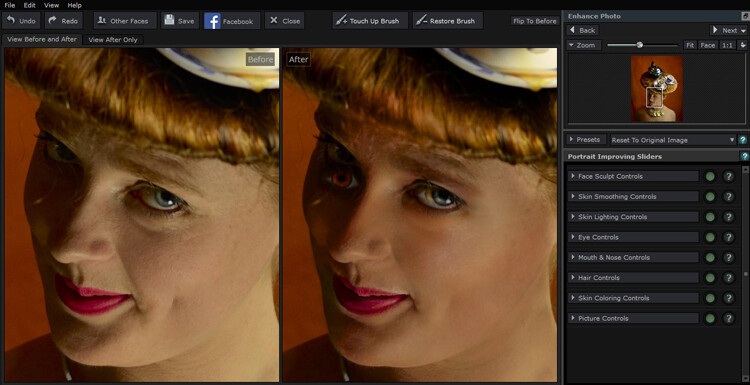
Portrait Pro did its thing and opened the before and its auto processed after image. It came up with an interesting eye situation and I thought, oh dear, this is not good.

My first attempt , not so great.

My first test image didn’t go so well, if I was going for a Picasso look, this would be great, but it wasn’t exactly what I was after.

Second attempt

Rather than succumb to instructions I tried another image. This one had the correct number of eyes, so I started playing around. The simple interface, and pop up instructions made it easy to just jump right in. I tested out the sliders and their effects, then went to town. It was pretty fun, with a bit of practice I eventually turned my blonde, brown-eyed, no make-up friend into a saucy red lipped, blue eyed, red head vixen with an uncanny resemblance to pop star Kylie Minogue.

I won’t show you the results, because the before shot was a not exactly flattering lighting test, when I say not flattering, a beautiful woman looked more like a potato than herself, and I would like to keep the friendship. I did show my friend both images and she really liked the after shot.

That had me thinking this program certainly has potential. I had only been mucking about and I turned an unusable portrait shot into something the subject of the portrait really liked.

Testing on a tough shot

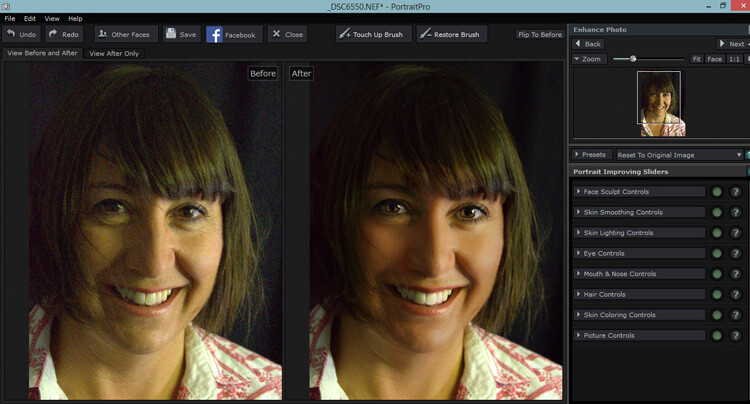
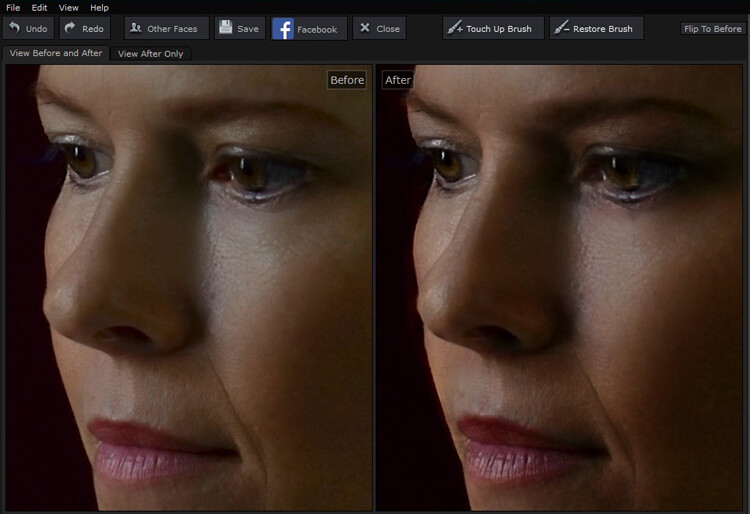
So I decided to put the program through its paces with a poorly lit, overly grainy, weirdly white balanced shot of a dear friend who looks lovely no matter how terribly I might light her. Portrait Pro popped up with the auto version, it gave her quite the tan and sparkly, but kinda spooky eyes.

The auto edit can make for spooky eyes

Portrait Pro helps out by offering up an auto edited version to work from.

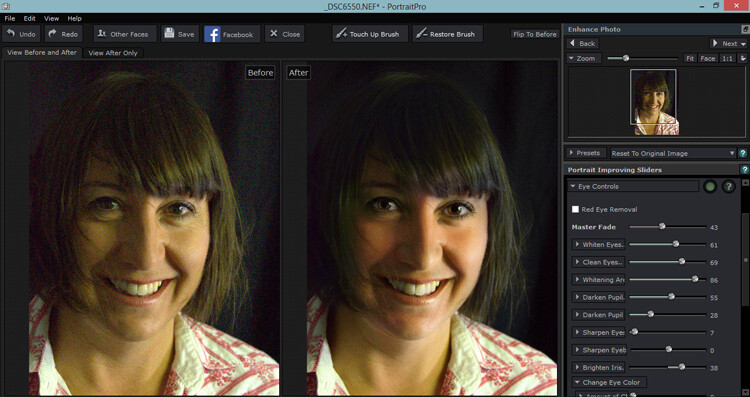
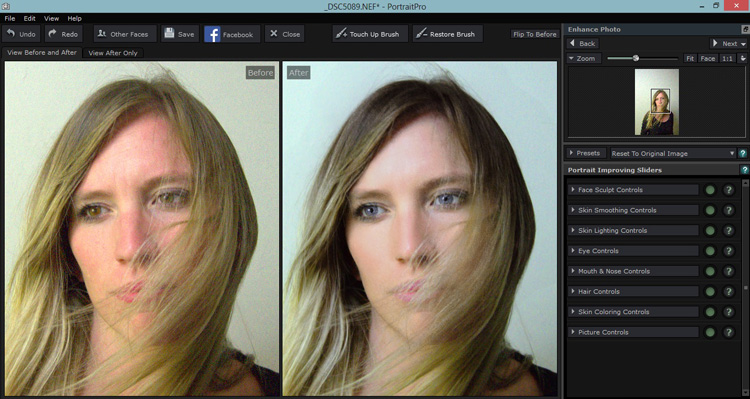
But this where the easy to use sliders come in. You can adjust how much the skin is smoothed, colored, alter lighting, or how much cyborg look you want in the eyes. I was pleased to see you could just use this program subtlety. I could do a fair bit of gentle retouching, even on this poorly photographed shot that I either would have been unable to, wouldn’t have been bothered to, or taken for ever to do in Photoshop.

Much less spooky looking with less slider action.

Pulling back the sliders to get a more natural look.

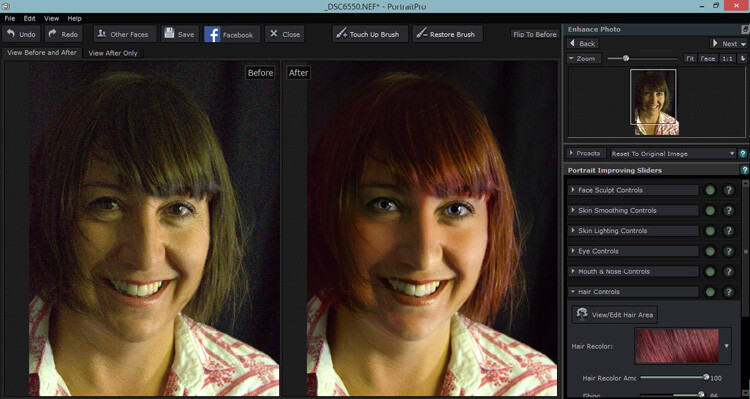
Of course after that I couldn’t help myself with pushing it a bit further.

The sliders can also smooth, lighten,add shine to hair.

It was super fun playing around with the hair/eye color adjusters. I can see this being handy for some of my more surreal fine art images. After showing this version to my friend, she is now considering this new hair color!

Testing on a saleable shot

I was pretty impressed that I could pull something out of a rejected shot with this program, but what about a shot I would use? Would it be subtle enough to be useful for my regular work? Turns out yes, the sliders make it possible to add very slight retouching, and still maintain the natural look of the portrait.

Subtle is best in my books. I like to see wrinkles and pores!

While Portrait Pro can smooth out wrinkles and pores, it can also be used very subtly without loosing the natural look of your subject.

After playing with some faces, I thought all well and good but now the neck looks weird and the face and body don’t match, but turns out you can adjust those too. You can also batch process with the Studio Max version and work directly with Raw files.

I was pretty much sold on the program by this point, but I had a free version, would I actually pay for it? I was pretty surprised to see that it sells for around A$ 100, depending on which version you choose. For that price, I absolutely would buy it, even as a photographer who likes to keep programs to a minimum, and doesn’t like to fork out for new ones.

Any issues?

My only issues were finding the face alignment tool a bit tricky on some images, but then again, I still haven’t actually read the instructions. That was the only issue I had with the program itself, I took a slight offence with the promotional line “Slimmer subjects result in happier clients and more revenue“ in reference to the program’s ability to change face and body shape.

I’m sure that is true, but do we as photographers, really want to make money out of peoples insecurities? To edit distracting parts of a photograph and improve lighting flaws, sure, but to pander to the illusion of perfection created by modern media, not so much. I’d prefer my subjects to see themselves in their portrait as they are and still like what they see with the only retouching being to fix faults in my camera work, not in them. Portrait Pro can do both.

I have no doubt I will continue to use this program, both in my fine art and regular portraits. It will clearly save some editing time and in some cases does a better job that I would in Photoshop. I particularly liked the ability to adjust the lighting and skin tones. I’m even inclined to read the instructions and check out a few tutorials to really get to know the program. In fact I wish I had found it sooner.

Having fun with eye color!

My favorite part of this program was how much fun I had playing with it and how easy it was to use straight away, with impressive results even on not so great original images.

I can’t compare Portrait Pro to any other retouching programs, but as someone who has been against them in general and preferred to stick to Photoshop, I’m converted. It’s simple and fun to use, you have a lot of control of the subtlety with the sliders and it produces great time saving results. It’s a thumbs up from me.

How do you feel about retouching? Would you use a program like this? Have you ever tried a program like this? Tell us about your experiences and results.

googletag.cmd.push(function() {
tablet_slots.push( googletag.defineSlot( “/1005424/_dPSv4_tab-all-article-bottom_(300×250)”, [300, 250], “pb-ad-78623” ).addService( googletag.pubads() ) ); } );

googletag.cmd.push(function() {
mobile_slots.push( googletag.defineSlot( “/1005424/_dPSv4_mob-all-article-bottom_(300×250)”, [300, 250], “pb-ad-78158” ).addService( googletag.pubads() ) ); } );

The post Portrait Pro v12 Studio Max Editing Software Review by Lea Hawkins appeared first on Digital Photography School.


Digital Photography School

 
Comments Off on Portrait Pro v12 Studio Max Editing Software Review

Posted in Photography


The Most Under-Valued Editing Tool for Architectural Photos

04 Jun

Gradient-header

Nothing catches the eye of a potential home buyer or design client quite like a beautiful set of photos. Whether it’s for real estate agents, designers, or homeowners, expectations are high, and restrictions are often many. It’s not uncommon to have to deal with extremely short notice, very short windows of time in which to work, or to be asked for almost immediate turnaround. We, as photographers, become torn between meeting all the needs while still producing work we are proud of… and all while still making a profit! In real estate, especially, this often leads to photos that are “good enough”. But does it have to be this way?

While most are aware of the basics of editing images for interior spaces, there is one tool that is often undervalued – the Gradient Filter. This can be a tremendous tool for helping to balance out fading light on the edges of a frame when you are limited on gear and are not able to balance out the light on location. Adding a few Gradient Filters onto an image can make your mundane interior photos go from acceptable to impressive, with minimal time invested. The Gradient tool is also excellent in helping to sharpen up towards the edges of the frame, helping to compensate slightly for lens distortion.

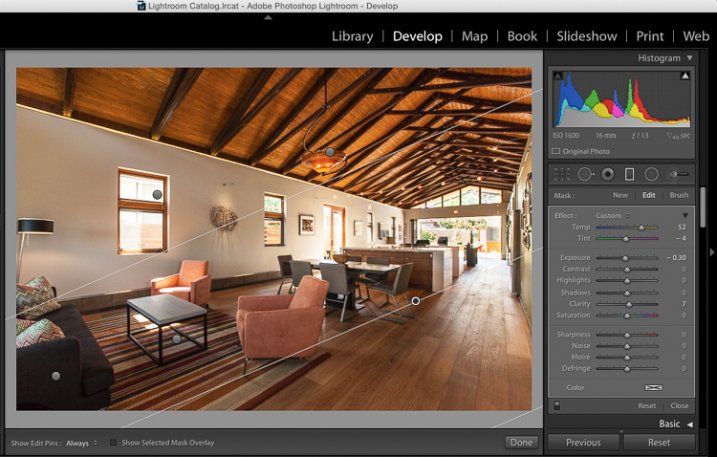
The Gradient Gilter can be found just below the histogram in Lightroom. Once applied, you can move it around by grabbing the central node, you can change the angle of it by placing cursor over center line and clicking to spin it, and you can also spread or tighten the gradient by grabbing the outermost line and moving it inward or outward. The flexibility of positioning alone is a great benefit when trying to keep editing time to a minimum.

Gradient filter tool can be found under the histogram in Lightroom

Gradient filter tool can be found under the histogram in Lightroom

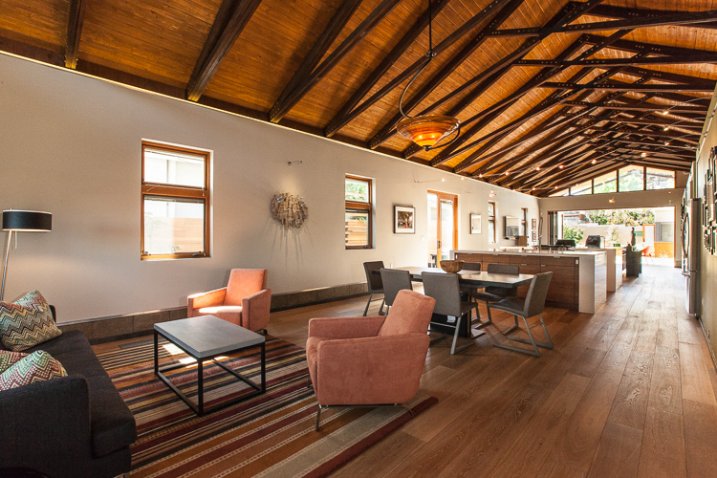
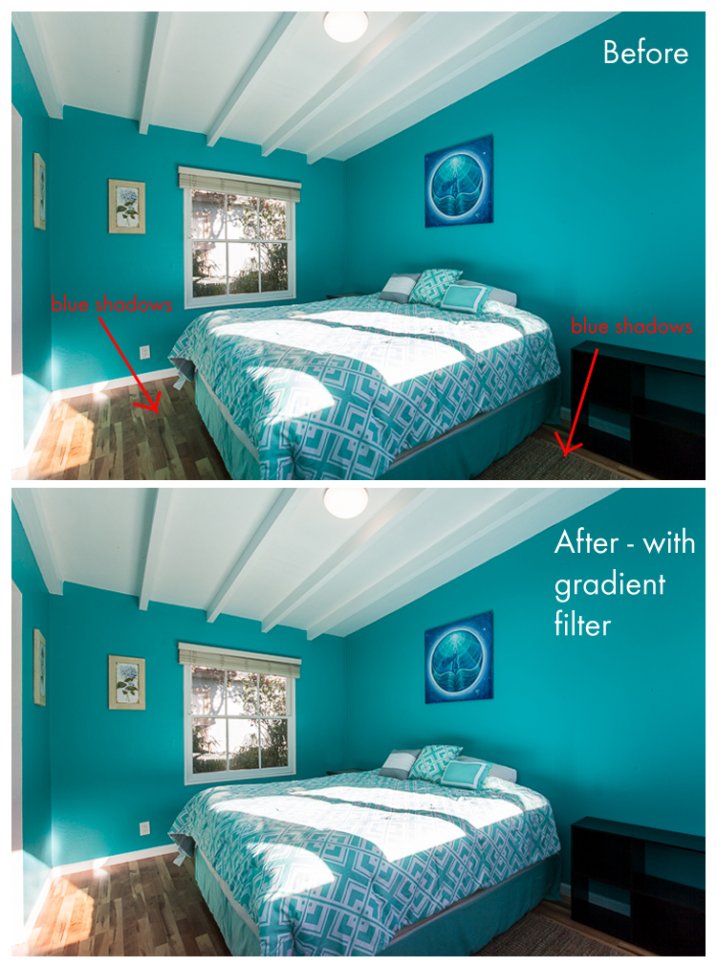
Another great quality about the gradient filter is that, unlike the lens vignetting correction (under the Lens Correction module) or the post-crop vignetting effect, the Gradient Filter can adjust many factors of the image. You can adjust exposure, temperature, tint, sharpness, clarity, and several others. This makes it a very handy tool for making subtle adjustments that would otherwise be tougher to blend in with a brush filter. In this before-and-after example, the gradient filter has been used to adjust for the blue tint in the shadows on the floor due to the bed cover. It’s a subtle adjustment that helps to elevate the quality of work.

Gradient4

Let’s look at a few more before and after photos so you can see the effect of the gradient filter. In the series below, the only change that has been done to the After photos is the addition of Gradient Filters. While the Before photos are acceptable to most, adding the Gradient Filters helps to add extra polish to the photos. It helps to bring it up another notch, and will help to impress your clients even more than usual!

Gradient3

Gradient2

Gradient1

Note that in most cases, you will want to add several gradient filters, not just one. Each space will be a bit different, but the need tends to toward adding a bit of subtle light onto the sides of the frame, along with some clarity and possible slight temperature adjustments depending on light sources.

Exterior photos can benefit just as much from the Gradient Filter as interiors! Not all scenes will need this type of adjustment, but below is an example of a common setup that benefitted greatly from gradient filter adjustments. The shadows in the lower left corner of the frame are too dark, and a gradient filter adjusting the brightness of shadows is ideal for balancing them out.

Gradient-ext

As a final point, it’s worth noting that the Gradient Filter tool is one that should finish off your editing, and should not be the main editing technique used on an image. In nearly all cases, it will be a perfect tool for some finessing of highlights/shadows or temperature so that your image will have that extra bit of polish. Before exporting your final files and sharing with your client, be sure to consider if a Gradient Filter should be added into your arsenal of editing tools.

Do you have a different tool that you feel is undervalued for photo editing? Please share your thoughts in the comments below!

googletag.cmd.push(function() {
tablet_slots.push( googletag.defineSlot( “/1005424/_dPSv4_tab-all-article-bottom_(300×250)”, [300, 250], “pb-ad-78623” ).addService( googletag.pubads() ) ); } );

googletag.cmd.push(function() {
mobile_slots.push( googletag.defineSlot( “/1005424/_dPSv4_mob-all-article-bottom_(300×250)”, [300, 250], “pb-ad-78158” ).addService( googletag.pubads() ) ); } );

The post The Most Under-Valued Editing Tool for Architectural Photos by Natalia Robert appeared first on Digital Photography School.


Digital Photography School

 
Comments Off on The Most Under-Valued Editing Tool for Architectural Photos

Posted in Photography


Overview of the New Affinity Photo Editing Software

29 Mar

In early February, software company Serif announced the free beta version of Affinity Photo, a Mac-only photo editing program said to rival the likes of other editing tools, including the standards for creative professionals, Adobe Photoshop and Lightroom. In this article, I’ll walk through the public beta version of Affinity Photo and describe some pros and cons to using this new software.

Affinity Photo Basics

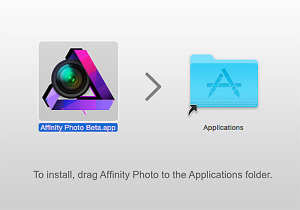
Affinity Photo editing software for MacAt the moment, Affinity Photo beta is available as a free online download and is compatible with Apple OSX Lion 10.7.5, and up. Some key features that move Affinity up in the ranks include support for CMYK color, RAW file processing, 16-bit editing, 64-bit Photoshop plug-in compatibility, ICC color management, and LAB color. A few other noteworthy tools include Affinity Photo’s Inpainting feature, which is essentially the equivalent of Adobe content-aware fill, and real-time editing that will apply edits instantly without the need to render a preview.

It’s uncertain when Affinity Photo’s full version will launch, but when it does it will be available for purchase in the Mac App Store for about $ 49.99. A Windows/PC version of the app is said to be in works, but again no solid timeline is available.

Pro: Speed and reliability

The first feature of the tool that really stood out was its speed and reliability. Affinity Photo is extremely fast and it never once crashed during the seven times I used it, which is impressive for a beta version. The tool’s speed is accredited to it being built on an entirely new and modern codebase, unlike Adobe Photoshop, which recently celebrated its 25 year anniversary and thus has been built on architecture that is also a couple decades old.

Con: Default RAW file conversion

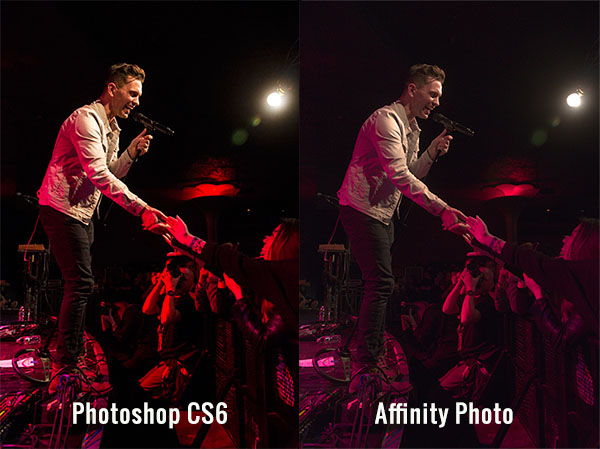
One of the most striking differences that I immediately noticed was the default adjustment that Affinity Photo made to my RAW image when I first imported it. While these defaults could likely be adjusted to taste, I was surprised at how drastically Affinity altered my image when all I did was import it.

Affinity Photo editing software for Mac

Pro: Easy access to basic photo editing tools

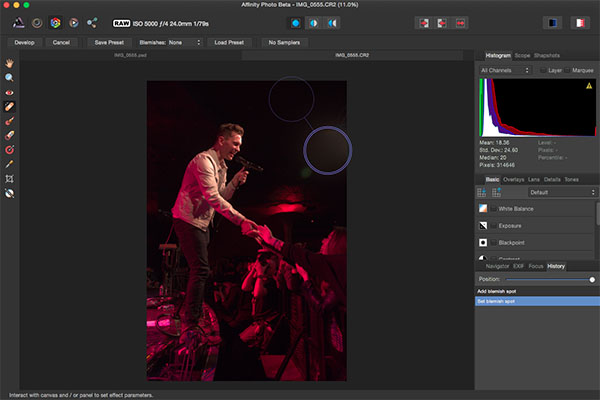
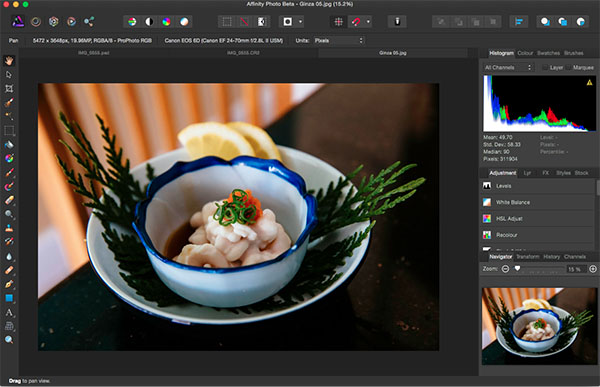
The interface, and ease of use, is where Affinity Photo really shines. Despite being a longtime Photoshop user, I’ll admit that its layout can be overly complicated, presenting too many tools that are beyond the scope of basic photo edits. While Affinity’s interface definitely borrows some features from Photoshop, its basic layout is relatively straightforward and easy to understand without requiring a ton of customization. The top bar below the menu shows all of the basic details of your photo (file format, ISO, shutter speed, aperture, etc.), which is something that seemed rather hidden and hard to find in Photoshop.

Basic editing tools are presented in the right hand panel under the histogram, the tools are nicely labeled, and easy to adjust with sliders. There is also a History tab that, in the same way that Photoshop does, keeps track of every edit, making it easy to track and reverse any changes. Hardcore photo retouchers might find these editing tools to be lacking, but for beginners or photographers in need of basic edits, these tools will get the job done in a straightforward manner.

Affinity Photo editing software for Mac

As a photographer who shoots almost exclusively in RAW, I’ve grown accustomed to the seamless integration of Camera RAW with Photoshop and Lightroom’s smooth handling of RAW image conversion. The way that Affinity handles RAW editing took a bit of troubleshooting, but was straightforward when all was understood.

Initial RAW Editing Tools

When you first open a RAW file into Affinity, there are distinctly fewer editing options and adjustments to choose from. The Basic tab offers easy access to make basic adjustments to white balance, exposure, contrast, shadows and highlights, clarity, vibrance, and black points. What was curiously missing from this panel were saturation and tint control. The Lens tab offers adjustments for lens correction, chromatic aberration reduction, vignettes, and defringing. The Details tab allows for detail refinement, noise reduction, and noise addition. The Tones tab is where you can adjust curves, split toning, and black and white image conversion. In this mode, the left hand panel also has a vertical tool bar reminiscent of Photoshop’s, but when editing RAW files, it is noticeably much sparser containing just 10 tools versus the 20+ tools in Photoshop.

Unlocking the Full Editing Menu

In order to unleash Affinity Photo’s full set of editing tools, it’s essential to click the small Develop button in the upper left hand corner of the RAW image editing window. This will transform Affinity’s interface dramatically to more closely resemble that of Photoshop. If you work exclusively with JPGs, this step will automatically be done for you upon the uploading of the JPG image, but this is an extra step when working with RAW files that to me was not so intuitive.

Affinity Photo editing software for Mac

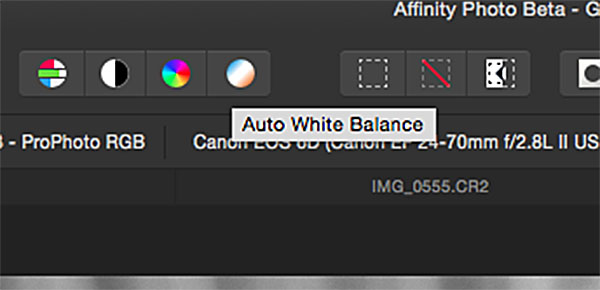
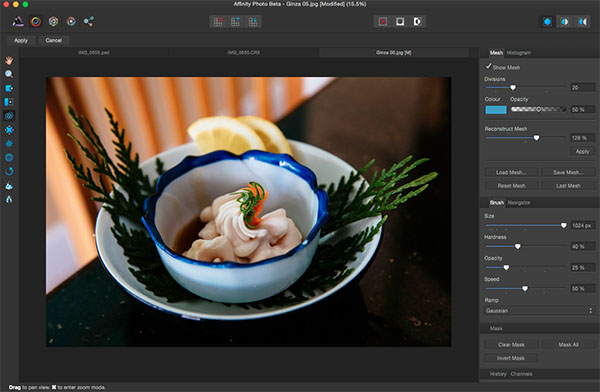
Within the full Affinity Photo interface, you no longer get the image EXIF data in the menu bar, but instead a full row of icons that offer shortcuts to quick edit features such as auto white balance, contrast, and color. There are also several icons on the right that describe different personas such as Liquify, Develop and Macro Persona. A couple of these were not yet available in thw beta version, but clicking on the Liquify Persona offered just about the same editing tools and capabilities that Photoshop’s liquify feature does. For the sake of demonstration, the below image shows off the use of Affinity’s Liquify Twirl Tool, which was intuitive and easy to use.

Affinity Photo editing software for Mac

Affinity Photo editing software for Mac

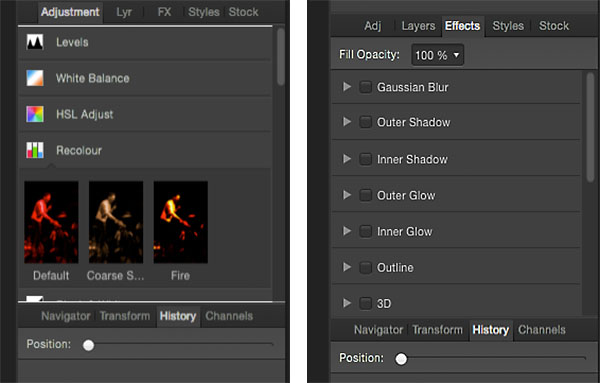
Note that the left hand tool bar is significantly longer offering; paint brushes, clone tools, dodging and burning, text overlays, and much more. The right hand editing tool panel is also laid out differently with tabs including Adjustment, Layers, Effects, and Styles. Want to add a Gaussian blur or 3D effect to your image? Just head over to the Effects tab and check the box next to the desired effect, and it is instantly applied as opposed to hunting around menus or creating an action as you would do in Photoshop.

Affinity Photo editing software for Mac

Closing Thoughts

It’s not often that a platform emerges to go head-on with Adobe, but so far Affinity Photo is setting itself up as a professional-grade app. While there are many high level features for advanced photo editing, there are also lots of basic photo editing tools that are intuitively positioned, making Affinity much more approachable for beginning or amateur photographers.

Whatever the fate of Affinity Photo, the fact that companies like Serif are working on platforms to advance the process of photo editing adds healthy competition to an industry that has long been dominated by big players like Adobe and will hopefully give photographers more options in the future.

Have you tested out Affinity beta yet? If so, what are your thoughts about what works well, and what could be improved?

googletag.cmd.push(function() {
tablet_slots.push( googletag.defineSlot( “/1005424/_dPSv4_tab-all-article-bottom_(300×250)”, [300, 250], “pb-ad-78623” ).addService( googletag.pubads() ) ); } );

googletag.cmd.push(function() {
mobile_slots.push( googletag.defineSlot( “/1005424/_dPSv4_mob-all-article-bottom_(300×250)”, [300, 250], “pb-ad-78158” ).addService( googletag.pubads() ) ); } );

The post Overview of the New Affinity Photo Editing Software by Suzi Pratt appeared first on Digital Photography School.


Digital Photography School

 
Comments Off on Overview of the New Affinity Photo Editing Software

Posted in Photography


Enlight for iOS launches with high-end photo editing tools

14 Mar

The developers behind Facetune have created a new app called Enlight, a general purpose image editor. It challenges apps like VSCO Cam and Adobe’s own mobile image editors, with adjustment tools, presets and various filters. Read more

Articles: Digital Photography Review (dpreview.com)

 
Comments Off on Enlight for iOS launches with high-end photo editing tools

Posted in Uncategorized


Vital Tips for Photographing and Editing Interiors

15 Feb

Shooting interiors can be tricky. Spaces tend to either look cold and empty, or warm and inviting. While we always strive to capture what the eye sees, the complexity of the human eye will never be matched by the lens of any camera. Still, there are things you can do before, during, and after shooting an interior space that will go a long way in improving your chances of ending up with stellar photos.

Not sure where to start for improving your architectural photos? Here are my favorite tips for photographing interiors, plus some tricks for touching them up with Adobe Lightroom.

Interiors1

How to Shoot Your Best Interior Photos

Grab your favorite camera and use these tips for snapping more professional-looking photos every time.

1. Prepare the space

Set the stage by taking the time to de-clutter and open up the space. Clear all flat surfaces and floor areas. Open all blinds and curtains. Clean any dirty dishes in the sink and put them away. Be sure to clean the space much more so than you would for yourself. We get used to clutter and become blind to it, but a bit of clutter in a photo goes a very long way.

2. Add warmth and life with personal touches

The space should feel lived-in and inviting, like the kind of place you can imagine yourself spending your days.

You can create those feelings in your photos, by adding personal touches. Set the dining table for two and place a vase of fresh flowers in the center. Transform an empty breakfast nook into a great spot to lounge by adding a newspaper, coffee cup, and a plate or bowl of light (and pretty) snacks. Hang a fluffy bathrobe on a hook next to the bathtub.

When it comes to decorations or color palettes, you want to either fill the space with personality to play up the uniqueness of it, or keep everything neutral with pops of bright color.

Interiors2

3. Fill the room with light

All interior lights MUST be on. While they’re not necessarily helpful in actually lighting the space, they help to create the ambiance. The absence of interior lights will give the space a cold, empty feel.

When using flash, never directly point it into the space. Instead, bounce it off the ceiling or walls, depending on what the space offers. If you can help it, always use flash as a source to fill in shadows, rather than as a main source. That said, if there is enough ambient light (which is your ultimate goal), skip using flash altogether.

Also, play with the strength of your flash. For my Canon, I like to slightly overexpose by about 1/3 of a stop and push the flash to about +2/3 in ETTL mode. Each camera can be different, so don’t be shy about experimenting with what works best with yours.

For outdoor shots, consider setting your flash to manual mode and using it as the fill light. I tend to set mine at 1/16th of full strength, but again, experiment with what works with your camera’s setting and your personal preference.

4. Shoot low

Keep verticals as truly vertical as possible by shooting from a slightly lower camera angle. If you’re going for a graphic composition, watch your horizontals as well. It’s quite easy to fix these issues in Lightroom during your final edit (see more in the first editing tip below).

5. Strike a balance

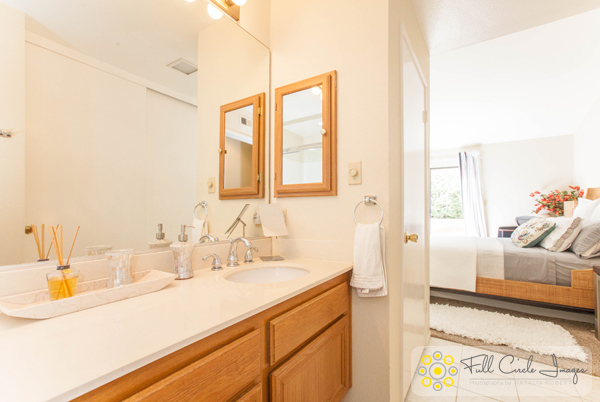
When composing your shot, focus the viewer’s attention on where you want it to go. Consider using staged items to add depth and interest in the foreground. Try blurring the background to make foreground objects really pop. Avoid flat looking photos by contrasting different elements in the foreground, middle-ground and background. Remember to aim for balance, not distraction.

Using the background to show a connecting room is also a great way to give the viewer a sense of space. This will add interest and make the viewer feel like they can visualize walking through the home.
Interiors3

How to Edit Your Interior Photos

Import your photos to Lightroom and follow these basic editing steps to create more powerful images. Tip: You can also use Photoshop for many of the steps laid out below.

1. Straighten out the lines

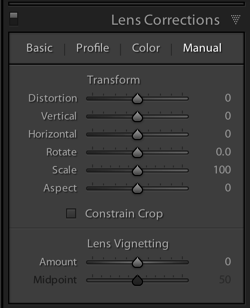
Doing this will instantly polish up your photos. If you shot at a height of roughly five feet from the floor and kept the camera level, the amount of straightening you have to correct should be minimal. In Lightroom, you can find this tool under Lens Correction under the Manual section (tab).

2. Fill in and even out the light
Screen Shot 2015 02 10 at 2 01 28 PM

Before doing any adjustment to brightness or exposure, be sure to correct any lens vignetting that may have happened. This is when the corners of the image are a bit darker, and is a common effect in wide lenses. You can find the slider for this setting in Lightroom under Lens Correction, Manual, then Vignetting.

Once your corners are corrected, use the Adjustment Brush to correct the exposure in bright or dark areas. This is your time to “dodge and burn.” I find that erring on the side of overexposure actually has a more natural feel to the space. I recommend pushing the overall exposure up slowly, then when it feels too bright, start pulling back.

You can also lighten dark areas slightly with the shadows slider in the top (Basic panel) section. However, be careful not to lighten so much that you bring out grain (noise) or that the image looks fake.

3. Perform color corrections

Adjust the overall temperature as needed. You’re aiming for warmth, not yellow. Also, bump up the Vibrance a bit instead of messing with the saturation. Oversaturating can quickly make a photo look too fake, while Vibrance is a more subtle tool that helps give the color a little extra kick. Again, playing with the sliders on these settings, and seeing what your eye is comfortable with, will go a long way toward honing color-correcting skills.

Interiors4

4. Adjust the clarity and sharpness

Push the Clarity slider up (to the right) slowly. Clarity is a great way to polish up a photo without going overboard on contrast; plus, it gives the photo an overall crisp look. Depending on the image, you may want to simultaneously play with darkening the blacks a bit, too.

Lightroom has two great presets built-in for sharpening: faces and scenic. I use scenic for architectural mages because it sharpens a bit more than the preset for faces. It’s a subtle, but vital, touch.

5. Clean up with spot removal and cloning

Use the Spot Brush tool to remove any dust spots or other anomalies that may have gotten onto the photo. You will see two options in Lightroom for the brush: Clone and Heal. Healing is a great option when correcting small spots, as it will have a softer blend to it. Next, use the Cloning tool to remove any glares or reflections of you in the photo. You can also use it to remove address numbers, if requested.

While I typically use Lightroom for editing photos, my personal preference for cloning is Photoshop’s stamp tool. It seems to allow for more control over the brush itself, therefore making it easier to clone in a way that looks natural.

How do you shoot and edit interior spaces? Share your tips and photos in the comments section below.

googletag.cmd.push(function() {
tablet_slots.push( googletag.defineSlot( “/1005424/_dPSv4_tab-all-article-bottom_(300×250)”, [300, 250], “pb-ad-78623” ).addService( googletag.pubads() ) ); } );

googletag.cmd.push(function() {
mobile_slots.push( googletag.defineSlot( “/1005424/_dPSv4_mob-all-article-bottom_(300×250)”, [300, 250], “pb-ad-78158” ).addService( googletag.pubads() ) ); } );

The post Vital Tips for Photographing and Editing Interiors by Natalia Robert appeared first on Digital Photography School.


Digital Photography School

 
Comments Off on Vital Tips for Photographing and Editing Interiors

Posted in Photography