RSS
 

Posts Tagged ‘easy’

Two Methods for Shooting Star Trails Made Easy

23 Oct

As a landscape photographer, it can be easy to find stunning subject matter to photograph during the day. At night, things become more difficult as the sun goes down, but there is still plenty to photograph. With some patience, you can create stunning images featuring the stars as your backdrop, or even your subject.
star trails, night, photography, sky, astrophotography

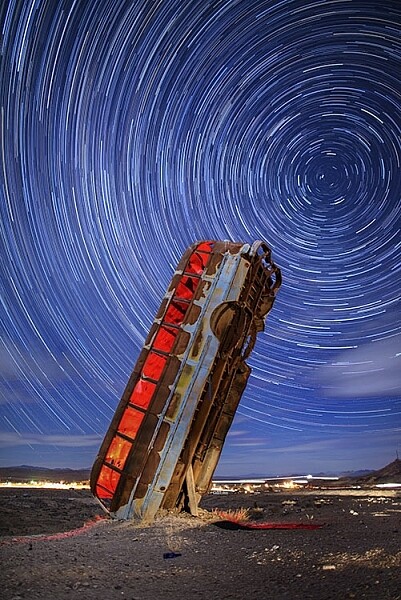
This image is a composite of 156 separate exposures, merged using StarStax software. Each exposure was ISO 400, f/2.8, 30 seconds. The red glow inside the bus was done by shining a red LED flashlight inside the bus from the other side, during one of the exposures.

Equipment list

Before you get started, you’re going to need a few things:

  • A good sturdy tripod is absolutely essential, I’m using an Induro GTT204M2.
  • A wired remote for your camera is also a necessity. Which model you use will depend on the camera you have.
  • A fully charged battery is a must. The vertical grips that are available for some cameras, allowing you to use two batteries at once for longer life, can also be helpful.
  • A flashlight can come in handy, both for finding your way to the location, and for light painting in the foreground.
  • Finally, a large memory card, or two if your camera has dual slots, will be needed.

#1 – The One-Shot Method

There are two ways to photograph star trails. The first is the old-fashioned way, using a single exposure.

For this method, exposures can range anywhere from several minutes, to several hours. This method was the only way to photograph star trails in the days before digital cameras. When using the single exposure method, your camera needs to be in manual mode, with the shutter speed set to Bulb. Some cameras have a separate mode for Bulb. It is like manual mode, but the shutter stays open for as long as the release button is depressed. A time controller such as the Nikon MC-36A, or Canon TC-80N3 can make things easier by allowing you to lock the shutter button down, or program a set amount of time for the exposure.

ISO should be set to 400. You’ll want to set your aperture somewhere around f/4. The wider the aperture is open, the brighter the star trails will be. If you are photographing in a completely dark setting, with no moonlight, the stars will likely be the brightest object in your scene. Once you’ve set your aperture, you need to decide how long a star trail you want. The longer the exposure, the longer the trails.  The image below was a 30 minute exposure.
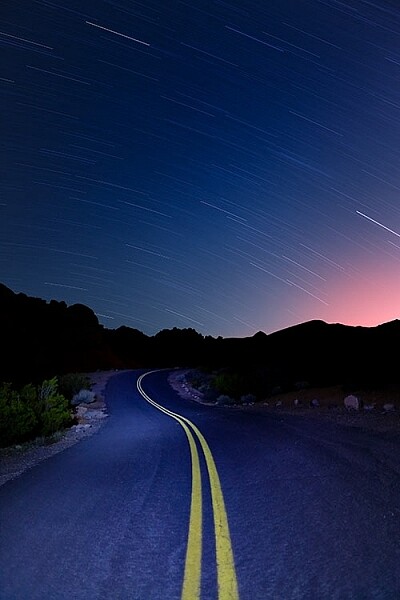
This image was created as a single exposure. Exposure time was 30 minutes, ISO 100, f/5.6. The star trails are dimmer due to the smaller aperture, the fact that the moon was still in the sky, and light pollution from the city in the distance, seen as the glow to the right.

This image was created as a single exposure. Exposure time was 30 minutes, ISO 100, f/5.6. The star trails are dimmer due to the smaller aperture, the fact that the moon was still in the sky, and light pollution from the city in the distance, seen as the glow to the right. The street in the foreground was painted with an LED flashlight for several seconds during the exposure.

One thing you need to be concerned with when using a single long exposure is Long Exposure Noise Reduction. If you choose to photograph star trails using a single exposure, the heat generated on the imaging sensor adds noise to the image. Turning on Long Exposure Noise Reduction reduces that noise by using a method known as dark frame subtraction. I previously discussed dark frame subtraction in the article The Night Sky In Landscape Photography. Long Exposure Noise Reduction doubles the length of time needed to make an image. The camera first takes the exposure. In this case, let’s say the exposure is one minute.Long Exposure Noise Reduction then requires another minute to reduce the noise created by the long exposure. That means if you make a star trail exposure for 15 minutes, your camera will be unavailable to take another picture for 30 minutes. You’ll need to make sure you have enough battery to keep the camera powered while it carries out Long Exposure Noise Reduction.
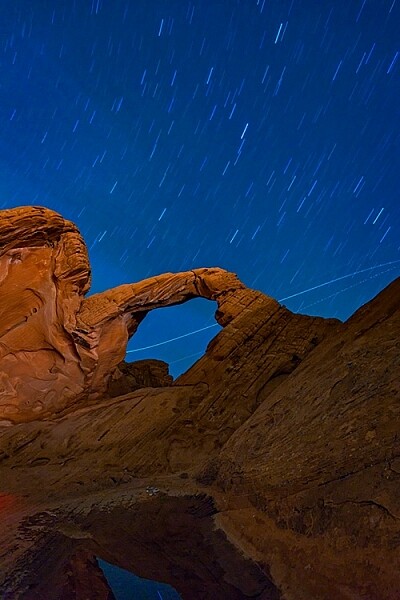
This is a single exposure of 10 minutes, ISO 400, f/5.6.

This is a single exposure of 10 minutes, ISO 400, f/5.6.

In addition to Long Exposure Noise Reduction, another consideration is the length of the exposure itself. There is nothing worse than standing next to your camera while it makes a 30 or 45 minute exposure, and two-thirds of the way through the exposure, a car goes past, shining its headlights across the scene and ruining the exposure. It’s happened to the best of us.

#2 – Merging Multiple Exposures

This is where the second method for photographing star trails comes in. With the advancement of digital imaging, stacking multiple exposures has become possible, and has made creating star trail images easier than ever. By taking a series of drastically shorter exposures, then stacking them in software such as StarStaX, you can increase your flexibility as a photographer, because there are two benefits to this method. The first is that since the exposure are shorter, you can turn off Long Exposure Noise Reduction. The second benefit is that even if a car drives by to ruin the exposure, it’s only one small piece of the sequence, so you can just delete the one frame that was ruined.

StarStaX works by blending a series of images, allowing you to capture the motion of stars in the sky, similar to a single exposure. The one drawback to using software like StarStaX is if clouds are also moving across the sky, it has a tendency to create a stepped shape with them that doesn’t look natural. Better Star Trails Photographs with StarStax is an excellent tutorial for using StarStaX.

Camera settings

To use the stacking method for shooting star trails, set your camera to Manual mode and your camera’s drive to Continuous. Start with your aperture set to f/4. This setting can be adjusted, but the wider the aperture, the brighter the trails. However, be careful to ensure you have enough depth of field, and aren’t overexposing the stars. Shutter speed will be 30 seconds. ISO should be set to 400. Using the time controller or remote for your camera, release the shutter, and use the locking mechanism to keep the shutter button on the remote depressed. With the camera in continuous drive mode, as each exposure ends, another will begin until you stop it. This also minimizes the pause between each exposure, which can cause small breaks in the star trails when the exposures are merged. Alternatively you can use an intervalometer feature if you camera has that, or similar type of remote.
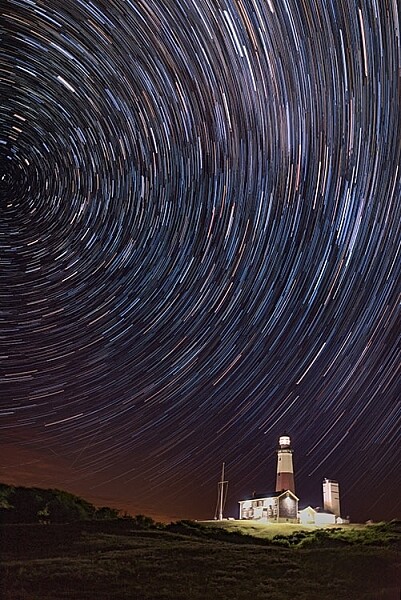
star trails, night, photography, sky, astrophotography

This image is a combination of 121 exposures merged in StarStaX. Each exposure was 15 seconds, ISO 400, f/1.4. To keep the lighthouse from being so bright that it would overpower the star trails, a 3-stop soft-edged graduated neutral density filter was used.

It can be easy to forget the rules of composition when photographing star trails, so don’t get so fixated on the stars that you forget to look at the foreground as well. Chances are your foreground will be shrouded in darkness. A flashlight can come in handy for painting the foreground object with light to make it stand out in the darkness. Colored gels can allow you to get creative with the light painting. When stacking images, you’ll only need to illuminate your foreground for a single frame, as StarStax will use the illuminated exposure for that foreground object.

By the same token, there may be a time where your foreground object is brightly illuminated, as with the lighthouse image above. So I carry a set of graduated neutral density filters, even when shooting at night. For the lighthouse image, I mounted a Vü filters 3-stop soft-edged ND grad on my lens, so that the dark side of the filter was over the bottom half of the frame. This allowed me to keep the lighthouse exposure dim enough to still allow the stars to register in the exposure as well.
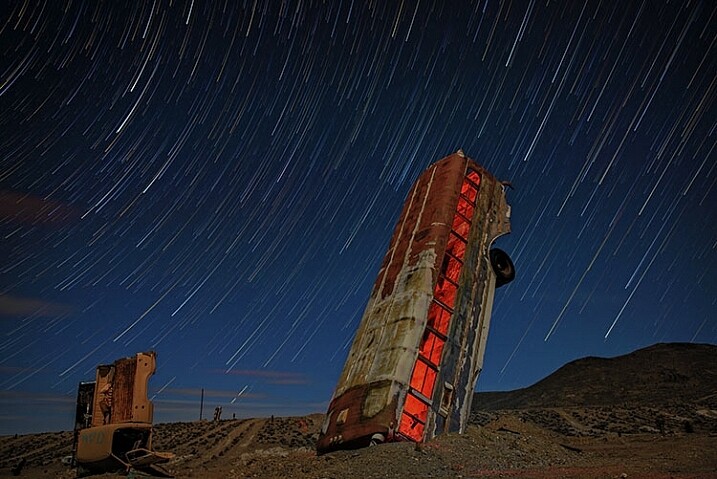
This image was created by merging 116 separate exposures in StarStax software in comet mode. Each exposure was 30 seconds, ISO 400 at f/2.8. A red LED flashlight was shone inside the bus for the first exposure.

This image was created by merging 116 separate exposures in StarStax software in comet mode. Each exposure was 30 seconds, ISO 400 at f/2.8. A red LED flashlight was shone inside the bus for the first exposure.

Once you’ve found your foreground, think about the direction you are facing. When facing north, star trails will form concentric circles. When facing away from the north, star trails will simply be slanted lines or arcs in the sky. Both can create interesting and awe-inspiring images.

Now that you know you don’t have to put your camera away when the sun goes down, you need to find some dark sky to get the best results with star trails. The International Dark Sky Association has a great tool on their website to help you find the best places for night sky photography.

Show some of your best star trail images below!

googletag.cmd.push(function() {
tablet_slots.push( googletag.defineSlot( “/1005424/_dPSv4_tab-all-article-bottom_(300×250)”, [300, 250], “pb-ad-78623” ).addService( googletag.pubads() ) ); } );

googletag.cmd.push(function() {
mobile_slots.push( googletag.defineSlot( “/1005424/_dPSv4_mob-all-article-bottom_(300×250)”, [300, 250], “pb-ad-78158” ).addService( googletag.pubads() ) ); } );

The post Two Methods for Shooting Star Trails Made Easy by Rick Berk appeared first on Digital Photography School.


Digital Photography School

 
Comments Off on Two Methods for Shooting Star Trails Made Easy

Posted in Photography


Reversible Concrete: 3D Printing for Easy Deconstruction & Reuse

10 Oct

[ By WebUrbanist in Conceptual & Futuristic & Technology. ]

temporary concrete

Reinventing one of the world’s most ubiquitous building materials, this concrete alternative developed at MIT can be 3D-printed then disassembled without wasting unnecessary energy or creating useless debris. Imagine the possibilities temporary concrete architecture that is easy to deconstruct with zero material loss.

temporary rock string concrete

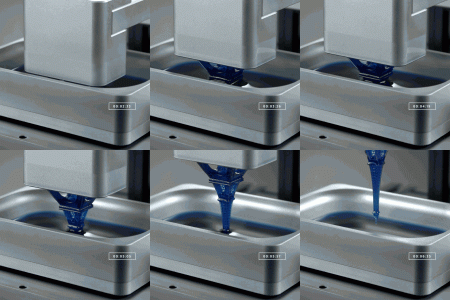
Rock Print effectively shoves rocks into position, binding them with computer-controlled string. The result in this demonstration at the Chicago Architecture Biennial is a rigid 13-foot column that can be cleanly unraveled into its constituent parts.

temporary architecture concrete alternative

A product of the Self-Assembly Lab at the Massachusetts Institute of Technology, this approach suggests a new way to think about concrete, a material that is typically cheap and easy to use in construction but expensive and wasteful when it comes to demolition.

temporary concrete jammed rocks

As Skylar Tibbits explains, “We are using a similar technique to powder-based printing. There is a container, material is deposited layer by layer and a ‘binder (in this case the string) is applied to each layer in the specific pattern of the slice.”

temporary concrete column detail

Effectively any shape is possible thanks to the 3D printing process, while the results are strong and durable, relying on the physics of jamming and collective strength of composited stones. Even more importantly, the reversibility of the process makes this a far more eco-friendly way to build rigid structures from durable materials that still dismantle on demand.

Share on Facebook


[ By WebUrbanist in Conceptual & Futuristic & Technology. ]

[ WebUrbanist | Archives | Galleries | Privacy | TOS ]


WebUrbanist

 
Comments Off on Reversible Concrete: 3D Printing for Easy Deconstruction & Reuse

Posted in Creativity


Fast-Flipping Flybike Folds for Easy Transport in Seconds

06 Oct

[ By Steph in Technology & Vehicles & Mods. ]

flybike 3

Pull up on the center of this electric bicycle’s frame and the whole thing instantly folds in half, making it easy to tote the smart-phone-connected bike virtually anywhere in the city. The Gi ‘FlyBike’ aims to revolutionize urban commuting with ultimate portability, zero maintenance requirements and an electric system that helps riders ascend tough hills. It’s crafted from ultra-lightweight aircraft grade aluminum, weighing in at just 37 pounds.

flybike 2

The three speed assistance propelling motor gets 64 kilometers (39.7 miles) per charge and can sync with both Androids and iPhones, offering up a GPS tracking system, hands-free navigation system and smart-lock anti-theft system. It’s got full-size 26” wheels, anti-puncture tires that still provide a comfortable ride, and a “trousers-friendly” non-grease belt drive.

flybike 4

flybike 5

You can charge your phone while you’re riding, and smart lights come on automatically after dark when the bike is in use. The FlyBike achieves a top speed of 15mph on the highest level of electric assistance, but you can go faster by pedaling if you’re not in a heavily-trafficked urban area. It takes about four hours to fully charge the battery using an ordinary power outlet.

flybike 6

flybike 7

A mobile app lets you control the lights, lock the bike automatically, loan it to a friend and keep tabs on its location. You can program it to lock automatically when it detects that your phone is 10 feet away from the folded bike.The Gi FlyBike is currently raising funds for production on Kickstarter, and the rewards that’ll get you one of your own start at $ 1,990.

Share on Facebook


[ By Steph in Technology & Vehicles & Mods. ]

[ WebUrbanist | Archives | Galleries | Privacy | TOS ]


WebUrbanist

 
Comments Off on Fast-Flipping Flybike Folds for Easy Transport in Seconds

Posted in Creativity


Easy Tips to Help Beginners Understand Composition

20 Sep
Title-portrait-subject's-eye-above-the-horizon-line

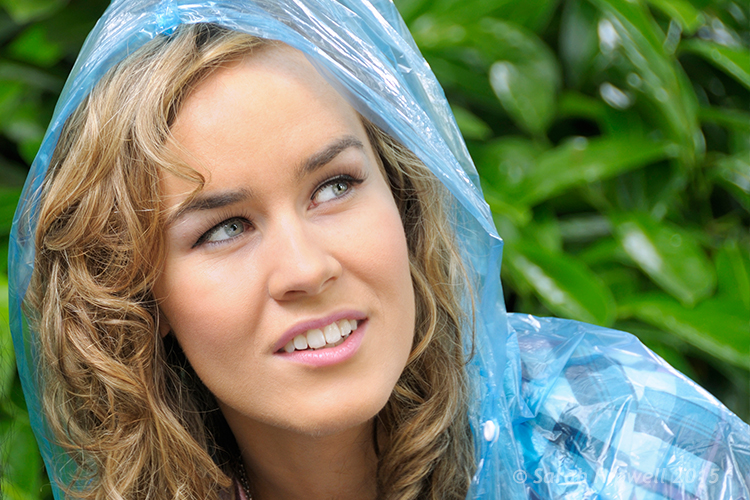
Place your subject to the right or left of centre. For portraits, the eyes should be above the centre line for a pleasant good composition.

Composition is all about the balance of the elements in your photograph. This also includes colors tones and textures. This is what separates a snapshot from a great shot. If you want to achieve a good composition, you need to plan it out and see where each element is going to be placed before you take the shot.

You may have heard photographers talk about seeing the shot in their head before they have actually taken the shot. It’s this ‘seeing’ that I’m going to describe in more detail. I’ll also demonstrate a few useful tips to train your eye in seeing or framing a scene with or without a camera, and in post-editing.

A good composition in a photo will most likely have followed a compositional rule. These are very useful to know. I’ve chosen five of these principles to describe how they work. I prefer to call them principles or guides rather than rules. There are many more, but these five are a good place to start.

cut-out-cardboard-frame

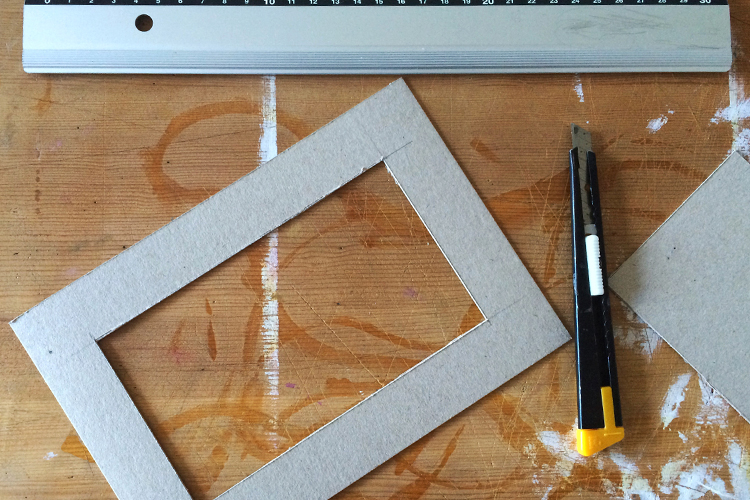
Cut-out cardboard frame for training your eye to see.


Let’s get back to seeing your shot or framing the scene. For this exercise, you won’t need a camera. You might get funny looks but bear with me. Choose any place, location that you want.

Cut out a frame from cardboard or any material you want as long as it’s a rectangle. See above.

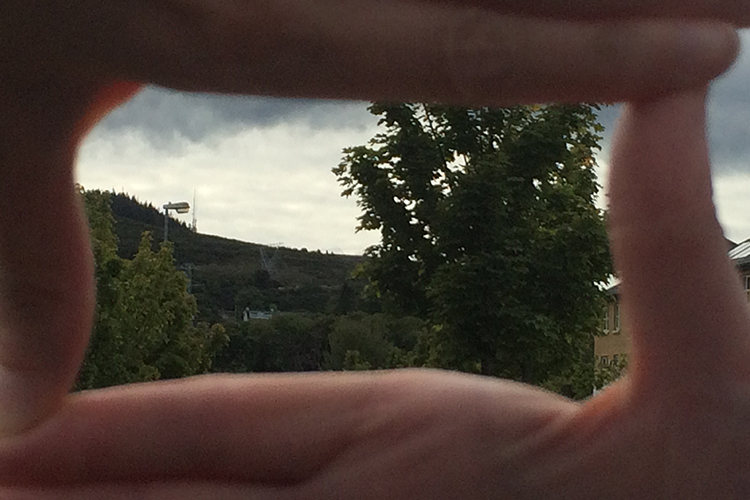
You could equally use your hands, but I preferred using the cardboard frame.


frame-the-scene-hands

Framing your shot using hands.


As you will see, the frame narrows your field of vision and helps to block out distractions and look for the main focal point, which is what the viewer’s eye is drawn to. I can’t emphasize enough that this simple exercise will help you train your eye to see better in terms of composition. Don’t forget to get down low and look up too.


What-we-see

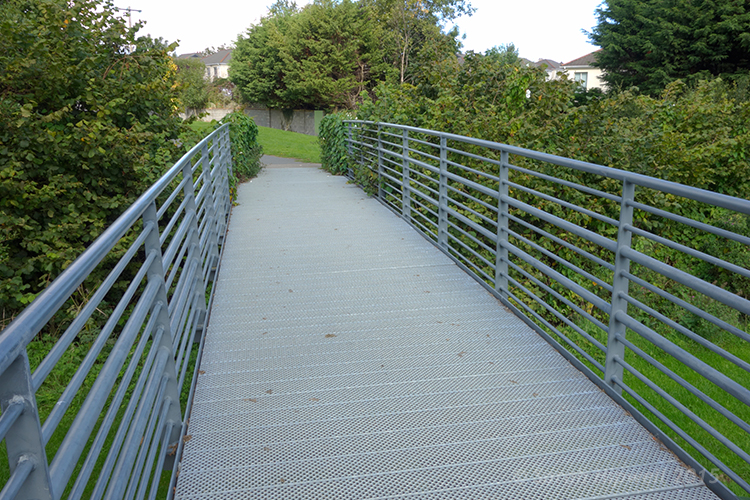
Take this metal bridge, for example. Not a very interesting photo.


framing-the-shot-bridge

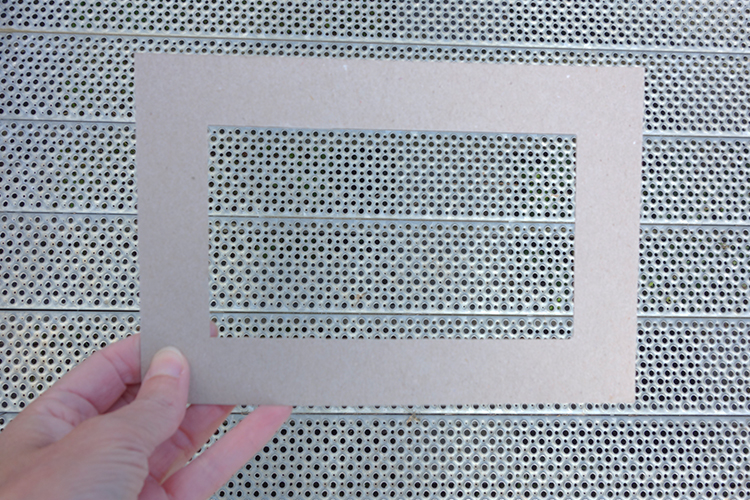
By using the cardboard frame to ‘see’ the potential for an interesting shot.


final-image-how-we-see

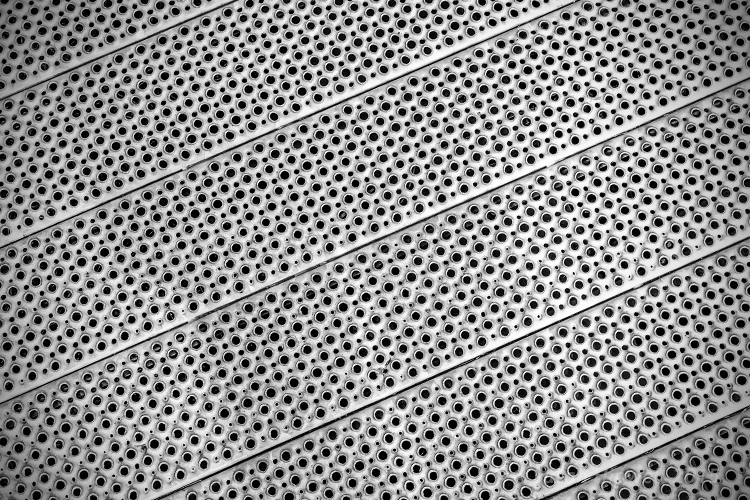
Bring it into your post-editing software and create an interesting texture shot.

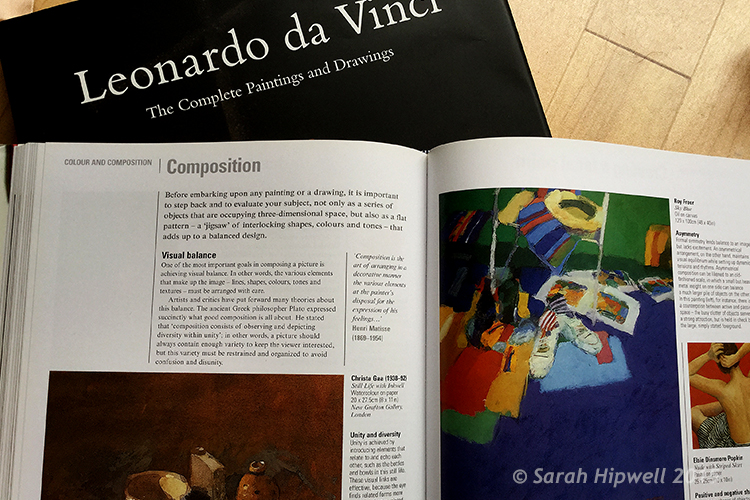
Another useful tip that I would highly recommend is a trip to your local art gallery to see great works of art. Not only is it visually pleasing, but you get the chance to study how these great artists used composition to great effect. So the next time that you happen to be in such a museum, observe and take note. Ask why you liked a particular painting? How were the elements in the painting arranged or placed? Where was the horizon line – a third up from the bottom? What about color and texture?

Okay, what if you don’t live near an art gallery? Then maybe a visit to your local library could be an option? Libraries are such a wonderful resource. In the art section alone, you have great masters, such as Leonardo da Vinci, Rembrandt and so forth. And of course, the masters in the photography world such as Henri Cartier-Bresson and Ansel Adams, to name just a couple.

Art-books

Go to your local library for inspiration from the masters in the art world to see how they used composition in their works.


Before you go and get your camera, let me explain the following five compositional principles I believe are a great starting point for beginners.

Rule of Thirds

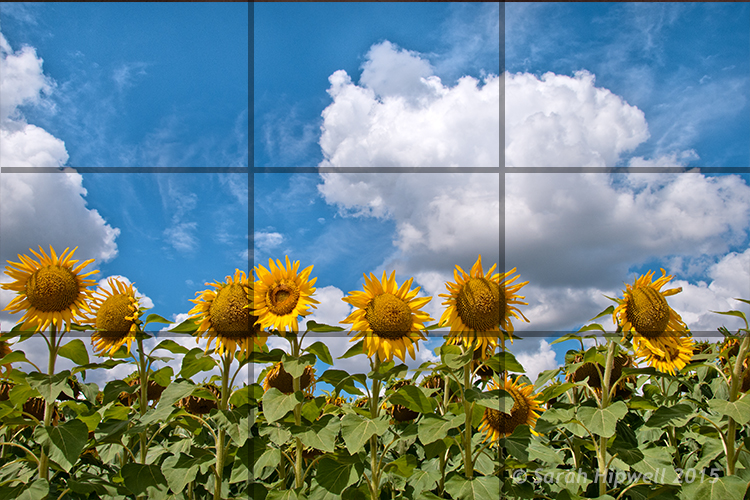
You may have already heard of this one. This is an actual formula based on mathematical principles of harmony and proportion. It has been used by artists for centuries. So think of your photo with imaginary lines that are drawn dividing the image into thirds both horizontally and vertically. You place important elements of your composition where these lines intersect. Similar to a tic-tac-toe game.

rule-of-thirds

How the rule of thirds looks like. Where the lines intersect are the points in which to place your elements.

Rule of Odds

This may sound a bit odd (sorry, excuse the pun), but our brain looks for evenness and symmetry. So this principle asserts that having an odd number of objects in an image will be more interesting and, therefore, more pleasing. By having one or three elements is better than two.

Rule-of-odds

Odd numbers of elements are more pleasing and interesting than even ones.

Lines

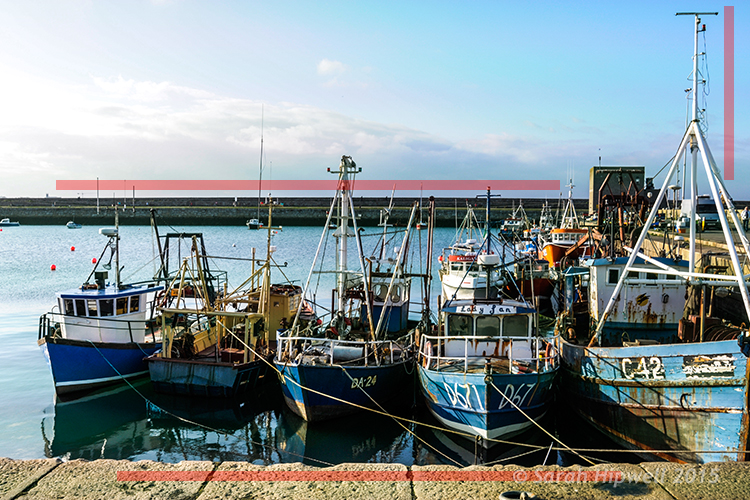
Keep the horizontal lines level and the vertical lines straight. This is particularly important if you shoot landscapes, seascapes and cityscapes. Leading lines are also very effective for drawing the viewer to where the focal point is.

lines-straight

The red lines are to show the horizontal lines are even and the vertical lines are straight.

Color and textures

Color and textures are a great way to demonstrate good composition.

Color-and-rule-of-thirds

Here is an example of color and rule of thirds for this composition. Notice the curve elements.

Negative space

This is an abstract concept which describes the space around your subject, otherwise known as ‘white space’ that draws your eye to it. Basically like ‘sky’ or a blurred background that provides the main emphasis on the subject.
Think of it in terms of letting your main subject or object breathe by giving it room.

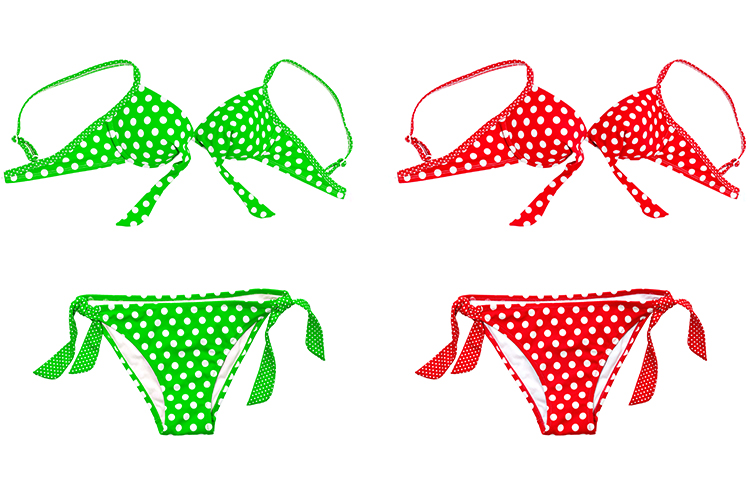
As photography is about creativity, rules are not meant to be strictly adhered to. In the bikini photo, although I used two of them and they are symmetrical, I used color to contrast the elements and by not placing them in the centre gives the photo a more pleasing compositional effect.

knowing-how-to-break-the-rules-color-as-composition

Although I used two pairs of elements and I know that these are even, the color contrast and using the rule of thirds still makes this image a good composition.

Right, let’s get the camera out. Most DSLR cameras have built-in grid lines and some have a virtual horizon or a spirit level. If your camera has none of these options, you can always add a leveling aid, such as a hot shoe-mounted spirit level or use the focusing points within the viewfinder.

Use your tripod to help you frame your shot so that you get a good composition. Look through the viewfinder, see what elements are in the frame. Then take a look at the scene in front of you with both eyes, then go back to your viewfinder, recompose, then shoot.

Practice will improve your understanding and shooting better compositions. Don’t expect to get it in one go. Give yourself time.

Last, but not least, cropping your images in post-editing. Whether you use Camera Raw, Photoshop or Lightroom, cropping your photos will give you a better understanding of how the principles of composition apply.

You can easily straighten crooked horizon lines by using the Crop Tool or get rid of barrel distortion in buildings using the Lens Correction filter in Photoshop. Or simply change the image dramatically from the one you shot originally. All of these edits can be done non-destructively, so you can crop to your hearts content!

original-title-shot

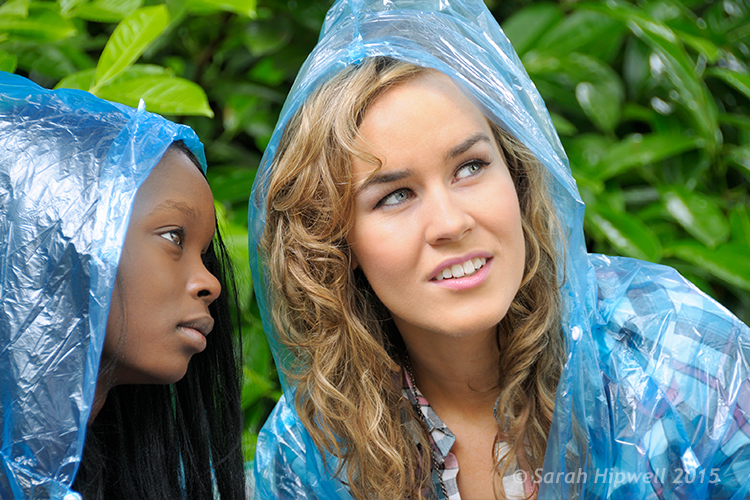
This is how the photo at top of this article was shot, yet when I cropped in tight on the model to the right, it gave me a different shot.

To summarize, like any complex subject that goes beyond just one article, I hope I have illustrated some useful tips to show the importance of composition in your photography. Please share your comments below.

googletag.cmd.push(function() {
tablet_slots.push( googletag.defineSlot( “/1005424/_dPSv4_tab-all-article-bottom_(300×250)”, [300, 250], “pb-ad-78623” ).addService( googletag.pubads() ) ); } );

googletag.cmd.push(function() {
mobile_slots.push( googletag.defineSlot( “/1005424/_dPSv4_mob-all-article-bottom_(300×250)”, [300, 250], “pb-ad-78158” ).addService( googletag.pubads() ) ); } );

The post Easy Tips to Help Beginners Understand Composition by Sarah Hipwell appeared first on Digital Photography School.


Digital Photography School

 
Comments Off on Easy Tips to Help Beginners Understand Composition

Posted in Photography


7 Easy Ways to Rock Your Photo Collages

27 Jul

Sometimes one photo just isn’t enough—we know. Photo collages are gaining momentum in the social media universe, but there’s a lot of untapped potential in the art of collage making. With tons of photo collage apps out there, you can pretty much do anything you want with a smartphone and an Internet connection. With all of the different options available Continue Reading

The post 7 Easy Ways to Rock Your Photo Collages appeared first on Photodoto.


Photodoto

 
Comments Off on 7 Easy Ways to Rock Your Photo Collages

Posted in Photography


6 Easy Steps for Post-Processing a Low-Light Photo in Lightroom

16 Jul

The word photography comes from the ancient Greek words for “light” and “drawing”. With the presence of light being a rather important constituent in the making of a photograph, it is no wonder that low-light conditions are often a photographer’s nemesis.

While so many other lighting variables have an immense impact on your images – the quality, direction, color temperature, and intensity – but if you don’t have enough light to begin with, none of these really matter.

This article will walk you through my approach to post-processing an image taken in poorly lit conditions.

A poorly lit image after editing.

With a little Lightroom sorcery, poorly lit images can be brought back to life.


The key is to start with as strong a foundation as possible, which is to maximize the quality of the image captured in camera. For more detailed advice on how to accomplish this, have a read of:

  • How to Shoot in Low Light – 9 Commonly Asked Questions
  • A Guide to Shooting Outdoors in Low Light Conditions
  • Another great resource to bookmark is Cheat Sheet: What Gear and Settings to Use for Low Light Photography

It is also worth noting that, as far as I’m concerned, the debate over whether to shoot in RAW or JPEG does not apply here. If you are shooting in low-light conditions, shooting in RAW is imperative. You want to ensure that you have as much latitude as possible to maximize post-processing efforts.

I will also echo the sentiments of others when I say, you should not rely on editing software as a crutch. Don’t be lazy. Make every effort to use lower ISO settings, noise reduction (NR) features, use slower shutter speeds, etc., in camera first.

What is low-light?

So what do I mean by low-light anyway? I believe this is one factor which contributes to the confusing nature of this topic to begin with. When I think of shooting in low-light, I imagine a scenario where I have a hard time seeing well enough to frame the shot, the camera may struggle to find focus, and without some work, the final image will make it apparent that shooting conditions were challenging.

This is when having better quality equipment pays off. Those of you with camera bodies which can produce clean shots at high ISO settings (just take a look at the Sony A7s) have a distinct advantage from the get go. Throw in a wide aperture, fast, lens and the quality of images these device can capture in near pitch dark is absolutely incredible – especially compared to 10 years ago.

With experience, you will learn the limits of your equipment and editing software to achieve the results which you consider acceptable.

Example

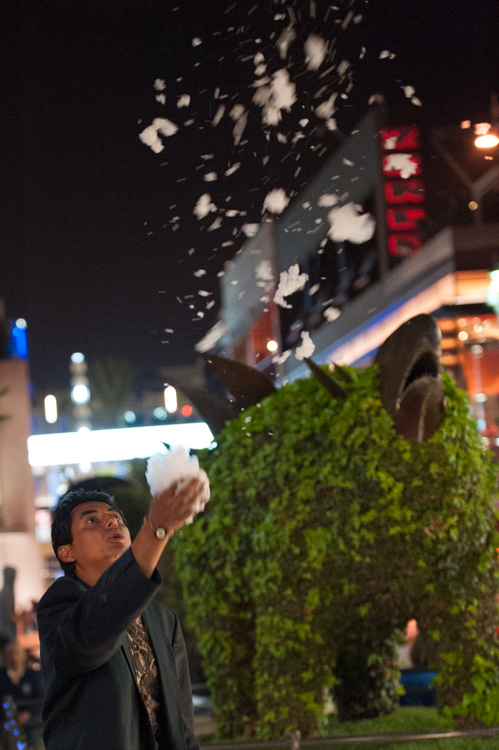
I will work with this street photo I snapped in Santa Monica, California as an example. It was taken long past sunset, with only some dim illumination from distant store windows and street lights. Some hoodlums had dumped soap into a fountain which had then churned into a frothing mess when this passerby stopped, grabbed a handful and blew the suds into the air.

A night shot taken in poor lighting with a Nikon D700 at 70mm, f/2.8, ISO 4,000 and 1/60th of a second.

A night shot taken in poor lighting with a Nikon D700 at 70mm, f/2.8, ISO 4,000 and 1/60th of a second.

The combination of the image being a RAW file, and the less-than-ideal conditions it was taken in, has resulted in an image that is flat, has inaccurate color temperature, is low contrast, and has some noise. There is no exact process that can be replicated on every image, but I will walk you through the steps I toook to bring this photo back to life.

1. Check for clipped highlights, shadows

You can do this in two ways:

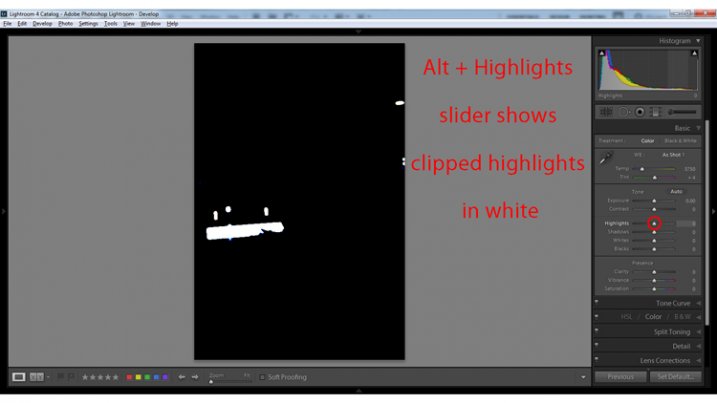
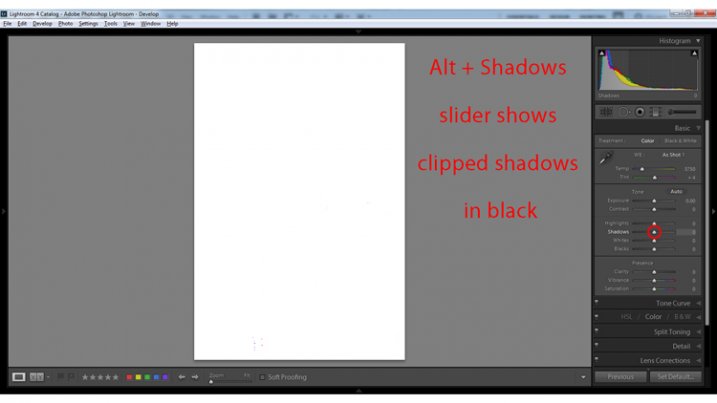
  1. Hold the Alt key while clicking on the highlights or shadows slider
  2. Hover the mouse over the small triangles in the upper corners of the histogram.

This will quickly and easily identify the areas of the photo which contain no information, and therefore no details to recover.

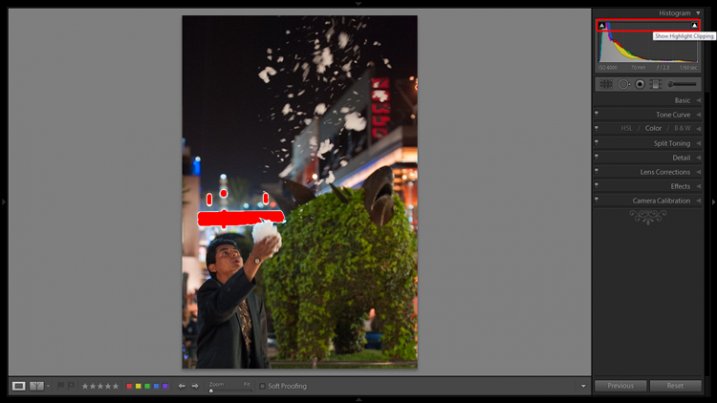
Clipped highlights are shown in red

Hovering the mouse over the triangle in the upper right corner of the histogram will illuminate all clipped highlights.

Alt + clicking on the Highlights slider shows clipped highlights

Alt + clicking on the Highlights slider shows clipped highlights

Alt + Shadows slider shows all clipped shadows.

Alt + Shadows slider shows all clipped shadows. This photo has no clipped shadows.

For shooting in low light, you will most often be concerned with clipped shadow areas. If details important to the image are clipped, it may not be salvageable – this is a judgment call to make on an individual basis.

Although it is underexposed, the image has no clipped shadows, and only a small bit of clipped highlights.

2. Adjust exposure correctly for the subject

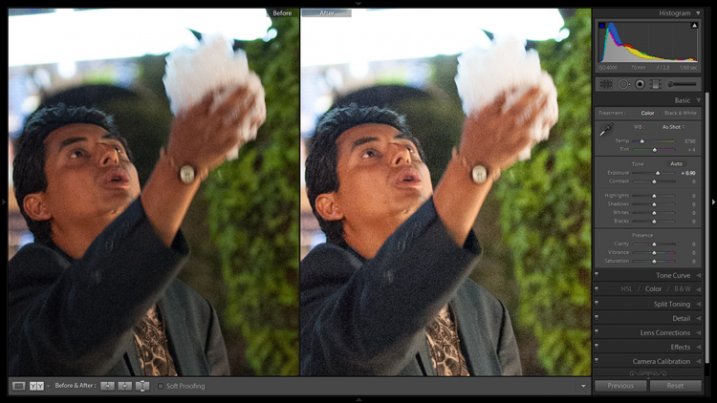
For this image, the person is the subject so I want him to be properly exposed therefore I will zoom in on him and set the exposure. I want his face to be a bit brighter and clearer so I’ve increased exposure 9/10 of a stop (+0.90).

Before and after of exposure adjustment.

The exposure was increased to brighten the subject. Before and after of exposure adjustment.

3. Increase contrast

This is going to involve a process of trial and error, adjusting several sliders, and analyzing the effects they have on the image in combination with one another.

From what the histogram showed me, and what is obvious by looking at the image, there are significant portions of the image that are dark – the sky, the subjects jacket, etc. These dark areas have nothing to add to the image and after increasing the exposure, have become a lighter shade of gray and have created more noise.

Therefore, I am going to purposefully clip some of these shadowed areas by decreasing the Blacks slider value. I prefer to drag the slider all the way to -100, and start increasing it until the image looks good. At -70 the shadows obscure unimportant details which brings more attention to highlighted areas.

Contrast can be adjusted further in the Tone Curves panel. If this is uncharted territory for you, the article Lightroom’s Tone Curve Explained is a good place to start.

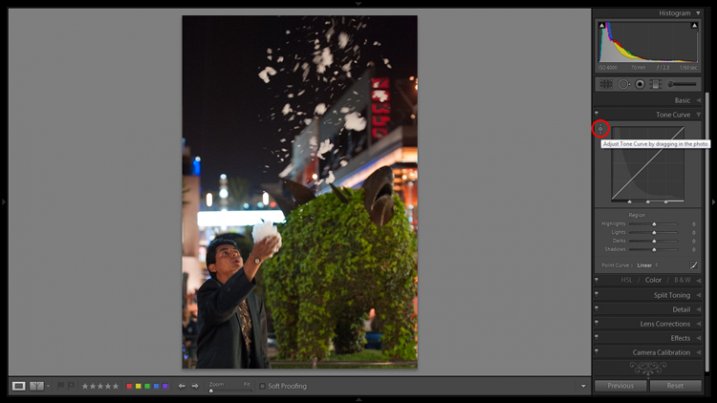
Image showing location of drag and adjust tool in Tone Curve panel

A shortcut for adjusting all similar tones in an image can be found in the Tone Curve panel.

TIP: Using the click and drag tool in the upper left hand corner of the Tone Curves panel is a quick and easy way to adjust tones in your image. Click the tool to activate it; place it over the tone in the image that you wish to adjust (shadows, highlights, etc.); click and drag the tool up or down and it will adjust all similar tones in your image automatically.

4. White balance

As exposure and contrast affect the colors in an image, I prefer to make those adjustments before dialing in the white balance. There are two ways to accomplish this:

  1. Click and drag the Temp slider
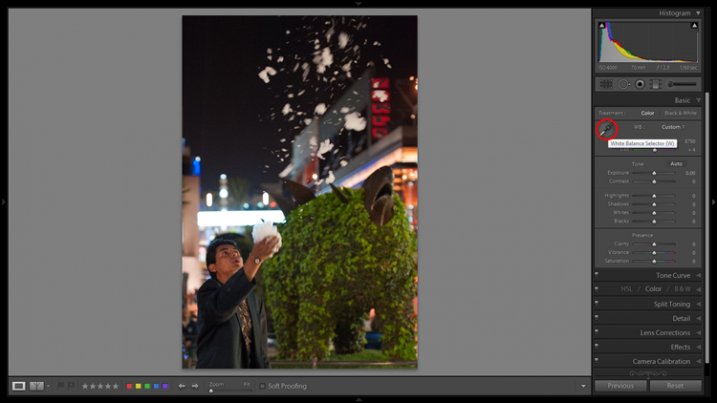
  2. Use the Eye Dropper (targeted adjustment) tool to let LR attempt to correct the white balance automatically
Image showing the location of the Eyedropper tool.

The Eyedropper tool is an automated feature that will approximate correct white balance for you.

The key to the Eye Dropper tool is to select an object in your image that should be pure white (or anything that you know is a neutral tone like black or gray). I find the tool can sometimes give you a starting point from which to work, but very rarely gives you an accurate result straight away.

As a result of the sodium vapour street lights, this image is far too warm, has turned the subject’s skin orange, and has made the greens too yellow. I’ve reduced the white balance color temperature from 3,750 degrees to 3,300.

TIP: In the Develop Module, the forward slash key toggles between before and after, so you can quickly see the adjustments you have made. You can also click the the box in lower left with two Y’s, which shows a before and after side-by-side comparison (if that tool bar is not showing, click T on your keyboard to show/hide it). Although this can help guide any changes you make to your image, I find it particularly useful to toggle back and forth when correcting white balance.

5. Clarity

The Clarity slider changes local contrast, especially in the midtone areas of your image. Increasing clarity can help define the edges of objects and add depth to an image, while decreasing clarity will soften details and add a dreamy glow.

Raising the Clarity slider to +25 adds a bit more pop to this image. Adding too much clarity can accentuate blemishes in portraits and dull colors, so use it sparingly.

6. Noise Reduction

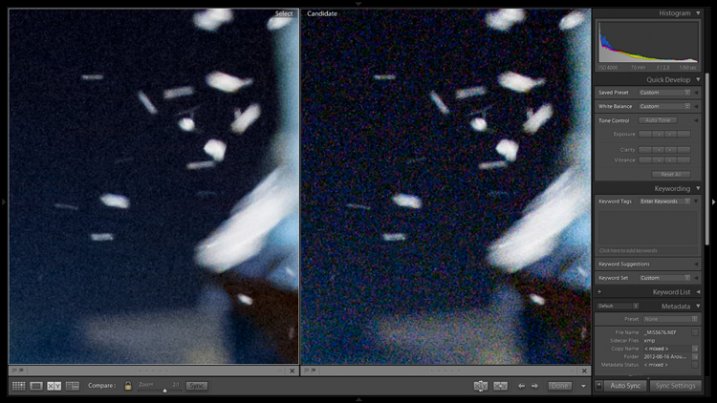
Noise and color noise are the downfall of many lo- light photos, especially those taken on less capable cameras. Noise adds a general grainy haze, and color noise shows up as little little specks of random colors, which can look like big splotches on shadowed areas.

It’s often most noticeable in the dark areas of an image but can wreak havoc on skin tones as well. Luckily, it’s easy to fix in LR and doesn’t decrease image quality too much. It does have its limits so always shoot at the lowest ISO possible.

Since this photo was taken on a camera with legendary low-light capabilities (in its day), noise levels aren’t too bad even at ISO 4,000.

The Noise Reduction slider is found in the Details panel underneath the Sharpening sliders. For this image I increased the Luminance slider to +30 and the Color slider to +15.

Image showing before and after noise reduction.

The noise is this image was fairly minimal and Lightroom easily reduces it. Image showing before (right) and after (left) noise reduction.

A side effect of noise reduction is decreased detail so don’t be too heavy handed.

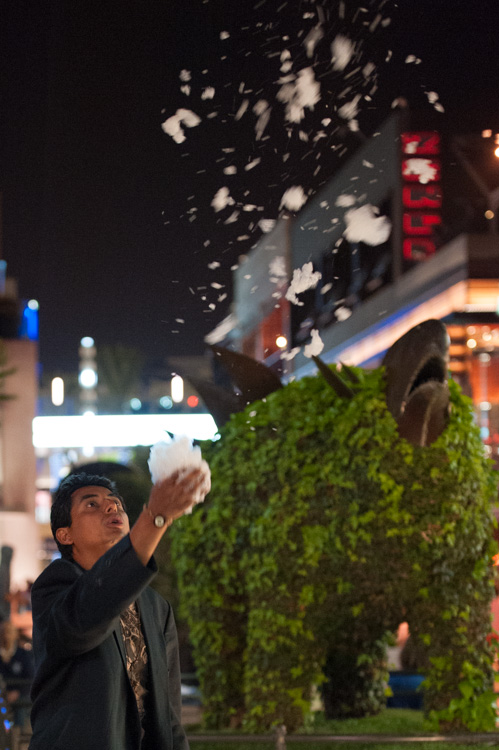
Image before edits.

The original image before any post-processing.

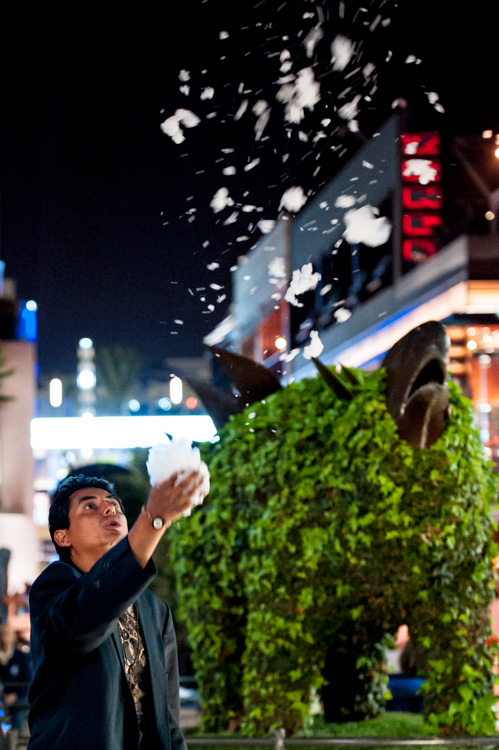
Image after edits.

The original image after post-processing.

That is a basic walk-through of my approach to a photo shot in low-light, or poor conditions. Although the editing process could go much further and get more technical, this is a good starting point to breathe some life back into poorly lit shots.

Do you have any other good post-processing tricks for low-light images to share?

googletag.cmd.push(function() {
tablet_slots.push( googletag.defineSlot( “/1005424/_dPSv4_tab-all-article-bottom_(300×250)”, [300, 250], “pb-ad-78623” ).addService( googletag.pubads() ) ); } );

googletag.cmd.push(function() {
mobile_slots.push( googletag.defineSlot( “/1005424/_dPSv4_mob-all-article-bottom_(300×250)”, [300, 250], “pb-ad-78158” ).addService( googletag.pubads() ) ); } );

The post 6 Easy Steps for Post-Processing a Low-Light Photo in Lightroom by Jeremie Schatz appeared first on Digital Photography School.


Digital Photography School

 
Comments Off on 6 Easy Steps for Post-Processing a Low-Light Photo in Lightroom

Posted in Photography


CamSwarm app may soon allow for easy capture of bullet time sequences

10 Jul

‘Bullet time’ effects, as seen in the 1999 movie ‘The Matrix,’ tend to be expensive and time-consuming to produce, requiring an array of synchronized cameras. Researchers at Columbia University are developing an iOS app that would make it easier for consumers to capture bullet time sequences. Read more

Articles: Digital Photography Review (dpreview.com)

 
Comments Off on CamSwarm app may soon allow for easy capture of bullet time sequences

Posted in Uncategorized


Easy Portrait Retouching Tutorial without Losing Skin Texture

18 Jun

When it comes to skin retouching, less is more. Retouching skin is tricky. You want to enhance it, not beat it to death, make it fresh and glow-y, while still keeping the integrity of the skin. You want to soften wrinkles, not obliterate them. And to bring out their eyes and natural beauty while keeping them looking like themselves. Even Continue Reading

The post Easy Portrait Retouching Tutorial without Losing Skin Texture appeared first on Photodoto.


Photodoto

 
Comments Off on Easy Portrait Retouching Tutorial without Losing Skin Texture

Posted in Photography


5 Easy Studio Setups With One Light

13 May

Studio lighting is one of the most versatile tool sets available to you as a photographer. Apart from 24 hour access to a quality light source, there is a vast quantity of modifiers, accessories, and techniques that allow you to design and shape the light exactly as you need to fulfil your creative vision. However, all of this choice that is available to you can often result in confusion and indecision. The sheer amount of stuff available can also lead you to believe you need more than you already have.

Fortunately, in the case of lighting, less is often really more. In this tutorial I am going demonstrate five ways to use a single light source to good effect, with a variety of subjects. Even though each of these images was created with a specific modifier, each setup will work with most any modifier of your choice. For example, you could swap a softbox for a beauty dish. This will alter the shape and softness of the light but you will still get good results. Some of the techniques also use a silver reflector.

If you don’t have a reflector, you can get a large piece of cardboard and glue a sheet of aluminium foil to it. Another option is to use a mirror. You don’t even need a strobe or flash to make these techniques work; window light, with a bit of extra effort can produce the same effects.

Here are five easy studio setups with one light you can try yourself.

Setup #1

Amb john mcintire photography 0049

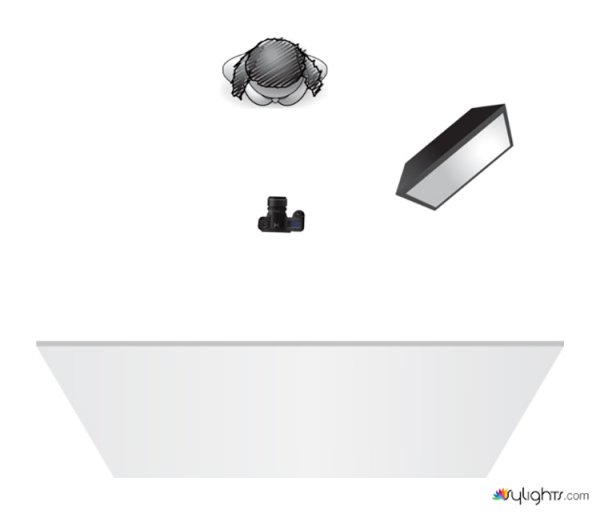
Simplicity in technique is the aim of this first image. The light source is a strobe fitted with a medium sized softbox. It is positioned about five feet away from the subject, elevated about four feet above, and pointed down at a 45 degree angle. The camera is directly under the softbox (this is called Butterfly lighting).

lightingdiagram1

Lighting diagram for light placement

The centre of the softbox is pointed to the left of the model (camera right) with only the edge of the light source directly falling on her. This technique is called feathering. It is useful for controlling and fine-tuning the light in a scene, and helps to soften light from a harder modifier such as an 110 degree reflector.

If you don’t think you’re ready to try feathering just yet, try to aim your light source at your subject’s nose instead.

Setup #2

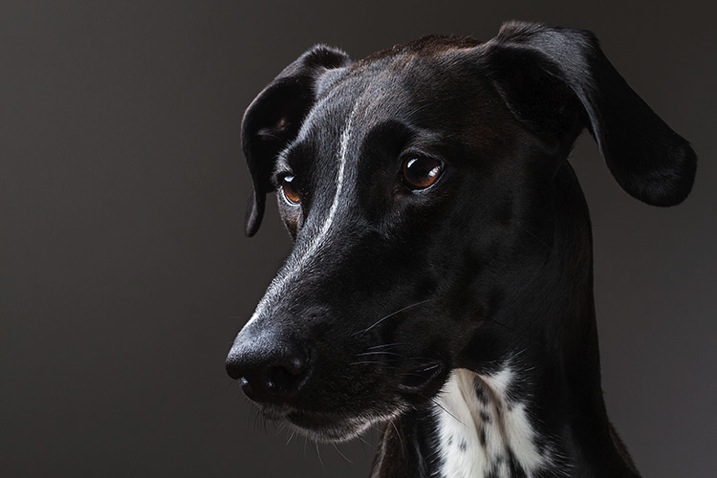
Greyhounddalmatian john mcintire photography 0795

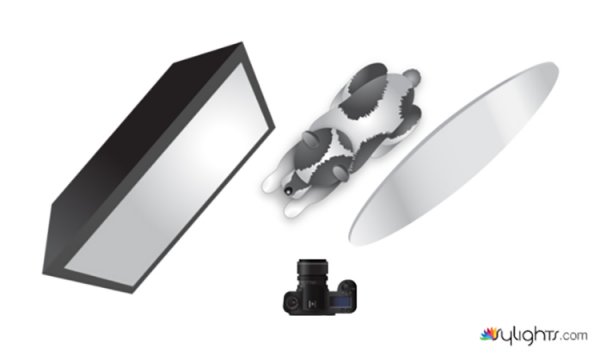
lightingdiagram2

To create dramatic lighting in your photos, try lighting your subject from behind. This image of my dog is lit by a softbox placed at a 45 degree angle behind her at camera left. The softbox is just out of the left-hand side of the frame and is very close to the subject. Because she is black and white, there is a huge amount of contrast in the scene. This left the shadow areas closest to the camera very dark. To fix this, you would introduce a reflector. The reflector is also only just out of the frame on the right-hand side. Bringing it in close allows you to increase the amount of reflected light filling in the dark shadows.

Setup #3

Pastry john mcintire photography 6968

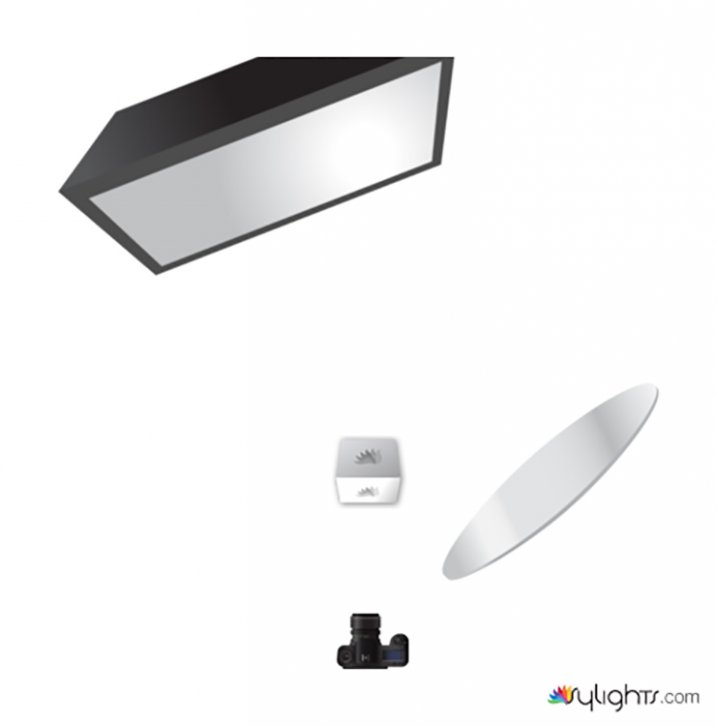
For added versatility, you can combine the previous two techniques. This image is again lit by a softbox six feet behind the pastry and elevated about five feet above. Instead of pointing the light source at the pastry, it is aimed straight ahead so that the softbox is not directly illuminating the subject. This is a more extreme version of feathering that creates beautifully soft light.

lightingdiagram3

When you feather the light in this way, be aware that you are lighting the scene with a only a tiny fraction of your flash’s output. You will need to compensate by altering your ISO, increasing the flashes power output or altering your aperture.

To fill in the shadows created by the backlighting, use your silver reflector.

Setup #4

Romey john mcintire photography 0971

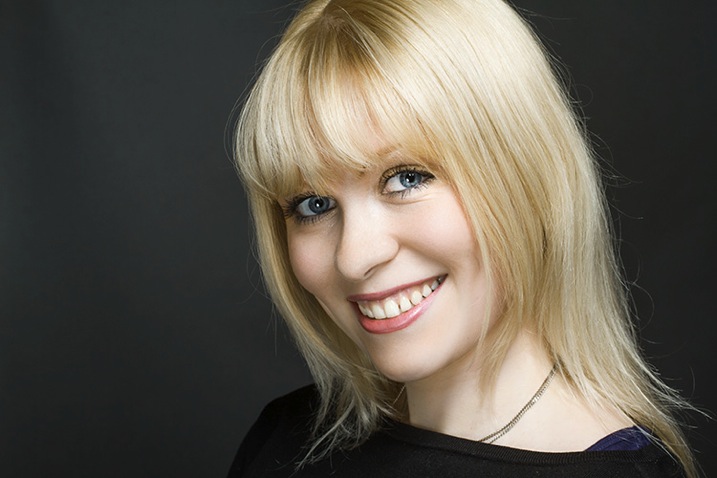
lightingdiagram4

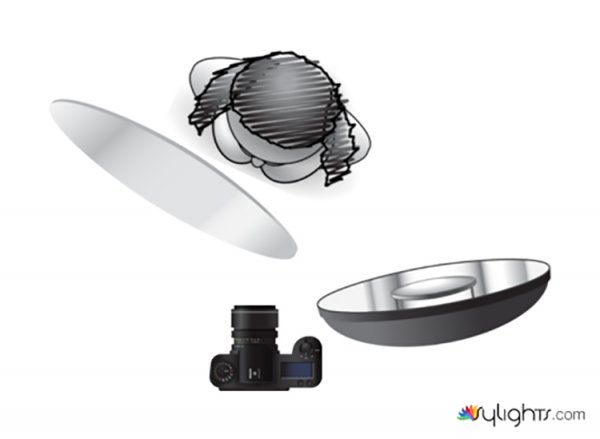
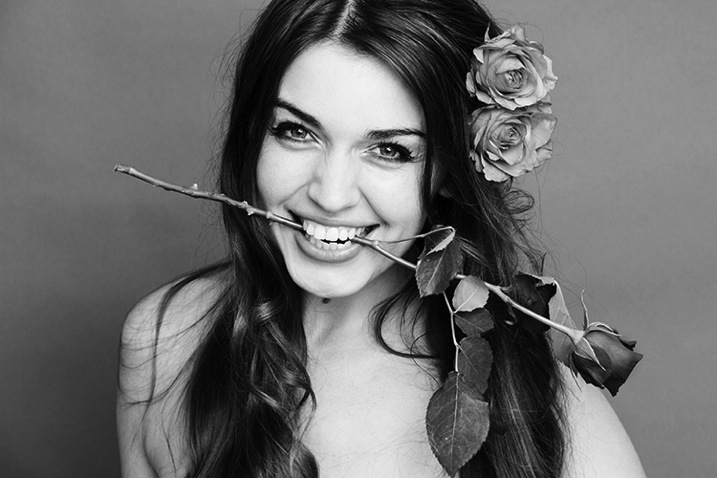
If you want to create images with more contrast in your light than a softbox provides, try using a silver beauty dish. The light source in this photo is slightly to the right of the camera and is three feet away from the subject. The bottom edge of the beauty dish is lined up with the top of the model’s head, again creating the feathering effect. To fill in the shadows, ask your model to hold the reflector pointed towards her chin and just out of the frame.

Setup #5

Monika john mcintire photography 5347

If you prefer really soft light, you need to increase the size of your light source in relation to your subject. The obvious ways to do this are to move your light source closer to your subject, or to use a bigger modifier.

Alternatively, you can bounce your light into a wall or a ceiling, converting that surface into your light source.
To imitate the lighting in this image, fit your light source with a bare reflector and point it into the corner of a room. Be wary of off-coloured walls though; the slightest deviation from white can cause colour casts in your images that take a lot of time to correct. If you’re shooting black and white, then colour casts are irrelevant and you can bounce your light from just about any surface you can imagine.

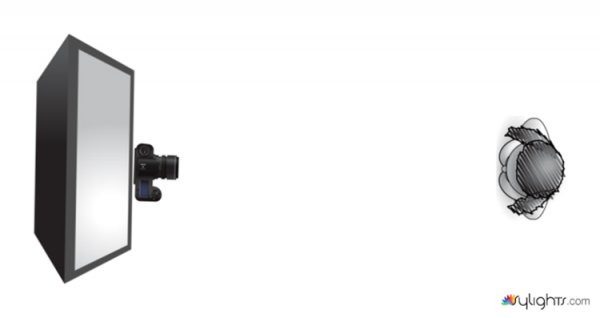
lightingdiagram5

As you can see, you don’t need piles of equipment to get the most out of the studio. A single strobe, a modifier or two, and a reflector will provide you limitless creative opportunities for your photography. Go ahead and alter these suggestions to suit your needs and style and don’t be afraid to experiment, there really are an infinite number ways to use this modest amount of equipment.

googletag.cmd.push(function() {
tablet_slots.push( googletag.defineSlot( “/1005424/_dPSv4_tab-all-article-bottom_(300×250)”, [300, 250], “pb-ad-78623” ).addService( googletag.pubads() ) ); } );

googletag.cmd.push(function() {
mobile_slots.push( googletag.defineSlot( “/1005424/_dPSv4_mob-all-article-bottom_(300×250)”, [300, 250], “pb-ad-78158” ).addService( googletag.pubads() ) ); } );

The post 5 Easy Studio Setups With One Light by John McIntire appeared first on Digital Photography School.

Digital Photography School

 
Comments Off on 5 Easy Studio Setups With One Light

Posted in Photography


Street Photography: Easy To Learn, Impossible To Master

30 Mar

Of all the different fields of photography, street photography might be the most difficult. However, it’s also an area that many aspiring photographers jump into first. Street photography almost seems like the reason photography was created for in the first place. Unlike taking photos in a studio, shooting landscapes or working with models, street photography entails a bit of chaos. Continue Reading
The post Street Photography: Easy To Learn, Impossible To Master appeared first on Photodoto.


Photodoto

 
Comments Off on Street Photography: Easy To Learn, Impossible To Master

Posted in Photography