RSS
 

Posts Tagged ‘easy’

How to Give Your Landscape Photos Extra Punch in One Easy Step

09 Nov

Have you ever felt that your landscape photography is missing a little punch? You look at other photographers’ images and their colours have a very appealing amount of contrast. But no matter how much you play around with HSL (Hue, Saturation, Luminance), Contrast, Vibrance or Saturation, your colours just don’t get the same depth and contrast and end up looking fake and oversaturated.

The quality of the lens being used affects color greatly (more expensive lenses generally give a much better colour contrast than entry-level lenses). But there is a step that you can do when post-processing your recent landscape photos to give the colours an extra little bit of punch and contrast and more importantly, keep them from looking overcooked.

before-after

Color space

You may be aware of a term Colour space which essentially determines how devices represent colour. The two most common colour spaces are Adobe RGB and sRGB. Adobe sRGB is used on the web and for many smart devices. Adobe RGB is a little bigger than sRGB and can show more colors. However, these are not the only colour spaces around. Lightroom, for example, uses one of the largest (able to produce a larger amount of colours) called ProPhoto RGB.

But enough about colour spaces! I can already see your eyes glazing over, mine are already as I type this. But knowing that there are different colour spaces can be helpful. Knowing exactly how they work isn’t necessarily all that important.

Convert to Lab Color

The colour space that you’ll want to recognize is LAB Color. How does it work? Doesn’t really matter. But how can you use it give your images that extra punch? In this article, I’ll explain how a very simple step (and I mean simple!) that will help give your images that extra punch using the LAB colour space in Photoshop.

Okay, so first up you’re going to want to bring your image into Photoshop. Before you do this, you may need to develop the image a little in Adobe Camera Raw or Lightroom. Fix up any exposure issues, correct the white balance, etc.

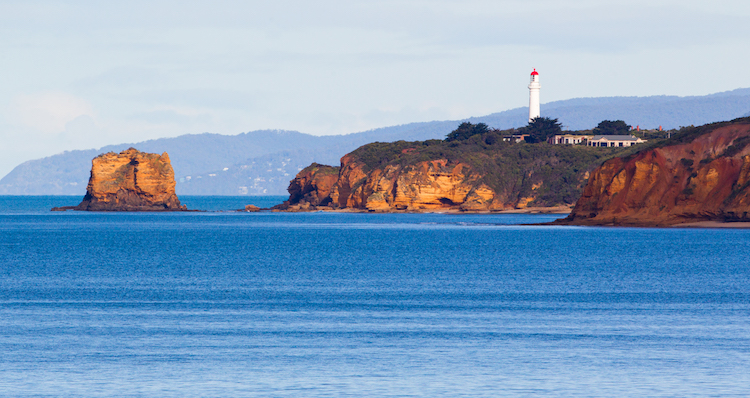
This is the image that I’ll use as an example.

before

This image has had very little done to it prior to Photoshop. A simple crop, general contrast and exposure correction were all that was applied.

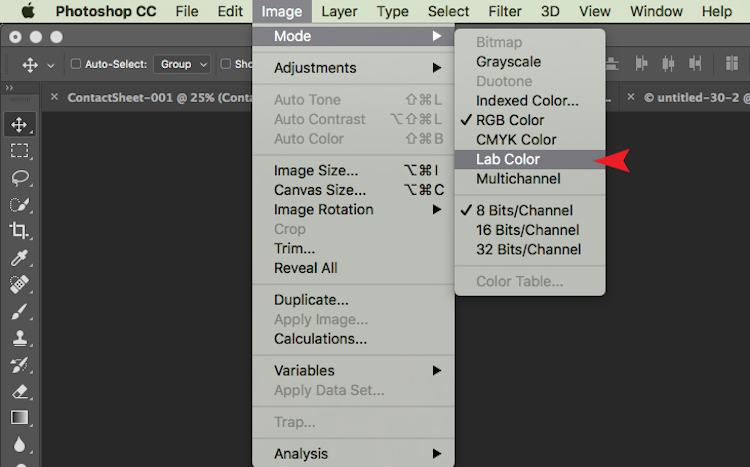
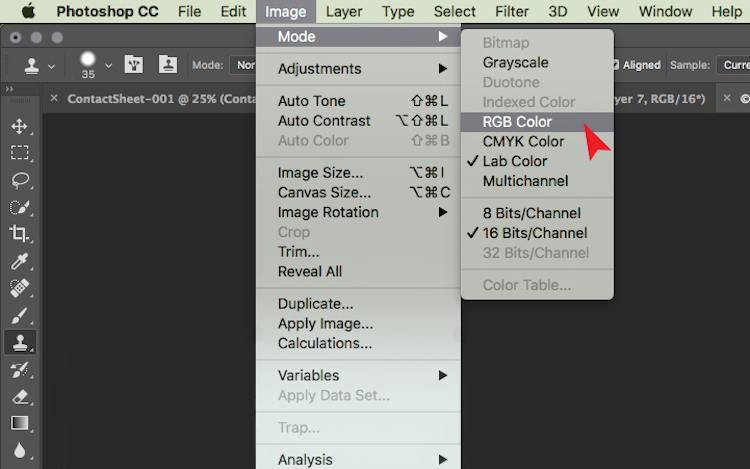
Now that your images is open in Photoshop, the very first thing you need to do is convert it from Adobe RGB or sRGB (depending on what you have set as the working colour space in Photoshop) to LAB Color.

To do this, go to: Image > Mode > Lab Color.

The tick next to RGB Color means that Adobe RGB is currently being used.

The tick next to RGB Color means that Adobe RGB is currently being used.

Now Photoshop is using LAB instead. You won’t notice a change at all at this step because nothing has changed on your end. All you have simply done is tell Photoshop which method to use to display colours.

Add a Curves Adjustment Layer

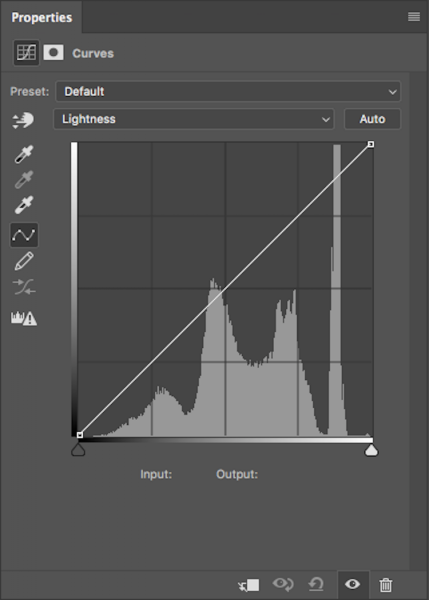
With your image in LAB Color, the next step is to create a Curves Adjustment Layer. Once this layer has been created, you should see something like this:

lab-curves1

Generally, this doesn’t look any different to any other Curves Adjustment Layer except for one thing. Instead of having RGB in the drop down menu, you will see Lightness.

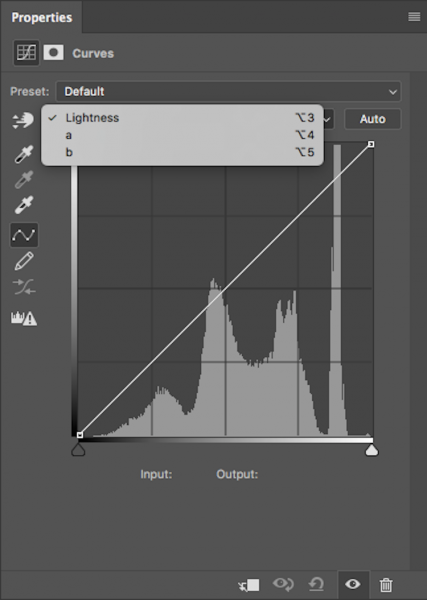
With this adjustment layer created, the next step is to click on the Lightness drop down menu. This brings up Lightness, A, B; which is what LAB is short for!

lab-curves

Adjust Channel A

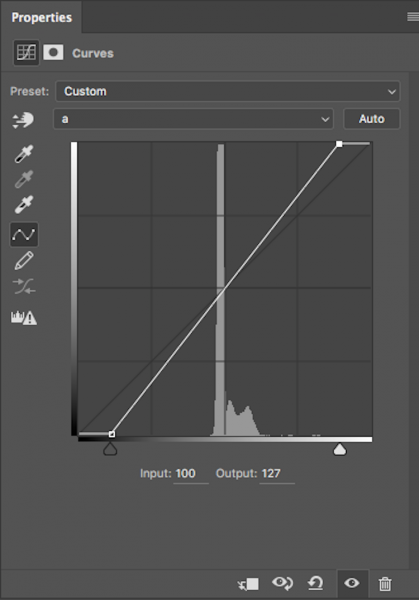
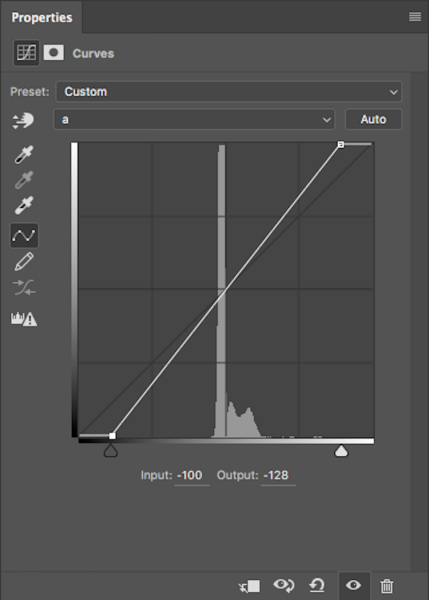
Now, you need to select the A-channel. With the A-channel selected, bring in the shadows anchor point at the bottom-left corner toward the bottom-centre. You will notice the Input numbers increasing from -128. As a starting point, I like to bring this value to -100. Now, find the highlight anchor point (top-right) and bring that toward the top-centre by the same value; for -100 set it to 100.

Notice the anchor points have moved toward the centre equally?

Notice the anchor points have moved toward the centre equally?

You’ll notice strange things happening to your colours as you slide the anchor points along. Don’t panic – this is supposed to happen.

Adjust Channel B

Now do the same steps by the same values for both shadows and highlights for the B-channel.

Same steps have been done for Channel B

Same steps have been done for Channel B

NOTE: make sure your Output value remains at -128 for the shadows and 127 for the highlights. If these numbers are altered it means that the anchor point is being lifted from the bottom for shadows and dropped from the top for highlights. You just want to drag the sliders along horizontally (not move them up or down).

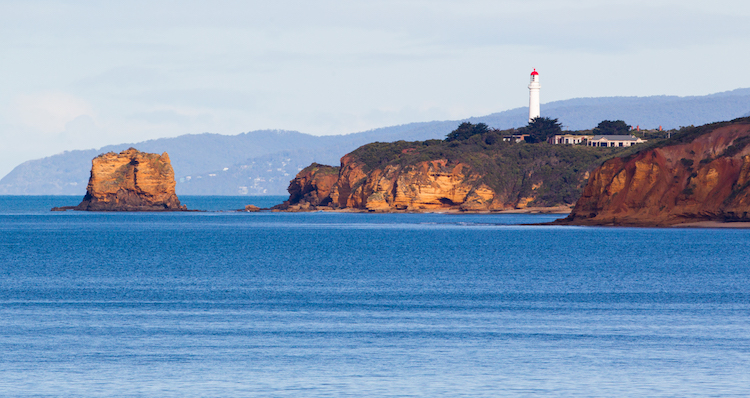
With both A and B channels having been done now, the colour and colour contrast of your image should look different from the original. This is how my original image looks after these steps.

This is after setting A/B shadows to -100 and highlights to 100.

This is after setting A/B shadows to -100 and highlights to 100.

Fine tuning

For me, that is looking a little overdone. But no problem! To change this, all you have to do is reduce the amount you moved the anchor points in both A and B channels. I generally find going by increments of 10 is most helpful.
If you feel your image needs more punch, then you will want to bring the anchor points closer to the centre. Just remember to keep each value across the shadow/highlight, A/B channels the same.

After increasing the numbers in my images, I felt that -110/110 in A/B worked the best (see below).

after-110

Convert back to RBG

Once you are happy with how your image looks, it’s time to change it back to RGB. To change your image from LAB to RGB, go to: Image > Mode > RGB color.

change-to-rgb

You’ll be alerted that changing modes will discard adjustment layers, but that is fine. Select OK and you’ll be brought back into RGB. You’ll notice that the Curves Adjustment layer is now gone and that your image is now the background layer. However, the effect on the colours should remain. Now you’re free to go about editing the photo as much as you like.

So that’s a very simple technique to add more colour punch in your images. Just remember these two points:

  • This is something that you should do at the beginning of editing your image in Photoshop and not the end as you will lose all your adjustment layers when changing modes.
  • Remember to alter the anchors points from A/B b by the same value to eliminate strange things happening to your colours.

googletag.cmd.push(function() {
tablet_slots.push( googletag.defineSlot( “/1005424/_dPSv4_tab-all-article-bottom_(300×250)”, [300, 250], “pb-ad-78623” ).addService( googletag.pubads() ) ); } );

googletag.cmd.push(function() {
mobile_slots.push( googletag.defineSlot( “/1005424/_dPSv4_mob-all-article-bottom_(300×250)”, [300, 250], “pb-ad-78158” ).addService( googletag.pubads() ) ); } );

The post How to Give Your Landscape Photos Extra Punch in One Easy Step by Daniel Smith appeared first on Digital Photography School.


Digital Photography School

 
Comments Off on How to Give Your Landscape Photos Extra Punch in One Easy Step

Posted in Photography


5 Easy Tips for Photographing Babies Outdoors

10 Oct

When it comes to photographing babies under two years old (and newborns), most people immediately think of studios with elaborate backdrops and lots of available headbands, hats, and props. There’s nothing wrong with that type of photography for children, but if you don’t have access to a studio space of your own, you have to get a little creative.

outdoor-newborns

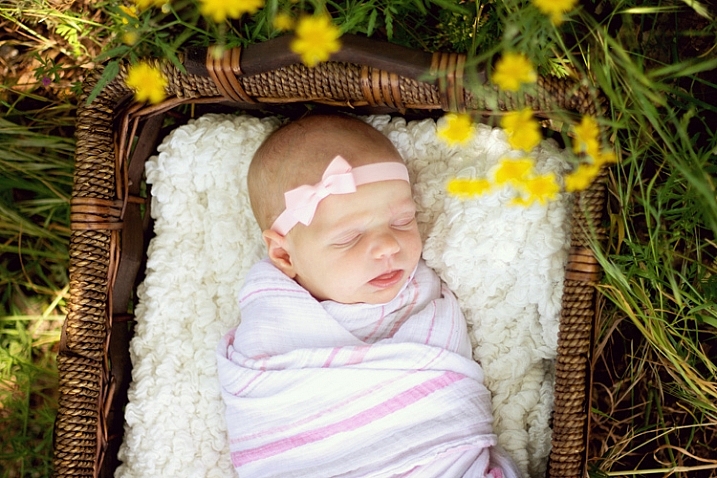
More and more, I’m discovering that I love to photograph both newborns and young babies outdoors. Yes, I often take even 5-10 day old little babies outside for at least part of their session. If you’d like to give it a try as well, here are five simple tips to help get you started while also keeping the little guys and gals safe.

1. Settle them inside

photographing-newborns-outs

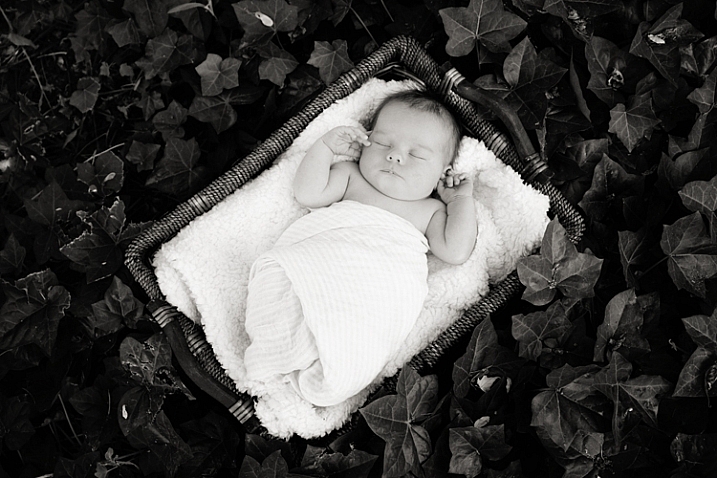
When it comes to newborns, you’ll find that they settle best when they’re very warm. This means that if you want to photograph a baby outdoors, you will typically be more successful if you begin indoors. Inside, swaddle the baby up tightly. Keep in mind that babies like to be warm, so you may want to leave them in pyjamas under the swaddle. Then rock them while playing white noise or making sushing sounds until they are nice and sleepy. Next, lay the baby in a basket or bowl that has been lined with a fluffy blanket and let them settle. Once the baby has settled in, carry the whole thing outdoors.

newborn-photos-outside

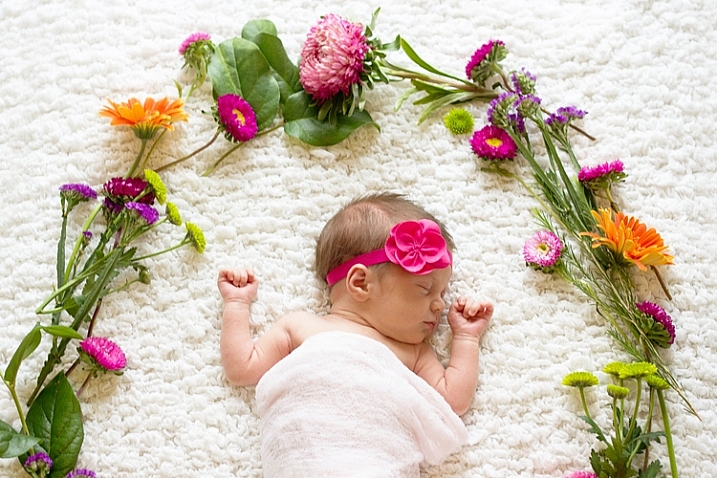
Sometimes, photographing babies outdoors can be a bit of a race against time, as any big gust of wind or loud noise can startle them awake. For best success, scout out a location that’s close to the house before you begin. Also, even in the most ideal situations, there are times when a baby just won’t stay settled outdoors. If you experience that, don’t sweat it, just move on.

Recently, I tried to take a baby outdoors on several occasions, and each time she woke up crying before I could get even a single shot. So with permission, I cut a few flowers and brought them inside, and photographed the baby inside with the flowers instead (see photo above). Just be flexible. If you can’t bring the newborn outside, consider ways to bring the outdoors in.

2. Have someone hold them

newborn-session-outdoors

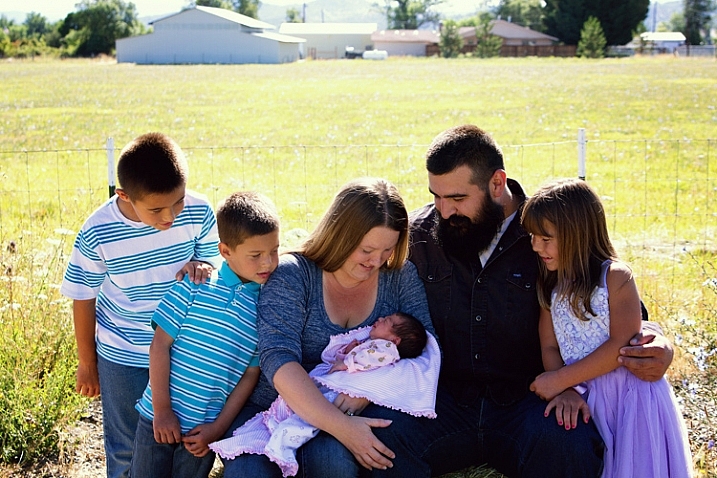
If you primarily shoot on location, you’ll find that not all families have a great space for family portraits indoors. Sometimes the physical shape or size of the room isn’t particularly conducive to a group portrait, or the decor doesn’t quite match the desired aesthetic. Sometimes families just have beautiful outdoor spaces that I love to showcase.

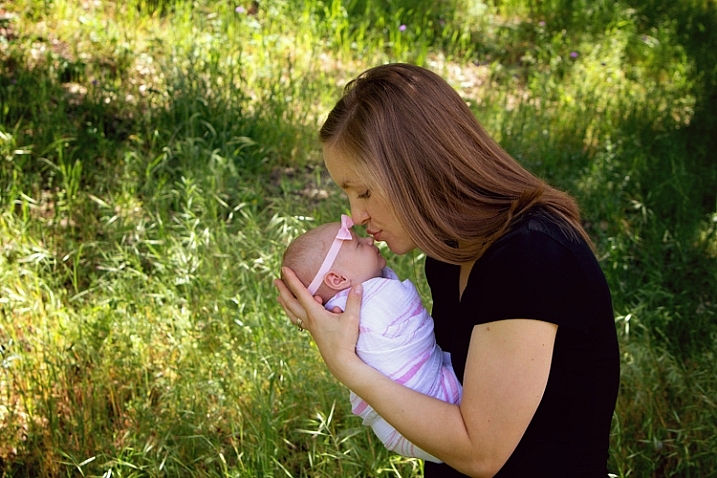
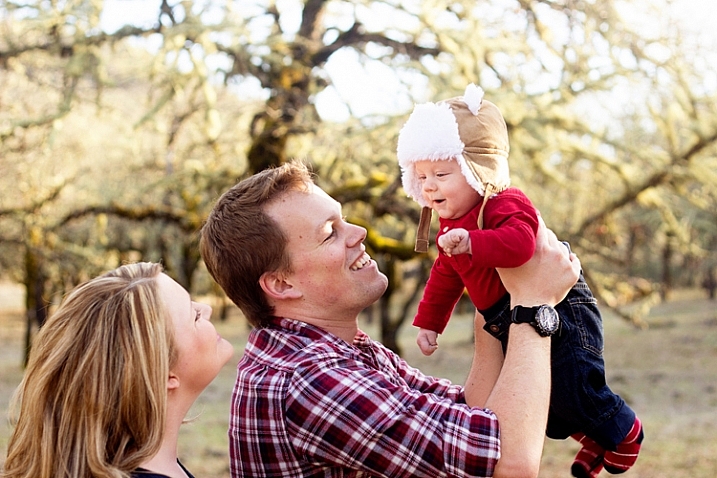
Regardless of the scenario, I often find myself asking mom or dad to hold the baby during a few family portraits outdoors. Particularly if the family has expressed an interest in “lifestyle” or “candid” images, as nature can tend to feel less stuffy and conservative than an indoor studio setup.

outdoor-newborn-session

Even if you experience a baby that won’t settle outdoors in a basket or bowl, keep in mind that being held in mom or dad’s arms may be an entirely different story. Sometimes babies just want to be held. Don’t be afraid to experiment with both scenarios until you discover what works best for each individual baby and family.

3. Shade them appropriately

outdoor-newborn

Whether you’re placing a baby in some vessel or having a parent hold them outdoors, it is really important to make sure that they’re shaded appropriately. Both newborns and older babies have very sensitive skin, and the last thing you want is for them to get a sunburn for the sake of some photos (it’s also better light for portraits). If you’re not able to find shade naturally available, some alternative options are a large umbrella (patio or beach umbrellas work well), or even a reflector held directly overhead.

When dealing with dappled light through trees, I sometimes position mom or dad strategically just out of frame so that they block any light that may fall on baby’s face or body.

4. Try to contain walkers and crawlers

photograph-babies-outdoors

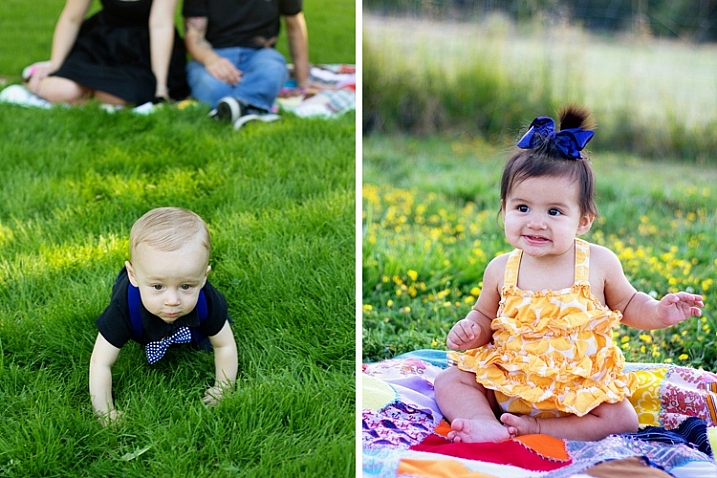
When it comes to photographing older babies outdoors, there’s a sweet spot between sitting babies and crawling babies when outdoor photography is easiest. That said, you won’t always be working with the ideal developmental stage because all babies hit those stages at different ages. So, it’s best to be prepared with a few tricks up your sleeve to make photographing walkers and crawlers a little bit easier.

photograph-babies-outside-3

I usually start by laying a quilt or blanket down on the ground. Some babies will not crawl off the blanket because they hate how the grass feels on their bare hands and feet. This is typically not a solution that lasts for the duration of the session without causing frustration, but can sometimes buy you a few stationary minutes. Other than the blanket trick, I have used galvanized wash tubs, old crates, toddler sized chairs, and wagons, to help contain older babies outdoors.

When using any of these props, please be safe. Use a spotter if necessary to prevent tumbles, and don’t be afraid to use composite images (combine two shots) if needed so that someone can have a hand on the baby at all times.

5. If you can’t contain them, entertain them

photograph-babies-outside

If sitters, walkers, and crawlers aren’t happy being contained, your next best bet is to just roll with it. Don’t push things, or you’ll likely to end up with a baby in tears, and nobody wants that at a photo session.

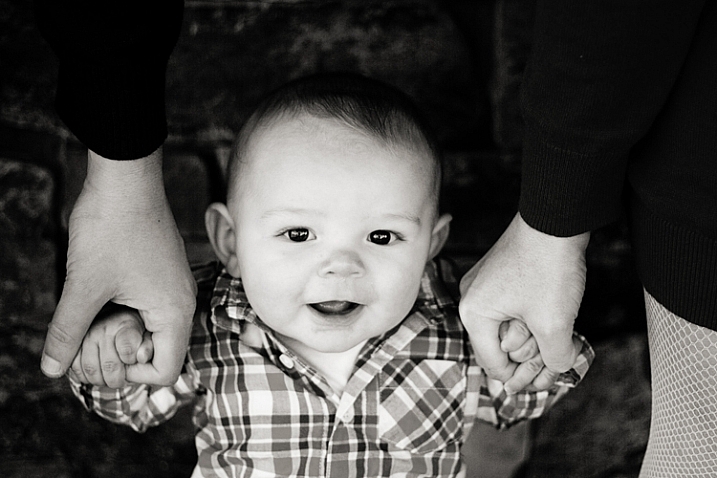
At the first signs of frustration, transition to games or activities that will entertain the baby, then keep taking pictures. Many babies and early walkers love to hold hands and stand or walk, so let them. Have mom or dad pick up the baby overhead and play airplane. Play a game of chase. You’ll be surprised at the opportunities for candid images of the family having fun together, as well as the number of opportunities for images that have a portrait feel to them as well.

photograph-babies-outdoors-

Do you have any other tips for photographing newborns or young babies outdoors? If so, please chime in the comments below.

googletag.cmd.push(function() {
tablet_slots.push( googletag.defineSlot( “/1005424/_dPSv4_tab-all-article-bottom_(300×250)”, [300, 250], “pb-ad-78623” ).addService( googletag.pubads() ) ); } );

googletag.cmd.push(function() {
mobile_slots.push( googletag.defineSlot( “/1005424/_dPSv4_mob-all-article-bottom_(300×250)”, [300, 250], “pb-ad-78158” ).addService( googletag.pubads() ) ); } );

The post 5 Easy Tips for Photographing Babies Outdoors by Meredith Clark appeared first on Digital Photography School.


Digital Photography School

 
Comments Off on 5 Easy Tips for Photographing Babies Outdoors

Posted in Photography


Gitzo updates Systematic tripod range with new materials, big feet and Easy Link sockets

05 Oct

Gitzo has introduced a new range of Systematic tripods that it says are more stable and stronger, and which feature new locking mechanisms for the leg sections. The latest models use what the company calls Carbon eXact for the leg tubing, which it claims offers improved ‘balance between rigidity and weight’. The Systematic range is Gitzo’s top end series and the tripods are designed for heavy cameras and long lenses. Larger feet have been introduced for the new models to prevent slipping and for making uneven ground more easy to rest on, and the twist-lock leg sections have been given G-lock Ultra clamps that Gitzo says are quicker and easier to use.

The company has also added a connector for the Manfrotto Easy Link system in a first for the Gitzo line-up. This threaded socket allows accessory arms and clamps to be attached to the casting of the tripod so reflectors, flash units, trays and other accessories can be held in place.

The new models will be priced from $ 799.99/£649.95 and a new range of monopods will start at $ 319.99/£214.95.

For more information see the Gitzo website.

Press release:

Gitzo introduces:
The New Generation of Photography Support Solutions

October 2016 – Gitzo, pioneers in developing some of the most advanced and revolutionary technologies for professional camera equipment, proudly introduce the new generation Systematic tripod family and the latest Monopod family, setting new industry standards in premium photography equipment.

The iconic Gitzo Systematic tripod family is the high-end choice for exacting professional photographers who use long lenses and heavy cameras and require extreme precision – down to the smallest detail – in their work and equipment. The new Gitzo Systematic tripods leverage the latest innovation for the greatest performance ever: the leg tubes are upgraded to Gitzo’s latest generation Carbon eXact, improving the balance between rigidity and weight. New, 50mm diameter big feet enable ultimate stability, preventing slipping and movement. The new G-lock Ultra allows even more comfortable operation and protection while the leg angle selectors guarantee a quicker switch between leg angles – further enhancing ergonomics. Moreover, the new Gitzo Systematic models feature the Easy Link attachment, a 3/8” thread through which a rich array of innovative photography accessories can be attached to facilitate the most advanced shooting techniques. The tripods are offered in a new sizing assortment.

The new Gitzo Monopods are designed to guarantee unfailing support for the highest quality equipment, enabling professional photographers to comfortably capture the golden moment. They are the ideal combination of rigidity, light weight, precision, rapid set up speed and ergonomics. Now even stronger than before thanks to state-of-the-art Carbon eXact tubing and G-lock Ultra leg locks, their new big foot ensures rock-solid footing on any surface while providing smooth movement with its integrated ball; the new models also feature enhanced aesthetics and improved sizing selection.
Series 4 Gitzo Monopod models (top leg diameter 37.0mm) replace the previous Series 5 models; the slimmer top tube contributes to an easier grip and lighter weight, while ensuring rigidity from the stiff Carbon eXact tubes.

Underscoring Gitzo’s dedication to groundbreaking excellence, the refinements to the new Systematic tripods and Monopods – in terms of strength, stability and rigidity, safety and security, set-up speed, ease of use and ergonomics – set new paradigms in the photography equipment market.

Gitzo photography products are superbly engineered to withstand the roughest handling. Precision assembly, high quality materials and fine control are distinguishing qualities that represent a market leader that has been unsurpassed for over half a century.

Pricing for the new Systematic tripods starts at £649.95. The new Systematic monopods are available from £214.95.

More information on the new Gitzo Systematic tripod and Monopod ranges can be found online at www.gitzo.co.uk/tripods-systematic

Articles: Digital Photography Review (dpreview.com)

 
Comments Off on Gitzo updates Systematic tripod range with new materials, big feet and Easy Link sockets

Posted in Uncategorized


App review: Full Frame is a quick, easy JPEG viewer, EXIF editor

28 Jun

Full Frame is a Mac-based image viewer, photo importer and metadata editor that centers around an incredibly clean and intuitive user interface. Released by California-based Inland Sea and available now in the App Store, its potential to speed up one’s workflow caught our attention.

Of course, there are a lot of different photo viewing, ingesting and sorting programs available on market, many of which are geared toward casual users. Full Frame, on the other hand, is targeting more toward high-end users like photo enthusiasts.

In Use

Having spent some time trying out using Full Frame in my own workflow, it seems its closest competitors are Photo Mechanic, a time-honored program with a cult-like following from photojournalists world-wide, as well as Adobe Bridge.

Unlike Adobe Bridge, which I find frustratingly sluggish and cluttered in design, Full Frame comes across as exceptionally lean in terms of speed (except when working with un-supported Raw files) and design. It has much more in common with Photo Mechanic like quick startup and image load times. Of course the spectrum of its functionality is much more limited than that of Adobe Bridge.

I took Full Frame for a spin while sorting images to post to one of my personal sites. Specifically,  I used it to move and rename selects from one drive, to a folder on another.

Once you have Full Frame fired up, users simply select the source folder and destination (assuming you are copying files) in the upper-left of the screen. The above screenshot represents the entire window when the program is open. There is literally nothing to get in your way of viewing images and deciding which to keep and which to trash.

To select an image to copy, simply click on it and a checkmark appears. Alternatively you can select all by hitting ‘Command A’ and uncheck the ones you don’t want. In the upper-left portion of the window you’ll find a slider to zoom in the grid view as well as options to view metadata and delete files from their source.

With your mouse hovering over an image, a small plus sign will appear in the upper left of the photo. Click on it to expand the view. Once in the single image viewer, users can use the slider at the top to zoom the image in and out, to check for critical focus. Unfortunately, when zooming in and out, there is no display of the percentage you are zoomed to, unlike in Photo Mechanic.

One of the best features of Full Frame is the metadata/EXIF viewer. It offers an incredibly detailed list that goes above and beyond what a lot of other programs show, including Photo Mechanic.

Users can also add EXIF info to any imported files from within the preferences panel. One thing I’ve always really liked about Photo Mechanic is how simple it is to add copyright warnings and contact info to my files. In Full Frame, it is just as painless. From within the preference panel users can also assign rules for renaming files on import, which is very handy. 

In many ways, Full frame comes across as a utilitarian program, built to accomplish several specific tasks related to moving and organizing images. However it also doubles as an outstanding way to show off your work to clients, friends or families. The grid view is frankly gorgeous, and once in the single image view, users can simple use the arrow keys to move from image to image. It also starts up very fast, which is a plus.

Things to consider

While I found a lot to like about Full Frame, there are some things to consider before purchasing it: First and foremost, despite the claims of Raw support, I found numerous files, from varying manufacturers, to be unsupported. For instance, Raw files from the Nikon D750 are unsupported, as are those from the Sony a7 II. However, if you have Raw+JPEG files, load times will slow significantly but you can at least view and import your images.

This is really quite unfortunate. Sure, app updates could bring about Raw support but who has time to wait around? On the other hand you could always covert to DNG first, but if the whole point of this program is to speed your workflow, that also makes little sense. Photo Mechanic on the other hand does not have this problem, it can display a JPEG rendering from any Raw file, and loads quickly regardless.

Another beef I have with Full Frame is that there is only one option for sorting/rating images. In Photo Mechanic and Bridge, there are numerous ways to rate and sort images. For instance, when choosing my selects, I first do an initial sweep and check mark all of the ones I like, I then assign color or star ratings until I’ve got the images sorted down to a manageable amount.  At that point I copy the selects to a separate drive to be imported into Lightroom for processing.

The Takeaway

Full Frame is not a program that can do it all, but the things it can do, it does well. If you need a quick, easy way to view JPEGs or edit/view EXIF info, it might be your cup of tea.

Full Frame is an outstanding option for photographers seeking a powerful EXIF viewer/editor or a quick and easy way to import and rename files. Its spotty Raw support is the main thing holding it back. But at $ 30, Full Frame is a major bargain compared to Photo Mechanic, which will set you back $ 150. It is also a much faster way to quickly view and sort JPEG files than Adobe Bridge.

What we like:

  • Intuitive user interface
  • Very clean, simple design
  • Powerful EXIF viewer and editor
  • JPEGs load very quickly
  • Can be used to import, sort, batch rename files
  • Support for video files

What we don’t:

  • Despite claims of Raw support, many Raw files not supported
  • No percentage shown on zoom slider
  • Not as many options for rating photos as competition

Rating:

Articles: Digital Photography Review (dpreview.com)

 
Comments Off on App review: Full Frame is a quick, easy JPEG viewer, EXIF editor

Posted in Uncategorized


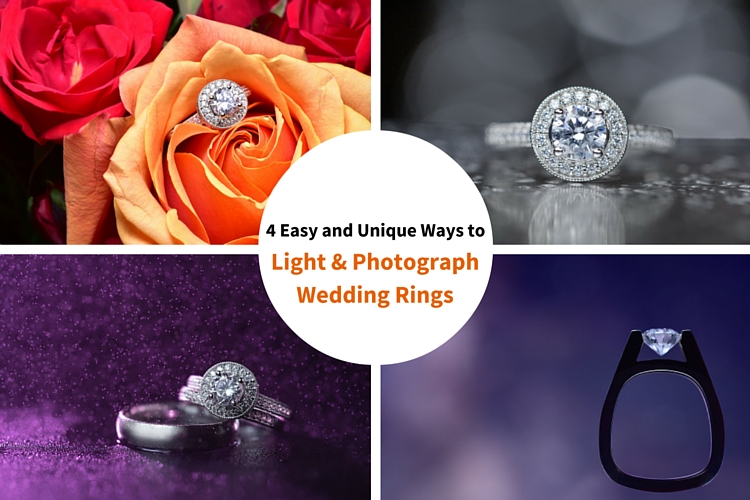
4 Easy and Unique Ways to Light and Photograph Wedding Rings

10 Jun

Snapdeals Sale: If you’d like to learn more about how David and Patrick photograph weddings you may want to check out their 14 hour tutorial on all things wedding photography. It’s currently $ 100 off at SnapnDeals.

Wedding photographers are expected to capture every aspect of a wedding day and in many cases we only have a couple minutes to work. The wedding rings are an important detail that many photographers either overlook completely or over think. Over the years I’ve taught some practical ways to improve your wedding business and shooting skills. Let me show you four quick and unique ways to photograph the wedding rings.

4 Easy and Unique Ways to Lightand Photograph Wedding Rings

You’ll Need a Macro Lens

04.jpg

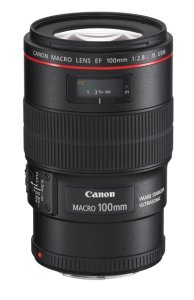
To capture wedding rings properly you’re going to need a macro lens. Without one, you simply won’t be able to zoom in and focus close enough. Yes, you could shoot wider and crop in but you will be losing tons of resolution. Luckily basic macro lenses are not that expensive.

If you’re shooting Nikon I would suggest the Nikon Micro 55mm f/2.8 or the Micro 60mm f/2.8. These lenses are very small and will easily fit in your bag. If you’re shooting Canon I would suggest the 100mm f/2.8L IS USM Macro. This one actually does have auto focus.

If you’re anything like me, you’re not going to use a macro lens very often, so you won’t want to spend a ton of money on extra features like vibration reduction (image stabilization). If you want to save even more money, buy the lens used. Amazon is actually great for used lenses. Simply click used at the bottom of any description on Amazon. You can get them cheap and they will hold their value for years to come.

Technique #1 Wedding Rings in Flowers

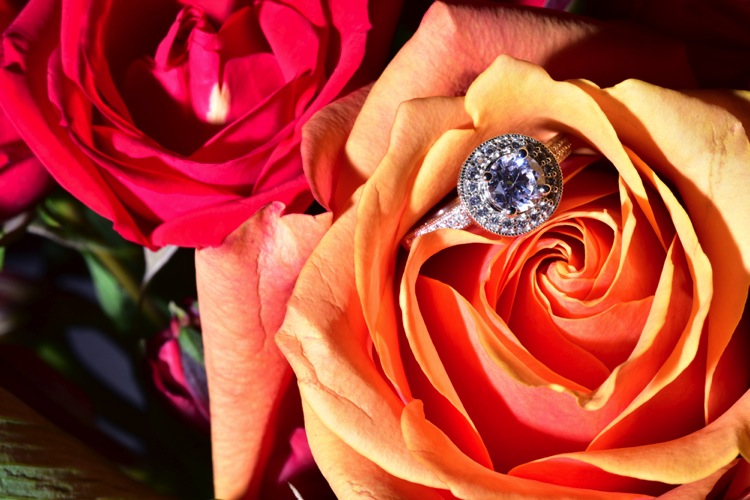
The absolute easiest shot to capture, and one that I’m sure to get at every single wedding I photograph, is one or more of the wedding rings placed inside, or on top of flowers. I don’t think I’ve been to a single wedding where flowers weren’t easily available. This shot is overdone and boring to a lot of photographers, but keep in mind that your clients will (hopefully) only get married once. So, to them, this shot is unique. It shows off the wedding rings, and it also captures the flowers, which they spent a lot of time and money picking out.

Sometimes I will use the bouquet of flowers and lay them down on the table, but I usually find it easier to work with flowers that are standing up. For this I will often use a vase of flowers, usually found in center of the tables at the reception.

For lighting this first shot I’m going to use a speedlight, any type will work. If you don’t have enough money to buy a name brand-name speedlight, then I would highly suggest checking out Yongnuo flashes, the base version is only 70 bucks. If you shoot Canon, you may want to spend a bit more, and buy the YN600EX-RT, that will communicate with radio signals for $ 129.

1 flowers direct flash

Holding the camera in one hand and the flash in the other, you can see that we can get a decent result (image above), but it would be much better if we could soften the light.

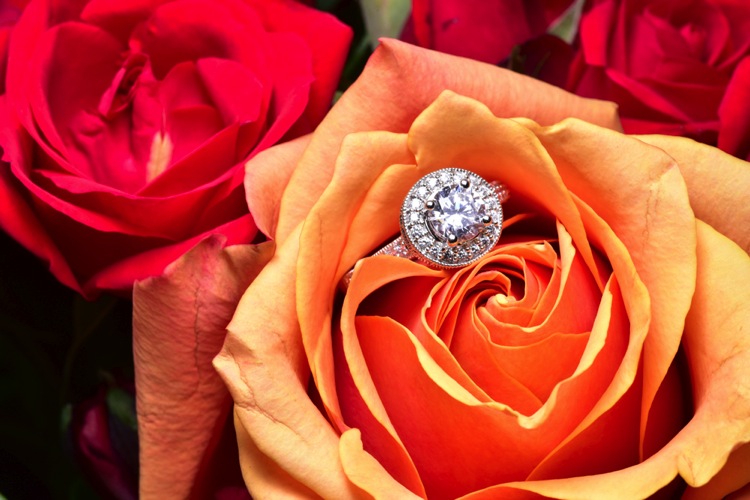
If you didn’t bring a modifier with you, you can use anything nearby that’s white. I’ve used a white plate, paper napkin, white t-shirt, and a tablecloth in the past. For this shot we will use a white paper towel. By bouncing the light off of, or through the paper towel, we can get much larger, softer light.

Having my assistant move the flash with each picture I take, ensures that we will get a lot of variety, without wasting time looking at each shot individually. Remember, this is all taking place during a wedding, so I really don’t want to spend more than a minute or two on these shots. After taking 10-20 shots in rapid succession, I can quickly review them and confirm that I have a keeper.

2 moving soft light

I consider this to be my safety shot because I can get it in under two minutes at every wedding I do, and the client always loves it. After I knock it out, if I have time, I’ll try some more complicated and creative shots.

Adding Multiple Lights and Water

For this next shot we are going to complicate things a bit in terms of gear, but we are also going to be able to do it without the help of an assistant.

First, find an interesting surface to place the rings. It could be a tablecloth, wood grain, granite, or anything you find around the reception site. We took our picture on a black, glass-top table.

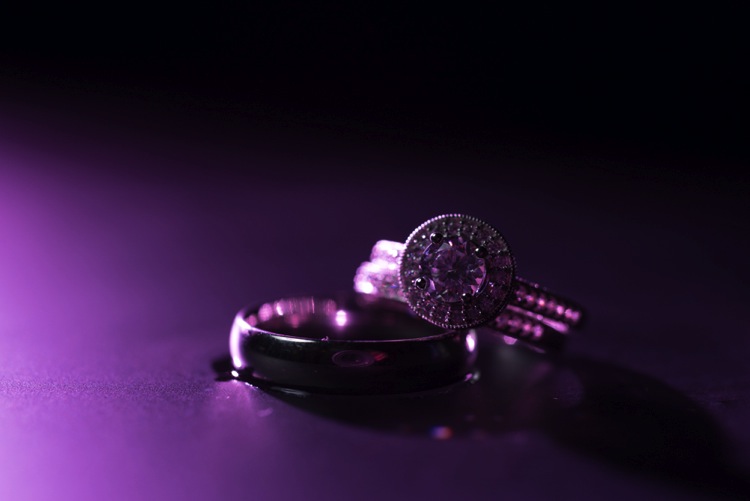
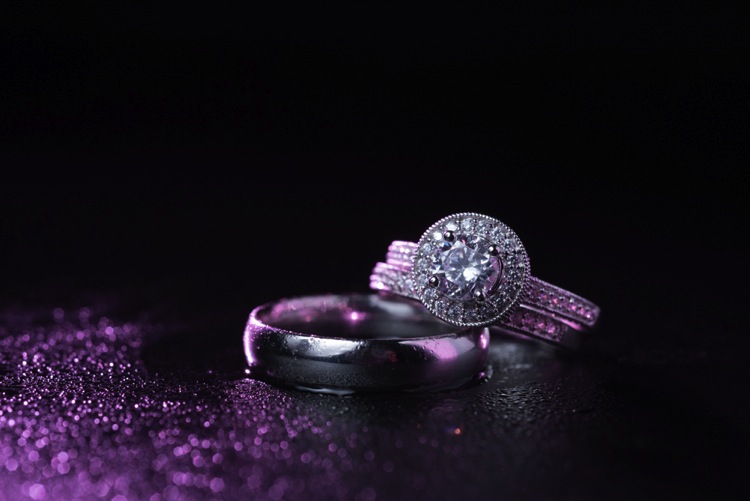
First I setup the camera up on a tripod so that I could keep my hands free. From behind the ring, I added the first speedlight, to create a rim light on the back of the subject. To add a bit of interest I used a purple gel, and to confine the light, the Magmod grid.

3 Final Back Light Only

Now it’s time to light the rings from the front. Instead of using a paper towel, I decided to use the Fstoppers FlashDisc. It’s basically a collapsible softbox that can used with just one hand. When it’s collapsed down, it’s small enough to fit in your pocket, which makes it extremely convenient at weddings.

Read: Review: Flash Disc Lighting Modifier by Fstoppers for more information on this product.

4 Final backlight and flashdisc

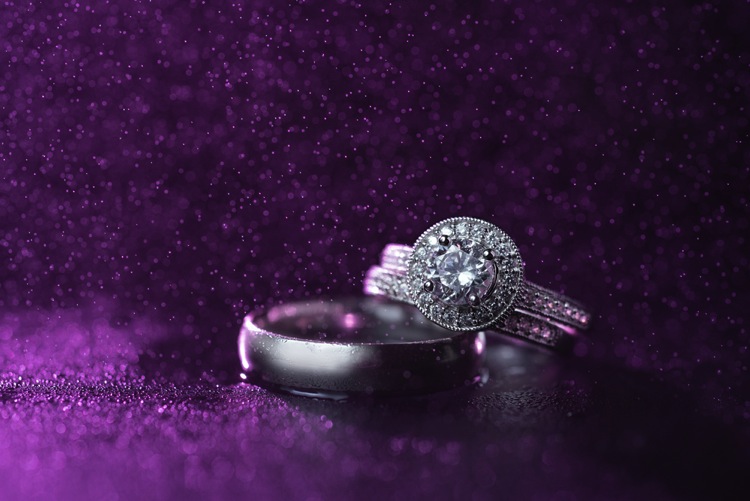
To add one more interesting aspect to this shot, I used a miniature spray bottle to add mist behind the rings. The purple light coming from the back, lights up the water, and takes this shot to the next level.

5 Final best 1 retouched

Building Your Own Set and Using Continuous Lighting

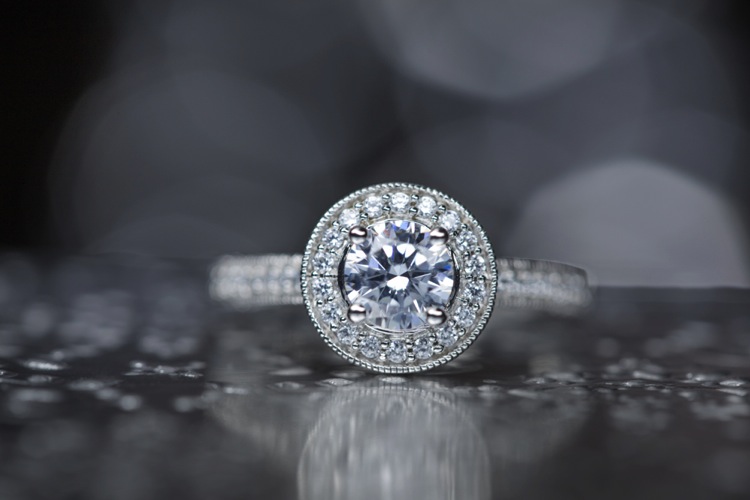
If you like to be prepared for any situation, you’re going to want to travel with a few props that you know you can work with, if the items around a wedding aren’t cutting it as a background. I travel with a pack of metallic foils that can be used to place the rings on. I also brings along cheap reflective jewelry that I can use to create bokeh effects.

Instead of using a strobe for this shot, a cheap LED panel was used as a continuous light source. These panels can be extremely handy, but keep in mind that you will probably want to use a tripod if you are going to use them to light the rings so that you can keep everything sharp (the shutter speed may be slow). If you want extremely blurry bokeh, you’re also going to want to shoot at a wider aperture than you normally might.

6 Final Image 2

Using a Screen to Create Your Own Background

For this final shot, we are going to use a computer screen to create our own background. If you don’t travel with a laptop, you could use an iPad, or maybe even a smartphone screen instead.

I would suggest practicing this shot at home before you ever get to a wedding. You don’t want to be fiddling around with your setup, or searching for different backgrounds while the wedding is going on. If you are prepared though, this shot can be extremely easy to pull off.

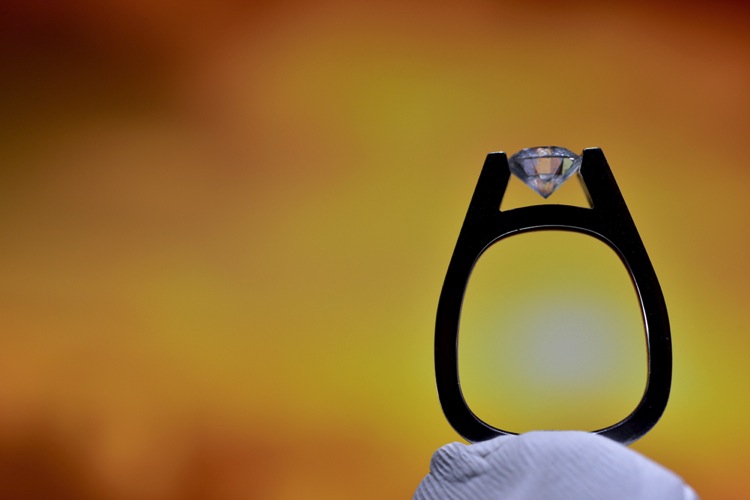
First I placed the ring on bit of putty to get it to stand up. I then set my computer screen to its brightest setting, and exposed for the screen itself. At this point the shot is a silhouette of the ring.

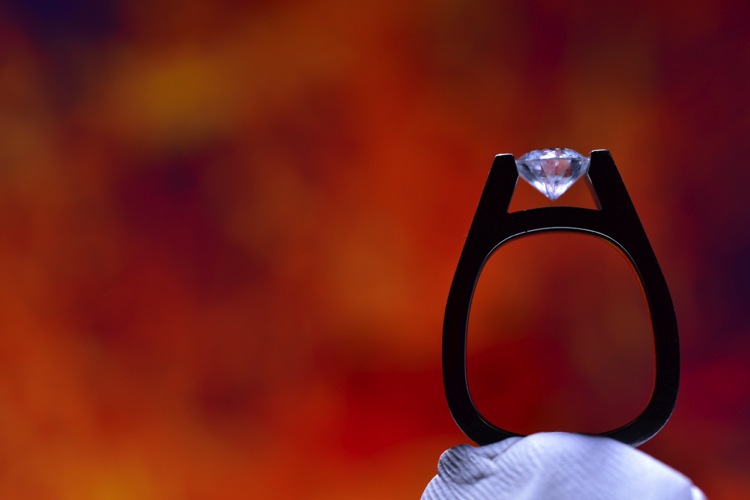
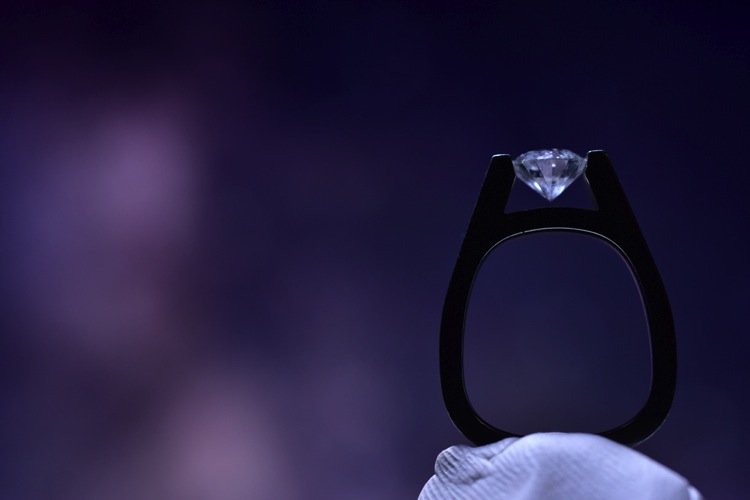
7 Screen backlit

To light the ring itself you could use your smartphone’s flashlight, or you could use any cheap LED flashlight. If your flashlight doesn’t dim, you can simply move it closer or farther away from the ring to get a correct balance of light, with the screen in the background.

Because your background will be so blurry, it really doesn’t matter what is on the screen in the background, you are basically looking for certain colors, and large shapes that will create an interesting mood.

8 screen shot 1

9 screen shot 2

10 screen shot 3

11 screen shot 4

In the post-production you can either zoom-in past the putty (crop it out) or you can Photoshop the putty out and have a floating ring effect.

12 Final Edit 4

You can also watch us go through these techniques in the following video:

Snapdeals Sale: If you’d like to learn more about how David and Patrick photograph weddings you may want to check out their 14 hour tutorial on all things wedding photography. It’s currently $ 100 off at SnapnDeals.

googletag.cmd.push(function() {
tablet_slots.push( googletag.defineSlot( “/1005424/_dPSv4_tab-all-article-bottom_(300×250)”, [300, 250], “pb-ad-78623” ).addService( googletag.pubads() ) ); } );

googletag.cmd.push(function() {
mobile_slots.push( googletag.defineSlot( “/1005424/_dPSv4_mob-all-article-bottom_(300×250)”, [300, 250], “pb-ad-78158” ).addService( googletag.pubads() ) ); } );

The post 4 Easy and Unique Ways to Light and Photograph Wedding Rings by Lee Morris appeared first on Digital Photography School.


Digital Photography School

 
Comments Off on 4 Easy and Unique Ways to Light and Photograph Wedding Rings

Posted in Photography


How to Create a Delicious Blurry Bokeh Background in 4 Easy Steps

02 May

Blurry backgrounds are nothing new when it comes to photography. The technique of blurring the background to emphasize a subject in the foreground has been used by photographers for decades, and by painters and other visual artists for hundreds of years. Now thanks to the proliferation of digital cameras this phenomenon has exploded in recent times.

Many people like photos with a tack-sharp subject and a smooth blurry background, and even though some might say it’s more of an over-used trend, the truth is that bokeh is here to stay. The trick to using it effectively, is to learn how to use the physical properties of lenses and light to create the look you are going for. While some people turn to creative editing tricks like adding blurry filters or doing Photoshop gymnastics there really is no substitute for the genuine article. If this is something you have always wondered about or wanted to try for yourself, here are four easy steps to get you started.

50mm, f/4, 1/350 second, ISO 400

50mm, f/4, 1/350th of a second, ISO 400

The term bokeh is a Japanese word that doesn’t have a precise English translation, but refers to the type and quality of the out-of-focus areas of an image. In other words, when the blurry parts of a picture look nice, you might say the image has good bokeh. While a thorough discussion of what bokeh is, what causes it, and what affect your lenses and lens elements have on the type and quality of bokeh could go on for several pages, this article is going to be a bit more basic look at how to create visually pleasing blurry elements in your photos. If you don’t want things to get too complicated, and aren’t quite ready for a thorough breakdown of aspherical elements or the circle of confusion, then get out your camera and follow along with these few simple tips to help you get the look you have always wanted.

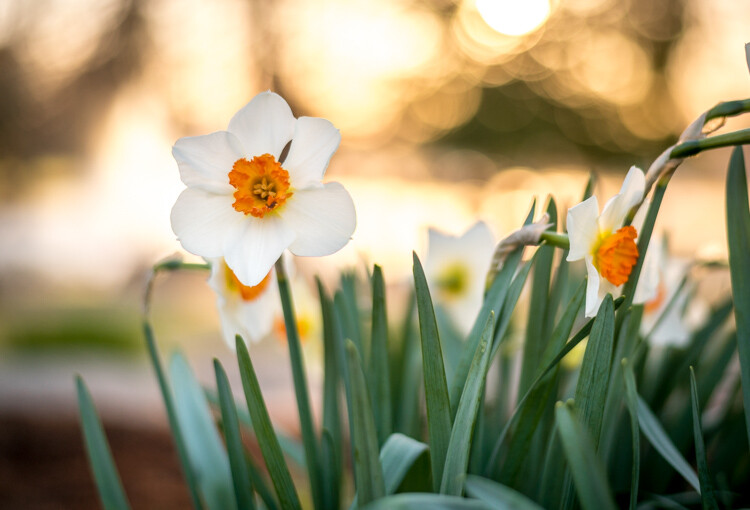
understanding-bokeh-golden-glow

50mm, f/1.8, 1/6000th, ISO 100

1 – Shoot with a wide aperture

Take a look at the front of your lens, you will probably see a few numbers that look like 1:3.5-5.6, or 1:2.8, or f/4 (read: What the Numbers on your Lens Mean for more on how to find this). These numbers refer to the size of the aperture in the lens itself, and how big the opening can get. Ironically smaller numbers are bigger, and a lens that says 1:2.8 will be able to let in much more light than a lens that says 1:4 or f/4. (Some manufacturers use different schemes to show the aperture size but it’s always the number after the colon, or on the second side of the / that you want to look for when determining the maximum size of the lens opening.)

The smaller the number, the wider your aperture will be, and the less light you will need to take a properly exposed photo. Wide apertures also mean your photos will have a shallower depth of field, and anything out of focus behind your subject will begin to take on a smoother, more visually pleasing blur. In other words, wide apertures help give you more bokeh.

understanding-bokeh-leaves

50mm, f/1.8, 1/4000 second, ISO 100

If you’re itching to get some pictures with the same kind of buttery-smooth background blur you have seen in nature magazines or fashion spreads, put your camera in Aperture Priority mode (on Nikon) or Av (Canon, Pentax, etc.) and turn the control dial until the aperture value number is as close to zero as it can go. It helps if you have a prime lens that doesn’t zoom in and out, since they usually have wider maximum apertures, but even a kit lens can give you decent results if you have enough light. Now go out and find something to photograph, even if it’s just a coffee mug on your office desk.

To put my money where my mouth is, I took my camera to work and literally snapped a picture of a coffee cup on my desk. No photoshopping or magic tricks here, just a wide f/1.8 aperture. 50mm, 1/100 second, ISO 160

To put my money where my mouth is, I took my camera to work and literally snapped a picture of a coffee cup on my desk. No photoshopping or magic tricks here, just a wide f/1.8 aperture. 50mm lens, 1/100 second, ISO 160

2 – Put your subject far away from the background

If you have been trying to get the kind of silky, blurry bokeh you seem to notice in everyone else’s photos you might try this one simple trick and you won’t believe what happens! Simply putting a great deal of distance between your subject and whatever is behind it, can go a long way towards creating the bokeh you have always dreamed about.

understanding-bokeh-flowers-sunrise

50mm, f/1.8, 1/1000 second, ISO 100

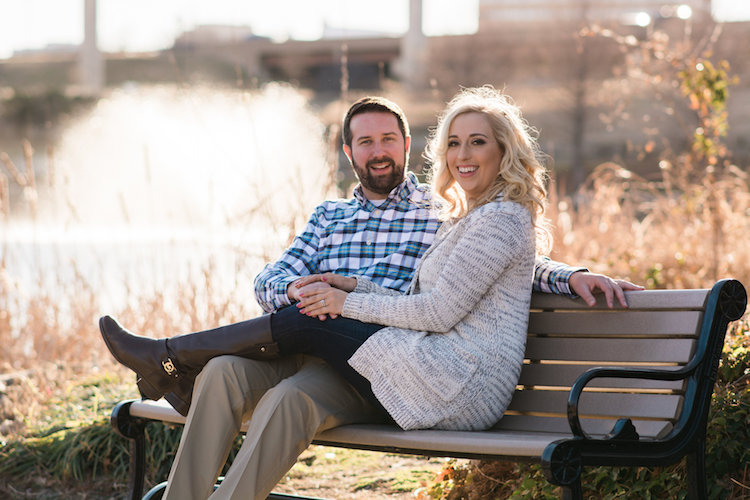
If you are shooting portraits, try moving your subjects to a location where there is a great deal of space behind them, or even just repositioning yourself so you are looking at your subjects from a different angle that puts more distance between them and the background. In the photo below, I specifically shot the scene so that there was about 50 meters between the couple and the fountain, which caused it to have a nice blurry out-of-focus appearance that complements the woman and her fiancée quite well. I could have used a bench that was much closer to the fountain, but it would have had a very different affect on the picture, and it would not have given me nearly the same amount of bokeh as you can see in the final image below.

understanding-bokeh-fountain

85mm, f/2.4, 1/2000 second, ISO 200

3 – Get close to your subject

As I mentioned in the opening paragraph there are many different optical elements that come into play when dealing with bokeh and background blur, and certainly shooting with wide apertures while putting a great deal of distance between your subject and the background are critical elements of the equation. Another thing you can do, is position your camera and lens physically close to the subject you are shooting. Combine this technique with the first two, and you’re virtually guaranteed to get good results.

understanding-bokeh-fence

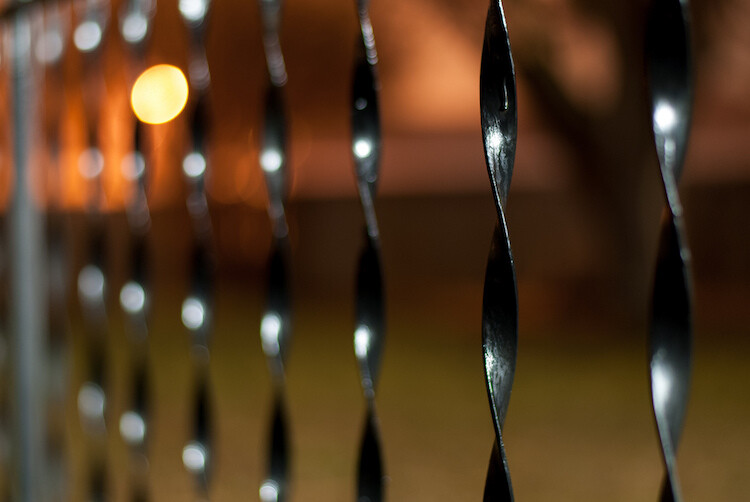
This shot has all the techniques rolled into one: a wide f/1.8 aperture, a far-away street light in the top left corner, and a very short distance between my camera and the fence bar on the right side.

4 – Zoom in, waaay in

If you are trying to get bokeh-licious shots and not having much luck, there’s another technique that could mean the difference between frustration and celebration. Due to how lenses collect, and focus incoming light rays, it’s easier to get blurry backgrounds with longer focal lengths. This is why these types of shots are difficult to get on mobile phones, which generally have lenses with a much wider angle of view. Grab your nearest camera, whether it’s a DSLR or a humble little point-and-shoot, and zoom the lens as far in as it will go. Now use the other tips I have already mentioned: set the aperture to the widest setting, find a subject that’s relatively close to you, and make sure there is plenty of room between the subject and the background.

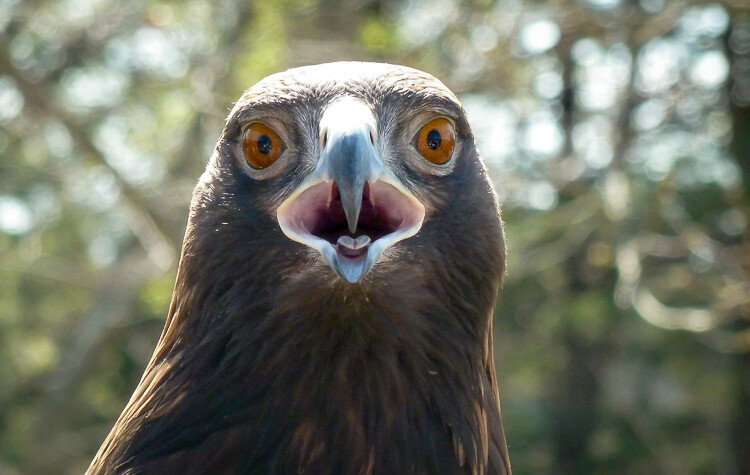
A golden eagle, taken with my 400mm f/4 lens on a Nikon D7200. A very expensive combination, but it produces outstanding results with silky-smooth bokeh.

A golden eagle, taken with my 300mm f/4 lens on a Nikon D7200. A very expensive combination, but it produces outstanding results with silky-smooth bokeh.

You might not get the photo of your dreams, but with a little bit of practice you should start to see some improvements, as you begin to understand how to use your camera to create sharp subjects with pleasing out-of-focus areas.

Just kidding! I took the first shot with a $  150 Panasonic ZS7 pocket camera. All I did was zoom in as far as it would go. This is the same scene with the same camera a few seconds later, shot at the camera zoomed all the way out.

Just kidding! I made that first image above with a cheap Panasonic ZS7 pocket camera, and all I did was zoom in as far as it would go. This is the same scene, with the same camera, a few seconds later – but zoomed all the way out.

Now with all this being said, I have a challenge for all of you dPS readers: What is your favorite picture you have taken that has nice pleasing bokeh? Is it a portrait, a wild animal, or more along the lines of abstract art? Share your picture in the comments section below along with a few tips of your own to help others take similarly beautiful bokeh photos.

googletag.cmd.push(function() {
tablet_slots.push( googletag.defineSlot( “/1005424/_dPSv4_tab-all-article-bottom_(300×250)”, [300, 250], “pb-ad-78623” ).addService( googletag.pubads() ) ); } );

googletag.cmd.push(function() {
mobile_slots.push( googletag.defineSlot( “/1005424/_dPSv4_mob-all-article-bottom_(300×250)”, [300, 250], “pb-ad-78158” ).addService( googletag.pubads() ) ); } );

The post How to Create a Delicious Blurry Bokeh Background in 4 Easy Steps by Simon Ringsmuth appeared first on Digital Photography School.


Digital Photography School

 
Comments Off on How to Create a Delicious Blurry Bokeh Background in 4 Easy Steps

Posted in Photography


Taking it easy: Canon EOS 80D shooting experience

25 Mar
All of the images and videos on this page were shot using the new EF-S 18-135mm F3.5-5.6 IS USM kit lens. ISO 100, 1/1250 sec, F5.6. Shot at 18mm.

The Canon EOS 80D is an enthusiast-level DSLR geared toward photographers looking for a capable stills and video camera. The 80D sports a brand new 24MP APS-C sensor, a 3″ articulating touchscreen, a new 45-point AF system (with dual pixel AF) and 1080/60p video capture capabilities. Like its predecessor, the camera has a weather-sealed construction and a nearly-identical body design.

I had the opportunity to test the 80D having just finished field testing the Sony a6300, a mirrorless camera which also sports a 24MP APS-C sensor and a similar launch price. On paper, the a6300 out-specs the 80D in many categories, like 4K video capture, 11 fps shooting and most notably, its 425-point AF system. But don’t fall into the trap of thinking specs alone make the a6300 a better camera. In hand, it feels as if your holding a small magnesium rectangle jam-packed with cutting-edge technology, but to some degree, the operation and menus feel like a work in progress. In contrast, holding the 80D feels like you’re holding the product of 20+ years of R&D. Which is to say: the 80D feels more refined in operation and more intuitive to use than the a6300.

Of course there are also quite a lot of other APS-C sensor cameras on the market that fall into a similar price range and class to the 80D. Its closest DSLR competitor is most likely the Nikon D7200 (though the Pentax K-3 II also comes to mind). Both the Nikon and the Canon offer very similar still and video specifications, though the D7200 does not have a touchscreen, nor does it offer an equivalent to Canon’s dual pixel AF. There’s also the EOS 7D Mark II, Canon’s top tier APS-C camera. It offers features generally associated with more pro-level cameras like Intelligent Tracking and Recognition (which the 80D does not). And while the 7D Mark II is priced higher than the 80D, it is interesting to note that the 80D uses a newer sensor that we’ve found offers much better dynamic range than previous Canon cameras, including the 7D II.

General camera ergonomics

The 80D is very easy to operate with a single hand. The grip is extremely comfortable, and at 1.8 lbs, the 80D shouldn’t break your back. I do have few small frustrations though: the AF-on button is located next to two other identically-sized buttons and is the most difficult, at least for me, to hit of the three. I also find the switch to lock the back control wheel, which by default is set to Exposure Compensation, can be bumped into the lock position far too easily. In fact, every single time I went to adjust my Exposure Comp., it was locked.

The 80D has an articulating touchscreen, which I used to frame this shot. ISO 100, 1/200 sec, F10. Shot at 24mm.

Finally, I’ve found that the video record start/stop button isn’t quite as sensitive as it should be. I actually missed a few clips because I hit the start button, thinking capture had begun, when in fact it had not.

Of course, it is much easier and quicker to point out frustrations in a camera’s ergonomics, than list everything the company did right. Overall the 80D is a well-designed camera with terrific ergonomics, sensibly-organized menus, and mostly-logical button placement. And unlike most mirrorless cameras, the battery life on the 80D is frankly, a breath of fresh air. A whole day of shooting stills and video (about 700 stills, and 35 videos, most about 30 secs in length) resulted in only a 1/4 drain on the battery.

Dynamic range

Canon’s large-sensor cameras are not exactly known for their dynamic range. Pushing the exposure on a Canon Raw file even a couple stops (or just turning on vignetting correction) can result in the shadow detail starting to fall apart. But the 80D uses a spanking new sensor that supposedly offers better dynamic range than past Canon release. But does it?

Yes it does! We ran the 80D through our exposure latitude and raw dynamic test and found that the new sensor is substantially better than previous Canon sensor in terms of dynamic range. It’s not quite on the same level as the Nikon D7200 or other cameras using recent Sony APS-C Sony sensors, but the improvement is definitely something to cheer about if you’re a Canon shooter.

Original exposure, gently edited in ACR. ISO 100 1/500 sec at F16. Exposure pushed +2.5 stops, Shadows pulled up +50 in Adobe Camera Raw.

The silhouetted image above on the left was processed through Adobe Camera Raw without adjusting the exposure, while the image on the right was pushed a full 2.5 stops. Have a look specifically at the areas in the image on the right that were previously in the shadows. While this isn’t a perfect example, it should give you an idea of what kind of dynamic range the 80D offers.

Video

In the demo above, I used AF-C and selected an AF point in the center of the frame. Hunting is minimal as I move from subject to subject and acquisition is reasonably fast.

It is very easy to shoot nice-looking video with the 80D. The touchscreen is an absolute pleasure for selecting focus points, and Dual Pixel AF allows for continuous focus during video capture. In use, it is excellent, with minimal to no hunting and fast acquisition. When using the widest AF area option, called ‘Auto selection: 45 pt AF,’ the camera will automatically look for faces in the scene and focus on them. If it finds no face, it will instead focus on the nearest object.

Video quality looks decent. It can’t touch the quality of footage coming from the likes of the a6300, but for most enthusiast shooters, the quality will be good enough. And the inclusion of both a mic and headphone jack should add to the camera’s video appeal.

Video shot hand-held in 1080/60p.

Unfortunately, several video making tools that seem to be par for the course when it comes to other manufacturers, are absent in the 80D, specifically: Focus peaking, zebra stripes and a clean-HDMI out option. There is also no C-Log gamma option (a very flat tone curve useful for color grading).

Auto ISO

This was shot after I pushed the 80D’s Auto ISO minimum shutter speed default to its fastest setting. Out of the box, when using Auto ISO, the 80D offers a shutter speed about equivalent to 1 over the focal length. However, in the menus, there is a slider to bias the minimum shutter speed by 1, 2 or 3 stops above default (as well as 1,2 and 3 stops below the default). You can also assign a physical shutter speed number to be the camera’s default. ISO 100, 1/400 sec, F7.1. Shot at 135mm.

The default Auto ISO shutter speed often was not fast enough for the scenarios I was shooting. At one point while field testing the camera, a humming bird flew right up to me and hovered mid air for long enough for me to bring the camera to my eye and fire a shot. Unfortunately, the 80D decided that 1/200 sec was the most appropriate shutter speed. Needless to say, the resulting shot was blurred.

Canon has recently been updating its Auto ISO implementations to make them fully programmable (a la Nikon and now Sony), and it’s great to see this update in the 80D. You have two ways to control your minimum shutter speed when using Auto ISO. You can either pick a physical shutter speed, ranging in full stops, or use a slider to bias the default shutter speed to faster or slower than the default. If you use Auto ISO, I strongly recommend the first thing you do when picking up the 80D is push the shutter default to a faster setting.

AF features

Shot using touch-to-focus. ISO 100, 1/200 sec, F5.6. Shot at 50mm. Cropped in slightly using ACR.

The Canon 80D features a brand new AF system and an increase in AF points over its predecessor, from 19 to 45. Coverage area has also been improved, and all of the points are cross-type. One of the most note-worthy features of the 80D’s AF system comes in Live View, which now offers continuous AF (called AI Servo). It is only the second Canon camera to do this (the Rebel T6s was the first), but the 80D’s Dual Pixel AF is far more capable than the Hybrid AF system found on the T6s. This feature can be used during still or video shooting and should prove especially useful on the video end. That said, we’re also hopeful that it can be used to reliably subject track in stills mode as well (initial impressions are positive, but more on that below).

The 80D’s touchscreen has both touch-to-shoot and touch-to-focus capabilities. In use, the touchscreen is just OK – its operation can be a bit laggy, especially if you are trying to quickly move your AF point. The camera does have a sensitivity slider, but even adjusting it to its most sensitive setting doesn’t seem to help the lagginess much. 

I was disappointed to find out that the touchscreen can not be used as an AF track pad when one’s eye is to the finder. Many camera companies have been including this feature (like Olympus in the PEN F and Panasonic in the GX8, and Nikon in the D5500) and it is extremely useful. A missed opportunity on Canon’s part for sure. To be fair, the 4-way controller on the back of the camera can be assigned to direct AF point selection (but it’s mushy and not well-positioned for quick thumb access with your eye to the finder). You can also use the AF Point Selection button, though I found it frustrating to use when shooting with a single AF point.

I also discovered that there is no way to use touch-to-shoot in continuous drive. Even if you have the camera set to continuous drive, it will simply ignore your selection and default to single frame advance mode (the use cases for this may be limited, but I did find myself in a scenario where touch-to-shoot + burst would have been helpful). In general, I found that using the FlexiZone-Single option, while tapping to specify the area, gave me the best results when using both touch-to-shoot and touch-to-focus.

AF real world impressions

Continuous AF (AI Servo) using a single point gave me the best hit rate, as long as kept my point over the subject. ISO 100 1/500 sec, at F8 (I probably should have used a faster shutter speed).

My initial impressions of the 80D’s AF capabilities are largely positive. I shot quite a bit using the camera in AI Servo mode using either a single point or the Zone AF area mode, with mostly excellent results. Zone AF can sometimes get confused as to which point(s) to use to stay on your subject, so single point is still most reliable. Subject tracking is particularly limited compared to the EOS 7D Mark II, the company’s priciest APS-C offering, because the 80D lacks Canon’s Intelligent Tracking and Recognition. Still, I wanted to get some real impressions of advanced subject tracking ability, so I set AF area to the entire frame (Multi-Area AF) with a manually selected initial point – where the camera automatically moves the initial AF point throughout the entire grid to stick to an initially targeted subject, no matter where it moves to within the frame.

When shooting with one’s eye to the finder, the 80D isn’t great at staying on a subject once it has been identified. This is partly due to the fact that being a DSLR, the 80D cannot not use its image sensor to track (except in Live View mode of course) and likely does not use its metering sensor, which is essentially a low resolution image sensor, either. Although I got lousy results in my initial tests, subject tracking in viewfinder mode is somewhat case specific and has the potential to work well for subjects on non-complex backgrounds, and particularly subjects well isolated in depth (distance) at longer focal lengths.

On the other hand, my experience trying subject tracking in Live View mode was much more positive. When using the touch LCD to subject track, one can simply tap the screen to identify a subject. I had the chance to use this method while shooting candids of friends. The 80D did a great job staying on a subject once identified, which isn’t very surprising: using the image sensor to identify, understand, and track your subject is more reliable than using only distance information to subject track. Furthermore, if you do not tap the screen to identify a subject right off the bat, the camera will settle for the nearest face it finds (as long as you’re in Face + Tracking mode).

Of course, using Live View (the touchscreen) to shoot a burst means you only get the stop-action-style playback of images when firing, which can make it difficult to follow your subject.

Also shot using AI Servo, this one using the Zone AF area, placed in the center of the frame. Overall I found using a single point gave me better results when using continuous focus. For the record, the little guy was cruising real fast! I saw him coming down the sidewalk out of the corner of my eye, and only had time to snap two frames; the first was a little blurry, the second (shown here) was sharp. ISO 100, 1/500 sec, F7.1. Shot at 135mm.

Of course, continuous AF and subject tracking aren’t the only things that matters in an autofocus system, sensitivity is also important. Canon states the 80D’s center AF point is sensitive down to -3EV, which should translate to responsive AF performance using the center point, even in very low light. I ran a quick test in our studio to see if this was the case. Using the EF-S 18-135mm F3.5-5.6 kit lens, and with all lights off except for a dimmed incandescent bulb, I pointed the 80D at out studio test chart. But not before first switching the lens to MF and throwing focus way off (I then switched it back to AF before shooting). With my eye to the finder, I acquired focus and fired a frame. I did this several times at both the wide end and the tele end of the lens’ zoom range. In both cases, the 80D was able to acquire accurate focus nearly instantaneously, which is impressive, especially considering the F5.6 max aperture at the tele end.

And to give you a sense of how dim the above scenario was, when I was testing the low light AF performance at the kit lens’ widest end, I was shooting at ISO 16,000, at 1/30 sec F3.5, which gave me a proper exposure. This is good news for low light shooters, like myself. I’m especially fond of music photography and its encouraging to know that the AF system will perform, even in some of the lowest light scenarios the camera is probably capable of shooting an image in. For instance, with a 24mm F1.4 lens attached, I should be able to shoot at ISO 12,800 1/100 sec F1.4 while still enjoying accurate and responsive AF performance (well, as long as I’ve microadjusted).

The takeaway

It can be hard to get excited about enthusiast level DSLR updates. But in the case of the 80D, enough has been improved upon over its predecessor that while looking nearly identical, the 80D truly is a whole new camera (not just a granular update).

It offers reasonable specs, an easy-to-use interface (the touchscreen adds quite a bit to the camera’s ease of use) and a familiar design. Toss in the fact that it offers maybe the best dynamic range of any Canon DSLR to date, and the 80D has even more appeal. For Canon system users, specifically enthusiasts considering an upgrade from either a Rebel or an older camera, there is an awful lot to like about the 80D.

ISO 12,800 is a pretty high ISO, especially for an APS-C camera. This images was processed through ACR, but I’m fairly impressed with how good the high ISO image quality appears to be. But more testing is needed! ISO 12,800, 1/60 sec, F4. Shot at 27mm.

Canon EOS 80D Sample Gallery

Please do not reproduce any of these images on a website or any newsletter / magazine without prior permission (see our copyright page). We make the originals available for private users to download to their own machines for personal examination or printing (in conjunction with this review), we do so in good faith, please don’t abuse it.

$ (document).ready(function() { SampleGalleryGridV2({“galleryId”:”7982275943″,”isMobile”:false}) })

Canon EOS 80D real world samples

42 images • Posted on Mar 24, 2016 • View album
Sample photoSample photoSample photoSample photoSample photoSample photoSample photoSample photoSample photoSample photoSample photoSample photoSample photoSample photoSample photoSample photoSample photoSample photoSample photoSample photoSample photoSample photoSample photoSample photoSample photoSample photoSample photoSample photoSample photoSample photoSample photoSample photoSample photoSample photoSample photoSample photoSample photoSample photoSample photoSample photoSample photoSample photo

Articles: Digital Photography Review (dpreview.com)

 
Comments Off on Taking it easy: Canon EOS 80D shooting experience

Posted in Uncategorized


3 Easy Steps to Photograph Glassware with Minimal Gear

22 Feb

Photographing glass objects is always a complicated task because of the reflective surface, and at the same time translucent nature, of this material. The catalogue images with great glassware perfectly illuminated, are usually done with complicated setups, in studios that allow the control of reflections, and lighting equipment with accessories that are not accessible to most photographers.

In this article I will show you how photograph a glass on both white and black backgrounds, with minimal equipment, and a fairly simple lighting setup.

01

The techniques used here are known as black-line and white-line lighting, and are defined by the way light is shown at the edges of the glass, in contrast to the color of the background. This is usually done with a light placed behind and above the object, with softboxes or diffusion panels to create the transparency in the glass, black and white cardboard to create the edges, and black and white acrylic panels to create the bottom reflection.

Equipment needed

Well, you may not have a studio and lighting equipment with accessories available, but it doesn’t mean you can’t give this kind of photography a try. Here is what you will need:

02

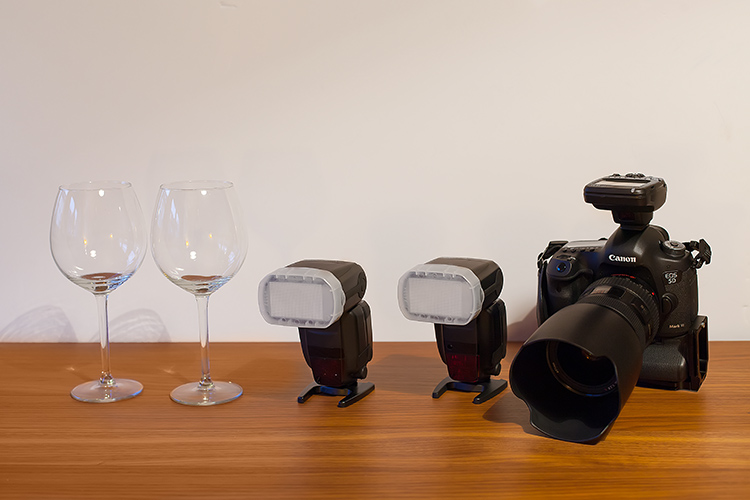
Besides the camera body and the lenses of your choice, you will need two flashes with diffusers, a trigger to fire them, some white cardboard, and two identical glasses (you will see why you need two of them later).

Step one: Clean the glasses

The first step, and a really important one may I add, is to clean the glasses really well, as any dirt in the glass will be visible in the image. Toilet paper and glass cleaning fluid are a good choice to get rid of spots or smudges, and a compressed air can be a good choice to get rid of dust specks.

03

Step two: Prepare your set

In these images, instead of an acrylic panel to create a reflection effect, I decided to use an old school technique to simulate the same effect – with the use of another glass turned upside down, under the main photographed glass. I use this technique a lot, as it allows me to have a pure white or black background, without a horizon line created by the base that holds the object, which can give ghost reflections sometimes, and is hard to keep clean due to electrostatic.

Step three: set up your lights

Even though camera flashes (speedlights) are very low power compared to studio units, they have more than enough power for this kind of setup, and are an accessible and simple solution.

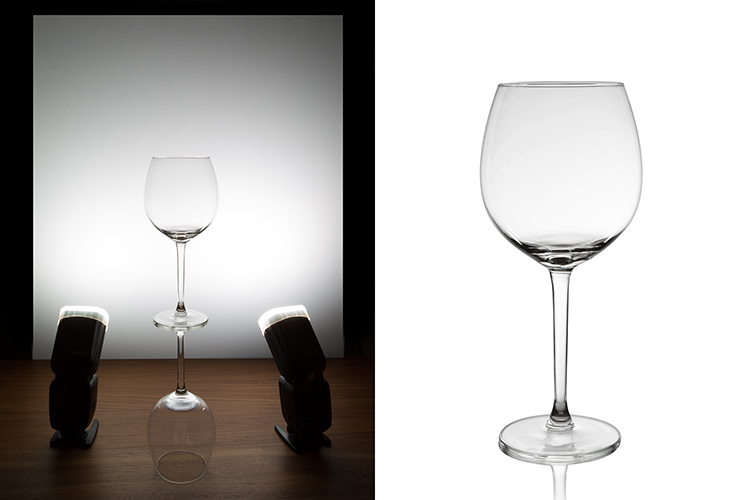
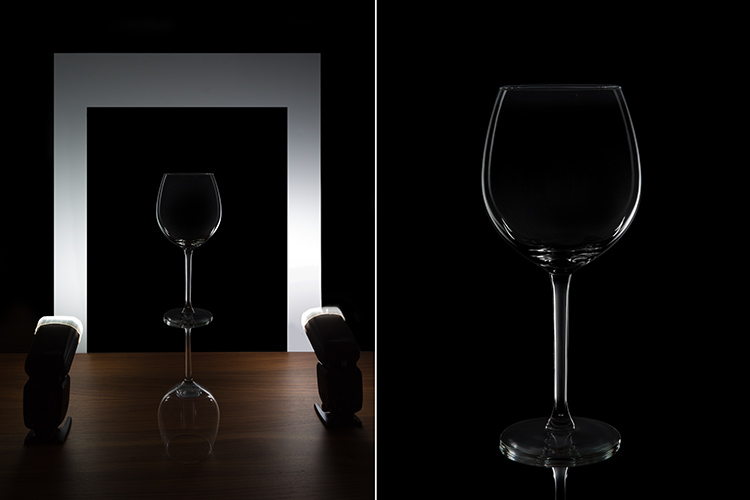
You will need to use the white cardboard as the background, and one flash with a diffuser on each side of the glas, illuminating the background evenly. This simulates the use of a softbox as backlight in a really simple way.
Here is the behind the scenes image showing the setup:

04

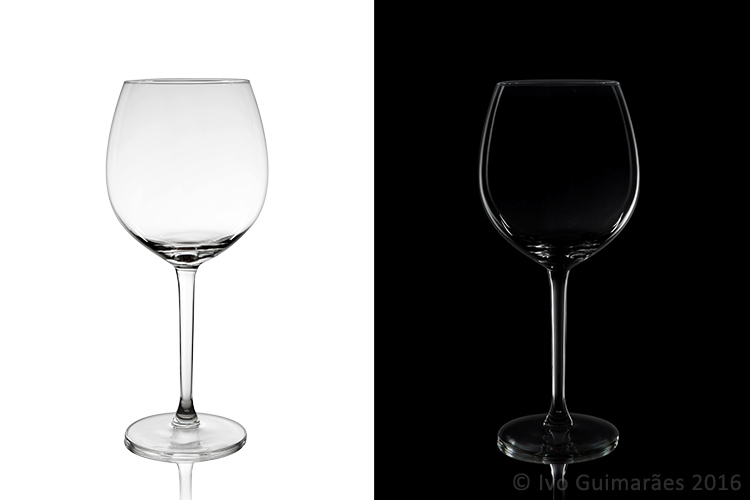
Voila, here is a perfect white background glassware image. It’s amazing what you can get straight out of the camera with such a simple setup. The camera settings used were: f/22, 1/200th (flash sync speed), ISO 50. Both flashes were on 1/2 power with a 50mm zoom setting.

It is important to have a large depth of field to get well-defined glass edges (including the back side of the glass), and to use the highest sync speed for your flash/camera combination to avoid the ambient light making a reflection and changing the color temperature of the image.

Bonus step: Black background setup

The black background image might seem a lot more complicated, but actually it’s as simple as cutting a hole in your white cardboard, that will function as an open window for the black background. Here is the behind the scenes image for that setup:

05

Here is the black background glass image.

The camera and flash settings are the same, but the white cardboard acts as a reflector, defining the white line around the glass. Just be sure not to have anything behind the cardboard or use some black velvet as the background, which doesn’t reflect light and guarantees you a pure black.

So, there you go, a simple, yet highly effective technique to produce amazing glassware images with white or black background, and bottom reflection effect – without a studio, fancy lighting equipment, or a ton of accessories.

Give it a try, I’m sure you’ll get great results! Please share your images in the comments area below.

googletag.cmd.push(function() {
tablet_slots.push( googletag.defineSlot( “/1005424/_dPSv4_tab-all-article-bottom_(300×250)”, [300, 250], “pb-ad-78623” ).addService( googletag.pubads() ) ); } );

googletag.cmd.push(function() {
mobile_slots.push( googletag.defineSlot( “/1005424/_dPSv4_mob-all-article-bottom_(300×250)”, [300, 250], “pb-ad-78158” ).addService( googletag.pubads() ) ); } );

The post 3 Easy Steps to Photograph Glassware with Minimal Gear by Ivo Guimaraes appeared first on Digital Photography School.


Digital Photography School

 
Comments Off on 3 Easy Steps to Photograph Glassware with Minimal Gear

Posted in Photography


Extreme made easy: GoPro HERO4 Session review

03 Feb

GoPro HERO4 Session review

Waterproof, ruggedized, incredibly-small and lightweight, the Session is a no-brainer to toss in your bag or coat pocket before heading out on an adventure. 

The GoPro HERO4 Session is the company’s latest action camera release. Unlike GoPros before it, the Session is completely waterproof without the need for any housing. It is also the smallest, lightest GoPro to date, 50% smaller than the HERO4 (Black or Silver) and 40% lighter.

The GoPro HERO4 Session is capable of video capture at the following resolutions and frame rates:

 Video Resolution Frame rate 
1920 x 1440  30 fps, 25 fps
1920 x 1080  60 fps, 50 fps, 48 fps (in Ultra Wide mode only), 30 fps, 25 fps
1280 x 960  60 fps, 50 fps, 30 fps, 25 fps
1280 x 720  100 fps, 60 fps, 50 fps, 30 fps, 25 fps
848 x 480  120 fps, 100 fps

The Session has dual microphones – one on the front and another on the back – for improved audio quality. The camera will automatically choose to prioritize one mic over the over, depending on the scenario. Stills can be captured at a frame rate as fast as 10 fps (limited to 1 sec bursts). Images are captured at 8MP resulting in a 3264 x 2448 still.

The Session can also capture time-lapses. Available intervals include 0.5, 1, 2, 5, 10, 30 and 60 secs.

Auto Low Light, a feature that determines video frame-rate based on lighting conditions, gives the promise of better low light video quality, something that action cams are not particularly good at. It’s worth noting that video files will playback at the selected frame-rate and resolution when using Auto Low Light.

ProTune, an option that allows users to dial in more advanced settings, is available on the HERO4 Session. Selecting ProTune allows users to set their ISO limit (either ISO 400 or ISO 1600), and toggle sharpness on and off. The Session also features a spot meter mode, that, as you may have guessed, determines exposure based on a small point in the center of the frame.

What’s included

In addition to the unit itself, the GoPro HERO4 Session ships with just enough to get you started, including: a standard frame, a low-profile frame, one curved adhesive mount, one flat adhesive mount, a ball joint buckle and mounting buckles. A Micro-USB cable is also included for charging and transferring files directly from the GoPro to a computer.

Compared to Siblings

The price of the GoPro HERO4 Session recently dropped to $ 200. Here’s how it sizes up against GoPro’s other current offerings:

  HERO4 Session  HERO4 Black  HERO4 Silver  HERO+
Max Video Resolution

1440/30p

4K (UHD) 2160/30p

4K (UHD) 2160/15p

1080/60p
Photo Resolution 3264 x 2448 4000 x 3000 4000 x 3000  3264 x 2448
 Waterproof (without a housing) Yes  No  No No
 Max Still Burst 10 fps 30 fps 10 fps 5 fps
 Weight 74 g 152 g 147 g 123 g
 Street price $ 200 $ 500 $ 400 $ 200

Design

The HERO4 unit itself is a tiny 1.5″ cube. The body has only two buttons: the large record button on top, located directly in front of the LCD, and a small Info/Wi-Fi button on the lower portion of the back (see lower image). Press the record button once to turn the camera on and start capture – by default the video will be 1080/30p. Press and hold the record button for two seconds to start a time-lapse. By default it will shoot a photo every half-second. In both cases, hitting the record button again stops capture and powers the device down.

Users can change video and still capture settings, in addition to turning on Wi-Fi by hitting the Info/Wi-Fi button and poking through the options. However, the two-button ergonomics can make for a pretty confusing user experience. We found it much easier to change settings by using the GoPro app. 

The LCD on top displays the battery life, recording mode, resolution and clip length (when capturing video), or the number of photos left (if you’re shooting a time-lapse). A small switch on the side of unit, when pressed, reveals the Micro-SD card slot and Micro-USB port (see below).

The HERO4 Session is impressively tough. The body is coated in a rubber-like material, and the door containing the Micro-USB port and microSD slot appears well-sealed. We’re not entirely sure what kind of glass the front element is made of, but several run-ins with a flying skateboard didn’t even leave a scratch. Seriously, we beat this unit up quite a bit over the course of field testing it, with no damage to speak of. 

Articles: Digital Photography Review (dpreview.com)
 
Comments Off on Extreme made easy: GoPro HERO4 Session review

Posted in Uncategorized


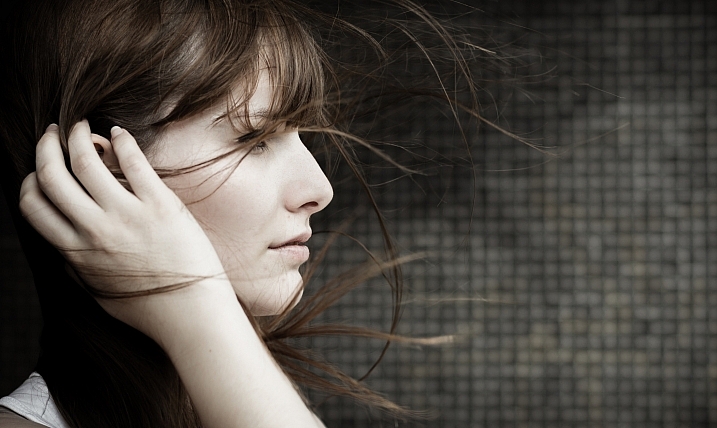
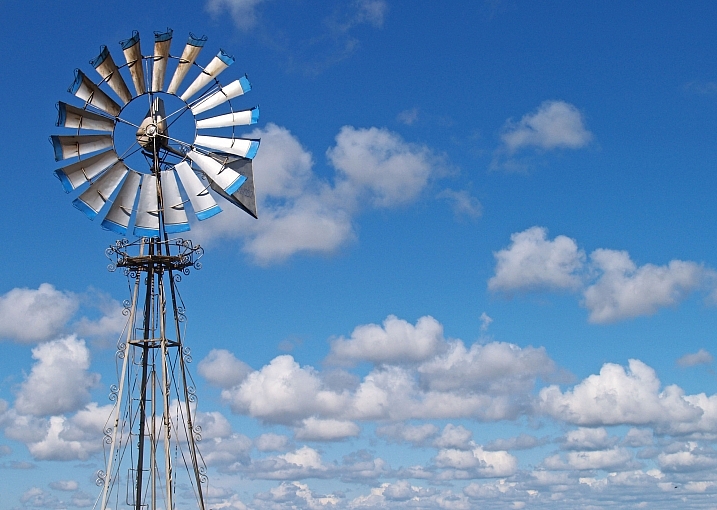
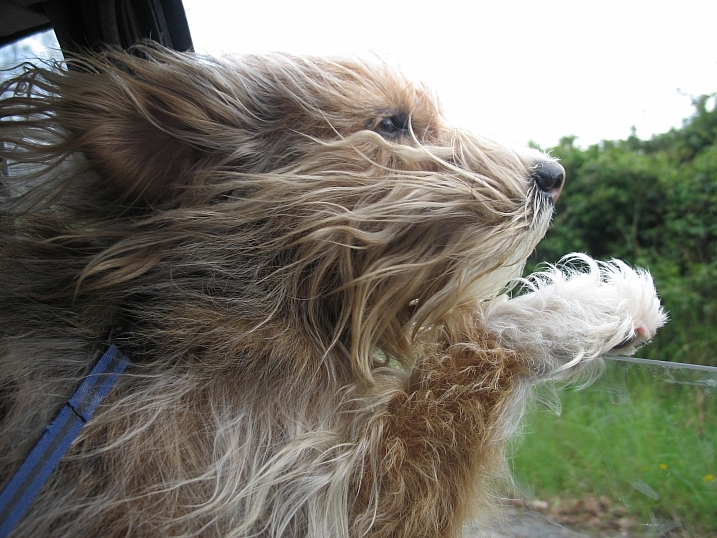
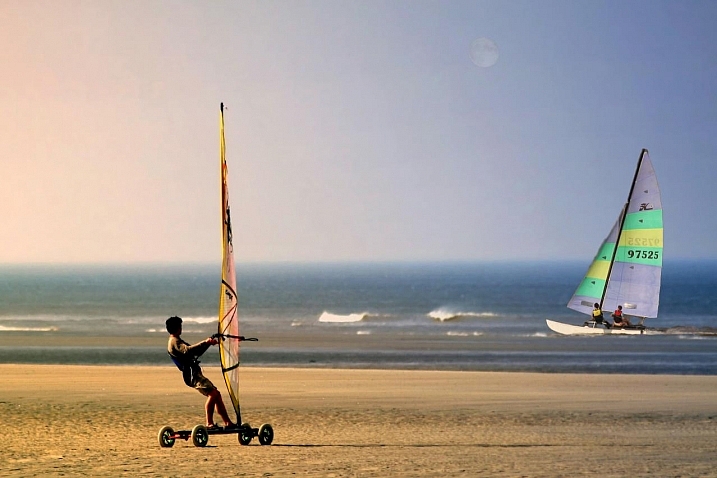
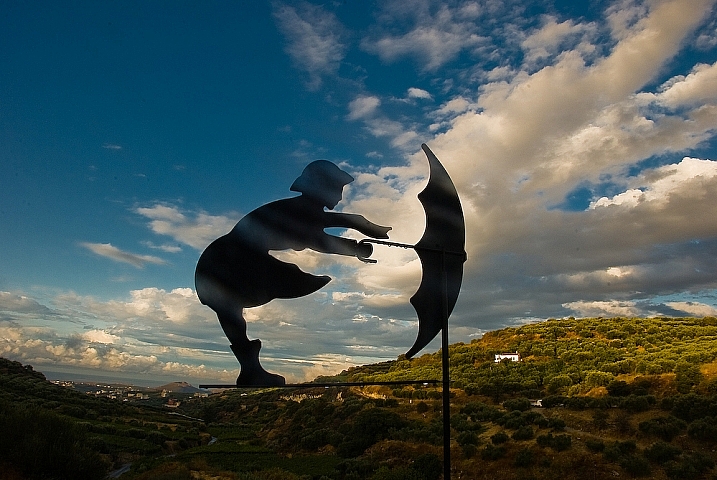
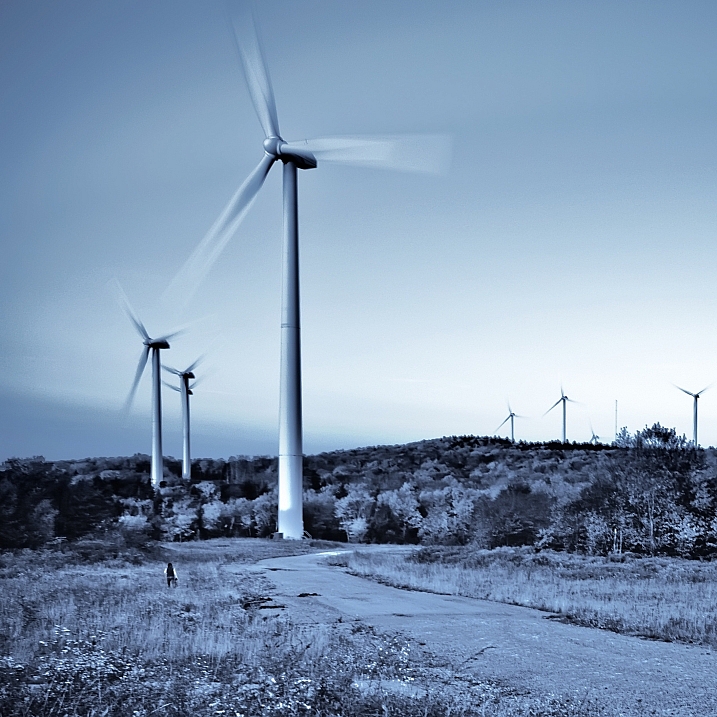
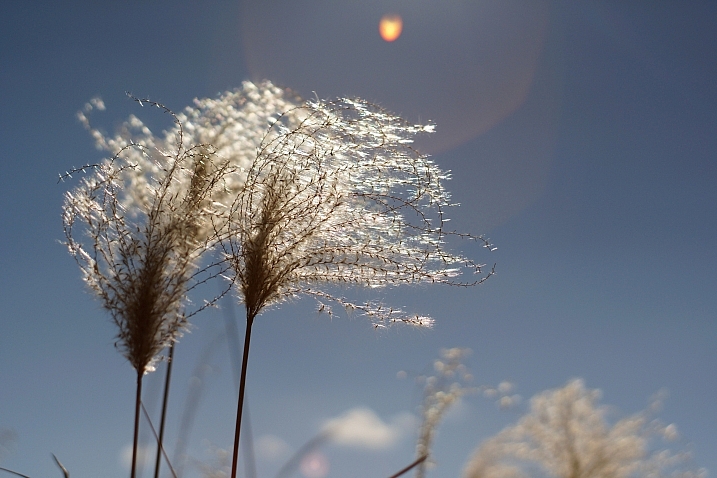
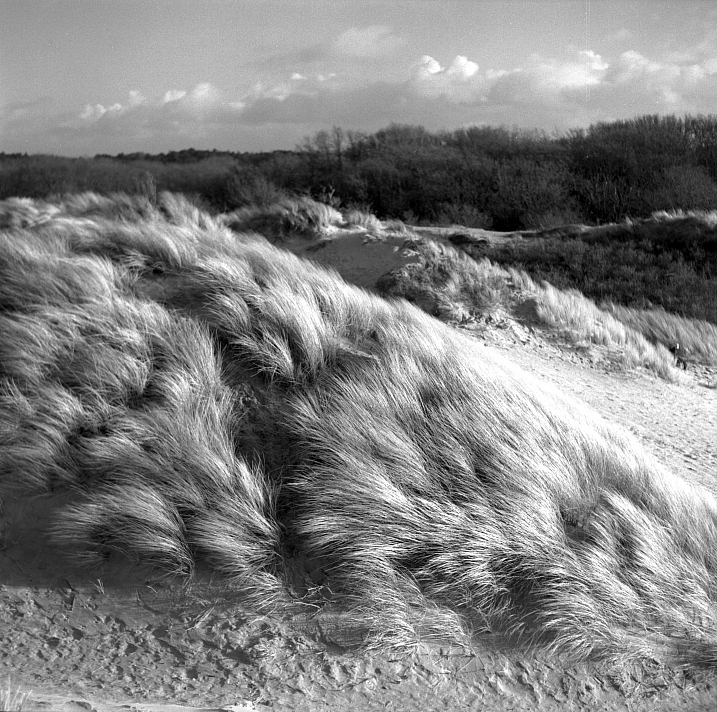
24 Easy Breezy Images that Represent Wind

21 Nov

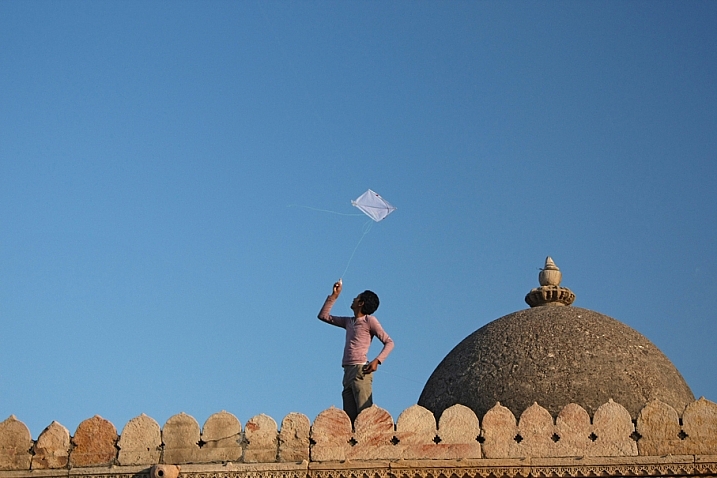
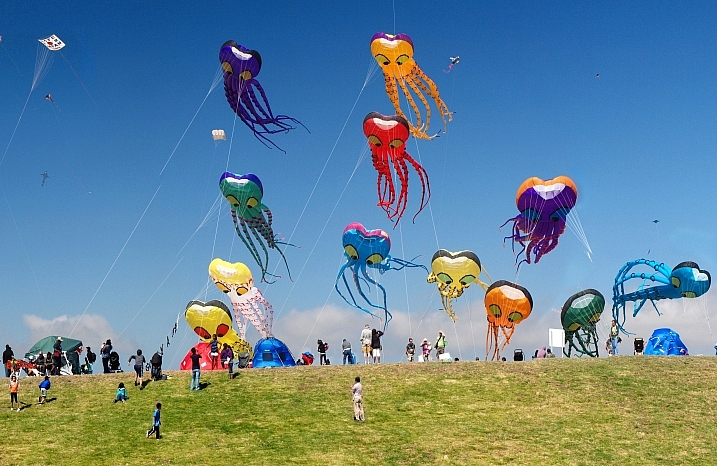
Wind is an interesting subject to try and photograph because you can’t see it. So how do you capture a photo of air or a feeling like wind?

Let’s see how these 24 photographers did it:

Chriscom

By chriscom

Meena Kadri

By Meena Kadri

Daniel Parks

By Daniel Parks

Andrew Fysh

By Andrew Fysh

GraceOda

By GraceOda

Jacob Surland

By Jacob Surland

Ken Douglas

By Ken Douglas

Darwin Bell

By darwin Bell

John Morgan

By John Morgan

Crouchy69

By Crouchy69

George Agathos

By George Agathos

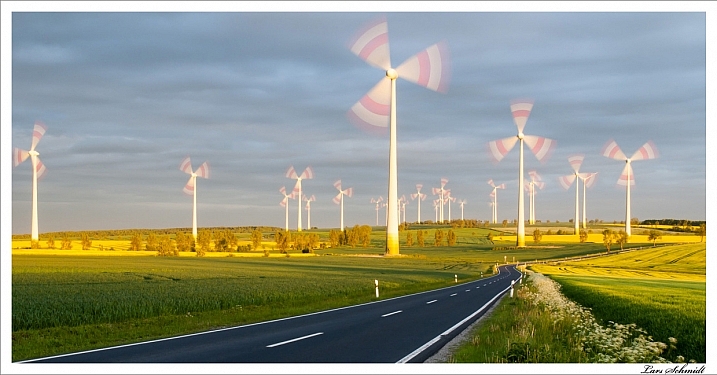
Lars Schmidt

By Lars Schmidt

Peter Nijenhuis

By Peter Nijenhuis

Ben Raynal

By Ben Raynal

Isabel

By Isabel

Andy Cull

By Andy Cull

Jakob Grunig

By Jakob Grunig

Photophilde

By photophilde

Christos Tsoumplekas

By Christos Tsoumplekas

Mark

By Mark

Brave Heart

By Brave Heart

Bill Dickinson

By Bill Dickinson

Takashi .M

By Takashi .M

Mark Dries

By Mark Dries

googletag.cmd.push(function() {
tablet_slots.push( googletag.defineSlot( “/1005424/_dPSv4_tab-all-article-bottom_(300×250)”, [300, 250], “pb-ad-78623” ).addService( googletag.pubads() ) ); } );
googletag.cmd.push(function() {
mobile_slots.push( googletag.defineSlot( “/1005424/_dPSv4_mob-all-article-bottom_(300×250)”, [300, 250], “pb-ad-78158” ).addService( googletag.pubads() ) ); } );

The post 24 Easy Breezy Images that Represent Wind by Darlene Hildebrandt appeared first on Digital Photography School.


Digital Photography School

 
Comments Off on 24 Easy Breezy Images that Represent Wind

Posted in Photography