RSS
 

Posts Tagged ‘easy’

How to Make a Portrait of a Stranger in 8 Easy Steps

10 Dec

While you may be at ease shooting candid street photography, you may not feel quite as comfortable doing street portraits… Making a portrait of a stranger, is a very different approach which requires an interaction with your subject.

If you are a very social person who talks to strangers anywhere you go, like I do, taking the next step should not be too much of an issue. If, on the other hand, the thought of approaching a stranger terrifies you, keep reading.

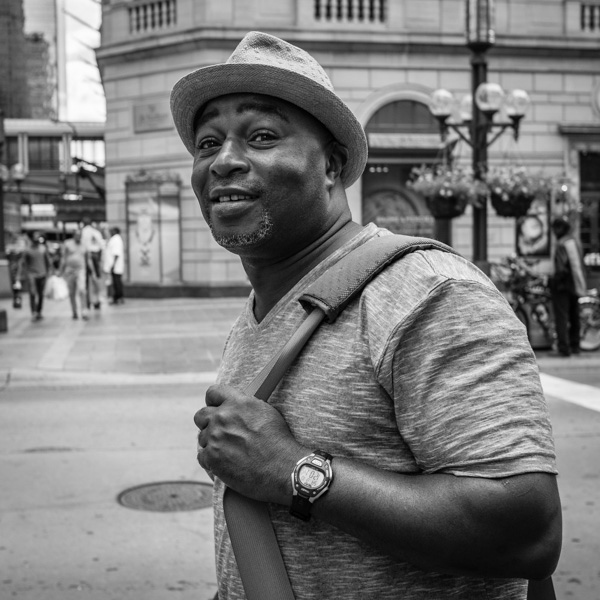
Meet Steve ~ While waiting for the light to cross the street, I made a comment on his cool hat. We talked for 10 minutes! ©Valérie Jardin

Meet Steve ~ While waiting for the light to cross the street, I made a comment on his cool hat. We talked for 10 minutes! ©Valérie Jardin

Step 1 – practice without a camera

Make it a goal to talk with strangers everyday for a few days. They can be waiting in line at the coffee shop with you or on the subway. Make small talk about the weather, comment on the new coffee flavor, just about anything that comes to mind as long as it’s not weird. You may find it terrifying at first but I can assure you that it will become easier everyday and you will soon look forward to your next encounter.  Granted, there is a big leap between approaching a stranger to comment on their cool hat ,or funky sun glasses, and asking them to make a portrait.

Yet, if you are shy, the first step will help you get to the second.

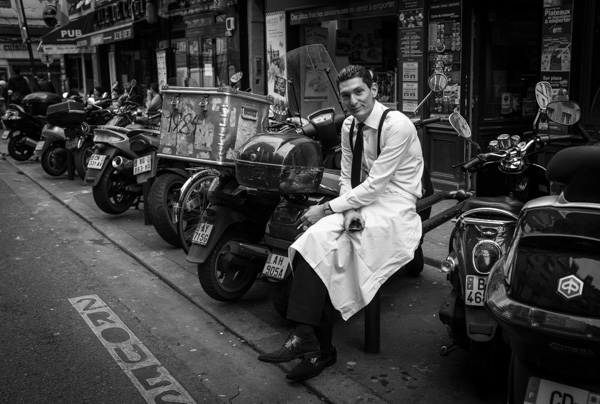
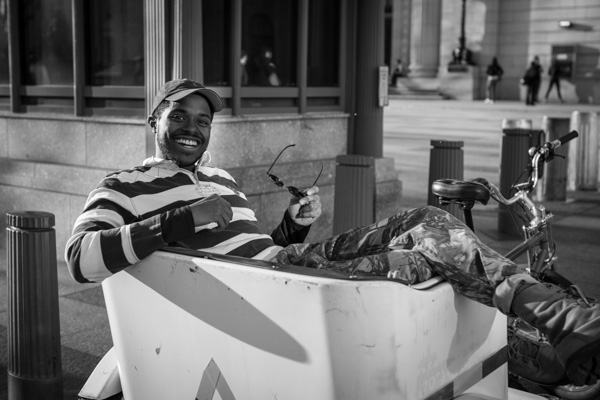
Once there is eye contact, just tell your subject why you want to take a picture. Here I saw a timeless black and white image and I had to ask! ©Valérie Jardin

Once there is eye contact, just tell your subject why you want to take a picture. Here I saw a timeless black and white image and I had to ask! ©Valérie Jardin

Step 2 – photograph a street performer

Another way to ease into it is by photographing street performers. They are there to be seen and they are easy subjects. Purists will tell you that they don’t count because they are too easy. As far as I know there is no authority or rules for street portraiture or street photography in general, so go ahead! Photograph a street performer and remember to leave a tip.

Step 3 – go with a friend

Having another person at your side will embolden you, and you will find it easier to approach a stranger if you’re not alone. The friend doesn’t even have to be a photographer.

Step 4 – don’t hide behind a long lens

Just like with candid street photography, the closer the better! Also, a smaller camera will be less intimidating for your subject.

Step 5 – be confident

Introduce yourself and tell them why you want to make a portrait of them. You’re not doing anything wrong, so don’t take the shot and run! If they ask you why you want to take their picture, simply explain that you are photographing strangers for a personal project and you found them quite interesting. Most people will be flattered.

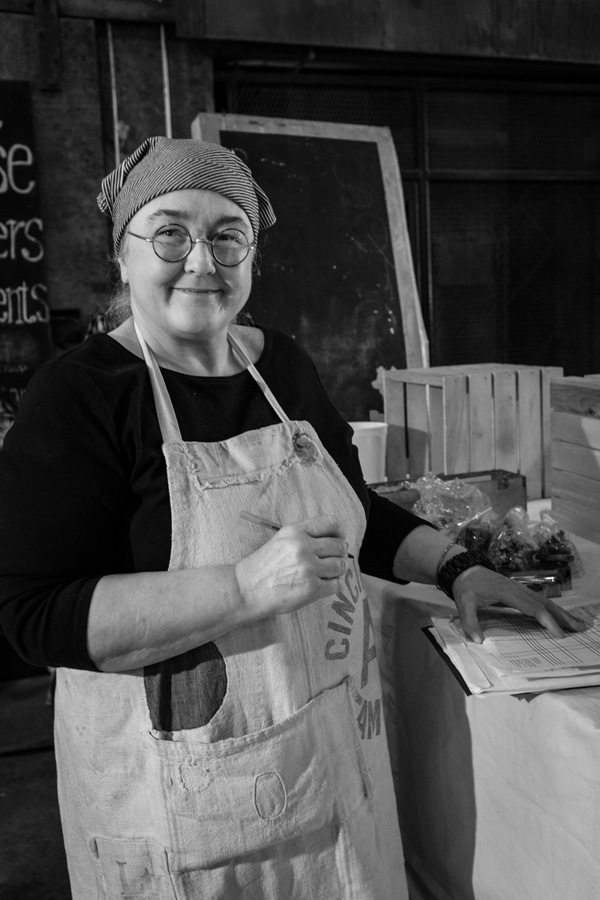
Most people are flattered that you want to make a portrait of them. ©Valérie Jardin

Most people are flattered that you want to make a portrait of them. ©Valérie Jardin

Step 6 – take your time

You asked for their permission to take the picture, so now it’s your responsibility to do a good job. The background may be distracting, or they may be squinting from the sun in their eyes. Ask them to move or even cross the street if the light is better. Take two or three shots until you are satisfied with the result. Make sure you thank them for their time before you part ways.

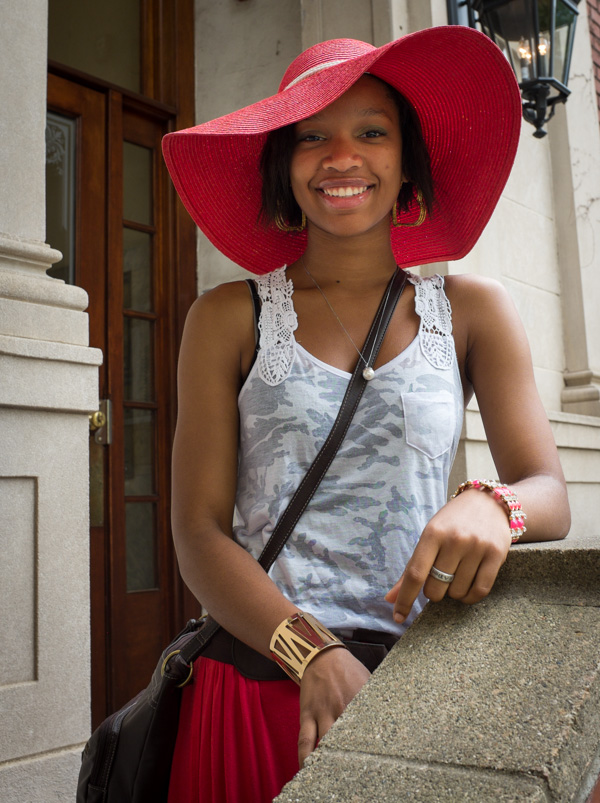
Once you have the permission to do a portrait, it's okay to ask your subject to move to a more pleasing background. This young woman was part of my ongoing 'Beautiful Smiles' blog series. ©Valérie Jardin

Once you have the permission to do a portrait, it’s okay to ask your subject to move to a more pleasing background. This young woman was part of my ongoing ‘Beautiful Smiles’ blog series. ©Valérie Jardin

Step 7 – enjoy the experience

Ask for their name, maybe you’ll even engage them in a conversation and find out some interesting things about their lives. Show them the picture on the back of the camera. Share email addresses and send them the best picture if they ask.

Step 8 – share your work

Those portraits are useless if they stay on your hard drive. Share them on a blog or social media network. The more you share, the better you will feel about your project and the more you’ll want to go out and shoot.

If you’ve never done this, why not make it a photographic goal for 2014? Good luck!

Next step . . .

Please share your experience with the dPS community. How did you start interacting with strangers to photograph them? Do you find it as addictive as candid street photography?

There are smiles that are irresistible! ©Valérie Jardin

There are smiles that are irresistible! ©Valérie Jardin

Post originally from: Digital Photography Tips.

Check out our more Photography Tips at Photography Tips for Beginners, Portrait Photography Tips and Wedding Photography Tips.

How to Make a Portrait of a Stranger in 8 Easy Steps

The post How to Make a Portrait of a Stranger in 8 Easy Steps by Valerie Jardin appeared first on Digital Photography School.


Digital Photography School

 
Comments Off on How to Make a Portrait of a Stranger in 8 Easy Steps

Posted in Photography


Start To See Photographically In Six Easy Steps

19 Nov

We are living in a time of unlimited free shutter clicks. This is both an advantage, and a disadvantage for you as a photographer. On one hand, the learning curve is faster, easier and definitely a lot cheaper. On the other hand, many photographers have a tendency to shoot without taking much care in their composition and rely on the occasional lucky shot.

Stop shooting randomly and start photographing with intent. Before you click that shutter, ask yourself: “What do I want to convey? What story do I want to tell?” There are many ways to achieve this, here are few easy steps to help you step up your game, no matter what camera or lens you use.

Six Steps to Start Seeing Photographically

1 – See the light

Play with light and shadows. Be aware of the quality of light around you (hard versus soft light) and its effect on objects, buildings, etc. The more aware you become of the quality and quantity of light, the better you will be at harnessing it and making it work for you, no matter the time of day.

See the light, its effect on building and objects around you.

See the light, its effect on buildings and objects around you ©Valérie Jardin

When you see light, any ordinary object will become a wonderful subject. ©Valérie Jardin

When you see light, any ordinary object will become a wonderful subject ©Valérie Jardin

2 – Express your vision with basic composition rules

There are many ways to express your vision and they all start with the decisions you make before you press the shutter.

Use focus point and depth of field

The obvious way to lead the eye of the viewer is by focussing on the subject and using the right depth of field so that there is no mistake as to where the eye should go. It only takes a fraction of a second to lock your focus and recompose. You have to put some thought into it and soon you will make quick decisions that will make your images stronger.

Use focus point and depth of field to lead the eye to your subject ©Valérie Jardin

Leading lines

Too often ignored, the use of lines is a powerful tool to lead the eye.

Use leading lines in your composition. ©Valérie Jardin

Use leading lines in your composition ©Valérie Jardin

The rule of thirds

Positioning your subject in your frame is one of the most important decisions you will make in regards to your composition. You cannot overuse the rule of thirds, but it’s okay to break it as long as it is done intentionally.

The rule of thirds works, use it! ©Valérie Jardin

The rule of thirds works, use it! ©Valérie Jardin

Break the rule of thirds as much as you want, as long as you know why you’re breaking it. ©Valérie Jardin

Using color

Just like using focus point to draw the eye, using color is another powerful compositional tool. Alternatively, because color draws the eye, it is also a reason to convert your color image into B&W to remove distracting colorful elements and make stronger images!

Negative space

The clever use of negative space makes stronger images as it puts more emphasis on the subject (positive space).

Use negative space to give more impact to your images. ©Valérie Jardin

Use negative space to give more impact to your images. ©Valérie Jardin

Patterns

See and use repeated patterns or, even better, look for breaks in the pattern!

See repeated patterns. Even better: a break in the pattern!  ©Valérie Jardin

See repeated patterns. Even better: a break in the pattern! ©Valérie Jardin

Soon you will see stronger images that incorporate several element such as repeated patterns, leading lines, rule of thirds and color that draws your eye to the main subject. Use focus point and depth of field to lead the eye to your subject. ©Valérie Jardin

Soon you will see stronger images that incorporate several elements such as repeated patterns, leading lines, rule of thirds and color that draws your eye to the main subject. ©Valérie Jardin

3 – Less is more

Learn to make stronger images by leaving unnecessary elements out of the frame. One thing I notice all the time when I look at my students’ work is that they tend to include too much in their frame. What you decide to leave out of the frame during your composition will make or break the image. Keep it simple. Learn to see and crop in camera.

You don't need the subject in it's entirety to have a strong image. Practice cropping in camera. The use of a fixed lens will help you! ©Valérie Jardin

You don’t need the subject in its entirety to have a strong image. Practice cropping in camera. The use of a fixed lens will help you! ©Valérie Jardin

Less is more, think minimalist and give more impact to your images! ©Valérie Jardin

4 – Get close and fill your frame

Objects, even the most ordinary ones, look more interesting if you frame them tight. Get close. You think you’re close enough? Now get closer!

Fill your frame! ©Valérie Jardin

Fill your frame! ©Valérie Jardin

Get close, and then get closer! ©Valérie Jardin

Get close, and then get closer! ©Valérie Jardin

5 – Work your frame

Try shooting from different perspectives, shoot high, shoot low. Tilt your camera for more dynamic images.

Work your frame: Shoot high, Shoot low... Things don't look very interesting at eye level. ©Valérie Jardin

Work your frame: shoot high, shoot low… things don’t look very interesting at eye level. ©Valérie Jardin

6- Watch your background!

It only takes a second to scan the edges of your frame and check your background for distracting elements. It also only takes a quick second to move one step in either direction to get rid of a distracting element or avoid a branch to stick out of someone’s ear.

This image would have been ruined had I not stepped slightly to the right to avoid the potted plant to be directly on top of the gentleman's head...  ©Valérie Jardin

This image would have been ruined had I not stepped slightly to the right to avoid the potted plant to be directly on top of the gentleman’s head… ©Valérie Jardin

Next time you go out with your camera, try to slow down and think more about what you want to convey with your images. Unless you are photographing birds, busy toddlers or action sports, try to make every shutter click count!

Soon these composition rules will become second nature. You will see them without having to even think about them, you will learn to see photographically, and your work will improve.

Have fun!

Post originally from: Digital Photography Tips.

Check out our more Photography Tips at Photography Tips for Beginners, Portrait Photography Tips and Wedding Photography Tips.

Start To See Photographically In Six Easy Steps

The post Start To See Photographically In Six Easy Steps by Valerie Jardin appeared first on Digital Photography School.


Digital Photography School

 
Comments Off on Start To See Photographically In Six Easy Steps

Posted in Photography


One-Handed, Color-Coded First Aid Kit for Fast & Easy Use

16 Oct

[ By WebUrbanist in Design & Products & Packaging. ]

emergency-kit-animation

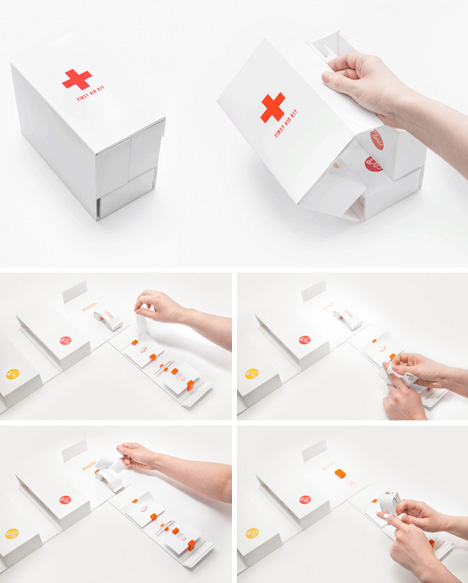
If any design should be simple and intuitive, surely it would be an emergency medical kit – something you make lack time, treatment expertise or even a clear head to operate well in a disaster situation.

one handed first aid

emergenciy kit

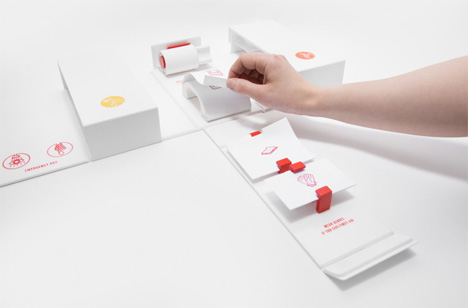
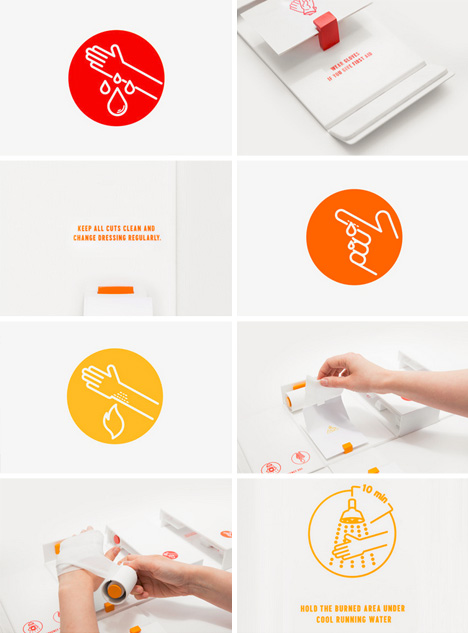
This revamped version of the classic Home First Aid Kit by Gabriele Meldaikyte starts with a system colors assigned to different types of typical injury: yellow for burns and scalds, orange for minor cuts and scratches, and red for deep cuts and bleeding. Intuitively, the darker the color on the spectrum, the more serious the situation.

one easy medical kit

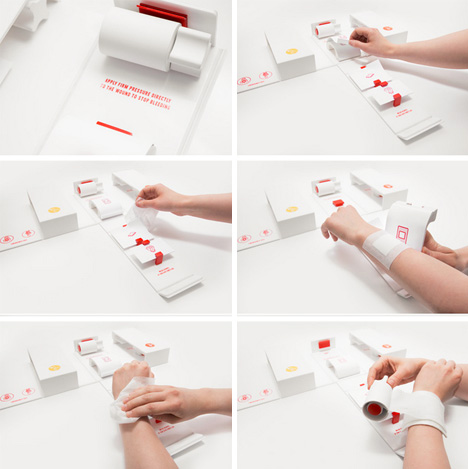
Anyone who has had to work one-handed (due to an other-hand injury and being alone at the time) to open packages, unscrew containers, unroll gauze and treat a wound knows that most products do not make this easy. Hence the other critical aspect of the design: the box can be opened and its contents deployed and its strips of gauze cut by someone who lacks the normal range of human dexterity.

one emergency injury instructions

simple kit

The idea is that someone who may not have familiarized themselves ahead of time can be walked through the process via clear visual cues and step-by-step instructions: “Every injury is described in steps, guiding the casualty through the treatment process. I have provided special tools to enable this one-handed treatment. These include a bandage applicator, where bandage can be applied much faster and can be cut off with integrated blades (replacing scissors). A plaster and dressing applicator that works like a stamp: where you tear off the top protection layer and then you stamp it on the cut, with the remaining layer working as a protection for the next plaster etc.”

Share on Facebook


[ By WebUrbanist in Design & Products & Packaging. ]

[ WebUrbanist | Archives | Galleries | Privacy | TOS ]


WebUrbanist

 
Comments Off on One-Handed, Color-Coded First Aid Kit for Fast & Easy Use

Posted in Creativity


Get Started with the Beautiful World of Film Photography in 7 Easy Steps

27 Sep

Ahh, film photography.  The cool kid on the block.  The “old” thing that’s suddenly the “new” thing.  In recent years, it’s been popular opinion that it was an identifying trademark of hipsters, and only then for an artistic flair that digital photography has failed to capture for them.  The reason Instagram has been such an enormous success recently is our Continue Reading

The post Get Started with the Beautiful World of Film Photography in 7 Easy Steps appeared first on Photodoto.


Photodoto

 
Comments Off on Get Started with the Beautiful World of Film Photography in 7 Easy Steps

Posted in Photography


6 Easy Tips To Photographing Strangers In Perfect Candid Moments

05 Aug

Candid photography is responsible for the best photographs in the world. Just take a look at all the of the most striking images you’ve ever seen, almost all of these are from candid shots when photographing strangers. When photographing strangers, a photographer is bestowed many plus points: Images are considered far more credible the less contrived they are You have Continue Reading

The post 6 Easy Tips To Photographing Strangers In Perfect Candid Moments appeared first on Photodoto.


Photodoto

 
Comments Off on 6 Easy Tips To Photographing Strangers In Perfect Candid Moments

Posted in Photography


10 Easy Ways To Take Candid Photos of Kids

14 Jun

Catching kids behaving in their most natural manner and playing with other kids almost guarantees a great photograph. However, one thing you should never let happen while shooting your kids is the children looking at the camera as it will spoil the whole atmosphere. You only want to capture the innocence, warmth, silliness and sweetness of them and it is Continue Reading

The post 10 Easy Ways To Take Candid Photos of Kids appeared first on Photodoto.


Photodoto

 
Comments Off on 10 Easy Ways To Take Candid Photos of Kids

Posted in Photography


How to create a reflection in Photoshop in 6 easy steps

21 May

Creating a reflection using Photoshop is one of those things that at first glance looks really hard, but really isn’t, once you break down the steps (just light Light Painting which I covered in another two part series). In this article I’m going to demystify creating a reflection, a technique that works particularly well on images with open pavement, and HDR processed images which tend to make the pavement look wet already.

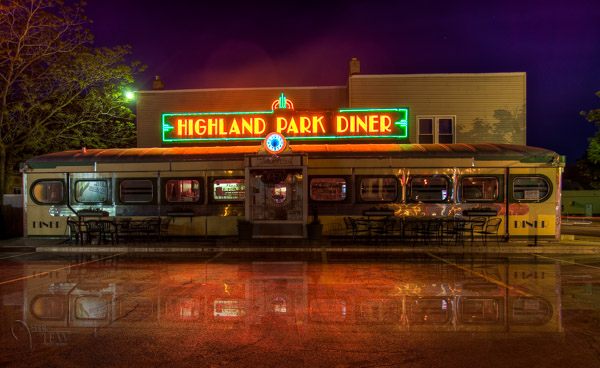
We’re going to learn how to go from this . . .
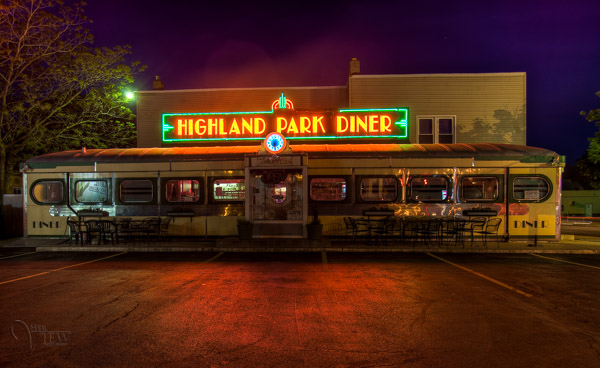
reflection-before

To this!

reflection-after-photoshop

In less than 10 minutes!

I recently showed one my HDR classes how to do this, and they all followed along with me step by step.  Some of them were using Elements (which works just fine, but you may find the menus and choices look slightly different), and this technique can be done using that program too, so if you use Elements, not to worry. Many of my students were also self proclaimed “Photoshop novices” and when I asked them if they thought they’d be able to this when I showed the before and after images, most said “no”!  But they all did, and we were done in less than 10 minutes. **Note that also included me going super slow to ensure each of the 12 people in the class were on the same page with me. I’m going to guess this will take less than 5 – ready GO!

Here are the six easy steps to follow in Photoshop.  This is the super condensed version for those quick readers and skimmers.

  1. copy a section of the image
  2. paste it as a new layer
  3. flip it
  4. position it
  5. change the layer blend mode
  6. mask it

That’s it! You want a few more details?
Let’s dive in a little deeper into each step

STEP ONE – COPY

Using the marque tool (“M” is the keyboard shortcut) draw a box around an area of your image that will become the reflection (see Figure #1 below). Make sure you go edge to edge on the sides, and get enough of the image vertically. If you grab more than you need that’s fine we’ll be moving it around and masking later anyway.
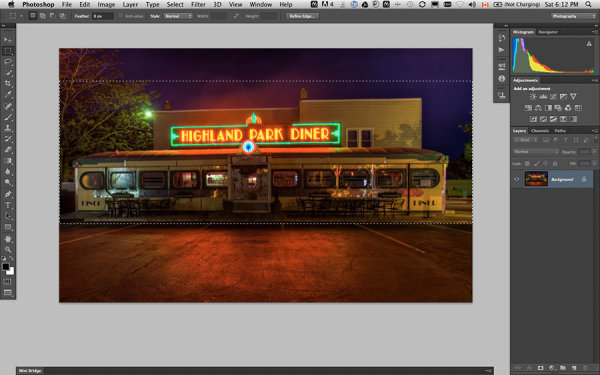
select-section

Figure #1 make a selection

Copy the selection as a new layer. You can do that a few ways.

  • right click on the image and from the menu that pops up choose “layer via copy” (see Figure #2 below)
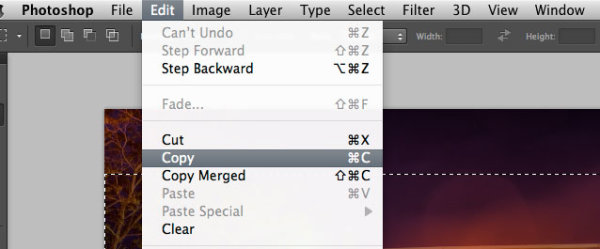
  • from the edit menu choose “copy” or using the keyboard shortcut “command/control+c”  (see Figure #3 below)
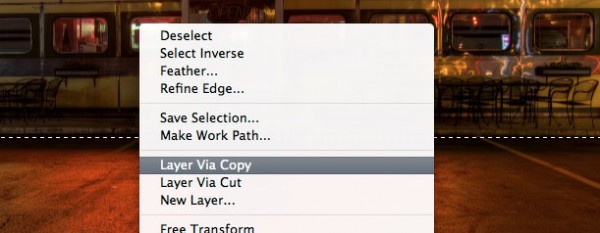
layer-via-copy2

Figure #2 right click>Layer Via Copy

Figure #3

Figure #3 Copy from Edit menu

STEP TWO – PASTE AS NEW LAYER

If you chose the “layer via copy” method above you already have the selection pasted as a new layer. If you haven’t already done that go ahead and paste either from the Edit>Paste menu option of the keyboard shortcut “command/control+v”. You will end up with something that looks like this, Figure #4 below.
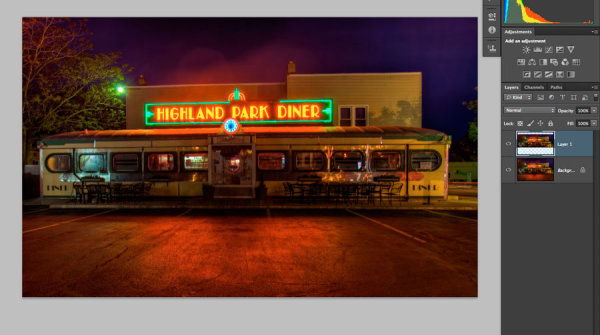
Figure #5

Figure #4 paste new layer

Doesn’t look much different right? Right! Because it’s basically on top of itself.  But look at your layers, it is there on a new layer and it only grabbed part of the image. Now the magic begins!

STEP THREE – FLIP IT

Next from your Edit menu choose “Edit>Transform>Flip vertical” to flip this new layer upside down. You should end up with something funny looking like Figure #5 below.
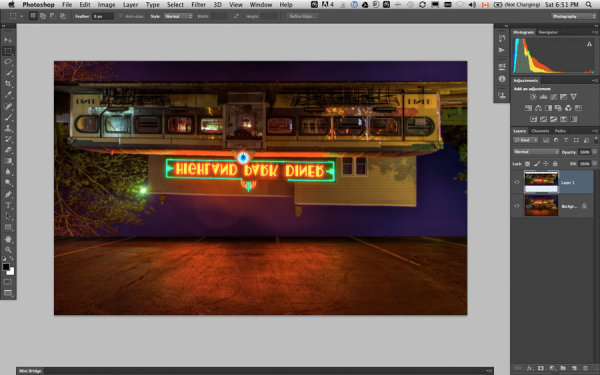
flip-layer

Figure #5 flip vertically

STEP FOUR – POSITION IT
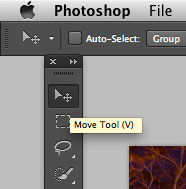
Figure #5 move tool

Figure #6 move tool

Next select your MOVE tool from your tool palette (see Figure #6 right – “v” is the keyboard shortcut) and grab the flipped layer and drag it down until the images start to line up where the reflection will begin. In my image I’m using the edge of the sidewalk in front of the diner. If it doesn’t line up perfectly don’t worry about it, you can mask any imperfect bits out later in step six.

Now you want to have something that looks like Figure #7 below. The reflection is in roughly the right position. Make sure you don’t move side to side, just down, otherwise you’ll have gaps on the edges of your reflection.

NOTE: once you’ve selected the Move Tool, you can also use the up and down arrows on your keyboard to move the layer up and down. This works great for smaller adjustments when you get it close to position.
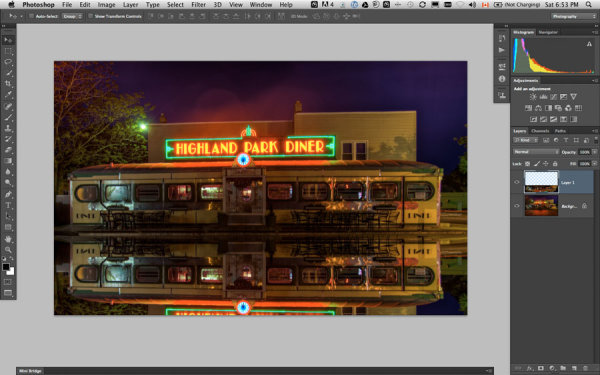
Figure #6

Figure #7 position the layer

STEP FIVE – CHANGE THE BLEND MODE
layer-blend-modes

Figure #8 Lighten blend modes

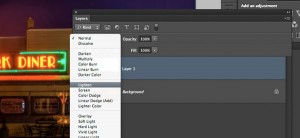
From your layers panel change the layer blend mode to one of the “lighten mode”.  You will find the layers blend modes near the top of your layers panel, next to “opacity”. By default the blend mode is “normal”.

The Lighten modes are the ones in the third section down (see Figure #8 right), they include: Lighten, Screen, Color Dodge, Linear Dodge, Lighter Color. Layer blend modes change how the selected layer interacts with the one below it (the original image). By selecting one of the options in this section it will only show areas of this layer that are lighter than the one below it, and any areas darker will not appear.  For reflections I usually choose Lighten or Screen, depends on the image. Try them all and choose the one that looks best for your image. For this example I’m using Screen mode.

Now I have something that looks a little closer to a real reflection  (see Figure #9 below).

Are you still with me!?  Do you have something reasonably similar?
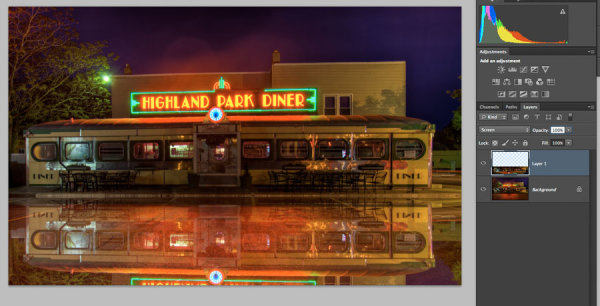
Figure #

Figure #9 change the layer blend mode

STEP SIX – MASK IT
add-layer-mask2

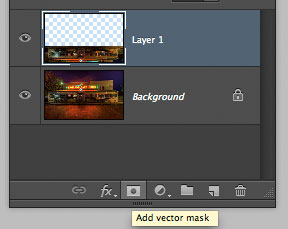
Figure #10 add a layer mask

Okay we’re almost done and it’s looking pretty good. But in my image the neon sign in the reflection is too bright. It doesn’t look natural because reflections are usually darker than the original – so we’re going to tone it down using a mask and the gradient tool.

First, make a layer mask by clicking on the “add layer mask” icon at the bottom of your Layers Panel (Figure #10 right). You can also do it by going to the Layers menu>Layer mask>Reveal all.
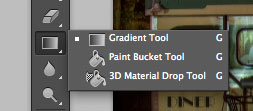
Figure #11 gradient tool
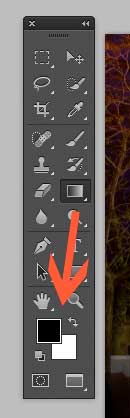
Figure #11 gradient tool

colors-foreground-background

Figure #12 foreground/background colors

Next select the Gradient tool from your tools panel. Keyboard shortcut is “g”  but make sure you have the gradient tool and not the paint bucket.  See Figure #11 above. Hit the “d” key on your keyboard to set your foreground/background colors to default, then hit “x” to switch them. Make sure you see black as your foreground color and white as the background color (see Figure #12 right).

Once you have your colors set to black and white, and your gradient tool selected and ready for use – make sure you are on the layer mask not the layer. You can tell because whatever is active has corner brackets around it. If you layer thumbnail is selected, just click on the white layer mask thumbnail to make it active. We need to make sure we are doing this on the mask, NOT the layer.

How masks work is that anything in white on the mask reveals the contents of the layer.  Where ever there is black on the mask it hides that area of the layer. So we want to hide the outer edges of this layer so it fades out gradually towards the bottom of the image and looks more natural.

With the gradient tool, by default it paints from the foreground color, to the background – fading from one to the other depending on how we create the gradient. Sometimes it takes a little experimenting to get it just right but you can always “undo” using the handy “command/control+z” shortcut on your keyboard and it goes back one step or undoes what you just applied.

NOTE:  ”undo” is your best friend in Photoshop, if you learn no other keyboard shortcuts, memorize this one!

So, to apply it to our reflection start with the cross hairs for the tool in the middle of your image, near the bottom.  TIP: holding the SHIFT key down will keep the gradient from applying at an angle, it will just go straight up. Click and drag the tool up (you’ll see a line drawing the gradient spread) and let go when you get near the top of your reflection. If it’s not exactly how you want it you may have to start a little more away from the bottom edge, or drag it up higher, or other variations.

NOTE: with the gradient tool on a mask you don’t actually even need to “undo” if you just drag another one overtop it replaces the first one. But it’s still good to know how to undo!

Here’s the image with my gradient applied to the layer mask.  Notice on the mask it goes from black to white? So it’s hiding the bottom area of this layer which is what we want. See Figure #13 below.
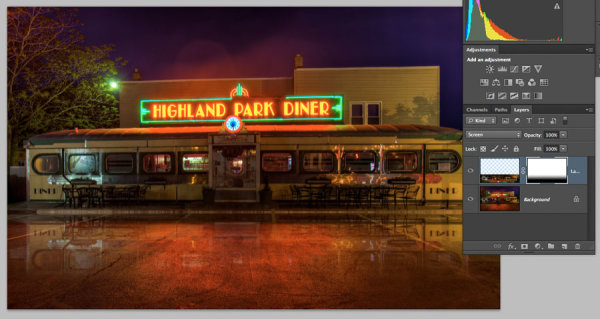
Figure #13 gradient applied to mask

Figure #13 gradient applied to the layer mask

OPTIONAL FINISHING TOUCHES

Now if you want to do any other masking to show or hide certain areas of the reflection just use your brush tool (“b” shortcut) at a lowered opacity (10-20%) and paint with black on the mask over areas you want to hide, and white on areas you want to show.  In this image I painted over the edges of the diner where I felt it was still a bit too bright. You can also change the opacity of your layer to adjust it that way too.

SeeFigure #14 below for my final version. Notice my mask where I painted a little up the sides to hide those areas just a little bit more.  You could also paint away a little in the middle of the reflection where the pavement is the darkest if you wanted. That’s the neat thing about photography – it’s all subjective!

It’s really easy to get upset or hurt feelings when someone else says something that we perceive as negative about one of our images, something we put blood, sweat and tears into, right!?   Well my personal opinion is that it is just their opinion, one person, and you don’t have to agree with them. If they have a valid, or constructive criticism YOU get to decide if you want to take it on board or, just agree to disagree and move on. Life is too short to worry about pleasing other people.

Do photography for you!  If other people like it, then great!

If not, oh well!  Move along and life goes on.
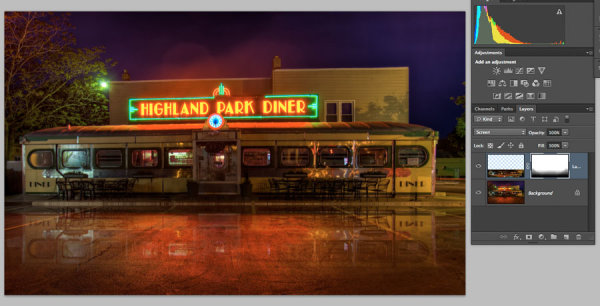
Figure #14

Figure #14

OKAY YOUR TURN!

So, think you can do this? Give it a try!

Here is my image to play with, in case you don’t have one that will work.  It’s 2000 pixels wide which is plenty big enough for this test.

Download diner image – just click on this link and save the image that opens in a new tab.

A few trivial things FYI about this image:

  • it was taken in Rochester, NY, USA when I was in the area and visited Eastman Kodak House. If you’re ever there, do go, it’s worth the trip to see where photography took roots and grew
  • it is a 5 image HDR, tone mapped in Photomatix and finished using LR4
  • during the longest exposure of my bracketed series a kid on a skateboard, carrying a goldfish in a bag skated right through the parking lot in front of me. Why didn’t he show up? Because my exposure was 30 seconds long and if you aren’t there for more than 1/2 the time you will not appear.

Okay, off you go and let’s see your results! 

Cheers Darlene


Post originally from: Digital Photography Tips.

Check out our more Photography Tips at Photography Tips for Beginners, Portrait Photography Tips and Wedding Photography Tips.

How to create a reflection in Photoshop in 6 easy steps


Digital Photography School
 
Comments Off on How to create a reflection in Photoshop in 6 easy steps

Posted in Photography


7 Easy Steps To Take Your Photography Career To New Heights

12 Apr

We all know that being a successful professional photographer requires a lot of hard work, dedication, and a little bit of luck. The advice I hear most often is don’t bother trying, do it as a hobby. But for some of us, taking photos is something we have to do because there’s nothing else we’d rather be doing. So we Continue Reading

The post 7 Easy Steps To Take Your Photography Career To New Heights appeared first on Photodoto.


Photodoto

 
Comments Off on 7 Easy Steps To Take Your Photography Career To New Heights

Posted in Photography


6 Easy Ways to Give your Photographs a Compelling Narrative

10 Apr

Everybody loves a good story. Knowing this fact is what separates a good photographer, from an exceptional one. With this knowledge, a photographer has a whole breath of tools at their command to trap the viewer, and cause them to be spellbound! Below I have listed 6 of the best ways to give your photographic approach the artistic edge of Continue Reading

The post 6 Easy Ways to Give your Photographs a Compelling Narrative appeared first on Photodoto.


Photodoto

 
Comments Off on 6 Easy Ways to Give your Photographs a Compelling Narrative

Posted in Photography


5 Easy Ways To Screw Up a Photo

22 Mar

Over the years I’ve screwed more photos than I can count.  And recently, when I was thinking about it, there have been a few constants behind many of these screw-ups.  They are all easy to fix, but in our fast moving world they are all mistakes that are so easy to make.  Here’s a short list to help us both avoid them in the future.

1.  You don’t focus exactly on a person’s eye.

1-anne-marieThis point could be taken further by just saying to always make sure to focus on the specific spot that you want the sharpest.  But I find this mistake hurts the most when doing a close-up portrait of a person’s face.  If you are using a shallow aperture, or even if you’re not, make sure that the focus is right on the dominant eye.  If you screw up focus on the eye in this type of portrait, then you screw up the shot.  When you view the portrait on a small monitor or in a very small print, it may not matter, but if you want to create a high quality portrait, then you need the focus on the eyes to be correct.  The eyes are the key to a portrait.

2.  Not stopping your motion completely before you take a shot.

I am generally a very calm person, but nothing makes me want to shake people more than when I see them not stop themselves fully before taking a photo.  It can be a tough habit to break, especially on vacation, however, the fact is that your photos will be blurry if you don’t stop yourself.

If you are traveling and taking photos, try taking less pictures and instead wait for the most interesting moments. Then, take your time on the shots that you do want to take.  If you’re walking around and quickly taking shot after shot without stopping then you might as well just put the camera away and enjoy the view without it.  And anyway, it’s so much better to have 20 amazing shots from your trip instead of 1000 mediocre ones.  Who has time to look through 1000 mediocre shots these days anyway? We have more important things to do, like looking at photos of cats doing ridiculous things on the internet.

3.  Not stopping a forced smile. 

Sara

Here’s a portrait of my wife on our honeymoon.  Isn’t she gorgeous!  The warm lighting on her face, the wind in her hair, the texture in the foreground mixed with the incredible cool blue background are all perfect.  But I wasn’t thinking.  I should have taken her bag and the camera, maybe taken a shot without the sunglasses to see her beautiful eyes, and just taken my time to capture a really good quality portrait.  Most importantly, I should have told her not to smile.  This moment just screams out for a natural expression.

Most of the time people don’t look better or even happier when they put that forced smile on their face.  It wasn’t necessary here, I should have noticed it, and I should have worked to catch her with a more natural expression.  I like this photograph of her, but I screwed up and it could have been so much better.  One standard smile and a couple small details can be the difference between an average family snapshot and the best shot you’ve ever taken of your wife.

4.  Using too much straight on flash and not enough natural light.

One of the cardinal sins of photography is the harsh, direct flash showing every pore and detail of a person’s face with the background completely blacked out.  In a few extremely dark situations this might be the only option.  However, if you have a decent lens and camera and there is even a little ambient light, then there is no reason that a flash needs to do all the work, or in many cases, any of it.  You should own a lens that can shoot at least at F2.8.  I know lenses are expensive, but you can get a prime Canon 50mm F1.8 lens for $ 100 and a 50mm F1.4 lens for $ 350.  Those lenses can shoot in the dark.

So if you’re shooting an event, a family function, or an environmental portrait in a place with a low level of light, start with a high ISO and a low aperture to see how much of the available light you can use.  Then, set your flash to provide some fill for the main subjects.  Straight on flash, even as a fill can be a terrible look, so if the ceiling is low enough, a good strategy is to bounce the light up and slightly backwards off the ceiling.  Anything but straight on.

Jacquelyn

1/50th at F2.8, ISO 1600 – Ambient light mixed with direct flash from a 45 degree angle.

5.  Not getting the exposure perfect in the camera.

I know, I know, you can fix it in Lightroom later.  But try this.  Take two shots of the same scene, one exposed correctly and one underexposed by a stop.  Then raise the exposure by a stop on the underexposed shot in Lightroom.  They look different.  The colors and contrast will be slightly off.  It’s not the same.  And yes, maybe you can get it to look similar or equal to the correctly exposed shot with a bit of work and futzing, but what if you don’t have that correctly exposed shot to compare it to?

Try hard to capture the perfect exposure in the camera.  It’s not always possible, but it’s always important.  And it will improve your images significantly.


Post originally from: Digital Photography Tips.

Check out our more Photography Tips at Photography Tips for Beginners, Portrait Photography Tips and Wedding Photography Tips.

5 Easy Ways To Screw Up a Photo


Digital Photography School
 
Comments Off on 5 Easy Ways To Screw Up a Photo

Posted in Photography