RSS
 

Posts Tagged ‘easy’

Time Lapse Videos Made Easy

21 Jul

Extra photos for bloggers: 1, 2, 3

If you had the power to speed up time you could have romantic sunsets in under a minute or knit a scarf in just 30 seconds.

The Digital Time Lapse Camera gives you that magic! It takes high quality wide angle photos and smashes them into a ready-to-watch video at the touch of a button.

The latest version of our beloved Time Lapse Cam sports better quality optics, low light recording capabilities and a wide angle lens for more interesting shots.

Set it up on a shelf at a hoppin’ party or on a tripod in your growing garden and let it snap tonso pics and stitch them together for you.

Say buh-bye to intervalometers, complicated settings menus and hours of post processing. The Digital Time Lapse Cam is all the magic you need.

Make Time Lapse Vids at the Touch of a Button
$ 249 at the Photojojo Shop


© Britta for Photojojo, 2014. |
Permalink |
No comment |
Add to
del.icio.us

Post tags:


Photojojo

 
Comments Off on Time Lapse Videos Made Easy

Posted in Equipment


3 Easy Steps Using Photoshop to Making your Images POP

06 Jun

Image Post Processing Techniques

Having taught in-depth image post-processing workshops for Photoshop users, I’ve found that three of the simplest techniques are the ones that people love the most. These are quick and easy tricks that work for most image processing situations.

If you’ve got your exposure, aperture, focus and white balance all correct during shooting, you’ve got all that you need for a great image, but with these three easy steps using Photoshop we’ll add some serious POP to the colour, contrast and sharpness of your images.

I’m going to assume that you’ve already corrected your image in Adobe Camera Raw to fix any blown out highlights and shadow detail. This can sometimes leave you with a low contrast image that lacks lustre. HDR users will often find that a full HDR image lacks some punch once it has all the dynamic range fixed for highlights and shadows. Here’s how to add some pizazz to images.

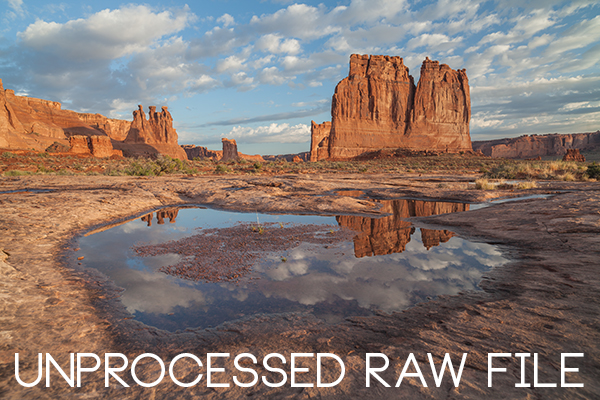
I’ll start with a RAW file from last year’s trip to Moab, Utah.

Unprocessed RAW file

I was more than happy to get this shot of Courthouse Towers in Moab, Utah but the RAW file was total Blandsville.

Step 1 – Make Those Colours POP

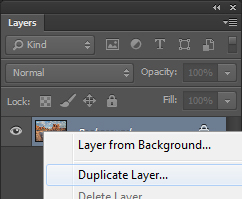
Open the image in Adobe Photoshop. With the image on the background layer of Photoshop, right click on the layer (in the layer window) and choose ‘Duplicate Layer’ (see screenshot below left).

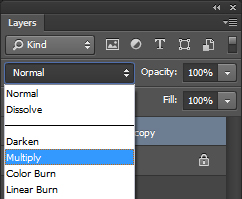
Duplicate Layer Multiply Layer

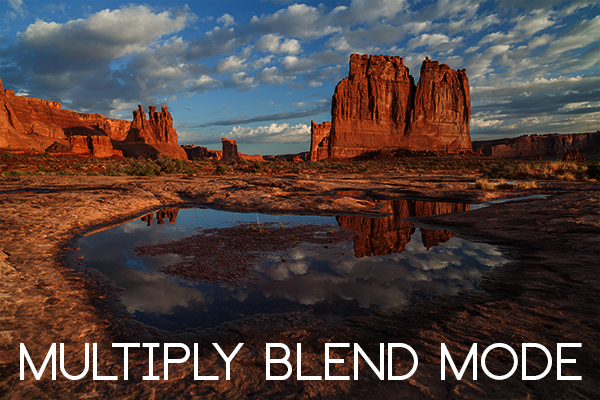
Now click on the newly duplicated layer and change the blend mode to ‘Multiply’ (see screenshot above right).

Multiply Blend Mode

Right away you’ll notice that all of the colours are more striking and the contrast is extreme. It’s also way too dark so we’ll fix that next.

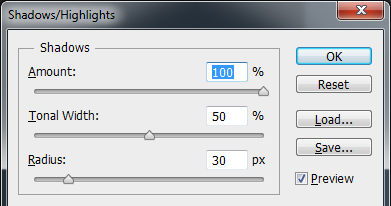
Next go to Image > Adjustments > Shadows/Highlights and drag the shadows slider all the way to right then hit OK (see screenshot below left).

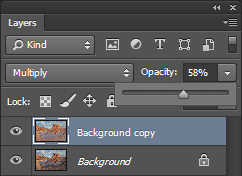
Photoshop Shadows / Highlights Photoshop Layer Opacity

By doing this, you’ll reduce the darker parts of the image ONLY in the duplicated layer. It’s still a little too dark, so in the layers window reduce the opacity of the duplicated layer until it’s at about 58% (see screenshot above right). This percentage will be different for all of your images so use your judgement and don’t overdo it. Usually I find that a setting of 28% works best in most cases.

Step 2 – Selectively Boost Colours and Brighten

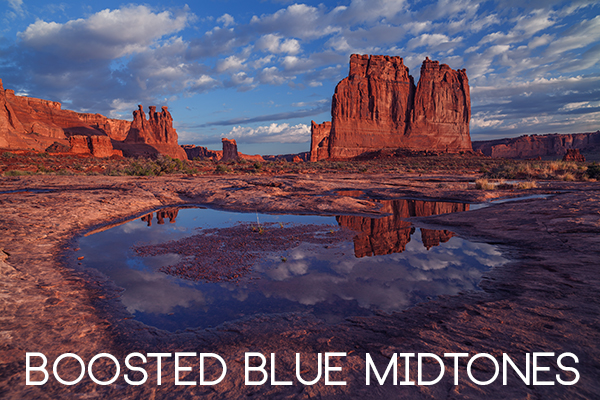
I think that some of the colors need a little encouragement. For this example you want to boost the blue sky so combine the two layers that you’ve been working on so that you can make changes to that. You can do this ‘none destructively’ by pressing ctrl+alt+shift+e which will now combine the two layers you have selected, and create a new layer from those. The original layers are still intact underneath this new one.

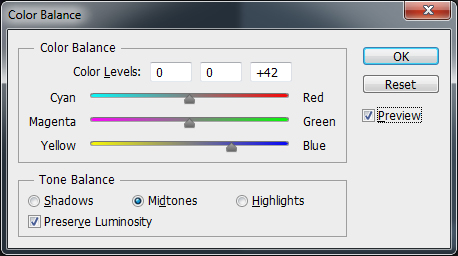
Next, go to Image > Adjustments > Color Balance > and bring up the RGB sliders. As I mentioned earlier, you’re going to be boosting the blues in my sky so click on ‘mid-tones’ and then pull the blue slider up to about +42.

Photoshop Color Balance

Boosted Blue Midtones

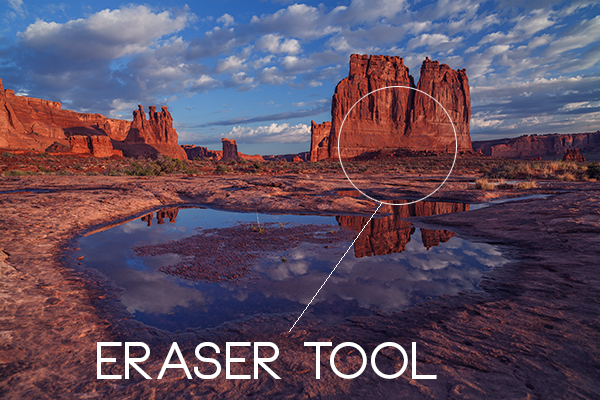
Ooooh, now that sky is looking vibrant but I’m not too sure about boosting the blues in the land area. Let’s fix that by erasing the land in this blue layer so that the layer underneath is revealed, where the blue mid-tones have not been boosted. You can also do this with ‘layer masks’ but this method is much easier to understand.

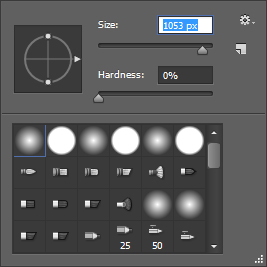
Do this with the eraser tool and select a brush size that fits inside the land area of the image. In the layer with the boosted blue mid-tones, erase a large area of land at first and then choose a smaller brush size for tighter control. To do this, simply click inside the layer you want to erase. The settings below show a brush size of 1053 pixels and a hardness of 0% which gives a soft, feathered edge.

Photoshop Easer Tool

Erase Bruash Tool

Click in the area you’d like to erase to reveal the layer beneath. In this case the layer beneath won’t have the boosted blue mid-tones that you want only in the sky.

Now you’ve managed to selectively boost the blue colour in the sky without ruining other parts of the image that didn’t need that blue boost. Here is an image of how the ‘sky’ layer looks after the land has been erased out, and below you can see how it looks in the layers panel.

Erased Land

This is what’s left of the ‘boosted blues’ layer. The layers under it are temporarily switched off so that you can see the isolated sky.

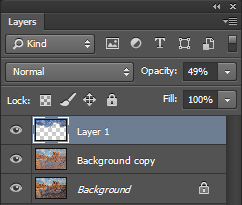
Photoshop Layers Palette

Layers panel showing the partially erased boosted blue sky layer

Notice that the opacity of the sky layer has been reduced to 49% so the effect is more subtle when laid over the top of the lower two layers. Again, you’ll need to use your own judgement for your own images as they won’t all be the same. Maybe you have red clouds and would like to boost the red highlights? You can do this procedure multiple times with multiple layers to tweak the colours selectively. There are more accurate ways to do this but if you’re new to Photoshop, this is the easiest method to understand and has hardly any learning curve.

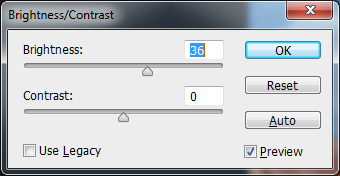
Lastly, all this tweaking has made the image a little too dark so a boost the overall brightness by 36 has been done.

Photoshop Brightness

Step 3 – Let’s Resize and Get Sharp

Sharpening is often something that I leave to the end of my image processing, depending on the medium I’m using to display the image. I’ll use different sharpening settings for a high resolution print than I will for the web, so it’s always a good idea to save an ‘unsharpened’ version of your processed image for safe keeping.

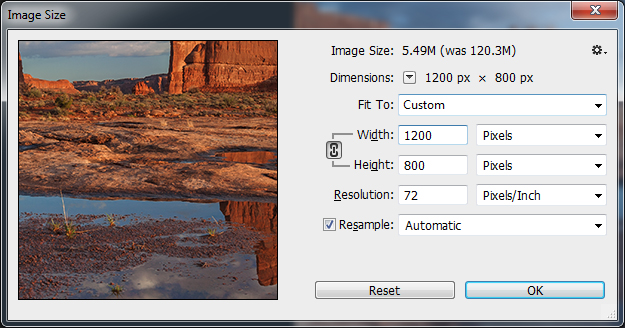
Assuming that you wish to display your images online, here are some fairly universal sharpening settings that I use for sharing my images online. Before we sharpen, let’s flatten and resize our image for the web. You can decide how large your image should display on screens but for the purposes of this tutorial let’s go with 1200 pixels wide.

Go to Layer > Flatten Image so that you’re now just dealing with one complete layer that has all of the changes. Next go to Image > Image Size and tell Photoshop that you’d like your image to have a resolution of 72 dpi which is standard for web images. Next, specify the width by entering 1200 pixels in the ‘width’ window. The height should auto adjust if you have ‘constrain proportions’ checked by default (the little chain icon).

Photoshop Image Resize

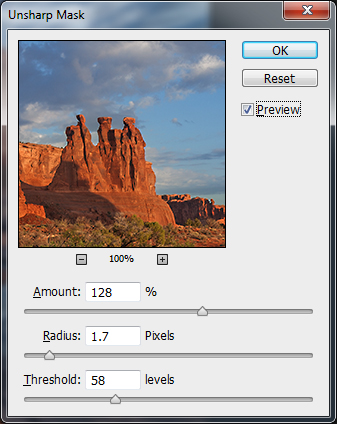
Next open the Filter > Sharpen> Unsharp Mask tool.

Use some fairly safe sharpen settings for web so that you don’t over it. It’s worth noting that ‘sharpening’ deserves an article as a separate topic but for now these basic settings should get you going. Try: Amount > 128%, Radius > 1.7 pixels and Threshold > 58 Levels.

Photoshop Unsharp Mask

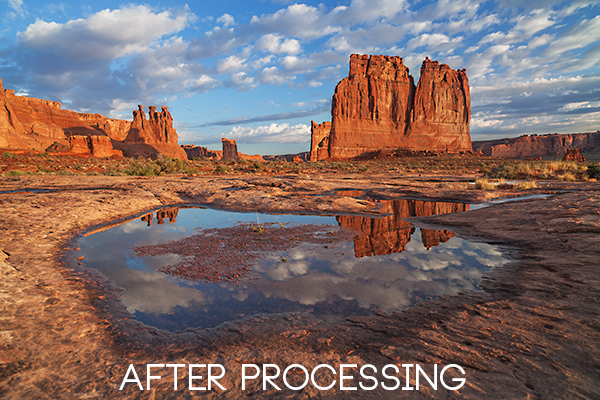
The Final Result

POP! There you go, three easy steps an you’ve now got an image with plenty of punch. There are many different ways to achieve the same results, but for this tutorial, I wanted to give you an easy to understand process to introduce you to some of Photoshops most powerful tools. Try these three simple techniques for your image post-processing and let me know it works out for you.

After Processing

IMPORTANT NOTE: Backup your files before editing or saving your edits.

The post 3 Easy Steps Using Photoshop to Making your Images POP by Gavin Hardcastle appeared first on Digital Photography School.


Digital Photography School

 
Comments Off on 3 Easy Steps Using Photoshop to Making your Images POP

Posted in Photography


iStick allows for easy image transfer from iPhone to computer

31 May

istick_thumb.jpg

While most Android and Windows Phone devices act like external drives when connected to a computer with a USB-cable, transferring photos and files to and from an iOS device is a little more tricky. This is where the iStick, a Kickstarter project comes in. iStick is a USB-drive with an integrated Apple Lightning connector, making it compatible with more recent iPhone, iPad and iPod generations. 

News: Digital Photography Review (dpreview.com)

 
Comments Off on iStick allows for easy image transfer from iPhone to computer

Posted in Uncategorized


3D-Printable Connectors Make DIY Furniture Assembly Easy

23 Apr

[ By WebUrbanist in Design & Furniture & Decor. ]

diy joinery design closeup

Leveraging the best features of available 3D printers and the materials they can print, this kit-of-parts approach opens up an amazing array of possibilities for do-it-yourself furniture construction.

diy table surface supports

Studio Minale-Maeda presented their Keystones system at Milan, using elegantly simple table and coat rack designs to show off the potential of this connective system.

diy coat rack connected

Their core idea is that the larger wooden pieces can be flat-packed more easily for shipping. Customers can then complete the assembly process using included or locally-printed pieces. Still, the potential of this approach goes well beyond that system as such.

diy furniture connector plastic

diy black 3d printed

There is really no reason to limit the process to a ship-and-print combination. With a similar but open-source variant, would-be buyers could take off-the-shelf dimensional lumber and construct their own furniture effectively from scratch. Perhaps unintentionally, the simple and standardized shapes of the components shown here already suggest such potential implicitly – at most a few cuts would be needed for the table, if even that.

diy angle view table

diy side view table

diy standing table vertical

diy joint intersection wood

Regardless, the solution-as-presented is quite crafty, whatever its potential future might be – it leverages the strengths of 3D-printed plastic (rigidity with flexibility), uses strong triangular shapes for structural support (like trusses) and requires only the most basic tool to tighten the finished product (a screwdriver).

Share on Facebook


[ By WebUrbanist in Design & Furniture & Decor. ]

[ WebUrbanist | Archives | Galleries | Privacy | TOS ]


WebUrbanist

 
Comments Off on 3D-Printable Connectors Make DIY Furniture Assembly Easy

Posted in Creativity


Internet Explorer 11 – Place Sites Directly in the Start Menu for Easy Access

21 Apr

Add links to frequently-visited websites directly to the Windows Start Menu.

Are there websites you visit often enough with Internet Explorer 11 that you would like to make opening them up more convenient? Instead of navigating the Favorites menu of IE11, you can pin links to websites directly to the Windows Start Menu.

After opening the website from Internet Explorer 11, perform the following steps depending on your Windows interface:…

Read more at MalekTips.
New Computer and Technology Help and Tips – MalekTips.Com

 
Comments Off on Internet Explorer 11 – Place Sites Directly in the Start Menu for Easy Access

Posted in Technology


Luxi Makes Manual Mode Easy

07 Apr

Extra photos for bloggers: 1, 2, 3

Don’t let Otto any where near your DSLR! He sorta shoots for an ok exposure … Did we say Otto? We meant Auto. Auto Mode.

Luxi is here to help! This li’l gizmo will turn your iPhone into a light meter, help you master manual mode and banish that “Otto” fool forever.

Luxi makes manual mode easy by measuring the exact light falling onto your subject and telling you just what settings to use.

Luxi’s diffusing dome turns you iPhone into an incident light meter that is more precise than the reflective meter inside your camera and is less spendy than traditional meters.

Learn More About Luxi
$ 30 at the Photojojo Shop


© laurel for Photojojo, 2014. |
Permalink |
No comment |
Add to
del.icio.us

Post tags:


Photojojo

 
Comments Off on Luxi Makes Manual Mode Easy

Posted in Equipment


5 Easy but Amazing Light Painting Experiments for Beginners

04 Apr

Light painting is a photographic technique using a hand-held light source to “paint” on the film or sensor of your camera. Essentially, you’re waving lights in front of your camera, and you never know what you’ve made until you’re done, so trial and error is required. If this sounds like fun, you’ll find five light painting experiments below you can Continue Reading

The post 5 Easy but Amazing Light Painting Experiments for Beginners appeared first on Photodoto.


Photodoto

 
Comments Off on 5 Easy but Amazing Light Painting Experiments for Beginners

Posted in Photography


5 Easy Photoshop Tips for Beginners

20 Feb

Photoshop CC iconPhotoshop has changed the way we transform our imagination. If you are into any digital workplace, learning Photoshop can be a great help. Photoshop today is certainly a centre of creativity to which almost every digital domain; from web designing to animation; from photography to digital magazine, is deeply connected. Today, when it comes to photography, it is not possible to imagine it without Photoshop.

Good Photoshop skills can’t make a mediocre picture perfect unless you are into manipulation. However, it can certainly help you to enhance your best photo into an amazing masterpiece. Learning Photoshop is a slow process, and you should try it with enough practice, after all it is a digital art.

In this article I will walk you through some basic Photoshop retouching skills. These 5 easy Photoshop tips for beginners will be a great start to learning to proces your photographs.

1. Learning Keyboard Shortcuts

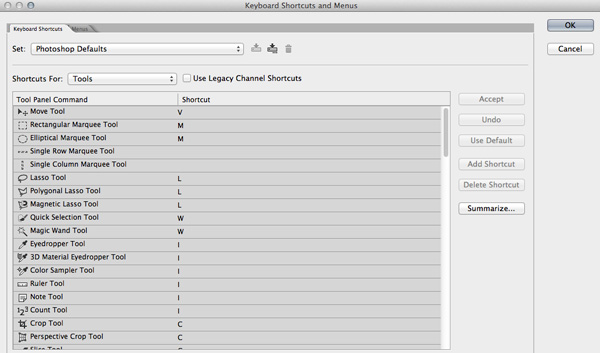
Learning keyboard shortcuts will help you to speed up your processing workflow. There are few key shortcuts for different tools in the tool bar. A few of the most widely used shortcuts are:

Photoshop keyboard shortcuts

  • V = move tool
  • F – toggles through display screen modes
  • Space bar = temporary hand key
  • B – paintbrush tool
  • D – sets the foreground/background colorss to default
  • X – swaps between background and foreground color
  • E – eraser tool
  • S – stamp or cloning tool
  • W – quick selection tool
  • Ctrl+j – duplicates the selected layer

There are just few of the most regularly used Photoshop shortcuts. When you start using the program more, your knowledge of shortcuts will gradually increase. Once you are aware of the most used shortcuts retouching pace will be faster than ever.

2. Color Enhancing – Saturation versus Vibrance

Photoshop tips vibrance

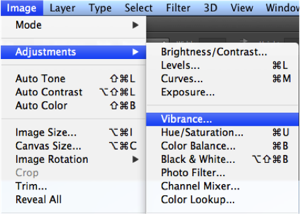
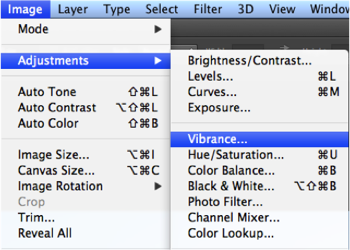
Color is another domain you can try while enhancing your photographs. Generally when you are beginning in photography, enhancing the color of every image looks good, as if the colors are speaking out of the photographs. It will be lot more helpful if you can understand the difference between how saturation and vibrance works. Go to Image menu and choose Adjustment under the menu

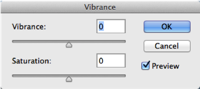
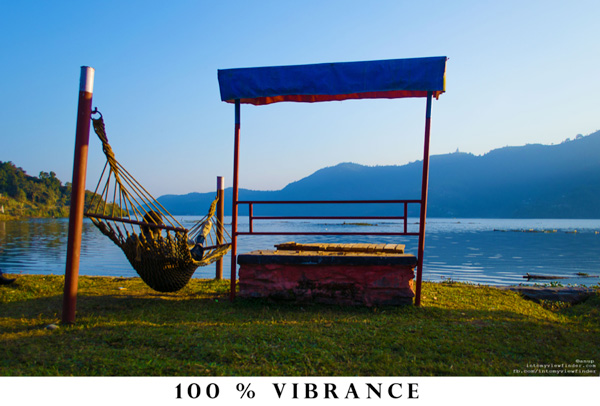
As shown in the image to the right, select the Vibrance option. You will get two options under the menu – Vibrance and Saturation. Vibrance increases the saturation of less saturated colors. This option avoids yellow and orange skin tones. Basically vibrance works best for portraits.

Photoshop tips saturation color adjustments

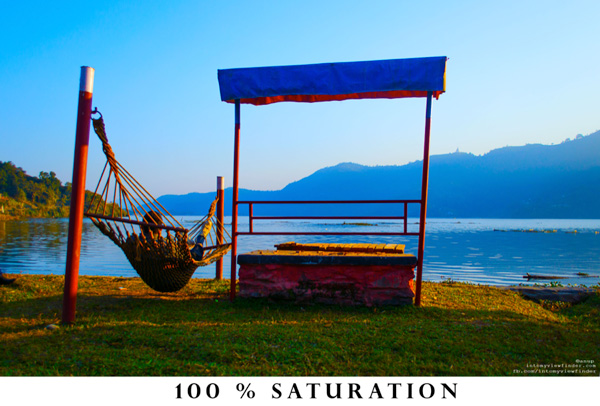
On the other hand, saturation increases the intensity of all the colors in your image equally. This may not be a good option for portraits or peoples photos. What I can recommend is this: slowly start with vibrance for the color enhancement and use saturation later if you want to pump up the color more.

If you compare the two photos below, you will understand how vibrance is only responsible for increasing the intensity of less saturated colors, where as saturation increases the intensity of all colors equally.

Photoshop vibrance adjustment

Photoshop saturtation adjustment

3. Adding a Vignette

Photoshop vignette

Vignetting is basically a technique to darken the edges of your frame so that the eyes move to the subject more easily. This procedure works best when you have a subject in the center. Our eyes tend to move towards the brighter part of the image and recede on the darker side. This technique will result in dark space around the subject.

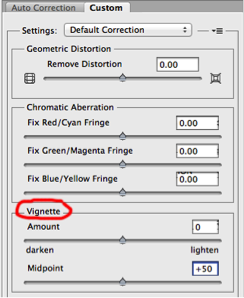
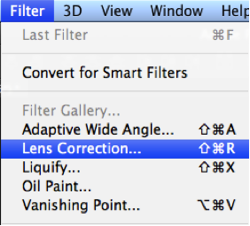
There are lots of manual ways you can add vignetting in your photos but I will talk about how to easily add vignetting in your images via Photoshop. Go to Filters Menu at the top and select “Lens Correction”, then choose the Custom Tab on the right. The third section down is for adding a vignette. Slide the Amount to the left to darken, and Midpoint to adjust the size of the circle.

Photoshop tips vibrance Photoshop tips vignetting

4. Adding Sharpness and Details

Photoshop filter lens correction vignette

Adding sharpness is another technique for beginners in Photoshop. This will make your image look more detailed. I would suggest detailing most of your images with appropriate values. But make sure you sharpen, or detail your images with a small value if you are going to upload images on Facebook because it compresses the images and adds some detail to make it took a bit sharper. So when an already sharpened image is uploaded in Facebook, there is a change of it looking too edgy.

Like any other technique, there are many ways you can add details in Photoshop. I will show you a very simple technique. Once you understand how this works you can experiment with some of the other techniques.

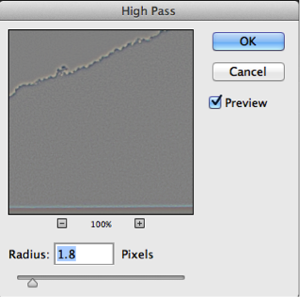
  • Photoshop high pass filterStep 1. Duplicate the selected layer with a keyboard shortcut Ctrl+J (PC) or Command+J oP MAC
  • Step 2. Open the High Pass filter: Filter > Other > High Pass on the top layer
  • Step 3. Apply an appropriate value (just to see the edges in the image) and click Okay
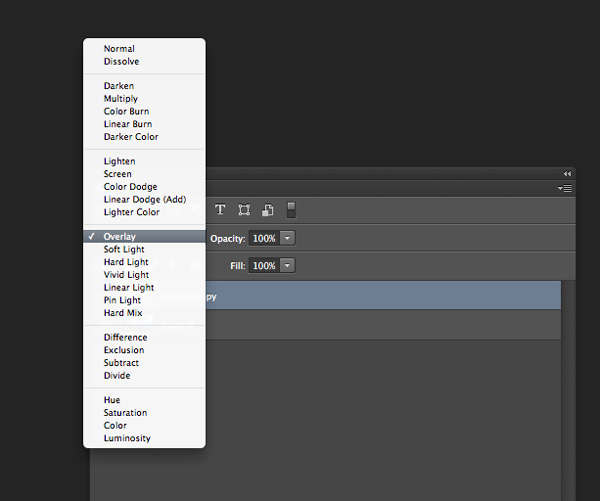
  • Step 4. Change the blending mode of the top layer to Overlay
  • Step 5. Adjust the opacity of that layer to your taste
Photoshop-tips-layer-blend-mode

Layer blend mode

5. Photoshop Filter Gallery

Photoshop tips filters

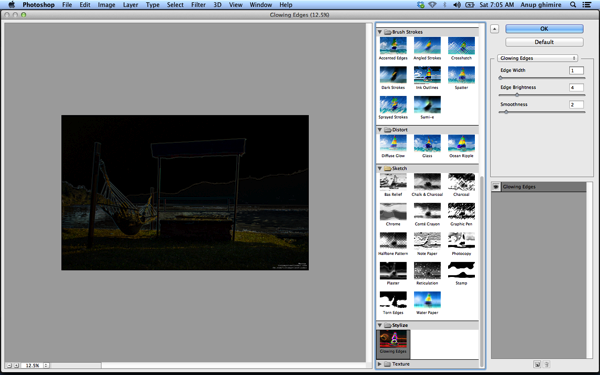
Filters are basically automated effects that you apply to your images with a few clicks. Filters can help you to achieve certain special effects or looks. There are various filters in Photoshop, which you can pick individually, each filter results in different effect when applied to different images. You an also apply more than one and stack them. Though I don’t use filters much, it’s good to explore if you are just starting out in Photoshop. Later, when you are more familiar with advanced tools and techniques you can try to create the similar effect from manual options and controls.

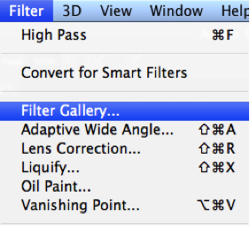
To apply a filter select the layer and go to Filter > Filter Gallery. Before you apply any filter in the gallery make sure to change your image to 8 bit. You can do that by going to Image > Mode > 8 bits/channel

Photoshop filter gallery

I hope these 5 basic Photoshop tips will help you to retouch and enhance your photos. If you have others suitable for beginners please share in the comments below.

For further reading on Photoshop head to:

  • Photoshop Tips
  • Photoshop “blend if” feature
  • 18 Useful Photoshop shortcuts
  • How to replace a face in 6 easy steps

The post 5 Easy Photoshop Tips for Beginners by Anup Ghimire appeared first on Digital Photography School.


Digital Photography School

 
Comments Off on 5 Easy Photoshop Tips for Beginners

Posted in Photography


A Quick and Easy Way to Make Money with your Photography While Having Some Fun

17 Feb

Many photographers have the dream of selling their fine art photography and seeing their prints hanging in collector’s homes. I’m sorry to burst your bubble but that is probably the most difficult way to make money. Even the biggest names in photography don’t make a living solely by selling prints. Yet, it is conceivable to make a little bit of extra cash with your pictures and here is a realistic easy way to make money with your photography.
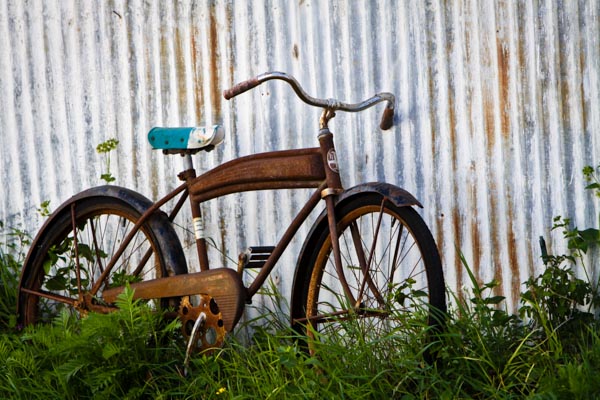
Everyone loves a card with an old rusty bicycle! ©Valerie Jardin

Everyone loves a card with an old rusty bicycle!
©Valerie Jardin

Think Locally!

Instead of trying to reach the world at large and compete with hundreds of thousands of other talented photographers trying to sell their work, think locally!

You could spend several weekends every year sitting in a booth at an art fair only to sell enough to break even and pay for your entry fee. Yes, art fairs are good exposure, but photography is not the biggest seller and there are usually several photographers trying to sell prints at the same event. Also, those art fair weekends are valuable days for any photographer, wouldn’t you rather be out shooting than selling?

Another option is to show your work at a restaurant or a coffee shop. If you do, make sure there is an opening party to create a buzz around your work and invite everyone you can think of. Do not leave your images on display for more than a month, no one will notice them after a few weeks.

I’m going to tell you a little secret…

Years ago, when I still had a little bit of spare time, I often teamed up with two or three other artists in different media forms and organized private art parties. We combined our contact lists and invited our friends and family to attend an ‘art open house’ for a few hours. We did this several times a year. We took turns hosting the event and split the cost of the snacks and beverages. We also urged people to bring a friend along. By combining our contact lists we would reach a large number of people and always end up with a minimum of 30 to 50 attendees.

Why is it better to have 50 people coming to your open house rather than hundreds walking by your booth during an art show? The people who come to your private art open house are there for the sole purpose of checking out your work, socializing and spending money! I used to sell hundreds of dollars worth of small prints and greeting cards in just one evening, while having the best time socializing with friends and other artists.
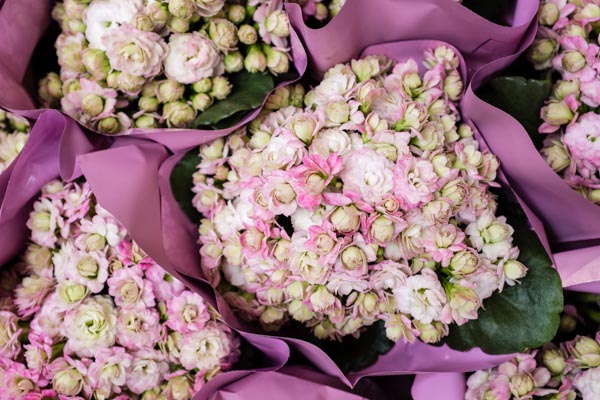
A card for Mother's Day... ©Valerie Jardin

A card for Mother’s Day…
©Valerie Jardin

What sells?

Small ticket items! You can always have a few large, framed prints, on display for the wow factor and a possible sale or two – but small items, such as greeting cards, will sell! People are still very keen on greeting cards, especially in North America. I realize that different countries have different customs. You may think that, in this age of electronic mail, physical cards would disappear. On the contrary, e-cards and social media greetings are so common and impersonal, that receiving an actual card in the mail has become a novelty.

The advantage of selling cards is that everyone can afford them and has a use for them. Make sure you have a large variety of cards with your best images. If people can’t decide which ones to choose, they are more likely to buy all of them! Another tip: Display some as a pack wrapped with a bow, they make fun gift ideas for friends, co-workers, teachers, etc. Another tip: Offer a ‘bargain basket’ with a limited selection of discounted cards. Some people will only buy if they feel like they’re getting a good deal. Also, use this phrase as incentive “one free card if you buy ten”. It works!

Everyone knows a musician who would enjoy receiving this card! ©Valerie Jardin

Everyone knows a musician who would enjoy receiving this card!
©Valerie Jardin

How do you make greeting cards?

It takes a little bit of time and effort to make those cards and there are several ways of doing it. You can certainly order your cards already made through a wholesaler. It’s the easiest way to proceed but also the most costly and your profit margin will suffer.

You can make your own! If you have a good quality photo printer, you can download a greeting card template and print them at home on some nice stock paper. Watch out for the high cost of the ink and figure out how much each card is going to cost in ink, paper and envelope. The goal is to make nice cards for as little as possible.

An inexpensive way to do it, but a bit more time consuming, is to affix photographs on stock paper. Pre-scored card paper with matching envelopes can be purchased in bulk quantities at a craft store for a very reasonable price.Your next step is to print your logo and contact info on the back of the cards. The tedious part is to place the photo on the front of the card with double sided permanent tape.

You can wrap each card in a clear sleeve to give them a more professional look. Or ‘go green’ and not wrap them at all. Ordering 4×6 prints online to use on your card stock is cheap, just pennies per print (usually cheaper than printing your own).

Remember, cards you buy at the store are expensive! Yours will be unique and you can easily sell them for $ 5 per card, which adds up when people buy them by the dozen or as a pack to give them as gifts… If you do it right, you can easily make a 300-400% profit on each card.  Remember, the goal is not to make a living by doing this. But you can easily make a few hundred dollars during each party, and feel pretty good about yourself!
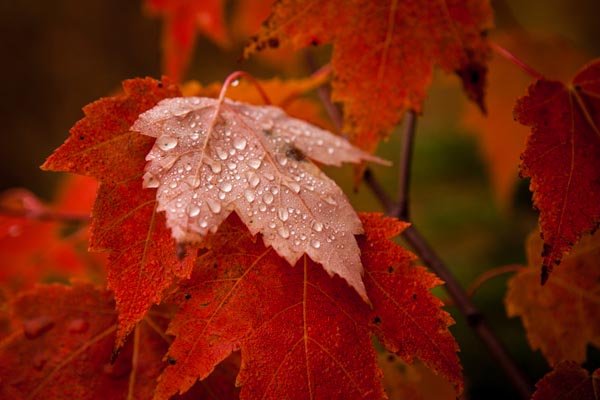
Valerie Jardin Photography-17

There is a card for every season!
©Valerie Jardin

The fun part and the bonus for you, the photographer!

Shooting for greeting cards becomes a great photography project. Think of all the different themes you can shoot for: Christmas, Hanukkah, Father’s Day, Mother’s Day, Birthdays, Valentine’s Day, etc. All of a sudden you become a stock photographer for your own little business needs. I used to spend a few hours each week shooting just for my greeting card collection. For example, if I was out shooting for a Father’s Day theme, I would think: golf, fishing, antique cars, etc. Every self-assignment becomes a treasure hunt. It was like shooting for a stock agency. The difference was that I made a lot more money and I had a lot more fun selling those cards than I did with iStock!

This little experiment was serving a dual purpose. I was having fun and learning a lot while working on a photography project that also brought extra cash for trips or photo gear!

Another advantage is that it spreads your name around. Many times people emailed or called me to place an order after receiving one of my cards for a special occasion. Hence the importance of having your contact information on the back of each card! Today I don’t make cards anymore but, ironically, I often get requests from greeting card companies to licence my images for that purpose.

If you love photography and, if you have a little bit of spare time, there is no reason why you can’t make some extra cash selling your pictures. Good luck!

When you start shooting for your greeting card collection, opportunities will present themselves everywhere and your photo walks become fun treasure hunts with a purpose! ©Valerie Jardin

A card for the book worm? When you start shooting for your greeting card collection, opportunities will present themselves everywhere and your photo walks become fun treasure hunts with a purpose!
©Valerie Jardin

Do you have any other little tips that have worked for you to make money with your photography? If so please share in the comments below.

More articles on using your photography to make some extra cash:

  • “Photography Business Secrets” – A Review
  • 5 Things to Consider Before Starting Your Photography Business
  • Top 10 Ways to Sabotage your Professional Photography Aspirations

The post A Quick and Easy Way to Make Money with your Photography While Having Some Fun by Valerie Jardin appeared first on Digital Photography School.


Digital Photography School

 
Comments Off on A Quick and Easy Way to Make Money with your Photography While Having Some Fun

Posted in Photography


5 Easy Steps to Choose the Perfect Prime Lens for You

10 Jan

“But how will I zoom in and out?”,  I blinked my eyes in disbelief.

“You’ve got feet, don’t you?”

85mm-canon-lens

My first encounter with the concept of fixed or prime camera lenses was when they were explained to me (a baby photographer) when I met with a local wedding photographer whose work I was (and still am) crushing on. I was so surprised to hear that there were lenses that (gulp) didn’t zoom. ‘What’s the point of that?’ I wondered. Why pay more for less?

Clearly, I had lots of catching up to do!

There are many merits to utilizing prime lenses in your photography. One is that you may find you can achieve mind blowing sharpness and quality with a lens that isn’t 10 lenses in one. I like to say that the 50mm prime lens doesn’t have to try to be anything other than 50mm. It only needs to focus on (pun intended) being the best 50mm it can be. Of course, there are many fantastically sharp and capable zoom lenses out there, but you will find that you’re not only paying for quality, but versatility. Prime lenses aren’t very versatile, but what they lack in versatility, they can make up for in quality which may leave you asking, “what zoom?”

How to choose

So with so many to choose from, how do you choose the perfect prime lens for you? You can be like me and buy-to-try a whopping 14 lenses in 5 years, to the tune of $ 10,250, (true story) or you can try these great 5 steps:

  1. Choose one of your existing zoom lenses
  2. Set it on a focal length and leave it there
  3. Shoot for a week or so only on that setting. Experience what it’s like to use your feet instead of your zoom. Photograph your typical subjects, ones you photograph the majority of the time, and see how that focal length feels.
  4. Repeat the exercise at different focal lengths.
  5. Assess your experience shooting at different lengths. The setting at which you felt most comfortable will be a great indication of where to start when purchasing the perfect prime lens for you.

50mm-canon-lens

Bonus tip!

If you use multiple lenses (or even just a few), there’s a super cool way to use Lightroom to see all the images taken with a particular lens. First, make sure you’re in the library module. On the left (under the smaller preview image) click ‘all photos’. Then on the top bar, click ‘metadata’. You’ll then see many sorting options depending on what photos you want to see. In the middle is the box which shows every lens you’ve used for all the images in your catalog (if you don’t see that use the pull down menu to select “lens”. How cool is that?! Then you can sort by focal length and see which one(s) you use most often.

50mm-canon-lens

My Final Choice

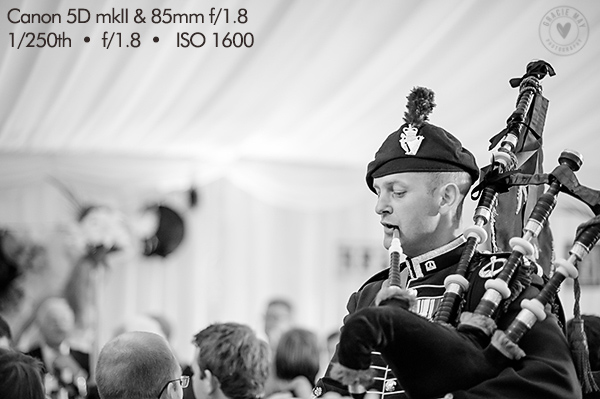
As I mentioned before, I’ve experimented with many different zoom and prime lenses. As for primes, I’ve owned the following Canon lenses: 50mm f/1.8, 50mm f/1.4, 50mm f/1.2, 85mm f/1.8, and 24mm f/2.8. After all that, the only one that remains in my collection is the 50mm f/1.2. I personally love quite tight portrait shots so although I think the quality was fantastic, the 24mm was too wide. The 85mm had phenominal sharpness and quality, but I sold it to help pay for the 50mm. I find the 50mm great on my full frame camera for wideish family shots but also tight-enough portraits. The f/1.2 means it’s my best lens for ultra low light and the sharpness is a little mind blowing. For me, it’s the perfect prime lens.

Now, there are many lenses from which to choose and that’s where you fine people come in! If you’re a prime lens aficionado or even just a fan of a particular lens, get involved below and tell us what prime lenses you have experience with, and which are your favourites!

The post 5 Easy Steps to Choose the Perfect Prime Lens for You by Elizabeth Halford appeared first on Digital Photography School.


Digital Photography School
 
Comments Off on 5 Easy Steps to Choose the Perfect Prime Lens for You

Posted in Photography