Apple has extended system-wide Raw support for 14 additional cameras, including Canon’s newest flagship DSLRs. Digital Camera Raw 6.04 also brings Raw support to OS X Yosemite for the Panasonic Lumix DMC-CM1 smartphone, Nikon D7200 and Olympus OM-D E-M5 Mark II among others. Read more
Tag: Digital
-
Accessory Review: Western Digital My Passport Wireless
Western Digital’s Wi-Fi enabled My Passport Wireless is a hard drive that features a built-in SD card reader. Alongside the drive, it offers a My Cloud app, allowing photo, video and audio files on the drive to be viewed wirelessly from a phone or tablet. With Wi-Fi hotspot capabilities it could be a very tempting device for roaming photographers who want photo backup without the burden of a laptop. Is it a travel photographer’s new best friend? Read review
-
Manfrotto unveils Digital Director for iPad Air
Manfrotto has used the National Association of Broadcasters (NAB) show as launching pad for the Digital Director, a bracket designed to turn an iPad Air into an external monitor for Canon and Nikon DSLRs. By connecting the Digital Director to a camera via USB and opening the app of the same name, a Live View feed is provided and exposure settings can be controlled by the iPad. Read more
-
Canon XC10 digital camcorder brings 4K video and stills together
Canon has released its XC10 digital camcorder which combines advanced 4K video recording with capable still shooting features. The core features are a 12MP 1″ CMOS sensor and a fixed F2.8-5.6 image stabilized lens equivalent to 27-270mm for videos and 24-240mm for stills. 4K UHD video is captured using the XF-AVC Intra codec (which offers bit rates up to 305MBps) and 8MP stills can be grabbed from 4K video. Other notable features include a rotating grip, tilting LCD, and built-in Wi-Fi. Read more.
-
Konost full-frame digital rangefinder in the pipeline for 2016
An American start-up company is promising to bring a full frame digital rangefinder camera to market for early 2016. The Konost FF will be a 20-million-pixel metal bodied M-mount camera equipped with a 4″ LCD. The company has said that the rangefinder system will operate not with mirrors and prisms, as most rangefinders do, but with twin imaging sensors that overlay their images to produce the same dual image effect in the viewfinder. Read more
-
Mastering The Digital Workflow
Alana Tyler Slutsky shares with the readers of FashionPhotographyBlog.com, the processes she goes through in her workflow. After revealing her tips for the photographic workflow, Alana explains that there are two types of workflow that photographers should pay attention to. In this article she will be discussing the other half of the equation, that is, the digital workflow process. Let’s jump right into it! All yours Alana!

Digital Workflow
This applies to everything that involves a computer, bring images in from the camera to prepping for print.
– Use a card reader to bring images from your CF/SD card to your computer. (Don’t bring them over via your camera!)
– Download directly to your hard drive – do not bring in via iPhoto or another photo program – This causes problems and confusion when trying to rename and separate individual images.
– Create an organized file structure so you can find anything at a moments notice.
– Bring images into Lightroom or Bridge to review
– Bring images into Photoshop to retouch
Download Directly To Your Hard Drive:
Create a new folder > Open up the DCIM folder on your CF card > Select and drag images to new folder you just made
File Structure:
My files are meticulously organized, as pictured below:
Year > Month > Shoot date/name
Each shoot has a set of 6 folders that are worked in. Nothing exists outside of these 6 folders. Then consist of:1. Capture – All images shot from the session, further broken down into folders based on look #
2. RAW Selects – ONLY the RAW files for the images I’ve selected to retouch
3. Working Files – PSD’s from the files I’ve retouched
4. Final TIFFS – Flattened, final images ready for print
5. High Res JPEGS – Flattened, final images in high-res ready to hand out to my team/client/etc
6. Low Res JPEGS – Flattened, final images sized and formatted for web use
How I organize my files
Reviewing Images In Lightroom:
As far as reviewing images goes, there is no right or wrong way, this is just how I do it. Again, keeping with the same meticulous file structure that I use to store my images, my Lightroom is organized the same way so I can easily flip between looks from a shoot.
– Flip through all the images (by look) and “flag” or “pick” anything that jumps out at me initially by clicking “P”
– Use the filter options to view only images that have been flagged. Further narrow down your selection, first by using 1 ? and working your way up to 4 ?‘s.
– Once I get to 4 ?‘s, I’ll view all my looks at once to determine which images work best together and mark my final selects as 5 ?‘s.

Making final selects
– Create a contact sheet to send to client/agency/whoever based on images rated 4 & 5 ?‘s.
To Create A Contact Sheet:
1. Select images in Lightroom
2. File > Print or Select “Print” from the menu on top right
3. Top right choose “Single Image/Contact Sheet”
4. Play with “Layout” to determine how your contact sheet is laid out
5. Save your contact sheet as a PDF to email to clients and save a copy for yourself in your newly organized file structure!
It’s helpful to add file names under the images so you know what image your client is talking about.

Print Window in Lightroom
To save as a PDF, hit Print and the following menu will pop up:


Yay Contact Sheet!
Editing Images In Photoshop:
– Once you’ve made your selections, bring your image into Photoshop
– Retouch
– Save
When you put it that way, it seems so easy!
Retouching:
If you haven’t already, check out our previous post on Retouching Skin.
1. Work on the big stuff – compositing, reshaping (liquify), any more substantial fixes
2. Heal/Clone
3. Dodge & Burn
4. Apply color – color is a whole other beast on it’s own. It’s something we’ll definitely get into in another post.
Saving Images:
1. First, save your final retouched image as a PSD file. This takes up less room than a TIFF file when layers are involve. (Remember to ALWAYS work on layers. NEVER EVER EVER work directly on your background layer! This is a terrible practice and if you currently do work on the background layer, break this habit now!)
2. Flatten your image and save it is a TIFF for printing.
3. Save a high res JPEG for agency/client/whatever – TIFFs only go for print (magazine or specifically asked for. Otherwise everyone gets jpegs.
4. Save a low res JPEG for web use. For me this is typically 72 DPI with longest side around 800 pixels.
By the time you finish all this, all those folders you made in the initial file structure should be filled (that is, it you adopt the file structure I currently use). By saving all these formats up front, you won’t need to go into the file every time someone asks for it. They will already be created and will be easily found!
I’d love to hear what your workflow is. If anyone has found an even easier/more organized way to go about file management, be a pal and share it in the comments!
As always, if you have any questions, feel free to shoot me an email.
– Alana
Did you find Alana’s post useful? Please leave your comments below in the comment section. We would like to know what you thought about this post. If you enjoyed this article, do stay tuned as Alana has another post just around the corner on FashionPhotograhyBlog.com. If you want to know more about tips for a photographer’s workflow, check our post on Mastering The Photographic Workflow.
IMAGE SOURCE:
Feature image & images 1-6: courtesy of Alana Tyler Slutsky.
-
Pixel Performers: Digital Projection Mapping on Live Dancers
[ By WebUrbanist in Art & Installation & Sound. ]
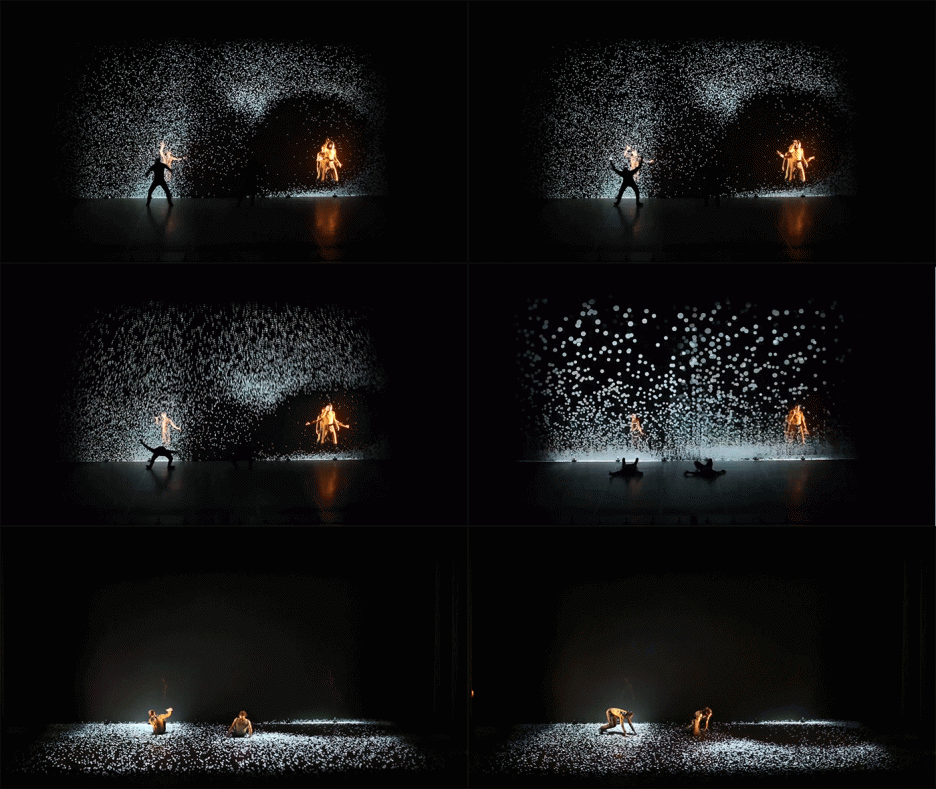
Combining choreographed movement and projected abstractions, these works of performed art are visually stunning, creating effects and illusions far beyond the sum of their parts.
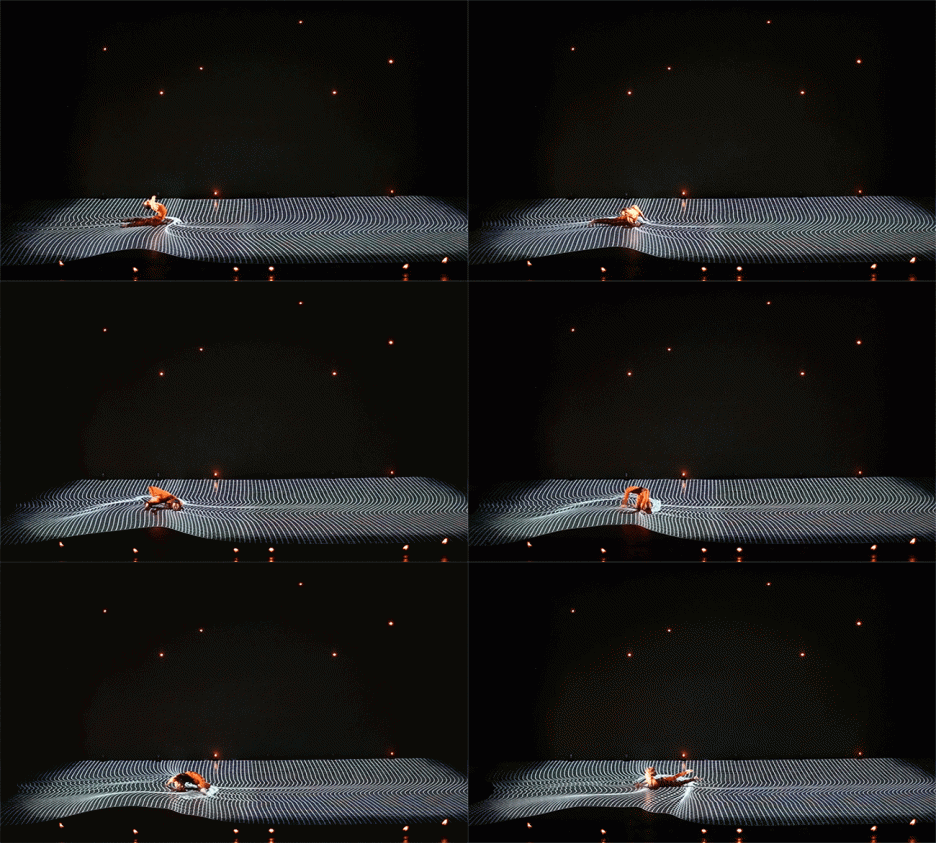
From its creators, Pixel, shown above, “is a dance show for 11 dancers in a virtual and living visual environement. A work on illusion combining energy and poetry, fiction and technical achievement, hip hop and circus. A show at the crossroads of arts and at the crossroads of Adrien M / Claire B’s and Mourad Merzouki’s universes.”
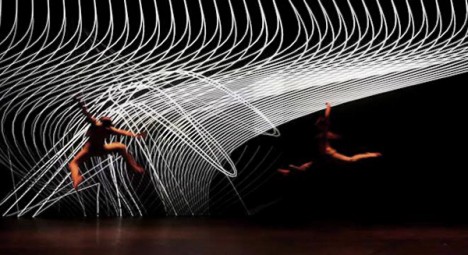
The idea of projecting onto moving performers is, however, not new – indeed, Klaus Obermaier has been using low-tech projectors and equipment to create equally amazing work for decades. Indeed, while speaking at INST-INT recently in Minneapolis, he joked that he would carry on using his decade-old laptop until it broke down.
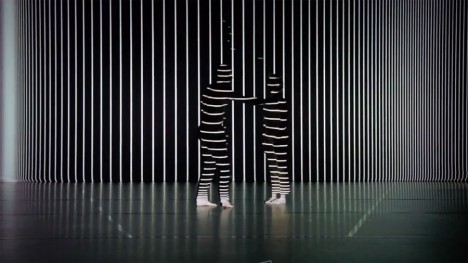
Indeed, the lower-tech approach he takes relies heavily on the ability of each dancer to have complete control of their own movements, making their skill a critical part of each and every exhausting performance.
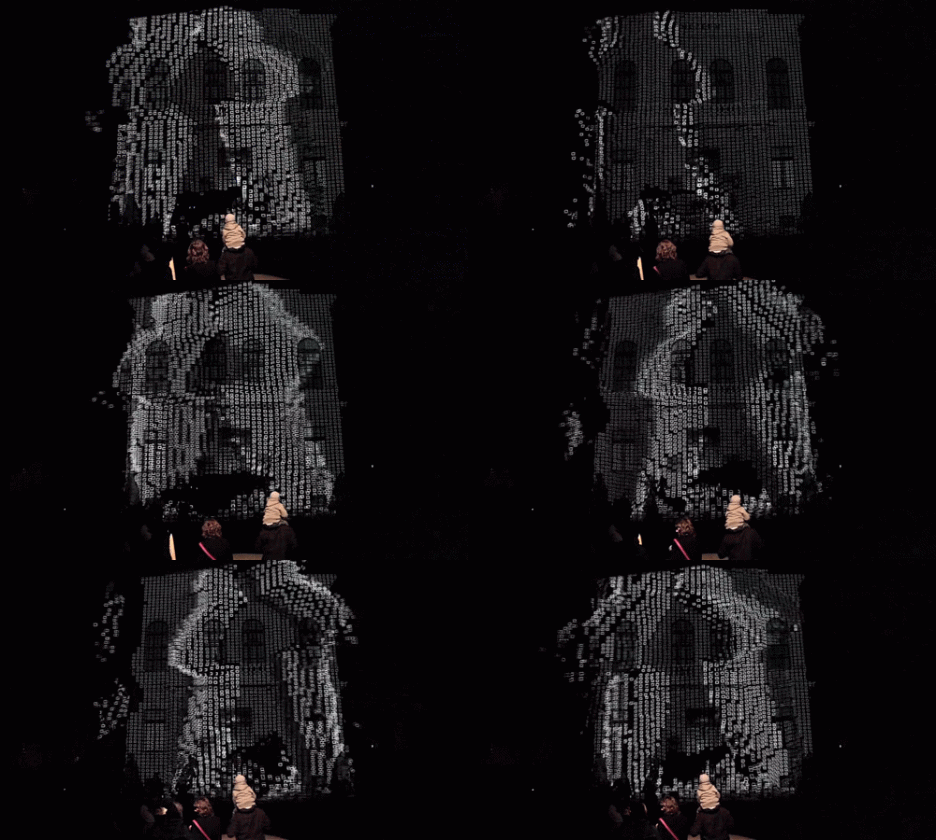

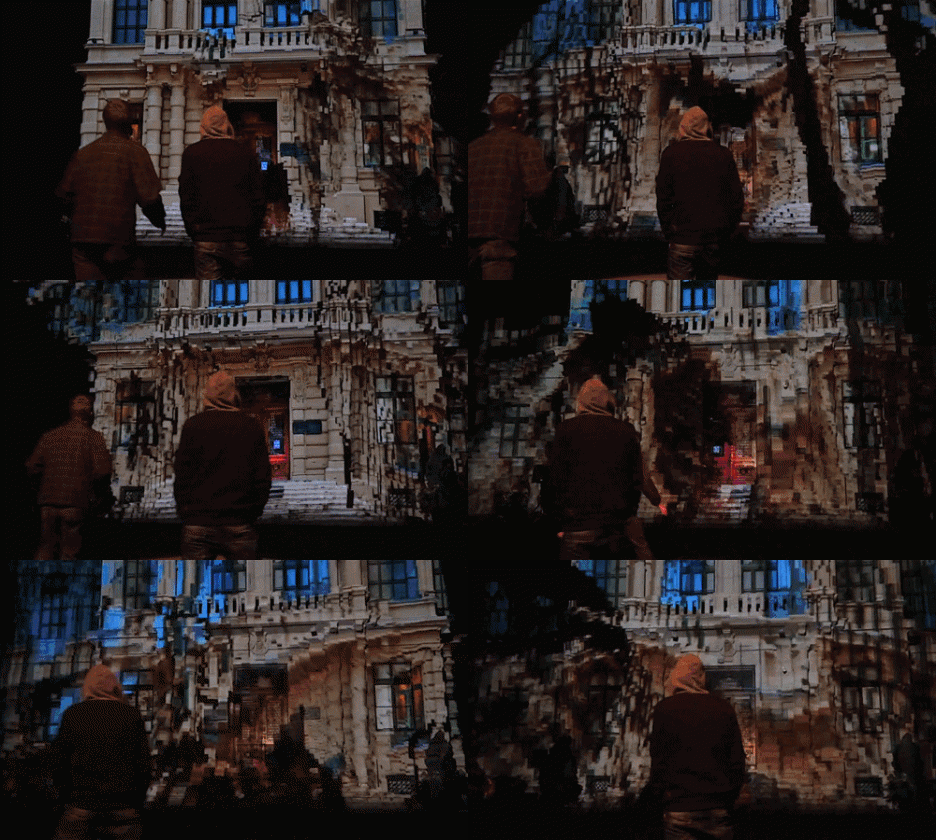
Obermaier has also engaged in other forms of public interactive projection art over the years, taking his productions off the stage and allowing passers by to interact with his work.
Want More? Click for Great Related Content on WebUrbanist:

Face Hacking: Transformations via 3D Projection Mapping
Actors gain access to thousands of different faces instantaneously as their facial topography is scanned and altered in real-time using 3D projection mapping. …
Click Here to Read More »»
Inst-Int 2014: 3 Must-See Installation Artists & Designers
Featuring an all-star lineup of renowned interaction designers and installation artists, the second-annual INST-INT is a Minneapolis gathering focused the …
Click Here to Read More »»

Pixel Pour 2.0: Digital Water Street Art Stuck in Mid-Spill
A pixelated stream of water appears to pour from a black faucet on a sidewalk in Manhattan in this urban art installation dubbed ‘Pixel Pour 2.0.’
Click Here to Read More »»


[ By WebUrbanist in Art & Installation & Sound. ]
[ WebUrbanist | Archives | Galleries | Privacy | TOS ]
-
Canon updates Digital Photo Professional to version 4.1.50
Canon has updated its Digital Photo Professional 4 (DPP) software to version 4.1.50. The update brings support for a couple of new lenses and several camera models, improvements to multiple functions, and compatibility with 64-bit native environments, among other things. The newest version, says Canon, incorporates feedback from both APS-C and older full-frame owners eager for ‘the very latest Raw workflow solution’. Read more
-
Digital Photo Editing Workflow – Better Images From Capture to Output
Better images from capture to output
A comprehensive look at the essential steps and principles in an effective photo editing workflow with highlights of key tools.
Have you ever tried to find a digital photo you know you worked on, but couldn’t remember where you saved it, or even what it’s called? Do you find yourself re-editing photos you’re sure you finished before? Or are you stuck, staring at an image you know could be made better, but not sure which adjustments to make, or even where to start?
We’ve all been there: hundreds of images to sort through. Files scattered all around your hard drives; photos missing, others duplicated in unnecessary versions, who-knows-what lurking in mysterious places with confusing names. And prints coming back from the lab looking, well, crappy. All the while, knowing you have photographic gems just waiting to be discovered and brought to life.
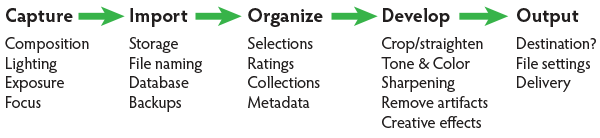
If you’re feeling overwhelmed by digital photography, you’re not alone. Capturing digital images has become so easy in recent years that it’s easy to get stressed, if only because of the sheer volume of pictures you’re making.
For every serious photographer, capturing an image is only the beginning of a complex process with numerous pitfalls. So how can you streamline this tangled mess? The key to keeping your digital photography fun and productive is to adopt, and adapt, an effective, consistent workflow.
Why workflow matters
The concept is simple – your photography workflow is the sequence of steps and actions you take to edit your photos, work them up to a result you consider finished, and share them with the world. Editing photos can be like baking a cake or assembling flat pack furniture. You start with raw ingredients, or loose parts, and use an ordered sequence of steps to put the thing together. In a good photography workflow, the end result is a perfectly crafted image, securely stored for future use, all with the least possible effort.
Efficiency is important. Without a good workflow, at minimum you’re wasting time. Worse, you run the very real risk of losing your most precious photos. Forever. A couple of years ago I knew a wedding photographer, then aspiring to become professional, who lost an entire wedding shoot because of relatively simple errors in her workflow. (In short, the mistakes derived from a convoluted importing method and totally inadequate backups.)
Maybe you’re only taking pictures for fun? If you’re planning to continue with photography, you still need to use an effective workflow. If you don’t, your photo archive will become a beast, very difficult to tame. And your images won’t look as good as they could. No fun.
When you’re starting out in digital photography, you need to develop good habits early. Even if you’ve been shooting for years, it’s never too late to improve your process.
Now it’s personal
You can craft your digital photography workflow to suit your own situation and preferences. But every effective workflow shares common tasks, proven techniques and best practices. These established methods have evolved with real-world use across all genres of photography. They apply equally to beginning enthusiasts and seasoned pros.
I first began editing photos in the early 1990s, working in a magazine publishing environment. Under tight deadlines and managing many thousands of digital assets, a good workflow was crucial. As a working photographer, I’ve been refining my own workflow for over a decade and I still make little tweaks now and then.
Continually finding ways to tighten the screws helps eliminate the risk of disaster, while also making the practice of photography more fun and rewarding. You can master your own photography workflow, too. You first need to understand the most common problems and tasks you’re likely to encounter. Then learn the best tools and techniques for dealing with them. A good photo editing workflow:
- Uses the fewest steps possible.
- Is non-destructive and allows you to change your mind or redo steps without losing image quality< ./li>
- Protects your images now and for the future.
- Provides the best looking photos.
So let’s review the essential parts of a practical photo editing workflow.
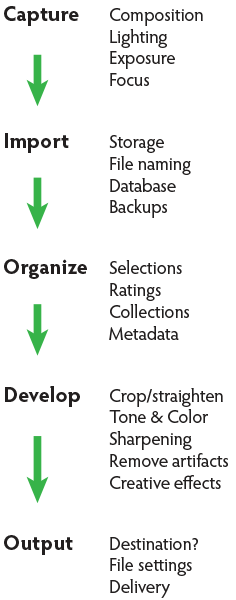
Stage 1. Capture
Whatever the end result you’re envisioning, great digital photographs begin with good data. You should always strive to make the best capture you can, and in most cases, try to finish the photo as much as possible in-camera. Work carefully to make the most accurate exposure with the ideal level of sharpness for the given scene or subject. Regardless of your capture format, you should always be working to master your camera techniques.
Stage 2. Import
Copying files from removable media onto more permanent storage is also variously called downloading, ingesting, transferring, etc., but the result is the same. Right after a shoot, copy all your images from the memory card into a new folder on at least one hard drive, then back up everything right away.
Backup. Backup. Back Up!
Every computer user knows the importance of backing up data. But too many people don’t do it, or don’t do it often enough. This isn’t a single step in the workflow; it’s something you should do frequently throughout the process. You should have your image files saved on at least three separate media sources:
- Your master working drive
- A current backup of the master drive
- A complete historical archive, preferably stored in a separate physical location from your master and working backups
(The topic of digital photo storage and backup is so important that we’ll revisit it repeatedly in the future!)
Stage 3. Organize
After your photos are copied onto your working storage media (and backed up!), sort through the pictures to separate your favorite images from the rest. The best way to do this is with ratings (e.g. stars) or other ranking methods (colors, flags, etc.).

Whichever system you prefer, keep all the photos from a single shoot together in one folder and use the ratings attributes to annotate your selections. During this stage you should also apply and enhance the metadata associated with your files. Keywords, copyright notices and contact information are just a few of the many types of textual information you can embed within a digital image.
Escaping folder hell
In the early days of digital media, it was common practice to move files from one folder to another during the editing workflow. For example, all the original images, often scans from film, would first be put into one folder. As individual photos were selected, processed and output, the files would be copied again (or moved) into other folders representing the stage of the workflow it was in. DON’T DO THIS! It creates a very unwieldy hierarchy of files and folders and makes good organization all but impossible.
Modern imaging software, and more specifically, metadata—allows you to more effectively organize files using virtual methods (such as Lightroom’s Collections and virtual copies) without the need to ever copy or move your original images on the hard drive. In an efficient workflow, there is no need to use separate folders for different types of files.
Stage 4. Develop
This is where you apply digital processing to make each image look as good as it can to fulfill your creative vision for the picture. Like Import, this stage has different names depending on who you’re talking to. Developing is the term most often used by Lightroom users. Enhancing, adjusting, post-processing, and simply editing are other common terms to describe this stage, which itself is comprised of several distinct steps.
The ideal order of operations for developing a photo depends on the characteristics of the original capture; some images will need very different enhancements than others. Still, it’s possible to define a typical sequence of steps as below.
TIP: Work global to local
Make the biggest changes first, then work your way to smaller details. In photo editing, this means first making global adjustments (those that apply to the entire image) before working on the local adjustments. And, earlier in the workflow, apply any changes relevant for large batches of images before moving on to fine tune individual photos.
Develop steps
- Crop and straighten. Since it changes the composition, cropping can be the most significant change you can make to a photograph. It’s best to do it early in the process, but you need to use a method that allows you to go back and refine the crop later if you change your mind.
- Correct distortion. Most camera lenses introduce various amounts of distortion to a picture; some more than others. Fix distortion as one of your first, regular steps.
- Adjust exposure and tones. The tonal range of an image refers to the various levels of brightness of each pixel, from pure white to solid black. Tone is independent from color. Simply setting the white and black points can have a huge impact on the overall appearance of an image, so you should normally do this before moving on to color. Tonal contrast should also be handled during this step; the variation between light and dark tones determines how much impact (or punch) a picture has. Naturally, some pictures will look best as low contrast.
- Adjust white balance and color. White balance plays the biggest role in the color of a photo. If the photo has a strong color cast — for example, an indoor photo captured using outdoor white balance settings — you should fix it before addressing tone. But for images with white balance that seems fairly accurate, set the tone before refining the white balance. After setting white balance, consider making other color adjustments, most notably saturation and vibrance, which affect how pure and vivid the colors appear. Alternatively, convert to black-and-white or apply special color effects during this step.
- Apply local adjustments. These are edits you make only to small areas of the picture. Examples are dodging and burning (lightening and darkening, respectively) and selective color adjustments. In general, you should try to make local adjustments after you’ve finished the global adjustments.
- Apply noise reduction. Noise appears in digital images as soft colored blobs or grainy speckles. Most images can be improved with varying amounts of noise reduction. Photos captured at high ISO, made in the dark, or ones that are significantly underexposed, will need more aggressive noise reduction. You’ll normally want to deal with noise reduction after you set tone and color, because those global adjustments will affect the appearance of noise. Zoom in for larger previews when adjusting noise reduction and sharpening.
- Apply sharpening. Sharpening is all about contrast. The appearance of sharpness in a digital image is based on the relative lightness or darkness of neighboring pixels along the edges of lines within the picture. More contrast along the edges equals more sharpness. As such, you shouldn’t try to refine the sharpening levels until you’ve already set the global tone range, because the overall contrast of the image will have a major effect on the appearance of sharpness. Do your sharpening a bit further into the workflow.
- Perform retouching. Many pictures contain elements that you want to remove altogether. In some cases, these are artifacts — undesirable results of digital processing or camera characteristics including noise, chromatic aberration, fringing and sensor dust spots. Other times, there’s something ugly in the frame, like a telephone pole sticking out of your mother-in-law’s head. Retouch your photos using Lightroom’s Spot Removal tool or Photoshop’s Clone Stamp and Healing Brush.Other processing can reduce or eliminate the need for retouching, so it can be a waste of time and effort to retouch photos earlier in the workflow. For example, you could spend twenty minutes removing dust spots around the edges of a photo and then decide you want to crop the picture tighter anyway.Do your retouching toward the end of the workflow.
- Apply special effects. All the previous developing steps will apply to most of your photographs. After you’ve corrected the technical issues and processed the photo to an acceptable baseline quality, consider applying further stylistic adjustments and special effects.

Stage 5. Output
After you edit photos to a level of perfection you’re happy with, think about sharing and reproducing them. In the digital realm, output generally refers to the many ways you can bring your images into the real world. To do this, from your finished master image, export derivative files, specifically for each intended purpose.
Sharing online is a great start. Most web sites have some important parameters you need to know for your images to look their best (and all web site specs are not the same). Take the time to research the best file settings for your file uploads.
High quality printed reproductions — photo books, notecards, calendars, fine art prints, etc. – also require you to follow specific parameters for exporting image files from your editing software.
TIP: About resizing photos
When you’re editing photos, you should always process your master images at their native resolution. In other words, whatever the pixel dimensions of the image as it came off your camera, do all your editing at that size. Any resizing should be done at the very end of the workflow and only on copies of the master file, each exported to the specifications for the output destination. Don’t resize your master files! (Lightroom keeps this simple – since there are no controls for resizing during the editing process, you can only do it only during an export.)
Conquer your photo editing workflow
When you don’t follow a good system, digital photography can become stressful. Losing pictures, redoing steps, and not getting the quality you’re hoping for are all side effects of an ineffective workflow. Who wants any of that?
Remember that everybody who’s mastered their personal photography workflow had to start somewhere. You’ve likely mastered some parts of the process already. Now, identify specific bottlenecks and key areas for improvement in your own photo workflow. Pick one aspect of the workflow that seems unfamiliar or challenging, and start there.
Crafting your ideal workflow doesn’t happen all at once, nor is it a purely linear process. With so many steps and potential traps, you’ll need to study and practice each of the different stages independently, then tie them together into a cohesive sequence.
TIP: The main reason Adobe Photoshop Lightroom is widely considered the best photo editing software is that it provides most of the capabilities you need to handle the complete photo workflow as describe above.
When you follow an optimized process for working with your pictures and develop a clear understanding of the principles behind your decisions, you’ll have more fun working on the things you enjoy, rather than struggling with tedious tasks.
Practicing good workflow techniques helps you make great photos – easier!
googletag.cmd.push(function() {
mobile_slots.push( googletag.defineSlot( “/1005424/_dPSv4_mob-all-article-bottom_(300×250)”, [300, 250], “pb-ad-78158” ).addService( googletag.pubads() ) );
} );The post Digital Photo Editing Workflow – Better Images From Capture to Output by Nat Coalson appeared first on Digital Photography School.
-
Think Tank launches Perception and Digital Holster bags for mirrorless systems
USA bag brand Think Tank Photo has launched a collection of daypacks and a new holster designed specifically for mirrorless camera systems. There will be three new bags in the Perception series of small backpacks, and will be available in sizes that range from the Perception Tablet that is suitable for a body, lenses and a mini tablet, to the Perception Pro which holds a tablet, a 15-inch laptop and a large mirrorless body with a collection of lenses. Read more