RSS
 

Posts Tagged ‘Creative’

Creative Discovery Through Mistakes

29 Oct

One of the great things about creativity is that it can germinate from a mistake. The trick for photographers is to develop an awareness and eye to see mistakes as creative opportunity so as explore them until they become a crafted photograph. It is very easy to feel that we have to be in control of the creative process from beginning to end and that is not required. Sometimes taking an extended look at a mistake can yield new ideas that would never have come to mind otherwise. Working a scene and trying new angles, settings, focal lengths, etc. is one way to hone your final product through “seeing,” and other times “seeing” happens after the fact when photo editing (see Always Check Your Seconds). The trick to “seeing” after the fact is to not become so absorbed in your initial idea of what you had wanted to accomplish and to be open to new viewpoints and possibilities.

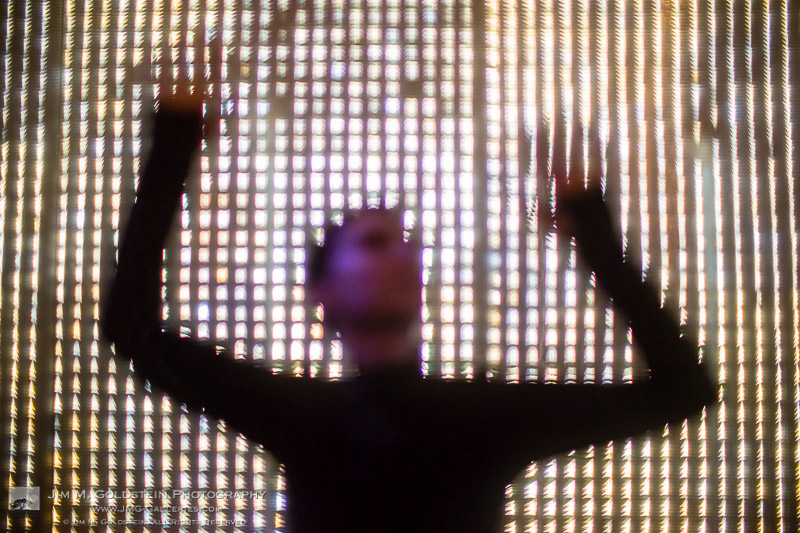
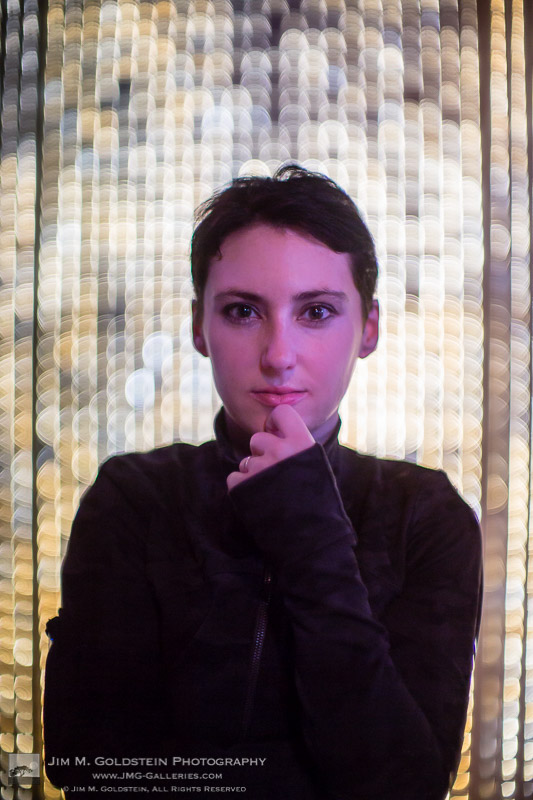
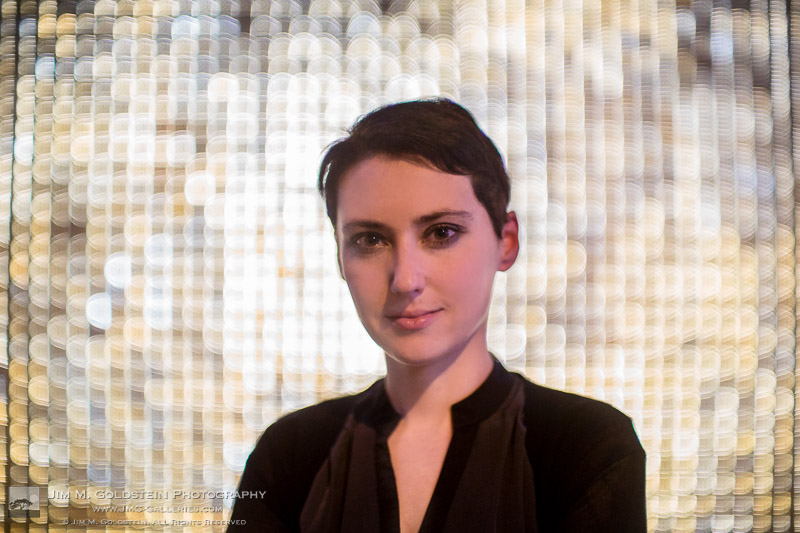
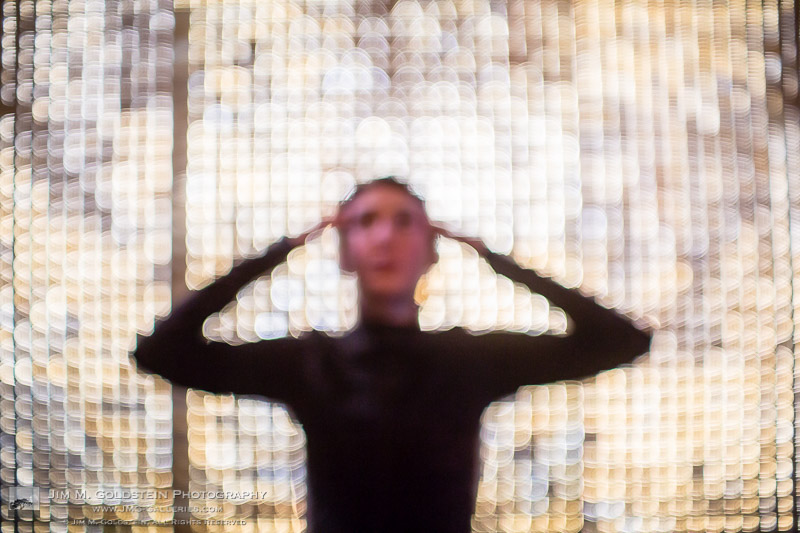
Sometimes mistakes present themselves in an obvious fashion as was the case while I was taking example photos with a new Petzval lens. My aim was to photograph a model and leverage the optics of the lens to capture it’s iconic swirled bokeh in the background. The output as seen below was exactly what I had intended, but in the process a mis-shot was captured and I didn’t notice it’s potential until I was photo editing. Granted the intended shot was perfectly fine; I found the mistake photo fascinating. I instantly saw the opportunity to create something new that I’d never seen before. Inspired I went back out to replicate the optical aberration with a Canon 50mm f/1.0 which lacked the swirled bokeh.

The intended outcome of my shoot.

The accident that sparked an idea

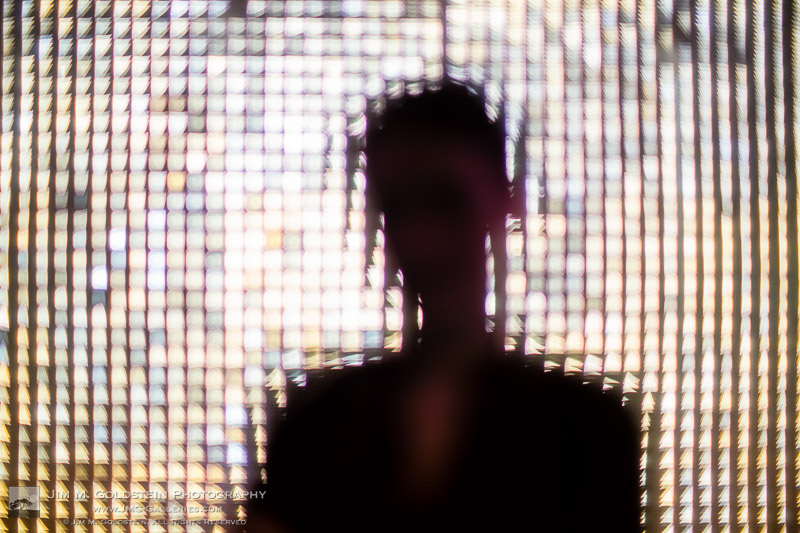
The reshoot of my model with a new lens and similar settings yielded the results I had envisioned (see below). Granted the end results are not for everyone, but given the spooky nature of how my model turned out I thought it made for a great Halloween styled photo set. My mistake yielded a new technique I’m eager to continue to perfect.

Experimental Portrait – The Normal One

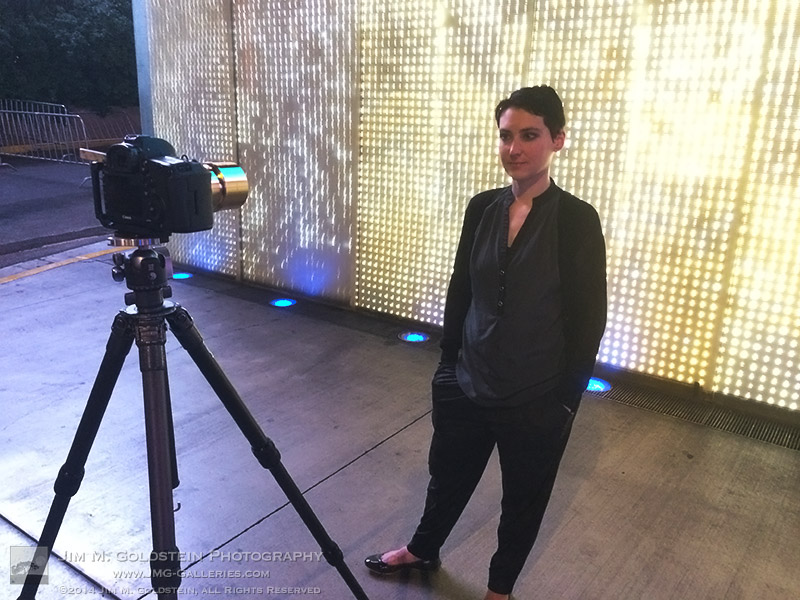
Behind the Scenes - Experimental Portraits

Behind the Scenes – Experimental Portraits


Copyright Jim M. Goldstein, All Rights Reserved

Creative Discovery Through Mistakes

The post Creative Discovery Through Mistakes appeared first on JMG-Galleries – Landscape, Nature & Travel Photography.


Related Stories

  • Creative Discovery Through Mistakes – Enclosure
  • Best Photos of 2013 by Jim M. Goldstein
  • Best Photos of 2013 by Jim M. Goldstein – Enclosure
Feed Ads by FeedBlitz
powered by ad choices


JMG-Galleries

 
Comments Off on Creative Discovery Through Mistakes

Posted in Equipment


Getting Creative With Topaz Impression

26 Oct

Topaz Labs recently released a new standalone image processor called Topaz Impression and I wanted to show you how it works and the kinds of things you can create with it.

However, I should make it very clear up front, that this is not a standard keep it real kind of image processor, so if you cringe at the thought of image manipulation you may want to turn away now.

getting-creative-with-topaz-impression

What is Topaz Impression?

On the surface Topaz Impression is a digital image processor which allows you to take any photograph and convert it into something that resembles painted or drawn art. If this sounds familiar you might be thinking of their other product, which is a plugin called Topaz Simplify (which I covered in a past article here on DPS Create Art with your Photos Using Topaz Simplify), and it does provide some similar functionality, but works in a different manner.

The basic difference is that Simplify works by removing or softening the details and edges within a photograph that you present to it, while Impression works by creating different brush strokes based on the customizations that you choose.

basicUI

The other great benefit of Topaz Impression is the user interface, which is fairly intuitive and easy to navigate, while still being fairly powerful in terms of the customization options you have available to you – in comparison Simplify’s interface can be kind of cumbersome to use.

Finding Your Way Around Topaz Impression

As I mentioned, one of the great things about Impression is that it’s fairly simple to use. Impression’s user experience is built on the idea of starting with a preset and then customizing that further to suit the needs and vision of the artist. A basic workflow would look something like this:

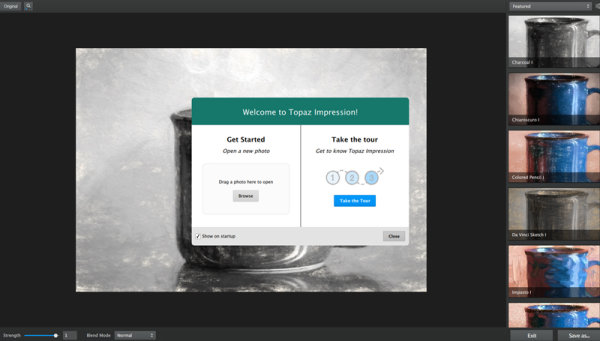
Pop in an image

import-image

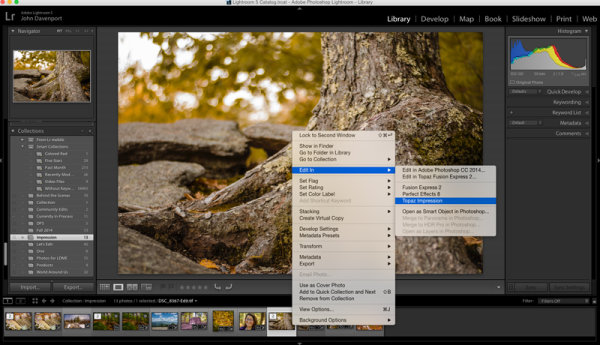
You can do this either by choosing “Edit In Topaz Impression” from your Lightroom library or, as seen further above, you can simply uploading a photograph directly into Impression from your computer’s hard drive.

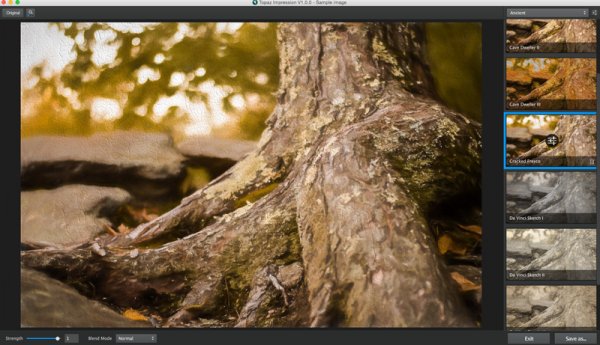
Select a preset you like

select-preset

There are a handful of presets to choose from in a variety of categories: Ancient, Impressionistic, Modern, Painting, Pencil, Charcoal & Pastel, and of course you can create your own as you work with the platform and find that you prefer certain tweaks over other ones.

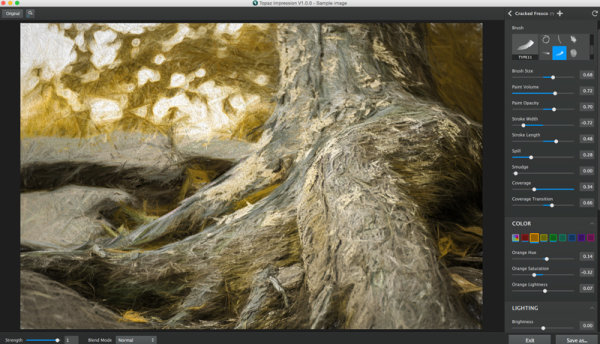
Modify to your liking

customize

Like any good digital photo editor you have the ability to modify the chosen preset to suite the image you’ve uploaded. This is where Impression really can come to life. As you can see in the screen capture above, the preset has been changed in a number of ways to create an image that is drastically different than the preset I’d selected.

More on Customization Inside Topaz Impression

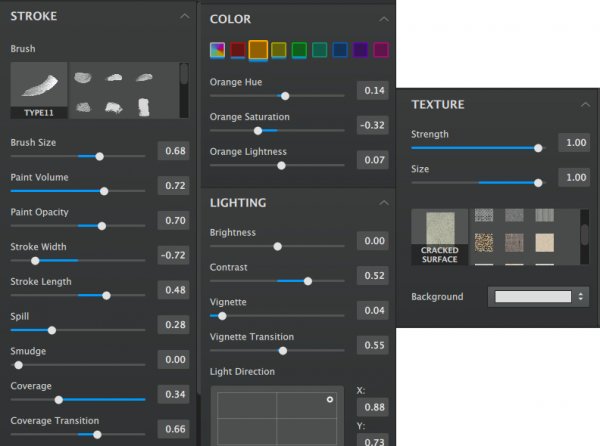
The customizer in Topaz Impression is where the magic happens. Inside the customizer you have a number of controls available to you, from 14 different types of brush strokes to multiple preloaded textures.

You have the ability to control things like the size of the brush, the amount and opacity of the ‘paint’ that’s making up your image, the width and length of your stroke, and spill, smudge and coverage give you even more creative control over the look of the image.

customization-tools

However, you don’t just control the way the brush strokes are presented, but Impression also lets you control how the various colors of your image are displayed. From a basic global setting, to selectively adjusting the various tones that make up your image you have the ability to get fairly specific with your modifications here.

One other interesting aspect of Impression is that it gives you the ability to control the direction of your lighting. Of course this can’t control what’s happening inside your photograph, but rather, it controls the way the lighting effects the textures that you’ve applied to the painting allowing you to match this up with the lighting inside your photograph.

A Few Feature Requests and Suggestions

This is version 1.0.0 and I’m sure the people at Topaz have plans to build out Impression in the future, but there are a few things missing that I’d personally like to see included in future versions.

  1. Local Adjustments – At the moment there’s no way to go about modifying on a local level. This does keep the interface and customization options easy to learn and use, but limits what you can do in a way.
  2. Custom Brushes/Textures – At the moment you’re stuck using the ones that Topaz has provided with the platform. I’d like the ability to create and/or upload our own brush strokes.
  3. Undo/History – At the moment all that is available to you is a one button reset button which will take you back to square one. I’d like the option to be able to undo iterative changes, or better yet, a history option similar to Lightroom.

Topaz Impression in Action

Here’s a quick look at Topaz Impression in action. If you want to skip the Lightroom part just jump to the 5:30 mark in the video:

Overall Thoughts

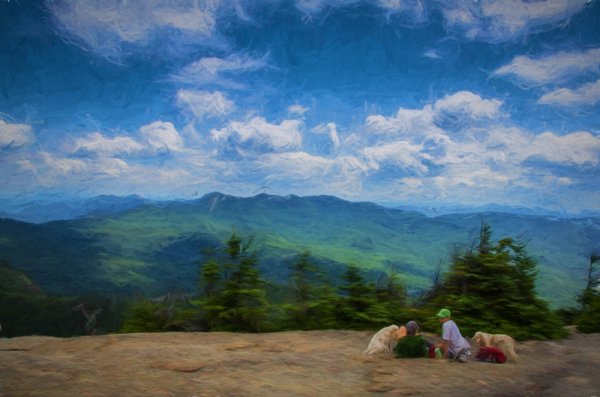
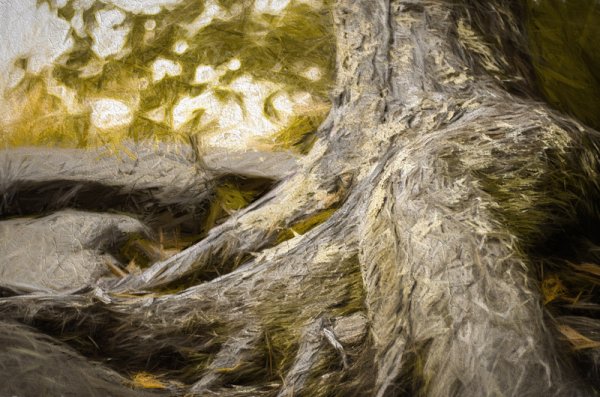
As I said at the start of this article – Topaz Impression is a program for those willing to put their photography through a digital manipulation workout – but it is quite fun. I think it’s a great start and could become an interesting niche style for some photographers out there, however with it’s present iteration being a bit lacking in terms of local adjustment capabilities or the freedom to at least apply our own textures within the program, it leaves a little to be desired.

getting-creative-with-topaz-impression-2

after-topaz-impression

Have you used Topaz Impression? What have you thought about it? Maybe share some of your before and after images below.

And if you’re interested in trying it out for yourself Topaz does offer a 30 day trial so you can see how it works before you buy.

The post Getting Creative With Topaz Impression by John Davenport appeared first on Digital Photography School.


Digital Photography School

 
Comments Off on Getting Creative With Topaz Impression

Posted in Photography


Future Typing: 15 Creative Keyboard Designs & Concepts

30 Sep

[ By Steph in Gaming & Computing & Technology. ]

Keyboards Wearable Sensors 1

If your hand has ever molded into a claw from typing on a conventional keyboard for too long, or you’re in the habit of hovering over your workspace with a bowl of noodles, pay attention. These 15 unusual keyboard designs include built-in bowls, flip-out panels for the fat-fingered, virtual displays and one-handed grips.

Keyboard-Plate Combo

Keyboard Plate Combo

Keyboard Plate Combo 2

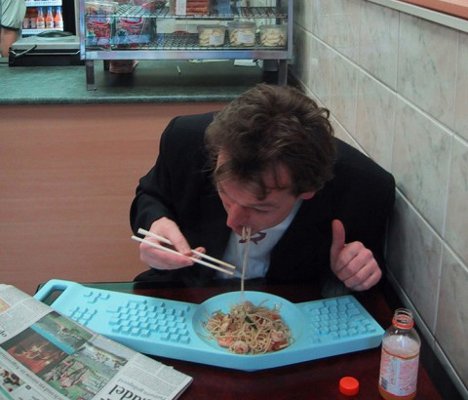
Our computer keyboards are known to be among the most germ-ridden places known to man, but that doesn’t stop most of us from hovering over them as we eat our meals (thus, making the problem even worse.) This keyboard/plate combo by Dutch designer Hella Jongerius aims to solve that problem by adding a bowl to the center. Unfortunately, as much as gamers, students and over-achievers would probably love this to be a real product, it’s just a tongue-in-cheek concept.

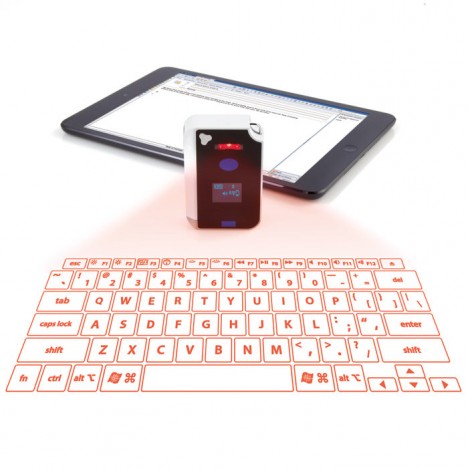
Virtual Laser Keyboard
Keyboards virtual laser

Keyboards virtual laser 2

The future of keyboards is almost certainly virtual, with lasers projected onto a flat surface and optics that track the movement of your fingers. Keyboards like this still seem futuristic to many people, but they’re already available. This model goes for $ 119.99 at Brookstone.

Inside-Out Keyboard
Keyboards Inside Out

Keyboards Inside OUt 2

The Inside-Out keyboard by designer Min Koo Yeo might just be a peek at what gesture-based keyboards will look like just a few years from now. While the front side is a standard keyboard with its own mini track pad, the back side is one big “smart” track pad for a greater range of gesture-based commands.

Wearable Sensors as Keyboards
Keyboards Wearable Sensors 1

Keyboards Wearable SEnsors 2

The tiny keyboards on mobile devices can be frustrating for anyone with larger fingers. What if you could just cuff a couple devices onto your hands and ‘type’ on a flat surface instead? AirType detects the movement of your fingers and translates them into alphanumerical input. According to the creators, the device will learn from you, adapting to your personal typing style and habits.

Paper Keyboard
Keyboards paper

The Verbatim Virtual Keyboard by designer Florian Kraeutli turns a simple piece of paper printed with letters into a fully functioning keyboard. It puts the iPhone’s built-in accelerometer to work measuring and identifying the location of letters on the paper. At 80% accuracy, the concept still needs work, but it’s an intriguing start.

Next Page – Click Below to Read More:
Future Typing 15 Creative Keyboard Designs Concepts

Share on Facebook


[ By Steph in Gaming & Computing & Technology. ]

[ WebUrbanist | Archives | Galleries | Privacy | TOS ]


WebUrbanist

 
Comments Off on Future Typing: 15 Creative Keyboard Designs & Concepts

Posted in Creativity


Posts With The Most: 12 Cool & Creative Traffic Bollards

29 Sep

[ By Steve in Art & Street Art & Graffiti. ]

Traffic Bollards Leicester 1
Never mind the bollards? Uh-uh: these traffic stoppers halt wayward vehicles like no traffic cone can. The best bollards, though, are designed to look great!

Traffic Bollards Leicester 2

Traffic Bollards Leicester 3

Leicester City Council faced a conundrum in early 2014: children walking to and from Whitehall Primary school were endangered by vehicular road traffic. The street had no sidewalks; only a row of metal traffic bollards. The council’s ingenious solution was to modify the bollards to look like children, many wearing the school’s red uniforms. Kudos to Flickr user KiranParmar for capturing these kinda creepy “Stepford Children” in their native habitat.

Traffic Bollards Leicester 4

Traffic Bollards Leicester 5

Traffic Bollards Leicester 6

Not only do the modified bollards remind drivers to be aware of pedestrians, the scheme is much cheaper than laying down sidewalks. One would hope older ex-students don’t try to re-enact the infamous mailbox scene from the 1993 film Dazed and Confused… a metal bollard beats a wooden baseball bat every time.

Lean Design

Leaning Tower Pisa Traffic Bollard

“When life gives you lemons, make lemonade,” and when traffic tilts your traffic bollard, make it look like the Leaning Tower of Pisa of course! Kate McGovern snapped this tilted but still functional bollard somewhere in Philadelphia. Compromised or not, the bollard seems in better shape than the surrounding pavement while providing some unexpected visual interest.

Minions Of Bollards

Traffic Bollards Penang Malaysia 1

Traffic Bollards Penang Malaysia 2

Traffic Bollards Penang Malaysia 3

Who knew the 2010 movie Despicable Me was so popular… in Penang, Malaysia! Located on Soo Hong Lane off Armenian Street in Penang’s inner George Town neighborhood, the charming street art installation was painted by Lithuanian-born artist Ernest Zacharevic early in 2013 as part of a city-sanctioned campaign to beautify Soo Hong Lane. Unfortunately, Zacharevic had to be recalled to repaint at least one of the not-so-despicable bollards which was defaced – literally – by vandals.

LEGO My Bollard!

LEGO Man Traffic Bollards Le CyKlop Paris 1

LEGO Man Traffic Bollards Le CyKlop Paris 2

LEGO Man Traffic Bollards Le CyKlop Paris 3

LEGO Man Traffic Bollards Le CyKlop Paris 4

One popular bollard design features a narrowed area near the top to facilitate the attachment of ropes, chains and the like. Coincidentally, these particular bollards bear a cursory resemblance to LEGO men… and a little artistry (plus some yellow paint) enhances the effect even more. The oddly one-eyed LEGO men bollards above come to us courtesy of French street artist Le CyKlop (which explains much) and can be found along the Canal de l’Ourcq in Paris

Next Page – Click Below to Read More:
Posts With The Most 12 Cool Creative Traffic Bollards

Share on Facebook


[ By Steve in Art & Street Art & Graffiti. ]

[ WebUrbanist | Archives | Galleries | Privacy | TOS ]


WebUrbanist

 
Comments Off on Posts With The Most: 12 Cool & Creative Traffic Bollards

Posted in Creativity


Creative Live hosts six days of free online photography classes

21 Sep

Creative Live is currently hosting Photo Week – six days of free photography classes. The event is ongoing through September 20th, and the interactive classes will be taught by professionals from various parts of the industry on a range of topics such as light painting, wedding and GoPro photography. Read more

Articles: Digital Photography Review (dpreview.com)

 
Comments Off on Creative Live hosts six days of free online photography classes

Posted in Uncategorized


Six Ways to Take Care of Your Creative Spirit

07 Aug

I like photographers. Some of my favorite people and closest friends are photographers. In general, I find us to be a likeable bunch: witty, intelligent, wildly attractive. I also find that we reside in a grey area where we aren’t quite regarded as artists. We are the redheaded stepchildren of the art world, and I can say that because I both am a redheaded stepchild and have a redheaded stepchild. Truth be known, she is the easiest kid of the bunch. She pulls no punches, just tells it like it is. Much like photography.

lynsey_mattingly_1

But we are artists! As much as any painter or sculptor, or person that is covered in bronze paint and stands as still as a statue on a street corner. Have you seen these people? My eyes water just thinking of the shower they have to take every night when they get home from work. I have always been grateful that photography is fairly low on the mess scale. So instead of showering off bronze paint for hours, or ceremoniously ridding the clay from our hands, here are six ways you can care for and nurture your creative artist soul.

Take care of your eyes

When I get home from a long shoot, I always complain that my eyeballs hurt, and they do! It’s not that they are dry or that something is wrong with my vision, it’s just that after being on high alert for hours, my eyes are stressed out. So much so that I actually saw an eye doctor to make sure that I wasn’t going to need to have my eyeballs removed anytime soon. Do you know what the doctor told me? That I need to rest my eyes before and after a shoot just like a professional baseball pitcher would rest his arm before a game. For some reason having an actual doctor, with a high degree in medicine and lots of fancy initials after his name, telling me this, made me actually listen. I’ll save you the office visit; be good to your eyes. They are the only lenses you can’t replace.

lynseymattingly_4

Have other hobbies

Like many pros, I started photography as a hobby. I am the classic “MWAC” (Mother With A Camera), having a career that’s spanned a decade, but rooted from pictures I took of my own children, with a fancy camera I didn’t know how to operate at the time. My former mother-in-law told me I took nice pictures and I figured if she said that, considering that she hated everything else I did, they must be fairly good.

I then immersed myself in photography, reading every blog, shooting every single thing my kids did in hopes that it would be portfolio building. Photography was what I lived and breathed. It’s the only thing people knew about me, but it wasn’t enough. One day, pushed past the brink, frustrated and burnt-out, I sold all of my back-up equipment and extra lenses in a week and had convinced myself, and everyone else, that I was never going to do it professionally again. I kept my Canon 5D and 50mm f1.2L, thinking that I would want to take pictures of my kids someday with something other than the camera on my iPhone.

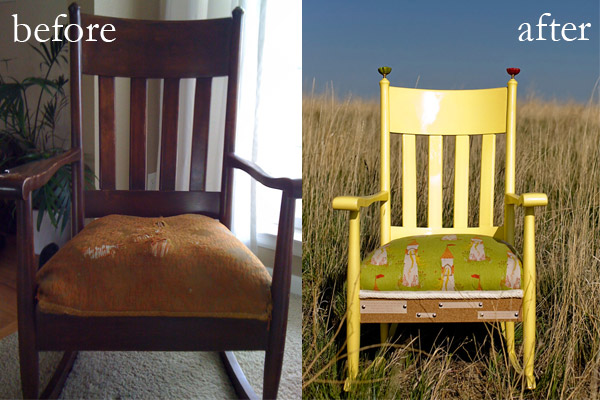
One outlet is not enough for the average creative person. You owe it to yourself, and to your photography, to be great at something else. Or to be really horrible at something else, but regularly try something else. I make chairs. I find old chairs in flea markets or on the side of the road with “free” signs and I bring them home, let them sit in my garage for months or longer, and then rehab them with new ideas and fresh materials. Sometimes I sell them, sometimes I give them away, and sometimes they turn out really awful and I put them out in my yard with a “free” sign. The point is that this gets out all of my creative energy, and when I am stuck in a photography rut, I make a chair. When a chair frustrates me, I grab my camera.
lynsey_mattingly_chairs

Take Chances

One of my first national publications only happened because I contacted a celebrity that lived a few hours away, who had just had a baby, and asked if I could take her pictures for free. I honestly thought she wouldn’t even respond, assuming she even got the email, because I did some crazy research to even find an email address that might be hers. Not only did she respond, and say yes, but she actually had two publications that were wanting to buy photos of her and her new family. There’s opportunity and there’s flat-out luck, and when you strike both you have a say in your own destiny.

I had been taking pictures professionally for four years, but this was my first huge break and having an international publishing gig, and continuous contacts, has opened doors for me, no doubt. Put every cliche about trying: not knowing until you do, you’ve got nothing to lose, etc., into a pot, and stir. It turns out our parents were right, and all of those silly sayings are true.

lynseymattingly5

Stop Comparing Your Work

When I first became interested in portrait photography I was obsessed with this one photographer’s blog. Not just because her images were beautiful, but also because I loved her words. We had similar backgrounds and a similar style, and when she talked about her life outside of photography, I understood. When she shot images that were different, I got it. Had she sent me a note before study hall, oh how I would have checked every single box. The only thing keeping me from hanging out on her front lawn confessing my profound crush was about a thousand miles. I was infatuated; with her photographs, her business, her life, her success. I wanted it for myself. And because of the similarities, I found myself doing things the way she did, hoping for, and sometimes even assuming, the same outcomes. I wasted a great deal of time trying to align my path with hers and holding her work in a higher regard than my own.

A decade later and my business is, my by own account, every bit as successful as I thought hers seemed. But it is not the same. Until I realized that what worked for her wasn’t always going to work for me, and that perhaps her end goal was different than mine, I wasn’t in any way being inspired by her. My obsession with a woman I hadn’t even met at that point was my focus (and yes, I would later meet her, and boy what a disappointment that was, is best saved for another article). No one else’s tips, ideas, or work can be your focus. Be inspired, yes, but don’t let jealousy, or in my case, crazy obsession, get the best of you. Your images are yours, and they can be whatever in the world you want them to be, so long as you don’t run them through another photographer’s filter.

lynsey_mattingly2

Don’t Stop Taking Snaps

When you are a professional photographer, or perhaps just a really good photographer, it’s easy to put extra scrutiny on your everyday snapshots. The pictures you take on your cellphone or with a Polaroid or point-and-shoot – a pretty landscape, a funny face of a friend, the loaf of zucchini bread you just baked that came out of the oven poofy and golden brown. Those shots are easy to over-think, to obsess over, or to give too much time and attention to, and miss the very point of taking them.

I find myself checking the background when I take pictures of my cat. The world doesn’t need perfect pictures of my cat. I don’t need perfect pictures of my cat. The internet doesn’t even need perfect pictures of my cat (I checked). Let the snapshots be snapshots and view them completely different than your “work” so you don’t tire of doing the everyday picture taking that was likely what gave you a love of photography.

lynseymattingly_halloween

Respect Your Gift

That’s what photography talent is – a gift. You have been entrusted to all its amazement whether you are just beginning, doing it professionally, or as a hobby that enables the creative piece of you to speak. You’re here on this very site, reading about photography, because photography calls to you in some way, due to your natural ability. Treat your gift with compassion, cut yourself some slack when needed, and allow yourself as many periods of rest as you do challenges. I was never a cheerleader and getting sappy kind of freaks me out, so when I say that you (yes, YOU) are a creative force to be reckoned with, you know I mean it.

What’s something you do to take care of your creative spirit?

lynsey_mattingly3

The post Six Ways to Take Care of Your Creative Spirit by Lynsey Mattingly appeared first on Digital Photography School.


Digital Photography School
 
Comments Off on Six Ways to Take Care of Your Creative Spirit

Posted in Photography


Horst’s creative processes revealed in London exhibition

06 Jul

Horst’s contact sheets, sketches and inspiration are set to go on show at an exhibition planned by London’s Victoria and Albert museum for the end of this year. Horst: Photographer of Style is described by the museum as a ‘definitive retrospective’ of the German photographer’s work, and will cover a range of styles and subjects taken between his move to Paris in the 1930s and the end of his life in 1999. Read more

related news: Digital Photography Review (dpreview.com)

 
Comments Off on Horst’s creative processes revealed in London exhibition

Posted in Uncategorized


40 Creative Examples of Photography Business Card Designs for Inspiration

04 Jul

What do a graphic designer, an owner of a local cafe, a hairdresser and a photographer have in common? It’s a business card, of course! Tons of similar, ordinary business cards made on a white piece of paper with black lettering on them overload the market. These days, you need to have a really creative business card to impress your Continue Reading

The post 40 Creative Examples of Photography Business Card Designs for Inspiration appeared first on Photodoto.


Photodoto

 
Comments Off on 40 Creative Examples of Photography Business Card Designs for Inspiration

Posted in Photography


5 Creative Ways to Process Infrared Photographs in Photoshop

21 Jun

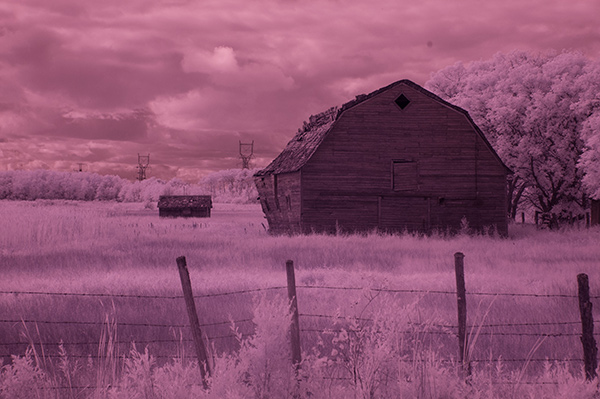
Digital cameras have made the process of infrared photography relatively simple and very accessible, compared to the days of shooting with infrared film. No darkroom is required and all you need to get started is an infrared filter on your lens (click through to read my article on How to do Surreal Digital Infrared Photography Without Expensive Gear or Camera Conversions) and to mount your camera on a tripod. Maybe you’ve tried digital infrared photography already. You’ve learned all the correct infrared shooting and compositional techniques so you know you have great images in your camera, but how do you transform those strange looking red or violet frames into stunning infrared photographs?

Here are 5 creative ways to process your digital infrared images in Photoshop to create arresting photos in color, and Black and White.

1) Color infrared one-click post-processing method

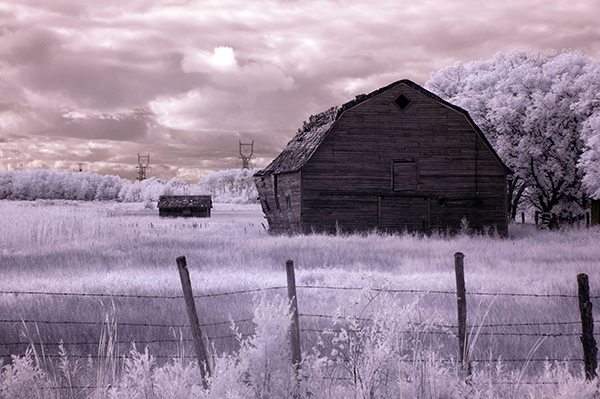
_DSC5456AsShot

As shot, before Auto Tone

This is the quick and instant method. Open your image in Photoshop and go to Image> Auto Tone. Look at the difference this one click makes! In fact Auto Tone should be the first thing you do to all your infrared images.

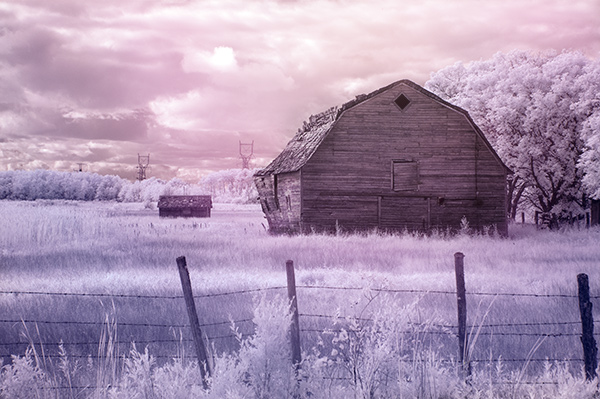
infrared image with autotone applied

Same image after Auto Tone has been applied

This has become a perfectly delightful infrared image. It has a variety of textures and colors for interest. However you may want to further process it to add more WOW and impact. The next step adds a few more tweaks that will help you do this.

 2) Color infrared gradient method

After you apply Auto Tone, you can also apply a Gradient Layer and set the blending mode to Soft Light, or Hard Light – you’ll need to experiment a bit depending on the tonal qualities of your original image. You can also adjust the opacity of this gradient layer.  If you are familiar with layer masks, you may want to mask out any areas where the gradient might be too strong.

Here is the same image with the Gradient Layer added. Can you see how it adds a little more depth and drama?

infrared image with post processing added.

Infrared Image with a Gradient Layer Added

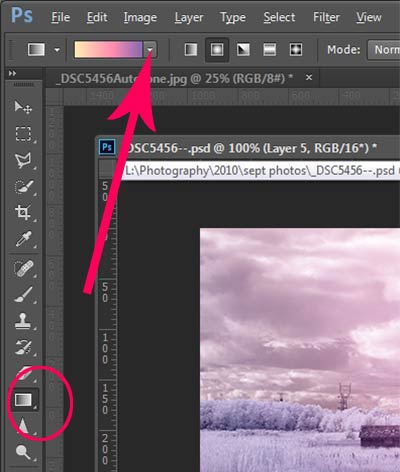
gradient-toolTo add a Gradient Layer, go to your Layers palette, and click on the new layer icon at the bottom (it’s the one that looks like a sheet of paper with the corner turned up) or you can use  the keyboard shortcut Shift+Ctrl+Alt+N.  I find it quicker to use the icon in this case. While this new layer is active, go to the Tools palette and select the Gradient tool. On the context menu on top of the window you’ll see the Gradient library and you can select your pre-set gradient from there.

Now, back on your layer, drag your mouse to get the gradient on your image.  Select the blending mode to soft light or hard light and then adjust the opacity. This is where your artistic eye comes into the picture.  Play around with these settings until you have something you like.

Here is another infrared image processed the same way. You don’t have to use the same gradient each time – experiment a bit and see how things turn out. It’s art after all!

infrared image with a gradient texture.

3) Using the Camera Raw filters and the Channel Mixer

One of the key concepts in infrared photography is to have a very distinct separation of color tones between the sky, and your high infrared reflecting subjects. This is usually the grass and foliage in your scene, or it could be buildings or other subjects that reflect infrared light because of their paint or construction materials.  But it’s important to have this separation because you need the sky to be dark, and you’ll want the foliage to be light, if not pure white.

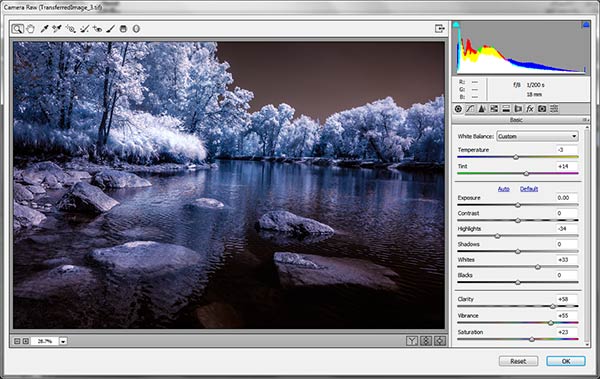
Happily, in Photoshop you can give a tonal boost to your images in a couple of way,s in addition to the Auto Tone setting.  After you’ve applied Auto Tone, look for the Camera Raw Filter under Filters. If your image is not a RAW file you can still use these adjustments, although it is best to shoot RAW when capturing infrared photos.

In the Camera Raw Filter, to get this color separation between the light and dark areas of your image, use the the Basics filters and  HSL/ Greyscale Slider to adjust the colors until you get a clear difference between the cyan and red shades.

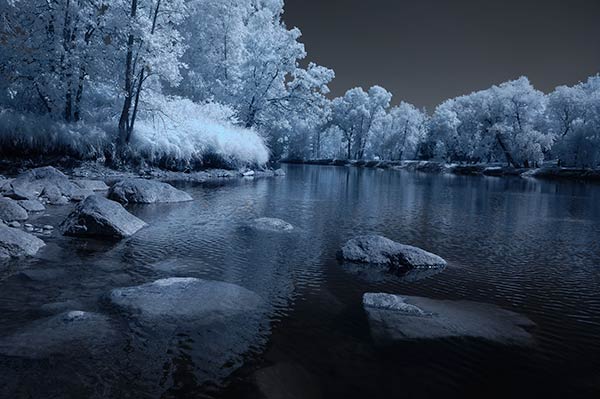
 Original image as shot:

1as-shot-infraredimage

After applying Auto Tone and Using the Camera Raw Filters:

2cameraraw

Notice how these adjustments bring out the red in the sky and the blue in the leaves.

Now to the Channel Mixer

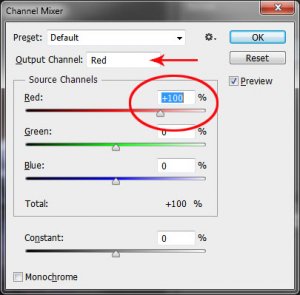
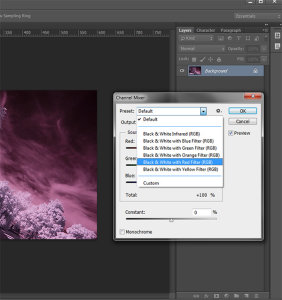
Go to Image>Adjustments>Channel Mixerchannelmixer

Here we will “swap” the channels to get a nice  blue sky and red or purple, and in a few quick steps, white foliage. Your Channel Mixer will look like this:

In the Red Output Channel, change the Red slider from +100 to 0, and the Blue slider from 0 to +100. Change the Output Channel drop-down to Blue, and make the Blue slider +100 and the red slider 0.  Your image will look something like this:

3infraredwithchannelmixer

There is a clear color difference now between the blue sky and the red foliage.  It doesn’t matter if the foliage of your image is purple and  the sky blue, as long as you can see a clear difference in colors with the sky having some shade of blue.

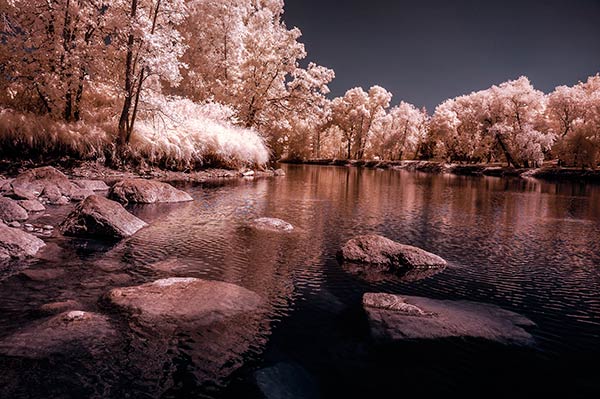
Now the last part. Go back into your Raw Filters, and in the Basic panel, move the White Balance Color Temperature slider to the left to get a nice blue sky.  In the HSL/ Greyscale tab, use the sliders in the Saturation tab to desaturate the colors of your foliage.  Your image should have a blue sky and white leaves and grass. Gorgeous!

The final image

4infraredwithcameraraw2-FINAL

 4) Instant Black and White infrared processing

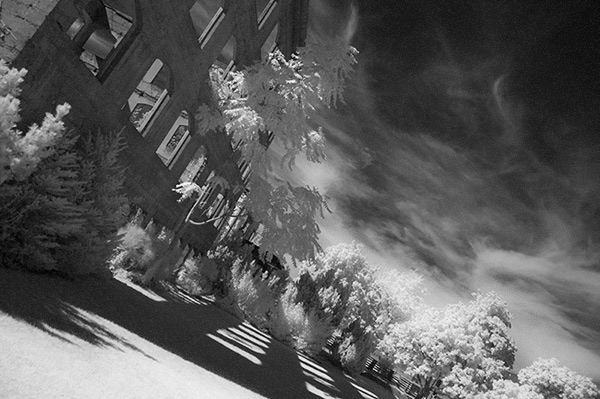
This is a “quick and dirty” method for getting the classic infrared look from your captures. You’ll get the tell-tale light colored foliage, and dark skies. For best results your image should have a clear sky with some clouds for effect. Overcast skies detract from the image, leave things without enough contrast, and very flat. No clouds make the sky seem like a vast black void – not too interesting.

2StepprocessingblackandwhiteinfraredClassic black and white infrared images tend to be non-contrasty, so from an artistic perspective a blue sky with wispy or puffy clouds can really add interest to your image, create a powerful story, and keep that soft contrast intact.

  1. Open your image in Photoshop
  2. Go to Image>Auto Tone
  3. Next go to Image>Adjustments>Channel Mixer>Black and White with Red Filter (From there you can adjust the sliders to get the effect you want)
  4. To get the classic infrared glow, check to make sure that in the Tools palette the colors are set to the default – black foreground and white background. To be sure, a simple way to set this is to hit the letter D to reset the colors to the default state.
  5. Then duplicate your layer (Ctrl J), and go to
  6. Filters>Filter Gallery>Artistic>Diffuse Glow
  7. In the Diffuse Glow filter, set the sliders so you can see some halo glows around the white areas of your image. You will have to adjust these to suit your image but it will create the classic graininess and glow of film infrared photos.

If the glow amount is too strong and you’re getting blown out highlights, you can decrease the opacity of your glow layer in the Layers Palette. A little experimentation goes a long way. Remember your History palette in case you want to go back a few steps.

4blackandwhiteinfraredFianlwithglow

5) Advanced Black and White infrared processing

This is the method I use most for processing Black and White infrared images. It’s easy and it gives you far more control of your final result.

  1. Open your image in Photoshop
  2. Go to Image>Auto Tone
  3. Now create an adjustment layer for Color Balance.
  4. Layer> New Adjustment Layer> Color Balance

Again, the idea is to get as much color distinction between the sky and any foliage. Color Balance provides an addition method of doing this – in Black and White processing, as well as for color.

  • Move the sliders for Midtones, Shadows and Highlights until you have a nice, distinct separation of your color tones betweeb your foliage and your sky.
  • Finally add a new adjustment layer for Black & White
  • Layer> New Adjustment Layer> Black & White
  • Now use the sliders to get the full range of Black and White tones, paying special attention to maintaining detail in the white highlights in the trees, while making sure that the dark areas also have some detail
  • To apply the infrared glow, follow from Step 5 in the first method.

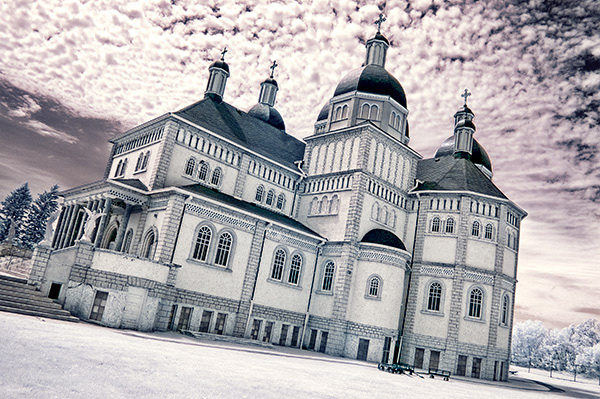
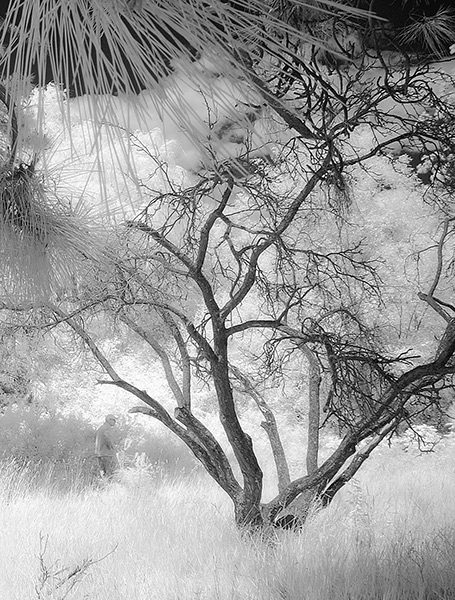
This image is called CREEP. Can you see why?

blackandwhiteinfrared

flowerheartCW

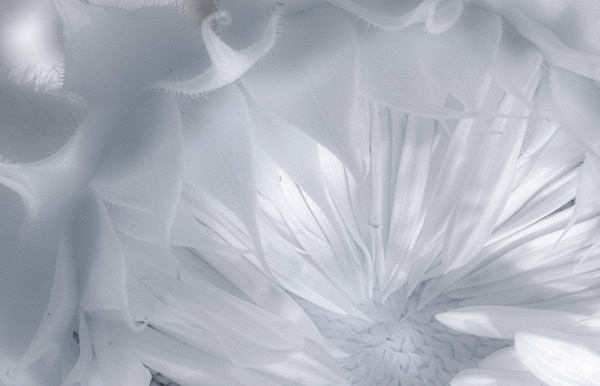
I love the softness and translucency of Black and White, infrared photography. Post-processing really brings out all the infrared characteristics that draw viewers in, and gets the emotions flowing. Using these five processing techniques will get you off to a fine start, but these are only five of many ways you can process your digital infrared images in Photoshop. If you have a favorite post processing formula I’d love to see how you do it. Post your infrared shots too.

The post 5 Creative Ways to Process Infrared Photographs in Photoshop by Alex Morrison appeared first on Digital Photography School.


Digital Photography School
 
Comments Off on 5 Creative Ways to Process Infrared Photographs in Photoshop

Posted in Photography


5 Ways To Break Out of a Creative Photography Rut

17 Jun

Ironside-1500px-2482

I’m a full time photographer that concentrates on shooting restaurant and bar interiors, food, and cocktails. After strictly shooting that subject matter for long time I found myself uninspired, so I decided to do something about it.

I’m going to share four tips I’ve used over the years to get back on track creatively, hopefully they will help you get out of your photography rut too.

1. Get out of your comfort zone – physically

Lake-Cayumaca-600px-5582

I find that I loose inspiration when I’ve been in the same area too long. When things become familiar they become less exciting. If this happens to you there is only one thing to do: leave!

There is huge value in leaving your area, city, or even state for a day or two. The process of traveling to an unfamiliar place jumpstarts the creative process.

Lake-Cayumaca-600px-5430

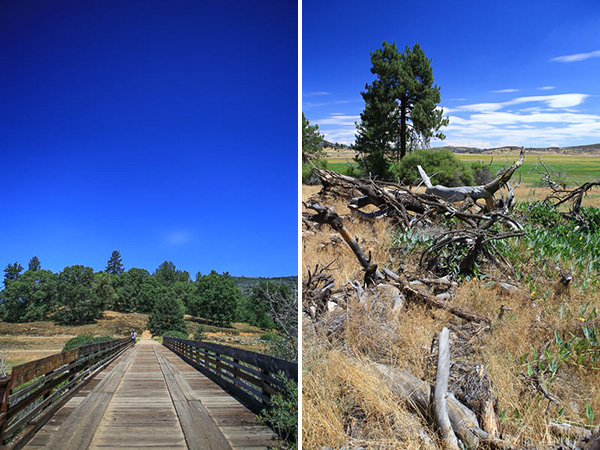
My photography was becoming stagnant so I left downtown San Diego and took an hour drive to Lake Cayumaca. Being in a totally different geographic area afforded me new opportunities to shoot things I don’t see every day in downtown San Diego.

Lake-Cayumaca-split

2. Learn something totally new and uncomfortable

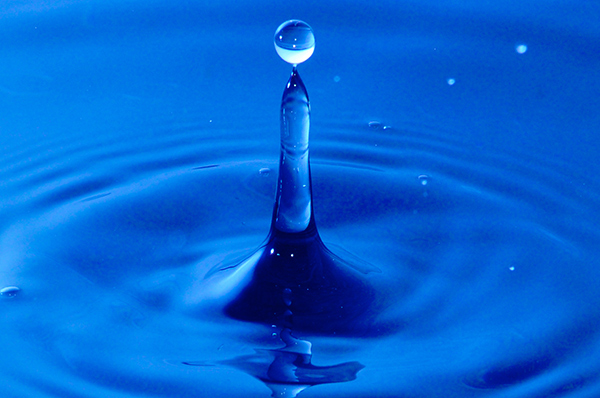
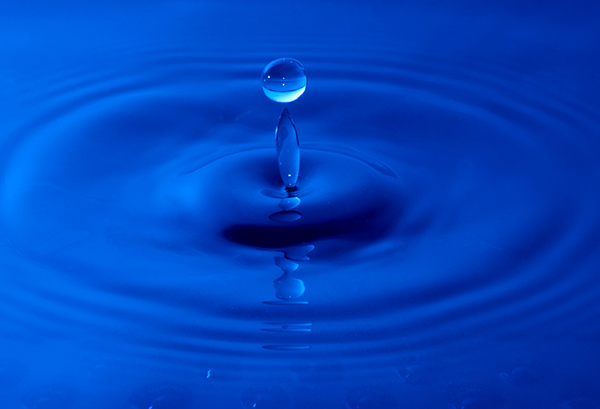
A few years ago I had gotten in a photography rut while shooting a ton of portraits. I decided I needed to learn something new so I decided to learn how to photograph water drops.

blue-crown

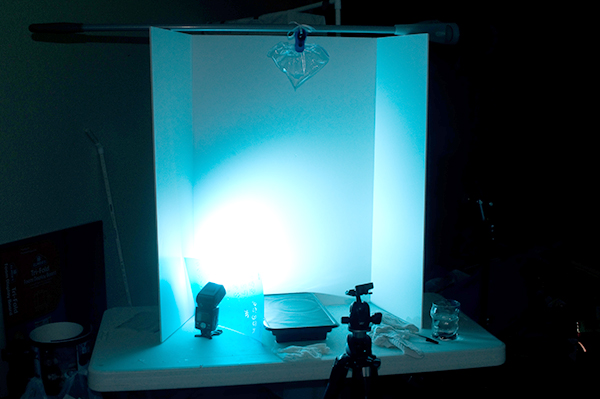
I read a tutorial online and set up a little station in my garage. I didn’t have any experience with macro photography but was excited to try. Check out the setup below:

blue-drop-setup

It took me a while to start getting decent results but I found myself loving the learning process. I had a great time and came away with a new skill set and a revived creativity.

blue-teeball

If you find yourself in a rut, learn something new that is unfamiliar. While there are people who put my water drop photos to shame I’m still proud of these images and the rut they helped me get out of.

blue-point

3. Try a new style of shooting

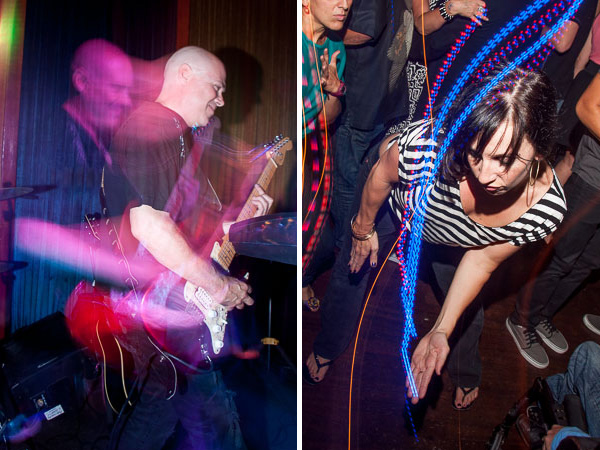
A few years ago I was starting to learn about rear curtain sync on my flash. I had a few friends who shot really cool light trails in their nightlife photography. I felt a renewed surge of inspiration to try this during a rock concert.

rear-curtain-sync

I plugged an Alien Bees flash trigger into my speed light and put the receiver onto my camera’s hot shoe. This enabled me to hold the flash up, and to the left, with my left hand while holding the camera with my right hand.

Jimmy-Loves-600px-80

I put my camera and flash on manual. I used a one-second-long shutter speed and set the flash power to properly expose the musicians a few feet in front of me.

Jimmy-Loves-600px-82

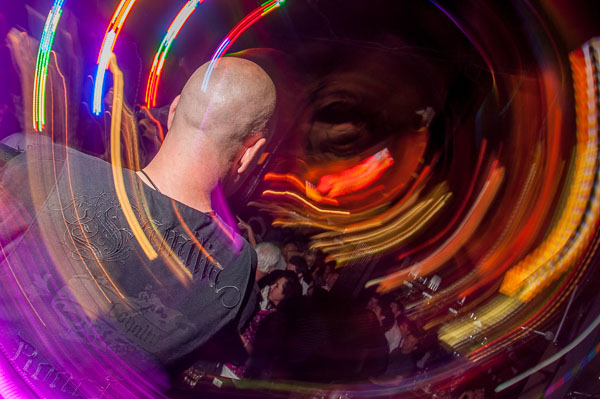
I clicked the shutter to start the exposure and immediately tilted my camera around in circles or side to side. Moving the camera while the shutter was open captured all the lights in the concert hall in different shapes. In rear curtain sync the flash pops at the end of the exposure and the shutter closes.

This combination of using a long exposure and rear curtain sync to create light trails taught me a new skill that I was excited to keep using in future shoots. It is important to master new skills to keep your creativity up.

4. Start an ongoing project

How ironic that my initial rut that was caused by shooting the same subject matter would become a source of inspiration. After half a year of shooting tons of bars and restaurants I looked back on my photos and noticed my favorite photos from those shoots were the corner bar shots.

Common Theory corner bar 600px-6605

After realizing this I got really excited to get back out there to start a project and shoot more bars and restaurants to add to my collection.

Modern Times corner bar 600px-6250

I’m really excited about this now!  I’m already thinking about my next trip and what bars I’ll stop at to add to my project.

puesto-restaurant-interiors-5084

Getting in a rut happens to us all at one point or another. What ways have you guys found to kickstart your creativity? I’d love to hear your suggestions in the comments below.

The post 5 Ways To Break Out of a Creative Photography Rut by Mike Newton appeared first on Digital Photography School.


Digital Photography School
 
Comments Off on 5 Ways To Break Out of a Creative Photography Rut

Posted in Photography