RSS
 

Posts Tagged ‘Creative’

How to Use Colored Gels for Creative Off-Camera Flash Photography

17 Apr

Diving into off-camera flash photography opens up a world of exciting, new and creative possibilities. Besides giving you the option to shape and control the light in your image with a flash unit, you can also use colored gels to modify the color of your scene to add either a subtle creative touch or a more dramatic impact.

off-camera flash using a blue colored gel

A man playing electric guitar lit creatively by an off-camera flash colored blue.

This guide will help you to get started using off-camera flash and colored gels to bring your photography to the next level!

What are colored gels and how are they used?

Colored gels (sometimes called color filters or lighting gels) are thin pieces of colored transparent material. They can be fitted over the top of your flash unit to modify the color of the light.

Examples of colored gels that can be used to modify the color of light from off-camera flashes

A small example of the variety of colored gels available.

Often, the reason for using a colored gel is to tone of the flash so that it matches the color (white balance) of the room. For example, a typical camera flash fired in a room lit by tungsten light bulbs will appear much bluer against the orange ambient background light. By covering the flash with a gel that is tinted orange, you can make the flash match the existing lighting conditions so that all sources contribute the same color to your final image.

Attaching the colored gels to your flash

A gel can be attached to a flash in a number of ways. Perhaps the most common method for portable flash units is with a velcro strap that wraps around the flash tube. If you’re in a real pinch, you could even simply use a piece of tape. Just make sure that the gel completely covers the flash so that it completely modifies that color of the light.

Note: Magmod makes a system to do just that – read Suzi Pratt’s overview of Magmod options here.

  • Magmod Basic Kit on Amazon including attachment device and gels – $ 89.95 (are a bit more durable and will last longer than the gels).
  • Honl Photo Speed Strap – $ 10.95
  • Honl gel kits – around $ 19.95
A red colored gel filter covering an off-camera flash unit

A red gel has been attached snugly to the flash unit and will now change the color of the light from the flash to red.

A sideview of a colored gel fitted over a flash unit, attached by a Velcro strap

A view of the Honl Photo Speed Strap, which uses velcro to allows you to quickly and easily attach a color gel to your flash unit.

Gels come in a wide variety of colors and are very inexpensive, which makes it easy to get started experimenting with this fun style of photography. Also, they can continue to be used even if they are scratched or folded. You only need to replace a gel if it has a rip or a small hole.

Once you have your off-camera flash or multiple speedlight units ready, you can begin to get creative!

Using colored gels with a dark background

When getting started, one of the best ways to get a sense of how to use color gels is by taking pictures in a dark room. This gives you full control over the light throughout the scene. Creating a dark background doesn’t have anything to do with putting up black curtains or finding a wall that is painted black – it’s all about controlling where the light spills.

First, you’ll want to find a medium to large sized room. Dim the lights so that you can produce a perfectly black image without flash (available room light only). Place your subject a fair distance away from the far wall. By directing the light from your flash units only towards your subject and away from the wall behind them, you can create a completely black background.

To add just a hint of color, put a color gel only on your secondary flash. The key (main) light provides adequate lighting for the subject, while the secondary flash adds drama, intrigue, and style to the photo.

A man plays guitar with a burst of blue color from the flash behind him

This photo was taken with two flashes – the one in the front hitting him is not tinted with any color, the one behind him is gelled blue. Light from the blue-tinted flash has been allowed to “spill” towards the camera lens, created the colored lens flare effect.

Once you’ve mastered this straight-forward style of shot, you can start to mix and match colors for unexpected and fascinating results.

Getting creative with color

Color plays an incredibly vital role in telling a story or establishing a mood. We are all familiar with typical color associations – yellow represents happiness, red represents anger, blue represents sadness, and so on.

With a variety of color choices at your fingertips, you can craft a precise feeling or mood in your images simply by adding a colored gel over your flash unit.

A portrait of a man taken with a light from a flash that has been tinted blue

This image was lit by a single flash with a blue colored gel to give it a mood of introspection and melancholy.

It is important to visualize the final image you intend to create, otherwise, your shot can quickly turn into a jumble of mismatched colors.

Remember that you can also color more than just the subject. Firing a colored flash at the background wall can instantly update it, which is perfect for adding some variety to studio-style portrait shots.

An image of a man with a lightsaber, made possible through a red colour placed over an off-camera flash unit

Since lightsabers haven’t been invented yet, an off-camera flash that has been covered with a red color gel provides the distinctive glow for this image. The lightsaber itself was added later in Photoshop.

How understanding color can help you create drama

Once you start playing with color, it helps to have an understanding of how and why certain colors work better together than others.

Colorwheel

You can apply even some basic knowledge from a color wheel to get a sense of how you can create bold and vibrant color pairs. For example, colors directly opposite each other on the color wheel are called complementary colors, as they pair together very well. Knowing this you can mix blue and orange for a dramatic shot. Many Hollywood movies use color theory to help make their footage more vivid.

Or, you can break the rules for more surprising and unexpected results!

A man holding a guitar, lit by light from blue and red colored gels on off-camera flashes

Blue and red create a strong contrast, which adds a feeling of tension and drama to this image.

Once you get comfortable with controlling and creating colored light, your creative options are endless. For example, you can use a flash tinted orange to recreate the glow of a sunset. You can also begin mixing and matching with ambient light conditions, which is much trickier but can be very rewarding.

You’ll be surprised how much a thin sheet of colored plastic can transform your photography!

Some important tips to remember

  • Darker color gels, such as deep reds or blues, block a portion of the light that the flash gives off. When working with these colors you will need to increase the amount of flash power compared to when you use flash on its on.
  • If you don’t have a full set of colors, you can layer two colored gels over top of each other. For example, blue and red colored gels can be combined to make purple. Remember that doubling them up will block even more light and require additional flash power.
  • You can use any traditional flash modifiers, such as umbrellas and soft boxes, along with color gels in order to soften or shape the light that is produced.
  • Experiment and play! Even if it seems intimidating or complicated at first, trial and error is a fantastic way to learn a new skill or technique that you can add to your repertoire.

Please share your questions, comments and images shot with colored gels below.

The post How to Use Colored Gels for Creative Off-Camera Flash Photography by Frank Myrland appeared first on Digital Photography School.
Digital Photography School

 
Comments Off on How to Use Colored Gels for Creative Off-Camera Flash Photography

Posted in Photography


Artistically Enabled: 18 Weird & Creative Handicapped Parking Signs

10 Apr

[ By Steve in Culture & History & Travel. ]

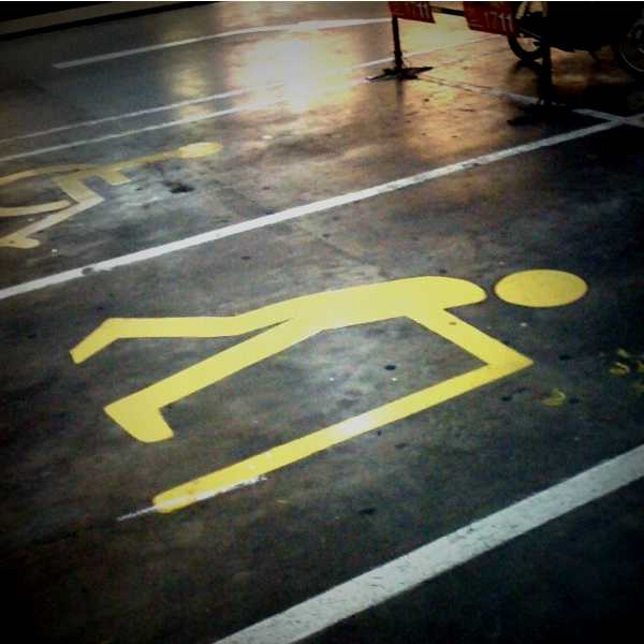
Blue & white Handicapped Parking signs and stencils are one of urban life’s most familiar icons… and then there are those that have been creatively hacked.

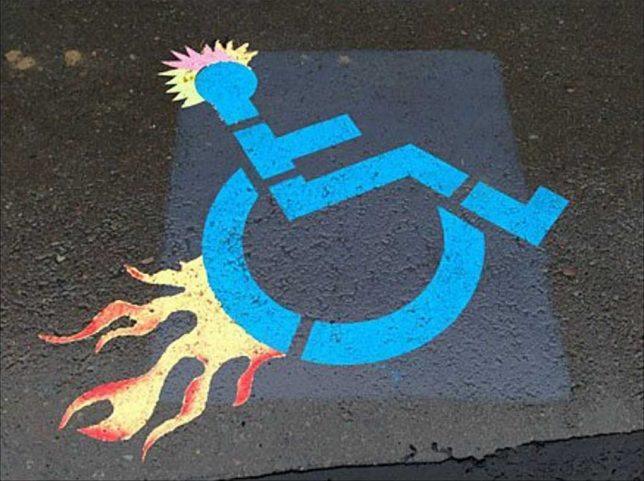
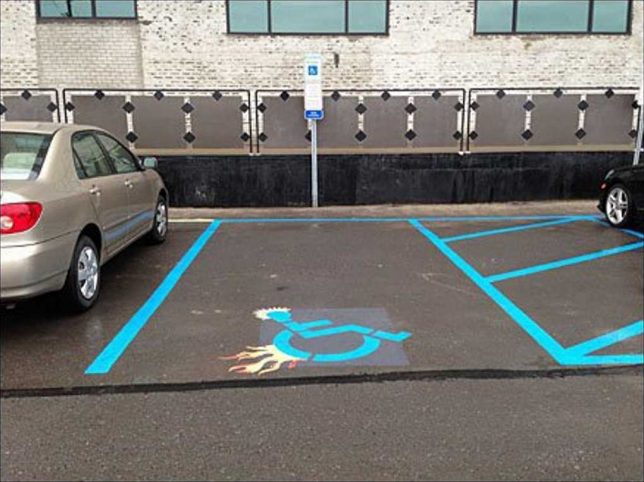
There’s a fine line between amusement and mean-spiritedness but when it comes to visual imagery, outrage is often in the eye of the beholder. With that in mind, this edgy, spiky, flame-enhanced “Parking Space Designator” (is that what the kids are calling them these days?) follows the road blazed by TV’s Dr House and his boss flame-graphic walking cane. You’ll find the stencil on steroids above outside a Retail Boutique Incubator, tentatively attributed to Sean McDougal of Disfunctional Design Store.

Interlocked & Loaded

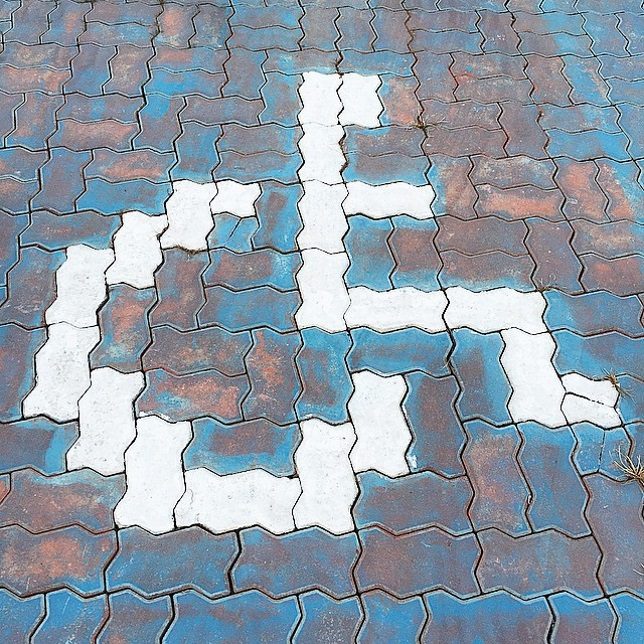
Those interlocking driveway paving stones can be fit together in any number of patterns, including a reasonable, recognizable facsimile of the accessible parking graphic. Flickr user zwei zwei (zwei1189) captured this image on February 5th of 2015.

Brazil Not

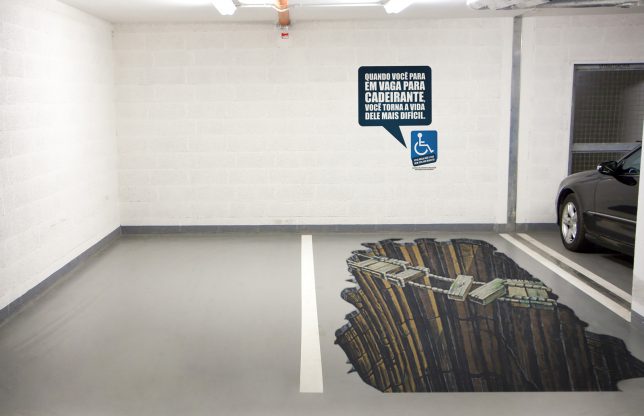
A parking spot reserved for the “Sorcerer” truck, we assume? Not quite – this clever conjunction of a designated handicapped parking space and some awesome eye-fooling 3D graphic art comes from Brazil, where there’s an ongoing problem of able-bodied people parking in handicapped spaces “just for a minute”. Yeah, riiight. The explanatory text on the wall roughly translates from Portuguese to read “When you stop in place for disabled, you make his life more difficult”. It’s a theme we’ll revisit further on in this post.

Hold My Beer And Park This

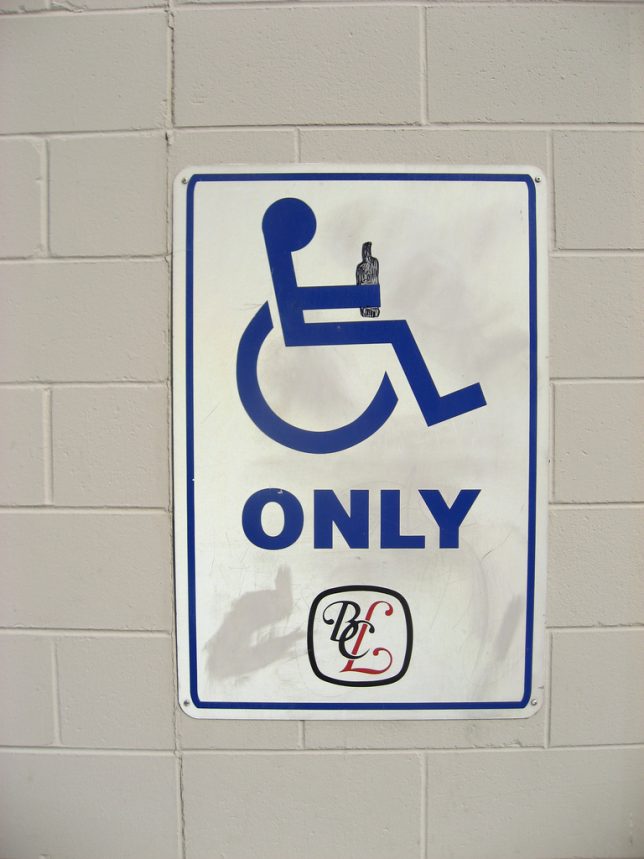
Flickr user Mike Klassen snapped this mildly yet distinctively modified accessible parking sign behind a BC Liquor store in late September of 2008. As for that “fine line” we mentioned previously, well, this edges close to it but we’ll leave the last word to Nathan Ridge, one of the commenters at Klassen’s photo page: “I’ve heard of discrimination against disabled persons, but this is the first time I’ve heard of it the other way around! I love it, especially since I’m in a wheelchair myself!”

Triple Chair Lift

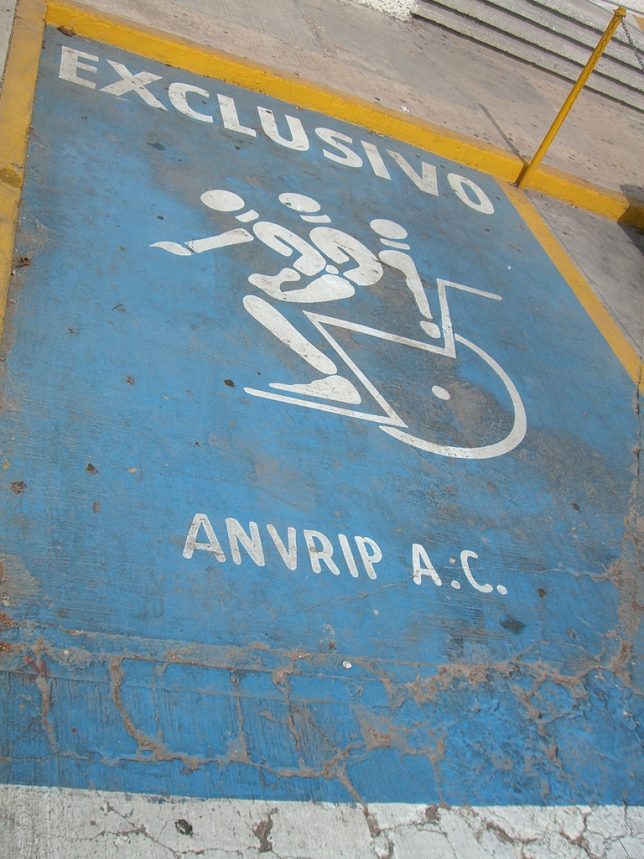
When Mexico sends us their handicapped parking place stencils, they’re not… actually sometimes they ARE sending us their best. Take the “EXCLUSIVO” stencil above, snapped by Flickr user Mary Doyle (buffoonmeatmary) on August 5th of 2007. We can’t say whether this awesome graphic shows a disabled person getting into or out of their wheelchair but either way, the image demands a Six Million Dollar Man bionic sound effect to accompany it.

Elderly Man Driver

Elderly man driver, that elderly man driver, he don’t say nothing but he must know something, he just keeps rolling along… at 10mph under the speed limit until he (or she) parks, right on top of this designated Elderly-only parking space. Who knew this even existed? One might state just being a senior citizen isn’t actually a “disability” in the strict sense, though don’t try convincing any grouchy cane-wielding oldster of that. Flickr user Wee Viraporn snapped what appears to be a standardized stencil on January 3rd of 2010.

Next Page – Click Below to Read More:
Enabled 18 Weird Creative Handicapped Parking Signs

Share on Facebook


[ By Steve in Culture & History & Travel. ]

[ WebUrbanist | Archives | Galleries | Privacy | TOS ]


WebUrbanist

 
Comments Off on Artistically Enabled: 18 Weird & Creative Handicapped Parking Signs

Posted in Creativity


Play On, LEGO Brick Layer: 14 Complex & Creative Toy-Brick-Inspired Projects

23 Mar

[ By SA Rogers in Art & Sculpture & Craft. ]

lego main

Play on, LEGO brick layer, ’cause the projects adults are coming up with using these little plastic toy bricks are totally incredible. Some amazing recent creations either made from or inspired by LEGO bricks include a functional camera that prints photos, a plastic helmet based on LEGO figures’ bowl-cut hair, stop-motion animation, a life-sized Batmobile and a robot that folds and flies paper airplanes.

Twin-Lens LEGO Camera Prints Photos

lego camera

lego camera 3

lego camera 2

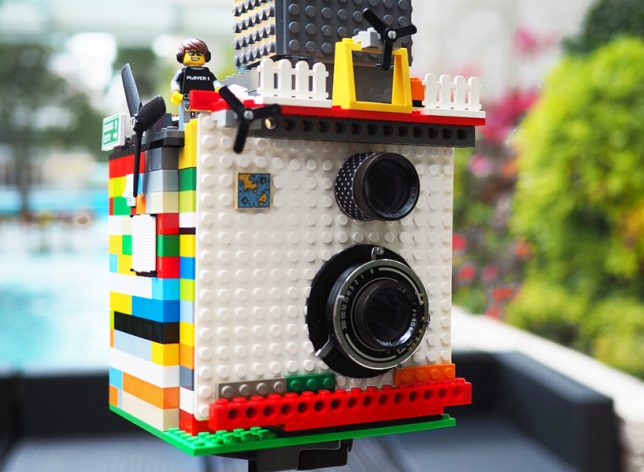
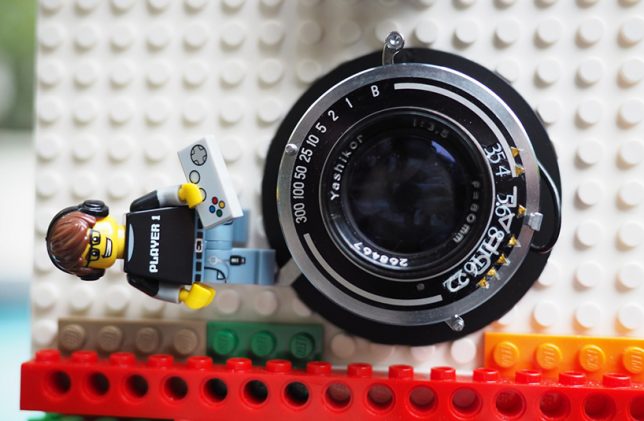
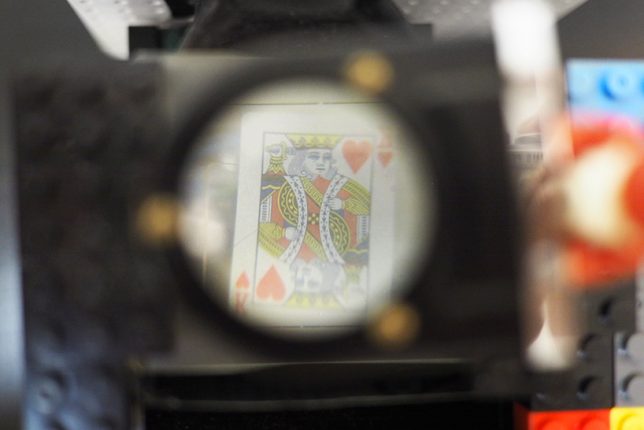
Making use of two retrofitted camera components and a LEGO brick housing, this fun model by a Hong Kong photographer blogging as Instax Magic doesn’t just take real photos, it also prints them. Taking lenses from a vintage Japanese Yashica camera and an ejection mechanism modified from a Fuji Instax mini camera, the creation playfully incorporates LEGO elements like figurines, fences and turbines. After seeing a neighbor throw a box of toy bricks in the trash, the photographer says “I started to think about the possibility of modifying a camera with LEGO. My impression is that there is always some creative way to use LEGO.”

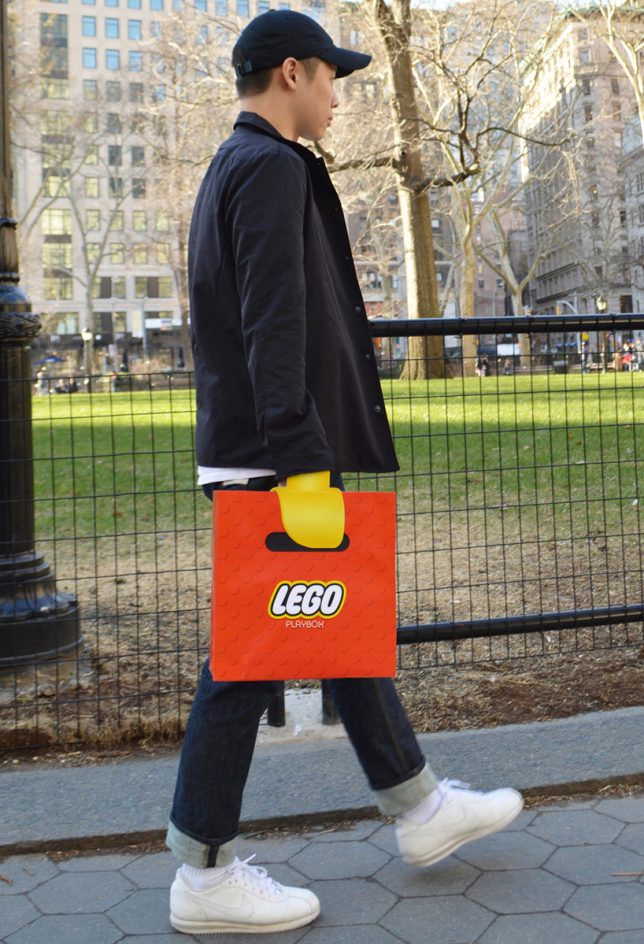
LEGO Claw Shopping Bag

lego claw shopping bag

lego claw shopping bag 2

Walk down the street looking like you’ve got a yellow LEGO claw for a hand with this fun promotional shopping bag by New York-based advertising and designers Junho Lee and Hyun Chun Choi. The illusion only works when you’re wearing long sleeves, and you clutch a fabric ribbon hidden inside to hold the bag.

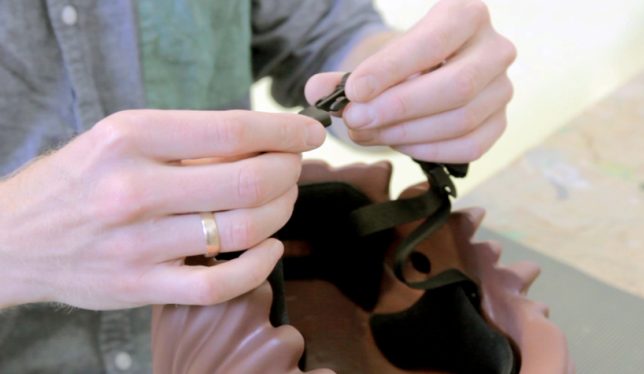
Intentional Helmet Hair, Courtesy of LEGO

lego bike helmet

lego bike helmet 2

Helmet hair is actually desirable if you wanna bike around town looking like a LEGO figure that sprouted to real-life dimensions. Design firm MOEF created a functional bicycle helmet mimicking the proportions and characteristics of the original plastic toy thanks to 3D scanning. Right now, it’s just a prototype, but it could go into production with the aim of encouraging kids to wear helmets.

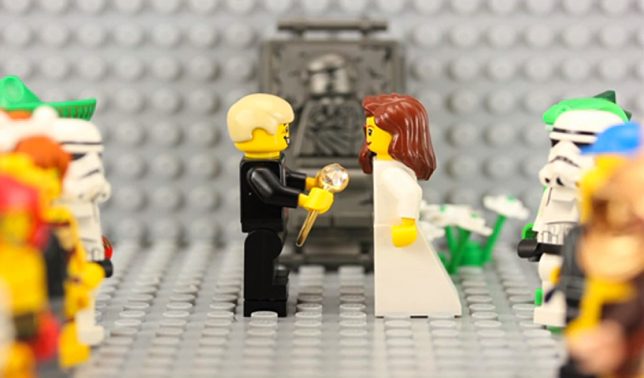
LEGO Stop-Motion Marriage Proposal

lego stop motion marriage proposal

It took Atlanta-based filmmaker Walt Thompson 22 hours, 2,600 photos and hundreds of LEGOs to create a stop-motion animation marriage proposal to his girlfriend of four years, Nealey Dozier, even going so far as to dress the LEGO couple in outfits that matched what the real-life couple wore when they met.

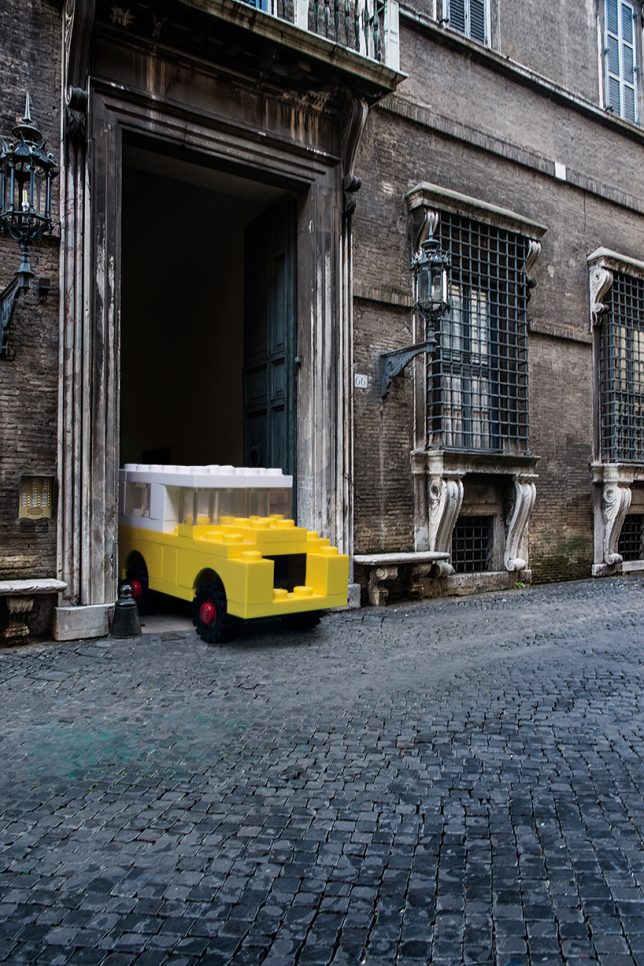
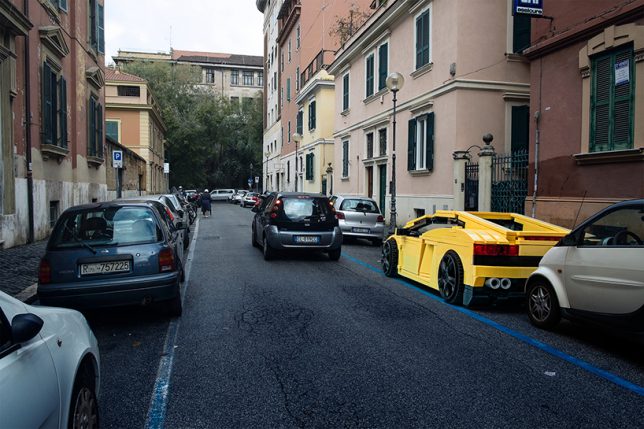
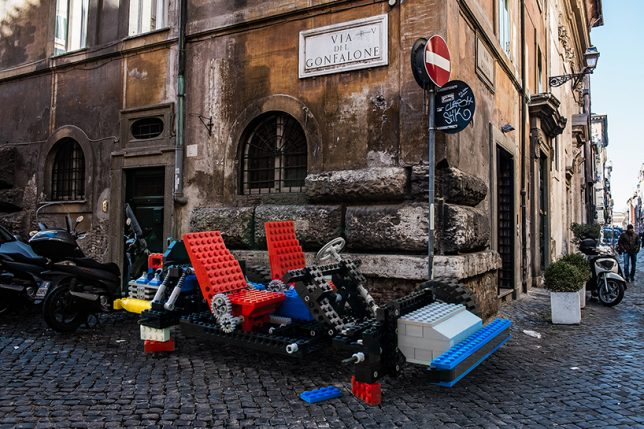
Enlarged LEGO Vehicles in Real-Life Environments

life size lego cars

life size lego cars 2

life size lego cars 3

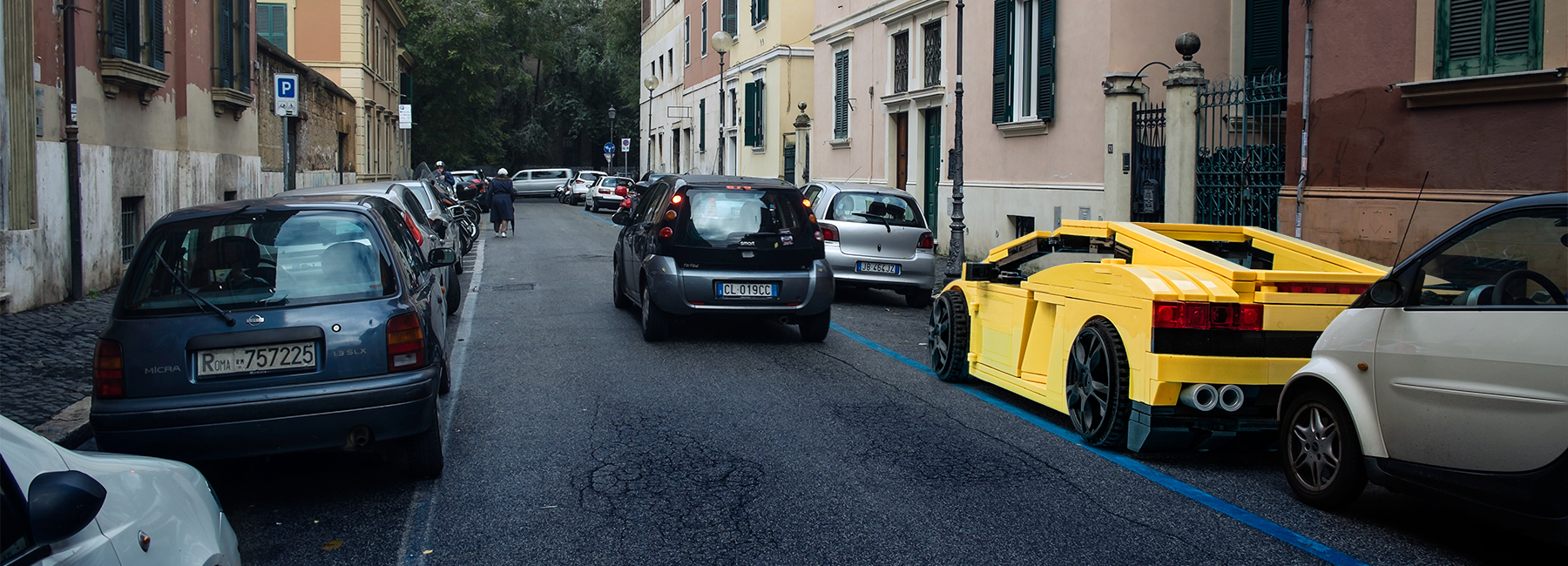
What would LEGO Lamborghinis, trucks, camper vans and helicopter models look like if they were kept exactly as they are, but enlarged to fit into the real world? Pretty ridiculous, as it turns out in this series of digital images by Italian photographer Domenico Franco, which sets them among Italian scenery. But at the same time, the models are so familiar, they don’t seem particularly out of place. “The aim is to transform ordinary contexts into extraordinary ones, thus compelling the toys to get out of the idyllic and politically correct landscapes belonging to their perfect and idealistic cities, with the result of instilling them in those vices, virtues and desires typical of human beings.” says Franco.

Next Page – Click Below to Read More:
Not Just For Kids 14 Complex Creative Lego Inspired Projects

Share on Facebook


[ By SA Rogers in Art & Sculpture & Craft. ]

[ WebUrbanist | Archives | Galleries | Privacy | TOS ]


WebUrbanist

 
Comments Off on Play On, LEGO Brick Layer: 14 Complex & Creative Toy-Brick-Inspired Projects

Posted in Creativity


Creative Use of the Radial Filter in Lightroom

21 Mar

Back in 2013, which is about two thousand years as far as digital photography is concerned, the folks at Adobe introduced a brand new tool into the kit of Lightroom 5. That tool is the Radial Filter and it has become not only one of my favorite tools in Lightroom but is one of the most versatile and powerful mechanisms we have for selectively applying edits to our photographs.

The Radial Filter tool has evolved and changed to where we find it becoming more and more useful in the latest version of Lightroom CC. In this tutorial, I will show you just how strong the Radial Filter has become. Most importantly, you will learn some of the great things it can do for you and your work.

What is the Radial Filter?

The term “radial” implies that the tool is circular of course but it goes quite a bit further than that. The Radial Filter is best considered as a virtually infinitely manipulable ellipse; meaning that the user can change the size and shape of the filter up to (and even beyond) the view window of the Develop Module.

Creative Use of the Radial Filter in Lightroom

Access the Radial Filter by clicking it on the toolbar in the Develop Module (is the second from the right, next to the Adjustment Brush). You can also open it by using the keyboard shortcut (shown above) Shift+M or by going to Tools > Radial Filter from the menu at the top of Lightroom.

The edits that can be applied using the Radial Filter with the current version of Lightroom CC include virtually all the develop options from the Basic Panel plus the recent addition of the “dehaze” feature from the Effects Panel. So essentially the Radial Filter allows you to apply edits to specific areas of the frame where you need them. You can set the filter so that the edits are applied to either the inside or outside of the filter margins (more on inversion later.) You can even use multiple Radial Filters together in order to achieve some impressive effects.

Applying and Manipulating the Radial Filter

Of course, the shape and position of the Radial Filter are the largest parts of the usage pie. To apply the filter, drag the cursor while holding down the left mouse button. You will see the filter expanding as you drag. There will be a placement indicator in the form of an opaque circular dot. This dot represents the location of each Radial Filter within your image. You’ll notice that there are also four square shapes around the perimeter of the ellipse. These are points where you can change the shape of the filter as you please.

Creative Use of the Radial Filter in Lightroom

Grab any of these points to expand the Radial Filter in that direction.

The entire filter can also be rotated by placing your cursor around the edge until it turns into a curved double-headed arrow (shown below).

Creative Use of the Radial Filter in Lightroom

You can rotate the Radial Filter around the center point when you see this symbol.

Left click to change the position of the filter.

Seeing Red – the Mask Overlay

One of the great things Adobe has included for you is a way to see where your edits are being applied by its filters and brushes. When using the Radial Filter, hover your cursor over the center dot indicator for about a second and you will see a wonderful bit of magic. Wherever the radial filter has applied its edits will now be highlighted in red.

googletag.cmd.push(function() {var gpt_slot = googletag.defineSlot( “/1005424/_dPSv5in-post-mobile(300×250)”, [300, 250], “pb-ruleset-mobile-ad-0” ).addService( googletag.pubads() );ruleset_mobile_slots.push( gpt_slot );});

googletag.cmd.push(function() {var gpt_slot = googletag.defineSlot( “/1005424/_dPSv5in-post-mobile(300×250)”, [300, 250], “pb-ruleset-desktop-ad-4” ).addService( googletag.pubads() );ruleset_desktop_slots.push( gpt_slot );});

Well, it’s not exactly magic, but it sure is close.

Note: If you want this mask to show all the time just hit O on your keyboard. You can change its color, or you can rotate through white, black, green and red by pressing Shift+O. 

Feathering, Duplication, and Inversion

There are some other tips when it comes to applying the radial filter. The most basic of these is feathering, duplication, and inversion.

Feathering

Feathering determines how hard or soft the border around the radial filter is, and in turn how noticeable the transition will between the edits applied and the rest of the photo.

Here we have a very abrupt transition….

Creative Use of the Radial Filter in Lightroom

Feathering at 0 the transition is harsh and very obvious. There is a definite line where the filter ends, and the unedited images begins.

Now you can see the softening of the border brought about by maximum feathering (+100). Depending on your needs feathering can make all the difference.

Creative Use of the Radial Filter in Lightroom

Feathering at +100 the transition is very gradual and less obvious.

Duplication

Now, let’s say you find yourself in a situation where there is more than one area which needs a similar adjustment to one that you’ve already applied with a Radial Filter. This happens frequently when working with groups of people or in a scene that has multiple elements such as a landscape.

Take this image for example; a shot of two people with similar lighting. I want to brighten both of their faces and add a little sharpness.

Creative Use of the Radial Filter in Lightroom

I created a Radial Filter using some slight exposure and sharpness increases and applied it to the man’s face. Instead of starting from scratch and creating a separate Radial Filter for the woman, I simply duplicated the Radial Filter. To do this, simply right click on the locator dot in the middle of the filter, then select duplicate (as shown below).

Creative Use of the Radial Filter in Lightroom

What this will do is copy all the settings of your current filter into a brand new Radial Filter which you can then move about and change as you see fit. It saves a lot of time and ensures you have a great starting point for your next edit.

Creative Use of the Radial Filter in Lightroom

The duplicated Radial Filter moved into place over the woman’s face.

I also added a third radial filter to add a little more contrast to the couple.

Creative Use of the Radial Filter in Lightroom

googletag.cmd.push(function() {var gpt_slot = googletag.defineSlot( “/1005424/_dPSv5in-post-mobile(300×250)”, [300, 250], “pb-ruleset-mobile-ad-1” ).addService( googletag.pubads() );ruleset_mobile_slots.push( gpt_slot );});

googletag.cmd.push(function() {var gpt_slot = googletag.defineSlot( “/1005424/_dPSv5in-post-mobile(300×250)”, [300, 250], “pb-ruleset-desktop-ad-5” ).addService( googletag.pubads() );ruleset_desktop_slots.push( gpt_slot );});

Inversion

On the other hand, inversion is something very different than duplication because you’re still working with the same filter and the same edits but in a completely different way. You’ll find the Invert Mask checkbox at the bottom of the Radial Filter panel.

Creative Use of the Radial Filter in Lightroom

Click the Invert Mask checkbox to invert the Radial Filter.

When left unchecked, all your edits will be applied OUTSIDE the filter. This is great for applying brightening and sharpening to faces and small areas of a frame as well as creating sunspots. Conversely, when the invert mask box is checked all your edits will be applied INSIDE the filter. This is great for creating custom vignettes and bringing down bright skies or overexposed areas within the image.

Integration of the Brush Tool

A wonderful advancement that is now included with the Radial Filter is the ability to adjust the filter’s edits using the brush tool. While the brush tool has been a standby in Lightroom for some years it has only recently been included as an advanced edit option for the Radial Filter tool. What the brush tool allows you to do with the Radial Filter is to tailor its effects more than ever before. You are now able to use the brush to apply the settings of the Radial Filter free-handed to extend outside or inside of the filter.

Creative Use of the Radial Filter in Lightroom

Here I have painted in the same edit selections with the brush tool that I used in the radial filter.

Creative Use of the Radial Filter in Lightroom

Creative Use of the Radial Filter in Lightroom

You can still hover to better see your edits while in brush mode (or click O on your keyboard to show/hide the Mask Overlay).

Furthermore, the brush has all the functions of the dedicated Adjustment Brush tool which includes the ability to erase edits.  If you’re like me and find yourself saying, “Oops, I went too far with the brush!” all you need to do is select erase and paint over it again.

Creative Use of the Radial Filter in Lightroom

Erase switches the brush into erase mode. Now you can erase the edits you don’t want.

Pretty great!

A Few Tricks

Sunspots

I mentioned sunspots a little earlier. They are a great way to add depth and interest to an image. While creating a sunspot where no sun exists isn’t always a good idea, the Radial Filter tool really helps to enhance the brightness (or darken) and warmth of a preexisting sunrise or sunset.

Here are two examples of using the Radial Filter to increase the impact of sunspots: First without the Radial Filters…

Creative Use of the Radial Filter in Lightroom

Original before adding the Radial Filter.

And now with two radial filters applied for brightness and warmth.

Creative Use of the Radial Filter in Lightroom

One more.

googletag.cmd.push(function() {var gpt_slot = googletag.defineSlot( “/1005424/_dPSv5in-post-mobile(300×250)”, [300, 250], “pb-ruleset-mobile-ad-2” ).addService( googletag.pubads() );ruleset_mobile_slots.push( gpt_slot );});

googletag.cmd.push(function() {var gpt_slot = googletag.defineSlot( “/1005424/_dPSv5in-post-mobile(300×250)”, [300, 250], “pb-ruleset-desktop-ad-6” ).addService( googletag.pubads() );ruleset_desktop_slots.push( gpt_slot );});

Three radial filters were used here to brighten the branches and add warmth to the sun in the background.

Tame the Moon

Another nifty way to use the Radial Filter tool is for toning down an overly bright or dull moon. Here we have a before and after split-view of the moon after some sharpening and clarity was applied with a single Radial Filter.

Creative Use of the Radial Filter in Lightroom

I also brought ought the shadows by darkening the blacks and then cooled the image a bit.

Simulating Depth of Field

It doesn’t stop there. The radial filter can also be used to simulate extremely shallow depth of field. This works great if you want to give an image a very old-time tintype feel. This is the original image:

Here I have used multiple Radial Filters to blur out the background, along with some other edits to give the image an antique feel.

Some Final Thoughts

The Radial Filter tool has come a long way since its introduction. Now you have the power to use the virtually all of the basic edit tools in Lightroom very selectively. The integration of the brush option takes the possibilities even further by adding versatility like never before. With a little creativity, the Radial Filter can do so much more than simply adding vignettes to your images. After some practice, it will likely become your workflow’s best friend.

How do you use this tool with your images? Please share your thoughts and images below.

googletag.cmd.push(function() {var gpt_slot = googletag.defineSlot( “/1005424/_dPSv5in-post-mobile(300×250)”, [300, 250], “pb-ruleset-mobile-ad-3” ).addService( googletag.pubads() );ruleset_mobile_slots.push( gpt_slot );});

googletag.cmd.push(function() {var gpt_slot = googletag.defineSlot( “/1005424/_dPSv5in-post-mobile(300×250)”, [300, 250], “pb-ruleset-desktop-ad-7” ).addService( googletag.pubads() );ruleset_desktop_slots.push( gpt_slot );});

The post Creative Use of the Radial Filter in Lightroom by Adam Welch appeared first on Digital Photography School.

Digital Photography School

 
Comments Off on Creative Use of the Radial Filter in Lightroom

Posted in Photography


Wedding Portraits – 5 Tips for Getting Out of a Creative Rut

16 Mar

As a professional photographer, it is normal to take a fair amount of pride in your work. In an ideal world, everyone would take pride in their work; but photographers in particular are usually people who own their business, who are doing something they love and who are creative by nature.

It can be particularly frustrating when you feel that you aren’t doing your very best work. Even if the customer is happy, you want to keep doing your best and you want to keep growing and learning in your craft. Getting compliments or rave reviews are great, but that feeling when you take your latest and best image is unforgettable.

Wedding portraits creative rut 03

Wedding portraits is something that is particularly challenging in this regard. Your job is to capture the newlywed couple on the happiest day of their lives, which usually means photographing them face-on while they grin into the camera. Maybe you’ll ask them to embrace, to hold hands, or to stand in front of one another. But ultimately, you’re essentially doing the same thing in every photo. There is less freedom to be creative and to have a vision; which makes it easy to get into a creative rut.

How can you grow and expand when all these photos are essentially the same thing? As they say, the devil is in the details. Actually, it is precisely the limitations that this type of photography places on you that will allow you to challenge yourself to become even more creative.

Wedding portraits creative rut 08

Here are five pointers that will help you get out of that creative rut and take some truly memorable wedding portraits.

#1 – Look for Inspiration

Wedding portraits creative rut 09

Tip number one is to look for inspiration on the web. Social media like Instagram and Pinterest are excellent for this. Just take a look at the ways in which other photographers have handled their wedding portraits and see if there is anything you can learn or borrow from them.

As Steve Jobs famously said, “Good artists copy, great artists steal.” Don’t be afraid to try and improve on what has come before you. Save some screenshots on your phone, or print out a list or shots you’d like to go for. Trying something brand new usually means failing a few times, but that’s what makes it an adventure!

#2 – Get a Second Shooter

Our second tip is to find a second shooter. If you feel that your creative juices are running a little dry, then how about inviting another cameraman along for the day? Get them to have a go at the same shots and you might find that they give you some fresh ideas that you can try. Even if you don’t end up taking their advice directly, this will help you to step out of your comfort zone and that’s when new ideas start flowing!

Wedding portraits creative rut 04

Ask your second shooter for some advice on locations. Try and find someone familiar with the venue, or maybe a photographer that has some ideas about great locations to shoot. Let him take the lead, and if you see him start something, see if you have a finishing flourish to take your portraits to the next level.

#3 – Remember the Basics

When you’ve been doing this gig for a long time, it’s easy to forget the most basic aspects; things like composition, framing, and lighting. Our third tip encourages you to bring it back to basics and remember some of the tips you learned when you were first starting out. You’ll often find you can inject fresh inspiration into your shoots.

Wedding portraits creative rut 01

Try going for a classic or timeless look. Forget the props, crazy locations, special effects, and confetti canons. Try and see what you can do with your best lens, and most basic posing. You may find yourself asking why you’re trying to take the same photo that’s been taken by every wedding photographer before you. And the answer may just astound you!

#4 – Work With Your Resources

For our fourth tip, let’s talk about your environment. Every wedding is different, whether that is because of the weather, the dress code, color scheme, or the crowd around you. Don’t fight it – work with it! Rain or clouds can be a dramatic backdrop for a photoshoot for example. A big crowd of onlookers can make for an interesting new perspective.

Wedding portraits creative rut 11

But the biggest resource you have at your disposal during your wedding sessions is the couple! No doubt they have a lot of ideas and suggestions for their photos – after all, they’re the ones paying the bills. Don’t be the snobbish professional who knows best. Listen to your customers and you may just find they can teach you something. At the very least, it may bring some fresh new ideas to the table.

#5 – Leave Your Ego at the Door

This final tip is really the point you need to focus on here; your job is to make the subjects of your photos happy. You might be tired of taking the same old shots over and over again but if that’s what the couple wants, then it doesn’t really matter.

Wedding portraits creative rut 05

It’s an easy mistake to think that you need to be more creative and dramatic with your photography, while forgetting that the customer actually just wants a nice picture that will look good on their bedside table.

Your creativity here should serve a purpose, and that purpose is to make your customers happy. Forget about showing off what an original and inventive photographer you are – at least for the portraits. If you want to be creative, then you can always get in a few artsy shots of the bride’s shoes and the wedding rings. Letting go, and giving the client what they want should always come first.

Wedding portraits creative rut 02

Wedding portraits creative rut 07

Closing Comments

So there you have it – five tips that can help you rediscover the fun and creativity for your wedding portraits; look for inspiration, get a second shooter, get back to basics, use what you have, and focus on the customer. Let us know in the comments below what you do when you find your creative juices are running dry.

The post Wedding Portraits – 5 Tips for Getting Out of a Creative Rut by Michael David Reichmann appeared first on Digital Photography School.

Digital Photography School

 
Comments Off on Wedding Portraits – 5 Tips for Getting Out of a Creative Rut

Posted in Photography


Urban Off-Grid: 12 Creative Solutions For Self-Sustainability in the City

16 Mar

[ By SA Rogers in Architecture & Houses & Residential. ]

off grid urban main

Off-grid housing is almost always relegated to remote areas due to strict urban building codes and access to affordable land, but sometimes self-contained structures pop up in parks, on rooftops and in canals anyway – or the owners of more conventional city dwellings simply cut the cord. There are already a lot of different ways to go off-grid in the city, most explored by necessity due to poverty, others seeking a more sustainable way of life without giving up community and convenience. From rooftop structures and mobile housing to entirely new self-powered city blocks, these solutions work within cities that already exist rather than envisioning expensive futuristic eco-cities from the ground up.

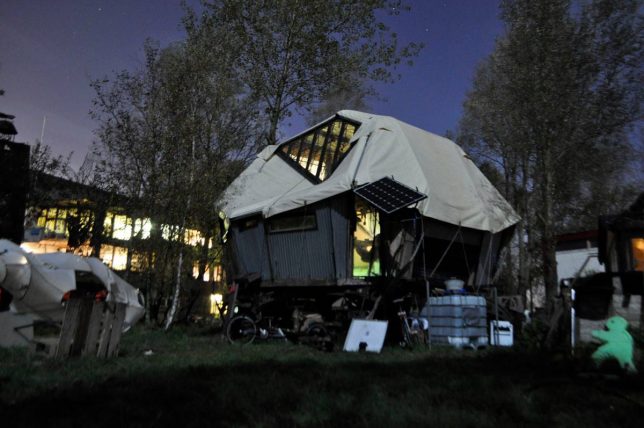
The Mobiators

mobiators

mobiators 2

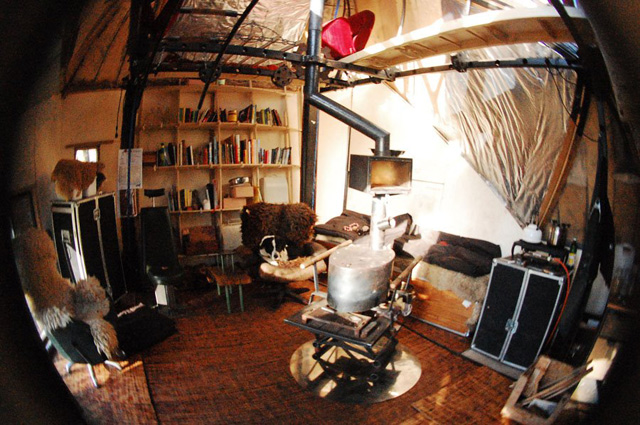
Somewhere between a DIY cabin, a tent and a mobile home, this strange structure by The Mobiation Project travels through Amsterdam, setting up in locations all over the city as a statement about the increasingly broken global economy and damage to the environment. Built by an artist/architect and a carpenter/designer, The Mobi-01 acts as an interactive, inhabitable, ‘open-house’ example of an off-grid structure that can set up virtually anywhere.

Off-Grid Rooftop Penthouse in Canada

off grid rooftop penthouse canada

off grid rooftop penthouse canada 2

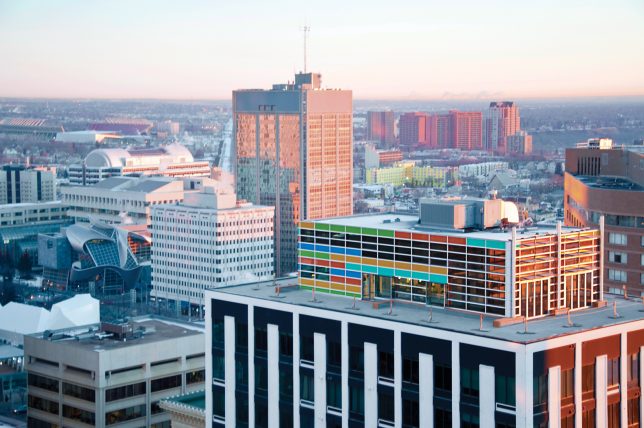
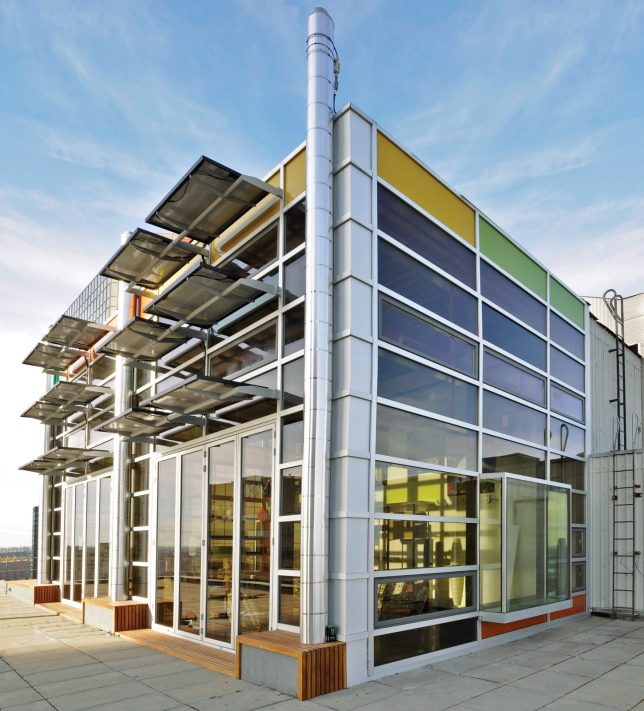
Reclaiming the rooftop space atop urban structures isn’t a new idea, but it’s rare to see them disconnected from the power grid, like this former mechanical room on a 19-floor office building in Edmonton, Canada. Architect Vivian Manasc saw potential in the structure when doing a technical evaluation of the building, and ultimately transformed it into a home for herself. The home horseshoes around an existing elevator core, which warms the space passively, and gets its power from solar panels.

Free Off Grid Camping on a NYC Rooftop

bivuoac urban camping

bivuoac urban camping 2

bivouac off grid new york cit

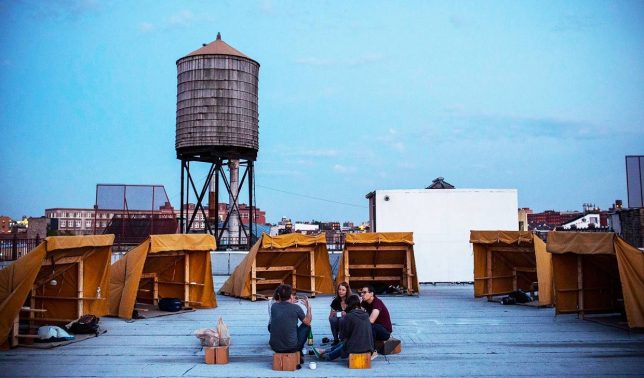
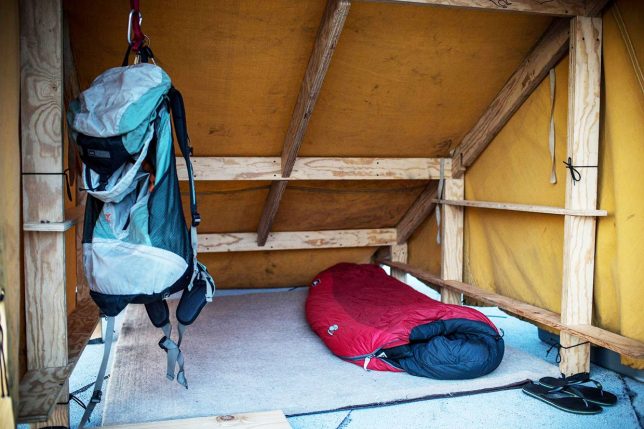
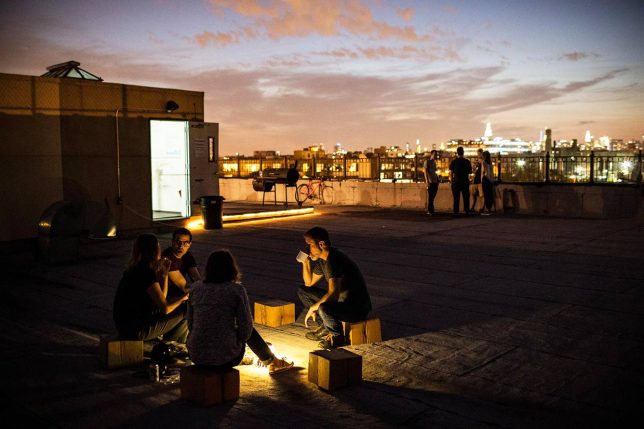
Bivouac is a pop-up campsite rotating to different rooftop spots around New York City, consisting of little more than six waterproof canvas tents with wooden frames and wool floor mats, a kitchen area with a table, and a small library. There’s no internet, electricity or showers, and you can’t have a campfire, but at least there’s access to a toilet within the building. It’s entirely free, and an interesting concept, though one wonders what this project says about accessing urban spaces when you’re well-off just for fun versus the tent cities created by homeless people who have nowhere else to go.

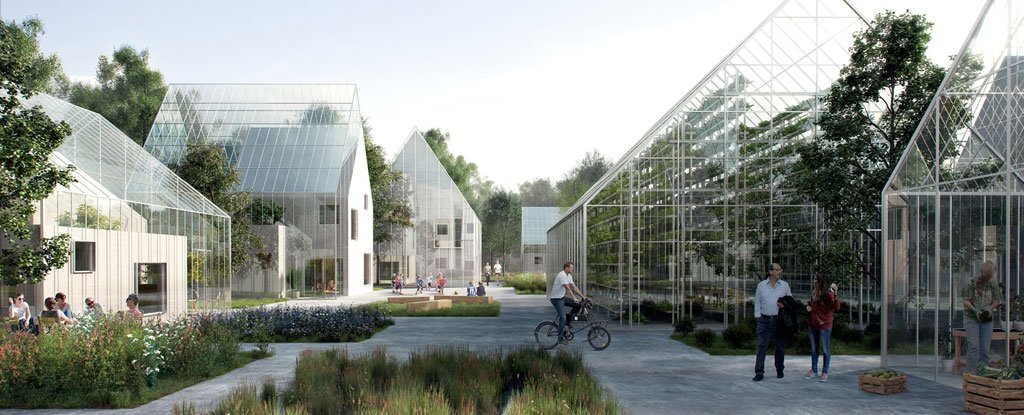
Off-Grid Urban Block for Dallas, Texas

forwarding dallas

forwarding dallas 2

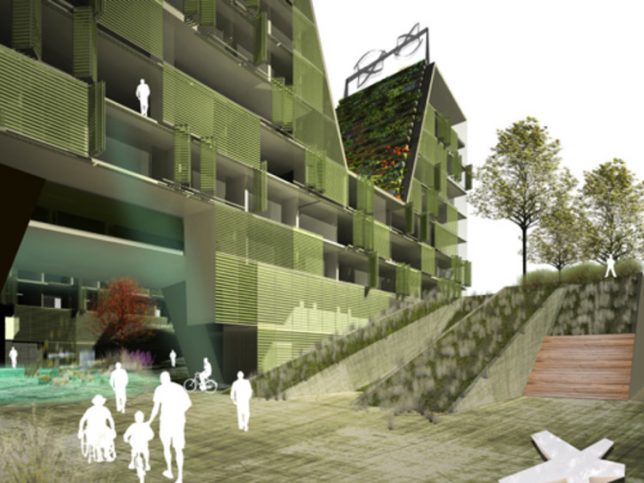
What if entire city blocks could be designed to power themselves, built in areas that were previously disused, like former industrial properties or rail yards? Winner of the Re:Vision Dallas competition, ‘Forwarding Dallas’ envisions a complex of living spaces inspired by rolling hills, with vegetation-covered roofs, solar panels, wind turbines, and passive solar louvers covering the building’s glass facades to regulate heat. The block also has its own rooftop water catchment system, a greenhouse, a swimming pool and other communal spaces. The 40,000-square-meter complex could sustainably house 854 people within the space of a typical city block.

Next Page – Click Below to Read More:
Urban Off Grid 12 Creative Solutions For Self Sustainability In The City

Share on Facebook


[ By SA Rogers in Architecture & Houses & Residential. ]

[ WebUrbanist | Archives | Galleries | Privacy | TOS ]


WebUrbanist

 
Comments Off on Urban Off-Grid: 12 Creative Solutions For Self-Sustainability in the City

Posted in Creativity


5 Creative Exercises to Help Make You a Better Photographer

13 Feb

It’s tempting to think you need a new piece of photography equipment to become more creative. While sometimes it’s true, (macro photography, for example, is much easier with a macro lens) creativity works best within restraints.

Creative photography exercises

So, how do you become more creative without buying more gear? Here are some ideas to take you out of your comfort zone and give you new skills to master.

1. Find a new subject

Every photographer has a favorite subject and others that they photograph rarely, if at all. For me, that would be any kind of still life, including food photography. The first challenge is to find a new subject. It should be something that you haven’t photographed before. Even better if it helps you learn new photography techniques.

For example, are you a landscape photographer who has never taken photos at night? Then set yourself the challenge of taking some great photos of the night sky. You won’t need any extra gear – just the desire and drive to learn a new skill.

Once you’ve found a new subject ask yourself the question, “How can I take this to the next level?”

For instance, in my case (using the earlier example of food photography) it’s easy to go to a restaurant or cafe, order some food, and take a photo of it. There’s hardly any work involved as it’s the chef’s responsibility to make the dish look good, as this photo below shows.

Creative photography exercises

It’s a lot harder to do the same yourself at home. Preparing the dish from scratch and presenting it properly so it looks delicious is much more difficult. But you’ll learn a lot more about food photography from the process.

2. Find themes and projects

A theme is a connection between photos. One way to identify the themes running through your work is to pick your favorite 10-20 photos taken in the last 12 months. Examine your choices analytically. What subjects are you photographing the most? What lenses do you use most often? Are your favorite photos color, black and white, or a mixture of the two?

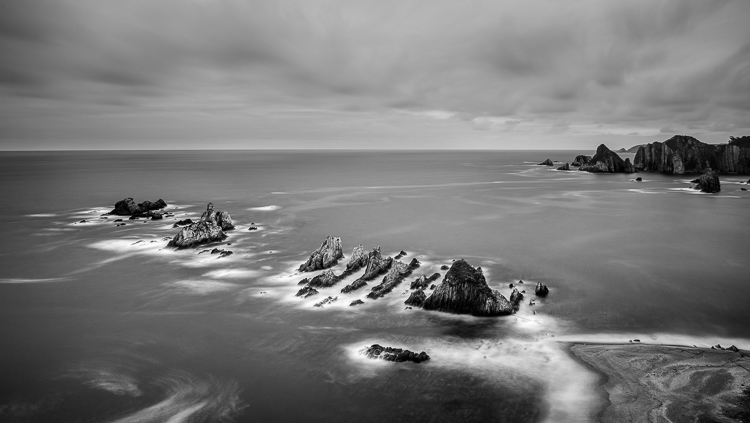
You are looking for themes that help you decide what you want to photograph next. When I did this exercise I saw that two themes dominated – long exposures and street photography. This is a long exposure photograph from Spain.

Creative photography exercises

This is a street portrait taken at Carnival in Cadiz.

Creative photography exercises

As a result, this coming year I will find some new locations for long exposure photography, and more cultural events to photograph. The idea is to build a body of work around an interesting theme. The project will grow as you pursue it.

3. Find new light

Let’s say you are a portrait photographer who works in natural light. You like to be on location with your models at the end of the day and work during the golden hour.

If this is you, what other types of light could you shoot in? If you normally shoot outdoors, what about an indoor location? If you like working on sunny days, how about a cloudy or rainy day?

I lived in Wellington, New Zealand for several years. There were only two or three foggy days during that time. It was a new type of light for me – here’s one of the photos I took in the fog.

Creative photography exercises

You can apply this to any genre of photography. Think about the type of light you prefer to work in, and then change it around by trying something different.

4. Use the wrong lens

The earlier exercise of picking your best images from the previous 12 months should highlight the lenses you prefer to use for your favorite subjects. What happens if you try something different?

The idea here is to use the wrong lens for the job, or at least a lens you’re not accustomed to using.

Imagine, for example, that you are a photographer who only ever uses telephoto lenses to shoot portraits. What happens if you use a wide-angle lens instead? How can you make it work? Yes, the portrait will look horrible if you get too close to your model with a wide-angle lens. But what about taking a more environment approach? The model becomes part of the scene and the wide-angle lens helps you capture it. The exercise will force you to see differently and find creative ways to use unfamiliar equipment.

But what about taking a more environmental approach? The model becomes part of the scene and the wide-angle lens helps you capture it. The exercise will force you to see differently and find creative ways to use unfamiliar equipment. I made this portrait with a 24mm lens. It’s okay, but the distortion means it probably wasn’t the best lens to use.

Creative photography exercises

Here’s another photo, taken with the same lens. I used it to photograph the model in a natural environment and it worked much better.

Creative photography exercises

Conclusion

Hopefully, these creative exercises will help you become a better photographer. Feel free to adapt and combine them. For instance, what happens if you shoot a new subject with the wrong lens in a new type of light? You won’t know until you try it, but you’ll have fun finding out.


If you enjoyed this article and would like to learn more about the creative side of photography then please check out my ebook Mastering Photography.

googletag.cmd.push(function() {
tablet_slots.push( googletag.defineSlot( “/1005424/_dPSv4_tab-all-article-bottom_(300×250)”, [300, 250], “pb-ad-78623” ).addService( googletag.pubads() ) ); } );

googletag.cmd.push(function() {
mobile_slots.push( googletag.defineSlot( “/1005424/_dPSv4_mob-all-article-bottom_(300×250)”, [300, 250], “pb-ad-78158” ).addService( googletag.pubads() ) ); } );

The post 5 Creative Exercises to Help Make You a Better Photographer by Andrew S. Gibson appeared first on Digital Photography School.

Digital Photography School

 
Comments Off on 5 Creative Exercises to Help Make You a Better Photographer

Posted in Photography


Creative Cloud subscribers in the UK and Sweden can expect price hikes starting next month

03 Feb

Citing ‘fluctuating foreign exchange rates’, Adobe has notified Creative Cloud subscribers in the UK and Sweden that they can expect to see their fees increase soon. The price hikes will take effect starting March 6 for month-to-month subscribers; members who have paid for a full year will see a price increase when they renew their plans.

Prices vary by plan, but users are reporting around a £10 per month increase. Emails sent to affected members pointed to a page on Adobe’s support site with an explanation:

‘Currency exchange rates have fluctuated significantly over the last few years. Like many US-based global companies, Adobe is making pricing adjustments in a number of countries to offset fluctuations in foreign exchange rate. Starting on March 6, 2017, the price of Adobe products in the United Kingdom and Sweden will be increased. Existing customers will receive information about their subscription pricing directly from Adobe.’

Are you affected by the price increase? Let us know in the comments.

Articles: Digital Photography Review (dpreview.com)

 
Comments Off on Creative Cloud subscribers in the UK and Sweden can expect price hikes starting next month

Posted in Uncategorized


Adobe Creative Suite 6 has been officially retired

31 Jan

Adobe has officially put Creative Suite out to pasture, making Creative Cloud the exclusive means by which consumers can acquire Photoshop, Illustrator, and other Adobe creative applications. The move was inevitable, but not without its controversy. Confirmation of the transition comes from Adobe itself, which updated the CS6 Web page to announce that the product has been retired.

The Web page now states that, ‘Adobe creative apps are available exclusively through Creative Cloud.’ The page also reveals this change officially took place on January 9. Adobe announced its transition to a subscription-based model in 2013, and in 2015 provided the last CS6 Camera Raw update. 

For the moment, Lightroom 6 is still available for purchase as a standalone application. It’s priced at $ 149 for a full license.

Articles: Digital Photography Review (dpreview.com)

 
Comments Off on Adobe Creative Suite 6 has been officially retired

Posted in Uncategorized


An Overview of 8 Adobe Creative Cloud Mobile Apps

02 Dec

If you currently have an Adobe Creative Cloud subscription, did you know that you have access to a variety of mobile apps developed by Adobe? Even their least expensive subscription plan (the Photography plan, which includes access to Photoshop and Lightroom for $ 9.99 per month) includes access to eight different mobile apps that have so much to offer! In this article, I’ll take you through an overview of all the Creative Cloud Mobile apps included in the Photography Plan, and explain some different ways that you can use them.

adobe-mobile-apps

1. Adobe Photoshop Fix

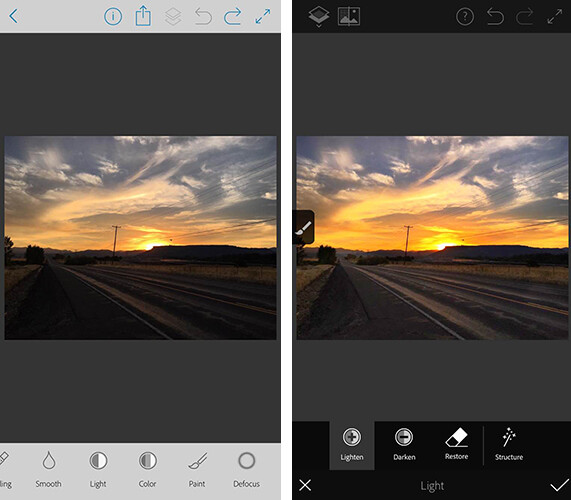
The first app is a mobile version of Photoshop (called Photoshop Fix) that includes simple retouching with the ability to liquify, heal, patch, smooth, lighten, and darken images. You can also do some basic image adjustments such as controlling exposure, adjusting contrast, and saturation. You also have the capability to send your image directly to the Photoshop CC desktop program with layers intact, to continue editing there if you’d like.

The mobile app is certainly a scaled-down version of the desktop program. But it does offer lots of options for simple retouching and adjustments of images you’ve taken with your cell phone, and is a fantastic (FREE) resource!

adobe-photoshop-fix-app

Screenshots of Adobe Photoshop Fix for iPhone.

2. Adobe Lightroom for Mobile

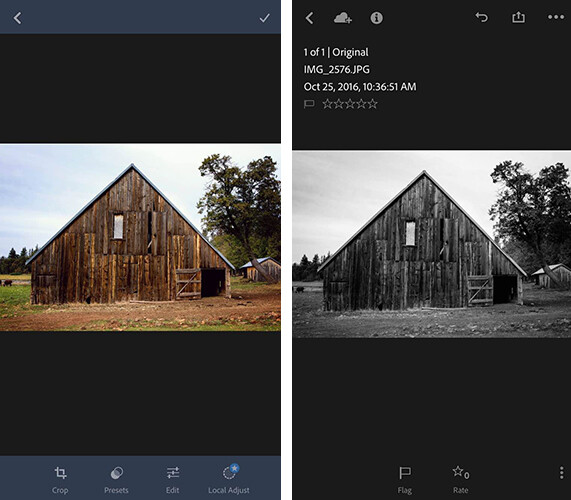
Once again, the Lightroom Mobile app is a scaled-down version of the desktop program which allows you to make basic adjustments to your images via your smartphone or tablet. Easily make adjustments to temperature, tint, exposure, contrast, highlights, shadows, whites, blacks, clarity, saturation, sharpness, noise, moire, color hue, and more. The real gem of the Lightroom mobile app is the access to 40

The real gem of the mobile app is access to 40 Lightroom presets that can help elevate your images in one touch. I especially enjoy the 11 black and white presets, which are significantly better (in my opinion) than other apps that offer one-touch editing. They also offer everything from low contrast to film versions.

adobe-lightroom-mobile-app

Screenshots of Adobe Lightroom app for iPhone

3. Adobe Photoshop Mix

Adobe Photoshop Mix allows for more creative editing than the original Photoshop Fix app. It specializes in cutting out portions of different images and merging them together into one image. I haven’t found this app to be particularly useful for the type of photography I prefer, but if you ever find yourself in the position of needing a photo of Santa on the beach, with no time to make a photo session happen, this app would be your go-to.

I found this app much more difficult to use with my finger than any of the other Adobe apps, but it may be easier to manage with a stylus. Like the other Adobe apps, it runs seamlessly with the desktop programs, so you can fine-tune your images on the computer later if you wish.

4. Adobe Spark Post (formerly Adobe Post)

Adobe Spark Post allows you to quickly create graphics combining photos and text for social media. You can begin using a number of different templates, import your own photo, or search from Adobe’s free photo library. Next, enter your text, choose your font, spacing preferences, and color palate. With one touch, you can select whether you’ll be posting to Facebook, Instagram, on a blog post, or a number of other options, and the app will automatically size the image for you.

I have found this app to be so useful in so many different ways. Need a quick graphic advertising mini-sessions? Check. Want to combine a photo with a quote you love? Check. Need a pinable image for a blog post or article? Check. All of these examples are things that I could certainly do from scratch in Photoshop, but the ease and speed with which I can create very similar graphics with Spark Post has completely won me over. It’s the app you didn’t know you were missing!

adobe-spark-post-mobile-app

Sample graphic created with Adobe Spark Post on iPhone.

5. Adobe Spark Page (formerly Adobe Slate)

Adobe Spark Page is a quick and easy way to create easy photo journals and web stories that are shareable on social media. It is suggested to use Spark Page to easily create newsletters, presentations, and travel journals. Once again, you can begin with a number of different layouts from Adobe that take all the guesswork (and time) out of the project. Spark pages automatically adjust to a plethora of different devices, and you can preview the way that your particular page will look on each. I haven’t implemented Adobe Spark Page into my process as of yet, but am currently contemplating using it as an avenue to share collections of images on social media.

6. Adobe Spark Video (formerly Adobe Voice)

All of the Adobe Spark apps are similar in that they are designed to elevate what you’re sharing on social media, while simultaneously streamlining the process. In this instance, Spark Video allows you to create simple and easy videos with lots of different options and layouts.

When you first begin creating a project with Spark Video, it asks whether you’re promoting an idea, sharing something that happened to you, telling a story about someone overcoming something difficult, telling about something important to you and attempting to engage your audience to participate, or sharing an experience that changed your view on the world. Depending on which option you select, Spark Video moves into a template that prompts you with what to include on each 2-second clip of your video. You also have the option to start from scratch and build your video from the ground up.

You can also record yourself narrating the video, or chose from a stock music library. There are so many different ways that you could think about utilizing Spark Video–whether making a video of a particular session, easily explaining what to wear for a family session, or creating a quick ad to use on social media. The possibilities are endless.

7. Adobe Portfolio

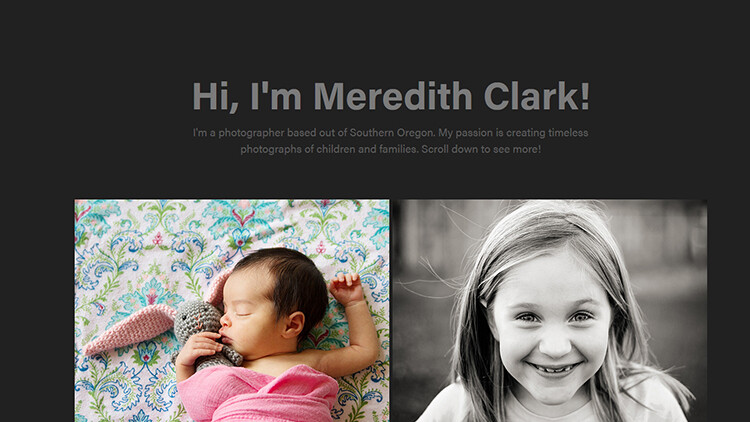
With Adobe Portfolio, you can build a website in just a few minutes. Again, there are many different templates available, including several designed especially for photographers. You can select images to act as feature images to link to albums, include some brief information about yourself, and gives you the ability to enable or disable right-clicking to save images. The process to build and edit your site is simple and requires no knowledge of HTML or CSS. You can even use your own domain name in conjunction with the portfolio you create. You can also achieve a similar but even more streamlined effect, by using Adobe Spark Page to create a portfolio of your work.

adobe-portfolio-app

An example of a basic portfolio created with Adobe Portfolio. More galleries could be included as you continue to scroll down past the header.

8. Adobe Premiere Clip

With Adobe Premiere Clip, you have access to some amazing video editing capability right from your phone. Drag and drop videos, trim them and arrange into a video. The app is smart enough that you can add music and set it to auto-fade during any dialogue. If you have an iPhone, you can also import an entire collection from Lightroom for mobile to Premiere Clip to easily create a video of your images.

Accessibility

In order to use these apps, simply search for them individually in the app store (or use the links provided for you above), and download them. Once you open the app, you’ll be prompted to sign in with your Adobe ID. Simply sign in using the same ID you used to purchase your Creative Cloud subscription, and you’ll have access to the app! Additionally, it’s worth mentioning that many of these apps (Spark Page, Spark Post, Spark Video, and Adobe Portfolio) are also available via web browser, so you aren’t necessarily limited exclusively to your mobile device.

In all, these apps pack a big punch and are a huge bonus to the desktop access to Photoshop and Lightroom! If you have a Creative Cloud subscription and are not already using the Adobe Creative Cloud Mobile Apps, I’d absolutely encourage you to check them out. Whether you’re a professional photographer or just someone who enjoys taking photos in their own backyard, there’s likely at least one app that you’ll find useful!

googletag.cmd.push(function() {
tablet_slots.push( googletag.defineSlot( “/1005424/_dPSv4_tab-all-article-bottom_(300×250)”, [300, 250], “pb-ad-78623” ).addService( googletag.pubads() ) ); } );

googletag.cmd.push(function() {
mobile_slots.push( googletag.defineSlot( “/1005424/_dPSv4_mob-all-article-bottom_(300×250)”, [300, 250], “pb-ad-78158” ).addService( googletag.pubads() ) ); } );

The post An Overview of 8 Adobe Creative Cloud Mobile Apps by Meredith Clark appeared first on Digital Photography School.

Digital Photography School

 
Comments Off on An Overview of 8 Adobe Creative Cloud Mobile Apps

Posted in Photography