RSS
 

Posts Tagged ‘Creative’

Adobe Portfolio – This Unsung Hero of Creative Cloud Could Save You Money

24 Aug

I have used Adobe Lightroom since version 4 in 2012. After upgrading to version 5 and 6 in the following years, have really grown to appreciate its workflow, comprehensive suite of editing tools and the digital asset management.

When Adobe switched to a subscription model for Lightroom and announced they would no longer offer the product as a standalone license, I started looking at other options because I didn’t want to be locked into a perpetual pricing model. I was already paying nearly $ 100/year for a website and as a hobbyist photographer with a family and a full-time job, the thought of paying another $ 120/year for Lightroom seemed crazy.

That is until I discovered Adobe Portfolio and had a complete change of heart.

Adobe Portfolio website landing page

A bit of background

In 2015 I got serious about doing photography work for clients. At that time, I recognized the need to have a professional easy-to-use website to attract clients and showcase my work. I tried a number of options before settling on Squarespace.

Their $ 96/year fee was entirely reasonable to me because it provided access to dozens of templates as well as a worry-free website I did not have to update or maintain like a self-hosted WordPress installation requires. I appreciated how easy Squarespace was to use as well as its rich set of features including blogging, podcasting, and even tools for buying and selling goods and services.

A few years later as I was investigating software options to replace Lightroom, I stumbled across Adobe Portfolio entirely by accident. I certainly never intended this barely-mentioned service to be the fulcrum on which my decision to subscribe to the Adobe Creative Cloud Photography Plan would rest!

The more I examined what Portfolio had to offer the more I realized that the subscription which includes Portfolio along with Lightroom and Photoshop would be ideal for my needs as a part-time photographer.

This is the homepage for my own Adobe Portfolio site. When users hover over one of the sections with their cursor it shows the name of that particular photo gallery.


While Squarespace handled all my website needs with aplomb, it also offered many things I did not use at all. Portfolio, on the other hand, is almost anemic by comparison but uniquely suited to fit the basic needs of most photographers.

It does not have all the options, tools, integrations, and flexibility of other platforms including Squarespace, Wix, Weebly, and WordPress. But as a photographer who just wanted a simple way to showcase my work, it fit the bill perfectly.

For me the choice was clear. I could sign up for the Creative Cloud Photography plan for only a few dollars more than what I was paying for my Squarespace website and get Lightroom, Photoshop, and a beautiful website that did everything I needed. I canceled my Squarespace account, signed up for Creative Cloud, and couldn’t be any more pleased with how things have worked out.

Start with a theme

If you have a Creative Cloud plan you already have access to Portfolio and you can get started by visiting myportfolio.com and entering your Adobe ID. After that, you begin the process of building your website by selecting a theme. Right away you may notice one of the significant shortcomings of Portfolio compared to other website services. There are only eight themes from which to choose. This dearth of options can be a source of frustration if you’re used to a myriad of themes on other platforms.

Adobe Portfolio themes

Some photographers might balk in horror at the idea of only having eight template options but I saw it as a way of streamlining my design approach. I couldn’t spend hours poring over different templates if I only had eight to choose from, so it only took me a few minutes to select one that suited my tastes just fine.

The templates do allow for some editing and customization but you are limited to the basic look and feel of how they are laid out. This approach is similar to how many mainstream website platforms operate and is well suited to photographers who would rather spend their time taking and editing pictures instead of poring over lines of HTML code.

It’s also worth noting that you can change templates at any time. So if you are not sure where to start you can just pick one that you like and begin editing with the freedom to change it later. I settled on the Mathias template but any of the eight options would work well for photographers who want a simple, pleasing, and functional website.

Lightroom Integration

The ace in the hole for Portfolio and a standout feature that allows it to really shine despite its lean feature set is the way that it integrates seamlessly with Lightroom. This is a huge boon for photographers who rely on Lightroom for their editing and digital asset management, and one of the big reasons it makes sense to consider Portfolio as a worthwhile website platform.

On the editing screen, there is a giant blue Add Content button which gives you access to four different options: Page, Lightroom Album, Gallery, and Link. Any photo collections in Lightroom CC, or those you have synced with Lightroom CC from Lightroom Classic CC, will show up as options when you click Lightroom Album. There is no need to export images and upload them individually. Choose Lightroom Album and the full Lightroom Web interface will load which will let you select any of the albums to be automatically displayed on your website.

You can also manually upload pictures via drag-and-drop interface but I found it much easier to manage images by loading them from Lightroom.

add content Adobe Portfolio

Editing Website Content

In addition to loading images directly from Lightroom, you can create content right from within Portfolio. This is useful if you want a few image galleries to showcase your work while also having elements like an About Me and pricing pages. Individual pages can contain blocks of text and images with captions, and elements can be re-ordered using a simple drag-and-drop interface. There’s even an option for inserting a Contact page which can contain many different fields that you are free to customize.

After creating a Page, Lightroom Album, or Gallery the ever-present floating menu lets you edit the unique characteristics of the element you just created. This floating menu took me a little while to get used to but now I don’t mind it at all.

My contact page using Portfolio.

It never really goes away but you can expand and collapse the panes and use the three horizontal lines at the top to move it around so it’s not in your way. While you can’t go so far as editing the actual CSS code you can make changes to things like background color, page header, and fonts.

editing options Adobe Portfolio

It won’t take you long to get the hang of this workflow but you also may get frustrated at what initially feels like a criminal lack of options. As you poke around with the tools available you will likely hit some brick walls, just as I did, when you find out you can’t insert pull-quote text boxes, customize the appearance of individual blocks of text, or embed elements such as a blog feed. Slideshow options are limited as well, and this is where some people might hang their head in frustration and run back to WordPress with open arms.

However, keep in mind that the purpose of Adobe Portfolio is to offer a simple way for photographers to showcase their work. It’s not supposed to be a comprehensive all-in-one web publishing platform, and within the context of that framework, the limitations in terms of choices and options make a little more sense. You can add a custom logo, change the appearance of your pages, embed dozens of web elements, and even password-protect your site if you so choose.

site options box - Adobe Portfolio

Portfolio lets you use a custom domain name as well, and though this process is fairly straightforward it does add a little extra to the cost of the service. Portfolio nor Adobe cannot actually register your domain so you will need to go to a third-party site like Dreamhost, Hover, or Register to set it up. Most domain names cost about $ 15/year which isn’t much but it does bring the total cost to around $ 135/year when you add that to a Creative Cloud subscription.

setting up your page in Adobe Portfolio

The Happy Middle Ground

The entire idea of a website might seem like somewhat of an anachronism in today’s social media-saturated internet. Many photographers have elected to forego a traditional web presence entirely in favor of building a brand and following on social media.

The downside of this approach is that your audience experience can be tainted by design decisions and embedded advertising entirely beyond your control, and there are always going to be a subset of potential clients who choose not to engage on social media at all and will, therefore, miss out on the chance to view your work.

My family portrait gallery.

Websites might not have the shine and excitement that they once did but there are still plenty of good reasons to build and maintain your own presence on the internet. To that end, Adobe Portfolio offers a compelling set of features for literally no cost at all if you already subscribe to any of Adobe’s Creative Cloud plans.

If you don’t currently subscribe to Creative Cloud but do pay a third-party provider to host your website you might want to give Portfolio a second look. Think of it as paying about the same as you are now for a website, but with the added bonus of world-class photography software like Lightroom and Photoshop thrown in at no extra charge.

Adobe Portfolio options

Your opinion of Adobe Portfolio will likely depend on your needs for a website and your expectations of what Portfolio can offer. If you want an extensive do-everything website solution, Portfolio is going to fall short in many respects and you’d be better off with something like Squarespace.

But if you want a simple platform that lets you display your work for the world to see, in a manner that you choose, without any intrusive third-party advertising or corporate mining of your personal data, I can’t recommend Portfolio highly enough.

Rating: 5/5

The post Adobe Portfolio – This Unsung Hero of Creative Cloud Could Save You Money appeared first on Digital Photography School.


Digital Photography School

 
Comments Off on Adobe Portfolio – This Unsung Hero of Creative Cloud Could Save You Money

Posted in Photography


How to use Colored Gels to Create Unique and Creative Portraits

08 Aug

We’ve all seen the usual studio set up –  beautifully crisp white light, maybe some strobes, diffusers, and other things of the sort. However, what can you do beyond that to make your portraits stand out? Add some color! In this article, learn how to use colored gels to add some spice to your images.

musician portrait with pink background - How to use Colored Gels to Create Unique and Creative Lighting

Colored gels are filters that go on your light in order to change the output color. They are usually sold at photography stores and clamped onto your lights. They range in size, thickness, color cast, and most importantly, price. Be very mindful of how hot your lights are because we’ve had gels melt on the set before during long sessions (such as music videos). 

However, you can also make your own colored gels using cellophane and tape. Just take some really saturated cellophane from a local party or art store and wrap them around your softbox or LED light (so long as the LED runs cold and won’t melt the plastic paper) and fasten with tape.

This may not look like the most professional setup, but I suppose that matters little so long as the final outcome is fantastic!

spooky photo with double exposures - How to use Colored Gels to Create Unique and Creative Lighting

There are limitless possibilities with gels. In regard to color combinations, I suggest making sure all of your gels are saturated the same in order to match with one another (and not become a headache in the editing room later).

Here are some of my favorite gel lighting arrangements to create some new and unique imagery. As a personal preference, I use continuous light, but the same can be achieved with studio strobes or speedlights.

One Color Gel Setup

The simplest and most traditional gel lighting look. There isn’t any fancy setup for this look, you can photograph your model in any fashion and just replace the white light with a color. Make sure your colored gel is really vibrant or the image may fall flat. 

portrait of a girl with amber gel - How to use Colored Gels to Create Unique and Creative Lighting

Play with distance, shutter speed, and some light post-processing to see how far you can get the light to spread. That can add a unique and unexpected twist to your one-light setup!

A good use of the one color set up is backlighting! Take your light and place it behind the subject.

backlighting with gels - How to use Colored Gels to Create Unique and Creative Lighting

Double Colored Gel Setup

My personal favorite is the double colored gel setup. All this requires is two lights, each gelled with different colors. Set them to the side of your model and watch the magic happen!

The division can be very eye-catching and intriguing.

model with red and green lights - How to use Colored Gels to Create Unique and Creative Lighting

lighting diagram - How to use Colored Gels to Create Unique and Creative Lighting

Be mindful of your model’s physical structure. You want to make sure that the color division hits the proper place. Aim for the lighting to (generally) divide right at the center of the nose (split lighting).

Tri-Color Gel Setup

How to use Colored Gels to Create Unique and Creative Lighting

You can go as intense with colors as you like, but when I do three color looks, I like one of those colors to be white. The white softens the whole look and doesn’t make it overly exaggerated.

However, if you prefer a color, I suggest placing a lighter color in the center of your arrangement and the darker colors on the sides.

portrait with 3 colors of light - How to use Colored Gels to Create Unique and Creative Lighting

For three color looks, my favorite arrangement is the traditional triangle light setup. This includes one light in front of the subject and two lights at the sides.

Depending on the look you want to achieve, you can set up the two side lights behind the model and just turn them towards the model. That keeps the light from being too harsh. For a more intense look, place the lights directly at the model’s sides.

lighting diagram - How to use Colored Gels to Create Unique and Creative Lighting

Rim Light Colored Gel Setup

girl with rim lighting - How to use Colored Gels to Create Unique and Creative Lighting

Always a very dramatic and edgy look, using gels for rim lights can bring a bit of flair to your portraits. It does depend on your model’s structure as to where you place the lights. What I do is set up a white light in front of the model and two colored gels on lights to the side pointed forward.

The best colors I’ve found for the rim light look are purples, blues, reds, and greens – oranges tend to get a bit lost with the white light.

How to use Colored Gels to Create Unique and Creative Lighting

Background Light Gel Setup

How to use Colored Gels to Create Unique and Creative Lighting

The quickest way to liven up any location is to aim some lights with colored gels attached toward the background wall.

You can photograph your subject in any traditional studio light manner, and just shoot two gelled lights to the back wall. This allows your subject to be really well separated from the background (something we always strive for in studio photography).

How to use Colored Gels to Create Unique and Creative Lighting

Now go out there and play with colors!

The post How to use Colored Gels to Create Unique and Creative Portraits appeared first on Digital Photography School.


Digital Photography School

 
Comments Off on How to use Colored Gels to Create Unique and Creative Portraits

Posted in Photography


Basic Photoshop Tutorial – How to Add Creative Overlays to Your Portraits

31 Jul

portraits of 3 girls - Basic Photoshop Tutorial - How to Add Creative Overlays to Your Portraits

I’ve been shooting these moody portraits lately and I thought about adding some creative overlays to a few to make them a little different and more interesting.

3 girls portraits with texture overlay - Basic Photoshop Tutorial - How to Add Creative Overlays to Your Portraits

Here is a basic tutorial on how to add an overlay using Photoshop. Take your images from simple portraits (top) to textured backgrounds (above) above and finally to incorporating some surreal or artistic elements in the finished portraits (below).

Basic Photoshop Tutorial - Basic Photoshop Tutorial - How to Add Creative Overlays to Your Portraits

Getting started

First of all, I wanted my images to have a dark background and look more moody rather than smiling portraits. You can read here on how I have achieved these types of portraits in my home studio using natural light only.

Secondly, in order for you to be able to follow this tutorial, you need to have a good understanding of how to use layers and masks in Photoshop. It is a simple but extremely powerful tool which I believe to be the most fundamental editing technique you need to learn when using Photoshop.

Thirdly, you need to decide on the images that you wish to use as creative overlays. A quick search on Google provided me with some free overlays that have a high enough resolution to use with my images.

Basic Photoshop Tutorial - Basic Photoshop Tutorial - How to Add Creative Overlays to Your Portraits

butterfly images - Basic Photoshop Tutorial - How to Add Creative Overlays to Your Portraits

leaves - Basic Photoshop Tutorial - How to Add a Texture Overlay to Your PortraitsDesigned by Freepik

It is essential that these overlays are in PNG format because it supports transparency. If the background isn’t already transparent (which is indicated by the checkered grey and white boxes), you can extract the image from the background if need be before you can use it as an independent overlay. But that’s a lot more work.

I will walk you through this process step-by-step. You will need to refer to the layers shown on the Photoshop screenshots below to be able to understand the process.

#1 Open your image in Photoshop

Once you open your image in Photoshop it will become the Background Layer. In my case, here I have renamed the layer as the file name “lsp-portraits-13” which appears at the very bottom of the file next to the “eye” icon. This just means it is visible and it is what I am showing you now.

file and layers in Photoshop - Basic Photoshop Tutorial - How to Add a Texture Overlay to Your Portraits

#2 Open your texture image in the same Photoshop file

The texture I’m using is called Chambord as you can see on the layer name. You can easily add a new image onto an existing open Photoshop file two ways:

  1. By dragging your image from its source folder on your computer into Photoshop directly.
  2. Or by opening your texture file in Photoshop as a separate image, selecting the entire image, copying it and then pasting it into the portrait image you are working on.

The latter is the long-winded way. The former is quicker and it is the smarter way too because Photoshop automatically makes the new texture a Smart Object. That means it matches the size of your image yet you can still change the scale without losing any pixels.

Change the blend mode of your texture image layer (Chambord in this case) to Overlay on the Layers tab. Add a layer mask to the Chambord layer and remove the texture from the person on the image by painting on the mask with black using a soft brush.

Your layer should look like the second layer below with the “eye icon” turned on. You can also adjust the opacity of your texture to your liking by moving the layer opacity slider next to the blend mode.

Note: If you don’t mask out the texture, the person will also be covered in texture and would look really odd! You only want the texture to fill the background and nothing else.

dps-tutorial-using-overlays-for-portraits

#3 Now you can proceed with adding overlays

The set of leaf overlays, however, come as one image, so I’ve had to use the latter method mentioned above. I opened the overlay file separately in Photoshop and used the marquee tool to select the specific leaf I wanted to use. Then I copied and pasted it onto the other file that I was working with the portrait image opened.

It is essential that you set the blend mode for each texture overlay to “Overlay”. You can experiment with various modes but for this type of work, I’ve found the Overlay and Soft Light modes tend to be the most suitable.

You can see that I added a mask on the leaf layer so that I could remove anything else around the specific leaf that I didn’t want to use. I have added four leaves in total to this image, each one on separate layers with their respective masks. I have also played around the opacity for each layer.

You will also notice that three of the leaves have a separate Levels Adjustment Layer on top of them. This is a simple way of adjusting the look of the overlay, for example, brightening it, darkening, increasing the contrast, etc. You just need to make sure that you clip the levels layer to the corresponding overlay it is adjusting by pressing Alt+Cmd/Ctrl+G. The arrow down indicates it is clipped (only applies to that and no others) to the layer below it.

You will also notice that there is a layer called Group 1 with the folder icon next to it. I grouped all four overlays after I have made individual adjustments with the levels layers. This is in case I want to make further adjustments to all of them, I only have to clip the adjustments to the Group rather than repeating myself for each overlay layer. Especially if all the adjustments are to be exactly the same anyway.

You can do this by selecting all the overlay-related layers and choosing “New group from layers” from the drop-down menu at the top of the Layers panel.

Basic Photoshop Tutorial - How to Add a Texture Overlay to Your Portraits

#4 Use adjustment tools to make final changes

Although the leaves are now where I wanted them to be, the leaves are far too saturated for my liking and they stand out too much. Not to mention they do not match the green tone of the entire image.

To correct this, I added a Hue/Saturation adjustment layer and clipped it to Group 1 so that it only affects that group and not the other layers. I played with the sliders to get the green looking similar to the green leaves on the little boy’s shirt. I wanted the overall image to have the look and feel of an old illustrated postcard with subdued tones and muted colors.

Basic Photoshop Tutorial - How to Add a Texture Overlay to Your Portraits

#5 It’s time to save your work!

If you want to keep all the layers and the original image, you need to save your file as a PSD image (Photoshop Data File). As long as you don’t merge or flatten the layers, you will have access to all the original elements used in making your composite image.

This is a non-destructive process but the files can take up a large space on your computer drive. However, if you change your mind later on about some of the elements, you can always go back into it without starting from scratch. Just choose the layer you wish to make changes on.

You must also save a compressed version of your image, usually a JPEG, which is a flattened lossy file. It is much smaller and only contains the final finished image without all the layers that went into creating it.

Conclusion

So that’s the simple process of using overlays! Below are the other two images showing the various layers using exactly the same process as shown above.

dps-tutorial-using-overlays-for-portraits

dps-tutorial-using-overlays-for-portraits

I hope you enjoyed this little tutorial.

Have you used texture overlays before? If you have more tips, please share them below.

The post Basic Photoshop Tutorial – How to Add Creative Overlays to Your Portraits appeared first on Digital Photography School.


Digital Photography School

 
Comments Off on Basic Photoshop Tutorial – How to Add Creative Overlays to Your Portraits

Posted in Photography


Creative Macro Photography – Using Fairy Lights

31 Jul

Are you interested in doing some creative macro photography? Oftentimes, we macro photographers find ourselves photographing the same subjects over and over, searching for new compositions that seem like they’ll never appear.

fairy light creative macro photography flower

In this article, I’ll discuss a macro photography technique that will get you out of that creative rut: using fairy lights. I’ll explain where to purchase them, how to set them up, and how to use them. Ultimately, you’ll learn how to enhance your macro photography with a cheap accessory. You’ll even have lots of fun in the process!

What are fairy lights?

Fairy lights are tiny LED lights. They come in a number of different colors and can be picked up for cheap ($ 10 or thereabouts) on Amazon.com. I prefer to use warm white colored fairy lights, but feel free to experiment. Different colors will give your photographs different tones.


fairy light creative macro photography flower daisy

What makes fairy lights interesting?

There is one reason why I love fairy lights, and it is this:

Bokeh, bokeh, bokeh!

When placed properly in a photograph, fairy lights can create wonderful out of focus highlights that add a magical feel to your images.

fairy light creative macro photography flower

This can be used in any genre of photography. For instance, it is fairly popular in some portrait photography circles. But I most enjoy using fairy lights in creative macro photography, which is what I’ll be focusing on in this article.

How to use fairy lights?

Work in the twilight hour

Fairy lights are not very bright relative to ambient light. Therefore, it’s necessary to shoot late in the day.

fairy light creative macro photography flower daisy

I photographed this daisy a few minutes after sunset.

If your subject is shaded, or if the day is cloudy, you can start shooting a few minutes before the sun has gone down. As the level of ambient light decreases, the overall look offered by the fairy lights will change.

The fairy lights will become more noticeable, and will really pop off the background (which can be good or bad, depending on the look you desire).

fairy light creative macro photography flower bokeh

I generally shoot until I can no longer handhold my camera. This is usually in the area of 30 minutes after sunset. However, If you like to use a tripod, feel free to stay out later.

Shoot wide open and feel free to underexpose

What should you use for camera and lens settings?

The lens aperture is the easiest setting to choose, widen it as much as possible. Not only does this let in the most light (to compensate for the lack of ambient lighting), but it also blurs the fairy lights in a more pleasing way.

Therefore, when working with fairy lights, I generally stick to my lens’s widest aperture, usually f/2.8.

fairy light creative macro photography flower bokeh

This image was taken with a shallow aperture to ensure better bokeh. The large blobs (lower right) were created by putting some of the lights closer to the camera than the flower.

As for shutter speed, I meter off the main subject (for me, this is usually a flower), and then deliberately underexpose the image. Why? I like that blue twilight aesthetic and I want it to be clear that the image was taken after sundown. This also really causes the fairy lights to stand out.

Regarding lenses, I usually shoot with a macro lens. However, you might also work with another fast lens, such as a 50mm f/1.8. These have the added benefit of being smaller and are therefore easier to handhold.

fairy light macro photography flower bokeh

In macro photography, being able to focus manually is often essential. This is even truer when it comes to fairy light photography. When working in such dark conditions, your autofocus will hunt and hunt until the light is completely gone and you’re forced to pack up.

Instead, switch your lens to manual focus. You can also switch on Live View, which can be very helpful in such difficult conditions.

Place the fairy lights directly behind or in front of the subject

There are two general approaches that I recommend for fairy light photography.

#1 – Put the lights a few inches behind the subject

This distance can decrease if you’re working at high magnifications or a very wide aperture. But it should increase if you are farther from your subject or working with a narrow aperture. If I’m photographing flowers, I often just drape the lights over other flowers or branches behind the main subject.

fairy light creative macro photography flower bokeh aster

I positioned some fairy lights behind this flower by placing them in a nearby bush.

The key is to ensure that the lights themselves are out of focus. You don’t want viewers to look at your images and actually see the fairy lights as fairy lights. They should appear as beautiful background highlights. This means that you should work with a bit of distance between the subject and the fairy lights in the background.

Holding the lights in behind the daisy.

Final image.

#2 – Put the lights in front of the subject

The second approach is harder to pull off but is well worth the difficulty. This involves placing the fairy lights in front of the subject, close enough to the lens that they remain out of focus.

fairy light creative macro photography flower daisy

I held the fairy lights between the lens and the subject in order to ensure the fairy lights remained out of focus and generated strong bokeh for this image.

I generally hold the lights in front of the lens with my left hand while manual focusing the lens with the other. This ensures that the fairy lights remain nothing more than out of focus highlights.

fairy light creative macro photography flower bokeh

Final Techniques to Consider

Now you know the basics of fairy light macro photography. But how do you create compelling images?

creative macro photography fairy lights

I find that there’s a particularly useful guideline for fairy light photography which is to incorporate the fairy lights into the composition.

creative macro photography fairy lights flower daisy bokeh

That is, don’t just let the fairy lights spray randomly throughout the background. Yes, this will result in an interesting image, but it will probably seem chaotic as well. In any type of photography, you want every bit of your photograph to be deliberate. Fairy light macro photography is no exception.

Instead, compose so that the fairy lights complement the main subject. Place them so that they appear above the subject (in the background). Make them appear beside the subject. Put them so that they seem to ring the main subject.

creative macro photography fairy lights flower cosmos bokeh

I held the fairy lights in the bottom of the frame, so as not to obscure the flower.

If you are using the second technique that I mentioned above, in which you put the fairy lights in front of the lens, make sure that they don’t block out important parts of the subject.

You don’t want to obscure your main subject with lights. It needs to be recognizable in order to offer a point for the viewer to focus on.

creative macro photography fairy lights flower aster

Conclusion

Fairy lights can add creative flair to your macro photography. They can also help you get out of a creative rut.

If all goes well, you might find yourself inspired to experiment with different colored fairy lights, or even take them with you when engaging in other genres of photography like portrait or pet photography.

creative macro photography fairy lights flower bokeh

By following the guidelines set out above, you’ll be able to take some fantastic eye-catching images!

Got any creative macro photography techniques of your own? Please share them in the comments section below.

fairy light macro photography flower

fairy light macro photography flower abstract

fairy light macro photography flower daisy abstract

fairy light macro photography mushroom

fairy lights photography leaves autumn

The post Creative Macro Photography – Using Fairy Lights appeared first on Digital Photography School.


Digital Photography School

 
Comments Off on Creative Macro Photography – Using Fairy Lights

Posted in Photography


Weekly Photography Challenge – Creative Black and White

28 Jul

This week it’s time to get creative and work on your black and white photography.

Bland and white photography of a Kayaw girl

Image by dPS author Kevin Landwer-Johan

Get some help here:

  • 9 Quick Tips for Better Black and White Photos
  • A Guide to Black and White Conversion in Photoshop
  • A Guide to Black and White Conversion in Lightroom
  • Rekindling the Romance of Black and White Photography
  • 5 Reasons Why You Might Want to Try Black and White Photography
  • How to Make Brilliant Black and White Photos with Dramatic Composition

And have a look at our dPS ebook: THE ESSENTIAL GUIDE TO BLACK AND WHITE PHOTOGRAPHY

Weekly Photography Challenge – creative black and white

Creative use of shadows

Look for light and shapes – black and white photography is better with a play of light and shadow!

Simply upload your shot into the comment field (look for the little camera icon in the Disqus comments section) and they’ll get embedded for us all to see or if you’d prefer, upload them to your favorite photo-sharing site and leave the link to them. Show me your best images in this week’s challenge. Sometimes it takes a while for an image to appear so be patient and try not to post the same image twice.

Share in the dPS Facebook Group

You can also share your images in the dPS Facebook group as the challenge is posted there each week as well.

The post Weekly Photography Challenge – Creative Black and White appeared first on Digital Photography School.


Digital Photography School

 
Comments Off on Weekly Photography Challenge – Creative Black and White

Posted in Photography


Copper, Prisms, and Orbs, Oh My! – 3 Creative Techniques for People Photography

26 Jul

Have you ever wanted to shake things up a bit when it comes to people photography? Stretch your creative muscles? Try something new and different? Then this article is for you! We’ll explore three easy and relatively inexpensive creative techniques for people photography that will help you step outside the box and have a little fun.

3 Creative Techniques for People Photography - silhouette and a sun flare

One of my favorite techniques – shooting a silhouette with a piece of copper pipe for a little extra added shine.

1. Copper Pipe

A small piece of copper pipe can create a huge bang for your buck when it comes to people photography! My husband is a plumber, and I always ask him to save me spare pieces of copper pipe in different diameters to put to use in my photography.

If you don’t happen to be related to a plumber, head to your local home improvement store, and they’ll be able to cut a piece or two for you. I mostly use pieces that are 1-2″ long, and 1/2″-2″ in diameter.

3 Creative Techniques for People Photography - copper pipe flare two kids photo

From there, things are easy. Simply hold the piece of copper pipe in front of your camera lens as you’re shooting!

Depending on where you and your subject stand in relation to the sun, you’ll create all sorts of different effects ranging from a warm glow to semi-circles that look like they’re on fire. When I use this method I typically prefer to shoot in silhouette, which tends to produce a more defined glowing light.

I use manual focus coupled with Live View mode to more easily adjust the placement of the effect in interesting ways.

silhouette and flare - 3 Creative Techniques for People Photography

2. Glass Orbs

Another fun and unique tool for creating interesting photos of people, is to use a glass orb or crystal ball.

These orbs result in a kind of fish-eye effect that can be really fun in certain instances! I enjoy using these with kiddos, especially those who might need a little help warming up in front of the camera. Because you’re pointing your camera at the orb rather than directly at them, it can be a fun way to ease nervous kids into being in front of the camera.

3 Creative Techniques for People Photography - glass ball kids portrait

The final image is cropped and inverted as the image appearing in the glass orb is upside down.

Keep in mind that anything you photograph in an orb will be flipped upside down, so if you want the person to be right-side-up, you’ll need to adjust that in post-production. On the other hand, sometimes being upside down enhances the creative effect, so don’t be afraid to play around with the orientation to see which you prefer.

Some people prefer to keep the edges of the orb sharp and in focus, while other people prefer to shoot at a wider aperture to blow them out a bit. Again, when it comes to creative applications like this, there’s really no right or wrong way to do things, so feel free to play around and discover what you like.

3. Prisms

Yep, your favorite item from elementary science class can be a really fun tool to implement in photography too! Simply holding a prism directly in front of your lens and turning it as you’re shooting can create a whole variety of effects from subtle to intense.

3 Creative Techniques for People Photography - kid portrait and reflection from a prism

Once again, I typically use manual focus and Live View mode when shooting with prisms.

If you’re new to prisms, it can take a bit of time to learn how to achieve the different effects. Those can range from reflecting your subject to different places in the image (above), projecting small rainbows near your subject (below), to even showing your subject and what’s in front of them at the same time.

I’ve even seen people utilize prisms to show both a bride walking down the aisle and the groom waiting at the same time.

3 Creative Techniques for People Photography - girl laughing

Wrapping Up

In conclusion, copper pipe, glass orbs, and prisms are all really fun options for creative techniques and effects in people photography. All three require a bit of a learning curve, so don’t be afraid to play around and try different things.

You’ll discover what your aesthetic preferences are in no time! Have you tried any in-camera photo effects that you really enjoy? Please share your ideas in the comments section below.

The post Copper, Prisms, and Orbs, Oh My! – 3 Creative Techniques for People Photography appeared first on Digital Photography School.


Digital Photography School

 
Comments Off on Copper, Prisms, and Orbs, Oh My! – 3 Creative Techniques for People Photography

Posted in Photography


How to Take Clear and Creative Photos at Aquariums

19 Jul

Aquariums are amazing places to take your family. But it can be really hard to take good photos as aquariums.

Naturally, you want some really cool pictures. But you find out very quickly that aquariums are dark. Really dark! And that your photos turn out blurry. Really blurry!

Low light photography is one of my favorite challenges. So, in this article, I’ll show you how to get clear and creative photos at aquariums and how to apply some simple edits in Lightroom.

A photo of a shark swimming with fish. How to Take Clear and Creative Photos at Aquariums

I’ve always been amazed by people who go diving with sharks. I knew that I wanted my aquarium photos to seem like they were taken from in the water. So as much as possible, I got right up close to the glass, blocking everything out except the creatures in the water.

1. Getting Clear Photos at Aquariums

Turn off your flash

If you set your camera to Automatic Mode, it’ll likely trigger the flash when you take a photo. The flash will make a huge reflection on the glass which will ruin your photo. So before you even enter the aquarium, make sure to disable your flash.

If you turn your flash off you’ve eliminated the biggest problem with glare. But there still might be some ambient light reflecting off the glass. Move right up to the glass so that your camera won’t pick up any of this reflected ambient light. You’ll be standing right up at the glass looking through it, rather than standing back a few feet looking at it.

Photo of ambient light reflecting on glass at the aquarium. How to Take Clear and Creative Photos at Aquariums

Here you can see the white and orange ambient light reflected in the glass on the left side of the photo. This photo is also suffering from a slight bit of motion blur.

Photo of a fish with no ambient light reflecting on the glass. How to Take Clear and Creative Photos at Aquariums

In this second photo, I stepped closer to the glass and angled the camera so as not to see the ambient light reflected in the glass. The main fish is also sharper now. Part of drew me to this photo was the simplicity of the scene. Very little color, good subject and a repetitive pattern of fish in the background. ISO 2500, f/2.8, 1/50th.

Turning off the flash and getting rid of reflections is the first step. Now it’s time to consider freezing the action so that your photos won’t be blurry.

Motion Blur

You may find that your aquarium photos turn out blurry at first. This is because in low light situations your shutter speed can become too slow to freeze the movement.

It’s important for you to set the shutter speed yourself, ensuring that your photos will not be blurry from camera or subject movement. There are two main ways to do this; Shutter Priority or full Manual Mode.

A photo with blurry fish - How to Take Clear and Creative Photos at Aquariums

This is a typical aquarium photo suffering from motion blur. The camera settings were ISO 400, f/4, 1/10th. The shutter speed needs to be much quicker to freeze the movement of the fish. Increasing the ISO to 3200 would have allowed for a much faster shutter speed (1/80th).

Shutter Priority Mode

To use Shutter Priority Mode, start by setting the ISO as high as you are comfortable doing according to your camera. I have no problem going to ISO 3200. This higher ISO will help your camera absorb the dim light.

For photos in aquariums, I suggest setting your shutter speed to 1/125th to begin. Make sure you only set the shutter speed fast enough to freeze the action, but no faster than necessary. If the shutter speed is too quick you’ll end up with dark or underexposed images.

Close-up photo of a shark - How to Take Clear and Creative Photos at Aquariums

I was so excited to get this close to a shark! The settings for this image were ISO 3200, f/2.8, 1/125th.

Manual Mode

If you’re comfortable with it, you should use full manual mode. Set your ISO as high as you are comfortable doing according to your camera. Aim for ISO 3200 which will help your camera absorb the light.

Open your aperture as much as you can, or as much as you are comfortable doing creatively. If your aperture opens to f/2.8 or f/1.8 that will really help to capture the light.

With your ISO as high as you can make it and your aperture open as wide as you like, set your shutter speed to 1/125th or faster (likely somewhere between 1/60th and 1/250th – adjust as needed to get a good exposure based on the amount of light in your scene).

If you have a 50mm lens I recommend you make it your main lens for aquariums. The wider aperture will let in lots more light. It’s a good focal length too.

My typical settings for aquarium photos are as follows:

  • ISO 3200
  • Aperture f/2.8
  • Shutter speed 1/60th

That shutter speed is actually pretty slow. But I have practiced holding the camera really steady and most of the creatures weren’t moving too quickly.

A shark with fish. How to Take Clear and Creative Photos at Aquariums

ISO 3200, f/2.8, 1/125th.

Don’t get discouraged when the first shot doesn’t turn out. Take your time as you explore the aquarium. Try to choose a day to visit when it’s less busy. Give them a call and ask them when those times occur.

2. Getting Creative Photos

Once you’ve figured out how to get clear photos, it’s time to get creative. You might be so overwhelmed by the amazing sea life that you forget to bring your own creativity to the photos, so here are some tips for you.

Angles

To me, varying your camera angle is the quickest way to make your photos more interesting. Rather than capturing everything from the same perspective, try a variety of angles. The same shark can look very different from different angles.

A big lobster with huge claws. How to Take Clear and Creative Photos at Aquariums

I chose an eye to eye camera angle for this lobster. His claws were huge and getting right down to his level made him look like a tough guy. You have to look carefully to see his eyes in the background. This part of the aquarium was actually lit with purple light.

Low angle photo of a shark with its teeth showing. How to Take Clear and Creative Photos at Aquariums

To me, the feature that stands out the most on a shark is its teeth. A low angle is just about the only way to see those teeth in a photo.

Photo of a strange fish (eel). How to Take Clear and Creative Photos at Aquariums

The best way to capture this eel’s beauty was an eye to eye angle.

Photo of a shark chasing a fish. How to Take Clear and Creative Photos at Aquariums

A low angle can add a sense of drama to the photo. When a shark decides that it’s feeding time, that’s a dramatic moment!

Extremely low angle photo of a shark. How to Take Clear and Creative Photos at Aquariums

I would normally refer to this extremely low angle as a “bug’s eye view.” Dramatic angles such as this can really give the feeling of actually being in the water with the sharks. You’ll notice a little glare on the glass on the upper right of the photo.

Silhouettes

Silhouettes are really easy to capture in aquariums. The key to a silhouette is to have a bright background and a dark foreground and subject. If you’re comfortable using Manual Mode, then you only need to adjust your exposure until you get the desired effect.

If you’re in Auto Mode or even Shutter Priority, then your camera may naturally make the photo look like a silhouette. But you could use exposure compensation to adjust the exposure (- if you want it darker, + to lighten it) if you don’t want to shoot in Manual Mode.

A silhouette photo of people watching a manta ray. How to Take Clear and Creative Photos at Aquariums

Children are taken in by the sea creatures and parents are captivated watching their kids. This silhouette photo happened quite naturally because the aquarium is really bright compared to the people in the foreground. You’ll notice some unfortunate ambient light reflecting on the glass near the manta ray’s tail. That could be easily removed in Photoshop – if you have those skills.

Light

Pay attention to the light in the water and you should be able to get some interesting photos. Especially look for backlight or sidelight.

A dramatically lit school of fish. How to Take Clear and Creative Photos at Aquariums

I love backlighting so I positioned myself to get the huge lights in the frame. This gives the photo a dramatic deep sea feel, as though a submarine were coming along.

Close up of a backlit school of fish. How to Take Clear and Creative Photos at Aquariums

Another backlit photo. I was able to get right up to the glass to photograph this school of fish.

Editing Your Photos at Aquariums in Lightroom

When the chaos of the aquarium trip is over you can relax and sift through your photos. Choose the ones that you like the best and forget about the ones that didn’t turn out. Use a program like Lightroom to put the finishing touches on your photos.

My goal is to keep my photos looking as natural as possible. My main concerns are exposure, contrast, and clarity. However, I always want my photos to look the way the moments felt. So I don’t mind exaggerating colors or exposure if need be.

So considering your images, they’re your photos so you get to make the decisions.

Screenshot of adjustments made in Lightroom. How to Take Clear and Creative Photos at Aquariums

The adjustments here, especially clarity, allowed the shark and the fish to pop a little more.

Screenshot of adjustments made in Lightroom.

The most important adjustment made to this photos was the White Balance. I normally use Auto White Balance and the camera gets the color pretty close. But in this case, there is a strong green tint to the photo. There are all sorts of color casts in an aquarium which can make white balance tricky. Make sure you shoot raw so you can adjust it later.

Screenshot of adjustments made in Lightroom. How to Take Clear and Creative Photos at Aquariums

This lobster was impressive for its size and gritty crusty look. I bumped up the clarity significantly in order to portray that in the photo.

Bring it Together

Whether you’re going alone, with a friend, or with your whole family, don’t fight the crowds and choose a quiet time to visit the aquarium. When you get there, take your time and get comfortable with your camera settings.

Once you have figured out how to get clear photos, get creative with angles and interesting light.

Relive the sights as you cull, edit and print your favorite shots. And before you visit an aquarium again review your last photos and plan to make the new batch even better.

The post How to Take Clear and Creative Photos at Aquariums appeared first on Digital Photography School.


Digital Photography School

 
Comments Off on How to Take Clear and Creative Photos at Aquariums

Posted in Photography


Understanding Creative Profiles in Lightroom Classic CC

26 Jun

In April of 2018, Adobe took a much-anticipated advance in the way it allows users to process their images in Lightroom. Beginning with the version 7.3 release of Lightroom Classic (and ACR 10.3) Adobe now offers the use of something called “Adobe Profiles” as well as “Creative Profiles”.

For us photo nerds, this is a BIG deal.

Understanding Creative Profiles in Lightroom Classic CC

Image courtesy Adobe Blog https://theblog.adobe.com/april-lightroom-adobe-camera-raw-releases-new-profiles/

But exactly what are these new “profiles” and how can you use them in your everyday image processing? Well, sit back and relax because I’m about to tell you all about the brand new creative profile section in Lightroom Classic. If you can’t tell…I’m really excited about this!

What are Creative Profiles?

Before we go too far it’s important to note that you’ve probably used profiles before either in Lightroom or right inside your camera. All those settings in your camera for things like Vivid, Standard, Landscape or Portrait are all considered profiles.

Understanding Creative Profiles in Lightroom Classic CC - camera profiles landscape

All of those modes found in your camera are just a way that your camera’s tiny internal computer can process your images. When you shoot RAW, those profiles are simply bypassed in favor of more control in your editing later. The new creative profiles in Lightroom Classic work in essentially the same way.

Think of the profiles as ways to “cook” your RAW files while not needing to sacrifice any editing power. Furthermore, Lightroom’s new profile feature harnesses the user-friendliness of develop presets and integrates that creative simplicity with the power and flexibility of what’s called a color LUT (look up table). I won’t go too far into explaining LUTs in this article but just know that they are used extensively to color grade images.

The great thing about the creative profiles is that they allow you to use custom made LUTs in your editing.

How to Use Creative Profiles

Making use of the new profiles feature in your editing is extremely easy. These profiles can be applied just like develop presets…only not. What I mean by this is that a profile is similar to a develop preset in that it instantly performs edits for you with simply a click of the mouse. But this is where the similarity between profiles and presets end.

The difference comes down to how the nature of the profiles and how they apply their edits. Develop presets are simply saved blueprints of adjustment slider settings. This means that develop presets override the current setting of each adjustment slider and set each slider according to the saved value on the preset.

Understanding Creative Profiles in Lightroom Classic CC - LR preset settings

While develop presets are a powerful tool for any workflow, you can still run into trouble when you begin to use multiple develop presets while editing the same image.

Applying Profiles

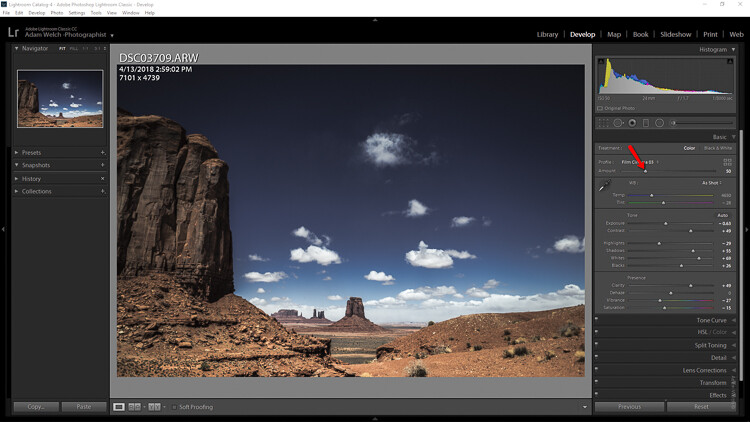
A creative profile works differently from a preset in that it does not rely on the adjustment sliders to make changes. This means that a profile can be added at any time during your processing workflow without affecting the edits you might have already made. Let me show you.

This image has had some basic processing and now I’m going to apply one of my presets.

Understanding Creative Profiles in Lightroom Classic CC - scene of a desert and dark blue sky

Have a look at the adjustment sliders before…

Understanding Creative Profiles in Lightroom Classic CC - sliders in LR

…and now after the develop preset is applied.

Understanding Creative Profiles in Lightroom Classic CC

The preset will automatically change the respective sliders that I saved when I made the preset. This can cause some problems especially if you choose to apply the preset at the end of your editing. It can be one big post-processing headache.

Next, we’re going to take that same image and apply a creative profile.

Just look at the image and the sliders as compared to before we applied the profile. The profile has applied edits without affecting those we already have made.

Understanding Creative Profiles in Lightroom Classic CC

I don’t have to tell you how extraordinarily convenient it is to be able to impart a certain look to the photo without disrupting the things I’ve already adjusted.

Adjusting Profile Density

Not only can profiles be used completely autonomously of the current image adjustments, but you can also control how much of the profile is applied. Think in terms of opacity and intensity.

You can now determine how much or how little of the effect you need and then dial in the desired setting using the amount slider.

Understanding Creative Profiles in Lightroom Classic CC

Here’s the profile effect at approximately 75%…

Understanding Creative Profiles in Lightroom Classic CC

…and now with about 25%

Understanding Creative Profiles in Lightroom Classic CC

Something to keep in mind when using profiles is that even though they are more flexible than develop presets that doesn’t mean they don’t come without their limitations.

The main one being that you can only apply one profile at a time. So don’t get any ideas of stacking profiles…at least not yet.

Final thoughts on Creative Profiles

I love presets. I love making presets. In fact, a good bit of my work revolves around the developing and constructing of develop presets for Lightroom. So when I say that I love the direction Adobe is heading with the profiles feature in their latest versions of Lightroom Classic CC hopefully you’ll want to give them a try as well.

Profiles are extremely similar to develop presets in that they allow you to perform a lot of processing in the fraction of the time it might normally require. The difference between profiles and presets is not in their outcome but rather in the little detours each one takes to reach the final destination.

Will profiles ever totally replace develop presets? I don’t think so, at least not for a while. And why should they? Like most aspects of photography, each small link in the chain serves to pull together a greater whole; it’s in this way that presets and profiles complement each other.

Once you understand the basics of using Adobe’s new creative profiles each one of them will serve you extremely well. As always, use presets and profiles up to and never beyond the point of your own creative vision for your images. Less is usually more. Have fun and enjoy shooting!

The post Understanding Creative Profiles in Lightroom Classic CC appeared first on Digital Photography School.


Digital Photography School

 
Comments Off on Understanding Creative Profiles in Lightroom Classic CC

Posted in Photography


How to do Creative Editing with Layers in ACDSee Ultimate Photo Studio 2018

20 Jun

In my first article on ACDSee Ultimate Photo Studio 2018, I covered all the elements of the program that a beginner would need to know about. This article covers editing in more detail, starting with processing your RAW file in Develop Mode and then doing some creative editing using Layers in Edit Mode.

Layers are a critical part of editing your images. Either in doing your RAW process and then tidying up areas that need it with curves, levels, and other adjustments. Or if you want to add more creativity to your images, with textures, decorative flourishes, fancy text embellishments. Finally, you can go all the way up to compositing, and using layers is the best way to achieve that.

textured image of flowers - How to Edit Using Layers with ACDSee Ultimate Photo Studio 2018

Let’s look at what ACDSee Ultimate Photo Studio 2018 has to offer for editing a RAW file. Then we’ll add a creative edit with texture layers, embellishment layers, and using masks to create a vintage grunge effect.

I am going to assume that you have a basic understanding of RAW editing and using layers and masks and not detail absolutely every step worked through in this process. If you need more help, go back and read: ACDSee Photo Studio Ultimate 2018 Guide for Beginners first.

Editing a Raw File in Develop Mode

First, open up Manage mode and find the right folder to select an image. For this exercise, I liked the Gerbera Still Life image and decided that the final version should have a grungy vintage look added at the end.

How to Edit Using Layers with ACDSee Ultimate Photo Studio 2018 - image thumbnails

This is the selected image of three crimson gerbera flowers, with a pair of pointe ballet shoes and some sheet music. It’s a bit dark and dull and needs some tweaking which we will do in the Develop mode of ACDSee Ultimate Photo Studio 2018.

original image before editing - How to Edit Using Layers with ACDSee Ultimate Photo Studio 2018

Original unedited RAW file

After some basic editing, the image is brighter and the colors are better balanced.

How to Edit Using Layers with ACDSee Ultimate Photo Studio 2018 - edited with basic adjustments

However my final vision for this image is more of a vintage look, and the colors are too bright and rich. So, further editing to bring the saturation down and darken the crimson was applied. This now provides the basis for the layers and creative elements, so it’s saved and then we move into Edit mode.

How to Edit Using Layers with ACDSee Ultimate Photo Studio 2018 - image with lower saturation

Creative Editing Using Layers

Switching to Edit Mode by clicking on EDIT with the edited RAW file open will change your workspace. Now the Layers palette is laid out on the right. As there is only the one image open, it shows up as Layer 1.

At the bottom of the Layers palette are the different layer options – hover over each one to find the one you need and click to activate it. For this exercise, we are going to bring in some grunge textures and additional elements to make it look vintage, old, and more artistic.

Textures

I use a lot of textures from 2LilOwls, The Daily Texture, and Distressed Textures. If you are patient you can also make your own but there are plenty of places to acquire them online. The ones used in this article were from 2LilOwls.

How to Edit Using Layers with ACDSee Ultimate Photo Studio 2018

My preferred option to add extra layers is to use a second monitor, open up Windows Explorer to the desired folder, find a texture I like and then drag across to my image. Note, when using ACDSee, you have to drag it into the Layers Palette (rather than onto the image directly).

The other option is to click on the “Add A File As A Layer” button which allows you to search for a file within your directory and add it. This was a useful feature which I used several times.

By default, the texture is applied in Normal mode which means only the top layer is visible, which is the texture in this instance. In the Layer Palette it is visible as Layer 2.

How to Edit Using Layers with ACDSee Ultimate Photo Studio 2018 - texture layer

The first texture layer has been added – it’s showing in Normal mode so you can only see this layer and not the one below (the image of the flowers).

Blend Mode

Next, change the blend mode of the layer to something that suits the image – either Overlay or Soft Light are good choices to start with. Also, dial down the layer opacity to soften the effect and make it look more pleasing.

How to Edit Using Layers with ACDSee Ultimate Photo Studio 2018

Masking parts of the layer

This texture has some heavy vignetting around the edges that is a bit too dark. So to solve that, add a Layer Mask and select a large soft brush at around 30% opacity. Dab the brush in the darker edges and corners to reduce the effect.

How to Edit Using Layers with ACDSee Ultimate Photo Studio 2018

The Layer mask is white and it shows up the areas you brush in grey (or black) – you can see where it has been applied in the corners.

How to Edit Using Layers with ACDSee Ultimate Photo Studio 2018

Image with texture and layer mask applied with softer tones in the dark corners now

Add more grunge

It needs more grunge so let’s apply a second texture layer. This one has lots of cracks and scratches for a nice vintage effect. It is also a bit lighter around the edges so should balance out the first texture nicely.

How to Edit Using Layers with ACDSee Ultimate Photo Studio 2018

The texture file is a different size than the original image but you can drag it out to fit by clicking on the yellow squares on the outside edges and corners.

This layer also had the blend mode changed and the opacity adjusted to suit. The crack effect was quite strong on the flowers so a mask was applied with a soft brush at low opacity that was brushed over the flowers.

More embellishments

The top left and right corners felt a bit empty so I added some decorative embellishments. On the left, is a butterfly with some fancy handwriting and another textural element was added on the right. Both are PNG files that are blended in with low opacity and Soft Light blend mode.

layers - How to Edit Using Layers with ACDSee Ultimate Photo Studio 2018

Each element goes onto a separate layer for full control.  Masks are applied to remove the effect from the flowers.  These become Layers 6 and 7.

Finally, a Photo Effect (Somber) was applied to add a bit more contrast and punch.

How to Edit Using Layers with ACDSee Ultimate Photo Studio 2018 - photo effect

Before and after images

Here we have the RAW file after it was edited in Develop mode and some creative adjustments for Saturation and Vibrance applied.

before layered editing - How to Edit Using Layers with ACDSee Ultimate Photo Studio 2018

Here we have the final image after the texture layers, embellishments, Photo Effect and masks have been applied.

How to Edit Using Layers with ACDSee Ultimate Photo Studio 2018 - final image

Additional Notes

As an advanced Photoshop user, I was comfortable using all the layer tools and functions available in ACDSee Ultimate Photo Studio 2018. Most of the usual tools were available and functioned as expected.

The one major issue I found was the inability to change the brush shape. It does not appear possible to import .abr files to add creative brush shapes. The only options for changing the brush are blend mode, size, and opacity and the only shape is round.

You can change the size, hardness, and opacity of the brush but not the actual shape of it. This limits the creative choices available. Some of my brush files were present as PNG images so I was able to import them as individual layers.

Additionally, there were several extra features that were new to me which I found useful. The “Add A File As A Layer” button was extremely helpful and I used that on several occasions. There is also a button for “Adding a Blank Layer”, “Duplicating a Layer” and “Deleting a Layer”. All things that happen frequently and usually require a right mouse click, then a selection and second click. ACDSee made these steps much quicker with a single click.

There were extra adjustment layer functions, in particular, “Photo Effect” that offer a range of predesigned creative effects you can apply as a separate layer, to blend and edit as desired. A Vignette option (similar to Lightroom) was also available to quickly add a vignette.

Conclusion

If you are a beginner to using layers and masks then it can be a bit complicated to get your head around. The good news is that with ACDSee Ultimate Photo Studio 2018 everything that you would expect to be able to do and use to work with layers is all present and accounted for. It looks and functions very similar to Photoshop, so is comfortable for anyone transitioning over.

Except for the ability to change your brush shape, everything necessary to do a basic layer edit was easily recognizable and usable with pretty much no additional learning curve. That is a real bonus for anyone coming across from other programs.

There are also some nice new features that added extra value and made the experience better – in particular, “Add A File As A Layer” is something that I could easily get used to using. For anyone only using one monitor (like on a laptop) that makes adding another image as a layer so much easier. The Move function in Photoshop is really not user-friendly. This is a definite bonus if you are like me and add lots of extra files to your layers when editing.

Working in Edit mode and making a layered image with ACDSee Ultimate Photo Studio 2018 was not difficult and the additional features added real value in unexpected places.

Disclaimer: ACDSee is a dPS advertising partner.

The post How to do Creative Editing with Layers in ACDSee Ultimate Photo Studio 2018 appeared first on Digital Photography School.


Digital Photography School

 
Comments Off on How to do Creative Editing with Layers in ACDSee Ultimate Photo Studio 2018

Posted in Photography


Adobe Creative Cloud updates bring preset and profile syncing to Lightroom CC

19 Jun
A new batch paste option in Lightroom CC allows settings to be quickly synced across multiple images.

Adobe has announced a raft of updates across its suite of Creative Cloud apps, including Lightroom CC and Lightroom Classic CC.

For photographers, Lightroom CC receives the most substantial updates, which include easy synchronization of presets and profiles across all devices. Preset and profile syncing works with Lightroom’s inbuilt options, as well as custom and third-party presets and profiles. Presets can now be created in Lightroom CC on mobile devices, too. iOS devices also gain a new chromatic aberration removal tool, and a beta ‘long-exposure’ mode which combines multiple images and stacks them to simulate the effect of a long shutter speed without the need for a tripod.

Lightroom CC for iOS now includes a ‘Technology Preview’ of a new long exposure photo mode, which simulates the effect of using a long shutter speed by combining several conventionally-captured exposures into one.

For those using Lightroom CC on a desktop computer, Adobe has improved batch syncing of settings across multiple images, and enhanced the options for sharing albums.

Users of Lightroom Classic CC are promised a substantial update ‘coming soon’ but in the meantime, Adobe has provided an iterative release centering on ‘speed, stability, and a focus on professional workflows’. To that end, Adobe has added new ways of accessing and sorting presets, new color labels for organizing folders, and faster searching inside them.

Learn more about what’s new in Adobe Lightroom CC

Learn more about what’s new in Adobe Lightroom Classic CC

In other news, for designers, Adobe Spark is now available for Android smart devices and Adobe XD benefits from a range of improvements and added features including overlay support and private sharing.

Articles: Digital Photography Review (dpreview.com)

 
Comments Off on Adobe Creative Cloud updates bring preset and profile syncing to Lightroom CC

Posted in Uncategorized