RSS
 

Posts Tagged ‘Create’

Photo Project: Why You Should Create a Photo Inspiration Corkboard

24 Jan
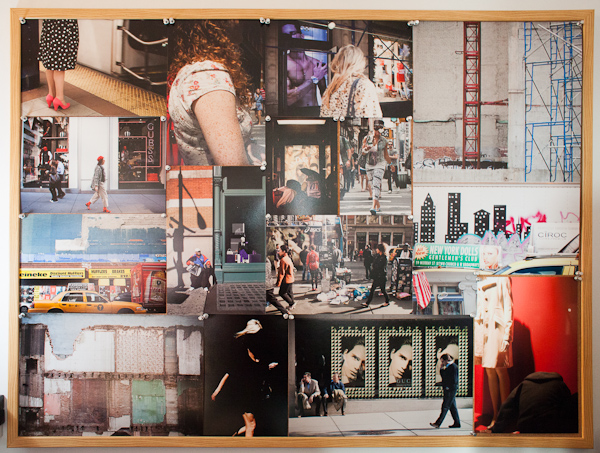
36x48 inch Photo Inspiration Corkboard

36×48 inch corkboard.

Like any project around the house, I thought about doing this almost a year ago and finally put it up in my office last month.  It turned out so well that I wanted to share it with you all.

This is a 36×48 inch natural corkboard, purchased at the Container Store with silver tacks.  It took some time to plan out the sizes and make the prints, but it was a fairly simple project.  To get a better sense of the size, the print on the top left is 8×12 inches.  I found that instead of planning out the entire thing, it was easier to fill up a third of it with 8×12 prints and then plan how to fill in the rest of the space.

The best thing is that friends love it, clients love it, and most importantly, my wife loves it.  It’s helped show off my work in an interesting way that engages people and it shows off the prints without any glass in front to show visitors the true quality of the prints and paper.

Also, framing can get expensive, and especially for areas like your office, your studio, or whenever you do your photo work, you will undoubtedly get the urge to change the photos on your walls constantly.  Framing makes that tough to do, as I have learned the hard way.  With a board like this, all you have to do is print and replace.

It is a fantastic way to work on a long term project of images that you can play with and change over time to see how the images work with each other.  I chose to organize mine around a specific set of my street photography and even after a month I plan on changing it and adding to it.  I am eventually going to add two more board and put painting lights above them all.

There are also many other ways to do this.  After I posted about the board on my blog, an Australian reader named Kristen sent me a photo of a version she had created.

Here’s what she said:

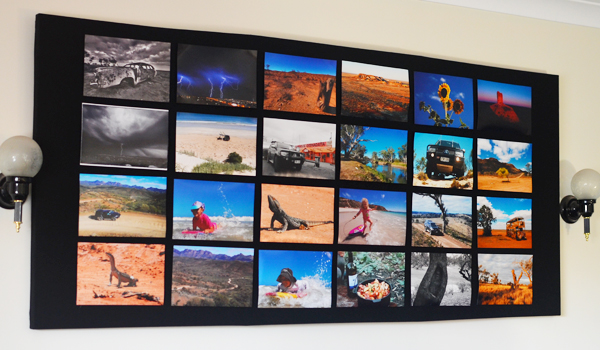
“I bought three, 40 inch by 20 inch canvases.  Then, I nailed the canvas frames together to make a single 40 inch by 60 inch canvas.  Over the top of that, I attached mat black material and put a hanging string along the back of the frame.

I used hot glue to stick 4 velcro bits for each photo on the black material, then I put the other side of the 4 velcros bits on the back of each photo.  Every 6 months or so I take down the 24 photos and I can put up new photos or re show old photos, because they all attach via velcro – so I can take down and put up photos to suit.”

There are so many ways to do something like this.  So get started!  And if you’ve done something similar, please share it with us in the comments!

Photo Corkboard


Post originally from: Digital Photography Tips.

Check out our more Photography Tips at Photography Tips for Beginners, Portrait Photography Tips and Wedding Photography Tips.

Photo Project: Why You Should Create a Photo Inspiration Corkboard


Digital Photography School

 
Comments Off on Photo Project: Why You Should Create a Photo Inspiration Corkboard

Posted in Photography


Create a Warm, Sunset Mood Image in Lightroom 4

22 Jan

Introduction

This tutorial is a demonstration of the SLR Lounge Lightroom 4 Preset System. With over 200 presets, the LR4 Preset System has been critically acclaimed as the most powerful and intuitive preset system available for Lightroom 4. DPS users can get 10% off by using the DPS10 coupon code upon checkout. Click the link above to learn more/purchase.

Overview

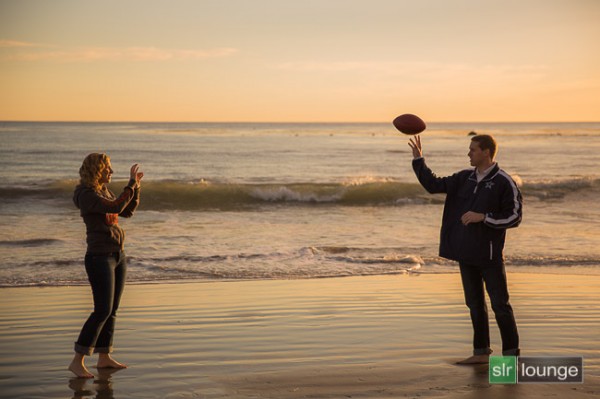
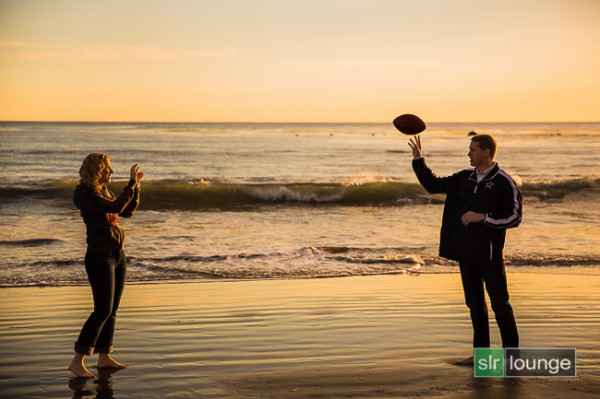
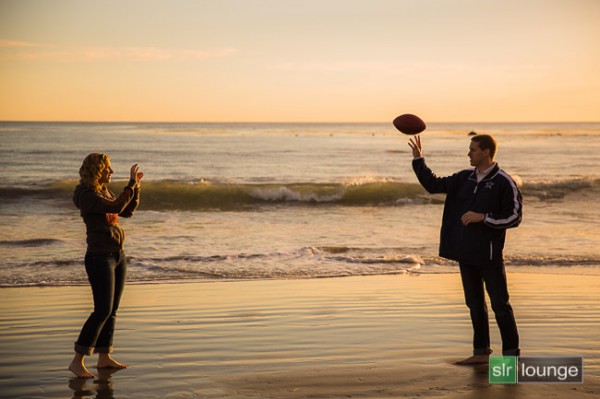
In this Lightroom 4 tutorial, we will show you how to create a warm, sunset-toned look in Lightroom 4. It is a great look that can be applied to a late afternoon outdoor images. I particularly dig this look on shots like this one at the beach. We will also correct for uneven exposure across the image that is caused by the directional lighting of the sun.

Before and After Image

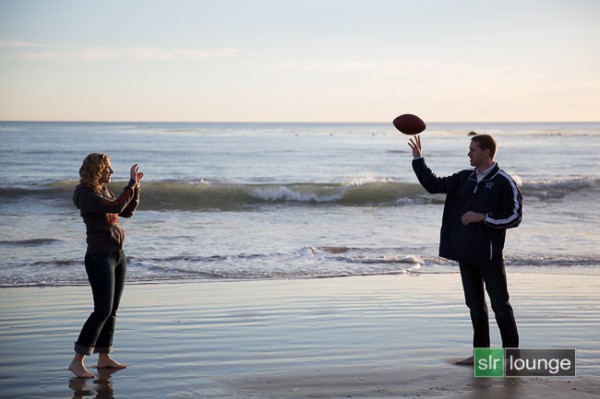
Before
After
Lightroom 4 Preset System Mixology

If you own the SLR Lounge Lightroom 4 Preset System, this effect can be achieved in 3 clicks as shown below. If you don’t own the preset system, please skip to Step 1 to learn how to do it manually.

Lightroom 4 Presets

00 MY MIXOLOGY – 10 SOFT PORTRAITS > 16 SP HDR Light
01 BASE ADJUST – 00 EXPOSURE > 04 Darken -0.5
01 BASE ADJUST – 40 SHADOWS BLACKS > 42 Heavy Brighten (+30, +60)

Warm up Temperature and increase the Magenta in Tint to your liking. To see all the tweaks and adjustments applied, please continue on.

Step 1. Applying our Basic Adjustments

This image from a recent engagement session was shot around 4pm late in December on one of our many SoCal beaches ;) . Although it was late afternoon, there were not a lot warm tones in the atmosphere, and the photo lacked dynamic range.

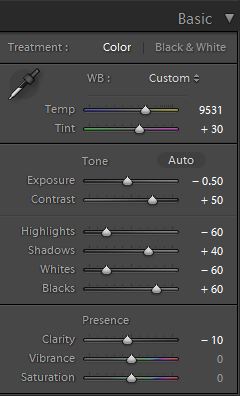
So in the Basic Adjustment Panel, let’s warm up the image by raising the Temperature to between 8000K to 10,000K. Additionally, we want to add some Magenta Tint in order to keep the image from looking too green. Without the pink/red tones that will be added from boosting Magenta tones, we end up with an image lacking the rich warmth we desire. This is the one of the advantages of shooting in RAW, you can change the color temperature of the image at will.

The background environment is also a little too bright and flat, and since we want a moodier shot, let’s lower the exposure by -0.50 stop and increase contrast by +50.

Next, let’s expand the dynamic range of the image by decreasing the Highlights and Whites by -60 while lifting the Shadows and Blacks by +40 and +60 respectively.

Finally, bring down the Clarity by -10. We will reintroduce Clarity with an adjustment brush to everything but the couple’s face, hair, hand, and feet.

The Basic Adjustment Panel and the image should look similar to below.
Step 2. Adding Additional Contrast via Curves

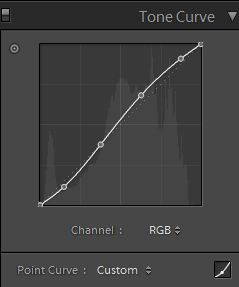
In addition to adding Contrast in the Basic Panel, let’s add a slight contrast-boosting “S” curve that pulls down the shadows a bit and boosts the highlights up a bit.
Step 3. Sharpening and Noise Reduction

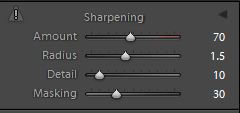
Normally, if you are using the SLR Lounge Preset System, standard Sharpening amounts are automatically applied. Here is what we typically apply to our image:
03b Sharpening

Because we boosted the dynamic range and pulled up the shadows, we do need to apply some Noise Reduction. We use this setting for Noise Reduction:
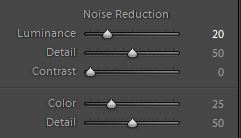
03c Noise Reduction

03 Sharpening and Noise Reduction

Step 4. Opening up the Borders with Vignetting

Finally, the brightness is not that even along the edges of the frame, so let’s add some Lens Vignetting at +30 Amount and +30 Midpoint to even out edge-to-edge brightness.
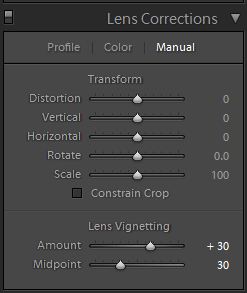
04b Lens Correction

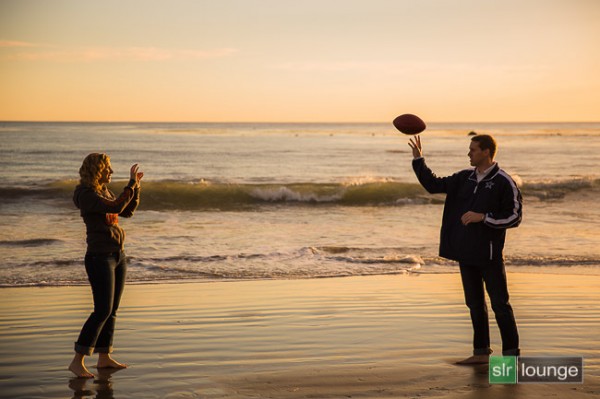
Here is how your image should look like after applying all of these adjustments.
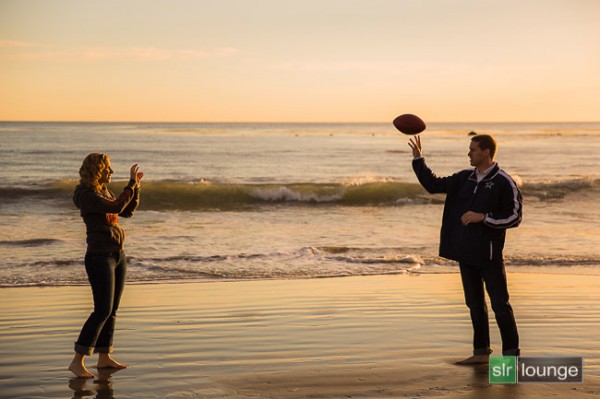
04 Lens Correction

That is it for the global adjustments, we are now going to use the adjustment brushes and graduated filter to add more clarity and contrast to the environment, as well as work on evening out the overall exposure.

Step 5. Using Adjustment Brushes for the Sky and the Ground

In the Lightroom 4 Preset System, there is an adjustment brush called the “Sky | Cloud | Ocean” that we apply to the sky, cloud, and ocean. The purpose of this brush is to increase the contrast and clarity. Additionally, this adjustment brush also increases saturation.

Here are the settings for this adjustment brush:
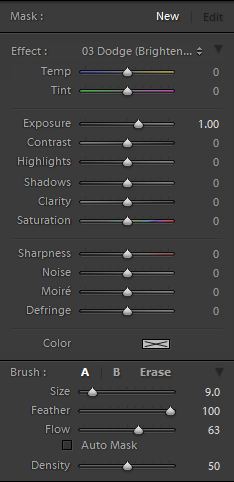
05b Sky Cloud Ocean from SLR Lounge Lightroom 4 Preset System

We want to apply this brush to the entire scene except for the couple’s exposed skin. The quickest way to accomplish this is to fill the entire scene with the brush, then use Erase brush at the bottom of the Brush Panel to remove the effect from their face, hair, hands, and feet.

Hold Alt (Opt on OSX) while in the active brush to switch to the Erase brush.

Because there is a lot of contrast between the subjects and their surroundings, you can use the Auto Mask to allow Lightroom to mask around the individuals.

To make it easier to see what part of the image is being affected by the adjustment brush, press “O” on the keyboard to toggle the Mask Overlay. The adjustment brush is applied on any part of the image that is overlaid in red.
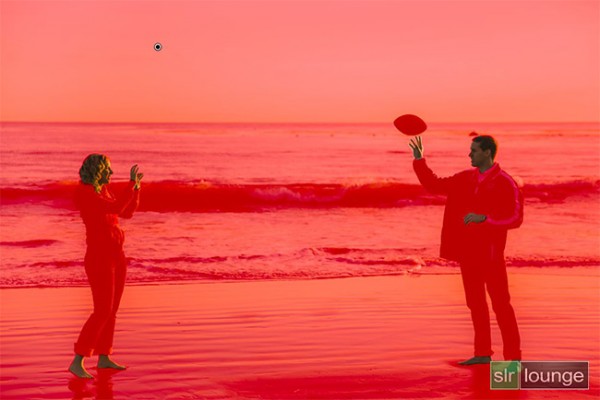
05c Adjustment-Brush

Once you are finished applying this adjustment brush, press “O” again to hide the overlay. Your image should have a punchier look that similar to the deep shadows of the setting sun.
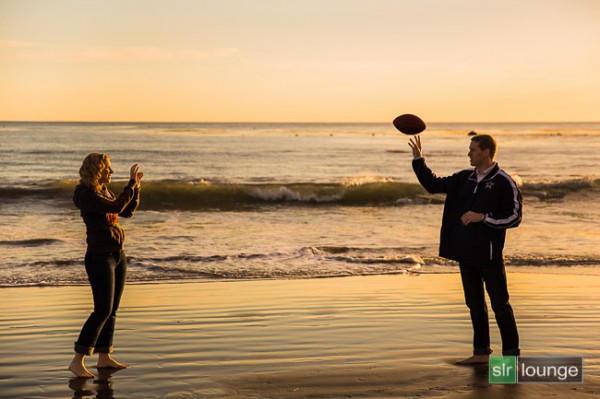
05 Adjustment Brush

Step 6. Using an Graduated Filter to Even Out Exposure on Left Side

At 4pm, the winter sun had already started its decent to the horizon, which meant that light was beginning to fade quickly. Because the sun is lighting the scene from the far right, the left side of the image was a tad underexposed in comparison to the right side. We want to correct for this subtly, so we will be using a Graduated Filter to slightly brighten the left side of the frame.

One final adjustment I would like to make to this image is just to remove the rock in the water that is just behind and above the male subjects head. But, given the size and position of the rock, this will best be done in Photoshop.
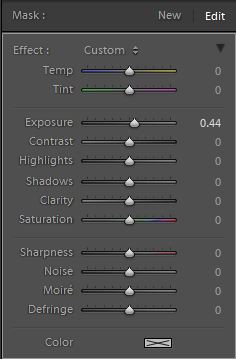
06b Graduated Filter

Final Before and After Images

Finally, here are the before and after images comparing the original image to the new image with the warm, sunset mood look.

Original

Warm, Sunset Mood Image

The Lightroom 4 Preset System

The SLR Lounge Lightroom 4 Preset System is designed to enable users to achieve virtually any look and effect within 3-5 simple clicks. From basic color correction, vintage fades, black & white effects, tilt-shift effects, faux HDR, retouching, detail enhancing, and so much more. The sky is the limit with what has been dubbed the most powerful and intuitive preset system available. Click the link above to learn more/purchase.

You can also purchase the LR4 Preset System as part of the 30 hour 3 DVD Lightroom 4 Workshop Collection set, containing every bit of education and tools needed to run a Lightroom 4 based photography studio.

Post originally from: Digital Photography Tips.

Check out our more Photography Tips at Photography Tips for Beginners, Portrait Photography Tips and Wedding Photography Tips.

Create a Warm, Sunset Mood Image in Lightroom 4


Digital Photography School
 
Comments Off on Create a Warm, Sunset Mood Image in Lightroom 4

Posted in Photography


Dreamweaver CS6 Create your first website

19 Jan

This tutorial introduces you to the concept of an Adobe Dreamweaver CS6 site and shows you how to set up the project files for the Check Magazine sample website. In Dreamweaver, a site generally consists of two parts: a collection of files on a local computer (the local site) and a location on a remote web server to which you upload files when you’re ready to make them publicly available (the remote site). You use the Dreamweaver Files panel to manage the files for your site.

The most common approach to creating a website with Dreamweaver is to create and edit pages on your local drive, and then upload copies of those pages to a remote web server for viewing on the web. In this tutorial, you’ll learn how to set up only the local site so you can begin building web pages right away. Later, after you’ve completed the website, you’ll learn how to create a remote site so that you can upload your files to a web server.

In this first part of the series, after a brief introduction to Dreamweaver sites you will complete the following tasks:

  • Set up your project files
  • Define a local folder

Note: The screen shots for this tutorial series are from the Dreamweaver Creative Cloud 12.1 update. However, the instructions apply equally to the original version of Dreamweaver CS6. You should also be able to follow the instructions on Dreamweaver CS5 or CS5.5.

Understanding Dreamweaver sites

In Dreamweaver, a site organizes on your local computer all the documents associated with your website and lets you track and maintain links, manage files, share files, and transfer your site files to a web server. Think of your Dreamweaver site as the “bucket” that contains all of the files and assets for your website.

A typical Dreamweaver site has at least two parts:

  • Local Folder: This is your working directory. Dreamweaver refers to this folder as your local site. The local folder is usually a folder on your hard drive.
  • Remote Folder: This is where you store your files on the computer that is running your web server. The computer running the web server is often (but not always) the computer that makes your site publicly available on the web.

In some circumstances, you might have more than one remote folder. For example, if you work in a team environment, all members of the team might upload their files to a common testing server before they are deployed on the live website. Also, it’s normal to set up a testing server when developing websites that use a server-side technology, such as Adobe ColdFusion or PHP. Since Dreamweaver CS5, you can define multiple remote and testing servers for each site. However, only one of each can be active at any given time.

To get started you simply need to give your site a name, and tell Dreamweaver where you want to store the files on your local computer. Dreamweaver CS6 automatically prompts you for further information about the site setup only when it’s needed.

For more information about Dreamweaver sites in general, see Site management in Dreamweaver Help.

Set up your project files

When you create a local site, you can place any existing assets (images or other pieces of content) in the local site’s root folder (the main folder for the site). That way when you add content to your pages, the assets are there and ready for you to use.
The sample files for this article contain assets for the sample website you’ll build in this tutorial series. The first step is to copy these assets to an appropriate folder on your hard drive:

  1. Decide where you want to store your website files on your hard drive. The folder can be anywhere on your computer, but the less buried it is the easier it is to find later. For example:
    • On Windows, you can use C:\Sites
    • On Mac OS X your home folder already includes a folder named Sites.
  2. Download and unzip the first_website_pt1.zip sample files from the link at the top of this page if you haven’t done so already. Copy the check_cs6 folder into the Sites folder.
  3. You will use the check_cs6 folder as the root folder (main folder) for your Dreamweaver site.

Note: The local root folder of your Dreamweaver site is normally the main or top-level folder for your website. It usually corresponds to a folder named public_html, www, or wwwroot on your remote server. For example, if you have a website at www.example.com, and have a file named news.html in the root folder, its URL is http://www.example.com/news.html. The normal practice is to give your local root folder the same name as the website without the top-level domain (such as .com or .org). For example, I store the files for my website at http://foundationphp.com in a folder named foundationphp on my local hard drive.

Define the local site folder for the Check Magazine site

You must define a Dreamweaver local site folder for each new website you create. Dreamweaver needs to know where your site files are to create all the internal links correctly, and to update them when you move files to a different location within your site.
Next, set up the site for this tutorial series, and define as your local site folder the check_cs6 folder you copied into your Sites folder:

  1. Start Dreamweaver and choose Site > New Site. The Site Setup dialog box appears.
  2. For the Site Name, type Check Magazine as the name of the site. The name is used internally by Dreamweaver to identify the site. It doesn’t matter if it contains spaces.
  3. Click the folder icon next to Local Site Folder to browse to and select the check_cs6 folder (see Figure 1).
  4. site

    Figure 1. Defining the local site folder for the Check Magazine site.

    Note: The file paths might differ, depending on where you created the Sites folder on your hard drive.

    Click Save. That’s it!

    The Files panel in Dreamweaver now shows the new local root folder for your current site (see Figure 2). The file list in the Files panel acts as a file manager, enabling you to copy, paste, delete, move, and open files just as you would on a desktop.

    assetts

    Figure 2. List of files in the Files panel

For more information about how the Files panel works, see Managing files and folders in Dreamweaver Help.

Best practices for naming files and folders in a website

A typical website contains a large number of files and folders. For ease of maintenance, it’s important to organize them logically. Create separate, appropriately named folders for images, videos, style sheets, and external JavaScript files. Also keep the following points in mind:

  • File and folder names in websites should never contain spaces or any of the following characters: /\?%*:|”<>.
  • Although other special characters are permitted, it’s generally a good idea to use only alphanumeric characters, hyphens, and underscores.
  • Most file and folder names end up as part of a web page’s URL, so keep them short, but meaningful. Long URLs are difficult for users to remember and type into browsers on a mobile device.

The vast majority of websites are hosted on Linux servers, which are case-sensitive. Using all lowercase letters for file and folder names avoids problems with files not being found.

Where to go from here

Now that you have finished defining your site, you can begin building your web pages by following the steps in the next tutorial in this series, Part 2: Creating the page structure.

Any suggestions, ideas? Feel free to comment on this article!

Back to Top

BlogPhoto

 
Comments Off on Dreamweaver CS6 Create your first website

Posted in Equipment


Create In-Camera White Balance Experiments

18 Jan

Extra photos for bloggers: 1, 2, 3

Did you know that white balance is the quickest way to turn your camera into an InstaLomoCrosstography machine?

This tutorial is a fun, simple way to play with color a la Instagram or Lomography without any apps or chemicals!

All you need to do is take the correct white balance and set it to the “wrong” white balance to get sweet shifts in tones and colors.

We put together a guide on exactly what kind of color shifts you’ll get with each setting. No Android-based technology here. You can do it all with the settings your camera already has!

Create Sweet White Balance Experiments

p.s. We’re giving away an iPhone Lens Dial (our primo iPhoneography gizmo) today! Here’s how to enter.

Why it’s cool:

ingred-smDid you know that your brain has magic color changing abilities? Well, sort of.

Your brain can’t change it’s own color (bummer!), but it does an awesome job at making sure the color white always looks that way. In other words, our brains are stuck in Auto White Balance.

Our cameras are a bit different. To them, white isn’t always white, but is influenced by the source of the light, whether it’s a buzzy fluorescent light in the ceiling or a cozy tungsten bulb under a lampshade.

This technique involves forcing your camera’s white balance to the incorrect setting for the scene so that the colors are purposely skewed. Sometimes it looks a little weird, and sometimes it looks awesome; it’s all about experimenting, with no computer or fancy editing programs required!

For an awesome explanation on how to achieve correct white balance and color temperatures, follow this tutorial by our friends over at SLR Lounge!

Ingredients:

paint-sm

  • A camera that allows access to white balance settings
  • A willingness to experiment!

STEP 1: Locating White Balance Settings

paint-smFirst things first, we need to locate where the White Balance settings are on the camera.

Here’s where ours is located. Look for the letters “WB” or the for “White Balance” if it’s under a set of menus.

Step 2: Crack The Code: Figure Out The Symbols

paint-sm White Balance settings are most often denoted by a set of symbols that represent the light source. They either warm things up, or cool them down!

  • AWB or A: Auto, correct White Balance
  • Sun: Sunshine or Daylight. Neutral.
  • House Casting a Shadow: Shade. The warmest.
  • Cloud: Cloudy. Very warm.
  • Light Bulb: Tungsten Light Bulbs. Very cool, very blue.
  • Glowing Rectangle: Fluorescent Light Bulbs. Cool blue and purple
  • Lightning Bolt: Flash. Warm.
  • Square Floating Over Triangles: Custom
  • K: Specific Kelvin Temperature

Step 3: Time to Play

paint-smNow that you now where the settings are located and what each symbol means, it’s time to start experimenting!

Remember, the AWB or Auto setting will let your camera determine the correct White Balance for the scene; we want to set the “wrong” White Balance to get cool colors!

Featured below are examples of how you can use this technique!

Outside: Cloudy Day Meets Fluorescent and Shade

paint-smIn this example, the natural light was from an overcast day (lame!).
In this instance, Cloudy would be the correct setting. Compare that to the Shade and Fluorescent settings.

The Shade setting is much warmer, which gives a stronger orange and yellow hue. The Fluorescent setting adds some neat purple and blue hues.

Outside: Cloudy Day Meets Fluorescent and Tungsten

paint-sm
This time we paired up another overcast day (round 2!) with Fluorescent and Tungsten.

We have to admit, the Fluorescent setting is one of our favs for getting sweet colors

Inside: Fluorescent meets K10,000 and K2,500

paint-sm This time we’re inside under a mix of Fluorescent and Daylight.

We got even more experimental this time and tried to dial in our own Kelvin temperatures for the white balance! 2,500 Kelvin shifts the photo towards blue, and 10,000 Kelvin shifts the photo towards a warm orange.

Real Life Use

paint-smUsing the “wrong” White Balance goes against the grain for most photography teachings, so we want to share an awesome photographer that uses this technique to achieve great results.
His name is Ryan Waite, and he creates some really sweet portraits! He shared a few tips with us on how to use White Balance to get cool effects. These are a little more advanced and will likely require some editing software to accomplish.

  • Shift the White Balance to “bring out different tones in the skin and create emphasis on certain areas of the face in unique ways.” This can influence the reds and blues in skin tone, or change the highlights and shadows. (seen above!)
  • Push the White Balance so that it’s “excessively warm and then lower the saturation for an aged, vintage feel.” A sepia-esque look without the monotone.
  • In post-production, “you have easy access to the color temperature and the tint. The temperature is great for creating warm and cool effects, but tint can specifically bring out the purples and greens in a photo.” Boost the magenta tint in afternoon sun to get beautiful yellows and purples, or boost greens for trees and plants to make them pop!

Extra Tips

  • Try it for Black and White photos: the colors from the original can make a huge difference before you convert! Try warming up the white balance and shifting the tint all the way green.
  • Go full analog: grab some film balanced for a particular light source and shoot it in another.
  • Use Live View to see the results in real time!

Related posts:

  1. DIY Photo Magic: How to Turn Black and White Photos into Full Color Images! Extra photos for bloggers: 1, 2, 3 We love the…
  2. Black and White Conversion: The Best Ways to Turn Color Digital Photos Into Beautiful B&W ~Have a cool photo product or site? Reach 270,000 photo…
  3. How to Create Coloring Book Pages Using Your Very Own Photos! Extra photos for bloggers: 1, 2 Imagine a world where…


Photojojo

 
Comments Off on Create In-Camera White Balance Experiments

Posted in Equipment


How to create beautiful portable Photography Backdrops Inexpensively and Easily

10 Jan

www.decorativeceilingtiles.net Dave Shirley a Professional Photographer from Alabama shows how he creates his Portabable Photography Backdrops for Seniors, Wedding, Babies and other portraits.
Video Rating: 4 / 5


How To Create a Motion Blur Effect in Photoshop

06 Jan

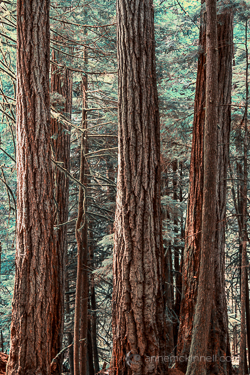
Motion Blur Original

The original image before the motion blur is applied

Motion Blur Filter

For the first technique I am going to start with this rather boring and cluttered image I made in a forest on Vancouver Island, British Columbia, Canada.

Maybe it wouldn’t be so boring if there was anything to show the scale of these enormous trees but it’s pretty hard to get away from cluttered in the dense forest there.

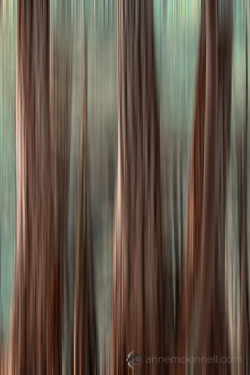
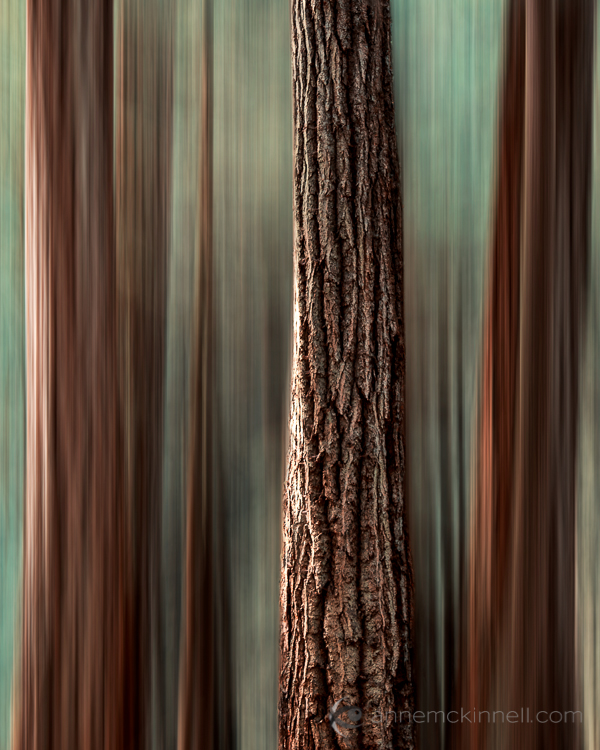
I decided to mimic the effect of in-camera panning by using the motion blur filter in photoshop to blur the image in the same direction as the strong lines of the trees.

Try this technique on your own forest scene or another scene with strong lines by following these steps. I am using Photoshop Elements but you can also do it in Gimp and some other photo editors.

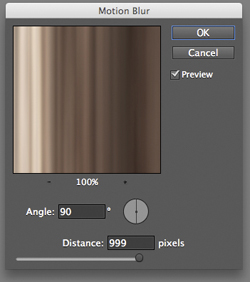
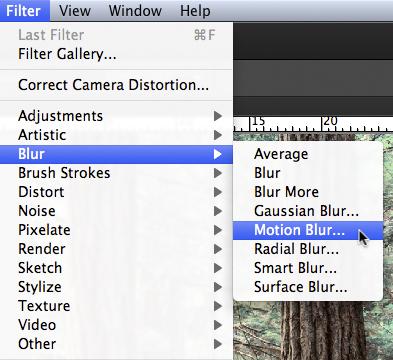
1. Select Filter > Blur > Motion Blur

Photoshop Motion Blur Filter

2. Set the direction of the blur to match your image and amount of the blur to your taste. For my image I made the blur vertical and the amount maximum.

If you have a photo editor that supports layers, make a copy of the background layer and apply the filter to the new layer. This will allow you do have some fun in step #4 below.

Photoshop Motion Blur Filter Options

Motion Blur Applied

Image after motion blur is applied


3. Crop the tell-tale edges out of the image.

I find that you can always tell when the blur is done in photoshop, as opposed to in-camera, because the edges of the image don’t blur evenly. Why they don’t blur evenly I don’t know! But they don’t so I always crop the edges out.

See the 100% zoom of a portion of my image below where you will see how the edges of the image don’t look right.

Motion Blur Artifacts

4. To add a little something extra try revealing a part of the original image without the blur.

If you applied the blur to a copy of the background layer as I mentioned in step #2 above you can try this. Either using a layer mask or simply using the eraser tool, remove the blur effect from a portion of the image.

This is the final version:

Motion Blur Revealed

Here is a video I made that shows all the steps I took to make the final image using Photoshop Elements.

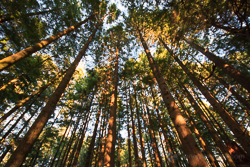
Zoom Blur Original

Original image before zoom blur is applied

Zoom Blur Filter

This technique is very similar to the motion blur effect but with a little bit of a twist.

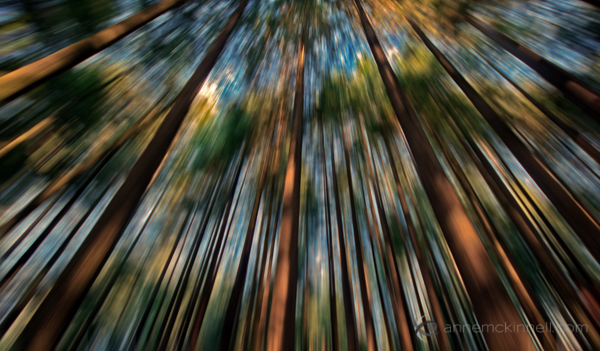
As you can see the original image has a few problems. The trees are mottled with light and shadow and there are blown out highlights in the sky for a start. But I like the composition of the trees the way the wide-angle lens made them appear to lean in towards the centre of the frame.

I decided to try a zoom blur effect to emphasize the composition and even out some of the colours.

Try this technique on your own image by following these steps:

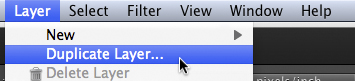
1. Duplicate the background layer (Layer > Duplicate Layer)

Duplicate Background Layer

2. Rename the layer to “blur” or something else that makes sense to you

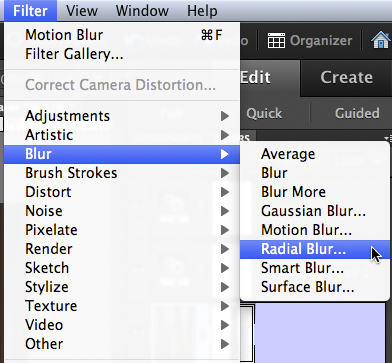
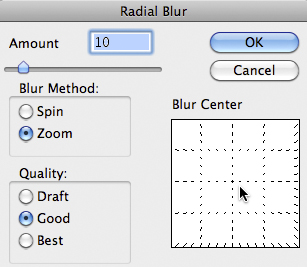
3. In photoshop, select Filter > Blur > Radial Blur

Photoshop Radial Blur Filter

4. Change the option from “spin” to “zoom” and, in the section of the window named “blur center”, drag the centre of the zoom from the middle to the top of the frame to match the composition of the original image

Photoshop Zoom Blur Filter Options

5. Crop out the blown out highlights in the resulting image

Zoom Blur Final

Here is a video I made that shows all the steps I took to make the final image using Photoshop Elements.

Post originally from: Digital Photography Tips.

Check out our more Photography Tips at Photography Tips for Beginners, Portrait Photography Tips and Wedding Photography Tips.

How To Create a Motion Blur Effect in Photoshop


Digital Photography School

 
Comments Off on How To Create a Motion Blur Effect in Photoshop

Posted in Photography


How To Create A Multiple Exposure Effect In Post

23 Dec

Using this technique you can create a stippled effect common to impressionist painters by blending multiple layers of a single image.

To do this technique, you will need to use a photo editor that supports layers. I use Photoshop Elements but you can also use Gimp, which is free, and many other photo editors.

Don’t let the layers thing scare you away, ok? In fact, if you are leery of layers trying this technique should, ironically, make it all become clear.

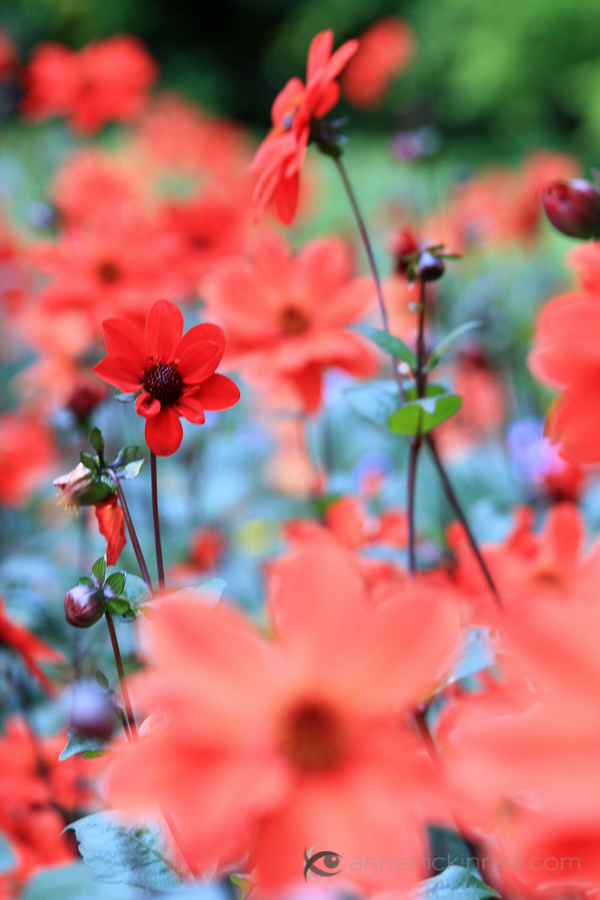
Pick an image to start. I particularly like this effect on flowers and foliage but it works for other subjects too. Here is the image I will use to start.

Red Flowers Original

Follow these steps:
1. Duplicate the background layer (Layer>Duplicate Layer)
Duplicate Background Layer


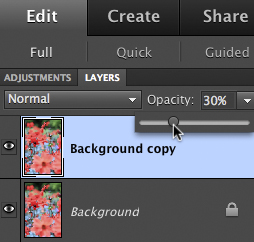
2. Reduce the opacity of the new layer to 30%
Reduce Layer Opacity


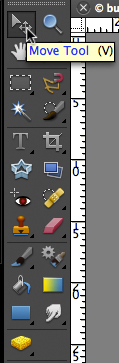
3. Use the move tool (usually an arrow) and move the layer slightly in any direction
Move Tool


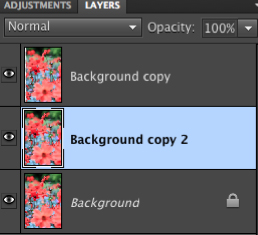
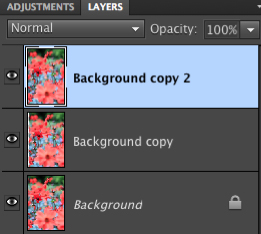
4. Duplicate the background layer again (it’s on the bottom of the layer list)
5. Drag the new layer to the top of the layers list
Layer List 1Layer List 2


6. Reduce the opacity of the new layer to 30%
7. Use the move tool to move the layer slightly in a different direction
8. Repeat steps 4-7 any number of times
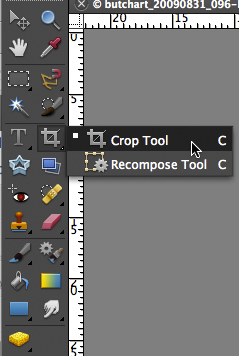
9. When you are happy with the result, use the crop tool to crop the edges of the image where you can see the borders of the moved layers.
Crop Tool

Here’s a little video that shows me performing these steps.

And the final image:

Red Flowers with Multiple Exposure Effect

There are many different ways you can accomplish a particular effect in photoshop (or your photo editor of choice). I try to use the simplest methods I can find to keep it simple.

Post originally from: Digital Photography Tips.

Check out our more Photography Tips at Photography Tips for Beginners, Portrait Photography Tips and Wedding Photography Tips.

How To Create A Multiple Exposure Effect In Post


Digital Photography School

 
Comments Off on How To Create A Multiple Exposure Effect In Post

Posted in Photography


How to Create Portraits that Captivate and Intrigue

08 Dec

Yesterday as I wrote about an old professional photographer friend taught me about using a zoom lens as a compositional tool I was reminded of another influence that he had upon me – that of always considering the background and surrounds of your portrait subject.

Image by Blazej Mrozinski

I remember looking through one of his portfolios one afternoon and marveling at the way he was able to create shots that were just so…. interesting.

He was the type of photographer who produced portrait images that you just couldn’t glance at – you were captivated by them, really drawn into the image.

I remember trying to pick his brain as to how he did it and after a few moment of thinking he replied:

“I spend more time thinking about the background in my shots than thinking about the main subject.”

With that in mind I worked back through some of the images in his portrait portfolio again and realised that he was right – image after image featured subjects surrounded by well considered and interesting backgrounds.

Image by orangeacid

  • The backgrounds gave context to and told the stories of the subject.
  • They didn’t overwhelm or distract from the subject – but gave meaning to it and brought them alive.
  • Sometimes the surrounds of the person communicated who they were and sometimes they left you intrigued – wanting to know more

Image by an untrained eye

I came away from that experience challenge to consider the backgrounds and surrounds of the people I photographed and found myself thinking less about how to pose people but thinking more about what scene to put them into.

Image by mharvey.nyc

PS: I’m not suggesting this is the only or even best way to take portraits. There’s certainly a place for minimalistic portraits too which isolate the subject – but I think many photographers could learn a lot from considering their backgrounds more.

Post originally from: Digital Photography Tips.

Check out our more Photography Tips at Photography Tips for Beginners, Portrait Photography Tips and Wedding Photography Tips.

How to Create Portraits that Captivate and Intrigue


Digital Photography School

 
Comments Off on How to Create Portraits that Captivate and Intrigue

Posted in Photography


How To Create Photography Website That You Can Be Proud Of

01 Dec

Without this post you will either overpay for your photography website or perhaps just go with the solution which is at best “okay” rather than “outstanding“. In fact there are lots of “IT guys” among photographers, but still the vast majority doesn’t have any clue about where to start. And so it happens: You stumble upon a brilliant photo and Continue Reading

The post How To Create Photography Website That You Can Be Proud Of appeared first on Photodoto.


Photodoto

 
Comments Off on How To Create Photography Website That You Can Be Proud Of

Posted in Photography


How to Shoot and Create a Composite Image for a Product Advertisement

23 Nov

Background and Vision

The holiday season is upon us, and what better way to start the season than to share our behind-the-scenes video on how to shoot a composite image? I needed to shoot and create an advertising image for UNDFIND’s Fishbomb, which is a versatile accessory pouch that can carry lens filters, memory cards, and other small items. So I figured, why not create a behind the scenes video and tutorial on how I went about the shoot. Plus, it’s not a bad stocking stuffer for the photographer in your life, especially since you can get two for $ 13 (50% off) with this sale, wink! =)

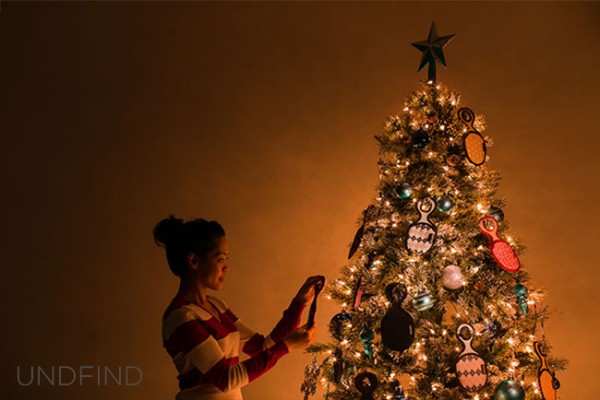
Anyway, because the Fishbomb is shaped like a Christmas tree ornament, I decided to decorate a Christmas tree with the Fishbombs and shoot our model, Maria, placing a Fishbomb on the tree. Here is the final image we will be working towards.

Fishbomb UNDFIND SLR Lounge

The Behind-the-Scenes Video

If you are interested in watching the full behind the scenes video on the SLR Lounge YouTube Channel, here is the video below.

How We Shot It

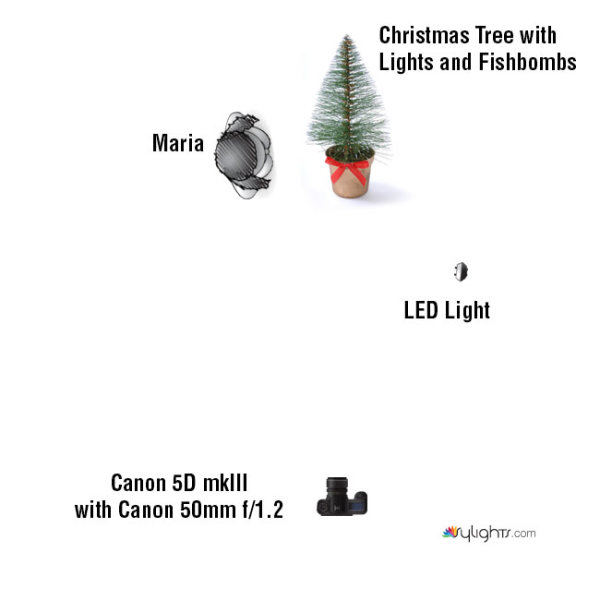
GEAR USED:

Camera: Canon 5D mkIII
Lens: Canon EF 50mm f/1.2 L USM Lens
Lighting: LED Light and Christmas lights on the Christmas tree

The biggest challenge that I encountered was how to light the Fishbombs in addition to lighting Maria, the Christmas tree, and the environment. The Christmas lights were used to light Maria and the environment.

However, when we hung the Fishbombs on the tree, we noticed that the front of the Fishbombs were not illuminated by the Christmas lights. This meant that we had to light the Fishbombs using another light source; I selected an LED light with an adjustable temperature so that I could color match with the tree’s natural Christmas lighting.

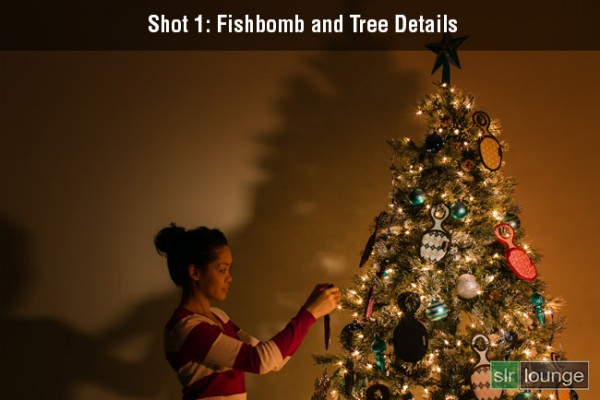
However, I ran into another problem. The LED light was casting a harsh shadow against the wall which destroyed much of the warm, ambient light from the Christmas tree as you can see in Shot 1 below.

The easiest way to solve this lighting issue was to light and shoot two separate images, one for the model and the environment, and the other for the actual detail on the Fishbombs and the tree. Afterwards, we can composite both images together in Photoshop via layers.

For each shot, I had the camera placed on a stationary tri-pod to make it simple to combine both layers into our final composite. So let’s look at how I shot each image.

Shot 1: The Fishbomb and Tree Details

Shot-1-Fishbomb-and-Tree-Detail

Shutter: 4.0 seconds
Aperture: f/16
ISO: 100

For the first photo, I lit the Fishbomb and the front of the Christmas tree with the LED light. I also dragged the shutter speed and used the smallest aperture possible in order to get a twinkling/starburst effect from the Christmas lights. I didn’t have to worry about any camera shake because the camera was on a tripod and was triggered with a shutter release. The tree and the ornaments were completely still as well since we were in a closed environment.

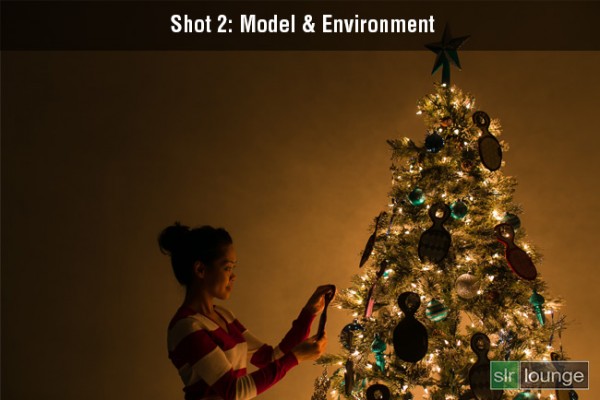
Shot 2: Maria and the Environment

Shot-2-Model-Environment

Shutter: 1/8 seconds
Aperture: f/2.8
ISO: 200

This image was lit strictly by the lights on the Christmas tree. Because I want to minimize any motion blur with the model, a quicker shutter speed was required. Therefore, I used a wider aperture and a higher ISO in order to attain a shutter speed of 1/8 seconds. Even then, I still had to ask Maria to hold completely still during the photo to prevent any motion blur.

How We Processed It

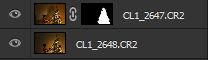
In Lightroom, I applied the Soft Portrait preset from the SLR Lounge Lightroom 4 Preset System to both images. Additionally, I shifted the Tint and the Temperature in order to add a warm, intimate glow reminiscent of a fireplace. Once I achieved the look that I wanted, I exported the two images into Photoshop via layers for compositing.

In Photoshop, I used layer masking to reveal the Fishbombs and the tree details from the first image over the second image of Maria and the environment.

Photoshop Layer Mask

After a little bit of clean up in the hair and the cloning of an extra branch to the top of the tree, this is how the image looks.

Fishbomb UNDFIND SLR Lounge

Finally, here is how the UNDFIND Fishbomb ad looks after I added the text:

UNDFIND Fishbomb Advertisement

Hope you all enjoyed this article! If you are interested in picking up some Fishbomb’s for stocking stuffers, the deal is available on UNDFIND’s Camera Bags website through the end of the year.

Post originally from: Digital Photography Tips.

Check out our more Photography Tips at Photography Tips for Beginners, Portrait Photography Tips and Wedding Photography Tips.

How to Shoot and Create a Composite Image for a Product Advertisement


Digital Photography School

 
Comments Off on How to Shoot and Create a Composite Image for a Product Advertisement

Posted in Photography