RSS
 

Posts Tagged ‘Create’

How to create a reflection in Photoshop in 6 easy steps

21 May

Creating a reflection using Photoshop is one of those things that at first glance looks really hard, but really isn’t, once you break down the steps (just light Light Painting which I covered in another two part series). In this article I’m going to demystify creating a reflection, a technique that works particularly well on images with open pavement, and HDR processed images which tend to make the pavement look wet already.

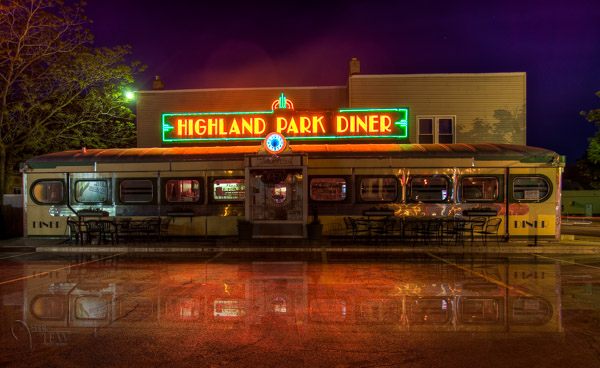
We’re going to learn how to go from this . . .
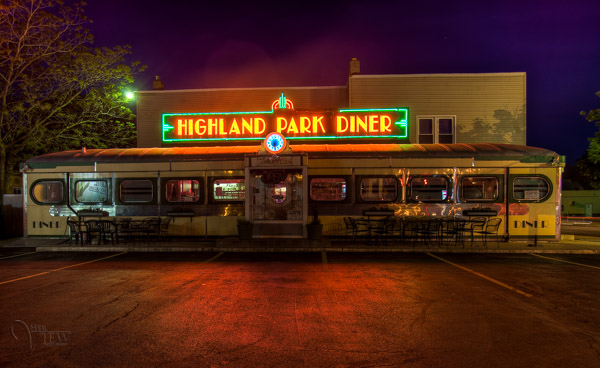
reflection-before

To this!

reflection-after-photoshop

In less than 10 minutes!

I recently showed one my HDR classes how to do this, and they all followed along with me step by step.  Some of them were using Elements (which works just fine, but you may find the menus and choices look slightly different), and this technique can be done using that program too, so if you use Elements, not to worry. Many of my students were also self proclaimed “Photoshop novices” and when I asked them if they thought they’d be able to this when I showed the before and after images, most said “no”!  But they all did, and we were done in less than 10 minutes. **Note that also included me going super slow to ensure each of the 12 people in the class were on the same page with me. I’m going to guess this will take less than 5 – ready GO!

Here are the six easy steps to follow in Photoshop.  This is the super condensed version for those quick readers and skimmers.

  1. copy a section of the image
  2. paste it as a new layer
  3. flip it
  4. position it
  5. change the layer blend mode
  6. mask it

That’s it! You want a few more details?
Let’s dive in a little deeper into each step

STEP ONE – COPY

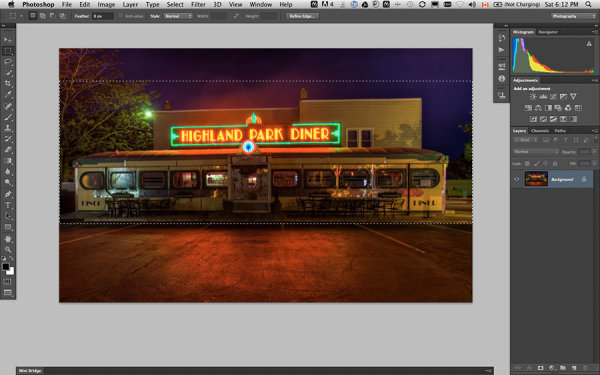
Using the marque tool (“M” is the keyboard shortcut) draw a box around an area of your image that will become the reflection (see Figure #1 below). Make sure you go edge to edge on the sides, and get enough of the image vertically. If you grab more than you need that’s fine we’ll be moving it around and masking later anyway.
select-section

Figure #1 make a selection

Copy the selection as a new layer. You can do that a few ways.

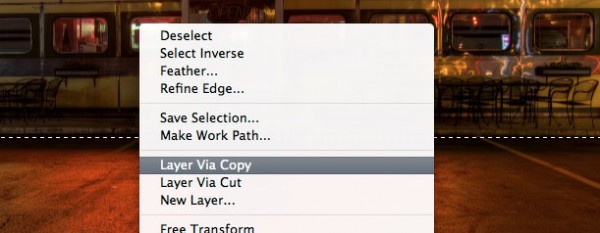
  • right click on the image and from the menu that pops up choose “layer via copy” (see Figure #2 below)
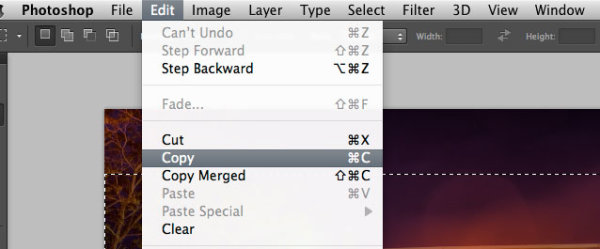
  • from the edit menu choose “copy” or using the keyboard shortcut “command/control+c”  (see Figure #3 below)
layer-via-copy2

Figure #2 right click>Layer Via Copy

Figure #3

Figure #3 Copy from Edit menu

STEP TWO – PASTE AS NEW LAYER

If you chose the “layer via copy” method above you already have the selection pasted as a new layer. If you haven’t already done that go ahead and paste either from the Edit>Paste menu option of the keyboard shortcut “command/control+v”. You will end up with something that looks like this, Figure #4 below.
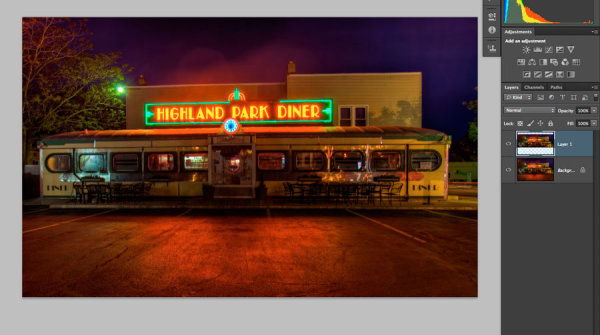
Figure #5

Figure #4 paste new layer

Doesn’t look much different right? Right! Because it’s basically on top of itself.  But look at your layers, it is there on a new layer and it only grabbed part of the image. Now the magic begins!

STEP THREE – FLIP IT

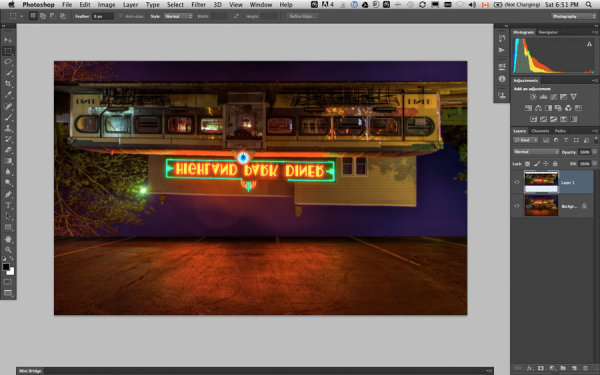
Next from your Edit menu choose “Edit>Transform>Flip vertical” to flip this new layer upside down. You should end up with something funny looking like Figure #5 below.
flip-layer

Figure #5 flip vertically

STEP FOUR – POSITION IT
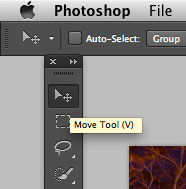
Figure #5 move tool

Figure #6 move tool

Next select your MOVE tool from your tool palette (see Figure #6 right – “v” is the keyboard shortcut) and grab the flipped layer and drag it down until the images start to line up where the reflection will begin. In my image I’m using the edge of the sidewalk in front of the diner. If it doesn’t line up perfectly don’t worry about it, you can mask any imperfect bits out later in step six.

Now you want to have something that looks like Figure #7 below. The reflection is in roughly the right position. Make sure you don’t move side to side, just down, otherwise you’ll have gaps on the edges of your reflection.

NOTE: once you’ve selected the Move Tool, you can also use the up and down arrows on your keyboard to move the layer up and down. This works great for smaller adjustments when you get it close to position.
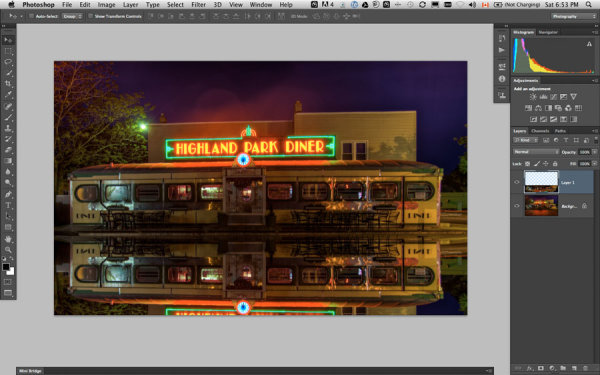
Figure #6

Figure #7 position the layer

STEP FIVE – CHANGE THE BLEND MODE
layer-blend-modes

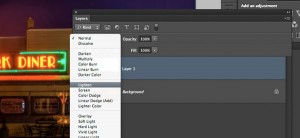
Figure #8 Lighten blend modes

From your layers panel change the layer blend mode to one of the “lighten mode”.  You will find the layers blend modes near the top of your layers panel, next to “opacity”. By default the blend mode is “normal”.

The Lighten modes are the ones in the third section down (see Figure #8 right), they include: Lighten, Screen, Color Dodge, Linear Dodge, Lighter Color. Layer blend modes change how the selected layer interacts with the one below it (the original image). By selecting one of the options in this section it will only show areas of this layer that are lighter than the one below it, and any areas darker will not appear.  For reflections I usually choose Lighten or Screen, depends on the image. Try them all and choose the one that looks best for your image. For this example I’m using Screen mode.

Now I have something that looks a little closer to a real reflection  (see Figure #9 below).

Are you still with me!?  Do you have something reasonably similar?
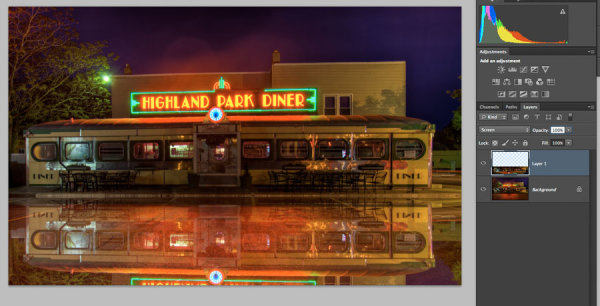
Figure #

Figure #9 change the layer blend mode

STEP SIX – MASK IT
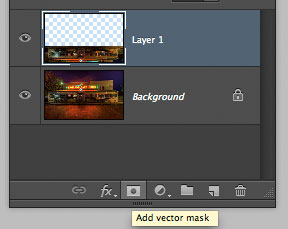
add-layer-mask2

Figure #10 add a layer mask

Okay we’re almost done and it’s looking pretty good. But in my image the neon sign in the reflection is too bright. It doesn’t look natural because reflections are usually darker than the original – so we’re going to tone it down using a mask and the gradient tool.

First, make a layer mask by clicking on the “add layer mask” icon at the bottom of your Layers Panel (Figure #10 right). You can also do it by going to the Layers menu>Layer mask>Reveal all.
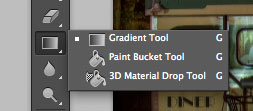
Figure #11 gradient tool
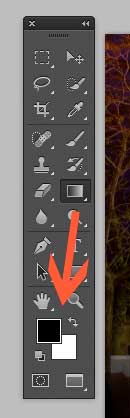
Figure #11 gradient tool

colors-foreground-background

Figure #12 foreground/background colors

Next select the Gradient tool from your tools panel. Keyboard shortcut is “g”  but make sure you have the gradient tool and not the paint bucket.  See Figure #11 above. Hit the “d” key on your keyboard to set your foreground/background colors to default, then hit “x” to switch them. Make sure you see black as your foreground color and white as the background color (see Figure #12 right).

Once you have your colors set to black and white, and your gradient tool selected and ready for use – make sure you are on the layer mask not the layer. You can tell because whatever is active has corner brackets around it. If you layer thumbnail is selected, just click on the white layer mask thumbnail to make it active. We need to make sure we are doing this on the mask, NOT the layer.

How masks work is that anything in white on the mask reveals the contents of the layer.  Where ever there is black on the mask it hides that area of the layer. So we want to hide the outer edges of this layer so it fades out gradually towards the bottom of the image and looks more natural.

With the gradient tool, by default it paints from the foreground color, to the background – fading from one to the other depending on how we create the gradient. Sometimes it takes a little experimenting to get it just right but you can always “undo” using the handy “command/control+z” shortcut on your keyboard and it goes back one step or undoes what you just applied.

NOTE:  ”undo” is your best friend in Photoshop, if you learn no other keyboard shortcuts, memorize this one!

So, to apply it to our reflection start with the cross hairs for the tool in the middle of your image, near the bottom.  TIP: holding the SHIFT key down will keep the gradient from applying at an angle, it will just go straight up. Click and drag the tool up (you’ll see a line drawing the gradient spread) and let go when you get near the top of your reflection. If it’s not exactly how you want it you may have to start a little more away from the bottom edge, or drag it up higher, or other variations.

NOTE: with the gradient tool on a mask you don’t actually even need to “undo” if you just drag another one overtop it replaces the first one. But it’s still good to know how to undo!

Here’s the image with my gradient applied to the layer mask.  Notice on the mask it goes from black to white? So it’s hiding the bottom area of this layer which is what we want. See Figure #13 below.
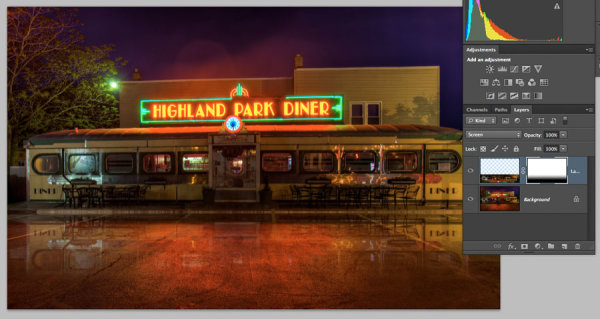
Figure #13 gradient applied to mask

Figure #13 gradient applied to the layer mask

OPTIONAL FINISHING TOUCHES

Now if you want to do any other masking to show or hide certain areas of the reflection just use your brush tool (“b” shortcut) at a lowered opacity (10-20%) and paint with black on the mask over areas you want to hide, and white on areas you want to show.  In this image I painted over the edges of the diner where I felt it was still a bit too bright. You can also change the opacity of your layer to adjust it that way too.

SeeFigure #14 below for my final version. Notice my mask where I painted a little up the sides to hide those areas just a little bit more.  You could also paint away a little in the middle of the reflection where the pavement is the darkest if you wanted. That’s the neat thing about photography – it’s all subjective!

It’s really easy to get upset or hurt feelings when someone else says something that we perceive as negative about one of our images, something we put blood, sweat and tears into, right!?   Well my personal opinion is that it is just their opinion, one person, and you don’t have to agree with them. If they have a valid, or constructive criticism YOU get to decide if you want to take it on board or, just agree to disagree and move on. Life is too short to worry about pleasing other people.

Do photography for you!  If other people like it, then great!

If not, oh well!  Move along and life goes on.
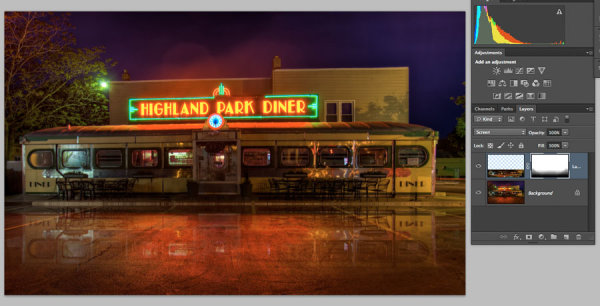
Figure #14

Figure #14

OKAY YOUR TURN!

So, think you can do this? Give it a try!

Here is my image to play with, in case you don’t have one that will work.  It’s 2000 pixels wide which is plenty big enough for this test.

Download diner image – just click on this link and save the image that opens in a new tab.

A few trivial things FYI about this image:

  • it was taken in Rochester, NY, USA when I was in the area and visited Eastman Kodak House. If you’re ever there, do go, it’s worth the trip to see where photography took roots and grew
  • it is a 5 image HDR, tone mapped in Photomatix and finished using LR4
  • during the longest exposure of my bracketed series a kid on a skateboard, carrying a goldfish in a bag skated right through the parking lot in front of me. Why didn’t he show up? Because my exposure was 30 seconds long and if you aren’t there for more than 1/2 the time you will not appear.

Okay, off you go and let’s see your results! 

Cheers Darlene


Post originally from: Digital Photography Tips.

Check out our more Photography Tips at Photography Tips for Beginners, Portrait Photography Tips and Wedding Photography Tips.

How to create a reflection in Photoshop in 6 easy steps


Digital Photography School

 
Comments Off on How to create a reflection in Photoshop in 6 easy steps
Posted in Photography


How to Create a “Standard Import” Preset in Lightroom 4

19 May

Introduction

The following is an excerpt from the SLR Lounge Lightroom Workflow System Workshop on DVD, a system designed to increase your post production speed by 5 to 10 times! Click here to learn more.

In this article, we are going to talk about creating a develop preset that you would like to apply to all of your images when they are first imported into Lightroom.

Although Adobe’s RAW image processing is extremely powerful, one common complaint is that your images may look flat and colorless at first. Often photographers will lament how beautiful their colors looked on the back of their camera.

Well, in an effort to fix this problem and make our images automatically look a little more crisp and vibrant when we first bring them into Lightroom, we’re going to create a “Standard Import” preset.

For this tutorial we will use the following image as our example:

original 650

Basic Adjustments Panel

The goal for a standard preset is twofold:  First, to simply help every image look a little better overall, of course. Secondly we also want to apply default settings such as a personal blend of sharpening, lens corrections, or other calibration-related things.

First, let’s tackle the Basic Adjustments.  Open the Basic Adjustments panel in the Develop Module and apply the following settings:

basic develop panel

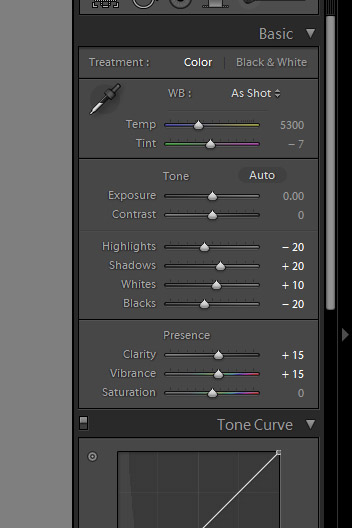
The idea here is that you want to keep detail in any bright highlights or deep shadows, but do it without making the image look flat overall.  This is why we bring down the highlights to -20 yet push the Whites up to +10, and the same with the Shadows and Blacks. The image gets a little “punch” to it, without blowing out any highlights or clipping any shadows.

To enhance that subtle punch a little further, next we’ll boost both the Clarity and Vibrance to +15.  Note that we leave alone settings like Saturation and Contrast, because for the most part those adjustments are too strong for them to be applied to every single image.

Of course, YOU should tailor the adjustments to your own personal style!  Usually however we advise that going too much further than subtle editing should be saved as a separate preset that you use part of the time, but not necessarily 100% of the time.

The goal, of course, is to minimize the amount of editing you have to do to the majority of your images.  If for example you find that 80-90% of the time you wind up adjusting some of these settings even further, or less, …then you might as well create your Standard Import preset that way because it will minimize the amount of editing you have to do later, even if you have to undo one or two settings just 10-20% of the time.  See how that works?

To be avoided, however, is using a standardized preset to cover your habitual mistakes.  A good indicator for this is is if you feel like you ought to adjust your Exposure slider in your standardized preset.  Unless you have a very good reason; you’ll probably want to simply work to meter and expose your images better in the first place!

Detail Panel Adjustments

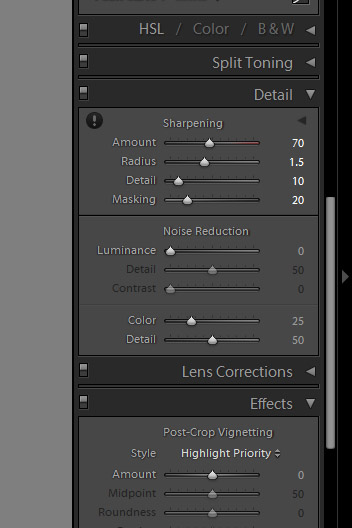
In the Detail Panel, we are going to apply our own special blend of sharpening that we apply to 99% of our RAW images.  These settings are shown below:

detail panel

Sharpening is definitely one of the most subjective aspects of post-production, however this “recipe” is our tried-and-true blend for RAW images, and we use it for all types of images from general portraits, weddings, and details.

So adjust the settings to your taste, however just remember that your goal is for these settings to become the foundation for all your images!  Try out these settings on many different types of images, and settle on something that works best for all of them.

Lens Correction Adjustments

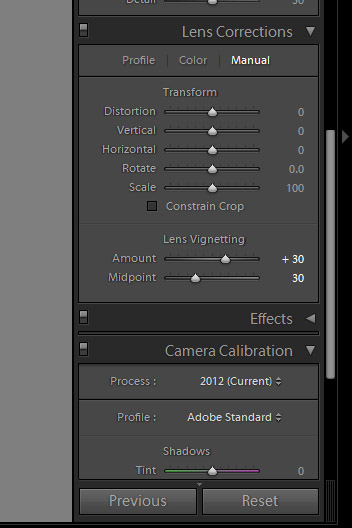
Another common issue on DSLR cameras and lenses these days is vignetting.  By default, we prefer to correct for a slight amount of vignetting by dialing our Lens Corrections’ “Manual” tab to the following settings:

lens correction panel

Again, if you commonly shoot with certain lenses that have less vignetting, or more, then feel free to adjust these settings slightly.  Or, of course, if you actually utilize vignetting in your personal style, then feel free to zero-out this adjustment.

If you followed our adjustments approximately, then your final image will look something like this:

standard import 650

To see the real difference in the processing, let’s zoom in a bit:

original crop 650 standard import crop 650

Again, the goal here is not to make the image over-the-top contrasty or colorful, just to und0 the “flatness” that you initially see in your RAW images.

Saving the Standard Import Preset

If there are any other settings you would like to add to your “Standard Import” develop preset, do that now.  For example certain cameras may need adjustments in the Camera Calibration section, to correct for faint hues or tints in the shadows or highlights.  There are also Camera Profiles that attempt to emulate specific in-camera colors, (“Faithful”, “Neutral”, Landscape”, etc.) …however in our opinion the “Adobe Standard” profile is the best.

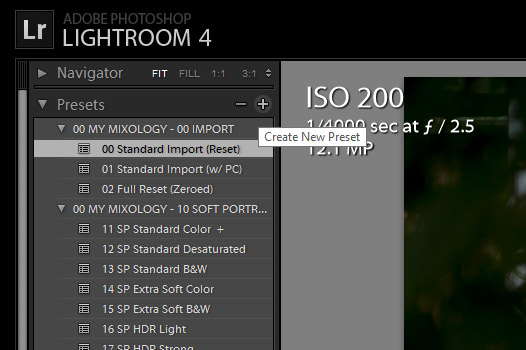
When you’re ready to create a preset, open the Develop Module’s left-hand panel and click the little plus sign on the Presets tab:

create preset

In the New Develop Preset window you can select which adjustments become part of this preset.  You may wish to only select a few parameters, such as for the specific tabs which we adjusted, however consider selecting “Check All” so that this preset can be used to reset images entirely.

Name this preset “00 Standard Import”, and be sure to put the two zeros at the beginning (or a similar code) so that this preset shows up at the top of your list of presets for easy access. Similarly, you may want to create a new folder and give it a numerical name so that all your presets show up at the top of the Presets panel, instead of below the (annoyingly un-deletable) Adobe-included Lightroom Presets.

Applying the Preset During The Import Process

Now that you have saved this new preset, you can apply it any time when you’re working on images in Lightroom.  However there is another awesome tool that we can utilize which will help us automate or workflow overall.

When you get back from a photo shoot with images that are ready to be imported into Lightroom, you’ll be able to apply this preset to all your images during the import process!

Open the import dialog box by either clicking on the Import button at the bottom of the left-hand panel of the Library module, or simply type the hotkey “Ctrl + Shift I”.

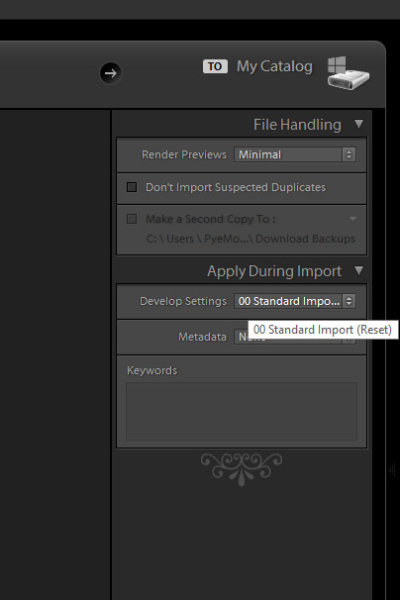
On the right-hand side of the import panel, you will see “Apply During Import” and the first option will be for develop settings.  Find your Standard Import Preset and select it.

apply preset upon import

By default, these options will remember themselves the next time you import images, so don’t forget this in case you want to change or stop using presets during the import process.

One of the main advantages of setting up your workflow this way is that, by applying a preset such as this during the time of import, combined with the option tell your computer to render previews after it is done importing, (in the “File Handling” section above) …you can tell Lightroom to import an entire photo shoot, apply a preset to every photo, and then render 1:1 previews all at once!

At the end of a long photo shoot or wedding day or whatever, this allows you to simply download and backup your photos once, then commence the Lightroom import workflow and go to bed.  By morning you’ll have your entire Lightroom catalog full of images with the preset and full previews ready to go!

Conclusion

It takes time to fine tune your own “Standard Import” preset and get it to work on the majority of your images, but once you develop it you can save hours and hours of post-production time.

Once we have created a standard preset for all our images, theoretically in post-production we will mostly spend our time just editing certain settings on an image-to-image basis, such as white balance and exposure.  Even these settings can be adjusted in batches though. (This is why we did not adjust the settings for White Balance and Exposure in the Basic Panel for the “Standard Import” preset.)

The SLR Lounge Workflow System Workshop on DVD

The SLR Lounge Workflow System Workshop on DVD takes everything that we taught in the Lightroom 4 A to Z Workshop on DVD and builds by teaching you how to maximize your shooting and post processing efficiency and workflow. This 7 hour DVD covers data safety procedures, file management, culling standards and overall develop techniques to increase your post production efficiency by up to 15x! In fact, using this Workflow System we can cull and edit over 1,500 images per hour! Don’t believe us, watch the teaser video! The Workflow System is also available as a part of the Lightroom 4 Workshop Collection. To learn more, click this link.

Post originally from: Digital Photography Tips.

Check out our more Photography Tips at Photography Tips for Beginners, Portrait Photography Tips and Wedding Photography Tips.
How to Create a “Standard Import” Preset in Lightroom 4


Digital Photography School

 
Comments Off on How to Create a “Standard Import” Preset in Lightroom 4

Posted in Photography


Make Time and Create Networks to Develop Your Photography

15 May

art-photos-2

Photography: Bruce Myren

Full time professional photographers complain about the competition from enthusiasts who don’t count their overheads. They worry about finding their next client, spend more time than they’d like on paperwork and marketing, and if they’re being honest, they’ll admit that not all jobs are equally exciting. But they still have one big advantage over enthusiasts: they get to take a lot of pictures. They get to hone their skills, they’re paid to build their experience and even if they’re not taking photos, they’re working with photography. By the time they hang up their camera for the last time, they can be confident that they’ll have had every opportunity to become as good a photographer as they’re ever going to be.

That’s not true for enthusiasts. People who work full-time and cram their picture-taking into their weekends and evenings have to battle to find the hours they need to improve their skills. There never seems to be enough time for photography tours and road trips. And as for building the kind of long-term personal projects that interest galleries and build a name as an artist, they can drag on through years of occasional weekends — if they ever start. There are things though that anyone can do — both professionals and amateurs — to keep their skills developing and to move their photography in the direction they want it to go.

Create Time and Make It Solid

The number of hours in the day are limited and when you fill it with an eight or nine-hour workday, take away sleep and time with the family, you can start to wonder how you ever find time to eat, let alone practice photography. But it is possible to arrange your schedule and use your calendar to create gaps for picture taking.

Bruce Myren, for example, is an adjunct professor of photography at the Art Institute of Boston at Lesley University, a job which should keep him in touch with imagery. Teaching as many as five classes each semester, though, makes finding time for personal projects no easier than for anyone working a full-time job.

“It is always a juggling act to find time to prep for teaching, doing freelance work, getting to the studio, and going out to make pictures,” he says.

Myren’s solution is to schedule one day each week as a studio day. He writes the day into his calendar so that it looks as real as any other appointment. While he doesn’t always make it there, he does try.

“The more I adhere to this the happier I am,” he says.

For people who don’t work in photography, scheduling an entire day in the studio is a little harder but it may be possible to schedule a couple of hours on a Sunday afternoon or an hour as soon as you get back from work. Like Bruce, you might find that family commitments and sudden work crushes mean that you don’t always make it, but if you can work your photography into your routine — instead of picking up a camera whenever you feel like it — you should find that it’s a habit that’s hard to break.

Network Now So That Supporters Know What You’re Doing

Scheduling time to take pictures will help to sharpen your skills and build your project. But you also want people to see those photos once you’ve created and edited them. Putting them online is easy enough and will give you some form of audience but no website is as prestigious or as rewarding as a photography book that people buy and enjoy or an exhibition of your photos that people can browse and admire.

bruce-photog

Photography: Bruce Myren

That requires building a platform before you publish your photos. You need to have people ready, waiting and keen to see your photos as soon as they come out.

Photography classes will give you access to a teacher’s network of gallery owners and editors. Visiting galleries can provide an opportunity to talk to staff, get to know them and their taste in photography — and make sure they know about you and your work. But even online networking can yield benefits too. Let family and friends know about your personal project. Build connections with other photographers and with people who have an interest in the subject of your images. Those connections will prove valuable when your pictures are ready to be seen.

Raise the Funds That Will Let You Shoot What You Want

And they’ll also prove valuable when you’re looking to fund your projects. When Bruce Myren turned to Kickstarter to fund a collection of images shot along the fortieth parallel, he was able to turn to friends and family on Facebook for the money and to ask them to share news of the project with their friends. He describes himself as “shameless” in his willingness to send direct tweets to companies he thought might be receptive and he had also built up a large email list over the last few years as he promoted his other work around Boston and the country. Having put together the promotional video and written up his campaign, he had all the sourcing funds he needed already in place to pay for his trip across the United States.

Altogether, Myren estimated he’d need around $ 15,000 to complete his project. He asked for $ 10,000, made that amount by the end of the first week and went on to collect $ 17,860.

“To be successful, you need to do your homework, plan everything out, account for contingencies, and remember that you did not think of everything,” says Myren. “It is a well-prepared person that can capitalize on an opportunity as it comes by.”

Bruce Myren describes himself as an artist and photographer. He’s had a long list of exhibitions and his work is noticed. But even he struggles to find the time and the money to shoot what he wants and to keep developing as a photographer. His solution, a mixture of scheduling and networking building, is one that can be used by all photographers, time-strapped enthusiasts and professionals alike.


Photopreneur – Make Money Selling Your Photos

 
Comments Off on Make Time and Create Networks to Develop Your Photography

Posted in Equipment


How to Easily Create Selective Color Using Lightroom

11 Apr

This is a guest post by: John Davenport

Selective color photography has been around for ages. It’s something that has been used in the movies – Schindler’s List and Sin City come to mind – and more recently Chase Freedom and Budweiser have used it in their ad campaigns to highlight their products. So even if you dislike selective color, or if haven’t given it much thought, you have to admit it’s a great technique to use when you’re trying to draw attention to a certain subject and is something useful to have in your tool belt.

Today I’m going to show you how to create simple selective color images using only Lightroom as your processing software.

What Makes a Good Selective Color Image?

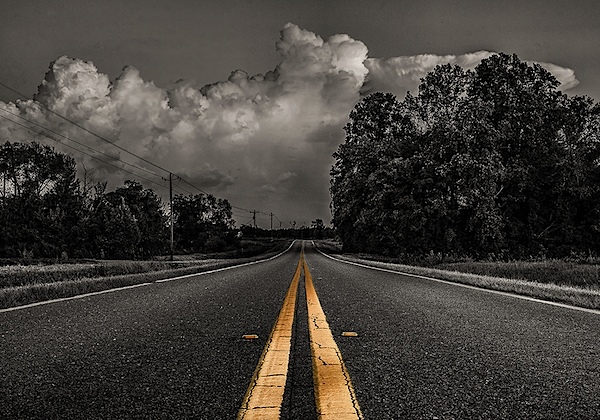
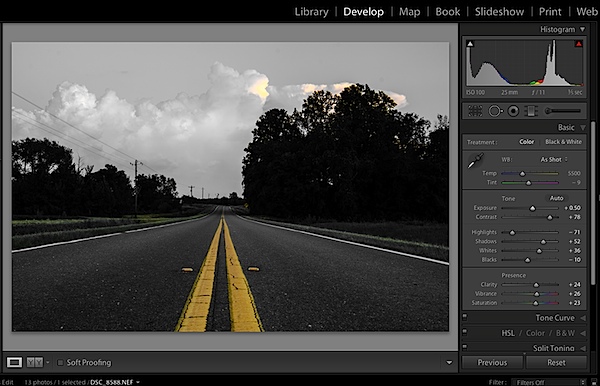
Double Yellow.jpg

First we need to make sure we know what to look for when we’re out photographing our subjects because selective color photography is not something suited for every situation. Whether you’re a landscape photographer, a portrait photographer, or someone shooting on the city streets it’s important to keep the idea in the back of your head that selective color shouldn’t be forced.

Typically you’ll want to pull a vibrant color out of a rather drab scene so fall foliage can work really well, blue eyes in portraits are a very common theme, bright dresses and clothing work well too.

One final point is that you should make sure that whatever you’re keeping in color adds value to the photograph and isn’t something that will detract from the overall scene.

How to Create Selective Color in Lightroom

One of the limitations of Lightroom is that it does not have the ability to do true layers like Photoshop does. We can get around this for selective color processing by working with the HSL tab and working with the Adjustment Brush tool. In short, what we’re going to be doing today is turning the saturation down on all the colors and areas of the photograph that we don’t want color in. The following is a step by step guide on how I created the image at the top of this post.

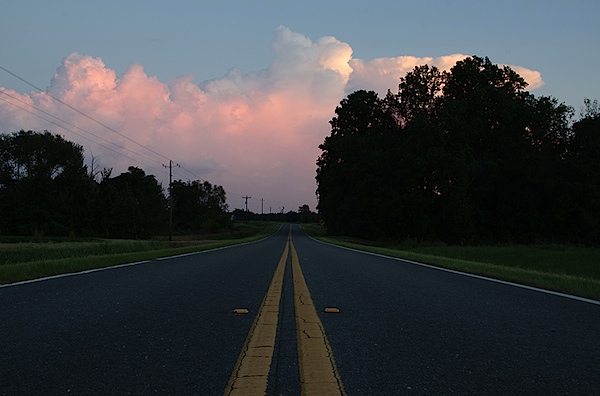
Here’s the original image for your reference.

original.jpg

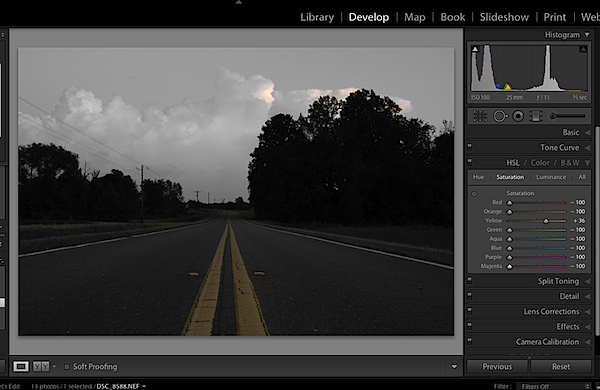
The first step would be to go into the HSL tab in Lightroom and remove the saturation from all the colors you don’t want in your photograph. In my case I wanted to keep yellow so all the other sliders have been pulled to the far left.

Screen Shot 1.png

Next step would be to tune the image to your liking – this is a rough tuning just something to get you close to where the final image will be. Simply go into the Basic editing tab of Lightroom and get the overall image set up how you like. You might notice as you do this, some colors start creeping back into the photograph, that’s okay we’ll fix this in the next step.

Screen Shot 2.png

Cleaning up any colors that have reappeared after your tuning process can be done easily with the Adjustment Brush. Simply create a new adjustment brush layer and turn the saturation to the far left. Paint anywhere you don’t want color. If you accidentally paint over something you want to keep switch to the erase mode and go back over that area until you get it right.

Screen Shot 3.png

After you get to this point it’s up to you to finalize the photograph for your own unique look with final touches and cropping.

I find that this workflow does a good job at creating selective color images without the confusion and time consuming nature that dealing with layers in Photoshop has. Of course it should be noted that with a program like Photoshop you’ll have a lot more control over your selective color processing, but for many of us this Lightroom trick is a great alternative.

Let’s Hear From You

Now that we’ve learned how to perform selective color edits I’d love to hear what your opinions are of this kind of processing do you use it? Do you hate it? Have you ever done this kind of thing in Lightroom before?

John Davenport is an avid amateur photographer who shares daily photos on Facebook. For more tips on Lightroom editing check out John’s weekly series which focuses on how to edit photos in Lightroom.

Post originally from: Digital Photography Tips.

Check out our more Photography Tips at Photography Tips for Beginners, Portrait Photography Tips and Wedding Photography Tips.

How to Easily Create Selective Color Using Lightroom


Digital Photography School

 
Comments Off on How to Easily Create Selective Color Using Lightroom

Posted in Photography


Using Gobos To Create Dramatic Lighting

25 Feb

When lighting a subject, one of the things you want to try to do is create drama, or a context, using the light. This often means modifying your light source. One of the easiest ways to modify your flash to create a context, or drama, is to use a gobo.

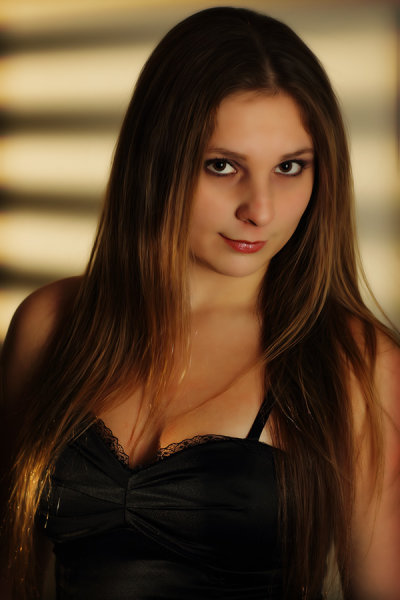
In this shot, the gobo was used on the background light, to create the illusion of light shining through window blinds. The off camera flash was a Canon 580 EX II, with the gobo positioned in front of it. The light on the model was a 580 EX II in a Westcott 18x42 strip box.

In this shot, the gobo was used on the background light, to create the illusion of light shining through window blinds. The off camera flash was a Canon 580 EX II, with the gobo positioned in front of it. The light on the model was a 580 EX II in a Westcott 18×42 strip box.

Gobos are templates that go in front of your light source (“Goes Between” your light source and the subject)  that have patterns cut out that control the shape of the light.  They can help add mood, create the idea of a setting or context, and add interest.

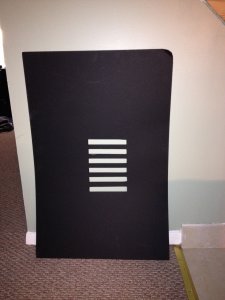
This is my homemade "windowblinds" gobo.  It's probably a bit larger than it needs to be, but this helps ensure that it blocks out any unwanted stray light. You want to use flat black oak tag or mat board, as the black minimizes any reflecting light.  Using a lighter colored material would reflect light that may not be wanted in the image.

This is my homemade “windowblinds” gobo. It’s probably a bit larger (about 20×30) than it needs to be, but this helps ensure that it blocks out any unwanted stray light. You want to use flat black oak tag or mat board, as the black minimizes any reflecting light. Using a lighter colored material would reflect light that may not be wanted in the image.

Gobos can be purchased, but often times, the available patterns may not fit your need.  In addition, they are relatively easy to make yourself and thus customize as needed.

Simply go to the nearest arts and crafts store, choose a piece of black oak tag, and a razor blade or exacto knife, and cut the desired pattern out.  The pattern doesn’t need to be too large, keep in mind how large the flash beam is going to be at the point that it hits the gobo. 

You may need to experiment a bit with the size and distance before getting the desired effect.

I will place the flash on a light stand, and then simply use a second light stand and use an A-clamp or two to hold the gobo in place.  This way I can experiment easily with how far the gobo should be from the flash, and how far from the subject or background.  A magic arm attached the light stand holding the flash will also work for holding the gobo.

For the accompanying photos, I wanted to create a night time mood, light projecting through the window blinds onto the wall from a street lamp.  So I simply took the piece of black oak tag and cut a series of rectangles in it. When projecting flash through it, it resembles light shining through window blinds.

There are myriad other patterns that could be used to create various moods and effects.  Play around and see what you come up with!

You can also use the gobo to modify light projected onto your main subject. In this instance, it creates an air of mystery about the subject.

You can also use the gobo to modify light projected onto your main subject. In this instance, it creates an air of mystery about the subject.

Post originally from: Digital Photography Tips.

Check out our more Photography Tips at Photography Tips for Beginners, Portrait Photography Tips and Wedding Photography Tips.

Using Gobos To Create Dramatic Lighting


Digital Photography School

 
Comments Off on Using Gobos To Create Dramatic Lighting

Posted in Photography


Penguin ‘spy’ cams help BBC filmmakers create a fascinating documentary

14 Feb

_65794011_penguincam.jpg

A new BBC documentary uses tiny disguised cameras to take an intimate look at the lives of penguins. Wildlife producer John Downer and his team shot ‘Penguins: Spy in the Huddle’ with fifty ‘spy cameras’ disguised as rocks, eggs and even penguins themselves. The team shot footage of Emperor penguins in Antarctica, Rockhopper penguins on the Falkland Islands and Humboldt penguins in the Atacama Desert of Peru. Click through for photos, video and more information about the cameras.

News: Digital Photography Review (dpreview.com)

 
Comments Off on Penguin ‘spy’ cams help BBC filmmakers create a fascinating documentary

Posted in Uncategorized


Using AutoPano Giga To Create Panoramas With Gigapan Heads Or Freehand Shooting Grids

04 Feb

I know, it’s a long title but I want to show how easy it can be to assemble panoramas with either a Gigapan head or by shooting freehand, gridded panoramas. AutoPano Giga has been my panorama product of choice after starting with huggin, a free option that does quite well it its own right.

One ability AutoPano Giga excels at is the ability to take images and information from a number of automated shooting heads, such as Kolor’s own PanoGear or even other brands, such as the GigaPan EPIC Pro, which I reviewed for DPS two years ago. I noted in that post that Gigapan’s software was in its first stages and was quite basic and while the software has been upgrade over the intervening two years, it’s still not as robust as Kolor’s AutoPano Giga. Plus, it can not handle freehand panoramas

Utilizing AutoPano Giga to produce stunning panoramas shot with Gigapan’s heads (mine were shot with the EPIC Pro) is fairly simple.

Shoot

Shooting with the Gigapan EPIC Pro is explained in the previously mentioned post. That much hasn’t changed.

Import

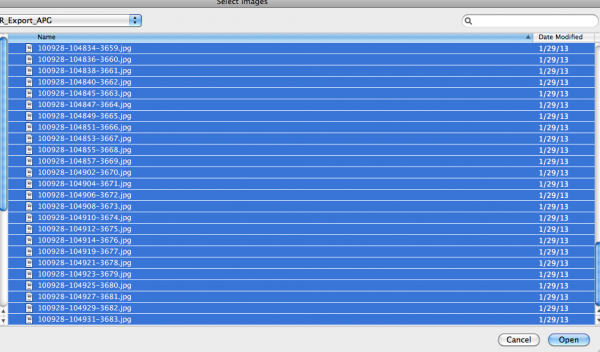
Bringing images into your computer is no different than your normal shooting method. The nice thing about AutpoPano Giga is it will understand your RAW files no problem, so there is no need to convert (but you can if you are impatient and want smaller file sizes). I have found it handy to shoot panoramas, especially large ones, on a separate memory card reserved just for panoramas. That makes finding the files all the easier.

With all your panorama files in one location, it is time to use the stitching wizard in AutoPano Giga.

Wizard

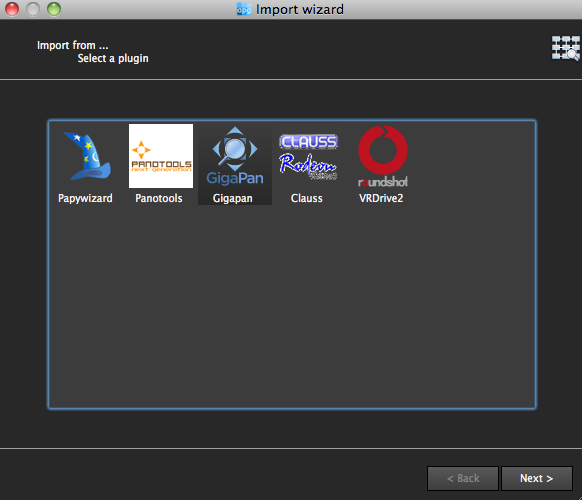
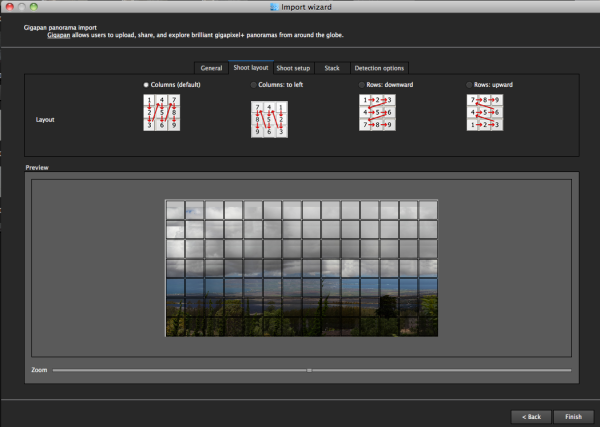
The first step in the wizard is to pick the device that was used, in this case we select Gigapan.

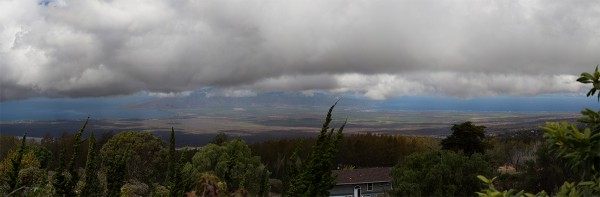
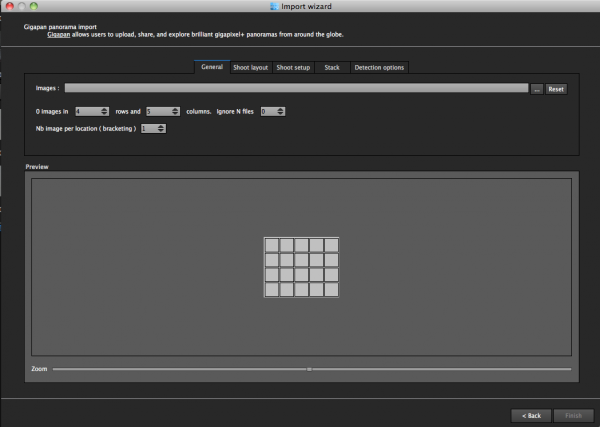
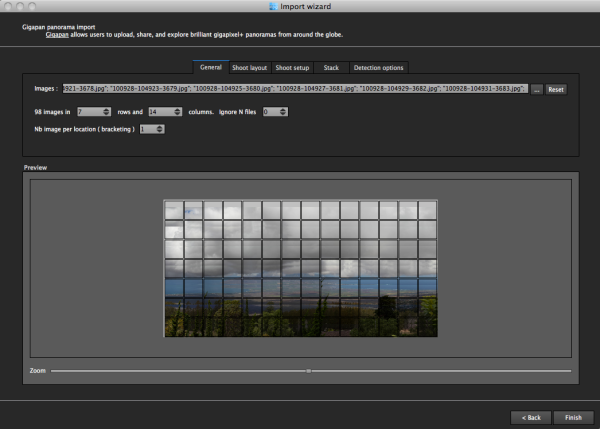
The next screen asks for input. If your shot went off without a hitch and you have a nice grid of images, AutoPano should know this. For instance, when I select the 98 images from my demonstration shot from Maui, Hawaii at the Ali’i Kula Lavender Farms, AutoPano knows this shot was 7 rows and 14 columns. The nice thing about this method is there is no need to import a control file that explains the grid to the software. This is also why, with careful execution, freehand panoramas can be imported.

With a straightforward shot like this, there is little else for me to do, but let me show you what the other screens do, if you are curious.

The next screen allows for changing of the panorama shooting direction. One thing I wish this screen had is the ability to pick a grid shot top to bottom, then back up the next column, down the next, and so on, for those times when I shoot a panorama freehand, such as this 2.2 gigapixel image of the Taj Mahal (shot without a tripod and head because they are restricted).

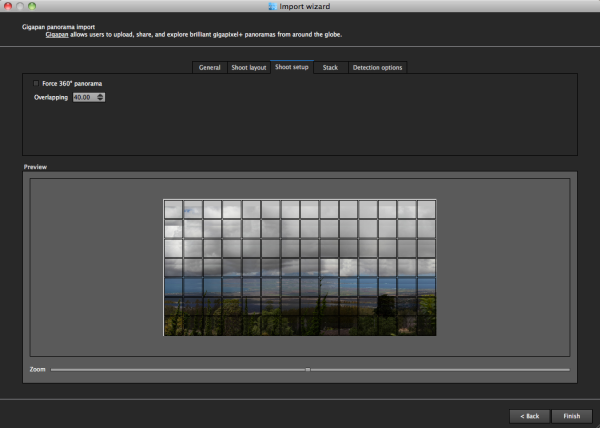
After that screen, custom overlap or forcing a 360 degree view can be selected.

The last two screens deal with control points and that can be left on auto unless you have a particularly good reason to change them. This software works quite well on auto (with some manual tweaks to come).

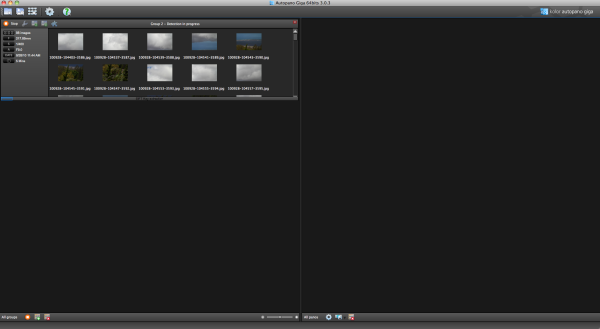
Press “Finish” and AutoPano takes you to the main screen and starts detecting and stitching. I like that, while I can tell the program the pattern of a shoot and the amount of overlay, it will still automatically detect control points and I can even set this number to 200 by default, to ensure the best matching.

Output

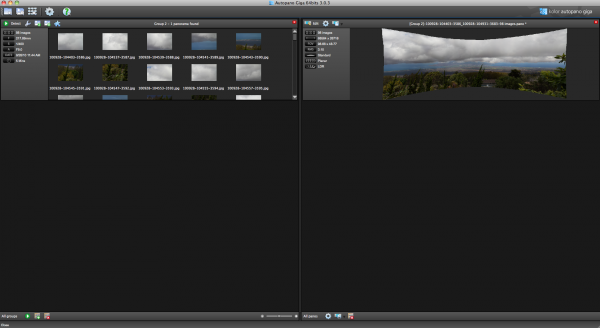
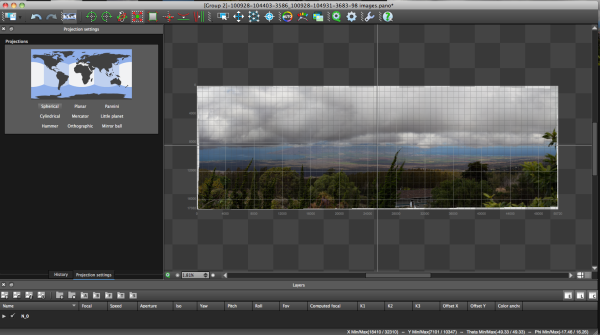
Things aren’t always perfect right out of the box because the software doesn’t know which type of projection you want. Below you will see the resultant output on the right, which has a planar projection.

This is easily changed in the Edit screen, where a number of adjustments can be made if desired. I decided on a spherical projection to keep my sides straight.

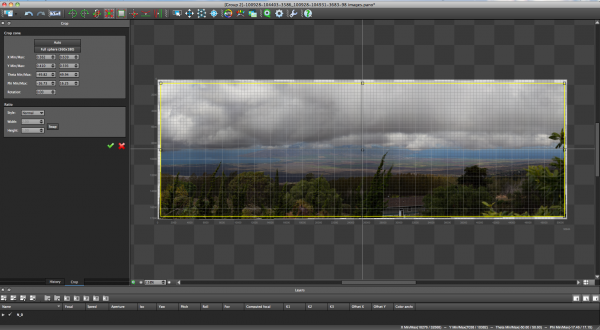
From there, the only change I saw that needed to be made was to crop the image, which is dead easy: click on the crop tool and it automatically selects the crop dimensions. Changes are made by dragging corners or sides and rotations can be made (in case your tripod wasn’t level when shooting).

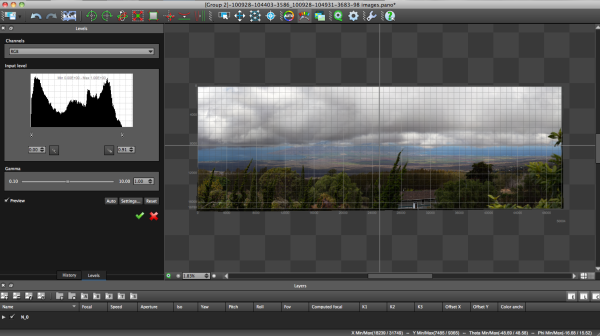
The last bit of editing I tend to do in the program is to set the levels, which is as easy as setting them in Photoshop or other programs.

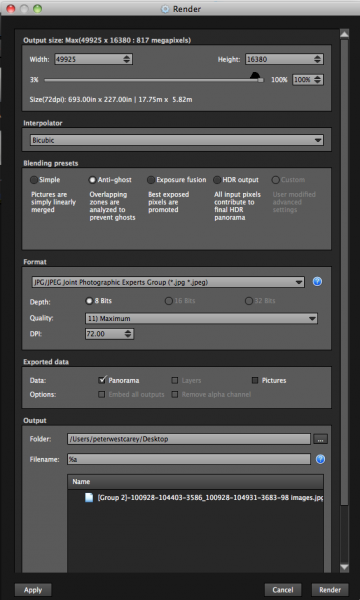
Before being completely done, we need to get the resultant image out of AutoPano Giga and that is done by clicking on the gear in the main screen in order to render the image. Settings on this screen allow for the resizing of the image once rendered (handy if you are sending this out as a JPEG as the max dimension for those is 30,000 pixels) as well as file type, compression, color depth and more.

What Else Can Be Done?

AutoPano Giga is a robust panoramic creation and editing program. This post is not intended to be a complete review of all the features as that list is rather long. Some of the highlights include:

  • Ability to handle HDR bracketed shots (it is available in the first screen of the wizard and is labeled Nb image per location (bracketing)
  • Manual removal of ghosts via masking(although the automatic option works well)
  • Saving results in a variety of file types, including .PSB and .TIFF
  • Batch processing
  • Editing vanishing points and pitch, roll and yaw

Results

How did it come out? Great! But…unfortunately DPS isn’t set up to show case large panoramas but I have hosted the resulting image on my blog. The final image is 43MB large and will take a little time to download with the amount of traffic DPS typically sees.

Click here to be taken to the image. Zoom in and use Full Screen mode for the best experience. Can you spot the airplane taking off? What about people surfing?

For references sake, the panorama was made with a Canon 7D and 28-300mm L lens. It was composed of 98 images shot in Manual Mode at ISO 100, 135mm, f/9, 1/400. The Gigapan EPIC Pro was lent to me from Borrowlenses.com.

AutoPano Giga is available for free trial download here.

Post originally from: Digital Photography Tips.

Check out our more Photography Tips at Photography Tips for Beginners, Portrait Photography Tips and Wedding Photography Tips.

Using AutoPano Giga To Create Panoramas With Gigapan Heads Or Freehand Shooting Grids


Digital Photography School

 
Comments Off on Using AutoPano Giga To Create Panoramas With Gigapan Heads Or Freehand Shooting Grids

Posted in Photography


Create an Image Watermark in Photoshop

01 Feb

Create an Image Watermark in Photoshop

In a recent post I talked about using an image watermark in Lightroom to apply to your images. This post I’ll show you how to create the watermark image to use.

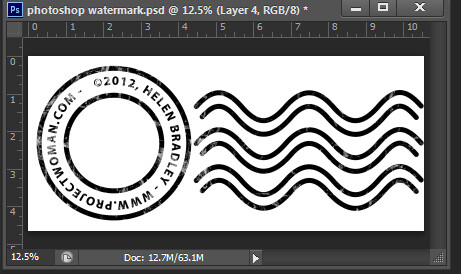
This watermark has two concentric circles with text between them and a set of wavy lines making it reminiscent of a post office stamp cancellation. The watermark also has a slightly grunge look.

To make it, start in Photoshop with a letter size image. I set mine to landscape orientation with a white background. This will make it easy to create a black watermark and I will be able to see it as I work.

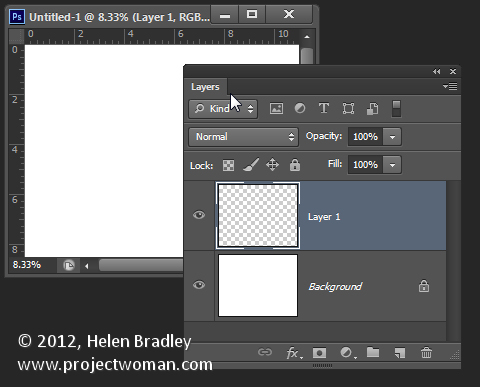
Add a new layer by choosing Layer > New > Layer. This is a transparent layer on which you’ll place the circles.

Make a watermark image in photoshop step1

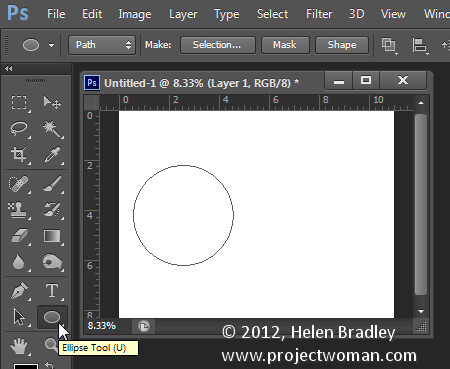
Start with the Ellipsis Tool which shares a position in the Tools with the Rectangle tool – it is a shape tool – don’t use the Elliptical Marquee Tool.

Make sure that the option on the Tool Option bar is set to Path and hold Shift as you drag a circle on the screen.

Make a watermark image in photoshop step2

When the circle is in position choose Window > Paths to view the Paths palette.

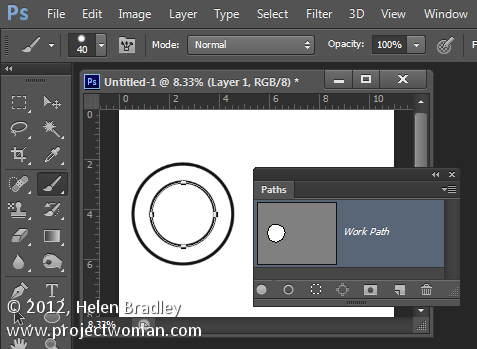
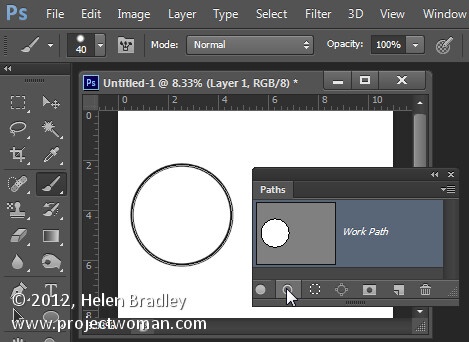
Select the Brush tool and select a brush. I used a Hard Round brush sized down to around 40 pixels.

Set the foreground color to black, click the Work Path in the Paths palette to select it and then click the Stroke Path with Brush icon at the foot of the Paths palette. This strokes the path with the current brush.

Make a watermark image in photoshop step3

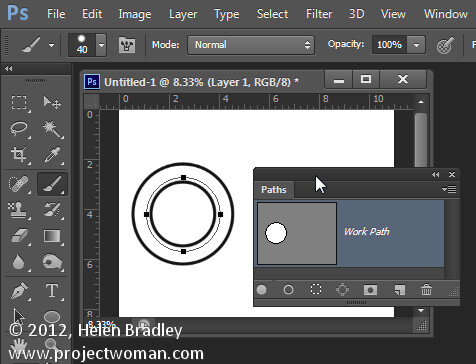
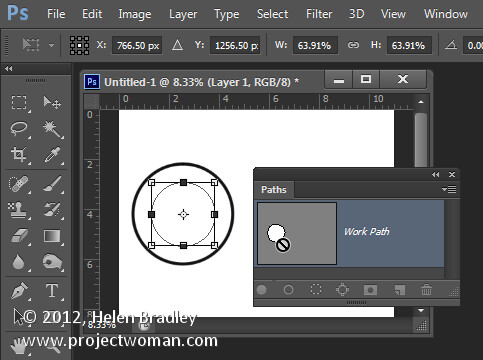
Click the Path Selection Tool which shares a position in the Tools palette with the Direct Selection Tool. Click on the path and it will select the entire path.

If the transformation handles do not appear press Ctrl + T (Command + T on the Mac). Hold Shift and Alt (Shift and Option on the Mac) and drag inwards to create a circle which is concentric with the previous circle.

Make a watermark image in photoshop step4

Repeat the process of selecting the Brush, click on the path so it is selected and click to Stroke Path with Brush.

Make a watermark image in photoshop step5

Click the Path Selection Tool and, with this smaller circle selected, press Ctrl + T (Command + T on the Mac). Hold Shift and Alt (Shift and Option on the Mac) and drag a little outwards to create a circle path for typing the text along.

Make a watermark image in photoshop step6

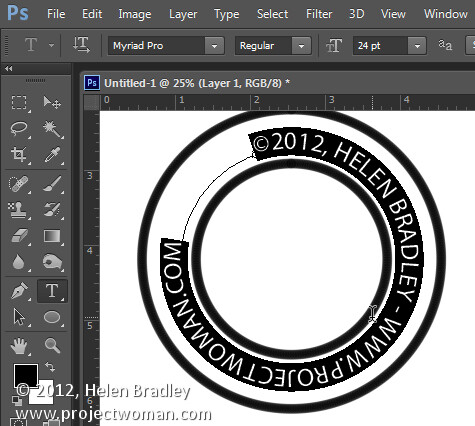
Select the Text tool and hold the mouse over this third path.

Look for the text tool to show as an I-beam pointer with a bent line through it – this tells you Photoshop will align the text along the path.

Click once to anchor the Text tool to the path. Select the text color – in my case I chose black – and select the font and font size – I used Myriad Pro – 24 points. Type the text to use – I typed:

© 2012, Helen Bradley – projectwoman.com –

To enter © hold Alt and type 0169.
?Make a watermark image in photoshop step7

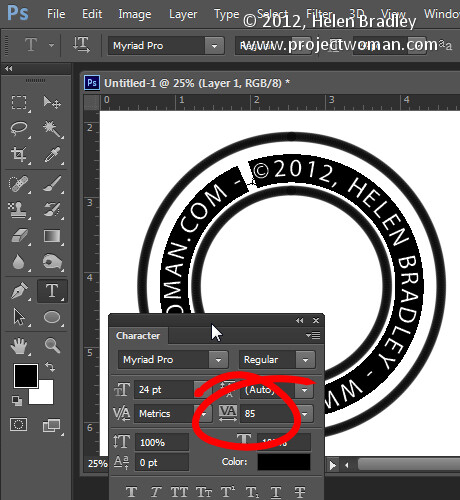
With the text selected display the Character palette by choosing Window > Character and adjust the tracking to expand the text so it wraps all the way around the shape.

Make a watermark image in photoshop step8

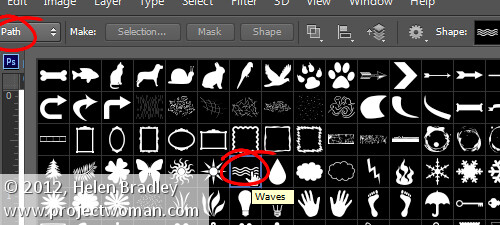
You can draw your own lines for the cancellation lines using the Custom Shape Tool. First create a new layer then select the Wave shape and on the Tool Options bar make sure that it is set to Path.

Make a watermark image in photoshop step9

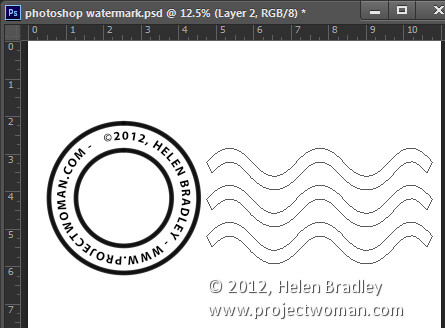
Drag to make your curved lines.

Make a watermark image in photoshop step10

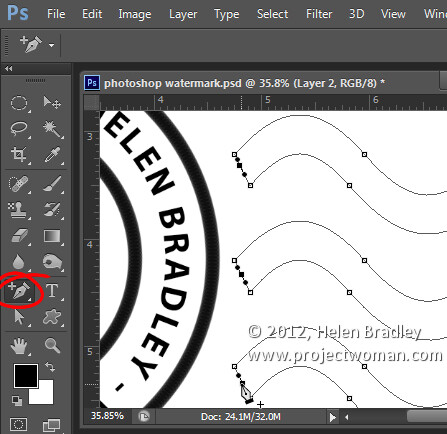
Select the Add Anchor Point Tool (it shares a position with the Pen tool) and click once in the middle of each end of the path to add a point.

Make a watermark image in photoshop step11

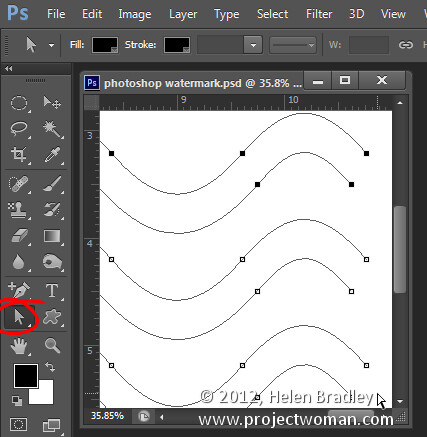
Target the Direct Selection Tool, click one at a time on the Anchor points you just added and press Delete – this breaks the 3 paths in half to make 6 paths. When the Anchor is selected it will show as a dark filled square.

Make a watermark image in photoshop step12

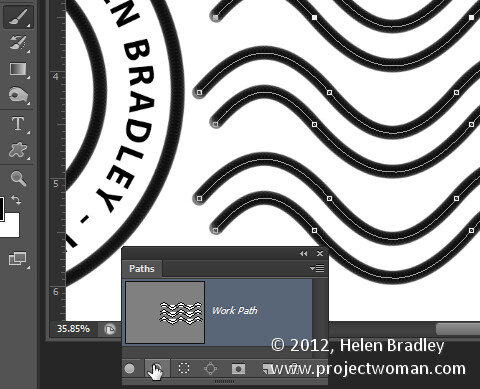
Select your Brush and black paint and select the path in the Paths palette and click the Stroke Path with Brush icon.

Make a watermark image in photoshop step13

Once you’ve done this you can add a grunge effect.

Start by hiding the background layer, target the top layer and press Control + Alt + Shift + E to create a flattened layer with transparency. Hide all layers but this top one.

If the lines aren’t dark enough duplicate this layer a few times and they will darken. Then merge all these duplicated layers

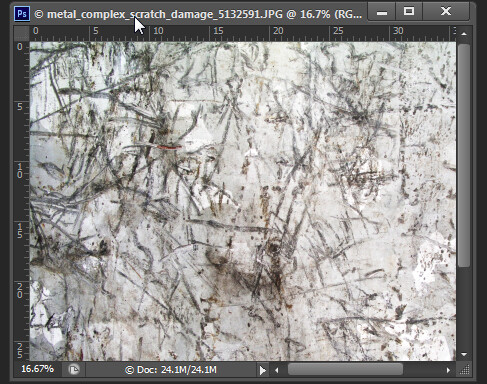
To add the grunge effect click Add a Layer Mask icon at the foot of the layers palette to add a mask to the layer. Locate an interesting texture image to use such as this one from www.mayang.com/textures.

Make a watermark image in photoshop step14

Make it the same size as your image by choosing Image > Resize, deselect the Constrain Proportions checkbox and click Window and click your copyright image file to use its dimensions. Click Ok.

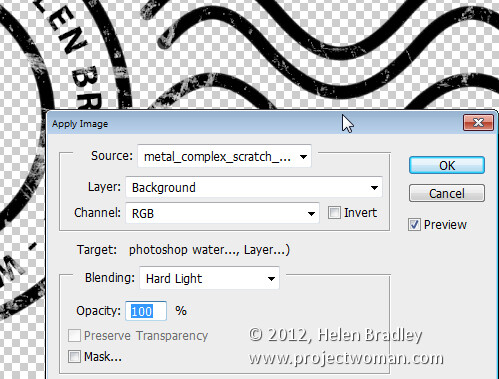
Now return to your Copyright image, click the mask to target it and choose Image > Apply Image. From the Source box select the texture image (it won’t appear in the list if it isn’t the right size), and then set the other options to suit so you get a distressed look to your copyright symbol. Click Ok.

Make a watermark image in photoshop step15

Add a new layer and press Control + Alt + Shift + E to create a flattened version of the image on this layer but maintaining its transparency. Make all other layers invisible and crop the image close around your shape.

Then choose File > Save As and save it as a .PNG image to use in Photoshop or Lightroom as a copyright overlay.

If you select the top layer and press Control + I you’ll invert it to make a white version of the copyright image that you can then save as a second .png file.

Make a watermark image in photoshop step16

Make sure to also save your file as a .psd file if you think you might need to make changes to it – for example, to change the date – a .png file is flattened so it won’t be easy to edit – a .psd file will be much easier to update.

Post originally from: Digital Photography Tips.

Check out our more Photography Tips at Photography Tips for Beginners, Portrait Photography Tips and Wedding Photography Tips.

Create an Image Watermark in Photoshop


Digital Photography School

 
Comments Off on Create an Image Watermark in Photoshop

Posted in Photography


See Nick Francher Create a ‘White Room’ with some Pegboard [Video]

29 Jan

While surfing on Youtube today I came across the following video from photographer Nick Francher creating a DIY studio setup that created a cool effect.

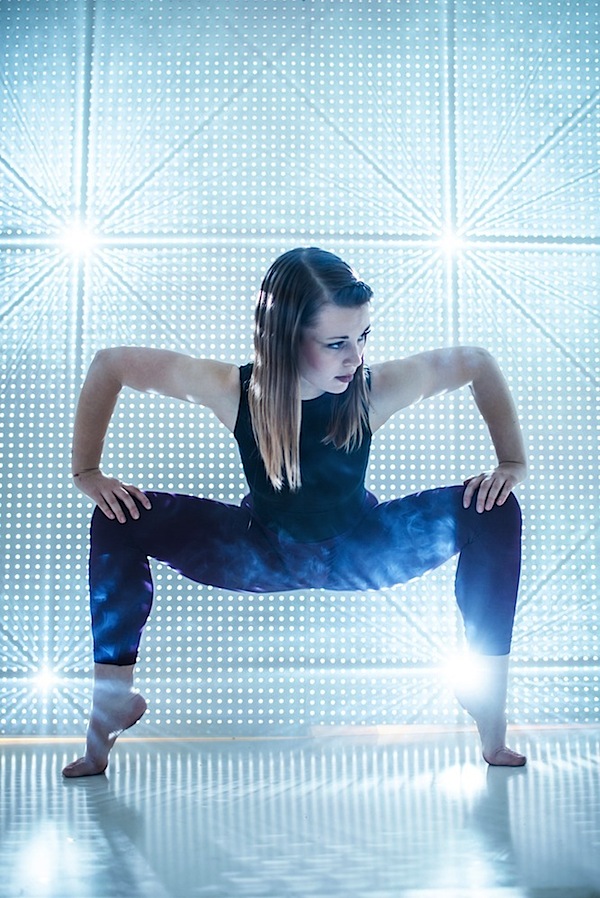
the-white-room-kerry.jpeg

In it he uses peg board to create a background which he then shoots light through to create what he calls a ‘white room’ (he also has white hard board on the floor and ceiling which reflects light around). – check it out!

Nick has shared a lot of images taken in his White Room on his blog (here, here, here and here are just a few).

Post originally from: Digital Photography Tips.

Check out our more Photography Tips at Photography Tips for Beginners, Portrait Photography Tips and Wedding Photography Tips.

See Nick Francher Create a ‘White Room’ with some Pegboard [Video]


Digital Photography School

 
Comments Off on See Nick Francher Create a ‘White Room’ with some Pegboard [Video]

Posted in Photography


Create A Superhero

24 Jan

Los Angeles team Austin Young faces off against Bermuda Triangle from Modesto, California. They have four days to produce, shoot, and edit the best viral video, inventing a brand new superhero, with his own costume and catchphrase. Internet icons Adam Sessler, Brittani Taylor, and Sandeep Parikh judge the contest, hosted by Kevin Pereira. The winner receives 00.
Video Rating: 0 / 5

 
Comments Off on Create A Superhero

Posted in Photography Videos