RSS
 

Posts Tagged ‘Create’

7 Ways To Create Authentic & Powerful Portraits

11 Aug

Create authentic powerful portraits 1

by Steven McConnell

Do you remember the time you were learning to drive a car?

If you’re like most people, it began as a purely technical, logical activity. You had to think about your every move. You were reacting to your environment, rather than anticipating it.

Over time, that settled into a form of unconscious competence. You began to drive by feeling the car, rather than thinking about it.

Learning to shoot portraiture is similar. Beyond the mechanical, logical world of preoccupation with gear, ISO, f-stops and focal lengths is a realm of feeling your way around your environment, connecting with your subjects, witnessing their stories and sharing them with the world through your photographs.

It’s easy to say, I hear you say. But how do I start moving in that direction?

For me personally this has been a focus of my attention for the past few years and I feel like I’m just starting to scratch the surface. Every time I discover something new I see how much more there is left to uncover.

It’s my aim here to share some of my main discoveries with you. I hope that lessons I’ve learned on my journey to becoming a portrait photographer help you along in yours.

Create authentic powerful portraits 2

1. Forget The LCD

I see so many photographers take a few photos and then bend over to check what they got on the back of their camera.

Meanwhile, their subject is just standing there. Their mood is collapsing. All kinds of weird thoughts are starting to run through their head.

Checking the histograms every now and then is important, but your main job as a portraits photographer is to be aware of, and manage, your subject’s headspace.

You can’t do it effectively if you’re spending more time with your camera than you are with your subject. You need to be completely present with the person you’re photographing.

It means you need to photograph a lot and often, until know with a reasonable degree of confidence when you’ve nailed the shot – without having to check it on the LCD.

Create authentic powerful portraits 3

2. Explore Av & Tv [Aperture and Shutter Priority Modes]

There’s a sentiment in the photographer community that you must always shoot in your camera’s manual mode because “that’s what serious photographers do”.

Manual gives you great creative options in certain situations – for example, when you’re combining ambient light with strobes.

But be aware that you don’t always need it – and sometimes it will shoot you in the foot.

If you’re using only natural light, for example, and it’s likely to be changing while your subject is moving, the last thing you want is to miss moments while you’re chasing exposure.

Try shooting in aperture-priority mode (Av), using aperture to control depth of field as a creative element while dialling the exposure compensation in or out to fine-tune exposure.

3. Lose The Fat Lens

I shoot with prime lens because I like to have as few physical barriers between me and my subjects as I can.

If I can’t look them directly in the eye as I’m photographing them, then I want to look at them through as little metal, plastic and glass as possible.

Also, I think there’s a lot to be said about removing everything you can which will intimidate your subjects.

As photographers we tend to view gear as something to get excited about. But in doing so we forget that something like a 70-200 f/2.8 (even a 24-70 f/2.8!) on front of a DSLR can be unnerving to most people.

Create authentic powerful portraits 6

4. Research Your Subjects

When I started photography, I did enough research about cameras to be able to quote the pros and cons of just about any DSLR body out there.

But if you asked me what the person I was photographing wanted to be when they grow up, I’d have no idea.

How can a photographer tell a story about a subject through the photos if they don’t know anything about them?

What are your subject’s dreams? Obsessions? Fears? Ice-cream preferences? Why do they get out of bed in the morning? What kind of personality they have – quirky, calm, strong, bubbly or intellectual?

Answers to those questions are a great departure point for your creative choices as a photographer.
Create authentic powerful portraits 4

5. Put The Camera Down

I picked this idea up when I was watching this video of Annie Leibovitz photographing Keith Richards:

Notice how at 1:55 she puts the camera down to give him direction. It’s not accidental – by doing so, she injects a healthy dose of warmth and intimacy into their interaction. She reminds Keith that there’s a real human taking his photo.

6. Control Your Purpose

How you come across to your subjects is heavily influenced by your purpose in any moment. And that will determine how they act around you.

My default purpose is “Here I am, the photographer, about to photograph you – the subject”. Needless to say, it’s not very conducive to creating a connection of facilitating a particularly warm dynamic.

Before a shoot I literally have to shift the context through which I view the session to one which helps me set a warmer tone.

If I’m photographing kids, I’m likely to change to a space of “Let’s play – and I’m bringing my camera along”. If I’m with adults, I’ll probably take things in the direction of “Hey, let’s get to know each other – and I’ll take some shots along the way”.

Connection takes first place, photography second.
Create authentic powerful portraits 5

7. Meditate

This looks odd as a piece of advice on a photography blog. But here’s why I think it’s useful.

As photographers, we tend to be quite analytical – we go through the world thinking about it, rather than feeling our way around it. We spend a lot of time preoccupied with our thoughts, which can give our emotional tone a somewhat distant edge.

Meditating 10-15 minutes a day will helps you settle down and feel more centred. You will come across as a warmer, more approachable and confident photographer. You will also be more present with your subjects’ needs and be able to respond to them (rather than react to them).

It’s important because your subjects will largely mirror your emotional tone. The easiest way to help them settle down and connect with you is for you to be calm yourself.

Steven McConnell is a family photographer at Family Photography Sydney. You can connect with him on Google+. and Twitter.

Post originally from: Digital Photography Tips.

Check out our more Photography Tips at Photography Tips for Beginners, Portrait Photography Tips and Wedding Photography Tips.

7 Ways To Create Authentic & Powerful Portraits

Digital Photography School

 
Comments Off on 7 Ways To Create Authentic & Powerful Portraits
Posted in Photography


Create Dramatic Lighting in your Photography by Introducing Darkness

22 Jul

Every professional photographer that you’ll ever talk to, will tell you that light is the most important part of photography. These people, myself included, are absolutely right, it is! Without it our photographs would be dull sheets of empty paper! Using dramatic lighting to a photographer’s advantage is the universal lesson preached to every photography student on the planet! But Continue Reading

The post Create Dramatic Lighting in your Photography by Introducing Darkness appeared first on Photodoto.


Photodoto

 
Comments Off on Create Dramatic Lighting in your Photography by Introducing Darkness

Posted in Photography


3B Printing: Bees Create Bottle for Dewar’s Whiskey

16 Jul

[ By Steph in Design & Products & Packaging. ]

3B Printing Honeycomb Bottle
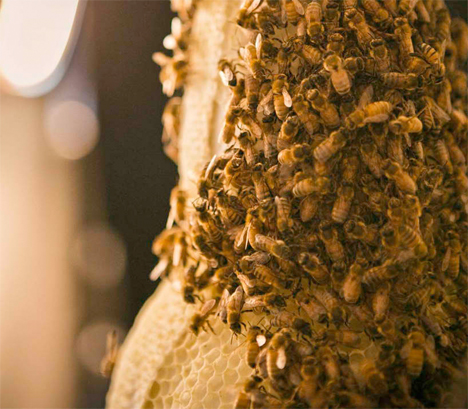
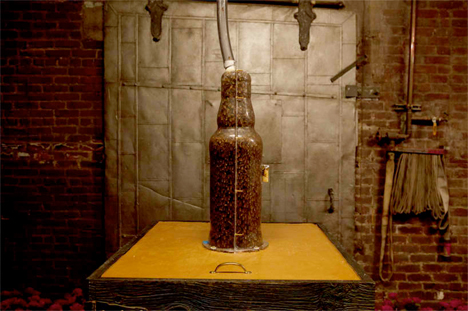
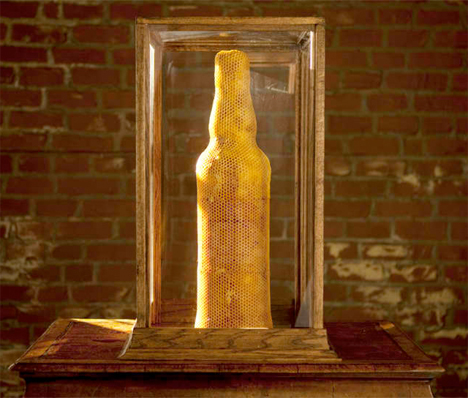
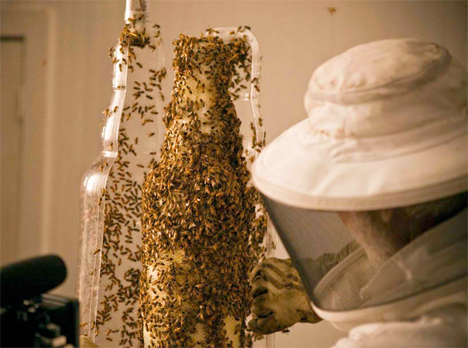
This ’3D-printed’ bottle wasn’t made by a machine, unless you consider an army of industrious honeybees a machine. For a new Dewar’s Whiskey campaign, 80,000 highlander honey bees producing the prime ingredient for its new highlander honey whiskey were enlisted to work on a side project: a three-dimensional bottle made of honeycomb.

3B Printing Whiskey Bottle Bees 2

The bees were placed inside a vessel that mimics their usual hive setup in all ways except one: the shape. They quickly got to work creating the honeycomb bottle. Sid Lee Creative Studio and The Ebeling Group call it ’3B Printing.’ Watch the video to see the process in action.

3B Printing Whiskey Bottle Bees 3
3B Printing Whiskey Bottle Bees 4

This isn’t the first time living creatures have been put to work on creating three-dimensional projects. The MIT Media Lab created a “collaboration between digital and biological fabrication” with a network of silk threads made by a CNC machine, which was then covered in a natural netting made by dozens of silkworms squirming all over its surfaces.

Share on Facebook


[ By Steph in Design & Products & Packaging. ]

[ WebUrbanist | Archives | Galleries | Privacy | TOS ]


WebUrbanist

 
Comments Off on 3B Printing: Bees Create Bottle for Dewar’s Whiskey

Posted in Creativity


How To Create Your Own Unique Textures and Apply Them To Your Photography

16 Jul

I would like to take you through a journey today and show you how some very ordinary looking photographs of the world around us can be combined to create some very interesting and one-of-a-kind pieces of art. Some might argue that what I’m doing is no longer considered photography, but I’d argue that everything presented within the final image was at one point captured using a camera, and therefore still falls under the category of photography albeit slightly manipulated.

The world around us is filled with textures and abstract patterns that often go overlooked in pursuit for larger more dramatic subjects. No matter what type of photographer you are and whether or not you’d go so far as to do what I’m sharing today I do think it’s worth it to spend some time learning about how to capture these kinds of images as it will help you see the world differently.

Texture-11

So What Is A Texture?

Texture in art (at least in how we’re using it today) can be defined as: the visual ”feel” of a two-dimensional work.

When I first started getting into photographing textures I wasn’t sure that it could be all that interesting. I thought that a texture had to be something very traditional like sand, or wood, or rust. I soon realized that in reality just about anything can be considered a texture if you want it to be, you just have to use it as such in your final image.

That said I do think the best textures are more abstract images with a bit of depth to them. If the image you’re using as a texture is too clearly defined then you’ll end up having a difficult time separating your texture from the subject of the image you end up applying it to.

Capturing Textures

texture2

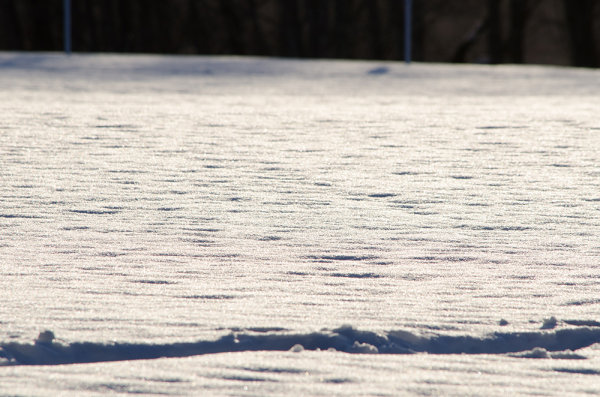
There are simple textures like – wood, rust, paint, sand, stone – and more complex textures like – a dirt path through the woods, a canopy of a forest, a collection of flowers, the list goes on forever.

Ideas to Keep in Mind When Capturing Textures

  • Fill the Frame
  • Look for Compositional Elements (Like the beam in the photo above)
  • Don’t rule something out just because it doesn’t look like a texture.
  • Don’t worry too much about your camera’s settings
  • Be creative

Texture-8

Creating & Using Textures in Your Workflow

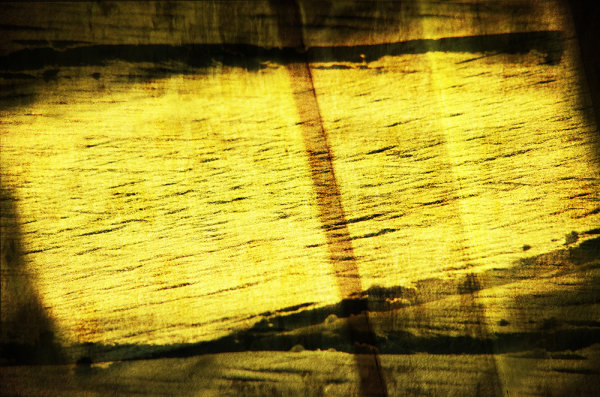
The first step in the process is to take the individual textures that you’ve collected and create your own unique texture.

Texture-8

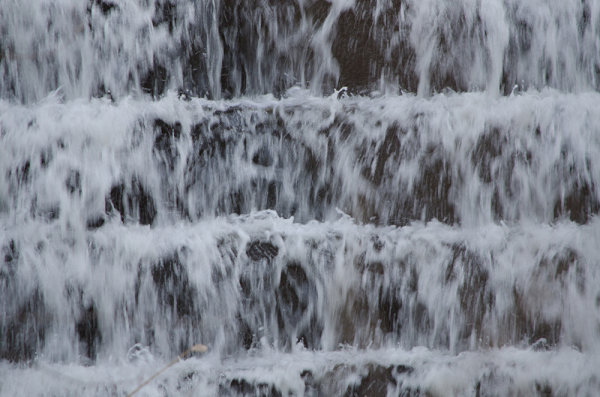
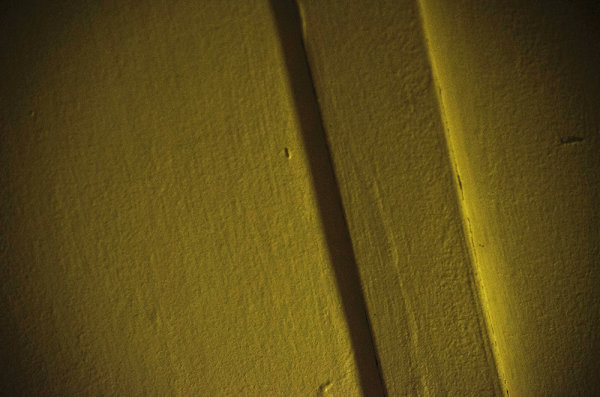
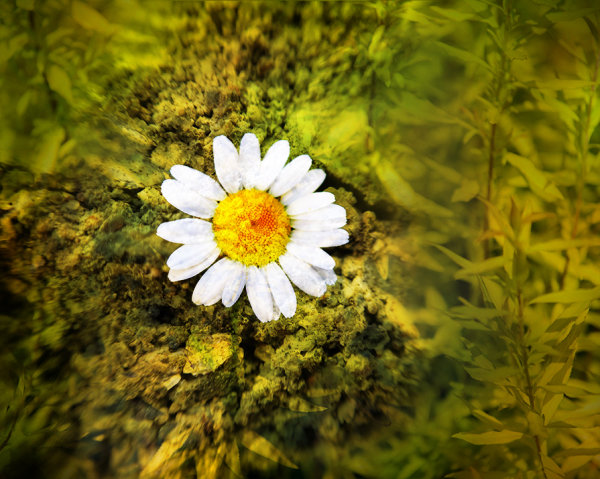
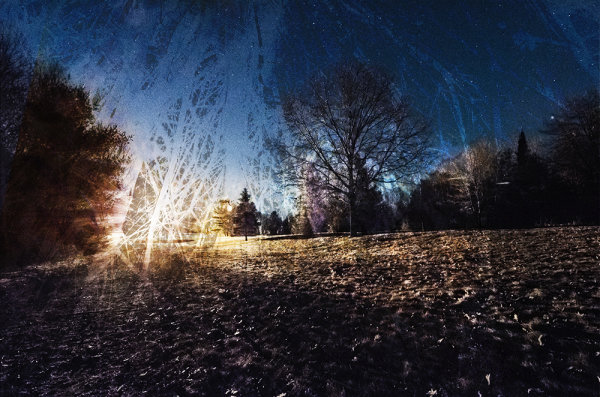
This texture is the image that I applied to the lightning bolt photo at the bottom of this post and is a combination of the three textures that you’ve already seen above (the waterfall, the ceiling and the frozen lake).

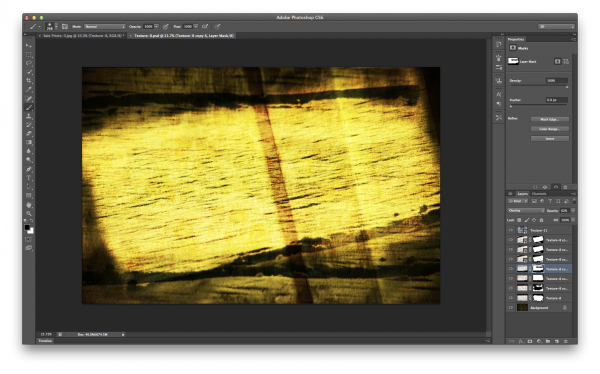
I won’t go through every step, but instead I’ll give you a general idea of how I went about creating this texture in a simple five step process that you can use as a guideline to create your own.

Screen Shot 2013-07-14 at 4.01.37 PM

Click to Enlarge

  • Bring all your textures into photoshop as different layers
  • Determine what you’d like the strongest element of your texture to be – here I choose the ceiling and placed it as the bottom layer (the background).
  • Determine if you want to duplicate any of your textures for a stronger appearance . Here I choose to duplicate the frozen lake a total of 7 times.
  • You don’t have to keep all your layers in the same orientation. Here I’ve rotated two of the frozen lake layers slightly and flipped one upside down. I then applied various layer masks and blending modes to get the final look that I wanted.
  • Play with different blending modes. I find that overlay is my go to blending mode, but subtraction and soft-light work well too. Try them all and have some fun – after all this is creative expression through experimentation!

Once I create the texture I save it as a JPEG and toss the PSD. I find that there’s no need to really save the PSD as they take up more space and if I want to change the texture in the future I’d rather just try and create something completely different than make subtle changes to one I already have. Of course you’re free to do that differently if you so choose.

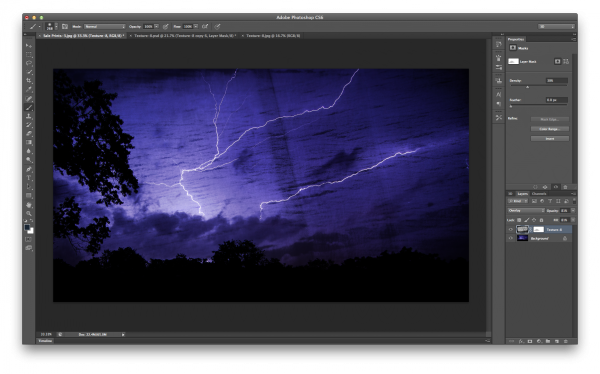
The next step is to apply our newly created texture to our subject photo and create our final piece of photographic art. To do this you pretty much do the same process as we went through above. Bring your texture and your photo into Photoshop as layers, set your photograph as the background and then blend your texture into your photograph.

Screen Shot 2013-07-14 at 4.44.02 PM

Click to Enlarge

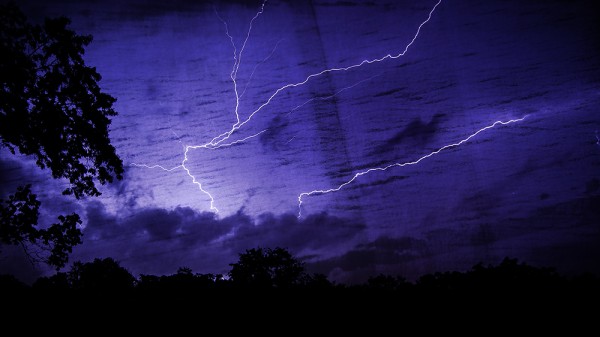
For this photograph I dropped my texture in on top of the lightning bolt photo, popped it to an overlay and reduced the opacity slightly. I then applied a quick mask to remove some of the brightness that was created around the base of the lightning bolt, and finally converted the textured layer to black and white to let the true colors of the background layer show through.

I realize this style of processing photography isn’t for everyone and I might be pushing the limits of creativity and for some this might be too much, but I do find it fun and enjoyable to go about creating these images and I hope you’ve learned something today and maybe even got inspired to try it yourself.

A Few Examples Before I Go

In closing I’d like to share with you a few examples of what I’ve been able to come up with so far and I hope you enjoy what I’ve created.

Some Fun with Textures

TexturedExample3

lightningtextured

Post originally from: Digital Photography Tips.

Check out our more Photography Tips at Photography Tips for Beginners, Portrait Photography Tips and Wedding Photography Tips.

How To Create Your Own Unique Textures and Apply Them To Your Photography


Digital Photography School

 
Comments Off on How To Create Your Own Unique Textures and Apply Them To Your Photography

Posted in Photography


How to Create Realistic Looking HDR Photographs

11 Jul

By Sean Ogle.

HDR photography has gotten a bit of a bad reputation, simply because so many people don’t know how or when to use it.

It kind of reminds me of my first experiences using Photoshop in high school. The only thing I knew how to do was open a photo, head to the filters, and create surreal, barely recognizable images.

That’s what I see many photographers doing with HDR today. They open up Photomatix or HDR Efex Pro and start making photos that look overly processed, overly saturated, and basically just all around over done.

Sure, there are people that like this look, but those photos overshadow the true benefits that HDR can bring to the table.

My favorite photos are the ones that look almost too real. You can tell they’ve been edited, but you aren’t exactly sure how.

With that said, the most practical use of HDR is when you’re trying to create a more realistic depiction of what your eye is actually seeing in any given scene.

This could be a landscape photographer trying to capture the perfect sunset over an ocean, or perhaps a real estate agent that’s trying to accurately show the interior of a home.

This shot of from the Jersey Shore is a good example of that:

NewImage

Without HDR there’s no way I’d be able to get the detail in the foreground, while also bringing out the colors of the sky.

What’s important here is the average person wouldn’t be able to tell this was an HDR image.

So what are some of the key components to making a realistic looking HDR shot?

Let’s take a look.

Take it Easy on the Saturation

This is one of the easiest mistakes to make with HDR. We tend to be drawn towards bright and vibrant colors, but when editing, even slight adjustments can have very significant effects.

Had I not touched the saturation with the photo above, this would look like a big orange mess after the initial HDR processing.

This is particularly important to keep in mind if you’re shooting outdoors in grassy park or forested areas. Green and yellows are the hardest colors to accurately reproduce when doing HDR, and the secret to getting them correct is to significantly reduce the saturation.

NewImage

HDR was used in this case in order to bring out the detail of the clouds, which were extremely dramatic in person. However, the saturation was turned down to -35% in HDR Efex Pro to create this image. Without doing that, the green looked completely unrealistic, and the foreground didn’t accurately capture the high desert surroundings.

Use a Tripod

Yes, this is an HDR 101 tip, but it’s extremely important. When going for realism, you want things to look as crisp and clean as possible. While the latest software actually does a surprisingly good job at correcting for minor shifts in images due to camera shake or a handheld series of brackets, it still isn’t perfect, and can leave things looking slightly fuzzy.

The biggest selling point for a realistic image is it’s clarity and this will work against you if you aren’t careful.

Consciously Make Adjustments to “Structure”

This is perhaps the biggest secret towards getting realistic HDR shots. Your eyes can see a lot more detail than a photo can capture. By very sparingly adjusting the structure setting (or the balance between HDR “strength” and “smoothing” in Photomatix), you can bring out just enough “pop” to make what might otherwise be a dull image seem much more lifelike.

Never use any settings or presets that are labeled “strong”, “grungy”, “accentuated”, “grainy” or anything similar. These are pretty much a dead giveaway that your photo is going to look fake. For many amateur photographers, it’s these effects that make a photo look “cool”, but if you’re going for realism, these are deal breakers.

However, like most aspects of HDR, structure can very easily be overdone.

Pay Attention to Your Histogram

The natural eye has a much higher dynamic range than a camera sensor, and because of this, if your brackets don’t capture the full range of light, you could find yourself with an image that isn’t quite the way you remember a scene looking.

As much as possible you want your underexposed shots all the way to the left, and your overexposed shots all the way to the right on your histogram. You may need to take more than 3 shots in order to capture the full range.

When shooting interiors with windows this is especially important. You don’t want whatever is outside to get blown out, so by making sure you’ve captured the full dynamic range you’ll be able to create a more realistic representation of the room and not lose any detail in the windows.

NewImage

One Final Thing to Keep in Mind

Every shot you take should have a purpose, and when you’re shooting, you should be very deliberate about that.

When you don’t have an idea of what you want the final result to be, it can be really easy to go overboard, and end with something that’s much more surreal than you were expecting.

If you’re shooting interior real estate, make sure you’re not losing detail outside. If you’re shooting landscapes, spend extra time adjusting for structure and saturation.

HDR is one of the very best ways to create stunning, realistic images, but only if you have the discipline to properly edit them.

Sean Ogle is an HDR photographer and entrepreneur. He specializes in helping people build small businesses that allow them to do more of the stuff they like to do. He also golfs way more than the average person probably should. DPS readers can grab his book 50 Tips to Improve Your HDR Photography for free here.

Post originally from: Digital Photography Tips.

Check out our more Photography Tips at Photography Tips for Beginners, Portrait Photography Tips and Wedding Photography Tips.

How to Create Realistic Looking HDR Photographs


Digital Photography School

 
Comments Off on How to Create Realistic Looking HDR Photographs

Posted in Photography


Create Photos With IMPACT By Composing With Purpose

09 Jul

After I started my own critique forum I soon started to realize that composition is one of the most commonly critiqued parts of a photograph and in reality composition is the most important element of a photograph next to the subject.

That said, what composition really comes down to, and what I’m talking about today, is the idea of composing with purpose.

Compose With Purpose Not As an After Thought

I’m not here today to tell you about the different “rules” of composition. I’m not going to tell you what is right and what is wrong, because ultimately, the “rules” themselves are both right and wrong in different situations and it’s up to you as the photographer to determine when and how to use them – to do that – you must compose with purpose.

It’s not easy to teach the idea of composing with purpose, but I’m going to attempt to do so by using one of the most commonly photographed landscape subjects out there – sunset – as an example. After all it’s probably safe to say that most of us have experienced at least one or two of these in our lives.

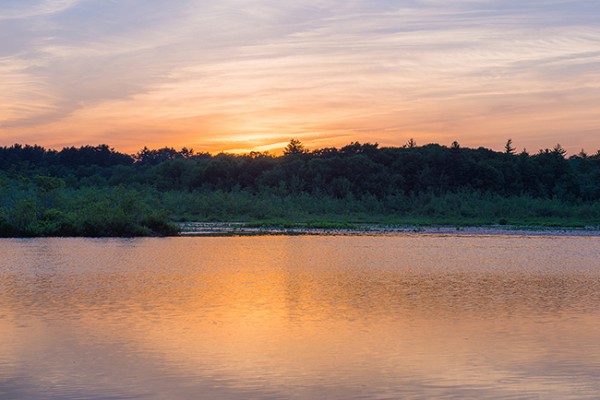
So how many of you return to your computer after photographing a spectacular sunset to see that the entire import is filled with images that basically look exactly the same as one another? Not only do they all look the same, but they’re all missing something. They might look a little like this one right?

Composed With Purpose-2

It’s not that this is a bad photograph of the sunset, there’s detail in the water, the sky and even in the tree line behind the lake, but there’s no planned composition or story being told in the photo. It has nothing to keep the eyes of the viewer interested and ultimately it falls flat.

Just a Small Change Can Have a Big Impact

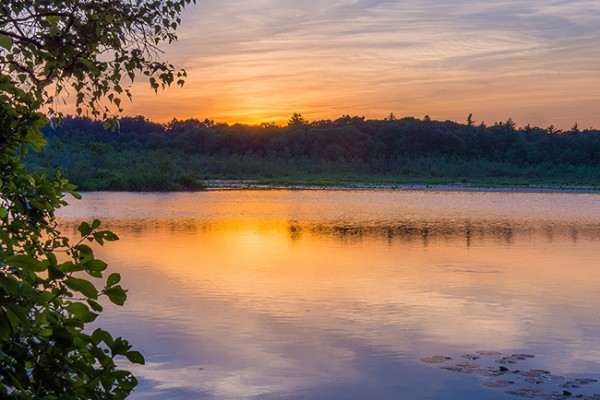
The photograph below is the exact same sunset at the same location the only difference is that I’ve just chosen a very specific composition for the scene and thus created a more complete photograph.

Composed With Purpose

By taking a little extra time to think about all the elements of the scene in front of me (with my eyes not my camera) and consciously place everything from the setting sun, to the trees in the foreground, to the lily pads on the water within the frame I was able to take what is not only a beautiful sunset and capture it in time, but I was able to add depth to what I captured which allows me to showcase not only what was happening, but where it was happening – this is what adds impact to your photos.

Of course the above is a very simple example of what I’m talking about today, but it’s important to realize that composition isn’t just a set of rules that we must follow – instead composition is an active search for the best elements within the scene in front of you.

Sometimes you’ll need to step back and take the entire scene in to find the composition that make the most sense, other times you might want to put on a super telephoto or grab some binoculars and zoom way in to find some very interesting details not obvious to your normal vision.

So the next time you go out with your camera and something starts to attract your attention, whatever it may be, don’t stress too much about the rules that you’ve learned instead just try to compose with purpose. Hopefully by doing so you’ll get some unique and powerful compositions that will ultimately allow your photographs to stand out from the crowd.

Post originally from: Digital Photography Tips.

Check out our more Photography Tips at Photography Tips for Beginners, Portrait Photography Tips and Wedding Photography Tips.

Create Photos With IMPACT By Composing With Purpose


Digital Photography School

 
Comments Off on Create Photos With IMPACT By Composing With Purpose

Posted in Photography


Accidental Art: Apple Maps Glitches Create Surreal Scenes

27 Jun

[ By Steph in Art & Photography & Video. ]

Apple Maps Glitch Art 1

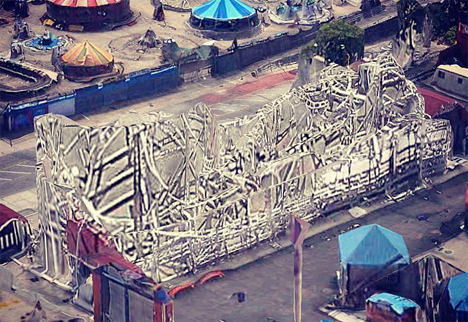
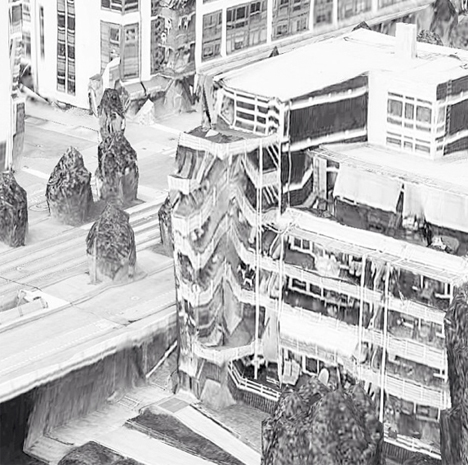
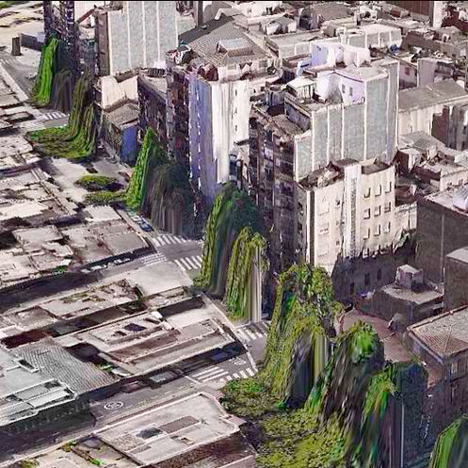
All of the notorious glitches on Apple’s Maps app make it incredibly frustrating to use for practical purposes, but it still has value – as accidental art. When two-dimensional images are incorrectly mapped onto three-dimensional topography, the results can be fascinating, creating landscapes and architecture that look alien and futuristic.

Apple Maps Glitch Art 2

Apple Maps Glitch Art 3

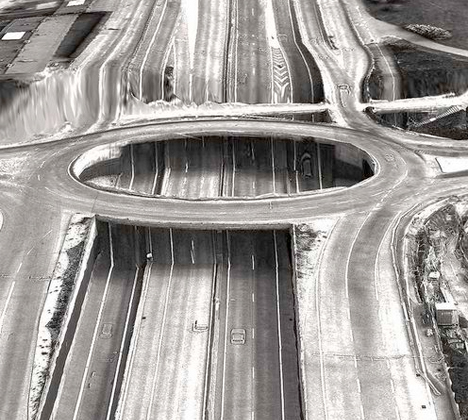
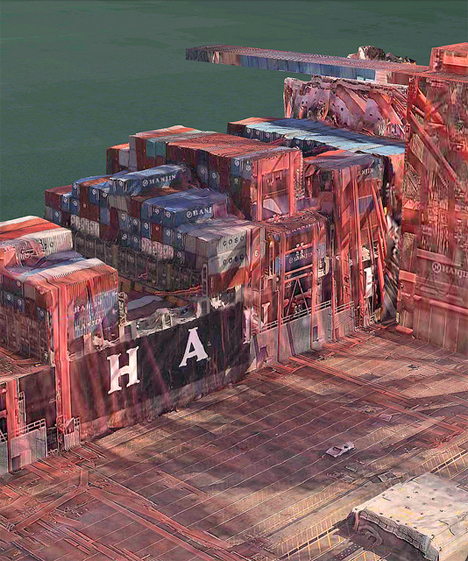
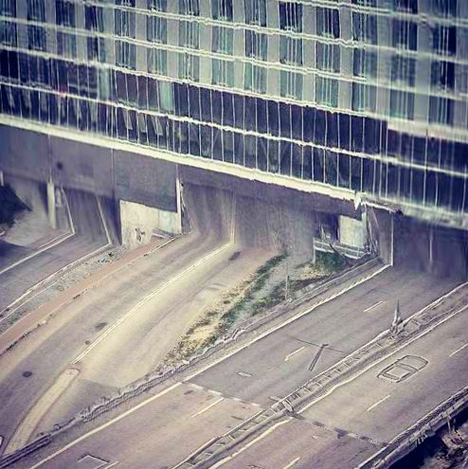
Peder Norrby, founder of graphics company Trapcode, has collected the many glitches on the Apple iOS Maps app into a trippy gallery on Flickr. Houses in Barcelona appear to be puking trees from their windows. A vortex has opened in the middle of a Stockholm highway. Skyscrapers and stacked shipping containers look like they’re melting.

Apple Maps Glitch Art 4

Apple Maps Glitch Art 5

In this parallel universe, the laws of physics have apparently been suspended. Norrby explains that some structures, like bridges, viaducts, tunnels and roller coasters, are too complex for the app’s algorithms to handle. While criticism of Apple’s Maps app has increased reliance on its competitors, Google Maps isn’t entire free of glitches, either.

Apple Maps Glitch Art 6

Apple Maps Glitch Art 7

The mesmerizing beauty of glitches has led to an entire genre of art revolving around reproducing their eerie effects on purpose. Glitch art creates digital or analog image errors by intentionally corrupting files, or mimicking their appearance in traditional artistic media like paintings and sculptures.

Share on Facebook


[ By Steph in Art & Photography & Video. ]

[ WebUrbanist | Archives | Galleries | Privacy | TOS ]


WebUrbanist

 
Comments Off on Accidental Art: Apple Maps Glitches Create Surreal Scenes

Posted in Creativity


How to Create a Beam of Light in a Photo using Photoshop [Video Tutorial]

24 Jun

Have you ever wanted to create a beam of light in a photo using Photoshop? Me neither – but after watching this tutorial I think I’ve found a little project to try – check it out!

Post originally from: Digital Photography Tips.

Check out our more Photography Tips at Photography Tips for Beginners, Portrait Photography Tips and Wedding Photography Tips.

How to Create a Beam of Light in a Photo using Photoshop [Video Tutorial]


Digital Photography School

 
Comments Off on How to Create a Beam of Light in a Photo using Photoshop [Video Tutorial]

Posted in Photography


How to Create a “Soft Portrait” Preset in Lightroom 4

20 Jun

Introduction

The following is an excerpt from the SLR Lounge Lightroom Workflow System Workshop on DVD, a system designed to increase your post production speed by 5 to 10 times! Click here to learn more.

A portrait image includes a subject (Usually their faces) as the primary focus. When we edit portraits, we do not want to sharpen fine details too much as this will of course enhance pores and blemishes on the skin. Instead, we want a soft, gentle look for our portrait images.

In this tutorial, we will show you how to create a “Soft Portrait” preset in Lightroom 4. This preset will make our portraits more flattering, because we will tell it to smooth out the highlights in our images, and reduce the appearance of imperfections on skin and other semi-smooth surfaces. This “Soft Portrait” preset is the same preset we use at Lin & Jirsa Photography to fit our needs for wedding and portrait photography, however you may want to change some of the settings to fit your own personal style. We hope that the tips in this tutorial will help you develop your own style of editing portrait images!
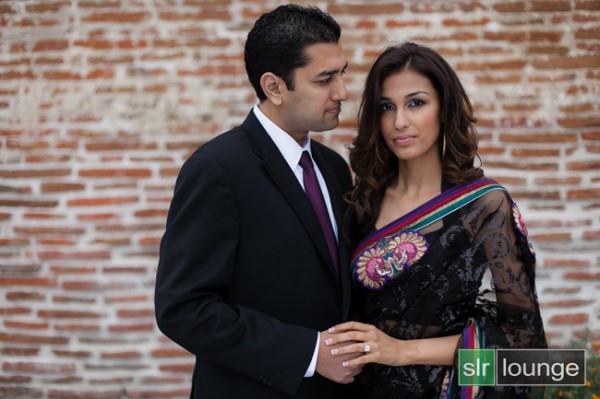
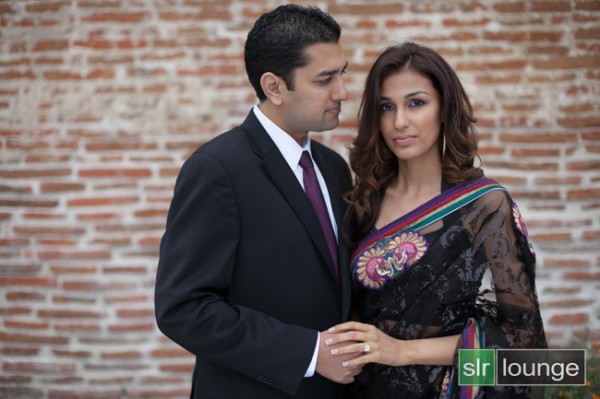
For this tutorial, we will use this standard portrait as our example.

origina 650

The Standard Import Preset Settings

For this tutorial, first select a basic standard portrait that you would typically shoot. Make sure that the portrait you choose is properly exposed with an accurate white balance, as an incorrectly exposed image will cause the preset to mis-represent the average photo you take.

Whenever you create a new preset for something specific such as protraits, we recommend that you start with another, standardized preset that has settings similar to what you’re going for in this image. So for example, we will select our original “Standard Import” preset to help us create the “Soft Portrait” preset.  For more information on how we created our “Standard Import” preset, click HERE.

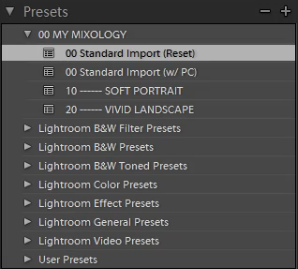
We will base the “Soft Portrait” Standard Color Preset off of the Standard Import Preset, so we have selected “00 Standard Import (Reset)” in our Presets Panel. The Presets Panel can be found on the left of the Lightroom Develop module.

02-ligthroom-4-standard-import-preset

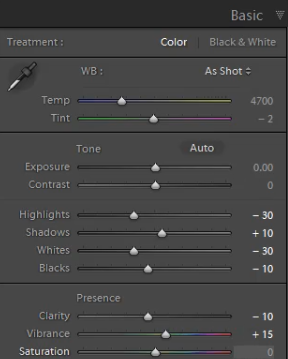
If you do not have the Standard Import Preset, these are the settings for it. Simply dial in these exact settings in the Basic Panel. To expand and collapse the Basic Panel, press “Ctrl + 1.”

03-lightroom-4-standard-import-preset-settings

Basic Panel Adjustments

Next we need to adjust the Basic panel settings to create the “Soft Portrait” look that we’re going for. Reduce the Highlights to -30. With the Shadows, bring them down to +10. Decrease the Whites to -30 and raise the Blacks to -10. These settings will smooth out the overall highlights in the portrait. Next, adjust the Clarity down to -10 to really smooth over the larger, harsher detail tones and to smooth out things like skin tones. Do not pull the Clarity down too much, because you will eventually lose important details in your portrait and create a “painted” or “smudged” look.

For Vibrance, we will leave it at +15. You can choose the amount of Vibrance to fit your own style, but we recommend not adding additional Vibrance if your portrait already has too much color in the skin. A high amount of Vibrance adds color to the skin which can make the portrait look unflattering, especially in mixed lighting!  Sometimes, if your images are too clear and crips, you may want to dial the Vibrance down as far as -10 or so.

Your Basic Panel adjustments should look similar to the settings below.

04-lightroom-4-soft-portrait-standard-color-preset-basic-panel-settings

Tone Curve Adjustments

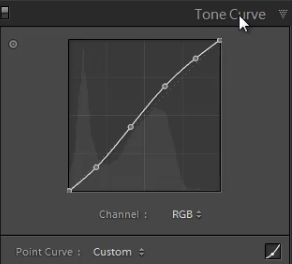
Next, we are going to adjust the Tone Curve in the Tone Curve Panel. To expand and collapse the Tone Curve Panel, press “Ctrl + 2.” To boost the overall contrast in the portrait, create a slight S-Curve. We recommend having at least 4 points on the Tone Curve so that you can control every quadrant. From left to right, these points will provide secondary control of your Blacks, Midtone Shadows, Midtone Highlights and Whites.

To create the slight S-Curve, pull down the Blacks a little bit, then pull up the Midtone Shadows and the Midtone Highlights. Finally, pull the Whites slightly down and to the right. Your Tone Curve should look similar to the one below, but feel free to adjust these points to fit your style.

05-lightroom-4-tone-curve-adjustments

Detail Panel Adjustments

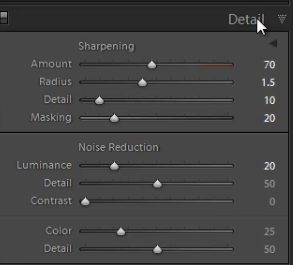
To expand and collapse the Detail Panel, press “Ctrl + 5.” The Sharpening settings from the Standard Import preset should be good enough for your portrait, but always zoom into the subject’s face to make sure everything looks fine. If you find that skin tone is a little too “crunchy”, consider dialing down the Detail slider before the actual Amount.

Next, adjust the Noise Reduction settings. Bring the Luminance up to 20. Do not bring up Luminance too high as this will once again kill detail in your image. However a conservative amount is helpful, even for images captured at your lowest ISO.

Setting Luminance to around 15-20 maximum creates a nice softening effect, especially over the pores of skin, while leaving major detail (such as eyelashes, etc.) intact. Even though the Luminance Noise Reduction is a minor adjustment, it plays a very important role in helping to smooth out the skin tones in a portrait.

(Of course if you’re shooting your portraits at higher ISO’s for whatever reason, you may need to increase this slider even higher!)
06-lightroom-4-detail-panel-adjustments

Lens Corrections Adjustments

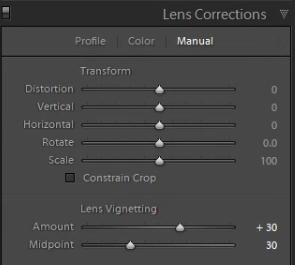
To expand and collapse the Lens Corrections Panel, press “Ctrl + 6.” After adjusting the Noise Reduction settings, we need to check the vignette of our portrait. The vignette refers to the darkness or brightness of the edges of an image. If you want to apply a faint amount of vignetting correction in general, we can leave the Lens Vignetting settings from the Standard Import Preset.  (Of course some photographers like to add vignetting to portraits, so this is going to be a subjective decision!)

07-lightroom-4-lens-vignetting-adjustments

Saving the “Soft Portrait” preset

Now that we have finished dialing in the settings for the “Soft Portrait” preset, we need to save this preset. First, click on the “+” sign in the Presets Panel.

08-lightroom-4-create-new-preset

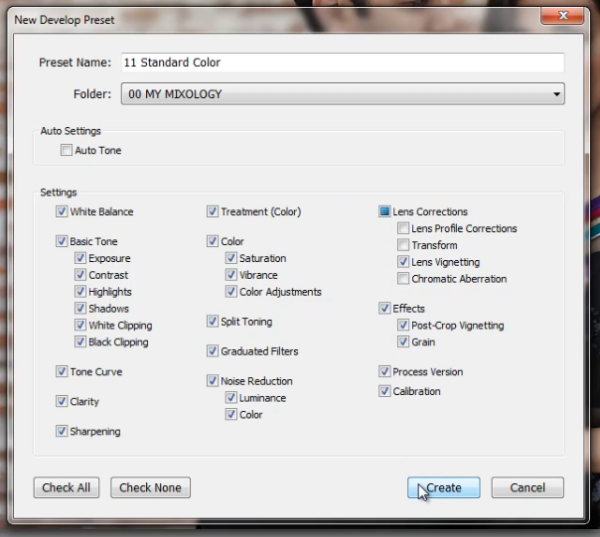
The New Develop Preset dialogue box will appear; name the preset “11 Standard Color.” Select “Check All” to select all the settings. However, make sure that “Auto Tone” has not been selected. Next, un-check “Lens Corrections,” “Lens Profile Corrections,” “Transform,” and “Chromatic Aberration” because we do not want to sync these specific settings across every portrait we have.  (We recommend creating separate presets to manage those settings.)

Press “Create” once you are done. Your New Develop Preset Dialogue Box should look like the one below!

09-lightroom-4-new-develop-preset-settings

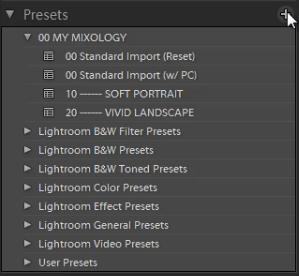
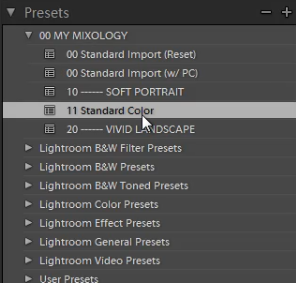
As you can see below, it may be a good idea to organize your presets by numbers, two or three digits is usually enough.  Either way, the goal is to have these default-related presets appear up towards the top.
10-lightroom-4-presets-panel-standard-color-soft-portrait-preset

This is what our final image looks like with the “Soft Portrait” Standard Color Preset applied.

soft portrait 650

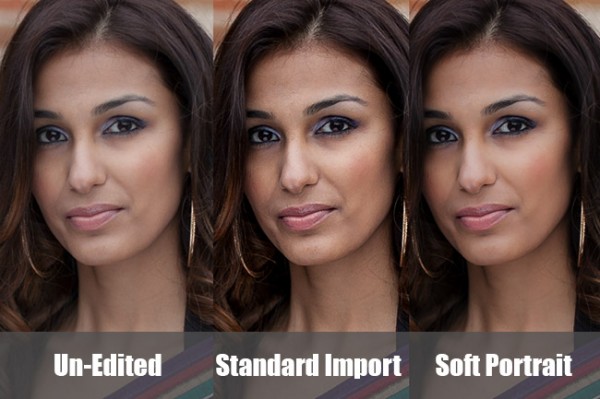
Below you can see a cropped comparison of the original un-edited image in it’s muted, RAW state, as well as the “Standard Import” and “Soft Portrait” presets for comparison:
side-by-side

Conclusion

Once again, the goal with creating a preset such as this is to minimize the amount of work we need to do on a per-image basis.  With a preset like this, in theory you should be able to breeze through a portrait session doing batch corrections to settings such as White Balance and Exposure, only pausing here and there to tweak other settings individually.

It will take time to fine-tune the preset to your own personal taste, however this general rule can help:  If you find yourself applying the same adjustment to more than 50-60% of your images from a certain type of photography, then that adjustment should be put into a preset!  It’s better to perform slight changes on 20-30% of your images than to perform major corrections to 70-80% of your images!

The SLR Lounge Workflow System Workshop on DVD

The SLR Lounge Workflow System Workshop on DVD takes everything that we taught in the Lightroom 4 A to Z Workshop on DVD and builds by teaching you how to maximize your shooting and post processing efficiency and workflow. This 7 hour DVD covers data safety procedures, file management, culling standards and overall develop techniques to increase your post production efficiency by up to 15x! In fact, using this Workflow System we can cull and edit over 1,500 images per hour! Don’t believe us, watch the teaser video! The Workflow System is also available as a part of the Lightroom 4 Workshop Collection. To learn more, click this link.

Post originally from: Digital Photography Tips.

Check out our more Photography Tips at Photography Tips for Beginners, Portrait Photography Tips and Wedding Photography Tips.

How to Create a “Soft Portrait” Preset in Lightroom 4


Digital Photography School

 
Comments Off on How to Create a “Soft Portrait” Preset in Lightroom 4

Posted in Photography


Mastering Photoshop Textures to Create Powerful Imagery

05 Jun

Photoshop has done for photography what the road did for the wheel! That’s quite a bit in case you’re wondering… This union has made photography the worlds 2nd most popular past time… Because let’s face it; creating exciting images is indeed thrilling, and most of all, highly addictive! One such addiction is a single technique: Simple to grasp,hard to master! Continue Reading

The post Mastering Photoshop Textures to Create Powerful Imagery appeared first on Photodoto.


Photodoto

 
Comments Off on Mastering Photoshop Textures to Create Powerful Imagery

Posted in Photography