RSS
 

Posts Tagged ‘Create’

5 Ways to Create Better Images Without Buying More Gear

17 Jul

You are a photographer. You love getting out there and doing your best to create great images. Photographers also love something else. Camera equipment. Sometimes you may find that you spend more time searching for a new lens, filter or accessory than actually photographing with it. When you meet other photographers you will hear them talking about the latest piece of equipment that has just launched.

Why is this? Why are some photographers obsessed with equipment. My personal opinion is that we fall into the marketing trap. Sometimes we really do think that a new lens, or new camera body, will improve our images simply because it is a better piece of equipment. That might be true, but it’s only half true. A new lens might make your images a little sharper or have better bokeh, but the best way to get better images is to improve your ability as a photographer. Here are some thoughts that may help you create better images.

The key ingredient in any image is light

The key ingredient in any image is light

1. Become a light snob

Light is the key to every image you make. If you want a good image, shoot in good light, if you want a dramatic image, shoot in dramatic light. There really is no such thing as bad light, there is simply better light for creating images.

Light is the all important component of great photography. You may feel that shooting in the middle of the day is best because it is bright, and all the light you need is in that shot. Yes, there may be lots of light, but there is also a lot of contrast (bright highlights and dark shadows). The resulting shot may be unappealing because the light is flat or uninteresting.

How do you overcome this tendency to photograph at any time? Become a light snob. What does that mean? I mean in a good way, try this next time you go out with your camera. Make a point of shooting in the golden hours. Think about the light you are shooting in, go out in the early morning or early evening. Choose your subject carefully, compose your scene purposefully and shoot it with intention. Don’t shoot the same scene twice, work with the light, make sure you think about the exposure, try your best to get the shot and walk away from the scene. Make sure you expose for the light the results will speak for themselves.

2. Become more flexible – in more ways than one

POV2

How often do you photograph from your standing height and mostly in landscape orientation? I know I do, it is natural to do that, we shoot they way we feel comfortable. Change this up a little. Look for unusual angles and vantage points. We have all seen the photographs of children looking up at the camera. Change that, kneel down or even lie down in front of a child you are photographing. Turn your camera to portrait orientation, that changes the scene immediately. If you are photographing a street scene, maybe get to a higher vantage point on a balcony. If you are in a city, shoot straight up! The key thing here is, change your viewing angle and you will change the view of your image. You will give your viewers a unique perspective on a familiar topic and that can make for some very dramatic images.
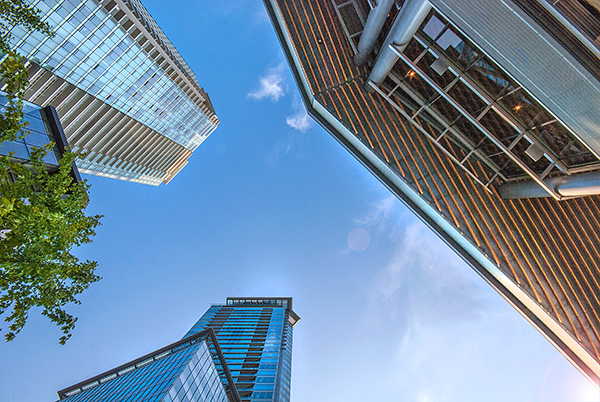
A unique point of view can make for dramatic images

A unique point of view can make for dramatic images

3. Time it right

You have probably heard this about many things, particularly sports:  “its all about the timing”. This is true in certain genres of photography too. In street photography, timing can be crucial to making or breaking the image. The famed street photographer Henri Cartier-Bresson spoke about “The Decisive Moment”. What he was saying was this, if you take the shot a moment too soon, the scene has not yet unfolded, if you are a moment too late, the scene has passed, you have to release the shutter at the precise moment.

This is not easy to get right. It requires lots of practice and the ability to sense or anticipate what will happen next. With practice you will get better and better, and in time, you will find that you will “time” the shot better. When is the right moment? It is different for every photographer and every photograph. It might be the moment before a smile, or the moment the first tear appears, the moment of surprise or elation. Each moment is different and each photographer will shoot it differently. You will know when you get that moment captured because the image will be memorable. The moment will come, but you have to be ready and you may have to be patient.

Photographing fireworks is often about timing.

Photographing fireworks is often about timing.

4. Get your exposure right

We all know this one, it’s an old one, but exposure is all important. How do you affect exposure? You take control of your aperture and your shutter speed. This alone is a topic for another article, but what is important is that you, as the photographer, need to take control of your image exposure and not let the camera do that. If you still shoot on Auto and hope for the best, now might be a good time to start venturing into the world of shooting on manual or even aperture priority. Learning how the aperture and shutter speed affect your images will help you make stronger images in just about any light. This is what makes the difference between a good image and a spectacular image, the exposure.

Mastering exposure will make a big difference in your images

Mastering exposure will make a big difference in your images

5. Use what you have

You have a great camera, seriously, you do! If your camera is less than five years old, it is perfect for taking astounding images. A new camera body will take pictures with more megapixels or better noise reduction, but I am pretty sure, in fact I am CERTAIN, that you can get some amazing images on your current camera. One key element in getting great images is choosing the right lens for the scene. The lens is the eye to the camera. If you are going to invest in any equipment, save up and buy good lenses. Buy some prime lenses and see the results.

First though, use the current lenses you have, make sure you know how each lens affects a scene. A wide angle lens has the effect of making everything in the scene seem far away and spread out, a telephoto lens (say a 200mm) has the effect of compressing everything in the scene (bringing the elements closer together). If you were to photograph a mountain scene with a wide angle lens and switch to a long (or telephoto) lens and shoot the same scene, the elements in that scene would look really different. The perspective and viewing angle changes on each lens, so make sure that you use your lenses and understand the effect that they have on your scene.

Exposure2

Putting it all together

By using these techniques with light, composition, timing, exposure and current equipment, your images will improve. You need to practice, constantly. Keep pushing the boundaries, do the weekly challenges that dPS puts out, try different techniques. Only buy new equipment if your current setup is limiting your photography. The best way to create better images is by practicing and spending hours and hours behind the camera.

I heard a story that a professional golfer who was one of the top three golfers in the world used a very unique way of practicing. Before playing a golf course in an upcoming tournament, he would book the whole course for a week. He would then take 300 golf balls and set up on the first tee. He would tee off from there, hitting each ball from that tee. He would then play each ball from where it landed. He did this on every hole of the golf course. By the end of the week he knew every inch of that course and he knew exactly which clubs he could use from where on the course. Try this in photography. Shoot 100 shots on aperture priority or shoot 100 shots with your 50mm only. Don’t change lenses until you have 100 shots with that lens. Then move to your next lens and do the same. Try each lens with different subject, use a 500mm and shoot some sports, landscapes and macro photos. Mix it up, but learn how that lens works and learn how your camera works and pretty soon, you will be making great images with all your equipment and that shiny new camera will not seem so tempting!

Look for the light, work with the scene and practice, practice, practice.

Look for the light, work with the scene and practice, practice, practice.

I will end off with a quote from the actor Will Smith, which sums it up in a good way:  “The separation of talent and skill is one of the greatest misunderstood concepts for people who are trying to excel, who have dreams, who want to do things. Talent you have naturally. Skill is only developed by hours and hours and hours of beating on your craft.” – True enough!

Have you put in the hours? Do you have any other additional tips? Please share in the comments section below.

The post 5 Ways to Create Better Images Without Buying More Gear by Barry J Brady appeared first on Digital Photography School.
Digital Photography School

 
Comments Off on 5 Ways to Create Better Images Without Buying More Gear

Posted in Photography


Create Better Black and White Photos Using Local Adjustments in Lightroom 5

08 Jul

Local adjustments in Lightroom

I showed you how to convert your photos to black and white in Lightroom in an earlier article. But, considering it dealt purely with global adjustments, the piece only gives you half the story. Global adjustments get you started, but in order to get the best black and white conversion possible you need to make local adjustments as well. This article will show you how to do this.

First, a couple of definitions:

Global adjustments: Any adjustments (to brightness, contrast etc.) that affect the entire image.

Local adjustments: Adjustments that affect only part of the photo.

Before I show you how to make local adjustments, let’s think about why you would do so. Certain things pull the eye more than others. For example, when you look at a photo with people in it, your eye will go straight to them, even if they are small in the frame. This is probably down to human curiosity more than anything, but it works.

Two other things that pull the eye are highlights and contrast. The idea behind making local adjustments is that you can alter the brightness or contrast of certain areas in the frame to influence where the eye goes. This creates a better, more beautiful photo.

Dodging and burning

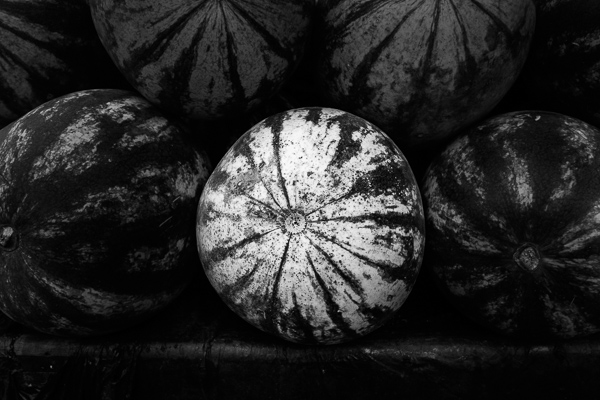
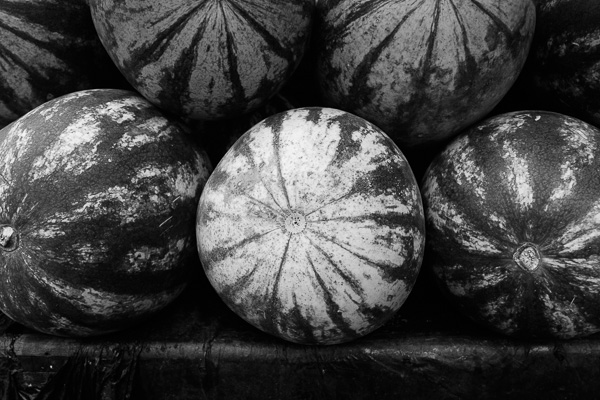
Here’s the photo we’re going to work with in today’s article. I’ve already converted it to black and white using global adjustments.

Local adjustments in Lightroom

As you can see, it lacks a focal point. It also contains lots of beautiful textures which will look great in black and white if we can bring them out.

In order to make effective local adjustments you need to decide what you want to achieve before you start. Here, I decided to make the central watermelon the focal point of the composition. Decision made, it’s just a question of how to achieve it.

Dodging and burning

Although Lightroom itself doesn’t use these terms, you will find them referred to time and again in post-processing. Dodging is the act of making part of the photo lighter, and burning is the act of making it darker. They originated in the chemical darkroom and are also done in photo editing programs like Photoshop.

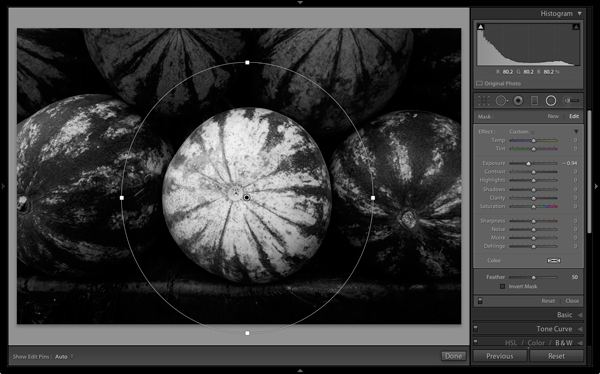
The first step to achieving my aim of making the central watermelon the focal point, is to make the rest of the photo darker. I did that by placing a Radial Filter over the central watermelon and moving the Exposure slider left.

Local adjustments in Lightroom

Note: The Radial Filter is new to Lightroom 5. If you have an earlier version of Lightroom, you can use either Post-crop Vignetting or the Adjustment Brush instead.

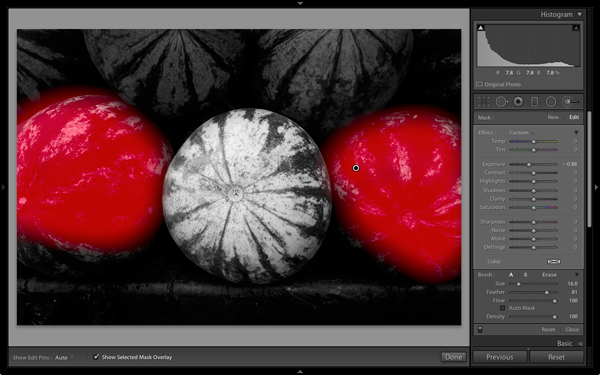
The two watermelons either side of the central one are a little too bright. So I used the Adjustment Brush to select (mask) them and moved the Exposure slider left to make them darker. The screenshot below shows the area covered by the mask. Note how I only painted the top parts of the watermelons as the bottom part was already dark.

Local adjustments in Lightroom

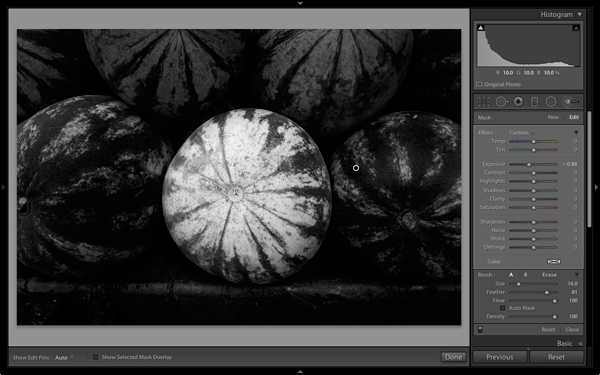
This is the result of the local adjustment.

Local adjustments in Lightroom

Contrast and Clarity

The next step is to improve the appearance of the central watermelon. I can do that by increasing contrast to bring out the beautiful textures of its skin.

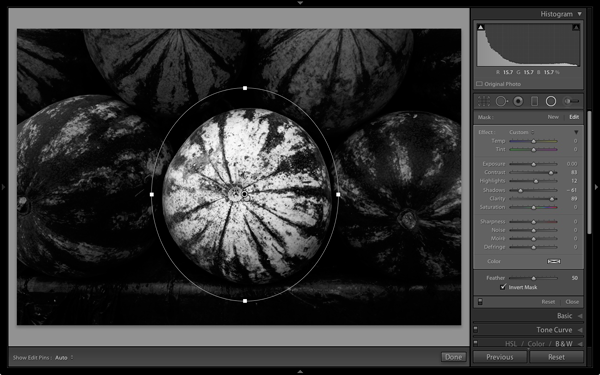
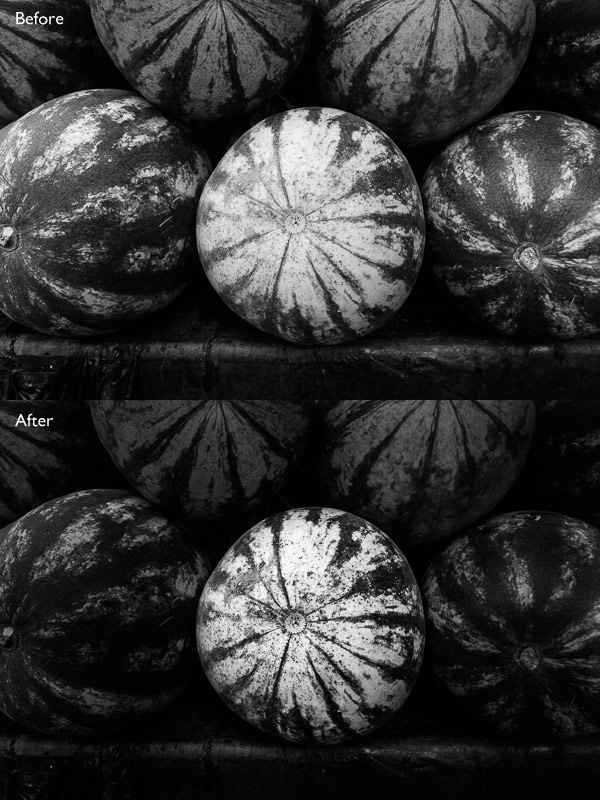
I placed another Radial Filter over the watermelon (you could also use the Adjustment Brush) and ticked the Invert Mask box so the adjustment was applied inside, rather than outside, the filter. Then I increased Contrast and Clarity, and moved the Highlights slider right and the Shadows slider left. The result is a big increase in contrast, bringing out the texture of the watermelon’s skin. Here’s the result.

Local adjustments in Lightroom

Here are the before and after views so you can see the difference, which is entirely down to the local adjustments.

Local adjustments in Lightroom

That completes my overview of using local adjustments in Lightroom. As you can see, the local adjustments turned an average photo into a much stronger one. There is nothing overly complicated about it, it’s more a matter of training your eye to see in black and white and then deciding how to use the tools that Lightroom gives you to realize your vision.

I’m curious to hear how you use local adjustment when you convert your photos to black and white. Please let us know in the comments.


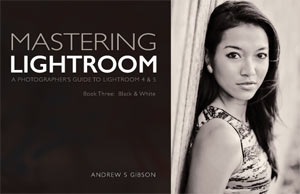
Mastering Lightroom: Book Three – Black & White

Masterlng Lightroom: Book Three – Black & White by Andrew S GibsonMy ebook Mastering Lightroom: Book Three – Black & White goes into the topic of black and white in depth. It explains everything you need to know to make dramatic and beautiful monochrome conversions in Lightroom, including how to use the most popular black and white plug-ins. Click the link to visit my website and learn more.

The post Create Better Black and White Photos Using Local Adjustments in Lightroom 5 by Andrew S. Gibson appeared first on Digital Photography School.

Digital Photography School

 
Comments Off on Create Better Black and White Photos Using Local Adjustments in Lightroom 5

Posted in Photography


How to Create a Sun-shower Photo on a Cloudy Day

30 Jun

Flowers rain CTObackflash

Yes, You Can Change The Weather!

You just brought home a bunch of beautiful flowers, and you’d love to get an interesting photo of them. You take them outside, but it’s a dark, cloudy day. The light is boring, and the forecast is for several days of overcast weather. By the time the sun finally comes out, your flowers may have wilted.

What should you do? Well, you can change the weather. Really, you can by using your off-camera flash and a simple garden hose to create a sun-shower. Thanks to Canon’s wireless flash system you can, in the words of the Temptations, have sunshine on a cloudy day.

Here’s how to create a sun-shower photo on a cloudy day:

Equipment used:

  • Canon EOS 70D
  • Canon 85mm f/1.8 USM lens
  • Canon 430 EX II Speedlight flash
  • Flashpoint Heavy Duty Lightstand
  • Adorama Universal Swivel Holder
  • Velbon GEO E535D Carbon Fiber Tripod
  • Expoimaging Rogue Gel Universal Lighting Filter Kit

The idea here is to use a wireless flash to recreate the effect of direct sunlight, and adjust the light so it looks natural. Then, to simulate rain, just add water. The flash will create dynamic specular highlights as the water sprinkles through the image. The goal is to go beyond a simple “record” shot of your flowers (or whatever it is you are photographing) and load up your photograph with visually interesting elements.

Step 1: Waterworks

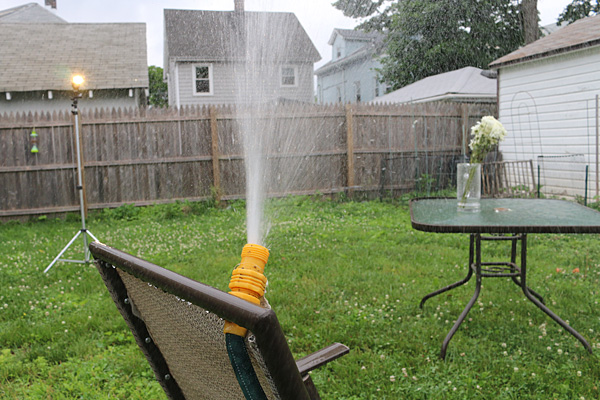
To make this happen, you’ll need a garden hose and sprinkler, with either a nozzle at the end of the hose, or an oscillating sprinkler. If you live in a home with a yard, you most likely already have these. In this example, a hose with a built-in, controllable nozzle was available, so that’s what was used. Make sure the nozzle or sprinkler head is placed in a fixed position, either to the side of or behind the flowers, with the water hitting the flowers but not falling where the flash or camera will be placed.

Caution: Don’t bring your camera gear out yet, it might get wet during this phase.

Setup rainmaker

Be prepared to improvise. In this case, a lawn chair was pressed into service as a way to hold the hose nozzle in place.

Once you’ve adjusted your “rain,” turn off the water and bring out your photo gear.

Choose a longer focal length lens (medium telephoto) and shoot with a wide aperture. This will help blur the background and create separation between background and foreground. An added benefit: the farther working distance between camera and subject will hopefully allow you to position the camera at a safe distance from the path of the water.

Step 2: Composition

Set up your camera (a tripod is highly recommended), focus on the flowers, and compose. Find a dark background to maximize contrast from the “rain,” and leave some room at the top of the image to show the water drops. Just for fun, take a few “before” pictures for future reference.

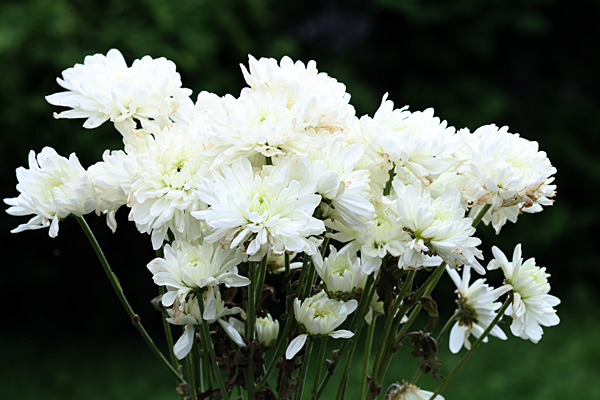
Flowers noflash

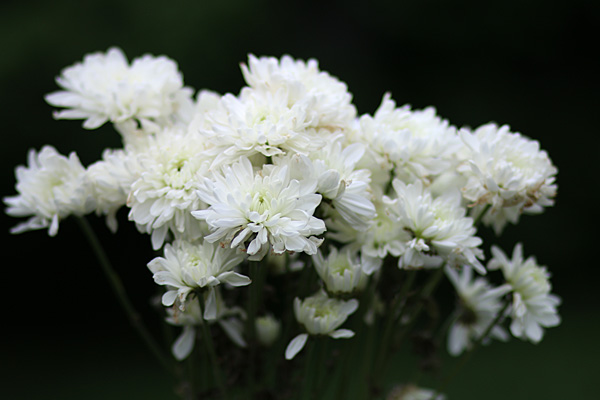
Before – here is the composition, with no added light. It’s okay, but not terribly exciting. Exposure: 1/1000th at f/1.8, ISO 400.

Flowers oncameraflash

Same composition, with the 70D’s built-in flash turned on. You can see more detail, but the lighting is flat and still uninteresting. 1/250th at f/13, ISO 400

Setup behindcamera

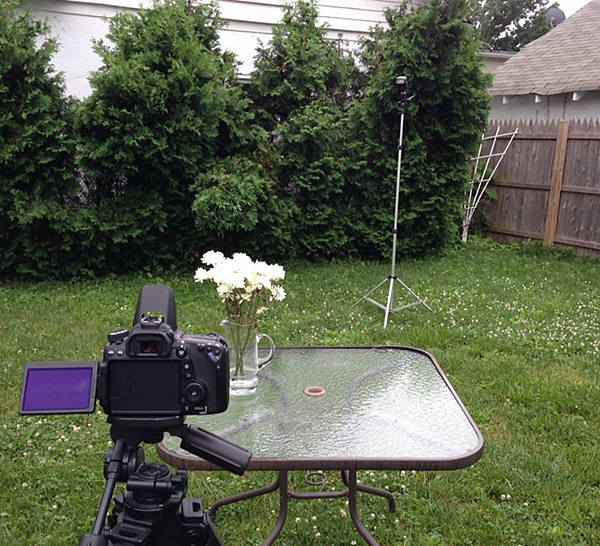
All lined up – with the hose aimed at the flowers off to the left, the camera (in this case, a Canon EOS 70D with a Canon 85mm f/1.8 lens) was brought in, and a flash on a light stand was moved behind and slightly to camera right of the flowers. The dark shrubs behind the flowers provide a good contrast.

Step 3: Cue the “sun”

Turn on the flash. Don’t know how to operate a Canon DSLR or G-series compact? Scroll to the end of my article on Using Off-camera Flash to Fix Lighting Problems for Outdoor Portraits to get step-by-step instructions on how to trigger Canon off-camera flash wirelessly. You can control the flash intensity and, through trial and error, find the best exposure for illuminating the flowers.

Flowers plainbackflash

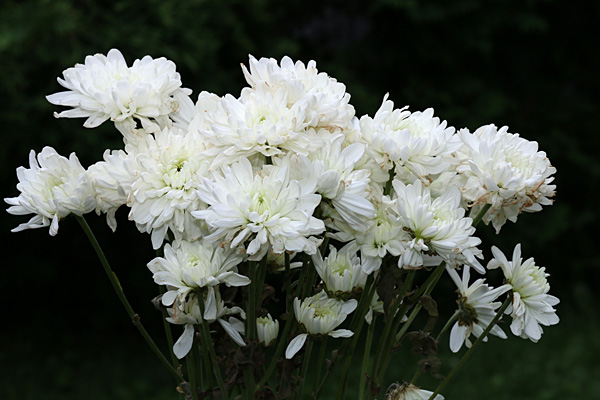
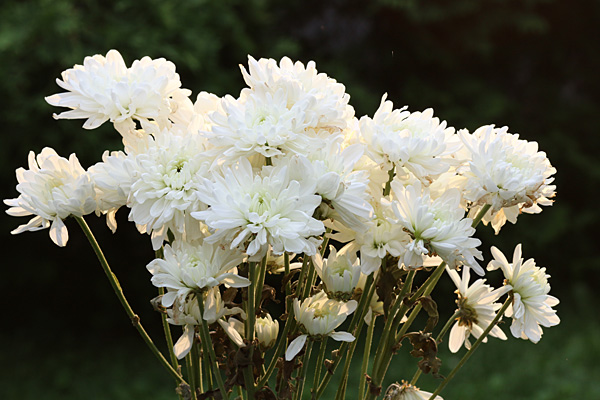
Now we have the backlight flash turned on, but the lighting ratio of ambient to flash light is wrong, and the flowers are overexposed while the effect of the backlighting is barely visible. You may need some trial and error, adjusting the EV and flash intensity settings until you get the right combination. Exposure: 1/250th at f/11, ISO 400

Hint: When adjusting the exposure and flash intensity, check your results in the LCD monitor, but also turn on the histogram to make sure the light is not falling off the chart.

Step 4: Warm up the light

While overhead sunlight is fairly neutral, sunlight in the early and later part of the day takes on a pleasing warm tone. That’s why they call this time of day the Golden Hour. You can emulate this light by using full CTO Orange gel, available in the Expoimaging Rogue Gel Universal Lighting Filter Kit. Now it looks like you’re shooting in late afternoon or evening.

Flowers CTObackflash

Sunset? Nah, it’s the middle of the day. But thanks to the cloud cover and a Full CTO Orange gel over the backlight, it looks like sunset. Exposure: 1/250th at f/11, ISO 400. (make sure to set your shutter speed no higher than your camera’s sync speed)

Setup all

Flowers are placed, flash is gelled, and the “rain” is on. You’re ready for the final shot.

Step 5: Make it rain

Now that the composition and exposure are set and the light is gelled and in place, it’s time to turn on the water.

Flowers rain CTObackflash

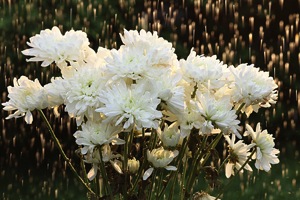
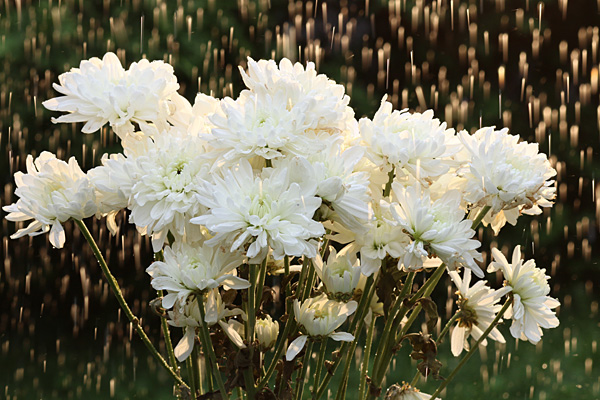
It’s a late afternoon sun-shower. This is what your final result could look like. But wait, the drops seem to be going up. Why is that? See below. Exposure: 1/250th at f/11, ISO 400.

In this final shot, the flowers drenched in a sunlit downpour in the middle of a dark, dreary day. There’s one thing that would make this shot better, and that would have been switching to rear-curtain flash sync. In the final example here, the drops appear to be going up because the flash is triggered at the beginning of the exposure. Change your flash settings to rear curtain sync and the drops will be going in the right direction. (There wasn’t time to make the change here because it had started to rain for real, ending the session.)

Have fun transforming your backyard into an outdoor set and creating all kinds of weather.

The post How to Create a Sun-shower Photo on a Cloudy Day by Mason Resnick appeared first on Digital Photography School.

Digital Photography School

 
Comments Off on How to Create a Sun-shower Photo on a Cloudy Day

Posted in Photography


How to Create and Use Photoshop Actions to Speed up Your Workflow

26 Jun

Photoshop_CC_icon.pngWhat are Photoshop Actions?

Photoshop Actions are very useful time savers. Should you find yourself applying the same Photoshop commands or a series of commands repeatedly to images, wouldn’t it be nice to just push one key and apply that series of commands to your image, or even to a whole folder of images? It can be done, read on.

What kind of things can you do with Actions?

Inside Photoshop, just about everything you do to enhance images can be done with an Action, ranging from: applying creative styles, resizing, converting to Black and White, sharpening, watermarking, or even compositing star trails – all with one click of the mouse or a keyboard short-cut.

Why use Actions?

The use of Actions will streamline image processing by combining multiple commands into one key stroke, or batch, which will save you lots of computer time and give you more time for shooting. Every photographer wants more time for shooting.

Create a simple Action

Okay, so perhaps you want to resize an image for the web. This simple action will resize the image to 600 pixels wide, and also add copyright and contact information to the image.

action_palette-with-callouts

Steps-by-step how to create your own Action

  1. In Photoshop , open the photo file you want to work on.
  2. Open the “Action Palette” or panel (Alt+F9)
  3. Select “Create New Action” from menu or click on the “New Action” button.new action3
  4. Name your Action; use a name that will tell you what the Action will do. In this case we will name it “Save for dPS Blog”.
  5.  Assign a key board short-cut.
  6. Assign a color to Action button. (This is optional, but can be useful to organize your Actions when you set up multiples.)
  7. Assign a set in which your Action appears. This is useful if you want many Actions for many different types of work, for example “Sizing Actions”.
  8. Start recording – select record from the menu or click the  “Start Recording” button.
  9. Now, simply apply all the Photoshop commands to your open image that you want saved in that Action.
  10. Select image size (Alt+Ctrl+I) and set to 600 pixels wide.
  11. Select File Info (Alt+Shift+Ctrl+I) and enter your Copyright information.
  12. Select “Stop Recording” from menu or click the “Stop Recording” button.If any of your commands require variable settings that need to be changed on an image by image basis, click on the pause button for that Action. Now when you run your Action, it will stop at that command for your input. Otherwise, your action will run just as it was recorded with all input being applied the same.

How to use Actions

There are three ways Actions may be used:

  1. Applying it to a single open image
  2. Applying it to a batch of images
  3. By creating a Droplet of your Actions

Explanations of how each of these work follow.

Applying to open image

You can apply your Action to an open image by simply selecting the desired Action in the Action Palette and then selecting Play from the menu or by clicking the Play button.

Applying to a batch of images:

  1. Place all the  images into one folder
  2. Select the Action you want to run
  3. Under the File menu, select Automate and then Batch (because the Action you want to run is already selected, the action field will have already been preloaded with the right one)
  4. Under Source, select the desired folder from the menu.
  5. Click on the Choose button and select the folder that contains your images.
  6. Under Destination, select Folder.
  7. Click on the Choose button and select a folder where you want the final images to be saved.
  8. Select Override Action “save as commands”
  9. Click OK and Photoshop will automatically start opening all the files in the source folder one at a time and running the Action, then saving them to the destination folder. Cool, huh!?batch

Make a Droplet from an Action:

With this method you can create an executable file, which you can be place on your desktop. Then if you want to run an Action on a file, you can just drag it to your Action Droplet and the changes will be applied to your file and saved to a specified folder.

Creating a Droplet:

  1. Select the Action that you want to use to create your Droplet.
  2. Under File menu, select Automate and Create Droplet, the Create Droplet menu will open.
  3. Under Save Droplet In: click on Choose and select a destination for your droplet. Your computer desktop is a great destination and makes the Droplet easily accessible.
  4. Under Play, since we already selected the Action in step 1, this section already contains the correct command info.
  5. Under Destination select Folder.
  6. Under Destination click on Choose and select a folder where you want the finished images to be stored.
  7. Select Override Action “Save as Commands”.
  8. Click OK and Photoshop will automatically create your Droplet.
    Now simply drag your image to the Droplet and the Action will be applied to the image and saved to your specified folder.Droplet

Actions can be used for the simplest series of commands, but after you get the hang of it you can create some very complex applications. The purpose of this article is to show just how easily you can create your own Actions and thereby simplify and speed up your work flow.

If you have other tips for using Photoshop Actions please share in the comments below.

For more on Photoshop Actions try these articles:

  • Tips for Learning to Love Photoshop Actions
  • Get Creative with Photoshop Actions
  • Lightroom Presets vs. Photoshop Actions

The post How to Create and Use Photoshop Actions to Speed up Your Workflow by Bruce Wunderlich appeared first on Digital Photography School.

Digital Photography School

 
Comments Off on How to Create and Use Photoshop Actions to Speed up Your Workflow

Posted in Photography


Single Image Star Trails – a Powerful Technique to Create Star Trails in Minutes Using Phototoshop

11 Jun

10258929_1466264890276738_7906982947618430010_o

If you are reading this, you must be among those who have a special place in their hearts for stars, galaxies and the wonders of the universe. With recent advancements in camera technology, many photographers have captured the beauty of the night sky in spectacular ways. The truth is that every photographer is fascinated by the glittering stars, and captivating night skies, that have the power to instantly teleport us to a world beyond our wildest imaginations. From a photographic perspective, star trails can add another dimension to an otherwise average shot and that is likely the primary reason for many photographers desire to learn how to capture star trails. If you are struggling to find out and learn about this rewarding effect, get your camera and computer ready. But before that, let me introduce you to star trails.

10373061_1472036406366253_4127720884282225109_oWhat are Star Trails?

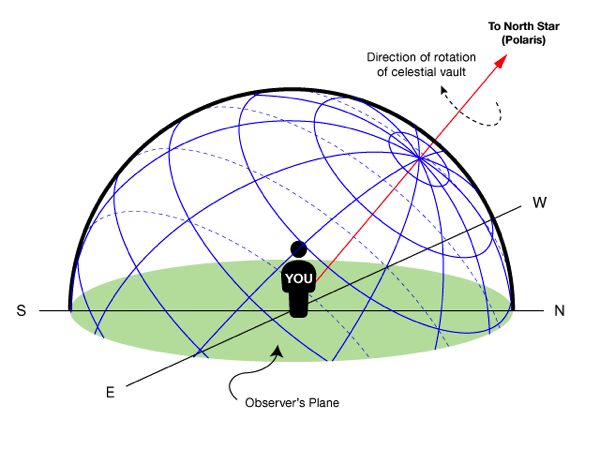
Star trails is a photographic effect that gives an illusion of motion to the stars along a circular or an elliptical path. Technically, stars do not move when we observe them. They are quite stationary very much like our Sun. In reality, the circular motion of the stars we see in star trail images is a result of rotation of the Earth along its axis. For better understanding, please refer to the ‘equatorial grid’ figure under “Understanding Star Trails” section below.

How are Star Trails captured?

Traditionally, star trails are captured by taking multiple shots of the sky in succession over a period of many hours. Modern DSLR cameras also allow you to take a single exposure of an extended length of 30 minutes or more but many photographers prefer to take multiple shots at 30 seconds each and stack them together. Doing it this way eliminates any chances of shaky exposures that can occur due to wind or bumping into the setup while the shutter is open. If you are attempting to make almost a full circle star trails, then the number of shots required to create it can go in hundreds. Later, all those shots are stacked together in Photoshop or a free software such as StarStax to create a single image that shows the circular paths of the stars.

Photographers have been using this method for years with great results. But if you do not have the option to return to the same location again, then the conventional method would feel limited, as it requires you to stay in one spot for hours, thereby limiting your options to take multiple shots and capture a variety of angles on location in one night.

Understanding Star Trails

Equatorial grid

Equatorial grid from observer’s point of view

Imagine that ‘YOU’ are inside a giant sphere (see above diagram). Now, depending on the direction you look at, the effect of the star trails will be as follows:

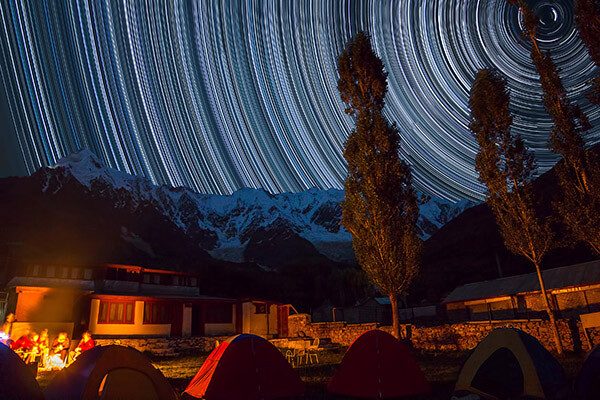
Facing North: Star trails effect will appear to be circular with some stretching of the circular lines at the far edges of the frame.

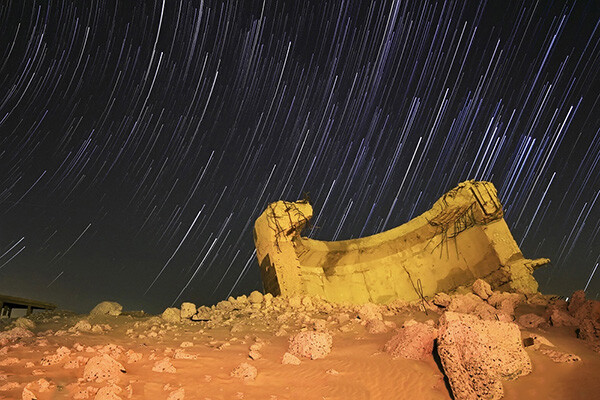
Facing East: The trails will appear to be straight in the middle moving diagonally in an upward direction from bottom center to top center. They will also appear to be converging at both top left and bottom right at the far sides of your frame. See image below:

East West Trails Umm ul Aish Kuwait

Umm-ul-Aish, Kuwait – image shows the upward motion of East star trails

Facing West: In this direction, the trails will appear to be the exact opposite of what you see when looking towards the South. Moving downwards and to the right from top to bottom in a diagonal line, they will also appear to be converging at both bottom left and top right at the far edges of your frame.

Facing South: If you are facing South head-on, the star trails will appear to be moving from left to right in an upward curve.

One-shot Star Trails – the Technique

I have been developing a new method to create star trails in Photoshop. Unlike the ‘Star Trails’ Photoshop action that you might already be familiar with, this technique is much more than that. It eliminates all limitations associated with the traditional method of capturing star trails. Unlike the conventional method, this technique only requires a single shot, that’s right, only ONE shot of the night sky to create realistic star trails. Since this technique is a result of a joint effort between me and my friend Mobeen Mazhar, who is a great landscape photographer from Pakistan, we have named it the “HM technique” or “HM star trails”.

When implemented correctly, this technique will open endless possibilities for you in your star trail adventures and is sure to spark new hope among photographers for all levels of expertise. Now, let’s take a look at different types of star trails and how you can use this new technique to create them in Photoshop with just one shot.

Creating North Star Trails

North Star Trails Nanga Parbat

Nanga Parbat-Trashing, Pakistan – North Star trails created with HM technique

This is the most common and simplest type of star trails. Traditionally, it can be achieved by pointing your camera towards North with the focus set to infinity and then taking consecutive long exposure shots (30 seconds) at high ISO settings. Since the North Star remains almost stationary, the final effect is circular with the stars seeming to revolve around a pivot point, which is the North Star. Then at the time of post-processing, all shots are stacked using Photoshop or StarStaX.

The downside to this approach is that it can take as many as 700 shots over a period of five to eight hours to get a full circle trail. Now watch the video below to learn to create North Star trails within minutes using just a single shot of the night sky.

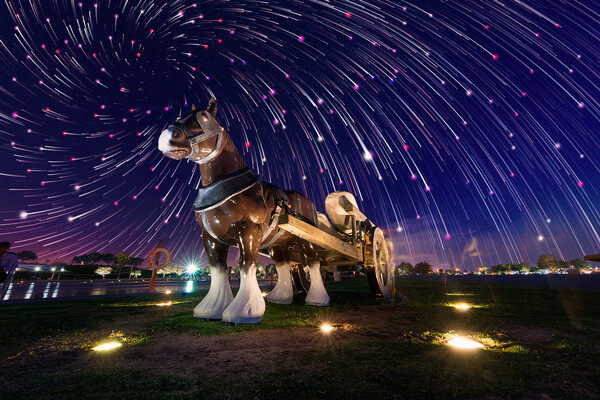
Creating Meteor Shower Trails

Meteor shower AspirePark

Aspire Park, Doha – meteor shower trails created with HM technique

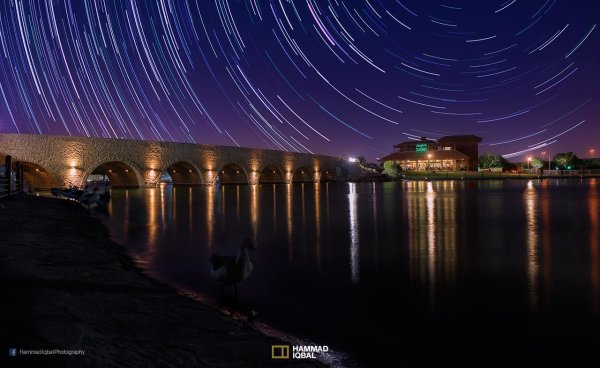
Meteor shower trails is by no means an official name. This is fundamentally a beautiful variation of the North Star trails. Instead of a long continuous streak of light, the trails seem to disappear at the origin which gives it depth and dimension. There is also another variation of the meteor shower trails in which the tip of the trail is thicker, brighter and looks like a blob or droplet.

The underlying technique of the meteor shower trails is the same as shooting the North Star trails. The only difference is in post-processing. The meteor or comet effect is achieved by using the ‘Comet mode’ in StarStaX as shown below.

‘Comet Mode’ feature in StarStax

But regardless, the traditional method still requires that you spend hours on a single spot to take hundreds of consecutive shots. Now watch the video below to see how you can create amazing meteor shower trails in minutes, and once again, all you need is a single shot of the night sky.

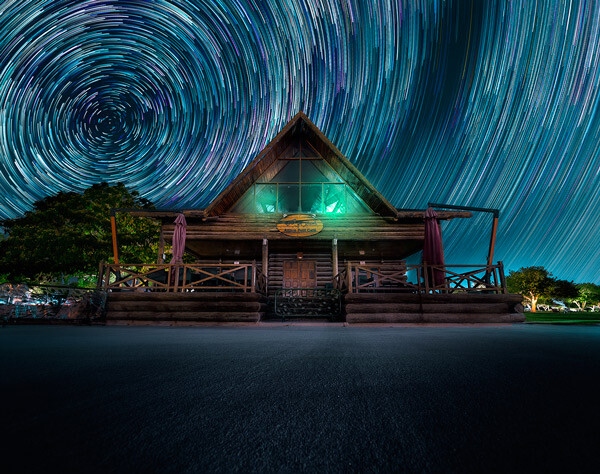
Creating Vortex Star Trails

Vortex Aspire Park Doha

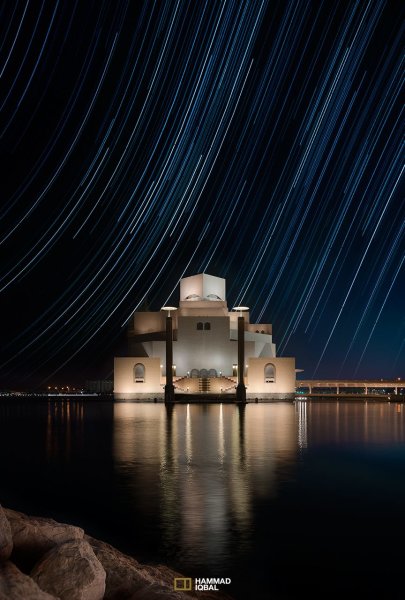
Aspire park, Doha – Vortex star trails created with HM technique

This is by far my favorite kind of star trails and is quite complex to achieve. Unlike the previous two types of trails, vortex star trails require special equipment which can be costly and may prevent most photographers from trying it. The vortex effect is achieved by zooming in or out on the lens during the long exposure. It may sound simple at first but the trick is to avoid vibrations as you zoom during the 30-second long exposure. Hence it makes it extremely difficult, if not impossible, to do it with bare hands without shaking the whole setup.

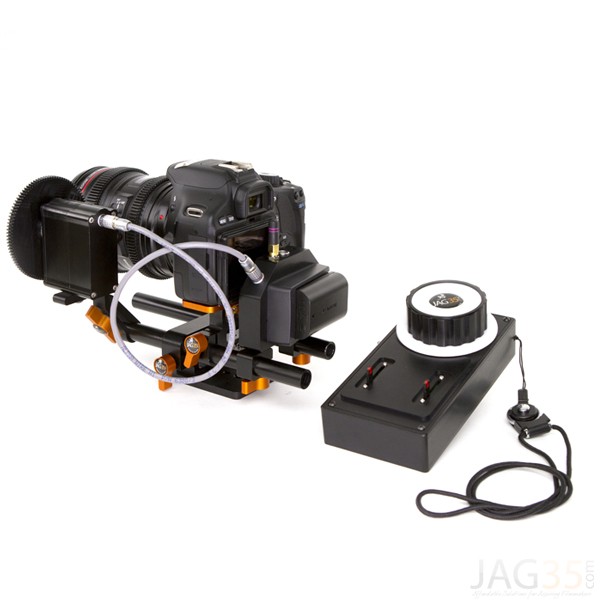
But if you have plenty of free cash to burn, you can get the tools which would include a geared ring that goes on the zoom ring of your lens, a motor and a wireless remote for controlling the motor. The setup is basically what DSLR filmmakers use for focus racking, that is a motorized follow focus system as shown below. The system is very useful if you shoot professional video with your DSLR but for photographers, the cost might not be justifiable.

Electronic follow focus

Wireless electronic follow focus kit v2 by Jag35

Do not worry because the following video will show you how to create vortex star trails in Photoshop. No cash required.

Conclusion

With the help of this powerful new technique, you will be able to maneuver on location, shift your focus towards making a variety of compositions, save countless hours, battery power and thousands of shutter actuations on your DSLR. Would you have thought that a single shot could give you such incredible flexibility in your star trail photography?

Tip: Just make a note of the direction your camera is facing to help you create star trails in relation to the reference direction.

I am sure that this tutorial will add a new skill to your photography arsenal. If you have any questions, post them in the comments below. Thank you.

Technique developed by Hammad Iqbal and Mobeen Mazhar

Mobeen Mazhar is a passionate traveler and has spent more than a decade exploring Pakistan and its natural beauty. Photography gives him a mode to express his love for nature and a medium to document his travel experiences. He is a landscape specialist, regular travelogue writer and travel expert for Pakistan. You can find his photographic work at Facebook, 500px and Flickr.

The post Single Image Star Trails – a Powerful Technique to Create Star Trails in Minutes Using Phototoshop by Hammad Iqbal appeared first on Digital Photography School.

Digital Photography School

 
Comments Off on Single Image Star Trails – a Powerful Technique to Create Star Trails in Minutes Using Phototoshop

Posted in Photography


Create Art with your Photos Using Topaz Simplify

27 May

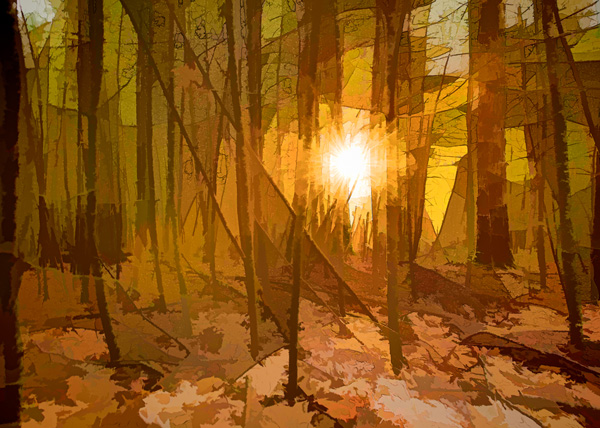
Simplified-after-1

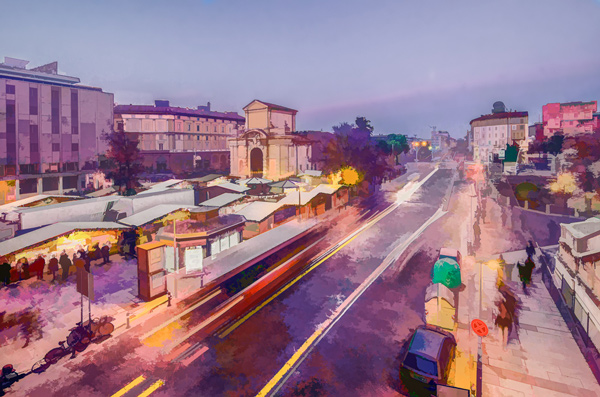
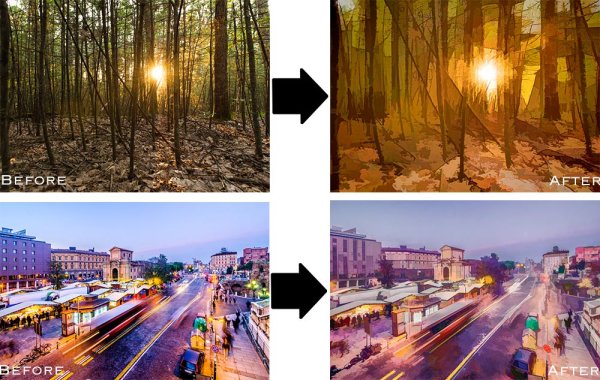
Topaz Simplify is designed in a way that allows you to transform your photography into something that resembles painted or drawn art. There are a ton of different styles of art packed into Simplify, from line and ink, to oil and watercolor painting; so it should provide some great creative opportunities for you. Today I’m only going to do a basic walk through on a couple of different photographs in order to introduce the product to you.

TopazSimplfiy-Beforeandafter

Before getting started I do want to mention that while I’ll be using Topaz Simplify as a Lightroom plugin today, it also works with Photoshop, Aperture, iPhoto and others so you don’t have to have Lightroom to use it. Find out all the info and get the free trial of Topaz Simplify here.

Topaz Simplify Basic Walkthrough

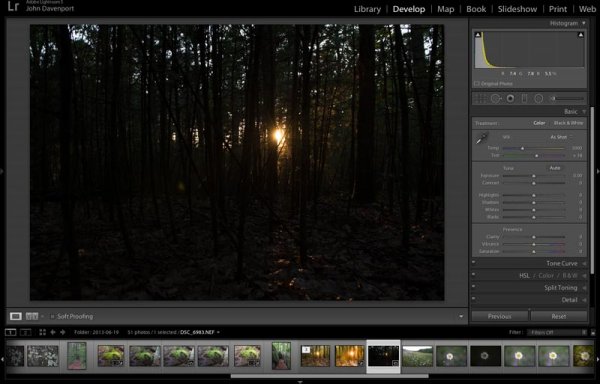
As you can see from the original RAW file below this photograph is in some serious need of help. It’s basically just an underexposed shot of the sun setting through the forest, without much of a focal point or anything interesting going on. Now I don’t want you to think that Simplify will solve all your terrible miss-fired shots, in most cases it won’t. But here I think it does a remarkable job at making lemonade out of lemons.

Do Lightroom basic adjustments first

TopazSimplify-Original

Original RAW file in Lightroom

Before we can use Simplify however, we do need to get the photograph into some sort of usable shape. For this photograph I’ve got to really rely on Lightroom’s power of saving an underexposed image which it handles without too much of a problem.

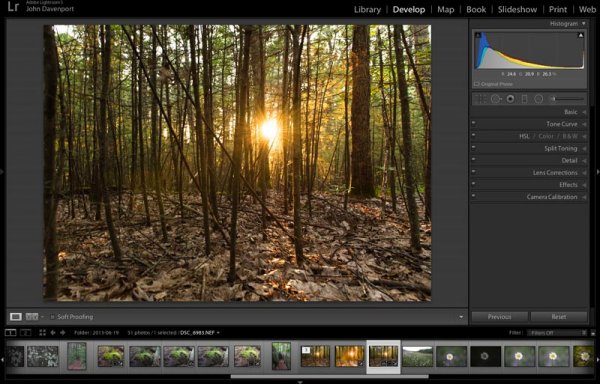
After some adjustments in Lightroom 5 using a combination of sliders in the basic tab, you can see that the photograph is at least now in a condition that Simplify will be able o handle.

TopazSimplify-LightroomCleanupCrop

After some basic Lightroom adjustments

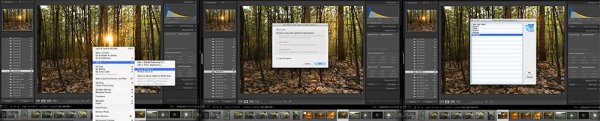
To use Topaz Simplify in Lightroom you’ll also need the free Fusion Express plugin (download it here) which is what launches all of the Topaz products. Once both programs are installed launch Topaz Simplify by right clicking on your photo. Navigate to EDIT IN > FUSION EXPRESS 2.

TopazSimplify-LaunchSequence

You can see this in more detail in the video below

Next, a dialog box will open up asking you to select how you’d like the photograph to be brought into Topaz Simplify there are three options here – I always choose ‘create a copy with Lightroom adjustments’ as the other two work off the original file in Lightroom. Note: if this is an area of confusion for you, you’ll be able to see this process in more detail in the video below.

TopazSimplify-AdjustmentForest

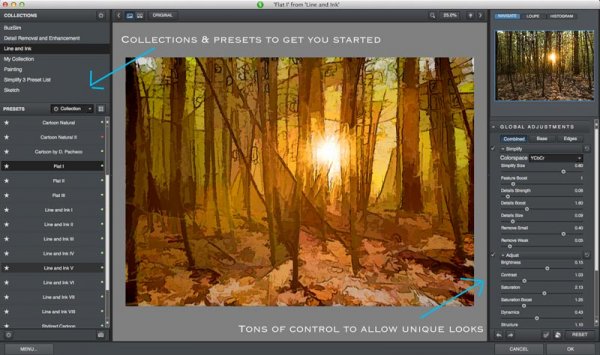
Topaz Simplify preset and adjustment options

Next try the ready-made presets that come with Simply

Once you’ve launched Topaz Simplify you’ll be brought into a new editor screen with a bunch of prepackaged collections filled with different presets.

On the left-hand side, as you can see from the screen shot above, the Line and Ink collection is currently selected. There are a handful of other collections, each one containing a different set of presets, all of which are great when you’re just getting started with Topaz Simplify. I highly recommend just playing around with them to find out which ones suite your own creativity best, before getting to involved with the rest of the program. Here are a couple more variations on the photograph above that I achieved with just a few mouse clicks using presets.

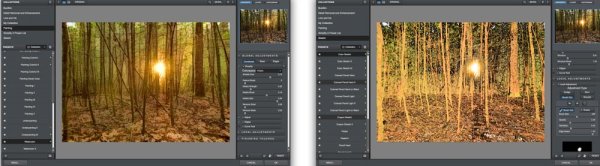
TopazSimplify-Forest2

A couple more Topaz Simplify variations.

Customize and play

However, once you have gotten used to the presets and found the ones you like, you also have a lot of control to make the images your own through various adjustment options.

The right-hand panel offers the ability to control things like the overall intensity of the Simplify effect, the ability to determine which edges are drawn in harder or removed entirel,y and the ability to modify how much overall detail is pulled out from the scene.

You also have access to some options for basic image adjustments should you need to do some minor contrast, brightness or saturation modifications (though I’d suggest waiting on these until you get back into Lightroom).

Finally – one of the best parts of Simplify – is that Topaz decided to include bunch of great local adjustment options allowing you to burn, dodge, smooth and/or brush out the effects of Simplify in specific areas of your photograph.

Simplified-after-2

For a look at Topaz Simplify in action watch the video below where I run our second photograph from the two before and after images above through Simplify.

Topaz Simplify Basic Video Walkthrough

What do you think? Have you simplified a photo?

So after this basic walk through I’d love to hear your thoughts on the software. If you do go ahead and use it, or have done so in the past, how about a sharing one of your favorite before and after image sets in the comments below – I’m curious to see what you’re able to come up with.

The post Create Art with your Photos Using Topaz Simplify by John Davenport appeared first on Digital Photography School.

Digital Photography School

 
Comments Off on Create Art with your Photos Using Topaz Simplify

Posted in Photography


Filmmaker links 50 Lumia 1020s to create ‘bullet time’ effect

24 May

Arc-of-Wonder-feat1.jpg

Filmmaker Paul Trillo has teamed up with Microsoft to build an apparatus which they call the ‘Lumia Arc of Wonder’. It consists of 50 Nokia Lumia 1020 smartphones fixed to a custom-built metal arc on casters, some networking equipment and external power sources. Click through to read more, and see the results on connect.dpreview.com

News: Digital Photography Review (dpreview.com)

 
Comments Off on Filmmaker links 50 Lumia 1020s to create ‘bullet time’ effect

Posted in Uncategorized


Apple aims to use OIS to create high-resolution images

11 May

applepatent1.jpg

Apple Insider has discovered another interesting camera-related Apple patent application. The document titled “Super-resolution based on optical image stabilization” describes a way to use a camera’s optical image stabilization system to capture a series of images at slightly offset angles and then stitch them together to create one large high-resolution file. Learn more

News: Digital Photography Review (dpreview.com)

 
Comments Off on Apple aims to use OIS to create high-resolution images

Posted in Uncategorized


8 Steps to Create Mouth Watering Food Photography

07 May

On sale now at SnapnDeals for a limited time at 50% off Photographing Food 8 eBook Bundle by Taylor Mathis. Get it now if you want more great food photography tips.

Have you ever tried taking a picture of food and it just didn’t look as good as the dish tasted? Don’t worry, you aren’t alone. Taking pictures of food requires a different mindset and approach than what you would use in your portrait or landscape photography. Here are 8 steps you can take that will help you create mouthwatering food images.

Step 1. Choose one light source

Mathis photographing food 8 steps tip 1

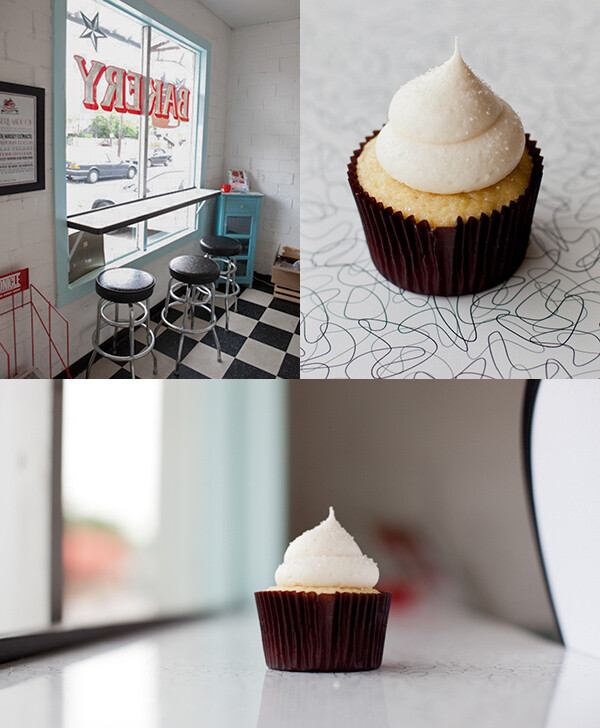
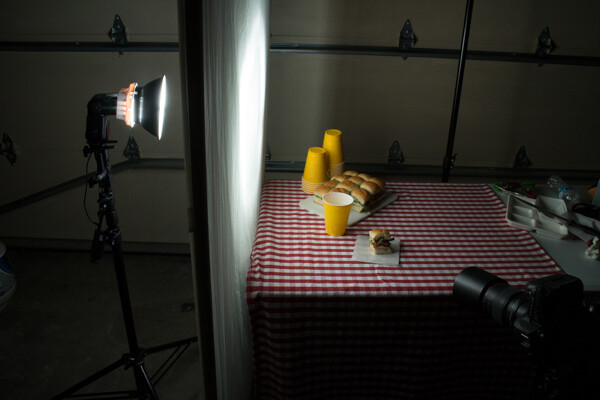
I know what you may be thinking. The more lights the better, right? Adding lights in portrait photography does give you ability to shape and light the face in beautiful ways, but when shooting food, one large diffused light source will yield amazing results!

This doesn’t mean you need to spend a ton of money to get started. All you need is a window. You can use a window where you live or if you are shooting on location, try a large restaurant window.

Step 2. Embrace food’s color

Mathis photographing food 8 steps tip 2

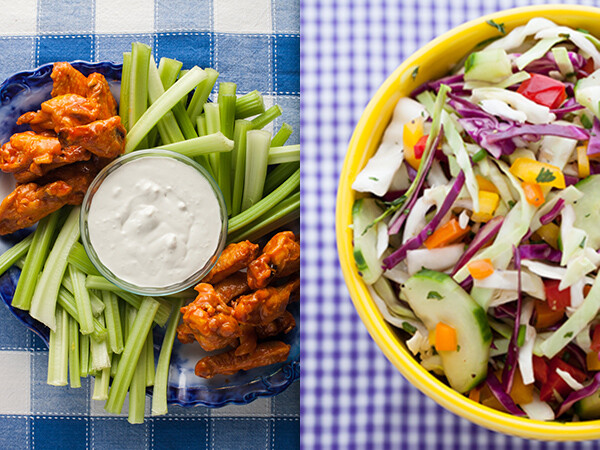
Food comes in a wide range or colors and textures. From your dark leafy greens, vibrant orange carrots, or pale purple shallots, you can have a rainbow of colors in front of you at meal time. Embrace this color with your prop selection and food styling. If you are lost on where to begin, look for inspiration in an artist’s color wheel! A color combination that I like is matching blue accessories with yellow or orange foods.

Step 3. Know when to use artificial light

Mathis photographing food 8 steps tip 3

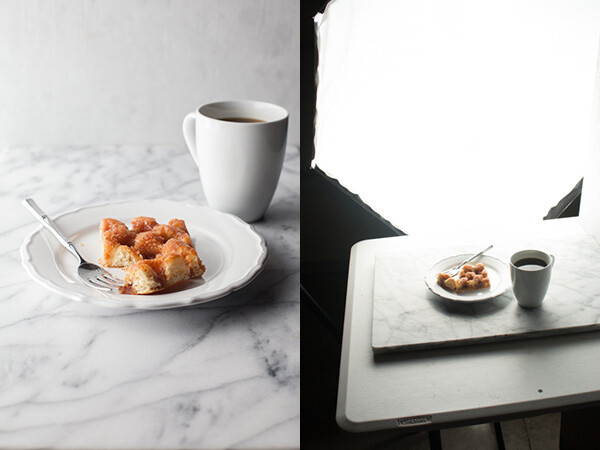
I love using natural daylight in my food photography, but there are times when I need an artificial solution. A tungsten lamp or a small compact flash make great options for shooting your food at night. The key is to use a large diffusion source to create a beautiful, soft light that will fall over your set. I like to modify my light with umbrellas, soft boxes, or a large diffusion scrim.

Step 4. Get creative with the ingredients

Mathis photographing food 8 steps tip 4

Don’t overlook the ingredients and head straight for the shots of the main meal. With an ingredient shot you can create an interesting story that begins the journey to the final plated dish. For fruits and vegetables, I like to create visually interesting arrangements shot from an overhead angle. This is the type of shot that any camera can do, even just one on your cell phone. If you have a macro lens, take advantage of your close-up ability to shoot spices and ingredients with interesting textures. Close-up shots of these shapes and textures will bring an interesting and new perspective of food to your viewers.

Step 5. Think about final use

Mathis_photographing_food_8_steps_tip_5_new_crop

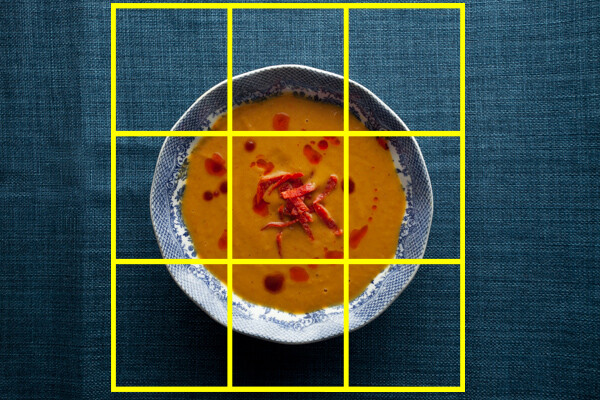
Your food image will commonly be cropped to a different size for its final use. It could be a square for use in a restaurant menu or a narrow rectangle that will fit on the side of a package. It doesn’t do you or the client any good if you create a beautiful image, but half the dish is cropped out when it comes time for printing. When shooting, you want to know what this final crop will be so that you can ensure that all the essential parts of the dish make it into the shot.

Step 6. Taking your food on location

Mathis photographing food 8 steps tip 6b

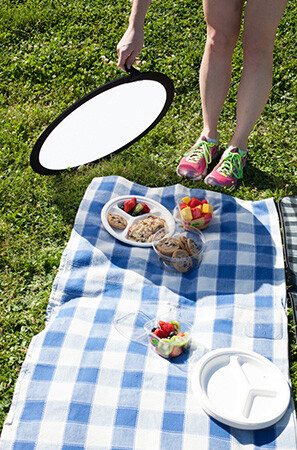
Taking your food shots out of the kitchen, and on location, will allow you to create images with beautiful outdoor scenic backgrounds. Whether it is a trip to the farm to capture fruits and vegetables ripe and ready to pick, or creating an outdoor entertaining event, an on location shot is one where weather may become a concern. There isn’t much you can do about rain cancelling a shoot, but you do have control over the harsh light from a bright and sunny day. When shooting outdoors, I always bring a collapsible diffuser with me. Placing this between my subject and the sun diffuses any harsh light that may be on my set. I am left with a soft evenly lit set on which I can create mouthwatering food images.

Step 7. Vary your background

Mathis photographing food 8 steps tip 7

What you shoot your food on top of will have a huge impact on the final photo. There are millions of options from which to choose. You can use anything from painted wood to cloth to stone. My favorite place to find backgrounds is at my local hardware store. There are thousands of potential backgrounds there. If you are feeling creative, you can stain and paint wooden boards to create a truly custom shooting surface. If you want a background that doesn’t require any customization, try painted ceramic or stone tiles. The large tiles, like you would use in a bathroom floor, are a sturdy surface with a ton of variety. Changing out your background to a new one, might just be the thing needed to create a more interesting food shot.

Step 8. Modify Your Light

Mathis photographing food 8 steps tip 8

A large soft diffused light is my go to for any food shot, but sometimes the shot may require a little bit more. Through blocking with black foam board, reflecting with white foam board, bouncing your light source or adjusting its height and placement, you can fine tune your lighting to create the mood and scene you desire. If you find yourself consistently using the same set-up, try switching things up. Using a different sized soft box or even a large white bed sheet can have a great impact on your final shot.

If you have felt intimidated or struggled with taking pictures of food, I hope these steps will help. If you want to take your food photography to the next level, give photographing FOOD issues 1-8 a try!

On sale now at SnapnDeals for a limited time at 50% off Photographing Food 8 eBook Bundle by Taylor Mathis. Get it now if you want more great food photography tips.

The post 8 Steps to Create Mouth Watering Food Photography by Taylor Mathis appeared first on Digital Photography School.


Digital Photography School

 
Comments Off on 8 Steps to Create Mouth Watering Food Photography

Posted in Photography


‘Why We Create’ featuring photographer Nick Fancher

06 May

Screen_Shot_2014-05-05_at_3.00.21_PM.png

Nick Fancher is a portrait photographer that has shot for clients like EPSN Magazine, Ohio State University and JackThreads – and is also the subject of an inspiring video by director and cinematographer Andy Newman. Fancher talks about opted out of becoming a wedding photographer and has instead focused on the process of picture-making, honing his lighting techniques and trying to find his identity as a photographer. See video

News: Digital Photography Review (dpreview.com)

 
Comments Off on ‘Why We Create’ featuring photographer Nick Fancher

Posted in Uncategorized