RSS
 

Posts Tagged ‘Create’

Create Beautiful Portraits with CameraBag 2 Software

27 Sep

CameraBag for portraits

Do you use Lightroom for processing portraits but get frustrated by its limitations?

One way around this is to use a plug-in or buy some Develop Presets. But these can be expensive, so you may be interested in a cheaper alternative.

One of my favourites is Nerve Center’s CameraBag 2. It’s a bargain at just $ 20, and while it’s not as convenient to use as a plug-in that you can access directly from Lightroom, it is easy to incorporate into your workflow. Let me give you a couple of examples. Here’s the first; I selected it because there’s a dramatic difference between the photo created in Lightroom and the one created in CameraBag.

CameraBag for portraits

CameraBag for portraits

Here’s another one. The changes are more subtle, to show you can use the software with a light touch.

CameraBag for portraits

CameraBag for portraits

Lightroom workflow

Now you’ve got a taste for what CameraBag can do, I’d like to show you how to incorporate it into your Lightroom workflow.

As CameraBag is not a Lightroom plug-in, you need to export your photos as either JPEG or TIFF files (I recommend 16-bit TIFF) before you can open them in CameraBag. Start by creating a folder on your hard drive to store the photos. I call mine Photos (plug-ins temporary).

In Lightroom, select the photo/photos you want to edit in CameraBag. Go to File > Export. These are the settings you need to adjust in the Export window.

Export Location: Select the folder you just created. This is where Lightroom will save the files.

CameraBag for portraits

File Settings: Set Image Format to TIFF, Color Space to sRGB and Bit Depth to 16 Bits/Component.

You don’t need to touch any of the other settings in the Export window.

CameraBag for portraits

You can speed up the process by creating a User Preset. Click the Add button and give the new preset a name. All you have to do in future is click on the preset to apply the same settings. Easy!

CameraBag for portraits

Processing portraits in CameraBag

Start by opening the portrait you want to edit in CameraBag. You will see something like this:

CameraBag for portraits

The layout is minimal. Use the four buttons* in the top-right corner to access the program’s editing options.

CameraBag for portraits

* Alternatively, you can access the controls by clicking on the tabs on the very right of the screen. The functions are the same, just laid out differently.

My Styles and Cameras

Click either of these buttons to instantly choose from over 150 filters. Naturally, not all of them will suit your portrait. But look closely and you will definitely find something you will want to work with.

CameraBag for portraits

My Style filters. This is where you’ll find the majority of the filters.

CameraBag for portraits

Camera filters. There are some additional choices here.

On the surface, CameraBag may look as if it’s just another program designed to give your photos an Instagram type look. But dig a little deeper and you’ll see that it is a high quality photo editor. There are two important things to note here. The first is that CameraBag uses a 32-bit processing engine, preserving your portrait’s fine graduations of tone and colour.

The second is that all editing is non-destructive. You can adjust or undo any edits you make. For this example I’ve chosen the Film NC-1A filter. It’s a subtle preset that adds a slight matte effect and a blue cast to the shadows.

CameraBag for portraits

Now look at the tiles that have appeared below the photo.

CameraBag for portraits

Some of these represent the edits that have been made by the filter to your portrait. The others are additional, allowing you to alter the effect of the filter. For example, when I click on the Toning tile, a slider appears that lets me adjust the strength of the effect.

CameraBag for portraits

When I click on the Saturation tile, the slider is set to 50, indicating that no change to colour saturation has been made. But the option is there to increase or decrease it.

CameraBag for portraits

Adjustments

This is where you’ll find CameraBag’s photo editing tools. It’s a comprehensive selection. Among other things you can adjust colour, contrast and tonal values, add grain or a vignette, tweak the RGB or colour curves, crop, and adjust the colour temperature. I won’t bore you with detailed explanations, because you will be able to figure it out easily enough for yourself if you download the trial.

However, there’s one tool I’d like to draw your attention to (I used it in both opening images at the beginning of the article), and that’s Lightleak. There are two sliders: Remix, which changes the appearance of the light leak effect, and Amount, which adjusts the strength.

CameraBag for portraits

Borders

Finally, we come to the borders. You can choose one of CameraBag’s borders, or create your own in another program (such as Photoshop) and use that. While I used borders in the opening images to highlight one of the differences between CameraBag and Lightroom, they are something that I tend to avoid as I see them as bit of a gimmick. But they are there if you want to use them.

You should also note that if you use one of CameraBag’s built-in borders, it reduces the size of your image to 2000 pixels along the longest edge.

CameraBag for portraits

By the way, you can create your own filters using the current settings you have picked for the photo you are editing. Just go to File > Add Filter to My Styles to do so. CameraBag prompts you to enter a name and it is stored under My Styles.

You can download more filters, created by other CameraBag users, from the CameraBag website. You can also submit your own for others to share. Here’s the final version of my portrait (without the light leaks effect).

CameraBag for portraits

What CameraBag lacks

Is there anything that CameraBag doesn’t have? There are two features that I would really like to see included in future versions. The first is some kind of masking feature so you can control which part of the image is affected by an edit. The second is some portrait retouching tools. Having said that, if you use CameraBag at the end of your workflow, to edit portraits that you have already processed in Lightroom or Photoshop, then these features won’t be missed much.

Here’s a summary of CameraBag’s good and bad points.

Pros:

  • Quick and easy to use.
  • Lots of interesting built-in presets.
  • Complements Lightroom and Photoshop.
  • Good control over colour, contrast and tonal values like highlights and shadows.
  • 32-bits per component colour depth.
  • Non-destructive editing.
  • Raw file support.
  • Inexpensive!

Cons

  • Reduces image size to 2000 pixels along the longest edge if you apply a built-in border.
  • Only works with one colour space (whatever your monitor is set to).
  • Can’t be added as a plug-in to Lightroom, Aperture or Photoshop.
  • No local adjustments or portrait retouching tools.
  • No batch processing tool.

Give it a try

As with any software or plug-ins, the best way to see if CameraBag is for you is to download the trial version and have a play. Follow the link to download the software or learn more about it. You’ll find lots of information about CameraBag on the website, including how-to videos here.

Your turn

Have you used CameraBag or an inexpensive/free image editor such as Pixelmator, Picasa or GIMP? I’d like to hear about your experiences. What inexpensive software would you recommend for our readers?


Mastering Lightroom: Book Four – The Photos ebookMastering Lightroom: Book Four – The Photos

My new ebook Mastering Lightroom: Book Four – The Photos takes you through ten beautiful examples of photography and shows you how I processed them step-by-step in Lightroom. It explores some of my favourite Develop Presets and plug-ins as well as the techniques I use in Lightroom itself. Click the link to learn more.

The post Create Beautiful Portraits with CameraBag 2 Software by Andrew S. Gibson appeared first on Digital Photography School.


Digital Photography School

 
Comments Off on Create Beautiful Portraits with CameraBag 2 Software

Posted in Photography


Photokina 2014: Sony interview – ‘we still need to create more lenses’

24 Sep

At Photokina last week we sat down with Shigeki Ishizuka, the global head of Sony’s Imaging Business. As well as talking us through Sony’s current Alpha strategy, Ishizuka-san also explained why the name ‘NEX’ was dropped and told us a little about how Sony’s sensor business works. Click through for the full interview

Articles: Digital Photography Review (dpreview.com)

 
Comments Off on Photokina 2014: Sony interview – ‘we still need to create more lenses’

Posted in Uncategorized


20 Awe-Inspiring Photographer Promo Videos to Create a Buzz Around Your Brand

29 Aug

The idea of this compilation  post was born while I was writing the article with tips for getting more word-of-mouth for photography brand. There, I told you that a promo video is one of the best ways to tell clients your story and to show yourself off while shooting and during the creative process. Moreover, a well-made promo clip can Continue Reading

The post 20 Awe-Inspiring Photographer Promo Videos to Create a Buzz Around Your Brand appeared first on Photodoto.


Photodoto

 
Comments Off on 20 Awe-Inspiring Photographer Promo Videos to Create a Buzz Around Your Brand

Posted in Photography


A Quick Video with 7 Tips to Create More Powerful Images

17 Aug

In this short tutorial photographer Josh Cripps shares with you 7 tips to help you create more powerful images right now. You don’t have to buy any more gear, or take any classes. Put these tips into practice and get out there shooting.

So are you getting close enough to your subjects? How about composition? Do you create depth in your images? Are you practiced in the art of using leading lines? All your shots from eye level – why not change up the perspective a bit? How about using the light to your advantage?

That’s a quick summary of the tips in this video. Watch the whole thing to see some great image examples for each one. If you need ideas of what to shoot you can always check out the weekly photography challenge, this week it’s Blue. To see the current challenge you can always fine it in the right hand sidebar next to this article.

The post A Quick Video with 7 Tips to Create More Powerful Images by Darlene Hildebrandt appeared first on Digital Photography School.

Digital Photography School

 
Comments Off on A Quick Video with 7 Tips to Create More Powerful Images

Posted in Photography


How to Create Amazing Urban Landscape and Street Photography Images

15 Aug
A stitched panorama in a city can make a great scene!

A stitched panorama in a city can make a great scene!

Many of us live in cities nowadays, in fact almost 80% of the world’s population lives in, or near, a large city. While it is fantastic to be out in nature, photographing the remote seascape scenes or the snow capped mountains, that is not possible for most photographers, everyday. That might mean that you don’t photograph for weeks at a time. As you probably know by now, to make big improvements in your photography you need to practice, practice, and practice some more.

Living in a city has its own scenes that are great to photograph, this is why street photography is such a popular genre of photography. These urban landscapes can not only be interesting, but you can make some very powerful images in an urban or city setting. Here are some pointers on how to create amazing urban landscape and street photography images.

1. Urban landscapes are the same as rural landscapes

Ok, not visually maybe, but in the way you approach them. In traditional landscape photography you will use a leading line to draw the eye into the scene. You will make sure that there is foreground interest that holds the viewers eye. You will use composition guidelines to set up your shot. This is all true for urban landscapes too. Visually design your scene as you would when you photograph a landscape scene. Be sure that the scene has a good background, a strong mid ground and a compelling foreground. This is not a rule, but it will help when you set up your shot.

2. The mundane becomes unusual

We have all seen pretty much all the objects in a city. The fire hydrants, the mailboxes and the scenes all look familiar to us city dwellers. In urban landscapes it’s not only about the architecture or the street scenes, it is about making those well know objects look different or interesting. Think of the time of day that you photograph. Late afternoon sunlight, warm light can make a fire hydrant or mailbox look somehow magical. Graffiti can look gritty, textured, and interesting in the soft light. Look at how you can change the angle or lines in a normal scene. Come from a different angle and see how that change makes all the difference to making mundane objects seem different.

Look for a way to make mundane scenes look different

Look for a way to make mundane scenes look different

3. Textures and close up

Every city has literally thousands of different textures, including: walls of buildings, cobbled streets, paved walkways, wooden walkways, benches, grass, the list goes on. Each of these surfaces has texture which are great for urban landscape photography. To emphasize texture, you will want to be shooting in side light conditions. The side light will emphasize the granularity of the surface of the street, or the grain in the wooden bench. Textures can be a whole theme on their own. Think of the textures on the sidewalks, the brick walls, the concrete buildings, the glass surfaces (reflections are amazing too).

Try this, go out into your city and try and shoot 24 photographs of different textures, at different times of the day. The range of different images will amaze you, and it will open up your eyes to what is possible when you focus on just one theme. Secondly, try and isolate some subjects in the scene. Get in closer to what you are shooting. By doing this, you will isolate part of the scene and make it look more intriguing.

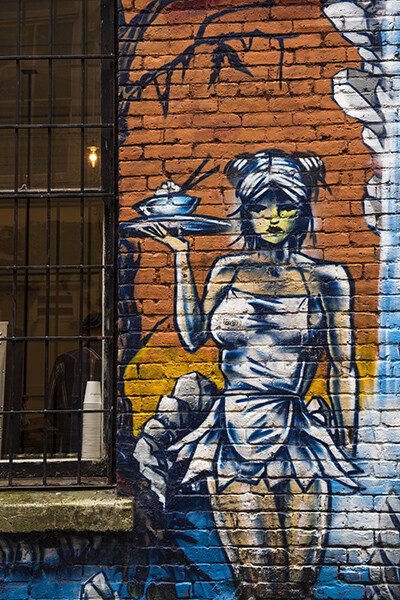
This graffiti art looks amazing, but the textures and grittiness make the image more impactful

This graffiti art looks amazing, but the textures and grittiness make the image more impactful

4. Use colour

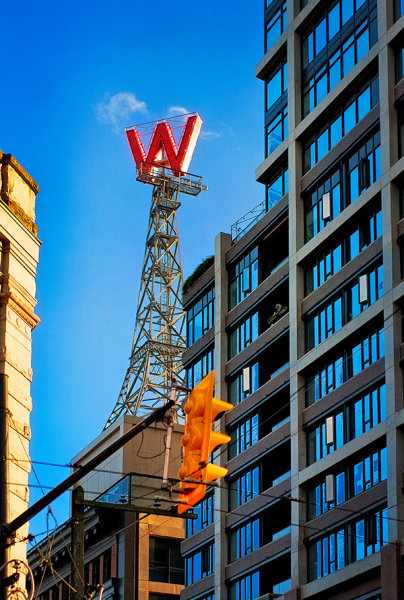
We all photograph in colour nowadays, and then convert that image to black and white (if you don’t, you should!) but shooting for colour in your city can be a lot of fun. Decide on a colour you want to photograph and go out and look for all the different scenes you can find that contain your colour. To make it more challenging, try and isolate that colour to make 80% of your image the chosen colour. This will help you see beyond subjects and look at colour in a whole new way. You can also try and get the different colours in a scene into a cohesive arrangement, your primary colours (reds, yellows and blues) will be immediately powerful in a shot. A fire hydrant can become more interesting because of the redness of it. A blue wall becomes an abstract image, colour is a good theme to use in your urban images.

Vibrant colours can make your image pop!

Vibrant colours can make your image pop!

5. Photographing people

Cities are built for people, there are lots of them in any city.  It is always fun to see how people interact with the city. Do they use the park benches, do they take time to look around them in the city or do they simply march on to work. Look for opportunities to capture photos of people doing everyday stuff, but try and find a great backdrop to shoot against. A graffiti wall or a moving bus can make the perfect setting, good architecture too! Always be aware of people’s reaction to being photographed. I generally try and photograph people when they are not camera aware. If they spot me taking the shot, I will walk over to them, show them the image and explain why I shot it. Sometimes, people are not happy to be photographed, be respectful of this and be friendly. It’s amazing what a smile and a relaxed attitude can do.

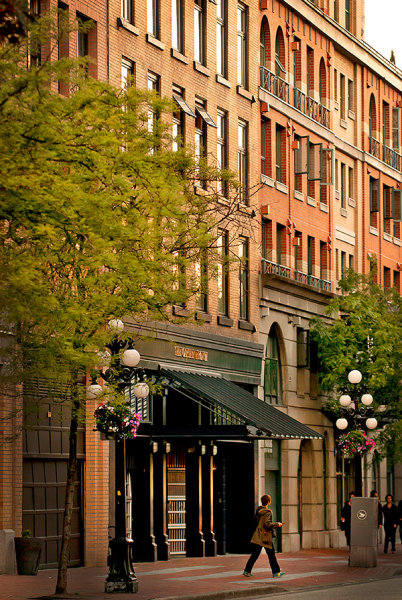
Use the city buildings as a backdrop to the people in the image

Use the city buildings as a backdrop to the people in the image

Your turn

Photographing in your city can be fun. Of course, always be aware of your surroundings. Be careful not to step off the sidewalk into the street without looking at the traffic (trust me, this happens). Also, be aware of where you are wandering. You may have innocently wandered into the “rough” neighbourhood which might be a bad idea with a large SLR around your neck.

Apart from being aware of your safety, photograph with abandon. Try and capture the essence of the city. Try and photograph the well known places in a new and fresh way. Above all, get out and photograph. As I said earlier, it may not always be possible to go out and shoot in some amazing natural setting, but you can get some really great images just outside your front door, in your home city.

Here is a fun exercise, choose a time to go out and get some urban shots. Select a theme and shoot five images, choose another theme and shoot another five, and so on. Once you have done this a few times, upload your favourite image to the comments below and let’s see how creative the shots are. I look forward to seeing your city through your eyes!

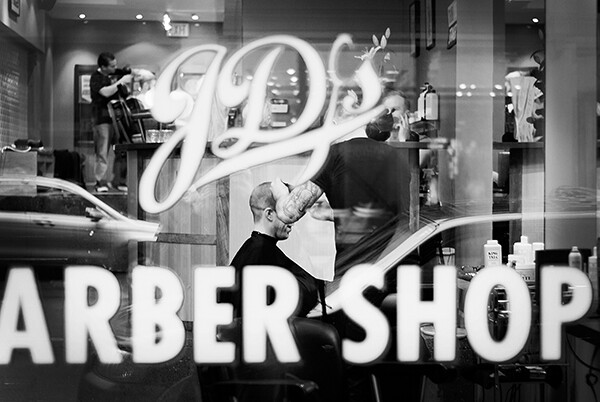
Look for refections, shapes and everyday life!

Look for refections, shapes and everyday life!

The post How to Create Amazing Urban Landscape and Street Photography Images by Barry J Brady appeared first on Digital Photography School.

Digital Photography School

 
Comments Off on How to Create Amazing Urban Landscape and Street Photography Images

Posted in Photography


Create Your Own DIY-Style Photography Course

30 Jul

If you have $ 160,000 or so and want to learn photography, then you can skip this post. Just head to Rhode Island, enroll in the School of Design (or another prestigious art school), and, in about four years, your photography will rock. It had better, right? 😉 Fortunately, with the Internet, you have accessible and inexpensive (or free) ways to educate Continue Reading

The post Create Your Own DIY-Style Photography Course appeared first on Photodoto.


Photodoto

 
Comments Off on Create Your Own DIY-Style Photography Course

Posted in Photography


How to Create a Vintage Look using Lightroom

21 Jul

How to create the vintage look in Lightroom

Before you create a vintage look using Lightroom, you have to decide what characteristics you think that look should have. It may mean different things to other people, but here’s my version. Photos with the vintage look are nostalgic, evoking the look of faded photos taken decades ago. There may be a colour cast or faded blacks, and they should look as if they may have been taken with film.

What is your definition of the vintage look? Whatever it is, once you have arrived at it, you can think about how you can achieve that look in Lightroom.

Using Lightroom Develop Presets

The easiest way to create a vintage look is to buy Develop Presets or download free ones. Don’t worry, I will explain how you can create the vintage look yourself, without buying somebody else’s presets, in the second part of this article. But I think it’s wise to acknowledge that sometimes the easiest path is to let someone else do the hard work of figuring out the mechanics, and buy into their expertise.

By the way, if you are new to presets, my article A Concise Guide to Lightroom Develop Presets will give you an introduction to the subject.

Free Vintage Develop Presets

An easy place to start is with onOne Software’s free Develop Presets for Lightroom. I recommend Nicolesy’s Matte Presets for Adobe Lightroom 5 and the onOne Signature Collection Presets (available for Lightroom 4 and 5). There are also some presets for Lightroom 2 and 3 if you are using those versions.

You can also try these free vintage presets from Presets Heaven.

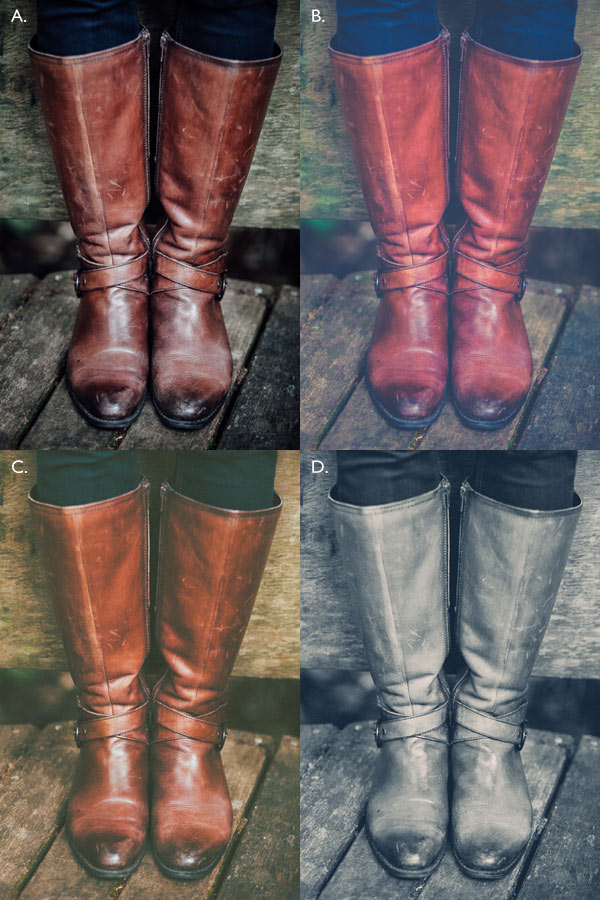
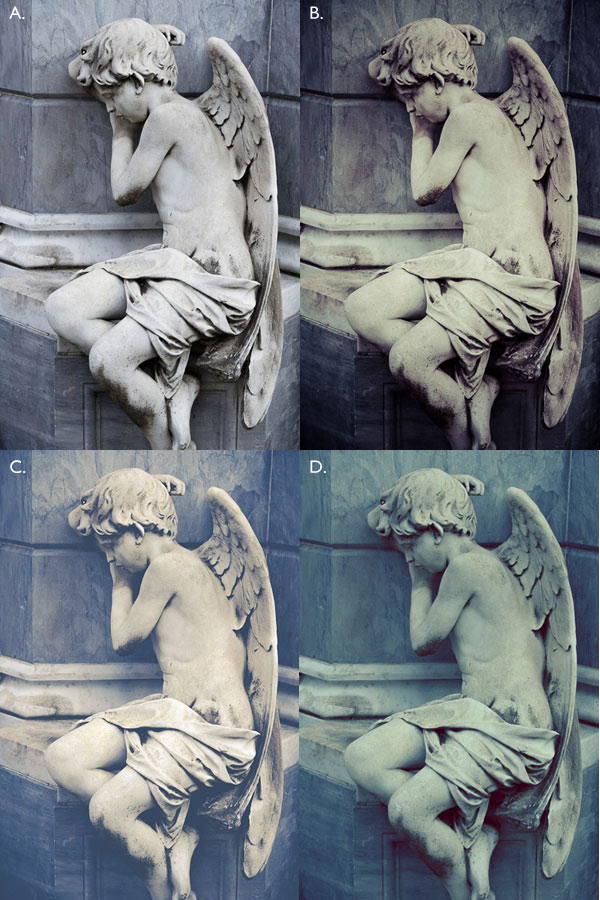
This comparison shows you some of the effects you can create with these presets. Please remember that the best way to use Develop Presets is as a starting point. Once you have applied the preset you can then go to the right-hand panels and tweak the settings to get the most out of your photo (something I haven’t done with these examples as I wanted to show you how they work straight out of the box).

How to create the vintage look in Lightroom

A. Original photo B. onOne Signature Collection: Vintage – Grandma’s Lemonade preset C. Nicolesy Matte Lightroom Presets: Nicolesy Matte 2 preset D. Presets Heaven: PH Vintage IV preset

Best Paid Vintage Develop Presets

Not everybody wants to pay for Lightroom Develop Presets (my article Are Lightroom Develop Presets Worth the Money? asked that question) but there are certainly some great preset collections out there if you don’t mind doing so. I recommend (and have personally bought and used) the following:

Nicole S. Young’s Vintage Fade presets. These are the least expensive out of all these preset packs. The set includes Photoshop Actions and ACR presets as well as Lightroom Develop Presets.

Lightgram Instafade presets. These presets emulate the beauty and nostalgia of film. I like Lightgram’s presets a lot. They also have some free presets you can try out.

Really Nice Images Faded Films presets. These are the more expensive than the others, but you get nearly twice as many presets plus a toolkit to help you tweak the settings. But most importantly they are really good.

How to create the vintage look in Lightroom

A. Original photo B. Nicolesy Vintage Fade: Rainfall preset C. Lightgram Instafade: Lightgram Faded 12 preset D: Really Nice Images: Faded Films – Utah Monochrome preset

How to create the vintage look yourself

Now it’s time to take a look at a few of the techniques you can use to create the vintage look yourself in Lightroom.

1. Fade out with the Tone Curve

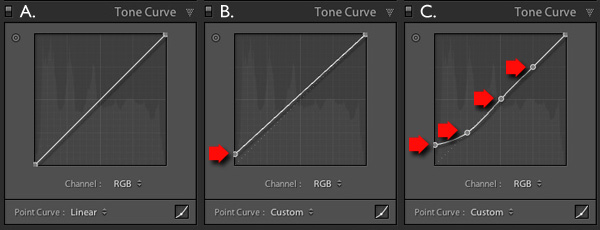
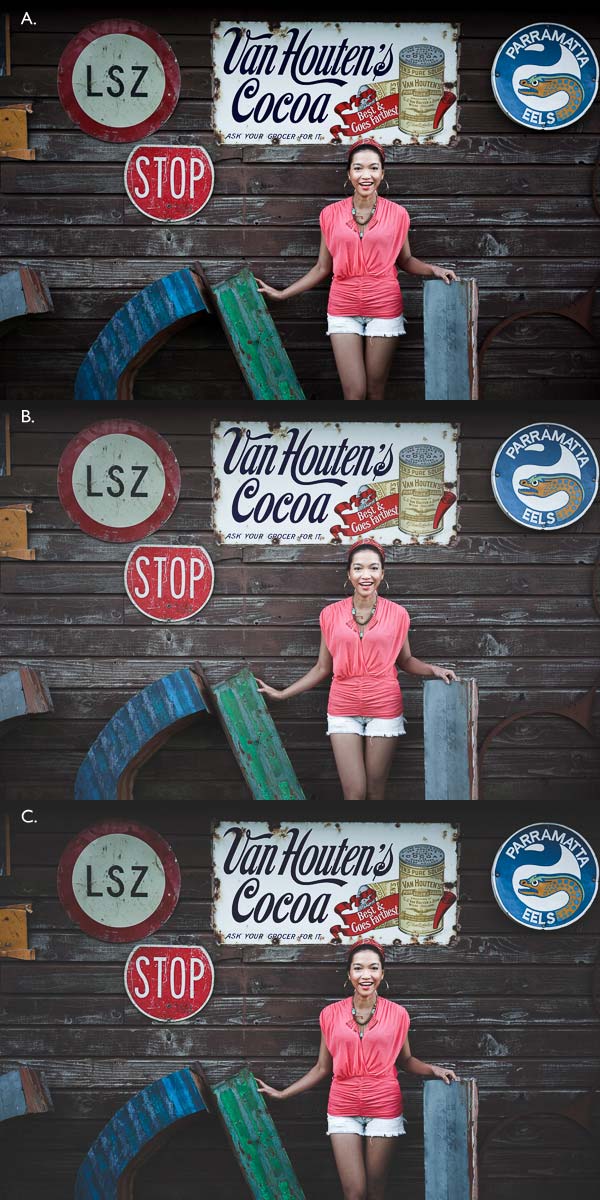
Go to the Tone Curve panel and raise the left side of the RGB curve upwards. Doing so removes true black from the photo, making the darkest tones lighter. How far you move it is up to you – the best way is to judge the effect by eye.

You’ll get the best results when the RGB curve starts from its linear position (a straight line from bottom-left to top-right). If you are planning to use the Tone Curve to create a matte effect, it is best to carry out tonal adjustments such as increasing contrast in the Basic panel. You may also wish to reduce Saturation or Vibrance to weaken the colours in the photo, emphasizing the vintage look created by the matte effect.

Alternatively, click on the RGB curve three times (where the lines intersect it on the grid) before lifting the left-hand corner. This gives a slightly different look. Experiment with both techniques to see which one suits your particular photo best. This is what the curves look like.

How to create the vintage look in Lightroom

A. Linear curve B. Entire curve raised. C. Left-hand side of curve raised only.

This is how those curve adjustments affect the photo.

How to create the vintage look in Lightroom

A. Linear curve B. Entire curve raised. C. Left-hand side of curve raised only.

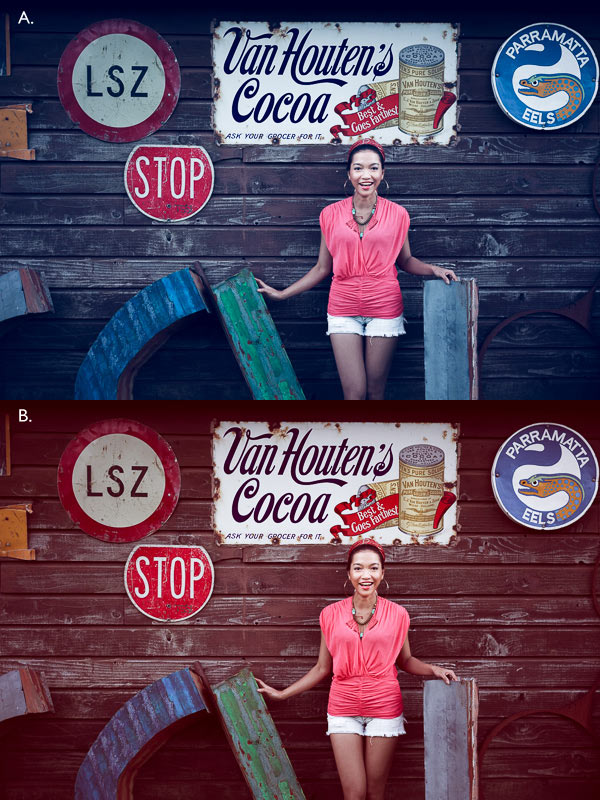
Using the RGB Tone Curve applies a matte effect without affecting the colour. However, you can play with the colour curves as well. If you use the same technique on a colour curve, it affects the colour of the photo as well as the contrast. Here are a couple of examples.

How to create the vintage look in Lightroom

A. Blue curve raised. B. Red curve raised.

2. Split toning

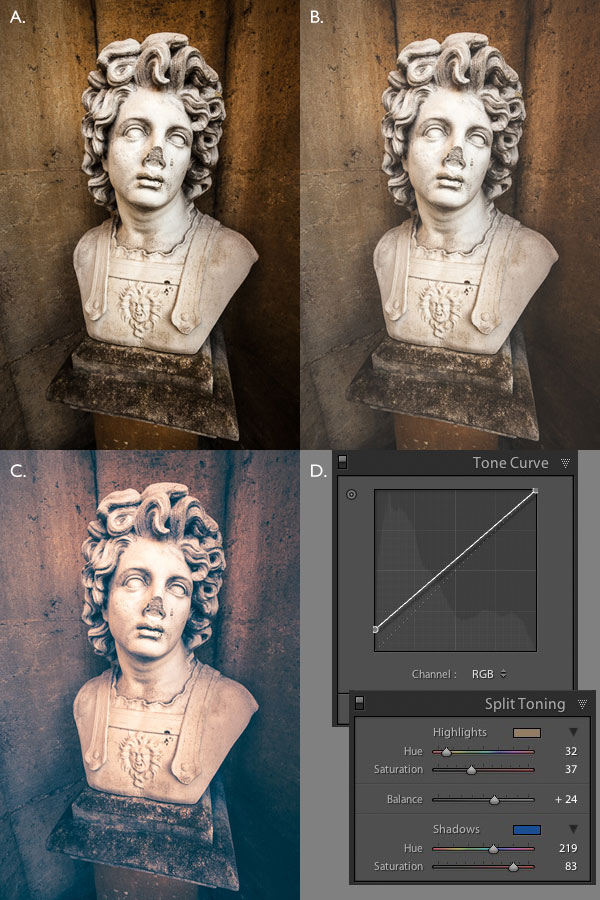
Another way to add colour is with split toning. The basic concept is simple. Apply a warm colour to the highlights (such as orange, red or yellow) and a cool one to the shadows (for example blue, dark green or teal). You may be aware that warm colours appear to move towards the viewer, and cooler ones away. Split toning builds on that principle.

How to create the vintage look in Lightroom

A. Original photo. B. RGB Tone Curve raised (neutral colour). C. Split tone applied. D. The Tone Curve and Split Toning settings used for these photos.

Conclusion

Now you know how to create a vintage effect in Lightroom. If you have any other tips for creating a vintage effect, please leave them in the comments below.


Mastering Lightroom: Book Four – The Photos ebookMastering Lightroom: Book Four – The Photos

My new ebook Mastering Lightroom: Book Four – The Photos takes you through ten beautiful examples of photography and shows you how I processed them step-by-step in Lightroom. It explores some of my favourite Develop Presets and plug-ins as well as the techniques I use in Lightroom itself. Click the link to learn more.

The post How to Create a Vintage Look using Lightroom by Andrew S. Gibson appeared first on Digital Photography School.

Digital Photography School

 
Comments Off on How to Create a Vintage Look using Lightroom

Posted in Photography


Spinning Canvas: Color & Gravity Create Brush-Free Paintings

21 Jul

[ By WebUrbanist in Art & Drawing & Digital. ]

166_SurfaceTension

Calculation meets chaos in the work of Amy Shackleton, a painter who works without brushes to create masterful yet whimsical urban and natural landscapes.

animated rotating canvass painting

Her dynamic paintings are the result of an active process of dripping and pooling paints poured out on a canvas that is rotated in place while the artist pours on colors.

132_TowerCanyon

Some of the works are inspired by views of real-life places like the High Line in New York City, while others seem taken from impossible perspectives, like the bottom of a puddle along an urban street.

165_IntoThePuddle

BridgeTheGap

136_UpRoute_CostaRica_Chicago_Aug2012

Angles, curves and swirls play into the colorful resulting representations, often featuring elements of liquidity and other twisting organic forms. Some of the pieces are quite large, spanning a single panel or multiple canvases and requiring a good deal of space for the colors to channel and spread.

dynamic high line inspired

Treeway

dynamic urban art painting

Elements of intention mingle with unpredictable effects: “Thorough planning, measuring and layering is involved, but she’s at the mercy of gravity, [leading to] refreshing unpredictability that helps illustrate the organic elements in her work. To combat the natural, she uses a rotating easel and a level–creating straight lines, controlled curves, and eventually, concrete buildings.”

dynamic drip painted landscape

dynamic drip painting art

From her press release: Vibrancy, precision and a mesmerizing technique set her apart, but the combining of such varied landscapes as Cincinnati and Yosemite National Park into one fanciful image make her work truly unique. “I envision post-industrial worlds where healthy, sustainable relationships exist between man and the environment,” says the artist. “My paintings are intended to portray urban life at its best, demonstrating ways that we can work with nature rather than against it.”

Share on Facebook


[ By WebUrbanist in Art & Drawing & Digital. ]

[ WebUrbanist | Archives | Galleries | Privacy | TOS ]


WebUrbanist

 
Comments Off on Spinning Canvas: Color & Gravity Create Brush-Free Paintings

Posted in Creativity


Using Composition to Create More Powerful Portraits

18 Jul

As part of my series on portrait photography, in this article, I will discuss composition, one of the most important aspects of creating a good portrait image.

F11A6332 1

  • Are there any laws regarding framing a portrait?
  • Can I leave hands, fingers, or part of the head out of the frame?
  • Does a portrait have to include a face?

I will answer these questions that my students often ask. It is important to keep in mind that as in all aspects of art, there are no “rules” or “must dos” here, because you can do anything as long as it works for you. So, I will describe techniques that work for me and I hope that they will work for you, resulting in much stronger portrait photography portfolio.

What is a good portrait?

A good portrait is an image of a person that manages to tell a story. A good portrait evokes emotion. A good portrait tells us something about the person in the image, and composition is a key element that helps us create a storytelling portrait.

How can I create a storytelling portrait with the help of composition?

I think good composition is a combination of the scene on the ground and the scene within your head. It combines the available with the desirable.

Here are a few examples of portraits I made recently (using natural light only) with explanations of the thinking process and goals in terms of composition. As Ansel Adams said, don’t forget that every image has two people behind it. the photographer and the viewer. So you might not feel the same emotions as I do with the images I created. But that’s okay, because photography is both an art and a science.

Choosing how much background to include

F11A3496 Exposure 1

Focal length 24mm

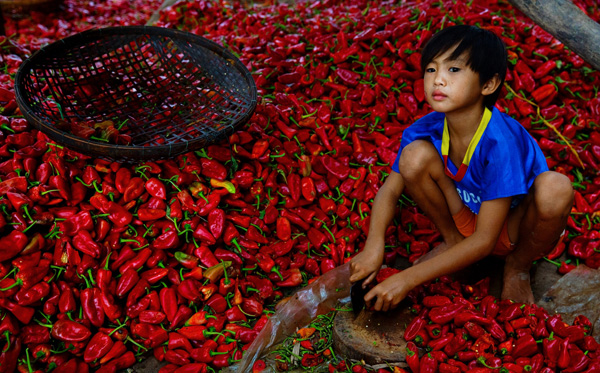
I met this boy cutting Paprika in rural Cambodia. It was summer vacation and he was there with his family and other villagers. What’s my visual narrative in one line? “Small boy, big work.”

I immediately knew two things: one, the background is a significant element and two; I wanted to capture the boy working alone. So, I started with the background and decided on a high angle in order to capture this “mountain” of Paprika. It was important for me to show the boy’s entire body with some space above his head so that the viewer could compare (remember my one line story?) the size of the boy to the size of the work.

I even included that basket in the composition to add balance to the entire frame. After I set up my composition, I waited about 20 minutes to capture the boy looking up. I knew that if he was working with his head and eyes down, the whole story would fall apart. I think the wait was worth it.

For me, this is one of the most complex decisions in photography: to identify visual storytelling potential and decide how much time you’re willing to wait until the story materializes.

Story 56 the kid 1

Focal length: 17mm

I used the same technique here in Kyrgyzstan, for this shot of six year old Aytinger, which I made for National Geographic Traveler magazine. Visual narrative in one line, “Small boy, big world”.

Here, I made the background much more dominant compared to the previous image. Here the boy is very small compared to the land. Imagine if I framed this image with only his face? I would lose the entire story, because his face alone doesn’t tell the story I want to portray. It was important for me to “include” the path and the big cloud in the horizon, to add sense of an “epic” feel to the image.

Web11 1

Focal length: 70mm

Here, you can see a different kind of portrait framing. Visual narrative in one line – “Quiet, peaceful, youth”.

I wanted to evoke peace and harmony. So I focused only on the face of this young monk, and included almost no background, in order to avoid interference from the environment. Also, note how the central composition (the subject is in the center of the frame) is balanced with the two orange frames on the sides.

I used soft natural light (coming from the right side of the frame) in order to create a sense of something religious and pure.

Cropping in tight

42 1

Focal length: 70mm

This is the type of framing that I’m asked many questions about by my students: whether it is allowed to cut off part of the head like this. Sure, as long as it helps the visual story you want to tell. Visual narrative in one line, “A sad reflection”.

Apollo’s wife died not long before I met him in the hills of northern Laos. In the image, Apollo’s face and the feeling of something tilting or shifting in his world is the only important thing. By framing his face on the right, while he was looking down and to the right, I wanted to create a feeling of an “unbalanced world”. Compare the very low key, dim lighting (with negative exposure compensation) in this image to the previous one of the monk. I was using the dark part of his house to evoke this story.

TheAccess 4photography people

Focal length: 85mm

This framing is even more radical than the previous one. Please note that this is the composition I did on the ground (no cropping) for a story I did for National Geographic Traveler magazine on Western China. Visual narrative in one line, “Strong and wise”.

Leaving space

When I saw the eyes of this man, the oldest man sitting in the back of a teahouse in remote western China, I knew I didn’t need anything else but his blue eyes. So I made it the dominant factor of my composition.

Story 35 alone 1

Focal length: 24mm

Now you might ask, is this a portrait too? Well, yes, for two reasons: one, do you see a person, and two, do you feel a sense of story?

What’s my visual narrative? It was a particularly hot afternoon. Dozens of worshipers left the mosque. I paused for a moment, trying to change lenses, as I noticed this guy. It seems that he was not affected by the hustle passing him by. He remained alone, continuing to read the prayer book. At first, my initial thought was “wow, what loneliness”. But then I thought, ”wow, what strength”.

I used the empty spaces of the place to enhance the sense of loneliness, but the balanced; “by the rules” composition (rule of thirds) should give the sense of power I was aiming for. The reason I chose to use negative exposure compensation and thus create a silhouette was to not compete with red color in the background and give it a sense of harmony.

Put it all together

You may be asking – “Okay, I understand the thought process. But honestly, do you really think about it before the creation of the frame or only afterwards?”.

Well, I do believe that good portrait photography is an outcome of a thinking process. Should I add the background or not? Should I crop the head or leave it full? Sometimes by over-thinking, the subject might lose patience. It has happened to me more than once. But for me, having the time to think, to plan, and to achieve the story I wanted is part of the fun.

Feel free to leave questions and comments below.

Note: the author would like to thank Nicholas Orloff for his help of writing this article.

The post Using Composition to Create More Powerful Portraits by Oded Wagenstein appeared first on Digital Photography School.

Digital Photography School

 
Comments Off on Using Composition to Create More Powerful Portraits

Posted in Photography


How to Create Amazing Reflection Photos using Puddles

17 Jul

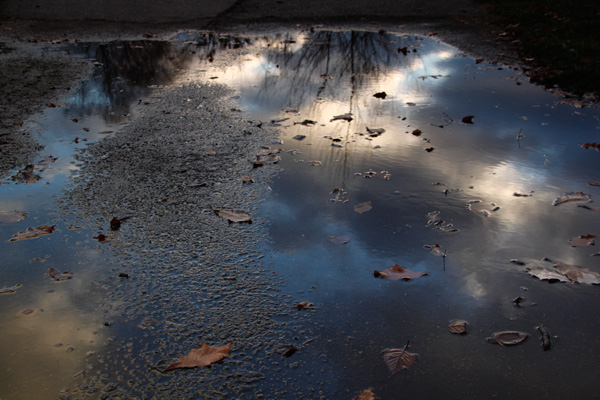
People are captivated by reflections, and photographers eagerly seek out still bodies of water in order to capture stunning reflection shots. But a perfect reflection may be closer than you think, especially if it has just been raining.

puddle, reflection, symmetry, how to

Puddle reflection

Photographing puddle reflections

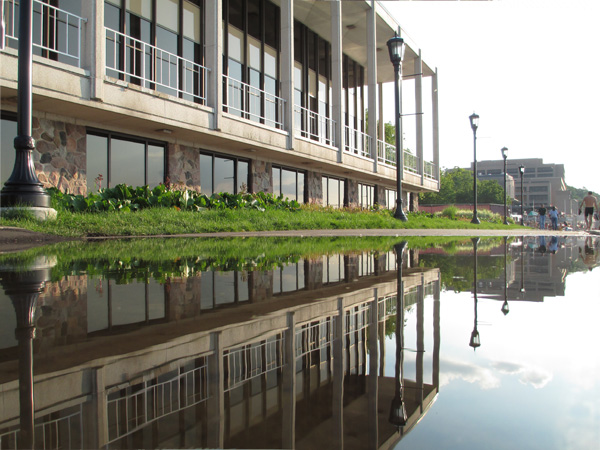
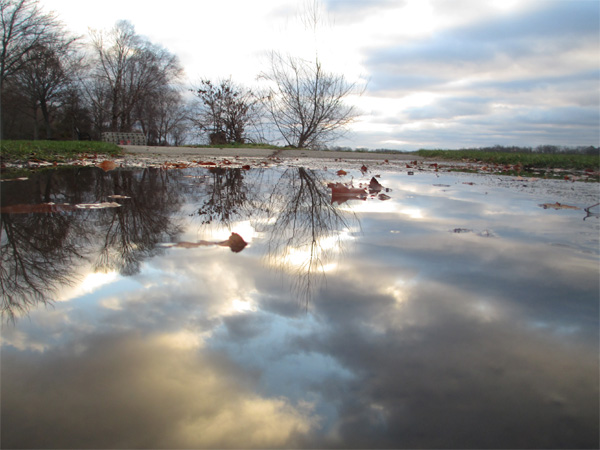
Puddles are an incredibly useful if perhaps surprising source for reflections. Puddles are generally shallow and found in protected areas or depressions, which means that they are likely to hold smooth, still water. They can also be found in many different locations, providing a variety of options for subjects and compositions. Finally, puddles are so mundane and small that they are often overlooked, so you can create unique and surprising images that others likely missed.

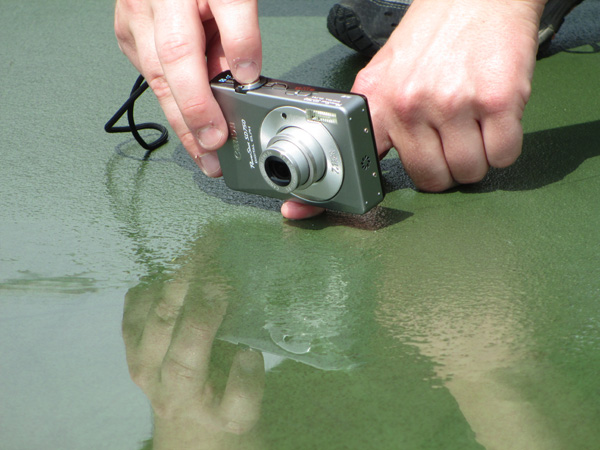
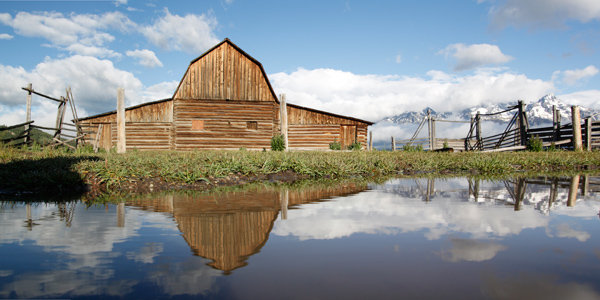
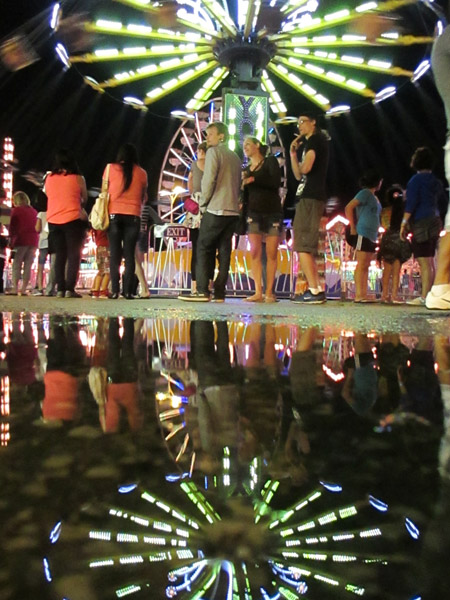
The trick with capturing amazing reflection photos using puddles, is to get down low. You want your camera to get as close to the surface of the puddle as possible. This will make even a small puddle appear expansive in your final image. I recommend putting your hand or a finger under your camera to steady it and keep it out of direct contact with the water. It is also useful to have a small bubble level attached to your camera to judge whether your composition is level.

puddle, reflection, symmetry, how to

This puddle reflection technique works equally well whether you have a DSLR camera or a point-and-shoot. I often use my point-and-shoot for these types of shot, as it is much easier to simply lean down and hold it near, or over, the puddle when shooting, and I am much less worried about it getting wet. When shooting puddles with my DSLR, I am much more likely to squat down to better support the camera with both hands and keep it out of the water or mud.

puddle, reflection, symmetry, how to, sunset

puddle

Puddle used for the reflection above

Puddles do not need to be very large for such photographs, but an ideal puddle would be at least a foot or more, long and wide. Puddles that have formed naturally on roads, or on the ground, provide a better transition from subject to reflection than puddles that are surrounded by a set boundary like a curb or a bank. You can also think beyond traditional puddles and try the same technique with wet roadways or stone pillars, which often become highly reflective when wet.

An example: puddle versus puddle reflection

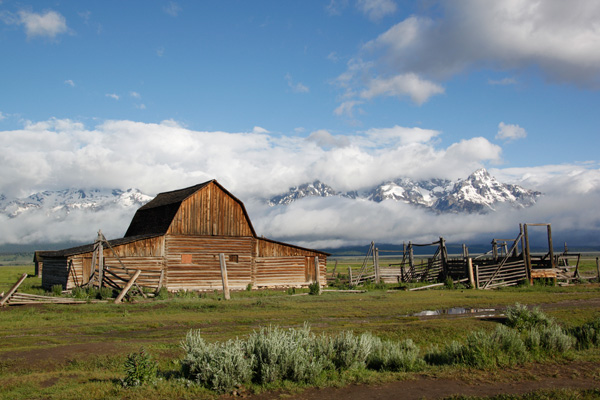
Grand Teton National Park, Tetons, Mormon Row, mountains, landscape, barn

Above is one of the classic scenes from the Grand Tetons: the abandoned houses of Mormon Row. It had rained the previous day, and much of the night, and in the lower right-hand section of the photograph, you will notice a fairly unassuming puddle remaining in the mud.

Grand Teton National Park, Tetons, Mormon Row, mountains, landscape, barn, reflection, puddle

Getting down low and holding my camera just above the surface of that puddle allowed me to capture this shot. Despite the slight breeze and rippling of the water, this reflection clearly highlights both the abandoned building and the incredible mountain view behind it. Merging three different compositions provided the panoramic view below.

McEnaney-Tetons-panorama-final

Seek out puddle reflections

Next time you find yourself in a wet situation, make the most of the puddles around you. Get down low, and you may be surprised at what your camera captures compared to what the scene looks like to you standing up higher. Do not limit yourself to taking the same shots as everyone else – try something new!

puddle, reflection, how to, carnival, night, street photography

The weekly photography challenge a little while ago was reflections. If you’re still working on that one try these tips out. Want to see more reflections – try this collection.

The post How to Create Amazing Reflection Photos using Puddles by Katie McEnaney appeared first on Digital Photography School.

Digital Photography School

 
Comments Off on How to Create Amazing Reflection Photos using Puddles

Posted in Photography