RSS
 

Posts Tagged ‘Create’

4 Lighting Effects You Can Create in Photoshop

10 Mar
Title-image-green-energy

Lighting Effects using Color Dodge Blend Mode in Photoshop.

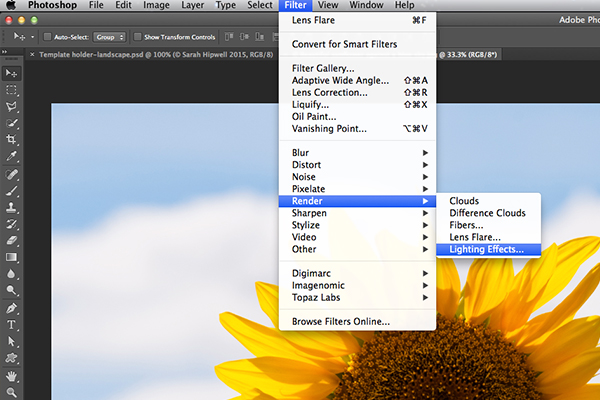
There are numerous methods to creating lighting effects in Photoshop. I’m only going to cover four but they can be used in many ways. But first let’s take a look at a couple that are in the Filter gallery under Render in Photoshop (CS6 and CC). The first is Lighting Effects, which has been upgraded and is more powerful and easier to use than previous versions of Photoshop.
Lighting-effects-filter

How to access Lighting Effects in Photoshop CS6.

The preview box has been replaced with a more sophisticated interface. You are presented with three different types of lighting effects in the Options Bar – Spot, Point and Infinite – and various presets to choose from. There is a Properties panel that customizes the look of the light that you want in terms of direction, placement, etc. This filter works on Smart Objects, so that you can work non-destructively. It is too comprehensive to go through all the aspects of this filter in this article. The best way to use it is simply open an image, experiment with the different options and see what you think.

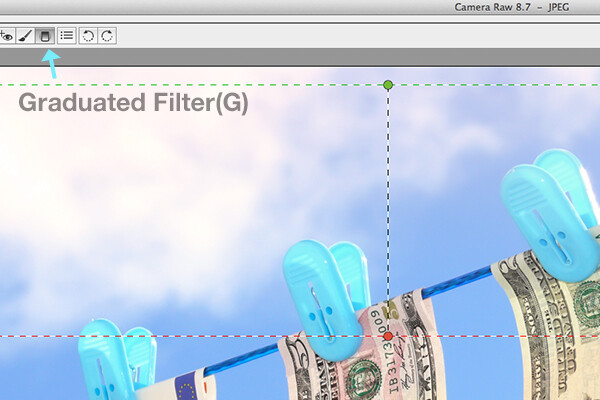
Instead, I will show alternative techniques that I prefer to use in Photoshop and Adobe Camera Raw (ACR), some of which you may already be familiar with. I really like the Graduated Filter tool in ACR. This works in similar way to a Graduated Neutral Density filter on your camera. Landscape photographers use graduated filters so that they don’t overexpose the sky area. The dark bit on the ND is on top allowing less light in, as exposure is set for the foreground. You can achieve similar results using the Gradient Editor in Photoshop.
Graduated-filter

The Graduated Filter icon in Adobe Camera Raw.

With your image opened in ACR, select the Graduated Filter tool. Drag over an area on your image where you want the effect to be applied. Adjust the slider options on the right – Exposure, Highlights etc., to either lighten or darken the area. You can also choose a color to add warmth or a cooler effect.
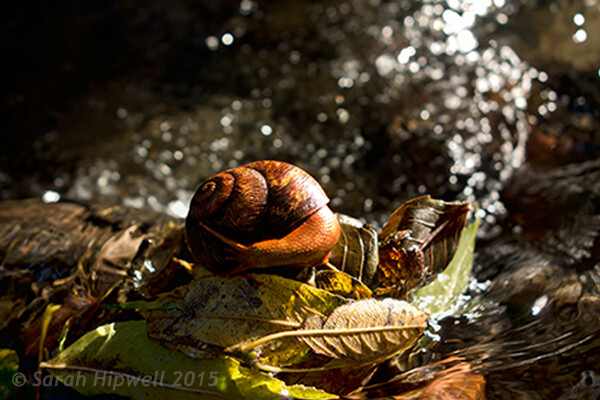
snail

This is the original image of a snail before the Graduated Filter has been applied.

In the image of the snail, I used the Graduated Filter in three different areas on the image. I wanted to add more warmth to the water, so I used a yellow color to create an impression of a sun dappled effect. The second area was to lighten a little more of the water eddy, bottom right of the photo. Finally the third spot, I wanted to simply darken the area directly behind the snail so that the viewer’s eye is drawn to the it. Although, these are subtle light effects, they can add more drama and even change the composition of a photo.
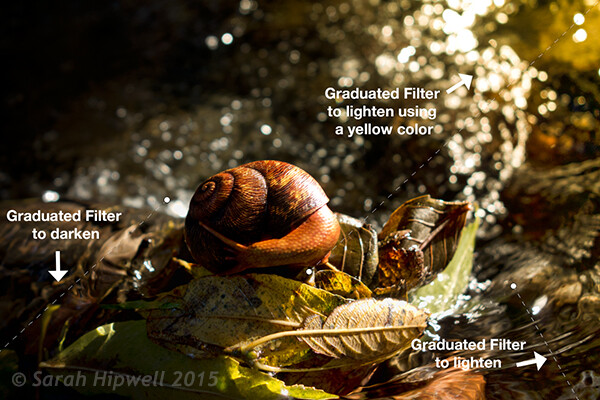
Snail with Graduated Filter effects

The snail image with the Graduated Filter applied in three different areas.
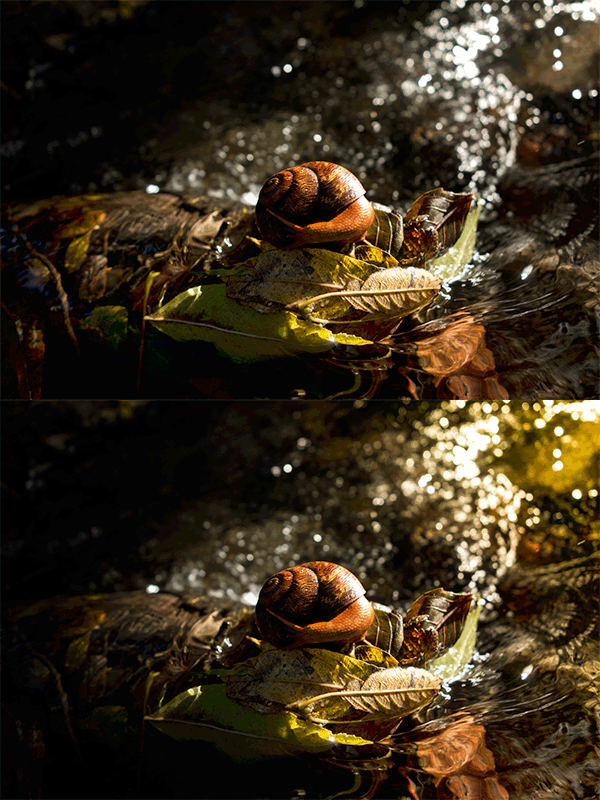
Snail animated gif

Animated GIF  to show before and after effect from the Graduated Filters effects.

The Lens Flare, which is also found in the Filter gallery under Render, is a lighting effect that can be quite useful but you need to use it with care, using the less is more approach. For example in the image with the golf ball on the red tee below.
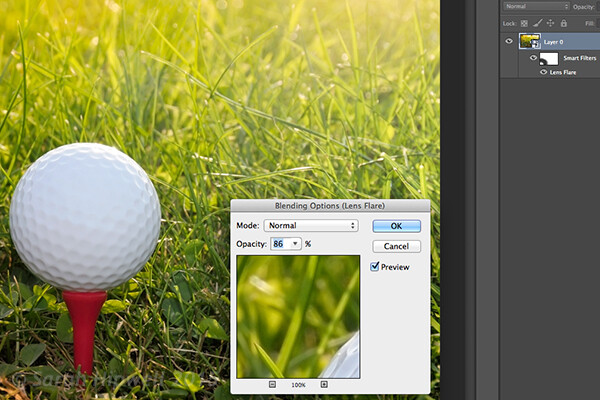
golf-ball-lens-flare

Lens Flare effect added to this image.

I used the Graduated Filter in three areas, similar to the snail image. I added a magenta color tint on the grass, bottom left of the image to break up the green flat look. Adding a different color using the graduated Filter in this way gives the image more depth. I then added a Lens Flare effect to the top right and reduced the opacity so that the effect caught the tips of the blades of grass. Converting your image to a Smart Object first before applying the filter effect, makes it easier to make changes non-destructively. I was also able to mask out some of the effect that I felt was too strong.

Animated gif of golf ball with Lens Flare

Animated GIF of golf ball with Graduated Filter effects and Lens Flare.

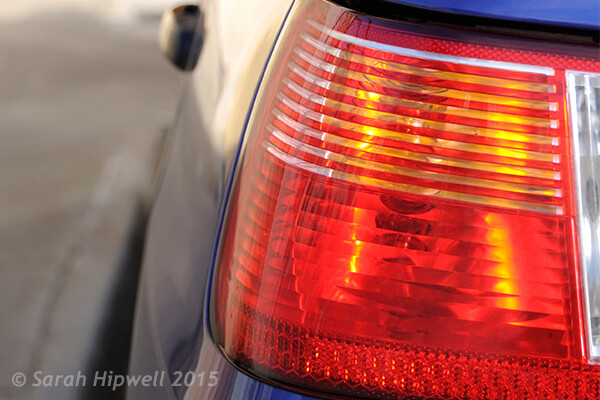
This brings me onto the third technique, the Color Dodge blend mode. I wanted to create the effect that the rear lights were switched on in this image of a car (below). This is such an easy way of creating a lighting effect in Photoshop and the result is brilliant.

First, create a new blank layer on top of the original image. Select a darker colour to the part of the image that you will be working on. For the lower section of the light, I used a dark red. Using the Brush tool set to soft, paint a small daub and then make it a bit bigger using the Free Transform tool.
car tail light

Rear taillights of a car.

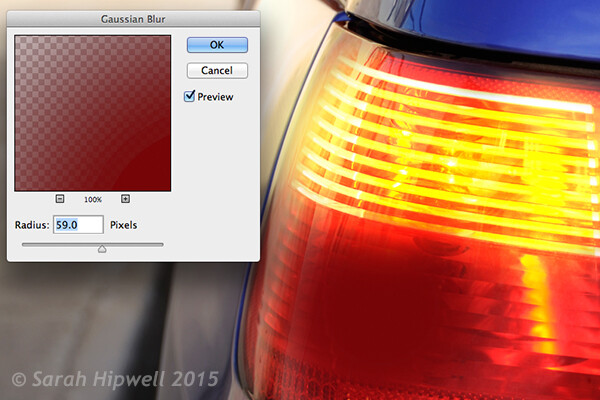
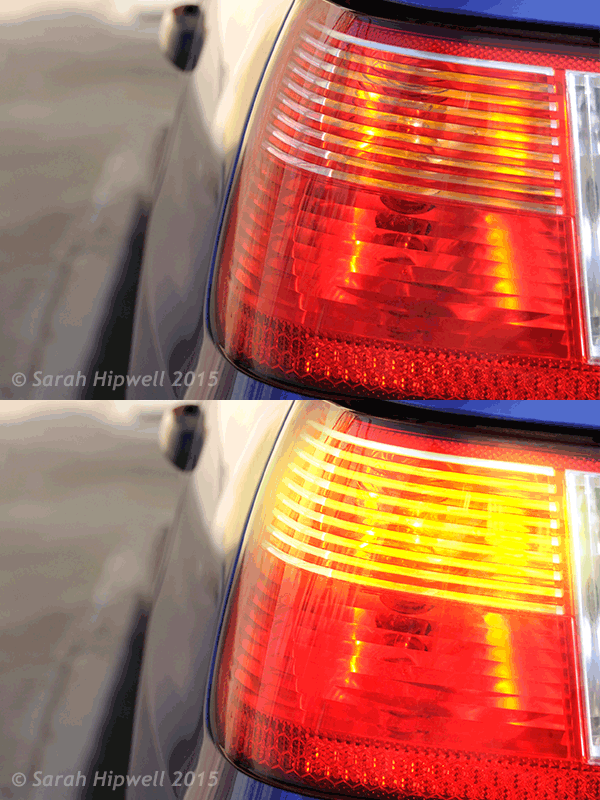
Add some Gaussian Blur so that there is no ‘hotspot’ in the middle and the color looks uniform. Position this on a section of the light, change the blend mode to Color Dodge and reduce Fill, not Opacity, to achieve the desired effect. In this case, I reduced the Fill to 59%. I then duplicated this layer and moved it over to the right. You can reduce the size of the spot area if you feel the over spill is too much. So now I had the bottom tail light working. I repeated the same steps for the top section of the light. But I used a darker color yellow there.
Color-dodge-gaussian-blur

On a separate layer, paint a darker colour to the area intended and add Gaussian Blur.
car tail lights flashing

Animated GIF with flashing taillights using Color Dodge Blend Mode in Photoshop.

The forth and final technique is similar to above. When you need to add a highlight(s) to an area of an image to bring out more detail, this technique and the one above can be used on any type of image. It is so easy, quick and very effective. In the photo of the grapes (below), I wanted to create highlights on the dark areas to make them stand out. Same as the above step, create a new blank layer on top of the image and using white as your color, paint a small daub. Make it bigger using the Free Transform tool and add some Gaussian blur. Change the blend mode to Overlay or Softlight, I generally use Softlight. Reduce the Opacity until you get the result that you want.

grapes

Animated GIF to show highlights on areas of some of the grapes, using Overlay/Softlight Blend Modes in Photoshop.

Do you have any other tips for adding or creating lighting effects in Photoshop or another way? If so please share in the comments below.

googletag.cmd.push(function() {
tablet_slots.push( googletag.defineSlot( “/1005424/_dPSv4_tab-all-article-bottom_(300×250)”, [300, 250], “pb-ad-78623” ).addService( googletag.pubads() ) ); } );

googletag.cmd.push(function() {
mobile_slots.push( googletag.defineSlot( “/1005424/_dPSv4_mob-all-article-bottom_(300×250)”, [300, 250], “pb-ad-78158” ).addService( googletag.pubads() ) ); } );

The post 4 Lighting Effects You Can Create in Photoshop by Sarah Hipwell appeared first on Digital Photography School.
Digital Photography School

 
Comments Off on 4 Lighting Effects You Can Create in Photoshop

Posted in Photography


How To Create Photographic Illusion With Motion Blur Photography

20 Feb

Motion blur photography gives an illusion of speed and motion. Apart from taking pictures of objects in motion like in the case of capturing sports related events, or movements of animals like a running deer, motion blur photography also helps add dramatization to stand still photos. It helps focus on aspects and highlights the importance of certain movements. It is Continue Reading

The post How To Create Photographic Illusion With Motion Blur Photography appeared first on Photodoto.


Photodoto

 
Comments Off on How To Create Photographic Illusion With Motion Blur Photography

Posted in Photography


How to Control Aperture and Create Images You Love

09 Feb

This article is sponsored by the New York Institute of Photography. NYIP offers high-quality online photography courses that are affordable, convenient, and accredited.

1 aperture

Controlling the aperture is one of the most powerful ways to improve your images. It’s also the topic that continues to perplex photography students everywhere. Rather than unnecessarily complicating matters, I prefer to demystify the subject. In this tutorial, I’ll reveal how both a wide and small aperture can be used to create consistent and beautiful results.

Consider the Background

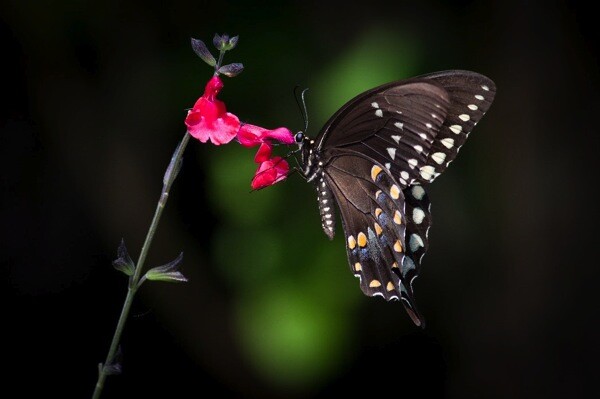
2 butterfly

When I’m about to take a photo, the first question I ask myself is, “What kind of background would be best?” With wildlife, sports, portraits, and still-life objects, I often want the subject sharp, and the background to be a soft blur. As you’ll see in the example above, the blurred background allows the viewer to focus on the beautiful details of the butterfly, not on the leaves behind it. To do this, I chose a wide aperture by adjusting to a smaller f-number. At f/5.6 the opening in your lens is physically wide open, creating what’s known as shallow depth of field.

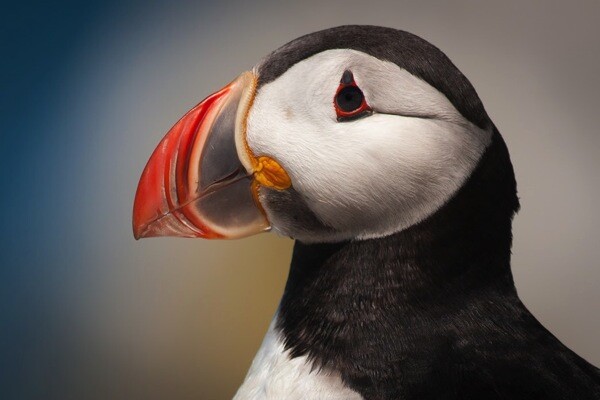
3 puffin

In the example above, I photographed an Atlantic Puffin at f/5.6. The bird is tack sharp while the foliage in the distance is very soft. The theme of the photo is clearly about its colorful beak, and there is little else in the photo to detract from it. For this reason, wildlife photographers typically use wide apertures for the majority of their work. To further emphasize the effect, try positioning yourself so there is distance between the subject and the background.

Freezing action

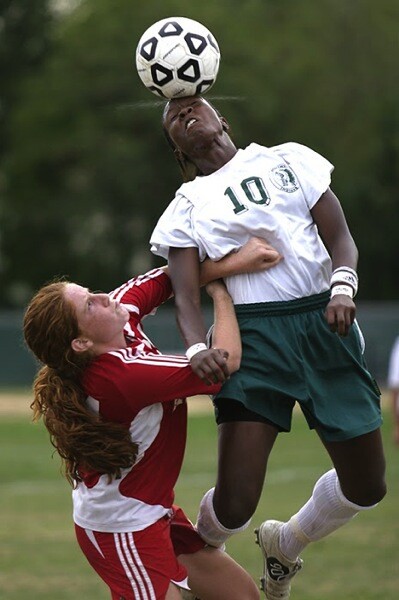
4 soccer

If you flip through the pages of Sports Illustrated, you’ll notice how most of the players are sharp while the fans are out of focus. The wide aperture chosen by the photographer not only creates that shallow depth of field, but it also lets a great deal of light into the camera. As such, it’s possible to use a fast shutter speed to freeze the action. If you are serious about sports photography, a lens that opens all the way to f/2.8 is worth the investment. You may even hear people refer to them as “fast lenses” which describes the speed in which the wide aperture lets light into the camera.

Focus on what’s important

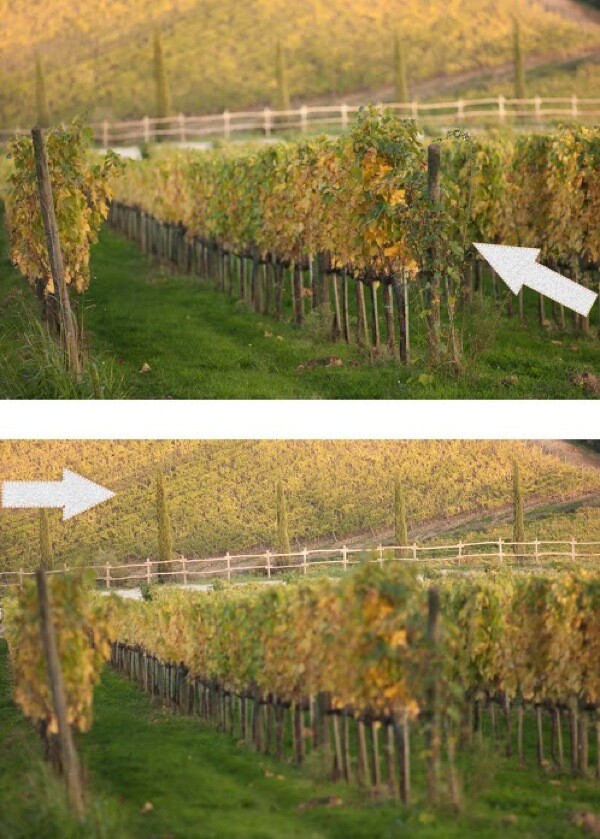
Before going any further, allow me to spend a moment on focus. When using a wide aperture, be sure to place your active focus points on the subject you want sharpest. These two vineyard photographs were both taken with the same wide aperture of f/1.8, but they look very different. This is due to my placement of the focus point indicated here by the arrows. For the image on top, I focused on the vines closest to me. As a result, everything behind it is soft. For the image on the bottom, I focused on the distant vines. The shallow depth of field then works to blur everything in front of the focus point.

5 focus example

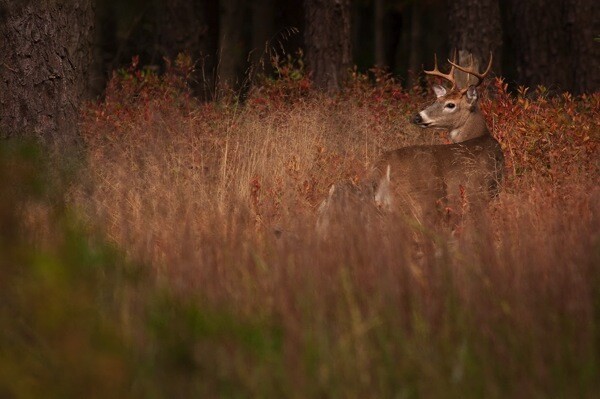
We can see how all of this comes together in the image of the male buck. I saw the large deer in October just after sunrise. With my active focus point on his face, I knew the deer would be sharp. A wide aperture of f/5.6 created a shallow depth of field. Not only was the background blurred, but the tall reeds in the foreground as well. The perspective makes it seem as if we’re spying on the creature through the tall grasses.

6 buck

As you can see, a wide aperture can help you create images that surpass routine snapshots. With this new knowledge, you’ll start to recognize the techniques other photographers have used in their photographs. Begin practicing with wide apertures and you’ll soon be changing settings like a pro. Now, let’s turn our attention to small apertures.

Small apertures

7 castle

There’s a common misconception amongst photography students who believe sharp photos are solely result of fast shutter speeds. While that is part of the equation, the other equally important consideration is the aperture. By achieving greater depth of field, it’s possible to keep the entire subject in focus. In this second portion of our aperture tutorial, I’m going to share the specific f-stops and techniques used to create tack sharp images.

8 aperture opening

Don’t let the terminology trick you. The term “small aperture” refers to the physical size of the lens opening. This may seem counterintuitive since the actual f-number is larger. Yet, f/22 is a smaller aperture than f/16 because the aperture blades inside the lens don’t open as wide. See the example above.

9 empire state

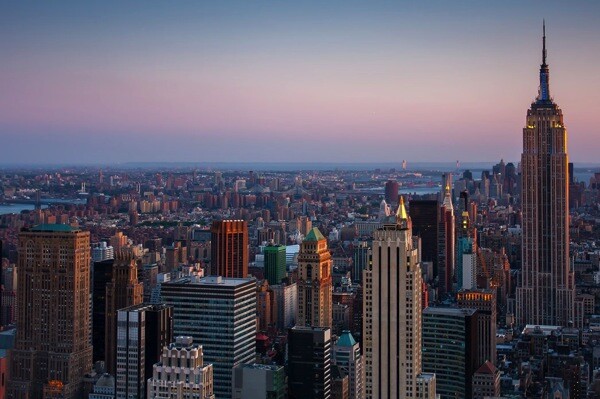
When you hear photographers say they are “stopping down”, it means they are using a narrower aperture opening, for example going from f/8 to f/11, or from f/11 to f/16. This renders everything sharp from near-to-far, hence the phrase “great depth of field”. I’ve created a phrase to help you remember this. “The greater the f-stop number, the greater the depth of field.”

10 brooklyn bridge

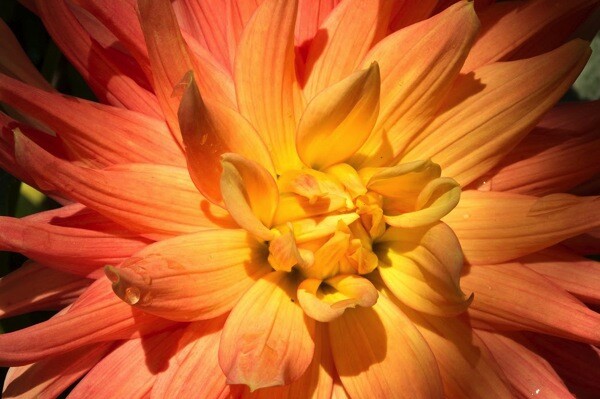
Great depth of field is also useful when you’re photographing flowers or close-up objects. If the aperture is too wide like f/2.8, only a handful of the petals will be sharp. The solution doesn’t necessarily have to be f/22 which is more suitable for a vast landscape; a better compromise would be f/8 which provides enough depth of field for most macro opportunities. Then, by simply focusing on the center of the flower, the entire subject remains reasonably sharp.

11 dahlia

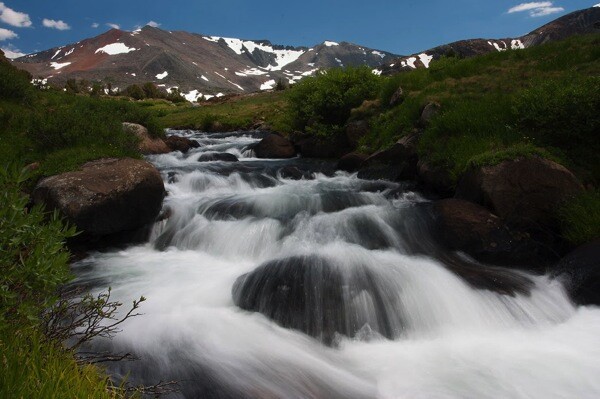
In a big sweeping landscape, it can be tricky to determine where to focus. For me, apps that calculate precisely where to focus are just not practical (or fun). To further emphasize the effect of the small aperture, I have found a simple solution that really works. Place your focus point on an object that’s 1/3rd of the way up from the bottom of the frame and use a small aperture like f/22. Not only will the object in the bottom third be sharp, but so will everything in front of, and behind it. As an example, I focused on the large boulder towards the bottom of the frame in this photo from Yosemite National Park.

12 yosemite

Where the tripod comes in

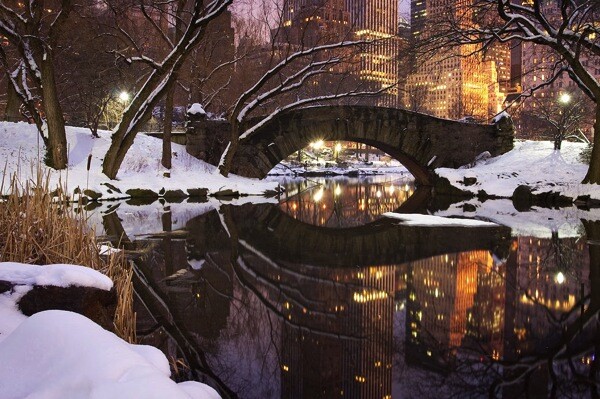
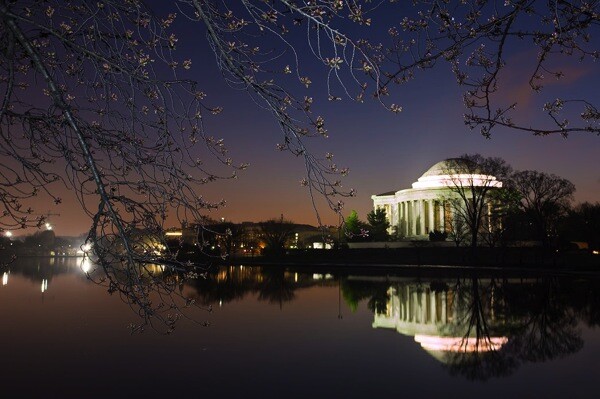
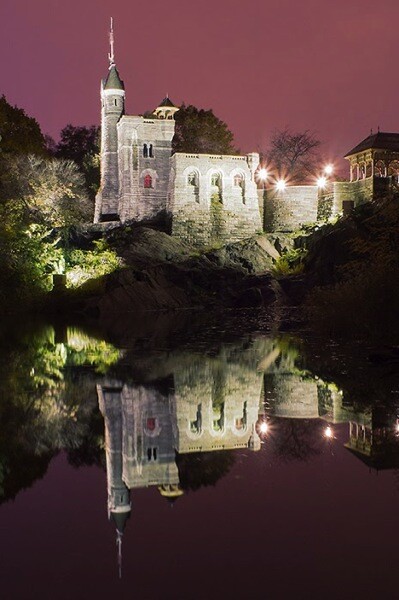
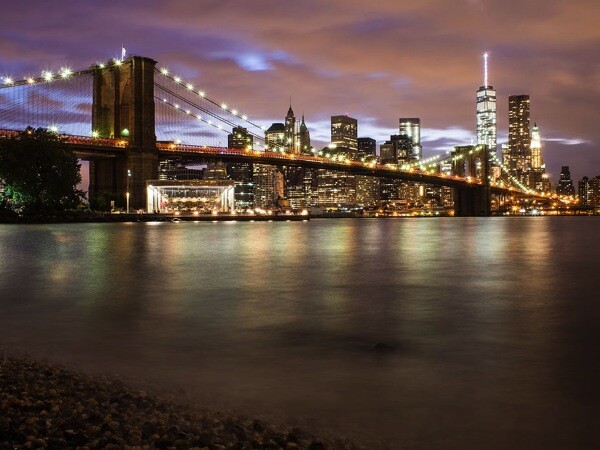
While f/22 may be an ideal setting for a landscape, it does present photographers with a challenge especially in low light situations. Since a small aperture doesn’t let much light into the narrow opening of the lens, a slower shutter speed and/or higher ISO become necessary to achieve a good exposure. These longer exposure times are the primary reason most landscape photographers use tripods.

13 central park

Bonus tip

If carrying a tripod is not possible, you can create a makeshift camera support by placing the camera on a bag, a wall, even the ground. Then, to avoid jostling the camera during the exposure, set the two second timer to automatically trip the shutter.

14 jefferson

This article is sponsored by the New York Institute of Photography. NYIP offers high-quality online photography courses that are affordable, convenient, and accredited.

googletag.cmd.push(function() {
tablet_slots.push( googletag.defineSlot( “/1005424/_dPSv4_tab-all-article-bottom_(300×250)”, [300, 250], “pb-ad-78623” ).addService( googletag.pubads() ) ); } );

googletag.cmd.push(function() {
mobile_slots.push( googletag.defineSlot( “/1005424/_dPSv4_mob-all-article-bottom_(300×250)”, [300, 250], “pb-ad-78158” ).addService( googletag.pubads() ) ); } );

The post How to Control Aperture and Create Images You Love by Chris Corradino appeared first on Digital Photography School.

Digital Photography School

 
Comments Off on How to Control Aperture and Create Images You Love

Posted in Photography


How to Create a Simple Blurb Photo Book in Lightroom

07 Feb

How to create a simple photo book in Lightroom

The easiest way to get started with Lightroom’s Book module is to create a simple photo book, letting Lightroom do most of the work for you so you don’t get bogged down in the extensive design process involved in making a more complex book.

Things to do before you start

You will make the book design process much easier by doing, or at least thinking about, the following things before you start:

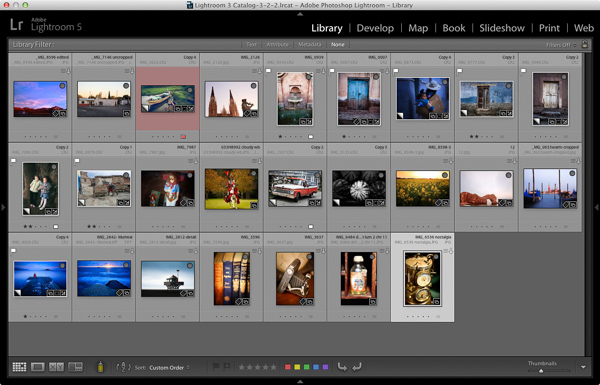
  • Select which photos you’re going to include. Or at least narrow it down as much as you can. You might change your mind many times as you work on the design. Organize them in a Collection.
  • Arrange the photos in the approximate order they will appear in the photo book by clicking and dragging. You can do this in the Filmstrip in the Book module, but it is much easier to do it in Grid View in the Library module. It helps if you have created a Collection containing the photos you wish to include in the photo book. Again, this doesn’t need to be precise as you will probably change your mind as you work your way through the design process.

How to create a simple photo book in Lightroom

  • Choose photos for the front and back covers. The cover photo is the first one in the Collection, the back cover photo is the last. You can change your mind later if you need to.
  • Process your files, if required. Naturally, you have probably already processed the photos you would like to include in your book, but are the photos processed in a consistent way? For example, if you are creating a book containing toned black and white photos have they all been toned the same colour, or are they different? It might be better for the book if they are all toned the same colour. If your photos need processing, it may be helpful to make Virtual Copies, so the originals are unaffected by the changes.
  • Pick which Blurb photo book size to use. There are five to choose from: small square, standard portrait, standard landscape, large landscape and large square. Sizes and prices of Blurb books are outlined on Blurb’s website.
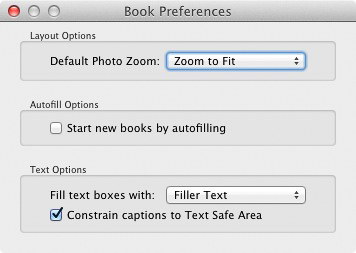
  • Go to Book Preferences, which are found under the Book menu in the Book module (you can’t open them from any other module). Set Default Photo Zoom to Zoom to Fit and leave the Start new books by autofilling box unchecked. The other settings don’t matter for simple photo books.

How to create a simple photo book in Lightroom

Creating a simple photo book

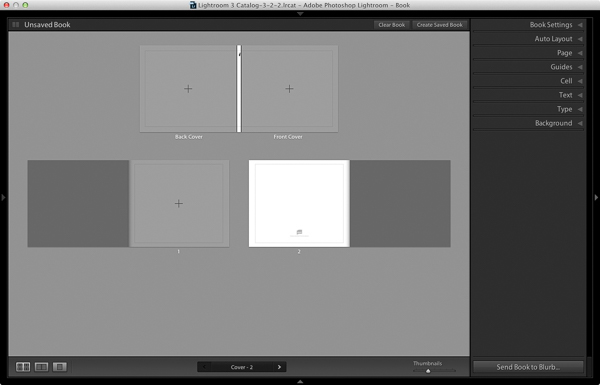
Go to the Book module. If you set your Book Preferences as recommended above, you will see something like this.

How to create a simple photo book in Lightroom

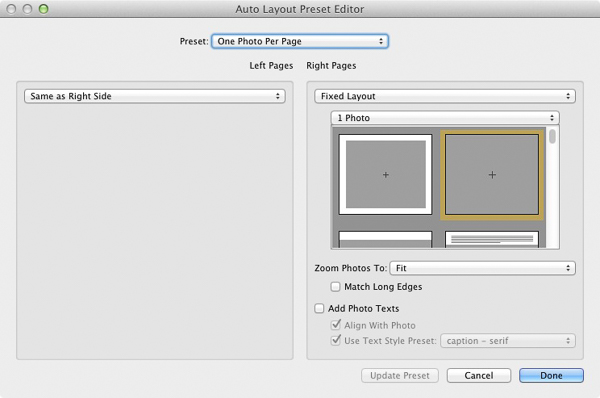
Regardless of what you see on screen, start by clicking the Clear Book button at the top of the Content window. Then go to the Auto Layout panel, set the Preset to One Photo Per Page and use the drop down menu accessed by the double arrow icon to select Edit Auto Layout Preset. The Auto Layout Preset Editor window opens (below). Look for the Zoom Photos To setting and set it to Fit (if it isn’t there already). Click the Done button at the bottom of the window.

How to create a simple photo book in Lightroom

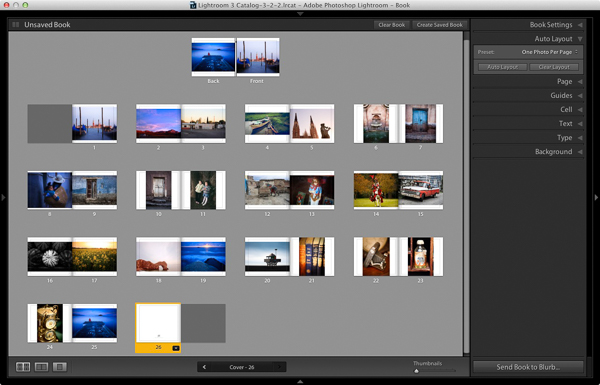
Click the Auto Layout button in the Auto Layout panel. Lightroom creates the book for you. It will look something like this, depending on the number of photos in your book.

How to create a simple photo book in Lightroom

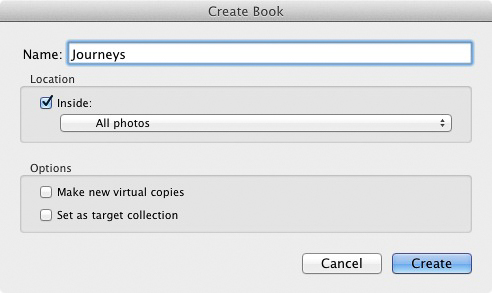
At this stage you will see the words Unsaved Book in the top-left corner. They indicate that the current book layout hasn’t been saved. Click the Create Saved Book button. This prompts Lightroom to open the Create Book window and create a Book Collection – a specialized type of Collection containing photos used in a photo book.

Give the book a name and select a Collection Set to store it in. Click the Create button. Lightroom duplicates the current Collection and turns it into the new Book Collection. It is displayed in the Collections panel with a book icon to differentiate it from other Collections. The name of the Book Collection is also displayed in the top-left corner of the Book module. Lightroom updates the Book Collection every time you make a change, so you can come back to it at any time without losing your work.

How to create a simple photo book in Lightroom

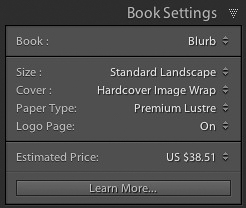
Go to the Book Settings panel and select the Size of the book and the type of Cover you’d like (I chose Standard Landscape with Hardcover Image Wrap for this example). It’s important to decide now which you want, as it may affect the layout if you change them later.

Lightroom displays the estimated price of the photo book at the bottom of the panel (click the double arrow icon to the right of the price to see it in a different currency). The figure changes according to the size of the book, the number of pages in it, and the Paper Type (there is more information about paper types on Blurb’s website.

You can save money by including the Blurb logo page – an extra page at the back of the book with Blurb’s logo. Doing so gives you a discount, but adds an extra page to the layout.

http://www.blurb.com/proline

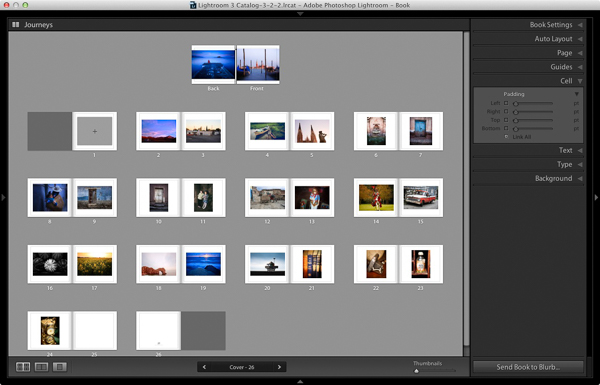
The first and last photos in the Book Collection are used as covers, but Auto Layout also adds them as the first and last photos in the book. If you don’t want them in those positions then you need to remove them.

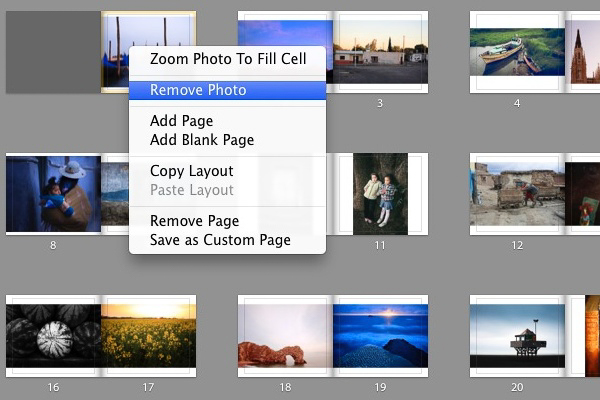
Starting by going to the first image, right-clicking and selecting Remove Photo.

You should now see a grey square with a cross in it (if you don’t, go to the Guides panel and tick the Show Guides and Photo Cells boxes). The icon indicates the page contains an empty Photo Cell – Lightroom’s term for the spaces allocated to photos within the layout.

The left-hand page is dark grey, indicating that it’s the inside of the front cover, and that you can’t add anything to it.

How to create a simple photo book in Lightroom

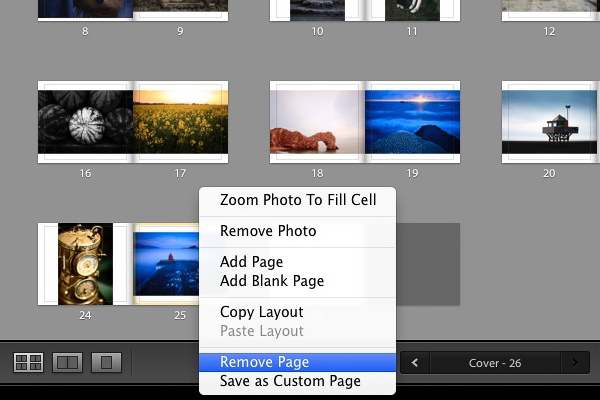
Repeat the process with the last photo in the book. This time, right-click the photo and select Remove page.

How to create a simple photo book in Lightroom

Add a white border

The next step is to create a white border around the photos in the book, rather than run them up to the edge of the printed page. The photos will be smaller, but the additional white space will give the book a more professional look.

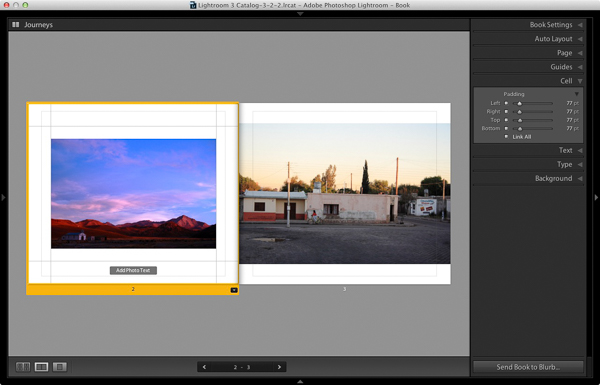
Click on a page containing a photo in the landscape orientation to activate it and go to the Cell panel. Grab the bottom slider and move it right. The other sliders should move with it at the same time (if they don’t, click the grey Link All square – when all the squares are white, they will move together). Adjust the sliders until the photo has a solid white border around it like the one in the screen shot below.

How to create a simple photo book in Lightroom

Right-click on the page and select Save as Custom Page. Switch to the Multi-Page View and go to Edit > Select All to select all the pages in the book (the cover isn’t included).

Click any arrow in a yellow frame, go to Custom Pages and select the page layout you just created. If this is the first time you have done this, it will be the only one there. Lightroom updates the selected pages with the chosen layout.

How to create a simple photo book in Lightroom

Design the covers

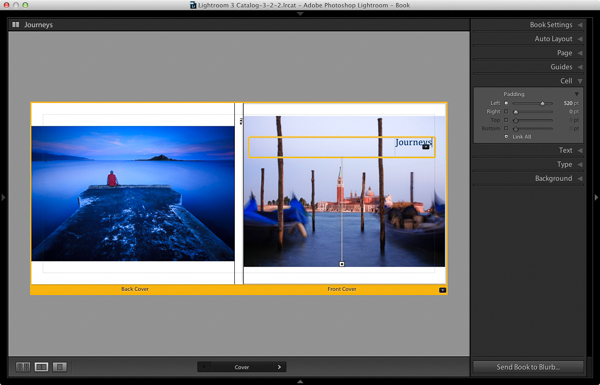
Go to the covers spread, click on the front cover and then the grey Add Photo Text button at the bottom. Type in the book title. You can change the font colour, size, and text in the Type panel. Click and drag the yellow border to move the text.

You can’t change the width of a Photo Text Cell. But you can easily move the title left or right by going to the Cell panel and moving the Left slider until the title is positioned where you want it.

How to create a simple photo book in Lightroom

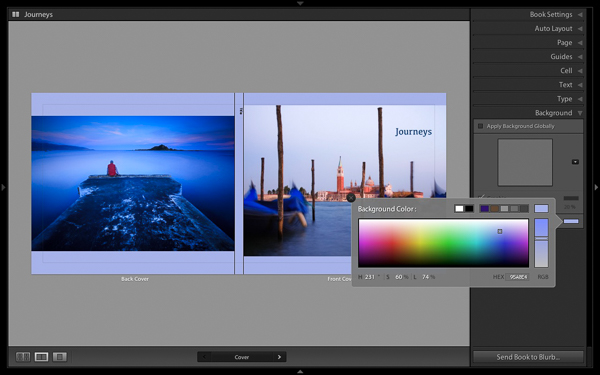
Open the Background panel and select a background colour that complements the front and back covers.

How to create a simple photo book in Lightroom

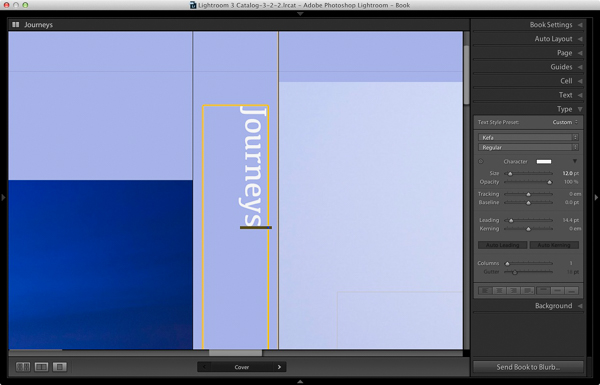
Go to the title on the spine of the cover, and change it to the title of your book. For consistency, you should use the same font you selected for the title on the front cover.

How to create a simple photo book in Lightroom

Another option for the cover is to expand the photos so that they fill the available space. This will crop the photos, which you may not want, but can look really effective. You may also need to move the title. To do so, right-click on the cover images and select Zoom Photo to Fit Cell. This is what it looks like with my covers.

How to create a simple photo book in Lightroom

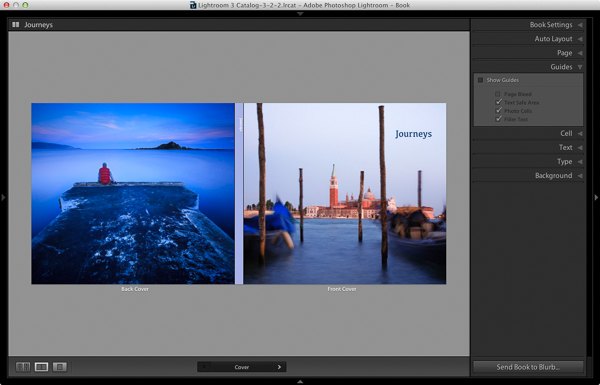
Congratulations, you have finished your photo book! There are lots of ways you can tweak and improve your design in the Book module,  I may go into those in a later article. But hopefully you now see how easy it is to get started in the Book module. Indeed, if you are happy with this simple design, you can create a photo book in a few minutes.

Uploading your photo to book to Blurb

In order to print your book with Blurb you need a Blurb account, which you can sign up for on their website.

Then, press the Send Book to Blurb button underneath the right-hand panels. Lightroom prompts you to sign into your account. Then, enter the title and author’s name and click the Upload Book button. The upload takes some time, but when it’s done you can sign into your Blurb account online and see your book. Leave this step until you’re ready to order though, as Blurb will delete the book from your account if you don’t order at least one copy within 15 days.

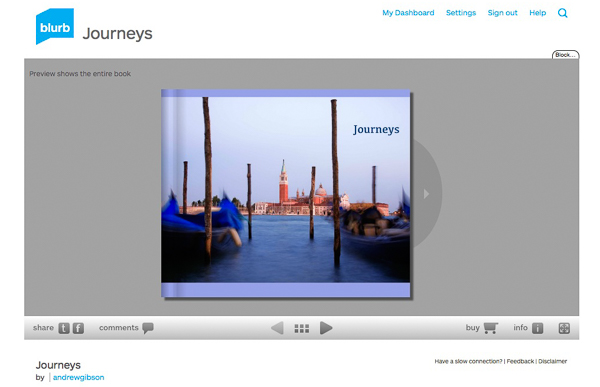
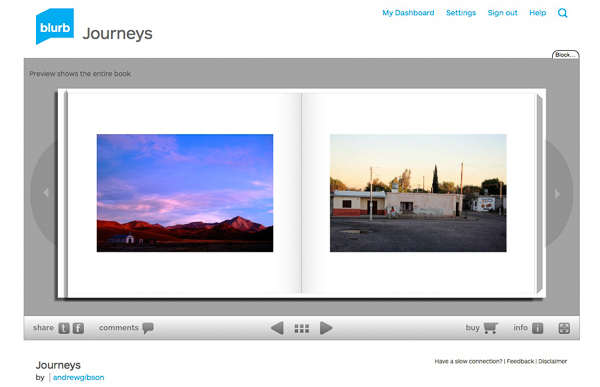
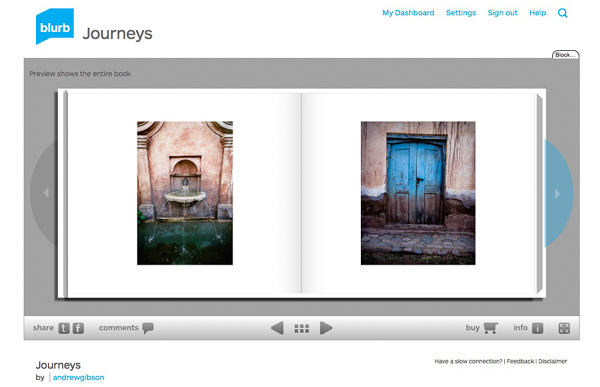
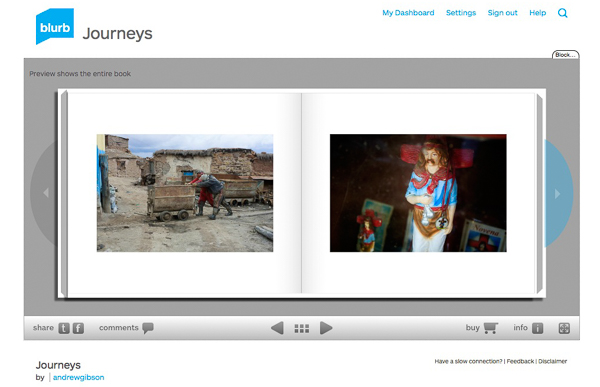
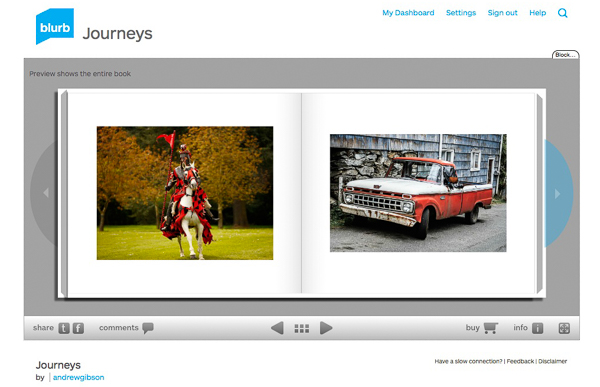
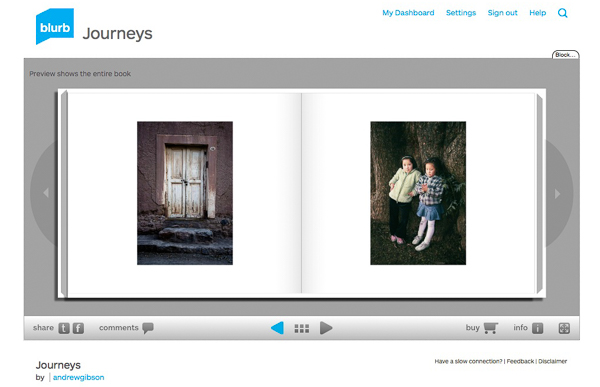
Here are some preview pages from the photo book I just created.

Have you made a book yet? Please share your comments and questions below.
lightroom-create-simple-photo-book-18
How to create a simple photo book in Lightroom


Mastering Lightroom: Book Five – The Other Modules ebook coverMastering Lightroom: Book Five – The Other Modules

My new ebook Mastering Lightroom: Book Five – The Other Modules shows you how to use Lightroom’s powerful features to create fun and interesting projects using the Map, Book, Slide show, Print and Web modules. Whether it’s geotagging, putting together a photo book, printing your best photos or creating web galleries all the information (and inspiration) you require is right here.

googletag.cmd.push(function() {
tablet_slots.push( googletag.defineSlot( “/1005424/_dPSv4_tab-all-article-bottom_(300×250)”, [300, 250], “pb-ad-78623” ).addService( googletag.pubads() ) ); } );

googletag.cmd.push(function() {
mobile_slots.push( googletag.defineSlot( “/1005424/_dPSv4_mob-all-article-bottom_(300×250)”, [300, 250], “pb-ad-78158” ).addService( googletag.pubads() ) ); } );

The post How to Create a Simple Blurb Photo Book in Lightroom by Andrew S. Gibson appeared first on Digital Photography School.

Digital Photography School

 
Comments Off on How to Create a Simple Blurb Photo Book in Lightroom

Posted in Photography


Monterey Bay Aquarium uses GoPro to create new open source research camera

27 Jan

The Monterey Bay Aquarium Research Institute has created an open source camera system for use underwater to aid in research projects. The rig is composed of a GoPro camera and other easily sourced components, and is cheaper than commercially available oceanographic camera systems. Learn more

Articles: Digital Photography Review (dpreview.com)

 
Comments Off on Monterey Bay Aquarium uses GoPro to create new open source research camera

Posted in Uncategorized


How to Create Dark Moody Low-Key Portraits with Minimal Gear

14 Jan

To paraphrase Samuel L. Jackson in Jackie Brown, “Grids: when you absolutely, positively got to kill every lumen in the room, accept no substitutes.” Do you have a room or environment that you want to appear black? You don’t even need a black backdrop or the dark cover of night to create a dark, dramatic scene. All you need is a flash, a grid and enough space to allow your subject to be at least 5-10 feet away from any walls. As long as you can keep your strobe light from falling on the ground, background or other objects in the scene, only the subject will be illuminated.

1

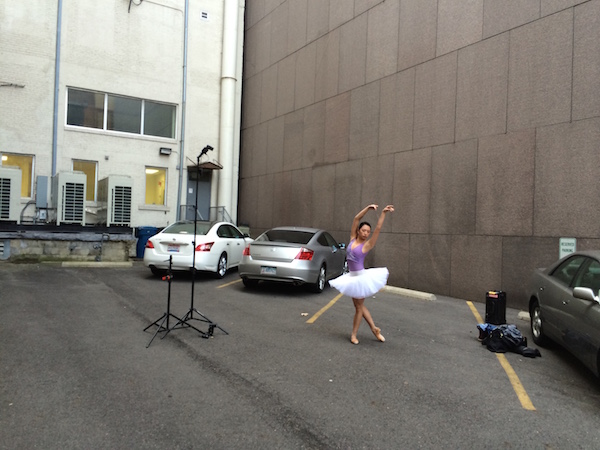
The scene: If you want to black out your environment to create dark moody low-key images, look for shaded areas with enough space to allow at least 5-10 feet between your subject and the background. The darker the background wall is, the better.

2

The raw file: If you look closely, you will see that there is a bit of background detail, which can be easily eliminated in Lightroom.

It was a particularly windy day that I photographed ballerina Kristie Latham. Since I didn’t have an assistant, and sandbags were too heavy to lug around by myself (I was already pulling my case and carrying two light stands), I would have to shoot without light modifiers. Note, if I had added an umbrella to the light stand without it being sandbagged or held by an assistant, it would have blown over onto a nearby car within five seconds. Though an un-modified flash on a light stand can still be blown over by the wind, it’s much less likely to happen. That said, I still made sure that it wasn’t too close to any nearby cars.

I wanted to highlight her form and the details of her outfit – specifically the tutu – so even though the light was going to be hard without modifiers, it would actually work out to my advantage. I began by setting up the main light. I placed it high – about 8 feet – in order to create dramatic, directional light. After taking a test shot, I saw that the light fell off below her tutu, since it came out about a foot from her body, causing her legs to go into shadow. To remedy this, I added a second light, placing it on the ground, aimed slightly up, to avoid lighting the ground. The second light worked at illuminating the lower half of her body (image above). By zooming the flashes in to a medium setting of 70mm, it allowed just enough light spread to cover her, while not spilling on too much of the environment around her. While a bit of background detail can be seen in the raw file, it can easily be removed in Lightroom in post-production.

3

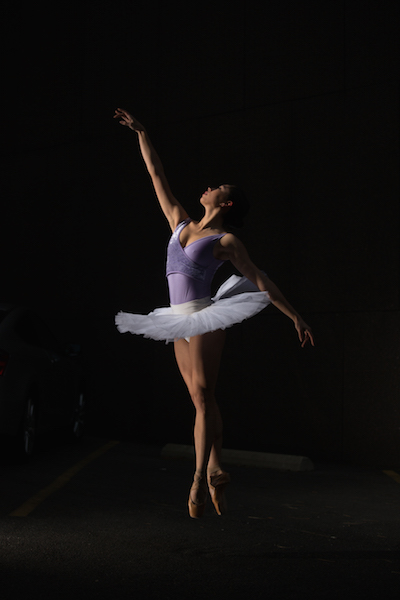
The final shot: Kristie is now completely isolated in the void. Poetic.

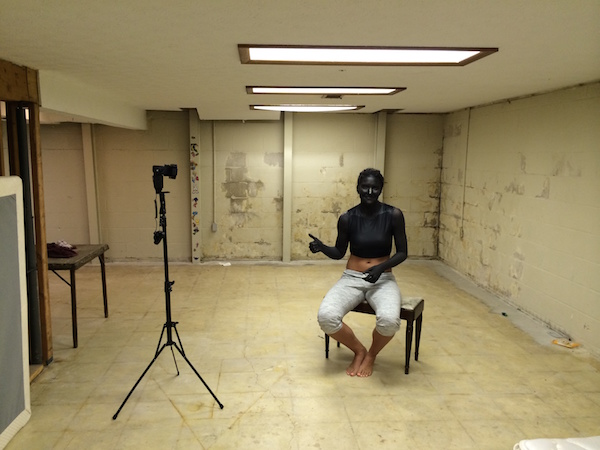
In a slightly different environment, I was doing a shoot with model Dani Dikeman, in a basement. She was in black body paint, wearing all black above the waist. I wanted the whole scene to appear black, save for the highlights on Dani and the textures of her outfit. It was a conceptual portrait shoot, this portion being the Hell portion of a Heaven/Hell-themed shoot. (The as-yet-to-be-shot Heaven scenario will, fittingly, be all white.)

4
The setup: This scenario took place in a basement.

I met Dani at the makeup artist’s house, about an hour after they got started on the makeup, in order to give them a head start on the lengthy application. I knew that the basement was going to be an optimal shooting space because it was not only windowless, but wide open and barren. I quickly set up the sole flash, see above, and then waited while they put the finishing touches on the makeup and hair.

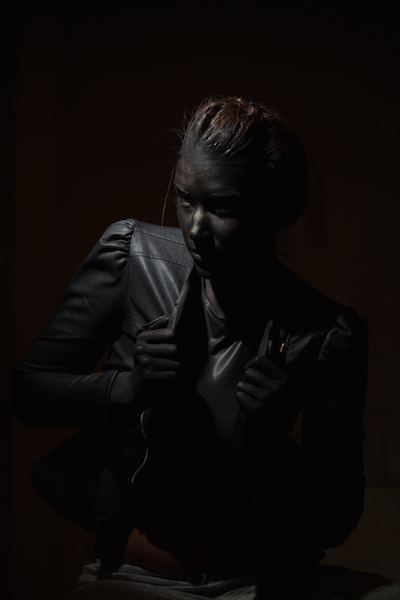
5
The raw file: Though a bit of Dani’s unpainted abdomen and sweatpants are visible in the shot, a quick Lightroom adjustment would have the image ready to go.

The shoot actually went rather quickly (15 minutes), which is ironic since the makeup application took two hours. Though the basement wasn’t especially large, by using a grid on my light to contain light from spilling on the nearby walls, the environment read pretty close to black in the raw files, as seen above. Although Dani’s unpainted abdomen and sweatpants visible in the shot, this wasn’t too big of an issue. Because the light falloff was so dramatic from her bust to her torso, a quick adjustment in Lightroom, lowering the exposure and it went easily to black.

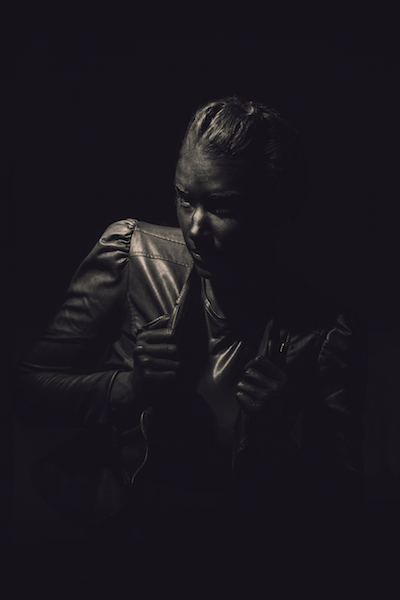
6
The final shot. All black everything.

Have you done all dark or low key images before? Have any other tips or comments to share?

googletag.cmd.push(function() {
tablet_slots.push( googletag.defineSlot( “/1005424/_dPSv4_tab-all-article-bottom_(300×250)”, [300, 250], “pb-ad-78623” ).addService( googletag.pubads() ) ); } );

googletag.cmd.push(function() {
mobile_slots.push( googletag.defineSlot( “/1005424/_dPSv4_mob-all-article-bottom_(300×250)”, [300, 250], “pb-ad-78158” ).addService( googletag.pubads() ) ); } );

The post How to Create Dark Moody Low-Key Portraits with Minimal Gear by Nick Fancher appeared first on Digital Photography School.

Digital Photography School

 
Comments Off on How to Create Dark Moody Low-Key Portraits with Minimal Gear

Posted in Photography


Create More Unique Travel Photos by Adding a Model

06 Jan

Creative travel photography is becoming increasingly difficult as world travelers have easier access than ever to stellar cameras. In fact, travel photography can at times seem uninspiring when you arrive at a tourist spot and see that everyone around you is taking the exact same shots. There are many ways to reframe your perspective to capture unique angles of a tourist attraction, but there is also another way that seems to be overlooked: turn travel photography into a series of creative portrait sessions with a model.

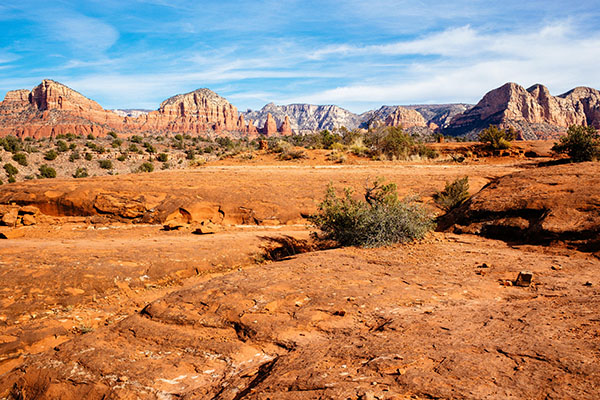
Sedona creative travel photography

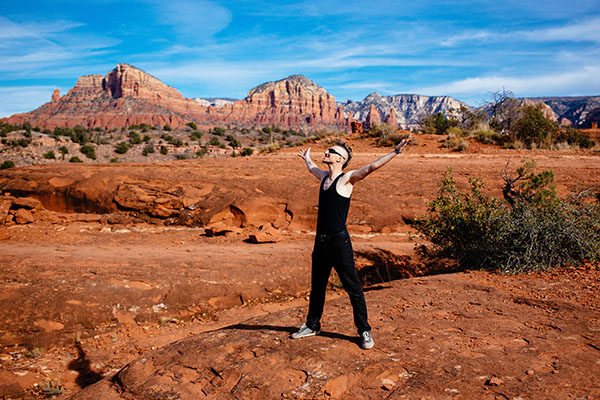
You may have noticed a trend among some of your amateur photographer friends who take an object like a Lego figurine toy and place it in a unique location as a way to maintaining some continuity between travel photography images, or tell a visual story. Using a consistent model is actually a great way to exercise creativity and tell a compelling, unique story, with imagery. While it’s definitely easy to use an inanimate object, why not exercise your portrait skills by adding a human model? This was the way of thinking my photo companion and I assumed during a recent long weekend escape to Sedona, Arizona.

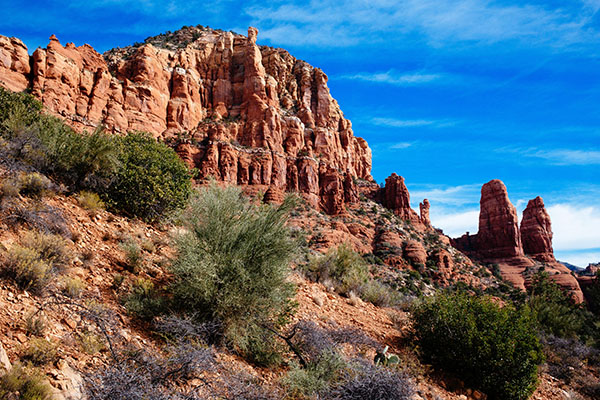
Sedona creative travel photography

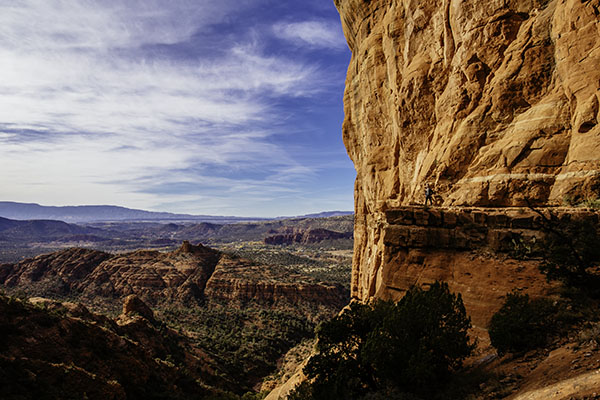
Before: landscape without a model, or the shot that everyone else was getting.

Famous for its natural red rock formations, Sedona is one of those areas that has already been widely photographed from a landscape perspective. In fact, the hotel we stayed at gifted us with a set of six postcards. Each one is a striking landscape photo of a notable attraction in Sedona taken during the perfect time of day, and from a high altitude, likely from a helicopter or high hiking spot. That immediately began to deter our ambitions for capturing stunning images of Sedona, as I’m not inspired by capturing the same images that others have already taken and widely publicized. Immediately, the idea of placing a unique model in the middle of a popular landscape came to mind as a way of crafting one-of-a-kind images.

Sedona creative travel photography

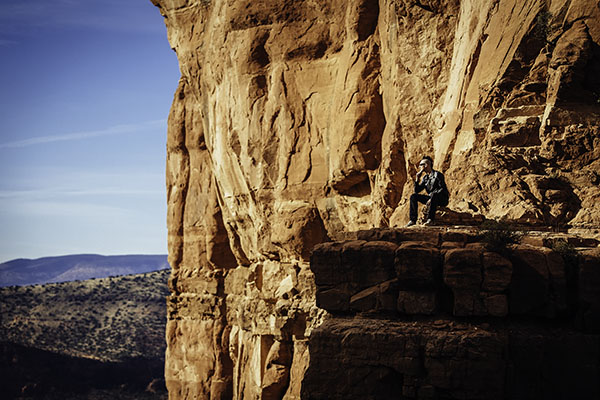
After: landscape with a model.

Background

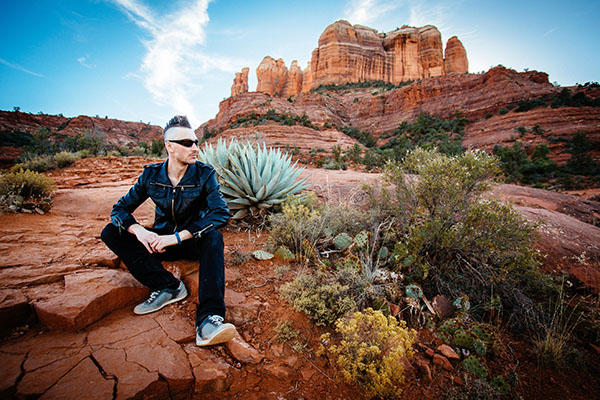
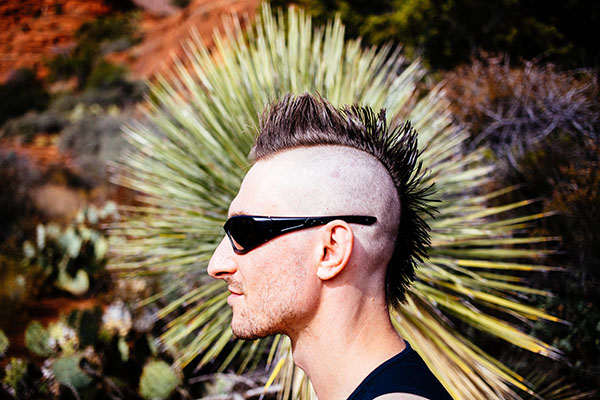
Luckily, my travel companion loves having his photo taken and isn’t afraid of drastically altering his appearance for the sake of a photo shoot. As we began mapping our trip around Sedona, he decided that assuming a character identity similar to that of Mad Max would make a perfect visual theme for our travel photo sessions. The result? He went and shaved his full head of hair into a mohawk and donned an outfit of black pants and black leather jacket, which he wore throughout our entire trip to Sedona. A bit out of place for a hot desert? Indeed, and appropriately so, as a mohawk can be seen as an emblem of nonconformity, in our case, against the typical tourist photos everyone around us was taking. We were met with many stares and raised eyebrows throughout the entire trip, but, we walked away with a unique series of images that not only showcase the beauty of Sedona, but also add some intrigue by inserting a seemingly out of the ordinary character into these landscapes.

Sedona creative travel photography

Executing the Photo Shoots

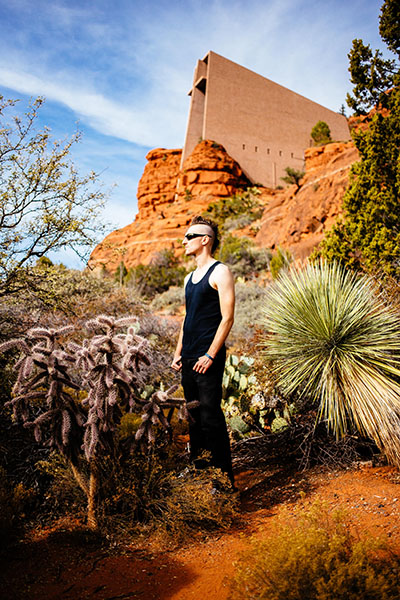
As mentioned earlier, Sedona is very popular among camera-wielding tourists, making it tough to find clearings for taking portraits. The best method we found was setting up the scene as best as we could and waiting for a quick, often one second, gap when people passed by. The gear was simple: a Canon 6D camera, a 24-70mm f/2.8 lens, and a 70-200mm f/2.8 lens. No external lighting was used, just the sun in all of its glory. As the photographer, it was a fun challenge to figure out the best way to photograph someone with a mohawk. In fact, the only way to capture the full effect of the mohawk is from a profile view, so the real trick was to get creative with the backgrounds, perspectives, and angles to make each portrait unique.

Sedona creative travel photography

This portrait was taken at the Chapel of the Holy Cross, one of the most visited and easily accessible tourist spots in Sedona. While this would be a pretty common shot of the chapel, inserting a model into the scene makes for a more dynamic image. A wide angle shot like the one above sets the scene, whereas the telephoto shot below takes essentially the same pose and turns it into an entirely new image.

Sedona creative travel photography

Another way to add flair to landscape portraits was to use the 70-200 f/2.8 telephoto zoomed in to 200mm

Sedona creative travel photography

Same principle with these images: in the one above, I started off with a wide shot at the vista of the popular Cathedral Rock Trail, and then zoomed way in with a telephoto lens below.

Sedona creative travel photography

Any other creative landscape portrait artists out there? Show off your images and the stories behind them!

googletag.cmd.push(function() {
tablet_slots.push( googletag.defineSlot( “/1005424/_dPSv4_tab-all-article-bottom_(300×250)”, [300, 250], “pb-ad-78623” ).addService( googletag.pubads() ) ); } );

googletag.cmd.push(function() {
mobile_slots.push( googletag.defineSlot( “/1005424/_dPSv4_mob-all-article-bottom_(300×250)”, [300, 250], “pb-ad-78158” ).addService( googletag.pubads() ) ); } );

The post Create More Unique Travel Photos by Adding a Model by Suzi Pratt appeared first on Digital Photography School.

Digital Photography School

 
Comments Off on Create More Unique Travel Photos by Adding a Model

Posted in Photography


How to Create a 2015 Calendar in the Lightroom Print Module

23 Dec

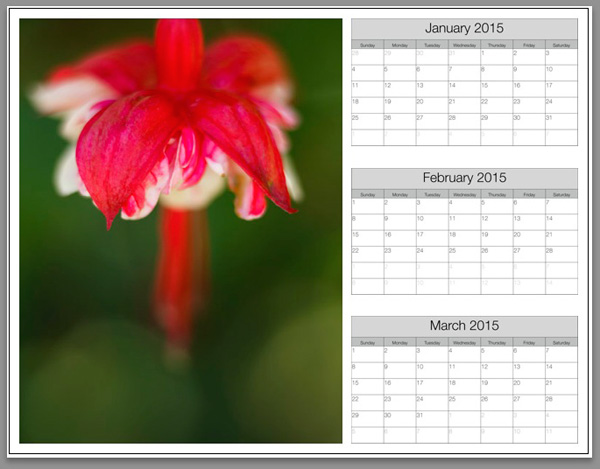
Create a calendar in the Lightroom Print module

The Lightroom Print module is a great tool for creating print layouts, but one thing it is not designed to do is make calendars (hopefully Adobe will introduce this feature in future versions of Lightroom). Luckily, in spite of that it is not too difficult to create a calendar once you know how, and you are prepared to put the work in to create the month and day parts of the calendar.

Or – you can let someone else do all the hard work. That somebody is photographer Ed Weaver, who has created some Print module calendar templates that anybody can download from his website for free.

Ed updates the templates every year, and has recently added templates for 2015. There are two versions, one with the week starting on Sunday, and the other with it starting on Monday. Just select the one that is appropriate for your part of the world (the links are at the bottom of the web page) and download the files.

The download includes a set of calendar graphics and Lightroom Print Templates, along with instructions. All you have to do is import the calendar images into the Lightroom Catalog and add the Print Templates to the Print module. It only takes a few minutes and you’re ready to go.

Creating a calendar

Follow these instructions to make your first calendar using Ed’s templates.

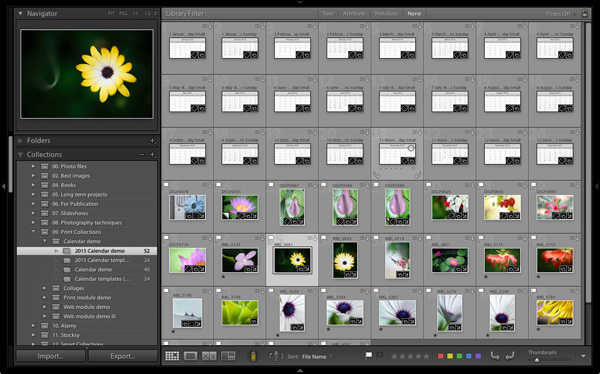
1. Open the folder containing the templates you want to use. Import the JPEGs into Lightroom. There are two JPEGs for every month in 2015, one with large numbers, the other with small numbers (see below), giving 24 in total.

Create a calendar in the Lightroom Print module

2. Go to the Library module and create a Collection for the calendar. Add both the calendar JPEGs you just imported plus any photos you may wish to use in the calendar.

Create a calendar in the Lightroom Print module

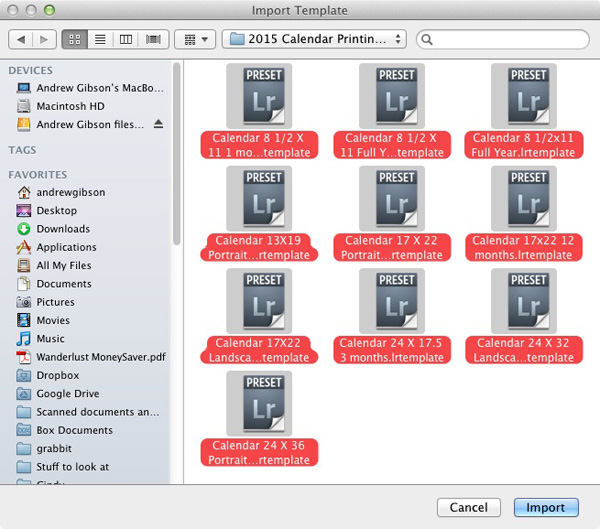
3. Go to Lightroom’s Print module, then select Print > New Template Folder from the menu. Give the folder an appropriate name (i.e. 2015 Calendar). Right-click on the folder name and select Import. Navigate to the folder where Ed’s calendar templates are stored, select them all and click the Import button.

Create a calendar in the Lightroom Print module

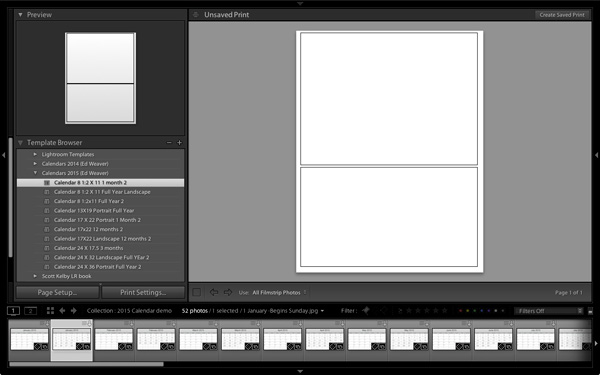
4. Open the Template Folder you just created. There are ten templates to choose from. When you click on a template, Lightroom displays it in the Content window (see below). The templates use the Custom Package layout style, which means that Lightroom doesn’t add photos to the layout automatically. Instead, you have to do it yourself by dragging the photos from the Filmstrip.

Create a calendar in the Lightroom Print module

5. Drag photos and calendar templates as needed from the Filmstrip to create your calendar. With this template, you need just one of each.

Create a calendar in the Lightroom Print module

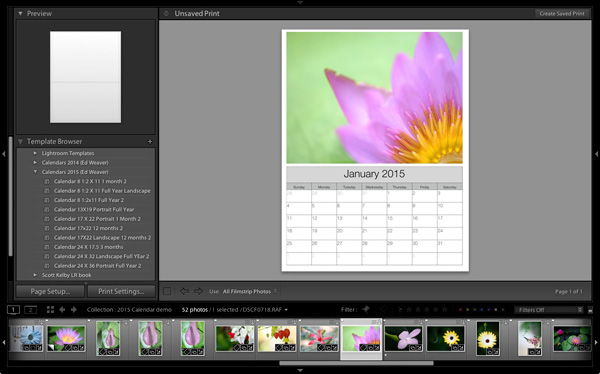
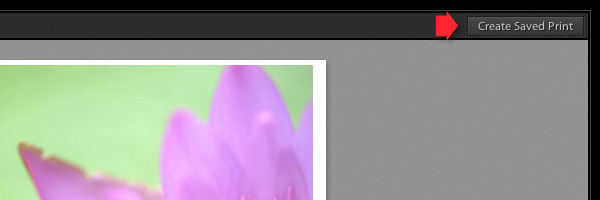
6. Click the Create Saved Print button in the top right corner of the Content window (see below). Give the print a name in the Create Print window and click the Create button. Lightroom creates a Print Collection (marked by a printer icon in the Collections panel) containing only the images used in the print. Now you can leave the Print module and return to your print at any time without losing any changes.

Create a calendar in the Lightroom Print module

7. Repeat for the rest of the months in the year, and you have a complete calendar.

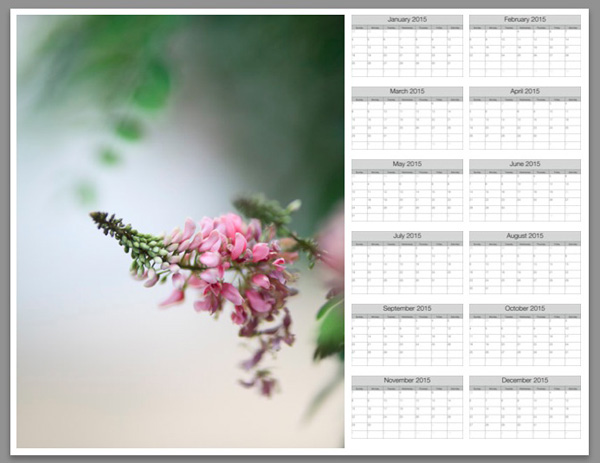
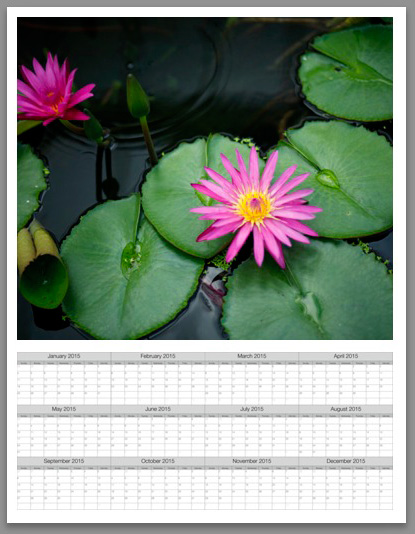
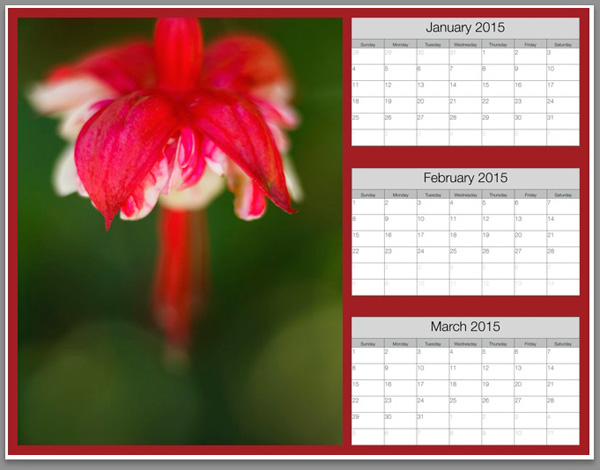
Here are some examples using some of the other templates:

Create a calendar in the Lightroom Print module


Create a calendar in the Lightroom Print module


Create a calendar in the Lightroom Print module

Modifying template files

Ed’s templates are great, but there is no easy way to change the colours, fonts, or any other aspect of the design of the JPEG files, at least not in Lightroom. If you want to change the style, you should open the files in Photoshop or Photoshop Elements. Using layers, it is relatively straightforward to replace the font Ed used with that of your own choice, or change the colours. Of course, you could also start completely from scratch and create your calendar files to use with Ed’s templates.

Changing background colour

Create a calendar in the Lightroom Print module

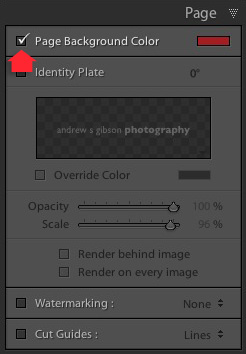
You can change the background colour of the calendar from its default white by going to the Page panel and ticking the Page Background Color box. Click the swatch on the right to choose a colour. Just bear in mind that adding a background colour uses more ink if you print the calendar on an inkjet printer.

Create a calendar in the Lightroom Print module


Mastering Lightroom: Book Five – The Other Modules ebook coverMastering Lightroom: Book Five – The Other Modules

My new ebook Mastering Lightroom: Book Five – The Other Modules shows you how to use Lightroom’s powerful features to create fun and interesting projects using the Map, Book, Slide show, Print and Web modules. Whether it’s geotagging, putting together a photo book, printing your best photos or creating web galleries all the information (and inspiration) you require is right here.


googletag.cmd.push(function() {
tablet_slots.push( googletag.defineSlot( “/1005424/_dPSv4_tab-all-article-bottom_(300×250)”, [300, 250], “pb-ad-78623” ).addService( googletag.pubads() ) ); } );

googletag.cmd.push(function() {
mobile_slots.push( googletag.defineSlot( “/1005424/_dPSv4_mob-all-article-bottom_(300×250)”, [300, 250], “pb-ad-78158” ).addService( googletag.pubads() ) ); } );

The post How to Create a 2015 Calendar in the Lightroom Print Module by Andrew S. Gibson appeared first on Digital Photography School.


Digital Photography School

 
Comments Off on How to Create a 2015 Calendar in the Lightroom Print Module

Posted in Photography


Using Rain Puddles to Create Unique Reflection Photos

17 Dec

6

Implementing water into a shoot ratchets up the drama in the images but also the difficulty in the execution. I equate the learning curve of lighting water to learning how to light metal objects and other reflective surfaces. It’s not a quick learn, so be patient with yourself.

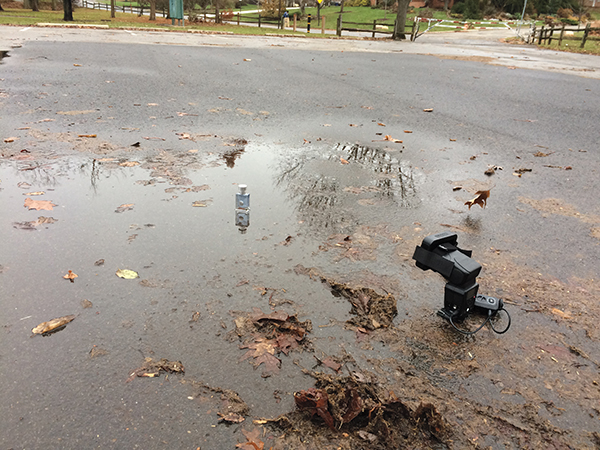
Rain puddles are awesome. I bet you never thought to run out after it rained to hunt for decent puddles. But as you can see in the image below, that’s exactly what I was working with. Since the product I was shooting was a cologne bottle, which is rather small, the puddle didn’t need to be very wide or long. If I was shooting something larger, like a person, I would need a much larger puddle to pull off this technique of making reflection photos.

1

The setup: I was working with a rain puddle in a parking lot, on a patch of blacktop. I added a grid to my flash to keep light from spilling onto the foreground.

The first thing I was looking for was a puddle on a patch of blacktop, or dark asphalt. Typical asphalt or concrete is much lighter in color, and you need something darker to really make this work. The next thing to keep in mind is the height of the flash. Notice I placed it on the same level as the product – on the ground. If I were to light it from a higher angle instead, the light would illuminate too much of the ground around the product, resulting in a less than dramatic image. I also added a honeycomb grid to the flash to further contain the light spill.

Since the day I photographed this was particularly drab and dark, I had no problem dialing down the ambient with a moderate exposure. With a flash output of ¼ power I had all but eliminated the ambient light, leaving me with an exposure of 1/60 at f/7.1. On a brighter day, I’d likely need a neutral density filter to get rid of the extra ambient light.

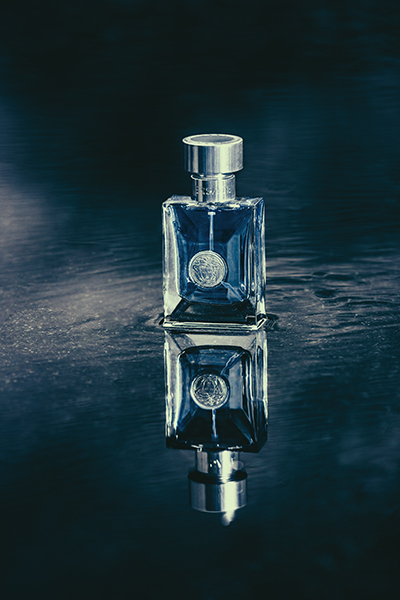
Though the ambient has been lowered to an almost night-time quality, there are still some reflections of the sky and trees visible in the puddle. The lower shutter speed allowed these tones and shapes to remain. Though the puddle was not especially wide or deep, it sufficed in allowing me to achieve the glassy surface that I was going for, see below.

2

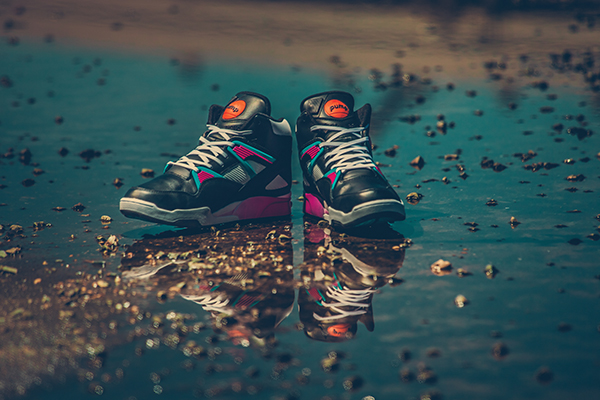
The final shot: This rain puddle, shot on a drab, gray, day has been transformed into a dramatic, glassy surface.

If the sky had been clear, rather than dark gray, the surface of the puddle would have been a nice, vibrant blue, as seen below. In this shot you can see that while the blue tone is nice, the illuminated foreground is pretty distracting, not to mention the dozens of small rocks. This was because the light was elevated, lighting the concrete in front of the shoes as well, which is why it’s important to lower your lights, so that they’re parallel to the ground.

3

When the sky is clear, the surface of the puddle changes to a lovely blue color. However, be sure not to light from above, because as seen in this image, the illuminated concrete makes for a distracting foreground.

4

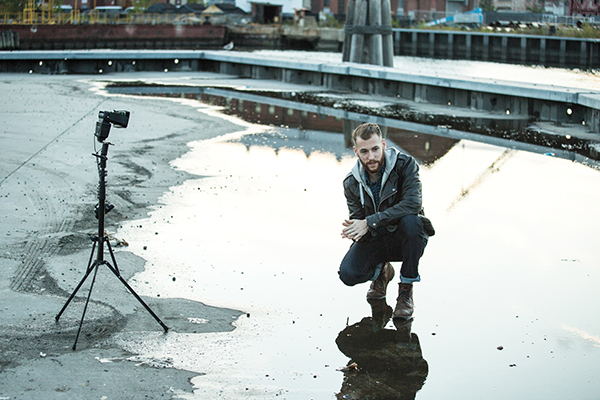
The setup: A puddle, this time a large one, is the setting for this portrait. The shoot took place right after the sun dropped below the skyline.

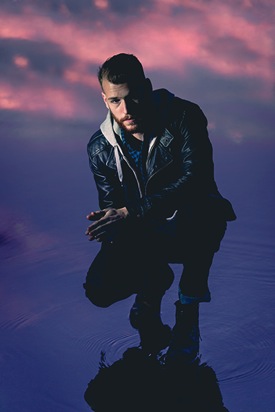
In this next image I was using a rather wide puddle, which was large enough to allow me to isolate my subject, Max. Once again, to minimize light spill, I set my light at the same level as the subject, rather than above, as well as used a grid. The puddle reads really well, though the reflection shows a bit of the building in the background. After I finished color grading the image in Lightroom, I opened up the file in Photoshop to remove the building.

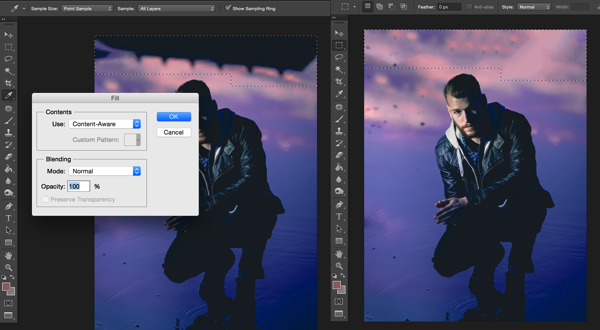
To do this, select the trouble area and simply hit the delete key. As long as you are using Adobe Photoshop CS6 or CC, you’ll see the option to use Content Aware Fill (see below). It will typically do a decent job at filling in the selection, but minor cleanup is often needed. I used the Spot Healing Brush tool to clean up any remaining trouble areas.

5

I quickly removed the building reflection by using the Content Aware Fill option in Photoshop CC.

6

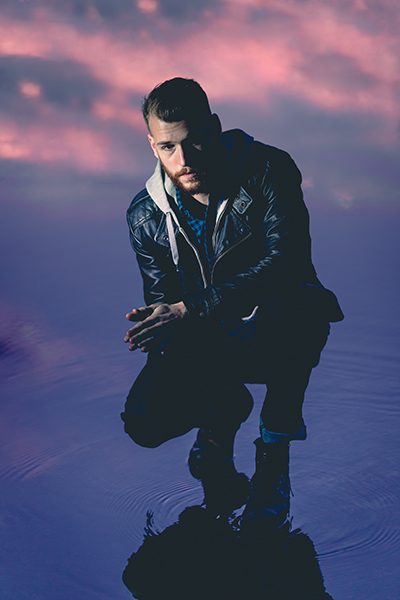
The final shot: After removing the building reflection, the water surface looked seamless.

Have you got any other tips for creating reflection photos? Please share them and/or your images in the comments below.

googletag.cmd.push(function() {
tablet_slots.push( googletag.defineSlot( “/1005424/_dPSv4_tab-all-article-bottom_(300×250)”, [300, 250], “pb-ad-78623” ).addService( googletag.pubads() ) ); } );

googletag.cmd.push(function() {
mobile_slots.push( googletag.defineSlot( “/1005424/_dPSv4_mob-all-article-bottom_(300×250)”, [300, 250], “pb-ad-78158” ).addService( googletag.pubads() ) ); } );

The post Using Rain Puddles to Create Unique Reflection Photos by Nick Fancher appeared first on Digital Photography School.

Digital Photography School

 
Comments Off on Using Rain Puddles to Create Unique Reflection Photos

Posted in Photography


How to Use Hard Lighting to Create a Dramatic Portrait

15 Dec

When was the last time you did not primarily light your scene using a large soft source, such as a soft box or umbrella? Large soft sources easily create a beautiful, wrap-around quality of light. Just pop one up and you have instant “good” light.

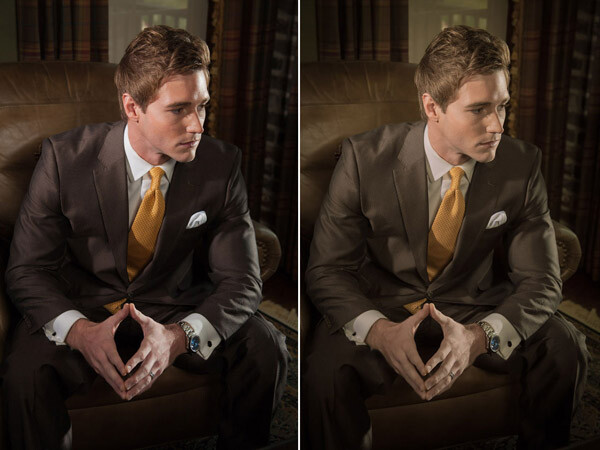
before-after-lightroom-adjustments-01.jpg

Final image: before and after in Lightroom

Though soft light is beautiful and has its place, it represents only one part of the artist’s palette. In this article we are going to dissect the lighting setup for a men’s fashion shoot, and look at how using hard light can add dramatic impact to your photographs.

I think two-time Academy Award-winning cinematographer Haskell Wexler said it best when it came to using hard light:

“Everybody should still work in hard light as well. Not to do it and to say that it has to be all soft light is like throwing away part of the artist’s palette. I think the more variety you can have, the better it will look. To be able to light well in hard light makes the soft lighting a piece of cake, because soft light is very forgiving. Soft light, uncontrolled, is still acceptable photographically. It is really hard for soft light to look bad, but it is really not hard for hard light to look bad.”

The feel the magazine wanted was a dramatic, high-contrast look. One of the problems with soft light is that it can be hard to control and can easily kill the contrast of your scene – especially in small spaces. The location for our shoot just so happened to be one of those small spaces, so I decided that reflectors and honeycomb grids were the best tools for the job.

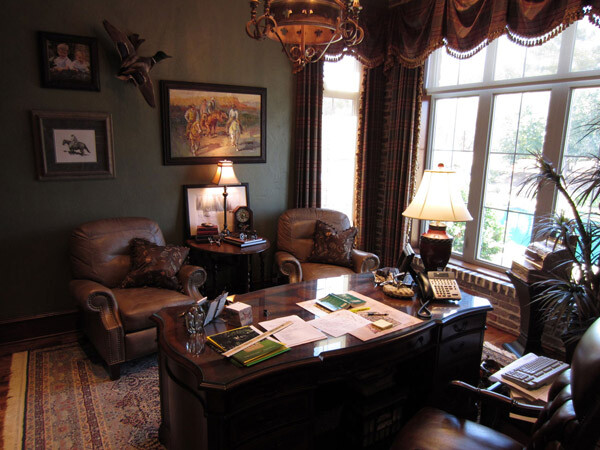
Location picture

The shoot was held at a local area builder’s office. The office provided the perfect backdrop for the shoot, but did not offer a lot of room for equipment.

In the pre-planning phase, I chose to use a simple three light setup which included a key light, a fill light and kicker. I had room on camera left to place the main key light, but did not have much room for a kicker opposite camera right; however, there was a window.

As luck had it, the office window overlooked a back patio that had electrical outlets, so I did not have to rely on a battery pack or generator. The only problem was that the patio was a lower in elevation than the office window, so I had to extend my 13′ light stand up to its near maximum height.

To secure the stand, I fastened several 10 pound ankle weights to the legs. Ankle weights are a great and inexpensive alternative to sandbags. The set I use cost about $ 20 at Walmart, and came with Velcro straps for easy attachment to light stands or boom arms.

Since the strobe was outside the window and placed a distance from the model, I attached a radio slave and set it to full power. (The strobe was rated at 600ws)

Back in the office, I took a meter reading using a light meter with the dome retracted and pointed towards the light. The meter gave me a reading of f/5.6 at ISO 100. I decided the reading would be a good base to build my lighting ratios, so I set my camera to f/5.6 at ISO 100. As far as the shutter speed, I set my camera to 1/160th of a second because I did not want to capture a lot of ambient light. When using strobes, the shutter speed only controls the brightness of the ambient light.

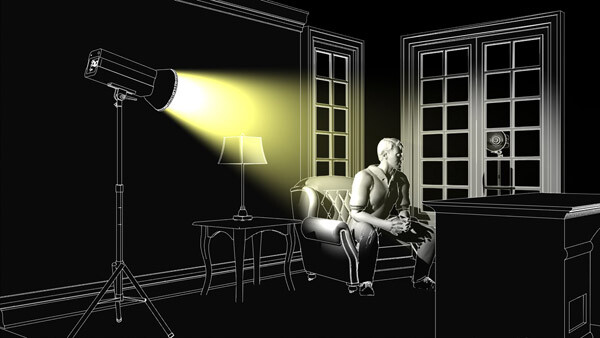
This first light would act as the kicker light, in the scene.

Kicker light placement

Position of the kicker light

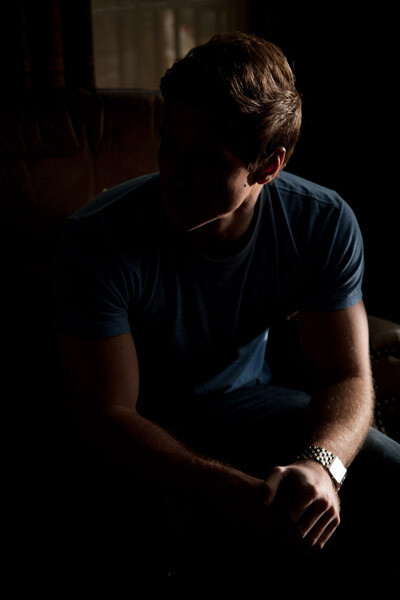
Kicker test shot

Test shot of the model with just the kicker light

When lighting with hard lights, you will often find the need to bring up the shadows, since they can easily go black. A large soft light source, placed close to the camera, is great for filling in shadow areas, because it resembles directionless ambient light.

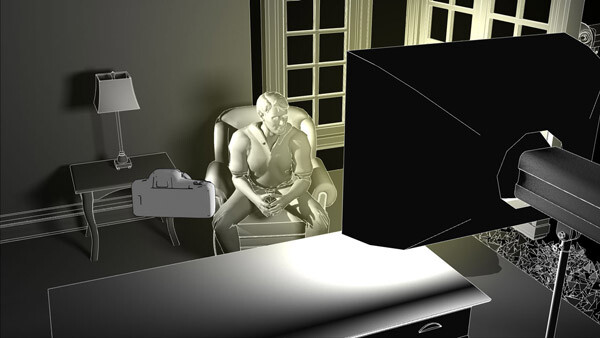
The fill light in our scene was fitted with a medium soft box and placed behind and slightly to the right of the camera.

Fill light placement

Position of the fill light

Since most of the elements in the scene were dark brown, including the suit the model was going to wear, I could not set my fill light much lower than my base exposure of f/5.6. If I had set it lower the elements in the shadow areas would quickly go black. I set the fill light to 1 1/3 stop lower than my base exposure, which read f/3.5 on my light meter.

Kicker and fill test shot

Test shot of the model with both the fill and kicker lights.

The last light I set up was the key (main) light. I placed this light in an open doorway, towards camera left and slightly above the model. I wanted to keep the light on the model and off the walls, so I fitted the light with a 20 degree grid to control the spill.

Key light placement

Position of the key light.

Since most of the scene was dark brown, I decided to have the key light one stop over my camera’s base exposure of f/5.6. I adjusted the light until it read f/8 on my light meter.

Kicker and key test shot

Test shot of model with the key light and kicker, no fill. Notice how the shadows go completely black without the fill light.

You may have noticed that the key light on the left side of the model’s face does not appear as bright as the window kicker light on the right side of his face, despite it being one stop brighter (left: f/8 vs right: f/5.6) This is because the kicker is placed more behind the subject, while the key light is placed more towards the side. You might have heard the photography term “the angle of reflection equals the angle of incidence”? This is basically that principle in action. Since the kicker light is slightly behind the model, the angle at which the light is being reflected off the skin is causing the highlight to appear brighter.

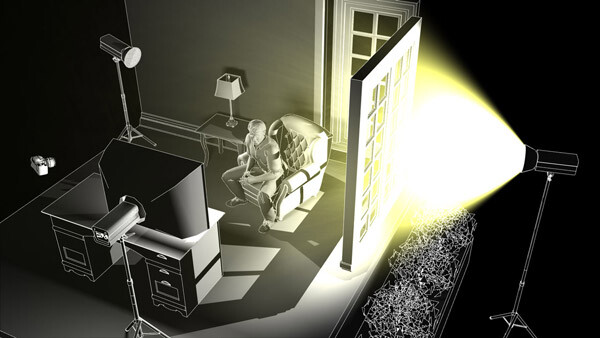
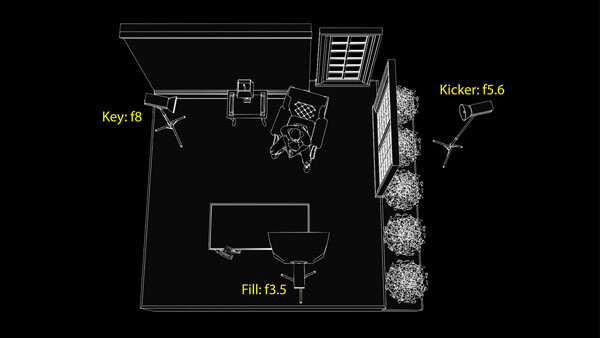
Key fill kicker diagram

Positions and settings for key, fill and kicker lights. Notice the camera positioning at the bottom left of the desk.

Before after lightroom adjustments 01

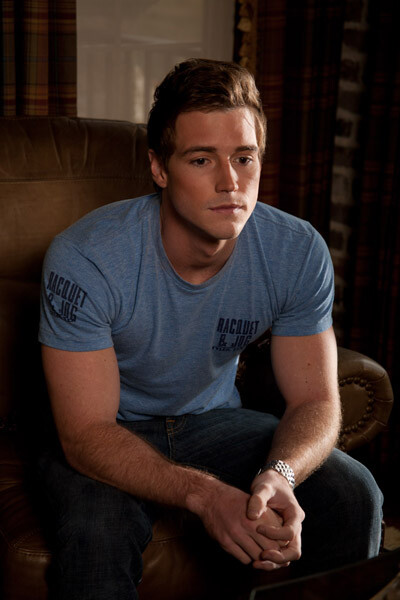
Shot with all three lights set and in place. Before and after adjustments in Lightroom.

Once the lighting was in place, the model was dressed and the shoot began.

A nice benefit of the positioning of the key and kicker lights was that they pulled double-duty, switching roles whenever the model turned his head. A nice short lighting pattern was created, whichever direction he faced. You can see this in the variations above and below.

Before after lightroom adjustments 02

Shot with all three lights set and in place. Before and after adjustments in Lightroom.

In closing, I would encourage you to think of creative ways to use and experiment with hard lighting in your photographs. Hard lighting is not just limited to men. The photo below was lit in the same fashion as the photo of the male model. A word of caution, though. Hard light is unforgiving when it comes to wrinkles and blemishes, so you will have to be very careful with your light positioning when your are lighting women.

Hollywood glam 7056 Edit

googletag.cmd.push(function() {
tablet_slots.push( googletag.defineSlot( “/1005424/_dPSv4_tab-all-article-bottom_(300×250)”, [300, 250], “pb-ad-78623” ).addService( googletag.pubads() ) ); } );

googletag.cmd.push(function() {
mobile_slots.push( googletag.defineSlot( “/1005424/_dPSv4_mob-all-article-bottom_(300×250)”, [300, 250], “pb-ad-78158” ).addService( googletag.pubads() ) ); } );

The post How to Use Hard Lighting to Create a Dramatic Portrait by Joel Dryer appeared first on Digital Photography School.

Digital Photography School

 
Comments Off on How to Use Hard Lighting to Create a Dramatic Portrait
Posted in Photography