RSS
 

Posts Tagged ‘Create’

5 Ways to Create Dramatic Landscape Photos at Midday

03 Jul

Outdoor photographers are repeatedly taught to plan their scenic photography excursions early in the morning or late in the day. These magic hours we’re told, is the only light worth shooting in. Yet, what about those situations when being on location at sunrise or sunset isn’t possible? You can pack up your bags and go home with an empty memory card, or make the most out of every opportunity. Allow me to let you in on a little secret not found in most photo magazines. Some of the best landscape opportunities can be found at midday when the sun is high over head.

Here are five tips to help you create dramatic landscape photos at midday:
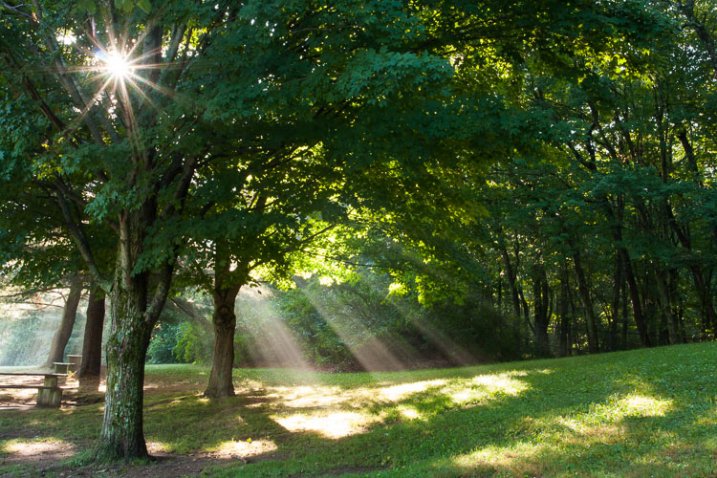
1) Work with the sun

Rather than avoiding the sun, use it to add visual interest in your composition. This technique is not overly complicated but does take a bit of trial and error to master. Start by setting a very small aperture opening such as f/22. Then, while looking through the viewfinder, position yourself so an object partially blocks the sun. It should not be entirely obscured, so you may have to rock back and forth ever so slightly to find the optimal point. When you see the beams of light spilling through the obstruction, take the shot. The results can be quite dramatic and potentially aided by subtle hints of colorful flare.
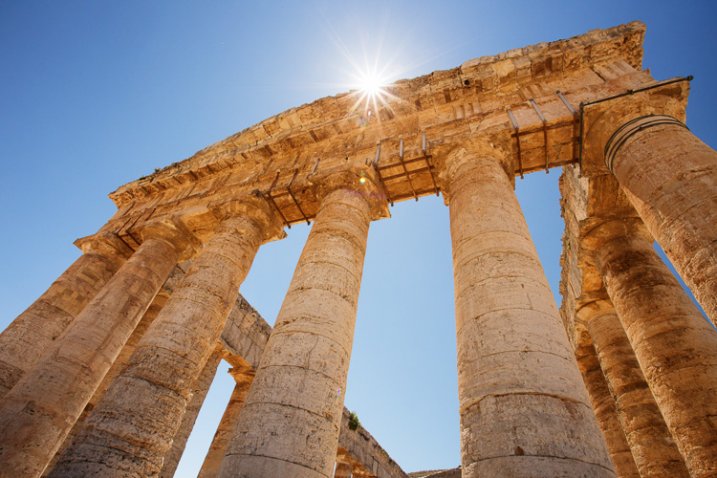
2) Give your wide angle lens a rest

The contrast found midday makes it difficult to hold the detail in the sky while properly exposing a foreground. Rather than resorting to an HDR shot, use the occasion to simplify your composition. Does that bright sky really add to the overall scene? If not, give your wide angle lens a break and switch to a medium telephoto lens.

Before pressing the shutter, check all four corners of the frame for any unwanted bright areas. The human eye tends to focus on these areas first. As you eliminate these distractions, the design of the photo will become more evident. Just remember, if you are hand holding the camera with a telephoto lens, opt for a slightly faster shutter speed to prevent camera shake. At these greater magnifications, even the slightest imperfections become more noticeable.
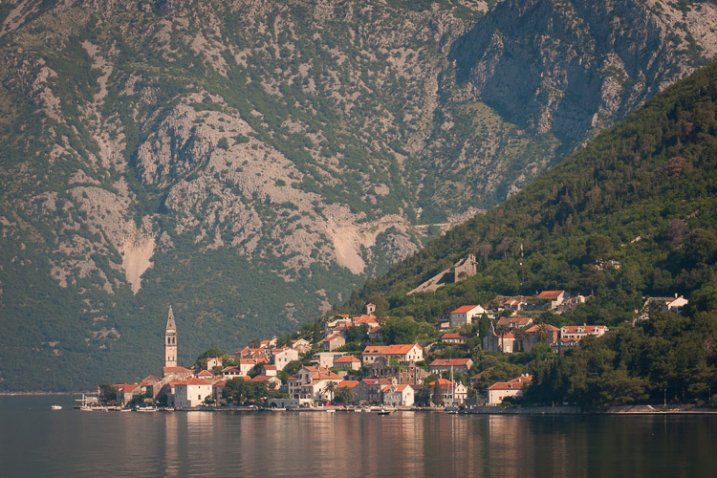
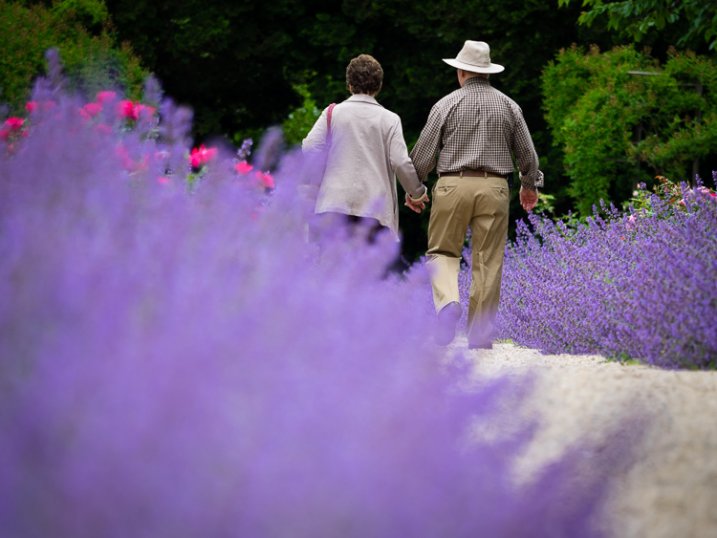
3) Find more people

Sunny days can also be useful for creating salable prints and stock photos. Images of people enjoying the outdoors are popular with a wide variety of clients; from those looking for home decor, or pharmaceutical companies, clothing lines, the parks department, etc. In the afternoon, you’ll find infinitely more people than you would at sunrise or sunset. This is a good thing, as it opens the door to a whole new series of photographic possibility. By including a human element, the image will have greater reach as viewers can relate to it personally.
4) Slow the shutter speed down with black glass

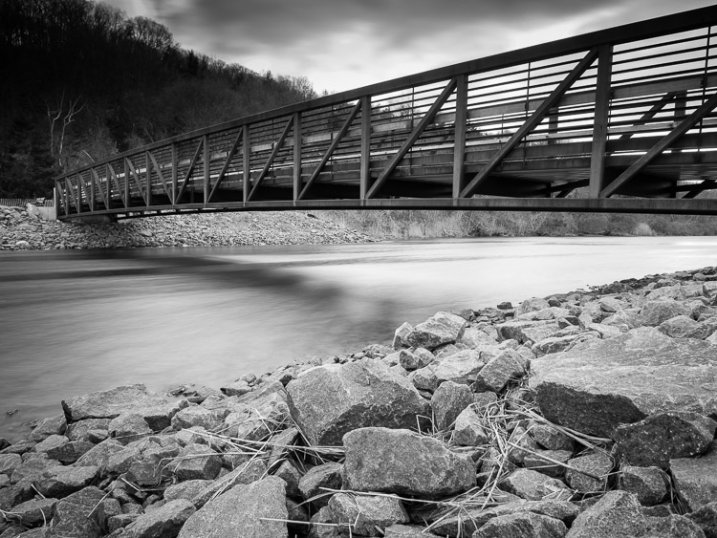
Believe it or not, you can shoot long exposures even on a bright sunny day. The trick is add a round neutral density filter to your bag. Sometimes dubbed “black glass”, these dark screw-on options block a great deal of light from entering the lens.

For example, if the proper exposure gave you 1/125, f/22, ISO 100, the water motion (below) would be largely frozen. By adding a nine stop ND filter, you can keep the aperture and ISO the same, but drop the shutter speed all the way down to four seconds. This will create that dreamy effect previously limited to low light situations.
5) Go easy on the polarizer

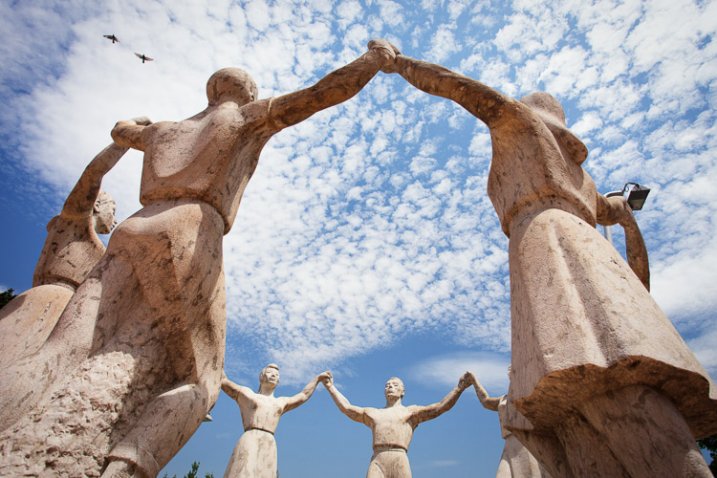
If you have a short layover in a distant location, you can use the opportunity to capture some of the sites mid-afternoon. Perhaps the most important tool will be the circular polarizer. Some may disagree here, but it does not need to be a multi-coated, super high-end filter. A basic model from Hoya or Tiffen will be just as effective. With it, you can take a pale blue sky and make it pop. This is especially true when the sky is dappled with clouds.

Be warned however, the technique is so powerful it’s easy to go overboard. As a tip, I’d recommend that you find the maximum strength of the filter, and then cut the intensity slightly. This will provide you with more natural results.
Do you have any additional tips for shooting at midday? Please share in the comments below.

googletag.cmd.push(function() {
tablet_slots.push( googletag.defineSlot( “/1005424/_dPSv4_tab-all-article-bottom_(300×250)”, [300, 250], “pb-ad-78623” ).addService( googletag.pubads() ) ); } );

googletag.cmd.push(function() {
mobile_slots.push( googletag.defineSlot( “/1005424/_dPSv4_mob-all-article-bottom_(300×250)”, [300, 250], “pb-ad-78158” ).addService( googletag.pubads() ) ); } );

The post 5 Ways to Create Dramatic Landscape Photos at Midday by Chris Corradino appeared first on Digital Photography School.
Digital Photography School

 
Comments Off on 5 Ways to Create Dramatic Landscape Photos at Midday

Posted in Photography


7 Steps to Create Street Photography Silhouettes

05 Jun

For the street photographer, shooting a perfect silhouette is a very gratifying moment. Just like anything else in street photography, not every subject makes for an interesting silhouette photograph. Here are a few tips to help you capture an interesting silhouette on your next photo walk.

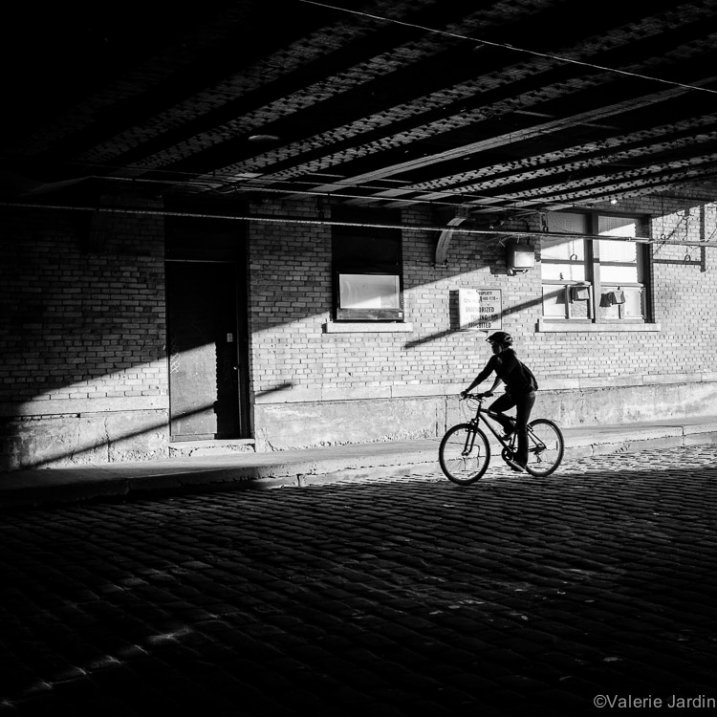
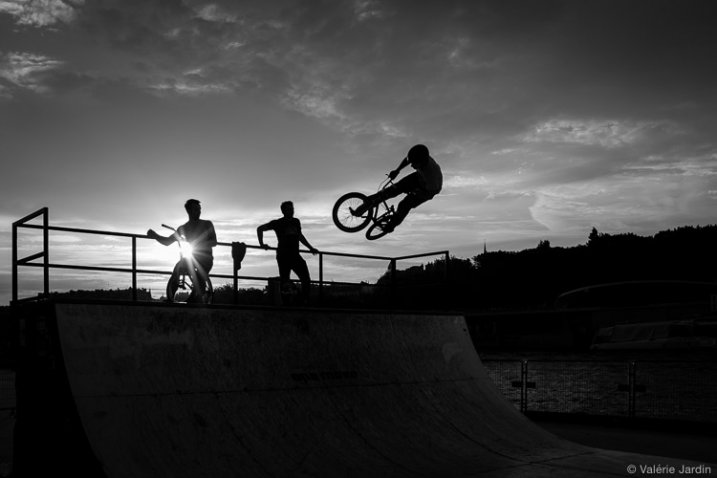
Some elements, such as bicycles, make for more interesting silhouettes.

Some elements, such as bicycles, make for more interesting silhouettes.

1. Set your camera for success

To shoot a silhouette you have to take control of your camera first. Your flash needs to be turned off. Ideally your exposure is set for the highlights (background). If you set your exposure on your subject, your camera will try to expose your subject properly. The result would reveal too much detail in the subject and blow out the highlights in the background. Exposing for the highlights is easily done if your camera is set to spot metering. You can also use average metering and trick your camera by stopping down your exposure compensation so that your subject remains dark.

Focussing can be tricky. You can spot meter for the highlights and manually focus on your subject. Or, if you shoot in Aperture Priority, set your aperture to a large number (small aperture) to allow for most of the scene to be in focus (large depth of field)

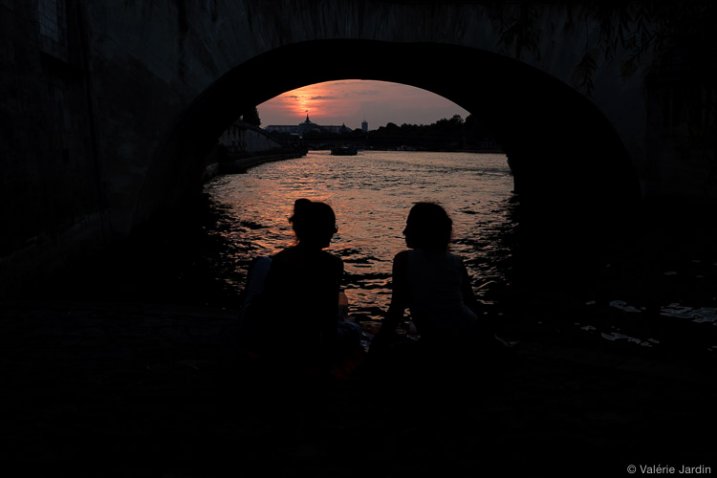
It is important not to blow out the highlights in sunrise and sunset silhouettes.

It is important not to blow out the highlights in sunrise and sunset silhouettes.

2. Don’t be afraid to blow out the highlights

Okay, I just told you to expose properly to avoid blowing out the highlights. That is certainly a good thing to keep in mind if you are shooting against the sunset, sunrise or the moon light for example. The rest of the time, unless the details in the background add to your story, you’re better off blowing out the highlights and going for a more dramatic effect. Your silhouette will stand out more on a white and unobtrusive background.

Details in the background should not distract from your silhouette.

Details in the background should not distract from your silhouette.

3. Learn to recognize a good silhouette

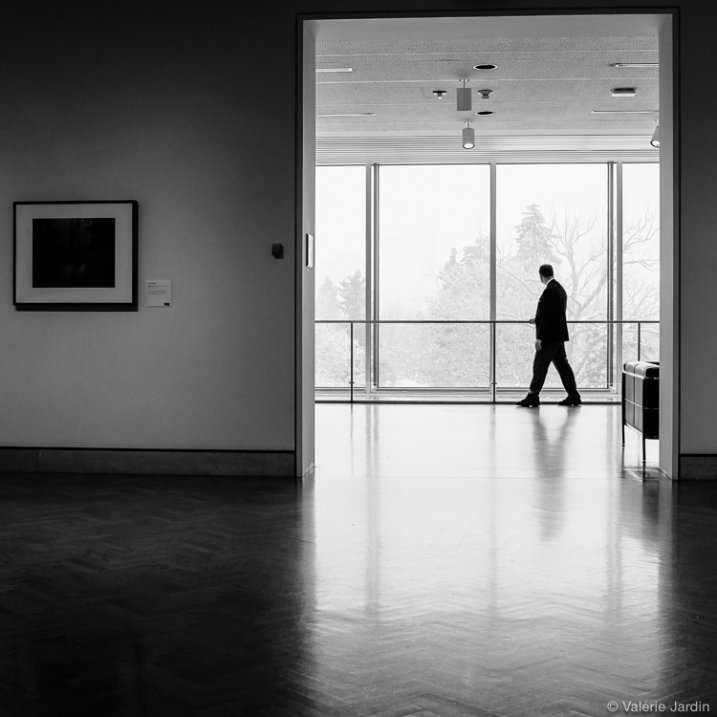
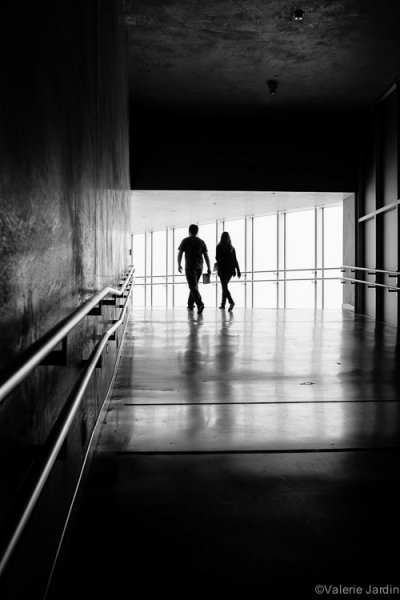
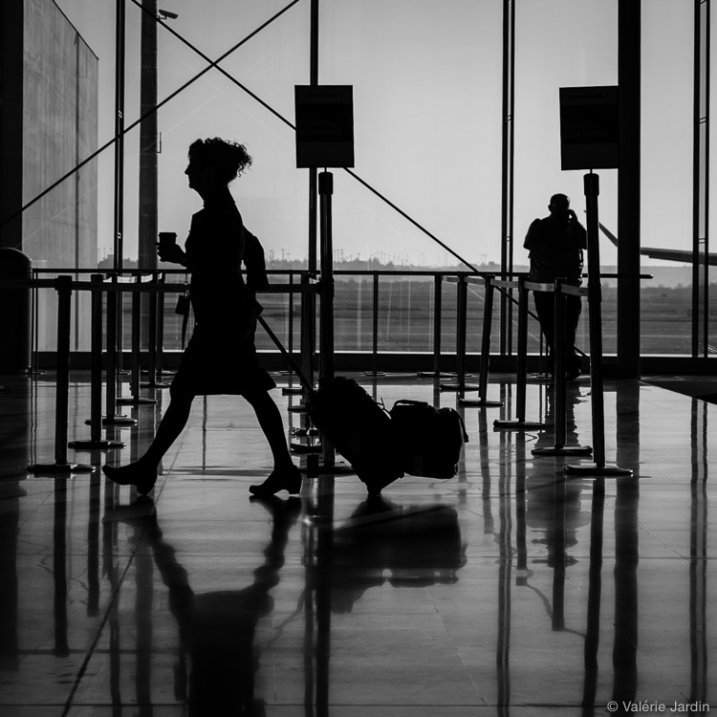
Now you know the basic technique to shoot a silhouette, that was the easy part. The most important piece is to be able to see a potentially strong subject, so be discerning!  Many elements come into play. The body being well defined is important, you should be able to recognize the shape right away. If the subject is facing you or his/her back is turned to you, there should be space between the arms and the body, the legs should be well defined as well. If you are photographing a person looking sideways, the features of their face should be quite clear.

Capturing the right gesture or step is a key element in a successful silhouette in street photography.

Capturing the right gesture or step is a key element for a successful silhouette in street photography.

4. Avoid obstructions

Avoid obstructions in front of, and behind your subject. Timing is important. Silhouettes of posts or other obstructions can ruin the shot. Position yourself accordingly for the best possible shot.

Timing is everything, especially in a cluttered environment.

Timing is everything, especially in a cluttered environment.

5. Try some added effects

A sunburst can be an added bonus to a silhouette photograph, and a welcome added challenge for you, the photographer.

Add to the challenge with a sunburst effect.

Add to the challenge with a sunburst effect.

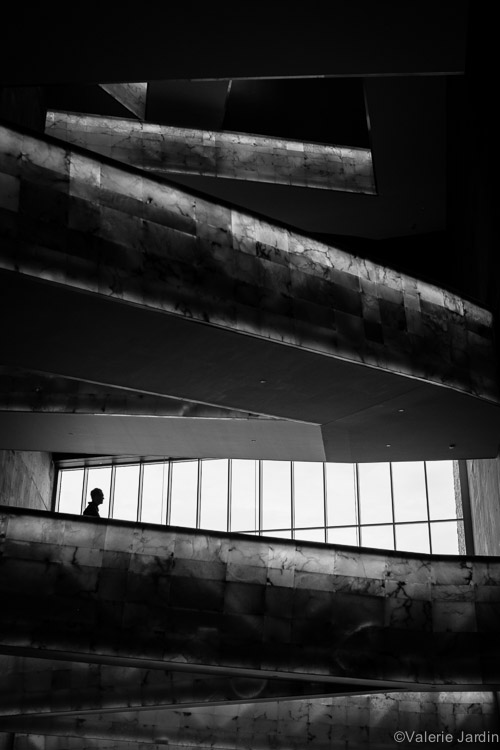
6. Try a minimalist approach

Find an interesting architecture or urban landscape and wait for someone to enter your frame. Even small, the human element becomes the focal point.

A minimalist approach to photographing a silhouette can make for a strong image.

A minimalist approach to photographing a silhouette can make for a strong image.

7. Tweak in post-processing

If you use Lightroom, you can easily tweak your photograph by using the contrast, highlights, shadows and black sliders for the final touches and the look you envision.

Now grab your camera and hit the streets!

googletag.cmd.push(function() {
tablet_slots.push( googletag.defineSlot( “/1005424/_dPSv4_tab-all-article-bottom_(300×250)”, [300, 250], “pb-ad-78623” ).addService( googletag.pubads() ) ); } );

googletag.cmd.push(function() {
mobile_slots.push( googletag.defineSlot( “/1005424/_dPSv4_mob-all-article-bottom_(300×250)”, [300, 250], “pb-ad-78158” ).addService( googletag.pubads() ) ); } );

The post 7 Steps to Create Street Photography Silhouettes by Valerie Jardin appeared first on Digital Photography School.

Digital Photography School

 
Comments Off on 7 Steps to Create Street Photography Silhouettes

Posted in Photography


5 Secrets to Create a Perfect Silhouette Portrait Outdoors

22 May

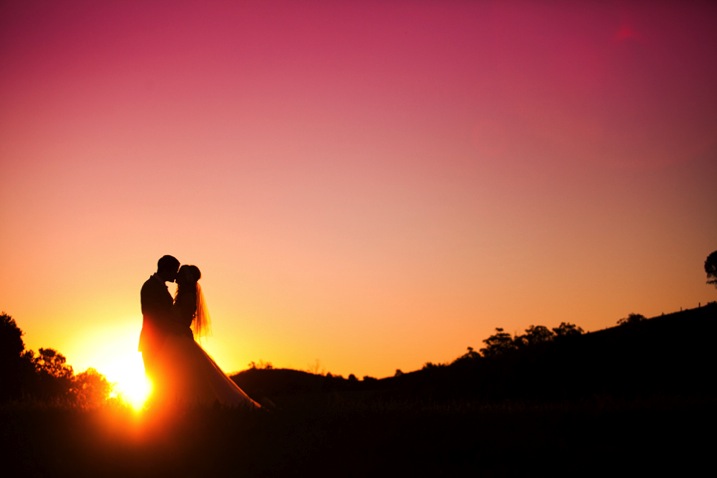
DPS Silhouette 1

1) SHOOT LOW AND HEAD TO TOE

Place the subject’s entire body, from head to toe, against the sky. In order to do this, you will need to be lower than the subject. You can do this by laying on your back, or stomach, while taking the shot.

If you are unable to get low enough, you may need to have your subjects get higher, such as on the very top of a rock, small hill or sand dune. This will hopefully allow you, in most circumstances, to get an angle that places the subject’s entire outline against the sky. You can see a variety of landscapes utilized in the examples below.

DPS Silhouette 2

Hint: It’s so, so, SO important that their feet are against the sky! Legs in a silhouette portrait that are cut off above the feet look like weird, short stumps. If you can’t find a suitably spot at a location, you can play with silhouettes of a closer composition.

DPS Silhouette 3

2) IT’S ALL IN THE TIMING

Silhouettes work best around 20-30 minutes before sunset. However, it does vary with the angle you are able to achieve – the greater the height difference between you and the subject(s), the earlier you will need to take the shot.

If you wait any longer, the sun will be hidden behind whatever your subjects are standing on, and the sky might not be bright enough to make a silhouette. If you do it too early, the sky’s colours can be a bit boring and you will be dealing with other issues, such as sun flare.

DPS Silhouette 4

Tip: Silhouettes can be taken earlier before sunset if the sun is partially blocked or filtered through strong clouds.

3) SILHOUETTE SETTINGS ARE SIMPLE

Set your camera to Aperture Priority (AV) mode, with an aperture of f/2.8, and ISO of 400. Have Evaluative Metering selected, which means that the camera will take into account the whole scene when deciding how to find a balanced exposure.

If you fill the frame with your subjects’ faces or bodies, then the camera will expose for their skin, even with a bright background (see example below).

If you fill the frame mostly with a very bright sky, than the camera will expose for the bright sky, brining out the natural sunset colors and making everything else in the photograph dark.

So, if you place your subject directly against the sky (bright), than the subject (which is darker) will be heavily underexposed. The result – a silhouette!

DPS Silhouette 5 DPS Silhouette 6

Both photographs were taken on the exact same setting mentioned above, only seconds apart. The difference? Composition, and what is filling the frame – subject or sky.

4) SILHOUETTE PORTRAIT POSING IS SPECIFIC

Silhouettes are very forgiving of poor facial expressions (simply because you cannot see them), but very harsh when it comes to outlines. After taking each shot, check to make sure that nothing looks odd in the photograph.

Here are a few things to keep in mind when posing subjects in a silhouette:

  1. Hugging poses do not work – A hug silhouette looks like a great big blob monster. All subjects need to be clearly defined, which means they need to be at least a couple of inches apart from each other. It’s nice for subjects to still be connected, through holding hands, or kissing, but their bodies should still be defined.
  2. Have your clients look away from camera – It’s much nicer and more natural to have poses where the faces are profiled.
  3. Watch the clothing – Very baggy clothing will not work as well for a silhouette, as the shape can become unflattering. It is best for females to wear dresses or skirts in silhouettes, as it brings a feminine shape and helps clearly define them against the male’s figure. – Very baggy clothing will not work as well for a silhouette, as the shape can become unflattering. It is best for females to wear dresses or skirts in silhouettes, as it brings a feminine shape and helps clearly define them against the male’s figure.

DPS Silhouette 7

5) SILHOUETTES SELL

Try to capture at least one silhouette at every photo shoot, whether it is a family portrait, maternity, engagement or wedding. Why? Because they sell!

Here are some reasons why clients love to purchase silhouettes:

  • Silhouettes add variety to your shoot. Silhouettes are so different in nature, in their colouring and style, that the variety they give instantly makes any shoot more interesting and saleable. As the silhouette is quite unique from all other photographs, it also makes it easy to sell individually as a unique piece of artwork.
  • Silhouettes are perfect for shy clients. Some clients hate the idea of their faces hanging up on their walls, making silhouettes the perfect objection handler. As the focus of the photograph is not on the subjects’ faces at all, it can be marketed to them as the perfect piece of personalized artwork, without battling their self-conscious nature.
  • Silhouettes look better bigger! If you capture silhouettes on a wide composition, it’s all too easy to sell them as very large piece of artwork. Because the subjects are relatively small within the frame, silhouettes can encourage a larger, more impressive piece of artwork for the client and a more profitable sale for you.

DPS Silhouette 8

We hope this guide gives you the confidence to go out and try your own silhouettes.

googletag.cmd.push(function() {
tablet_slots.push( googletag.defineSlot( “/1005424/_dPSv4_tab-all-article-bottom_(300×250)”, [300, 250], “pb-ad-78623” ).addService( googletag.pubads() ) ); } );

googletag.cmd.push(function() {
mobile_slots.push( googletag.defineSlot( “/1005424/_dPSv4_mob-all-article-bottom_(300×250)”, [300, 250], “pb-ad-78158” ).addService( googletag.pubads() ) ); } );

The post 5 Secrets to Create a Perfect Silhouette Portrait Outdoors by Alana Orth appeared first on Digital Photography School.

Digital Photography School

 
Comments Off on 5 Secrets to Create a Perfect Silhouette Portrait Outdoors

Posted in Photography


Artists create imaginary-friend Selfie Arm for lone travelers

02 May

US artists Justin Crowe and Aric Snee have created a selfie stick designed to enable lone travelers to shoot selfies that appear to have been taken by a traveling companion. The Selfie Arm is a false arm and hand with a smartphone bracket attached just beyond the elbow. Read more

Articles: Digital Photography Review (dpreview.com)

 
Comments Off on Artists create imaginary-friend Selfie Arm for lone travelers

Posted in Uncategorized


Applying a Texture Overlay to Your Images to Create an Antique Look

19 Apr

If you were to look at my computer you would find a folder called textures, and in that folder you would find hundreds of files. I take photos of things everywhere that I think will be good textures. I also make them, and try different things. You can do the same. Any time you see interesting textures in concrete, marble, or maybe cracked paint, take photos of them, add them to your folder for textures.

There are numerous reasons for adding textures to your photos, and one of the best is to give your work an old or antique look. Lots of old photos have marks on them or the emulsion has stained. Photos were often not treated with preservation in mind and they have started to look textured.

In this article we are going to look at how you can apply a texture overlay to your images to give them an aged look.

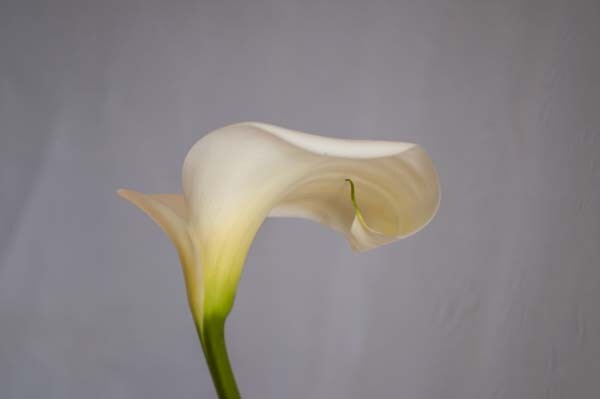
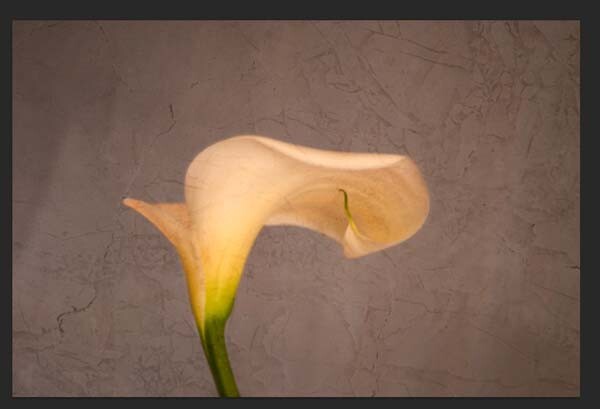
1-lily-texture-original

We are going to work on the above image of the lily. It has had basic processing done to it in Adobe Camera Raw before being opened in Photoshop CC (2014).

Cameras and lenses back in the day often didn’t produce super sharp images, so to start off we are going to make a duplicate layer of our image. I do this with the Ctrl+J, keyboard shortcut (Cmd+J on a Mac). There are other ways of doing this, such as; going to the menu at the top and choosing Layer, then clicking on Duplicate Layer, but I find the keyboard shortcut to be the easiest and quickest way.

11-lily-texture-original

10-lily-texture-original

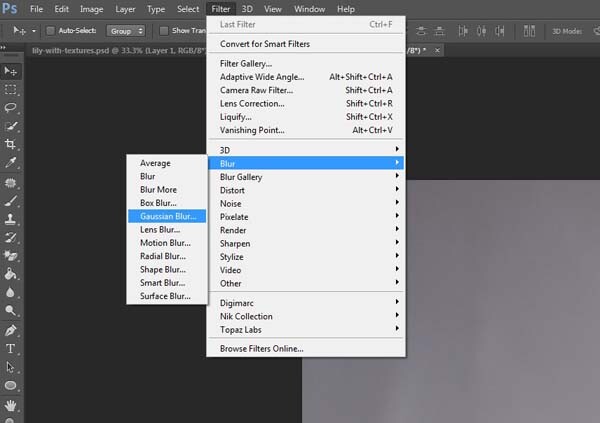
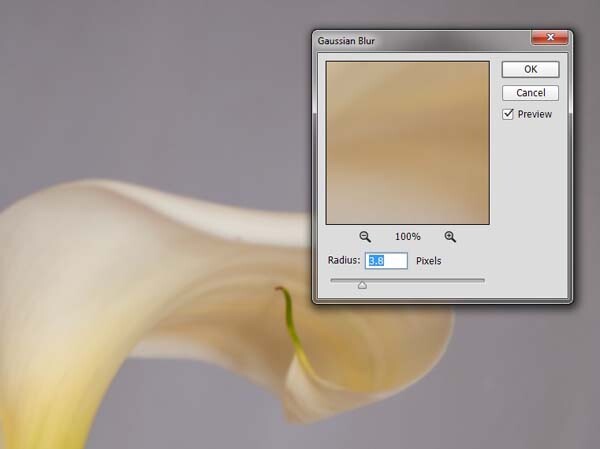
Once you have that duplicate layer then go over to Filters and choose Blur, then Gaussian Blur as in the image above. You don’t want too much blur, or it will look like it is out of focus, and you don’t want too little or it will not be visible or obvious enough. I used 3.8 for the purpose of this image.

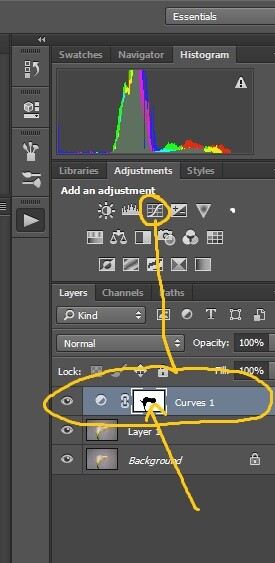
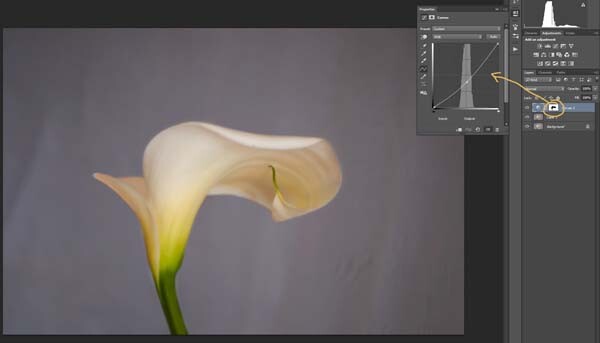
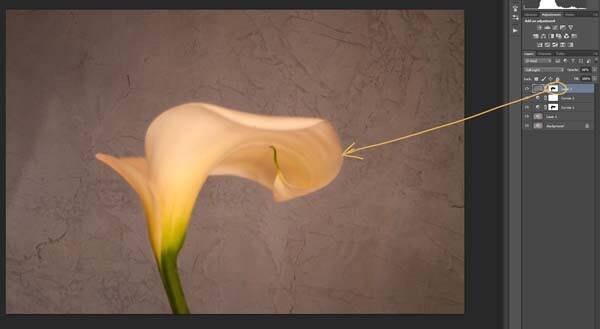
Next, you want to try and separate the flower from the background, you can do this with curves. Open a curves adjustment layer and use it to darken the image overall. Then using the Brush tool (which is located on your tool bar in Photoshop) on the layer mask, remove the adjustment from the flower as follows.

12-lily-texture-original

3-lily-texture-original

Click on the Brush tool, then set your foreground colour to black. It is the one with the two little squares at the bottom of the tool bar – the colour on top is the foreground color, the one on the bottom is the background color. Go to the curves layer you created in your layers panel and click on the white square in that layer (that is the mask), then go to your image and start brushing on the flower. You should see the flower getting lighter.

Add a warmer color to your image

Screen Shot 2015-04-13 at 11.52.55 AMNext you are going to change the colour of the highlights. You don’t have to do this, but it is a nice touch and it helps create a warmer feel to the image.

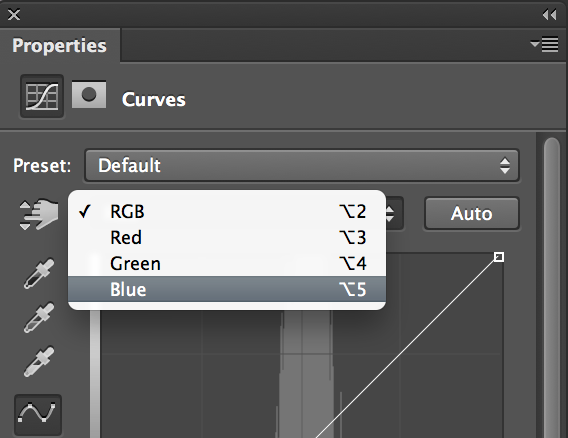
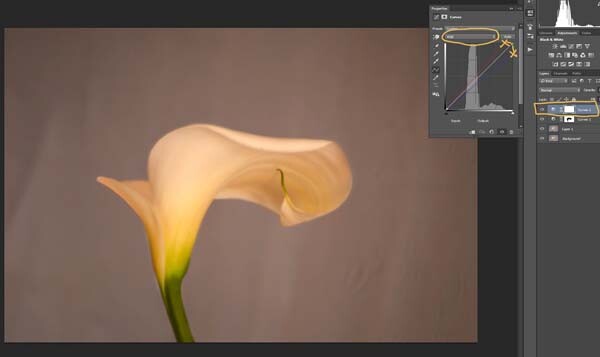
Open another curves adjustment layer. At the top you should see a pull down menu that says RGB, click on that and choose Blue. Go to the curves line and up in the top right corner (the highlights) click on the dot in the corner and pull it down along the side line. Don’t go too far, but you should see the image turning yellow. Remember yellow is the opposite of blue.

4-lily-texture-original

Go back up to the curves window and click on red. You are going to do the same thing, except this time take the dot to the left and across the top. You don’t need to go very far.

Adding the texture overlay

Now it is time to find a texture overlay to put on top of your image. It is always going to be an individual thing and something that you need to work out. Here, I used a texture that I saw on the floor of a building in the city. I liked the cracked look of the floor so I took quite a few photos.

5-lily-texture-original

Open the texture file in Photoshop, then using the move tool (the first one at the top of the tool bar) click on the image and drag it over to the image you want to apply it to. You can copy and paste it as well, or use Place (which will add it as a SmartObject).

If you buy textures, or get free ones off the internet, you will often find they are too small for your image. But don’t worry about it because you are going to be blending it into your image, so it doesn’t really matter.

If you need to change the size of the texture overlay you can do this with the transform tool. You can find the Free Transform tool under the Edit button on the main menu across the top, where you found Layer and Filters. You can also the keyboard shortcut, Ctrl+T (Cmd+T on a Mac).  You will see a little grid go up around the texture so you can drag one of the corners to make it bigger, or smaller, depending on the size you require.  Press enter to apply the transform, or you can double click on it, or click on the move tool and press apply.

Blending the texture into your image

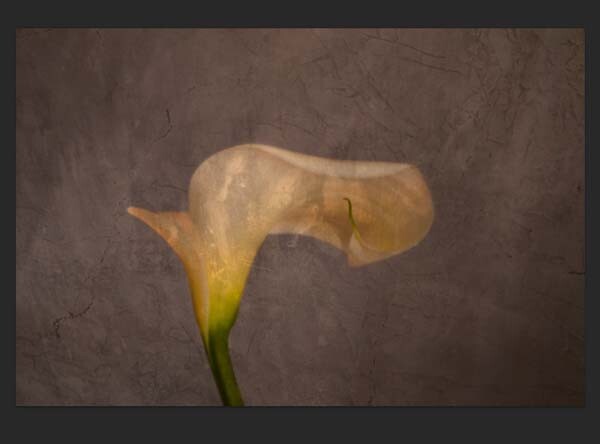
You will need to blend the texture so you can see your image underneath. The layer blend mode options are at the top of the layers panel, it is another drop down menu. The default option is set to Normal, so look for that. There are many options, for this tutorial however, we are going to use Soft Light. Once you change it to that blend mode you should be able to see the texture and the image underneath.

You can also change the opacity of the layer if you like as well. I usually change it slightly so the texture isn’t too strong. You can change the opacity in the window next to the options panel. Just make sure your texture layer is highlighted.

6-lily-texture-original

If you go to the bottom of the layers panel you will see a few things across the bottom.  If you click the rectangle one with the round hole in it you will give your layer a mask.  The mask means you can hide some of that layer from your image, like you did with the first curves layer.

Again, get your brush tool, make sure the foreground colour is black and paint over the flower.  You are now making the texture look like it is just on the background.

7-lily-texture-original

Next we are going to apply a texture to the whole image. This time it is one that will make the image look grungy, and dirty. You can find textures that have marks on them that look like smudges and grease. The one in this tutorial was a polished cement wall outside.

Add the texture to the image the same way you did the previous one. Blend it with the Soft Light Blend mode again. See how you feel about how the image looks, and if you decide it is too strong remember that the opacity can help make it less intense.

Adding a tint to your image

8-lily-texture-original

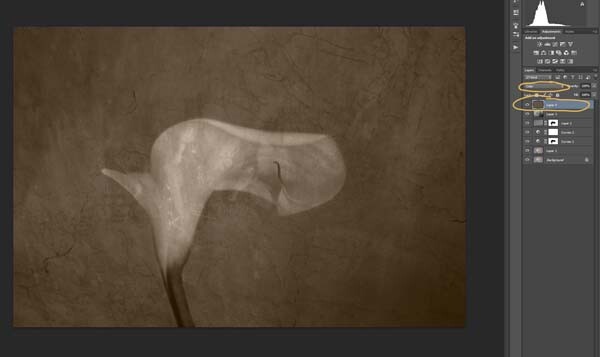
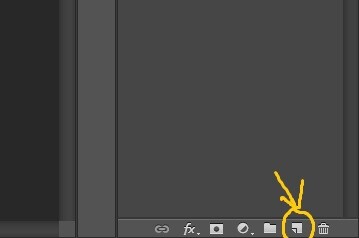
You will need to add a new layer, one that is transparent. At the bottom of the layers panel where you found the layer mask, you should see next to the trash bin a white square with a corner folded over, that is the new layer icon (see below). Click on it.

9-lily-texture-original

Next go to the tool bar and find the Paint Bucket Tool. Then go to the foreground colour and click on it. A popup window should come up and you can choose a colour to give your image a new tone. I would recommend you choose a grey, for this demonstration a mid tone grey with a hint of orange was chosen.

13-lily-texture-original

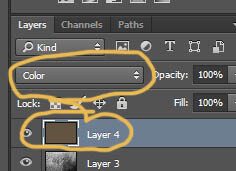
Now go to your image and click on it. The new empty layer should be filled with the colour you chose, and your whole image should look like a solid colour. Go to the blending mode for the new layer and change it to Colour. Your image should be transformed to monochrome. If you change the opacity of that layer then some of the original colour will come through, but that is up to you.

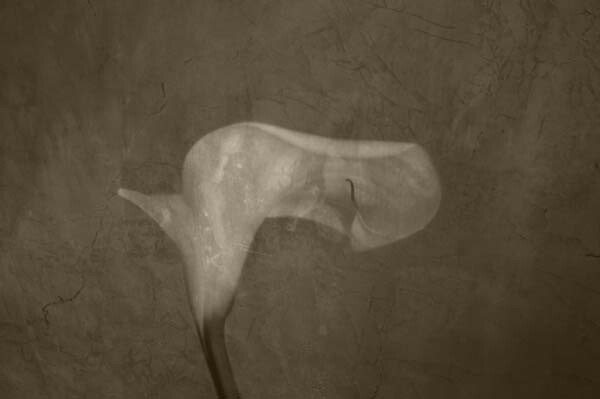
Here is the final image.

lily-with-textures

There are lots of other things you can do, but that might be best left for another tutorial.

If you prefer to watch this demonstrated you can check out the video below as I walk you through the same steps:

Have you tried using textures before? Do you have any favorite textures or sites for finding them? Please share in the comments below.

googletag.cmd.push(function() {
tablet_slots.push( googletag.defineSlot( “/1005424/_dPSv4_tab-all-article-bottom_(300×250)”, [300, 250], “pb-ad-78623” ).addService( googletag.pubads() ) ); } );

googletag.cmd.push(function() {
mobile_slots.push( googletag.defineSlot( “/1005424/_dPSv4_mob-all-article-bottom_(300×250)”, [300, 250], “pb-ad-78158” ).addService( googletag.pubads() ) ); } );

The post Applying a Texture Overlay to Your Images to Create an Antique Look by Leanne Cole appeared first on Digital Photography School.

Digital Photography School

 
Comments Off on Applying a Texture Overlay to Your Images to Create an Antique Look

Posted in Photography


Columbia University researchers create self-powered video camera

17 Apr

Columbia University researchers have created a self-powered video camera featuring a sensor that both captures images and powers the device. Although it can only record low-resolution 30×40 pixel images at 1fps, the photodiodes on the camera’s sensor can switch between being photoconductive, and photovoltaic. In the latter mode – given enough light – the photodiodes supply enough power to a built-in supercapacitor to keep the camera operating indefinitely. Click through for more information

Articles: Digital Photography Review (dpreview.com)

 
Comments Off on Columbia University researchers create self-powered video camera

Posted in Uncategorized


Create Your Own Super SparklyBokeh Background

16 Apr

When points of light are out of focus they turn into sparkling orbs of awesomeness.

This is called bokeh!

Wouldn’t it be cool if your next backdrop was made completely out of this fantastic effect? We tried it and loved it, and chances are you will, too!

So we’ve put together a step-by-step tutorial on how to make your very own glittery bokeh backdrop. Follow along and let the magic begin.

Make Dreamy Bokeh Backdrops
(…)
Read the rest of Create Your Own
Super Sparkly
Bokeh Background (476 words)


© Taylor for Photojojo, 2015. |
Permalink |
No comment |
Add to
Super Sparkly
Bokeh Background”>del.icio.us

Post tags:


Photojojo

 
Comments Off on Create Your Own Super SparklyBokeh Background

Posted in Equipment


How to Create Your Own Lightroom Presets

07 Apr
Import presets Lightroom

A straight out of the camera Raw file from an EOS 5D Mark II, without any corrections applied in Lightroom. This is the sort of thing you see when you import images into Lightroom without applying a Develop Preset at the import stage.

There are mundane tasks in Lightroom that you carry out on almost every photo you import. You can save time by creating Develop Presets to perform these jobs automatically upon import, so that you don’t have to do them later.

Import presets Lightroom

The same photo with Profile set to Landscape, lens corrections applied, chromatic aberrations removed and white balance set to auto. This is what you would see after importing the photo into Lightroom if you applied an import preset similar to the one that I show you how to make in this article. The biggest benefit is that it saves you time.

Here’s an example of how I created a Develop Preset to use when I import photos taken with my Fujifilm X-T1 camera. The idea was to create a preset that takes me to a neutral starting point from where I can process the file. You can follow along to create an import Develop Preset for your own camera. I’ll explain what I’m doing at each step and suggest some variations you can try.

Start by selecting a photo taken with the camera that you are going to create the Develop Preset for and open it in the Develop module. Zero all the settings by pressing the Reset button at the bottom (you may find it helpful to make a Virtual Copy of the photo first so you don’t undo any edits you have already made).

1. Camera Calibration panel

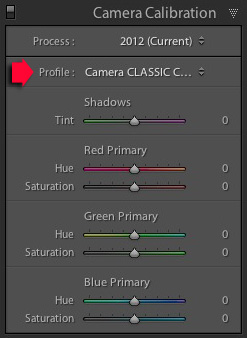
I set Process to 2012 (Current) the most recent, and Profile to Classic Chrome (the Film Simulation setting I use most often). The Profile options available to you vary depending on the camera.

Import presets Lightroom

Possible variation: You can create a different Develop Preset for each Profile that you regularly use.

2. Lens Corrections panel

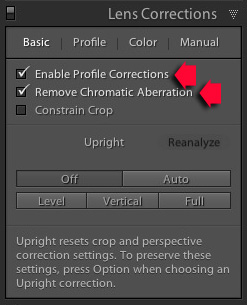
Import presets LightroomI don’t have to do anything here for the X-T1 as lens corrections are carried out by the camera, saved within the Raw file, and automatically applied by Lightroom.

Most cameras don’t do this, so if this applies to you then go to the Basic tab and tick the Enable Profile Corrections and Remove Chromatic Aberration boxes. Then go to the Profile tab and set Setup to Auto so that Lightroom adjusts the settings according to what lens is mounted on the camera.

3. Basic panel

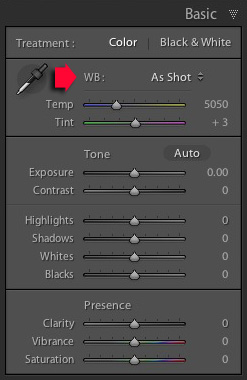
Set White Balance to As Shot and make sure all the other sliders are zeroed.

Possible variation #1: Tick the Auto Tone box to have Lightroom automatically set the Exposure, Contrast, Highlights, Shadows, Whites and Blacks sliders. This is a matter of preference, I don’t do this as I prefer to set them myself.

Import presets Lightroom

Possible variation #2: Create one preset for colour photos, and another for those you intend to convert to black and white by setting Treatment to Black & White.

Creating the Preset

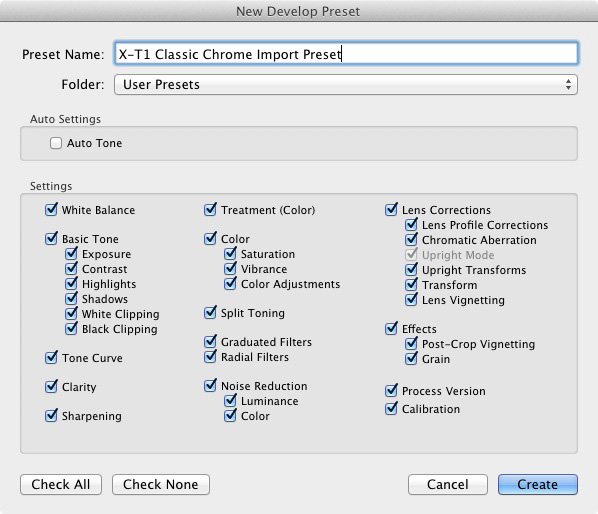
Go to the Develop Preset panel (on the left side) and click the Create New Preset icon (the plus sign at the top, to the right of the word “Presets”). This brings up the New Develop Preset window. Give the Preset a name and select a folder to save it in (User Presets is a good one). Click the Check All button and press Create when you are ready to save the Preset.

Import presets Lightroom

That’s it! It’s a simple process that doesn’t take very long and can save you a lot of time when you import your photos.

Applying Develop Presets upon Import

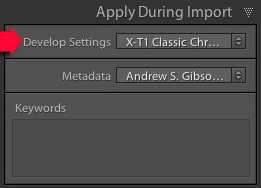
Import presets LightroomTo apply the Develop Preset you just created, launch the Import Window and go to the Apply During Import panel. Set Develop Settings to the appropriate preset. This is where creating several presets helps saves time, as you can pick the most appropriate one for the photos you are importing. When you click the Import button Lightroom applies the settings in the selected preset, and renders a preview that includes those settings.

Adding Copyright Info

While you’re in the Import Window, it’s worth setting up another Preset to automatically add Copyright information to the metadata of your photos when you import them.

Go to the Metadata menu in the Apply During Import panel and select New. Lightroom opens the New Metadata Preset window, where you can add information such as your name and copyright details.

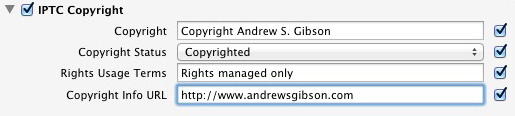
Start by giving the Preset a name and clicking the Check Filled button. Under IPTC Copyright, set Copyright Status to Copyrighted and fill in the other fields appropriately (my entries are shown below).

Import presets Lightroom

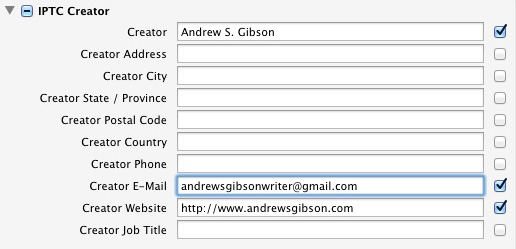
Under IPTC Creator, add your name, website, email address and any other appropriate details. I leave out my address here as I move around a lot so it’s constantly changing (plus identity theft is a risk).

Import presets Lightroom

Click Done when you’re finished. When you import photos all you have to do is select the Preset you just created from the Metadata menu.

File Renaming

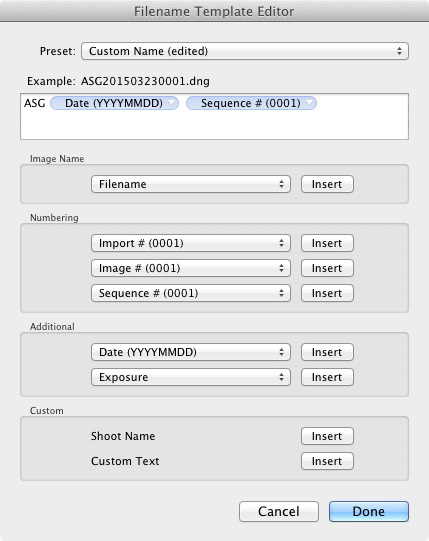
If you’re in the habit of renaming your photos you can set up a Filename Template to do so. Go to the File Renaming panel and selecting one of the options from the Template menu. Alternatively, select Edit to open the Filename Template Editor and create your own Template

There are lots of variations you could use here, so make sure you pick something that makes sense to you. The idea is to give each photo a unique name so that you don’t end up with more than one photo sharing the same name, as your camera’s counter cycles back around to zero.

You could go for something like your initials, followed by the date and a sequence number, as in the example below. When it’s ready go to the Preset menu at the top and select Save Current Settings as New Preset. Lightroom asks you to give the new template a name. All you have to do to use the Preset is select it from the File Renaming menu.

Import presets Lightroom

You can also add a dash in between if you like so your filename looks like: ASG-20150323-0001.dng

Your turn

Hopefully this has given you some useful ideas for creating your own Presets in Lightroom to save time and speed up your workflow. How do you use Presets when you import photos into Lightroom? I’d love to hear some good time saving tips. Please let us know in the comments.


The Mastering Lightroom Collection

Mastering Lightroom ebooksMy Mastering Lightroom ebooks will help you get the most out of Lightroom 4 and Lightroom 5. They cover every aspect of the software from the Library module through to creating beautiful images in the Develop module. Click the link to learn more or buy.

googletag.cmd.push(function() {
tablet_slots.push( googletag.defineSlot( “/1005424/_dPSv4_tab-all-article-bottom_(300×250)”, [300, 250], “pb-ad-78623” ).addService( googletag.pubads() ) ); } );

googletag.cmd.push(function() {
mobile_slots.push( googletag.defineSlot( “/1005424/_dPSv4_mob-all-article-bottom_(300×250)”, [300, 250], “pb-ad-78158” ).addService( googletag.pubads() ) ); } );

The post How to Create Your Own Lightroom Presets by Andrew S. Gibson appeared first on Digital Photography School.

Digital Photography School

 
Comments Off on How to Create Your Own Lightroom Presets

Posted in Photography


How to Create a Simple Slideshow in Lightroom

27 Mar

Slideshow module Lightroom

If you’re over a “certain” age, you remember creating slideshows for friends or family members to see. The viewing process required a projector and a screen, plus a darkened room to enable people to see the projected slides properly.

Thankfully, things have moved on since then and it’s now much easier to show your photos to an audience. The advent of laptop computers, social media, blogs and photo sharing websites has rendered the old style of slideshow redundant.

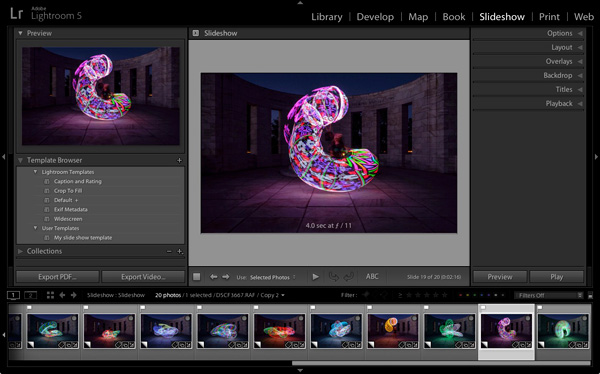
However, there’s still a place for the new style of slideshow – one viewed on a computer monitor, rather than a white screen. Lightroom users can create slideshows from within the program itself, using the Slideshow module, greatly simplifying the process.

In this article I’ll show you how to create a simple slideshow, and point out some of the more advanced customization features you may wish to explore.

First steps in the Slideshow module

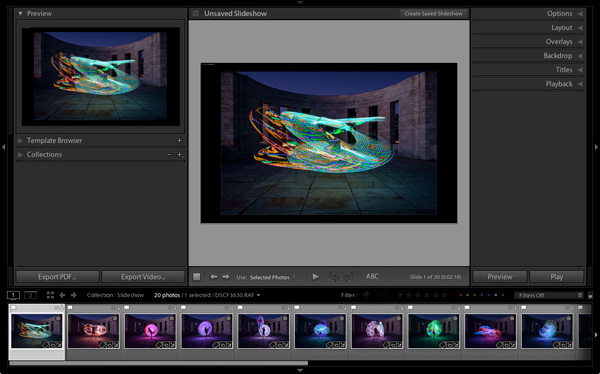
It helps greatly if you create a new Collection for the photos you want to use in your slide show. Once you have done so, switch to the Slideshow module. You will see, depending on whether you have used it before, something like this.

Slideshow module Lightroom

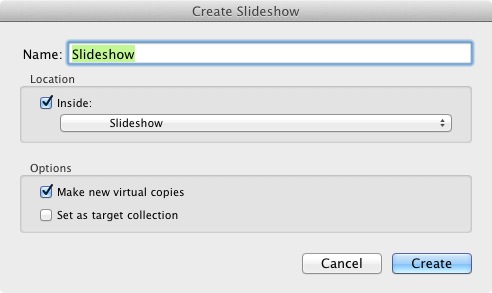
Click the Create Saved Slideshow button at the top of the Content window. When you do so, Lightroom creates a new Slideshow Collection which is placed (by default) inside the original Collection. From this point on, any changes you make to your slideshow are automatically saved, and you can’t lose them.

Give your slideshow a name in the Create Slideshow window, and decide where to save it using the drop-down menu under Location. If you tick the Make new virtual copies box you will be able to edit Virtual Copies in the Slideshow Collection without affecting the originals.

Slideshow module Lightroom

Identity Plates

If you have created a custom Identity Plate then you may see it displayed in the top-left corner of your slide show, as several of Lightroom’s slideshow templates incorporate Identity Plates in their layout.

You can move the Identity Plate by clicking and dragging, or enlarge it by clicking on, and dragging the white squares around the edge. Now is probably a good time to point out that there are two types of personalized Identity Plates in Lightroom – Graphical and Styled Text Identity Plates.

While Graphical Identity Plates have their uses (mainly as a picturesque alternative to Lightroom’s default Identity Plate) you can’t enlarge them beyond their native size of 400 x 57 pixels without pixelating the graphics, making them nearly useless for incorporating into slideshows. Styled Text Identity Plates are much better as Lightroom simply scales them to the required size without any pixelation.

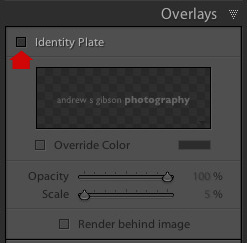
If you don’t want to include an Identity Plate in your slide show at all, go to the Overlays panel and untick the Identity Plate box. This is the simplest option, but if you wish you can create your own Styled Text Identity Plate by going to Lightroom > Identity Plate Setup (Mac) / Edit > Identity Plate (PC).

Slideshow module Lightroom

Previewing your slideshow

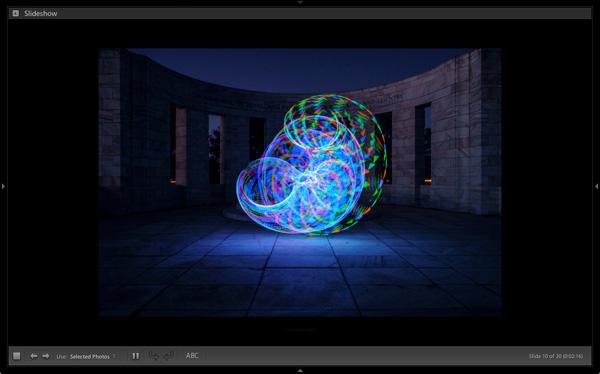
Opening the Slideshow module automatically creates a slideshow (yes, it’s as simple as that) and if you’re happy with the default settings you’re already done. To see what it looks like, click the Preview Slideshow button (the play icon) in the Toolbar. For maximum effect retract the top, bottom and side panels first (keyboard shortcut: Shift+Tab).

Slideshow module Lightroom

Customizing your slideshow

Now that you have seen the default slideshow in action, it’s time to take a look at how you can customize it.

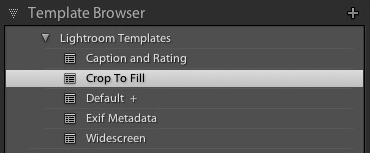
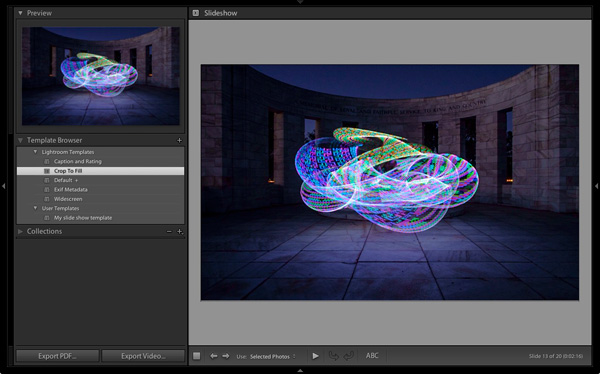
The place to start is the Template Browser, located in the left-hand panels. There are five Lightroom Templates to choose from. They are fully customizable. The easiest way to design your slideshow is to choose the template that gets you closest to where you want to be, and then make the required adjustments from there.

Slideshow module Lightroom

For my slide show I chose the Crop to Fill template, which expands (and crops) the photos in the slide show to fill the entire screen.

Slideshow module Lightroom

Most of the templates have Text Cells. If you don’t want a Text Cell to appear in your slide show, simply click on it and press the Delete (Mac) / Backspace (PC) key on the keyboard to remove it.

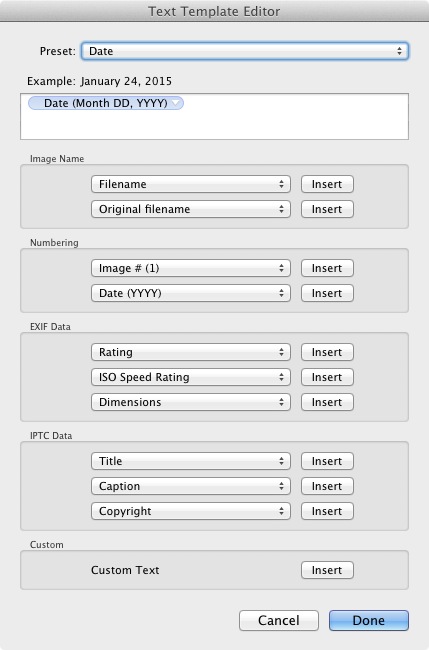
Alternatively, you can edit the content of the text box by clicking on the Text Cell, then going to the Custom Text menu in the Toolbar and select Edit. This opens the Text Template Editor, where you can select what will be displayed in the Text Cell.

Slideshow module Lightroom

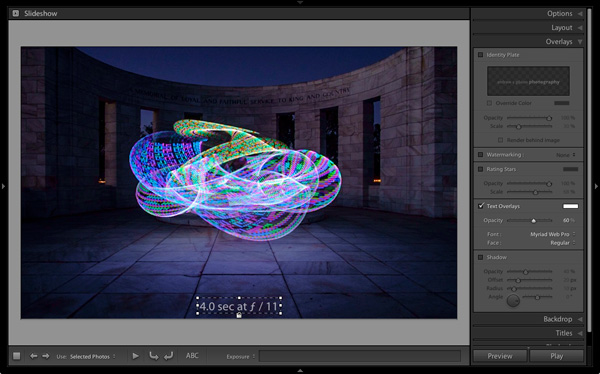
If you want to add a new Text Cell (for example, if you are using the Crop to Fill template, which has none) you can do so by clicking the ABC button in the Toolbar. Select Edit (or one of the presets) from the Custom Text menu. If you select Edit the Text Template Editor opens and you can choose what will appear in the Text Cell.

You can drag the Text Cell around the slideshow to position it, and adjust the size of the font by making the text box larger or smaller by dragging the corner or edge handles. Go to Text Overlays in the Overlays panel to set the font type, colour and opacity of the font in the active Text Cell.

Slideshow module Lightroom

Exporting slideshows

The easiest way to show someone a slideshow is to open Lightroom, go to the Slideshow Collection you wish to view and hit the Play button.

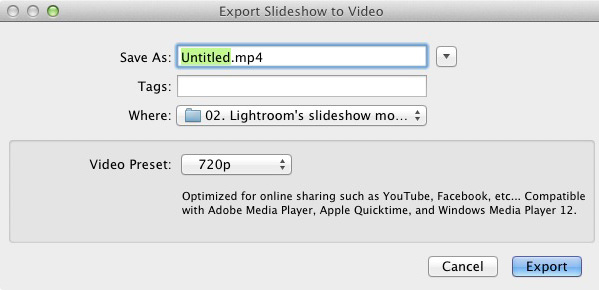
There are also times when you may need to export the slideshow in a format that is viewable by other people, such as a movie file. To do so, click the Export Video button underneath the left-hand panels. Exported videos are saved in the .MP4 format, which is compatible with many video players including Adobe Media Player, Apple Quicktime and Windows Media Player 12. The video includes music if it has has been added to the slideshow.

Slideshow module Lightroom

Conclusion

Hopefully this article has given you a good idea of what you can achieve in Lightroom’s Slideshow module. If you like what you’ve seen so far, take some time to explore the right hand panels, where you will discover more ways to customize the appearance of your slideshow.

What uses have you found for Lightroom’s Slideshow module? Is it powerful enough for your needs or do you prefer alternative software? Please let us know in the comments.


The Mastering Lightroom Collection

Mastering Lightroom ebooksMy Mastering Lightroom ebooks will help you get the most out of Lightroom 4 and Lightroom 5. They cover every aspect of the software from the Library module through to creating beautiful images in the Develop module and making photo books and slide shows. Click the link to learn more or buy.

googletag.cmd.push(function() {
tablet_slots.push( googletag.defineSlot( “/1005424/_dPSv4_tab-all-article-bottom_(300×250)”, [300, 250], “pb-ad-78623” ).addService( googletag.pubads() ) ); } );

googletag.cmd.push(function() {
mobile_slots.push( googletag.defineSlot( “/1005424/_dPSv4_mob-all-article-bottom_(300×250)”, [300, 250], “pb-ad-78158” ).addService( googletag.pubads() ) ); } );

The post How to Create a Simple Slideshow in Lightroom by Andrew S. Gibson appeared first on Digital Photography School.


Digital Photography School

 
Comments Off on How to Create a Simple Slideshow in Lightroom

Posted in Photography


Figures & Ground: Crafty Wood Miniatures Create Urban Vignettes

25 Mar

[ By WebUrbanist in Art & Street Art & Graffiti. ]

urban rail skateboarder

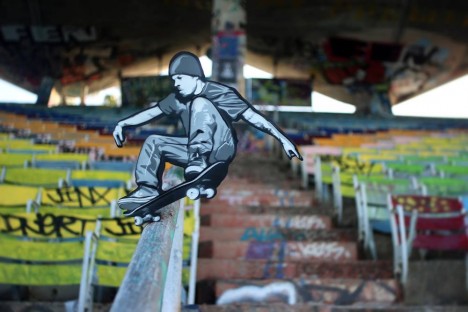
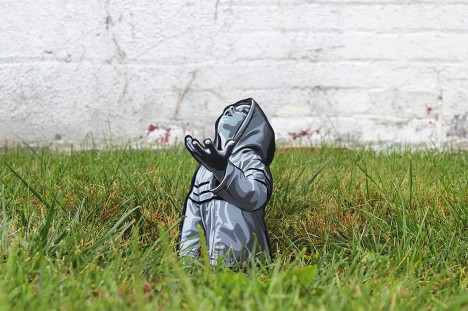
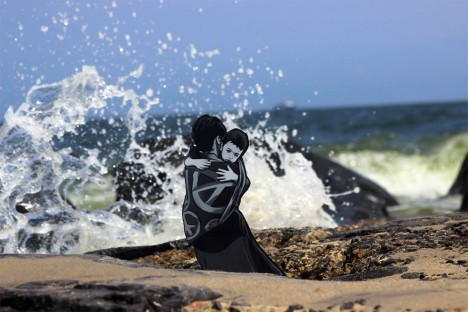
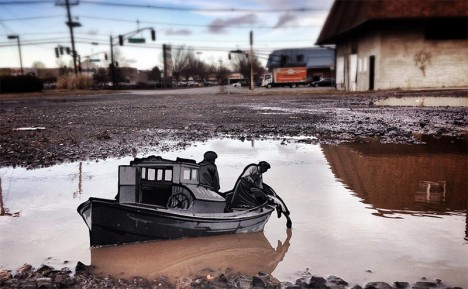
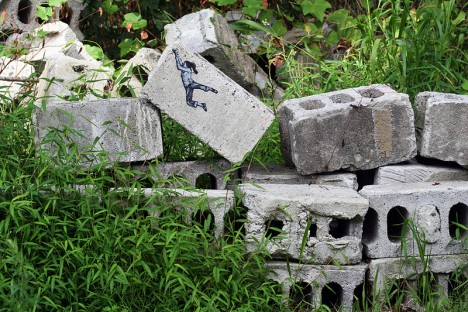
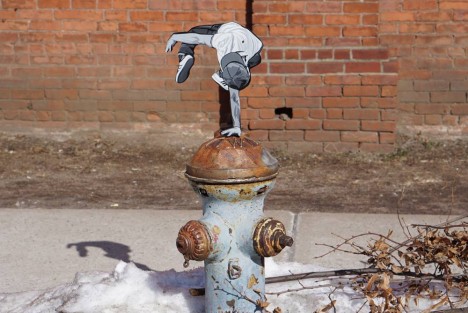
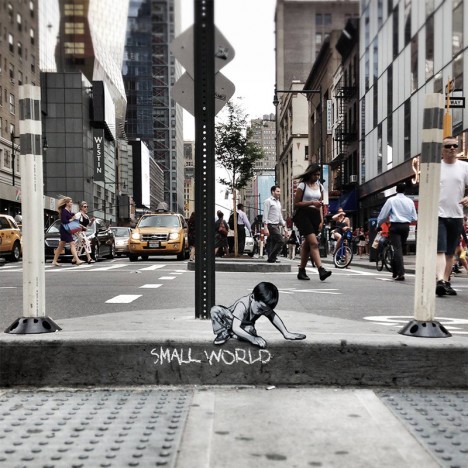
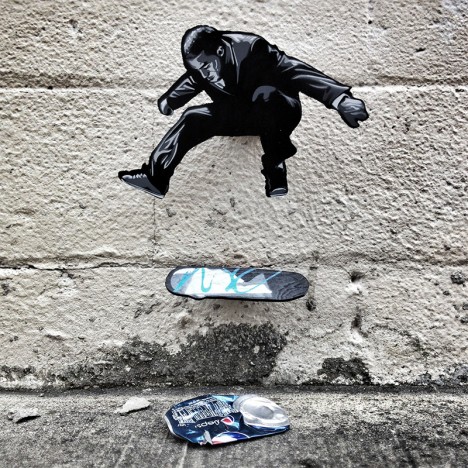
Inspired by everything from personal experience to famous photography, this street artist crafts small wooden cutouts to frame scenes of action, adventure, romance and life.

urban character in grass

urban mother son waves

urban miniature fishing boat

Living in New Jersey and working both there and in New York, Joe Iurato illustrates his miniature creations with black-and-white details, setting them apart from the colorful cityscapes they occupy.

urban climber figure person

urban parkour jumping figure

While the specific sizes and subjects vary, a common thread is found in their site-specific nature and detailed drawings – each figure or set thereof participates directly in its surroundings.

urban small world child

urban street figure ground

“From break dancing to skateboarding to rock climbing to becoming a father, all of these things have helped define my character. For me, it’s just about revisiting those moments in a way that’s familiar. I’ve always appreciated seeing architecture and nature in a different light.”

urban pothole inspector

urban tree climbing boy

urban track train walkers

“As a skater, the tar banks behind a local supermarket, a flight of stairs, a parking block, a drainage ditch, a handrail, a wall – they all present possibilities for interaction and fun in ways they weren’t intended to be used.”

Share on Facebook


[ By WebUrbanist in Art & Street Art & Graffiti. ]

[ WebUrbanist | Archives | Galleries | Privacy | TOS ]


WebUrbanist

 
Comments Off on Figures & Ground: Crafty Wood Miniatures Create Urban Vignettes

Posted in Creativity