RSS
 

Posts Tagged ‘Create’

How to Create a Vintage Look for Your Image Using Photoshop

23 Dec

Creating a vintage look for an image is now easy, without having to shoot with an old film camera. Although I would recommend any photo enthusiastic to try! I have a an Agfa camera ISOLA that I use every now and then. I love the contrasty, grainy black and white pictures it allows me to shoot. I usually ask advice regarding the film I can use depending on the sought-after result (contrast- grain – ISO).

With a few easy steps in Photoshop you can make a textured, desaturated vintage look for any of your pictures. I’m going to show you how I did it with a self-portrait, but you can really do it with any picture as this technique really creates a great feeling to any image, whether it is a portrait or a landscape.

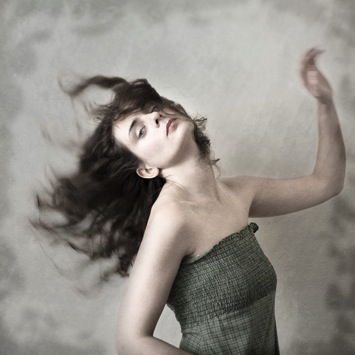
Vintage images are usually not so sharp, so I chose an image with some motion blur. You can add some directly in camera playing with slow shutter speeds and creating some motion. To edit this image, we are going to change the color using a gradient map adjustment, add some textures, and finally add a vignette to get a vintage look image.
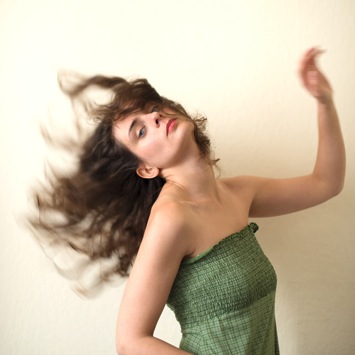
Setting the mood for creation before Setting the mood for creation after

Step one: Modifying the color tones using gradient map

There are many ways to desaturate an image. I love the gradient map adjustment because it allows me to desaturate the image, to add some color tones, and also to adjust its contrast. Hopefully, you will love this tool if you haven’t tried it yet.

Vintage images are usually desaturated – it could also be sepia. To get the desaturation you can go to Layer > New adjustment layer > Gradient Map (as shown below).
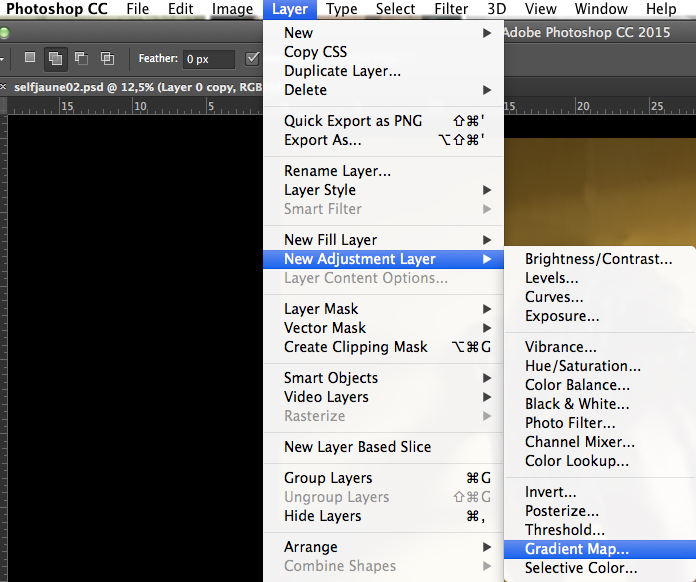
01

Or you can go to your layer tab and select new Gradient Map layer (as below).
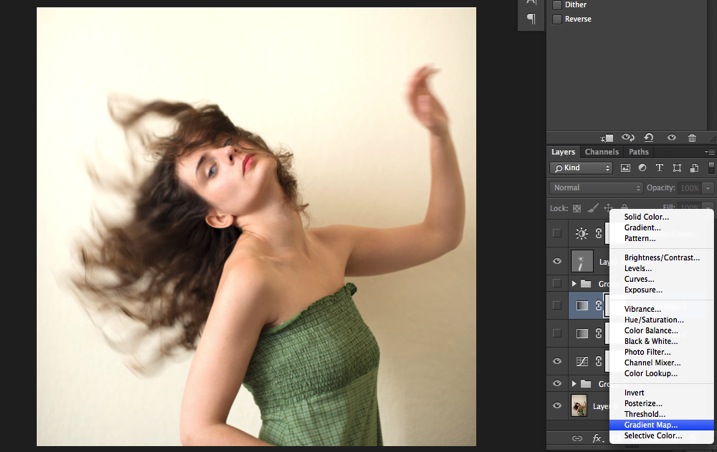
02

In the properties tab (screenshot below) you can see what gradient has been applied. By default it will be a foreground to background color, so usually black and white (the color squares on the bottom of your tools bar). You can also set the gradient color by changing your background and foreground color.
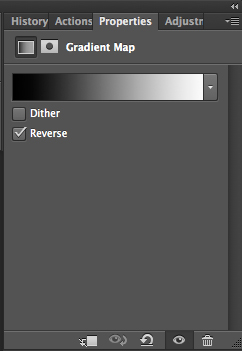
03

Photoshop then offers you 2 different options:

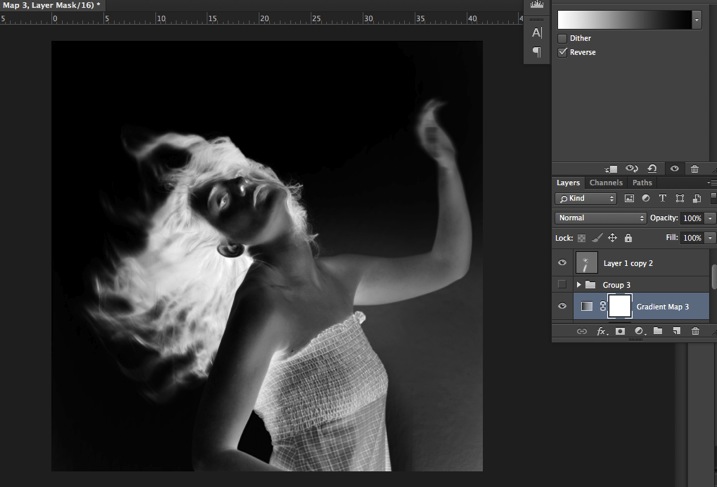
  • The Reverse option will change the gradient and give you a negative of your image, as in this case I add white into the black and black into the white (below).04
  • The Dither option will mix in noise to help blend the gradient more smoothly. So you can check any of those options depending on the effect you want to achieve.

Edit your gradient by clicking on it (click on the gradient color bar); the gradient editor will then open.
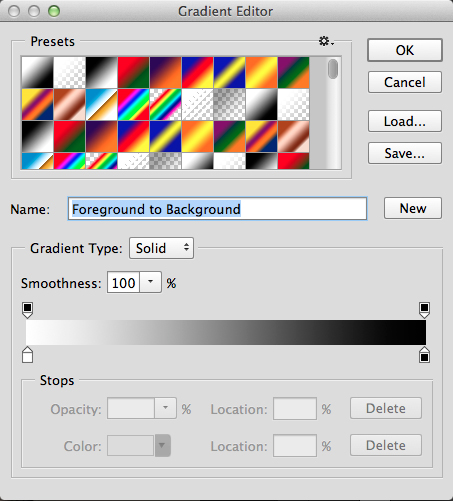
05

The gradient editor window shows you on the left the color applied to your blacks, and on the right the color applied to your whites. To modify the gradient you have two options:

First option, you choose one of the available presets. You click on a preset to apply it to your image. Second option is to create a custom gradient. Simply double click on one of the color stops, and choose a new color among the color pop-up menu.

You can also create a new color stop/intermediate by clicking below the gradient bar to define another one wherever you want (remember on the left are your shadows/black tone – in the middle mid-tones, and on the right your highlights/white tones). Once the new color stop is set you can also move it so it affects more of your dark or light tones.

In case you want to save the created gradient as a preset, name it, then click New after you have finished. It will then appear in your presets.

This is a powerful tool to adjust any color tone in your images. In this case I will first use the black and white gradient. When using this option the image is then turned into a black and white picture.
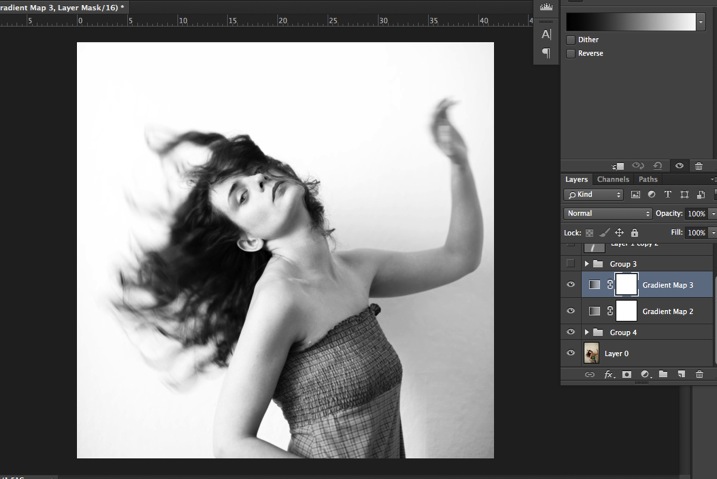
06

As it is not what we intended to do, lower the opacity of the adjustment layer.
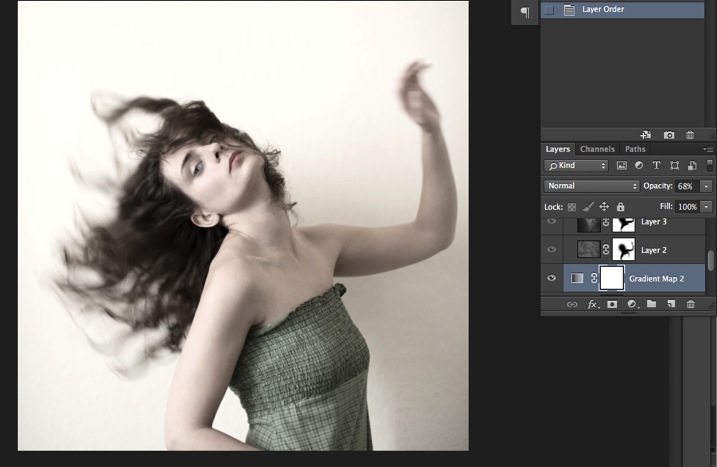
07

I set it to 68% in this case, but you can choose whatever number gives a nice look to your image – play with the opacity to decide which one best suits the image you are editing.

You can add also a touch of color. Keep it very soft to achieve a vintage look. To bring back some color, you can add a second Gradient Adjustment layer. After you add another layer, click on your gradient and choose a yellowish/brownish option to get a sepia tone, one in the presets or make a custom one.
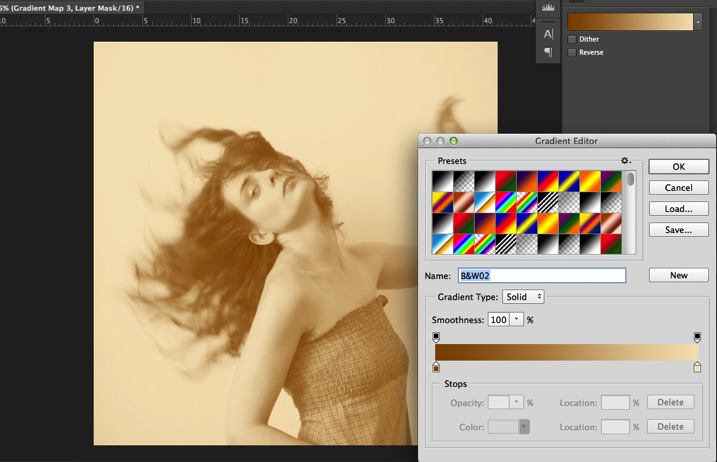
08

Once again you can lower the opacity of the adjustment layer to have a softer effect.
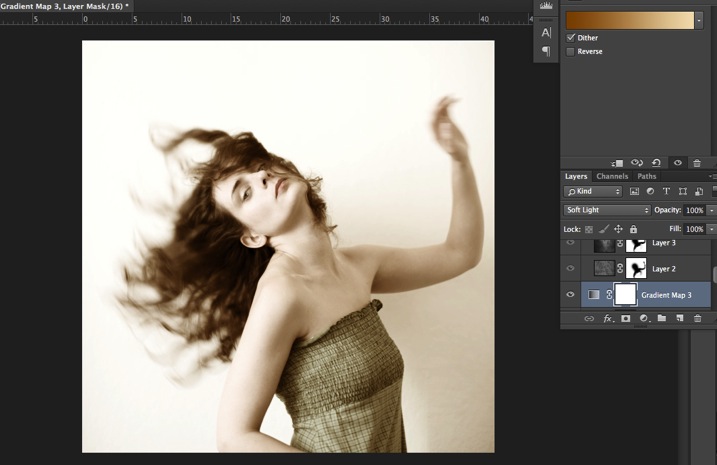
09

You can also add a different color according to the mood you want to set in your image. In this case I decided not to add further color tones so I added only the black and white gradient.

Step two: Adding texture to give the image a vintage feel

Now that you have achieved the color you want, it is time to add some texture to your image.

Personally I always shoot my own textures, but you can also find great textures on the internet on stock image sites. Or shoot your own pictures: walls, old paintings, grounds, wood, leaves, etc., any textured surface you can find. It is very easy, and can help you find some inspiration.
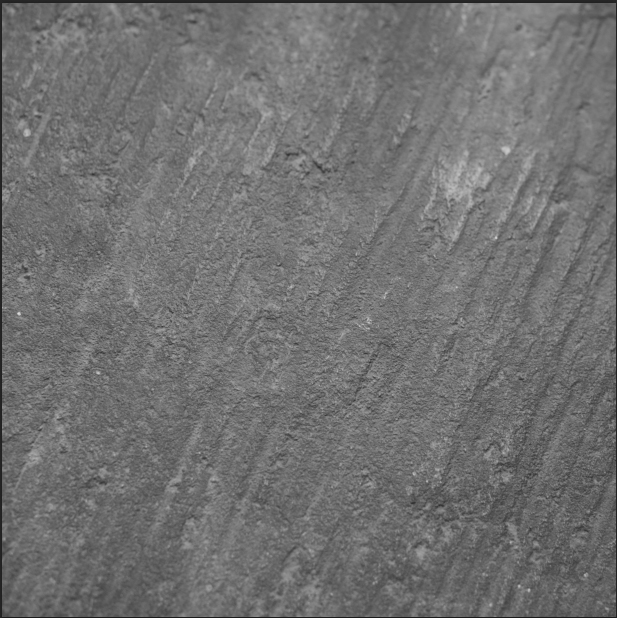
10

You drag and drop using your move tool or copy and paste a textured photo on top of your main picture. Then mix it by using the layer Blending Mode, try Overlay or Soft Light. I really recommend you to go through all the blending options to see how they blend the texture with your image (each image is different, and each mode can create a different look).
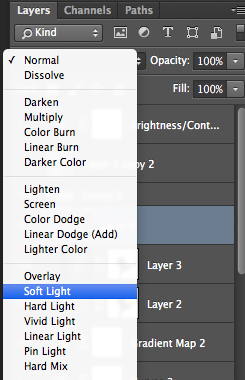
11

I always add textures to my personal works to give a painterly effect to my images. To have a lighter effect you can lower the opacity of your layer. To have a stronger effect you can repeat this step and add several textured layers.

You can modify the effect by adjusting your texture image. Select the texture in your layer’s tab and go to: Image > Adjustment > Curves/Levels.
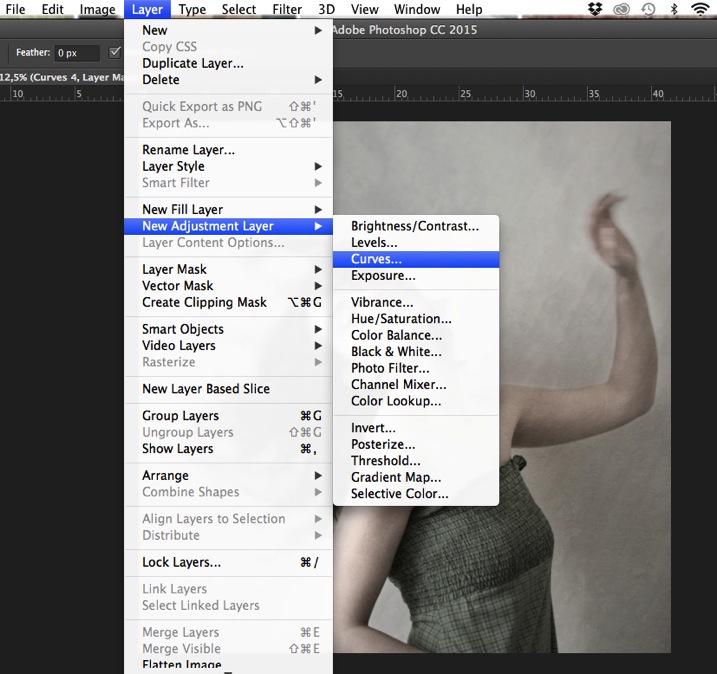
12

Playing with Curves or Levels will help you to bring back, or soften, some details in the texture. You also can add a Gaussian Blur filter if there are details that are too sharp in your texture image.
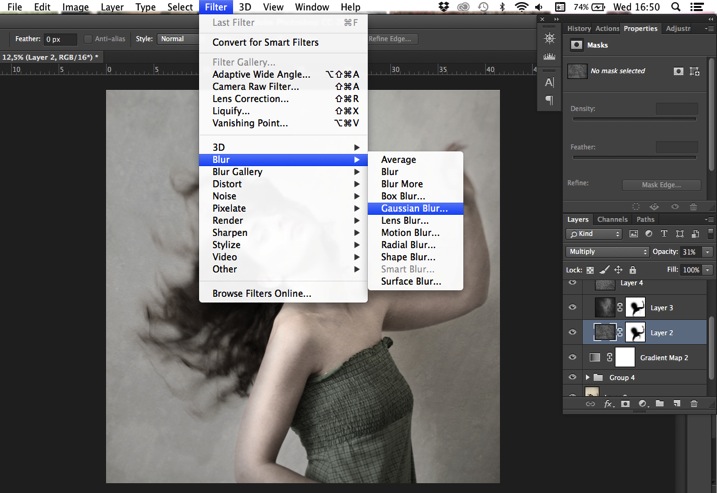
13

Select the area where you want to show or not show the texture. You can add a layer mask on the texture layer and by painting with black or white on the layer mask, you add (show) or remove (hide) areas where the texture appears.

Select your texture layer and click on add a layer mask. Lower the opacity of your brush tool, and keep its hardness to 0% to get very smooth edges. Now you can start painting in black over the areas where you want less or no texture.
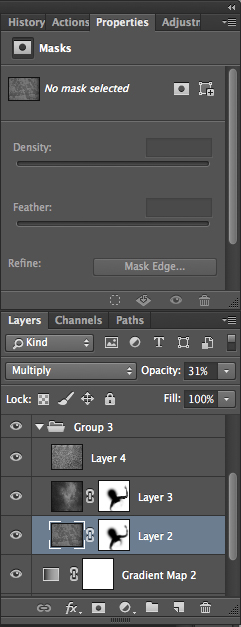
14

Everything is in the details, and Photoshop allows you a full control over your images. Usually to still have a “clean” image, and not to lose some details, you can mask areas such as skin, eyes, lips, etc., when editing a portrait.

So take your time to play with your textures. Try different types of shapes and contrasts. You can desaturate your textured image, or keep it in color. I find it easier when the texture is desaturated so you can fully control the color tones of your image separately, but it is up to you, and to the image you have in mind. As with any creative exercise, it is a matter of taste and style.

Step three: Finishing your image by adding a vignette

Vignetting can be an unintended, and undesired effect, caused by camera settings or lens limitations. However, you can also introduce it for creative effect, such as to draw attention to the center of the frame. You can choose a lens which is known to produce a vignette, or a filter to obtain the same effect.

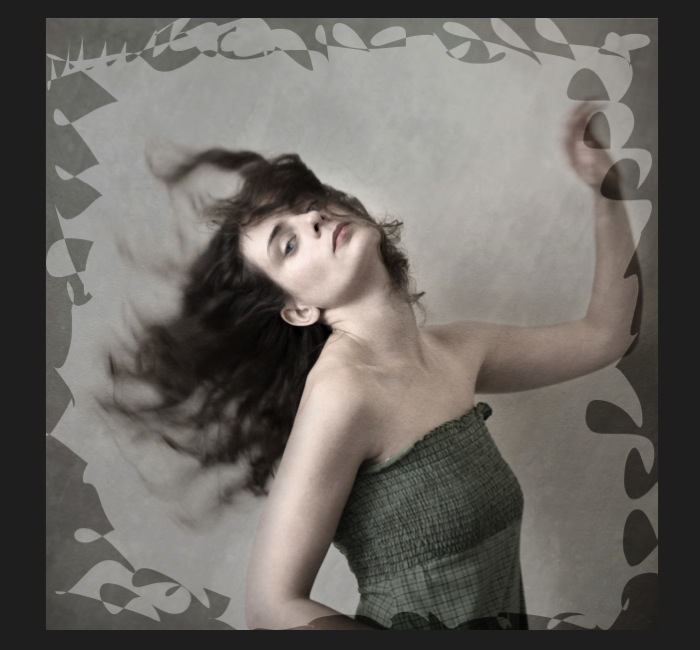
Obviously, as we are going to do now, you can also add a vignette by post-processing your image in Photoshop. You have many options in Photoshop to vignette your images. In this case we are doing something very uneven so the vignette also helps to create a strange atmosphere.

Grab your lasso tool and draw very random lines around the edges of your image. It looks weird, but it is quite effective.
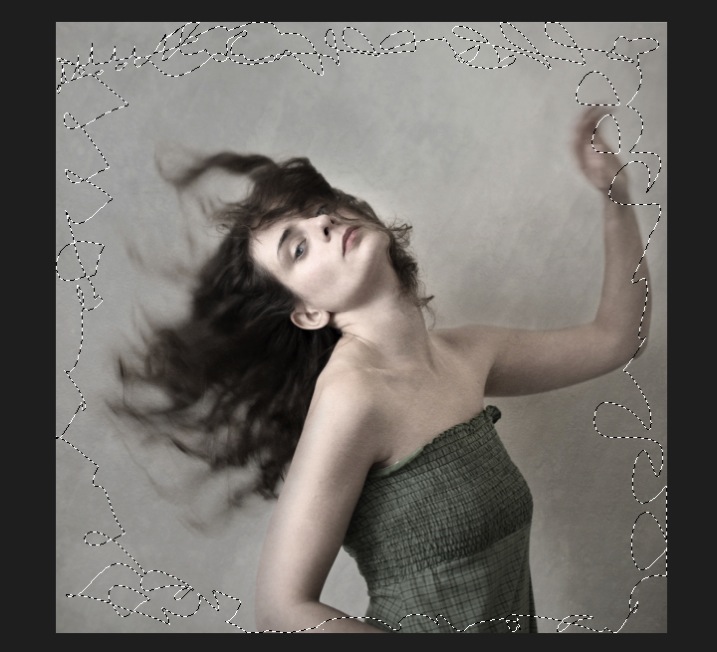
15

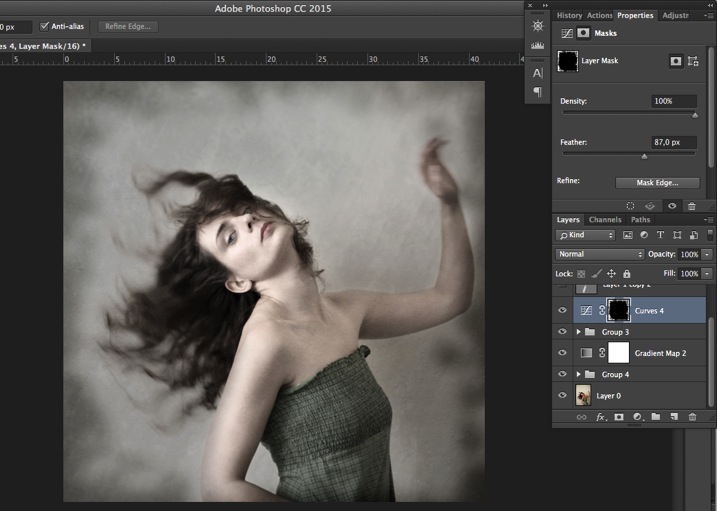
Go to Layer > New adjustment layer > curves. Darken your mid-tones by pulling down your curves to about one third (or to any darker/lighter spot according to your taste).
16

Whenever you select an area of your image, and have this selection active when you create a new adjustment layer, Photoshop automatically creates a layer mask on the new layer from your active selection.

Remember – on your layer mask white is where the effect will be applied, and black where the effect will not be applied. Here you want to apply the effect on the edges of the image, not in the center- if need be invert your layer mask by selecting the layer mask and pressing: CMD/CTRL+I.

Then double click on your Curves layer mask and feather your selection (around 87 pixels here).
17

You can once again play with the opacity of your layer to lighten the vignette.

I hope you enjoyed this article. Feel free to share in the comments your usual steps to crete a vintage look to your images. Share your images as well using this technique if you give it a go.

googletag.cmd.push(function() {
tablet_slots.push( googletag.defineSlot( “/1005424/_dPSv4_tab-all-article-bottom_(300×250)”, [300, 250], “pb-ad-78623” ).addService( googletag.pubads() ) ); } );

googletag.cmd.push(function() {
mobile_slots.push( googletag.defineSlot( “/1005424/_dPSv4_mob-all-article-bottom_(300×250)”, [300, 250], “pb-ad-78158” ).addService( googletag.pubads() ) ); } );

The post How to Create a Vintage Look for Your Image Using Photoshop by Amélie Berton appeared first on Digital Photography School.
Digital Photography School

 
Comments Off on How to Create a Vintage Look for Your Image Using Photoshop

Posted in Photography


Create Your Own Watermark using a Custom Shape in Photoshop

04 Dec
Transparent-watermark

Big transparent type copyright watermark that you would use send to clients for proofing.

I know there are many ways of creating a watermark. Using the Watermark Editor in Lightroom for example allows you to add your own text or graphic to your images. In general there is a lot of debate whether or not to add a watermark to images.

This article isn’t going to discuss the pros and cons of watermarking your images. Instead, I will demonstrate a step-by-step tutorial using the Custom Tool in Photoshop.

Whether you upload your images to the various social media platforms, or you want to send a client a high resolution image for proofing. This easy tutorial will show you how to create your own watermark using the custom tool in Photoshop.

For a while, my method was opening an image file where I had my own custom copyright information on a text layer. So that I could easily drag and drop this text layer onto a new image. This made more sense and took less time to add a watermark image rather than creating it every time. That is until one day, I couldn’t find the file!

Here are my four easy to follow steps to creating your own custom watermark using the Custom Tool in Photoshop. I prefer to use a custom shape over a custom brush. Shapes are vectors which means they scale up or down without losing quality.

Step 1 – Create a new document

Open Photoshop and create a new document. Make it 1000 pixels wide, by 300 pixels high.

Step 2 – Add text

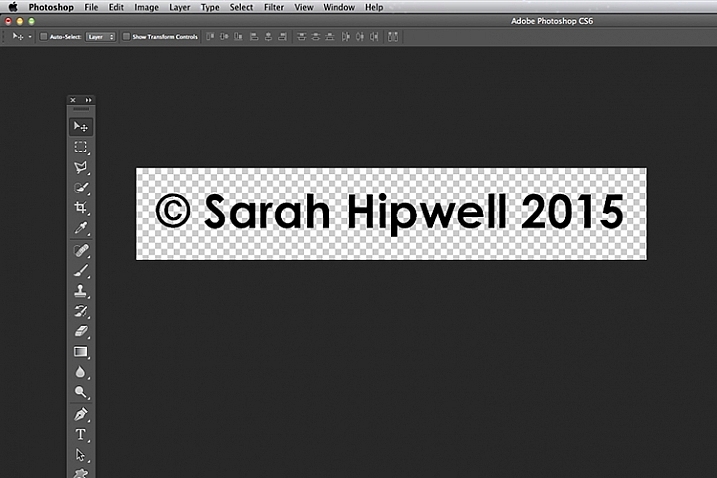
Press the letter D on your keyboard, to make sure your foreground color is black. Choose whatever font you like, then press T to select the type tool. Hold down ALT key on a Mac and press G (Alt+0169 on a PC). This brings up the copyright symbol, add a space and type your name and year.

Alt+G-type-your-name-and-year

Holding down the ALT key on a Mac and press G brings up the copyright symbol (Alt+0169 on a PC).

Step 3 – Convert the layer to a shape

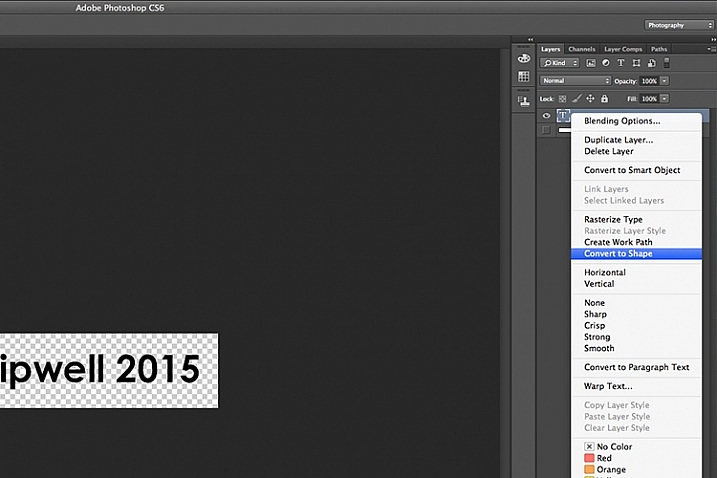
Go over to the layers panel. Right click on the text layer and go down to Convert to Shape.

Convert-text-layer-to-shape

When you have typed your watermark. Right click on the layer and select Convert to Shape.

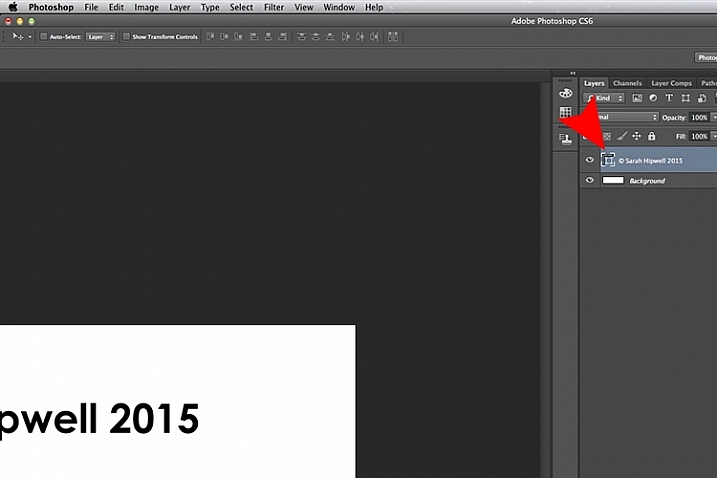
This icon appears in the thumbnail to show that the layer is now a shape layer.

This-icon-shows-the-layer-is-a-shape

This icon in the thumbnail layer tells you that this is now a shape(vector) layer.

Step 4 – Save as a custom shape

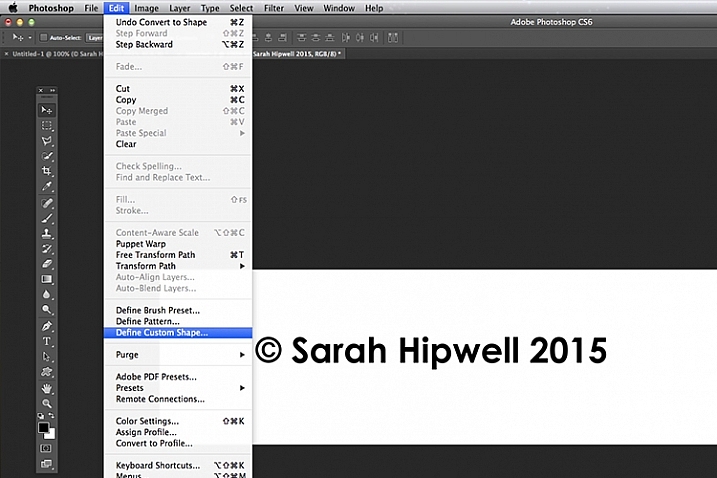
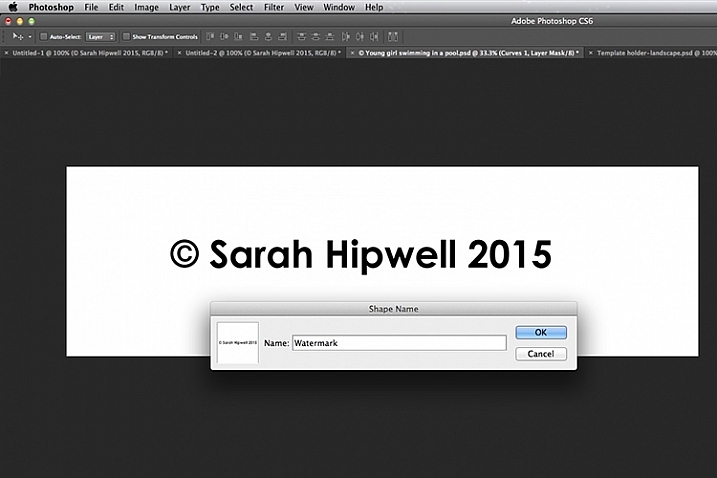
Go up to Edit menu and select Define Custom Shape. A Shape Name dialog box appears – type in Watermark and click OK. This now adds your type as a custom option in your Shape Presets Library.

Define-custom-shape-under-edit

This is how you save your watermark custom shape in the presets library to use again and again.

Shape-name-dialog-box

Give your watermark a name so that you can find it easily. Plus you may decide to have a few.

That’s it. It took just four steps to create your own custom copyright watermark. Let me show now how to access, and add it to your images.

Apply your watermark to images for online viewing

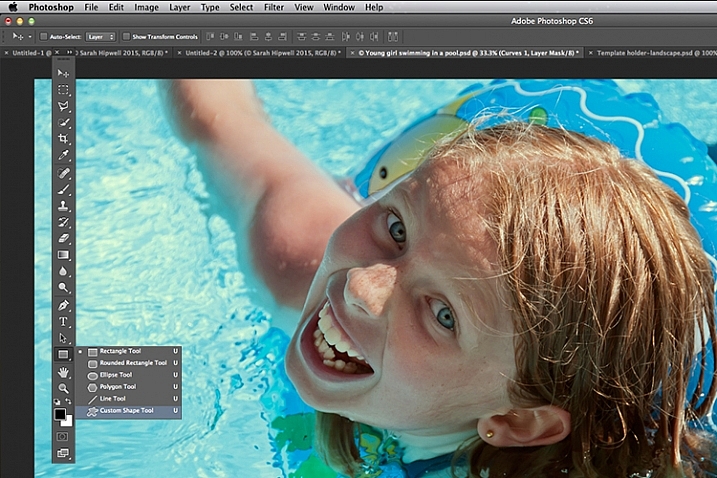
Open an image that you want to share on Facebook, Flickr, etc. Create a new layer in the Layers Panel. Choose the Custom Shape tool in the toolbar (press Shift+U)

Custom-shape-tool-highlighted-in-toolbar

This is where you find the Custom Shape Tool in the Toolbar.

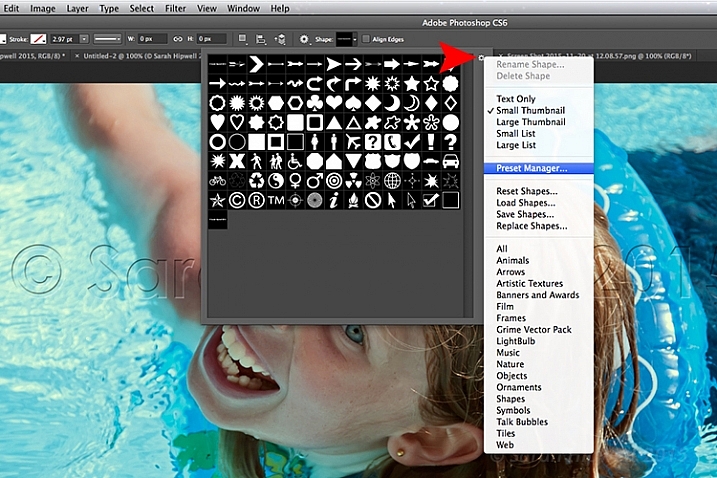
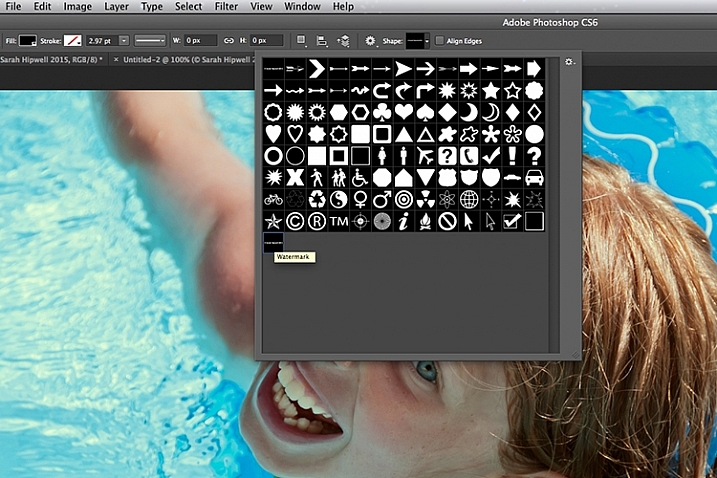
Go up to the Options Bar and click on the thumbnail next to the word Shape. This brings up the Shape Presets Library dialog box. At the very bottom, you will find the shape called Watermark.

Watermark-shape-at-the-bottom-in-presets-library

Custom shapes will always appear at the bottom in the presets library.

Now press and hold the Shift key, click and drag the watermark shape across your image. The Shift key ensures the shape remains in proportion. Don’t worry about the size just yet. Place it in position – in this case, I placed the watermark bottom right.

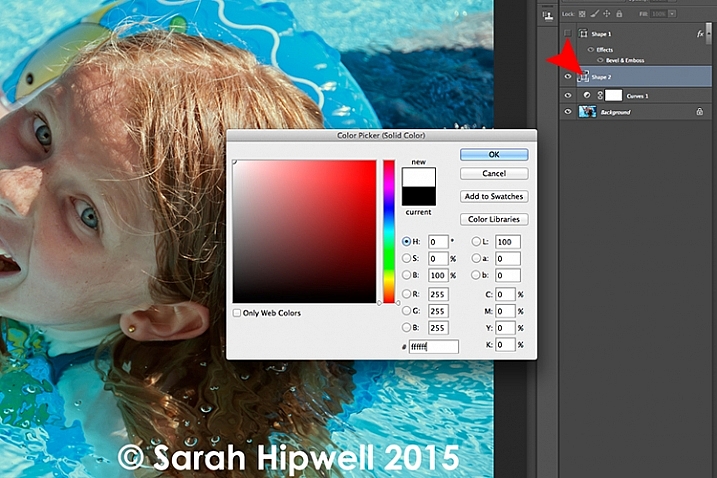
Now as the foreground color was set to black, I want to change the color to white. Go up to the Layers Panel and click on the Layer thumbnail and the color picker dialog box appears. You can choose whatever color you want here.

Changing-color-of-watermark-to-white

You can customise your watermark shape with any colour or style effect.

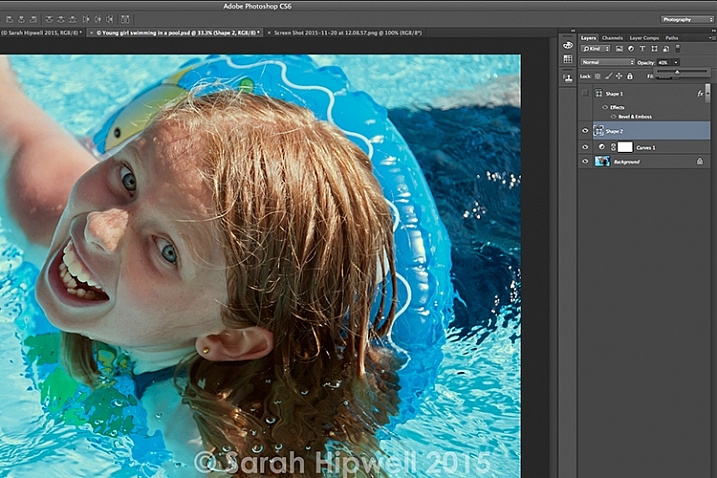
Go back up to the Layers Panel and reduce the opacity to your desired setting. I chose 40%.

Opacity-reduced-to-40-per-cent

Reducing the opacity allows for your watermark to be more discreet.

I now want to reduce the size of the watermark. Go up to the Edit menu and choose Free Transform Path (Cmd+T on a Mac). Holding down the Shift and Alt keys, drag any of the corners of the transform handles in towards the centre. This reduces the size while keeping the aspect in proportion. Press Enter or the Commit Transform button up in the Options Bar. Go up to File and Save for the Web.

Apply to high res images for proofing

Okay, so let’s say you want to send a higher resolution image to a client. Open up the image. Click on the Custom Shape Tool (Shift+U). The watermark shape is already selected, so hold the Shift key and click and drag right across the image. Leave the color as it is.

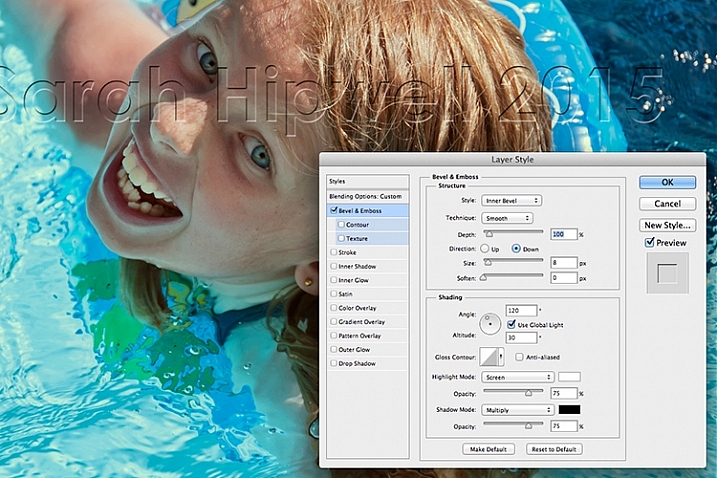
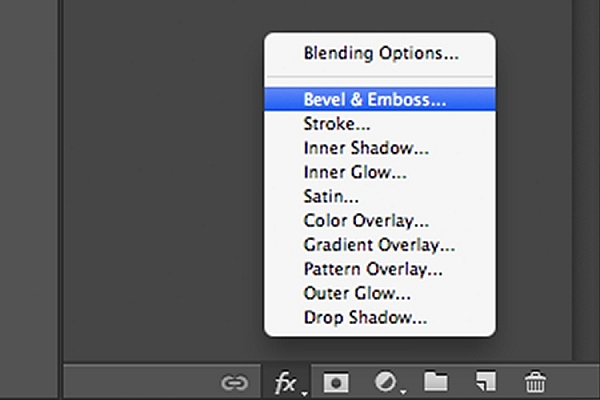
This watermark is going to be transparent. Click on the Add a Layer Style icon at the bottom of the Layers Panel and select Bevel and Emboss. The Layer Style dialog box appears. Increase the size to 8 pixels and change the direction to down.

Bevel-and-Emboss-layer-style

Layer styles can be found by clicking on this icon at the bottom of the layers Panel. Alternatively, go up to Layer menu and choose Layer Style.

Bevel-and-Emboss

The Bevel and Emboss is a good effect to add to your watermark if you want to make more transparent, while still protecting your image.

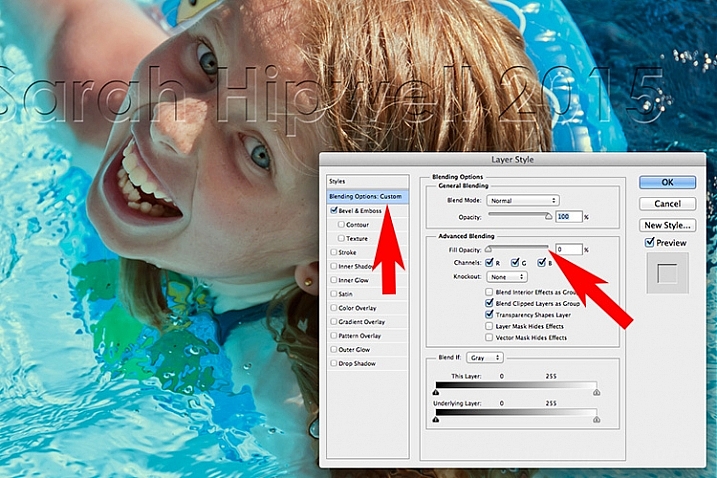
Next go over to the left and click on the Blending Options: Custom, which is directly above the Bevel and Emboss. Under Advance Blending bring the Fill Opacity slider down to zero and click OK. Go back up to Opacity in the Layers Panel and reduce to 68%.

Blending-Options-Custom-2

Reducing the Fill Opacity hides the colour and just leaves the effect.

Tip:

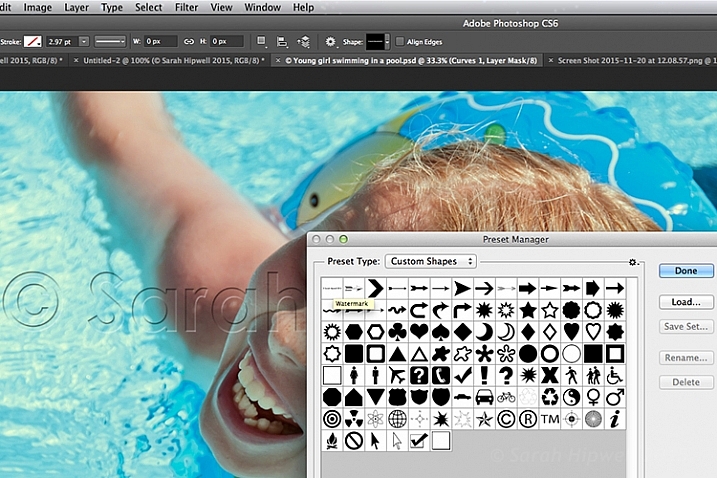
To place your Custom Watermark Shape at the top in the Presets Library, click on the thumbnail right of the word Shape in the Options Bar. The Shape Presets Library dialog box appears. Click on the gear icon and select Preset Manager, the Preset Manager dialog box appears with all the shapes. The Watermark shape is the very last one, click and drag it up to the top and click the Done button.

Location-of-Presets-Manager

By clicking on the gear icon, the pop-out menu where the Preset Manger is located appears.

Moving-watermark-shape-to-top-Presets-Manager

Here in the Preset Manager, you can rearrange the shapes inside of the dialog box. Just click on any shape and drag it where you want it. I moved the watermark shape to the top for easy access.

Do you use watermarks on your images? Why or why not?

What techniques do you use? Please share in the comments below.

googletag.cmd.push(function() {
tablet_slots.push( googletag.defineSlot( “/1005424/_dPSv4_tab-all-article-bottom_(300×250)”, [300, 250], “pb-ad-78623” ).addService( googletag.pubads() ) ); } );

googletag.cmd.push(function() {
mobile_slots.push( googletag.defineSlot( “/1005424/_dPSv4_mob-all-article-bottom_(300×250)”, [300, 250], “pb-ad-78158” ).addService( googletag.pubads() ) ); } );

The post Create Your Own Watermark using a Custom Shape in Photoshop by Sarah Hipwell appeared first on Digital Photography School.

Digital Photography School

 
Comments Off on Create Your Own Watermark using a Custom Shape in Photoshop

Posted in Photography


How to Create 5 Different Looks Using Lightroom

24 Nov

Most often you may strive to capture photos which most closely reflect the scene the way it looks to your eye.
On the other hand, with having powerful editing software at your fingertips and an insatiable creative streak, sometimes you may find yourself experimenting with altering your images to create different “looks”.

setting moods in lightroom

Lightroom gives you ample opportunity to experiment with creative effects.

Some photographers find the idea of strong post-processing edits to be an unfair alteration of reality, but let’s face it, it can be loads of fun to play around with photos in Lightroom (LR) or Photoshop (PS) and the results can be stunning – even if they don’t accurately reflect the shooting conditions.

It’s important to keep in mind that edits don’t have to be super-strong or over the top, and just a few fairly minor changes can work wonders to create a mood that fits the photo. Naturally, what works and what doesn’t is subjective. That being said, it’s likely you wouldn’t want to use a soft, bright effect on a portrait of prison inmate, or a dark gritty effect on photos of a newborn.

The extent to which you are able to apply these effects will be largely influenced by the original file type. If you are working with JPEG, you are going to run into problems with color rendition, saturation, noise and other issues. If you plan on processing your photos with editing software, I recommend shooting RAW files 100 percent of the time.

#1 Add Warmth

setting a warm mood in lightroom

The warming effect works best to boost an already warm photo, but can also be created.

When trying to create a certain mood in a photo, it makes it easier if some of the characteristics of that mood are already present, and you can just accentuate them. This is especially true if you want to create a warm feeling in a photo.

The first slider you’re going to want to visit for this is color temperature. Increasing the color temperature is going to give the entire image a warmer tint, which can be exaggerated by increasing vibrancy.

Another way to boost the warmth is in the HSL/Color/B&W panel. HSL stands for hue, saturation and luminance which can be adjusted for eight different colors. You will work with the first three – Red, Orange and Yellow. I prefer to start with the Luminance tab, and find that decreasing luminance, and then sometimes increasing saturation slightly, works pretty well with many images.

Although you don’t have access to the HSL panel, don’t forget the power of the graduated filter to increase the warming effect in skies – particularly in sunset photos.

#2 Dark and Gritty

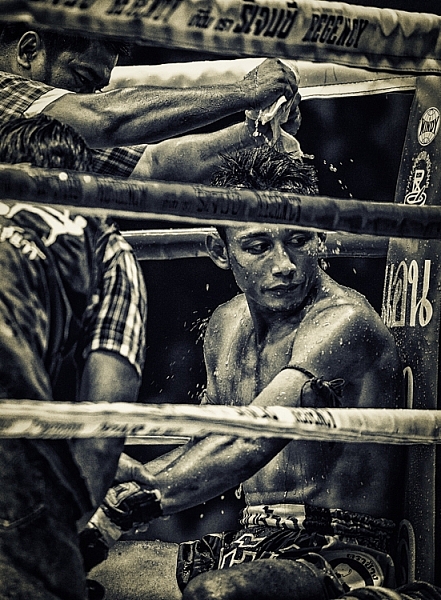
dark and gritty mood

The dark and gritty mood adds a brooding look and highlights detail, while taking the focus off of colors.

To achieve various levels of this effect, I work with various combinations of the following:

  • Increasing Clarity, sometimes more than 100 per cent by using graduated filters or the adjustment brush
  • Increasing Contrast, and decreasing Highlights and Whites
  • Further tweaking contrast with the Tone Curve sliders
  • Decreasing Saturation and Vibrance, or converting to black and white
  • Adding grain in the Effects panel

#3 Light and Airy

light and airy look

Light and airy is a good look for soft portraits, where super sharpness isn’t desired.

For this look, the idea is to make the image soft without any harsh shadows. Here are some steps to take that will start to produce this mood:

  • Lower Contrast
  • Increase Highlights and Whites sliders
  • Decrease Shadows and Clarity

Also note that a light hand with the sharpening slider should be used here to maintain the softness. If you add sharpening, try using a high value for masking to lessen the global affect.

#4 Silhouette

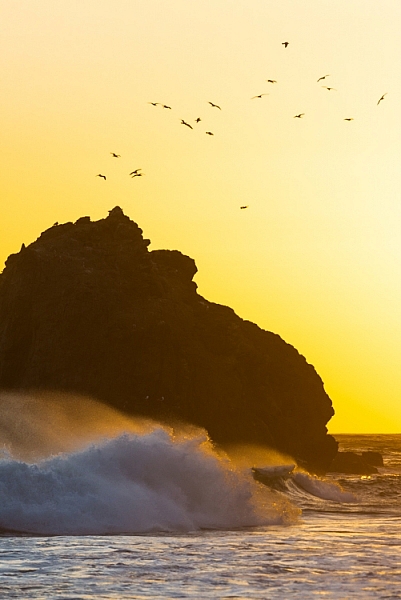
silhouette look

Silhouettes help to simplify your photo.

You certainly can’t create this effect in just any photo – nor should you. Look for elements in the image that would be enhanced by a reduction in detail. Do the areas of the image that are going to be reduced to black contain details that are important to telling the story?

Here are some adjustments that will get you moving in the right direction:

  • Increase Contrast
  • Decrease Shadows and Blacks sliders
  • You can decrease the darks and shadows sliders in the Tone Curve panel if needed

Depending on your image, you likely want to avoid the clarity slider as this will bring back shadow details that you’re trying to get rid of.

#5 Bright and Clear

bright and clear look

The bright and clear look makes your photos pop with lots of detail.

Along similar lines to the light and airy effect, you are looking to boost lightness while maintaining contrast and retaining detail and color. Here are some of the edits I start with while aiming for this look:

  • Boost Contrast
  • Increase Shadows
  • Increase Whites – you usually have to decrease highlights a bit as well to avoid clipping
  • Visit the Tone Curves panel if you need to work on the contrast more

The trick here is that after making these adjustments, the colors can get a bit washed out. A visit to the HSL panel, some tweaking of the luminance and saturation of the dominant colors in your image, will help you dial it in.

Conclusion

In case this hasn’t crossed your mind already, creating presets of these settings can save you oodles of time later on. Of course, all of the adjustments I’ve outlined above may not work on your original image (depending on exposure, contrast, saturation, subject matter, etc.), and the same goes for any presets which typically only serve as a starting point.

What tricks do you have up your sleeve for creating different moods in post-processing?

googletag.cmd.push(function() {
tablet_slots.push( googletag.defineSlot( “/1005424/_dPSv4_tab-all-article-bottom_(300×250)”, [300, 250], “pb-ad-78623” ).addService( googletag.pubads() ) ); } );

googletag.cmd.push(function() {
mobile_slots.push( googletag.defineSlot( “/1005424/_dPSv4_mob-all-article-bottom_(300×250)”, [300, 250], “pb-ad-78158” ).addService( googletag.pubads() ) ); } );

The post How to Create 5 Different Looks Using Lightroom by Jeremie Schatz appeared first on Digital Photography School.

Digital Photography School

 
Comments Off on How to Create 5 Different Looks Using Lightroom

Posted in Photography


How to Use Foreground to Create Depth in Your Images

18 Nov

One of the biggest hurdles in photography is the fact that our majestic three-dimensional scene is rendered into a mere two-dimensional image, and the physical depth that we experience in real life is lost. To resurrect this spacious feeling, we can create the illusion of depth where there is none, by using strong elements in the foreground.

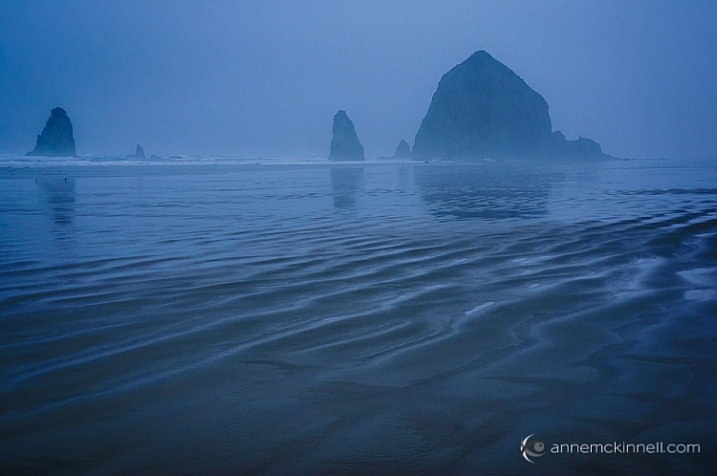
Cannon Beach, Oregon, by Anne McKinnell

When we make a photograph, our natural urge is to get a clear shot of the main subject, without other objects getting between it and the lens. That’s exactly what makes foreground elements so powerful though – they’re unexpected, and sometimes even counter-intuitive. Like any other compositional element, they create shapes, lines, and patterns that lead the viewer’s eye through the image and can be used to enhance its visual impact.

What is the foreground?

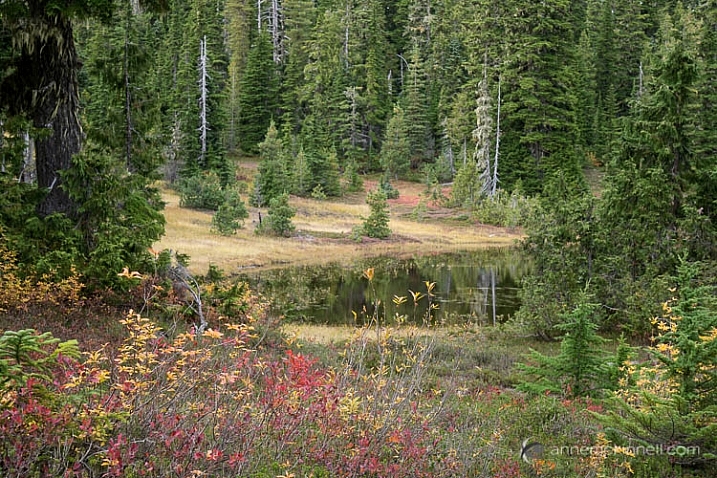
When you are working with a grand vista landscape scene, you can often divide it into three sections: the foreground, mid-ground, and background. For example, the scene below contains some colorful shrubs in the foreground, a pond in the mid-ground, and trees in the background.

Paradise Meadows by Anne McKinnell

The foreground, mid-ground, and background areas are not at fixed distances, but are understood relative to each other. The foreground consists of anything that lies between you and your subject, which is typically considered to be in the mid-ground (but not always). The background is made up of everything behind the subject.

You can think of a photograph like a stage: you have the upstage – that’s the background. It gives setting and context to what happens below it. Center stage is the mid-ground, where the bulk of the action takes place. But downstage – the foreground – is the closest to the audience, and therefore the most intimate part. It is capable of whispering to them and luring them into the action. It is the most easily seen and heard, and therefore understood, and can reveal the finer details of the story.

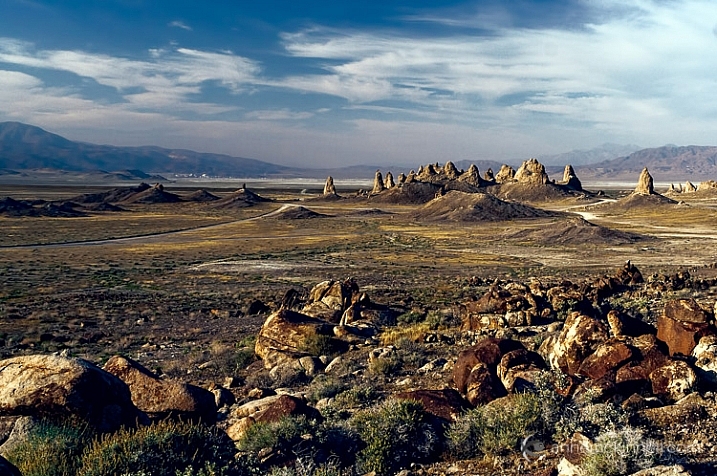
Trona Pinnacles, California, by Anne McKinnell

Not all photographs have three sections though, some just have a foreground and a background, and some have no depth at all.

How is the foreground used?

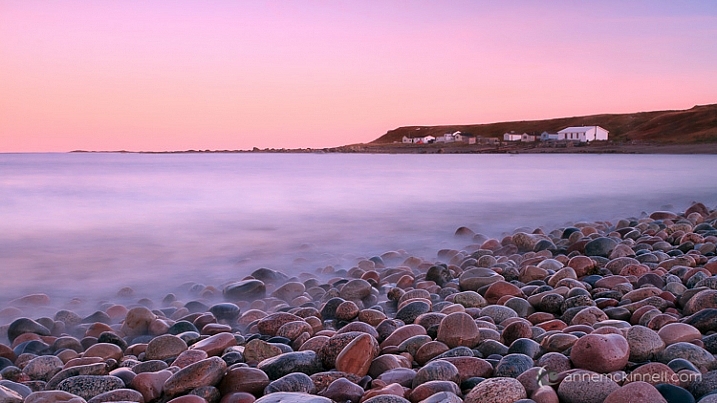
The foreground should contain some key point of interest, such as a human figure, a tree, a boat, some flowers, rocks, or anything else that is comparatively near to you. Composing in this way evokes depth, and gives your image the illusion of that missing third dimension.

Green Point, Newfoundland, by Anne McKinnell

When you’re composing a photo and you feel that it’s looking a little too flat, placing something in the foreground can instantly add a sense of depth. Exactly how this is done depends entirely on your subject, and on your own creative decisions. This can mean physically adding something to your scene, if you are able to. But most of the time, you’ll be looking for objects in the surrounding area that would make an interesting foreground, and changing your perspective – either by moving your camera higher, lower, or to one side – to incorporate those elements inside of the frame.

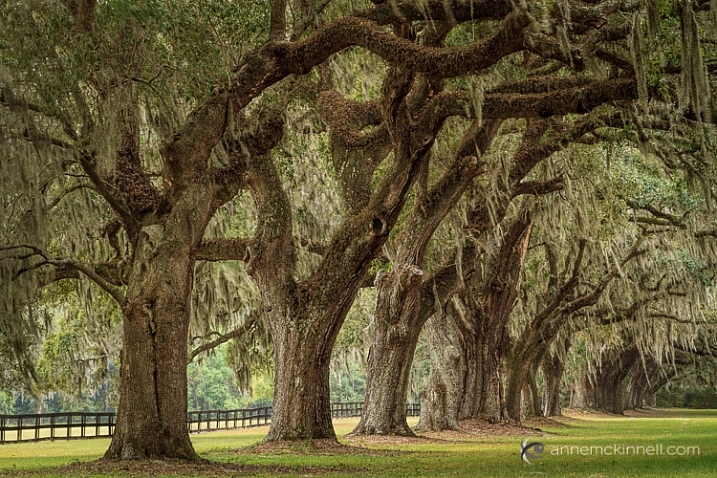
For example, imagine a group of oak trees in a field, all standing in a row. If you photograph them head-on, they’ll all look more or less identical – their size, distance, and focus will be the same, and the composition will likely be a flat, static one. However, if you change your perspective and shoot them from one side, everything changes. One becomes closer, and therefore larger, while the others shrink in comparison. When a viewer sees this image, their eyes will immediately fall on the tree in the foreground first, and the implied line created by the row will pull their gaze inwards towards the other trees. Suddenly, the composition has depth!

Boone Hall Plantation, South Carolina, by Anne McKinnelll

Likewise, you could change your perspective by lowering your camera angle to incorporate rocks, flowers, or anything else that is on the ground, into your image. This use of foreground will provide a point for the viewer’s eye to enter the image, and any lines created in the foreground will direct their eye into the image.

Like any other compositional element, the foreground is only helpful if it adds to the impact of the image. If it doesn’t help tell the story, or worse yet, if it distracts the eye, then it isn’t working as a benefit to your image. Your foreground should be an important part of the scene, and not something distracting. Look for things that point towards the focal point in some way.

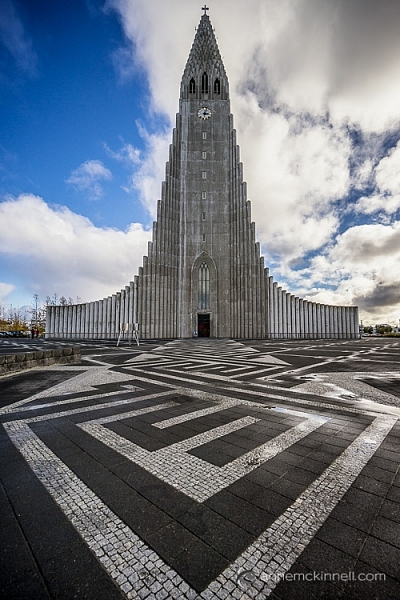
Hallgrimskirkja, Reykjavik, Iceland, by Anne McKinnell

Foreground elements can even be made of simple shapes and lines. In some cases, your foreground elements may be nothing but shapes and lines, like the paint on a stretch of road, the waves on the ocean’s shore, or the shadows cast across a wind-swept desert. Anything that forms a line towards your subject is especially effective. These are known as leading lines.

Similarly, a wall that stretches into the picture from the foreground will carry the eye along with it. The corners of your frame are especially strong points, and anything that leads inwards from them will have a particular impact. Textures are another compositional tool that can make for an interesting foreground.

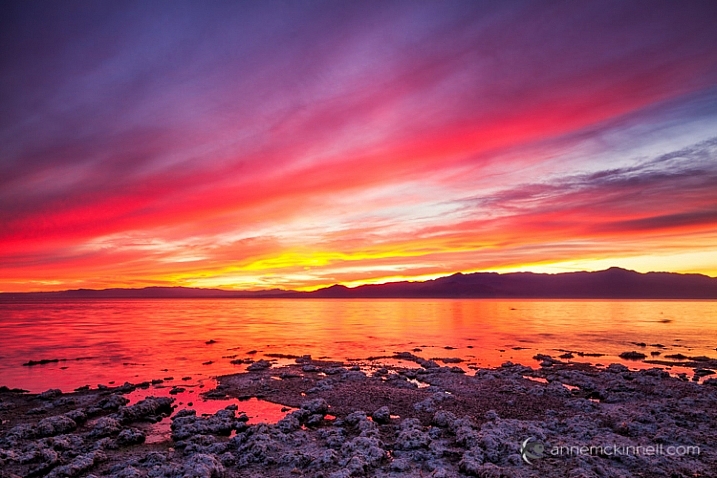
Salton Sea, California, by Anne McKinnell

Arranging your composition so that there are interesting elements in front of your main subject is a very effective compositional tool that can evoke depth, by giving your image the illusion of the missing third dimension.


This week on dPS we’re featuring a series of articles about composition. Many different elements and ways to compose images for more impact. Check out the ones we’ve done so far:

  • Using Framing for More Effective Compositions
  • 7 Tips to Improve Your Skyline Photos
  • 33 Images that Exemplify Compositional Elements
  • Weekly Photography Challenge – Composition Craziness
  • How to Take Control of Aperture and Create Stronger Photos
  • How Cropping in Post-Production Can Improve Composition
  • Good Crop Bad Crop – How to Crop Portraits
  • How to use Focal Length and Background Compression to Enhance Your Photos

googletag.cmd.push(function() {
tablet_slots.push( googletag.defineSlot( “/1005424/_dPSv4_tab-all-article-bottom_(300×250)”, [300, 250], “pb-ad-78623” ).addService( googletag.pubads() ) ); } );

googletag.cmd.push(function() {
mobile_slots.push( googletag.defineSlot( “/1005424/_dPSv4_mob-all-article-bottom_(300×250)”, [300, 250], “pb-ad-78158” ).addService( googletag.pubads() ) ); } );

The post How to Use Foreground to Create Depth in Your Images by Anne McKinnell appeared first on Digital Photography School.

Digital Photography School

 
Comments Off on How to Use Foreground to Create Depth in Your Images

Posted in Photography


How to Take Control of Aperture and Create Stronger Photos

14 Nov

aperture and composition

The focal length of the lens you use, combined with the aperture setting, determines how the camera sees whatever you point it at. This has profound implications for composition. Let’s look at them one by one.

Selective focus and bokeh

Selective focus occurs when you focus on your subject, and use a wide aperture to make the background go out of focus. Bokeh is the blurred parts of your photo. It originates from the Japanese word boke, and has come into use because we don’t have a word in English for it.

aperture and composition

This photo shows both selective focus and bokeh. I focused on the model’s eyes, and selected an aperture of f/1.4, to blur the background as much as possible.

There are several factors that affect bokeh.

1. Aperture

The wider the aperture, the less depth-of-field there is, and the more bokeh you get. Photographers that like to use selective focus buy prime lenses, as they have often wider maximum aperture settings than zooms.

But, you can still obtain nice bokeh with zooms, if you pay attention to the following points.

2. Camera to subject distance

The closer you are to the subject the less depth-of-field there is. This is a useful tip if you have a zoom lens with a limited maximum aperture (such as an 18-55mm f/3.5-5.6 kit lens). Just set the focal length to longest available setting, the aperture to its widest setting, and move in as close as you can. You’ll be surprised by what you can achieve.

aperture and composition

This photo was taken with an 18-55mm kit lens set to 55mm and f/5.6, the widest available aperture at that focal length. It’s not nearly as close to how little depth-of-field there would be if I had used an 50mm prime lens at f/1.4 – but it’s still enough to blur the background.

3. Subject to background distance

The more distance there is between subject and background, the more out of focus the background will get, at any given aperture setting.

4. Quality of light

Light affects bokeh. Soft light (like that on an overcast day) produces smooth, even bokeh. Sunlight or reflections, create a different type of bokeh with more texture.

aperture and composition

I took this photo on an overcast day. The bokeh is very smooth.

aperture and composition

I took this photo in the early evening. The artificial lights reflecting from the shiny objects in the background have created a different type of bokeh.

5. The aperture blades of the lens

The more blades the lens has, the rounder the shape of the aperture, and the smoother the quality of the bokeh. Less expensive lenses tend to have fewer aperture blades, and may not produce the same quality of bokeh as better ones.

6. Other optical characteristics of the lens

Some lenses, such as the Helios 58mm f/2 lens, used to take the photo below, have optical characteristics (or more likely, flaws) that produce a certain type of bokeh. Lensbaby is a company that makes lenses that produce a specific type of bokeh.

Aperture and composition

f/2.8 on a prime lens

I’ve singled this aperture setting out because it hits a sweet spot when it comes to composition, especially for portraits.

If you have a normal or short telephoto prime lens, and use the widest aperture setting (generally f/1.2, f/1.4 or f/1.8) then the depth-of-field is very narrow indeed. Sometimes that works really well, but other times you need a little more depth-of-field to create a stronger image. It’s like any technique – overuse it and it becomes a gimmick.

The solution is to mix it up a little by using aperture settings like f/2, f/2.8, and f/4. You’ll still get a narrow depth-of-field and create some beautiful bokeh, but a little more of your subject will be in focus.

Using f/2.8 (or thereabouts) shows subtlety, restraint, and maturity.

aperture and composition

I took this photo with an 85mm lens (full-frame) at f/2.8. The depth-of-field is still shallow enough to blur the background nicely.

The middle apertures

Now we get into the middling apertures, those from around f/4 or f/5.6, to f/8, depending on your lens.

The effect of these apertures depends on the focal length of your lens and how close you are to your subject. For example, you could use a super telephoto lens (300mm plus) and shoot from farther away from your subject to create images with shallow depth-of-field at f/5.6, or get the entire scene in focus at the same aperture with a wide-angle lens (35mm and less) if you focus on the right spot and are much closer to your subject.

These middle apertures represent the transition between photos where some of the image is out of focus, to those where everything is in focus.

You can still use selective focus at these apertures (although perhaps not with wide-angles), although the effect is much gentler than with the widest aperture settings of your lens. Use these apertures when you want good depth-of-field but don’t mind if the background is out of focus a little.

aperture and composition

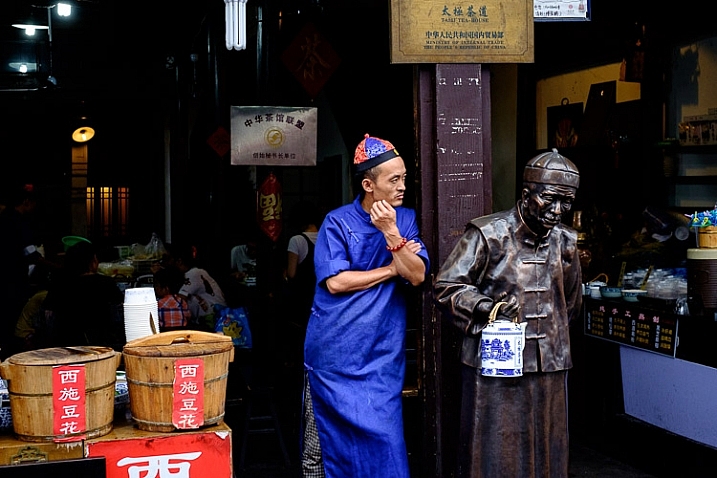
I used an aperture of f/4.5 for this photo. The depth-of-field is sufficient to get the man, the statue, and the wooden baskets in focus. The background is unimportant and doesn’t need to be in focus.

The smaller apertures

These are the ones you use when you need everything within the frame to be sharp, like with landscape photography. This can be anything from f/8 on a wide-angle lens, to f/11 or f/16 on longer focal lengths. With telephotos and macro lenses you can stop down to f/16 and still not get everything in focus.

The thing you need to be aware of here is diffraction. When the aperture gets too small, the light passing through it spreads out, and softens the image. Thanks to diffraction, images taken at f/22 are usually visibly softer overall, than those taken at f/8 or f/11. Noticeable diffraction may start at f/16 or f/22 on a full-frame camera, and around f/11 on an APS-C camera.

aperture and composition

An aperture of f/11 ensured everything in this photo, taken with a 14mm lens (APS-C), was in focus.

Take control

Every time you take a photo you should be thinking about what the optimum aperture is for the composition you want to make. Do you want to open the aperture and throw the background out of focus? Do you want to stop down and get as much as possible in focus? Or somewhere in between?

What aperture settings do you like to use with your photos? Do you use a Lensbaby or other lens that gives a certain bokeh effect? Please let us know in the comments – I’d love to hear your thoughts and see your images.

This week on dPS we’re featuring a series of articles about composition. Many different elements and ways to compose images for more impact. Check out the ones we’ve done so far:

  • Using Framing for More Effective Compositions
  • 7 Tips to Improve Your Skyline Photos
  • 33 Images that Exemplify Compositional Elements
  • Weekly Photography Challenge – Composition Craziness

Mastering Composition ebookMastering Composition

My new ebook Mastering Composition will help you learn to see and compose photos better. It takes you on a journey beyond the rule of thirds, exploring the principles of composition you need to understand in order to make beautiful imag

googletag.cmd.push(function() {
tablet_slots.push( googletag.defineSlot( “/1005424/_dPSv4_tab-all-article-bottom_(300×250)”, [300, 250], “pb-ad-78623” ).addService( googletag.pubads() ) ); } );

googletag.cmd.push(function() {
mobile_slots.push( googletag.defineSlot( “/1005424/_dPSv4_mob-all-article-bottom_(300×250)”, [300, 250], “pb-ad-78158” ).addService( googletag.pubads() ) ); } );

The post How to Take Control of Aperture and Create Stronger Photos by Andrew S. Gibson appeared first on Digital Photography School.

Digital Photography School

 
Comments Off on How to Take Control of Aperture and Create Stronger Photos

Posted in Photography


How to Create a Surreal Look in Photoshop Using Hue Adjustment

03 Nov

When you start learning photoshop it is scary to see all those different tools you can choose from. It is often said there are seven ways to achieve the same results, using different tools in photoshop. So, it means you have to find the one that suits you perfect, in order to give to your pictures the look that you want.

In this article I want to show you how you can change colors in your pictures using Photoshop. This is a very easy method that you can use, either you are a beginner or you are a more advanced user.

You could add a surreal twist to your images, or remove colors you do not feel like comfortable working with (I am sure we can all relate to this, because as artists we have our favorite and least favorite colors- the ones we struggle to work with!). You can use this technique for anything from changing the color of a dress or any other prop, to changing the forest tones to enhance the autumn feeling, or creating it if you want to create an autumn picture even though it is still spring.

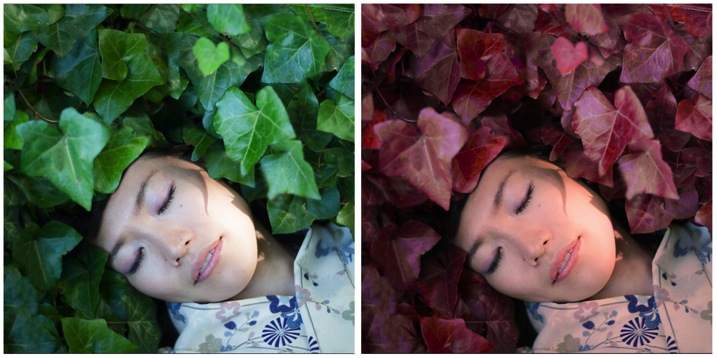
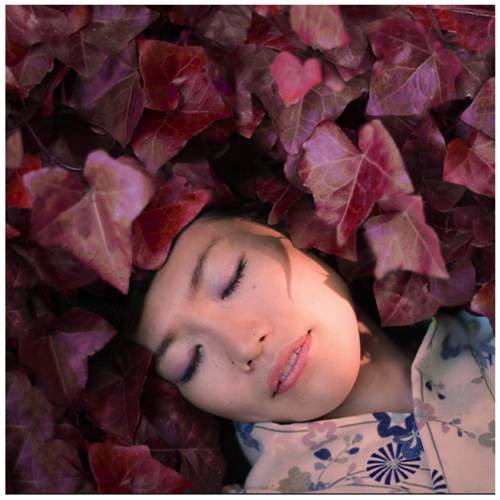
This is the before and after color change:

Picture01 before after

Create a color adjustment with Hue/Saturation

You can get to the Curves dialog in two ways:

  1. Image adjustment: By choosing Image > Adjustments > Hue/Saturation or Click the Hue/Saturation icon in the Adjustments panel.
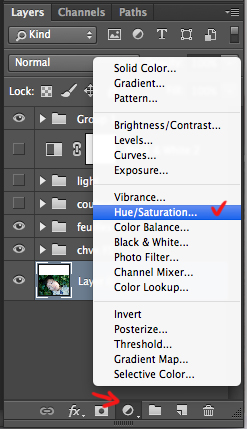
  2. As an adjustment layer: Layer > New Adjustment Layer > Hue/Saturation, or in your layers panel use the shortcut: New adjustment layer> Hue/Saturation.

Picture02 new adjustment layer shortcut

I strongly recommend working with layers. It allows you to come back to the adjustment and to erase it, or modify it, as many times as needed. Especially when you make big changes, you may want to be able to have full control. Layers can be scary at the beginning, but trust me, they will become your best friend once you overcome this fear.

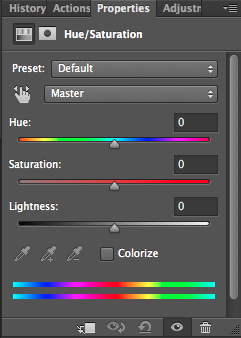
Creating a new layer you will have the following Hue/Saturation dialog box:

Picture03 HueSaturation dialog box

Select the color you want to change.

The more different you want your original color to be, the more important this selection is so that the color change does not affect areas do not want to shift. Removing a general color cast is usually a very light change. But, a total different color requires you to be more careful when selecting, and sometimes require several color adjustments.

When your object has a very clear color – as to say all red, one red tone – it is easy. When your object has different color shades it is tricky but not impossible.

In this case we are changing the color of ivy leaves, with different tones of green, blue, and even yellow.

First step: Make the color selection:

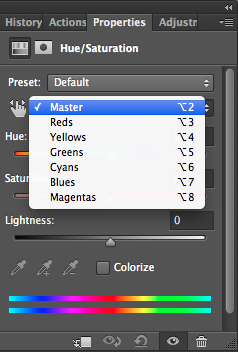
You can choose Master to adjust all colors at once, or one of the other preset color ranges listed for the color you want to adjust (reds, yellows, greens, cyans, etc.).

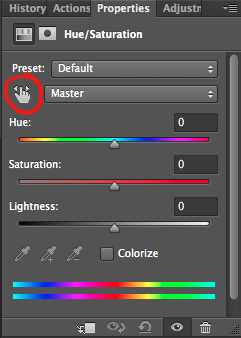
Picture04 Master or preset color

Or you can also choose the Targeted Adjustment Tool (the little white hand) – this is the easy way to select color if the area/object you want to change is a mix of several color tones.

Picture06 On image adjustment tool

Click on the Targeted Adjustment Tool and put your cursor on your image, the eyedropper tool appears. Drag it on your image, and click on the color tone you want to select.

Picture05 color values

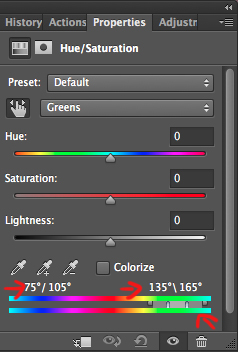
Four color values appear in degrees in your properties panel. If you click again, you change the selected colors.

Second step: Refine your selection

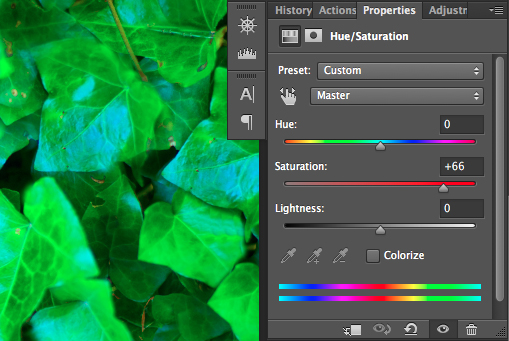
To check your selection, grab the saturation slider and move it to the right to increase saturation. The idea here is to see what you have selected, and make sure you have the right colors, therefore helping you adjust the selection. For example, when editing a portrait, you want to make sure it doesn’t affect the skin tones of your subject. If editing a forest you want to make sure you have selected the leaves, but not the tree trunks (or anything in the background).

Picture07 increase saturation to check selected colors

As you can see there is still a lot of blue of the leaves, that is not included in the selection. To add those blue tones you will drag the adjustment sliders to expend your selected colors, and change the color value (appearing in degrees in your properties panel).

There are four sliders. The ones in the middle allow you to expend or shorten the selected color ranges. The two sliders on both sides are to adjust the range of color and fall-off. Play with those sliders until you find a good selection. Don’t worry if it’s not perfect, you can still make a second hue/saturation adjustment layer, or mask this layer.

Third step: Change the color

In your properties window, drag the hue slider to the left or right depending on the new color tone you want to give to your selection. Then you can play with adding or removing saturation by dragging that slider either way.

Picture01 after

Learning to use hue/saturation will give you more creative options when editing your images in Photoshop. Share any images that you’ve changed the color on, or any other methods you use for doing this technique.

googletag.cmd.push(function() {
tablet_slots.push( googletag.defineSlot( “/1005424/_dPSv4_tab-all-article-bottom_(300×250)”, [300, 250], “pb-ad-78623” ).addService( googletag.pubads() ) ); } );

googletag.cmd.push(function() {
mobile_slots.push( googletag.defineSlot( “/1005424/_dPSv4_mob-all-article-bottom_(300×250)”, [300, 250], “pb-ad-78158” ).addService( googletag.pubads() ) ); } );

The post How to Create a Surreal Look in Photoshop Using Hue Adjustment by Amélie Berton appeared first on Digital Photography School.

Digital Photography School

 
Comments Off on How to Create a Surreal Look in Photoshop Using Hue Adjustment

Posted in Photography


How to Create a Hollywood Film Noir Portrait

02 Nov

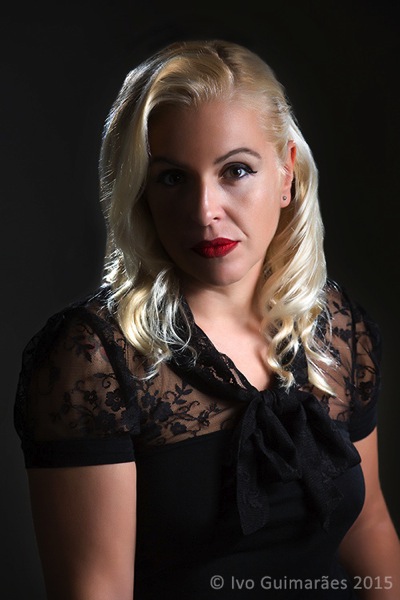
I have always had a soft spot for 1940s and 50s Film Noir, where there is always a gorgeous Femme Fatale, whose charms are most likely going to get you killed. The light in those movies is the key to the ambience of mystery and danger, and I love the way the scenes are composed with smoke, shadows, and the black and white high drama with dim light aesthetic.

These movies were mostly low-budget productions shot on location in city streets, with an abundance of night scenes, where crime is the main plot. Low-key lighting is the common thread of Film Noir, with harsh light that create deep shadows, resulting in a high contrast black and white.

As a photographer the actresses’ portraits that were used by the studios for promotion really fascinate me, and I guess it influences a lot of my portraiture work.

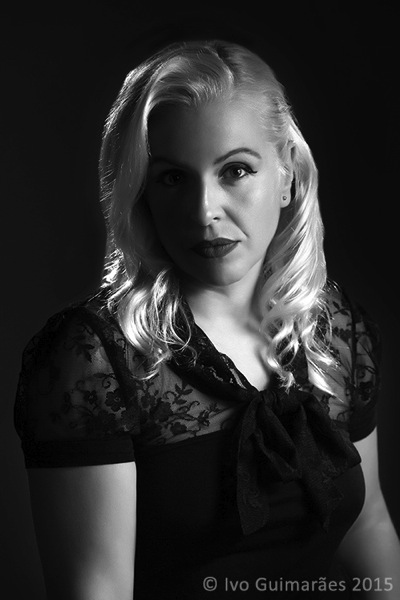
01b

In this article I am going to follow the steps to create this image that is a recreation of a Hollywood Film Noir portrait, done with modern equipment, and digital post-production techniques.

Research

As for every photography work, it is always a good idea to do some research, and look for inspiration. Here I used references from one of my favorite movies of all time, “Touch of Evil”, directed by the great Orson Welles in 1958.

Camera and lens

The choice of equipment is an important starting point. In this particular case I used a Canon 5D III body with a Canon EF 85mm f/1.2L II USM lens. This is my favorite lens when it comes to portrait work, it offers the perfect combination of good sharpness and awesome bokeh.

Lighting equipment

These images were originally lit, in most cases, with incandescent high-power bulbs, and the quality and direction of the light was mostly controlled with barn doors and Fresnel spotlights.

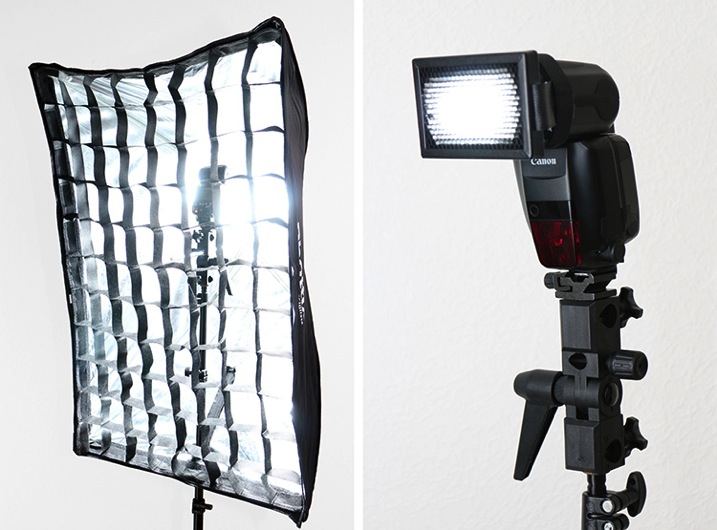
I decided to use two Canon 600EX-RT Speedlites, controlled by a Canon ST-E3-RT Speedlite transmitter. This created a simple setup with a gridded softbox working as a hard key light on the model’s face, and a 20º grid as a hair light to separate the model from the background.

02

Exposure

Usually in studio portrait images, I try to decide the exposure based on the depth of field I want to create on the image. In this particular case, I chose to use f/8.0, as it gave me enough depth of field in the face area, with the 85mm focal length.

The shutter speed is the second important factor and I chose to use 1/125, as it blocked any possible ambient light, and only register the light from the flash.

The ISO 100 is enough for the flash power available, and offers me a clean and noiseless image.

Lighting diagram

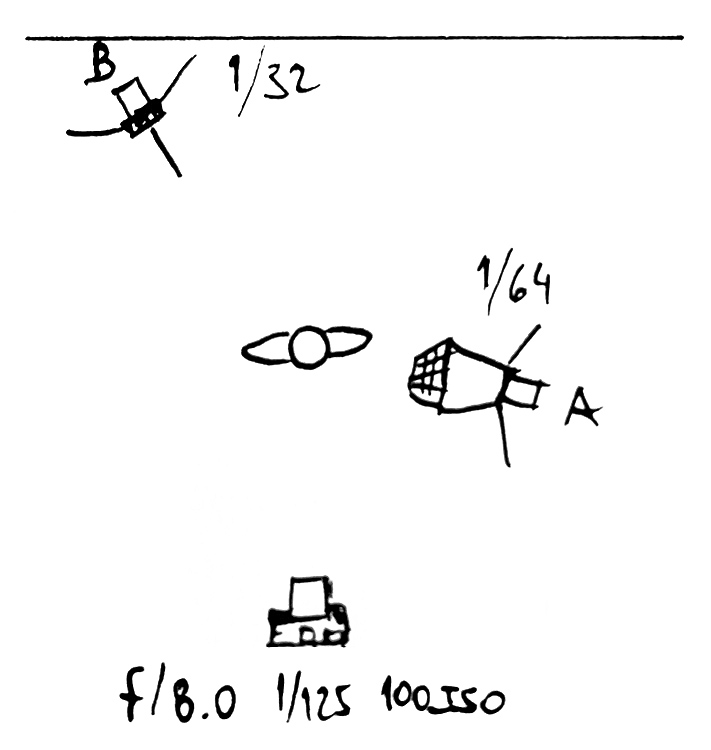
Every time I have an idea for an image I try to put it on paper. Most of the time it is just doodles in my little black book, but it helps me to visualize the setup, and the light ambiance that I want to create. Here is the quick sketch I did for this image, which represents the lighting diagram and technical information for the photo shoot.

03

Light metering

After setting the starting point values for the camera, it’s time to calculate the light position and power, to create the desired effect.

The background was white so a distance to subject of seven feet was enough to turn it black, which works much better with a blonde model.

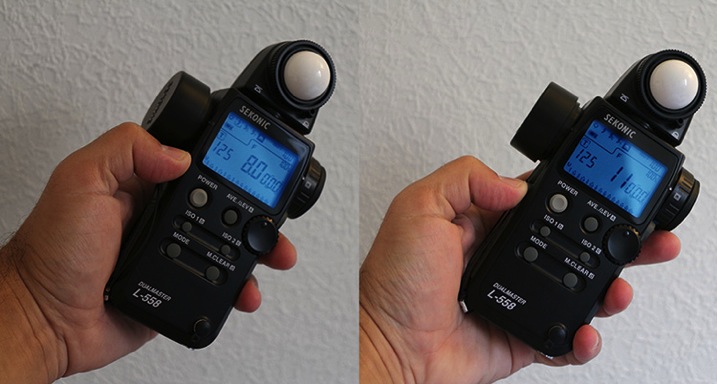
The idea was to have light on half of the model’s face, and a quick fall-off to the other side, creating a mysterious mood in the image. The gridded softbox was ideal for this effect. The 20º grid created a rim light on the hair and a ratio of 2:1 to the main light, so metering was f/8.0 for the main light and f/11 for the hair light.

04

The click time

Now that everything is set, it’s time to click. Even tough the final image was meant to be black and white, I captured it in color mode as it gives me better choices for conversion in post-production.

05b

Post-production

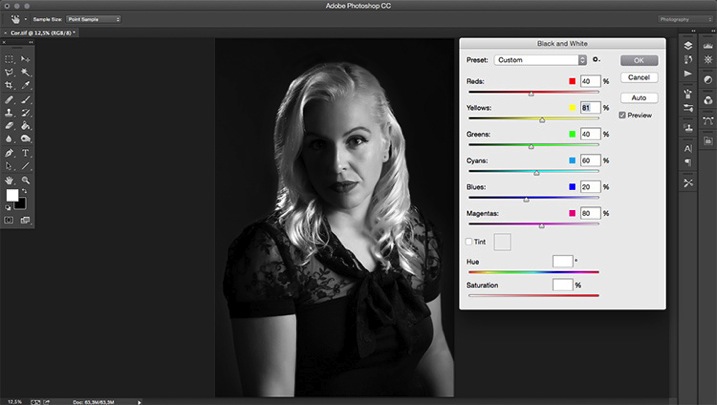
There are many tools and plugins for black and white image conversion. In this case I used the Photoshop’s black and white tool which is a simple but effective solution.

Image > Adjustments > Black & White

06b

A few adjustments to the red and yellow channel gave me the right contrast on the skin and overall image, creating the dramatic mood.

So, here is my approach to the Film Noir portrait. It sure was fun. If you give this technique a try, please share your results and images in the comments below.

googletag.cmd.push(function() {
tablet_slots.push( googletag.defineSlot( “/1005424/_dPSv4_tab-all-article-bottom_(300×250)”, [300, 250], “pb-ad-78623” ).addService( googletag.pubads() ) ); } );

googletag.cmd.push(function() {
mobile_slots.push( googletag.defineSlot( “/1005424/_dPSv4_mob-all-article-bottom_(300×250)”, [300, 250], “pb-ad-78158” ).addService( googletag.pubads() ) ); } );

The post How to Create a Hollywood Film Noir Portrait by Ivo Guimaraes appeared first on Digital Photography School.

Digital Photography School

 
Comments Off on How to Create a Hollywood Film Noir Portrait

Posted in Photography


Out of sight: Astronomers create 46-gigapixel image of the Milky Way

27 Oct

Researches from German university Ruhr-Universitat Bochum spent half a decade creating the largest astronomical image created to date, a 46-gigapixel image of the Milky Way, which is now available via an interactive online viewer. The image is made up of 46 billion pixels, and the file weighs in at a hefty 194GB. Read more

Articles: Digital Photography Review (dpreview.com)

 
Comments Off on Out of sight: Astronomers create 46-gigapixel image of the Milky Way

Posted in Uncategorized


How to Create and Use Hard and Soft Light in a Studio Setting

11 Oct

Hard light vs soft light craig wagner studio 3

When setting up your lights for studio photography, you first need to consider what lighting setup will create the look you are going for. Is your light going to fall into the category of hard light – or will it be soft? What’s the difference?

Let’s first look at the basic characteristics of hard and soft light sources, and the different feel each creates when shooting the same subject.

HARD LIGHT

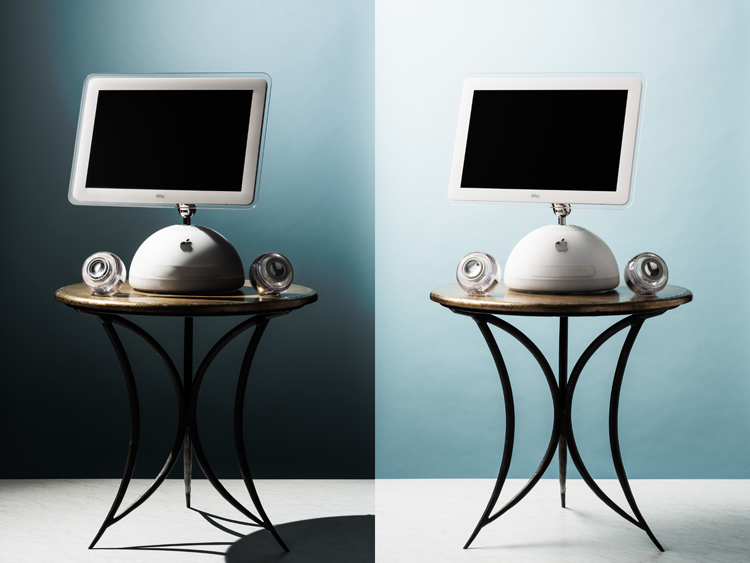
Imac hard light example craig wagner

In general, a single-point light source, aimed from a distance is referred to as hard light, much like our sun on a clear day or a streetlight at night.

Hard light example levis jacket studio 3

This hard light source creates a high contrast look, where the transition between highlights and shadows is sharp and well-defined.

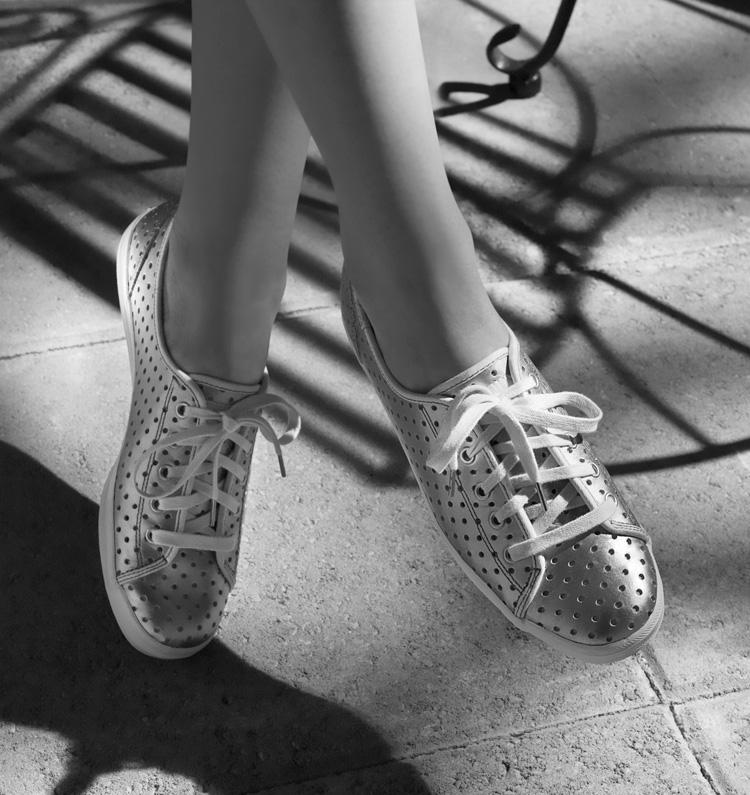
Keds shoes hard light example craig wagner

In some cases, this contrast can look harsh (and unwanted).

SOFT LIGHT

Imac soft light example craig wagner

On the other hand, a soft light source is a larger, broader, light placed relatively close to the subject. A cloud-covered or overcast day, where diffused sunlight reflects off a large concrete wall would be one example of a soft light source.

Breakfast oatmeal soft light example craig wagner

The light tends to be flatter in contrast, and the highlights hold more detail, with the shadow’s edges being soft and open.

Reverend nats hard cider soft light example studio 3

Generally this is a more pleasing light, but not necessarily the only light-source.

Many factors go into choosing light quality and the type of light source on set. One may be the direction given from an art director or client where you may be asked to match images from an existing campaign. They may want you to recreate a natural lighting condition (such as hot harsh desert sun on a pair of boots, or cool early morning light falling on a table setting).

The subject matter itself can also have a strong influence on your choice of light source. A highly reflective (like glass or chrome), or high-contrast product can be quite the challenge if you try lighting it with a hard light source. Fighting spectral highlights, or holding detail in the shadows and highlights, can be a pain if you have to use hard lighting alone.

If you’re lucky enough to be given creative freedom by the client, or working on a personal project, you might be illustrating a mood or an emotion and will use appropriate lighting needed to create it. Careful choice of lighting, and mixing your hard and soft light sources, will allow you to achieve that.

How to set up for a hard light shoot

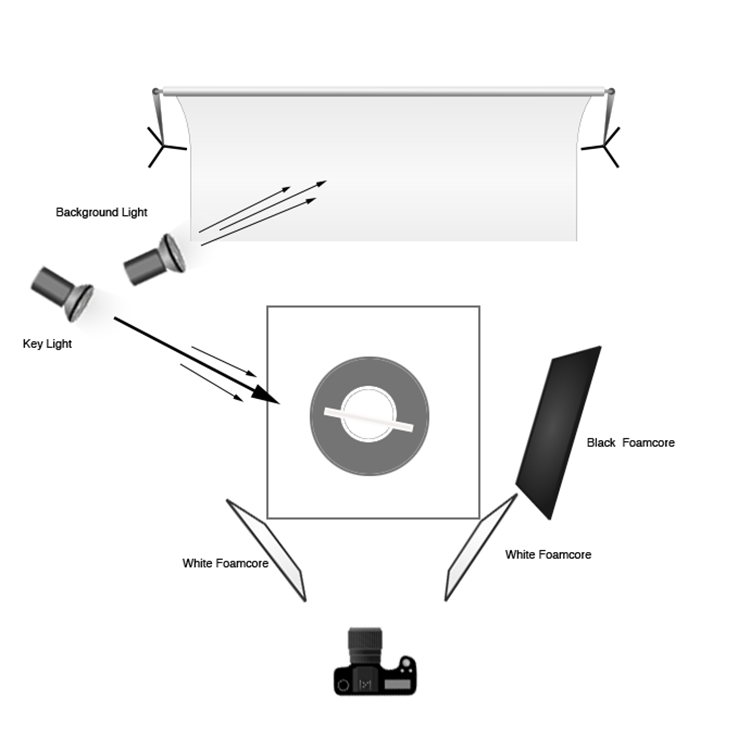
Hard lighting setup diagram craig wagner

Imac hard light example craig wagnerFor the studio hard-light set, place the key (main) light (a strobe head with a 12” modifier) to the left and slightly behind the subject. The initial beam may be too broad, so to concentrate the light you can add a 35-degree grid to the modifier.

For this setup, final adjustments to the height and position of the key light were made, in order to modify the angle and length of the shadows on the table and floor, as well as to illuminate the edges of the computer screen in a pleasing manner. A 4’x8′ sheet of black foamcore was placed to the right of the set to deepen the shadows and remove unwanted reflections. Two smaller sheets of white foamcore were set low, in front and to either side, to control the amount of detail in the front edge of the table and legs.

A second strobe head with a 7” grid modifier was set high, and to the back of the set. Its angle was adjusted to illuminate the upper right corner of the background, which you can see in the photo (right).

How to set up for a soft light shoot

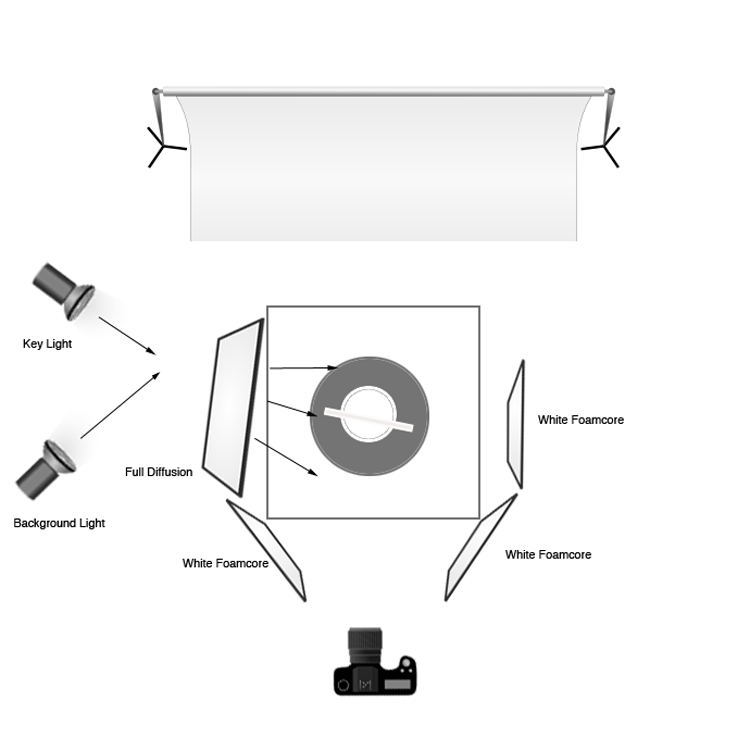
Soft lighting setup diagram craig wagnerImac soft light example craig wagnerTo create the soft-light look, the key light is set in the same place, but a 4’x4′ full diffusion panel is placed between the light and the subject, just out of the frame. Remove the grid from the key light to broaden the light. The black foamcore is replaced by a sheet of white to fill or open the shadows (but the two sheets out front remain). The background light is pulled back, the grid removed, and a diffusion disk added to soften the beam and cover the entire background. In this way the whole set appears bright and soft and with a lot of ambient light filling the image (left).

How to change a hard light source into a soft one

You may get into a situation where you’ve set up your light source and find you actually want to go the other direction with it. In this case, it is quite easy to change one type of light source into the other. You can diffuse a hard source into being soft, by placing diffusion material between the lighting and the subject, which allows you to control the angle and light gradient. You can also just attach a softbox to the light to soften the light and make it into a broader, even source. You can also take a soft source that you’ve set up and change its distance from the subject in order to make it a harder, more focused light. You can also bounce the light around more using reflectors, umbrellas, or a handy wall in order to soften it and make it less directional.

Combining hard and soft light

The ultimate tip for studio photography is to be flexible with your lighting setup regardless of your years of know-how. You may have an idea in mind for the final look you want for the photograph, but you may find that on set the product looks quite different under various lighting conditions. Be prepared to play around and try things – because often a mixture of both hard and soft light can show the product to its full advantage.

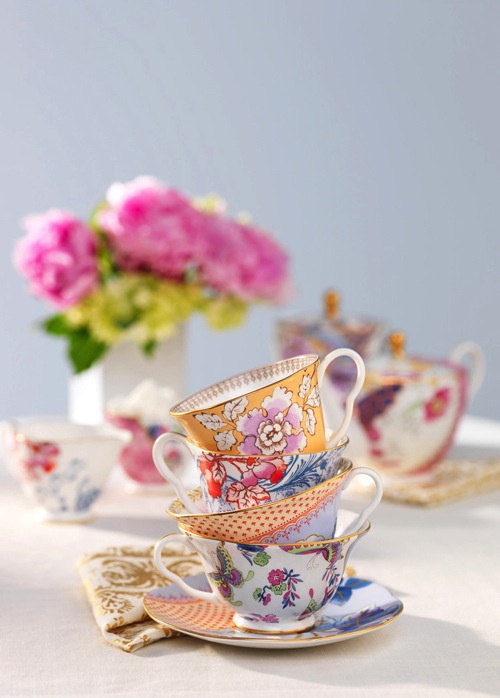
Stash tea flower teacups hard light example studio 3

Soft light example with a hard light rim (kicker or accent) light from behind. Notice the hard shadow on the table in front of the cups – that is created by the hard rim light.

Once you have a full understanding of hard and soft light sources, you can combine the two lighting techniques. For example, the set might have a general, overall softness to its light, but you might use a rim (or accent) light to give the shot more mood or dimension, or to accent certain elements of items in frame. Mastering both types of light allows you to have the ultimate control over your lighting, and the final image that comes out of the camera.

googletag.cmd.push(function() {
tablet_slots.push( googletag.defineSlot( “/1005424/_dPSv4_tab-all-article-bottom_(300×250)”, [300, 250], “pb-ad-78623” ).addService( googletag.pubads() ) ); } );

googletag.cmd.push(function() {
mobile_slots.push( googletag.defineSlot( “/1005424/_dPSv4_mob-all-article-bottom_(300×250)”, [300, 250], “pb-ad-78158” ).addService( googletag.pubads() ) ); } );

The post How to Create and Use Hard and Soft Light in a Studio Setting by Craig Wagner appeared first on Digital Photography School.

Digital Photography School

 
Comments Off on How to Create and Use Hard and Soft Light in a Studio Setting

Posted in Photography


Using Your Photography to Create Social Change

05 Oct

There are images that immediately come to mind if someone mentions them. For instance, the image of the man being shot in the head during the Vietnam War, or the girl running naked down the road (also in Vietnam) after being burned by a napalm bomb. I don’t want to use the word iconic, but they are well-known, and very emotive images. The Vietnam War was like no other, and these images helped to show the devastation.

An image of an event, or a place, can create a lot more connection than written words or stories; humans are visual and we relate to visual cues. But images don’t have to be about war to generate a response from people.

In late-1970s Australia, the government wanted to dam part of a river in Tasmania. It was something that upset many people. It would mean that many parts of stunning rainforests in the area would be drowned and lost forever. When I think back to that time, there is a beautiful image of the place that immediately comes to mind. It is an image of the river by photographer Peter Dombrovskis, and its catchphrase was that it would be submerged by the dam.

peter-dombrovski-franklin-river

Rock Island Bend, Franklin River, South West Tasmania, by Peter Dombrovskis, National Library of Australia, an6631500 (Bib ID#2899361)

Here I am 30 years later, and this image is still strong in my mind; it says, “This image stopped the Franklin Dam”. Images can very powerful. Who wouldn’t want to have an image that changed the world – well, at least helped save a small part of it? With so many images in existence now, it may be hard to imagine that any could have the same impact. With the world of digital perhaps we are in image overload.

It doesn’t mean you can’t try. There is no reason why you can’t highlight a cause that you are passionate about, using your photography.

In the area around where I live, there is a large green belt that follows the Yarra River, which is the main source of water for the City of Melbourne. It is wonderful that the land has been preserved and not given up to development. Parts of the area were still being farmed until very recently, around 2o years ago.

Cole-social-change-photography0374

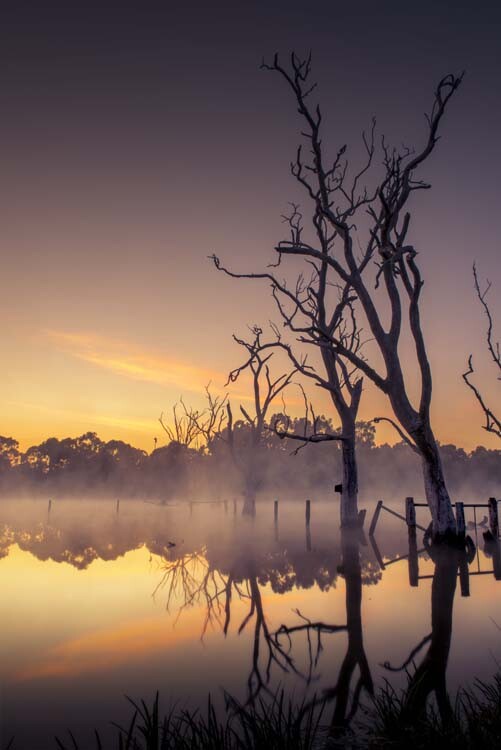
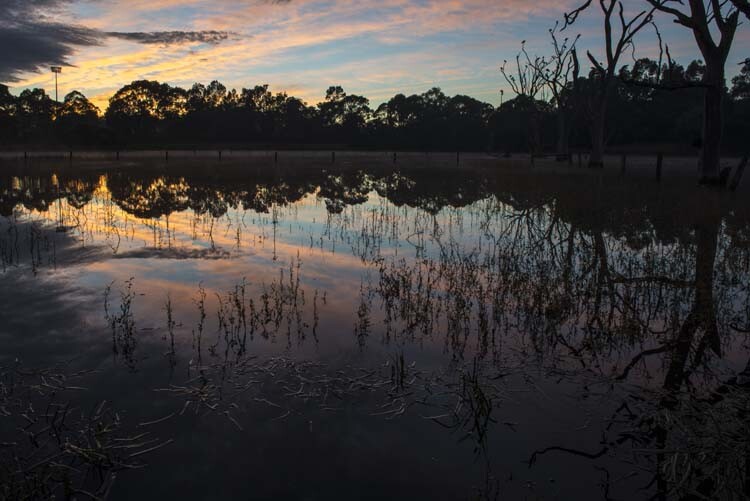
Morning Light over Banyule Flats. The area has been allowed to return to its natural state as it would have appeared over 250 years ago.

Part of the area is a swamp (wetland) and was here before European Settlement. Once the land was claimed, the swamp was drained and the water course moved so it didn’t fill anymore. Fences were put up, and cattle grazed there for over 150 years.

Cole-social-change-photography0376

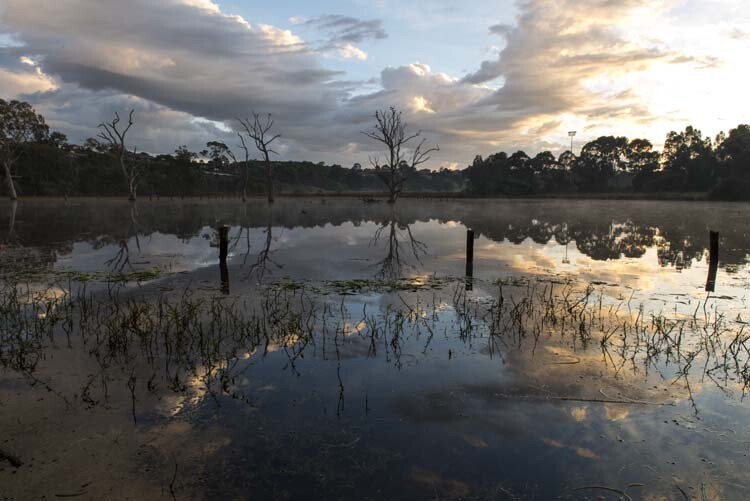
Early Autumn Mists on the Water.

Eventually, the land was sold to the local council, and they have helped the area recover over the last 20 years by revegetation, and putting the water course back, so the swamp would fill again. It did – and it has become a place rich with native birds and plants. The fence posts are still there, but the trees that grew while it was dry have since died from being waterlogged.

The area is ecologically and communally important and is in constant use – but there is a problem. Banyule Flats is situated right in the middle of where they want to connect two freeways. This is an area that I love and want to help protect, so I started thinking about how I could use my photography to help stop the freeway.

Cole-social-change-photography0375

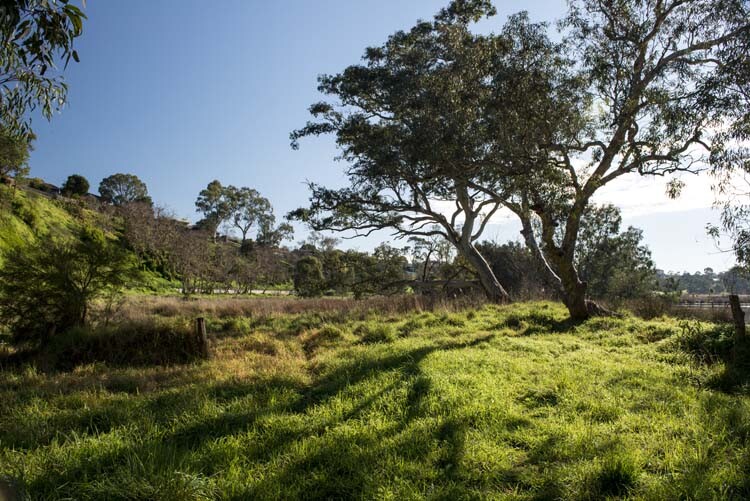
Winter Sun Casting Long Shadows.

My first thought was to start putting photos up on my blog. If I could get people from around the world to build a connection with Banyule Flats, perhaps I could get a whole lot more people to fight for its survival.

About 12 months ago my local council, Banyule City Council, was offering Environment Grants and I wondered if I could get one to do a book on the area using my photography. I rang the coordinator for the grants and spoke to her about my idea for the book. She seemed to really love it, and gave me ideas of what to put in the proposal. I had to join the Warringal Conservation Society to be eligible for it, but that was never a problem, and I have loved being a member.

The grant was approved, and I will use the photos I have been taking for two years now. It is time to put the book together and work out what is the best way to present the images. We can’t just put them all together with no story because, it has to be interesting.  It has to be done in a way that people find not only beautiful, but helps build a connection to the area so they won’t want to see it destroyed.

This is an opportunity to use photography to bring about social change. If you can help people build a relationship or feel something for a cause, then that gives you a lot more people who want to fight for it with you. Your case becomes stronger, and there’s power in numbers.

Cole-social-change-photography0377

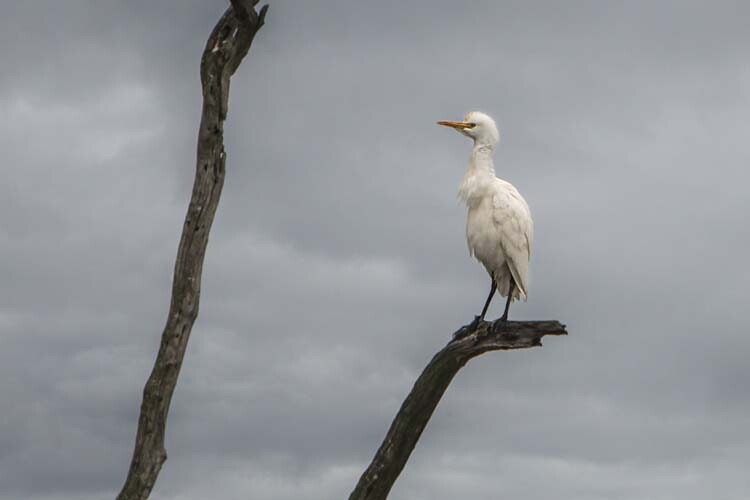
Cattle Egret Surveying the Water Below. One of many birds that inhabit the area.

One thing that is happening with the book on Banyule Flats is that we are inviting the Wurundjeri Elders and people to be involved. They are the traditional owners of this land, and having their input will help highlight the area, give the book a unique look, and help showcase part of their culture. Of course, I will not take advantage of them and will make sure that proper credit is given, and they will get a share in the royalties as well.

If we can make the book show off the area, we hope that more local people will get involved in the fight for the Flats, and we can then introduce the area to a much wider, potentially worldwide, community.

The book is going to be visual, have lots of photos throughout showing the area through the seasons, and contain big landscapes, as well as macro images of the flora that grow there. The photos have to be powerful to get our message accross: there will be no freeway through Banyule.

Cole-social-change-photography0378

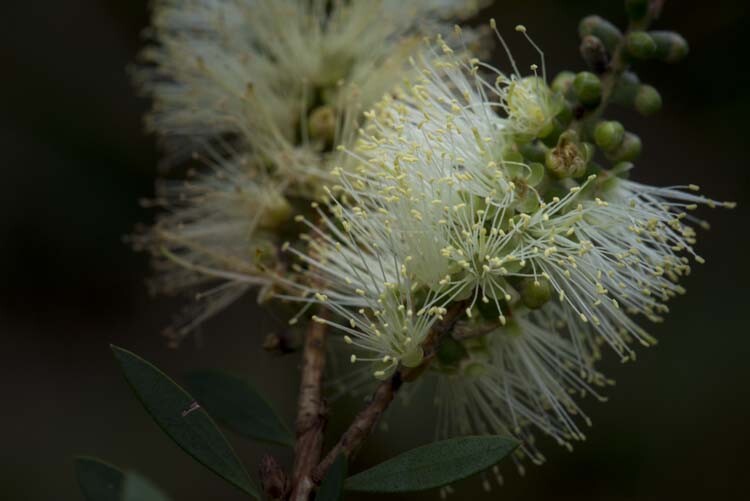
Bottle Brush. One of the indigenous plants at Banyule Flats.

Images are very strong. If I just tell you about the area then you are not going to want to protect it, but if I show you what it looks like then you start to feel a connection. Beauty has to be seen, and that is where photography becomes very powerful.

Think back to causes you have felt very passionate about. Do you think of them in words, or in images?

Cole-social-change-photography0373

Sunrise Around the Back of Banyule Flats.

When I think about the Vietnam War, images come to my mind, like the two I already mentioned. The Franklin Dam project was one of the first major campaigns that I have a really good memory of.  The image of the Franklin River gave people an understanding of what they were going to lose if the dam went ahead.

If you have a cause that you want to assist or save, use your photography to help. Get the best photos that you can, and show people what you want them to see. The stronger your photography is, the better the effect it will have. You want to create images that people will remember. In the years to come when people talk about Banyule Flats and how we stopped the freeway, I want them to think of my images in the book.

googletag.cmd.push(function() {
tablet_slots.push( googletag.defineSlot( “/1005424/_dPSv4_tab-all-article-bottom_(300×250)”, [300, 250], “pb-ad-78623” ).addService( googletag.pubads() ) ); } );

googletag.cmd.push(function() {
mobile_slots.push( googletag.defineSlot( “/1005424/_dPSv4_mob-all-article-bottom_(300×250)”, [300, 250], “pb-ad-78158” ).addService( googletag.pubads() ) ); } );

The post Using Your Photography to Create Social Change by Leanne Cole appeared first on Digital Photography School.

Digital Photography School

 
Comments Off on Using Your Photography to Create Social Change

Posted in Photography