RSS
 

Posts Tagged ‘Create’

How to Create Good Black and White Portraits

24 Feb

The most difficult question I often ask myself is, “Do I convert this image to black and white or leave it in color?” This question is particularly difficult with people, because black and white portraits look really good.

googletag.cmd.push(function() {
mobile_slots.push( googletag.defineSlot( “/1005424/_dPSv5topic-rhs(300×250)”, [300, 250], “pb-ad-124309” ).addService( googletag.pubads() ) ); } );

My go to rule is that if the colors in the image do not match, are not complementary, or simply do not look good, then I convert my image to black and white.

Tips to Making Black and White Portraits

A lot of people prefer black and white images and because of that I always send to my models/clients one black and white image and one edited image in color. I basically force myself to convert all my images to black and white, and in some cases, I get surprised because the result looks really good.

Black and white is less forgiving

Flaws in monochrome images will automatically stand out than in color ones. This is because sometimes color distracts the viewer and it can give the impression that the image is perfect even if the composition, facial expression of the model, or lighting are not the best.

With black and white portraits, you will need to pay more attention to light, composition, contrast, and the whole scene in general.

Tips to Making Black and White Portraits

Lighting for black and white

Contrasty lighting is what makes a black and white image pop. If you look at the work of famous photographers like Ansel Adams, his images stand out because of the light contrast. Fine art photographer, Joel Tjintjelaar, explains very well separation and the grey scale, tonal contrast, separation and presence and depth. Black and white is all about presence and depth. Most of the time this can be created and enhanced using the dodge and burn tools in Photoshop.

It is important to study the work of others. For example, Peter Coulson is a photographer who takes stunning black and white portraits.

When taking portraits in natural light, always use a shallow depth of field to centre the attention on the eyes and avoid slow shutter speed as the image needs to be completely sharp.

Tips to Making Black and White Portraits

Taking images during the magic hour will give a very flattering result as the light will be very soft. In studio sessions, a large softbox or window light will give you very soft light. For more contrasty results, the best solution outdoors is to photograph during the middle of the day and in studio is to use a beauty dish.

The difference will mainly play in the shadows and it will depend on how dark do you want your shadows to be.

Tips to Making Black and White Portraits

Plan for black and white

Most of the time, the best solution is to have black and white in mind for the final image because you will automatically pay more attention to light and shapes around your model. You also need to tell your model that this is your intention because the pose and facial expression will be more important and emphasized.

Black and white portraits are all about facial expression and transmitting emotions. The eyes of the model should always be the centre of attention and facing the light source to create a little sparkle of light (called catch lights), this makes the difference. You can also create a second sparkle if you use a light reflector. You don’t necessarily need an assistant to hold the reflector, you can ask the model to hold it or you can hold it yourself with one hand.

Tips to Making Black and White Portraits

Studio portraits in black and white can be much more creative because you fully control the amount of light in the room. You can control the direction and intensity of that light towards your model. Try to get creative by only lighting one part of the face, by using objects or using a black background to isolate your subject.

Post-processing

Black and white work is not only desaturating an image, it is much more complex. The work flow I usually use is I start by editing my image in color and playing around with the contrast of colors. I adjust my exposure, the sharpness, do skin work and then I do my first dodge and burn. Afterward, I convert my image to black and white using the channel mixer and it is quite simple because the different filters will give you different results.

https://digital-photography-school.com/tips-making-natural-light-portraits/

The most important part of post-processing is using dodge and burn to give life to your image. Brighting and darkening up key areas of the image is the most important step, take your time to do it well. The result will depend on you, so don’t hesitate to do it several times before you are completely satisfied. I recommend using a Wacom Tablet for full control. Finish your post-processing by creating a vignette to add another feel of dimension.

Conclusion

Black and white portraits look amazing when they are done properly. The result will depend on how good you can control and define the light around your subject. In other words, how defined is your contrast between the different tones.

Always think about black and white when the colors in the RAW image do not look good, when when your model has a very strong facial expression, and when you have good looking light whether it’s outdoors or indoors.

Please share your comments and black and white portraits in the section below.

Tips to Making Black and White Portraits

googletag.cmd.push(function() {
tablet_slots.push( googletag.defineSlot( “/1005424/_dPSv4_tab-all-article-bottom_(300×250)”, [300, 250], “pb-ad-78623” ).addService( googletag.pubads() ) ); } );

googletag.cmd.push(function() {
mobile_slots.push( googletag.defineSlot( “/1005424/_dPSv4_mob-all-article-bottom_(300×250)”, [300, 250], “pb-ad-78158” ).addService( googletag.pubads() ) ); } );

The post How to Create Good Black and White Portraits by Yacine Bessekhouad appeared first on Digital Photography School.


Digital Photography School

 
Comments Off on How to Create Good Black and White Portraits

Posted in Photography


How to do Digital Blending in Photoshop to Create a Composite Photo

14 Feb

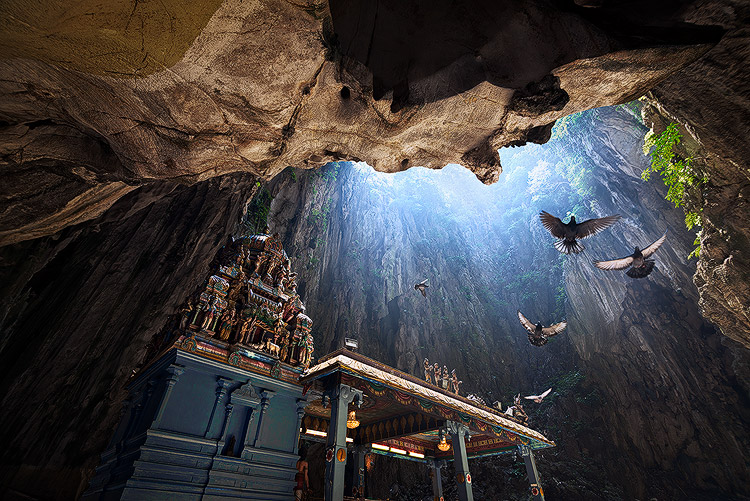
Normally when talking about digital blending, people will first think of exposure blending. That is correct, but it can do more than that. There is several situations where digital blending can be very handy. Not only can it help create a better photo, it also eases you in your shooting experience. In this article, I will share how I use a digital blending in Photoshop to create a much more interesting composition.

digital blending

I took the photo above of Batu Cave in Malaysia. I chose to add a few pigeon photos from a series that I captured, and blended them all together into a single photo with the digital blending technique.

Select images

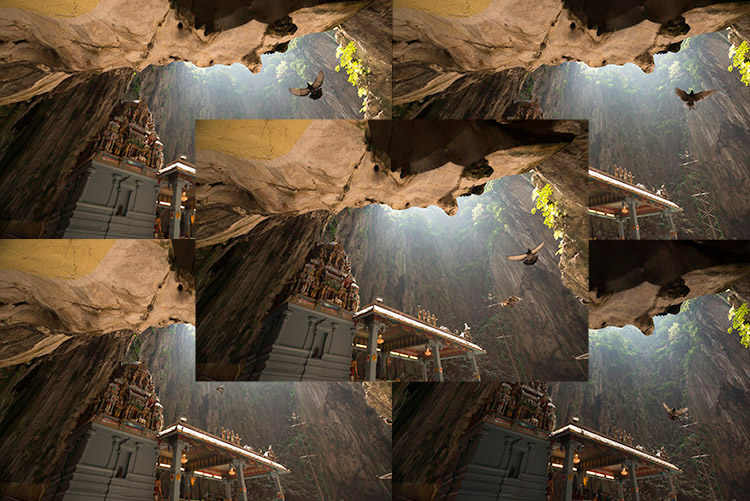
Here are the raw photos that I going to use. You can see that there are pigeons in different locations in each of the photos.

digital blending Photoshop

Open Photoshop

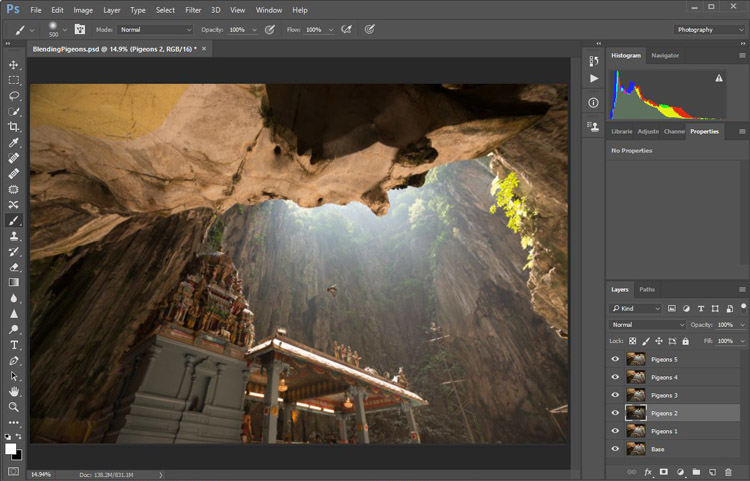
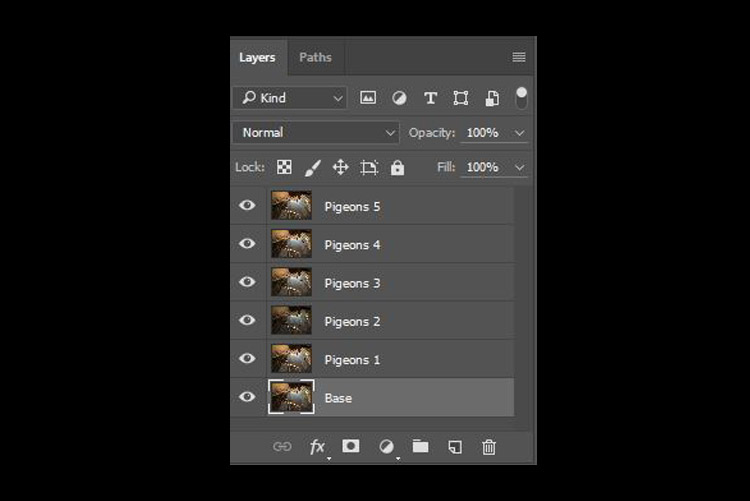
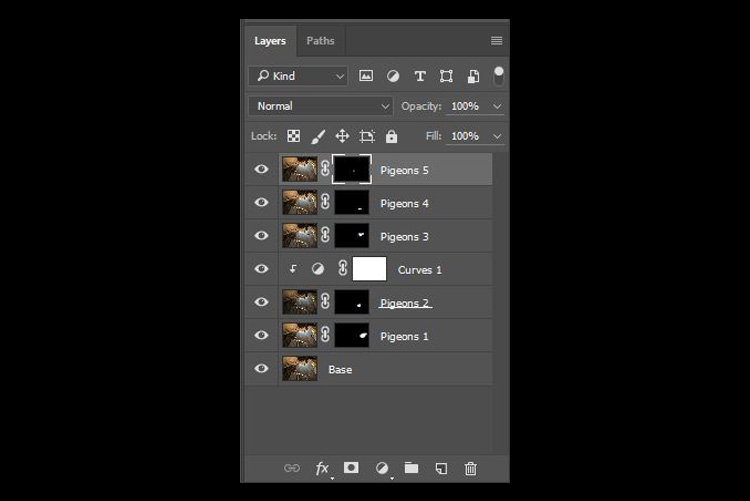
Next with Photoshop open, I load all the photos into one place as different layers. You can rename them if you want, as I did here.

digital blending in Photoshop

Back up for a second: How the shots were done

Notice there’s a “base” layer at the bottom. That image was captured with different camera settings compared to the pigeon shots. I do this because normally before capturing any additional photos such as the pigeon images, I will first take a few photos with the BEST camera settings for that situation. In this case, that was ISO 100, aperture of f/8, 1/30th of a second shutter speed.

However, the 1/30th shutter speed was too slow to capture any photos of pigeons. So I needed a faster shutter speed which ended up with camera settings of; ISO 800, f/5, and 1/640th of a second. This allowed me to freeze the movement of the pigeons, but at the same time, it also generated more noise in the photos (ISO 800 compare with ISO 100) and a slightly more shallow depth of field (f/5 compared with f/8) resulting in a softer background.

So the ideal scenario is to have them both together in one final image. Using the digital blending technique you can have the best image quality photo with lesser noise and better focus, and then blend in only the pigeons from later photos. The pigeons will appear to have more noise than other areas of the photo but only in very small areas and you can do a separate Noise Reduction just for the pigeons if needed.

Shooting sequence

Here is the shooting process in sequence, to give you a better picture:

  1. Decide on a composition.
  2. Take your photo with the best (optimal) camera settings for the scene.
  3. Without moving your composition, change the camera settings to capture anything that looks interesting to you. For example; animals, people that able to bring out the atmosphere of the place such as monk praying in a temple, or even any lifeless objects such as trains or boats, or anything else you can think of or notice in the scene.

Photoshop steps

Step #1 – Turn off some layers

Back in Photoshop, you will see there is an “Eye” icon beside each layer. This means that all these layers are visible. Temporary, let’s hide all the pigeon photos first by clicking on the “Eye” icon to uncheck each layer. Leave only two visible, the Base and Pigeons 1 layers.

digital blending

Step #2 – Add a layer mask

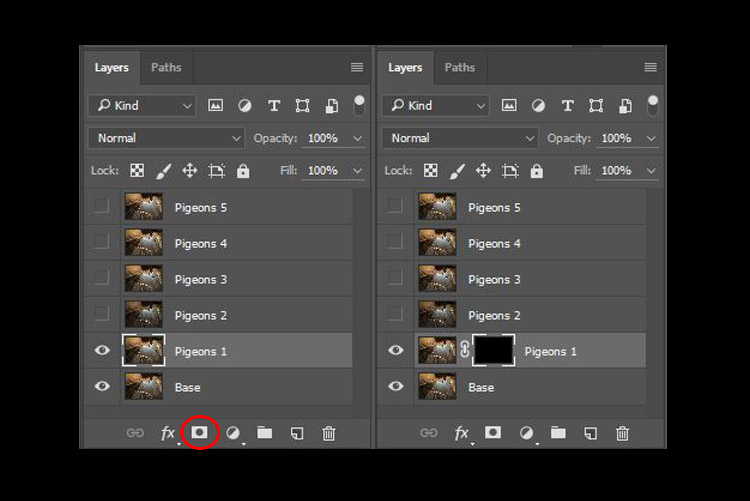
Next, select the Pigeons 1 layer and while holding down the Alt key, click on the “add layer mask” icon (circled in the red in the photo below left). You shall have a black rectangle appear at the right side of the layer, as seen in the photo below right. This is to add a reverse layer mask on your layer, the black mask means it is hiding what is currently in this layer. If you don’t hold the Alt key when you click on the icon, it will create a white mask which will reveal what is currently in the layer.

digital blending layer mask

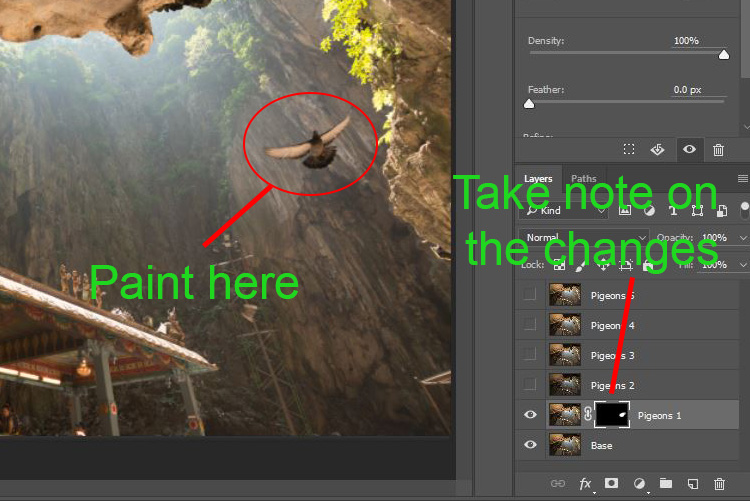
Step #3 – Paint on the mask to reveal the bird

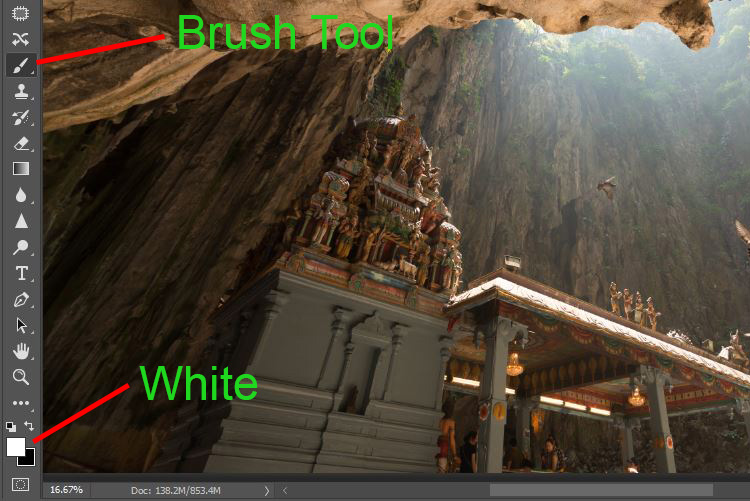
Now we have a black mask. To blend in only the pigeon from that layer, we will need to select the Brush Tool and paint on the mask in white over the pigeon’s area. Note: A black mask means hiding and white means revealing the layer.

digital blending Photoshop

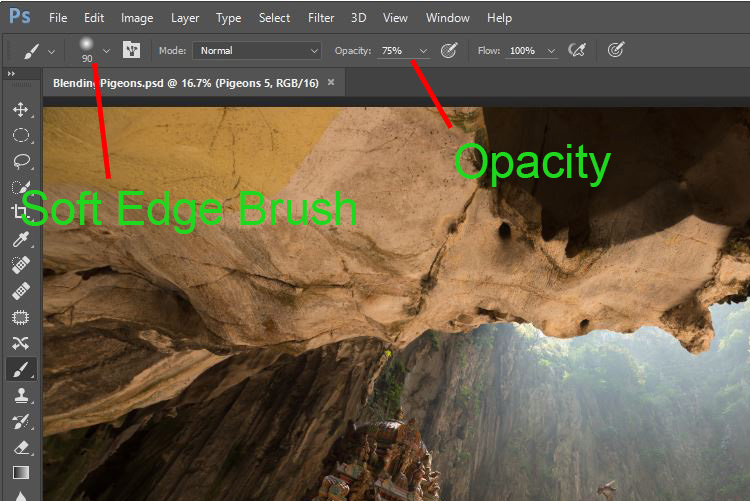
After selecting the Brush tool, make sure you are using a soft edged brush, and the opacity is set to about 75%. The opacity will affect how much of your painting result will be applied. Using opacity at 100%, you only need to paint once to fully reveal that particular area. However at 75 % or lesser opacity, you will need to repeat the painting few times in order to achieve the 100% effect. It is slower, but at the same time it create a smoother edges and the layer is better blended to the original image.

digital blending brush tool

Notice when you do the painting, the mask on the layer also reflects your painting result. Congratulations, now you have the first pigeon blended in! Let’s repeat the same process for the next layer.

digital blending Photoshop

Step #4 – Repeat on next layer

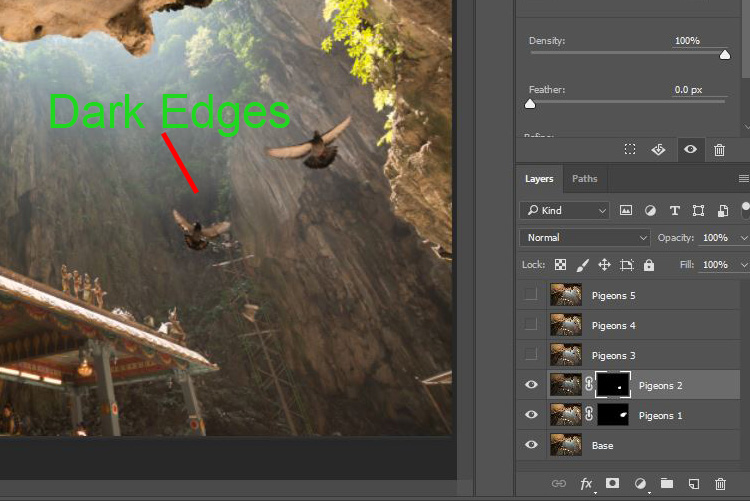
By performing the same steps on the “Pigeons 2” layer, you will now have the second pigeon added. But wait, something is not right. Do you notice that the second pigeon has dark edges surrounding it? Why?

digital blending Photoshop

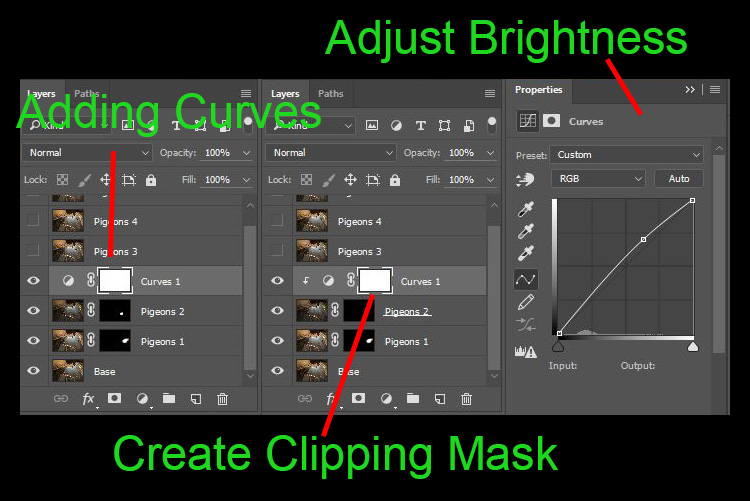
This is because even at the same camera settings, the lighting conditions may have changed during the shooting process. This image was captured when there were clouds blocking the sun and it dimmed the light in the cave. Instead of solving this by doing some really precise masking (by zooming in and brushing carefully on the edge of the pigeons, which can be a tedious process), let’s try adding a Curves adjustment layer.

Before doing any adjustment with the curve layer, right-click on it and choose “create clipping mask”. This will make sure whatever adjustment is done here will only affect the layer below it. Now add some brightness by slightly pulling the curve up, as shown below right.

digital blending Photoshop

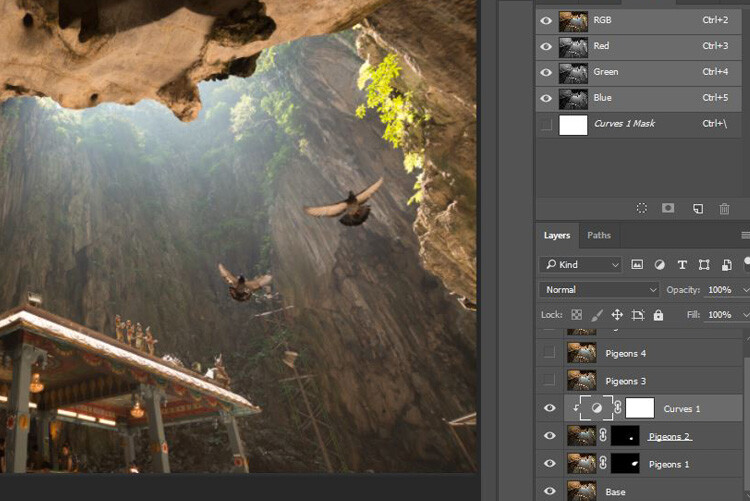
The surroundings of the second pigeon looks much better now. Other than using a Curve, you can do this on any other adjustment layers such as color balance adjustment layer to correct the tone of the particular layer, if the white balance is not equal with the background.

digital blending Photoshop

You can see the bird blends in much better now with the Curve applied.

Step #5 – Complete masking on all layers

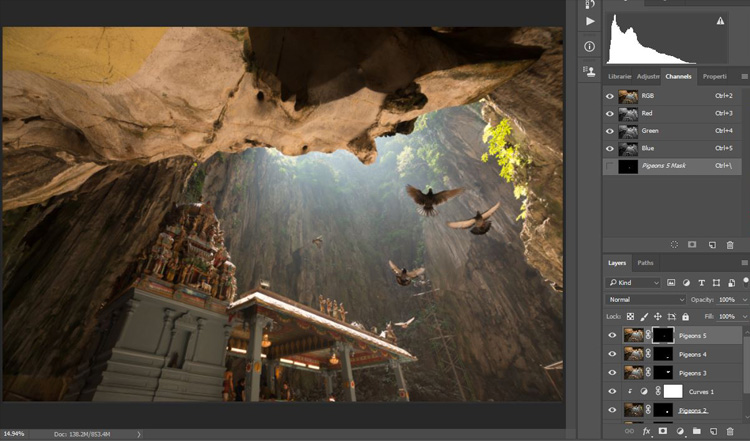
Let’s continue with the rest of the layers. The masking results will look like the photo below once you have done the blending process.

digital blending Photoshop

Finally

Here is the final output of the digital blending. Now you can perform any other post-processing adjustments from here by applying contrast, changing color balance, sharpening, or any other process that you think is necessary to enhance your photo.

digital blending Photoshop

I hope you have enjoyed this article, and it gives you some ideas or inspiration. If you have any questions or suggestions, feel free to leave a comment below.

googletag.cmd.push(function() {
tablet_slots.push( googletag.defineSlot( “/1005424/_dPSv4_tab-all-article-bottom_(300×250)”, [300, 250], “pb-ad-78623” ).addService( googletag.pubads() ) ); } );

googletag.cmd.push(function() {
mobile_slots.push( googletag.defineSlot( “/1005424/_dPSv4_mob-all-article-bottom_(300×250)”, [300, 250], “pb-ad-78158” ).addService( googletag.pubads() ) ); } );

The post How to do Digital Blending in Photoshop to Create a Composite Photo by Grey Chow appeared first on Digital Photography School.


Digital Photography School

 
Comments Off on How to do Digital Blending in Photoshop to Create a Composite Photo

Posted in Photography


Create a Portfolio That Shows the Photographer as Well as the Photographs

13 Feb

portfolio-review

When it comes to telling their own story in images, photographers often struggle. While their photos and galleries may be memorable and unique their websites and portfolios are too frequently dull, derivative and, to a buyer who sees one slideshow after another, instantly forgettable. Instead of showing who they are, the websites become a collection of what they’ve shot, a series of images with no connection to the person who took them or the photographer the buyer will be booking.

According to one expert, it’s only when photographers see their websites and their portfolios not as marketing devices intended to show their skills and range but as autobiographies — as an opportunity to tell their own stories and show who they are — that they stand out and win jobs.

“The best portfolios, to me, are materially self-portraits regardless of the subject matter,” says Allegra Wilde. “This is not about a romanticizing the suffering or narcissistic artist. The kind of imagery I am talking about is much less likely to be forgotten by the viewer, or in the case of the pros, the buyer.”

For Wilde, who started her career selling ad space at Workbook before becoming the company’s Director of Talent and Agent Branding, a portfolio (and now a photographer’s website) should flow. The presentation should have a rhythm, match the work and, most importantly, tell the story of the photographer.

It Takes a Hero to Be a Successful Photographer

That’s not something that all photographers want to do — or think of doing as they create a site to pitch for work. Building a website that doesn’t just show pictures but shows who you are means putting yourself as well as your images on display. The personal projects become more important as they reveal the questions you address in your images, the aesthetic that attracts you, the messages you want your photos to communicate and the way you want them to speak. Buyers are invited to judge the photographer and their interests as easily as they judge the quality of their work. It’s not a display that makes all photographers comfortable.

“The most successful photographers (or any other artists for that matter), always take some kind of leap into discomfort,” says Wilde. “Usually this level of discomfort is rooted in their own personal ‘exposure,’ or fear that no one will like their images or hire them. These heroes of photography, (yes, I call them ‘heroes,’ because it takes enormous courage to do this) make images from a very naïve place, usually self-reflective and quite emotionally ‘naked.’”

After operating a couple of private online forums — one for photography and illustration agents; the other for ad agency photo editors and buyers — Wilde now runs Eyeist, her own photography review service. The company employs a team of photographers, buyers and photography business experts to examine photographers’ websites and portfolios, and recommend improvements. Photographers can register and upload images for free then book a review when they’re ready. They’ll be asked for “tons of info” about their images, their aims for the review and their development as a photographer before they select (or ask for) a reviewer and choose the kind of review they want. The fees range from $ 100 for a basic review consisting of an audio commentary critiquing up to 30 images to $ 350 for help with editing and sequencing a series of images so that it showcases the scope and storyline of a project. So far the company has provided around 200 reviews for photographers who range from students, emergent photographers and enthusiasts to full-time professionals.

The reviewers look at whether the words the photographer is using to describe his or her images actually match the images they’re showing. Often, says Wilde, the two things differ so the reviewer will focus first on repairing that disconnect. They’ll then start thinking about suggesting ways in which the photographer can create images that help them achieve their goals, change those goals or address their presentations and marketing.

Reviewers Reignite a Photographer’s Passion

The result should be not just a plan that a photographer can follow to improve their appearance, but a renewed interest in creating images that have something to say.

“It wasn’t enough to give the photographer a road map for improvement. You have to ignite (or re-ignite) their passion about their own work,” says Wilde. “That way, they have a much better internal sense of how to make progress and become much more open to creative ideas that they might not have entertained before.”

None of these recommendations, says Wilde, compare to the sort of congratulatory comments that you’ll find placed by friends or family at the bottom of a Flickr set or a Facebook album. Those comments might make you feel good but they won’t point out the flaws that are preventing you from winning work.

Overall, Eyeist’s reviewers tend to find two mistakes in photographers’ presentations. The first is the tendency of photographers to aim at a particular market or follow a popular style in the hope that joining the crowd will bring success. In fact, says, Wilde, it just brings them more competition. And the second is not pushing their images hard enough or spreading them widely enough so that both the photographer and the photographs connect with the right buyers.

“I know this sounds crazy in this day and age of photo sharing, social and business networking with photographs, but many photographers either undersell their work by not marketing it enough, or, by overselling it — by first dumbing down the work (making it more generic to follow the marketplace), and/or by constantly promoting and posting their images and assignments without any personal context,” says Wilde. “This makes it hard for the viewer, and especially the buyer, to ‘invest’ in the work, and to engage with the photographer personally as a possible collaborator.”

At a time when social media has made branding personal, photographers are going to have to learn to step out from behind their cameras and put themselves on display. They don’t have to shoot self-portraits but the way they show their work has to be about them as much as about the subjects of their images.


Photopreneur – Make Money Selling Your Photos

 
Comments Off on Create a Portfolio That Shows the Photographer as Well as the Photographs

Posted in Equipment


How to Create Magic in Your Photos with the Pixelstick

26 Jan

Who doesn’t want special super powers? Popular culture is awash these days with characters with added extras. To date, these include wizards with magic wands, Jedi’s with light sabers, and now there are photographers with pixelsticks! That’s right, welcome to the future because the pixelstick is here and it’s going to change the way you do photography if you embrace it. The pixelstick enables you to make amazing light paintings in camera, so let’s take a look at it and see why it’s an essential purchase for those who like creative photography.
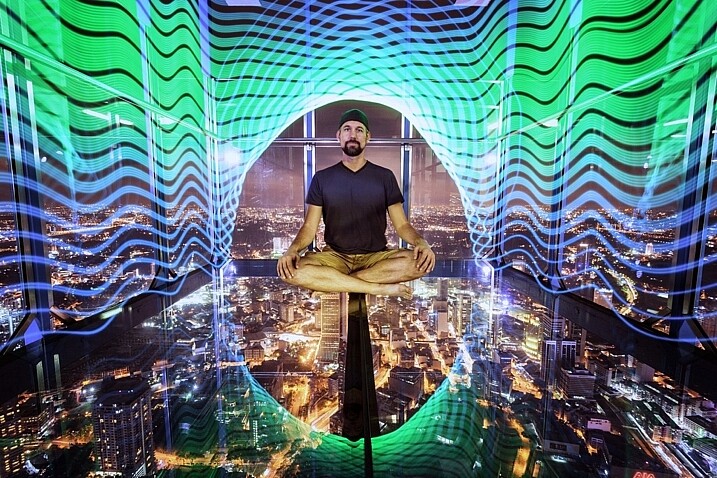
The light from the pixelstick perfectly framed my friend and fellow DPS write, Pete DeMarco.

The light from the pixelstick perfectly framed my friend and fellow DPS writer, Pete DeMarco.

What is light painting?

Light painting is a technique you can use to create fascinating images. To do it you need to photograph at night, use long exposure, and have a light source. You can divide light painting into two types, those that you do in front of the camera, and those you do with the camera.

  1. Light painting with the camera: Using the camera to light paint is called kinetic light painting and involves techniques such as zoom bursts, or camera rotation.
  2. Lighting painting in front of the camera: You can also move lit or glowing objects in front of the camera during a long exposure, to paint the scene in front of the camera.

In many cases the first time you do any light painting it will be to spell your name using sparklers or a flashlight. The next step if you became more serious would usually be making light orbs, and other light painting shapes with things like fairy lights. Now there is the pixelstick, which makes light painting both easier to do, and more sophisticated.
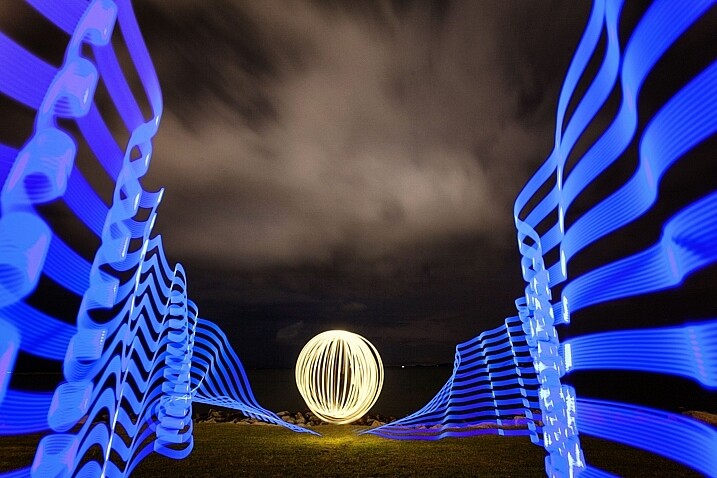
Light orbs are a lot of fun to create, it's even more fun to light paint with the pixelstick as well.

Light orbs are a lot of fun to create and it’s even more fun to light paint with the pixelstick as well.

The game changer, introducing the pixelstick

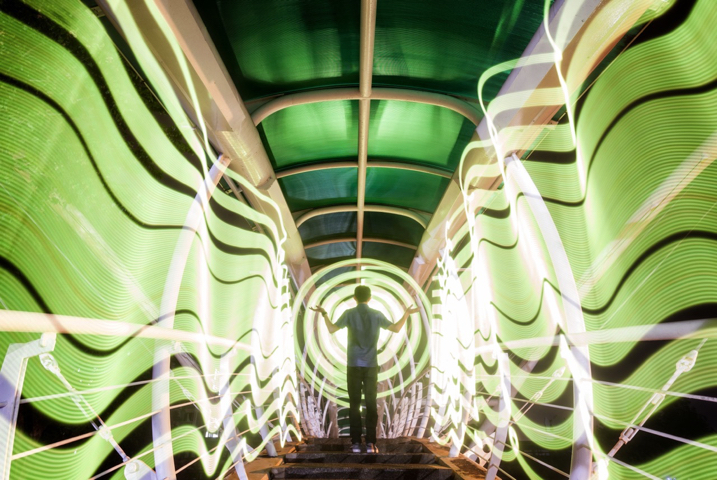
The pixelstick is the result of the inevitable evolution of light painting, and the advancement of technology. The pixelstick is a product designed and produced by bitbanger labs, following a successful Kickstarter fundraising campaign. The neat thing about the pixelstick is that you can program it to create any light pattern you want, in fact, you can even use it to create light painted pictures.
How to Create Magic in Your Photos with the Pixelstick

This is possible through importing BMP files onto an SD card, which can then be slotted into the pixelstick’s operating system. You have control of many useful aspects, brightness of the light, the speed of the pattern transmission, repeat firing of the pattern, white balance, and delayed fire, are some of the useful functions.
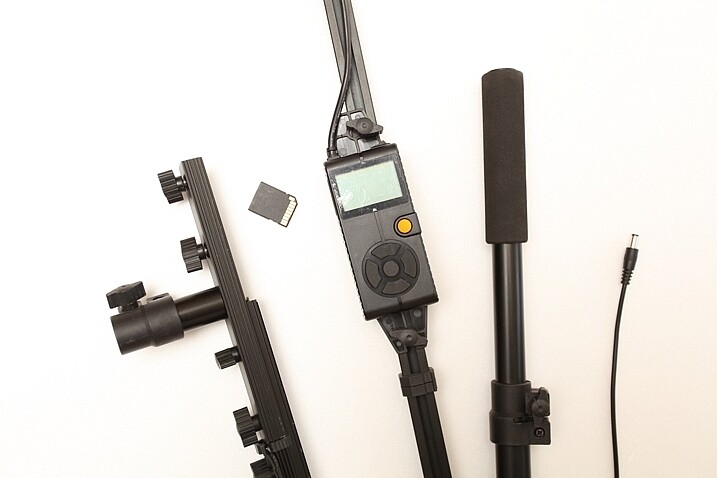
The pixelstick comes with a controller that you can change the light painting with.

The pixelstick comes with a controller that you can use to change the light painting design.

Vital stats, what you need to know about the pixelstick

The pixelstick at full length is great for light painting, but not so good for traveling. It’s fortunate that the design allows you to break it down to half its length, and store it in the bag. But, the length is still too long for hand luggage on a plane, which presents a problem if you plan on using it in more exotic locales. The essential information about the pixelstick and what comes with it are:

  • Comprised of a strip of 200 RGB LED lights, allowing for a combination of 16 million colors.
  • Has an aluminum case housing, to protect the LEDs from damage.
  • Full-length 187cm (73.5 inches), and a storage length of 109cm (43 inchses).
  • Weight is 1.8kg (4 pounds).
  • The device uses 8 AA batteries.
  • There is a control center with a battery pouch that attaches to the stick, with cables to connect everything together.
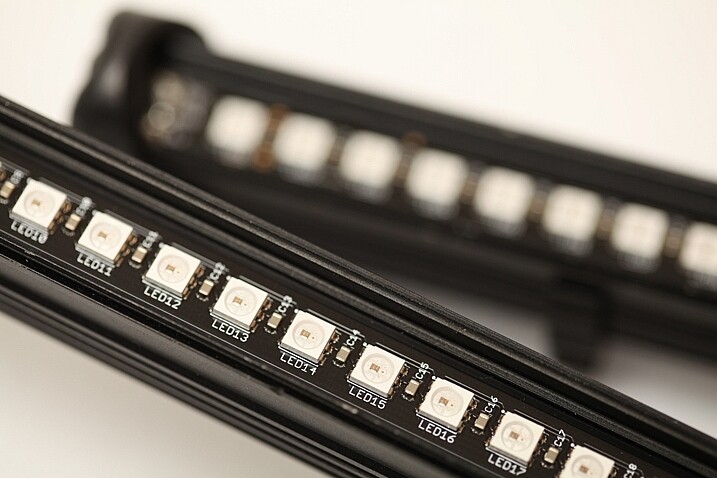
The 200 LED lights on the pixelstick come enclosed in a light weight metal case, this protects them from damage.

The 200 LED lights come enclosed in a light-weight metal case which protects them from any damage.

How to do light painting

Light painting is a long exposure technique, which you’ll need a tripod to achieve. You can follow the steps set out below, or for a more detailed guide check out: Beginner’s Guide to Light Painting .

  1. Choose a location and time of day that will be dark. You need to be able to expose for at least 10 seconds in most cases, so locations with less ambient light are ideal.
  2. Dress in black clothes, this will minimize the chance of you showing up in the photo.
  3. Place your camera on a tripod, and compose your scene. As you’re light painting, make sure there is enough space within the composition set aside for the design. In other words, plan where and how big the light design will be, then make sure it will all be contained inside the frame.
  4. Take the light source into the scene you composed, turn it on, and leave it in front of the camera.
  5. Turn on your camera’s LiveView function, and focus on the light source using manual focus (use the + or zoom button to show a magnified view which will make it easier for you to focus). Leave the camera in manual focus to make sure your focus point remains the same.
  6. Set the camera’s self-timer to 10 seconds, and begin the countdown. If you have a remote shutter release you may prefer to use that to trigger their camera.
  7. While the camera is counting down, move into position in front of the camera with your light source in hand.
  8. Just before the shutter releases, begin your light painting pattern.
  9. Carry out any light painting you wish to do. Then, once you have finished painting, turn off your light source and move out of the frame.
  10. Go back to your camera and wait for the exposure to finish. Check your result and repeat if necessary.
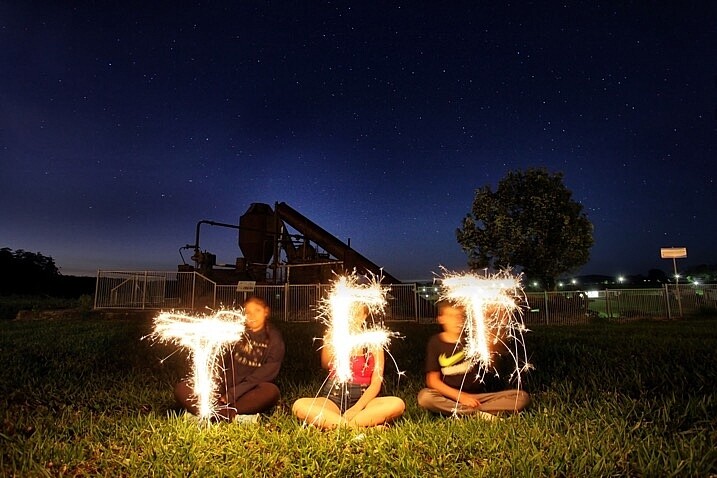
A lot of people have fun using sparklers to create light paintings. These can look nice, the pixelstick takes you to the next level.

A lot of people have fun using sparklers to create light paintings. These look nice, but the pixelstick takes it to the next level.

Using the pixelstick to create abstract light paintings

There are many different types of light sources, the pixelstick is just one example. However, these effects can also be achieved by using something as simple as a kid’s toy light saber. The focal point of your image is going to be the light painting itself, or perhaps an architectural feature that you’ll emphasize with light.
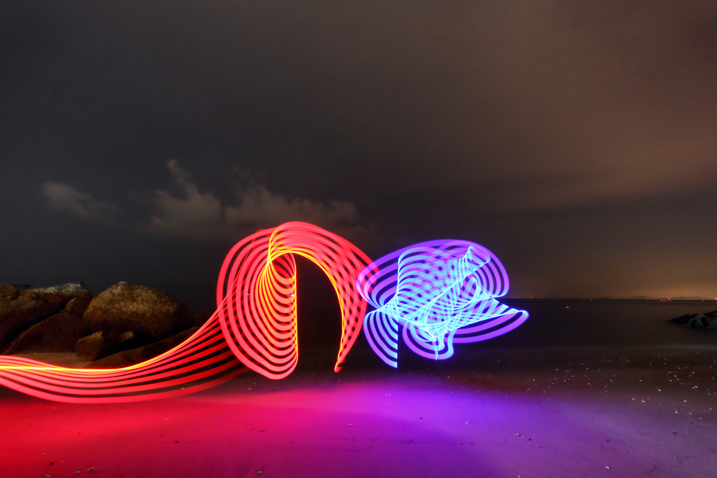
How to Create Magic in Your Photos with the Pixelstick

The main thing is to keep it simple, with the light flowing through the scene. If you over-elaborate and make too many movements then it’s the digital equivalent of scribbling on a piece of paper, and it usually doesn’t turn out well. So when you’re making abstract light paintings, keep these things in mind:

  1. Keep the line flowing. You probably know leading lines work well in photos, and light painting is a great way of introducing some into your frame. Have a plan for the direction the line will flow in your frame, and how it will lead the viewer’s eye to the point of interest.
  2. Use repetition. Having a pattern in your frame and repeating it makes a nice light painting. Repetition often works well for photographs, and the control you have with the pixelstick allows you to do this more easily.
  3. Keep it simple. There is a temptation to overcook (do too much) a light painting. With practice, you’ll find the strongest scenes use a more minimalist approach. A simple rotation of the pixelstick or light saber is often all that’s needed.

The pixelstick is really good for abstract work. The preset light patterns that come with the stick will help get you going quickly.
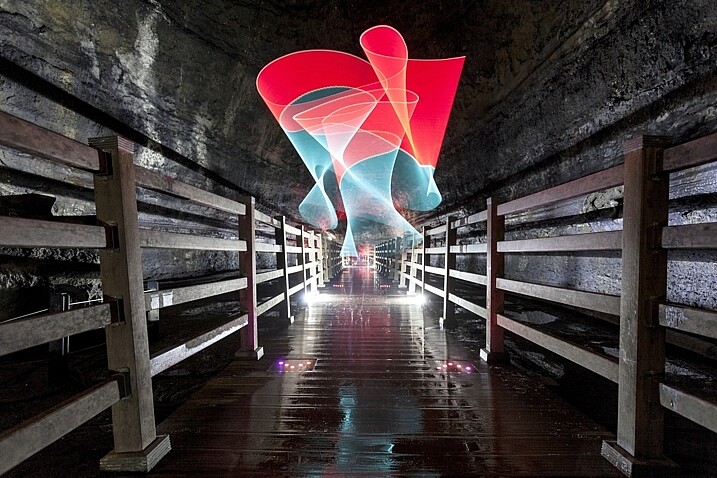
The most effective light paintings can often be when things are kept simple.How to Create Magic in Your Photos with the Pixelstick

The most effective light paintings happen when things are kept simple.

The pixelstick for portraits

The pixelstick can be used to frame a model, and/or create leading lines towards the subject making it a powerful tool for portrait photographers. The difficulty you will encounter when shooting long exposures with a model is freezing them so they’re sharp. The pixelstick itself isn’t any better than other light painting tools you can use, but the following tips can help.
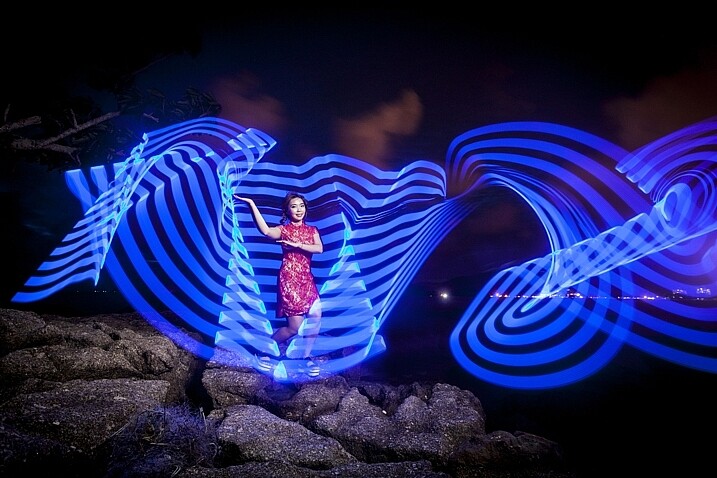
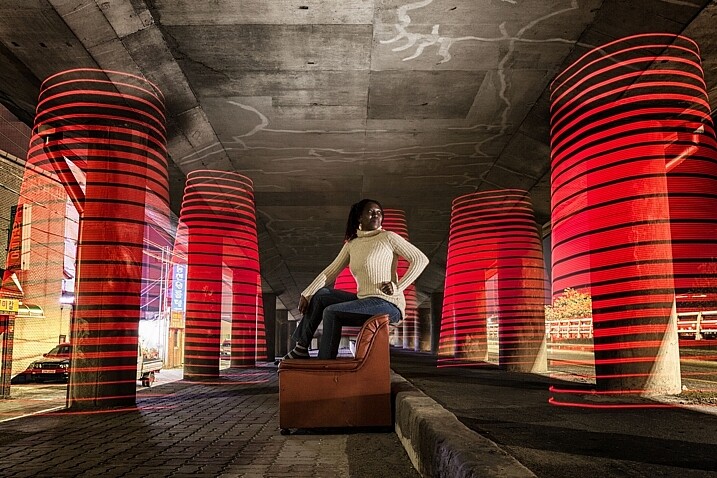
In this photo a Jinbei 600 flash was used to light the model, while the pixelstick produced the light painting.

In this photo, a Jinbei 600 flash was used to light the model, while the pixelstick produced the light painting around her.

  • Keep the exposures short. The shorter the exposure, the less chance there is your model will move. This will mean shorter, simpler light paintings.
  • Use strobes to light the model. Using a strobe (flash) to light your model means that any movement in the model is less likely to show.
  • Ask the model to hold still. This is easier said than done, but if your model can hold really still for 20 seconds, then you can create longer more complicated light paintings.
  • Have the model face away from the camera. Any movement of the model’s face will show in the image. So, having the model face away from the camera helps it look less obvious.

Where the pixelstick really works well is how you make it interact with your model. This may mean that the colors in the light painting contrast with the color of the model’s clothes. Or maybe you can make the model appear to be holding some of the painted light. The creative potential of light painting combined with a model is vast, so you should have fun.
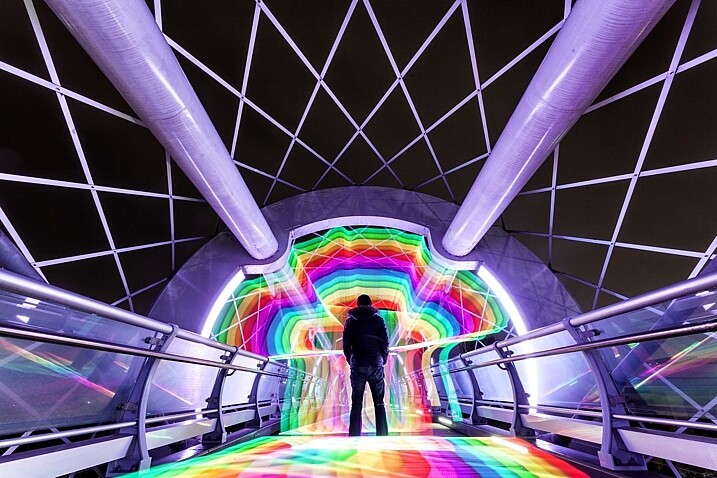
Asking the model to face away from the camera makes it much easier to mask any movements there may have been. How to Create Magic in Your Photos with the Pixelstick

Asking the model to face away from the camera makes it much easier to mask any movements there may have been during a long exposure.

Light painting for product photography

The customization available with the pixelstick makes it a fantastic choice for product photography. One of the main niche genres is car photography, where the ribbon lines or checkered flag designs can be used.

This technique is similar to photographing a model, only your product won’t move, which allows for longer exposures. You can program in the name of the product, or even the company’s logo. The pixelstick really beats other types of light painting hands down, as the light design can be made to specifically match the product or branding.
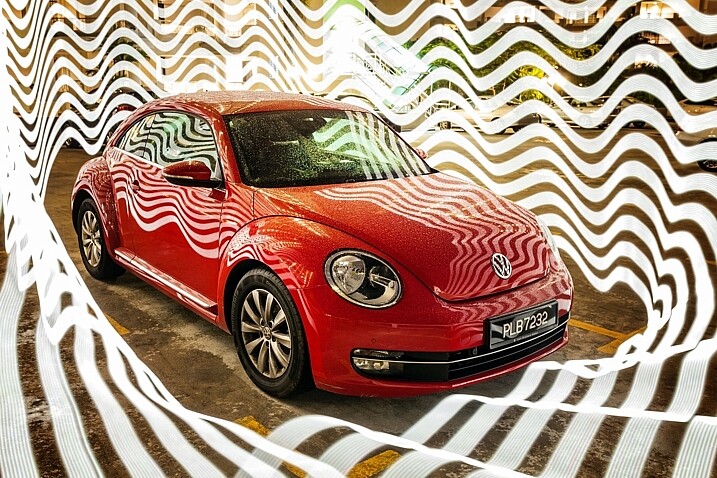
Cars are great subject for light painting of all forms, the pixelstick gives you even more scope to experiment.

Cars are great subjects for light painting of all forms. The pixelstick provides more options for experimenting.

Personalizing your light design

The ribbon presets, and the downloadable BMP files that come with pixelstick provide a lot of creative variety. But the real fun starts once you begin to add your own designs into the pixelstick. It’s this feature more than any other that gives this tool its power. The creativity is really infinite so here are a few ideas for you:

  • Find images through creative commons of national flags.
  • Edit the color scheme of some of the downloadable patterns that pixelstick provides.
  • Photograph textures shots of leaf beds or brick walls and use them to light paint.
  • Use your own landscape photos.
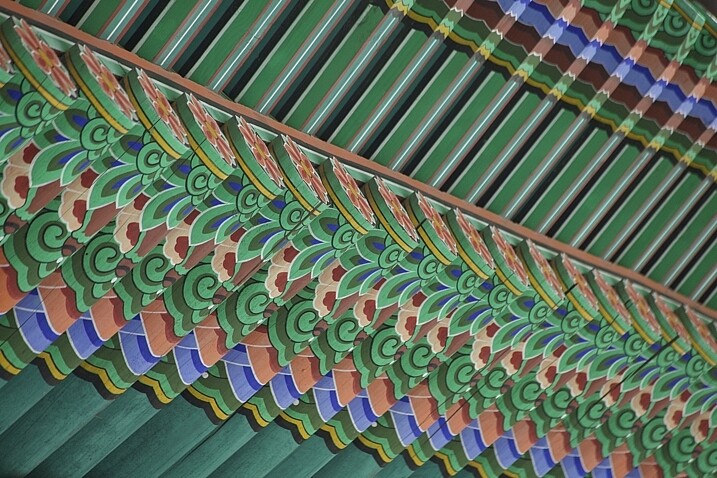
The texture and patterns of traditional Korean roofing looks beautiful, and made for a great light painting pattern.

The texture and pattern of this traditional Korean roof made for a great light painting pattern.

Converting your files for use with the pixelstick could not be easier. Pixelstick has a drag and drop service on their website where you can do this easily. Alternatively, you could design and edit your image with Photoshop. Your image needs to be sized to 200 pixels high, with the length being as long as you desire. Once this is done the file needs to be flipped counter clockwise and saved as a BMP file. When creating a new file, any black areas will appear as blank (no light) when the light painting occurs.
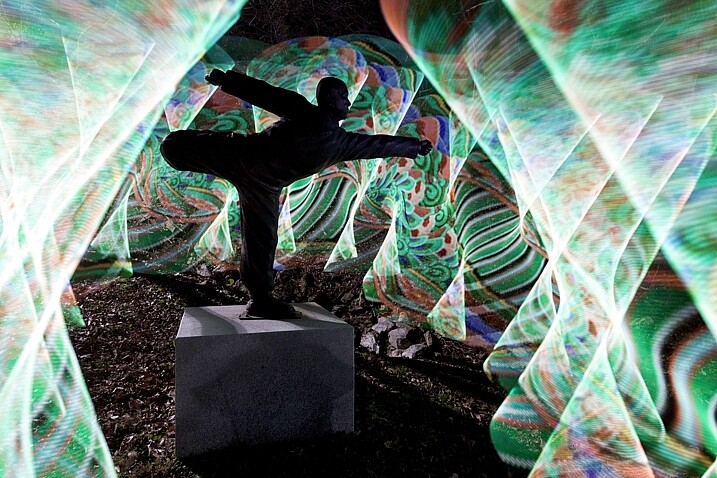
In this photo the statue of a buddhist grandmaster has been light painted around using traditional Korean patterns as the light source.

In this photo, the area around the statue of a Buddhist grandmaster has been light painted using the traditional Korean pattern I created (above) as the light source.

Vibrant videos with the pixelstick

The pixelstick’s scope of creativity goes beyond still photography, and it can do amazing things for animation. You are going to create a stop motion video with the pixelstick, and use a series of long exposure photos to make this. Think of an animation flipbook, only this is the digital version of that.

Steps to create an animated GIF

Animating a single scene with the pixelstick could not be easier. Follow these steps to make an animated gif (like the one below) or perhaps a short video. You don’t need a pixelstick to create this type of animation of course, but you have a lot more options at your fingertips if you do.
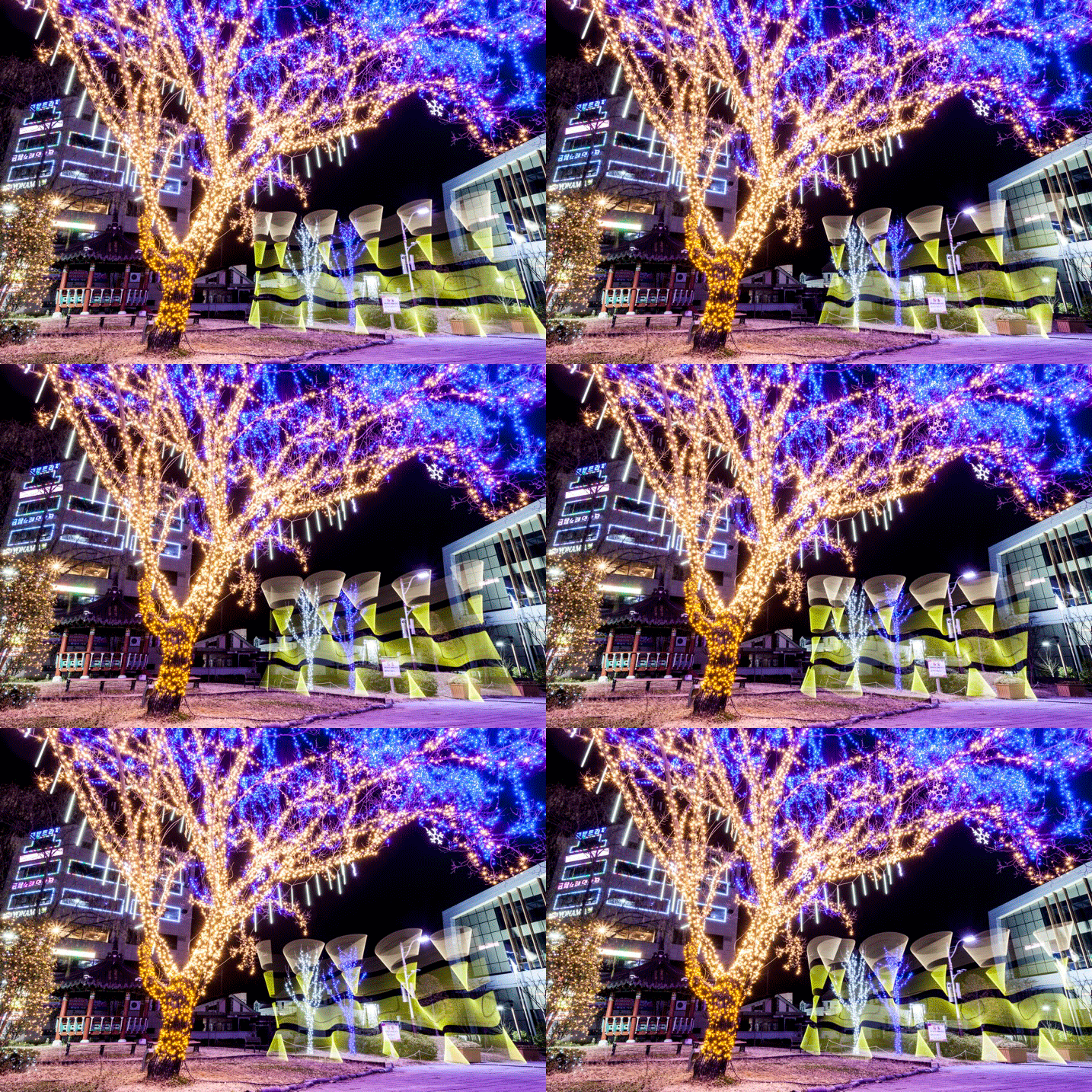
The pixelstick can also be used for make smaller gif animations. The creative potential here is huge.

The pixelstick can also be used for make smaller gif animations. The creative potential here is huge.

  1. Set your camera on a tripod, and ensure it doesn’t move.
  2. Compose your scene, and decide where your light painting animation will occur.
  3. Use a remote cable shutter release, this will prevent any movement of the camera.
  4. Allow a long enough exposure for you to complete the light painting.
  5. Begin the exposure, and move into the frame to start and complete the light painting.
  6. Repeat the exposure and the same light painting at least 10 times.
  7. Take your camera home, and import the photos to your computer.
  8. You now need to import the files to photoshop. To do this go to file>scripts>load files into stack.
  9. Open the timeline window, and select “create frame animation”. This will import one frame into your animation.
  10. On the right-hand side of the timeline window click the menu option, and select “create frames from layers”. Now reverse the order of the frames.
  11. Hit play and remove any frames that interrupt the flow of your animation.
  12. The file is now ready, export it as a gif file.

Stop-motion videos

Creating a longer stop-motion video is very similar to making an animation, in essence, you’re just making an extended version. As opposed to repeating a light painting many times, you may well simply move through a scene when making this type of video.

It’s better to use a dedicated stop-motion app for making this type of video, with stop-motion studios for windows, and istopmotion for mac being a couple examples of options.

pixelstick

One frame from the series used to make the stop-motion video below.

Conclusion

The pixelstick really is a magical tool. You can create spellbinding images that will wow your friends if you decide to purchase one. The size of the stick is something of a double-edged sword, thought. It allows for bigger more dramatic light paintings, but it is also harder to transport, even when broken down into its carry bag. Is the pixelstick worth dropping the extra cash on, versus a cheaper D.I.Y. light stick? If you’re serious about improving your light painting, then yes it’s worth the money in my opinion.

The ability to customize the type of light emitted gives you so much control. Doing this with a DIY light-stick would take many hours, and in many cases would be impossible to replicate what the pixelstick does. At around $ 350, you could spend more money on other photography gear without getting the same level of creative energy you get from this tool. Whether you’re interested in still photos or animation, this will quickly become a vital part of your setup.
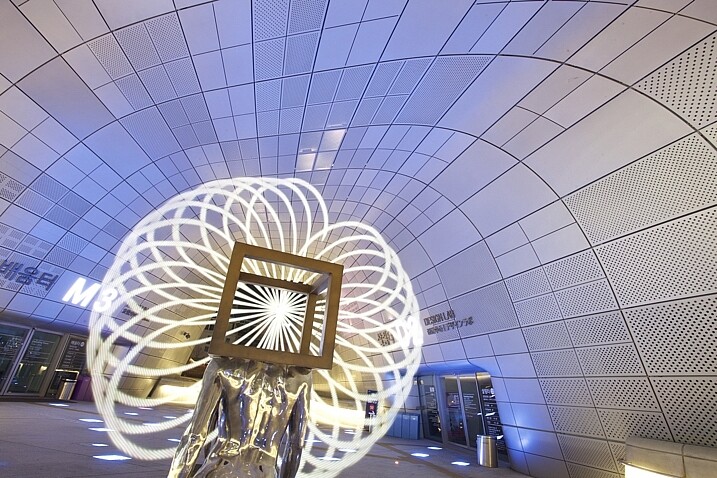
The way you make light interact with it's surrounds can be highly effective.

The way you make light interact with the surroundings can be highly effective.
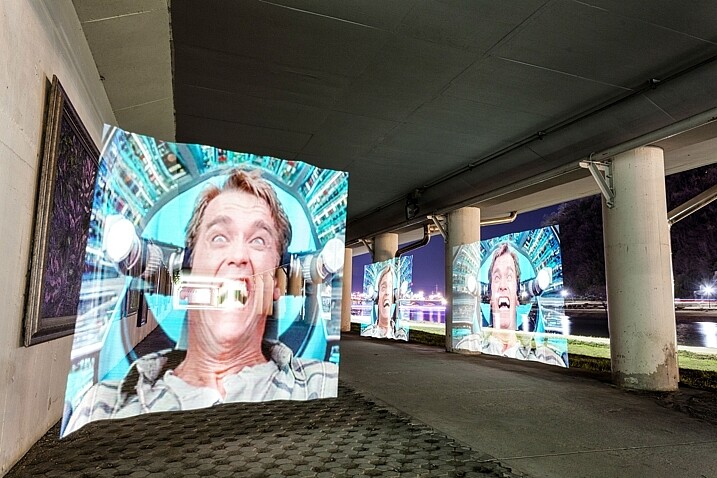
The light paintings the pixelstick is capable of are highly sophisticated.
The light paintings the pixelstick is capable of are highly sophisticated.

In this image the pixelstick was used to add repetition to the scene, and an otherworldly feel.

In this image, the pixelstick was used to add repetition to the scene, and create an otherworldly feel.
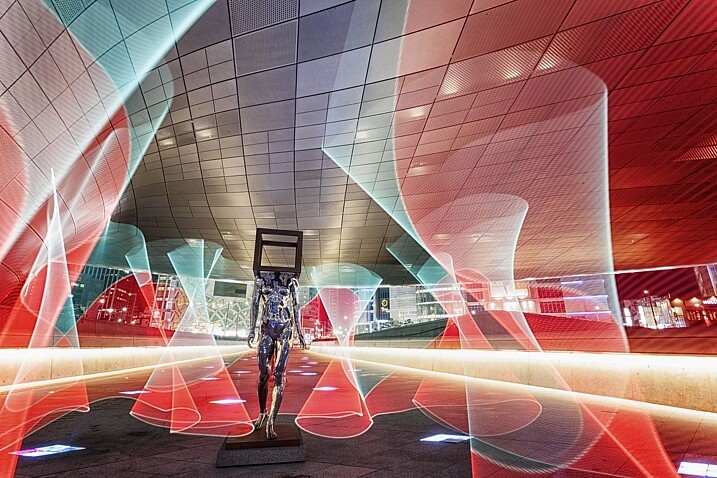
The flow and lines that you can create with the pixelstick make the photo stand out much more.
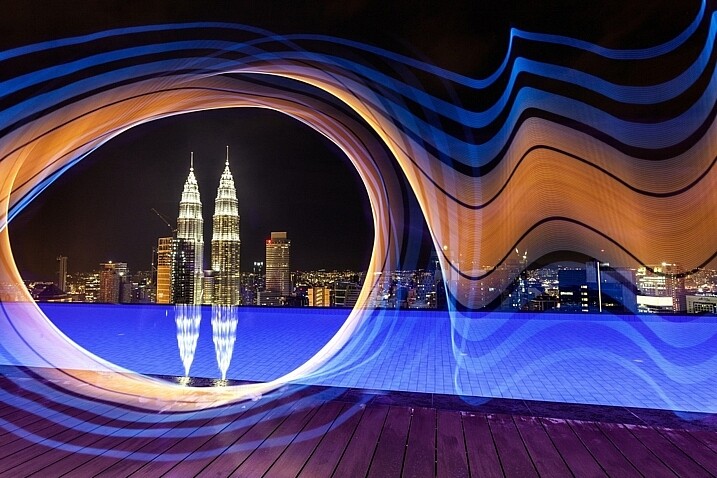
The flow and lines that you can create with the pixelstick make the photo stand out much more.

The petronas towers in Kuala Lumpur are framed using light from the pixelstick, adding a lot of interest to this photo.
The Petronas towers in Kuala Lumpur are framed using light from the pixelstick, adding a lot of interest to this photo.

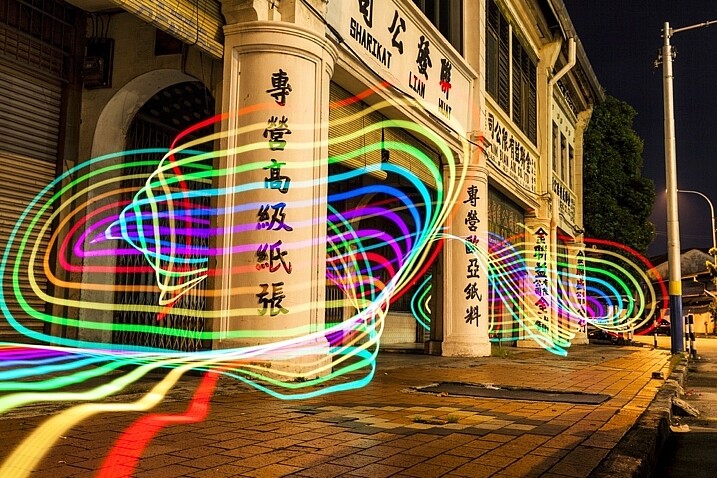
The light weaves in and out of the pillars, adding direction to this photo.

The light weaves in and out of the pillars, adding direction to this photo.

googletag.cmd.push(function() {
tablet_slots.push( googletag.defineSlot( “/1005424/_dPSv4_tab-all-article-bottom_(300×250)”, [300, 250], “pb-ad-78623” ).addService( googletag.pubads() ) ); } );

googletag.cmd.push(function() {
mobile_slots.push( googletag.defineSlot( “/1005424/_dPSv4_mob-all-article-bottom_(300×250)”, [300, 250], “pb-ad-78158” ).addService( googletag.pubads() ) ); } );

The post How to Create Magic in Your Photos with the Pixelstick by Simon Bond appeared first on Digital Photography School.


Digital Photography School

 
Comments Off on How to Create Magic in Your Photos with the Pixelstick

Posted in Photography


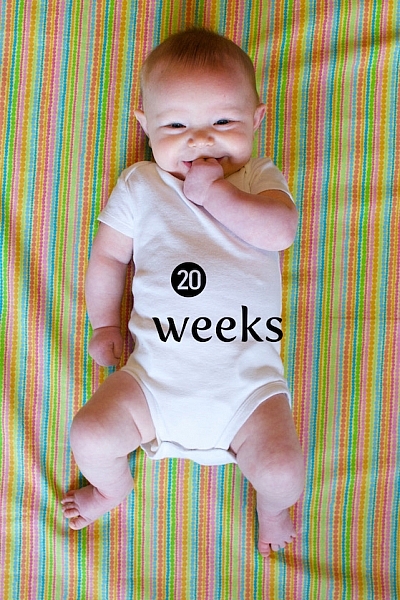
How to Use Photoshop to Create Milestone Photos of Babies

22 Jan

Buried deep in my parents’ basement are boxes of slides with pictures of my siblings and I, when we were kids, all taken with my dad’s Minolta DSLR that has long since been lost to the ages. I have a few scans of those early photos but most of them won’t see the light of day anytime soon. Thus the images that marked the passage of time for me, my sister, and my three brothers are few and far between.

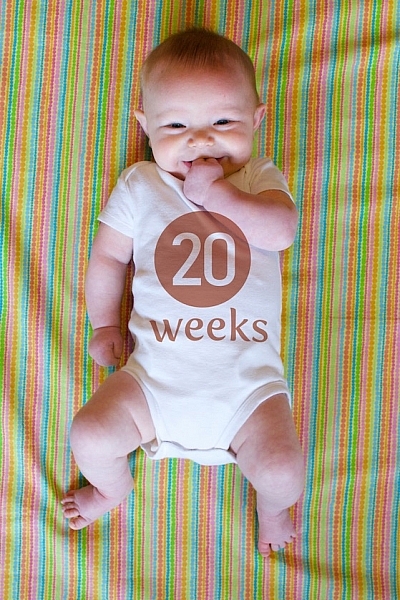
Baby milestones Photoshop background

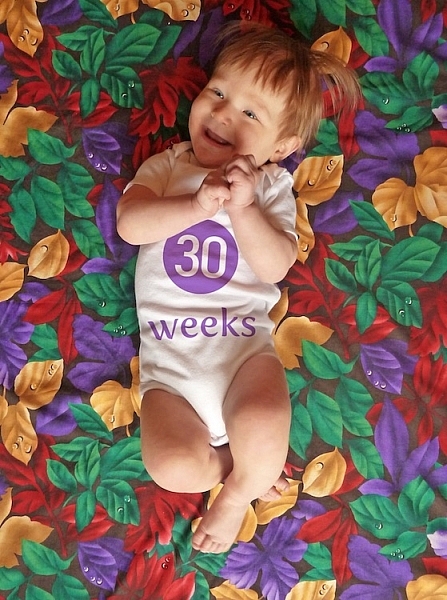
This picture taken with a pocket camera and the fabric was purchased at a thrift store.

Thankfully modern technology and the prevalence of digital cameras means babies born today will likely have no shortage of images to mark their early years. One of the most common methods of documenting milestones is to take pictures at weekly or monthly intervals. Often these are augmented with some type of decoration or adornment to indicate the passage of time (e.g. a small chalkboard, a giant sticker on the kid’s tummy, or a number stamped in the corner of the picture).

There is an incredibly easy, fun, and highly effective way to do this in Photoshop. It only takes a few minutes and produces great results, even if you have never used this program before you should be able to figure it out.

Preparing for the photo shoot

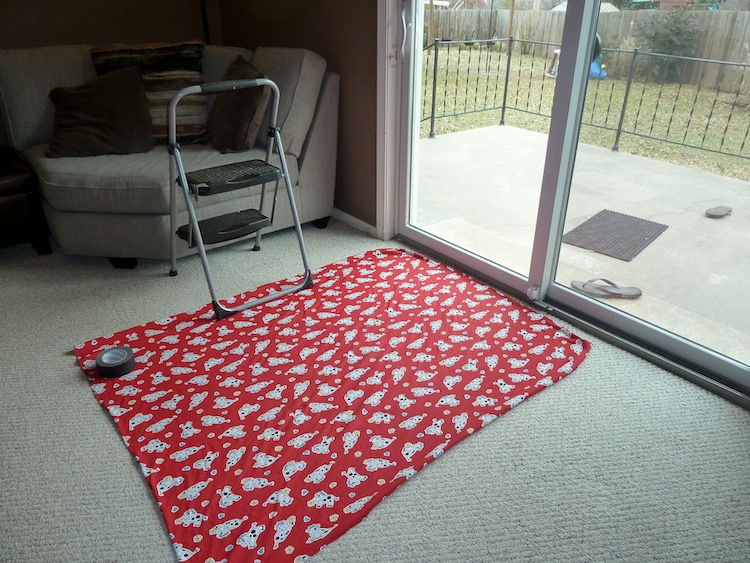
My wife and I got this idea after reading a post on the popular do-it-yourself blog Young House Love but have tweaked it to fit our style. To get started you will need a few things, many of which you probably already own:

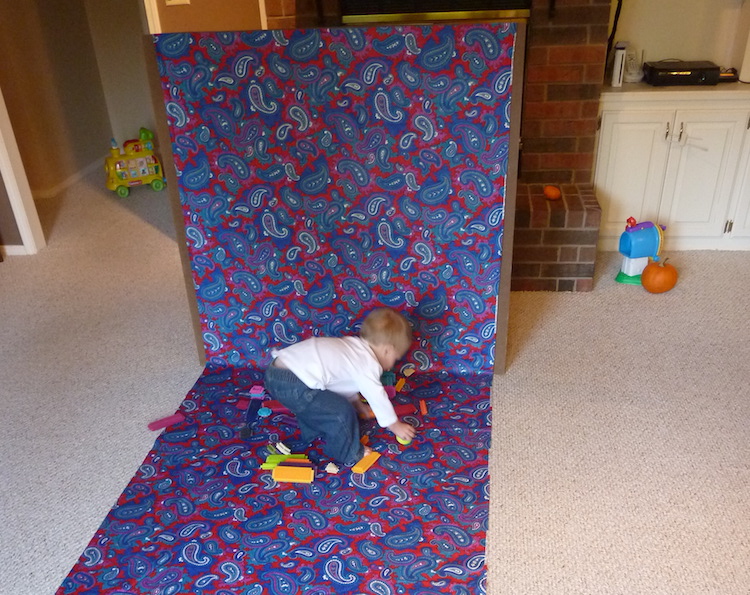
  • Fabric with big colorful prints; Finer-detailed prints are okay, but the bigger and more prominent the pattern, the better it will look when paired with your baby. Don’t spend much money on these since you’ll need a lot if you do a different fabric each week. Pro tip, let the grandparents know you’re in need of fabric. Ours were thrilled to go shopping at thrift stores and send us what they found.
  • White onesies; A t-shirt works better after the first year, but until that time onesies are best because they stretch nice and even across the baby’s body leaving you with fewer wrinkles to contend with in the post-processing phase.
  • Blue painter’s tape;  Used to hold the fabric down to the ground.
  • A big window; Or a glass door, or another similar surface to let in a lot of light.
  • A step stool; so you can get a higher angle.
  • Tape to hold the fabric in place; Blue painter’s tape will work but I like to use Gaffer’s tape (I recommend this brand which is stronger and leaves no residue on the carpet when you pull it off.)
  • A reflector;  We didn’t buy one of these until well into our second child and it’s amazing how much a reflector helps get nice even lighting.
How to Use Photoshop to Create Milestone Photos of Babies - setup

It doesn’t take much to prepare for this type of photo shoot.

The session

The process works best with two people; one to take pictures and someone else to do multiple jobs like hold the reflector, smooth the blanket, and soothe the baby. Position your child with his or her feet near the light source (i.e. giant window or glass door) and have your helper hold the reflector by the baby’s head to bounce light back. Then get up on the stepstool and start taking pictures! Babies wriggle and squirm around a lot so don’t worry about quantity. It’s better to have too many good ones than to have to redo everything because you only took three shots and the baby was frowning in all of them.

Photoshop time

After your pictures are done it’s time to head to Photoshop where the real fun begins. You will need two fonts: Fyra for the numbers and one that you want to use for the letters. I like Fertigo Pro, but almost anything will work, it’s largely a matter of personal taste here.

Open your photo in Photoshop and it will appear as the background layer. You can leave it as is unless you plan to do any editing such as color adjustments or retouching, though my advice is to keep it simple and avoid all that if possible. You’ve got a newborn and you can’t spend hours editing your photos every single week when there are diapers to change and clothes to wash!

Add the text

photoshop-baby-milestones-fyra

Click the “T” button in the tool palette to activate the Text Tool, then click anywhere in the picture to create a new text layer. Use the Fyra font and type a letter which will show up as a big circular number – perfect for marking the weeks or months of time that have passed.

Use the toolbar at the top of your screen to adjust the size of the number, and if you don’t get it perfect you can always change it later using the Transform Tool. Press [enter] to lock in the number, then repeat most of the process for “weeks” by clicking the Text tool, selecting a font, clicking on your baby, and typing the label (weeks, months, etc.) you want.

How to Use Photoshop to Create Milestone Photos of Babies adding the text

At this point your picture might look like something the neighbor kid made in Microsoft Paint, but you’re just getting started. The finished version will look much better thanks to the magic of Photoshop.

Resize and warp the text

The next step is to customize the size and position of each of the elements. Using the Layers palette select the layer with a single letter, which is actually the number in the picture, and choose “Edit > Transform”. You can now reposition the number where you want it, and resize it by clicking and dragging on one of the corners. Hold down the [shift] key while doing this to maintain the proportions (shape) of the number or else your finished product will look all stretched out. You can even rotate the number by hovering your cursor near one corner until it turns into a cornered arrow and then click and drag.

How to Use Photoshop to Create Milestone Photos of Babies transform the text

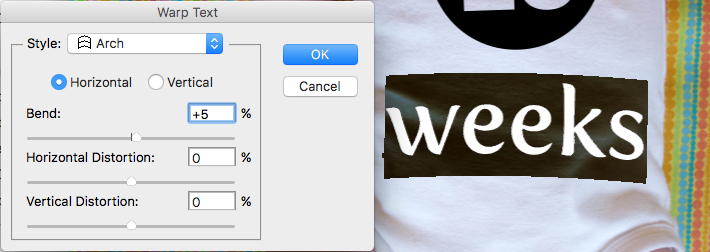
Repeat the same process for the word you’ve used then with that layer still selected, click the Text tool in your toolbar and manually select the word (in this case “weeks”) itself. Then choose; Layer > Type > Warp Text… and add an Arch style. (You can also click the “Warp Text” toolbar button to do the same thing, see red arrow below.)

How to Use Photoshop to Create Milestone Photos of Babies warp text

I like to use just a couple of degrees here, which helps the text simulate a more natural curve that you might see if it were printed across the white onesie directly. Usually, +5 gets the job done just fine.

How to Use Photoshop to Create Milestone Photos of Babies warp text tool

Text color

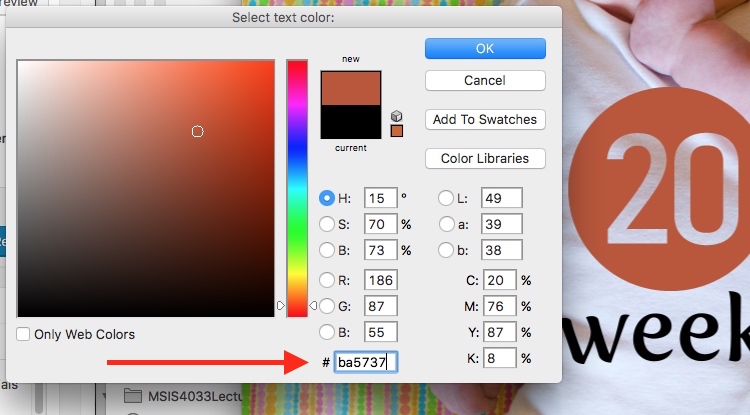
After that, the next step is to change the color of the text so it complements the fabric on which your baby is laying. Use the Text tool to select either the number or the word (weeks) then click the black box next to the Warp Text button to change the color of the text.

How to Use Photoshop to Create Milestone Photos of Babies text color

Use the eyedropper to select a color from the fabric and tweak as necessary. you will also see the color of your text or number, whichever is selected, change as you try out different options. When you find one you like you can click the “OK” button to lock it in place.

But, before you do that select the six letters and numbers in the # box at the bottom and press [ctrl+c] to copy it. This is the hex code that tells your computer what color is in use, and you will use it again in the next step.

How to Use Photoshop to Create Milestone Photos of Babies text color

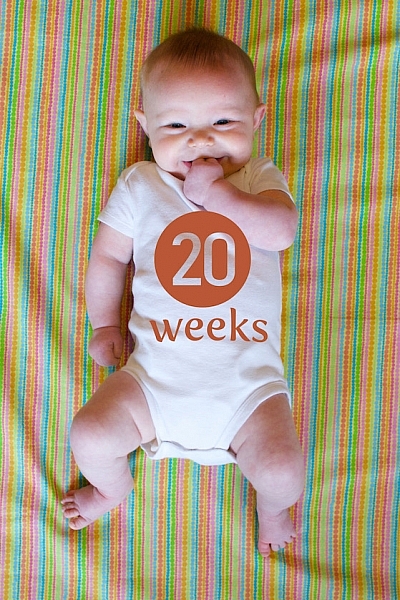
Repeat the same process for the other layer of text. To get the same color you can either hover the eyedropper over the newly-colored text on the picture or paste the color code (6-digits you copied) into the box at the bottom. When you are finished you will have an image that is close to the final product, but you’re not quite done yet.

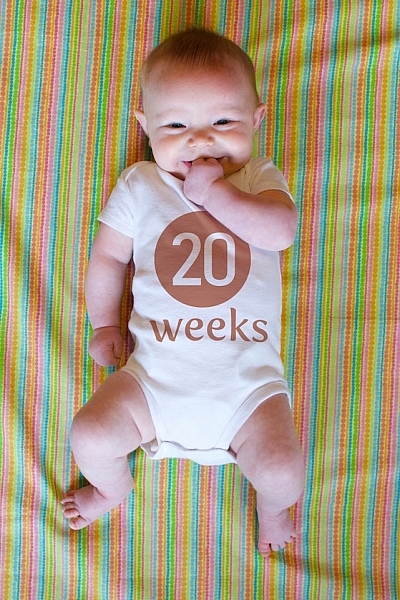
How to Use Photoshop to Create Milestone Photos of Babies

Blend mode

Two final editing steps remain before your image is done, the first involves blend modes. These have to do with the way in which layers work together and how one layer’s color can be altered based on how it is combined with the layer below.

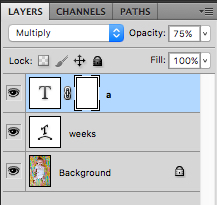
Use the Layers palette to highlight a text layer and change its blend mode to “multiply” with an opacity of 75%. This will allow some of the texture of the white onesie to show through, and make the text seem like it naturally printed on the fabric instead of just pasted on afterward in a computer program.

How to Use Photoshop to Create Milestone Photos of Babies blend mode

Masking

At this point, you may be thinking about using the eraser tool to fix parts of your image where the baby’s hands obscure the number or text. But trust me, this is not what you want to do!

Photoshop has a fantastic feature called layer masks that let you hide (erase) parts of a layer and even recover (show) them again later if you erase too much. In the example above, you will note that the baby’s arm should be covering up the 20, so the solution is to use a layer mask to remove (hide) that portion of the 20. How to Use Photoshop to Create Milestone Photos of Babies masking

Click the text layer that you want to edit then choose “Layer > Layer Mask > Reveal All”. Now you will see a white box next to the layer that you can use to show and hide different parts of the layer itself. When you add anything dark to this layer mask it will erase (hide) that part of the layer, and when you add anything white to the mask it will show that part of the layer. This is an incredibly useful feature in Photoshop that you can use in all sorts of ways to edit your images, not just snapshots of your baby with milestone stickers.

Click the brush tool and start painting over the portion of the layer mask you want to erase, but keep one finger on the “x” key of your keyboard to switch between erasing mode and adding mode. If you accidentally brush over something that you want to keep, press “x” and add it back by painting it back in white! Then press “x” again to go back to deleting (painting with black).

Press the “z” key to zoom in on your image (and option-z to zoom out) and then “b” to go back to the brush tool. After a few strokes of your brush, your image is ready to share with family and friends!

How to Use Photoshop to Create Milestone Photos of Babies

When to stop

Right here is where I like to stop because the image is, as I like to say, good enough. There are some imperfections that could be cleaned up like using a displacement map to alter “weeks” so it follows all the contours and folds of the fabric, but I have found that these are just not worth my time. To be honest, most people won’t even notice.

You can easily spend hours using warp transforms, color tweaking, and spot removal to get each picture looking pixel-perfect and ready to print in Baby Cosmopolitan. But parents of newborns have to find a balance between time spent on the computer and time spent with their families.

How to Use Photoshop to Create Milestone Photos of Babies

After 52 weeks of doing pictures we used a slightly different setup and reduced our images to once a month with our child standing or sitting instead of lying down.

Conclusion

If you have an infant or are expecting one, pictures like this are a fantastic way to mark the passage of time. My wife and I did shots like these with our two boys every week for the first year of their lives, and then every month until they turned two.

At the time it seemed like a huge hassle to get out the fabric, put a white onesie on, and try to soothe a fussy infant long enough to snap a few pictures every single week. Looking back through them we are so glad we did. When shown in an album side by side these images provide a priceless way of seeing how our kids both grew so much during those early times of their lives.

If you have a small baby and give this a try, please share your images and/or questions in the comments area below.

googletag.cmd.push(function() {
tablet_slots.push( googletag.defineSlot( “/1005424/_dPSv4_tab-all-article-bottom_(300×250)”, [300, 250], “pb-ad-78623” ).addService( googletag.pubads() ) ); } );

googletag.cmd.push(function() {
mobile_slots.push( googletag.defineSlot( “/1005424/_dPSv4_mob-all-article-bottom_(300×250)”, [300, 250], “pb-ad-78158” ).addService( googletag.pubads() ) ); } );

The post How to Use Photoshop to Create Milestone Photos of Babies by Simon Ringsmuth appeared first on Digital Photography School.


Digital Photography School

 
Comments Off on How to Use Photoshop to Create Milestone Photos of Babies

Posted in Photography


How to Create a Rim Light Effect Using Photoshop

20 Jan

Lighting is a huge integral part of a movie’s success. The same applies to photography. It’s all about the light or lack of it to create the drama in an image. Rim lighting, as the term suggests, is also called edge or back lighting. In this article I will show you how to create this dramatic style of lighting.

how to create a rim light effect in Photoshop

A rim light effect created in-camera and an Inner Glow effect added in Photoshop.

Rim lighting adds drama

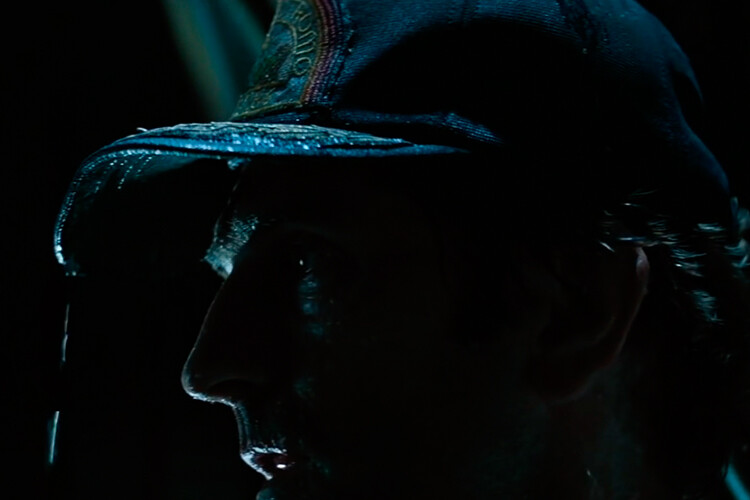
There’s a particular scene in the movie Alien (1979) in which the character played by Harry Dean Stanton goes to find Jones the cat. That scene had me glued to my chair with both hands up to my mouth and fingers lodged between my teeth. You just knew something bad was going to happen but it was drawn out with unbelievable tension.

How to Create a Rim Light Effect Using Photoshop Alien

Alien Courtesy of 20th Century Fox

The lighting throughout the movie was low key to give that moody atmospheric feel.

A good example of rim lighting is using two side lights or one light from behind the subject, as in the image below.

How to Create a Rim Light Effect Using Photoshop

In this photo the light is behind the subject creating an edge or rim light around the subject’s head. This is also called a hair light.

Before I demonstrate how to create a rim light effect in Photoshop. I want to show you just how easy it is to get a rim light effect in-camera, so you can try it out in the comfort of your own home.

Create a rim light effect in-camera at home

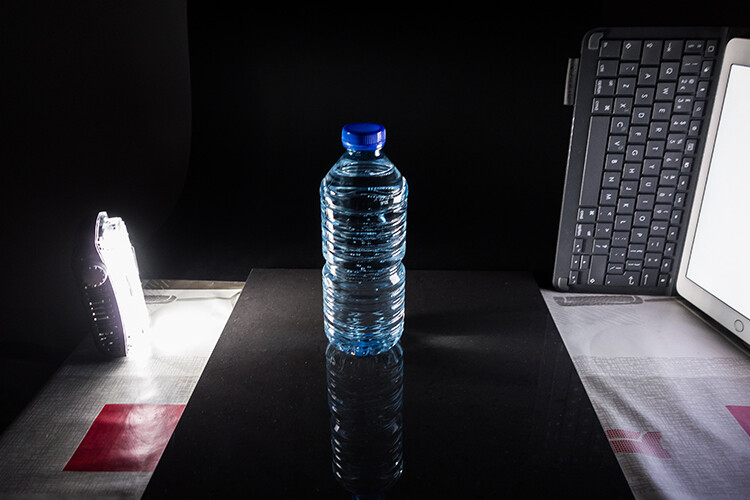
I used the following setup to create my rim light:

  • One bottle of water
  • One glossy black tile
  • Two lights
  • A camera mounted on a tripod

I picked up a sample black glossy tile from a local tile shop, where I was able to purchase just the one. As for the lighting, strip softboxes are ideal for this type of rim lighting. You place a strip softbox on each side, and slightly behind (closer to the background), the subject.

Unlike standard softboxes, strip softboxes are narrow and rectangular in shape. But, for the purpose of this article so that you can easily do a similar setup in your own home, use whatever light sources that you already have at your disposal.

Using my iPad placed vertically to one side of the bottle, I opened the Soft Box app which is free to download and set it to white. I placed an LED light on the other side of the bottle. My kitchen table was used for the setup.

As you can see in the photo below, I was able to angle the lights so that I could control the rim light hitting the bottle. My camera settings were: ISO 2000, 1/60th of a second, at an aperture of f/5.6.

How to Create a Rim Light Effect Using Photoshop

A simple setup that you can do at home to create a rim light effect in-camera using a black glossy tile, a prop, and two lights.

NOTE:

If you don’t want to use two lights and you have a regular softbox, try placing it directly behind the object and cover the center of the softbox with a strip of black card (that will become your background). You will need to experiment to get the rim lighting around the object.

how to create a rim light effect in Photoshop

This is the bottle of Water straight out of the camera.

Let’s dive into Photoshop.

Creating a rim light effect in Photoshop

The key to adding the rim light effect in Photoshop is Layer Styles and having the subject isolated from the background. Before any layer style can be applied, it is necessary that the image that you are applying the style to has been carefully cut out. Use whatever selection tool you want but I would recommend using the pen tool.

Layer style

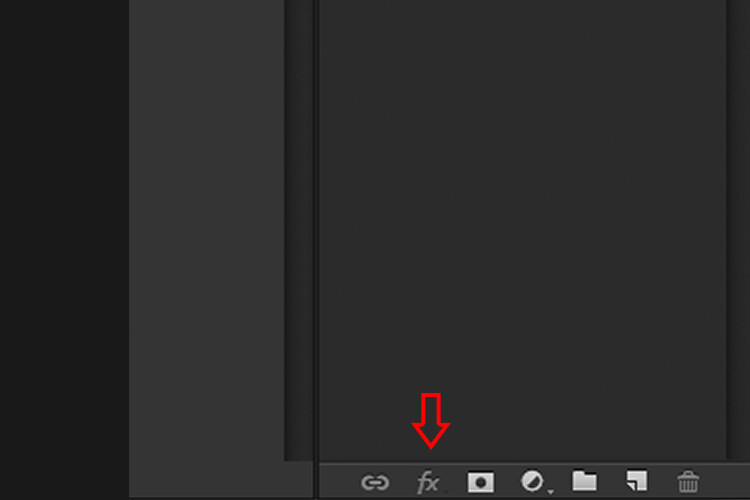
Let’s take a look at Layer Styles. With Photoshop open, go over to the Layers Panel. Scroll down to the bottom and you will see a group of icons. You will see this icon, fx second to the right. Click on that and a pop-up dialog box will appear with different preset style options.

How to Create a Rim Light Effect Using Photoshop layer styles

The Layer Styles presets are accessed by clicking on the fx icon located at the bottom of the Layers Panel.

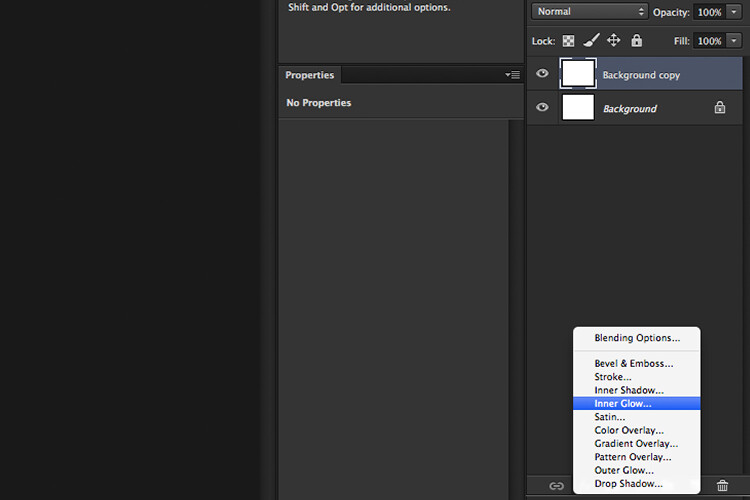
How to Create a Rim Light Effect Using Photoshop - The Inner Glow preset

The Inner Glow preset

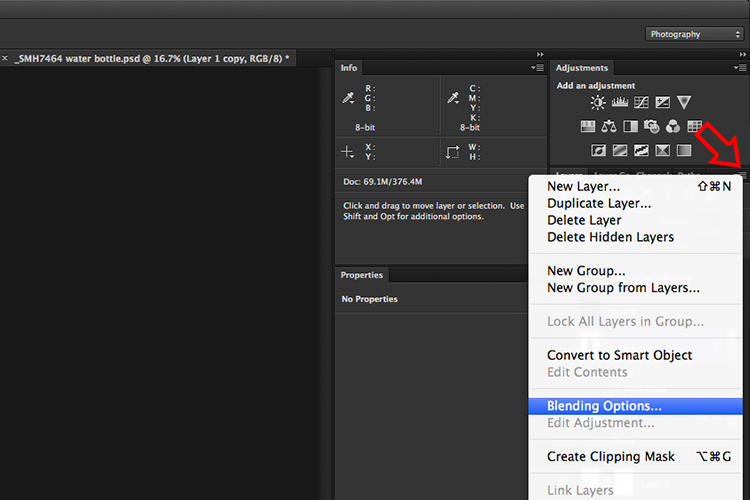
Alternatively, you can access the Layer Styles by going back to the top right corner of the Layers Panel and clicking on the downward arrow icon with horizontal lines beside it. Scroll down to where it says Blending Options. The same Layer Style option box appears and just click on Inner Glow.

How to Create a Rim Light Effect Using Photoshop

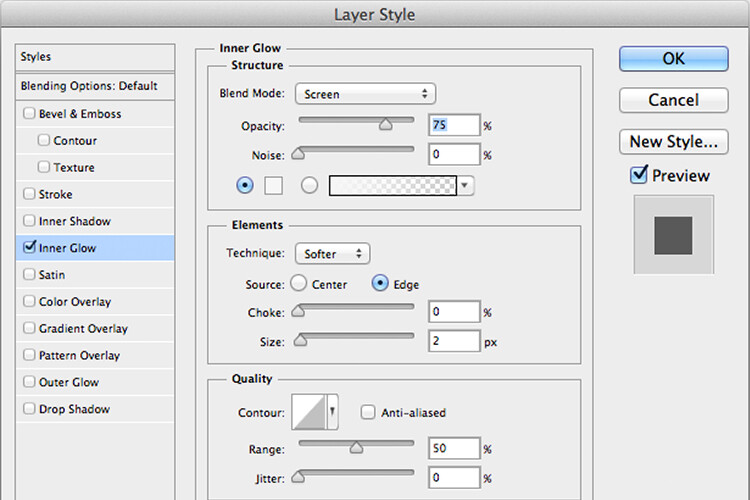
When you click on any of the Layer Style options, the settings are all preset options, but they can be easily edited. In this example, leave some of the settings as they are and only adjust the following three:

  1. Choke – similar to feathering
  2. Size
  3. Opacity

Experiment until you get the desired effect, then click the OK button.

How to Create a Rim Light Effect Using Photoshop

The Layer Style pop-up dialog box with the default settings.

adding a rim light effect in Photoshop

A rim light effect is added in Photoshop using Inner Glow from the presets in the Layer Styles.

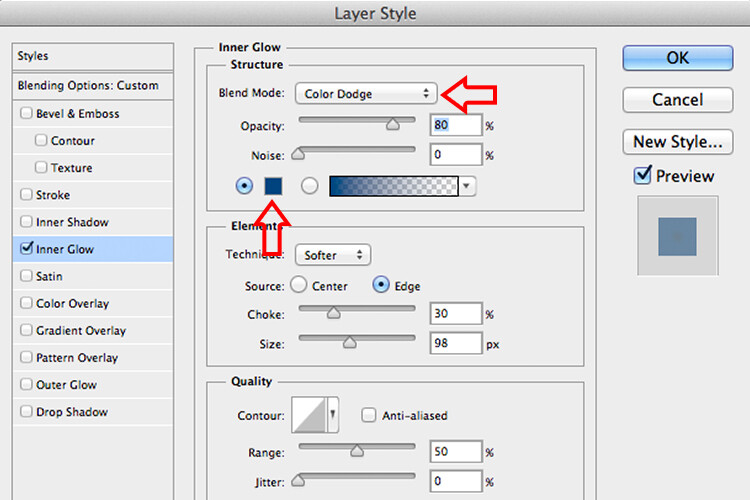
Using Color Dodge Blend Mode instead of Screen

My preference when using this Layer Style technique is to change the Blend Mode from Screen to Color Dodge. I used this on the bottle of water in the title shot. To illustrate the subtle differences between the two Blend Modes, see the two photos below. The first image is the Inner Glow with Screen as the

The first image is the Inner Glow with Screen as the default setting. For the second image, I changed the Blend Mode to Color Dodge.

alt=

Changing the Blend Mode to Color Dodge

How to Create a Rim Light Effect Using Photoshop inner glow

Rim light effect created in Photoshop using Inner Glow from the presets in Layer Styles.

How to Create a Rim Light Effect Using Photoshop

This rim light effect is created using Inner Glow from the Layer Style presets but I changed the Blend Mode to Color Dodge.

Creating a rim light from scratch using Photoshop

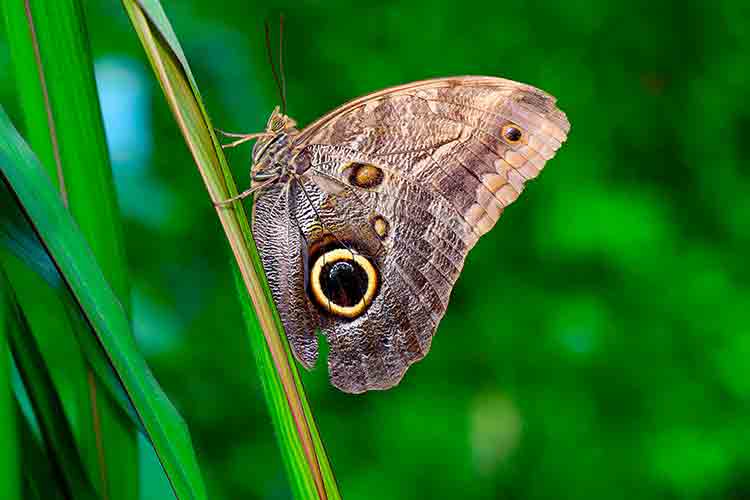
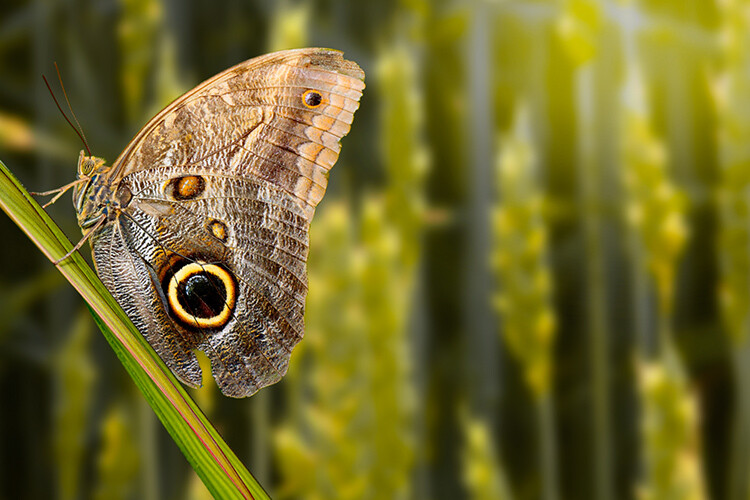
However, this technique really does shine when you have to create the rim light effect totally in Photoshop. For example, take this Owl Butterfly image that I got from www.pixabay.com. It has no rim light effect on it at all.

How to Create a Rim Light Effect Using Photoshop owl

Owl Butterfly from Pixabay 1668956 – dowload the image if you want to follow along.

I isolated the Owl Butterfly from the background using the Pen Tool and placed it against a different background shot to which I added a Gaussian Blur.

How to Create a Rim Light Effect Using Photoshop owl

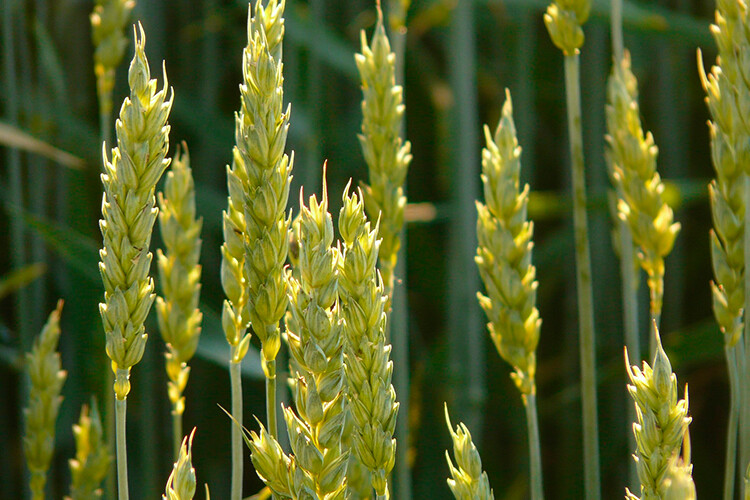
Wheat from Pixabay 8244_1920

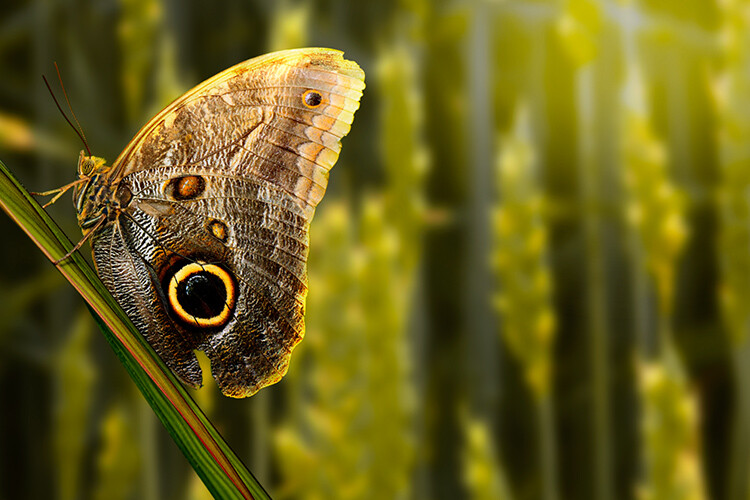
As I had the Butterfly on its own separate layer, I added an Inner Glow from the Layer Styles and changed the Blend Mode to Color Dodge and chose a darkish yellow. I wanted a backlight to appear on the wings of the Butterfly caused by the setting sun in the background.

How to Create a Rim Light Effect Using Photoshop owl before

The Owl Butterfly was cut out using the Pen Tool in Photoshop and placed it against another background image. I blurred the background using Gaussian Blur.

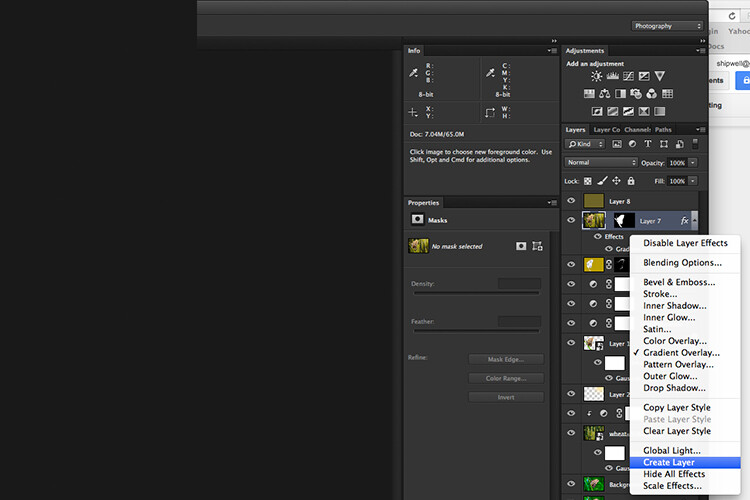
I put this Layer Style effect on its own separate layer. Then I applied a layer mask and brushed in the yellow glow on the wings to give it a more realistic look. I did a bit more retouching by adding a gradient Overlay and then applied the Filter>Blur>Average to blend the colors from the two images.

How to Create a Rim Light Effect Using Photoshop layer style

By placing the Layer Style effect on its own separate layer. I was able to apply a layer mask and brush the Glow effect onto to the wings of the Butterfly.

How to Create a Rim Light Effect Using Photoshop owl after

An Inner Glow was added using the blend Mode set to Color Dodge. I then added a Gradient Overlay to darken the bottom part of the Butterfly and I applied an Average Blur to blend the color of the two images.

Your turn

I hope I have been able to show you how effective creating a rim light in Photoshop can enhance your images. Do you use this effect on your images? Feel free to give it a try and post your results below, I will try to answer any questions and would love to see your images.

googletag.cmd.push(function() {
tablet_slots.push( googletag.defineSlot( “/1005424/_dPSv4_tab-all-article-bottom_(300×250)”, [300, 250], “pb-ad-78623” ).addService( googletag.pubads() ) ); } );

googletag.cmd.push(function() {
mobile_slots.push( googletag.defineSlot( “/1005424/_dPSv4_mob-all-article-bottom_(300×250)”, [300, 250], “pb-ad-78158” ).addService( googletag.pubads() ) ); } );

The post How to Create a Rim Light Effect Using Photoshop by Sarah Hipwell appeared first on Digital Photography School.


Digital Photography School

 
Comments Off on How to Create a Rim Light Effect Using Photoshop

Posted in Photography


How to Create a Dynamic Zoom Burst Photograph

11 Jan

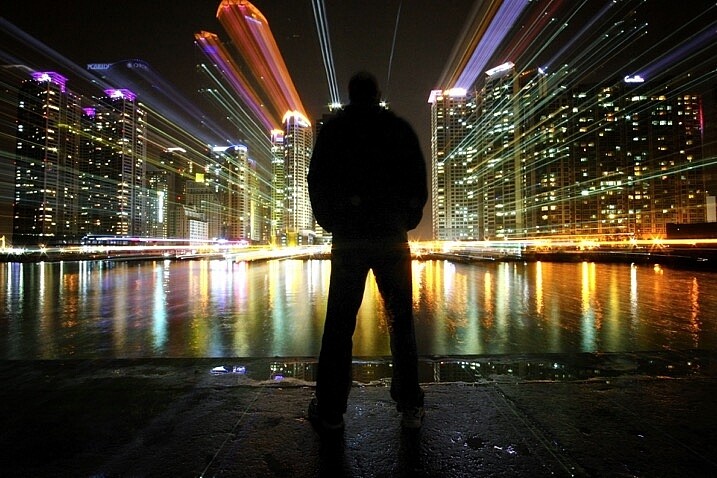
Who doesn’t love warp speed? In this article, you’ll go hurtling into the future at warp speed nine, and you don’t need any federation star fleet spaceships to do it! A DSLR camera with a zoom lens and a tripod is the only equipment you’re going to need for this exciting technique. There are similarities to light painting by camera rotation, and the zoom burst is indeed another form of kinetic light painting. Let’s take a look at this technique, what it will give to your photos, and how to do it.

zoom burst photo cityscape

In this photo, a friend stood still in front of Marine iCty in Busan.

What does this technique add to your photograph?

Put simply, this gives a still frame a much more dynamic edge. This article will look at how you can apply zoom bursting to architectural photos and is best used in an urban environment. The nature of still frames is of course that they’re a single moment, by changing the focal length during long exposure you can add movement and urgency to your frame. The zoom also produces leading lines within your frame that all lead up to your main subject within the frame.

How to take zoom burst photographs

Taking a zoom burst photo is a simple technique, in fact, you can even do this handheld. The effect is achieved by changing the focal length of your camera lens during a long exposure. Follow these steps:

  1. Choose a scene that has mixed areas of light. You can use a forest with mottled light, or an apartment building where some lights are on and some are off.
  2. The exposure should be between half a second and 2 seconds long.
  3. You can take this photo handheld but it’s better to use a tripod.
  4. Change the focal length of the lens during the exposure. Zooming out tends to work better during the night for longer exposures, and zooming in works better during the day.
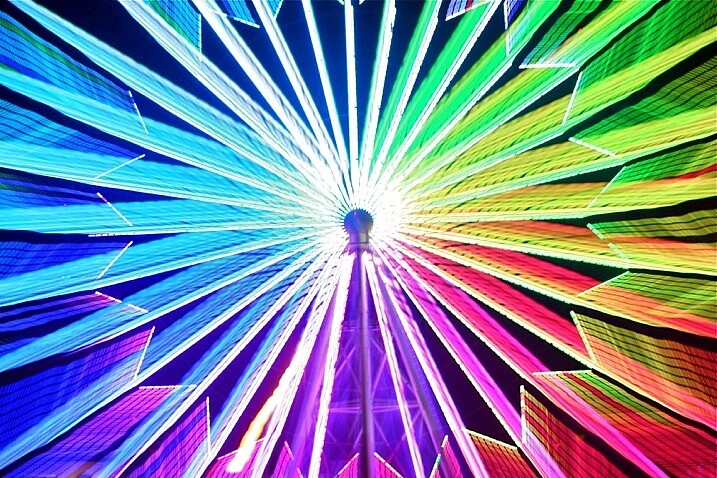
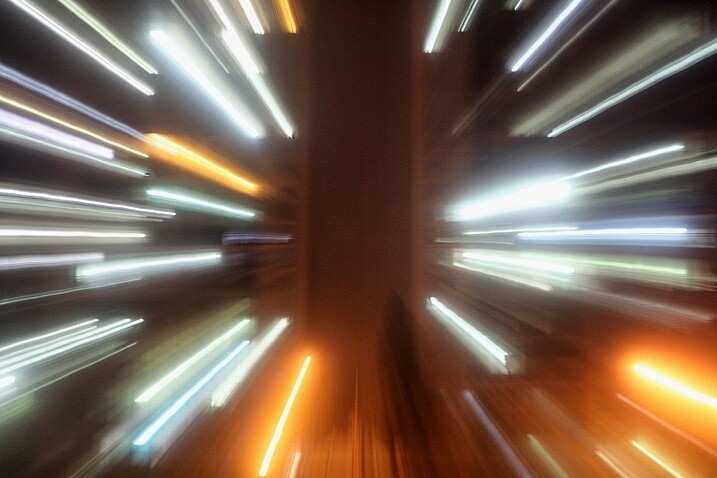
zoom burst lights

A photo that uses zoom with no stationary phase. This photo is colorful and abstract.

How to take zoom burst photos that show structures

Now that you know how to make a simple zoom burst, which looks abstract in nature, it’s time to move a step further. Now you are going to see how you can introduce architectural structures into this frame.

1 – Choose the correct location

Not all locations work well for zoom bursts, especially if they’re too cluttered. You need to choose a building that’s well lit and not surrounded by others. There are other options you can look at as well such as Ferris wheels or sculptures. Any location you choose should allow you to zoom into the structure, and then zoom out on the lights that surround it.

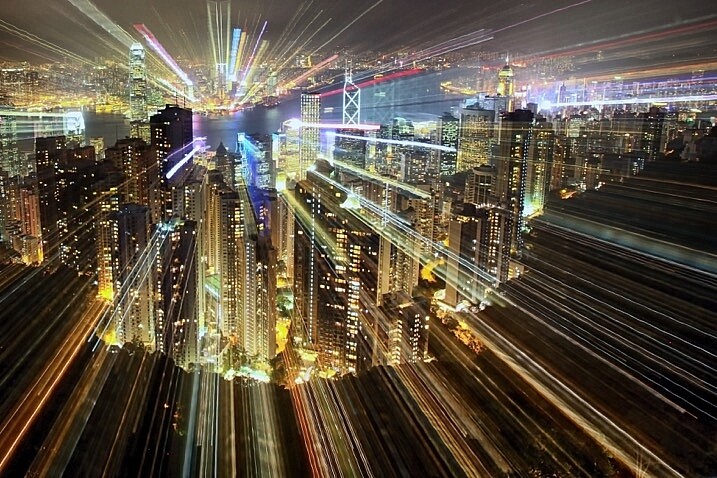
zoom burst too many buildings

When there are too many building in the frame, the zoom burst shot can get busy.

2 – Set the camera on a tripod

If this is going to be a long exposure of 25 or 30 seconds, you will have to use a tripod. You need to secure the tripod in position, making sure it doesn’t move about. A lot of tripods let you hook your camera bag to the extendable center, doing so will steady the tripod. Apply the same logic you would use to attain a sharp image. The focal length movement of the lens will prevent you getting maximum sharpness, though.

3 – Select the right lens

The best lens for this type of photo is a super zoom, one that goes from 18mm-300mm. A super-zoom gives you maximum flexibility over composition and allows for more creative photographs. If you don’t have a zoom with this kind of range, you can use a kit lens. The 18-55mm lens works very well for the zoom burst.

4 – Focus the camera using Live View

Now compose your photograph in the position you intend to finish your zoom burst. The final composition will be at the wider or widest end of your lenses focal length. Turn the camera’s Live View function on, and zoom into the central structure you wish to focus on. Use the lens’s manual focus so that the image on the Live View screen is sharp. Keep the camera lens in manual focus to prevent loss of focus during the exposure. Keep a mental note of the focal length where you focused, especially if that isn’t the widest part of the lens.

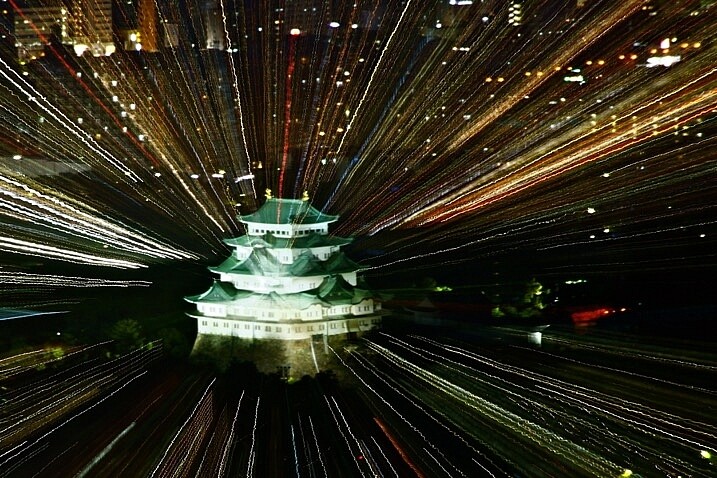
castle zoom burst photo

In this photo, Nagoya castle was focused on using a zoom. I zoomed into the castle.

5 – Zoom into the target area

Select the area of the scene you want to have as the center of your zoom, this should have been decided already during initial scene composition. Ensure that all your settings remain the same, as this is the final step before you begin the exposure. Set the camera to expose for 25-30 seconds, at f/8 or f/11. You can use a smaller aperture if you need to in order to get a longer exposure.

6 – Carry out the zoom burst

Set the camera to the 2-second timer (or 10 seconds if you want to prepare yourself for the zoom). Hit the shutter button to begin the countdown to the exposure. At the point when the shutter is about to open begin slowly zooming out. As the camera is exposing, continue to zoom out keeping it as smooth as possible to avoid camera shake.

You should be zooming out for between two and five seconds, the longer the zoom is the more pronounced the light trails will be in the image. As you zoom keep an eye on the focal length of the lens so you finish at your composed position.

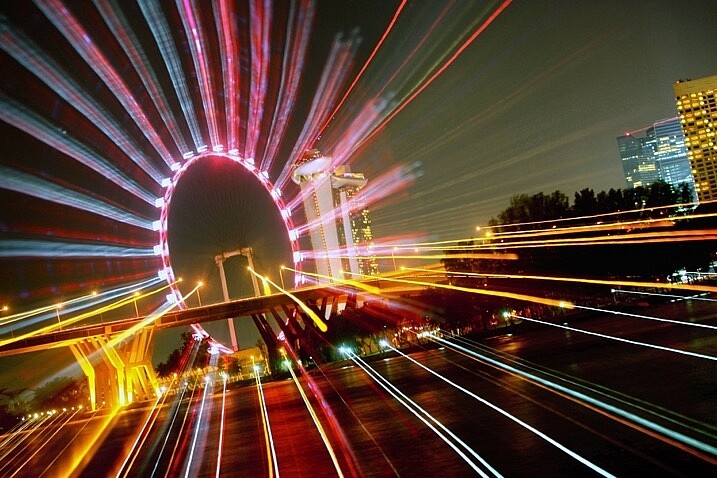
The ferris wheel is a great subject for zoom bursts. The middle is empty, and there is a ring of light to zoom out.

The Ferris wheel is a great subject for zoom bursts. The middle is empty, and there is a ring of light to zoom out.

7 – Allow the camera to finish the exposure

Once you have finished the zoom remove your hand from the lens, without moving the camera. The camera will continue to expose for 20-25 seconds depending on the exposure time you used. The image will now show zoom burst lights and architectural structures in the same exposure.

8 – Carry out post-processing work on the photo

The result in-camera will look nice, but adding contrast in post-processing is important. The image has “lost” five seconds of exposure time, so adjusting the contrast helps. You can use NIK color efex, which has a filter called pro-contrast and is an excellent choice for this type of photo. The centered position of the zoom can’t be adjusted in camera, though cropping the photo in post-processing allows you to move the zoom to an off-center position.

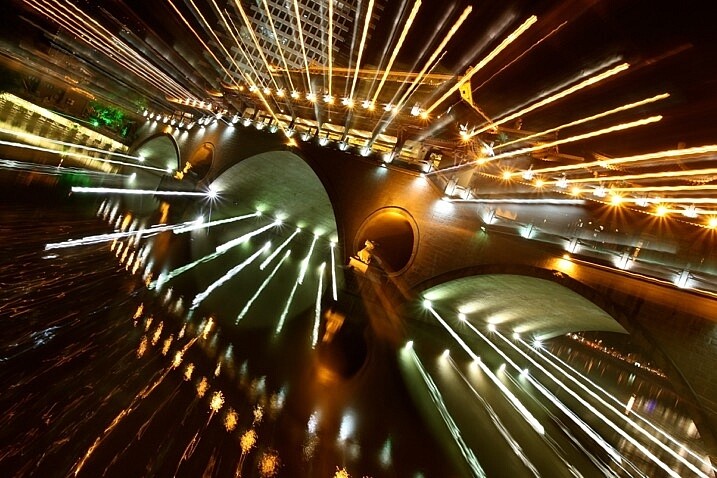
The bridge lit with many lights is a good subject for a zoom burst.

The bridge lit with many lights is a good subject for a zoom burst.

Where should I go to take zoom bursts?

The best place to take this type of photograph is in a city, one that’s well lit, and has interesting architecture. A Ferris wheel is a great structure to use as it’s circular, which helps with the centered nature of the zoom burst. Other architecture can also work as long as it’s alone and not surrounded by other structures. A cityscape with many buildings can look too busy with too many light streaks in one frame.

You can even take zoom burst photos during the day, but you will need an ND filter to do this. An ND filter that allows you to shoot for 30 seconds will allow you to create a zoom burst using the steps listed above, though the zoom should last longer.

img_2957

I look forward to seeing your photos using this zoom burst technique, please post any images you have in the comments section below.

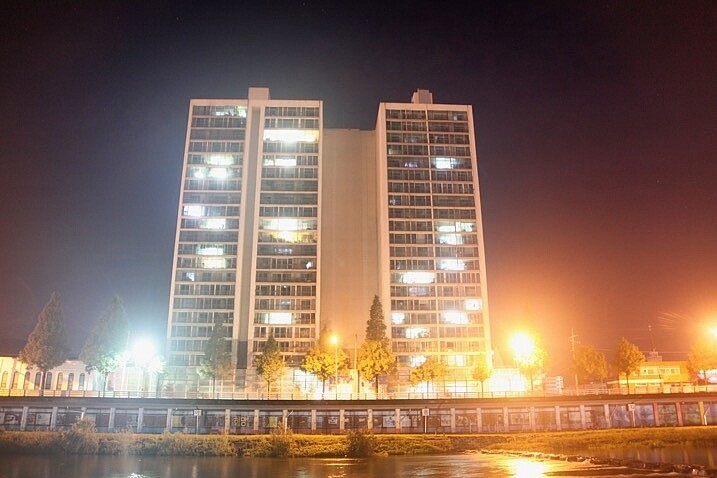
This is a good example of a lone building with lights on.

This is a good example of a lone building with lights on.

In this photo only zoom is used, there is no stationary phase.

In this photo only zoom was used, there was no stationary phase.

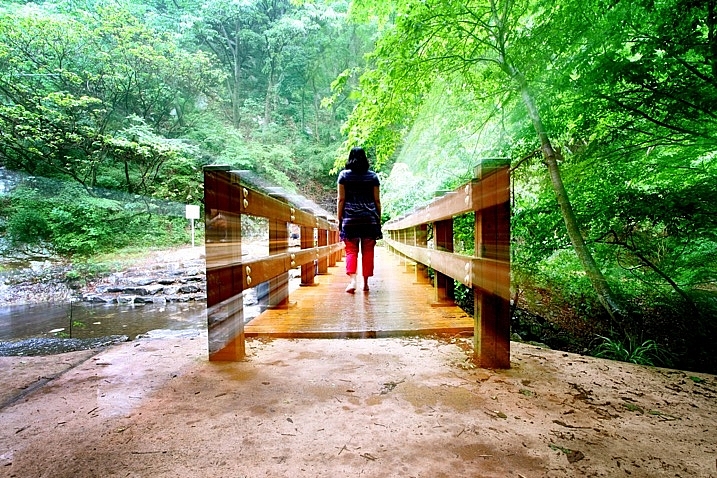
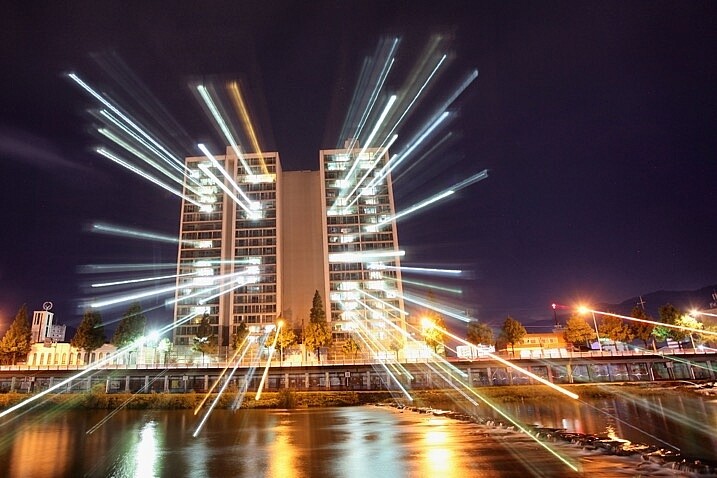
This photo shows how a zoom burst and static phase produces an image.

This photo shows how a zoom burst and static phase produces an image combining light streaks and architecture.

googletag.cmd.push(function() {
tablet_slots.push( googletag.defineSlot( “/1005424/_dPSv4_tab-all-article-bottom_(300×250)”, [300, 250], “pb-ad-78623” ).addService( googletag.pubads() ) ); } );

googletag.cmd.push(function() {
mobile_slots.push( googletag.defineSlot( “/1005424/_dPSv4_mob-all-article-bottom_(300×250)”, [300, 250], “pb-ad-78158” ).addService( googletag.pubads() ) ); } );

The post How to Create a Dynamic Zoom Burst Photograph by Simon Bond appeared first on Digital Photography School.


Digital Photography School

 
Comments Off on How to Create a Dynamic Zoom Burst Photograph

Posted in Photography


How to Create and Use Smart Collections in Lightroom

11 Jan

Collections are one of Lightroom’s most powerful features, giving you a way to bring images from many folders together. Generally speaking, they’re just like boxes you sort your physical stuff into. Nothing goes in unless you put it there, and nothing comes out unless you take it out. What if I told you there was another far more powerful type of collection that can sift through all your photo information and build a collection automatically based on a subset of that information? Well, there is, it’s called a Smart Collection.

Using Smart Collections

You’ll find the easiest way to get to grips with Smart Collections is to begin with a few simple ones and then expand to more complex ones. Let’s start with a couple simple ones.

Creating a Smart Collection

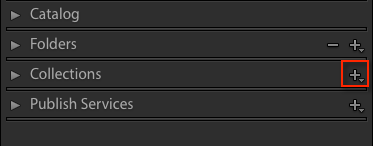
You can create a Smart Collection in a number of ways. First, you can click on the little ‘+’ in the Collections panel header, situated in the Left Panel of the Library Module.

Creating and using smart collections in lightroom

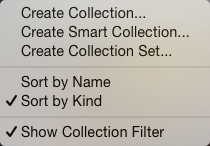
From the flyout menu, choose Create Smart Collection.

Creating and using smart collections in lightroom png 2

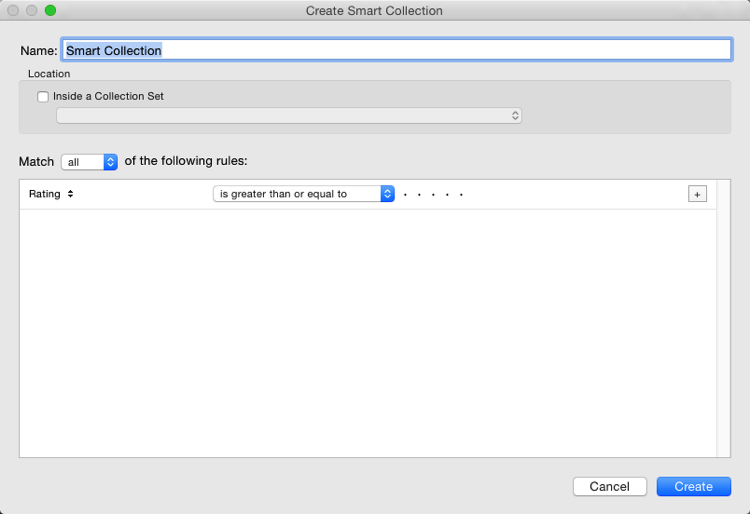
This brings up the default Smart Collection panel (below).

Creating and using smart collections in lightroom 3

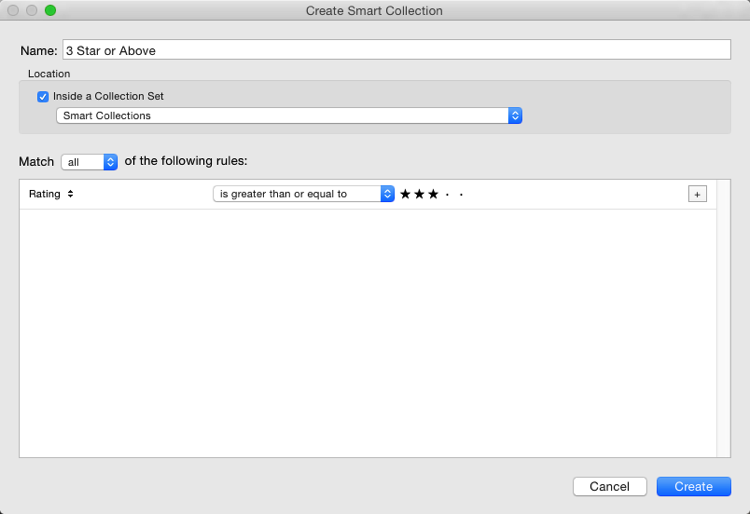
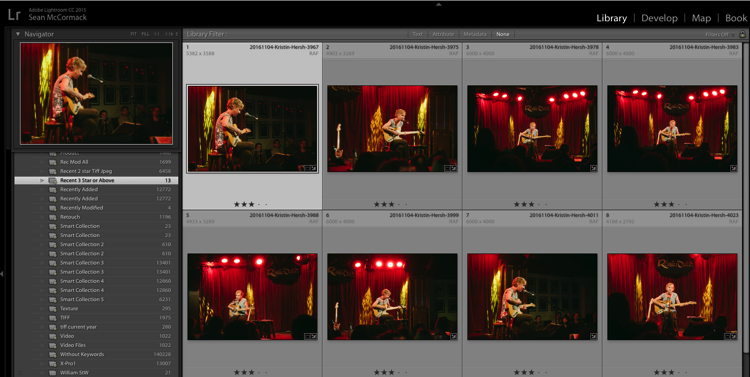
Begin by giving the Smart Collection a name. If you don’t, you’ll end up with a list with Smart Collection, Smart Collection 1, Smart Collection 2, and so forth. Use a name that describes what the collection will contain. For example, you could call this one “3 Stars or Above”. Below this you can choose to add the Smart Collection to a Collection Set (which needs to be created in advance). You could add it to the Smart Collections set, which is a default set created by Lightroom.

Adding the rules

The next part is the key to creating the Smart Collection. It’s the rules section that defines what will be in the collection. In the Match flyout, you’ve three options:

  1. All: Every rule must match for a photo to be included.
  2. Any: As long as a photo matches one of the rules, it’s included in the collection.
  3. None: As long as a photo doesn’t match a rule, it’s included.

If you’re trying to narrow down to a limited set of photos, you’ll most likely be using the All option. As your first Smart Collection is a simple one, set the Rating to 3 stars, with “is greater than or equal to” applied in the pull-down menu. There are other options in the list including; is, is not, is greater than, is less than, is less than or equal to, is in the range. These all allow you to refine what appears in the collection. Click Create to make the collection.

Creating and using smart collections in lightroom 4

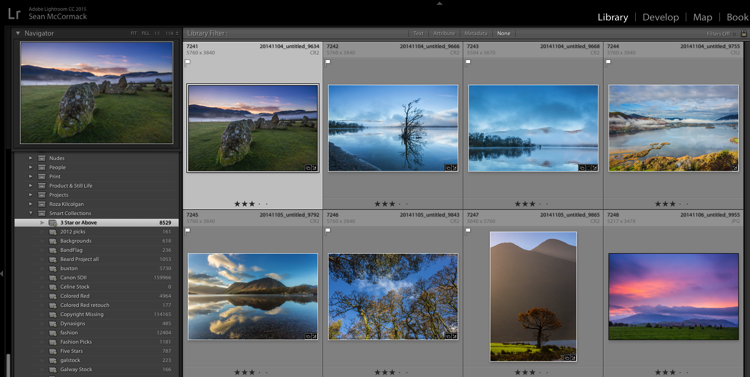
The newly created collection will appear in the Smart Collections set, already selected, and the Grid View will show all matching photos. If you change the rating of one of the images visible to be a 2-star photo, it would automatically drop out of the collection. Why? Because it no longer matches the collection rules (3 or more stars).

Creating and using smart collections in lightroom 5

Adding more criteria

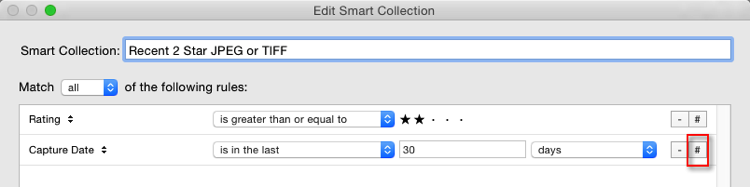
Let’s start to narrow down the images you’re seeing. You can either double click on the collection to edit it or create a new one. I’ve double clicked for this example to edit. At the end of the Rating line is a + icon (outlined in red below) which you can click to add another rule. As soon as you do, a minus (-) icon appears, allowing you to remove this rule at any stage. There must always be at least one rule, though.

Creating and using smart collections in lightroom 6

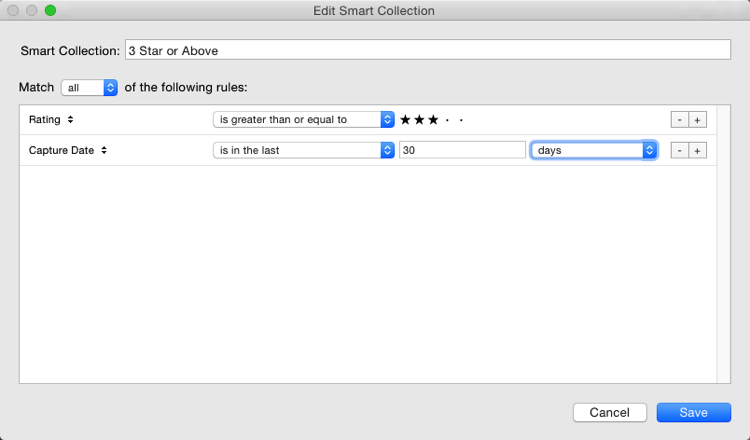
Let’s narrow down the collection to show only more recent 3-star images.

The new rule has Rating selected by default. You can change this by clicking Rating and choosing from the possible rule options in the pull-down menu. To get recent images, you need to choose Capture Date from the Date menu.

You’ll notice there’s a different set of options for dates in the figure below. As you want recent dates, choose “in the last” from the list. Next, you enter a number, then choose from days, weeks, months and years. For speed, enter 30 with the default “days” option. See below:

Creating and using smart collections in lightroom 7

Next, change the name to reflect the new options and click Save. The collection will now display only the most recent photos (taken in the last 30 days) with 3 stars.

Creating and using smart collections in lightroom 8

Smart Collection uses

Right now, what you’ve just created could be done using the Filter Bar, so what use is a Smart Collection? Well, they’re great for helping you complete workflow tasks such as:

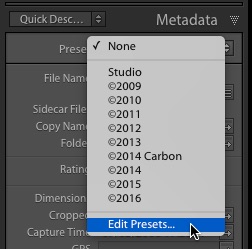
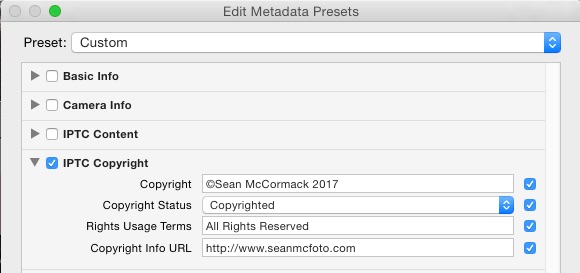
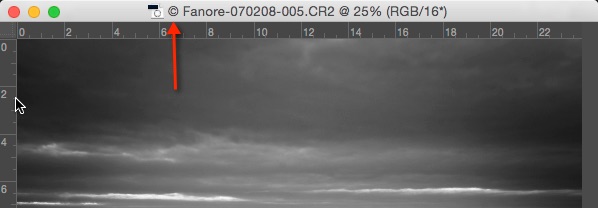
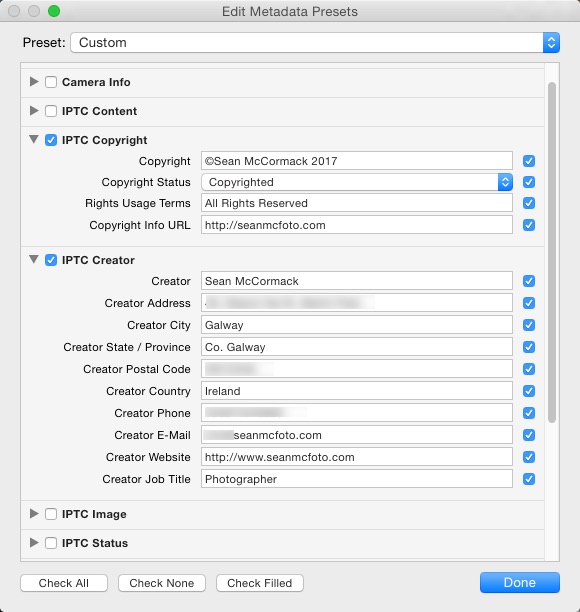
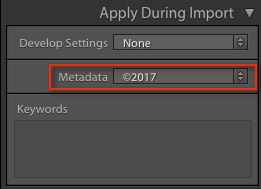
  • Add Copyright:  Create a Smart Collection with the rule “Copyright Status”, the option “is” and the choice ‘”unknown”. If you use Metadata Presets, generally you’ll have one that sets the copyright information and sets the Copyright Status to “copyrighted”. Add this preset to the files in the Smart Collection to add that information.
  • Add Keywords:  To sort images not keyworded. From the Other Metadata menu, choose Keywords, then set the option to “are empty”. Use this to add keywords to an image. Just remember that as soon as you hit enter in the keywords panel, the image will drop out of the Smart Collection.
  • Event work:  For event work, you’re generally delivering most of the image, except blinks or out of focus shots. Usually, this work is edited quickly. Create a Smart Collection with the rules; Capture Date, is in the last, 1 days, and Pick Flag, is, unflagged. Now run through and reject the duds using the shortcut key X. Export the rest for your client.
  • Labels for workflow stages:  Labels can be used to imply a status with your photos. For example, you could use red to mean “selected, but needs editing”, yellow to mean “processing” and green for “final image”. By creating smart collections for each stage, you can see what needs to be done with each image. Combined with setting a date, you can keep on top on what needs doing!
  • Adding Captions:  Coupled with a recent date range, you can create a Smart Collection with “Other Metadata>Caption” and “is empty”. This shows recent images in need of a caption. Couple with ratings, etc., to narrow down which images need to be worked on.

Advanced Rules

The Any, All and None route does allow a great selection of options, but it’s missing a trick. What if you need 4-5 rules for sure (All), but also need one or two rules that are more like an Any set? That can’t be done using the method you’ve seen so far.

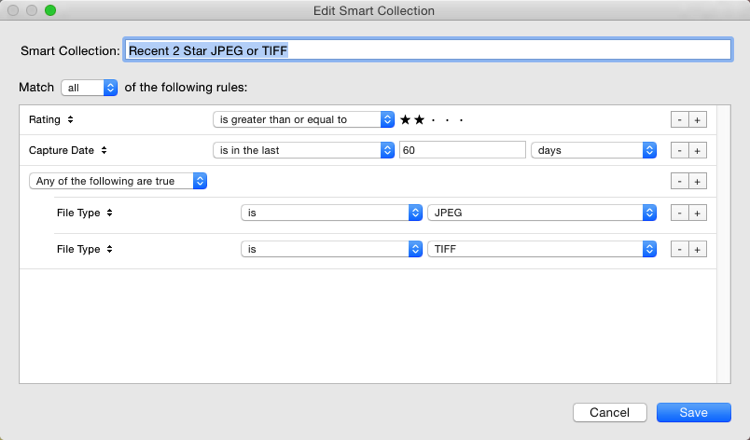
Rejoice . . . There is a way! It’s a little bit hidden, but if you hold down the Alt/Option key, the + icon turns into a number (#) sign. You can click the # to create a subset of new rules. These allow; Any of the Following, All of the Following and None of the Following – so you can mix in options as well.

Creating and using smart collections in lightroom 9

For example, you could specify an “Any of the following” are true and have two options for File Type, one for JPEG, and one for TIFF. This means all the other rules must apply, but either JPEG or TIFF will also apply. (note I’ve changed to 60 days here for a better set of photos to match for the example).

Creating and using smart collections in lightroom 10

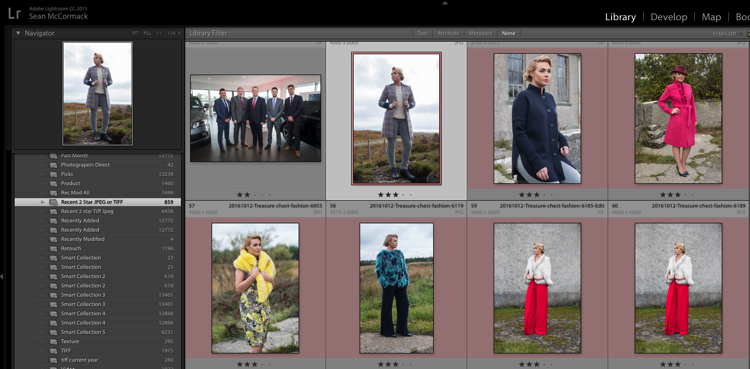
The Smart Collection now shows both TIFF and JPEG images with 2-star or higher ratings, taken in the last 60 days.

Creating and using smart collections in lightroom 11

Other options you could use are red or yellow labels, or even non-continuous date ranges. Alternatively you could use the option to exclude information. For instance, you could have a date range of “in the last 1 year” and using “None of the following” could have “in the last 1 month” to exclude the most recent month. Combined with ratings/flags or stars, this could help locate older material still in need of editing.

Finally

As you can see, Smart Collections are a great tool in your file management arsenal, helping you drill down to specific sets of photos easily.

googletag.cmd.push(function() {
tablet_slots.push( googletag.defineSlot( “/1005424/_dPSv4_tab-all-article-bottom_(300×250)”, [300, 250], “pb-ad-78623” ).addService( googletag.pubads() ) ); } );

googletag.cmd.push(function() {
mobile_slots.push( googletag.defineSlot( “/1005424/_dPSv4_mob-all-article-bottom_(300×250)”, [300, 250], “pb-ad-78158” ).addService( googletag.pubads() ) ); } );

The post How to Create and Use Smart Collections in Lightroom by Sean McCormack appeared first on Digital Photography School.


Digital Photography School

 
Comments Off on How to Create and Use Smart Collections in Lightroom

Posted in Photography


Facial Reconstruction: Police Use Found DNA to Create Suspect Profiles

06 Jan

[ By WebUrbanist in Conceptual & Futuristic & Technology. ]

dna-face-arts

An art project launched four years ago illustrated how scraps of DNA found in public could be turned into eerily lifelike composite sketches and three-dimensional models — now the police appear to be taking that technology in new (and potentially disturbing) direction.

Heather Dewey-Hagborg collected strands of hair, discarded cigarettes, chewing gum and other found materials and worked them into hauntingly realistic masks as part of Stranger Visions in 2012. But her resulting sculptures were at best approximate — DNA can only tell you so much about what a person looks like. Such limitations are stopping law enforcement agencies, however, from pushing the limits of the technology.

genetic-finds

Companies like Parabon NanoLabs that specialize in DNA phenotyping, however, are working with the Department of Defense and other agencies to use similar approaches. Their Snapshot technology references databases that pair genetic information with physical traits. Agencies can thus send in DNA and get back a genetic profile or even a composite sketch.

found-dna-faces

Used as a means of eliminating suspects from the pool or identifying remains, this technology could be fine. However, since it can’t tell weight, age and other features (even race can be ambiguous), it is also possible that such renderings would mislead investigators — or worse: influence trials in the wrong direction. Photo-realistic images and models have a way of skewing the perceptions of the observer — once seen they are hard to unsee.


faced

“Ancestry becomes a sort of short-cut term for race,” Dewey-Hagborg worries. “When it’s a person reading their own genealogical information, they’re going to look at that in light of what they know about their own personal history. But when it gets into the hands of the police, that all gets thrown out the window, because there is no self-knowing subject there.” Advocates of the technology point out that these is not how they intend it to be used — but still, in comparing it to data gathered from eyewitness accounts or surveillance cameras, they risk going in that direction anyway.

public-dna

scrap

stranger-visions

More from the artist about Stranger Visions: she “creates portrait sculptures from analyses of genetic material collected in public places. Working with the traces strangers unwittingly leave behind, Dewey-Hagborg calls attention to the developing technology of forensic DNA phenotyping and the potential for a culture of biological surveillance. Designed as an exploratory project based on emerging science, the forecast of Stranger Visions has proved prescient.”

Share on Facebook


[ By WebUrbanist in Conceptual & Futuristic & Technology. ]

[ WebUrbanist | Archives | Galleries | Privacy | TOS ]


WebUrbanist

 
Comments Off on Facial Reconstruction: Police Use Found DNA to Create Suspect Profiles

Posted in Creativity