RSS
 

Posts Tagged ‘Control’

Firmware update gives Sony QX-series cameras more manual control

19 Dec

Unknown.png

Sony has announced firmware upgrades that enhance the features of its QX-series ‘lens-style’ cameras, which clip on to the front of your smartphone. The update adds Full HD video recording and an expanded ISO range for both the QX10 and QX100, while the latter also receives a shutter priority mode. Sony’s latest PlayMemories Mobile app has more seamless photo browsing and dramatically improved performance on iOS devices. Click through for more.

News: Digital Photography Review (dpreview.com)

 
Comments Off on Firmware update gives Sony QX-series cameras more manual control

Posted in Uncategorized


Complete control: Olympus OM-D E-M1 review posted

29 Oct

em1-editorial.jpg

With a rugged, weather-sealed body, hybrid AF system, 5-axis image stabilization, Wi-Fi, and seemingly endless customizable controls, the Olympus E-M1 is arguably the most enthusiast-friendly Micro Four Thirds camera on the market.  We’ve put Olympus’ latest OM-D through our usual battery of tests – follow the link to see if the ‘Pro’ Micro Four Thirds camera has finally arrived.

News: Digital Photography Review (dpreview.com)

 
Comments Off on Complete control: Olympus OM-D E-M1 review posted

Posted in Uncategorized


645 Pro update brings even more DSLR control to your smartphone

26 Jun

645pro.PNG

645 Pro’s latest update has given the iOS app a complete makeover. Now called 645 Pro Mk II, Jaggr’s ‘professional’ photo app now makes your smartphone’s camera interface look and perform even more like that of a modern DSLR. For a detailed look at what’s changed, head over to connect.dpreview.com.


News: Digital Photography Review (dpreview.com)

 
Comments Off on 645 Pro update brings even more DSLR control to your smartphone

Posted in Uncategorized


The Kick: Control LightingWirelessly w/ your Phone!

31 May

Extra photos for bloggers: 1, 2, 3

The right light can go a long way. A wirelessly controlled, fully customizable light will take you even farther!

Meet The Kick: it’s like a full blown lighting studio, but tiny enough to tote anywhere.

The Kick is an LED light panel that you control through an app on your phone. Change the color, shade and brightness with just a few taps. It can even mimic the light from any photo or video already on your camera roll.

You can use it off camera or slide it onto the back of your phone. It has a tripod mount for hands-free lighting.

The precise controls let you use it as a subtle fill light, a white balancing light, or start a disco tech in your living room. This little guy does it all!

See Examples of The Kick at Work
$ 179 at the Photojojo Store

 Tweet it!      Share

Related posts:

  1. The Phlash: Camera Phone Super Flash Every photographer knows that the key to the art is…
  2. Attachable Lenses for Your Camera-Phone, Fisheye & Macro/Wide Angle Phone Lenses Extra photos for bloggers: 1, 2, 3 Camera-phones. They’re a…
  3. Phoneography Guide: How to Shoot a Wedding on Your Phone! Extra photos for bloggers: 1, 2, 3 The Big Day….


Photojojo

 
Comments Off on The Kick: Control LightingWirelessly w/ your Phone!

Posted in Equipment


Developer releases open-source software to remotely control Nikon DSLRs

14 May

mainwindow.jpg

Developer Duka Istvan has created a release candidate of digiCamControl – free, open-source software that allows most Nikon DSLRs to be remotely controlled via computer. digiCamControl is compatible with Windows PCs and allows you to see your camera’s live view image on your computer screen, as well as trigger a tethered DSLR remotely, either directly or using a programmable timer. Multiple cameras can be connected at the same time. Click through for more details on connect.dpreview.com.

News: Digital Photography Review (dpreview.com)

 
Comments Off on Developer releases open-source software to remotely control Nikon DSLRs

Posted in Uncategorized


10 Pro Motion Control Time-Lapse Tips

19 Apr

As I’ve been documenting landscapes and cityscapes with time-lapse photography the past several years I’ve learned some key lessons, many times the hard way. If you’re new to time-lapse here’s a quick definition from my eBook Photographing the 4th Dimension – Time that discusses slow shutter & video techniques:

Time-lapse videos are produced when hundreds of sequential images are displayed in rapid succession. The line between still photo and video is directly tied to how the human visual system works. Images are retained in our visual memory for roughly one-fifteenth of a second.1 As a result we can differentiate still photos when they’re played to us at a frequency of 10-12 images per second (video lingo being frames per second or fps). Standard video playback frequencies are 24 and 30 frames per second, both of which easily fool our visual system, via the Phi phenomenon, into seeing continuous motion versus still images.

To save you the hardship of enduring the same mistakes I’ve made over the years here are 10 motion control time-lapse tips to get you shooting like a pro including some gear recommendations.

_Q2A4768_full_600c

1. Setup Early
To avoid a last minute rush or worse yet missing fleeting lighting conditions be sure to setup early.  If you’re rushed you’re bound to make careless errors and even put your gear at risk of falling. It pays to take your time, arrive early, carefully setup, review your setup and take a test sequence if time permits. This is a sure fire way to make sure that your actual shoot goes to plan.

jmg-giveaway-HEADERalt
Enter to Win My Ultimate Time-Lapse Photography Setup
Over $ 5000 in prizes – http://bit.ly/WGy7Jw

2. Compose Anticipating Subject Movement
Anticipate the movement of your subject(s). Time-lapse subjects really shine when you take the time to anticipate not only where your camera will move, but where elements in your frame will move during a sequence. Clouds, water, traffic, people, etc. will have a line of movement if you take the time to carefully observe the scene you’re going to photograph you can compose your frame to maximize the impact of this movement. Here again having the necessary time on hand, not rushing, will be advantageous for you to properly evaluate your subject(s).

3. Know Your Move
“The move” is the line of movement your camera will take on a motion control system as your time-lapse sequence runs. As you setup a shot be sure you evaluate the scene and your surroundings to find a move that will highlight your subject best. At the same time be sure that during the sequence your setup won’t be put in harms way during the move either by passing pedestrians, vehicles, losing balance & falling, etc.

_MG_9494-600c4. Variation
Vary the direction of your moves (left to right, right to left, down to up & up to down) and even consider capturing video at a normal 24 or 30 fps. Having a variety of footage will allow you to edit together different sequences with enough variation that your audience won’t find the editing predictable while providing opportunity for smooth transitions between scenes.

5. Know & Read The Weather
As with still photography the most interesting conditions often come about from bad weather (see Make the Best of Bad Weather). Capturing sequences of bad or changing weather can be quite dramatic. To do this the first step is to monitor the weather in the area of your shoot. Time your shot when transitioning weather is most likely to happen. On the flip side since many motion control rigs contain metal, monitoring the weather can also help you say safe by avoiding conditions where lightning might be a possibility.

6. Be Organized Don’t Forget Anything
One best practice I like to follow is to carry the little things that can make or break a shoot. Murphy’s Law always has a way of tripping up a photographer so I like to travel very well prepared even if it costs me in having a heavier bag. Items I carry with me include tools (ex small hex wrench set), extra batteries, extra screws, backup equipment such as an extra camera body & lens, lens clothes, levels, rain covers, filters, etc. There are some very versatile bags out there to help carry these “little” things.  See In Pursuit of the Ideal Time-lapse Camera Bag: Gura Gear Bataflae 32L for the bag I’ve chosen.

7. Choose the Right Equipment & Lenses
Trial and error with gear can be costly both in time and money if you’re not careful. In most instances I shoot with lenses of a focal length ranging from 15mm to 50mm, but for some shots I’ve been known to use a 70-200 or 300mm lens… it all depends on the subject. (see What lens do you use for your Landscape photographs?) When it comes to hardware and software specific to motion control time-lapse my choices are below:

  • Dynamic Perception Motion Control Dolly [win this]
  • eMotimo robotic tripod head (see full eMotimo review with example videos) [win this]
  • Backup Intervelometer(s): Canon TC-80N3 and TriggerTrap
  • Adobe Lightroom
  • Adobe After Effects [win this]
  • BG Render Pro (AfterEffects plugin)
  • For more gear ideas visit my Ultimate Time-Lapse Photography Setup giveaway page

eMotimo & Dynamic Perceptions Examples
http://www.youtube.com/watch?v=1vxQAnfjKrQ
http://www.youtube.com/watch?v=k5HKaplJa_4

8. Don’t Forget Narrative
While it’s great to highlight cool time-lapse sequences always keep in mind how your sequences will piece together to tell a story. Narrative is always important to achieve a deeper connection with your audience. A series of time-lapse sequences without narrative is merely a demo reel.

9. Faster & Higher Capacity CF/SD Cards
When it comes to CF/SD cards faster is always better. As your camera snaps off sequential images you’ll want media that will allow for the fastest write speeds possible. If your CF/SD cards are too slow then your camera’s buffer might fill up and you’ll experience lag in your sequences as your camera tries to empty its cache & write files to your card(s) before taking another photo. Note: A 300X card = 45MB/s write speed. 1X = 150KB/sec Higher capacity cards (ex. 32GB, 64GB and 128GB) will also allow you to capture numerous sequences on the same card.  Use of such cards will also allow you to focus on your subject and less on juggling cards. While some worry use of high capacity cards puts you at greater risk for data loss I’ve yet to experience an issue and chalk this up to regular formatting after downloading images off the card(s).

10. Know Your Time
Don’t lose track of time or mis-calculate sequence times as it can result in the loss of a sequence or keep you tied up for extremely long periods of time. There are now several time-lapse apps for mobile phones to help even the most fatigued photographer get the right sequence calculations. When all else fails once can always revert to the simple use of a calculator

Post originally from: Digital Photography Tips.

Check out our more Photography Tips at Photography Tips for Beginners, Portrait Photography Tips and Wedding Photography Tips.

10 Pro Motion Control Time-Lapse Tips


Digital Photography School

 
Comments Off on 10 Pro Motion Control Time-Lapse Tips

Posted in Photography


How to Lose Control of Your Photos With Getty Images

11 Apr

Facebook Thomas Hawk Image

Last week photographer Remi Thornton penned a post about why he quit working with Getty Images. Remi alerted photographers to a new scheme by Getty Images whereby they were “loaning” photographer images (without pay) to Cafe Press for marketing purposes. The idea is that Cafe Press could use photographers’ images without paying, unless a sale was made, then a photographer might receive a royalty.

Allowing Cafe Press free use of photographers’ images for marketing did not sit right with Remi or other photographers, Remi felt that Cafe Press should have to pay a royalty for using the image at all and not get to use the images to market Cafe Press for free.

On March 25th, I submitted my own resignation to Getty Images. Shortly thereafter on March 27th I received acknowledgement from Getty along with the following:

“As per your recent request where you expressed your desire to terminate your outstanding contract with Getty Images, this is your official notice of termination of the Agreement between yourself and Getty Images, which had a Commencement Date of 3/11/2009.”

A few days later my images disappeared from Getty’s website for sale.

One would think that upon termination with Getty Images, the pilfering of images by Cafe Press would cease, but not so. Not only are my images still up for sale with Cafe Press (being marketed in a large font as “Thomas Hawk Gifts”), Cafe Press is additionally ADVERTISING them to me to buy on Facebook (again without pay — see image above).

Even though I no longer have a relationship with Getty and have NEVER had a relationship with Cafe Press, they want to sell me a dry erase board of a dog image of mine. I can also buy a wine charm thing or a beer coaster if I want.

I’m sure in the super fine print of my contract with Getty there is some loophole that is allowing this, but frankly it’s bad enough that Getty is allowing Cafe Press to market our images without pay. To further allow our images to be marketed in Facebook ads (again, without pay) seems a bit far fetched — especially when my relationship with Getty is supposed to be terminated. And why is Cafe Press specifically targeting me on Facebook trying to sell me my own images?

I have no idea how long my images must remain for sale at Cafe Press, but this just serves as an example of how a photographer can lose control over their images with Getty.

I wonder how much money Getty was paid to allow Cafe Press to use our images for free on Facebook?

I’d ask Getty what the deal is in the Contributor forum, but alas, I’ve been permanently banned from the Contributor forum for daring to criticize Getty’s paltry 20% payout.


Thomas Hawk Digital Connection

 
Comments Off on How to Lose Control of Your Photos With Getty Images

Posted in Photography


LockCircle releases Prime Circle XE lenses with wireless aperture control

06 Apr

primecircle.png

Accessory maker LockCircle has announced Prime Circle XE lenses in a Canon EF mount with a wireless controller that can can change aperture remotely at distances of up to 300 feet. Ranging between focal lengths of 15mm to 135mm, the lenses feature Carl Zeiss optics in a housing designed specifically for cinematographers with large focus scales and a common 95mm front mount across the range of lenses. There is currently no information about the XE series’ price and availability.

News: Digital Photography Review (dpreview.com)

 
Comments Off on LockCircle releases Prime Circle XE lenses with wireless aperture control

Posted in Uncategorized


LockCircle releases Prime Circle XE lesnes with wireless aperture control

06 Apr

primecircle.png

Accessory maker LockCircle has announced Prime Circle XE lenses in a Canon EF mount with a wireless controller that can can change aperture remotely at distances of up to 300 feet. Ranging between focal lengths of 15mm to 135mm, the lenses feature Carl Zeiss optics in a housing designed specifically for cinematographers with large focus scales and a common 95mm front mount across the range of lenses. There is currently no information about the XE series’ price and availability.

News: Digital Photography Review (dpreview.com)

 
Comments Off on LockCircle releases Prime Circle XE lesnes with wireless aperture control

Posted in Uncategorized


3 Ways to get Better Control of Autofocus

27 Mar

In this post, Steve Berardi from PhotoNaturalist talks about three ways to get better control of autofocus.

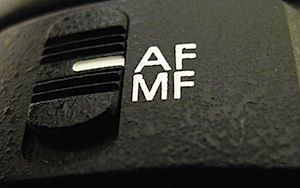
auto-focus.jpgSometimes autofocus can be really annoying. For some shots it’ll focus on the right part of your subject, but then the very next shot it may choose to focus on something far and away into the background.

Sure, you could avoid this problem by always using manual focus, but autofocus is great when you need to focus quickly or when you’re photographing a landscape and you need to focus on a certain spot in the scene.

Well, autofocus doesn’t have to be annoying anymore, because here are three ways to get better control of it:

#1 – Press your shutter button half-way to activate autofocus and then recompose

Set your autofocus point to the center spot, then point this spot where you want to focus and press your shutter button half-way (don’t press it completely yet) to initiate autofocus. Then, while still holding down the button half-way, recompose your shot and press the button completely down to snap the photo.

#2 – Switch to manual focus after autofocusing

Use autofocus as you normally do, but once it focuses on the right spot, just switch off autofocus on your lens to manual focus. Your lens will keep the current focus when you do this. This method works well when your camera is on a tripod and you’re taking multiple exposures from the same spot, like when photographing a landscape.

#3 – Use back-button autofocusing

Normally, your camera will autofocus when you press the shutter button, but with back-button autofocusing, you have to press a button on the back of the camera instead, giving you complete control of when autofocus is initiated.

With back-button autofocusing, you can just set the autofocus point to the center spot, then point that where you want to focus, and finally press the back button to automatically focus on that point. Now for all the shots you take from that position, that focus will be maintained (the camera won’t randomly focus into the background anymore).

You can do the same thing without this back-button autofocusing by switching to manual focus after the camera focuses properly, but using the back button saves time and this way you don’t have to constantly switch back and forth between manual and autofocus (which can inadvertently move the camera sometimes).

Back-button focusing is especially helpful for photographing moving subjects, like birds in flight or other wildlife: just switch on the continuous focusing mode, set the autofocus point to the center spot, and hold down that back button. Now you don’t have to worry about accidentally hitting the shutter button while you’re tracking the subject in your viewfinder.

How to enable back-button autofocusing: Unfortunately, this feature is called something different on each camera, so you’ll probably have to do some digging around in your camera’s manual and “custom functions” to find it. If it’s not labelled clearly on your camera, try changing the settings of the different buttons on the back of your camera (like the AE lock button).

steve.jpgAbout the Author: Steve Berardi is a naturalist, photographer, and computer scientist. You can usually find him hiking in the beautiful mountains and deserts of Southern California. Read more of his articles on nature photography at the PhotoNaturalist and follow him on Twitter.

Post originally from: Digital Photography Tips.

Check out our more Photography Tips at Photography Tips for Beginners, Portrait Photography Tips and Wedding Photography Tips.

3 Ways to get Better Control of Autofocus


Digital Photography School
 
Comments Off on 3 Ways to get Better Control of Autofocus

Posted in Photography