RSS
 

Posts Tagged ‘Capture’

How to Capture Mood and Atmosphere in Your Photos

24 Feb

Why is it so difficult to capture the cozy ambiance of a cafe in a picture? Or the casual atmosphere of a warm bonfire with friends on a summer night? Learning how to capture mood and atmosphere of a scene is a skill that is elusive for many photographers.

googletag.cmd.push(function() {
mobile_slots.push( googletag.defineSlot( “/1005424/_dPSv5topic-rhs(300×250)”, [300, 250], “pb-ad-124309” ).addService( googletag.pubads() ) ); } );

A man fishing, in a photo that has been taken to capture the mood and emotion of the scene.

This is because the finished product isn’t only about getting the technical settings and composition correct. The image needs to evoke something in the senses; it has to capture the visceral aspects of a scene, the sights, sounds and smells so that every time you look at the picture, you are brought right back into the moment.

As always, rules in photography are made to be broken. So this list is meant to help you explore the creative aspect of how to capture mood rather than a firm lecture on how x will help you accomplish y.

Here’s a rundown of some of the things to consider when you’re trying to capture the mood, atmosphere, and emotion of a setting. Your goal; looking at the picture later brings you right back into the moment.

Candid Versus Posed

Photography is artificial. That little black box that you use to take pictures necessarily is always between you and the subject. That’s why it is really impressive to see photographers who can take incredibly natural pictures – almost as if a camera wasn’t even involved in the process.

Two boys canoeing, in a photo taken to capture the mood and atmosphere of the shot.

When capturing a moment, your goal should be to take a candid photo, where your subject(s) are unaware of the camera. This helps to create a final image where the viewer feels like a fly on the wall. A picture where everyone is staring straight at the camera, on the other hand, pulls the viewer out of the moment and draws attention to the artificiality of the process.

Walk into a room with a camera and you can see how everyone changes the way they smile, their posture, etc. Everyone wants to look good for the camera. But by being super aware of the camera, the mood of the moment is lost.

Of course, it’s not always an option to take a candid photo. This is where you need to have the skill to make a natural picture by giving direction or helping the subject feel comfortable to the point that the shot looks real, rather than staged.

Consider the Lighting

Lighting always plays a huge role in your image. To capture the atmosphere of a specific moment, your goal should be to emphasize that lighting as much as possible. Typically, a warm or cozy setting will involve soft lighting. For example, with a summer evening comes soft orange light and a radiant glow outlining people lit by the sun.

So how can you show this? Experiment with shooting with the sun behind your subjects. A camera on automatic mode will struggle with this and will make your overall exposure too dark. Try either adjusting your exposure compensation to shoot a brighter picture, or go full manual and explore the creative possibilities!

Shooting into the sun also often results in lens flare – and you can use this effect to your benefit as well. Lens flare can help add a real mood of summer and warmth to a picture.

A warm, summery picture of a couple driving a car - capture the mood and atmosphere of the shot.

Low light pictures can also really stand out. The soft glow of a bonfire or candlelight often throws deep and intriguing shadows. To capture this, you need to consider the direction of the light. Someone looking away from the light source will have their face in deep shadow – and it likely won’t make for a very interesting image. But, by turning them back towards the light, you can really bring out texture and personality.

In low light, your camera will often tell you there isn’t enough light and will flip on the pop-up flash. What should you do then?

Ditch the On-Camera Flash

Using the flash on your camera is a sure way to add an unnatural feeling to an otherwise warm and cozy atmosphere. The main reason for this is because there are different temperatures of light. Some types of light look warmer; some look colder.

The light from your flash is balanced to match the type of light you’d find under the midday sun (daylight). Light from a bonfire or candle, however, contains a lot more orange. The light from your flash will look very blue in comparison, and this mismatch of colors is easy to recognize in the finished image.

Light from the flash is also on nearly same the angle as the image. Since we don’t normally view people or objects with light coming from the same angle as our eyes, this looks strange. This also has the effect of removing the shadows and textures that give the image a sense of dimension.

Of course, the reason your camera will want to use flash is because there isn’t much available light. This brings us conveniently right to the next point…

Use a Wide Aperture

If you can’t add light with flash, you’ll need to find another way to collect enough light to capture the image. This can be done by opening up the camera’s aperture. Aperture is measured by f-stops, with a lower f-stop number (like f/4) meaning that the lens is opened wider to let in more light.

A boy looking at a lantern, where the photo has been taken in low light - capture the mood and atmosphere

Prime lenses, or lenses that don’t don’t zoom, can typically open to a wider aperture. For this reason, they are an ideal choice for capturing the atmosphere of a setting when there isn’t much light to work with.

Besides just gathering more light, a wide aperture will give your image a more precise point of focus (shallow depth of field). Whether the focus is on a person or a detail, the viewer gets a sense of being close and intimate with the scene.

The bokeh, or out of focus area created by using a wide aperture, also throws the background into a creamy blur, which both helps to remove any clutter from the shot and lets our imagination wander to fill in the blanks.

Show the Setting and Environment

A man on a sailboat, with the photo taken to show the setting and capture mood

Whether you are using a wide aperture or not, you’ll want to show the setting the get a clear sense of content. Capture the details that make the setting memorable and put everything into context.

A technique I like to use is to include an object or person in the foreground of the shot. By framing the shot with foreground elements, I can create the illusion of being a participant in the event. This technique also gives a strong sense of depth to the image, which can help make it a more memorable photo.

A man on a mountain, taking a photograph

Capturing Emotions

More often than not, our fondest memories are closely tied together with the people we experienced them with.

For this reason, a good way to capture the essence of a moment is to get a shot of people interacting with each other. It can be through buoyant smiles, a tight hug, or a tear of joy rolling down a cheek.

A soccer player is nervous as her team takes penalty shots - capture mood

It isn’t always so easy to spot these little moments, and they also tend to disappear quickly. Likewise, it takes a bit of observation and creativity to find the moments that really bring out the drama or happiness of a scene.

Bringing out the Textures

Maybe you can’t capture sound and smell with a photo – but you can appeal to those senses by bringing attention to details that are familiar and remind us of a distinct sound or smell.

The sharp texture of stone or the gritty feeling of sand are very familiar to us, so having those textures prominent in a picture helps us experience the image more strongly.

A man explores a snowy entranceway, with sharp textures giving the photo a mood

Editing Your Photos

Often, you can really bring out the mood of a shot during the editing process. Whether you are using Photoshop or a simpler editing program, here are some tips for emphasizing the style you want in your final image.

Consider how color influences your photo

Color is important for establishing the mood of an image. Muted or darker colors can give a feeling of reflection, sadness, or calm. Brighter and vibrant colors, on the other hand, suggest happiness.

Color temperature

A picture’s white balance can be set or adjusted to bring make an image feel hotter or colder. The difference between a warm summer evening and a cool winter’s night should be evident in your pictures.

White balance works on a sliding scale from yellow to blue. Experiment to find the right setting for your image. If you shoot in RAW, you will be able to freely adjust your white balance without any quality loss in your picture. If you shoot JPG, there won’t be nearly as much leeway.

A photo edited in two different ways, showing how white balance can influence the mood of an image

The strong blue tones in the original image on the left feel calming and introspective, while the edit on the right feels much more energetic. These two versions also give a very different impression of how warm or cold the morning was.

The Film Look and Experimenting with Black and White

Some editing styles can help invoke a sense of nostalgia. The “film look” adds a feeling of timelessness to a picture, even to those who are too young to remember the days of taking and developing pictures on film.

An image of a snowboarder, edited in a nostalgic and retro style

The editing of this picture gives it a retro feel, as though it was taken several decades earlier.

If you want to play around with this style, there are many different presets and filters that can get you started. This style will typically desaturate colors, remove some contrast, and add some grain.

Converting your image to black and white can also give your photos this sense of nostalgia. Play around with your edit and see what you can come up with!

An image edited in black and white to give it a feeling of melancholy and emotion

A black and white edit on this image makes the mood feel much more melancholic or thoughtful.

So good luck with your practice of taking images that capture the mood, atmosphere, and emotion of a scene. Until scientists invent a time-machine, it’s the best way we have to travel back and experience a friendly place or memory once again.

googletag.cmd.push(function() {
tablet_slots.push( googletag.defineSlot( “/1005424/_dPSv4_tab-all-article-bottom_(300×250)”, [300, 250], “pb-ad-78623” ).addService( googletag.pubads() ) ); } );

googletag.cmd.push(function() {
mobile_slots.push( googletag.defineSlot( “/1005424/_dPSv4_mob-all-article-bottom_(300×250)”, [300, 250], “pb-ad-78158” ).addService( googletag.pubads() ) ); } );

The post How to Capture Mood and Atmosphere in Your Photos by Frank Myrland appeared first on Digital Photography School.


Digital Photography School

 
Comments Off on How to Capture Mood and Atmosphere in Your Photos

Posted in Photography


iPhone 8 front camera rumored to capture 3D images

22 Feb

Last week it was reported that Apple might be replacing the Touch ID fingerprint reader with 3D facial recognition on the top-of-the-line model of the upcoming iPhone 8 series. Now these rumors have become more substantiated by another report by Apple analyst KGI Ming-Chi Kuo which has been published today and obtained by 9to5Mac.

According to the report, the upcoming iPhone top model, which is also expected to feature an OLED display, will come with a technology that combines 2D images captured by the front camera with depth data from an infrared module to record 3D information. The application for this new front camera technology could include facial recognition, iris recognition, and 3D selfies. It could also be used in innovative games that allow for replacing a 3D-avatar’s head with the head of the phone’s user or for augmented reality purposes. 

If the report is correct, the infrared transmitter will use vertical-cavity surface-emitting laser technology from a company called Lumentum and the IR receiver will be manufactured by Foxconn/Sharp. The front camera will be supplied by Sony. The hardware will be controlled by algorithms developed by PrimeSense, a company that Apple acquired in 2013. The system works by emitting invisible IR light and then detecting the signals that are reflected by objects in the proximity using a 1.4 megapixel IR receiver. The resulting system will have much more advanced depth-sensing capabilities than the existing iPhone 7 Plus dual rear camera that uses the optical parallax offset of its two lenses to determine the distance to objects in the scene. 

As usual, there is no guarantee the rumored feature will actually materialize in the final product. That said, it certainly looks as if Apple is preparing something special for its 2017 iPhone generation. Unfortunately, another rumor is saying the flagship model might set you back upwards of $ 1000.

Articles: Digital Photography Review (dpreview.com)

 
Comments Off on iPhone 8 front camera rumored to capture 3D images

Posted in Uncategorized


Phase One and LogicKeyboard launch special Mac keyboard for Capture One Pro 10

14 Feb

Phase One has teamed up with LogicKeyboard to launch a special keyboard designed specifically for its Capture One Pro software (macOS version only). The new offering is an Apple Pro Keyboard with an ultra-thin anodized aluminum enclosure overlaid with a color-coded key mapping layout, giving users quick access Capture One Pro software shortcuts.

According to Phase One, the special keyboard layout included on this Apple Pro keyboard was designed using Phase One Certified Professional (POCP) feedback. As explained in the video below, this color-coded shortcut layout aims to increase user efficiency when editing photographs, therefore reducing the amount of time needed, thus increasing productivity and reducing costs.

Phase One dealers around the world are now offering the Capture One Pro Keyboard from LogicKeyboard for $ 139/€129 with support for three languages: German, American English and British English. Other language support, however, is available via special request.

Articles: Digital Photography Review (dpreview.com)

 
Comments Off on Phase One and LogicKeyboard launch special Mac keyboard for Capture One Pro 10

Posted in Uncategorized


Capture One Pro 10.0.2 update adds new camera and lens support

04 Feb

Phase One has released an update for its Capture One Pro software, taking it up to version 10.0.2. The update implements various bug fixes for both the Windows and macOS versions of the software, and adds new support for Fujifilm, Panasonic, Nikon, Olympus, and Canon cameras and Tamron, Panasonic and Sony lenses.

In addition to adding support for the new cameras and lenses, Capture One Pro 10.0.2 now fixes a pair of issues in Windows, one involving the Skin Tone white balance picker not working and another bug that affected the Lens Correction Shift feature.

For the macOS version, Phase One has fixed four issues: the same Lens Correction Shift problem found in the Windows application, as well as Open CL errors, an Error Code 19 issue during batch processing, and a bug affecting the Find and Replace Batch Rename feature.

Capture One Pro 10.0.2 now supports the following cameras and lenses:

10.0.2 Camera Support

  • Fujifilm X100F Support
  • Olympus E-PL6 Support
  • Fujifilm X-A3 Support
  • Panasonic LX9/LX10/LX15
  • Panasonic G8/G80/G81/G85
  • Canon M5 Support
  • Nikon 1 J5 Support

10.0.2 Lens Support

  • Sony DT 18–250mm F3.5–6.3
  • Sony 70-400mm F4-5.6 G SSM
  • Panasonic LUMIX G Leica DG Summilux 15mm f/1.7 ASPH
  • Panasonic LUMIX G LEICA DG VARIO-ELMAR 100-400mm F4.0-6.3 ASPH
  • Panasonic LUMIX G VARIO 7-14mm F4 ASPH
  • Tamron SP 24-70mm F/2.8 Di VC USD (EF Canon)

Articles: Digital Photography Review (dpreview.com)

 
Comments Off on Capture One Pro 10.0.2 update adds new camera and lens support

Posted in Uncategorized


Fujifilm X-T20 arrives with new 24MP sensor and 4K video capture

21 Jan

$ (document).ready(function() { SampleGalleryV2({“containerId”:”embeddedSampleGallery_7292395470″,”galleryId”:”7292395470″,”isEmbeddedWidget”:true,”standalone”:false,”selectedImageIndex”:0,”startInCommentsView”:false,”isMobile”:false}) });

Fujifilm has announced the X-T20, a mid-priced sister model to the enthusiast X-T2. The X-T20 gains many of the T2’s features, including the 24MP X-Trans sensor and its advanced autofocus system. The X-T20 can also shoot UHD 4K video at up to 30 fps.

Much like its predecessor, the X-T20 has a 2.36M-dot OLED viewfinder with 0.62x magnification. It also retains Wi-Fi and the same level of external control as the X-T10.

The X-T20 misses out on the X-T2’s weather sealing, AF point joystick, ISO dial, Log output and battery grip option but gains a touchscreen that works in stills, video and playback modes, along with a built-in pop-up flash.

The X-T20 will be available from late February 2017 and will come body-only or with a choice of a 16-50mm F3.5-5.6 OIS lens or the more expensive 18-55mm F2.8-4 OIS. The body will cost around $ 900/£799, $ 1000/£899 with the basic zoom and $ 1200/£1099 with the premium zoom.


Press Release:

FUJIFILM X-T20 UPS PERFORMANCE AND ADDS TOUCH CONTROLS FOR ENTHUSIAST PHOTOGRAPHERS; NEW COMPACT FUJINON XF50MM F2 R WR PERFECT TRAVEL COMPANION LENS

Valhalla, N.Y., January 19, 2017 – As the leader in innovation for photographers, FUJIFILM North America Corporation today announced the new FUJIFILM X-T20 interchangeable lens camera that joins the award-winning X Series digital camera lineup. The X-T20 is the successor to the FUJIFILM X-T10 and builds on its outstanding image quality, intuitive design, and versatility with a new APS-C sized 24.3MP X-Trans CMOS III sensor and X-Processor Pro image processing engine. The updated sensor and processor, along with an improved AF algorithm, boost the camera’s startup time and AF performance, dramatically improving its ability to track moving subjects for their best pictures to date. The X-T20 also has a large tilting touchscreen LCD monitor for multi-angle shooting and responds to quick gestures for a variety of efficient controls and picture review.

Also announced today is the new FUJINON XF50mmF2 R WR, a compact, mid-telephoto lens adding to the X Series lineup of interchangeable lenses known for their outstanding image quality. The lens features a focal length equivalent to 76mm (in the 35mm film format) and a maximum aperture of F2.0 for beautiful bokeh. The compact and stylish optic also offers high speed AF and weighs just 200g.

Advanced Imaging for the Discerning Enthusiast
The FUJIFILM X-T20 improves on the X-T10 with a 24.3MP X-Trans CMOS III sensor and a new Video option to the Drive Dial to enable instantaneous switching from still photo shooting to the video recording mode. The Exposure Compensation Dial now has the C position for exposure compensation up to ±5 stops, while the LCD monitor uses a tilting touchscreen panel for intuitive operation at almost any angle. The X-T20 is also equipped with an Auto mode selector lever for selecting the fully-automatic Advanced SR Auto mode where the camera chooses the optimum settings for a given scene.

The new sensor’s enhanced signal processing technology has even greater control over digital noise with an improved ISO sensitivity of ISO12800 available as a regular ISO option. At ultra-high ISO settings, the camera produces low-noise images, with deep blacks and smooth tones, delivering beautiful images even in low light conditions.

The FUJIFILM X-T20 also has a Grain Effect function for reproducing distinctive graininess seen in photographs taken with film cameras. The function can be set to Strong or Weak, and can be combined with any of the Film Simulation modes. You can easily obtain the look of film-based photos, with the effect most obvious when the image is printed out.

Photo enthusiasts will find the very best image results made possible by Fujifilm’s proprietary color reproduction technology, developed through producing photographic films, that helps to reproduce warm skin tones, bright blue skies and rich green foliage, just as you remember seeing in real life.

Compact and Lightweight Body Makes Photography Fun and Easy
With the FUJIFILM X-T20, users will find a compact body that is both strong and light and made from magnesium alloy. The top plate features three precision-milled aluminum dials which give the X-T20 a premium feel and allow users to easily adjust the aperture, shutter speed and shooting functions while concentrating on picture taking.

The X-T20 features a 3.0 inch 1.04M-dot tilting TFT color LCD touchscreen monitor for both above head and close to the ground shooting. By combining the Touch Shot function with the tilt LCD monitor, you can get even more creative. Place the camera on the ground and use Touch Shot for a child’s face or a pet’s eye view, or hold it above a crowd of people or an obstacle for high-angle shooting.

Easy Touch, Swipe and Pinch Controls
The LCD monitor in the X-T20 uses a capacitive touchscreen panel to facilitate high-angle shots, taken from above a crowd of people or an obstacle, as well as low-angle shots simulating the ground level perspective.

Users can also opt to use the LCD monitor as a touchscreen to easily access shooting and playback modes. When shooting with the X-T20, you can use the touchscreen to select the focus area, focus on a specific point, and combine the actions of focusing and shooting in succession.

For playback, users can enjoy swipe to scroll through images, double-tap to enlarge, drag the image once enlarged, along with pinch-out and pinch-in sizing.

Improved AF Performance for Moving Subjects
The FUJIFILM X-T20 has an expanded number of focusing points, up from 49 in the previous model to 91 (up to 325 points). Approximately 40% of the imaging area (the center area containing 49 focusing points) is covered with phase detection AF pixels to form a fast and precise phase detection AF area that can be used in a variety of scenes.

By redesigning the AF algorithm from the ground up, the X-T20 can now autofocus more accurately on points of light, low-contrast objects and subjects with fine details such as bird feathers and animal fur. The read speed of the Contrast AF system has been doubled compared to the previous model to enable faster and more accurate autofocusing. During video recording, the AF point transitions smoothly to track a moving subject to create natural looking footage.

Users can choose from a Single Point mode, useful when accurate focusing on a subject is required, and a Zone mode that allows them to select a 3×3, 5×5 or 7×7 zone out of the 91-point AF area. The centrally positioned 3×3 and 5×5 zones, in particular, deliver fast focusing thanks to the on-sensor phase detection AF. The Wide/Tracking mode is a combination of the Wide mode (during AF-S), in which the camera automatically identifies and tracks the area in focus across the 91-point AF area, and the predictive Tracking mode (during AF-C), which uses the entire 91-point area to continue tracking a subject. This feature enables continuous focusing on a subject that is moving up and down, left and right or towards and away from the camera.

The X-T20 features an AF-C Custom setting, which enhances focus tracking performance when shooting in the Continuous AF (AF-C) mode. In the AF-C Custom setting, users can choose from five AF presets, including:

  • Preset 1 (Standard Setting for Multi-Purpose) is a standard setting that can be applied when shooting moving subjects as a whole. It is similar to the conventional AF-C setting, and is selected by default when no AF-C Custom setting is specified.
  • Preset 2 (Ignore Obstacles & Continue to Track Subject) is suitable when obstacles are likely to come into a selected focus area, blocking a subject.
  • Preset 3 (For Accelerating / Decelerating Subjects) is best suited to situations such as motorsports, which involves a subject that makes major speed changes including rapid acceleration or deceleration. It is particularly effective when using linear motor-driven lenses capable of high-speed AF.
  • Preset 4 (For Suddenly Appearing Subjects) gives focusing priority to a subject closest to the camera in the selected focus area, so as to swiftly focus on a subject that suddenly comes into the frame.
  • Preset 5 (For Erratically Moving & Accelerating or Decelerating Subjects) is suitable for shooting field sports in which subjects accelerate or decelerate rapidly, and also move erratically.

FUJIFILM X-T20 Key Features:

  • 24.3MP APS-C X-Trans CMOS III sensor
    – X-Processor Pro
    – Start-up time of 0.4sec
    – Ultra-fast AF speed of 0.06sec
    – Offers 5.0fps live-view shooting
    – Shutter time lag of 0.050sec
    – Shooting interval of 0.25sec
  • 3.0 inch 1.04M-dot tilting TFT color LCD touchscreen monitor
  • 0.39 inch 2,360K-dot OLED color viewfinder
  • Live View Display to preview pictures where you can
  • New ACROS Film Simulation mode
  • AF-C Custom Settings with five AF-C presets
  • 4K video can be recorded at [3840 x 2160] 29.97p, 25p, 24p, 23.98P, 100Mbps
    – Continuous recording: up to approximately 10min
  • Full HD video can be recorded at 59.94 fps, 50 fps, 29.97 fps, 25 fps, 24 fps and 23.98 fps, and with Film Simulation effects
    – Video can be outputted to external monitor via the HDMI port and input audio from an external microphone
    – Easily connect to external HDMI monitor and turn on HDMI Rec Control to automatically enable a clean HDMI output when the camera’s shutter release button is pressed
    – Touch AF to change the focus area and refocusing according to subject movement functions in video recording
  • 24 high-performance FUJINON X-mount lenses for ultimate versatility
  • Integrated pop-up flash with Super Intelligent Flash to automatically adjust light output
  • Unique Lens Modulation Optimizer (LMO) image processing technology to deliver the best possible image quality
    – LMO corrects optical defects such as diffraction to achieve edge-to-edge sharpness and a realistic three-dimensional effect
  • Nine Film Simulation modes (including ACROS) and Advanced Filter functions for eight different artistic effects
  • Multiple Exposure function combines two separate subjects into one photo
  • Interval timer shooting for time lapse photography
    – intervals of one second to 24 hours, and up to infinity frames
  • Completely silent electronic shutter capable of exposures up to 1/32000 seconds.
  • Digital Split Image for precise manual focusing and Focus Peaking to highlight high-contrast areas of the subject
  • Eye Detection AF function for automatically detecting and focusing on human eyes
  • Auto Macro function automatically activates the Macro mode while maintaining AF speed, eliminating any need to press the Macro button to capture a close-up
  • Built-in Wi-Fi for shooting from your smartphone or tablet devices
  • Free FUJIFILM Camera Remote app for Remote Control function
    – Photos can be sent directly from the camera to the Instax SHARE Smartphone Printer for instant Instax prints
  • Wi-Fi® Transfer is supported, enabling wireless backup of the data to a computer

FUJINON XF50mmF2 R WR Lens
The new XF50mmF2 R WR is a mid-telephoto lens that is designed to deliver the very best results from Fujifilm’s unique X-Trans CMOS sensor. The XF50mmF2 R WR, perfect for any type of travel photography, is compact and lightweight, and features 9 elements in 7 groups, including one aspherical ED lens, and has an inner focusing system, driven by a stepping motor for fast and silent autofocusing. The premium XF50mF2 R WR is made of metal and glass for a stylish, robust design with a premium feel, while the aperture and focusing rings have been designed to be comfortable and easy to use. The lens is also weather and dust resistant, and operates in temperatures as low as 14°F°C, making it ideal for shooting in a variety of weather conditions.

FUJINON XF50mmF2 R WR Lens Key Features:

  • FUJIFILM X-Mount is compatible with all FUJIFILM X Series interchangeable system cameras
  • Weather-sealed at ten points around the barrel for weather and dust resistance; operates as low as 14 degrees Fahrenheit \ -10 degrees Celsius
  • 9 lens elements in 7 groups including one aspherical ED lens
  • Compact, lightweight lens weighs just 200g
  • Aperture and focusing rings feature precise click stops and smooth damping for easy operation
  • Inner focusing AF system uses a stepping motor to drive lightweight focusing elements for a fast, silent autofocus performance
  • Super EBC (Super Electron Beam Coating) ensures high performance by reducing both flare and ghosting

Availability and Pricing
The new FUJIFILM X-T20 Body (Black and Silver) will be available in February 2017 in the U.S. and Canada for USD $ 899.95 and CAD$ 1,199.99. The X-T20 Body with XF18-55mm Lens Kit will be available for USD $ 1,199.95 and CAD $ 1,599.99; the X-T20 Body with XC16-50mm Lens Kit will be available for USD $ 999.95 and CAD $ 1,299.99.

The FUJIFILM XF50mmF2 R WR (Black and Silver) will be available in February 2017 in the U.S. and Canada for USD $ 449.95 and CAD$ 649.99.

Fujifilm X-T20 specifications

Price
MSRP $ 899/£799 Body Only, $ 999/£899 w/16-50 F3.5-5.6, $ 1199/£1099 w/18-55 F2.8-4
Body type
Body type SLR-style mirrorless
Body material Magnesium alloy
Sensor
Max resolution 6000 x 4000
Image ratio w:h 1:1, 3:2, 16:9
Effective pixels 24 megapixels
Sensor size APS-C (23.6 x 15.6 mm)
Sensor type CMOS
Processor X-Processor Pro2
Color space sRGB, AdobeRGB
Color filter array X-Trans III CMOS with primary color filter
Image
ISO Auto, 200-12800 (expands to 100-51200)
Boosted ISO (minimum) 100
Boosted ISO (maximum) 51200
White balance presets 7
Custom white balance Yes
Image stabilization No
Uncompressed format RAW
File format
  • JPEG (Exif 2.3)
  • Raw (RAF format, 14-bit)
Optics & Focus
Autofocus
  • Contrast Detect (sensor)
  • Phase Detect
  • Multi-area
  • Center
  • Selective single-point
  • Tracking
  • Single
  • Continuous
  • Touch
  • Face Detection
  • Live View
Autofocus assist lamp Yes
Manual focus Yes
Number of focus points 325
Lens mount Fujifilm X
Focal length multiplier 1.5×
Screen / viewfinder
Articulated LCD Tilting
Screen size 3
Screen dots 920,000
Touch screen Yes
Screen type TFT LCD (RGBW)
Live view Yes
Viewfinder type Electronic
Viewfinder coverage 100%
Viewfinder magnification 0.62×
Viewfinder resolution 2,360,000
Photography features
Minimum shutter speed 30 sec
Maximum shutter speed 1/4000 sec
Maximum shutter speed (electronic) 1/32000 sec
Exposure modes
  • Program
  • Shutter priority
  • Aperture priority
  • Manual
Built-in flash Yes
Flash range 5.00 m (ISO 100)
External flash Yes (via hot shoe or wireless)
Flash modes Auto, forced flash, slow synchro, flash off, rear-curtain synchro, commander
Flash X sync speed 1/180 sec
Drive modes
  • Single
  • Continuous High
  • Continuous Low
  • Bracket 1
  • Bracket 2
  • Double Exposure
  • Panorama
  • Advanced Filter 1
  • Advanced Filter 2
  • Movie
Continuous drive 8.0 fps
Self-timer Yes (10sec. / 2sec. Delay)
Metering modes
  • Multi
  • Center-weighted
  • Average
  • Spot
Exposure compensation ±3 (at 1/3 EV steps)
AE Bracketing (3 frames at 1/3 EV, 2/3 EV, 1 EV steps)
WB Bracketing Yes (+/- 1 to +/- 3)
Videography features
Resolutions 3840 x 2160 (29.97p, 25p, 24p, 23.98p), 1920 x 1080 (59.94p, 50p, 29.97p, 25p, 24p, 23.98p), 1280 x 720 (60p, 50p, 30p, 25p, 24p)
Format MPEG-4, H.264
Modes
  • 3840 x 2160 @ 30p / 100 Mbps, MOV, H.264, Linear PCM
  • 3840 x 2160 @ 25p / 100 Mbps, MOV, H.264, Linear PCM
  • 3840 x 2160 @ 24p / 100 Mbps, MOV, H.264, Linear PCM
  • 3840 x 2160 @ 23.98p / 100 Mbps, MOV, H.264, Linear PCM
  • 1920 x 1080 @ 60p / 36 Mbps, MOV, H.264, Linear PCM
  • 1920 x 1080 @ 50p / 36 Mbps, MOV, H.264, Linear PCM
  • 1920 x 1080 @ 30p / 36 Mbps, MOV, H.264, Linear PCM
  • 1920 x 1080 @ 25p / 36 Mbps, MOV, H.264, Linear PCM
  • 1920 x 1080 @ 24p / 36 Mbps, MOV, H.264, Linear PCM
  • 1920 x 1080 @ 23.98p / 36 Mbps, MOV, H.264, Linear PCM
  • 1280 x 720 @ 60p / 36 Mbps, MOV, H.264, Linear PCM
  • 1280 x 720 @ 50p / 36 Mbps, MOV, H.264, Linear PCM
  • 1280 x 720 @ 30p / 36 Mbps, MOV, H.264, Linear PCM
  • 1280 x 720 @ 25p / 36 Mbps, MOV, H.264, Linear PCM
  • 1280 x 720 @ 24p / 36 Mbps, MOV, H.264, Linear PCM
  • 1280 x 720 @ 23.98p / 36 Mbps, MOV, H.264, Linear PCM
Microphone Stereo
Speaker Mono
Storage
Storage types SD / SDHC / SDXC (UHS-II compatible)
Connectivity
USB USB 2.0 (480 Mbit/sec)
HDMI Yes (HDMI Micro (Type D))
Microphone port Yes
Headphone port No
Wireless Built-In
Wireless notes 802.11b/g/n
Remote control Yes (via smartphone, cable release)
Physical
Environmentally sealed No
Battery Battery Pack
Battery description NP-W126s lithium-ion battery
Battery Life (CIPA) 350
Weight (inc. batteries) 383 g (0.84 lb / 13.51 oz)
Dimensions 118 x 83 x 41 mm (4.65 x 3.27 x 1.61)
Other features
Orientation sensor Yes
Timelapse recording Yes (Setting: Interval, Number of shots, Starting time)
GPS Optional
GPS notes via smartphone

Articles: Digital Photography Review (dpreview.com)

 
Comments Off on Fujifilm X-T20 arrives with new 24MP sensor and 4K video capture

Posted in Uncategorized


Capture One Pro 10.0.1 released with new lens support and bug fixes

18 Jan

Phase One has released an update for its Capture One Pro software, bringing it up to version 10.0.1. The update implements numerous bug fixes for both Windows and macOS, as well as support for eleven new lenses, including eight Sony lenses, two aerial Schneider Kreuznach lenses, and the aerial Rodenstock RS 32mm The bug fixes are extensive and unique to each platform’s needs. The Windows update includes fixes for a couple crashing issues, a fix for the Tangent Knobs brush size issue, and more. The macOS update, meanwhile, fixes crash report issues, problems related to presets, and CMYK readouts troubles, among other things. The full list of bug fixes is below.

Bug fixes, aside, Phase One has added support for the following lenses:

  • Schneider Kreuznach RS 110mm (Aerial)
  • Schneider Kreuznach RS 150mm (Aerial)
  • Rodenstock RS 32mm (Aerial)
  • Sony FE 50mm F2.8 Macro Lens profile
  • Sony 28–75mm F2.8 SAM Lens profile
  • Sony 135mm F2.8 [T4.5] STF Lens profile
  • Sony Ultra Wide Converter Lens profile
  • Sony Fisheye Converter Lens profile
  • Sony 300mm F2.8 G SSM II Lens profile
  • Sony 70–300mm F4.5–5.6 G SSM II Lens profile
  • Sony FE 24-240mm F3.5-6.3 OSS Lens profile

10.0.1 Windows Bug Fixes

  • Changing brush size with Tangent Knobs does not work
  • Large TIFF crashes
  • Crash when .NET installation is older than 4.6.2
  • The readouts won’t show when the window is small
  • Cannot Click Between Thumbnails when Loupe Is Selected
  • Express and DB version can not check for software updates
  • Deactivating DB version thinks it is Express For Sony
  • Localization Issue: German. There is no Capture One 10 Engine, There are two Capture
  • One 9 Engines.
  • “Show Mask Always” doesn’t show adjustments when changing exposure
  • Delete file from session does not refocus browser window on next selection
  • Brush tool does not display right physical size in brush settings
  • Multiple Card readers not displayed in CO import window
  • Lens EF-S 18-55mm f/3.5-5.6 IS is not recognized automatically

10.0.1 Mac Bug Fixes

  • Lagging while quickly browsing through images by holding the arrow key down
  • The Mac crash reporter does not find a crash report when Capture One is force quit
  • Crash if no collection selected and we select next collection
  • The Mac crash reporter often fails to find the correct crash report for Capture One
  • Decreasing Target Highlight Value via keyboard shortcut does not work
  • Wrong naming for custom ICC profiles that are not in library in catalogs
  • Crash when entering “/” in the Format field in the Next Capture Naming tool
  • Cannot apply preset/style with custom ICC if the ICC is not in the library
  • The “Applied Styles and Presets” section is missing in the “Styles and Presets” tool
  • Changing library in full screen mode causes CO to crash
  • Crash when closing the Import Window while it is populating with images
  • Crash when moving smart albums in a catalog
  • Magenta color cast before style applying
  • Loupe will not work on thumbnails
  • Iris GPU on new MBP causing artifact in fit-view
  • Crash when exporting variants with Open CL enabled on MBP2015
  • Crash when selecting an image in the browser on Mac Pro with non-OEM Nvidia card
  • CMYK readouts give wildly different values in Capture One 10

Visit Phase One’s website to download Capture One Pro 10.

Articles: Digital Photography Review (dpreview.com)

 
Comments Off on Capture One Pro 10.0.1 released with new lens support and bug fixes

Posted in Uncategorized


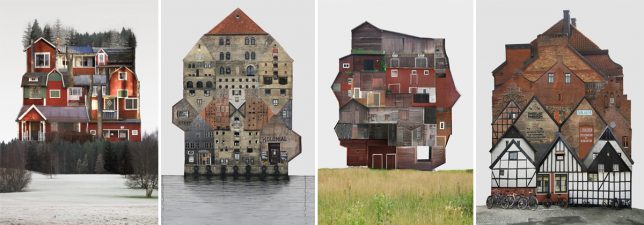
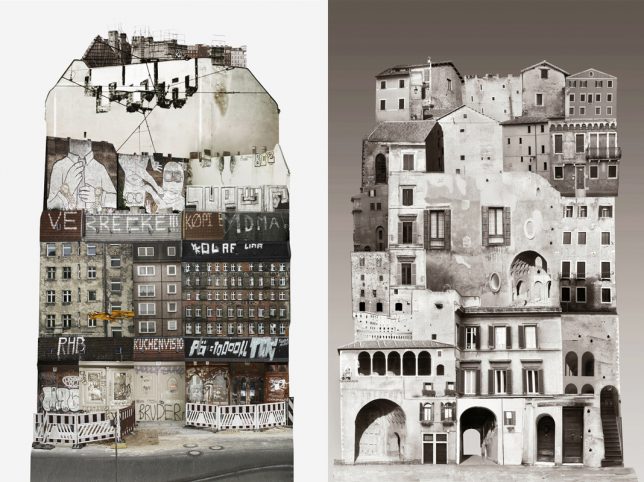
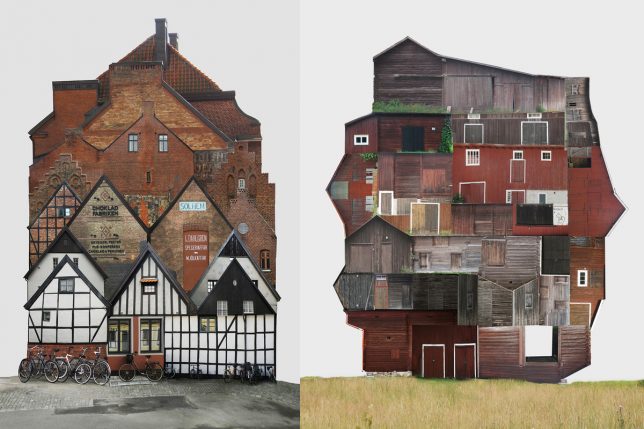
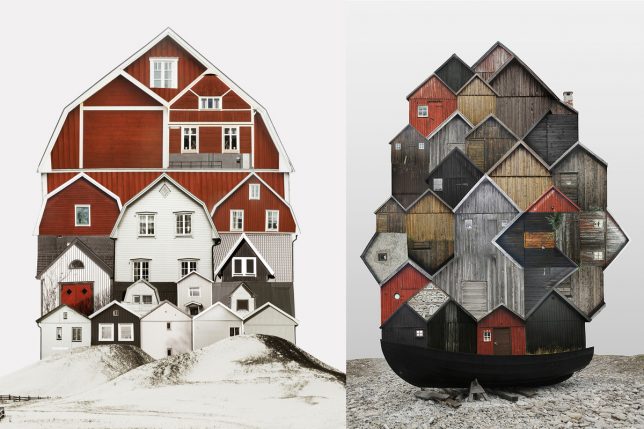
Remixing Architecture: Building Collages Capture Spirit of Cities & Countries

13 Dec

[ By WebUrbanist in Art & Drawing & Digital. ]

montage-leader

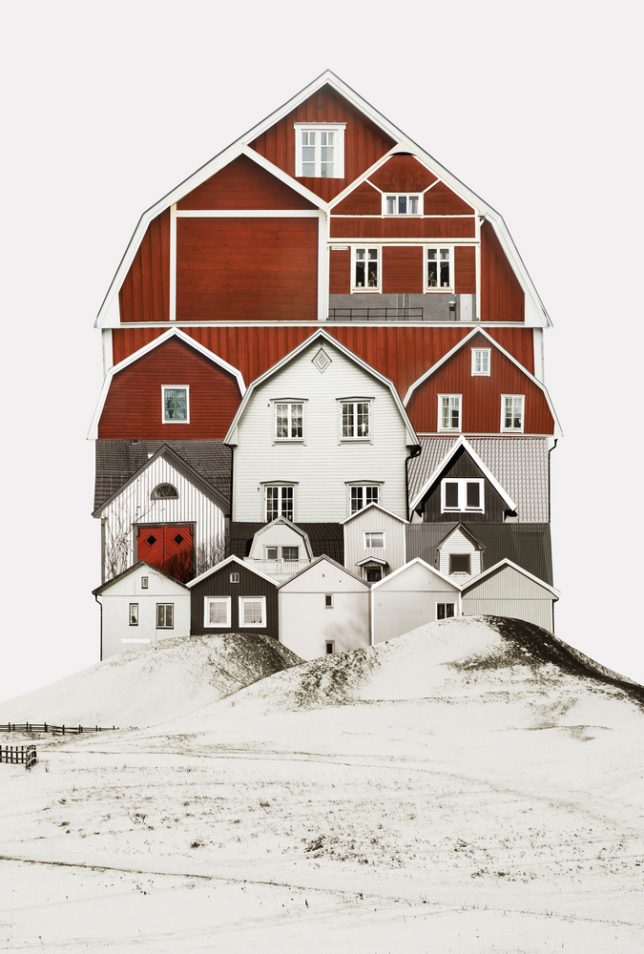
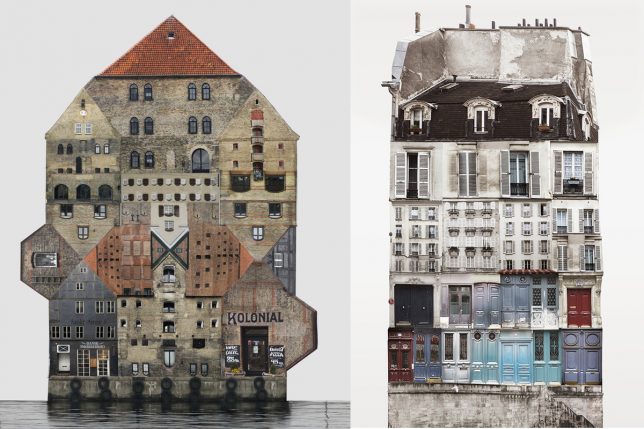
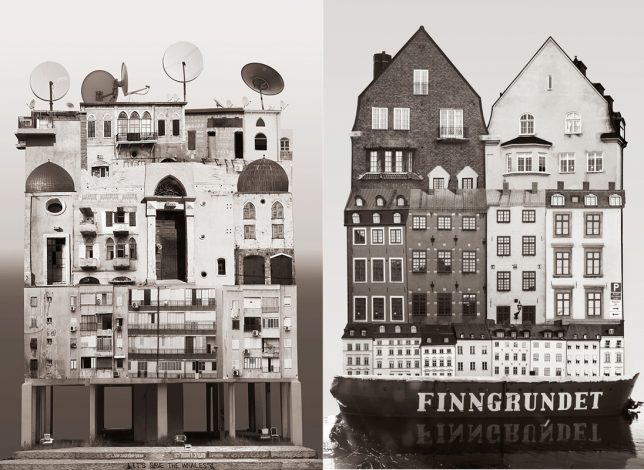
Combining photographs or everyday vernacular designs, artist Anastasia Savinova aims to illustrate patterns in built environments across major European cities as well as rural countrysides. Her Genius Loci (a play on Genus Loci, or: spirit of place) series illuminates the distinctive details and materials of each place she visits and, set against a regional backdrop of landscapes and waterways.

genius_loci_se_upland

In some cases, it is colors that serve as unifying factors — in others: building materials and typologies. Each one manages to be at once a singular work of architecture and a montage of quintessential parts.

city-hybrids

In a way, her pieces serve act like scrapbooks or memories, combining fragmented portions of travels to countries including Sweden, Germany and Italy. They capture those ineffable qualities usually too hard to fit into a single picture frame.

black-and-white

“In this project I am a flâneur, wandering around, inhaling the spirit of places and trying to visualize it,” she says of her work. “I travel, I observe and document. I take pictures, stare into the windows, watch everyday life – all this helps to build the feeling of the Place.

urban-collage

“Architecture and landscape are visual components of the integral image of the Place, at the same time, this image is inseparably linked with a mentality and a way of life.”

townhouse-typologies

barn-buildings

“A House on each collage is composed of many buildings, which are typical for a particular country or city, in their connection with the land and the spirit of the Place.”

Share on Facebook


[ By WebUrbanist in Art & Drawing & Digital. ]

[ WebUrbanist | Archives | Galleries | Privacy | TOS ]


WebUrbanist

 
Comments Off on Remixing Architecture: Building Collages Capture Spirit of Cities & Countries

Posted in Creativity


Faster operation and new sharpening tools for Phase One Capture One Pro 10

02 Dec

Camera, lens and software manufacturer Phase One has introduced a new version of its image manipulation software package that it says improves the speed at which it runs and which adds a collection of new editing tools – as well as compatibility with additional cameras and lenses. Capture One Pro 10 features faster browsing, zooming, image scrolling and magnified view comparisons after what the company describes as ‘under-the-hood tuning’, while a new design makes the interface easier for those new to the application.

Phase One has also added new sharpening tools that between them counter softness caused by diffraction, reduce the effects of haloing and which allow localized sharpening of selected areas. A further sharpening control provides the means to create output sharpening parameters for raw images as they are converted for particular purposes – such as for different print sizes or for web use. For images going to print the tool allows users to specify how far away viewers are likely to be so the program can generate suitable sharpening levels.

On the organizational side Version 10 allows users to move folders within a catalogue and allows filtering of images by their orientation. Those shooting with a Sony or Phase One camera tethered get a new ‘camera focus tool’ that helps users make critical focusing adjustments directly from the software without having to touch the camera.

The new application is also compatible with Tangent editing products. These are mixing-desk-like tools that provide an alternative to traditional keyboard-and-mouse operation of software. These panels are said to make editing software more intuitive and faster to use.
New hardware supported with this upgrade includes the Olympus OM-D E-M1 ll and the Sony A99M2 and A6500 cameras as well as Sony FE 70-200 mm F4 G OSS, Sony 70-200 mm F2.8 G, and Sony E 18-200mm F3.5-6.3 OSS lenses.

Capture One Pro 10 is available now and costs $ 299/€279. Users of version 8 or 9 can upgrade for $ 99/€99, though if you bought version 9 after 1st November you can upgrade for free. Subscribers can just download the latest version as part of their package.
For more information visit the Phase One website.

Press release

Phase One Releases Capture One Pro 10

Ready for the Future of Image Editing – A Faster, More Powerful Experience

COPENHAGEN, December 1, 2016 – Phase One today released Capture One Pro 10, a major release of the world’s premiere raw conversion and image editing software. Designed to support wide ranging workflows of both professional and passionate photographers, Capture One Pro is known and trusted for rendering the finest image color and detail from more than 400 digital camera models. Now, based on customer feedback, Capture One Pro 10 puts superior user experience center stage – with interface improvements, under-the-hood tuning, and exciting new features that furnish the fastest, most reliable and most powerful performance yet.
www.phaseone.com/ten

What’s New with Capture One Pro 10:

Enhanced User Experience. Faster browsing, zooming, panning, and ease in switching between images even at 100 percent view. Also, a new default workspace offers a more intuitive experience for new users, with examples for getting started.

Greater control, with a three-stage image sharpening process:

  • A new lens tool option corrects lost sharpness caused by diffraction;
  • User-defined creative sharpening (utilizing a new Halo Suppression slider and a new blending algorithm) allows the photographer the option to sharpen an entire image, or just various elements within it;
  • User-defined output sharpening in the recipe tool. For print sharpening, users can also specify the distance from which the final output image should be viewed.

On-screen proofing. An enhanced proof mode takes the guesswork out of the raw conversion process. From the viewer panel, users can now simulate the final size, resolution, color, compression artifacts and sharpening of images. This is especially useful for live assessment of files – particularly small files for the web and for optimizing image compression quality.

A look into the future of image editing: Inspired by video grading processes, users can now access Capture One Pro directly through a Tangent panel system. This fully integrated panel is literally a new interface into image editing – for deep dive color and image adjustment –– allowing fast, multiple input commands simultaneously, while viewing the master monitor as the editor “feels” input into the application.

A camera focus tool module for tethered cameras — especially useful for product, still life, macro, and Cultural Heritage photography projects.

“We have developed Capture One Pro 10 to greatly improve users’ experience so they can achieve the results they want much faster and with greater confidence,” said James Johnson, software product manager, Phase One. “Image adjustment options are now at a whole new level. We believe that with this release, we are delivering the most powerful, responsive, and user customizable image processor available.”

The Complete List of New Features:

  • Three-phase sharpening tools (see above)
  • Output proofing (see above)
  • New default and intuitive workspace (see above)
  • Camera focus tool module for tethered cameras (see above)
  • Tangent panel: full integration (see above)
  • New filter option: search by orientation of images
  • Optimization of Jpeg output for size/quality
  • Move folders in catalogs
  • Auto masking extended to any editable file type (including Xtrans)
  • Improved compressed RAW and Fuji support
  • Hardware acceleration – OpenCL is now enabled by default
  • Stripe reduction LCC for 100MP
  • Optimized LCC creation
  • Computer ID in license for activation management
  • Apple script – new properties (Mac only)

New camera and lens support
New camera support includes: Olympus E-M1 mkll, Sony RX100M5, Sony A6500 and A99M2. 

New lens profile support includes: Sony FE 70-200 mm F4 G OSS, Sony 70-200 mm F2.8 G, and Sony E 18-200mm F3.5-6.3 OSS

For a complete list of newly supported cameras and lenses, please go to: www.phaseone.com/download.

Availability and Pricing
Capture One Pro 10 is available now for the Mac and Windows operating systems online at www.phaseone.com/store and from Phase One authorized partners worldwide www.phaseone.com/partners.

Owners of Capture One Pro 8 and 9 may upgrade for 99 USD or 99 EUR. For customers who have purchased Capture One Pro 9 since November 1, 2016, Phase One is offering a grace period, exempting them from the upgrade fee. Eligible customers can download their upgrade today at phaseone.com/download and reuse their license key.

New customers can purchase Capture One Pro 10 for 299 USD or 279 EUR. Capture One Pro is also available by subscription. Capture One Pro (8 and 9) subscribers can simply download the new Capture One Pro 10 release. A single-user subscription is 15 USD / 12 EUR per month for a 12-month plan. Please see all subscription options at www.phaseone.com/store.

Articles: Digital Photography Review (dpreview.com)

 
Comments Off on Faster operation and new sharpening tools for Phase One Capture One Pro 10

Posted in Uncategorized


Stark contrast: how your camera copes with dynamic range capture

09 Nov

Managing dynamic range is challenging. There are few things more disappointing than looking through the viewfinder of a DSLR at a colorful, vibrant scene, hitting the shutter then glancing at the rear screen only to see a JPEG image with clipped highlights, crushed blacks, or both.

Dynamic range limitations can catch you out at the most unexpected moments. In this instance, the yellow leaf is catching the light, clipping the green channel and meaning that its color is misrepresented.

There are two challenges that the camera faces: picking a tone curve that can include a wide range of the tones in the final image and choosing an exposure that captures this wide range of tones. As you might expect, all in-camera DR modes aim to address one or both of these issues.

The first challenge comes because cameras tend to use a single, fixed JPEG tone curve designed to make most images look attractively punchy when they’re viewed on the relatively low dynamic range of most monitors or prints. High contrast scenes can extend beyond the range of tones squeezed into these images, which results in the darker tones in your image crushed to black and your highlights being clipped, if you try to expose the mid tones of your image correctly.

Much of the problem is caused by the camera’s tone curve: a system that maps the brightness of tones captured in the Raw file to the brightness levels used in the final image.*1

Why don’t camera makers just use a lower-contrast tone curves? Because, although a flatter tone curve would make it easier to include the extra tones in high-contrast scenes, they’d leave the rest of your images looking drab and flat.

The second challenge comes from from the tension between choosing a short/dark exposure to retain highlight information and a long/bright exposure to capture the most light to keep noise levels low.

With time, patience and a relatively modern camera it’s possible to bracket a few shots to ensure you capture a Raw file with the highlights you want preserved, which you can then carefully process to pull the detail out of the shadows – effectively creating a tone curve customized to that specific image.

DR compression modes

But not every photographer has the time, knowledge or the inclination to do this. So most manufacturers include some sort of mode to capture and compress the wide dynamic range of high contrast scenes into attractive images.

There are two main methods of doing this. One is to use a different tone curve to brighten up dark tones in the scene, and prevent blacks clipping so readily in high contrast scenes. The other is to capture or retain more highlight information and use a tone curve that incorporates these additional highlight tones.

The best solutions do a bit of both.

Method 1: Adaptive tone curves

Canon Auto Lighting Optimizer Nikon Active D-Lighting
Olympus Auto Gradation Pentax Shadow Adjustment
Sony Dynamic Range Optimizer Panasonic iDynamic

Adaptive tone curves are used to expand the range of tones in an image beyond the ones that a standard tone curve would include. They do this by selectively brightening up what would otherwise be the shadow and deep shadow regions of the image.

Many of these are based on the work of a company called Apical, whose algorithm increases the breadth of tones in the image (lowering overall contrast) by analysing each part of the image and brightening the shadows while working to preserve local contrast, so the overall image doesn’t look flat.

To demonstrate how this works, we’re going to use the tone flow diagrams we used in our articles about noise sources. These show the effect of changes in exposure, amplification and tone curve between the scene and the final image. Each element that changes is highlighted in red on the right-hand side of the diagram as you roll your mouse over the different states.

Default Exposure


Default Exposure with adaptive tone curve


Because the darker tones in an image are made up from less light, their signal-to-noise ratios are worse: they look noisier. Brightening them up makes it easier to see this noise, so DR compression modes of this type generally work best on larger sensor cameras and exposures that capture enough light to keep the quality high.

Other than revealing a little more noise in the shadows, adaptive tone curves themselves only affect the JPEG, not the Raw – they are just selectively applying a different tone curve (or, better still, a localized, context-specific tone response) to incorporate or emphasize more of the tones your camera captured.

Method 2: Capturing or retaining more highlight information

Canon Highlight Tone Priority Fujifilm Dynamic Range
Pentax Highlight Adjustment Ricoh Dynamic Range Correction

The other type of DR Compression method involves trying to capture a different set of tones, which usually means changing the exposure. Or, at least, changing which tones are captured and which are retained in the Raw file. This does change the Raw file.

The most basic of these systems change the exposure/amplification relationship of the camera. To understand what this means, it’s important to understand that final image brightness is made up of four components:

  • Illumination level of the scene
  • Exposure (Shutter speed and aperture)
  • Hardware amplification
  • Image tone curve (either in the camera or when processing the Raw file)

The ISO standard allows any combination hardware and software (tone curve) amplification, so long as the scene illumination and exposure give you the expected JPEG brightness*2. This means that there’s no fixed relationship between exposure, hardware amplification and final image brightness.

So, for instance, the camera can intentionally use a lower-than-usual level of amplification with your exposure so that highlight detail isn’t amplified beyond clipping, then use a different tone curve that retains these highlights. Such a tone curve would also pull its mid tones from deeper down the Raw file than in standard mode.*3

Default Exposure


DR Mode (Default Exposure –1EV with flatter tone curve to retain highlights)


The dead give away that your camera is doing this is a jump in the minimum available ISO when you engage DR mode. Because the base ISO setting is already using the lowest level of amplification, you can’t have a lowered amplification/exposure relationship until you use a shorter exposure (higher ISO).

This pattern becomes more obvious if you look at the Fujifilm ‘Dynamic Range’ system, which, with its three DR settings (DR100, DR200 and DR400) offers three*4 distinct balances of exposure and amplification. This table shows a simplification of the amplification level being applied in the different DRng modes at each available ISO setting:

  DR100 DR200 DR400

ISO 200
exposure

1X

ISO 400
exposure

2X 1X
ISO 800
exposure
4X 2X 1X
ISO 1600
exposure
8X 4X 2X
This table shows a simplification of the amplification level being applied at each DR mode and ISO setting.

Using this method the DR modes do result in different Raw files. In the example above, the two files have different exposures, so the Raw data is different. In the example below, where both shots have the same exposure, the DR200 shot has been amplified less than the DR100 shot, so contains more highlight information.*5

ISO 400  DR100 (Note the extra highlights captured with the reduced exposure are clipped by the 2X amplification)


ISO 400 DR200 (Same exposure but less amplification. A revised tone curve incorporates the extra highlight detail)


With modern sensors that add very little read noise to their images, there’s little or no noise cost to using lower amplification levels and then using a tone curve to make up for it. The only noise differences occur if you’re shooting in bright light and you choose to switch from using DR100 mode at base ISO to DR200 mode and have to use an ISO 400 exposure. In this instance it’s the shorter exposure that’s adding the noise, not the different way of using the sensor.

Adaptive exposure and tone curve

The final method is essentially a combination of the two techniques: reduced exposure/amplification and an adaptive tone curve.

Panasonic’s iDynamic and Olympus’ Auto Gradation modes will both reduce exposure by a 1/3EV or so to capture some additional highlights, then use an adaptive tone curve to brighten the shadows and as well as adding highlights. But it’s probably Nikon’s Active D-Lighting system that does the best job of this. It combines up to a 1EV exposure reduction with an adaptive tone curve to give well balanced JPEGs even in high contrast situations.

Short of providing the tools that would allow photographers to reliably expose to the right, these DR compression modes provide a really useful means of accessing the impressive capabilities of modern sensors, whether you know how they work or not.


Footnotes

*1 Technically it’s actually a combination of a gamma curve that converts the Raw file’s linear brightness response into sometime more closely matching the human eye’s response, to make better use of the file’s bit depth plus the effect of the tone curve added to make the image look more punchy.

*2 Strictly speaking it no longer even guarantees this: the REI section of the standard only requires that the camera gives what the manufacturer believes to be an appropriate image brightness.

*3 To an extent, this is what many manufacturers already do in their standard JPEGs: use lower amplification and a more highlight-weighted tone curve than historically required, to capture and retain more highlight information. This creates a discrepancy between the ISO rating and the result of Raw saturation testing – as conducted by DxOMark.

*4 You could argue that Fujifilm actually offers four levels of exposure/amplification: their camera’s extended ‘ISO 100’ mode is based on the same amplification as DR100’s ISO 200 mode, but with less highlight capture. In many respects it’s a DR50 mode.

*5 Even though the DR200 and DR100 images have received different amounts of amplification, and hence have different Raw files, the use of different tone curves for each DR mode means that the JPEGs appear with the same parts of the scene rendered as middle gray. As such they’re both considered to have been shot at the same ISO.

Articles: Digital Photography Review (dpreview.com)

 
Comments Off on Stark contrast: how your camera copes with dynamic range capture

Posted in Uncategorized


NYC Dance Project: How two photographers capture the beauty in movement

06 Nov

NYC Dance Project: The Art of Movement

Charlotte Landreau, Soloist, Martha Graham Dance Company. © Ken Browar and Deborah Ory

New York City-based photographers Deborah Ory and Ken Browar have spent the past two and a half years creating images of today’s most influential dancers in their home studio. A project that began in a quest to make photographs to decorate their daughter’s bedroom quickly became a long-term endeavor to capture the beauty of movement. This self-funded project, fueled by their passion for photography and dance, resulted in the team’s first book: The Art of Movement—a beautiful, award-winning 300 page compilation featuring photographs of more than 70 dancers from the world’s leading companies including American Ballet Theatre, New York City Ballet, Alvin Ailey American Dance Theatre, Royal Danish Ballet, among many others.

Ory, who started dancing when she was 7, began her photography career photographing rehearsals when a dance injury prevented her from performing. She has shot editorial for magazines including Self, Martha Steward Living and Real Simple and served as photo editor for House and Garden and Mirabella.

Fashion and beauty photographer Browar began his career in Paris, with work published in some of the leading fashion magazines in Europe and the U.S. including Vogue, Elle and Marie Claire. Browar’s interest in dance began when he photographed dancers for the Paris Opera Ballet.

Together their NYC Dance Project has been featured in numerous magazines ranging from Harper’s Bazaar to Vogue Italia.

For behind the scenes insight into the project, you can read our Q&A with this talented team. Be sure to scroll through the gallery to see some of the images from the project.

The book can be purchased here. Follow NYC Dance Project on Facebook and Instagram And if you’re in New York City, check out these events celebrating the book:

November 7 – ABT Jr Council Book Launch – A cocktail party and book signing; many of the ABT dancers will be there. More info and tickets

November 10 – Barnes and Noble Book Signing – 7pm – 150 East 86th Street, New York City. A book signing and Q&A. Ory and Bowar will be joined by Martha Graham Principal dancers, Lloyd Knight and Masha Dashkina Maddux (the dancer on the cover). More info here

?November 30, 2016 – Martha Graham Dance Company Studio Series – 7pm. Ory and Browar will be having a discussion with Artistic Director, Janet Eilber. Members of the Martha Graham Company will be performing and there will be a chance to take photographs of the dancers. Reserve your tickets here

December 8, 2016 – Rizzoli Bookstore – 6-8pm. 1133 Broadway, New York City. There will be drinks and a launch party to celebrate the book as well as a panel discussion with Ory, Browar and the dancers.??? rizzolibookstore.com

NYC Dance Project: The Art of Movement

Xin Ying, Principal, Martha Graham Dance Company. © Ken Browar and Deborah Ory

How did the NYC Dance Project get started? What was your inspiration?

The inspiration for the project came when our daughter Sarah, an aspiring ballerina, wanted to decorate her room with dance photographs. To our disappointment, we were not able to find images of the current dancers that Sarah admired in any contemporary books or photographs. There were beautiful images of famous dancers from past generations – such as Baryshnikov or Markova, taken more than 40 years ago – but nothing of the current stars.

Ken decided we needed to photograph these dancers ourselves. We were great fans of Daniil Simkin, the American Ballet Theatre Principal Dancer, and sent him an email asking him to be our first subject. Daniil loves photography and agreed to be photographed and this was the beginning of NYC Dance Project. Daniil helped us in getting a lot of other dancers involved in the project. It was a time when dancers were starting to use social media to promote themselves and they were interested in having images taken.

We originally thought it was going to be a blog, but after we had 4-5 shoots, we realized this had a longer life than we thought it would.

NYC Dance Project: The Art of Movement

Gillian Murphy, Principal, American Ballet Theatre. © Ken Browar and Deborah Ory

You’re very active in social media. How has that benefited you and the project?

Social media is a really important part of our project and we started with it right away. Daniil Simkin was very involved in social media and helped us learn how to promote our project through Facebook and Instagram. Our audience has been really active and it’s been a great way for us to reach even more people. Through social media, we have been able to reach an international market – we have dancers from around the world contacting us and asking about doing shoots with us when they are touring to NYC. It’s been a great way for us to connect worldwide with the dancers.

Having a large social media following was also important to our publisher, as it’s a great way to promote the book.

NYC Dance Project: The Art of Movement

Michael Jackson Jr, Alvin Ailey American Dance Theater © Ken Browar and Deborah Ory

Your studio is set up in your living room. How do you manage that arrangement?

Ken and I mostly worked in rental studios or outdoors previous to this and the fact that we work from our home changes the mood for the shoot. There are usually no more than the two of us, the dancer and sometimes a hair and makeup artist. Because it’s a small crew, in our home, it’s a very warm and friendly environment. There is something about the casualness of being in our home that we really love. We also can do a shoot at the last minute. Often we leave our studio set up for a few days and shoot several dancers. We go in spurts where shoot a lot, then we put our home back together and spend a few days editing.

The space we have is very large. We were able to do a shoot with 9 dancers here, although it was very tight. Ideally we would have an even larger studio, but as this is a self-funded project, we never would have been able to do it if we rented a studio.

NYC Dance Project: The Art of Movement

Michael Jackson Jr, Daniel Harder, Sean Aaron Carmon, Alvin Ailey American Dance Theater. © Ken Browar and Deborah Ory

Tell us about how your studio space is set up, what gear you use and how you work together.

Our home is a loft space with 16 foot high ceilings. Usually our background is about 15 feet high. We work with a Hasselblad on a tripod, using a standard 80mm lens. We now have the H6D. We like working with medium format, because we love the way it looks. Also, we like printing the images very large and the medium format lends itself well to this. We work very slowly, as we are using strobes and never have used a motor drive. When a dancer does a jump, we have to get the timing right, there is no room for mistakes!

We tend to keep our lighting very simple, with just one or two lights – from the top and/or side, depending on where the subject is and how they are moving. We’ve been using Profoto’s D4’s. These are not as fast as other lights that would stop the action 100%, but we are not bothered by not having technically perfect images. It’s the emotion and movement that we are trying to capture.

Our light is just to enhance the movement. We’ll start with the movement and think about how the light can work the best to complement it. Since the dancer is always moving throughout these shoots, we are constantly adjusting the light, bringing reflectors in and out and refining things. It’s all very fluid.

NYC Dance Project: The Art of Movement

Artem Ovcharenko, Principal, Bolshoi Ballet. © Ken Browar and Deborah Ory

…(cont.) People write us all the time asking if we can send them a lighting diagram. We can’t do this as we are constantly adjusting the lights. It’s so helpful having two people making the images – one of us is watching the dancer and the other is moving a light or adjusting it.

We use hand painted backgrounds that we’ve had an artist make. She is constantly refining it over and over for us. At one point she told us that she can’t add any more paint to it, it was getting too thick to roll up!

We have wood floors but we put a Marley dance floor, which comes in rolls, on top of the floor and underneath the canvas. That helps dancers from slipping and helps keep the canvas in place as well.

In the beginning we each worked with our own camera and had our own idea of what the image should be. The dancer would have to repeat the movement for each of us and we would compare who captured it better. Now we have become a team and work with one camera.

NYC Dance Project: The Art of Movement

James Whiteside, Principal, American Ballet Theatre. © Ken Browar and Deborah Ory

When a dancer comes into the studio for a shoot, how much do you direct them? Where do you begin?

Most of these dancers are well known dancers that we have seen perform before. If we haven’t seen them live—such as dancers from another country—then we’ll watch videos of them so we kind of know their strengths. Ken and I have an idea about what we would like to capture about each dancer, but once the dancer comes in, it’s a collaboration with them as well. We have them start moving with very little direction from us. We’ll look at a few images together and start to refine them. Usually we pick one or two ideas to work on and fine tune those until we get an image we all feel works well.

NYC Dance Project: The Art of Movement

Miriam Miller, New York City Ballet. © Ken Browar and Deborah Ory

Who styles the dancers and where do you get the outfits for the shoots?

I [Ory] do most of the styling for our shoots. Once we worked with a stylist and we felt it was too much about fashion and often the clothes did not move well. The clothing needs to be simple and beautiful, but most importantly, it needs to move well.

Clothing is a really important element for us. We’ve gotten outfits from different designers, including Leanne Marshall, who has been a big contributor for us. Companies like ABT will sometimes give us old costumes. They’re tattered and hand stitched and I love that you can see little rips and tears.

We also sometimes paint their pointe shoes so they match the clothing. In fashion you would never wear the same colored shoes with every outfit, so why would you wear pink pointe shoes with every dress?

NYC Dance Project: The Art of Movement

Fana Tesfagiorgis, Alvin Ailey American Dance Theater. © Ken Browar and Deborah Ory

What software do you use and how much post-processing is involved?

On set we shoot tethered with Hasselblad’s Phocus software. The images are brought into Lightroom to edit and the post-processing is done in Photoshop, after we have made our selects. Post-processing is pretty minimal in terms of what we do to the pictures. Most of our time is spent cleaning up spots and dust in the background. There is very little manipulation of the images themselves.

Often we have to remove cats from the photos! Our cats are literally walking through the set and often they are in the photo or there is a tail in the picture. They will go lay down underneath the dancer, no matter what the dancer is doing!

NYC Dance Project: The Art of Movement

Misty Copeland, Principal, American Ballet Theatre, from our shoot for Harper’s Bazaar, Degas story. © Ken Browar and Deborah Ory

You were commissioned by Harper’s Bazaar to do an editorial with American Ballet Theatre’s Principal dancer, Misty Copeland in conjunction with the Degas exhibit at MOMA. How did that come about?

Harper’s Bazaar found us on Instagram and also through another principal dancer who recommended us for this job. Glenda Bailey, their Editor-in-Chief, wanted someone who was used to shooting dancers, rather than a fashion photographer. Also, we had worked with Misty before, so they had seen our images of her. While we were very fortunate that they picked us, we were not really looking for commercial assignments at that time. They asked us if we had a porfolio and we just suggested they look through our Instagram feed. It was interesting to us as we knew how difficult it can be to send your portfolio and try to get jobs with magazines like Harper’s Bazaar.

It was a really difficult shoot. Bazaar wanted to make the pictures look exactly like Degas’ painting of dancers. We were stressing about how to make these images keep the perspective and painterly look of the Degas paintings. Degas sometimes just painted things in the background and we could not figure out what these things were. What are those blue streaks? Is he painting a set or was that just for effect? It was really a challenge re-creating these paintings!

There were about 50 people on set, and it was the first time we had worked with a crew that large for a dance shoot. The space we used at Pier 59 photo studios in NYC was really large, but we had to create 5-6 sets and there was only room to put up 2 at a time. Luckily, there were a lot of people to help us create these sets and it all came together beautifully. There was a lot of press surrounding the story, so it really helped us to get better known.

NYC Dance Project: The Art of Movement

© Ken Browar and Deborah Ory

Your first book, The Art of Movement, was released this October. What was it like to publish your first book?

As photographers, both of us had always dreamed of making a book. We certainly did not just create the images for instagram! Meeting with publishers was a bit depressing, however; most said they only do a dance book every ten years or so. It took a lot of persistence, and also a great literary agent, to help us find the right publisher. Although it worked out in the end, we got our contract at the last minute. Our publisher, Black Dog & Leventhal, wanted to get the book out this year, so we had to work incredibly quickly to meet the deadline. We barely slept for a few months. Putting together a 300 page book in such a short amount of time was very ambitious and stressful, but looking back now, it definitley feels worth the struggle!

NYC Dance Project: The Art of Movement

Michael Jackson Jr and Sean Aaron Carmon, Alvin Ailey American Dance Theater. © Ken Browar and Deborah Ory

What’s next for you?

It’s likely that we will make another book. The next step is also working with galleries. We just started working with the Holden Luntz Gallery in Palm Beach and will be looking for a gallery in NYC as well.

Articles: Digital Photography Review (dpreview.com)

 
Comments Off on NYC Dance Project: How two photographers capture the beauty in movement

Posted in Uncategorized