RSS
 

Posts Tagged ‘Camera’

4 Reasons to Never use the Delete Button on Your Camera

13 Oct

I was walking around a wild horse range in Utah this past summer, backing up, shifting one way then the other, looking for my shot, composing and recomposing when I almost stepped on this:

Never use the Delete Button on Your Camera

I freaked out. Very quietly, since I was almost standing on a snake and I don’t want to disturb him any more than I already had but it was a Xanax moment. My fellow photographer assured me that it was a bull snake out for a sunbath and that no self-respecting rattlesnake would have let me get that close without rattling. After a few muttered words I can’t repeat here and a bit of deep breathing, my hands were steady enough to do what any avid wildlife photographer would do. I photographed it.

Because I was on a wild horse range, I was shooting in burst mode. Each brief press of my shutter captured 5-6 images. A few seconds later, I had 50 shots of a coiled-up, sunbathing snake. Snakes don’t move all that much and ones taking a sunbath don’t really move at all so that seemed like an excessive amount of frames to me. To save memory space on my card, I briefly thought about deleting a few of the images. I forced myself not to delete anything, though. Here’s why.

Reason #1: Chimping and deleting takes you out of the moment

While you’re chimping (looking at the images on the back of your camera) and deleting images, you’re no longer in the moment. You take yourself out of the present and start reviewing images from the past. If you were on a roll or having a moment of magical oneness with your camera and your subject, you’ve just disrupted all that.

When you start pressing the delete button, you’re pressing the disconnect button too. You’ve stopped being an artist to chimp, delete, and save space on your memory card. Will you be able to immediately reconnect with your inner artist when you’re done chimping and deleting? Most of us can’t get back to that creative place quickly or easily so once we get there, it’s best to stay focused there.

Reason #2: You’ll miss some great shots while your head is down

Never use the Delete Button on Your Camera

What are you missing while your head is buried in your camera’s LCD? Think about this. You’ve traveled all the way to [insert your favorite place here] to photograph [insert your favorite subject here] and instead of photographing it, you’ve let your OCD take over and you’re cleaning up your memory card. Is that a good return on your investment? Are you making the best use of the time and money you’ve expended? Or, while you’re chimping and deleting images, are you missing the opportunity to capture the image above?

Or this?

Never use the Delete Button on Your Camera

Or this?

Never use the Delete Button on Your Camera

When you bury your head into the technical parts of your camera, you miss so much. Yes, a quick glance at your histogram is fine. Yes, you can quickly double-check your focus to make sure you’ve nailed it, but then keep shooting before you lose your mojo.

If you’re concerned about space on your memory card, stuff your pockets full of them and change them often. Don’t be the photographer that misses the best moment of the day because you can’t stop yourself from chimping and deleting images.

Reason #3: You can’t really see what you’re deleting

With the haze of sunscreen and the sun’s glare on my camera’s LCD, it was hard to see the details of each image I made. I was shooting the snake with a shallow depth of field but not so shallow that the entire snake wasn’t in focus. I was focusing on his eyes but snake’s eyes are pretty tiny and I wasn’t sure I’d nailed it. Plus, I was still feeling some anxiety.

My hands weren’t really very steady. It was hot out and every time I got low, to put my camera as close to the snake’s eye level as possible, I started to feel even shakier. I couldn’t stay with my knees deeply bent for more than a few seconds. The grass around the snake was also blowing slightly and I wasn’t sure if my camera was grabbing focus on the eyes or the grass. When I uploaded all the images, here’s what I found:

Never use the Delete Button on Your Camera

Never use the Delete Button on Your Camera

In this image, the snake’s eyes weren’t sharp

Never use the Delete Button on Your Camera

Never use the Delete Button on Your Camera

In this image, the blade of grass obscured the snake’s eyes and mouth.

Never use the Delete Button on Your Camera

Never use the Delete Button on Your Camera
In this image, the eyes were sharp and not obscured by grass and Sunny the Bull Snake was sticking his tongue out at me. Winner winner, chicken dinner! I couldn’t see those details on my camera’s LCD screen at all.

Reason #4: Formatting is better for your memory card than deleting

Rather than deleting images, the gold standard is to download your entire card, reformat it, then start shooting again. Every photographer has varying opinions on this but this method seems to save wear and tear on your memory cards.

While they aren’t as expensive to replace as they used to be, they do last longer with more care. Reformatting rather than deleting also seems to prevent your card from corrupting, which saves you the time and expense – and panic – of dealing with that issue. It’s never pleasant to download a card and realize half your day’s shoot is corrupt and won’t load.

Usually, recovery software works and you can eventually retrieve those images. But if skipping in-camera deletion helps prevent corruption, then by all means, let’s all stop doing it.

Those are my top four reasons for not deleting when I’m in the field shooting. Please share in the comments if you have any other reasons for not deleting images in camera. I’d love to hear from you.

googletag.cmd.push(function() {
tablet_slots.push( googletag.defineSlot( “/1005424/_dPSv4_tab-all-article-bottom_(300×250)”, [300, 250], “pb-ad-78623” ).addService( googletag.pubads() ) ); } );

googletag.cmd.push(function() {
mobile_slots.push( googletag.defineSlot( “/1005424/_dPSv4_mob-all-article-bottom_(300×250)”, [300, 250], “pb-ad-78158” ).addService( googletag.pubads() ) ); } );

The post 4 Reasons to Never use the Delete Button on Your Camera by Lara Joy Brynildssen appeared first on Digital Photography School.


Digital Photography School

 
Comments Off on 4 Reasons to Never use the Delete Button on Your Camera

Posted in Photography


iPhone 7 Plus Camera Test

01 Oct

Don’t have an iPhone 7 Plus? Us either … but, we know someone who does!

We got our friend Danny to snap a few pics and show us the magic that is a double lensed camera. *swoon*

Come along and check out that mega zoom, portrait mode and more.
(…)
Read the rest of iPhone 7 Plus Camera Test (571 words)


© laurel for Photojojo, 2016. |
Permalink |
No comment |
Add to
del.icio.us

Post tags:


Photojojo

 
Comments Off on iPhone 7 Plus Camera Test

Posted in Equipment


Adobe Lightroom for iOS updated with iPhone 7 camera profiles

01 Oct

With iOS 10.1, currently available in beta, the new iPhone 7 and 7 Plus are capable of recording Raw image files. Adobe has now updated its Lightroom app for iOS to take advantage of this new feature. The capability to shoot Raw images with all Apple devices with 12MP camera had already been implemented in version 2.5 of the app, but the latest version  v2.5.2 now also comes with lens and sensor profiles for both new iPhones, including specific optimizations for the dual-camera of the 7 Plus. 

These should ensure color, noise reduction, lens corrections and other parameters are set at the right levels when opening DNG Raw-files that have been captured with one of the new iPhones. In addition, the new version of Lightroom for iOS supports the DCI-P3 wide color gamut display that is also a new feature of the iPhone 7 series. It offers 25 percent more color than the sRGB color space. The latest version of Adobe Photoshop Lightroom can now be downloaded for free from the Apple App Store.

Articles: Digital Photography Review (dpreview.com)

 
Comments Off on Adobe Lightroom for iOS updated with iPhone 7 camera profiles

Posted in Uncategorized


Kano Camera Kit lets anyone build and program their own camera

29 Sep

Kano, a maker of DIY educational tools, is seeking crowdfunding for a trio of DIY project kits, one of which is its new educational Camera Kit. The Camera Kit enables anyone to build a simple camera and then program it with various functions using drag-and-drop code, the goal being to impart an overall knowledge of how cameras and their related software work.

The camera is assembled from pre-made parts using an included instructional ‘storybook.’ DIYers can choose which lens they want to use — a macro, fisheye, or wide-angle — and can add both a flash and a trigger. The Camera Kit also includes a Tripwire Sensor which, when added, emits an infrared beam. If someone or something moves through the beam, the camera will snap a picture.

Various functions can be added via the programming software, including features like triggering photos via sound using an integrated microphone, adding real-time data to photos like the current weather, and more. The software also enables users to create their own photo filters.

Overall, the Camera Kit features the camera ‘brain,’ an LED ring flash, tripwire sensor, mode dial, lenses, viewfinder, battery, charging cable, tripod, lanyard, camera case, storybook and stickers.

The Camera Kit is one of three project kits Kano is seeking funding for on Kickstarter. As with the other two kits, the Camera Kit is offered as a $ 99 pledge, with estimated retail cost being $ 129.99. Kano anticipates shipping its Camera Kit to backers in March 2017.

Articles: Digital Photography Review (dpreview.com)

 
Comments Off on Kano Camera Kit lets anyone build and program their own camera

Posted in Uncategorized


Step by Step How to Clean Camera Gear so it Stays in Good Shape

29 Sep

You may be very aware that photography equipment is not cheap. If you’re not, you’re in for a rude awakening! Camera bodies can cost thousands of dollars and it’s not uncommon for a lens to be even more expensive than a body! Sometimes it’s very tempting to baby your equipment; treat it with extra caution and wrap it up in cotton wool so as no harm will come to it. But with the right care and maintenance, your equipment will last and continue to perform for many years, no matter what, and without the babying!

DANS4206-2

Being a professional photographer myself, my equipment is often subject to some not-so-camera-friendly circumstances. Rain, snow, dust, and even champagne (!) are not uncommon encounters for my equipment. Even though I generally take the right precautions (for example, I use rain covers on for my cameras and lenses if it’s raining) there are times when the conditions are just unavoidable and my equipment gets a little dirty. It’s going to happen. But because I care for my equipment (even though it may look like I don’t!), it keeps on performing and hasn’t let me down. So I thought that I would share some of my tips to help you do care and maintenance on your gear, too.

Supplies needed

The good news about caring for your equipment is that it’s relatively cheap to buy what you need. With so few things in photography being cheap, this comes as a nice relief! Here is a list of what I use to care for my gear.

From a camera store (camera specific tools)
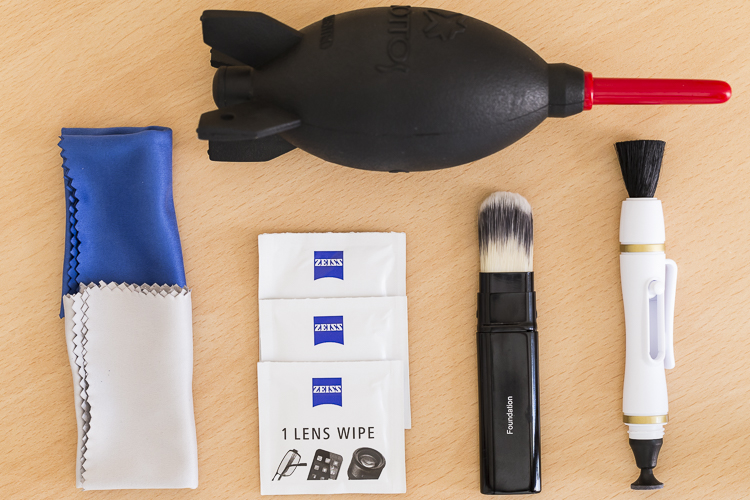
An overview of essential cleaning items.

An overview of some essential cleaning items.

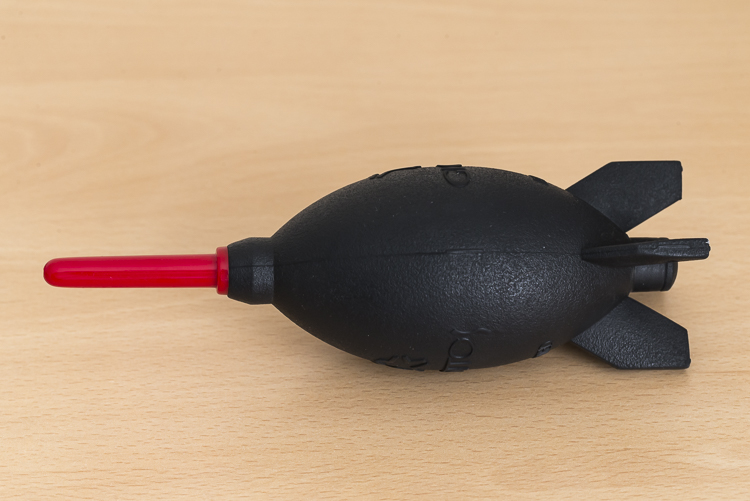
  • Rocket blower: I use this a lot! Squeezing it blasts out a puff of air to blow away any dust.
DANS4199

  • LensPen: I have just added one of these to my kit. At one end there’s a small soft, cleaning tip. At the other, is a retractable brush. I haven’t yet used it extensively but have been impressed with it so far. However, the cleaning tip is quite small so it’s not something I use on my larger lenses, such as a 400mm f/2.8; it would take forever.
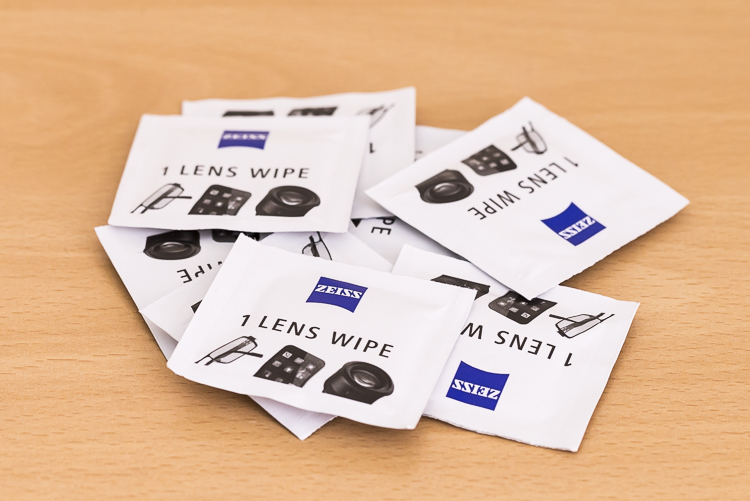
  • Pre-moistened lens wipes: I love these things. These are almost like the refresher towelettes you can get at KFC, but for lenses. They’re pre-moistened with a lens cleaning solution that quickly evaporates from the lens. They’re also dirt cheap. I use the Zeiss brand ones (only ones I’m aware of) which for a pack of 200, cost about $ 13.90USD. (Note: also available by Hoodman especially for camera lenses)
DANS8686

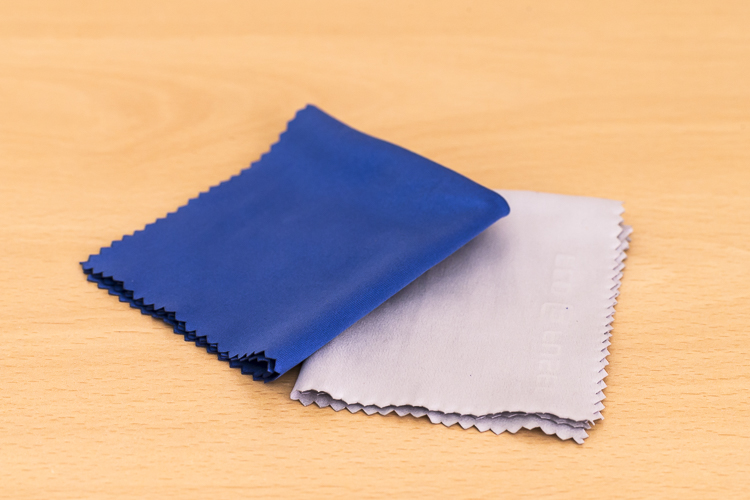
  • Microfibre cleaning cloths: Another cheap must have. I like to have several of these. I reserve one just to buff lenses after using the wipes, and another just for cleaning the lenses without any product at all. I avoid using the same one across many devices, for example, using the same clothing to clean my iPhone screen, then using it to clean my lenses.
DANS8688

From a regular store (non-camera tools):

  • A paint brush: These are very handy at removing dust from the surface of camera bodies and lens barrels. Again, buy this brand new. You don’t want this to be super soft either, as it’s just being used on the outside of the cameras and lenses and not on anything that needs to be protected.
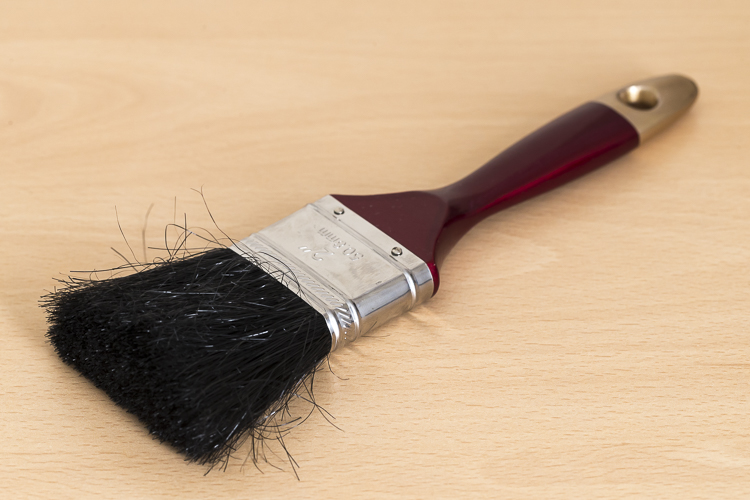
DANS4195

  • Make-up brush: this is something that people often have a laugh at when they see it in my bag. But then think, “Hey that’s a good idea”. If you want to add one to your kit, make sure you buy one brand new. You don’t want your partner’s blush going all over your lens. Generally, the more expensive brushes are better as their bristles are much softer. The one I have is also retractable, which is ideal as it protects the brush.
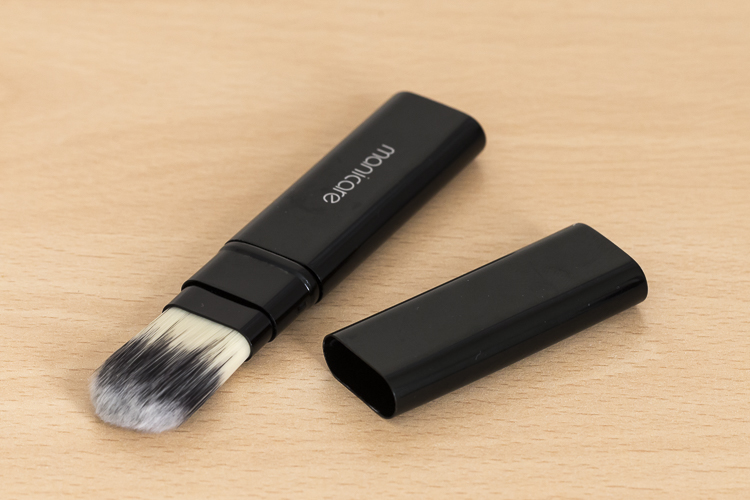
DANS4193

  • Teck Towel: I got a Tek Towel for my birthday years ago and decided to give it a go cleaning my gear. It works brilliantly, but a clean towel will work just as well.
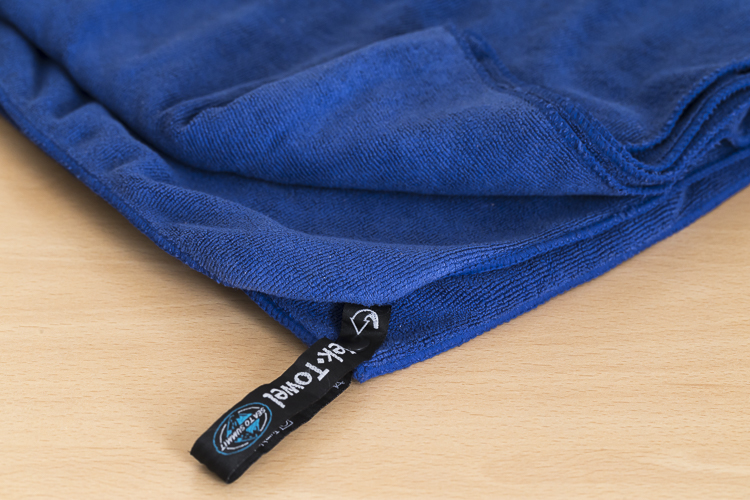
DANS4197

  • Zip-Lock Bag: This is where I store my cleaning gear, to keep it clean and as dust free as possible!

With these items, I am able to keep my lenses and camera bodies looking (almost) like new. Here’s my workflow when it comes to cleaning time.

Lenses

Step 1. Use the Rocket Blower

The first step is to remove any larger bits of dust, etc., from the lens. For this, I use the rocket blower. Squeezing it blows air out of the tip and will blow away larger, loose bits of dust, etc. It’s important not to use a cloth for this step as this can drag dust over the lens and scratch it. This is why the Rocket Blower is very useful.

Step 2. Use the LensPen
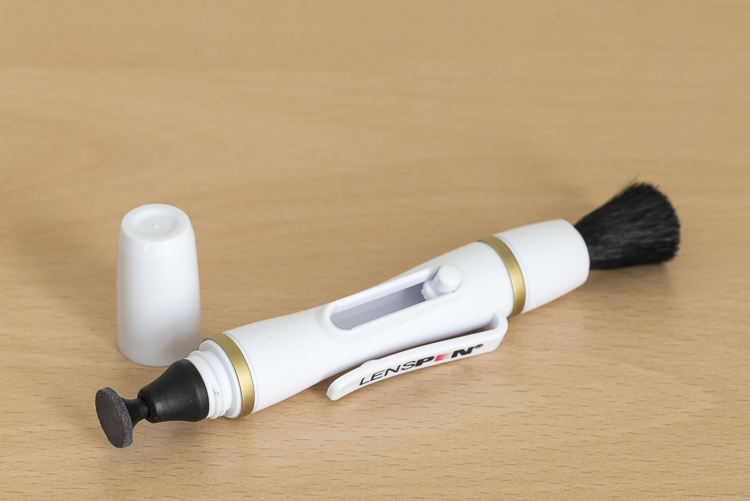
DANS4194

Hopefully, the blower was able to remove all the dust. However, there are times when some little specs remain. To remove these, I use the brush on the end of the LensPen. Doing a quick flick of the brush around the lens should do the trick. There shouldn’t be a need to apply much if any pressure at all. This should remove all the dust from the surface of the lens. You may need to do a quick repeat with the blower, though. If you don’t have a LensPen, using a makeup brush works just as well.

If you don’t have a LensPen, using a makeup brush works just as well.

Step 3. Clean the glass

Your lens should now be free of dust and other debris. If there are some marks surface on the lens, this is when to give it a little clean. First off, use the cleaning end of the LensPen. It is very soft and doesn’t damage the glass at all so it is ideal for this. Using a circular motion, work your way around the lens until all the marks have been removed. This may take several passes to achieve. It’s important to not be tempted to push on the lens too hard. Just keep going around in a circular fashion until it’s satisfied. Give the blower another quick go over, too if necessary.If you don’t have a LensPen using a

If you don’t have a LensPen using a clean micro fibre cloth will also do the job. Just use the same circular motion and again, repeating the motion is preferred over applying more pressure.

Step 4. Get rid of stubborn marks

After Step 3, I am normally done cleaning the lens. Step four is completely optional, but sometimes, there is some muck on the lens that just will not budge; no matter how many times it’s gone over. This is when to use the pre-moistened lens tissues.

Using the same circular motion, I work my way around the lens until it’s been completely gone over (I normally go over it two or three times). Then I get a microfibre cloth (generally, a different one that I use just for this purpose) and give the lens a bit of a buff using the same circular motion. I’ll go over it a few times.

I favour these tissues over sprays because I don’t like the idea of having a bottle of liquid inside my camera bag. If it breaks, it can leak into my gear and cause major damage. I also quite like their single-use quality.

For me, using cleaning solutions is an absolute last resort and not something I do each and every time I clean my gear. I also don’t breathe on my lenses (you know, to fog them up to make it easier to wipe off grime) if I can avoid it. If you’re like me and quite a coffee drinker, your breath can be slightly acidic and with repeated use, it can wear down the coatings on your lens. At least that’s what Nikon mentioned a while back in an article I read (ps, I’m a Canon guy).

Step 5. Don’t forget the lens cap

The front element is now clean. But for me, the process is still not yet finished. Before placing the lens cap back on, I have a quick look at it – there could be grit and dust on it that is about to put back on my newly cleaned lens. Giving it a quick once over with the blower and a paint brush will keep it and the lens cleaner.

Step 6. Clean the rear element

Now it’s time to have a quick look at the rear element – the bit that goes inside your camera. This shouldn’t be too messy; after all, it stays inside the camera. But dust can fall on it, especially when changing lenses and this dust, while it may not show up in pictures, can definitely make its way on to the sensor. I give it a quick once over with the Rocket Blower making sure the bottom of the lens is facing down. Doing so will stop any dust from falling back on it.  Some rear elements are further recessed into the lens than others. With lenses that have the rear element much closer, I also may give it a quick wipe with a micro fibre cloth or LensPen to clean it up.
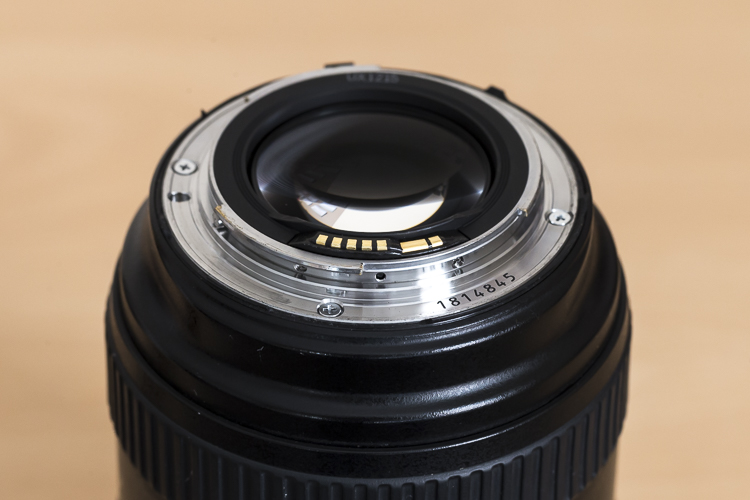
DANS4207

Notice with this lens, the rear element is very close to the surface. Also, those gold bars are the lens contacts.

Occasionally, I’ll also give the mount a clean up too, as well as the lens contacts. For this, I just use a Tek Towel, although any clean towel will do. Carefully wipe around the mount and go over it a couple of times. A small amount of alcohol on a cotton tip can be used to clean the contacts. Cleaning the contacts every now and then can help to prevent errors between the camera and lens caused by a build up of grime.

Now it’s time to give the rear cap a quick go over. Remove any dust with the blower and put it back on the lens.
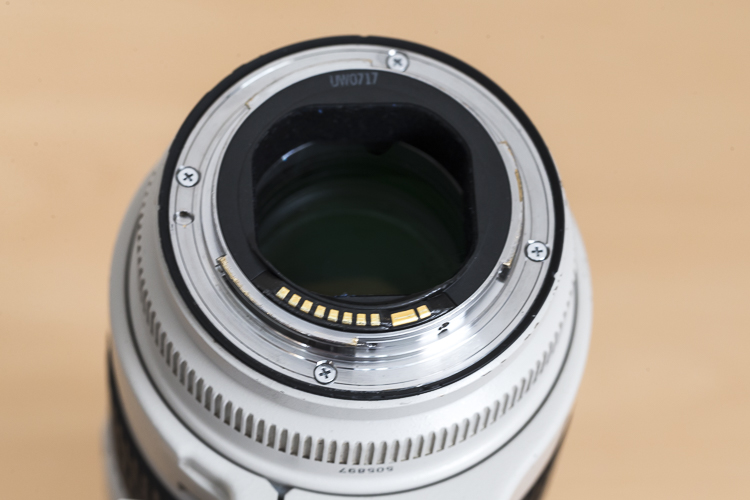
With this lens the rear elements sits deeper in the lens barrel.

With this lens, the rear element is recessed deeper into the lens barrel.

Step 6. Clean the outside of the lens

Now that the elements (both front and rear) and the lens mount are clean, it’s time to give the outside a quick go over. For this, I whisk away any dust with the paint brush and wipe the whole surface area with the Tek Towel. If I’ve been at the beach (salt in the air), or my lens has had a shower, I’ll dampen the towel in fresh water to remove any salt or champagne, etc.

This step, while very quick and simple, has proven to be quite helpful in picking up some things that may need my attention. For example, a while back I was cleaning my 70-200mm lens and I noticed that the end of the barrel was a little loose. I took it into Canon it was fixed in 10 minutes and cost nothing. Prevention is the best remedy.

Camera
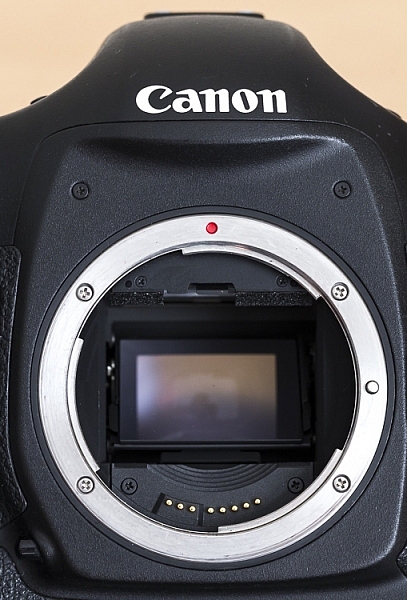
Here is a view of one of my camera bodies without its body cap. Care should be taken when cleaning around the lens mount so as to avoid dust/dirt etc from falling in. It's good practice to do this with the lens mount facing down.

Here is a view of one of my camera bodies without its body cap. Care should be taken when cleaning around the lens mount as to avoid dust, dirt, etc., from falling inside. It’s good practice to do this with the lens mount facing down.

Cleaning the camera is MUCH easier and quicker than the lenses. First off, I start by giving the outside a once over with the paint brush, followed by a thorough wipe down with the towel. I make sure the screens and the viewfinder are all nice and clean, too. As with lenses, I make sure that the mount and the contacts on the body are clean using the same steps and dampen the towel in fresh water if I’ve been at the beach.

While I have the body cap off, I’ll also blow out any dust that may be in the camera with the blower. With this step, I am much more cautious as I don’t want to blow into the body too much. Again, I also have the camera mount facing down to prevent dust from re-entering. This step can help reduce the amount of particles inside the camera which may eventually find their way onto the sensor.

Sensor

For me, this is where the cleaning process stops. I don’t do my own sensor cleaning as I much prefer it be done by the right people. Some people like to do their own sensor cleaning, and that’s completely fine. This is just something I like to give to professionals because if anything goes wrong, I can blame them.

Filters
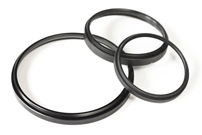
Cheap-UV-Filters-202px.jpgYou may have noticed that I haven’t mentioned anything about UV filters. The reason for that is simply I don’t use them. I am yet to be convinced that they will actually save a lens from breaking if being dropped and have the view that if a lens is going to break from a fall, it will break; filter or no filter. I always use lens hoods which not only help to reduce lens flare but also provide some protection from objects falling on to the front element. However, if you’re in an extremely dusty environment, for example, then the use of a UV filter could be a smart investment.

Conclusion

So that’s it for my gear cleaning process. This isn’t something I do after each and every shoot, but I do try to get to it at least once a month or after shoots where my gear has been a little abused by the elements. It may seem that there are a lot of steps involved, but it really doesn’t take that long to do it. It’s even quite therapeutic when you get into it.

How do you clean your gear? Do you have any other tools you use? What’s your procedure and how often do you do it? Please share in the comments below.

googletag.cmd.push(function() {
tablet_slots.push( googletag.defineSlot( “/1005424/_dPSv4_tab-all-article-bottom_(300×250)”, [300, 250], “pb-ad-78623” ).addService( googletag.pubads() ) ); } );

googletag.cmd.push(function() {
mobile_slots.push( googletag.defineSlot( “/1005424/_dPSv4_mob-all-article-bottom_(300×250)”, [300, 250], “pb-ad-78158” ).addService( googletag.pubads() ) ); } );

The post Step by Step How to Clean Camera Gear so it Stays in Good Shape by Daniel Smith appeared first on Digital Photography School.


Digital Photography School

 
Comments Off on Step by Step How to Clean Camera Gear so it Stays in Good Shape

Posted in Photography


Foolography and Triggertrap bring sensor-based triggering to the Unleashed camera controller

28 Sep

Foolography has announced a partnership with Triggertrap to bring new functionality to its tiny Unleashed Bluetooth camera controller that we covered at Photokina. The Unleashed works with many Canon and Nikon DSLRs and allows photographers to wirelessly control camera settings, such as aperture, shutter speed or ISO, and trigger the shutter or video using a smartphone app. You can also control multiple cameras, capture time-lapses and geotag your images. 

Triggertrap is a wired solution that is also controlled via a smartphone app. It focuses on offering creative ways of triggering a camera, such as vibration, facial recognition or motion sensors among others. A future version of the Triggertrap app will now be compatible with the Unleashed hardware dongle, allowing for wireless triggering with the Triggertrap modes. 

“We are often asked whether it’s possible to have a wireless version of Triggertrap Mobile,” says Mat Rodger, Managing Director of Triggertrap, “But so far, we have been focusing on our wired solutions. We are very excited to team up with the foolography team to deliver more options to our users, and to help foolography’s users trigger their cameras using our app.” 

foolography partners with Triggertrap to bring sensor-based triggering to Unleashed

Berlin 26 September 2016 — Berlin-based foolography (foolography.com) today announced that it is partnering with London-based Triggertrap (Triggertrap.com) to add additional functionality to its popular Kickstarter-backed Unleashed product.

foolography’s Unleashed (http://kck.st/2c8lxlu) is primarily a camera remote app. It helps Canon and Nikon users take full control of their cameras from their phones. From their app users can change all the important settings (aperture, shutter speed, ISO etc.) of their DSLR, take photos, start and stop video recording, control multiple cameras, take exposure-ramped-timelapses, geotag the images in-camera and preview thumbnails.

Triggertrap Mobile doesn’t offer as much control over the camera’s settings, but adds interesting and creative ways of triggering a camera to the mix, including sound, vibration, facial recognition, motion sensors, and much more.

Today, the two companies announced that Triggertrap will be including foolography’s Unleashed compatibility in a future version of the app. Instead of having to connect to the camera using the company’s Triggertrap Mobile Dongle, users will be able to use foolography Unleashed to trigger their cameras wirelessly based on a the triggering modes available in Triggertrap’s app.

“We are often asked whether it’s possible to have a wireless version of Triggertrap Mobile,” says Mat Rodger, Managing Director of Triggertrap, “But so far, we have been focusing on our wired solutions. We are very excited to team up with the foolography team to deliver more options to our users, and to help foolography’s users trigger their cameras using our app.”

“We have been huge fans of Triggertrap for a long time,” says Oliver Perialis, CEO at foolography, “and are very glad to announce this partnership. We always planned to open up our triggering API to other developers and couldn’t be happier that Triggertrap’s app is the first one out of the gates. This is just the beginning, and we hope developers will develop creative apps compatible with the Unleashed.”

Articles: Digital Photography Review (dpreview.com)

 
Comments Off on Foolography and Triggertrap bring sensor-based triggering to the Unleashed camera controller

Posted in Uncategorized


Xiaomi Mi 5s and Mi 5s Plus offer high-end camera specs and ultrasonic fingerprint reader

28 Sep

Chinese manufacturer Xiaomi has launched two new high-end devices today, which in terms of specification and product naming, are squarely aimed at Apple’s recently launched iPhone 7 models. 

The Mi 5s is the smaller of the two new devices, featuring a 5.15″ force-sensitive 1080p display and a 3,200 mAh battery in a fully metallic body. The camera specification can compete with some of the current best Android smartphones. Sony’s 1/2.3-inch IMX378 CMOS sensor offers the same large 1.55um pixel pitch as the predecessor IMX 377 that is used in the Google Nexus 6P or HTC 10. It comes with on-sensor phase-detection and is combined with an F2.0 aperture, a dual-tone LED flash, auto HDR and 4K video recording at 30 fps. The front camera is less exciting, offering a 4-megapixel sensor with F2.0 aperture and an 80-degree wide-angle lens. Xiaomi has published a sample gallery on its website.

The Android OS is powered by Qualcomm’s latest top-end Snapdragon 821 chipset, up to 4GB of RAM and 128G internal storage. Another highlight is the ultrasonic fingerprint sensor that is located underneath the front glass. The ultrasonic technology eliminates the need for cutting a hole into the glass and, according to Xiaomi, works better with dirty fingers than capacitive versions. In China the Mi 5s can pre-ordered on September 29th for approximately $ 300 for the base model with 64GB storage and 3GB RAM. The high-end version with 4GB RAM and 128GB storage will set you back $ 345.

The larger Mi 5s Plus comes with a 5.7″ display but no force-sensitivity and a conventional fingerprint reader on the back. On the plus side it has a bigger 3,800 mAh battery and a 13-megapixel dual-camera. The latter works in a similar way to the version in the Huawei P9, combining images from a color and BW sensor for improved detail and dynamic range. Both cameras use Sony’s 1/3.06 IMX258 sensor. The Mi 5s Plus will cost you approximately $ 345 for the model with 4GB RAM and 64GB storage. A premium model with 6GB RAM and 128GB storage will be available for about $ 390. 

Articles: Digital Photography Review (dpreview.com)

 
Comments Off on Xiaomi Mi 5s and Mi 5s Plus offer high-end camera specs and ultrasonic fingerprint reader

Posted in Uncategorized


Snapchat unveils Spectacles, a pair of sunglasses with an integrated camera

27 Sep

Snapchat unveiled its first hardware product over the weekend, a pair of sunglasses with a built-in camera called ‘Spectacles.’ With the new product comes a new company name: Snap Inc. The name change, Snap explains, is directly tied to the launch of Spectacles. With the product, Snap has become more than a company centered around the Snapchat app, and the new name reflects this expanded focus. 

The sunglasses feature a built-in wireless video camera that records circular videos with a 115-degree ‘human perspective’ field of view. The glasses also include an integrated battery able to sustain a day’s worth of recording on a charge, as well as Bluetooth and Wi-Fi for shuttling content from the device to the user’s smartphone and, specifically, the Snapchat app.

According to the Wall Street Journal, the sunglasses feature a button near the hinge to initiate recording, which happens for up to 10-second durations. The publication also states the glasses will be priced at $ 129.99 ‘with limited distribution’ and a slow rollout as the company tests the waters.

Spectacles will be offered in teal, black and coral, but no other official details have been provided at this time. Snap says Spectacles will be available ‘soon.’

Via: Snap, Inc.

Articles: Digital Photography Review (dpreview.com)

 
Comments Off on Snapchat unveils Spectacles, a pair of sunglasses with an integrated camera

Posted in Uncategorized


MIOPS displays its MIOPS Mobile smart camera remote

25 Sep

The makers of the MIOPS smart trigger have returned to Kickstarter looking to fund their latest project, the MIOPS Mobile and are showing a prototype at their Photokina booth. The Mobile connects your DSLR and smartphone via a Bluetooth LE connection and uses your mobile device’s built-in sensors to offer a range of creative capture modes. The camera can be triggered by vibration, sound, motion, a predefined travel distance or a combination of all those events. Advanced timelapse modes are included as well and all parameters and modes are controlled via an iOS or Android smartphone app. 

Remote shutter control is on board as well – functions include Cable Release, Press&Hold, Press&Lock, Timed Release, Self Timer and Timed Release with Self Timer. The system is compatible with 350 camera models from most major manufacturers and the battery provides power for approximately 24 hours of use with one charge. Firmware is updated automatically over the air. More information including a video can be found on the MIOPS Mobile Kickstarter page. The funding goal has already been reached but you can still secure a unit with a $ 79 pledge. Shipping is planned for April 2017.

Articles: Digital Photography Review (dpreview.com)

 
Comments Off on MIOPS displays its MIOPS Mobile smart camera remote

Posted in Uncategorized


HumanEyes Technologies shows off Vuze VR 360 degree 3D camera

21 Sep

At HumanEyes Technologies’ Photokina booth we had the chance to look at some of the first production models of the Vuze VR 3D 360 degree cam, first announced at the Cannes Festival in May. The camera uses 8 Full-HD cameras with wide-angle lenses that are arranged in pairs on the corners of the device to record 360 degree video in 3D. Of course you can also record standard 2D footage at a 4K output resolution and 30 frames per second. Each lens covers a 120 degree angle of view horizontally and 180 degree vertically.

A standard tripod mount allows for easy mounting to any camera support, including the combined tripod/grip that comes in the package. The camera is operated via a single button on the device and settings can be changed via the Vuze App on any smartphone. The app also allows for management of footage that has already been saved on the microSD card and for a preview of the final video. 

Stitching and editing of recorded footage is done in the Vuze Studio software on a PC or Mac and final results can be viewed on the included VR headset that is compatible with most smartphones. The Vuze will be available soon for $ 799.

Articles: Digital Photography Review (dpreview.com)

 
Comments Off on HumanEyes Technologies shows off Vuze VR 360 degree 3D camera

Posted in Uncategorized