RSS
 

Posts Tagged ‘Black’

How to Make the Most of Hard Light with Black and White Photography

12 Mar

Black & white photography

The quality of light is an important aspect of successful photography – good photographers spend hours chasing the most suitable light for the type of photography they do. That usually means working at the beginning or the end of the day, when the sun is low in the sky and the light has many beautiful qualities.

But what about the middle of the day? Many photographers avoid shooting in direct sunlight in this period, especially in summer, because the light is so hard and strong. You can’t use it for portraits (unless you use flash, which is the subject for another article) or find a place in the shade for your model. It’s nearly impossible to use it for landscapes, because they always look so much better in the softer light, characteristic of the the day’s end.

Perhaps the problem is not so much bad light, but a poor match of light to subject. So the question becomes, is there a subject that you can successfully shoot in strong, midday light? I believe there is. I like to use this part of the day for photographing a subject comprised of strong lines and graphic shapes – architecture.
Black & white photography

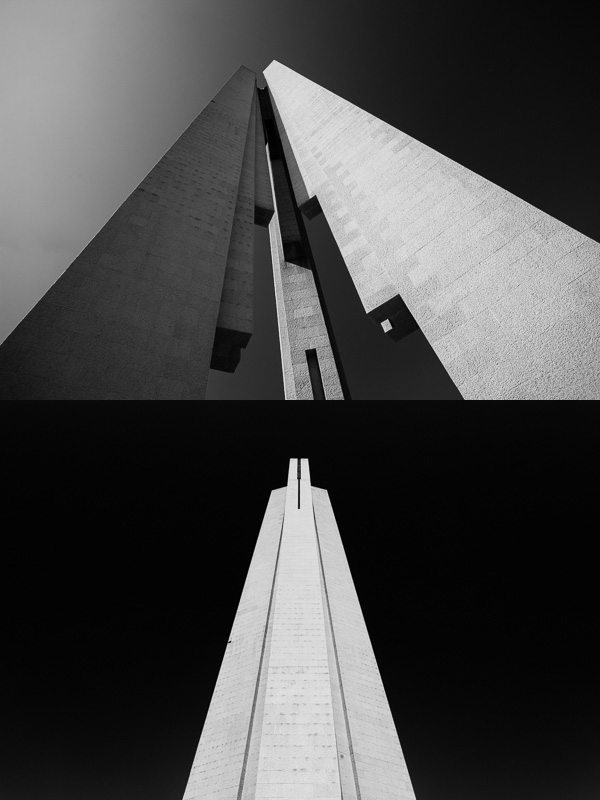
Two photos of the same structure (Monument to the People’s Heroes in Shanghai) taken moments apart. In both cases I was exploring the shape of the structure against the blue sky, shooting with a wide-angle lens from ground level looking up. The first image concentrates on shape and line. The second is more abstract. I used a polarizing filter to darken the sky, and photographed the sunlit monument against it for maximum tonal contrast.

This may seem a little strange because buildings are often best photographed during the golden hour, but there is no reason why you can’t shoot during the middle of the day as well. The only drawback is that colour photos of buildings taken at this time of the day, often with a deep blue sky in the background, are usually not very exciting.

But switch to black and white photography and it’s a different story. Without colour, and the strong distraction of a deep blue sky, the photographic possibilities change entirely. Suddenly you’re not looking at the colour of a scene. Instead you’re exploring line, shape, texture, form and shadow. Then, take those photos into Lightroom and there’s all kinds of wonderful, creative things you can do in post-processing to enhance the image.
Black & white photography

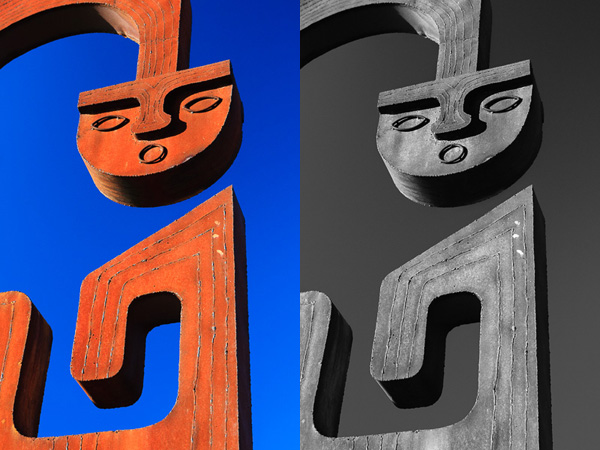
Details like this sculpture can work very well in midday light as the hard shadows suit the material it is constructed from. I enhanced the black and white version of this photo in Lightroom by using an Adjustment Brush to increase Clarity and Contrast on the metal surfaces in the image.

Learning to see in black and white takes time, but there are a couple of things you can do that will help.

The first is to shoot in your camera’s black and white mode, but with image quality set to Raw. When you play back your image on the camera’s LCD screen it is displayed in black and white, yet because you are using Raw you have the full colour file to work with in Lightroom or Photoshop.

You will probably find it useful to spend some time looking at your photos on the camera’s LCD screen during the shoot to see how the colour scene in front of you translates to monochrome. As you gain experience you will need to do this less and less, but it can be incredibly helpful the first few times you try.

If you have a camera with an electronic viewfinder, the camera displays the scene in black and white in the viewfinder. This is even more useful because you don’t have to visualize how the colours in the scene will convert to black and white. The camera does it for you and you can concentrate on creating beautiful compositions.

The second is to use a polarizing filter to turn the already blue sky an even darker shade of blue. This can look fantastic in black and white. If you enable the red filter setting in the camera’s black and white mode options it will make the blue sky darker yet, and it may even turn black. Position a sunlit, light-toned, building in front of that dark sky and you have some amazing tonal contrast and the basis for a dramatic black and white architectural study.
Black & white photography

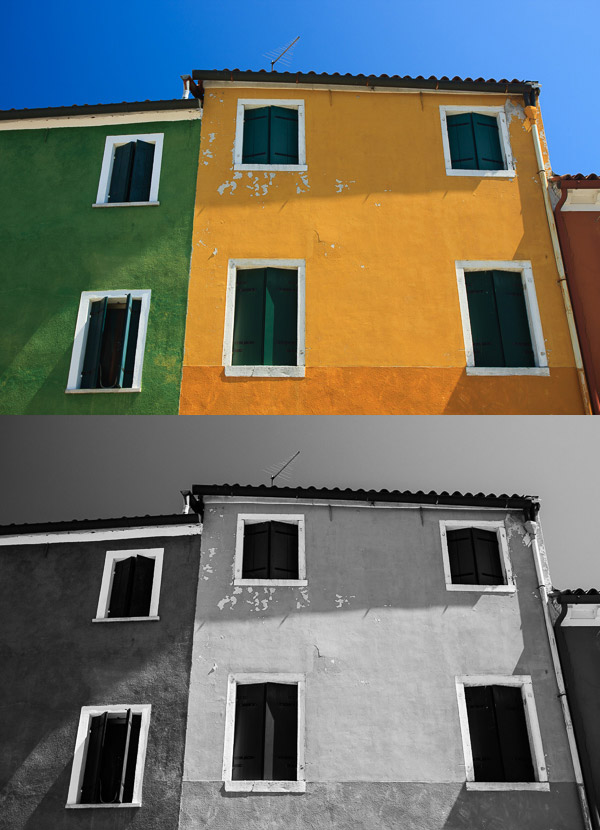
It is easy to be seduced by colour, especially when presented by colour buildings such as these ones in Burano, Italy. This photo was taken around midday, but because the sun was overheard it cast a raking light over the front surface of the buildings, bringing out the textures in the wall. I increased Clarity in Lightroom to emphasize the texture in the black and white conversion.

I’ve concentrated on photographing buildings in this article, but I’d like to hear what other subjects you shoot during the middle of the day. Please let us know in the comments.
Black & white photography

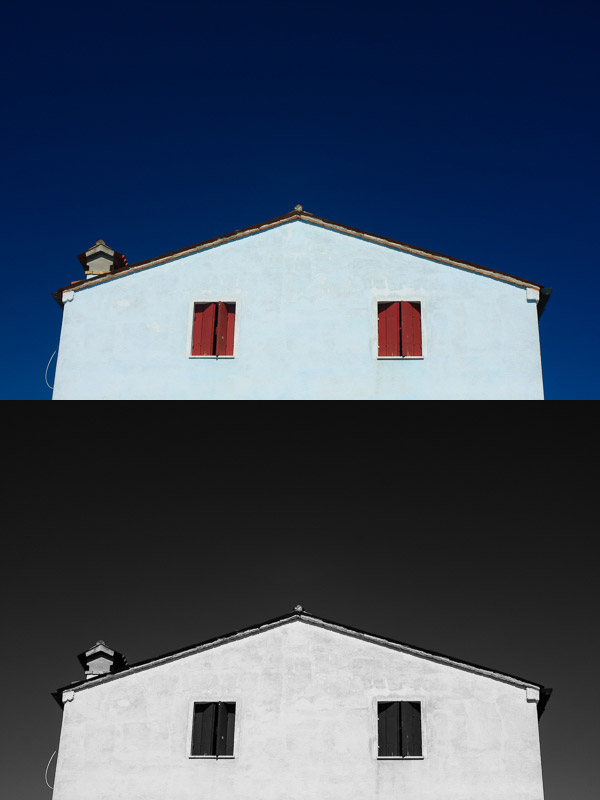
This photo, also taken in Burano, is a study of the shape of the house against the deep blue sky (emphasized by a polarizing filter). The symmetry of the house is broken by the chimney on the left.


The Mastering Lightroom Collection
Mastering Lightroom ebooksMy Mastering Lightroom ebooks will help you get the most out of Lightroom 4 and Lightroom 5. They cover every aspect of the software from the Library module through to creating beautiful images in the Develop module. Click the link to learn more or buy.

googletag.cmd.push(function() {
tablet_slots.push( googletag.defineSlot( “/1005424/_dPSv4_tab-all-article-bottom_(300×250)”, [300, 250], “pb-ad-78623” ).addService( googletag.pubads() ) ); } );

googletag.cmd.push(function() {
mobile_slots.push( googletag.defineSlot( “/1005424/_dPSv4_mob-all-article-bottom_(300×250)”, [300, 250], “pb-ad-78158” ).addService( googletag.pubads() ) ); } );

The post How to Make the Most of Hard Light with Black and White Photography by Andrew S. Gibson appeared first on Digital Photography School.
Digital Photography School

 
Comments Off on How to Make the Most of Hard Light with Black and White Photography

Posted in Photography


How to Split Tone Black and White Photos in Lightroom

04 Jan

Split toning in Lightroom

Toning originated as a darkroom process designed to extend the longevity of black and white prints. Photographers did so using chemical toners such as sepia, selenium and gold. Toners work by removing silver from the print and replacing it with another element with a longer life span.

A side effect of toning is that it adds colour. Sepia toned prints range from light yellow to deep brown, selenium is a subtle blue or purple, and gold anything from blue to deep red (if applied to a photo that has already been sepia toned). For many photographers the colours were just as important as the archival benefits because of the emotional values they added to the monochrome print.

Another, more unfortunate side effect of darkroom toning is that many of the chemicals are hazardous. Luckily, in the digital age, there is no need to use them. Toning is much quicker, and you can create any colour tone you like, using Lightroom’s Split Toning panel.

Furthermore you can use Virtual Copies to create several different versions of the same image, each with a different tone. It makes experimenting easy, and you can compare them afterwards to see which you prefer. You can even turn your favourite toning effects into Develop Presets so you can use them again whenever you want.

Emotional value of toning

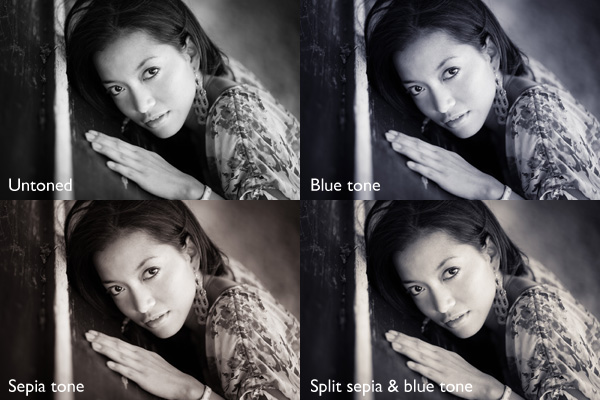
Before we start, let’s look why you would tone a black and white photo. With digital, there is no need to tone for archival purposes, that leaves two reasons. The first is simply because you want to add some colour. Toning is a good way to do that and can really lift your images. The second reason is to add emotional value to the photo. For example, sepia toning both flatters the model and adds a sense of nostalgia and warmth. Blue toning, on the other hand, adds a cold feel.

Split toning in Lightroom

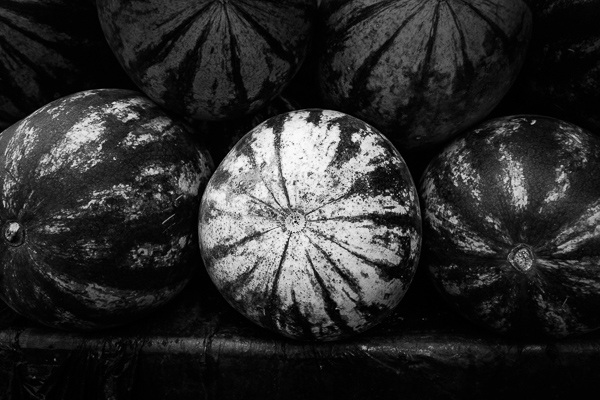
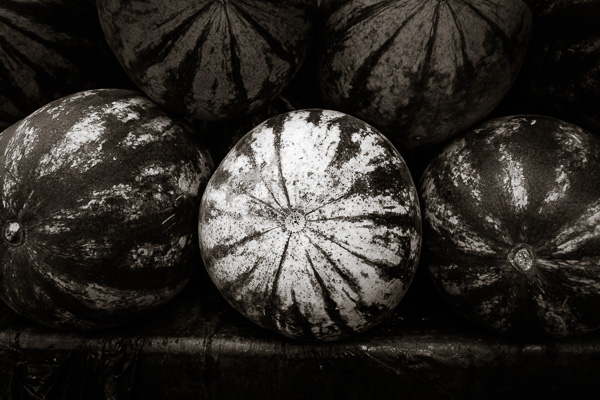
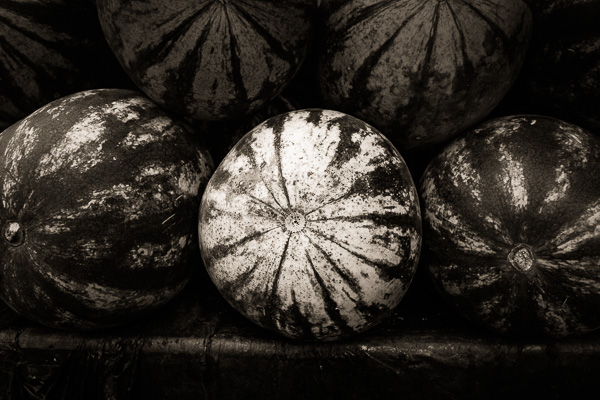
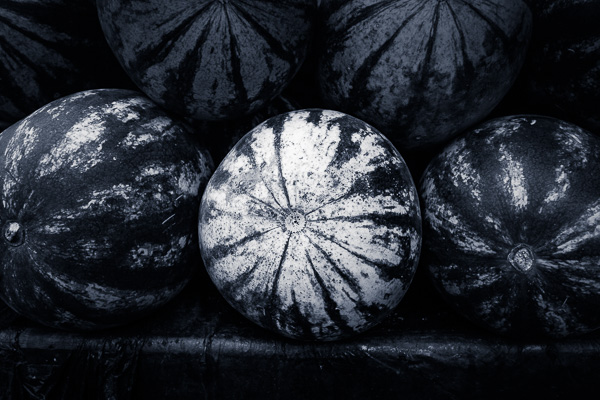
These four photos are processed identically apart from the toning treatment. The colour makes a huge difference to the appearance and emotional impact of each image.

It should be noted at this point that not all black and white photos take well to toning. The best images to use are those with lots of dark tones (plus some highlights for contrast – my article about tonal contrast goes into this more). Black and white photos with lots of light tones don’t seem to tone as well as those with lots of shadows.

How to use the Split Toning panel

Split toning in Lightroom

The Split Toning panel

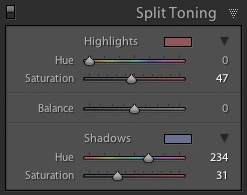
The Split Toning panel is simple to use. The first pair of Hue and Saturation sliders sets the colour that is applied to the photo’s highlights. The second pair sets the colour that is applied to the shadows. The Balance slider is used to give precedence to either the highlight or the shadow colour.

If you hold the Alt key down while moving the Hue slider, Lightroom displays the Hue at 100% saturation, helping you judge the colour accurately.

Here are some examples. Most black and white split toning combinations are a variation of the following.

Split toning in Lightroom

Highlights: Hue 0/Saturation 0 | Shadows: Hue 0/Saturation 0

Untoned black and white image.

Split toning in Lightroom

Highlights: Hue 0/Saturation 0 | Shadows: Hue 45/Saturation 13

 Sepia tone applied to shadows only, leaving highlights unchanged.

Split toning in Lightroom

Highlights: Hue 46/Saturation 17 | Shadows: Hue 45/Saturation 15

 Sepia tone applied to shadows and highlights.

Split toning in Lightroom

Highlights: Hue 0/Saturation 0 | Shadows: Hue 234/Saturation 26

 Blue tone applied to shadows only, leaving highlights unchanged.

Split toning in Lightroom

Highlights: Hue 39/Saturation 30 | Shadows: Hue 234/Saturation 26

Blue tone applied to shadows, sepia tone applied to highlights. This is the classic split tone look. Split toning like this helps create a sense of depth. Basic colour theory tells us that warm colours appear to be closer to the viewer and that cool colours recede. Applying a cool tone to the shadows and a warm one to the highlights helps reinforces a similar sense of depth created by the effective use of tonal contrast.

Split toning in Lightroom

Highlights: Hue 0/Saturation 47 | Shadows: Hue 234/Saturation 31

Blue tone applied to shadows, copper tone applied to highlights. This imitates the blue and copper split tone effect that was possible to achieve in the chemical darkroom.

Split toning in Lightroom

Highlights: Hue 47/Saturation 52 | Shadows: Hue 36/Saturation 23

Sepia tone applied to shadows, gold tone applied to highlights. This imitates the sepia and gold split tone effect it was also possible to achieve in the chemical darkroom.

Those combinations should be enough to get you going, and of course you can experiment as much as you like with the sliders in the Split Toning panel to see what you can achieve.

Please share some of your split toning creations in the comments below.


Mastering Lightroom: Book Three – Black & White

Masterlng Lightroom: Book Three – Black & White by Andrew S GibsonMy ebook Mastering Lightroom: Book Three – Black & White goes into the topic of black and white in depth. It explains everything you need to know to make dramatic and beautiful monochrome conversions in Lightroom, including how to use the most popular black and white plug-ins. Click the link to visit my website and learn more.

googletag.cmd.push(function() {
tablet_slots.push( googletag.defineSlot( “/1005424/_dPSv4_tab-all-article-bottom_(300×250)”, [300, 250], “pb-ad-78623” ).addService( googletag.pubads() ) ); } );

googletag.cmd.push(function() {
mobile_slots.push( googletag.defineSlot( “/1005424/_dPSv4_mob-all-article-bottom_(300×250)”, [300, 250], “pb-ad-78158” ).addService( googletag.pubads() ) ); } );

The post How to Split Tone Black and White Photos in Lightroom by Andrew S. Gibson appeared first on Digital Photography School.

Digital Photography School

 
Comments Off on How to Split Tone Black and White Photos in Lightroom

Posted in Photography


DxO OpticsPro update adds Canon 7D II, GoPro Hero4 Black Edition support

05 Dec

DxO’s latest update to its Optics Pro software, version 10.1, brings compatibility with several new camera models including the Canon EOS 7D Mark II, PowerShot G7 X and GoPro Hero4. The iPhone 6 and 6 Plus are also included, and this update also makes OpticsPro 10 compatible with star rating systems used by Lightroom and other programs using XMP data. Read more

Articles: Digital Photography Review (dpreview.com)

 
Comments Off on DxO OpticsPro update adds Canon 7D II, GoPro Hero4 Black Edition support

Posted in Uncategorized


Rezension: The Black Series

19 Nov

Das Buch „The Black Series“ ist für mich ein persönliches Buch, nicht zuletzt, weil ich selbst darin abgebildet bin und die Fotografin Claudia Wycisk kenne. Es war für mich sehr spannend, die Serie von ihrer Entstehung bis hin zum fertigen Buch mitverfolgen zu können.

Ich habe großen Respekt vor Claudia, denn der Weg zu dem Buch in seiner jetzigen Form, war nicht leicht. Viel Leidenschaft und ein starker Wille stehen dahinter. Aber beginnen wir ganz von vorn. Denn da stand zunächst ein einzelnes Portrait von einer jungen Frau in antiken schwarzen Kleidern. Das Bild hatte etwas Faszinierendes, und das regte Claudia an mehr Frauen auf dieselbe Art und Weise zu fotografieren.

Fotobuch: The Black Series

Die Menschen von heute zeitlos werden zu lassen, war dabei das Ziel. In klassischen Portraits setzte sie nach und nach auch Männer, Kinder und Pärchen in Szene. Auch ich durfte mit meiner jüngsten Tochter vor Claudias Kamera stehen und fühlte mich in meinem alten Kleid trotz schwarzem Hintergrund und Studiolicht auf einmal in der Zeit zurückversetzt.

Ich denke das ist die Stärke des Projektes: Man kennt diese alten Bilder der Urgroßeltern und fühlt sich ihnen auf einmal sehr nah, auch wenn man sie persönlich nicht oder kaum kannte.

Fotobuch: The Black Series

Aber auch für alle, die nicht Teil des Projektes sind, ist das Buch sicher interessant, denn Claudia ist eine Schwarzweiß-Künstlerin. Jedes der über 100 Portraits ist perfekt arrangiert und eine Inspiration für jeden Portraitfotografen. Wenn man in die verschiedenen Gesichter blickt, kann man sich kaum vorstellen, wie diese Menschen wohl heute in Jeans und T-Shirt über den Markplatz laufen.

Das Buch ist als Hardcover mit 152 Seiten erschienen. Neben einem Vorwort, gibt es auch einen Bericht der Fotografin. Darin beschreibt sie sehr genau wie die Serie entstand und geht dabei sogar auf Details zur Kamera und Lichteinstellungen ein, was es meiner Meinung nach gar nicht gebraucht hätte und dem Ganzen vielleicht etwas den Zauber nimmt.

Fotobuch: The Black Series

In der Mitte des Buches findet sich eine kleine Kurzgeschichte der Jounalistin Mariana Friedrich. Claudias Bilder inspirierten sie zu diesem fiktiven Text. Zwischen den einzelnen Fotos finden sich auch kleine Zitate der Portraitierten, die erzählen, wie sie das Shooting empfanden und sich in den fertigen Aufnahmen sahen.

Das Buch sollte zunächst über eine Crowdfounding-Plattform vorfinanziert werden. Leider erreichte diese ihr Ziel nicht. Claudia ließ sich davon jedoch nicht einschüchtern und arbeitete weiter an ihrem Traum, die Serie, an der sie so lange gearbeitet hatte, endlich als Buch in Händen halten zu können. Im Eigenverlag ließ sie es in einer Edition von 300 Exemplaren drucken.

Fotobuch: The Black Series

Informationen zum Buch

„The Black Series“ von Claudia Wycisk
Sprache: deutsch
Einband: Gebunden
Seiten: 152
Maße: 23 x 23 cm
ISBN: 978-3-00-045443-1
Preis: 55 Euro
limitiert auf 300 Exemplare


kwerfeldein – Fotografie Magazin | Fotocommunity

 
Comments Off on Rezension: The Black Series

Posted in Equipment


Delkin introduces new ‘Black’ range of rugged SD cards

28 Oct

Delkin has introduced a new trio of rugged SD cards suitable for photographers who shoot in harsh environments, reducing the odds of losing photographs because of card damage. Delkin’s new ‘Black’ SD cards are designed to handle extreme temperatures, as well as exposure to dust, water, and crushing forces. Read more

Articles: Digital Photography Review (dpreview.com)

 
Comments Off on Delkin introduces new ‘Black’ range of rugged SD cards

Posted in Uncategorized


Dodging and Burning to Create More Effective Black and White Images

16 Oct

With the huge assortment of software and plugins you have at your disposal these days, the photo processing technique of burning and dodging is practically ancient. It was (and still is) one of the most common ways of enhancing film images in the darkroom, and everyone from Ansel Adams to Imogen Cunningham used it.

myra2

They used it because it is powerful and simple and still is to this day. With all the complicated plugins and post-processing procedures you have at your disposal, you won’t get any better bang for the buck than creative dodging and burning.

This tutorial with show you  how I do dodging and burning in Photoshop, for black and white images. I’ll save another article for you about using the technique for your color images. First, though, let’s make sure we all know what dodging and burning is.

WHAT IS DODGING AND BURNING?

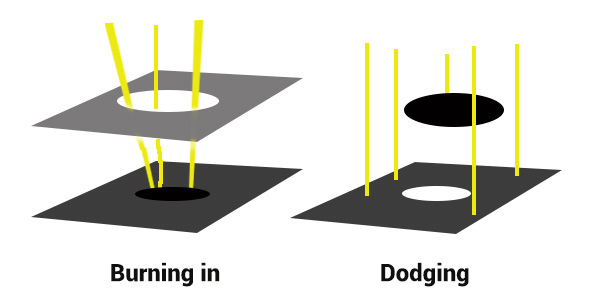
Originally, dodging and burning was used in the traditional darkroom, to retouch film to enhance highlights, and deepen shadows on photographic prints. Photographers used simple darkroom tools to either allow more light from the developer machine to reach certain parts of the light sensitive photographic paper. This was known as “burning in” which made these parts of the photo darker. The photographer could also dodge the light – hold it back from the paper – allowing that part of the photo to remain less developed or lighter than the non-dodged area.

Using this method, photographers or retouch artists could control with great accuracy the developing process to ensure that their prints displayed the full range of tonal values needed to make the photograph pop.

Darkroom Burning and Dodging digram

Darkroom burning and dodging: allowing more light to pass, or holding light back.

WHY YOU SHOULD DODGE AND BURN YOUR DIGITAL PHOTOS

So what has an ancient darkroom technique got to do with your photography? Plenty! Dodging and burning can add a whole new level of depth to your images. With Photoshop it’s simple.

Here are some compelling reasons to incorporate dodging and burning into your digital photography post-processing workflow:

  • To create more dimensionality, make things pop out at your viewers, and make others recede into the shadows.
  • To draw your viewer into your image. Our eyes are programmed to follow the light, and the lightest, brightest parts of your photo are where you want to direct viewers. Some creative dodging and burning will help get their eyes where you want them to go.
  • To isolate the subject.
  • To minimize distracting backgrounds.
  • To turn the lights on, in a photo – if you need some creative lighting after your shot, dodging and burning can help.
  • To make things more dramatic and moody – enhance the shadows to darken things down.
  • Add a vignette to keep the viewer’s eye in the image.
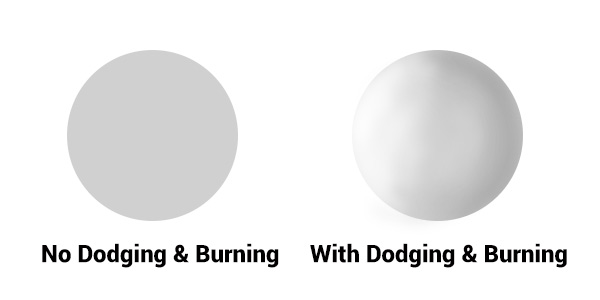
Dodging & Burning adds dimension.

Dodging and burning add dimension.

The three dimensionality of the circle on the right was created purely by dodging and burning a copy of the one on the left. As well, it is super easy with the technique you’re about to learn. As with most things in Photoshop there are many ways to accomplish the same goal, and each have their advantages and drawbacks. I prefer this way because it gives you a huge amount of control and flexibility. It’s drop dead simple, and non-destructive.

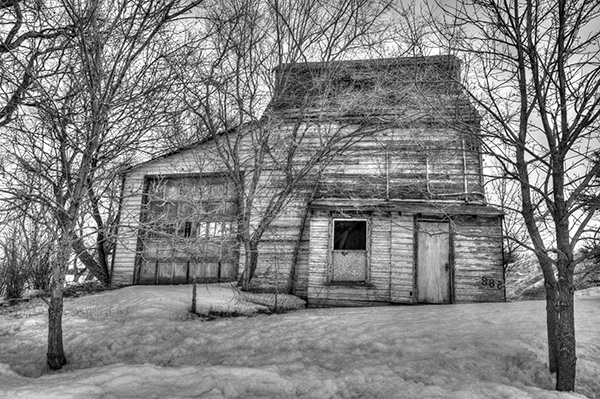
Let’s look at  before and after shots so you can see  the difference between nothing, and selective dodging and burning.

Before Dodging and Burning

Before dodging and burning, the image is flat and has no center of interest.

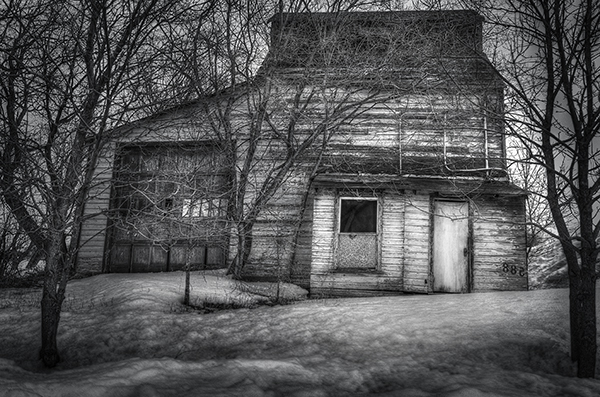
Final Image, with Burning and Dodging applied - exaggerated for effect.

Final image, with dodging and burning applied – we are drawn by light to the door.

The second image has more drama, more of a moody feel. The snow has texture and dimension, and the small door and window are the clear center of interest. Nothing was changed in this photo other than adding tonality by dodging and burning. The look has been exaggerated so you can see the changes, normally dodging and burning is more subtle than this example. Although you can get quite dramatic results if that’s the mood you’re going for.

USE THE BEST TOOLS FOR THE JOB

toolsYou may have noticed in Photoshop’s Toolbar, a couple of tools called Dodge and Burn. Forget about them. I don’t use  these for my dodging and burning. I like to have more control when I work on my images. So instead of the pre-made tools I create my own using layers and the brush tool. It becomes artistic like creating a painting, and you have more freedom to be flexible.

Using layers give you the flexibility to change opacity, and to group your different layers into folders. You can then selectively turn on layers to see how your work is progressing.

HOW TO DO DODGING AND BURNING

Dodging – adding more light:

  • Create a new layer. Switch the blending mode to Color Dodge, and rename this layer Dodge. You may end up having many dodge layers, so name it something more descriptive, door dodge or tree dodge.
  • Select a pale gray color from the toolbox palette, initially this color will be light, for example #bcbcbc, or 188,188,188 on the RGB scale. This color determines the main intensity of the dodge, or how bright it will be.
  • Select a soft brush at a size suitable for the area you want to bring out or emphasize.
  • Initially set the Opacity and Flow of the brush to about 20% each.
  • Brush on the new layer and instantly see the light colors start to POP. If there’s too much, you can either reduce the opacity of the layer, or reduce the opacity and flow of the brush itself.

step1

Once you have an intensity you like, brush dodge segments of the image – the door for example. If you move to another part of the image use a new layer for that area or element. You do this because you may want to adjust the intensity by changing the opacity of the layer, or the brush, or even change the color to a lighter or darker shade of gray.

Finally create a Layer Group – click the little folder icon in your layers palette. Move all your Dodge layers into one Group. Name the group Dodge. This allows you to instantly turn off all the “lights” to see before and after. Did you go overboard too much, should you do more, or is it just right? Being able to turn all the dodging off with one click will help you decide.

Where and what to dodge:

You want the lightest parts of your image to lead the viewer’s eye to your subject. Can you create a pathway of sorts with a dodged or brighter leading line, a bright path that the eye can easily follow? Alternately you can also make leading lines darker by burning. Leading lines don’t always have to be bright.

Dodge (and burn) places with texture, to add that three dimensionality, to make the texture really stand out. Try dodging the subject a bit, just a subtle brushing with a gentle opacity to add some brighter tones relative to the rest of the image. Does it pop out a little more now?

You’ve finished dodging for now, next let’s go over to the dark side!

Burning – creating darkness:

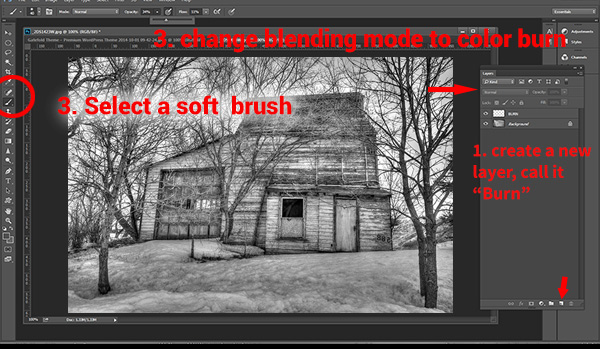
Next you’ll do the exact same process for burning. I suggest starting with the exact same color and opacity settings too. Simply create a new layer and set the blending mode of Color Burn, and name the layer Burn.

Once again, if you need more drama, you can change the color of the brush, or change the opacity and flow of the brush or the layer. You can add more layers if needed, duplicate a layer to instantly double the amount of darkness.

This method is quick and intuitive, and if I feel that you’ve gone too far, you can turn off a few layers to hide their visibility in the image. I suggest you make a Layer group for the Burn layers as well.

You can even create another Layer group called D&B (for dodge and burn) and put the the other groups inside. Just ctrl+click to select them and drag them over top of the D&B layer. Now you’ll be able to see the total before and after view with one click. Off and on – good or not? More work needed or done?

SEEING THE BIG PICTURE

Once you’ve brushed in the areas that you want and think you have all the burning and dodging done, you can burn a vignette around the edges of your image to keep the viewer’s eye from leaving. It’s like framing your photo with a bit of darkness, so the eye stays on the brightness.

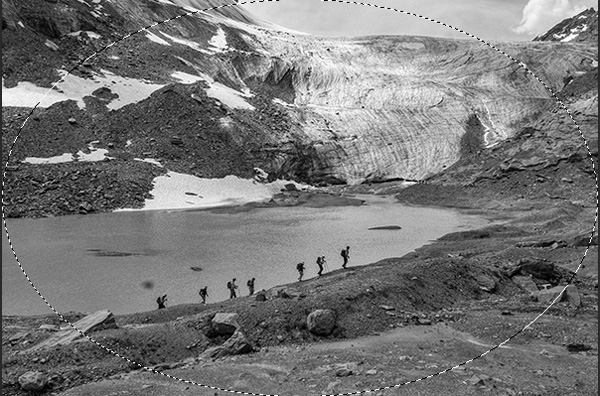
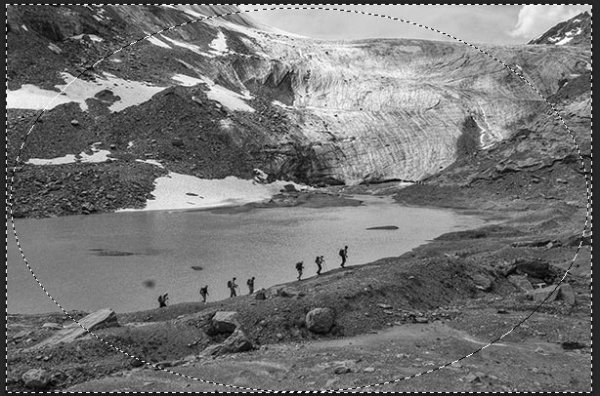
All  you need to do here is create (yes) another layer and use the elliptical marquee tool, with a feathering setting of at least 50 pixels. On the new layer drag out the circle so it touches the edge of your frame. To add darkening to just the edge of the image to create the vignette, go to the top menu in Photoshop and click on Select>Inverse. This will now let you fill the area OUTSIDE the selection.

In the Tools Box, select the same grey color you used for the initial burning of your image as your foreground color, then hit Alt>Backspace on your keyboard to fill that selection with color.  Set the layer blending mode to Color Burn. You may have to decrease the opacity of this layer a bit depending on the tones in your image.  This vignette should be pretty subtle, it’s not meant to be a frame, just a very slight darkening to keep your centre of interest a few tones brighter, to keep the viewers’ eye in your frame.

marquee

Initial selection

Selection inverted

Selection inverted

Vignette added

Vignette added

_2DS2932VV

FInal image

I’ve made a short screen capture video showing my technique for dodging and burning you can watch below if you prefer to follow along:

Once you give this method a try, you’ll see how easy it it and how you can achieve dramatic effects with a few quick steps. You have full control of the look and style of your image, and you can revert your steps at anytime to adjust if needed.

If you have alternate methods for dodging and burning let me know why you like them, and also what challenges they create for you. If you’d have any dodged and burned images you’d like to share, please do post them here. Inspire us!

The post Dodging and Burning to Create More Effective Black and White Images by Alex Morrison appeared first on Digital Photography School.

Digital Photography School

 
Comments Off on Dodging and Burning to Create More Effective Black and White Images

Posted in Photography


How to do Great Black and White Conversions Using Photoshop

08 Oct

Black-and-white-in-photoshop-1

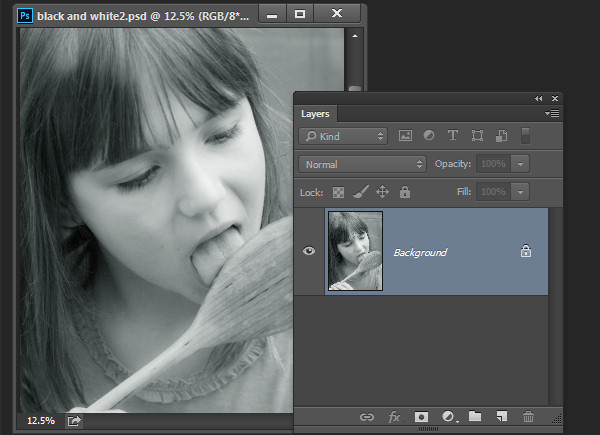
Some photos that you take you’ll want to convert to black and white. Photoshop has some tools that you can use to convert your photos to black and white and I’ll show you what these are and the best way to do the conversion.

Why you should shoot in color and convert to black and white

If your camera saves photos as jpeg images, even if it can capture in black and white, it’s advisable to avoid this setting and instead shoot in color and convert later. The reason is that when you capture in jpeg and have the camera set to black and white, all the color information is discarded when the image is saved and you can never get it back. So you will only ever have a black and white image. On the other hand if you capture in color you will have the choice to convert the photo to black and white, but you will also have a color image in case you decide it looks better that way.

Black and white conversions in Photoshop

You have a couple of choices when converting to black and white in Photoshop. You can desaturate the image by choosing Image > Adjustments > Desaturate. This removes the color from the image but you have no control over how it is converted.

Black-and-white-in-photoshop-2

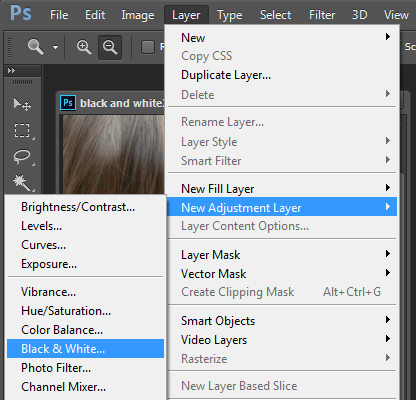
A better way to convert an image is to use a black and white adjustment layer. So choose Layer > New Adjustment Layer > Black & White and click Ok to create the new adjustment layer.

Black-and-white-in-photoshop-3

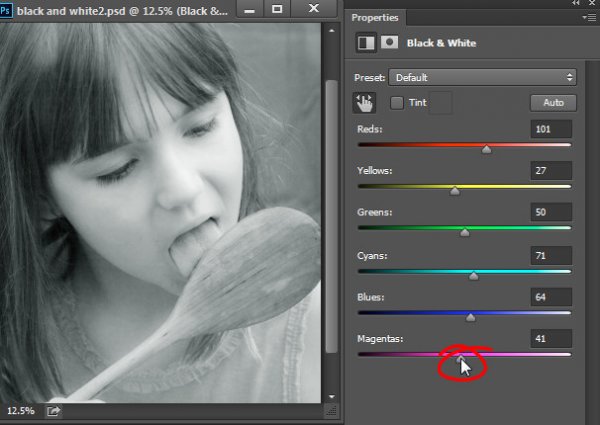
When the Properties dialog appears you will see sliders for red, yellow, green, cyan, blue and magenta. You can use these to control how the colors in the photo are converted. Drag a color slider to the left to darken areas in the image which are that tone and drag to the right to lighten them.

Black-and-white-in-photoshop-4

In some cases you may see little or no change when you drag a slider – this will happen if there is little or none of that color in the image.

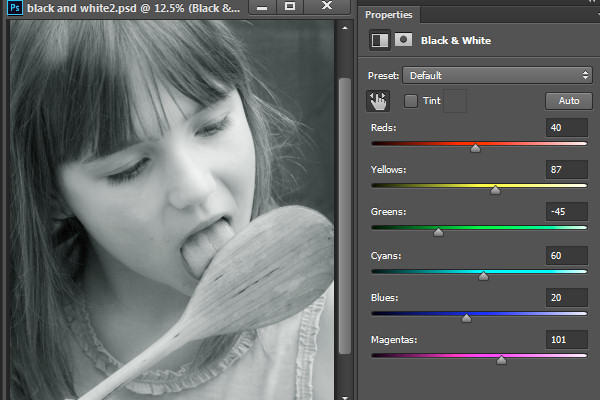
The sliders allow you to create a custom black and white conversion for your photo and you can also adjust how similar value colors are converted. In this image the girl’s pink shirt and the green background convert to a similar shade of grey – but adjusting the green slider to the left darkens the background and creates a more pleasing black and white image.

Black-and-white-in-photoshop-5

In addition to adjusting the sliders you can also use the targeted adjustment tool by clicking its icon in the Properties panel (circled in red below). You can then click on a specific area of the image and then drag to the left or to the right to adjust the color under the eyedropper. Drag to the left to darken the color, and to the right to lighten it. You should be aware, that this will, of course, adjust every occurrence of that color in the image, not just the area of color underneath your cursor.

Black-and-white-in-photoshop-6

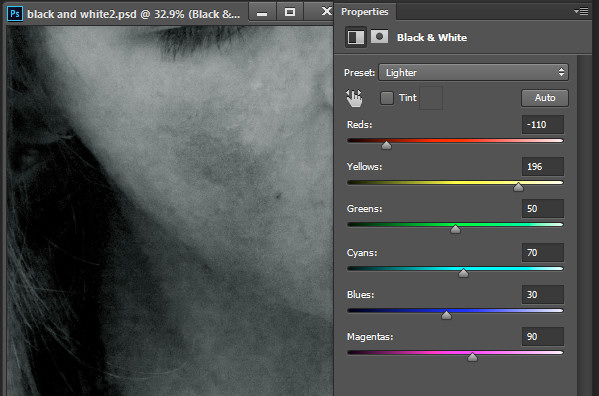
As you adjust the sliders take care to avoid dragging adjacent sliders in completely opposite directions. You are adjusting colors which are likely to be found in close proximity to each other in opposite directions – making one color light and the other dark. The risk is that you will create areas of mottled darks and lights in the image which won’t be aesthetically pleasing as in this image below:

Black-and-white-in-photoshop-7

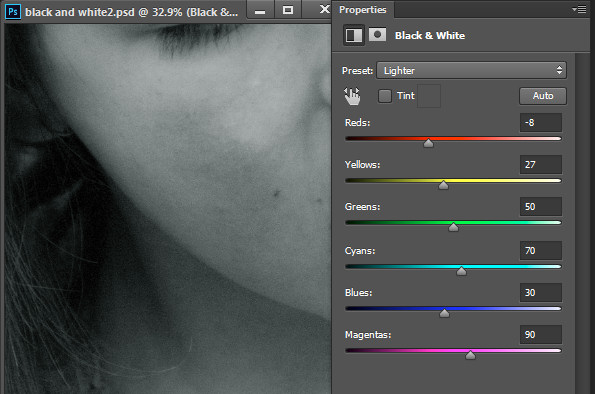
Instead, adjust adjacent sliders so their values are closer to each other for a smoother and more pleasing result as in this next image:

Black-and-white-in-photoshop-8

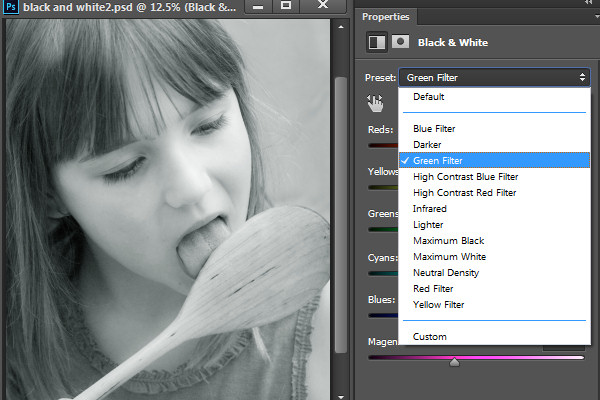
There are also presets options available from the Properties dialog that you can use as a quick start converting your image to black and white. Click a preset in the list to apply it. If you find one you like you can use it as is, or continue to adjust the sliders to fine tune the result.

Black-and-white-in-photoshop-9

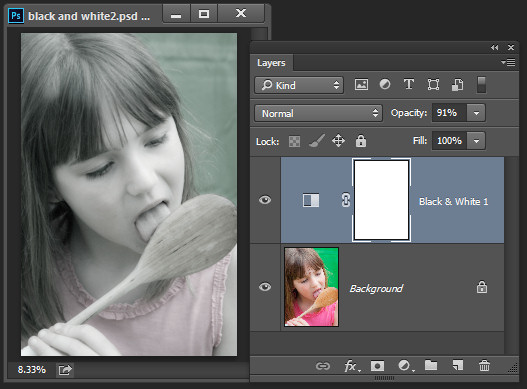
Although you can apply this black and white conversion directly to the image using Image > Adjustments > Black and White, I suggest you use the adjustment layer method instead. The reason for this is that, when you use an adjustment layer you can double click the adjustment layer thumbnail to fine tuning the result at any time.

If you apply the adjustment as an adjustment layer you can blend it into the image below by reducing its opacity. Here I reduced the opacity of the black and white adjustment to reveal some of the original color image to give an almost hand tinted look to this image.

Black-and-white-in-photoshop-10

You can also, as I will explain below, add multiple black and white adjustment layers and use the built in masks to control how each adjustment layer affects the image.

Tinting a black and white image

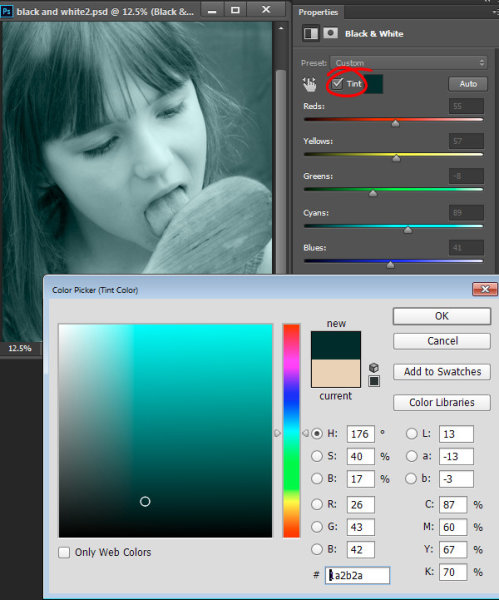
The Black and White Adjustment Layer Properties dialog also gives you the option of tinting the black and white image. To do this click the Tint button and click the color selector which allows you to choose a color to tint the image. Choosing a bright color will result in a brighter and more colorful tint and choosing a darker color will give a more subtle tone to the image.

Black-and-white-in-photoshop-11

Multiple black and white adjustments

Occasionally you may want to treat two areas of similar color in a photo in different ways. For example you may have an image that has a blue sky as well as other elements which are also blue. If you adjust the image using a single black and white adjustment layer all the blues in the image will be converted to a similar grey value and this may not be the effect that you want.

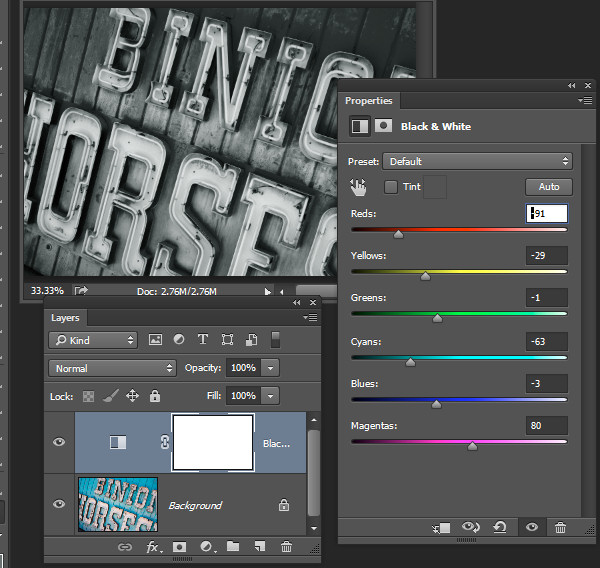
When you need to adjust two areas of similar color in an image in different ways you can apply two separate black and white adjustment layers. To do this, add the first black and white adjustment layer and use it to adjust the image the way you want it to look for one area of color. In this example I’ve adjusted the top of the image.

Black-and-white-in-photoshop-12

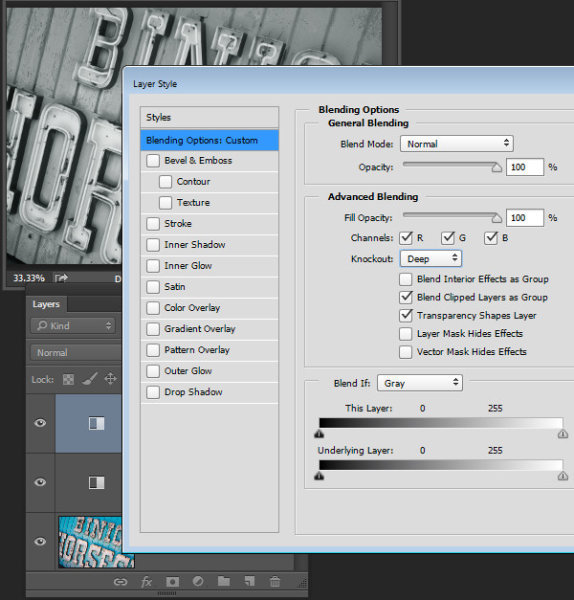
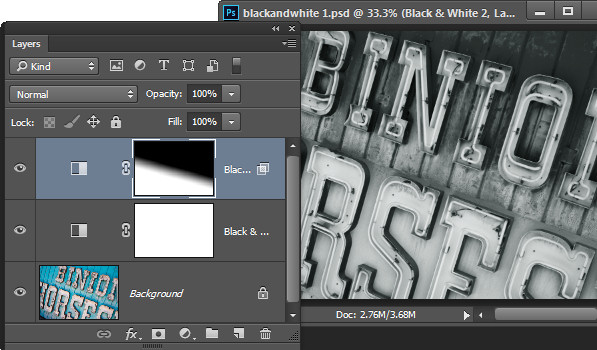
Then add a second black and white adjustment layer to the image. At this point you may notice that making changes using the second adjustment layer has no effect on the image at all. This is to be expected – a black and white adjustment layer won’t have any effect when applied over the top of what is basically a black and white image. You can change this behavior by selecting the new adjustment layer and choose Layer > Layer Style > Blending Options. From the Knockout dropdown list select Deep and then click Ok.

Black-and-white-in-photoshop-13

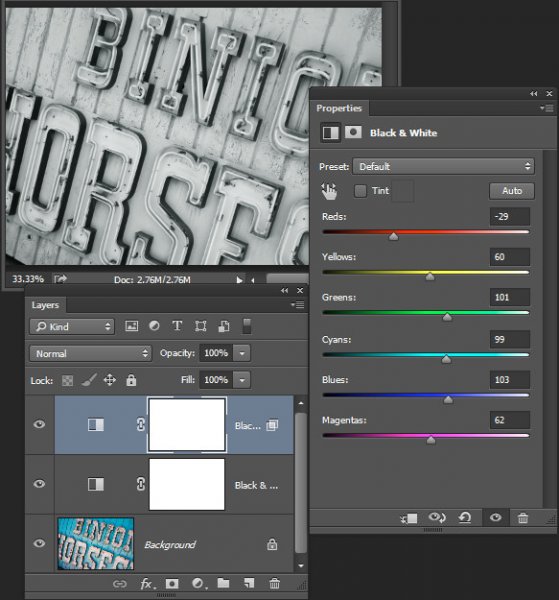
Now you can use the new black and white adjustment layer to fine tune the image. In this case I used it to adjust the image so the bottom part looked the way I wanted it.

Black-and-white-in-photoshop-14

To finish the image you can blend the two adjustments using the masks on one or both adjustment layers.

For this example I targeted the mask on the topmost adjustment layer and filled it with a black to white linear gradient using the Gradient tool. I dragged down at an angle across the middle of the image so the gradient would follow the angle of the sign. The result is that the top most black and white adjustment layer no longer has any effect on the topmost part of the image (the mask is black in that area).

Black-and-white-in-photoshop-15

This process has allowed me to convert two areas of the photo, both of which contain a similar blue color to different tones of gray, one light and one dark.

If you prefer to watch a video showing these adjustments see below for the same steps:

This second video shows how to craft custom black and white images in Photoshop:

For tips on using Lightroom for your black and white conversions try these:

  • Tips for Shooting and Processing Better Black and White Photographs
  • How to Convert Photos to Black and White in Lightroom
  • Create Better Black and White Photos Using Local Adjustments in Lightroom 5
  • 3 Tips for Better Black and White Conversion using Lightroom

Do you have any other tips for black and white conversion using Photoshop?

The post How to do Great Black and White Conversions Using Photoshop by Helen Bradley appeared first on Digital Photography School.

Digital Photography School

 
Comments Off on How to do Great Black and White Conversions Using Photoshop

Posted in Photography


Black Gold Hotel

26 Sep

Im vergangenen Jahrzehnt ist die Wirtschaft der Mongolei mit beispielloser Geschwindigkeit gewachsen. In jedem Jahr stieg das Bruttoinlandsprodukt um mehr als zehn Prozent.

Das Wachstum des Landes rührt größtenteils aus einem Boom in der Bergbauindustrie, denn die Mongolei verfügt über große Vorkommen an Bodenschätzen wie Kupfer, Gold und nicht zuletzt Kohle. Globale Branchengiganten haben längst begonnen, enorme Summen in das zentralasiatische Land zu investieren.

Eine Kohlestaubwolke schwebt über einer Straße durch die mongolische Steppe.

Ein chinesischer Bergarbeiter blickt in den sonnigen Himmel.

Der italienische Fotograf Michele Palazzi hat über drei Jahre hinweg das Land mehrfach besucht und den wirtschaftlichen Auf- und den gesellschaftlichen Umschwung in der Mongolei dokumentiert.

Wie die unregulierte beschleunigte Entwicklung des Landes die traditionelle Lebensweise der viehtreibenden nomadischen Bevölkerung bedroht, zeigt er in seiner Arbeit „Black Gold Hotel“.

Ein Kameltreiber steht zwischen seinen Tieren.

Wasserdampf steigt aus dem Kessel in einer Jurte auf.

Eine junge Frau liegt auf dem Sofa und schläft.

Viele mongolische Familien haben die traditionelle Lebensweise inzwischen aufgegeben und sind in große städtische Zentren gezogen, um Arbeit in der Industrie zu finden. Nicht selten führt sie dieser Entschluss jedoch in den finanziellen und sozialen Abgrund, nämlich dann, wenn sie aufgrund des immensen Zustroms an Gleichgesinnten keinen Job finden.

Zwei mongolische Ringer kämpfen miteinander

Paartanz auf einer Veranstaltung in einer Turnhalle.

Der Fotograf begleitete die Nomaden auf ihrem Zug durch die Steppe, lernte die neuen Stadtbewohner kennen und verbrachte einige Zeit mit den Bergarbeitern. Nah ist er an den Menschen, einfühlsam und unaufgeregt zeigt er uns, wie sie leben.

All diesen Menschen gemein ist, dass sie bestmöglich versuchen, mit den Umständen umzugehen. Doch Umweltverschmutzung durch Müll, Kohlestaub und Industrieabfälle vergiften die Vegetation und machen denen, die wenig haben, das Leben schwer.

Ein mongolische Junge sitzt auf dem Rücken eines Kamels und schaut in die Weite der Steppe.

Eine Bushaltestelle in der verschneiten mongolischen Steppe.

Inspiriert zu dieser sehr persönlichen Arbeit, so der Fotograf, habe ihn der Film „Die Geschichte vom weinenden Kamel“. In ihm stecke viel Poesie und auch ein nostalgisches Element, dem er nachgehen wollte.

Doch auch einen journalistischen Anspruch habe er an das Projekt gehabt, selbst wenn er sich selbst eigentlich nicht als Journalisten betrachte.

Ein Mann steht auf einem voll beladenen Lastzug mit den Habseligkeiten der Nomdenfamilie.

Zwei im Bau befindliche Hochhäuser in der Nähe eines der Kraftwerke in Ulan Bator.

Sein politisches Interesse habe ihn 2009 nach seinem Studium an der Scuola Romana di Fotografia zum Bildjournalismus geführt, erzählte Michele Palazzi mir. Er habe stets den Drang, zu verstehen, warum etwas so ist, wie es ist und den Dingen auf dokumentarische Weise auf den Grund zu gehen. Doch erachte er seine Sichtweise keineswegs als absolut maßgeblich oder objektiv.

Ein Parkplatz vor einer Mauer mit der Aufschrift Dream Land.

Eine Kellnerin deckt den Tisch in einem Restaurant.

Der Modernisierungsprozess in der Mongolei habe ihn schier überwältigt. Als er das erste Mal die Hauptstadt Ulan Bator besuchte, habe er beim Anblick des Stadtbildes sehr gemischte Gefühle gehabt – eine ungare Mischung aus Chaos, Nostalgie und Ausweglosigkeit, die ihm übel aufstieß.

Dass sich die Modernisierung nicht einfach anhalten oder gar umkehren lässt, sei Michele bewusst. Auch wolle er keinesfalls etwas oder jemanden konkret verurteilen. Ihm sei es in erster Linie persönlich wichtig, zu dokumentieren, was ihn umtreibe.

Blick aus einem Wohnblock in einer Plattenbausiedlung in Ulan Bator.

Eine junge Frau steht vor einem Spülbecken und trocknet sich die Hände ab.

Eine junge Frau spielt Tischtennis.

Ohne Förderung, ohne Auftrag widmete er sich seinem Projekt und unternahm immer wieder auf eigene Kosten Reisen in die Mongolei, um seinem Thema auf der Spur zu bleiben.

Viele Menschen habe er kennengelernt, zeitweise bei ihnen übernachtet, ihnen bei der Arbeit geholfen, mit ihnen gegessen und mit den Kindern gespielt. Es beweist, dass er mit Hingabe bei der Sache ist. Er sammelt nicht nur Bilder ein, er lebt die Story.

Fans feiern während eines Konzerts einer mongolischen Metal-Band.

Zwei Männer stehen an einem Feuer auf einer Mülldeponie, wo sie nach Wiederverwendbarem suchen.

Eine junge Frau bereitet sich auf ihren Auftritt als Striptease-Tänzerin vor.

Herausgekommen ist eine Reise in Bildern in den Alltag der Menschen im ganzen Land, von den Familien in der Wüste Gobi, die sich trotz aller Schwierigkeiten entschieden haben, den Traditionen der Steppe treu zu bleiben bis zu den Jugendlichen in Ulan Bator, die eher einen westlich orientierten Lebensstil führen.

Von den Kindern der Armen, die gezwungen sind, im Zivilisationsmüll nach Schutz und Essbarem zu suchen, bis hin zu denen, die auf der Suche nach dem Glück in der Stadt das Nomadenleben hinter sich gelassen haben und jetzt zwischen beiden Welten gefangen sind.

Ein Mann steht zu Silvester auf einer verschneiten Dorfstraße und zündet Feuerwerk.

Eine junge Frau beim Karaoke.

Wer sich weitere von Micheles Arbeiten anschauen möchte, dem empfehle ich an dieser Stelle einen Blick auf seine Webseite.


kwerfeldein – Fotografie Magazin | Fotocommunity

 
Comments Off on Black Gold Hotel

Posted in Equipment


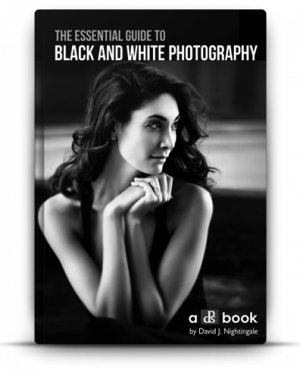
The Winner of $1000 from our Essential Guide to Black and White Photography eBook Competition is….

23 Sep

NewImageRecently we launched our Essential Guide to Black and White Photography. As part of the launch we put everyone who purchased a copy into the draw to win $ 1000 in camera gear.

The winner of this competition is…. Yves Wepadjuie!

Congratulations Yves – we’ve just emailed you with details of how we’ll get you your prize and can’t wait to see what you buy!

Thanks everyone else for picking up a copy of the Essential Guide to Black and White Photography – the eBook has received some amazing feedback and we appreciate you supporting dPS with your purchase – the sale of our eBooks is how we are able to keep producing 14 free tutorials each week here on the blog!

Our Next eBook is Just Around the Corner

For those looking forward to our next eBook – you don’t have to wait too long! We’ve got another exciting one for you very soon from our best selling author – Gina Milicia!

The post The Winner of $ 1000 from our Essential Guide to Black and White Photography eBook Competition is…. by Darren Rowse appeared first on Digital Photography School.

Digital Photography School

 
Comments Off on The Winner of $1000 from our Essential Guide to Black and White Photography eBook Competition is….

Posted in Photography


Macphun’s Tonality Pro Versus Lightroom 5 for Black and White Conversion

13 Sep

Tonality Pro vs. Lightroom

MacPhun Software recently released Tonality Pro (use this link to get 20% off, for dPS readers only), a powerful black and white converter for Mac. In this article I’m going to compare it to Lightroom so you can see how the conversion process differs between the two programs.

Windows users please don’t stop reading now – I’ll look at some other black and white plug-ins at the end of the article, all of which are cross-platform.

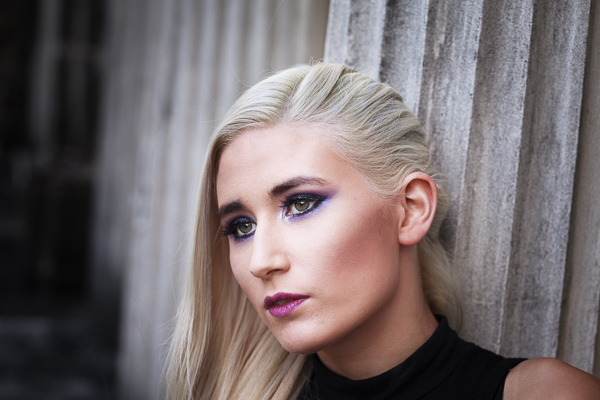
To start, here’s the colour photo that I’m going to convert to black and white.

Tonality Pro vs. Lightroom

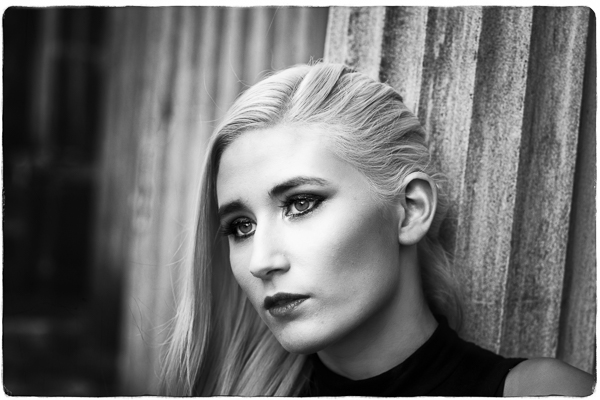
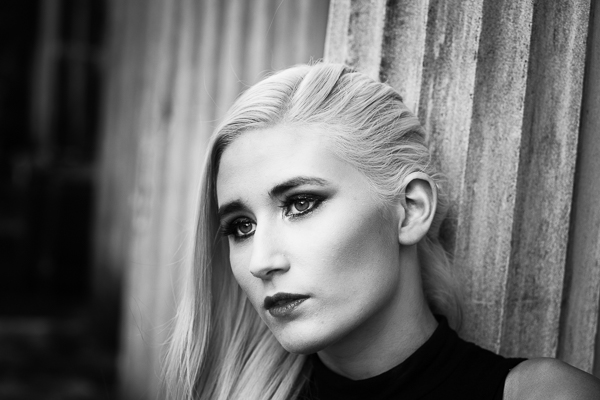
Here’s the black and white version I created in Lightroom.

Tonality Pro vs. Lightroom

It’s a fairly straightforward conversion. I increased Clarity and Contrast, and added a vignette using the Radial Filter. I didn’t touch the Black and White Mix panel, and I didn’t add Split Toning.

All these tools will be familiar to Lightroom users. So, how does Tonality Pro differ? Let’s take a look.

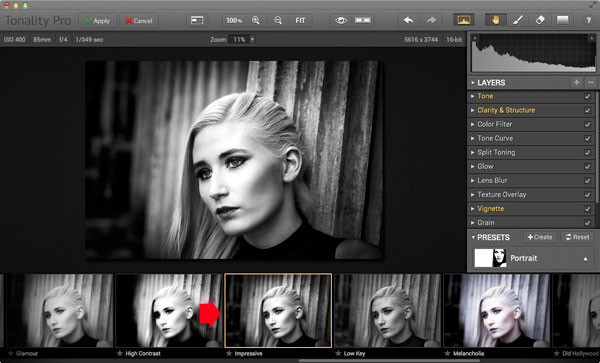
Tonality Pro uses presets

Tonality Pro’s presets give you a variety of ready made black and white conversions. Of course, not all of them will be suitable for your photo, but with over 150 to choose from, you are bound to find at least a few that do good things for your images. If you don’t like using presets, just skip them and go straight to the other panels to do your work.

Tonality Pro’s presets are similar to Lightroom’s Develop Presets. The main difference is that Tonality Pro comes supplied with a full set, while Lightroom only has a limited range of built-in monochrome presets. If you want a decent set of black and white presets for Lightroom, you will have to buy them.

Tonality Pro’s presets have two features that make them a very powerful and versatile feature.

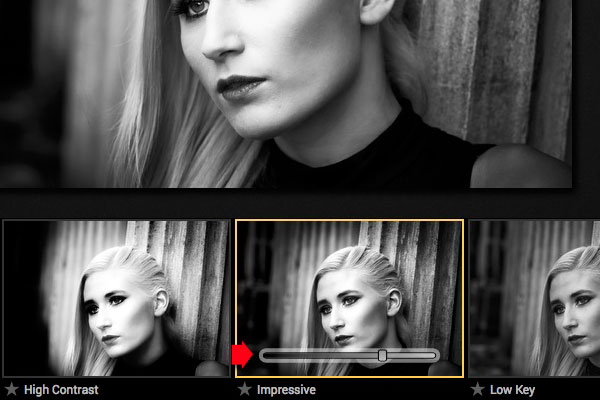
The first is a slider that lets you adjust the strength of the preset. This is useful because the number one problem with presets of any sort is that they can be too strong. A subtle touch is better when it comes to post-processing and many presets are far from subtle. The opacity slider in Tonality Pro helps you deal with that. Let’s say you apply the Impressive preset to your photo. Here’s how it looks.

Tonality Pro vs. Lightroom

Too strong? It’s easy to reduce the strength of the effect until it looks just right.

Tonality Pro vs. Lightroom

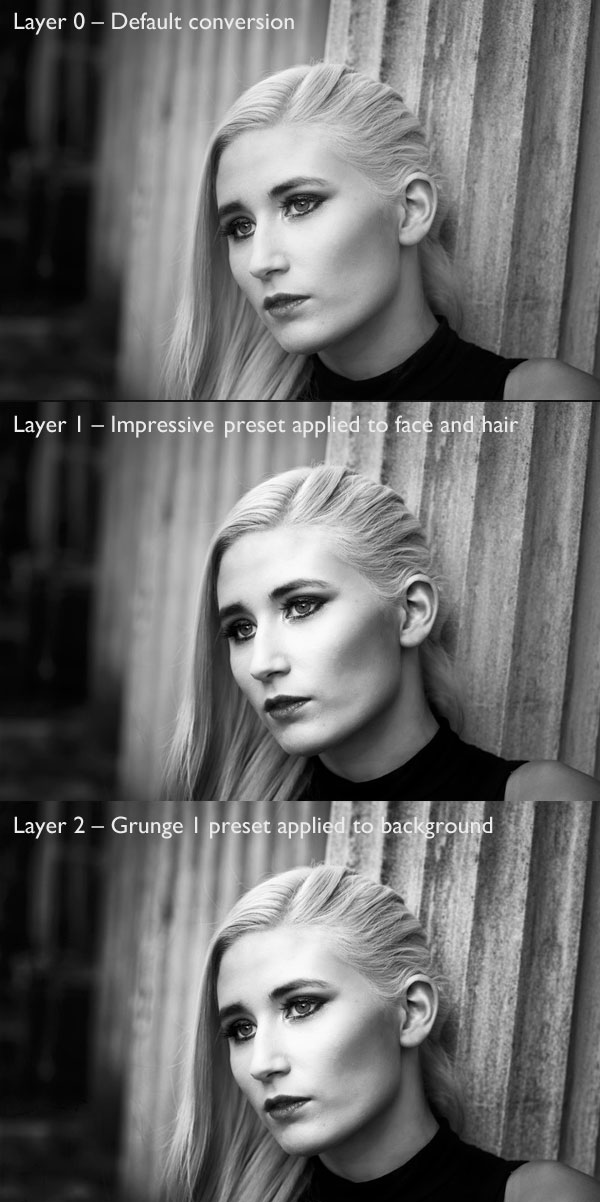
The second feature (I’m really excited about this) is that Tonality Pro has layers. With layers, you can apply a preset on a new layer, then create a mask using Brush mode so that the preset is only applied to part of your image.

Take a moment to think about what that means. For example, you could apply one preset to the subject (in this case the girl in the photo) on one layer, and another to the background on another layer. It’s got the potential to be very powerful, and it’s something that I haven’t seen in any other plug-in.

Here’s how it works. In these examples I’ve applied the Impressive preset to the model’s face, and the Grunge 1 preset to the background using layers. I used the opacity sliders to keep the effect subtle. These three images show the result.

Tonality Pro vs. Lightroom

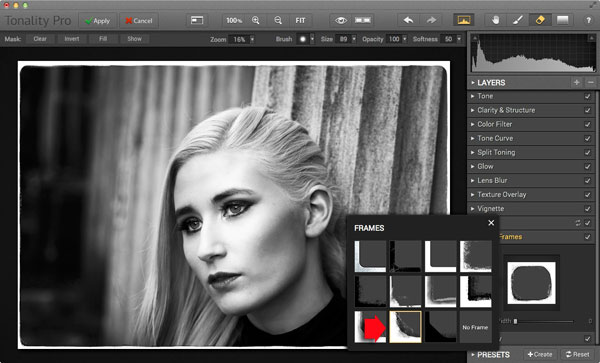
Next I added a frame.

Tonality Pro vs. Lightroom

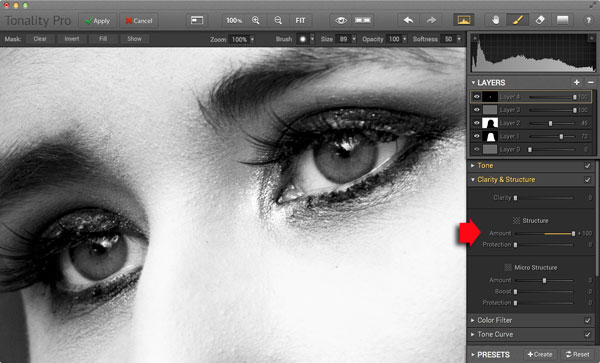
Finally I added some Structure to the eyes, and increased Adaptive Exposure a little to compensate for the way Structure tends to make things darker as well as add detail. You can achieve a similar effect in Lightroom with Clarity, but you will be interested to know that you can adjust Structure in Tonality Pro as well as Clarity (Structure is better than Clarity for bringing out detail).

Tonality Pro vs. Lightroom

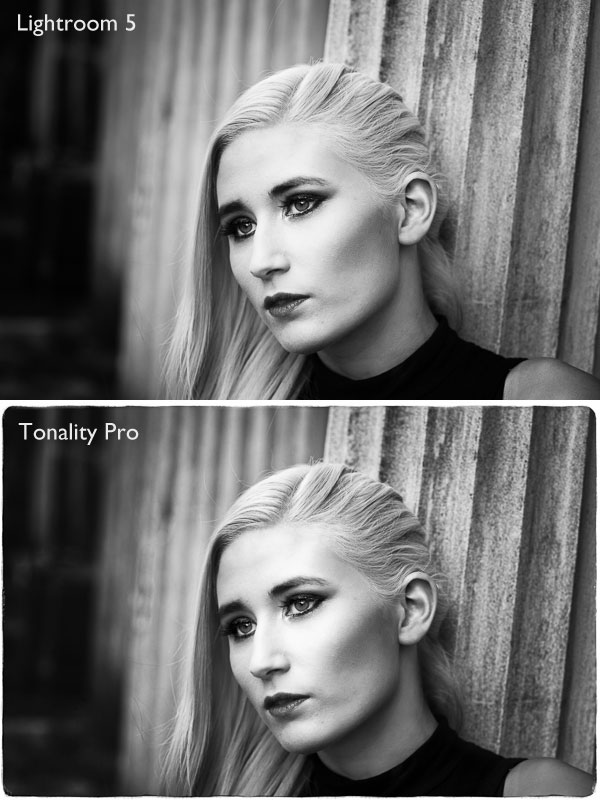
Here’s the final comparison of the two versions of the photo.

Tonality Pro vs. Lightroom

As you can see, apart from the border, most of the differences are subtle. But the way I got there, the editing process itself, was very different.

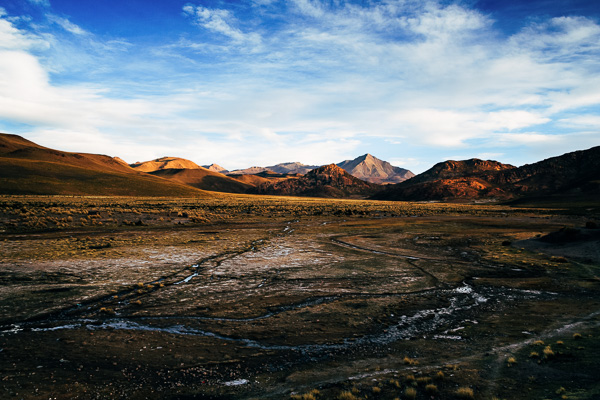
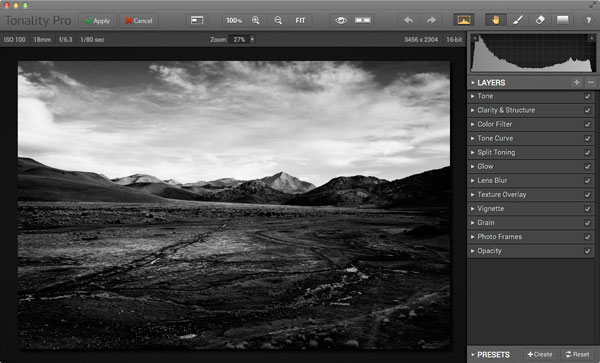
Now I’m going to show you another application of Tonality Pro that you definitely can’t do in Lightroom. Here’s the original colour photo.

Tonality Pro vs. Lightroom

Here’s the initial black and white conversion:

Tonality Pro vs. Lightroom

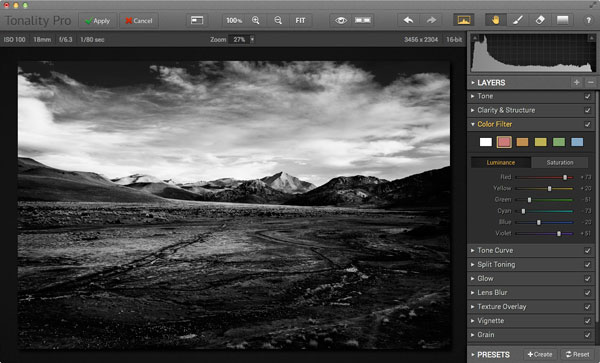
This is the same photo processed in Tonality Pro with a red colour filter applied to darken the sky and add drama to the distant mountains.

Tonality Pro vs. Lightroom

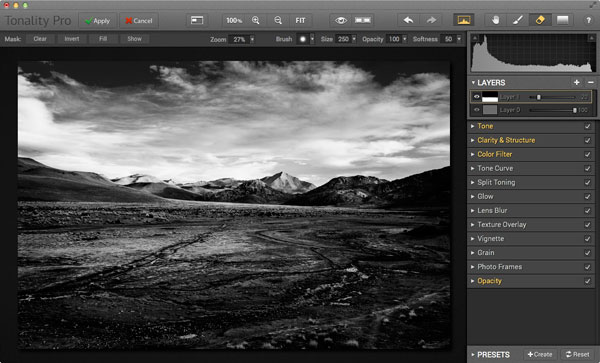
Here I’ve added another layer and applied the El Captain preset, reduced the opacity of the layer to 20 (to keep the effect subtle), and used a mask to apply the preset to the foreground only, not the mountains or sky.

Tonality Pro vs. Lightroom

All this took just a couple of minutes to carry out.

The verdict

This is a simple demonstration but hopefully it’s given you a taste for what Tonality Pro can do, and how it compares to Lightroom.

I’ve only scratched the surface in this article, Tonality Pro has lots more interesting features. Another dPS writer,  Phillip VanNostrand has done a full review here, it covers the software in more depth, so check that out also. In the meantime, if you want to test out Tonality Pro for yourself, or learn more about the program, then you can do so at MacPhun’s website (get 20% off for dPS readers using this link).

How Tonality Pro compares to other plug-ins

Tonality Pro isn’t the only black and white plug-in out there, and you may be interested to know how it compares to some of the others. Don’t forget they all have different features and strengths, and the best one for you depends on what you want to do with your black and white images. You can download trials of all the plug-ins to help you make your mind up. Here’s a brief guide:

Silver Efex Pro 2

Until Tonality Pro came along this was the single best black and white conversion plug-in you could buy. To be honest, I haven’t used Tonality Pro enough yet to say whether it is better than Silver Efex Pro 2. But, there’s no doubt that the layers feature in Tonality Pro means that it is a versatile program that gives Silver Efex Pro 2 a good run for its money.

Silver Efex Pro 2 is more expensive (more than double the price) but it does come as part of the Nik Collection, so you do get the benefit of the other programs within it (Viveza, Color Efex Pro and so on). Silver Efex Pro 2 also has a powerful history function that Tonality Pro lacks.

Alien Skin Exposure 6

One of my favourite plug-ins, Exposure 6 is designed to give your digital photos an analog look. You can use it for both black and white and color photos, and in my opinion it’s stronger on the colour side than monochrome. But it’s still a powerful black and white converter.

It’s more expensive than Tonality Pro, but you get the advantage of being able to use it to process colour photos too. It can be used as stand-alone program as well as a plug-in (as can Tonality Pro).

Topaz Black & White Effects 2

Black & White Effects 2 is a nifty black and white plug-in. Its main benefit is an extensive range of creative presets, including several sets that imitate old processes such as cyanotype, albumen and van dyke brown. It’s also good for emphasizing detail and texture.

Perfect Black & White

onOne Software’s Perfect Photo Suite includes the Perfect Black & White module. Like Silver Efex Pro 2, you get the benefit of the other modules in the suite. But unlike Silver Efex Pro 2, all the modules work together and you can switch seamlessly from one to the other.

One of my favourite modules is Perfect Mask. I use it to blend two versions of landscape photos, one processed for the sky and the other for the foreground. Combined with Perfect Black & White it helps you create powerful and dramatic black and white landscapes. It also works as a stand-alone program.

Discussion time

In my review of MacPhun’s Intensify Pro one reader gave an opinion that photographers who use plug-ins instead of Photoshop are lazy. It’s an interesting topic for discussion, so please let us know what you think in the comments. Do you use plug-ins to process your photos? If you do, which are your favourites and why? Or do you agree with the view that plug-ins are for lazy photographers?


Mastering Lightroom: Book Three – Black & White

Masterlng Lightroom: Book Three – Black & White by Andrew S GibsonMy ebook Mastering Lightroom: Book Three – Black & White goes into the topic of black and white in depth. It explains everything you need to know to make dramatic and beautiful monochrome conversions in Lightroom, including how to use the most popular black and white plug-ins. Click the link to visit my website and learn more.

The post Macphun’s Tonality Pro Versus Lightroom 5 for Black and White Conversion by Andrew S. Gibson appeared first on Digital Photography School.

Digital Photography School

 
Comments Off on Macphun’s Tonality Pro Versus Lightroom 5 for Black and White Conversion

Posted in Photography