RSS
 

Posts Tagged ‘Background’

How to Create a Spectacular Background Using an El Bokeh Wall

11 Aug

Bokeh is the aesthetic quality of the blur, in the out-of-focus areas of an image. You can easily get this spectacular background blur in your photos using a fast prime or macro lens (basically ones with an aperture of f/2.8 or greater), and a technique involving what many call the El Bokeh Wall.

Photo A  Uddhav Gupta  uddhav98 gmail com

In my opinion, the El Bokeh wall is very effective at creating eye-popping bokeh, which can help make your picture more interesting and unique in its own right. However, keeping in mind the potential it has, it doesn’t seem to be used often enough. It is very simple though, you can do it without any special equipment, using things you will probably be able to find lying around at home.

(NOTE: Several demonstrations of this technique use a speed-light. For those without such equipment, don’t worry, there IS a very good alternative which this tutorial will tell you about!)

THINGS YOU’LL NEED:

  • A camera
  • A macro or prime lens with a large aperture for nice bokeh (you can still try to do it even if you don’t have one of these, but your attempt may or may not be successful)
  • A tripod
  • Aluminium foil (You’ll probably have some in the kitchen. If not, it’s very cheap to buy)
  • A speedlight, or as in this tutorial, use an alternative light source instead. You can use a flashlight or download an app onto your smartphone which allows you to use its flash as a light)
  • A subject
  • A background (you can use a piece of cardboard)

STEPS FOR SETTING UP THE EL BOKEH WALL

You’ll be surprised at how simple it really is:

Step one: Get as much aluminium foil as you think you will need to sufficiently cover your background

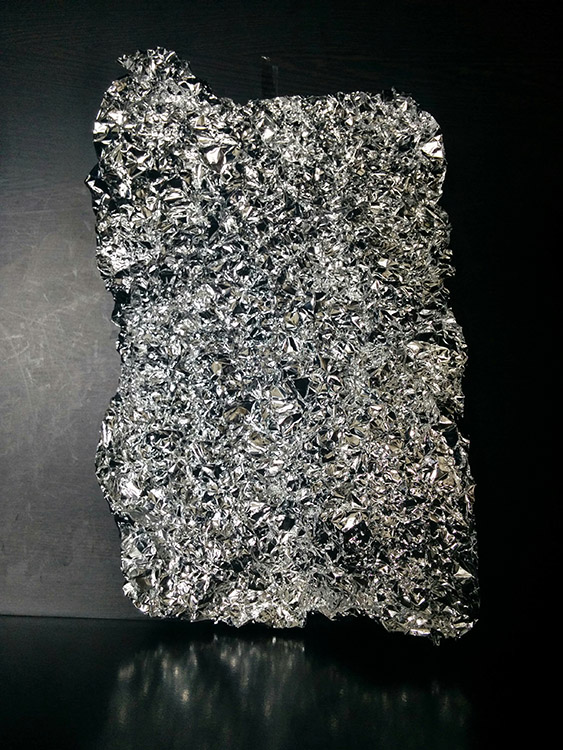
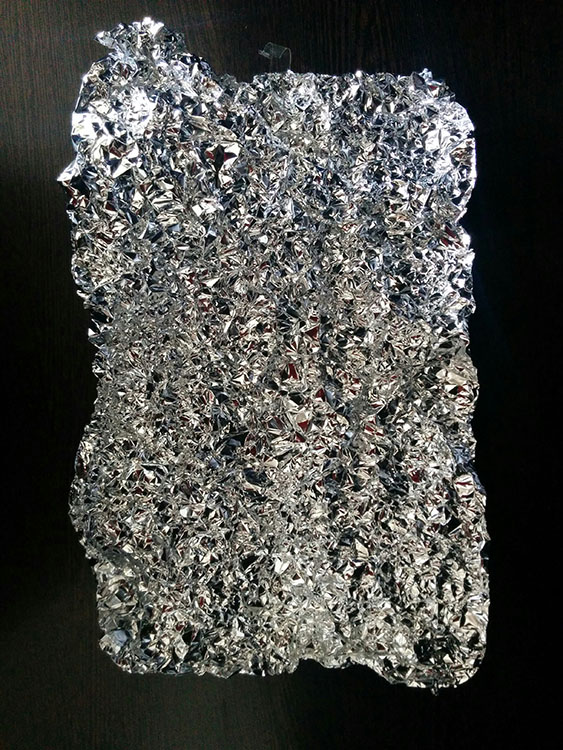
Step two: Crumple the aluminium foil into a loose ball (as shown here)

Step 2

Step three: Open up the ball, without smoothing out the crinkles (these will reflect the light, which will create the magnificent bokeh you need) – be careful not to tear the foil in this step.

Step 3

Step four: Stick the foil to the background (you may use some transparent tape to do so).

Step 4

HOW TO CREAT A PICTURE WITH AMAZING BOKEH

Without the use of a speedlight!

  • Place your camera and tripod some distance away from the El Bokeh Wall. The desired part of the subject (or the whole subject) is typically included along with some of the bokeh from the foil.
  • Place the subject a suitable distance away from the El Bokeh Wall. You will need to judge what this suitable distance is on your own, as that will vary depending on your chosen subject, and the camera and lens combination you’re using. While constantly checking your camera’s LCD monitor (it’s just easier this way – remember to switch to Live View), place the subject in a the position that makes the bokeh pops the most.
  • Get your camera to focus on the subject (with the background properly out of focus to obtain good bokeh) and then switch to manual focus.
  • Experiment with your lighting (since you’re not using any fixed lighting). Hold up your flashlight or smartphone and experiment with various angles until you get the best result.
  • Set the two second self-timer on your camera to count down.
  • Keep holding the light source at the angle which yield the best results until the picture is taken.

THAT’S IT!

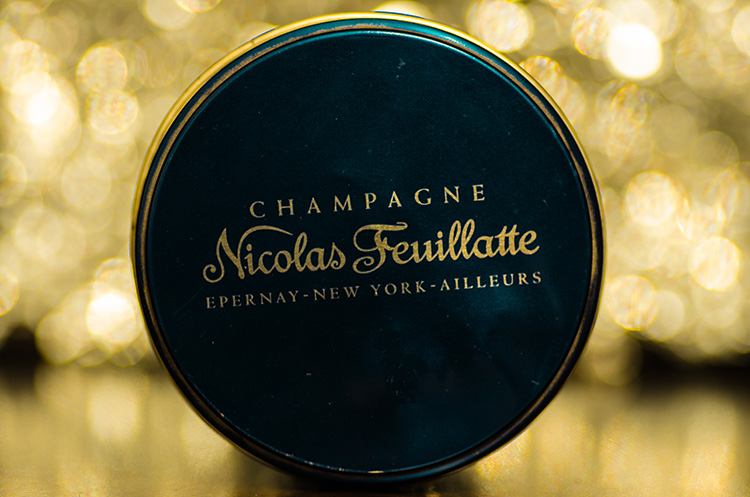
You should now have a great picture with marvellous bokeh like this:

Photo B  Uddhav Gupta  uddhav98 gmail com

Photo C  Uddhav Gupta  uddhav98 gmail com

Give it a try and please leave your comments below.

googletag.cmd.push(function() {
tablet_slots.push( googletag.defineSlot( “/1005424/_dPSv4_tab-all-article-bottom_(300×250)”, [300, 250], “pb-ad-78623” ).addService( googletag.pubads() ) ); } );

googletag.cmd.push(function() {
mobile_slots.push( googletag.defineSlot( “/1005424/_dPSv4_mob-all-article-bottom_(300×250)”, [300, 250], “pb-ad-78158” ).addService( googletag.pubads() ) ); } );

The post How to Create a Spectacular Background Using an El Bokeh Wall by Uddhav Gupta appeared first on Digital Photography School.


Digital Photography School

 
Comments Off on How to Create a Spectacular Background Using an El Bokeh Wall

Posted in Photography


How to Make a DIY Newborn Photography Background Stand

11 Jul

Have you ever wondered how professional newborn photographers get their backdrops so smooth and wrinkle free? Are they Photoshop masters? Do they have a team of highly paid assistants pulling the fabric? No. The answer is a DIY backdrop stand that costs less than $ 20 and that you can make in less than 15 minutes.

Image 9 1

When I first started in the world of newborn photography I used the tools that I had available. I would use a traditional background stand to hold the back of my fabric backdrops. I would then ask my clients if I could borrow a vacuum, dining room chair or some other house hold object to clamp the side of my fabrics to. This, of course, was very unprofessional and delivered substandard results. I would find myself spending 30 minutes just editing the backdrop in Photoshop. I knew there had to be a better way. So, with a little imagination and $ 20 I saved myself countless hours of Photoshop madness. Now, besides some simple blemish removal and softening, the images are basically perfect, straight out of camera.

Image 8

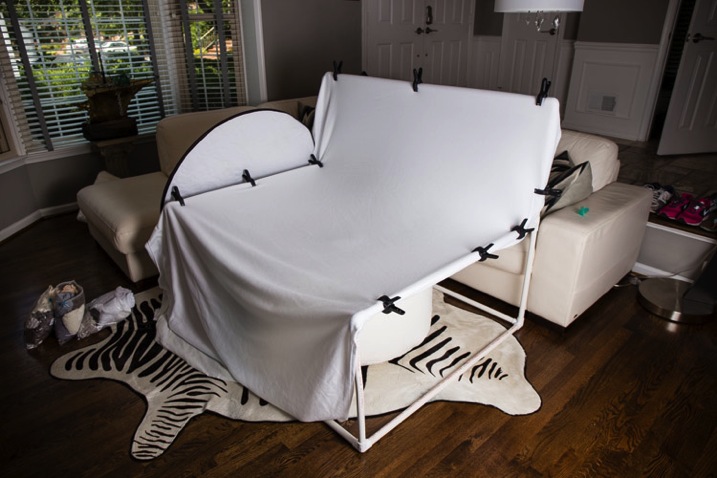
This tutorial will teach you how to build a background stand that stretches your backdrop fabrics. This stand will help to eliminate wrinkles in your background fabric, and cut down on post-processing time. It will also help you present your newborn photography business in a more professional manner.

Supplies needed

What you will need:

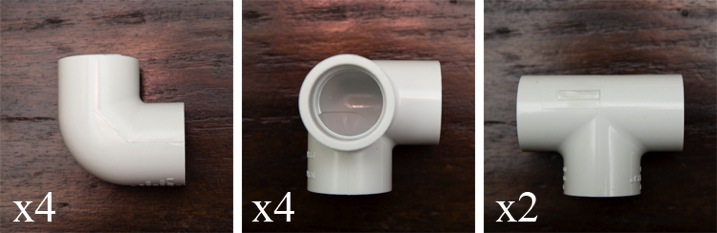
Image 1

All of the supplies should be readily available at your local hardware store. You will need to look in the plumbing section. All PVC fittings are Schedule 40.

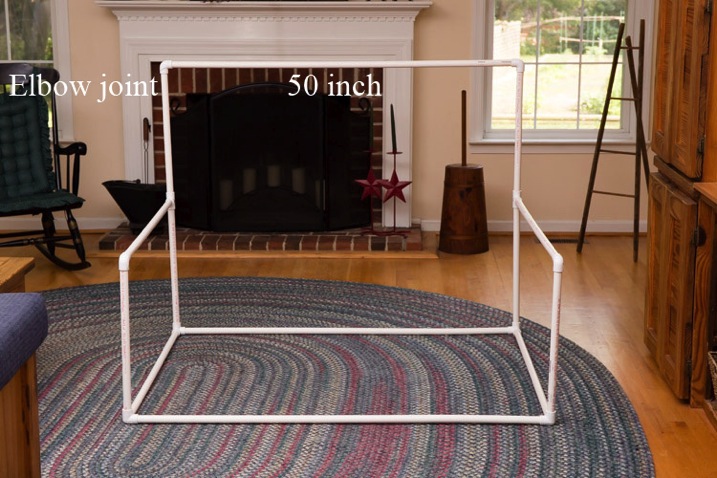
  • Four – 10 Foot lengths of 3/4 inch PVC pipe (SCH 40)
  • Four – 3/4 inch elbow joints
  • Four – 3/4 inch tee joints
  • Two – 3/4 inch 3-way joints

Step 1. Cut the PVC pipes to the correct lengths

You can use a PVC cutter, a miter saw, or a handsaw. I used a handsaw and was able to complete the entire stand in 15 minutes.

Lengths needed:

  • Three – 50 inch pieces
  • Four – 42inch pieces
  • Six – 20inch pieces

Recommended cuts:

  • Pipe 1: 50 inches + 50 inches + 20 inches
  • Pipe 2: 50 inches + 42 inches + 20 inches (discard 8 inches)
  • Pipe 3: 42 inches + 42 inches + 20 inches (discard 16 inches)
  • Pipe 4: 42 inches + 20 inches + 20 inches + 20 inches (discard 18 inches)

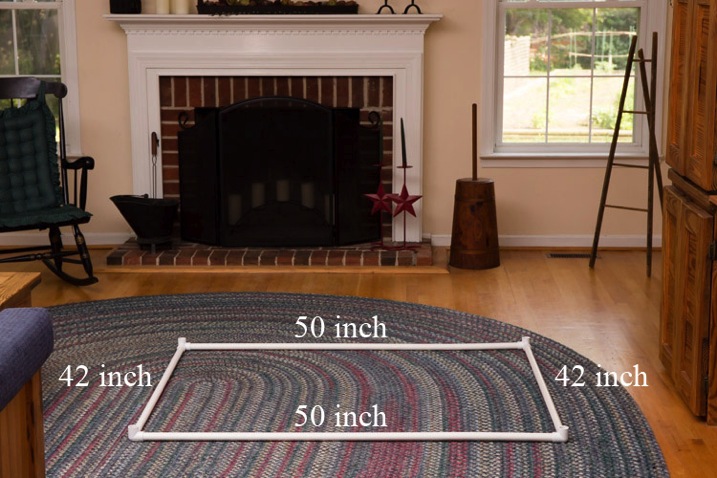
Step 2. Connect the bottom frame

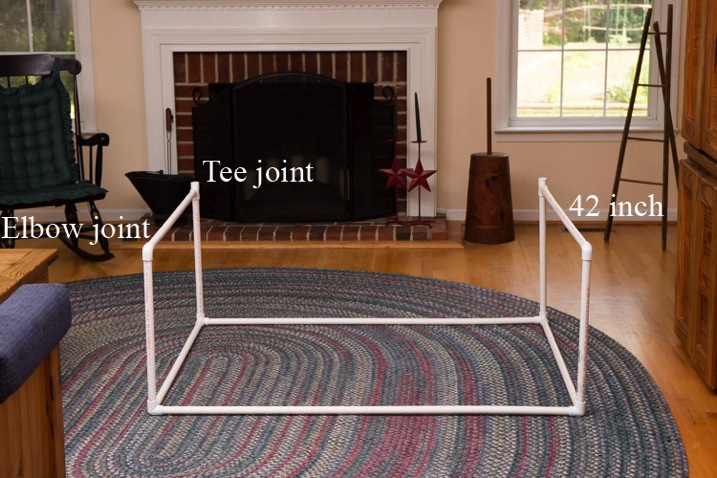
Connect two 50″ pieces and two 42″ pieces with the four 3-way joints to make a rectangle.

Image 2

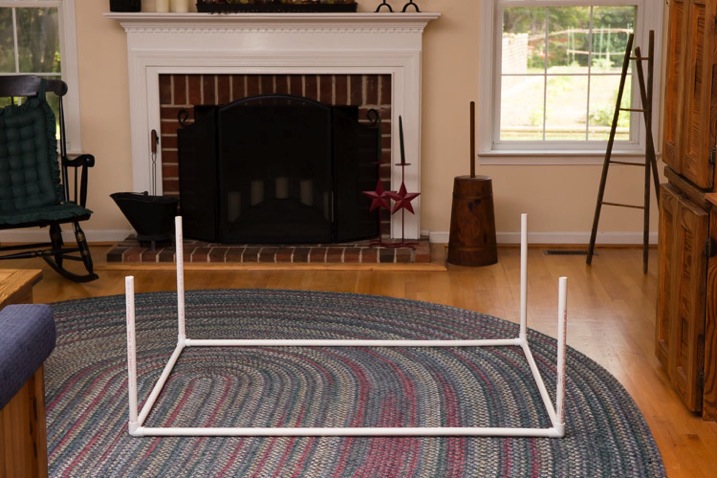
Step 3. Add the vertical leg pieces

Connect four of the 20inch pieces to the rectangle.

Image 3

Step 4. Connect the middle supports

Connect a tee joint and an elbow joint to either end of a 42inch piece of PVC. Repeat. Connect these to the backdrop stand.

Image 4

Step 5. Connect the back support

Connect two 20″ pieces to the back of the stand. Now connect the remaining 50″ piece to the top with two elbow joints. It should look like this at this stage (below).

Image 5

Step 6. Place a beanbag underneath

Place your beanbag in the center of the stand, and you are ready to stretch your backdrop fabric.

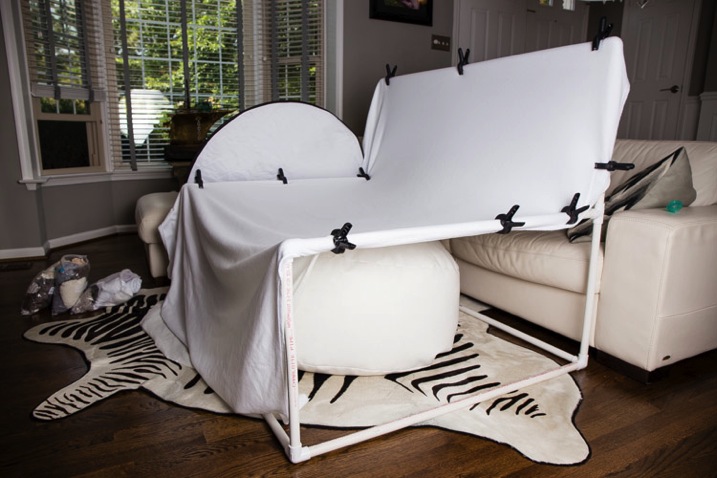
Image 6

Here is a picture of the backdrop stand in use at a client’s home.

Image 7

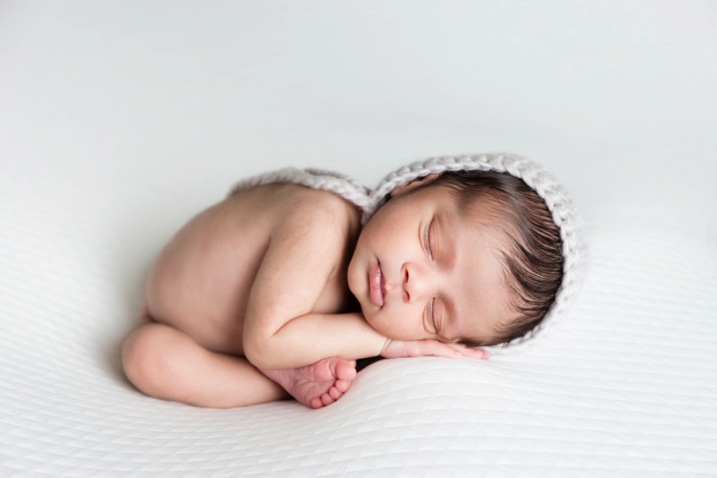
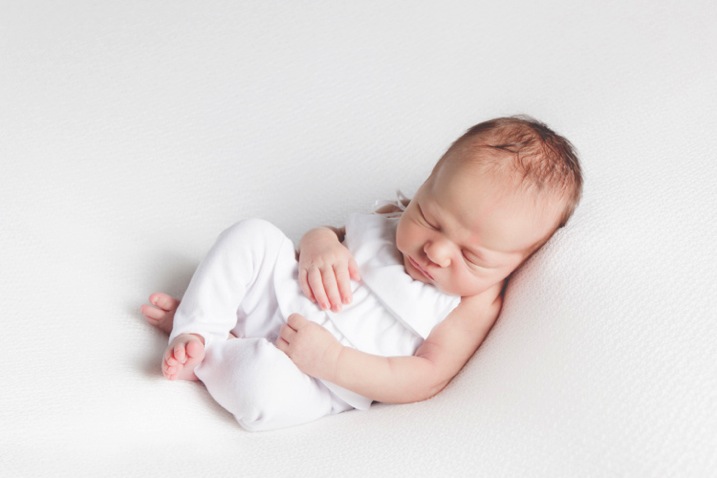
Here is a final newborn image using the backdrop stand.

Image 10 1

This stand is purposely designed to be wide. This allows you to take those much needed angled pictures without losing your backdrop fabric. You may however, prefer to have a square backdrop stand. This would allow you to use a smaller area in your studio or client’s home. Just keep in mind that you will need to really watch your angles.

Recommended lengths for a square backdrop stand:

  • Seven – 45inch pieces
  • Six – 20inch pieces

NOTE: This stand is only to be used with a newborn posing beanbag placed under the center of the stand. The posing beanbag is what supports the newborn, not the fabric. NEVER leave a newborn baby unattended on the beanbag or on any prop. As a newborn photographer the safety of the newborn baby must be your top concern at all times.


googletag.cmd.push(function() {
tablet_slots.push( googletag.defineSlot( “/1005424/_dPSv4_tab-all-article-bottom_(300×250)”, [300, 250], “pb-ad-78623” ).addService( googletag.pubads() ) ); } );

googletag.cmd.push(function() {
mobile_slots.push( googletag.defineSlot( “/1005424/_dPSv4_mob-all-article-bottom_(300×250)”, [300, 250], “pb-ad-78158” ).addService( googletag.pubads() ) ); } );

The post How to Make a DIY Newborn Photography Background Stand by Clifton Man appeared first on Digital Photography School.


Digital Photography School

 
Comments Off on How to Make a DIY Newborn Photography Background Stand

Posted in Photography


Create Your Own Super SparklyBokeh Background

16 Apr

When points of light are out of focus they turn into sparkling orbs of awesomeness.

This is called bokeh!

Wouldn’t it be cool if your next backdrop was made completely out of this fantastic effect? We tried it and loved it, and chances are you will, too!

So we’ve put together a step-by-step tutorial on how to make your very own glittery bokeh backdrop. Follow along and let the magic begin.

Make Dreamy Bokeh Backdrops
(…)
Read the rest of Create Your Own
Super Sparkly
Bokeh Background (476 words)


© Taylor for Photojojo, 2015. |
Permalink |
No comment |
Add to
Super Sparkly
Bokeh Background”>del.icio.us

Post tags:


Photojojo

 
Comments Off on Create Your Own Super SparklyBokeh Background

Posted in Equipment


How to use Photoshop’s Quick Selection Tool to Change a Background

20 Jan

It’s the question I get asked the most in my workshops and classes – “How do you change the background of an image?” Or “How can I cut my subjects out of an image and place them on a new background?”
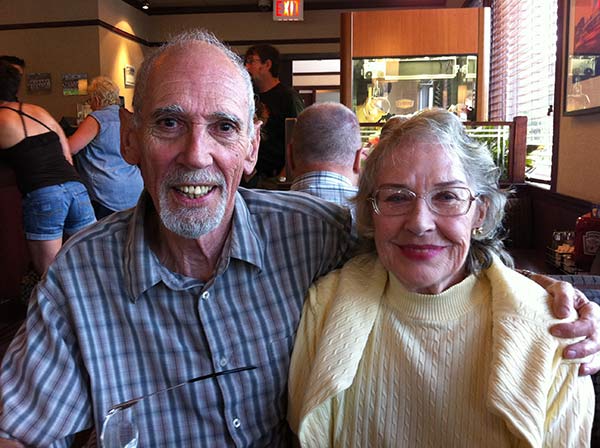
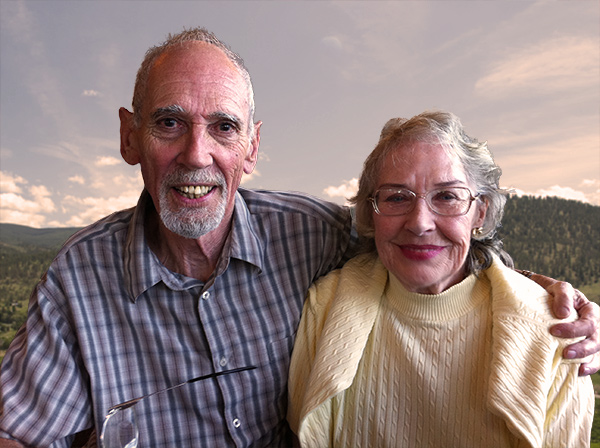
A quick capture of my parents at a coffee shop.

A quick capture of my parents at a coffee shop. The BEFORE image.

Perhaps, despite your best efforts at placing your subjects in a pleasing, non-distracting environment, the situation made it impossible. Maybe you used your smartphone to capture a spontaneous moment and now the image needs a little background work? Maybe you want to cut your subjects out of the background to isolate them or use them on a website banner or other marketing material? Whatever the reason, this task has challenged every photographer, beginner or pro, since the invention of the camera! I’m going to show you how to use one of Photoshop’s most underrated tools for easily extracting your subjects from the background.

This photo (above) was a very spontaneous iPhone capture of my mom and dad, the photo itself isn’t great (lots of things wrong with it technically) but it has big sentimental value for me. It’s the last photo I have of my parents together.  But it also has a busy background which typically causes problems for many photographers when trying to use Photoshop’s Selection Tools to remove it. In previous Photoshop versions, selection tools like Magic Wand and Lasso would get confused by the similar colors, and patterns of this type of background, making it a difficult and frustrating project. But with a relatively new selection tool it’s pretty straight forward, so this is a good example photo for learning the technique.

In this demonstration, you can make this a stronger image by removing the cluttered background to make it less like a snapshot and more like a portrait. The secret of any image editing is to use the right tool for the job. In this situation you want to use the Quick Select Tool to remove your subjects from an image and place them on a different background.

How to use the Quick Select Tool

In the past, you may have avoided most of the Selection Tools in Photoshop because they were not easy to use. The Quick Select Tool has changed all that. It has never been easier to make selections that don’t look like they were “cut and pasted.” There are two, or sometimes three steps.

Choose the Quick Selection Tool from the Toolbox palette:
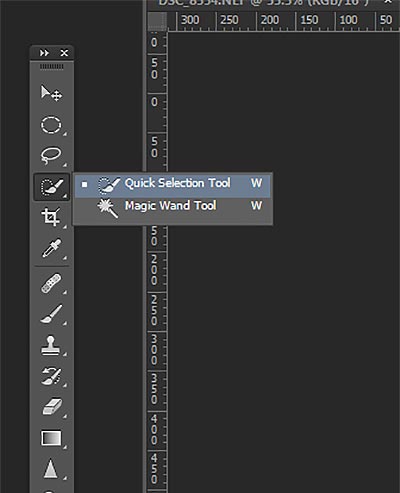
tool

It works like a Brush so you can change the size of the tool by using the [ –  ] keys on your keyboard (  [ to make it smaller, and ] to make it larger).  Give the tool a size that makes it easy to select your subject.

Step 1: Make your selection

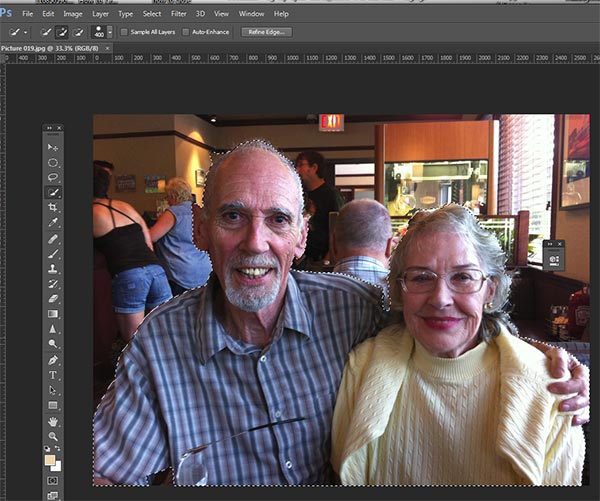
Just drag the tool over your subject and stop when the “marching ants” get to the edge. The tool is smart and can detect the change in pixels so most of the time it will stop on the edge correctly. If it selects something that you don’t want it to, just click on the Alt key to switch to “deselect” mode and drag the selection back to where it should be.
selection

The Quick Select Tool selecting the subject with the “marching ants” outline.

Step 2: Refine the Edge

Once you’ve got everything selected as you want it, click on the Refine Edge button on the top menu. In this area, you’ll adjust the pixels around the edges of the selection. This will make the “cut” more smooth and realistic.
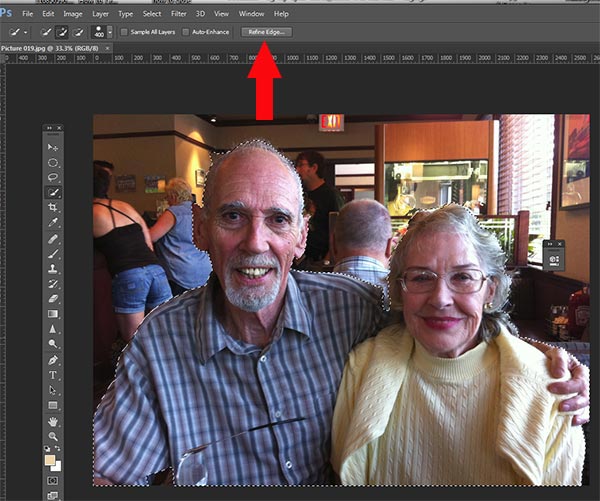
refine-edge


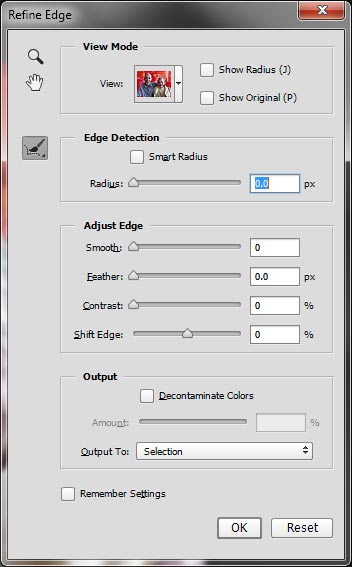
The refine Edge tool opens a pop up that looks like this:
refine-edge-palette

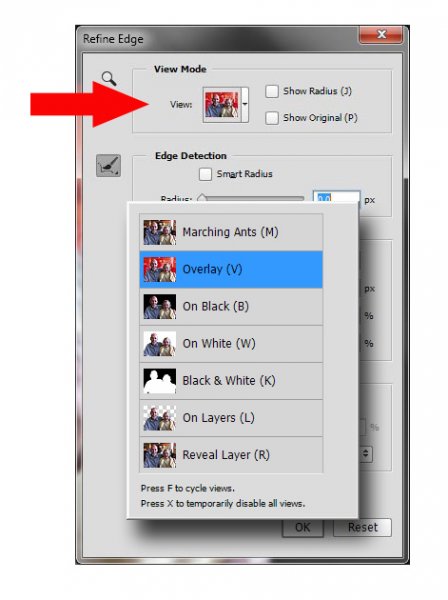
From here you can select how you want to view your selection against a few background options. You can select the Mask overlay which you may be familiar with if you’ve used layer masks before. This view allows you to see the background as well as your selection. But you can also check it against a black background, which I like, so you can clearly see how your edge looks and if you have selected everything accurately. To change views, click the drop-down to get the View Options box. Scroll through these to get a feel for how they display your data. The Adjust Edge sliders give you many options to smooth, feather, and further refine your edge if needed.

For now, select Black & White view mode. Hover over the Black & White Box and click.
popup

You should see something like this (below). You can see your edges very well against the black. You can see that the edges look okay, they are well defined, and not pixelated or blocky. But what about that hair? My poor dad with his fine and wispy (almost no hair), and my mom who had recently undergone chemo also has fine baby-like hair, making the hair selection task a bit of a challenge. But the Quick Selection Tool has a method for this too!
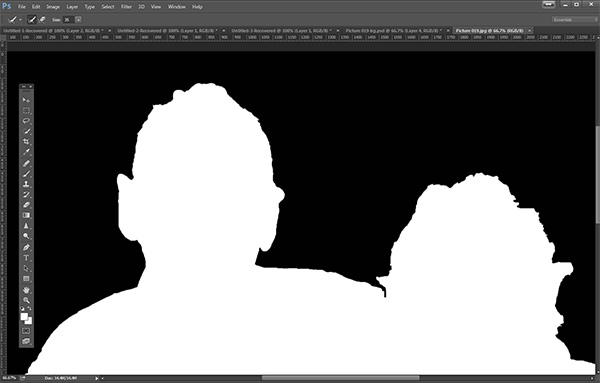
b+wmask

Click the Edge Detection Smart Radius box and move the slider to the right just a bit. watch how the edge around the hair change to be a bit more transparent. Be sure to watch the rest of your edges to make sure they don’t change too much.

Step 3: If needed, use the Edge Detection Brush

If you still need to get more transparency for hair, make sure the brush icon on the left is selected and carefully brush around where you need more transparency. You can switch between the View modes to see what is being displayed or removed. If you remove too much you can click and hold the Refine Edge brush to reveal the Eraser which lets you undo your brush strokes, much like a regular layer mask.
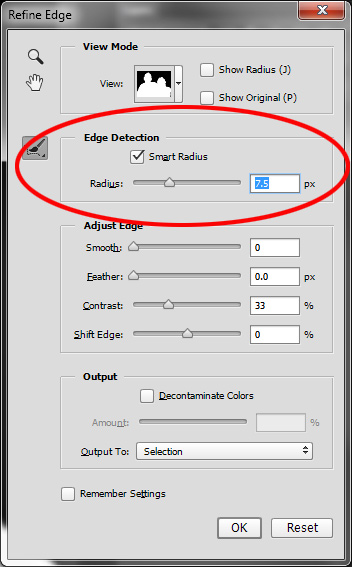
Untitled-2

When you’re happy with your results, Look for the Output section at the bottom of the Refine Edge box, and click on Decontaminate Colors and select a small number as the amount, 2 is usually good, depending on your image.  Change Output To: New Layer with Layer Mask.

This is what you should see now:
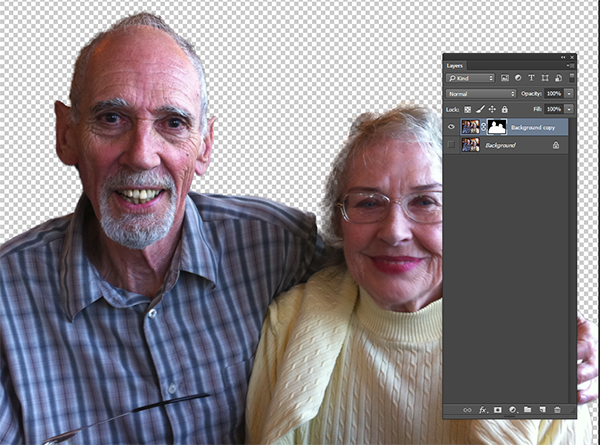
layermask

Note: to see the transparent background you must turn off the visibility of the bottom layer.

Your cluttered background is gone!  You have a nice transparent background and all on new layer. This will be your main image.

Add your new background layer

Open the image you want to use as your new background, and using the Move Tool, drag the new background into your main image. Voila! You have a great new background layer and your subjects look very realistic and not like cut and paste paper dolls.

You may have to drag the new background layer under the subject layer – the one with the mask. I’ve deleted the original Background layer and replaced it with the scenery background and called it new background. You could also make any existing background layer invisible if you don’t want to display it.
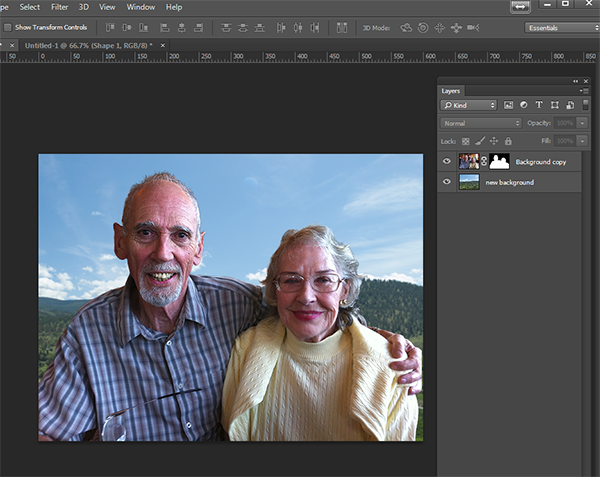
almost-done

Here’s a 100% close up look at the job the Quick Select tool and Refine Edge brush did on my mom’s hair (yes the image is a bit shaky at 100%, but I think you can see that took works pretty well to give you very realistic extractions, with the right amount of transparency and detail preservation).
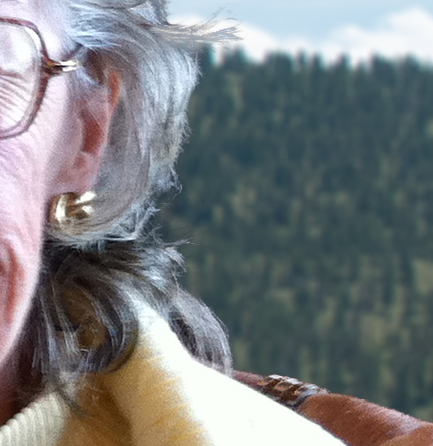
100crop-hair

The finishing touches

So for the final image, let’s balance the colors a bit and give this photo a nice warm tone, by using a layer mask and a warming Photo Filter.
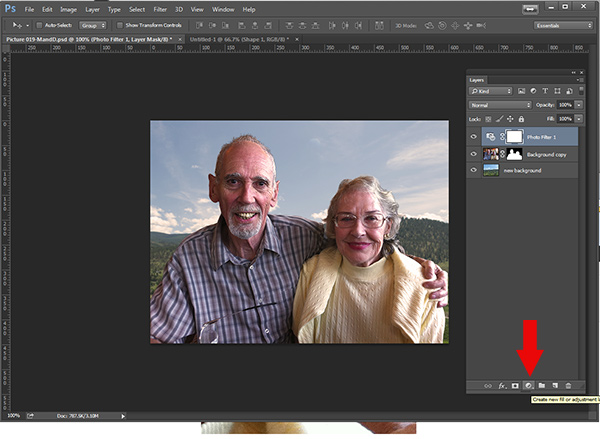
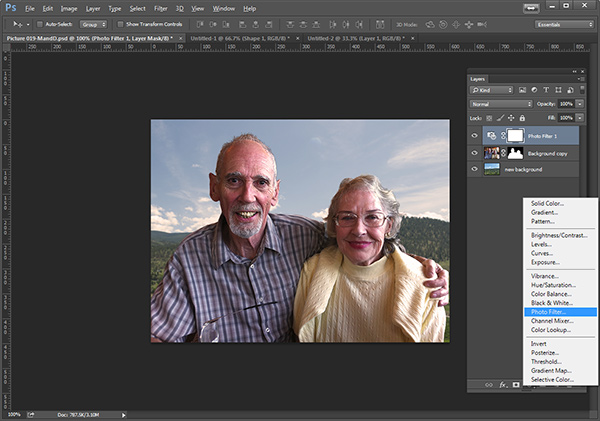
layermaskto-photofilter

photofilter

And here is the final image:

final-warming-filter

Final image AFTER changing the background. Not a snapshot any more!

What do you think? Is it better than the original? Was it worth the 10 minutes to edit and give it a new background? Just imagine, with a well captured image (not a shaky iPhone capture) think  of all the new possibilities you will have if you master this process.

Why not give this nifty tool a try and post your results here – I’d love to see how you use this. If you have questions or problems, just let me know, I respond to my comments and questions regularly.

googletag.cmd.push(function() {
tablet_slots.push( googletag.defineSlot( “/1005424/_dPSv4_tab-all-article-bottom_(300×250)”, [300, 250], “pb-ad-78623” ).addService( googletag.pubads() ) ); } );

googletag.cmd.push(function() {
mobile_slots.push( googletag.defineSlot( “/1005424/_dPSv4_mob-all-article-bottom_(300×250)”, [300, 250], “pb-ad-78158” ).addService( googletag.pubads() ) ); } );

The post How to use Photoshop’s Quick Selection Tool to Change a Background by Alex Morrison appeared first on Digital Photography School.


Digital Photography School

 
Comments Off on How to use Photoshop’s Quick Selection Tool to Change a Background

Posted in Photography


30 Outstanding Examples of Full-Screen Image Background Sites for Your Inspiration

25 Oct

If you’re looking for a way to make a strong impression and a bold statement with your portfolio, a full-screen background image can do the job for sure. Focusing solely on images while providing easy navigation, this web design technique and photography websites just belong together. This approach can fit any kind of photography portfolio, but dramatic, bold photos are Continue Reading

The post 30 Outstanding Examples of Full-Screen Image Background Sites for Your Inspiration appeared first on Photodoto.


Photodoto

 
Comments Off on 30 Outstanding Examples of Full-Screen Image Background Sites for Your Inspiration

Posted in Photography


Step By Step How to Do a Head Shot on a White Background

14 May

Today you are going to come ride along with me as I shoot head shots for a client in San Diego, California. I was hired by a company to create simple head shots of their instructors in the San Diego area.

There is a very big market for head shots and quite a few people want them shot on a white infinity backdrop. There are many ways to do this but I’m going to take you along on a shoot with me and show you how I do it:

Step by step how to do a head shot on a white background

Digital-Photography-School-Steven-Head-Shot-Thumbnail

First off, what is a seamless backdrop?

It’s a giant roll of paper – thats it! I used an 8-foot long roll in ‘alpine white’ color. Again, it’s just a big white roll of paper. When properly lit, this roll of paper gets ‘blown out’ or overexposed, so it appears as a perfectly white void on which your subject sits/stands in the middle. This white void makes the viewer focus on your subject rather than a cluttered background.

Setting up the seamless backdrop

As you can see in the animated GIF below, I start by finding an open area at least 8 feet wide. This is easier to set up with two people, but on this corporate shoot it was just me.

To make this easier to set up by yourself just lay the roll of paper on the ground and position the light stands on either side of the end of the roll of paper at their lowest height. Make sure the paper is set to unroll from underneath the back of the roll ,and not over the top and front of the roll.

When you pull from the back of the roll the natural curl of the paper will let the paper roll straight to the floor then curl toward your camera  into the room. This will provide a smooth curved transition from the vertical roll of paper into the floor and toward you so the background and floor will appear seamless. If the paper is pulled from overhand when it hits the floor it will want to curl backwards toward the back of the room. This won’t create seamless transition as you pull the roll into the room.

Run the cross bar through the center of the paper roll – the cross bar will stick out about 2 inches on either side of the roll. The cross bar has 2 slots at each end and the light stands have two vertical screws. Lift up the roll and place these two slots into the two vertical screws and then screw in the included wing nuts to secure the roll onto the light stands.

Raising the seamless backdrop

Now that we have the paper roll secured on the light stands at their lowest height, it’s time to raise it up. The light stands have two sets of clamps and two sets of vertical poles that raise up. With two people you can simply raise the paper roll at the same time to the desired height and lock the clamps down to secure the paper roll at your desired height. With only one person you have to slowly raise one side, then the other, until you get the roll to the desired height. Check out the GIF below and try not to laugh at the CEO jumping in during setup.

Digital-Photography_School

Unrolling the backdrop

Now that we have the bar to the height we want it, we can unroll the backdrop. I always keep little clamps on each end of the roll to keep it from unrolling on its own. Unclamp the little A-clamps on either side of the paper roll and slowly pull the roll down. If you don’t pull slowly the roll can gain momentum, unroll really fast, and go much further than planned! Since we were only doing head shots I just pulled the backdrop down to the floor. Once the roll is at the desired length clip the A-clamps back in place to keep the roll from unrolling further on its own like you see below.

seamless backdrop, studio lights, corporate headshots

Lighting the shoot

The way to make lighting easy is to light in layers, one step at a time. In this case I’m going to light the backdrop first. Once I get that done I’m going put a subject in front of the backdrop and light them separately. Once that is lit correctly we are ready to rock!

Lighting the backdrop

Now that the backdrop is set up properly we want to light it so that it appears solid white. I placed an Alien Bees 1600 studio strobe 3 feet away from the backdrop on the left side and angled it to shoot across the backdrop. The light had a reflector on it to contain the direction of the light. This will make the light rake across the middle of the backdrop to light it up white.

Dialling in the camera settings

I set my camera to f/8 aperture as it’s a good middle ground depth of field to start. The studio lights will give me all the light I need so I set the ISO low at 200. I then set the shutter speed to 1/160 which is the maximum shutter speed sync my camera allows. In this room a 1/160 shutter speed is fast enough that none of the lights on the ceiling would register – essentially I’m killing any ambient light in the room so the only light that shows up in the photo is from the studio strobes.

I take a guess and set the studio strobe light at 1/4 power. I do a quick test at f/8, ISO 200, 1/160 shutter speed and get this:

corporate headshots, white seamless backdrop, studio strobes, lighting setups

Looks pretty good to me! You can see the area closest to the light is perfectly blown out white, but as you move to the right the light is becoming weaker and the white backdrop appears more grey. Because the light is weaker on the right side it’s also showing the wrinkles in the paper. Because I’ll be placing people several feet in front of the light stand and zooming into the middle of the backdrop I’m not concerned with the right side of the backdrop. If I were shooting a wider shot I would add another light on the right side of the backdrop to light up that side, but that isn’t necessary for this shoot.

Lighting the subject

Now that we have the backdrop dialled in it’s time to light the next layer – the subject. I place an Alien Bees 800 studio strobe to the right of the backdrop, about six feet in front of the first light. I put an umbrella on the light which spreads the light out (diffuses it) as it passes through the umbrella and gives it a nice, soft appearance. I set the light at 1/4 power, at a 45 degree angled downward, and raised to about 8 feet high to test it out.

I step in front of the backdrop like the goofball that I am and get this:

studio lighting, seamless backdrop, corporate headshots

The backdrop still looks good, but I (the subject) am overexposed. This means the umbrella light is too strong. I reduce the power from 1/4 power to 1/8th power, have the CEO grab two nearby Nerf guns, step back in for a test, and get this:

seamless backdrop, studio lights, corporate head shots

Looking much better!

The light hitting the white background is bouncing onto the back of the subject and wrapping around his body too much. To correct this I need to move the subject a few feet toward the camera so the light bouncing off the background falls off before it reaches him. When I do this I also need to move the umbrella light the same distance toward the camera to keep the same exposure.

I also want more room to the right to compose my subjects so I move the umbrella light two feet camera-right, and one foot toward the camera. I then have the subject move two feet camera-right and one foot toward the camera so the background light won’t reach the subject as much.  I take another test and get this:

seamless backdrop, corporate headshots, digital photography school, seamless backdrop

This looks great to me. The background layer is blown out white, the subject layer is properly exposed, and as a bonus just enough light is bouncing off the backdrop to give some backlighting to the subject. Here is a closer crop to see what we are working with:

studio lights, seamless backdrop, corporate headshots

The only thing I should do to improve this is have the subject turn his body to face the umbrella so there isn’t so much shadow on the camera-left side.

Positioning the subject

headshot, seamless backdrop

The client wanted simple head shots of their instructors for use on their website profiles. I had the subject stand in the same place, square up their shoulders to face the umbrella light, and smile. You’ll notice that the umbrella placed up above the subject and pointed down at 45 degrees leaves a nice catch light (the white reflection of the light) in the top right corner of the subject’s eyes. When you can place a catch light at the ten or two o’clock position (like on an analog clock) in the subject’s eyes it brings them to life. Here is what we end up with:

 Quick positioning tip

To keep everything consistent, place some tape on the floor where you want people to stand. I didn’t have any tape with me but I did have an extra umbrella. I simply placed the umbrella at a diagonal angle and told the subjects to place their toes against the umbrella. This squared them up with the light so each portrait was consistent.

Wrapping it up

Overall it was a very quick setup, shoot, and breakdown. We shot 45 different instructors in about 45 minutes! Once everything was dialled in we just photographed one instructor after the next. The shoot was fun, the client was happy, and the instructors loved their head shots!

Digital-Photography_School-Portaits

Would you like to see more real shoots?

Did this post help you and did you enjoy seeing some behind-the-scenes info on real client shoots? If so sound leave me a comment below. If it would help I’d love to start sharing more live client shoots to show everyone how they come together!

For more portrait tips using a white background see these articles on dPS:

  • 4 Tips for a Perfect White Background in High Key Photography
  • White Seamless – Studio How-To
  • Awash In Light: High Key Portraiture

The post Step By Step How to Do a Head Shot on a White Background by Mike Newton appeared first on Digital Photography School.


Digital Photography School
 
Comments Off on Step By Step How to Do a Head Shot on a White Background

Posted in Photography


Did Amazon just patent the seamless background setup?

07 May

amazon-seamless-white-670x434.jpg

On March 18th the United States Patent and Trademark Office granted a patent to Amazon covering a specific method to achieve the common photographic technique of capturing an image of a subject against a plain white background. Patent No.US 8,676,045 B1 describes a setup using multiple lights and a white backdrop which results in images that require no post-process retouching to remove shadows. Learn more

News: Digital Photography Review (dpreview.com)

 
Comments Off on Did Amazon just patent the seamless background setup?

Posted in Uncategorized


4 Tips for a Perfect White Background in High Key Photography

03 Dec

A guest article by Tony Northrup, author of Stunning Digital Photography, on sale 20% off – now at SnapnDeals.

A bright, white background creates a high energy, happy, and distraction free scene, perfect for pictures of your friends and family. Known as high key photography, this technique instantly cures problems with ugly backgrounds and focuses the viewer’s attention on your subject.

Besides being a popular for portrait photographers, it’s a more modern choice, rather than traditional (ie., painted muslin). Here are my favourite tips for creating high key photos.

4 tips for perfect white backgrounds in high key photography

Tip #1 – Use a Solid White Background to Eliminate Distractions

I used a big, white piece of paper as the background for this portrait of my twin nieces because anything natural for a background would have clashed with their colourful outfits. The brightness also perfectly matches their expressions.

high-key-white-background-portraits-01b

High-key backgrounds focus your attention on the subject

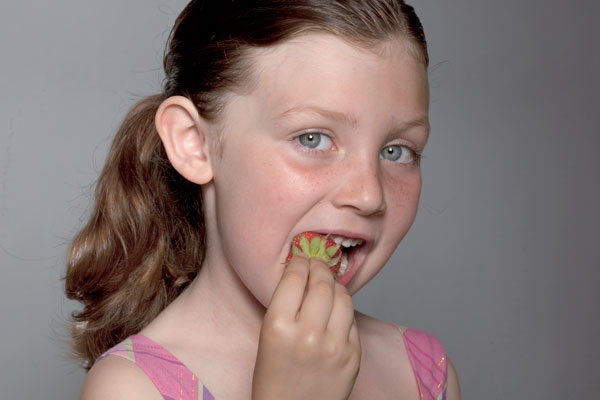
High key photography was the perfect choice for this picture of my daughter eating a strawberry because there’s nothing to distract the viewer from her eyes and the strawberry. You don’t need to use an expensive camera or lens for this type of picture, because you can use any camera for high key photography.

High key white background portraits 02

The solid white background eliminates all distractions

Tip #2 – use sunlight as your background

A white background isn’t everything you need to create a perfect high key photograph, however. You need one additional ingredient – light. A white background without light doesn’t appear white in the photo, it appears grey. My flash failed to fire for this next photo, causing an ugly, grey background.

If you don’t light your background, it will be grey

If you don’t light your background, it will be grey

To create a solid white background, you need to completely overexpose your background without overexposing your subject. That means you’ll need much more light on your background than on your foreground subject; about 16 times more light (or four stops of light).

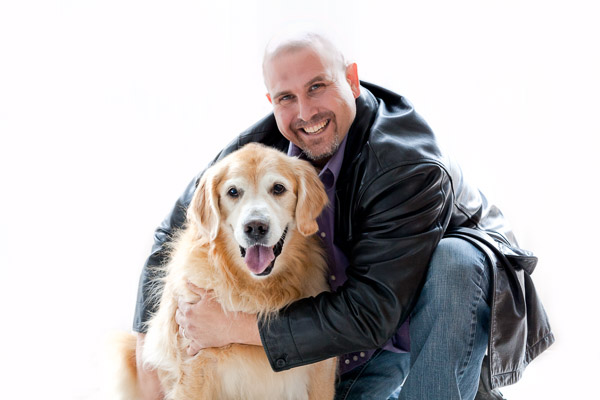
Fortunately, we all share a very powerful and free light source: the sun. For this photo of a radio talk show host and his dog, I had him kneel in my kitchen at midday when the sun was streaming through the glass doors behind him. I added three stops of exposure compensation to properly expose their faces. Because the sunlit background was much brighter than the shade in my kitchen, the camera captured it as solid white.

High key white background portraits 04

You can use the sun to create a bright background

Tip #3 – use a flash on the background

Another easy way to create a bright background is to light it with an off camera flash. Simply move your model four to six feet away from your background and hide a flash behind your model, pointing it at the background. When you take your photo, the flash will light the background to overexpose it and make it appear completely white.

An off camera flash doesn’t have to be expensive. Any manual flash with an optical slave will work, including the $ 60 (US) YongNuo YN-560 that I often use. Simply turn on both the flash’s optical slave and your built-in flash. When you take a picture, your flash will trigger the off camera flash to light the background.

High key white background portraits 05

Place a flash behind your subject to light the background

For more information about using flash both on-camera and off-camera, refer to Chapters 3 and 6 of Stunning Digital Photography.

Tip #4 – don’t over, overexpose the background

You can overexpose a high key background too much. If you bounce too much light off your background, the backlighting will overtake your model and wash out your picture. For example, the picture on the left had too much light on the background, while the picture on the right had just the right amount.

If you have too much light on your background, it’ll wash out your subject

If you have too much light on your background, it’ll wash out your subject

To get a perfectly white background without washing out your picture, start your background light at its lowest power and increase it one stop at a time until the background is barely overexposed. In this video, my wife Chelsea and I show you exactly how to find the perfect flash output. Our book, Stunning Digital Photography, includes more than six hour of video integrated into the lessons, because photography is a visual art, and often it’s easier to learn by watching than reading.

Summary

High key photography is challenging because it requires you to create an intentionally overexposed background while still properly exposing your subject. Once you learn how to use exposure compensation and light your background, you’ll be able to create perfect white backgrounds in just a few minutes.


Award-winning author and photographer Tony Northrup has published more than 30 how-to books and sold more than a million copies around the world. His photography book, Stunning Digital Photography, is the best-selling photography book in the world and the top-rated instructional book of all time. His photos have been featured on magazine covers, book covers, CD covers, TV shows, calendars, and much more. He runs a stock and portrait photography business with his family, Chelsea and Madelyn, out of his home studio in Waterford, CT. He shoots travel and nature photography everywhere he goes.

Post originally from: Digital Photography Tips.

Check out our more Photography Tips at Photography Tips for Beginners, Portrait Photography Tips and Wedding Photography Tips.

4 Tips for a Perfect White Background in High Key Photography

The post 4 Tips for a Perfect White Background in High Key Photography by Guest Contributor appeared first on Digital Photography School.


Digital Photography School
 
Comments Off on 4 Tips for a Perfect White Background in High Key Photography

Posted in Photography


Get an Invisible Black Background to Your Portraits – Shooting Anywhere [VIDEO]

14 Jun

In this video Glyn Dewis demonstrates how he gets his ‘Invisible Black Background’ effect when taking a portraits which will allow you to take a low key atmospheric portrait with a black background anywhere – even outdoors as he does in this video.

To get the shot Glyn just uses his DSLR, a single Speedlight Flash, a cheap umbrella and a PocketWizard to trigger the flash (although you can do this with any method of triggering a remote flash that you have).

Want to see some more examples of what can be done with this effect – check out Glyn’s blog posts on the topic here and here.

Post originally from: Digital Photography Tips.

Check out our more Photography Tips at Photography Tips for Beginners, Portrait Photography Tips and Wedding Photography Tips.

Get an Invisible Black Background to Your Portraits – Shooting Anywhere [VIDEO]


Digital Photography School
 
Comments Off on Get an Invisible Black Background to Your Portraits – Shooting Anywhere [VIDEO]

Posted in Photography


50 Striking Examples Of Professional Photos In Twitter Background Design

19 Apr

If you are a man of a taste and you like to tweet then you’ll probably appreciate these Twitter backgrounds of photography-related accounts. Go ahead and check them out!

The post 50 Striking Examples Of Professional Photos In Twitter Background Design appeared first on Photodoto.


Photodoto

 
Comments Off on 50 Striking Examples Of Professional Photos In Twitter Background Design

Posted in Photography