RSS
 

Posts Tagged ‘Background’

Add Interest to your Background with Colored Gels

22 Nov

Colored gels are commonly used to balance flash color temperature with the color temperature of ambient light. But you can also use gels to add creative color effects to your photos.

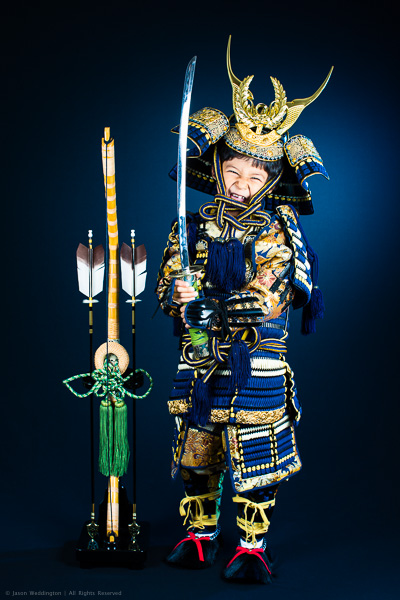
Photo of a young boy dressed as a Japanese samurai

I recently shot this portrait of my son to commemorate his Shichi Go San (7-5-3) ceremony. Shichi Go San is a Japanese rite of passage performed at ages 3 and 7 for girls, and at age 5 for boys.

The background is a black piece of cloth, stretched across a Manfrotto background stand. To separate him from the background, and add visual interest, I used a single flash with a DIY blue gel to add some color to the background. In this article I’ll explain how to make your own gels, and how to use them. Lighting your background separately from your subject, with or without gels, is a great way to add depth to your photos and can help separate subjects from a dark background.

Here’s how it looks with only the background light:

Photo showing the use of a blue gel to tone a black background

First, an overview of the lighting setup for this shot:

Main Lights: 2 x Canon 430EX II Speedlites at full power, fired through 24″ Lastolite EZY-Box softboxes at camera left and right, just outside the frame.

Background Light: Single Canon 430EX II Speedlite in a snoot, with DIY blue gel, fired at the background from the right side of the set. I aimed this flash so that the hotspot would be centered behind my son’s head.

Exposure: 1/200, f/6.3, ISO 200
Lens: Canon EF 50mm f/1.2L
Camera: Canon EOS 5D Mark III

How to make your own DIY Gels

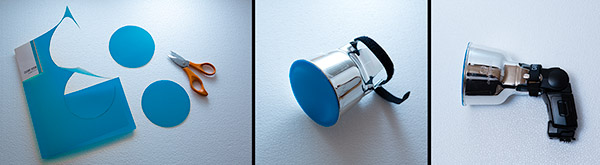
Any piece of thin colored plastic will work well. For the above photo I used two circles of plastic that I cut from a notebook cover. I purchased the notebook for 100 yen, or about USD $ 1.25. Experiment with different colors to find what works with your creative style, and for the particular photo you’re creating. For portrait work, I’m partial to cool tones, especially blues. Warm colors appear to pop out against cool colors, so a cool colored background works well to compliment skin tones.

In addition to the gel, you also need a snoot. A snoot narrows the light, and gives a spotlight effect. This keeps blue light from spilling all over the place. For this photo, I used a Gary Fong Powersnoot, because I already have one. But a piece of black poster board folded into a cylinder works just as well.

Photo showing steps to make colored flash gels

My 8-year-old daughter taped the blue plastic to the end of the snoot for me. If you don’t have an 8-year-old, see if you can borrow one from a friend or relative. Failing that, you can also tape the plastic onto the snoot yourself.

How much flash output?

So, how much flash do you need on the background to get a nice color effect? At first glance this may seem counterintuitive, but here’s the rule:

More flash = lighter color
Less flash = darker color

The reason for this is simple. The brighter your background flash, higher the luminosity of the color hitting the background will be.

So for a nice, deep blue like in this photo, you only need a little kiss of light from your flash. I powered a single 430EX II at 1/4 power for the background light, compared to two 430EX II’s at full power for the main lights. My background flash was about the same distance from the background as my main flashes were from the subject, so basically the light on the background is 4 stops weaker than the light on the subject. (1 flash @ 1/4 power on the background, 2 flashes @ full power on the subject.)

I hope this article has given you some ideas about how to make your own DIY flash gels from inexpensive materials, as well as how to use gels to add creative color effects to your photos. I’d love to hear from you, feel free to comment below or reach out to me on Google+ or Facebook.

Post originally from: Digital Photography Tips.

Check out our more Photography Tips at Photography Tips for Beginners, Portrait Photography Tips and Wedding Photography Tips.

Add Interest to your Background with Colored Gels


Digital Photography School

 
Comments Off on Add Interest to your Background with Colored Gels

Posted in Photography


Perfect lighting for a white background

05 Nov

A white background will photograph grey unless you light it. So in this video I demonstrate the problem and my lighting solution, using three studio lights. I must thank Hasselblad UK for the loan of the studio and the H4D camera that I used in this video. www.gavtrain.com

 
Comments Off on Perfect lighting for a white background

Posted in Photography Videos


Removing Background Using Refine Edge [Tagalog] Part 2

04 Nov

in this video you will learn how to use the refine edge and apply it in the real world projects like us on facebook: facebook.com
Video Rating: 3 / 5

 
Comments Off on Removing Background Using Refine Edge [Tagalog] Part 2

Posted in Retouching in Photoshop


Photoshop Elements 7 – How to extract background

29 Oct

Adobe Photoshop Elements 7 tips&tricks – Episode 4 windowsforever.weebly.com 1.Find the Eraser tool and right — click on it. Don’t release the mouse button! 2.Release the right mouse button on magic eraser tool. 3.Tick off “contigrous” and tick on “Anti — alias” 4.Right – click on space you want to erase. (background) 5.Go to Enhance, Adjust color and defringe layer. 6.Set width to 1 pixel 7.Create new layer and put it down in layers thumbnail. 8.Create a new gradient in color you want. 9.Click on new layer and draw the gradient 10.It’s all!

 
Comments Off on Photoshop Elements 7 – How to extract background

Posted in Retouching in Photoshop


Cleaning up the background of a photograph | lynda.com tutorial

26 Oct

This Photoshop tutorial discusses how to clean up the background flaws in a photograph using the Patch tool. Watch more at www.lynda.com This specific tutorial is just a single movie from chapter two of the Photoshop CS5: Athletic Retouching Projects course presented by lynda.com author Chris Orwig. The complete Photoshop CS5: Athletic Retouching Projects course has a total duration of 6 hours and 9 minutes, and covers removing blemishes from the subject and the background, adding motion blur, enhancing muscle tone, making adjustments to photos shot in an outdoor setting, and more. Photoshop CS5: Athletic Retouching Projects table of contents: Introduction 1. Outdoor Portrait 2. Simplicity 3. Strength 4. Speed 5. Gym Workout 6. Energy 7. Pushup 8. Indoor Track Sprint 9. Enhancing Strength 10. Surfer Portrait 11. Underwater Portrait 12. Jump 13. Father and Son Portrait Conclusion

 
Comments Off on Cleaning up the background of a photograph | lynda.com tutorial

Posted in Retouching in Photoshop


Preparing your Model and Background for a Successful Composite

24 Oct

A Guest Post by Tom Di Maggio from Tom Di Maggio Photography.

When I posted the my article about creating Eye Catching Composites I got some comments and a lot of emails asking for more details on my post processing technique.

This article will be more focused on how to achieve the wanted effect. I will describe the technique used for the background as well as the one used on the subject. I used Lightroom 4, Photoshop CS6 and NIK Color Efex Pro 4 to achieve this. I presume that the reader has a basic understanding of Layers and Blending Modes in Photoshop.
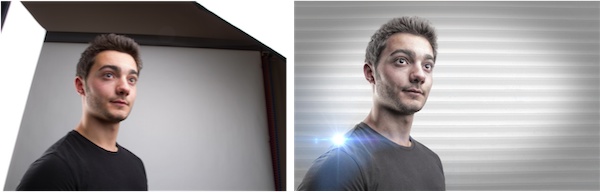
Untitled

Here’s a picture of the original to the left and the finished picture to the right.

As with any picture the background is very important for the final feel of the image, for this one I choose an old stock photo of a metal door. I didn’t want it to be as hard though, I wanted something bright and soft with a touch of hardness. I placed the picture on top of a white Layer and reduced it’s Opacity until I had the visual impact I was going for. In this case it was 13% only. I could have used a different blending mode but I am a fervent adherent to the “KISS” principle…

As with most of my pictures I tend to darken the borders or lighten the center of the image in order to draw the eye to where I want it to go. In this case the background itself is bright enough, so I use another Layer with a slight vignette. To achieve this I use the elliptical selection too and draw a rough ellipse. I invert the selection and feather it with a value of 250. You can repeat this step a few times until the feather suits your wish. Finally I just fill it with black and adjust it’s opacity to where I think it will fit for the end result. I have to say here that I usually end up readjusting the vignette once the image is finalized. Group the Background Layers into a folder that you will call “Background” and hide it, we won’t need it until after the masking procedure. Actually as I always start with my backgrounds I always end up fine-tuning it after the subject is in place. One could argue that I should start with the subject, but I feel that I slightly adapt the post processing of my subject to the background. I feel that it makes it easier to blend the subject better into the background.
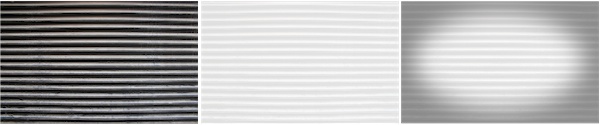
Untitled

The door original on the left, with an Opacity of 13% (over a white Layer) in the middle and the final version with the vignette on the right.

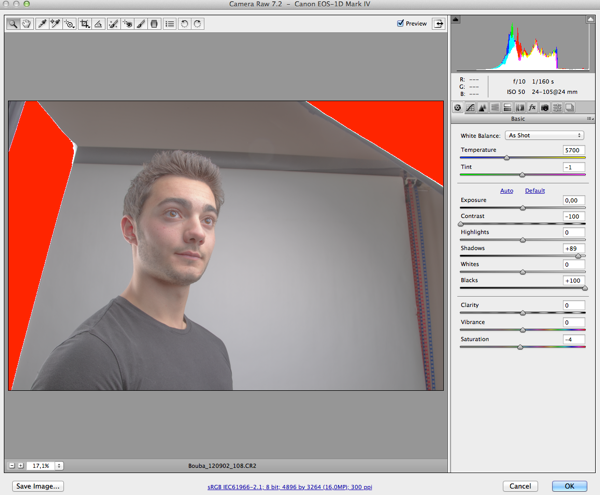
As you can see with the original picture I tend to slightly underexpose my composite pictures. If I wasn’t going to use this picture for a composite it would have lit it a bit lighter than this. For the post processing technique I use it is vital not to loose any detail in the picture. I don’t do any adjustments to the picture at this stage. In Lightroom I simply right click the image and choose the option: Open in Photoshop as Smart Object. You will now see a new Layer in Photoshop that has a small square in it. If you double click on that little square it will open the adjustment panel for that Layer. This is where I remove as much contrast from the image as I can without loosing and detail. I drag the contrast slider all the way down to -100 and the shadows slider to the right until it starts creating artifacts. Depending on the picture I will also drag the Blacks slider to the right. Basically what I want to achieve here is a picture that has the less amount of contrast possible. Once you are happy with the way the picture looks you can click “ok”. Keep in mind that you will be able to come back to this screen and adjust the settings until you are confident with the outcome of the procedure.
?
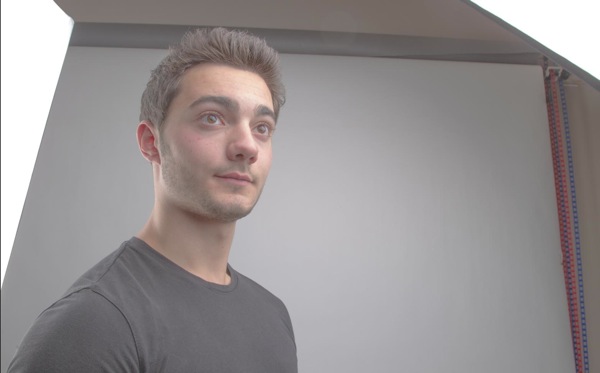
Subject Layer1
Here’s the first Layer where most of the contrast has been removed.

Once done I create a copy of this smart object as another smart object. To do this I right click on the Layer I want to duplicate and choose copy to new Layer as smart object. Double click on the small square again and choose the “HSL” button and switch the image to B&W by checking the “Convert to Grayscale” tick box. You can argue here that there are better ways to get a black and white picture, and I would be the first one to agree with you. But the goal here is not to convert the image to Black & White but to get some contrast and detail back into the picture. Sometimes I slightly adjust the brightness at this step, but that’s about it. Then I change the blending mode of this Layer to overlay and check the result. If I want to fine tune something at this stage I do it on one of the two Layers by double clicking the little square and going back into the adjustments panels. More often than not it will be the saturation and brightness of the picture. I sometimes also play with the opacity of the B&W Layer. It is important at this stage that you like the combination of the two Layers as we will now move on to steps that will make it harder to adjust these things.
?
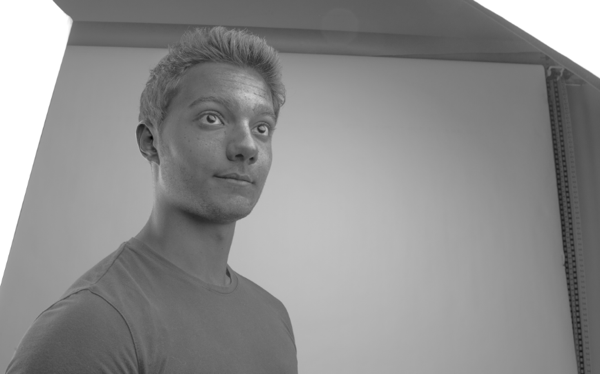
BW
The Black & White Smart Object Layer
??
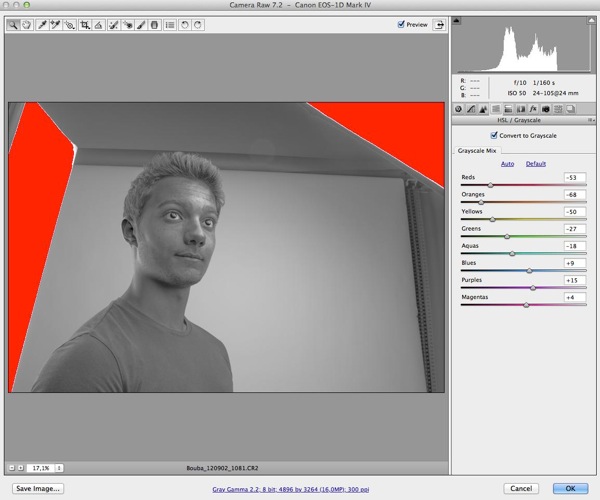
Bw adj
The BW adjustment Panel

Color adj
The color adjustment

If you’ve followed these steps you will have two Layers by now. We will merge these two into a new Layer by hitting the Command-Control-Shift-E keys on the keyboard. This will create a third Layer that we will apply a Gaussian blur filter to. I usually choose a value between 10 and 15 here for the blur. Again this is a matter of taste and you should experiment a bit with this. Change the blending mode to Overlay and turn the Opacity down to somewhere around 30 to 40 percent. Hit the Command-Control-Shift-E keys again and choose Filter-Other-High Pass with a value of 3 or 4 and change the Blending Mode to Overlay again. These two Layers will sharpen the image a bit and give it some colors back that went lost during the first steps of the post processing. You can play around with the Opacity of the blurred Layer until it fits your taste. I usually group the four Layers into one Layer Folder at this stage.
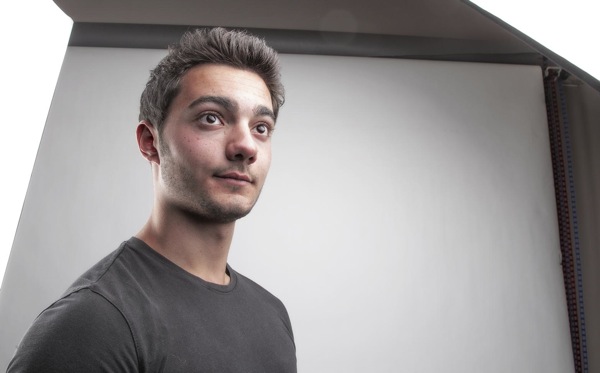
Merge BasePicture of the 4 Base Layers merged together.

The next steps are purely image/skin corrections and optional. That being said I use them on every picture that includes a face. For this we have to merge the Layers again to a single one. We do this by using the same keyboard shortcut as before: Command-Control-Shift E and name that Layer “Blur”. And then simply duplicate the Layer again with Control-J and name that Layer “Apply”. Group both Layers to a new Folder. Apply a Gaussian Blur with a value of 22 on the “Blur” Layer. (The value has to be 22 for this to work). Select the “Apply” Layer and choose the Menu Image – Apply Image. In the window that just opened choose the “Blur” Layer in Layer and Subtract as Blending. Set the scale to 2 and the offset to 128. (These are the values that you need to use for this to work). Hit ok and change the Blending Mode of the “Apply” Layer to Linear Light. If you’ve done this correctly and with this Group on and off you should see no difference at all. Now you can choose the “Healing Tool” and start cleaning up the skin of the subject on the “Apply” Layer. What this does is to allow you to “heal” the skin without changing the color values. It will only affect texture. It’s a very effective way to clean up skin or other surfaces without loosing or changing the color values of the subject. This is a technique I use a lot and depending on the image this is where I will spend most of the time. As you can see on the image below I also brightened up the image a tiny bit with a Brightness Layer Adjustment.
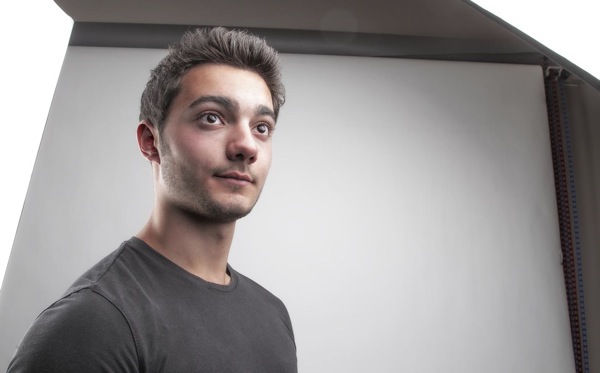
HL Corr
Picture after the corrections. In this case only the face was retouched.

At this point I export a copy of the image into Color Efex Pro 4 and apply the three following effects on it: Bleach Bypass, Tonal Adjustments and Detail Extractor. There are no fixed values for this. I adjust them to the individual picture. I do however overdo this phase on purpose as I will play around with the opacity on the Layer in Photoshop. Once done save the image and import it as a Layer into Photoshop at the top of the Layers. Adjust the Opacity until the effect is as strong as you need it to be. I sometimes use a Layer Mask here if I want to do some fine tuning to the effect.
??
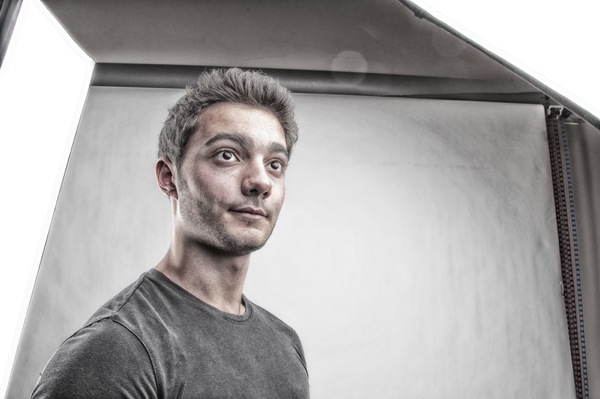
Color Efex Pro
This is the picture after the Color Efex Pro treatment.
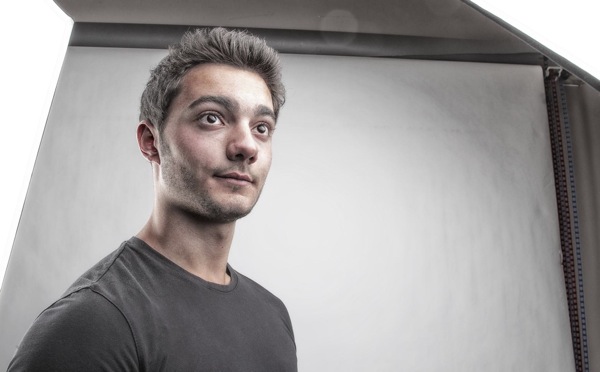
CE merge
As you can see it’s hugely overdone, but on the right the final look with the opacity set at ….

This leaves us with the last part of the workflow. The extraction or masking of the subject. To be honest this is quite fast nowadays. There are multiple ways to extract a subject from it’s background.The method I will describe is the one that works best for me at the moment. I start by creating an automatic selection of the subject with the Quick Selection Tool. Then I zoom in and make sure I didn’t miss anything and try to make the selection as precise as possible. Doing this at this stage will save some time later on in the process. Once happy with the selection click on the “Refine Edges” Button at the top of the screen. This is where a lot of people will do things differently, I check my selection against a white and a black background. This will show me most of the areas I will have to correct later on. I use the Refine Radius Tool around the hair a bit without changing any settings. I then will feather the selection by 1 or 2 pixels and contract it by 1 or 2 pixels. That’s it for the moment….. I will do the rest manually on the Layer Mask. Hit ok and select the Layer Mask. Usually one can notice imperfections around the hair and some fringing around the contours of the body. I use the much underestimated Smudge Tool at this point. Set it’s strength to 20% (average value to start with) and adjust it’s size to fir the area I am fixing and start smudging the mask in the direction of the subject. I usually spend a lot of time at this step to do this carefully and I keep on adjusting the size and strength of the Smudge Brush depending on the area I am working on. I Keep on doing this all around the subject until the extraction is precise enough for the purpose.
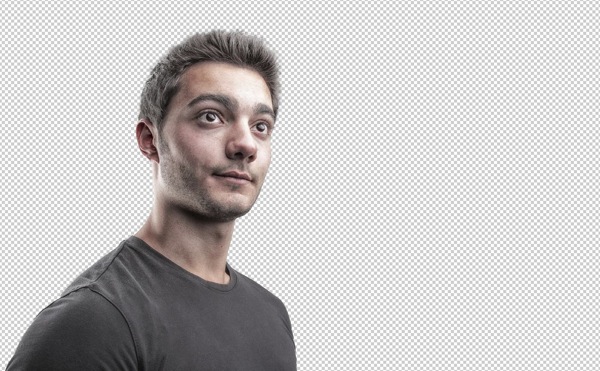
Extract

The extraction is done. I verify it against black and white backgrounds to get a better result.

Now I can reactivate the background and check the Layer Mask of the extraction and fine tune it to fit the background exactly. At this stage I am done with the heavy work. Sometimes at this stage you might notice that the subject doesn’t really fit the background, it sticks out in terms of color toning. This can be fixed by using color adjustment Layers on both the subject and the background in Photoshop. Or you can do it the same way I do by doing this in Lightroom. You can do this with manual adjustments or by using presets in Lightroom.
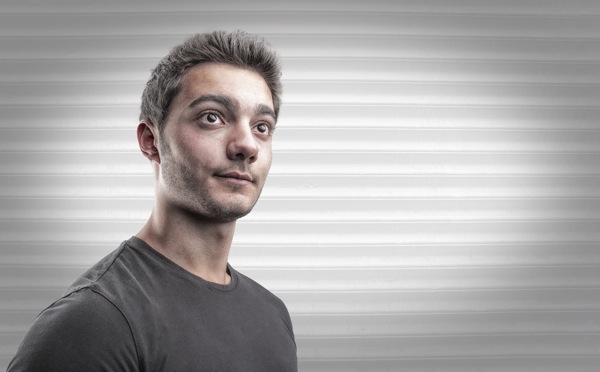
Final noflare
The final image

I wanted to add some flare to the picture as I wanted to make it a bit more attracting to the eye. To do that I used a stock photo of flare on a black background and changed the Blending Mode to “Screen” in order to let through the flare only. And I also noticed at this point that I wanted the subject to be a bit brighter, so I added an adjustment Layer to achieve this.
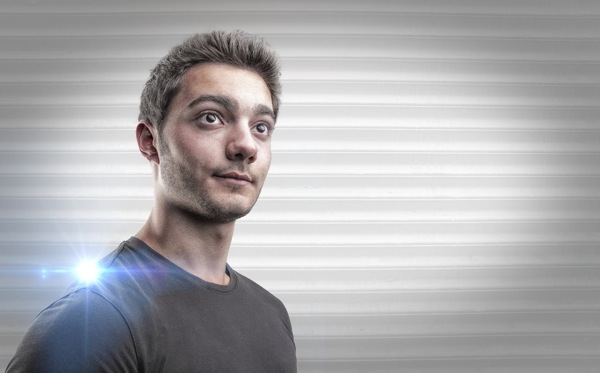
Final PS
?
The final Photoshop version with Flare and adjusted Brightness.

See more of Tom Di Maggio’s work at Tom Di Maggio Photography, InFocus Photography and on his Flickr Account.

Post originally from: Digital Photography Tips.

Check out our more Photography Tips at Photography Tips for Beginners, Portrait Photography Tips and Wedding Photography Tips.

Preparing your Model and Background for a Successful Composite


Digital Photography School

 
Comments Off on Preparing your Model and Background for a Successful Composite

Posted in Photography


Digital Photography Tutorial – Outdoor Portraits – How to Blur the background – Beginner lesson

30 Aug

razzi.me www.facebook.com www.PhotographersOnUTube.com A video on Outdoor portrait photography. Please watch my Aperture video first if you already haven’t seen it by clicking on my channel. These are the 4 easy steps to blur your background in outdoor portrait photography. 1. Use lower aperture value 2. Stay close to your subject 3. Zoom in to your subject 4. Keep a good distance between your subject and the background. If you feel this video has helped you, please THUMBS UP If you have any question, please ask me on facebook. SUBSCRIBE for future videos. It’s free! Until next time, keep clicking. Visit www.PhotographersonUTube.com if you want to do photography on a budget.

www.photographercourses.com The Complete SLR Digital Photography Course – Why buy our Photography Courses Well first of all if you are reading this then you have an SLR you have probably paid in excess of 00 dollars once you have all the lenses and accessories, unfortunately most people do not ever take their camera off the auto settings which is a complete waste, our course is .99 and will be the best photography equipment purchase you will make and also the cheapest Do you offer Support with the Photography Courses We offer full email support for free.. Is there any Guarentee with the Photography Courses? We offer full money back if you do not improve 100% at least… Where can i find reviews of your Photography Courses We are the number one selling course on Ebay, take a look at our feedback, we have helped 10 year olds to 80 year olds, across all makes of cameras, SLR’s Compact and point and shoots. We have literally sold thousands of courses and have not received one return, we have 100% Feedback Live Ebay Reviews please click here We are the only course to have a 5 star rating on both Amazon in America and Amazon in the Uk 5 star rating on Amazon.co.uk click to see reviews 5 Star rating on Amazon.com click to see reviews So What will I learn in your Photography Courses? The complete SLR Digital Photography course has everything you need to start shooting quality professional photos in a little under 2 hours. It’s complete with professional settings; find out
Video Rating: 4 / 5


How To Make A Desktop Background – Adobe Photoshop CS5 (HD) (Commentary)

12 Feb

Hello Guys! My First Tutorial! Sorry It’s a bit weird haha! This is the first part, I will soon be making another tutorial on how to make a background like I have! Sorry it is Crap Haha, It’s my first tutorial IGNORE THESE: how to computer tutorials hacks cmd never again will i be able to make money online with youtube ebay myspace hacks crack white black facebook he was so cute irfanview audacity photoshop retouching effects sony vegas platinum eight 8 1 2 3 4 5 6 7 8 9 10 lol he got owned everyone lets party like a rock star rockstar sean paul ownage hitting drunk these are my tags lol coming for pizza eating pig squealing technician techie making cash with your profile account on youtube haha charlie bit me smosh fred fred gets his finger bit off the song charlie the unicorn funny stuff to look at making cash online scratched chalk videos scratchedchalkvideos we own the tutorial making industry the how to masters ignore these tags tags ignore these MONEY FREE AWESOMEThis is an E3 preview of the new Xbox 360 dashboard soon to be released. xbox 360 new dashboard gears marcus dom halo e3 electronic enterntainment expo dashboards fall update 2008, including new avatars, 1vs100, and Netflix support. New Xbox 360 Dashboard Fall Update 2008 walks you through some of the new features xbox dashboards fall update including avatars 1vs10 Demo game installation process for the New Xbox Expe… SUBSCRIBER HACK WEBDemo game installation process for the New Xbox Experience dashboard
Video Rating: 4 / 5


Photoshop Elements 9 and Photoshop Cs5-Converting the background to Black and White

09 Oct

Photoshop Elements 9 and Photoshop Cs5-Converting the background of the photo to Black and White
Video Rating: 5 / 5

In this video you will learn how to adjust skin tone as well as using the clone tool on the face. Pick up my DVD with 46 Elements Videos for only .00 at: www.jackstechcorner.com
Video Rating: 4 / 5


Microsoft PowerPoint 2010 – Fade an Image to the Background with a Soft Edge

03 Oct

Apply customizable soft edges to photos and clip-art inside PowerPoint 2010 presentations.

Instead of simply placing a picture inside a Microsoft PowerPoint 2010 presentation, one option for stylistic effect is to apply a soft edge. This makes the picture seem to fade to the background around the edges, a sometimes pleasing effect. See the below screenshot for an example.

1. Select an image to modify….

Read more at MalekTips.
New Computer and Technology Help and Tips – MalekTips.Com

 
Comments Off on Microsoft PowerPoint 2010 – Fade an Image to the Background with a Soft Edge

Posted in Technology