RSS
 

Posts Tagged ‘Apps’

Five useful photo apps for travelers

12 Aug

Photo apps for travelers

Photographers take great care in choosing the right gear for a trip. Why not make sure your smartphone is well equipped for photography too? After all, it’s probably the camera you’ll have with you in the event that your DSLR battery comes up short, or your shoulders need a break from the weight of your photo bag.

While the stock camera app will serve most people just fine, there are a huge number of photo apps that go a step further – offering unique shooting features and clever editing options. Whether it’s a late summer getaway or just a trip to the park, these five iPhone apps (a couple of which are available for Android, too) can help you get a better shot to remember the journey by.

SKRWT
iOS/Android | $ 1.99

Travels often take photographers to new cities, but accurately rendering tall buildings and structures with the iPhone’s wide-angle lens alone can be problematic. SKRWT (pronounced Screw It — seriously) is handy for correcting perspective and lens distortion.

When you compose a shot that is angled upwards at a building, for example, the resulting picture often shows lines that converge at the top. SKRWT focuses exclusively on straightening horizontal or vertical lines so the picture depicts more of what the eye perceives. With SKRWT, applying corrections takes a bit of user input, including prepping the image for the vertical correction filter and moving the slider to align the image with the grid. The app provides full auto cropping, vignette correction, ratio adjustments, and an EXIF reader alongside Mobile, Wide, Fisheye, and GoPro modes.

You can save the corrected photo to a dedicated gallery or directly to your camera roll. SKRWT also features two in-app extensions: MRRW (pronounced Mirror), a mirroring tool, and 4PNTs (pronounced Four Points), a four-point-perspective tool for skewing and transforming images. Both apps are available as in-app purchases for 99 cents each.

If you find yourself drawn to taking photos of local architecture and wishing you could correct some of the distortion on the fly, SKRWT is a nice option.

Hydra
iOS | $ 4.99

Hydra shoots, processes and merges multiple images in an effort to produce a higher quality image. It offers five capture modes: HDR, Video-HDR, Lo-light, Zoom, and Hi-Res. Depending on available light, Hydra can merge up to 60 frames to create a single high-resolution shot, with an output of up to 32-megapixel images.

Hydra’s best use case is dimly lit, moody landscapes or interiors where you are able to hold your phone stock still — the app will not complete a shot if there’s too much motion. The HDR mode captures up to 20 images in challenging lighting conditions while the Video-HDR setting uses single-image tone mapping or a special sensor mode (for the iPhone 6), and then offers a choice of light intensities and video resolutions.

Zoom mode aims to correct motion blur, though as with other modes, it’s best to hold your phone steady to avoid unexpected results. Hydra is designed for specialized circumstances as a complement to rather than a substitute for the built-in iPhone camera app, but it’s great to have on hand for quiet, dark places.

Think you may end up printing low light photos from your trip? Hydra is worth having on hand.

ProCam 4
iOS | $ 4.99

ProCam 4 is a classic photographer’s app that aims to pack plenty of manual controls — as well as a robust photo editor — into your iPhone. Its wide assortment of settings comes in an easy-to-use format that won’t throw you off track when you’re in a hurry. The shooting app, which includes both photo and video mode, offers specialized settings like Night Mode, Burst Mode, Slow Shutter, Video, and Time Lapse.

You can manually select ISO, shutter speed, exposure, bracketing, white balance, and stabilization. A histogram helps with exposure settings, and in addition Raw support, manual focus, and focus peaking are offered. If you have an iPhone 7 Plus, try shooting some Wigglegram 3D photos with the iSight Duo camera — two photos taken at the same time by each of the phone’s cameras alternate in quick succession to produce a 3D effect that you can save as a GIF or video. In addition to broad shooting options, you can also edit photos and videos with controls for saturation, white balance, exposure, brightness and contrast, perspective correction, and a mix of special effects filters.

If your smartphone is occasionally asked to stand in for your dedicated camera, ProCam is worth downloading for its complete set of manual controls.

Google Street View
iOS/Android | Free

While you’re hiking the trail or strolling the city, anytime is a good time to create a Google Street View 360-degree photo. You can shoot it right from the app on your iPhone — no special equipment needed. The app does most of the work of indicating when to shoot as you pick a scenic spot and start rotating your body to follow the orange circle on your screen. Start with your phone’s camera and follow the app prompts until you have all angles of your image filled in.

As you shoot, the circle automatically repositions itself to help you complete your photo. When you’re done, the app stitches the panels together. Then, publish to Google Maps to share your photo spheres. The app lets you manage public and private images, observe contributions from others, and view your captures in Cardboard mode with a VR viewer. You can also share your photo spheres on Facebook, Twitter, or privately via email.

Those who rarely use their smartphone camera may still enjoy Google Street View’s easy 360-degree photo creation and documentation features. Plus, it’s a handy way to scope out nearby locations for photo opportunities.

Enlight
iOS | $ 3.99

Enlight is an advanced mobile photo shooter and editor that works independently or with the iOS photos app to offer advanced editing options and visual effects. With its hide-show main menu, coupled with a tap-and-drag interface, you get total control over your photo’s details, tone, color, and special effects. Each menu item opens into a variety of options, letting you crop, adjust, apply filters, sharpen, and add a host of artistic elements using adjustable presets, tools, and masks.

Masking features let you blend effects, while artistic and film-based presets let you add grain, black and white conversion, sketching effects, patterned surfaces, and more. A photo mixer lets you merge two photos together for double exposure, and montage. Enlight’s art filters can transform your photo into a watercolor, oil painting, or sketch. Want to start with the basics? No problem: Simple improvements like crop, skew, color adjustment, and healing are available, and then easily combined with decorative borders and frames, vignette lighting, gradients, and vintage filters. Top it off with doodles, decals, special effects, and customized text.

If you’d like your camera to come with a side of stylized editing options, consider Enlight.

Best free and paid options

These five apps work well, especially for the popular, specialized shots and circumstances for which they were designed. But if you only want to download one or two before you hit the road, here are our picks.

Best free option

The only free app in the group — Google Street View for iOS or Android — is a standout in its own right. With this app, dipping a toe into 360-degree image creation requires no special camera or photographic skill. The app’s integrated instructions provide everything you need to start shooting and posting impressive scenic landscapes that viewers worldwide can enjoy. If you’re carrying a dedicated camera, it provides a nice way to complement your traditional photos with something a little bit different – and with no penalty of carrying an extra device.

Best paid option

On the paid side, ProCam 4 gets the nod as the best app for its range of pro-level options, including detailed shooting controls, DSLR-style functionality, Raw support, and a variety of editing features.


The apps above are a tiny sample of creative mobile photo shooters and editors. If you have a favorite that was not mentioned, be sure to share it in the comments.

Articles: Digital Photography Review (dpreview.com)

 
Comments Off on Five useful photo apps for travelers

Posted in Uncategorized


6 of the Best Smartphone Apps for Travel and Landscape Photography

11 Aug

Ansel Adams, the godfather of landscape photography once said, “A great photograph is knowing where to stand.” Sadly, I stood in all the wrong places when I began. I watched in envy as seemingly everyone else was taking pictures of an epic sunrise, an arching Milky Way, or an ethereal cityscape blanketed in fog.

6 of the Best Smartphone Apps for Landscape Photography

Landscape photography apps are essential tools that help you be in the right place at the right time, like this rooftop in Busan, South Korea. © Pete DeMarco

Eventually, I learned that compelling landscape images are created long before the shutter snaps. Like anything in life, having a plan or vision about what you would like to create will massively increase your chances of reaching your target. The same goes for photography.

Don’t get me wrong, I absolutely respect chance, or what some may call serendipity. But capturing spontaneous events takes a fair amount of planning. Even the man who coined the term “The Decisive Moment”, the great street photographer Henri Cartier-Bresson, would plan his frame and then wait for life to happen within his photographic stage.

When Preparation Meets Opportunity

Landscape photography is like going to the casino. You can’t control what cards you get, but by learning the game you can increase your odds of winning.

In photography terms, Smartphone apps are essential tools in the image creation process, right up there with your camera, lens, and tripod. You can literally make the stars align with them.

6 of the Best Smartphone Apps for Landscape Photography

Knowing where to stand (and when) makes all the difference in landscape photography. © Pete DeMarco

Here are six Smartphone apps I use to plan out my landscape photo shoots. Use them well, and it won’t be long before you get comments on your photos like this, “You always seem to be in the right place at the right time.”

#1 – PhotoPills

PhotoPills is the best photography app on the market. Period. It’s the photographer’s Swiss Army knife. It does so many things. I use it to plan my astrophotography shoots. I can easily figure out the phase of the moon, the location of The Milky Way, where it will rise, how high, at what angle, and at what intensity. The best part is the 3D augmented reality for finding The Milky Way in the sky.
6 of the Best Smartphone Apps for Landscape Photography

PhotoPills is an excellent app for astrophotography. I used it to plan this shoot in Penang, Malaysia.© Pete DeMarco

And that’s just the beginning. Whether you are doing timelapse photography, location planning, tracking the sun or the moon, or calculating your hyperfocal distance, this app has it all. The $ 9.99 price tag is well worth it considering all you get in return (available for iOS and Android).

#2 – The Photographer’s Ephemeris (TPE)

TPE used to be my go-to app before PhotoPills made it obsolete. The best thing is its simplicity. I mainly use it to track the sun and the moon. But since PhotoPills does that and so much more, I rarely use it now. I still included TPE on the list though because you can use it for free through their “web app”. Just go to their home page and click on TPE for Desktop.

6 of the Best Smartphone Apps for Landscape Photography

You can’t control the light in landscape photography, but you can learn how to make the most out of what you’re given. © Pete DeMarco

It also has 3D topographical maps and can help with astrophotography shoots. Still though, PhotoPills offers far more at a lower price. Watch my short video tutorial on how I use this app to find where the sun will rise and set. (Price: $ 11.99 for iOS and Android; browser version FREE)

#3 – Sun Surveyor

6 of the Best Smartphone Apps for Landscape Photography

Sun Surveyor is another helpful Smartphone app to plan the rise and fall of the sun. © Pete DeMarco

Another app similar to TPE is Sun Surveyor. It’s mainly just for tracking the sun, the moon, and how the light will fall. If English is not your first language, the app has been translated into a number of different languages like Korean, Chinese, Turkish, Czech and many others. With limited features though, I’d probably just use the free desktop version of TPE or buy PhotoPills instead. (Price: $ 9.99, iOS and Android)

#4 – Tide Charts Near Me

6 of the Best Smartphone Apps for Landscape Photography

The land bridge in this photo is only visible at low tide. Apps like Tide Charts Near Me are helpful when photographing seascapes like this one. © Pete DeMarco

If you’re into seascape photography, knowing the level of the tide is essential. Some shots you can only get at low tide or high tide. Tide Charts Near Me is a super simple app with a great graphic interface for showing the height of the tide on any given day or time. There’s also a moon phase calendar included as well. (Price: Free for iOS & Android)

#5 – Maps.me

The most important thing of all is being able to make it to and from your shoot location. Google Maps and Apple Maps are decent. But the problem is that you need to use data to access those maps, which can be costly if you’re traveling internationally.

Also, if you’re in an area with no cell phone service then your map app won’t work. Yes, you can use Google maps offline but you have to download each individual location first.

6 of the Best Smartphone Apps for Landscape Photography

Finding your way around a big city or new country can be daunting. Offline map apps like Maps.me not only save you roaming data fees, they get you where you need to be. © Pete DeMarco

Maps.me is a fantastic offline map app solution. It’s simple to use and does much more than just help you find your way. Once you install the app, all you do is download the country map for your destination.

Then you can locate the nearest ATM, restaurant, wifi connection, and more with ease, without using any data. It works with GPS, not wifi, so you can find your way anywhere in the world. However, if your device isn’t GPS enabled, like say an iPad or another tablet with only a wifi connection, then it won’t work. Check out the video for more details. (Price: Free for iOS and Android).

#6 – Wundergroud

6 of the Best Smartphone Apps for Landscape Photography

Clouds can add drama to your landscape images. Weather apps that show the hourly forecast like Wunderground can give you a planning edge. © Pete DeMarco

Last but not least, knowing the weather forecast obviously makes a huge difference in photography. Almost any app will do for this. I prefer Wunderground because it gives a detailed weather forecast by the hour, not just the day (Price: Free for iOS and Android).


Beginner’s Guide To Landscape Photography

If you found this article helpful and would like to learn more, check out Pete’s course A Beginner’s Guide to Compelling Landscape Photography. 

The post 6 of the Best Smartphone Apps for Travel and Landscape Photography by Pete DeMarco appeared first on Digital Photography School.


Digital Photography School

 
Comments Off on 6 of the Best Smartphone Apps for Travel and Landscape Photography

Posted in Photography


VSCO adds free ‘Oakley’ photo filters to iOS and Android apps

14 Jul

VSCO has teamed up with eyewear brand Oakley to launch new photo presets that replicate the company’s lens technology. These presets are free and available for both the Android and iOS versions of the VSCO app, enabling anyone to alter their photos to create scenes seemingly viewed through a pair of Oakley glasses.

The new photo presets are collected under the ‘Oakley PRIZM Series,’ and they can be found by opening the app and navigating to its store.

The free pack contains a total of three image filters called ‘Oak1,’ ‘Oak2,’ and ‘Oak3.’ VSCO says these presets are best used with landscape and outdoor adventure photography; however, they’re only available for a limited, unspecified duration so jump on it if you want to add that… sunglass touch to your photos.

Articles: Digital Photography Review (dpreview.com)

 
Comments Off on VSCO adds free ‘Oakley’ photo filters to iOS and Android apps

Posted in Uncategorized


Whatever You Need, On Demand: 10 Apps That Streamline Urban Life

26 Jan

[ By SA Rogers in Gadgets & Geekery & Technology. ]

screen-shot-2017-01-25-at-9-40-18-am

If you’re that person who’s always asking for a ride or help moving, or you’re just too crazy busy to go grocery shopping or clean your own house, there’s a range of apps that could make your life a whole lot easier. Moving beyond the usual suspects like Uber and Amazon Prime Now, these city-centric apps streamline urban lifestyles, giving you assistance with things like transit planning, sharing rides, choosing a place to live, hiring people to assemble your IKEA furniture or getting liquor delivered to your doorstep.

Via Ride-Sharing App

via-ridesharing-app

via-ridesharin-app-2

Based in New York City, Via is a cab alternative in the vein of Lyft and Uber, but offers ride sharing, so you get into a car full of multiple passengers and pay less. The service charges a flat $ 5 fee for each of the first five rides and $ 7 thereafter (or still $ 5, if you buy the rides in advance.) Passengers are asked to meet their drivers on a street corner instead of being picked up at a specific location, and if you’re late, you have to wait for the next vehicle. It may not be the fastest way to get somewhere if you’re in a hurry, but it’s a cool alternative to city buses for everyday rides.

Urban Engines App

urban-engines-app-1

urban-engines-app-2

Which public transit route should you take at rush hour to avoid slowdowns? How did last night’s storm affect light rail service? Depending on what’s going on in the world, the flow of traffic changes. The Urban Engines app takes a variety of data points in big cities like Boston, Chicago, Seattle, Toronto and Los Angeles and uses them to determine which routes are best at which times. Best of all, it has an X-ray mode function that superimposes maps, bus or train routes and stops over the city as viewed through the camera lens of your phone, so you can easily find stops around you. It also continues working when there’s no mobile service as long as it has the right maps downloaded, so it won’t cut out underground.

Instacart App

instacart-app

instacart-app-2

Get groceries delivered from local stores (maybe even ones that aren’t included with Amazon Prime Now’s similar app service) via Instacart. The whole process is surprisingly fast, partially due to the fact that Instacart typically reserves its own checkout aisle at each participating store, ushering its shoppers through the lines. It’s pretty ideal for those times when you just can’t be bothered to leave the house (like when you’re sick, suffering from a hangover, or just really busy.)

Drizly App

drizly-app-2

drizly-app

Who doesn’t want wine, beer and liquor delivered to their door on demand? Drizly is an alcohol delivery app partnered with liquor stores in New York City, Los Angeles, Boston, D.C. and other cities, with a goal of building the biggest online catalog of booze available for delivery in the U.S.

Hello Alfred App

hello-alfred-app

hello-alfred-2

These days, you can even order housekeeping and butler services on demand. ‘Hello, Alfred’ is an app that connects you to ‘carefully vetted’ helpers who visit your home once a week according to your desired schedule, doing chores like cleaning, grocery shopping, picking up dry cleaning and shipping your packages.

Next Page – Click Below to Read More:
Whatever You Need On Demand 10 Apps That Streamline Urban Life

Share on Facebook


[ By SA Rogers in Gadgets & Geekery & Technology. ]

[ WebUrbanist | Archives | Galleries | Privacy | TOS ]


WebUrbanist

 
Comments Off on Whatever You Need, On Demand: 10 Apps That Streamline Urban Life

Posted in Creativity


Adobe brings Android CC apps to Chromebooks

25 Jan

Google opened up its Play app store to select Chromebook users last year, and now Adobe is offering versions of its Android Creative Cloud apps for the company’s browser-based notebook computers. The following apps will be available ‘in the coming weeks’ for certain Chromebook users:

  • Photoshop Mix
  • Lightroom Mobile
  • Illustrator Draw
  • Photoshop Sketch
  • Adobe Comp CC
  • Creative Cloud Mobile

The apps have been optimized for use on Chromebooks. They’re free to download and use without a Creative Cloud account, but certain features (such as exporting Raw files from Lightroom Mobile) are available only to CC subscribers. The apps can be downloaded to any Chromebook with access to the Google Play store (here’s a list of compatible devices,) including a group of Chromebooks being offered specifically for students as part of a beta program.

Articles: Digital Photography Review (dpreview.com)

 
Comments Off on Adobe brings Android CC apps to Chromebooks

Posted in Uncategorized


Improve Your Photos with the Very Best Photo Editing Apps

12 Jan

We snap photos so fine, we don’t need editing apps … but every now and then a photo needs a touch of sharpening, or a cooling filter, or a clip art robot, just to spruce it up.

Who are we kidding? We’re obsessed with editing apps. And so are you – we asked!

Read along to see our favorite editing apps, and the favorites of all of our followers.

You’ll be a pro editor in no time, whether you snap perfect pics or not.

(…)
Read the rest of Improve Your Photos with the Very Best Photo Editing Apps (638 words)


© laurel for Photojojo, 2017. |
Permalink |
No comment |
Add to
del.icio.us

Post tags:


Photojojo

 
Comments Off on Improve Your Photos with the Very Best Photo Editing Apps

Posted in Equipment


Urban Adventuring Apps: 13 Interactive Ways to Explore Your City

08 Dec

[ By SA Rogers in Travel & Urban Exploration. ]

urbex-app-history-pin-3

Whether you want to get to know your own city on a deeper level or explore secret spots in unfamiliar places, this collection of smartphone apps will take you on adventures you’d otherwise miss. Check out these scavenger hunts, walking tours, history lessons, interactive tasks that take you on random routes, user-submitted local favorites and other ways to interact with urban environments in fun and unexpected ways.

Derivé: Random Tasks Send You on an Adventure

urbex-app-derive

Explore your city – or an unfamiliar city – in a totally new way with the Derivé app, which randomly assigns you a task to do, like “find your favorite building”, “follow a hat,” “sit for two minutes” or “find a tree.” Refreshed every three minutes, the task cards lead you on a single-person scavenger hunt that will encourage you to take routes you’d never take otherwise and experience your environment in a new way.

History Pin: See History in Real Time

urbex-apps-history-pin-1

urbex-app-history-pin-2

urbex-app-history-pin-3

This user-generated history map lets you see what cities used to look like thanks to submitted historical photographs, which are pinned onto their real-life locations. The app uses Google Maps and Street View technology to overlay the historic photos onto the live camera view. Just hold up your phone in the street, and it’ll give you a glimpse of the past.

Spotted by Locals: Get the Inside Scoop

urbex-apps-spotted-by-locals

urbex-apps-spotted-by-locals-2

When you’re traveling, it’s easy enough to wander randomly without the use of a smartphone or simply go by tourist guide recommendations, but finding out what locals love can be more challenging. The Spotted by Locals app tells you what’s popular in any given spot, and it’s constantly updated to keep track of business openings and closings.

Geocaching: Treasure Hunting Challenge

urbex-apps-geocaching

urbex-apps-geocaching-2

The classic treasure-hunting app that has explorers digging for cleverly hidden containers called ‘geocaches’ remains the most popular way to participate in the adventure. The Geocaching app shows you geocaches near your location, allows you to message other players for hints and log the treasures you’ve found.

Geo Street Art Apps for New York City & London

urbex-apps-street-art-2

urbex-apps-street-art

Available for major cities like New York City and London, the Geo Street Art apps feature hundreds of local and international street artists, pointing you to their work so you can see it in person. ‘Street Art London’ and ‘Street Art New York City’ provide a “comprehensive reference point” of the street art scene, including artist biographies. The London version boasts over 600 images from over 90 artists in 270 locations.

Next Page – Click Below to Read More:
Urban Adventuring Apps 13 Interactive Ways To Explore Your City

Share on Facebook


[ By SA Rogers in Travel & Urban Exploration. ]

[ WebUrbanist | Archives | Galleries | Privacy | TOS ]


WebUrbanist

 
Comments Off on Urban Adventuring Apps: 13 Interactive Ways to Explore Your City

Posted in Creativity


An Overview of 8 Adobe Creative Cloud Mobile Apps

02 Dec

If you currently have an Adobe Creative Cloud subscription, did you know that you have access to a variety of mobile apps developed by Adobe? Even their least expensive subscription plan (the Photography plan, which includes access to Photoshop and Lightroom for $ 9.99 per month) includes access to eight different mobile apps that have so much to offer! In this article, I’ll take you through an overview of all the Creative Cloud Mobile apps included in the Photography Plan, and explain some different ways that you can use them.

adobe-mobile-apps

1. Adobe Photoshop Fix

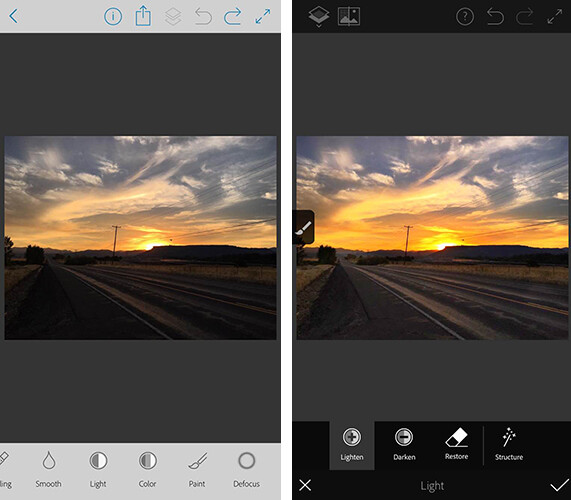
The first app is a mobile version of Photoshop (called Photoshop Fix) that includes simple retouching with the ability to liquify, heal, patch, smooth, lighten, and darken images. You can also do some basic image adjustments such as controlling exposure, adjusting contrast, and saturation. You also have the capability to send your image directly to the Photoshop CC desktop program with layers intact, to continue editing there if you’d like.

The mobile app is certainly a scaled-down version of the desktop program. But it does offer lots of options for simple retouching and adjustments of images you’ve taken with your cell phone, and is a fantastic (FREE) resource!

adobe-photoshop-fix-app

Screenshots of Adobe Photoshop Fix for iPhone.

2. Adobe Lightroom for Mobile

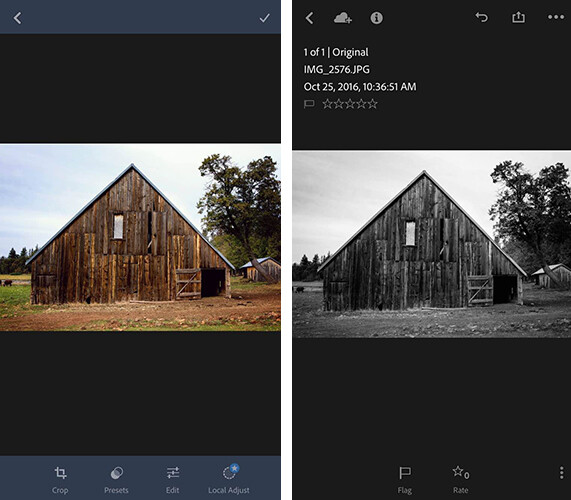
Once again, the Lightroom Mobile app is a scaled-down version of the desktop program which allows you to make basic adjustments to your images via your smartphone or tablet. Easily make adjustments to temperature, tint, exposure, contrast, highlights, shadows, whites, blacks, clarity, saturation, sharpness, noise, moire, color hue, and more. The real gem of the Lightroom mobile app is the access to 40

The real gem of the mobile app is access to 40 Lightroom presets that can help elevate your images in one touch. I especially enjoy the 11 black and white presets, which are significantly better (in my opinion) than other apps that offer one-touch editing. They also offer everything from low contrast to film versions.

adobe-lightroom-mobile-app

Screenshots of Adobe Lightroom app for iPhone

3. Adobe Photoshop Mix

Adobe Photoshop Mix allows for more creative editing than the original Photoshop Fix app. It specializes in cutting out portions of different images and merging them together into one image. I haven’t found this app to be particularly useful for the type of photography I prefer, but if you ever find yourself in the position of needing a photo of Santa on the beach, with no time to make a photo session happen, this app would be your go-to.

I found this app much more difficult to use with my finger than any of the other Adobe apps, but it may be easier to manage with a stylus. Like the other Adobe apps, it runs seamlessly with the desktop programs, so you can fine-tune your images on the computer later if you wish.

4. Adobe Spark Post (formerly Adobe Post)

Adobe Spark Post allows you to quickly create graphics combining photos and text for social media. You can begin using a number of different templates, import your own photo, or search from Adobe’s free photo library. Next, enter your text, choose your font, spacing preferences, and color palate. With one touch, you can select whether you’ll be posting to Facebook, Instagram, on a blog post, or a number of other options, and the app will automatically size the image for you.

I have found this app to be so useful in so many different ways. Need a quick graphic advertising mini-sessions? Check. Want to combine a photo with a quote you love? Check. Need a pinable image for a blog post or article? Check. All of these examples are things that I could certainly do from scratch in Photoshop, but the ease and speed with which I can create very similar graphics with Spark Post has completely won me over. It’s the app you didn’t know you were missing!

adobe-spark-post-mobile-app

Sample graphic created with Adobe Spark Post on iPhone.

5. Adobe Spark Page (formerly Adobe Slate)

Adobe Spark Page is a quick and easy way to create easy photo journals and web stories that are shareable on social media. It is suggested to use Spark Page to easily create newsletters, presentations, and travel journals. Once again, you can begin with a number of different layouts from Adobe that take all the guesswork (and time) out of the project. Spark pages automatically adjust to a plethora of different devices, and you can preview the way that your particular page will look on each. I haven’t implemented Adobe Spark Page into my process as of yet, but am currently contemplating using it as an avenue to share collections of images on social media.

6. Adobe Spark Video (formerly Adobe Voice)

All of the Adobe Spark apps are similar in that they are designed to elevate what you’re sharing on social media, while simultaneously streamlining the process. In this instance, Spark Video allows you to create simple and easy videos with lots of different options and layouts.

When you first begin creating a project with Spark Video, it asks whether you’re promoting an idea, sharing something that happened to you, telling a story about someone overcoming something difficult, telling about something important to you and attempting to engage your audience to participate, or sharing an experience that changed your view on the world. Depending on which option you select, Spark Video moves into a template that prompts you with what to include on each 2-second clip of your video. You also have the option to start from scratch and build your video from the ground up.

You can also record yourself narrating the video, or chose from a stock music library. There are so many different ways that you could think about utilizing Spark Video–whether making a video of a particular session, easily explaining what to wear for a family session, or creating a quick ad to use on social media. The possibilities are endless.

7. Adobe Portfolio

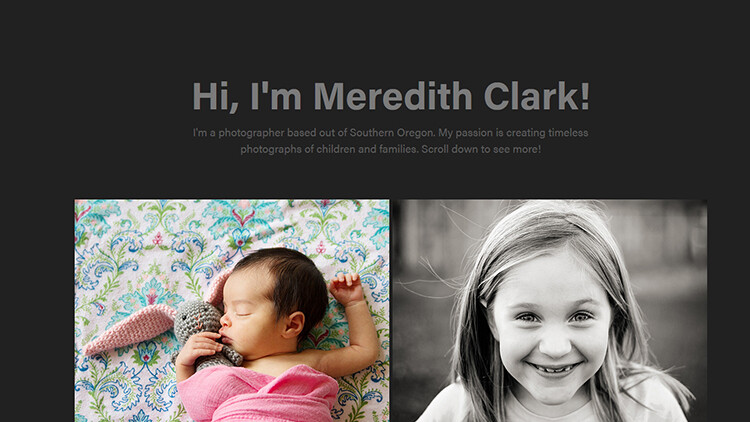
With Adobe Portfolio, you can build a website in just a few minutes. Again, there are many different templates available, including several designed especially for photographers. You can select images to act as feature images to link to albums, include some brief information about yourself, and gives you the ability to enable or disable right-clicking to save images. The process to build and edit your site is simple and requires no knowledge of HTML or CSS. You can even use your own domain name in conjunction with the portfolio you create. You can also achieve a similar but even more streamlined effect, by using Adobe Spark Page to create a portfolio of your work.

adobe-portfolio-app

An example of a basic portfolio created with Adobe Portfolio. More galleries could be included as you continue to scroll down past the header.

8. Adobe Premiere Clip

With Adobe Premiere Clip, you have access to some amazing video editing capability right from your phone. Drag and drop videos, trim them and arrange into a video. The app is smart enough that you can add music and set it to auto-fade during any dialogue. If you have an iPhone, you can also import an entire collection from Lightroom for mobile to Premiere Clip to easily create a video of your images.

Accessibility

In order to use these apps, simply search for them individually in the app store (or use the links provided for you above), and download them. Once you open the app, you’ll be prompted to sign in with your Adobe ID. Simply sign in using the same ID you used to purchase your Creative Cloud subscription, and you’ll have access to the app! Additionally, it’s worth mentioning that many of these apps (Spark Page, Spark Post, Spark Video, and Adobe Portfolio) are also available via web browser, so you aren’t necessarily limited exclusively to your mobile device.

In all, these apps pack a big punch and are a huge bonus to the desktop access to Photoshop and Lightroom! If you have a Creative Cloud subscription and are not already using the Adobe Creative Cloud Mobile Apps, I’d absolutely encourage you to check them out. Whether you’re a professional photographer or just someone who enjoys taking photos in their own backyard, there’s likely at least one app that you’ll find useful!

googletag.cmd.push(function() {
tablet_slots.push( googletag.defineSlot( “/1005424/_dPSv4_tab-all-article-bottom_(300×250)”, [300, 250], “pb-ad-78623” ).addService( googletag.pubads() ) ); } );

googletag.cmd.push(function() {
mobile_slots.push( googletag.defineSlot( “/1005424/_dPSv4_mob-all-article-bottom_(300×250)”, [300, 250], “pb-ad-78158” ).addService( googletag.pubads() ) ); } );

The post An Overview of 8 Adobe Creative Cloud Mobile Apps by Meredith Clark appeared first on Digital Photography School.


Digital Photography School

 
Comments Off on An Overview of 8 Adobe Creative Cloud Mobile Apps

Posted in Photography


You’ve got mail: Five photo postcard apps tested

04 Jul

In this age of sharing images via email, social media and text messages, one form of photo communication has sadly been left behind. It is something we all used to look forward to getting from anyone who was traveling. I’m speaking of the humble postcard.

Be it a trip as mundane as a work conference in Kansas City or as exotic as a trek through the Amazon rainforest, getting a postcard in the mail was something that we all looked forward to from friends and family. Even today, if I want to make my grandmother happy, sending even the cheesiest of postcards will bring a smile and a thank you. Perhaps more surprisingly, my kids go completely nuts when someone sends them a postcard. At 6 and 8, they both already have email addresses, but the postcards all go right up on the wall above their beds.

But what if we could merge the old-school and the new-school? What if, instead of relying on the spinning metal rack of cards at a roadside diner or airport giftshop, you could easily send a postcard of an image you took yourself? Through the magic of smartphone apps, doing so is far easier than you might expect.

Putting them to the test

I tried out five different postcard apps on an iPhone 5s: Touchnote, Postcard, Ink, Postagram and Snapshot Postcard. All of the apps are free and charge only for sending cards. I sent myself three postcards from each app using the same three images. One of the images was taken with a DSLR and another with a Micro Four Thirds camera, then transferred to my iPhone. The third image was a photo taken with the iPhone’s rear-facing camera. The data regarding pricing was reported by the app companies themselves. I did my best to make it clear what the costs would be for both US and International users. If the company reported specific non-US pricing, it is listed. But if they did not, pricing will be in whatever your local exchange rate is from USD.

Touchnote
www.touchnote.com

Cost: $ 2.99/£2.99/€2.99
Usable worldwide: Yes
Cardstock: 110 lb glossy
Android/iOS: Both
Additional products: Greeting cards

As with all of these apps, Touchnote has iOS and Android versions. What is unique is that it also has a web interface so you can order while at your desk. This is actually surprisingly handy if you intend to send non-phone images regularly. Full-bleed, white border, square or 1-6 multi image layouts are available. Images can be cropped, zoomed and rotated within the app. In addition to traditional messages on the back of the postcard, Touchnote allows you to add up to a 33 character caption on the front side as well. There is a confirmation email after you send a card and you can see (as well as copy for future use) all of your past sent cards in a nice timeline view.

Postcard by PrintMe
www.printmeapp.com/card

Cost: $ 2.99/£1.79/€2.49
Usable worldwide: Yes
Cardstock: 300 gr/qm (aprox 110 lb) luster
Android/iOS: Both
Additional products: Greeting cards, photo books, calendars

Postcard by PrintMe aims to be more of a ‘photo products’ app than the others in this article. That said, its postcard options are plenty strong on their own. Full-bleed, white border, and multi-image layouts are available, as well as many ‘occasion/holiday’ designs. The image can be zoomed and cropped, but not rotated.

Rare in these apps is Postcard’s ability to change the font for your message on the back. Sadly, there is no drop-down list, you just have to keep pressing the ‘font’ button over and over. Still, it is one of the only apps that give you any font option at all. Much cooler is the ‘signature’ box option which allows you to sign your name on-screen and have it print on the card. Finally, though I did not test it, Postcard offers the option to pick up folded greeting cards, but not postcards, next-day at Walgreens locations.

Postagram
www.sincerely.com/postagram

Cost: $ 0.99 domestic $ 1.99 international
Usable worldwide: Yes
Cardstock: 12 pt (approx 92 lb) with thick glossy laminate
Android/iOS: Both
Additional products: None

Looking to differentiate itself from the other apps out there, Postagram is unique both because it is designed around a, presumably, Instagram-inspired square image layout, and also because that square image comes pre-perforated and ready to pop out in a sort of trading-card style. Your message is printed on both the back of the image ‘card’ and on the front side as well. In a nice touch, you can choose a secondary 0.75 inch x 0.75 inch ‘avatar’ style secondary image to appear in the corner. Which is neat for including an image of yourself along with your landscape image from a trip somewhere, for example. Currently the non-image area of the Postagram cards are black. However, an upcoming app update will offer more colorful options.

Both Ink (described below) and Postagram are from the same company, so if you have set up an account on one, it will work on the other. They apps are also virtually identical in design and features, with the few small differences owing mostly to the differing focus of each product. There are some basic Instagram-style image filters available as well as the ability to zoom and crop. Rotating your image does not seem to be an option. To make sending multiple cards faster, you can copy a past card and update the address/message. There is a clever payment option that allows you to take a photo of your credit card instead of entering in the numbers manually. Both apps are very good with order-received/card-sent confirmations. I will say that unless you turn them off, they are both a little heavy on the marketing notifications (‘It’s a week until Mother’s Day!’ etc).

Ink
www.sincerely.com/ink

Cost: $ 1.99 within the USA, $ 2.99 International, $ 2.99 extra for “Premium” option
Usable worldwide: Yes
Cardstock: 12 pt (approx 92 lb) with thick glossy laminate, Premium cards are 120lb with eggshell finish
Android/iOS: Both
Additional products: None

Ink is designed as more of a greeting-card style postcard app, with many pre-formatted designs for various holidays and occasions that you can add your image to. But they also offer standard postcard options as well as full-bleed, white border or multi-image layouts. Ink postcards are the largest of any tested here, at 5×7 (vs roughly 4×6 for the others). They also offer an upgraded “Premium” card that is printed on heavier matte cardstock and comes in an embossed envelope with a real stamp.

SnapShot Postcard
www.snapshotpostcard.com

Cost: $ 1.99 domestic $ 2.99 international (first card is free from anywhere)
Usable worldwide:  Yes
Cardstock: 110 lb glossy
Android/iOS: Both
Additional products: None (though they do have a greeting card app, SnapShot Greeting Card, as well)

SnapShot Postcard is the only one of the apps that offers a quick ‘getting started’ video as part of its signup flow. While none of these apps are what I would call confusing for anyone who is used to mobile apps, a quick video walkthrough is pretty handy for those who aren’t as tech savvy. Another area where SnapShot Postcard is ahead of the others is that you can send your first card free. Trying a product before you buy is always a nice thing. While user interface is not particularly fancy, all the basics are there in the app. You can set a return address, place a caption on the front, and crop/zoom/rotate (with a handy ‘shake to reset’ function). You can choose borders or full bleed for your images. The borders are fairly cheesy and there isn’t any ‘white’ border option, so full-bleed is going to be your best bet. You are asked if you would like to send the same card again to a different address, handy for vacation or family photos where you might send the same card to many people. There is a nice order history, but you cannot copy old cards. 

Articles: Digital Photography Review (dpreview.com)

 
Comments Off on You’ve got mail: Five photo postcard apps tested

Posted in Uncategorized


Sony warns against use of unauthorized third-party apps

22 Jun

Sony Japan has issued a brief statement about the use of third-party apps, advising camera owners that it cannot guarantee non-authorized software will work as advertised. The statement also seems to suggest that using them will void a camera’s warranty. 

The advisement refers to unauthorized firmware, camera apps, and scripts made available by websites other than Sony’s. This includes things like the STG Uploader app that enables Sony cameras to upload directly to Google Photos, and a recently publicized hack that removes video recording limits from some Sony cameras. 

Google’s translation doesn’t make it totally clear whether Sony is saying the whole camera’s warranty will be voided, or rather if any repairs necessitated by third-party firmware will not be covered by the warranty. We’ve reached out to Sony for clarification.

Via: Photo Rumors

Articles: Digital Photography Review (dpreview.com)

 
Comments Off on Sony warns against use of unauthorized third-party apps

Posted in Uncategorized