RSS
 

Posts Tagged ‘Adobe’

Adobe Lightroom for iOS updated with iPhone 7 camera profiles

01 Oct

With iOS 10.1, currently available in beta, the new iPhone 7 and 7 Plus are capable of recording Raw image files. Adobe has now updated its Lightroom app for iOS to take advantage of this new feature. The capability to shoot Raw images with all Apple devices with 12MP camera had already been implemented in version 2.5 of the app, but the latest version  v2.5.2 now also comes with lens and sensor profiles for both new iPhones, including specific optimizations for the dual-camera of the 7 Plus. 

These should ensure color, noise reduction, lens corrections and other parameters are set at the right levels when opening DNG Raw-files that have been captured with one of the new iPhones. In addition, the new version of Lightroom for iOS supports the DCI-P3 wide color gamut display that is also a new feature of the iPhone 7 series. It offers 25 percent more color than the sRGB color space. The latest version of Adobe Photoshop Lightroom can now be downloaded for free from the Apple App Store.

Articles: Digital Photography Review (dpreview.com)

 
Comments Off on Adobe Lightroom for iOS updated with iPhone 7 camera profiles

Posted in Uncategorized


Adobe and UC Berkeley demonstrate image editing tool powered by machine learning

01 Oct

Researchers with Adobe and the University of California-Berkeley have detailed a new AI-powered photo manipulation tool that enables sophisticated photo modification using ‘target images’ and/or crude user sketches. The end result is a realistically altered photo that has been machine-modified (or, in the case of blank images, completely machine generated) to match a target image without extensive ‘natural’ user editing.

According to a newly published study detailing the technology, this tool involves a ‘generative adversarial neural network’ that works to modify images in near-real time. As one example demonstrated in the video below, drawing a general shape over a photo of a bag causes the software to automatically adjust the bag’s size to match the sketched shape without compromising its realistic nature. The software can also generate images based on crude user ‘scribbles’ – no artistic talent required.

Articles: Digital Photography Review (dpreview.com)

 
Comments Off on Adobe and UC Berkeley demonstrate image editing tool powered by machine learning

Posted in Uncategorized


Adobe Lightroom CC 2015.7 and Lightroom 6.7 available now

21 Sep

Adobe has launched Lightroom CC 2015.7 and Lightroom 6.7, saying the new versions bring bug fixes including compatibility solutions for newly released macOS Sierra, as well as additional lens profile and Raw support. MacOS users are encouraged to update to the latest version of Lightroom before updating to version 10.12 Sierra.

In addition to the new camera support listed below, Lightroom CC now allows users to submit their photos to Adobe Stock Contributor via Adobe Stock Publish Service, more easily sync content between devices using drag-and-drop into ‘All Synced Photographs,’ and to always use Smart Previews in the Develop Module (regardless of whether the original files are available).

New camera support:

  • Apple iPad Pro 9.7? (wifi and cellular)
  • Apple iPhone 6s Plus
  • Apple iPhone 6s
  • Apple iPhone 7
  • Apple iPhone 7 Plus
  • Apple iPhone SE
  • Canon EOS 5D Mark IV*
  • Casio EX-ZR4000 (EX-ZR5000)
  • GoPro HERO5 Black
  • Hasselblad H6D-100c
  • Nikon D3400
  • Panasonic DMC-G8 (DMC-G80, DMC-G81, DMC-G85)
  • Panasonic DMC-LX9 (DMC-LX10, DMC-LX15)

*Please note that we support the import and editing of jpegs, raw files and dual pixel raw files from this camera model. We do not support any specific dual pixel raw functionality. If you are planning to use Dual Pixel raw files, please read Limitations with Canon Dual Pixel raw files in Camera Raw and Lightroom.

**We added new versions of Adobe Standard color profiles for the Canon EOS 5DS and Canon EOS 5DS R cameras. These versions are denoted as V2, and the v2 profiles have lower contrast than the original Adobe Standard (v1) camera profiles.

The list of new camera lens profile support can be found at Adobe’s Lightroom blog.

Articles: Digital Photography Review (dpreview.com)

 
Comments Off on Adobe Lightroom CC 2015.7 and Lightroom 6.7 available now

Posted in Uncategorized


Adobe Stock Apparel line celebrates the worst of stock photography

17 Sep

Adobe is promoting its stock photo service with a ‘limited edition clothing line’ celebrating such stock photo atrocities as ‘laughing woman eating healthy vegetable salad’ and ‘smiling seniors using laptop.’ The campaign pokes fun at famously bad images that services like Shutterstock are rife with, and commemorates the images by putting them on t-shirts and sweatshirts. Fortunately, or unfortunately depending on your views on ironic t-shirts, none if it is actually for sale, but you can view the whole collection in a mock lookbook. 

The promotion rests on the premise that Adobe Stock weeds out the so-called low quality images found in other stock websites, saving creatives from spending time sifting through the cheesiest of photos. It’s also worth noting this comes just after the news that Shutterstock is now offering a Photoshop plugin, making it possible for designers to access their extensive collections within Adobe’s own software. 

Articles: Digital Photography Review (dpreview.com)

 
Comments Off on Adobe Stock Apparel line celebrates the worst of stock photography

Posted in Uncategorized


Adobe Lightroom Mobile for iOS 2.5 brings Raw DNG capture

14 Sep
In order to capture shadow detail, this image was metered from the shadows, resulting in blown out highlights. The DNG version on the right enabled the highlights to be recaptured without issue. Photo and caption courtesy of Adobe.

Adobe has released an update for the iOS version of its Lightroom Mobile app, taking advantage of iOS 10’s DNG support. Version 2.5 offers Raw capture and editing within the app, provided that you’re running Apple’s newest OS version on an iPhone 6s, 6s Plus, SE or iPad Pro 9.7.

Apple snuck a mention of iOS 10’s Raw capabilities into its WWDC keynote in June. Available for download today, iOS 10 brings DNG raw capture and editing to Apple devices. Today’s Lightroom Mobile update for iOS brings the app’s feature set into line with the Android version, which has been able to capture and edit Raw since February. 

Version 2.5 also brings support for the wide gamut P3 color space offered by the iPad Pro 9.7 and the forthcoming iPhone 7 and 7 Plus. 

Adobe Lightroom for iOS 2.5 is available for download now from the App Store.

Articles: Digital Photography Review (dpreview.com)

 
Comments Off on Adobe Lightroom Mobile for iOS 2.5 brings Raw DNG capture

Posted in Uncategorized


How to Use Adobe Camera Raw and Photoshop to Make Your Landscape Images Pop

02 Aug

Photoshop is a wonderful tool if it is used correctly. Yes, there is a way to use it right. The basic idea is that if someone can see the adjustments you have made to your image, that’s not so good.

Think of Photoshop as your own personal darkroom. During the film era, some photographers had black and white darkrooms in their homes. That way, they could control the complete process of making the image. Very few had colour darkrooms, as that was far more complicated and costly. Nowadays, we have a fully functional colour darkroom loaded onto our computers (even our iPads), it’s called Photoshop or Lightroom (which is not named that by mistake, it is the opposite of darkroom). If you have Photoshop or Lightroom, you have a very powerful tool with which to edit your images.
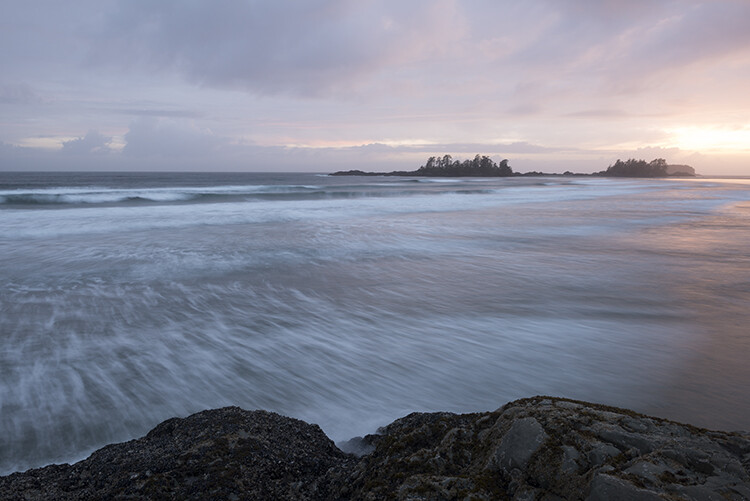
Before
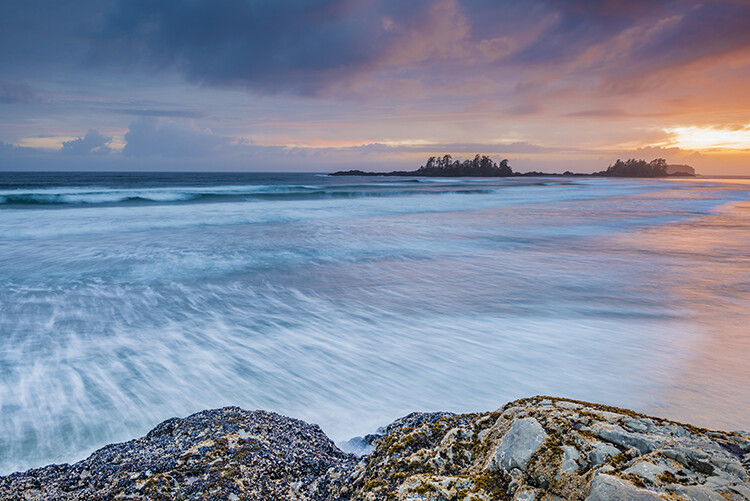
Before

After

After

Making your images POP!

What does it mean to make your images pop? It can mean a number of things, but mostly it means to have more colour, contrast, and look more dramatic. As always, it implies that you have a good image to start with. Trying to make an average image pop, is not what this is about. Make sure you start off with a good image out of camera, then go through these steps in order.

Shoot in RAW

Shooting in RAW is a good start. I know, you may not want to shoot in RAW because the file sizes are so big, or you don’t really see the benefits, but RAW really does make a difference. Firstly, you are working with a full uncompressed file of data. A JPEG image has already had adjustments make in camera to compress it to that file size. Some information has already been discarded, which means you are working with less image information, which in turn means you have less flexibility in the editing process. Of course, RAW is only useful if you are going to spend time editing your images in Photoshop or Lightroom.

Let’s assume that you are going to edit and you have shot in RAW, open your image up in Photoshop and you will see the Adobe Camera Raw (ACR) Editor open. The ACR editor is a really powerful tool. The latest updates have made the ACR editor in Photoshop almost a separate image editing tool, it’s that powerful. As it opens, you will see a selection of tools on the right hand side, mostly sliders such as: White Balance, Tint, Exposure, Contrast, Highlights, Shadows, Whites, Blacks, Clarity, Vibrance and Saturation.

Camera Raw Editor in Photoshop CC

The camera raw editor has some very powerful adjustment tools. The next few steps will be done mostly in the RAW editor, then the image will be opened in Photoshop, and edited further. Many of these edits are very similar in the Lightroom Develop module, so you can make these same adjustments there as well.
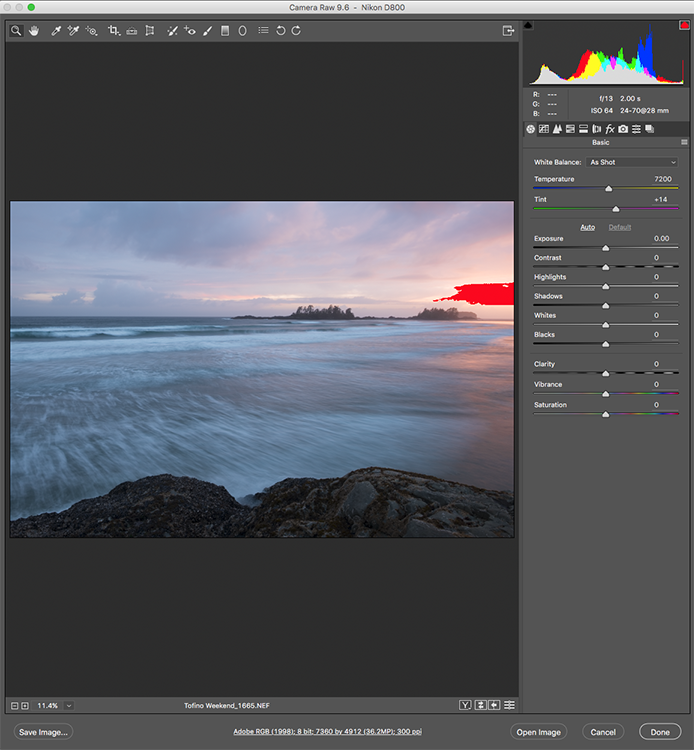
The Camera Raw Editor in Adobe Photoshop CC
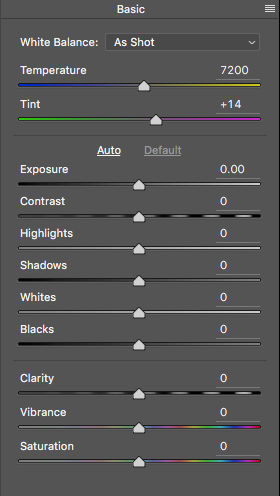
Close up of the basic RAW editor sliders

Making adjustments in the RAW editor

  • Temperature – Start off by taking a look at the colour in your scene. You can adjust the temperature to make the colour of the scene warmer (slide towards yellow) or cooler (slide towards blue). This can be used to correct a colour cast, or to add some drama to your image. In this scene, I chose to move toward the warmer side.
  • Exposure – Take a look at your exposure, the image might be a little dark, or maybe a little bright. Slide the exposure slider to adjust this.
  • Contrast – Adjust the contrast to make sure that the dark areas of the image are dark enough, but don’t lose details here.
  • Highlights – In this image, the red indicator in the highlights shows me where there is very little detail. To compensate for this, slide the highlights slider to the left. If your highlights are underexposed, slide this slider to the right, but be sure not to overexpose your highlights.
  • Shadows – The shadows slider can help you bring back details in the shadows or darken them a little. Be careful not to overdo this slider as your shadows may look noisy (or your image can take on an “HDR” look) if you push this too hard.
  • Whites – This slider adjusts any pixels in the image that are white or partially highlighted.
  • Blacks – This slider will adjust any pixels that are black.
  • Clarity – The clarity slider adjusts contrasts in the midtones. This can really add some structure to your image, but be careful not to overdo it.
  • Vibrance – This slider will adjust any pixels that are not saturated. This is a good place to start to add some subtle pop to your scene.
  • Saturation – This slider will adjust all pixels by saturating or desaturating them.
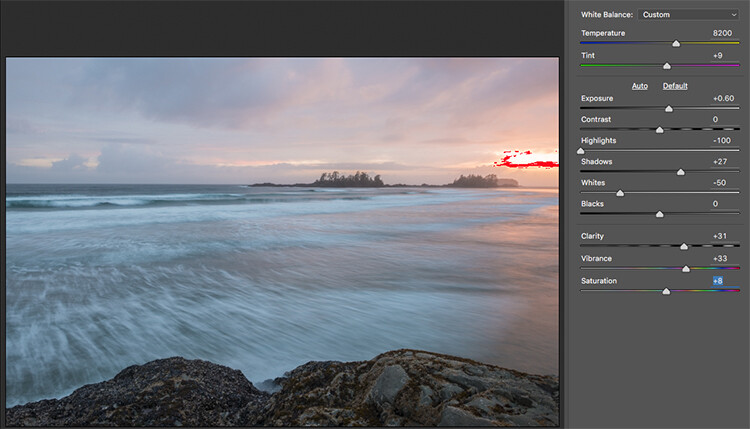
Basic adjustments in Camera RAW

HSL adjustments tab

This tab has three different tools under it, namely: Hue, Saturation, and Luminance (HSL). These adjustments will make changes based on the colour channels in your image. For example, if you click on the saturation tab, you can make the reds in your image more or less saturated, the same is true for the oranges and all the way through the colour channels. You can also make certain colours brighter, by using the luminance tab. In this image, I wanted to saturate the reds, yellows, and oranges, as well as some of the blues.
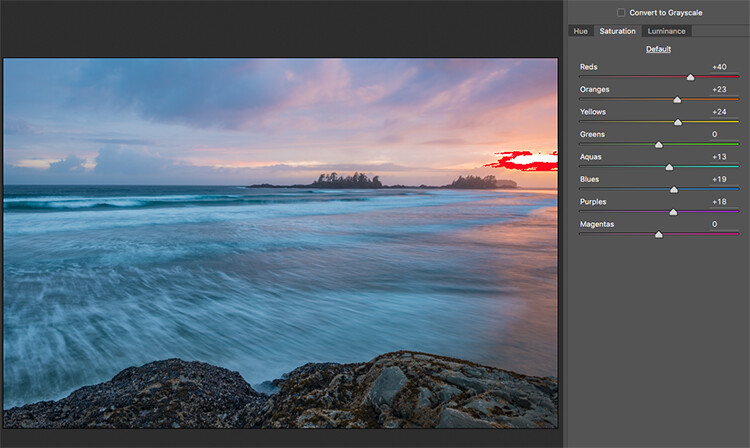
HSL tab adjustments

Graduated Filter in Camera Raw

Much like using one on your camera in the field, you can add a graduated filter in Camera Raw. The beauty about doing this in Photoshop is that you can make some very fine tuned adjustments to your image, depending on how you position the Graduated Filter tool.

Click on the Graduated Filter icon at the top of the screen, and the you will see a whole new dialogue box with very similar functions to the basic Camera Raw Module. The difference here is that you will click and drag the filter down on your image to select the sky. You can also click and drag up from the bottom to select the foreground. I will do both (theGraduated Filter applies to the image from the edge inward).

Starting at the top, I click and drag the filter to just over midway through my image. That limits the effect to the top half. This filter is graduated, so the effect will be properly blended, and you won’t see a hard line where the filter ends (the more you drag it the wider the blend area, you can also adjust that after). I make some adjustments and you can see the difference they made to the sky. Once you are finished with one filter, click on New (at the top of the adjustment box) and repeat the process, but drag up from the bottom this time to make adjustments to the foreground. Once you have made the final adjustments, you can click open image at the bottom of the Camera Raw box to open your image into Photoshop.

Graduated Filter icon highlighted

One key adjustment that needs to mentioned here is the Dehaze tool. The Dehaze tool does exactly what it says, it removes haze and creates better contrast. Use it carefully, it is easy to go too far with it, and your image may suffer as a result. It is a really useful tool for landscapes and seascapes, as there is often some haze in the images, as there was in mine. Using it lightly has removed the haze and made the image better overall.

You will notice it is part of the Graduated Filter tool, and there is also a Dehaze function in the effects tab of the Camera Raw Editor. It is up to you when you use it, but be aware that if you use it without a selection, it will apply the effect universally to your entire image. Using it here in the Graduated Filter tool means you can have better control over how it affects your image.
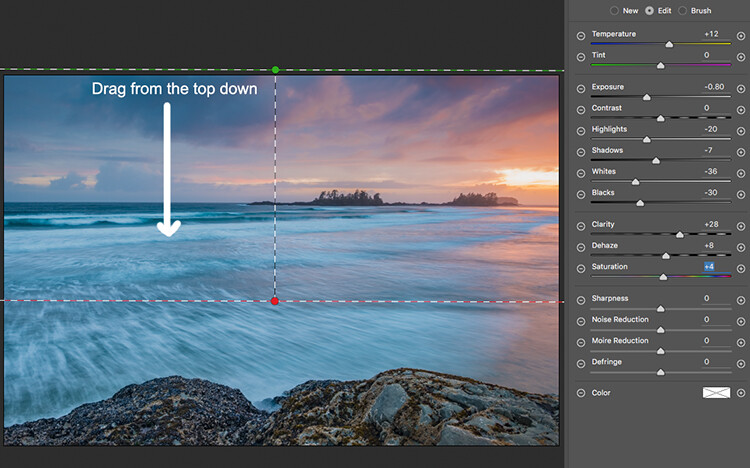
Click and drag the Graduated Filter from the top down to select the sky. Then select with adjustments you want to apply.
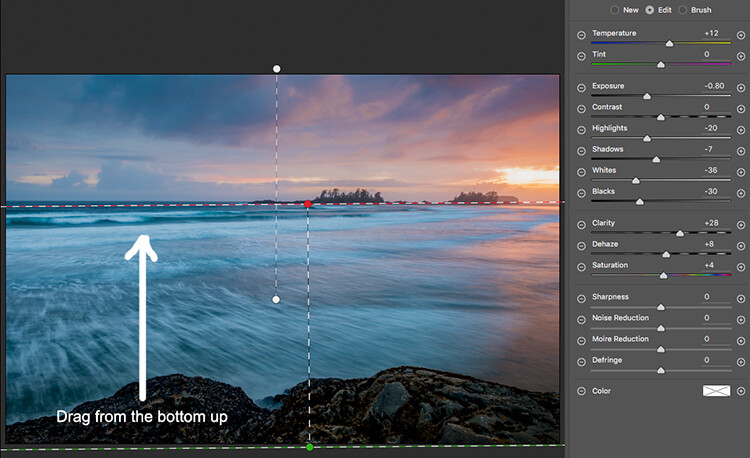
Selecting the foreground by dragging from the bottom up.

Open your image in Photoshop

After you have made your adjustments in Camera Raw, the final touches can be applied in Adobe Photoshop. Once again, the sky and the foreground in this image are going to look different, and will need different adjustments.

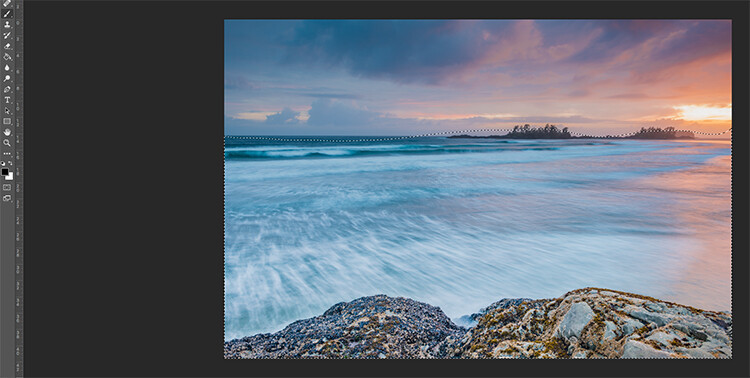
To make a softer selection of the sky, click on the quick mask tool at the bottom of the left hand side toolbar in Photoshop. You can then use a soft brush to paint in a selection of the sky as a mask. Once you are happy with the selection (see red mask) click on the quick mask tool again to activate that selection. There is one tricky thing to note about the quick mask tool, the mask means that you are selecting everything that is NOT red. So, when you click on the quick mask tool, you will see the marching ants around the bottom portion of the image and not the red area. This is good, because you can toggle between the two areas very easily and make adjustments to each selection.

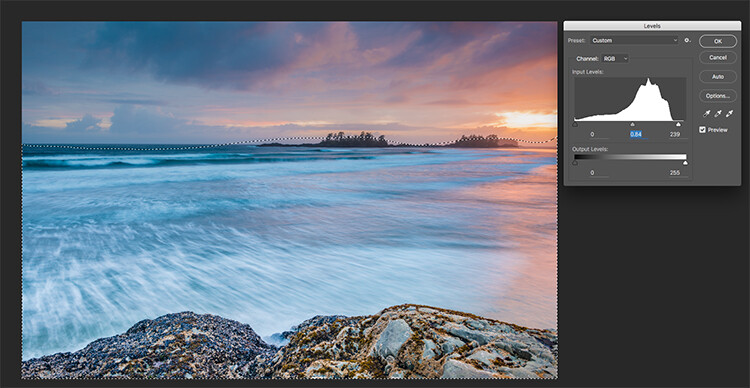
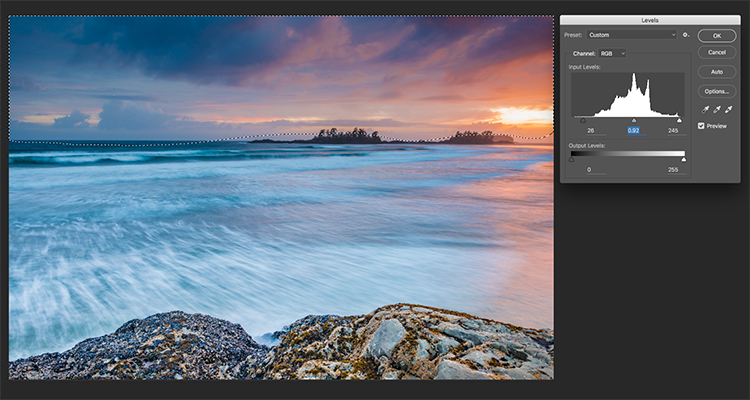
First of all, make the necessary adjustments to the foreground using Levels. In this image, I wanted to make the foreground a bit brighter, so I popped up the highlights a little. From there I selected the inverse (i.e. the sky). You can do this by holding down CMD>SHIFT>I together. This will toggle your selection from the foreground to the background.
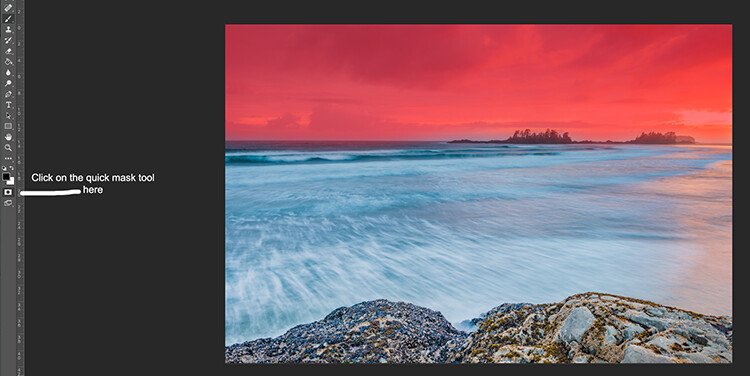
Red indicates the area that will be masked
Screen Shot 2016-07-05 at 3.28.52 PM

The marching ants show where the current selection is in the foreground.
Screen Shot 2016-07-05 at 3.29.56 PM

Making levels adjustments to the foreground
Screen Shot 2016-07-05 at 3.30.24 PM

CMD>SHIFT>I will toggle the selection, here the sky is being selected and levels is being used to adjust the sky

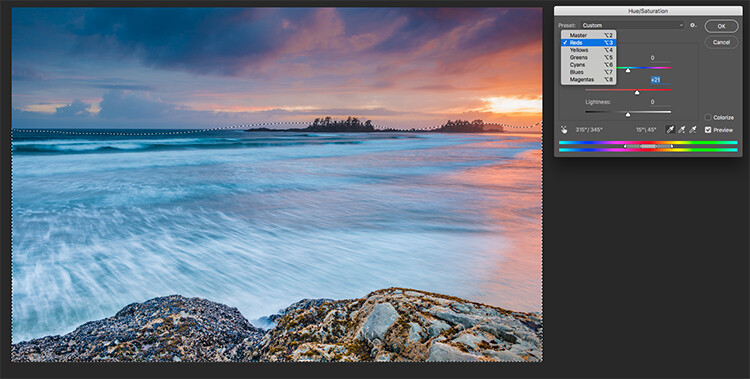
Use Hue and Saturation to make final colour adjustments

You can use the toggle function (CMD>SHIFT>I) to select the sky and foreground interchangeably. Once you have your selection, choose a tool to make adjustments, and the changes will only be made to the area that is selected. In this example I have used the Hue and Saturation function to make further enhancements to the image. I am again making adjustments by each channel. This gives me great control over what colour ranges need to be saturated, and perhaps desaturate others that are a little over done. Go through each channel and make the necessary adjustments.
Screen Shot 2016-07-05 at 3.30.53 PM

Use Hue and Saturation to make final colour adjustments

Once you are done, you can then sharpen your image as you see fit and save it to be printed. The steps outlined above will help you make any image look better. If done correctly, your images will have the pop and drama that you are looking for.

Give it a try, once you know the process, these adjustments can be done really quickly.

After

Final image

Please share your images and thoughts on the comments section below.

googletag.cmd.push(function() {
tablet_slots.push( googletag.defineSlot( “/1005424/_dPSv4_tab-all-article-bottom_(300×250)”, [300, 250], “pb-ad-78623” ).addService( googletag.pubads() ) ); } );

googletag.cmd.push(function() {
mobile_slots.push( googletag.defineSlot( “/1005424/_dPSv4_mob-all-article-bottom_(300×250)”, [300, 250], “pb-ad-78158” ).addService( googletag.pubads() ) ); } );

The post How to Use Adobe Camera Raw and Photoshop to Make Your Landscape Images Pop by Barry J Brady appeared first on Digital Photography School.


Digital Photography School

 
Comments Off on How to Use Adobe Camera Raw and Photoshop to Make Your Landscape Images Pop

Posted in Photography


Adobe Lightroom launches for Apple TV

27 Jul

Adobe has announced the launch of Lightroom for Apple TV. The app is available now from the App Store, and is compatible with all fourth-generation Apple TV devices. Users must have an Adobe Creative Cloud subscription to log in and access their photos. Once logged in, photos can be accessed as collections and showcased in slideshows. You can’t do any actual editing in the app – it’s for viewing photos only.

Via: Adobe Blog

Articles: Digital Photography Review (dpreview.com)

 
Comments Off on Adobe Lightroom launches for Apple TV

Posted in Uncategorized


Adobe ACR 9.6.1 update supports Fujifilm X-T2

26 Jul

Adobe has updated its Camera Raw application to make it compatible with Raw files created by Fujifilm’s new X-T2 camera. The latest version, 9.6.1, also fixes some reported bugs that prevented the opening of uncompressed DNG files that had been converted from Fuji X-E2 RAF format files, and an issue that meant panoramas couldn’t be created from two HDR DNG images.

This version of Camera Raw, and the fixes that it brings, are available now to users of Photoshop CC and the Creative Cloud application.

For more information and to download the update see the Adobe Lightroom Journal blog.

Manufacturer information:

Camera Raw 9.6.1 now available

Camera Raw 9.6.1 is now available through the update mechanism in Photoshop CC and the Creative Cloud application. Our focus with this release was to fix reported customer issues.

Thank you for all your feedback and passion for Camera Raw.

Bugs Fixed in Camera Raw 9.6.1

  • Uncompressed DNGs files converted from Fuji X-E2 RAF source images were are unable to be read
  • Errors that preventing customers from creating a panorama from two HDR DNG source images.

New Camera Support in Camera Raw 9.6.1

  • Fujifilm XT-2

Installation Instructions

Please select Help>Updates to install the update. See Keeping Photoshop & Camera Raw up-to-date.

Please note – If you have trouble updating to the latest ACR update via the Creative Cloud application, please refer to the following plugin installation:

http://helpx.adobe.com/x-productkb/multi/camera-raw-plug-in-installer.html

DNG Converter Links: Win | Mac

Articles: Digital Photography Review (dpreview.com)

 
Comments Off on Adobe ACR 9.6.1 update supports Fujifilm X-T2

Posted in Uncategorized


Adobe ACR 9.6.1 update supports Fuji X-T2

21 Jul

Adobe has updated its Camera Raw application to make it compatible with raw files created by Fujifilm’s new X-T2 camera. The latest version, 9.6.1, also fixes some reported bugs that prevented the opening of uncompressed DNG files that had been converted from Fuji X-E2 RAF format files, and an issue that meant panoramas couldn’t be created from two HDR DNG images.

This version of Camera Raw, and the fixes that it brings, are available now to users of Photoshop CC and the Creative Cloud application.

For more information and to download the update see the Adobe Lightroom Journal blog.

Manufacturer information:

Camera Raw 9.6.1 now available

Camera Raw 9.6.1 is now available through the update mechanism in Photoshop CC and the Creative Cloud application. Our focus with this release was to fix reported customer issues.

Thank you for all your feedback and passion for Camera Raw.

Bugs Fixed in Camera Raw 9.6.1

  • Uncompressed DNGs files converted from Fuji X-E2 RAF source images were are unable to be read
  • Errors that preventing customers from creating a panorama from two HDR DNG source images.

New Camera Support in Camera Raw 9.6.1

  • Fujifilm XT-2

Installation Instructions

Please select Help>Updates to install the update. See Keeping Photoshop & Camera Raw up-to-date.

Please note – If you have trouble updating to the latest ACR update via the Creative Cloud application, please refer to the following plugin installation:

http://helpx.adobe.com/x-productkb/multi/camera-raw-plug-in-installer.html

DNG Converter Links: Win | Mac

Articles: Digital Photography Review (dpreview.com)

 
Comments Off on Adobe ACR 9.6.1 update supports Fuji X-T2

Posted in Uncategorized


Adobe boosts Lightroom Mobile with Raw editing for iOS

14 Jul

Adobe’s Lightroom Mobile apps for Apple and Android mobile devices have both been given significant updates that allow users a much wider range of controls when editing and shooting. The company has quite different apps for the two operating systems, and while Android users have been able to edit Raw files for some time the facility is now offered to iOS users via version 2.4. Owners of Android devices can now install version 2.1 which offers what Adobe calls a ‘Pro’ shooting mode that allows much more detailed control over the way pictures are recorded.

Adobe says the version 2.1 for Android has a completely new Lightroom Camera function that features a mode that gives the photographer access to shutter speed, ISO, white balance and focus so that they can all be adjusted manually. Aperture isn’t listed as few mobile cameras have significantly variable apertures. The company also says it has improved the app’s ability to export high resolution files.

Apple iPhone and iPad users get Raw Technology Preview, which effectively allows photographers to import files from all the cameras supported by the main desktop version of Camera Raw. These Raw files can be edited using a wide range of tools to control contrast, exposure and white balance, and marked with star ratings and flags – all of which can be synched with Lightroom on the owner’s other devices. The company says it has edited 50MP images from the Canon EOS 5DS on an iPhone 6 to demonstrate how powerful the application is.

iOS users can also now make radial and linear selections that allow local editing of particular areas of the image.

Both the Android and iOS versions of Lightroom Mobile are free to download and use, but to enjoy the new features iOS users need to have a subscription to Creative Cloud.

For more information see the Adobe blog. 

Photograph by Elia Locardi of the valley in Meteora, Greece. Shot in raw on a Fuji XT-2 and edited on location with an iPad Pro with Lightroom for iOS.

Manufacturer’s information:

Two big updates for Lightroom for mobile are now available for download

Lightroom for iOS 2.4
In version 2.4, two major improvements have been added: a raw technology preview and the addition of local adjustment tools. In addition to these major improvements, we’ve also added the ability to use keyboard shortcuts with physical keyboards connected to iPads, the ability to add your copyright to all imported photos, functionality to turn on lens profiles (if your camera and lens combination are supported), as well as the usual bug fixes and improvements.

Raw Technology Preview
We’re sure it’s happened to you before: you’re out taking photos (in raw of course) and you capture a real stunner that you can’t wait to share with the world. Until now, you had to either transfer a JPEG version of the file over or you had to wait until you got back to your desktop or laptop. With the raw technology preview, you’ll be able to import raw photos immediately to either your iPhone or iPad, edit them, and then share them, anywhere you’ve got a connection. Our goal with Lightroom for mobile is to make it an indispensable part of your photography workflow, providing the tools that you’re familiar with and the quality you expect in a product that can be with you, no matter when inspiration strikes. With this technology preview, we want to push the boundaries of how photographers around the world work with their mobile devices.

You get all of the benefits of raw, such as the ability to change the white balance, being able to recover blown out highlights, access to the full range of color information, as well as editing an uncompressed file, all using the exact same technology that powers Lightroom on your desktop. An added benefit is that the raw file that you’ve imported into Lightroom for iOS will be synced with Lightroom on your other devices, such as Lightroom for desktop or Lightroom on the web, along with any of the edits, star ratings, or flags that you added.

Lightroom for mobile supports all of the same raw files that Lightroom for desktop as well as Adobe Camera Raw support, with the full list available here.

To transfer photos to your mobile device, you need to use either the camera connection kit or the lightning to SD or USB kits from Apple to transfer your raw files over to your device, which will bring up the Import tab within the iOS Photos app. Importing the files will add them into your camera roll, where you can then access and load in any raw file directly into Lightroom mobile. It’s important to keep in mind that raw files are significantly larger (3-5 times larger) than JPEGs, meaning the raw files will take longer to import, upload, and take up more space on your device. Even as such, we found that the added control and quality that the raw files afforded were so useful that it outweighed the negatives.

Just as when working with raw files that were synced from Lightroom for desktop or Lightroom on the web, you’ll be able to perform raw-specific enhancements, such as changing the white balance with greater control and recovering clipped highlights, but unlike when working with raw files synced from Lightroom for desktop, you’ll have access to the full resolution file AND you can do it anywhere in the world, even from your iPhone! 

We’ve run Lightroom for mobile through its paces on a number of different files, including the 50MP Canon 5DS running on an iPhone 6, proving that you really can edit nearly any photo anywhere. After playing with the app for a few months, we’ve found that it’s a really great way to take a few of your favorite images from the day (or even that you just captured), review to make sure you captured what you saw, edit, and then share them, all right away, and with all of your edits carried through the rest of the Lightroom ecosystem.

We had the pleasure of working with a number of photographers while creating the raw technology preview, take a look at how travel photographer Elia Locardi was able to put the technology to use while shooting on location in Greece.

You can read more about the images that were created for this release through an article about Elia on Adobe Create as well as on Elia’s own blog.

Linear and Radial Selections
In addition to the raw technology preview, we’ve also added in the ability to perform local adjustments with linear and radial selections, the two most requested features after raw support.

Lightroom for iOS Availability
Lightroom mobile 2.4 is available immediately for iPhone and iPad from the iOS App Store for free. Both of these improvements are available only for members with a creative cloud subscription or or if you start a free Creative Cloud trial.

Lightroom for Android 2.1

While the iOS team was working hard on the raw technology preview, the Android team doubled-down on the unique end-to-end DNG capture experience first announced in Lightroom for Android 2.0 and created a brand new capture experience. Our goal is to create the best mobile photography experience available, and with the amazing quality possible on Android devices, especially thanks to DNG raw capture, we wanted to provide all of the controls and functionality needed.

Now, the built-in camera has a new Pro mode that lets you control the shutter speed, ISO, white balance, and focus all manually, in a brand new interface.

You can access the camera directly using the new Lightroom Camera widget. This new widget will launch the Lightroom camera directly, making it faster for you to get in and start taking pictures.

In addition to the new built-in camera, we’ve also improved the app’s ability to export full-resolution files. If the files are available somewhere within the Lightroom ecosystem, Lightroom for Android will now download the full resolution version and enable you to export them.

You can download Lightroom for Android 2.1 here now for free.

Articles: Digital Photography Review (dpreview.com)

 
Comments Off on Adobe boosts Lightroom Mobile with Raw editing for iOS

Posted in Uncategorized