RSS
 

Posts Tagged ‘About’

DL or No DL? What you need to know about the Nikon DL compacts

23 Feb

Three’s company

Are compact cameras still relevant? Nikon seems to think they can be, if they’re good enough. It’s announced three premium compacts, all built around 20.8MP 1″-type BSI CMOS sensors its latest, ‘EXPEED 6A’ processor. If that sensor spec sounds familiar, it’s because the Nikon J5 uses a very similar…probably the same…one.

The firepower in that new processor results in 4K video capture capabilities and bursts up 60 fps without AF, and 20 fps with. Combine this speed with a hybrid AF system that uses 105 phase-detect and 171 contrast-detect points (the same one found in the 1-System), and you should have three seriously capable compacts.

When we sat down with Nikon reps back at CES 2016, they explained how engineers developed the three in unison, but targeted each camera’s focal length range toward a very specific customer. However, all three customers are expected to be DSLR shooters looking for a smaller, lighter alternative for everyday shooting. As such, all three can shoot RAW, offer Adobe RGB, can utilize Nikon i-TTL Speedlights, and use a menu system very similar to that found in their pro and enthusiast DSLRs.

Meet the family

The three cameras that make up Nikon’s DL line of premium 1″-type compacts include the DL24-85, DL18-50 and DL24-500. They may not have the most exciting or creative names, but at least they’re straightforward. As you might have guessed, the 24-85 offers a 24-85mm equivalent F1.8-2.8 lens and is the standard zoom compact of the bunch. Reasonably fast on the wide end, this camera has a lot of appeal as an everyday pocketable shooter.

The DL18-50 is the first 1″-type camera to have an ultra-wide lens which, in this case, is a 18-50mm equiv. It also features an impressively fast 1.8-2.8 aperture range, and sits as the DL’s wide/normal option. And on the tele end you have the DL24-500 F2.8-5.6. It isn’t as fast as the other two and certainly isn’t pocketable, but it is easily offers the most versatile focal range of the three.

Yet more choices

Style-wise, the DL24-85 and DL18-50 may seem oddly familiar. The concealingly small dial on the back looks a lot like those on the Nikon 1 series bodies, but from the front, they look almost as if Nikon’s borrowed the leftover tooling from Panasonic’s LX5. This is no bad thing – the LX5 was a really classy little enthusiast compact, but we thought it was faintly amusing, given how fiercely Nikon has protected its industrial design in the past.

We’re joking, of course, and there’s no such precedent for the DL24-500 – perhaps because its design resembles every other superzoom on the market. It’s pretty difficult to make an interesting-looking superzoom, just as it’s difficult to make an interesting looking SUV. And often inadvisable to do so.

How do they compare?

We’ve had to approximate how the available F number on each lens will decline, as you zoom in, but even with these approximated values, you can see that the DL24-85 sits between the lens range of the Sony Cyber-shot RX100 Mark III and IV, and that of Canon’s Powershot G7 X II.

The graph should also make clear just how unusual the DL18-50’s lens is. 18mm equivalent is significantly wider than any of the other 1″ sensor compacts currently on the market, yet it’s bright and able to reach a relatively practical 50mm equivalent focal length.

As usual, we’ve plotted these graphs to show both equivalent focal length and equivalent aperture.

Reaching for it

The DL24-500 joins an already impressive group of 1″ sensor superzooms, including the Sony RX10 II, Panasonic FZ1000 and Canon G3 X. These cameras are undeniably popular, especially amongst travel photographers. From its specs alone, the DL24-500 certainly seems like a competitor. Its 4K capture and slow motion video options compete directly with some of the most stand-out specs from the RX10 II (which we recently gave a Gold Award to).

All of these cameras offer considerably better image quality than conventional, small-sensor superzooms. So, although they can’t boast >80x on the little metallic stickers they wear on camera store shelves, they still offer a degree of reach that will be suitable for a huge variety of shooting situations.

And again, the factor that could set the Nikon apart from its competition is its Hybrid AF system. If the DL24-500’s AF system offers similar performance to that of 1-Series cameras (and there’s little reason to think it wouldn’t), the competition will have good reason to be concerned.

Super steady

Each of the three DL compacts offers a secret power, specific to their zoom range and unique to each. In the case of the DL24-500, its super power is Sports VR for added stability when panning at the tele end. Of course, all three cameras have Dual Detect Optical VR and historically, Nikon cameras have impressed us with their stabilization, especially the Nikon P900 superzoom. So we definitely have high expectations for the DL24-500.

Of course, what good is VR and reach if you don’t have quality glass? All three Nikkor lenses have fluorine coatings to keep away moisture and grime, and the 18-50 is the company’s first compact to have a Nano Crystal Coat, which reduces flare and ghosting.

The everyday pocket cam to beat?

The Sony RX100 series of cameras has long been viewed as the pocketable premium compacts to beat. The most recent Sony RX100 IV in particular impressed us. But the Nikon DL24-85 has us ready to reconsider the crown.

The two cameras share a whole lot of similar specs, including 4K video capabilities, optical image stabilization, fast burst rates with continuous AF, and tilting LCDs. They both offer 20MP 1″-type sensors and very similar focal range, though the Nikon does have a bit more reach.

But the two do vary in some key areas. While the Sony has a pop-up EVF, you’ll have to pony up for an optional tilting model on the DL18-50 and 24-85. Conversely, the DLs all have touchscreen OLED displays, while the RX100s use non-touch LCDs. 

But an even bigger difference can be found when looking into each camera’s AF system: the Sony uses a contrast-detection AF system, while Nikon uses a hybrid approach (combining depth-aware phase detection with high-precision contrast detection). But before you dismiss the Sony entirely, it’s worth noting that the RX100 IV really impressed with its AF capabilities during our testing. So, while the Nikon DL24-85 should  be able to outperform the Sony, we’ll just have to wait until we get one in to know for sure.

Nice and close

The DL24-85 is the only DL of the three to offer a 1:1 macro mode (its secret power). It can be accessed by turning the zoom ring all the way to the right to the S.macro position. In the macro mode, users have a 35mm equiv. field of view. And while all three cameras offer a manual focus mode, the DL24-85 also has a focus bracketing feature, which should be particularity useful for macros.

Unfortunately, the ring around the lens barrel of the DL24-85 is not customizable (same goes for the other DL’s). It can only be used for manual focusing.

Wide street shooter

The DL18-50 is the widest DL of the bunch, and while its 18-50mm focal length may not appeal to casual shooters, street photographers are sure to be enticed by its range and fast lens. Its tilting touchscreen allows for tap-to-focus and, we assume, tap-to-shoot capabilities that should suit that ‘decisive moment’ shooting style.

This camera’s focal range will also likely appeal to architecture and landscape shooters. To further tempt said group, it has a built-in perspective control feature that can be used to distort the image to correct for perspective distortion.

Unlike the other two, it doesn’t have a built-in flash – perhaps because it would be too difficult to offer such wide coverage without some clever optics and a lot more distance away from the lens.

Touch, see, shoot and share

Touchscreens can be great, especially when paired with physical control points (this way you can choose). All three DLs offer 1.04M-dot OLED touch displays. The displays on the DL24-85 and DL18-50 can tilt, while the display on the DL24-500 is fully articulating. This only adds to the DL24-500’s appeal as a video-centric all-in-one.

The DL24-500 also offers a 2.4M-dot OLED electronic viewfinder, while the other two cameras accept the the rather bulky accessory DF-E1 tilting electronic viewfinder with the same XGA resolution. 

The three DLs are also Wi-Fi and Bluetooth enabled, allowing them to take advantage of Nikon’s ‘SnapBridge’ technology, first unveiled to the world at CES 2016 during the company’s press event announcing the D500. ‘SnapBridge’ allows a camera to stay connected to one’s smart device via low power Bluetooth connection, without the need to reconnect. It’s worth noting that while we’ve written about SnapBridge in the past and are excited by its implication, we have yet to try it. The cameras also support NFC, for quick and easy pairing with Android devices.

Where they fit on the 1″ scale

Here’s how they fit into the wider market. We don’t yet know exactly how their apertures will change as you zoom, so we’ve had to approximate them here.

The pricing is exactly as we’d expect: the DL24-85 with its fast standard zoom is a direct competitor for Sony’s RX100 III and Canon’s G7 X Mark II. It doesn’t have a viewfinder, as the Sony does, so it’s no surprise to find it’s being pitched at $ 150 lower than the RX100 III’s launch price and $ 50 below the Canon’s.

Meanwhile, the DL24-500’s long, increasingly slow lens makes it look like Nikon is targeting the same customers as the G3 X. And, guess what? The Nikon MSRP is exactly the same as the Canon’s, at $ 999.

Finally, although it shares a lot in common with the 24-85, there’s a premium to be paid for the DL18-50. With no direct rivals, and the challenges of making such a fast, wide lens, it’s no surprise that it’s to be launched for $ 849.

In summary

It’s interesting to see how these new models fit in to the market. Ever since Sony announced the RX100, manufacturers have been developing ever more variations and options around the 1″ sensor. Since most cameras take at least two years to develop, it’s still relatively early in the timeline, but with the arrival of Nikon there are now four manufacturers building large sensor compacts.

So far we’ve seen Sony focus its RX100 series on the idea of a small camera with a large sensor and a bright lens, with zoom range being the trade-off being made. Canon very much followed suit with its G7 X models. And the Nikon DL 24-85mm, with its F1.8 – 2.8 is clearly targeting the same potential buyers.

Meanwhile, Sony, Panasonic and Canon have all developed riffs on the large bodied, long zoom theme. Sony’s RX10 (both I and II) opt for constant aperture zooms, while Panasonic’s FZ1000 gives greater range that gets slower as you zoom. Nikon’s DL 24-500mm is much closer to Canon’s G3 X, in offering still more zoom by letting the aperture drop even further.

As such, the standout camera in this group is the DL 18-50. It’s fast (F1.8-2.8), ultra-wide to just-beyond-normal zoom range is unique, and offers an exciting option for wide-angle shooters looking for a pocketable camera with what should be good image quality. Whatever our reservations have been in the past about Nikon compacts, the image quality has usually been very good.
Articles: Digital Photography Review (dpreview.com)

 
Comments Off on DL or No DL? What you need to know about the Nikon DL compacts

Posted in Uncategorized


Beauty-centric Panasonic Lumix GF8 is all about the selfies

15 Feb

$ (document).ready(function() { SampleGalleryV2({“containerId”:”embeddedSampleGallery_2273125847″,”galleryId”:”2273125847″,”isEmbeddedWidget”:true,”standalone”:false,”selectedImageIndex”:0,”startInCommentsView”:false,”isMobile”:false}) });

Panasonic has introduced the Lumix DMC-GF8, essentially a GF7 with an emphasis on selfie-friendly features. It continues to offer the GF7’s 16MP Four Thirds sensor, 1080/60p video and built-in Wi-Fi, but wraps it all up in your choice of a pink, silver, brown or orange leather-like finish. Not only does the GF8’s 3″ 1.04M-dot touchscreen tilt upward 180-degrees to take the guesswork out of self-portraits, the camera offers a ‘Soft Skin’ mode that can be combined with Panasonic’s Creative Control filters such as Retro or High Key. 

Beautification doesn’t stop at image capture though. The Lumix GF8 offers a new ‘Beauty Retouch’ function to clear up skin texture, whiten teeth and add makeup after the fact. Panasonic’s press releases stresses the appeal of these features to women, but don’t feel left out gentlemen, the silver and brown versions of the camera have plenty of ‘unisex’ appeal. The GF8 also comes with 100GB of storage on Google Drive, which adds up to a lot of selfies.

The DMC-GF8 will not available in the United States, at least at this point in time.

LUMIX GF8 for the Best-Ever Attractive Selfie Shots 
Featuring Advanced Beauty Retouch Mode

Panasonic is introducing a new Digital Single Lens Mirrorless (DSLM) Camera, the LUMIX GF8 that adds even more fun than its predecessor GF7 for users to enjoy more unique photo shooting. The new LUMIX GF8 offers high capability for shooting selfie with a host of options such as newly integrated beauty functions. 

The 3.0-inch 1040K-dot rear monitor with touch control tilts up by approx.180-degree and the camera goes into Self Shot Mode automatically once the monitor is flipped. In the Self Shot Mode, a variety of functions for selfies are available on the LUMIX GF8. The beauty functions enables users – especially women – to shoot portraits more attractively with its Soft Skin, Defocusing and Slimming effects. After shooting, you can even put on an aesthetic/make-up retouch, in camera, with Beauty Retouch function. 

The LUMIX GF8 integrates Wi-Fi® connectivity to offer more flexible shooting experience and instant image sharing with easy operation. 

The basic photographic performance of LUMIX GF8 as a camera is excellent. It enables users high-quality image recording with real-to-life details through excellent resolution, image rendering and color reproduction. Taking full advantage of 16.00-megapixel Digital Live MOS Sensor and Venus Engine, images are produced with highly sharp resolution even shot in low-lit situations and even max. ISO 25,600 high sensitivity can be selected. The Contrast AF System of LUMIX GF8 excels in both speed and accuracy by exchanging digital signal between the camera and the lens at max. 240 fps. A variety of extensive AF functions including Face/Eye Detection AF or Low Light AF assures in-focus shots even in difficult shooting situations. 

The LUMIX GF8 also features full HD 1920 x 1080, 60p (60 Hz) / 50p (50 Hz) high quality video recording in AVCHD progressive and MP4 with stereo sound. The practical full-time AF and tracking AF is available in video recording, too. The LUMIX GF8 features a unique video recording option called Snap Movie Mode which lets users record video in designated short period of time (2/4/6/8 sec) as they shoot “moving photos”.

Last but not least, the iA (Intelligent Auto) mode and the Scene Guide make LUMIX GF8 easy to use even for beginners of digital interchangeable lens system camera. Portrait, Child, Scenery modes, which are used often, have respective shortcuts on the dial. Most appropriate parameters for each scene are automatically applied by just setting the dial to the mode to capture those scenes most beautifully. 

Available in silver, brown, pink and orange, the LUMIX GF8 boasts sleek, stylish profile in traditional camera design. Its high mobility enables to users carry it around and enjoy creative, high quality photography with the unlimited potential of interchangeable lens system camera. 

1. Enjoy Selfies in a More Flexible Way – Beauty Retouch & Hands-Free Selfie

The new LUMIX GF8 is a perfect camera for selfie especially for women. A rich variety of beauty functions in LUMIX GF8 enables users to shoot more attractive portraits. In shooting mode, the Soft Skin mode makes skin look smoother while Slimming looks the subject sharpened up in 10 fine steps. Defocusing gives natural defocus around face to make the picture more impressive.

After shooting, you can even put on virtual make-up on the face in the playback mode with newly added Beauty Retouch function. In Aesthetic Retouch, various effect can be applied to the face including clearing the skin texture, lifting up the face whitening of teeth and so on. In the Make-up Retouch, users can choose the color of foundation, lips, cheeks or eye-shadow

The 3.0-inch 1040K-dot static type touch control monitor boasts 180-degree tiltable structure. Once the monitor is flipped up, the camera activates Self Shot Mode automatically. In conventional selfie pictures, users have to stretch their arms to hold the camera, which makes the selfie pictures all-too-common. However, the hands-free selfie allows users to use their hands as they like, resulting in free, expressive posing. However, Face Shutter and Buddy Shutter functions are integrated for a trigger of shutter release in LUMIX GF8. They work when the face is once covered with a waving hand or when two faces come closer in a frame. 

Creative Control filter that are suitable for impressive selfie shots – Retro, Soft Focus, Expressive, High Key and Toy Effect can be combined with the Self Shot mode, too. 

2. High Performance Digital Single Lens Mirrorless with High Speed Response

The LUMIX GF8 incorporates 16.00-megapixel, large Digital Live MOS Sensor complying with Micro Four Thirds system standard that achieves both higher resolution and higher sensitivity image recording with less noise. The image processor Venus Engine features its advanced noise reduction systems. It features high level of noise is control thanks to the expanded controllable area of noise. This makes it possible to remove large block of noise which was formally hard to detect and helps produce clear, smooth image especially for the nighttime scenery. The combination of the Digital Live MOS Sensor and the Venus Engine achieves fine detail reproduction, making it possible to capture clear image even in low lit situations and allows max. ISO 25600 while achieving minimum ISO 100 (Extended).

The LUMIX GF8 features high-speed Light Speed AF, making it possible to capture even the fast-moving subject clearly. The camera and the lens exchange the digital signal at max. 240 fps to minimize the time to focus. The LUMIX GF8 realizes the high speed burst shooting at approx.5.8 fps (AFS) / approx.5 fps (AFC, 1-area AF) in 16.00-megapixel and max. 40 fps using an electronic shutter. Also, AF Tracking enables consecutive shooting to capture moving subject in sharp focus at approx.4 fps*.

The Low Light AF help users to get in-focus shot even in extremely low-lit situations such as under the moonlight or the starry sky. Sharp focus can be set on the target subject even when you cannot use an AF assist lamp.

In addition to the conventional Face Recognition AF, the LUMIX GF8 incorporates Face / Eye Detection AF which automatically sets focus right on the eye of human face. With the Pinpoint AF, users can magnify the target area to set focus by 5x by just touching it on the monitor. The One-shot AF enables using AF even in MF mode by just touching the icon on the screen to set rough focus on the subject and you can go back to MF just to adjust precise focus.

The LUMIX GF8 records stunningly smooth, high-resolution full-HD 1,920 x 1,080 60p (60 Hz) / 50p (50 Hz) videos in AVCHD Progressive or MP4 (MPEG-4 / H.264) format. High quality sound can be recorded with Dolby® Digital. A Wind Cut function is also available to block out most of the noise from background wind. 

* In 1-area-focusing AF mode.

– Maximum time to record motion pictures continuously with [AVCHD] is 29 minutes 59 seconds in Europe and some Asian areas.
– Maximum time to record motion pictures continuously with [MP4] is 29 minutes 59 seconds or up to 4 GB.
– You can check the recordable time on the monitor. (For [FHD] in [MP4] format, the file size is large and so the recordable time will drop below 29 minutes 59 seconds.)

3. Easy Wireless Connectivity via Wi-Fi® with Smartphones

The LUMIX GF8 integrates Wi-Fi® connectivity (IEEE 802.11 b/g/n) to offer more flexible shooting experience and instant image sharing with easy operation. Once connecting the camera and smartphone/tablet installing Panasonic’s dedicated application software Panasonic Image App for iOS / Android, users can shooting / browsing / sharing images remotely. 

Connecting the camera to the smartphone/tablet is quick and easy with a press of Fn1/Wi-Fi* button or by reading the QR code. Plus, the LUMIX GF8 users are eligible to have free 100GB storage on Google Drive™ to save photo and video data*.

* The service is available for two years after the activation.

4. A Host of Advanced Functions Packed in a Sleek Body with Ease of Use

Although the LUMIX GF8 packs a host of advanced functions, it features sleek, stylish profile with high mobility.  Every part including button and dial is carefully chosen to achieve high quality design and operability. The leather-touch grip is ergonomically designed and easy to hold. Dressed in fashionable colors – silver, brown, pink and orange, the LUMIX GF8 makes perfect match for unisex users to enjoy high quality photo shooting daily.

The LUMIX GF8 comes with Rec.Setting Reset button on the back. All recording settings can be reset with the button and it is helpful for users who made wrong settings unconsciously. 

5. Other Features

iA+ (Intelligent Auto) Mode for Photo and Video

For beginners, iA (Intelligent Auto) mode supports taking beautiful pictures with a variety of shooting-assist functions including AF Tracking, Intelligent Scene Selector, Face Recognition, Intelligent ISO Control and Food Recognition.

Scene Guide

The Scene Guide* offers 20 sample pictures shot by professional photographers. Users can choose the one closer to the situation they are going to shoot and optimum parameters for shooting the scene will be automatically set. Furthermore, shooting procedure, technical advice and recommended interchangeable lens for the scene can be shown for users to learn photography. 

* Video recording using Scene Guide is not possible in some scenes.

Creative Control

The LUMIX GF8 integrates a variety of artistic functions that adds fun to digital photography. The popular Creative Control mode features a total of 22 filter options – Expressive / Retro / Old Days / High Key / Low Key / Sepia / Monochrome / Dynamic Monochrome / Rough Monochrome*1 / Silky Monochrome*1 / Impressive Art / High Dynamic / Cross Process / Toy Effect / Toy Pop / Bleach Bypass / Miniature Effect*2 / Soft Focus*1 / Fantasy / Star Filter*1 / One Point Color / Sunshine*1 mode. Effect parameter of each mode is also adjustable. Also, LUMIX GF8 is capable of taking pictures “with” and “without” filter effect simultaneously, so that users can compare them to choose later.

*1 For photo only.

*2 Sound will not be recorded with [MINIATURE EFFECT] in Creative Control Mode and approximately 1/10 of the time period is recorded. (If you record for 10 minutes, the resulting motion picture recording will be approximately 1 minute long.) 

Snap Movie

Users can record video in designated short period of time (2/4/6/8 sec) as they shoot “moving photos”. In this function, rack focusing or addition of fade effect (color in/out, black in/out, white in/out) are available. Those short video clips are easy to be shared using Panasonic Image App and It is also possible to connect them in any order you like and even to add music instead of recorded sound on the combined file later.

Time Lapse Shot

The camera automatically starts recording photos at time lapse sequence once the start time, interval and the number of pictures to shoot are set. 

Stop Motion Animation

This function enables producing a stop motion (stop frame) video in camera with the pictures that are sequentially shot while moving the object by degrees. This effect makes the object appears as if it is moving by itself.

Silent Mode

This mode switches shutter from mechanical to electronic and turns all sound (AF, operation) off while suppress emission of AF assist lamp and flash with just a single setting for special shooting occasions.

Panasonic Lumix DMC-GF8 specifications

Body type
Body type Rangefinder-style mirrorless
Sensor
Max resolution 4592 x 3448
Other resolutions 4:3 (3232 x 2424, 2272 x 1704), 3:2 (4592 x 3064, 3232 x 2160, 1824 x 1216), 3:2 (4592 x 2584, 3840 x 2160, 1920 x 1080), 1:1 (3424 x 3224, 2416 x 2416, 1712 x 1712)
Image ratio w:h 1:1, 4:3, 3:2, 16:9
Effective pixels 16 megapixels
Sensor photo detectors 17 megapixels
Sensor size Four Thirds (17.3 x 13 mm)
Sensor type CMOS
Processor Venus Engine
Color space sRGB, Adobe RGB
Color filter array Primary color filter
Image
ISO Auto, 200-25600 (extends to 100-25600)
Boosted ISO (minimum) 100
White balance presets 5
Custom white balance Yes (2 slots)
Image stabilization No
Uncompressed format RAW
JPEG quality levels Fine, standard
File format
  • JPEG (Exif v2.3)
  • Raw (Panasonic RW2)
  • MPO (3D)
Optics & Focus
Autofocus
  • Contrast Detect (sensor)
  • Multi-area
  • Center
  • Selective single-point
  • Tracking
  • Single
  • Continuous
  • Touch
  • Face Detection
  • Live View
Autofocus assist lamp Yes
Digital zoom Yes (2x-4x)
Manual focus Yes
Number of focus points 23
Lens mount Micro Four Thirds
Focal length multiplier 2×
Screen / viewfinder
Articulated LCD Tilting
Screen size 3
Screen dots 1,040,000
Touch screen Yes (with touch AF, shutter, playback, menus)
Screen type TFT LCD
Live view Yes
Viewfinder type None
Photography features
Minimum shutter speed 60 sec
Maximum shutter speed 1/500 sec
Maximum shutter speed (electronic) 1/16000 sec
Exposure modes
  • Program
  • Aperture priority
  • Shutter priority
  • Manual
Scene modes
  • Portrait
  • Child
  • Scenery
  • Silky Skin
  • Backlit Softness
  • Relaxing Tone
  • Bright Blue Sky
  • Romantic Sunset Glow
  • Vivid Sunset Glow
  • Glistening Water
  • Clear Nightscape
  • Cool Night Sky
  • Warm Glowing Nightscape
  • Artistic Nightscape
  • Glittering Illuminations
  • Handheld Night Shot
  • Clear Night Portrait
  • Soft Image of a Flower
  • Appetizing Food
  • Cute Dessert
  • Freeze Animal Motion
  • Clear Sports Shot
  • Monochrome
Built-in flash Yes
Flash range 5.60 m (at ISO 200)
External flash No
Flash modes Auto, auto w/redeye reduction, flash on, flash on w/redeye reduction, slow sync, slow sync w/redeye reduction, flash off
Flash X sync speed 1/50 sec
Continuous drive 5.8 fps
Self-timer Yes (2 or 10 secs, 3-shot/10 sec)
Metering modes
  • Multi
  • Center-weighted
  • Spot
Exposure compensation ±5 (at 1/3 EV steps)
AE Bracketing ±3 (3, 5, 7 frames at 1/3 EV, 2/3 EV, 1 EV steps)
WB Bracketing Yes (3 shots in blue/amber and magenta/green axes)
Videography features
Resolutions 1920 x 1080 (60p, 60i, 50p, 50i, 30p, 25p, 24p), 1280 x 720 (30p, 25p), 640 x 480 (30p, 25p)
Format MPEG-4, AVCHD, H.264
Videography notes 24p only available with AVCHD
Microphone Stereo
Speaker Mono
Storage
Storage types SD/SDHC/SDXC card
Connectivity
USB USB 2.0 (480 Mbit/sec)
HDMI Yes (micro-HDMI)
Microphone port No
Headphone port No
Wireless Built-In
Wireless notes 802.11b/g/n with NFC
Remote control Yes (via smartphone )
Physical
Environmentally sealed No
Battery Battery Pack
Battery description Lithium-ion battery & charger
Battery Life (CIPA) 230
Weight (inc. batteries) 266 g (0.59 lb / 9.38 oz)
Dimensions 107 x 65 x 33 mm (4.21 x 2.56 x 1.3)
Other features
Orientation sensor Yes
GPS None

Articles: Digital Photography Review (dpreview.com)

 
Comments Off on Beauty-centric Panasonic Lumix GF8 is all about the selfies

Posted in Uncategorized


CES Video: Nikon’s Mark Soares talks about the D5 and D500

07 Jan

Today at CES Nikon announced two new DSLR cameras: the pro-oriented D5 and the enthusiast-oriented D500, which is possibly the longest-awaited successor to any camera we can remember, replacing the D300S after almost six years.

Just after the announcement we slipped away from the CES crowds with Nikon’s DSLR product manager, Mark Soares, to get his take on the new bodies, a rundown of some major features, and insight into why Nikon chose to break the number sequence by skipping ‘400’ and calling the new DX flagship the D500 instead.

Articles: Digital Photography Review (dpreview.com)

 
Comments Off on CES Video: Nikon’s Mark Soares talks about the D5 and D500

Posted in Uncategorized


CES Video: Nikon’s Mark Soares talks about the D5 and D500

06 Jan

Today at CES Nikon announced two new DSLR cameras: the pro-oriented D5 and the enthusiast-oriented D500, which is possibly the longest-awaited successor to any camera we can remember, replacing the D300S after almost six years.

Just after the announcement we slipped away from the CES crowds with Nikon’s DSLR product manager, Mark Soares, to get his take on the new bodies, a rundown of some major features, and insight into why Nikon chose to break the number sequence by skipping ‘400’ and calling the new DX flagship the D500 instead.

Articles: Digital Photography Review (dpreview.com)

 
Comments Off on CES Video: Nikon’s Mark Soares talks about the D5 and D500

Posted in Uncategorized


5 Essential Things You Need to Know About the Lightroom Library Module

16 Dec

Essential things Lightroom

For those of you who have been following my Lightroom articles I thought it would be fun to test your knowledge. We’ll start with the Lightroom Library module because the work you do here, lays the foundation for everything you do inside Lightroom. Master the Library module and you’ll be well on your way to becoming an expert on the entire program.

Ready? Let’s start with what is probably the most important thing of all – backing up your Catalog.

1. How to back up your Catalog

This is really important. Your Lightroom Catalog is absolutely essential because it’s where Lightroom stores every piece of information it has about your photos. Not only does this include the location of your photos (i.e., where they are saved on your hard drive) but any metadata associated with them (from camera settings to keywords), Lightroom specific information (such as which Collections a photo belongs to) and any edits you have made in the Develop module. Yes, these are all stored in the Catalog.

How much of a disaster would it be if you lost all this data? I’m sure it would be a major loss. That’s why it’s so important that you back up your Catalog regularly. You should also back it up to an external hard drive, not to an internal one, in case your computer is lost or stolen.

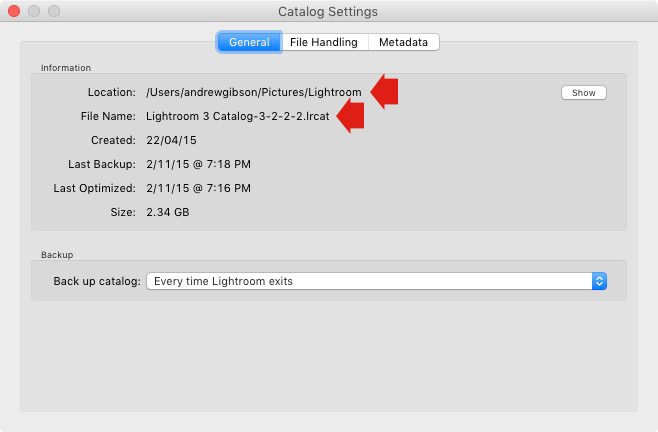
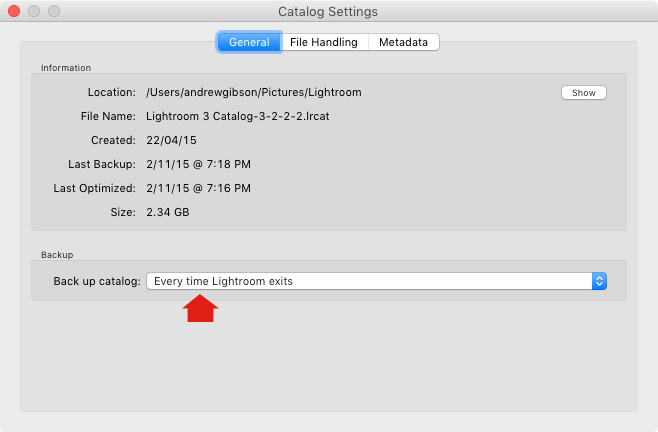
You can check your back up settings by going to Lightroom > Catalog Settings. Click the General tab – Back up catalog should be set to Every Time Lightroom Exits as shown below.

Essential things to know about Lightroom

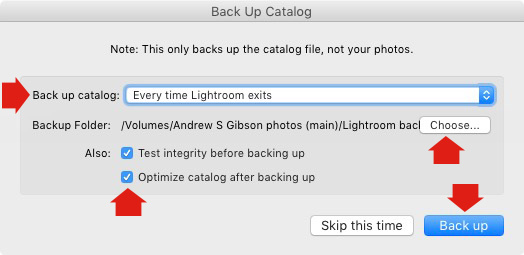
Connect the external hard drive on which you back up your Catalog, then exit Lightroom. Before Lightroom closes down, it displays the Back Up Catalog window. The Backup Folder setting should point to a folder on your external hard drive. If it doesn’t, click Choose and change it now.

Essential things to know about Lightroom

When you exit Lightroom is the only time you will see this popup box, and the only place you can change where it saves the backup of your catalog.

Make sure the Test integrity before backing up and Optimize catalog after backing up boxes are ticked. When you’re done click the Back up button. Lightroom will save a backup of your Catalog to your external hard drive before closing. This may take some time, especially for a large Catalog, so be patient.

Some important things to note about Catalog backups:

  • You only need to keep the last two or three backups. You can delete older ones to free up hard drive space.
  • If you have Lightroom 6 or Lightroom CC the backed up Catalogs are compressed, saving hard drive space.
  • You should always back up your Lightroom Catalog to a different hard drive than the one the main Catalog is stored on. That way, if your main hard drive fails, the backed up Catalog is safe.
  • Once a month (or more often if you like) copy the latest backup to Dropbox, Google Drive or another cloud storage solution. This is to protect you in case you lose both your computer and your external hard drive to theft or fire. The location and name of your Lightroom Catalog are recorded in Catalog Settings.

Essential things to know about Lightroom

2. How to back up your photos

This is important to mention because I want to make sure you understand that your photos are not stored inside Lightroom, or in the Catalog. Your photos are saved on your hard drive (or drives) and you need to back them up yourself. It is your responsibility – Lightroom doesn’t do it for you.

There are many ways of backing up photos, you need to find the method that works best for you. However I’m sure it will help if I share my method. Feel free to use, adapt or ignore it.

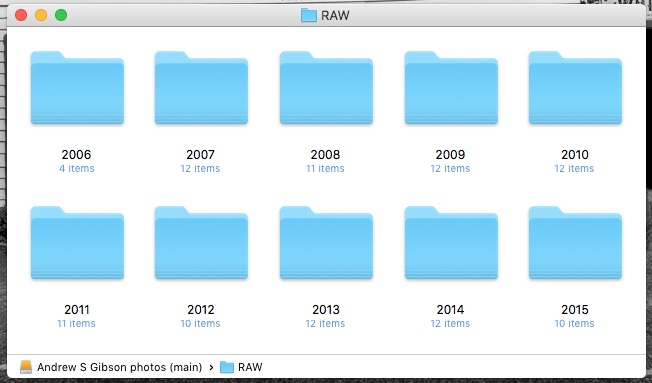
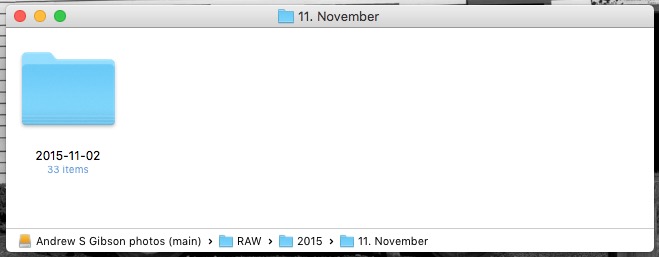
  • Create a folder called Raw. All your Raw files are stored in there (I shoot everything in Raw – you could simply call your folder something like Photos if you shoot a mixture of Raw and JPEG).
  • In that folder create a new folder for every year you take photos.

essential things about Lightroom

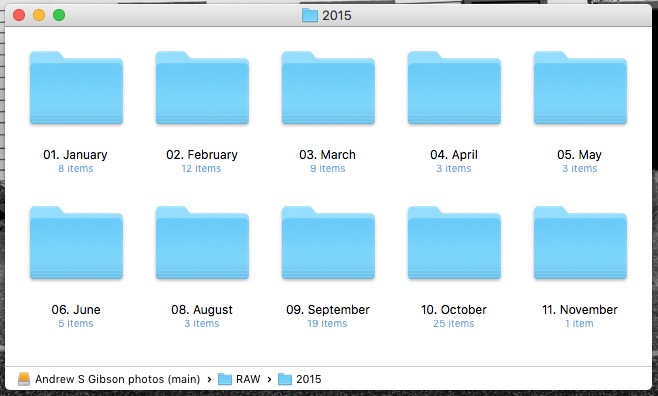
  • In each of those folders, create 12 folders, one for every month of the year.

essential things about Lightroom

  • Whenever you import photos into Lightroom, select the correct destination folder depending on the month and year the photos were taken.
  • Place each shoot into a folder of its own. You can either give it a name or organize the folders by date.

essential things about Lightroom

This system works because it’s easy to see whether your Raw files are backed up. Want to back up all your Raw files to another hard drive? Just copy the Raw folder. Want to see whether you’ve backed up all the photos you’ve taken this month? It’s easy to do so with this system.

By the way, I keep my Raw files backed up to four different external hard drives, one of which is stored off-site. That way, if one of the hard drives fails, I have three other copies.

3. How to set up File Handling in Catalog Settings

The File Handling settings are important because they help you strike a balance between optimizing Lightroom’s performance speed, and using hard drive space.

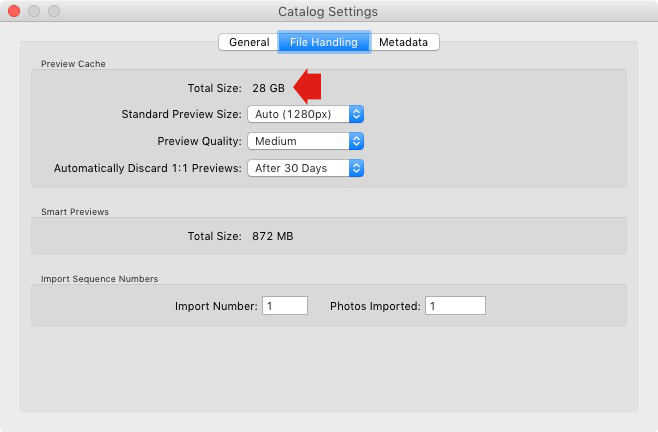
The first thing you need to look at is the total size of the cache. This tells you how much hard drive space your previews take up. For example, looking at mine (see below) I can see my Lightroom previews are currently taking up 28GB.

Essential things to know about Lightroom

It’s important to keep some of your hard drive free (at least 10%, but preferably more) otherwise Lightroom will slow down (as will everything else your computer does). If you are running out of hard drive space, come and have a look here to see if your preview files are too large.

There are two steps to keeping your previews file under control.

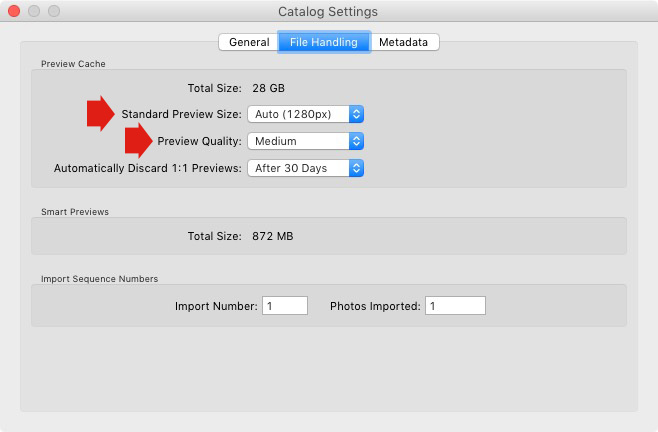
1. Make sure Lightroom is generating the optimum size Standard Previews. These are used to display your photos in Loupe View and don’t need to be any larger than your monitor’s resolution.

If you have Lightroom 6 or Lightroom CC you can set the size to Auto. Lightroom will calculate the optimum size for you. In Lightroom 5 or earlier pick the size that best matches your monitor’s resolution.

Set Preview Quality to Medium – it gives you the best balance between quality and size.

Essential things to know about Lightroom

2. Set Automatically Discard 1:1 Previews to After 30 Days. You need 1:1 previews for zooming in to photos, and working on them in the Develop module. However, they are very large. If you generated 1:1 previews for every photo in your Catalog, and never deleted them, you would eventually run out of hard drive space. To be honest, it doesn’t really matter which setting you choose here as long as it’s not set to Never. You can always regenerate discarded 1:1 previews if you need them again later.

4. How to search for images

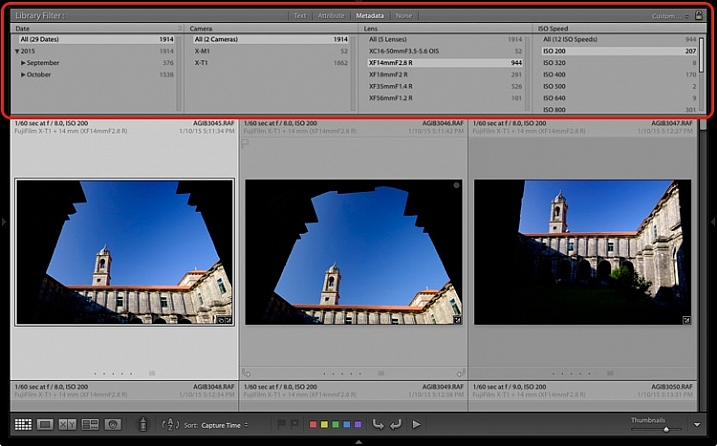
One of the benefits of building the Lightroom architecture on a database is that it is easy to search your photos. You do this in the Filter Bar, which is displayed above the Content Window in Grid View (press ‘\’ on the keyboard if you don’t see it).

There are three types of searches:

  1. Text: Search keywords, filenames, titles, captions, etc., for text sequences.
  2. Attribute: Filter by flag, star rating, colour label or file kind (master photo, virtual copy, or video).
  3. Metadata: Search by date, camera, lens, camera setting (ISO, shutter speed, aperture, etc.), aspect ratio or any of the dozen or so search options listed there.

Have a play with these options to see how it works. Just bear in mind that Lightroom is searching the selected folders or Collections, not your entire Catalog when you do so (select All Photographs to search your entire library).

Essential things to know about Lightroom

5. How to use Collections

Collections are virtual Folders, which you use to organize your images. Folders are limited because a single photo can only be stored in one Folder at a time. The same photo can be stored in as many Collections as you like, making Collections the easiest, and most flexible, way to organize your photos.

An example of this is a photo taken of a person called Jenny in Rome in November 2015. The photo can only be stored in one Folder, but it can be added to a Collection called Jenny, another one called Rome, another called 2015 – in fact as many as you need.

Your folders should be set up to make backing up easy (see earlier point). Your Collections should be used to organize your photos. My article Use Lightroom Collection to Improve your Workflow will help you with this.

Your turn

Of course, this list is not exhaustive, but I’d like to hear your thoughts as well. What do you think is essential to know about the Library module? Do you have any questions about the points raised in this article? Please let me know in the comments below.


The Mastering Lightroom CollectionMastering Lightroom ebook bundle

My Mastering Lightroom ebooks are a complete guide to using Lightroom’s Library and Develop modules. Written for Lightroom 4, 5, 6 and CC  they  show you how to import and organise your images, use Collections, creatively edit your photos and how to work in black and white.

googletag.cmd.push(function() {
tablet_slots.push( googletag.defineSlot( “/1005424/_dPSv4_tab-all-article-bottom_(300×250)”, [300, 250], “pb-ad-78623” ).addService( googletag.pubads() ) ); } );

googletag.cmd.push(function() {
mobile_slots.push( googletag.defineSlot( “/1005424/_dPSv4_mob-all-article-bottom_(300×250)”, [300, 250], “pb-ad-78158” ).addService( googletag.pubads() ) ); } );

The post 5 Essential Things You Need to Know About the Lightroom Library Module by Andrew S. Gibson appeared first on Digital Photography School.


Digital Photography School

 
Comments Off on 5 Essential Things You Need to Know About the Lightroom Library Module

Posted in Photography


4 Things You Should Know About Focal Length and Composition

13 Nov

Lenses are the eye of your camera. The focal length of a lens (and your point of view) determine how much of the subject your camera sees.

You may already be familiar with the basics, and understand the difference between, say, wide-angle and telephoto lenses, but let’s dive into the the topic a little deeper to see what’s really going on.

focal length and composition

There are four fundamental things to know and understand about the focal length and composition.

1. Focal length is not as important as field-of-view

There are two factors that determine the field-of-view of a lens:

  1. The focal length.
  2. The digital sensor or film size

Field-of-view (sometimes called angle-of-view) is far more important than focal length, because it tells you how much of the scene the lens sees. However, as field-of-view changes according to sensor size, manufacturers tell us the focal length instead. Focal length is a fixed measurement that doesn’t change (it is literally the distance from the middle of the lens to the focal plane, which is the sensor).

Here are some practical examples.

Example #1 – 50mm prime lens

A 50mm prime lens has a field-of-view of 47 degrees on a full-frame camera. This field-of-view approximates what we see with our own eyes. But what happens when you put the 50mm lens on an APS-C camera (crop factor of 1.6x)? The crop factor of the smaller sensor means that the lens now has a field-of-view of around 30 degrees, making it a short telephoto lens.

This change in field-of-view means that you have to move further away from your subject in order to fit it in the frame, which also changes the perspective (giving the compressed effect that characterizes short telephoto lenses).

If you want the equivalent of a 50mm lens on an APS-C camera you need to use a focal length of around 31mm, as it has the same field-of-view (47 degrees).

A prime lens with that focal length doesn’t exist (you could choose between a 28mm or a 35mm depending on whether you wanted a slightly wider or a tighter field-of-view), but you can set that focal length if you have a zoom.

focal length and composition

50mm lens, full-frame camera. The lens has a field-of-view of 47 degrees.

focal length and composition

50mm lens, APS-C camera. The same lens has a field of view of 30 degrees with this camera.

Example #2 – 21mm lens

The same applies to wide-angle lenses. A 21mm prime lens has a field-of-view of around 92 degrees. That’s a nice wide field-of-view ideal for landscape photography, or creating images with dramatic perspective.

But put it on an APS-C camera the field of view narrows to around 65 degrees. It’s still a wide-angle, but the effect is much more moderate. It now has nearly the same field-of-view as a 35mm lens does on a full-frame camera

To get the same field-of-view as the 21mm lens (on a full frame) you would use a 14mm lens (on an APS-C camera).

focal length and composition

This photo was taken with a 14mm lens on an APS-C camera. It has the same field-of-view as a 21mm lens does on a full-frame camera.

Example #3 – 16mm lenses

It’s even possible to have two lenses with the same focal length, but different fields-of-view (on the same camera).

A 16mm wide-angle lens has a field-of-view of 107 degrees – but a 16mm fisheye has a field-of-view of 180 degrees.

They have the same focal length but each one is designed for a different purpose. The 16mm wide-angle is designed to keep straight lines straight. The fisheye doesn’t try to do that, and as a result has a much wider field-of-view.

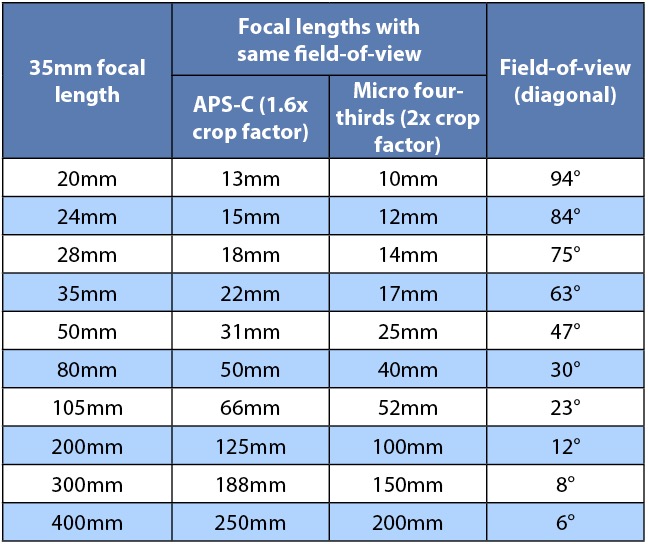
This table shows the field-of-view of common focal lengths with full-frame, APS-C and micro four-thirds cameras.

focal length and composition

The next points explore the relationship between field-of-view and composition.

2. Wide-angle lenses are lenses of inclusion

You can think of any lens with a field-of-view wider than around 63 degrees as being a wide-angle. That’s 35mm or shorter on a full-frame camera, 20mm on APS-C, and around 18mm on micro four-thirds.

Wide-angle lenses have two characteristics that affect composition:

  1. The wide field-of-view means that you have to move in close to your subject to fill the frame. But, at the same time wide-angle lenses also include quite a bit of the background. The shorter the focal length, the closer you need to get, and the more background is included.
  2. Wide-angle lenses also appear to have more depth-of-field at any given aperture setting than longer focal lengths (they actually don’t, it has to do with lens to subject distance which also changes with focal length).

These two factors combine to make wide-angle lenses, ones of inclusion. You can always fit more into the frame with a wide-angle lens, no matter how close you get to your subject. The background is also more likely to appear more in focus, than it is with longer focal lengths. Getting in close, creates the dramatic perspective that some photographers love. It emphasizes line, and creates a sense of depth, that images taken with longer focal lengths can lack.

The slightest change in your point of view makes a dramatic difference to the composition of the photo. The shorter the focal length, the more this applies. As wide-angle lenses include so much background it can be difficult to simplify the composition and remove all distractions. There’s no way around it, it’s just a characteristic you have to embrace.

focal length and composition

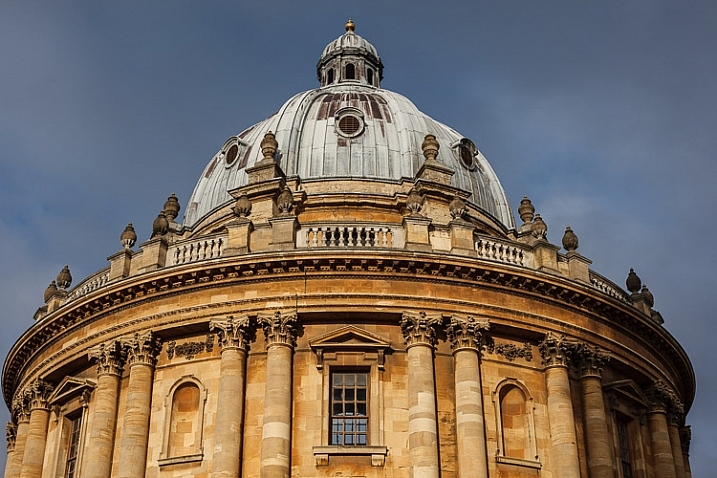
This photo, taken with an 18mm lens (APS-C), includes the buildings, the city wall, the reflection in the water, the city trees disappearing into the distance, and keeps everything in sharp focus.

3. Telephoto lenses are lenses of exclusion

A telephoto lens is one that has a field-of-view of around 30 degrees or less. That’s around 85mm or longer on a full-frame camera, 50mm on an APS-C camera, and 40mm on micro four-thirds.

Telephoto lenses are ones of exclusion. They have a narrow field-of-view. Fill the frame with your subject, and you won’t get much background in at all. It is also easy to throw the background out of focus by using a wide aperture, and making sure there is sufficient distance between your subject and the background.

focal length and composition

This photo, taken with a 50-150mm lens set to 72 mm (APS-C), shows the woman’s hands and the textiles she is selling. There is not much in the background at all.

4. Normal lenses occupy the middle ground

Normal lenses, those with a field-of-view somewhere around 55 degrees, occupy the middle ground between wide-angle and telephoto. They don’t create images with the dramatic perspective that you can obtain with a wide-angle, nor do they exclude the background to the same extent as telephotos.

If you have a normal prime lens you can open the aperture up to defocus the background, sometimes quite dramatically if you get close enough to the subject. But, you can also often stop down enough to get everything within the frame in focus.

focal length and composition

I took this photo with a 35mm lens, a normal lens on an APS-C camera. It lacks the dramatic perspective, and wide field-of-view of the photos taken with wide-angle lenses. But it includes more of the background and shows less compression than the photos taken with telephoto lenses.

Your turn

Can you think of anything else that photographers ought to know about focal length, field-of-view, and composition? If so, please let us know in the comments. I’d like to hear your thoughts.

Note: this is the second in a series of articles on dPS this week talking about composition. See: Using Framing for More Effective Compositions and look for more over the next few days.


Mastering Composition ebookMastering Composition


My new ebook Mastering Composition will help you learn to see and compose photos better. It takes you on a journey beyond the rule of thirds, exploring the principles of composition you need to understand in order to make beautiful imag

googletag.cmd.push(function() {
tablet_slots.push( googletag.defineSlot( “/1005424/_dPSv4_tab-all-article-bottom_(300×250)”, [300, 250], “pb-ad-78623” ).addService( googletag.pubads() ) ); } );

googletag.cmd.push(function() {
mobile_slots.push( googletag.defineSlot( “/1005424/_dPSv4_mob-all-article-bottom_(300×250)”, [300, 250], “pb-ad-78158” ).addService( googletag.pubads() ) ); } );

The post 4 Things You Should Know About Focal Length and Composition by Andrew S. Gibson appeared first on Digital Photography School.


Digital Photography School

 
Comments Off on 4 Things You Should Know About Focal Length and Composition

Posted in Photography


10 Crucial Things You Need to Think About for Portrait Photography

20 Oct

Darlene’s Portrait Fundamentals course is on sale for $ 75 (50% off) now until November 3rd only. Find out more or grab the deal over at Snapndeals.com.


There are many pieces to doing a portrait – it’s not easy. You have to think about the technical stuff like exposure and focus, as well as the non-technical stuff like composition and working with a live subject. It can be daunting if you’re just starting out doing portrait photography so let’s break it down into all the pieces so you can work on one at a time, then put it all together.

Portrait tips dps717px 04

Here are the 10 crucial elements you need to think about when doing portrait photography:

  1. Lighting Pattern
  2. Lighting Ratio
  3. Quality of light
  4. Lens selection
  5. Background
  6. Exposure/metering
  7. Sharpness – getting it in focus
  8. How to position the subject (posing)
  9. Facial view and camera position
  10. Expression

THE TECHNICAL STUFF

#1 Lighting pattern

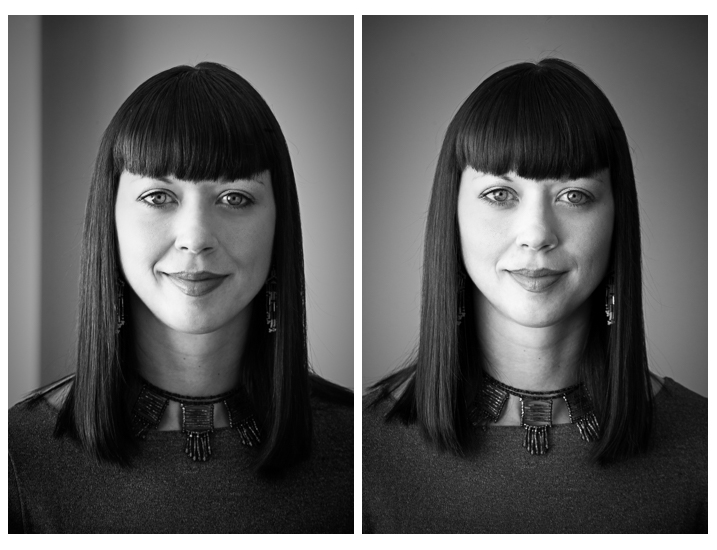
This is how the light falls on the subject’s face. How you set up the light will determine the mood of the final portrait and whether or not the subject is flattered. Lighting partner is a critical piece to get right. There are four main type of patterns and two styles, they are:

  • Split lighting
  • Loop lighting
  • Rembrandt lighting
  • Butterfly lighting
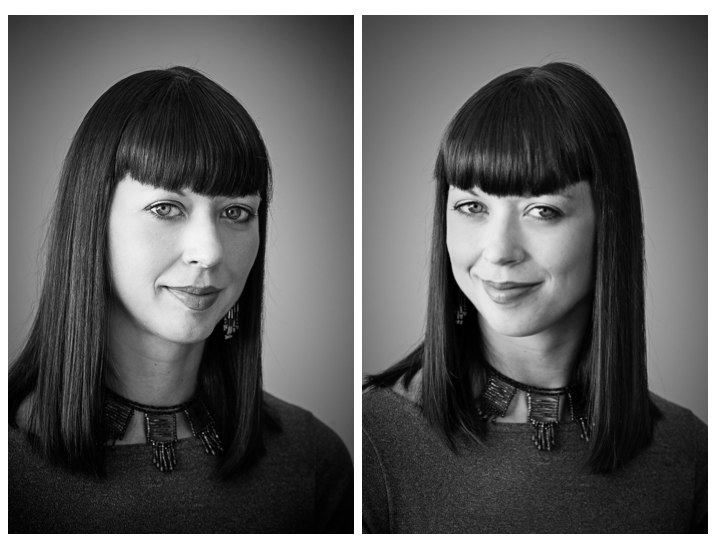
  • Short lighting
  • Broad lighting
Portrait tips 02

Left – Split lighting. Right – Loop lighting.

Portrait tips 01

Left: Broad lighting. Right: Short lighting. Notice how different she looks in each image, particularly her nose!

Knowing what each looks like and when to use them is very important. Read more here: 6 Portrait Lighting Patterns Every Photographer Should Know.

#2 Lighting ratio

A ratio is a comparison of one thing to another and in terms of lighting it is comparing the dark and light sides of the face. How much difference is there is from the shadow, to the highlight side? The greater the ratio, the more contrast the image will have, and the more moody the portrait will become. The lower the ratio, the less contrast, and the portrait will have a lighter, fresher feeling.

Look at the following examples:

Portrait tips 03

In the images above the ratio on the left is very strong, about 16:1 or four stops. The missing is about 4:1 or two stops, and the right is almost 1:1 or even. The only difference from one to the next is use of a reflector. Notice how the mood and feel of the portrait changes, as the contrast is adjusted.

For more detail on ratios read: Lighting Ratios to Make or Break your Portrait

#3 Quality of light

Another aspect of lighting you need to decide is whether you will use hard or soft light.

Hard light is produced by a small light source and is characterized by high contrast, enhanced texture of the subject, added drama, and harsh well edge-defined shadows. Examples of hard light sources are:

  • The sun (even though it is large, it is far away so its relative size is small)
  • A bare light bulb
  • The small built-in flash on your camera (including your speedlight without modifiers)

Here are two portraits done using hard light. Which is more appropriate use of this type of lighting for the subject?

Portrait tips dps717px 08

Portrait tips dps717px 05

Soft light is produced by a very large light source. It is low contrast (or can even be quite flat), less textureenhancing, and is more forgiving and flattering for people photography. Examples of soft light sources are:

  • The sky on an overcast day
  • Large studio softboxes
  • A large reflector like 42” or 52”
  • An on-camera flash that has been bounced off a ceiling or wall

Here are two portraits done using soft light. Which is more appropriate use of this type of lighting for the subject?

Portrait tips dps717px 09

Portrait tips dps717px 07

So along with the ratio, the quality of light will have a great affect on the mood and feeling of your portrait. Choose soft light for portraits that flatter the subject, and choose hard light for an edgier look with more grit and drama.

#4 Lens selection

The lens you select will change the appearance not only of the subject, but the background as well.

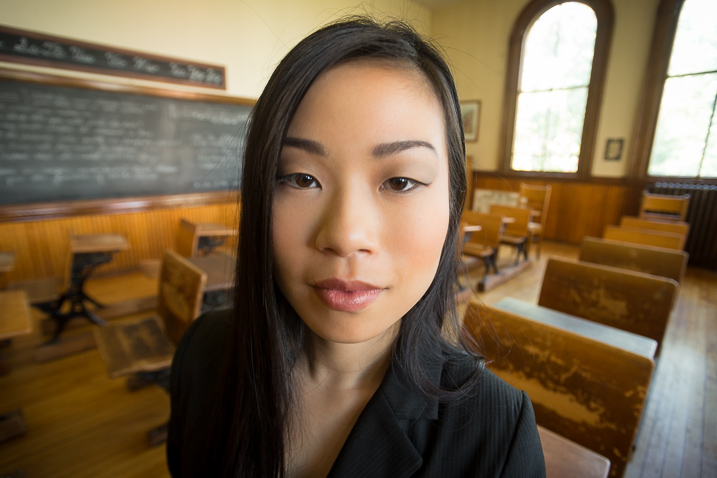
Using a wide angle lens will introduce distortion and cause the subject’s face to look abnormal, sort of stretched. It will also allow you to see a large sweeping view of the background behind them.

Portrait tips dps717px 13

Notice how the shape of her face and her features are distorted? This is not something most people will desire.

However, there may be instances where you want this look such as a humorous portrait, kids, or an editorial style portrait of a street vendor at a market where you want to see his environment.

Portrait tips dps717px 12

The wide angle view adds to the comical nature of this portrait.

Telephoto lenses compress perspective – this does two things. First it is usually more flattering to the subject, their facial features look less distorted. Second, it simplifies the background by seeing less of it, and often it’s less in focus as well (dependant on distance to the background) putting more emphasis on the subject, which is what you want. Read more at: How to Achieve Blurred Backgrounds in Portraits.

Portrait tips dps717px 14
Same girl as the portrait above. Compare her face in the two images, and take note of the background as well. See how much less of the room, and how it is more out of focus than the wide image above?

Portrait tips dps717px 11
The long lens used for this image has compressed the background and because it is so far away (across the river on the other side) it is really out of focus and provides a soft background to enhance the portrait, not take away from the girl.

#5 Background

One thing many of my students forget to control and think about is the background. It’s so easy to be focused on all the other stuff and working with your subject that you forget to even look at the background.

Two things you want to make sure about for the background are: it makes sense with the portrait, and doesn’t distract the viewer from the subject. There are four things that can do that, watch for them in your background and adjust your camera position or composition accordingly if they show up:

  • Contrast
  • Bright colours (warm tones are the worse for distraction like red and yellow)
  • Sharpness
  • Bright areas
Portrait tips dps717px 15

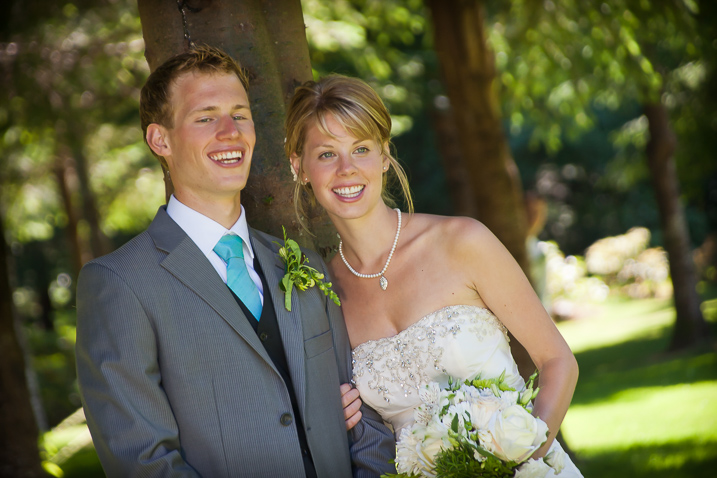
See how the bright areas, which are also high contrast, in the background draw your attention away from the wedding couple?

Any or all of those can draw the eye away from the subject if they are in your background. The eye is attracted to the brightest area of an image, as well as the sharpest. So get your portrait subject away from the background far enough to get it out of focus, and watch for hot spots that grab the eye. Sometimes simply moving your camera a foot or two to the left or right can eliminate trouble areas and give you a cleaner background – allowing the subject to be the star.

Portrait tips dps717px 16
Use of multiple techniques here have drastically improved this portrait over the one above. The background is now solid, out of focus, and it does not take your eye away from the couple but rather compliments the overall portrait.

#6 Exposure and metering

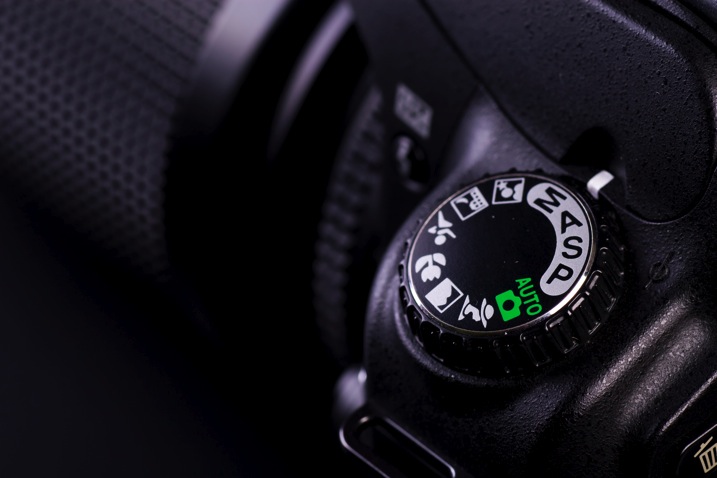
For a portrait where the subject is not moving, I almost always use the following camera settings:

  • Manual shooting mode
  • Single shot drive mode (when I press the button it takes one image only)
  • Single point focus (not multi or zone)
  • One-shot or AF-S focus mode to focus and lock (not continuous)
  • Shade White Balance preset (as I am usually working in the shade, if you’re in the bright sun choose that – but pick one that matches your lighting condition and leave it, anything but AWB!)
  • Shoot in RAW

That gives me the most control over doing one very important thing – having a consistent exposure from one frame to the next. That may not seem like a bit deal but if you ever decide to do portraits for a friend or have real paying clients – you want to be able to show them the images on the back of the camera and not worry about the one in the middle that was black cause you forgot to adjust the exposure.

Photodune 1733468 camera controls m

The other thing it does is makes editing in the post-production stage much faster.

So basically set your exposure, do a test shot (review it for exposure using the histogram), then don’t touch it unless you either move to a new location, or the light changes.

#7 Sharpness – getting it in focus

I already mentioned the settings I use for focus above. Back button focus is something I highly recommend as well. It allows me to lock focus on the subject, precisely on their eye if I’m in close enough, and then recompose my portrait and shoot away. Unless the subject or I move, changing the distance between us, there is no need to refocus.

Here are a few more focus tips from a past article I did: 5 Tips for Getting Sharper Images. Obviously if you’re shooting a moving target, like kids in action, you’ll want to choose different focus settings. Try Continuous focus (Servo or AF-C) and burst mode (continuous shooting mode or drive).

THE AESTHETIC STUFF

#8 Posing the subject

Getting your subject or model into a comfortable, yet flattering pose can be tricky. People are generally nervous when being photographed and will look to you for guidance on how to stand, hold their body, turn their head, and adjust their hands. So you need to have a few ideas ready for them, making sure they can hold it comfortably and they look good at the same time.

Here are a few tips:

  • You’ve likely heard this before, but if it bends – bend it. Meaning get them out of a stiff body position bending one leg slightly, and bending elbows and wrists.
  • Get them to shift their weight away from the camera (hip away) it will be more flattering that way.
  • Add a slight head tilt for ladies to add a touch of femininity.
  • To get people to turn their body when standing – tell them to turn and point their feet, the body will follow naturally.
  • Turn shoulders slightly to narrow the body width, which is more flattering for most people.
  • Let them pose naturally and just make slight tweaks or adjustments. Watch how they move on their own so it still looks like them.
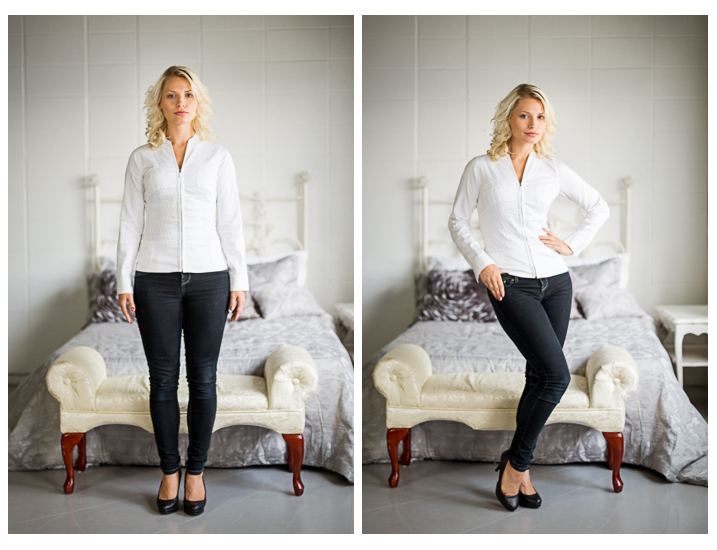
Portrait tips dps717px 17

Left – stiff and boring. Right – bend the parts that bend and make a more dynamic pose, it’s also more flattering, and in this case feminine.

For more tips on posing read these dPS articles:

  • Portrait Posing Tips- How to Help People to Relax and Take Better Photos
  • Tips for Posing Men
  • Posing Guide for Photographing Women: 7 Poses to Get You 21 Different Photos
  • Or grab the dPS ebook Portraits: Strike the Pose

#9 Facial view and camera position

How you position the subject’s face is another factor that determines how flattering the portrait will be, and the mood. Some people look really great in full face view (facing the camera directly) while most benefit from turning slightly to one side, thus narrowing the face a little.

Profile view is something people cannot see in the mirror, so many have never seen theirs, and have no idea what they look like from the side. Only by trying it out will you see and know if it’s flattering for them.

The key to choosing the right angle for their face is to observe them. Do they tend to turn slightly when talking to you? Take note – that is probably the side the subconsciously prefer.

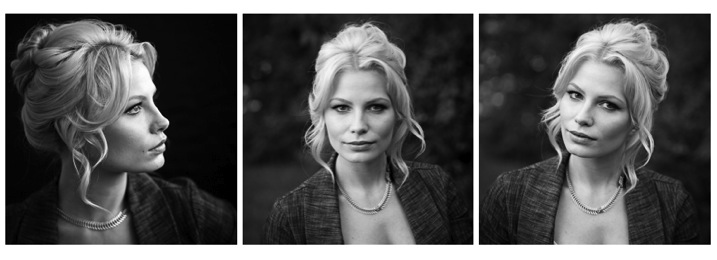
Portrait tips dps717px 18
Three different views of the same girl’s face (above). She has a really gorgeous profile and a square jaw. I think the profile and last image (¾ face view) are the most flattering for her but she looks great in any image. Not all your portrait subjects will have that, so you have to help them look their best by making choices like this. If in doubt, shoot all three and choose later, or let them pick. You’ll learn from the subject what they like and what they think looks flattering.

Tip: for people who have a bump on their nose that do not want it to show – try photographing them facing both ways. One way will show the bump, the other it will be hidden. How you do that is shoot one way with the light say off to camera right. Then trade places with them so the light is coming from the other way and do a second shot. See which shows, and which hides the bump – then you’re ready to go.

What camera position you choose will decide what you’re emphasizing on the subject. A low camera angle can show height (especially if shooting full body) and make someone look taller, but it also emphasizes the body more. Not a good choice if someone wants to appear slimmer. Getting low down near kids level puts you closer to the action and makes them appear less small.

A slightly above eye level camera angle will emphasize the face and minimize the body, a good choice for most people. It also makes kids look smaller and can be effective if that’s the look you want. A really high angle will make the forehead prominentant (perhaps not the best choice for a receding hairline).

Just be conscious that where you place your camera will affect the final look of the portrait.

#10 Expression

Portrait tips dps717px 20

Even though my Spanish is limited I was able to talk to this little girl and got this reaction and expression. She is holding a photo of her auntie’s ultrasound and her new baby cousin to be that she was really excited about. I just asked her to show me her baby primo (cousin) and she did this.

Okay, this is the ultimate thing you need to get right for great portraits. You can nail all nine points above, but if the subject has a bad expression, they will not like the image. There is one big tip I have for getting the best expressions in your portraits – talk to the subject and interact with them. There is one huge barrier to doing that which I see happen all the time.

There is a big black thing in between you and the real person sitting in front of you!

Yes, I mean the camera. Try this exercise if you dare:

Get a friend, or one of your kids or grandkids, to pose for you. Now put the camera up to your eye and take a few shots. How did it feel to you? Did you feel connected to your subject? Ask them how they felt?

Now put the camera on a tripod – yes the dreaded beast we all hate but it a necessary evil – and take a few shots using a remote trigger to fire the camera. How did you feel then? What about your subject? Were you able to make them laugh or smile? I’m going to go out on a limb and guess that you both had a better experience the second time and you got better expressions in the photos.

The key to expression is eye contact and you cannot do that with a camera between you.

Portrait tips dps717px 21
I’ve photographed Bob many times. He is a volunteer at an old coal mine where I do a workshop twice a year. He was a miner way back in the day and is as spry in his 70s as many people who are 40! He loves telling stories about the mine and ghosts so I just get him talking and let him go. We have fun, he loves being a “model” for a day, and it shows in the images.

Try it and see if it doesn’t make a difference. The tripod will also make you slow down and think about your camera, settings, and everything. Your tripod is not evil, it is your friend. Make friends with your tripod and use it.

Putting it all together

Whew! See I told you doing portraits is a lot to think about. But you can do this, you got this. Just take it one step at a time. If you aren’t at the stage of getting all 10 of these things yet, just pick one at a time and work on that. Choose patient models that will help you and practice. The only way to get better is by doing.

My students often ask me, “How do you make it look so easy?” – then answer – I’ve been doing this a really long time and it becomes instinct and subconscious after so many hours. Put in your 10,000 hours and we’ll talk!

If you have any questions or want to share your images – please do so in the comments below.


snapdeal-330-x-220Darlene’s Portrait Fundamentals course is on sale for $ 75 (50% off) now until November 3rd only. Find out more or grab the deal over at Snapndeals.com. Take more professional looking portraits in 30 days! The Portrait Fundamentals course covers everything you need to know, from camera basics to using a multi-flash set-ups. Over 6.5 hours of video lessons with two experiences instructors.

googletag.cmd.push(function() {
tablet_slots.push( googletag.defineSlot( “/1005424/_dPSv4_tab-all-article-bottom_(300×250)”, [300, 250], “pb-ad-78623” ).addService( googletag.pubads() ) ); } );

googletag.cmd.push(function() {
mobile_slots.push( googletag.defineSlot( “/1005424/_dPSv4_mob-all-article-bottom_(300×250)”, [300, 250], “pb-ad-78158” ).addService( googletag.pubads() ) ); } );

The post 10 Crucial Things You Need to Think About for Portrait Photography by Darlene Hildebrandt appeared first on Digital Photography School.


Digital Photography School

 
Comments Off on 10 Crucial Things You Need to Think About for Portrait Photography

Posted in Photography


What Michelangelo and Other Great Artists Said About Photography

09 Oct

The words of the wise men can be a great source of motivation in the moments of creative or any other kind of personal crisis. While you probably got used to seeing quotes by renowned photographers in your Twitter or Facebook feed, have you ever wondered what great artists, such as Michelangelo, Salvador Dali, or Claude Monet could say about Continue Reading

The post What Michelangelo and Other Great Artists Said About Photography appeared first on Photodoto.


Photodoto

 
Comments Off on What Michelangelo and Other Great Artists Said About Photography

Posted in Photography


Early Morning Light: What’s so Great about It?

13 Aug

Let’s face it, getting up super early in the moring is horrid, any way you look at it. I hate it, the clients hate it, my assistants really hate it, and yet, more often than not, here I am, setting my alarm at 3 in the morning. Why? It’s the Light. Morning light is so gentle and beautiful. It just Continue Reading

The post Early Morning Light: What’s so Great about It? appeared first on Photodoto.


Photodoto

 
Comments Off on Early Morning Light: What’s so Great about It?

Posted in Photography


Fast Zoom: What you need to know about Panasonic’s Lumix DMC-FZ300

16 Jul

With its 25-600mm equivalent F2.8 lens and solid image quality, the Panasonic Lumix DMC-FZ200 was one of our favorite cameras in 2012. With its FZ300, Panasonic has kept the lens and sensor but has improved just about everything else, from its image processor to video specs. We recently had some hands-on time with the FZ300 and have plenty of highlights to share. Read more

Articles: Digital Photography Review (dpreview.com)

 
Comments Off on Fast Zoom: What you need to know about Panasonic’s Lumix DMC-FZ300

Posted in Uncategorized