RSS
 

Posts Tagged ‘About’

All about control: Huawei P9 camera review

24 Jul

DPReview smartphone reviews are written with the needs of photographers in mind. We focus on camera features, performance, and image quality.

$ (document).ready(function() { SampleGalleryV2({“containerId”:”embeddedSampleGallery_8524135201″,”galleryId”:”8524135201″,”isEmbeddedWidget”:true,”standalone”:false,”selectedImageIndex”:0,”startInCommentsView”:false,”isMobile”:false}) });

Right behind the LG G5, the Huawei P9 is the second device to launch in 2016 with dual cameras. However, while on the LG the secondary module essentially acts as a wide-angle extension, Huawei’s approach is different. In the Huawei system, which has been co-engineered with German camera manufacturer Leica, a 12MP RGB main sensor is accompanied by a 12MP monochrome chip. Huawei says combining image information from both sensors makes the P9 camera 100% more light-sensitive than conventional smartphone cameras which should, at least in theory, result in superior low light image quality.

The P9 is also capable of some other dual-camera tricks that we’ve seen before, such as simulating shallow depth-of-field. While the camera is no doubt one of the most interesting we have seen this year, with an octa-core chipset and fingerprint reader the non-camera specifications are flagship-worthy as well. Read our full review to find out how the Huawei P9 performs in the hands of a mobile photographer.

Key Photographic / Video Specifications

  • Dual Sony IMX 286 12MP sensors with 1.25µm pixel size
  • 27mm equivalent focal length
  • F2.2 aperture
  • Laser-assisted AF
  • DNG Raw capture
  • Manual control
  • 1080p Full-HD video
  • 720p, 120fps slow-motion video
  • 8MP front camera with F2.4 aperture

Other Specifications

  • 5.2-inch 1080p IPS screen
  • HiSilicon Kirin 955 chipset
  • 3GB RAM/32GB storage or 4GB RAM/64GB storage
  • microSD slot
  • 3,000mAh battery
  • Fingerprint reader

Articles: Digital Photography Review (dpreview.com)

 
Comments Off on All about control: Huawei P9 camera review

Posted in Uncategorized


Interview: Celebrity photographer Jeremy Cowart speaks to us about The Purpose Hotel

20 Jul

Imagine staying at a hotel where everything in the rooms – and the nightly rate of the room itself – benefited someone in need. That’s the idea that lodged in commercial and editorial photographer Jeremy Cowart’s imagination, and which has since evolved into ‘The Purpose Hotel’.

With a Kickstarter campaign launching this week, Cowart hopes to open the first Purpose Hotel in Nashville within three years. So why would a successful photographer switch from taking pictures of some of the world’s biggest celebrities, to get into the hotel business?

We spoke to Jeremy recently about his work, and his plans for The Purpose Hotel.


What is the Purpose Hotel?

It’s going to be a hotel where everything in the building is connected to a cause, or a non-profit. So everything you’re interacting with is helping someone, somewhere in the world. Our tagline is ‘Change the World in Your Sleep’.

The Purpose Hotel will be a for-profit hotel, so in that regard it’s a normal hotel business, we just have a very serious cause at the core of our mission, and that cause is to help as many organizations as possible.

There are a million hotels out there, and obviously some are trying to think more along the lines of giving something back, but I’m not aware of any hotel that’s doing it at the level that we’re aiming for.

What inspired you to create the concept of the Purpose Hotel?

I was on a photo shoot four years ago, and I was staying at the Standard, a hotel in LA. And the room number was designed like a name tag – it said something like ‘Hello, my name is Room 121’. And for whatever reason that inspired me, and I took it a different direction, and wondered what if that room number was a story that you felt connected to? And what if that story was a child’s face, and what if by staying in that room you were sponsoring that child?

So it started with that simple idea, and then as I was looking around that hotel room I started thinking, well, I know there are non-profits that make soaps, and shampoo… what if the TV showed inspiring documentaries from filmmakers all around the world… what if the Internet fee went to fight human trafficking… what if room service was connected to Food for the Hungry?

I just had this lightbulb moment – what if everything was helping something? And it grew from there. 

Instead of going out and buying soaps and shampoo from whoever, or artwork just to fill the hotel, we’re going to go and source those from companies that are already supporting non-profits.

$ (document).ready(function() { SampleGalleryV2({“containerId”:”embeddedSampleGallery_8161897269″,”galleryId”:”8161897269″,”isEmbeddedWidget”:true,”standalone”:false,”selectedImageIndex”:0,”startInCommentsView”:false,”isMobile”:false}) });

Is photography core to the concept of the Purpose Hotel?

In a way, yes. It’ll obviously still be a hotel, but as a photographer and an artist I want there to be an amazing display of both, in the hotel. I can’t wait to personally curate those galleries because I have so many friends and peers in the industry whose work I really want on the walls of the hotel.

My dream is for the whole hotel to be a living, breathing art gallery, where we sell the artists’ work, and that money goes to them. I want to help artists make a living through the hotel, and I hope that we can also give a percentage of sales to organizations that do art therapy. So that kids around the world can process their past, their history, through art therapy. I got to do that in Uganda and it was amazing.

At this point, would you say you’ve made a transition of sorts, from making a living purely from photography, to more of a philanthropic way of life?

Sure, it could be called philanthropy, it could be called being an entrepreneur. But at the end of the day I think of myself as an idea chaser. When we have those whispers of ideas, a lot of people don’t pursue them because they think they’re impossible or they think they can’t, but I love the challenge of chasing those ideas no matter how big they are.

I’m passionate about the intersection where creativity and helping people meet. If I can help the community and do it in a really interesting, creative way, I’m passionate about that.

Was there a single experience, or trip that lead you to be more interested in philanthropy?

It was a sort of building, escalating thing. From my first trip to Africa in 2005, followed up by many more trips, doing projects overseas. I’m the founder of Help Portrait, which is a non-profit where we have photographers all over the world giving portraits to people in need. So yeah – I’ve found so much fulfillment from all of those projects. 

Do you see yourself potentially making a living out of projects like this, or will you always be a commercial photographer as well?

Good question, and I’m not sure about the answer. I’ll always be a visual artist first. I think that will continue to morph into different forms – I’ll always have a camera in my hands, I’ll always shoot, but I hope that there are humanitarian projects and personal projects in my future.

What has your photographic career taught you?

Every photographer wants to build a name for themselves, and wants to be famous and all that. But I’ve learned that it’s a lot less fulfilling than you think it is. It’s not that great, it’s not going to change your life. I like to say that greatness should be used to serve a greater purpose. So how do you use greatness to do something even bigger than yourself? That’s a lesson I’ve learned, and I’m continuing to do things that are bigger than me, and which aren’t about me.

Articles: Digital Photography Review (dpreview.com)

 
Comments Off on Interview: Celebrity photographer Jeremy Cowart speaks to us about The Purpose Hotel

Posted in Uncategorized


All about the details: Hasselblad X1D pre-production samples

07 Jul

At a recent Hasselblad event in London I got some time with the new 50MP Hasselblad X1D mirrorless camera. The bodies are still very much at the pre-production stage, and many of the proposed features that will be available when the camera goes on sale have still to be implemented.

The unit I used didn’t have touch AF activated, so focusing had to be done with the central AF point or manually, and the Nikon-based flash system was not installed. Hasselblad also made it very clear that the AF speed experienced with this camera did not represent what the production models would manage, and that the image quality is still far from finished. The company has however agreed to let us publish some sample shots to allow readers to get an idea of the sort of resolution and colors the camera can achieve.

I shot Raw and JPEG files and processed them through both Adobe Camera Raw and Hasselblad’s own Phocus software. The difference in color, brightness and general quality is quite different between the two applications, and the JPEGs shown here are from Raw files processed in Phocus. The images have been approved by Hasselblad for publication, but they stress that the minor faults found will not be present in images from the production models. Of the twelve images I sent for approval only one was rejected.

As focusing on off-center subjects meant using the central AF point, locking the focus and recomposing, you’ll note that some images have the focus on the farther eye rather than the closer, but I’ve left these in as they still demonstrate other elements of the image quality. In other shots I focused manually and found that the 2.36-million-dot EVF is of excellent assistance and makes finding focus quite easy.

The camera has a large grip but it feels very secure in the hand, and the whole system is comfortable to hold and to use either to the eye or at arm’s length using the live view screen. The operating system will take a while for DSLR owners to get used to, but it matches the system used on the H6D so current Hasselblad customers will feel at home straight away.

I used the Hassleblad XCD 90mm F3.2 lens that delivers an angle of view we’d associate with a 71mm on a 35mm camera system. Shots taken at ISO 200 were lit with broncolor flash heads, and the ISO 400 and 1600 images were exposed with window light and a little tungsten fill.


Editor’s Note: Images have been sharpened to taste in Phocus software. That said, the fact that such high levels of sharpness can be attained with very little image noise cost is a testament to the light-gathering capability of larger, particularly Medium Format, sensors. 

Articles: Digital Photography Review (dpreview.com)

 
Comments Off on All about the details: Hasselblad X1D pre-production samples

Posted in Uncategorized


All about that lens: Sony Cyber-shot RX10 III review

21 Jun

Introduction

The Sony DSC-RX10 III is an enthusiast-oriented bridge camera with a 24-600mm equivalent F2.4-4 lens and 20MP 1″-type stacked CMOS sensor. That sensor and the BIONZ X image processor are shared with the RX10 II and Sony RX100 IV, and offer great dynamic range and high ISO performance as well as 4K video and a range of high-speed video capture modes.

The RX-series has always been designed as much for video shooting as well as stills shooting in mind, and the RX10 III doesn’t change that. The real story of the RX10 III lies within its massive zoom lens. The RX10 III may look similar to the RX10 II when you look at them individually, but once you see them together, it’s immediately apparent just how much Sony tweaked the design of the III to accommodate the threefold increase in zoom power. The body and grip are ‘chunkier,’ and the weight has increased as well. Overall, the two are more siblings than twins.

Key Features

  • 20MP 1″-type stacked CMOS sensor
  • 24-600mm equivalent F2.4-4 Zeiss Vario-Sonnar T* lens
  • Bionz X processor
  • 4K video capture
  • Ultra slow-motion video capture
  • Tilting screen and high-resolution OLED electronic viewfinder with 2.35m dots
Straight-out-of-camera JPEG, cropped to taste. 124mm equivalent | F4 | 1/3200 sec | ISO 100. Photo by Carey Rose

There will be those people that buy the RX10 III straight away, simply because it zooms more than x camera. But it’s worth asking yourself if you really need 600mm of reach – because if you aren’t really sure you do, then you probably don’t. But as you’ll see later on, the RX10 III’s lens is so good that it might be worth it to you even if you only use the extreme reach occasionally.

Let’s also put that ‘extreme reach’ into some perspective here. The RX10 III’s 600mm zoom might seem to pale in comparison to a Nikon Coolpix P900, which packs a 24-2000mm zoom – but puts it in front of a much smaller sensor. The Sony and the Canon PowerShot G3 X attempt to strike a balance between image quality and size with their 1″-type sensors, and the image quality compared to smaller sensor solutions speaks for itself. Larger sensor = more light = better quality.

Straight-out-of-camera JPEG. 41mm equivalent | F5 | 1/1000 sec | ISO 100. Photo by Jeff Keller

Now, whether or not you want to use all this reach will vary greatly depending on the types of photography you enjoy. But it’s worth noting that long telephoto focal lengths, just like very short (wide angle) focal lengths, can take some practice to get good photographs with. Just because you can zoom closer in to an object doesn’t necessarily coincide with an increase in the quality of your photos or the video clips you capture.

With all that out of the way, let’s look a little closer at what this lens can do.

600mm

The RX10 III’s lens zooms in so far it’s almost amusing. It takes between three and four seconds for the lens to rack through the full zoom range. It also takes noticeably longer for all that glass to extend for power up than either the Panasonic FZ1000, which has less reach, and Canon G3 X, which has a much more compact lens at the expense of a slower maximum aperture.

Shooting at 600mm equivalent can offer up some interesting compositional choices, while the available 20MP make additional cropping a viable option if you could’ve used even more reach. But check out that heat haze, even early in the day! Processed and cropped to taste from Raw. 600mm equivalent | F4 | 1/1000 sec | ISO 250. Photo by Carey Rose

So while the lens makes the camera a little slow to start up and adds some bulk, in use it is very sharp throughout the zoom range, irrespective of distance to your subject (atmospheric conditions notwithstanding). Before using the RX10 III, I simply wouldn’t have thought images from a 1″-sensor superzoom camera could look this detailed. This model commands a $ 300 MSRP premium over the RX10 II, but in this case, it seems you get what you pay for.

The 72cm focus distance at maximum zoom won’t get you true super macro photos, but you’ll probably find that it focuses close enough. The lens also renders bokeh very nicely. Processed to taste from Raw. 600mm equivalent | F4 | 1/1000 sec | ISO 320. Photo by Carey Rose

Key features compared

  Sony RX10 II Sony RX10 III Panasonic FZ1000
MSRP $ 1199 $ 1499 $ 899
Sensor 20MP 1″-type stacked CMOS 20MP 1″-type stacked CMOS 20MP 1″-type CMOS
ISO range (native) 100-12800 100-12800 125-12800
Lens (35mm equivalent) 24-200mm F2.8 24-600mm F2.4-4 25-400mm F2.8-4
Built-in ND filter Yes No No
Min. focus distance 3cm 3cm 3cm
AF system Contrast detect Contrast detect Contrast detect
AF points 25-pt 25-pt 49-pt
EVF resolution 2.36m-dot 2.36m-dot 2.36m-dot
LCD 3″ 1.23M-dot tilting 3″ 1.23M-dot tilting 3″ 921k-dot fully articulated
Burst rate 14 fps 14 fps 12 fps
Video 4K/30p 4K/30p 4K/30p
Wi-Fi Yes, with NFC Yes, with NFC Yes
Battery life (CIPA) 400 shots 420 shots 360 shots
Weather sealing Yes Yes No
Dimensions 129 x 88 x 102mm 133 x 94 x 127mm 137 x 99 x 131mm
Weight 813 g 1051 g 831 g

As you can see, besides the lens and a modest increase in both size and battery life, the RX10 III is all but identical on the inside to the RX10 II. The older, less expensive Panasonic FZ1000 loses out in a few areas like battery life and weather sealing, but it is still a competitive machine in many ways (so long as you don’t need 600mm, that is).

While Sony touts the RX10 III’s lens as having a 9-bladed aperture for better out-of-focus renderings (compared to 7 blades on the Mark II), it lacks the built-in ND filter that was present on the previous model. This was especially helpful for shooting video under bright daylight. Of course, since the front of the lens is threaded, you can always add your own ND, but having the option at the press of a button would be a lot more convenient.

Because of the large-ish AF area the RX10 III defaults to, it will sometimes miss focus very slightly. Here, it backfocused onto the singer’s high-contrast hair instead of her face. But I’d have no problem using this for web publishing. Processed and cropped to taste from Raw. 600mm equivalent | F4 | 1/320 sec | ISO 6400. Photo by Carey Rose

Beyond that omission, the RX10 III offers all that made the RX10 II such a compelling camera. The sensor offers great performance, the 4K and high frame rate video is detailed and of good quality, and the body is weather-sealed. But unfortunately, the fact that the RX10 III shares so much with its predecessor also means that you get the standard Sony UI woes as well as a contrast detection-only autofocus system that works fine for static subjects, but struggles with low contrast subjects and at telephoto distances, where phase-detection would help the camera minimize hunting.

If you’re not shooting fast action all the time, the RX10 III has a lot of potential as a family vacation camera, an all-in-one photo and video solution for a journalist in a tightly staffed newsroom, or documentary photography where you can’t necessarily get close to your subject.

So without repeating everything that we’ve already covered on the RX10 II, let’s look chiefly at how the RX10 III differentiates itself by virtue of its optics.

Processed and cropped to taste from Raw. 375mm equivalent | F5.6 | 1/100 sec | ISO 200. Photo by Carey Rose

Sony RX10 III overview video

In case you missed it (or prefer video), here’s an overview video we produced at the launch of the RX10 III back in March, 2016.

Articles: Digital Photography Review (dpreview.com)

 
Comments Off on All about that lens: Sony Cyber-shot RX10 III review

Posted in Uncategorized


How to Use the Zone System to Learn about Metering and Exposure Compensation

16 Jun

When you first move off auto, you realize how much control you have over your camera. You get to choose the aperture, shutter speed, ISO, and be able to manually select the autofocus point, among many other things. In short you get control over everything!

You also get full control over the exposure, or brightness, of the image. You decide you where to set the exposure for each image – something that the camera does not always get correct. The reason the camera doesn’t get it right all the time is because the in-camera light meter doesn’t always know how the brightness level of the subject. What tricks the light meter is bright or dark tones.

So how do you take back control of the exposure, and compensate for the camera’s errors? The process of correcting your exposure is referred to as Exposure Compensation. For more on that read: How to Use Exposure Compensation to Take Control of Your Exposure. However, before you add any exposure compensation, you first need to know how much to compensate, and understand exactly what your camera’s light meter is doing. This is why learning how to meter is important. If you are unfamiliar with the term metering, it is the process of measuring light values.

The first thing to grasp when is how your camera’s light meter sees the world. Put simply, it sees everything in grayscale. This means that all your camera sees is a world of tones; a colourless world. It cannot differentiate trees from people, people from snow, etc. (Although more modern in-camera light meters will now also recognize colour, the same basic principles apply.)

The other critical element to know is that your meter wants to make everything middle-gray, commonly referred to as 18% gray. Remember that! Right it down! Keep it with you in your camera bag until it’s firm in your memory! It’s very important!

Everything you need to know about doing exposure compensation correctly hinges off 18% gray. If your scene has a lot of bright areas in it, such as snow or sand for example, your camera will want that to be 18% gray. If you’re photographing a person in dark clothing, your camera will also want to make that 18% gray. Your camera doesn’t know your subject is actually meant to be black, nor does it know that all of that white in the viewfinder is actually snow. Leaving your camera’s meter at zero, or Meter as Read (MAR), can cause your photo to be over or under exposed.

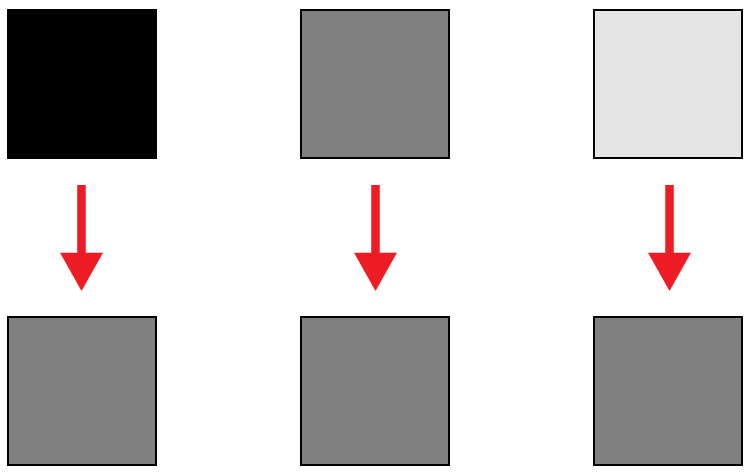
Here is an illustration of what your camera meter will do. Tones will end up 50% grey.

Here is an illustration of what your camera meter will do. All tones will end up 18% or middle gray.

So how does knowing how your camera will meter, help you to decide how much exposure compensation to apply? This is where knowing a little about the Zone System can come in handy.

What is the Zone System?

The Zone System was developed by the late Ansel Adams and Fred Archer. In essence, it was a system used to meter and continue on in the dark room when developing images. I’m not going to discuss the Zone System in its entirety – that could be something for a future article – but at its core, the Zone System will greatly help you decide how much exposure compensation to add or subtract.

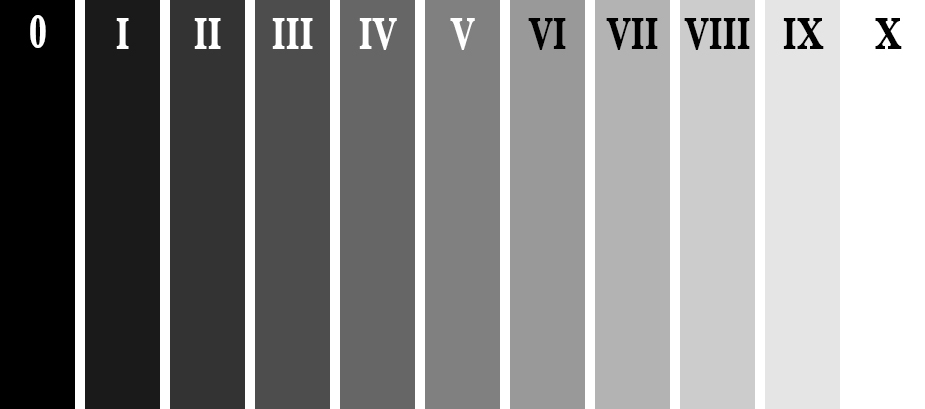
The Zone System

The Zone System

Above is an illustration of the Zone System. In it are 11 zones, denoted by Roman numerals. Here is a quick rundown of examples for each Zone:

  • Zone 0: Pure black, no detail. This is would be the edge of a negative film.
  • Zone I: Near pure black with slight tonality, but no detail.
  • Zone II: This is the first Zone where detail starts to show; the darkest part of the image where detail is recorded.
  • Zone III: Average dark materials.
  • Zone IV: Landscape shadows, dark foliage.
  • Zone V: Middle-gray, what your light meter sets to.
  • Zone VI: Average Caucasian skin tone.
  • Zone VII: Very light skin; shadows in snow.
  • Zone VIII: Lightest tone with texture.
  • Zone IX: Slight tone without texture, (e.g., glaring snow).
  • Zone X: Pure white with no detail. This would be light sources, or reflections of light sources.

This next piece of information is the other piece to the exposure compensation puzzle:

Each Zone is separated by exactly one stop of exposure.

Now that you have the information, how do you use it?! You know that you camera is metering for Zone V, or middle-gray, now consider your subject. How light or dark is it? If you were photographing a bride’s white dress, that would be very bright with texture; so going by the chart that would fall into Zone VII or VIII, which makes the exposure compensation required for correct exposure PLUS two or three stops (the difference between Zone V and where your subject should fall).

RV-02383-slideshow

Shot at zero exposure compensation. Black cat is gray or Zone V.

RV-02383-slideshow (1)

Shot at -2 stops black cat is now black or Zone III.

As an experiment, try photographing a piece of plain white paper. First, make sure that there is no exposure compensation added – your meter should be in the middle. Take a photo. Next, add +2-stops of exposure compensation. This will bring your exposure to Zone VII. Then, take another photo. Notice the difference? The first image should be very close to middle-gray, or Zone V, where the last image should be bright white, but still show detail in the paper.

External Light Meters

Another tool that may be helpful to you, is an external handheld light meter. They work the same way as your camera’s light meter in that they meter for middle-gray, but they have the added advantage of being to reading what’s known as Incident Light: that which is falling on the subject, not reflected from it. Your camera’s meter is a reflected light meter; it reads the light that has been reflected or bounced off your subject. This may seem obvious, but there is a big difference between incident light and reflected light. Reflected light is greatly affected by tone – the darker your subject is, the less light that will be reflected, whereas the brighter your subject is the more light that will be reflected. However, the incident light – or light coming from the light source – will remain the same no matter what the tones are in your subject. By using an external light meter, you are reading the light directly from the source; unaffected by the tone of the subject.

However, do be careful when you are using an external light meter that you read the incident light from the subject’s position. You may be in the shade, for example, and your subject in the sun. If you were to read the incident light for your position,you would be getting a reading for the shade area, and not the sun, which is the light that’s falling on your subject!

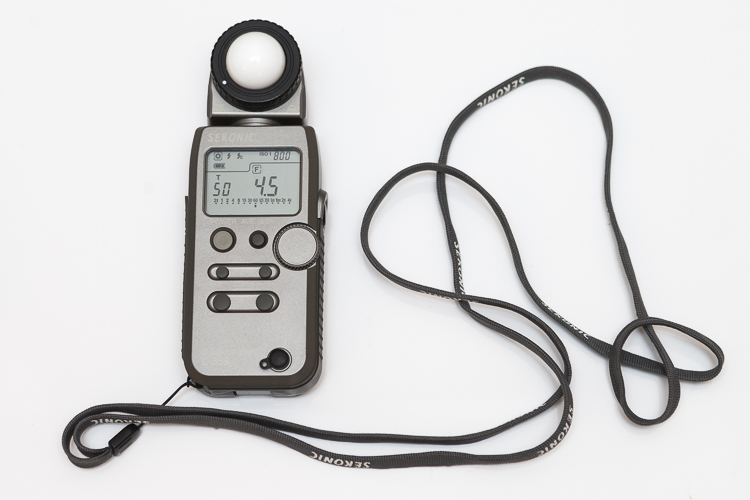
This is an external light meter. It's a Sekonic L-358, and is able to meter ambient light but also meter flash.

This is an external light meter. It’s a Sekonic L-358, and is able to meter ambient or natural light as well as flash.

Summary and application

Now that you know what your light meter is doing, and how to correct it with exposure compensation, you are on your way to getting more consistent and correct exposures.

Before you press the shutter button next time, do consider what the tones in your scene are like. Are there lots of brighter tones, or more darker tones? If your frame has more brighter tones, the exposure compensation will need to be more on the plus side to render them correctly. However, if there are more darker tones, your exposure compensation will be more toward the minus side of your meter. If you feel there are equal amounts of bright and dark tones, you may find that you don’t need to add any compensation at all.

teaching-eg-028-slideshow

Snow shot at zero exposure compensation is gray, or Zone V.

teaching-eg-028-blog1100

Snow shot at +2 is now white with detail or Zone VII.

If you’re ever unsure of how much exposure compensation to add or subtract, take a test shot at zero, or in the middle. This will help you decide the direction in which you need to go.

googletag.cmd.push(function() {
tablet_slots.push( googletag.defineSlot( “/1005424/_dPSv4_tab-all-article-bottom_(300×250)”, [300, 250], “pb-ad-78623” ).addService( googletag.pubads() ) ); } );

googletag.cmd.push(function() {
mobile_slots.push( googletag.defineSlot( “/1005424/_dPSv4_mob-all-article-bottom_(300×250)”, [300, 250], “pb-ad-78158” ).addService( googletag.pubads() ) ); } );

The post How to Use the Zone System to Learn about Metering and Exposure Compensation by Daniel Smith appeared first on Digital Photography School.


Digital Photography School

 
Comments Off on How to Use the Zone System to Learn about Metering and Exposure Compensation

Posted in Photography


The Uncomfortable Truth About Street Photography

10 Jun

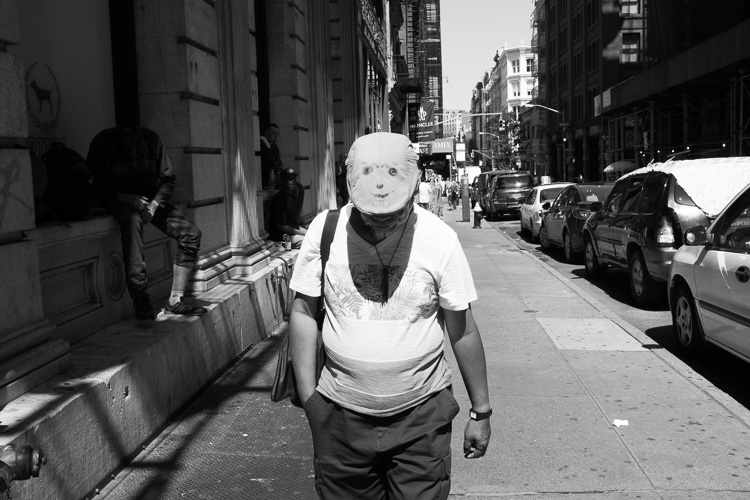
Smiley Face, SoHo, NYC.

As someone who has photographed people candidly since I first picked up a camera over 15 years ago, there is something that needs to be said to everyone that is interested in street photography.

Yes, what we’re doing has importance, whether through the angle of documenting history, noticing interesting moments, fostering ideas, or creating art. These photographs will have cultural value to them in the future, and most of us capture culture and humanity because we like them. We like people. We like to people watch.

Many photographers have been drawn to this genre before even realizing that it has a name, and this helps us realize that this way of viewing the world is instinctive to some people. It comes naturally. I remember picking up my first camera in New York. I could have easily looked up at the tall skyscrapers and epic architecture, and I did and still do, but the people walking around seemed just as fascinating.

Duck Face, SoHo, NYC.

Yes, it’s legal, at least if you’re in the United State and Britain. Yes, it’s within our rights to do this in public, and to share these images as art and for cultural purposes. No, it doesn’t make us bad people.

Street photography will make some people uncomfortable

But no, everything that I just mentioned does not completely free us from culpability out there. We have to consider that the practice of street photography can be inherently uncomfortable to our subjects. Some will understand what we are doing, but others will be weirded out by a stranger capturing a photo of them suddenly in public, whether it is in an obvious or a more candid way. Morality, cultural importance, and the good things that we are trying to create should all be put aside here, so that you realize there is a tradeoff going on. We are creating uncomfortable situations for others.

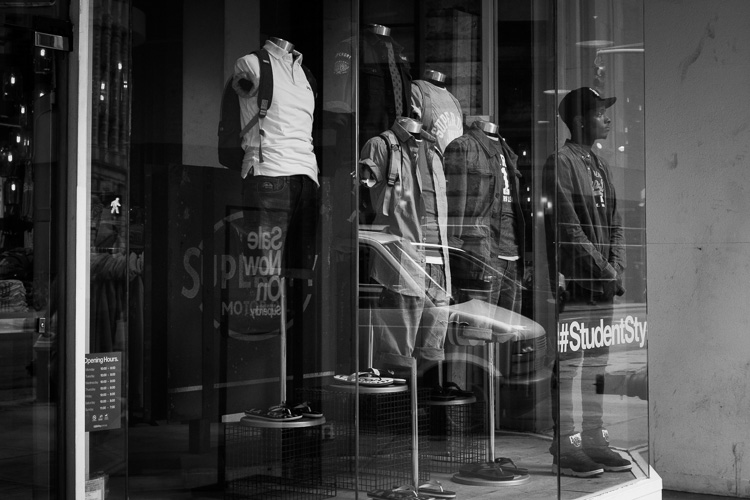
Student, Broadway

Some would even argue that it is a virtue to create a little uncomfort out there, and that we all need to be thrown off balance every once in awhile. I agree with this statement, but I still realize that there is a negative side to what I am doing.

Some people do not like that we are taking their photograph. Some would not be happy seeing the photograph afterwards. No matter how hard you try, you cannot avoid those people through your daily shooting.

Love, Midtown

This is something that you will have to come to terms with if you practice street photography. You can have a smile on your face and talk to anyone who seems uncomfortable with your presence with a camera. You can tell them that you did not mean to make them uncomfortable, and you can even offer to delete a photo if the person really doesn’t like it. You can do all of those things, but still you need to know that you are making people uncomfortable.

Yes, you.

I’m not saying that this should stop you from doing it, or slow you down, but it should be in the back of your head. It’s a privilege that we are allowed to do this, and we need to respect our subjects in the way that we shoot, even if there is no choice but to occasionally make someone uncomfortable. You can choose who it is you photograph, and the way and situations in which you photograph, but you will never be able to completely get rid of this.

Broadway Joe, SoHo, NYC.

Learn to live with it and accept it as you photograph people, but don’t ignore it.

Do you do street photography? How do you handle this uncomfortable aspect of this kind of photography? Please share your experiences in the comments below.

googletag.cmd.push(function() {
tablet_slots.push( googletag.defineSlot( “/1005424/_dPSv4_tab-all-article-bottom_(300×250)”, [300, 250], “pb-ad-78623” ).addService( googletag.pubads() ) ); } );

googletag.cmd.push(function() {
mobile_slots.push( googletag.defineSlot( “/1005424/_dPSv4_mob-all-article-bottom_(300×250)”, [300, 250], “pb-ad-78158” ).addService( googletag.pubads() ) ); } );

The post The Uncomfortable Truth About Street Photography by James Maher appeared first on Digital Photography School.


Digital Photography School

 
Comments Off on The Uncomfortable Truth About Street Photography

Posted in Photography


Everything you Always Wanted to know about a Career in Photography but were Afraid to Ask

08 Jun

Before I get into this article, I want to set the stage by saying that the objective here is not to diminish or make light of the concerns and questions that novice photographers have. In fact, at some point in our careers, we have all asked similar questions – sometimes out loud, and sometimes just in the solitude of our own minds. There is no wrong or silly question, and there are no right or wrong answers. These are in no particular order, and the views expressed here are solely based on my own experiences.

Memorable Jaunts DPS Article What you want to know - Beach sunset photos

One of my favorite images to date happened by pure accident – I saw the image in my mind even before I took a single frame.

Where can I learn about everything related to photography for FREE?

We are both lucky and unlucky to live in the era of the Internet. Any google search, on average, yields thousands of pages, articles, and YouTube videos. If you have a burning question about anything and everything, the easiest way to learn is via the Internet.

Sites like our own Digital Photography School are a great resource for almost any topic related to photography, from a beginner to an experienced photographer. Other sites like Creative Live offer many classes on various aspects of photography, as well as other creative genres. While most sites provide a great overview of a particular topic, any in-depth research requires time and money. There are number of virtual, as well as live workshops, all over the world covering all aspects of photography. A few that come to mind are The Design School and Clickinmoms (I have used both services and am very happy with the level of instruction provided there – this is just my personal experience).

You could also check out our dPS ebooks and online courses.

Memorable Jaunts DPS Article What you want to know - Chicago Wedding Photos

I learn a lot online, in the comfort of my own home, but every once in while, I like to take a live workshop – not just to update my portfolio, but also to learn from and meet others in the industry!

How do I shoot in manual mode?

Shooting in manual mode is one of the most intimidating things that most amateur photographers face. If you have a DSLR camera that has a manual mode, it is really not that hard once you get the hang of it. The best thing you can do in learning to shoot in manual, is to understand the exposure triangle and how the three key components of photography – shutter speed, ISO and aperture work – independently and with each other. Here is a good article that digs deeper into photographing in manual mode. Remember this too take time and practice. There is another interesting article here in the Digital Photography School archives that explains all three shooting modes and is worth a read.

Memorable Jaunts DPS Article What you want to know - Understanding backlight

Mastering manual mode is important, especially for images like this – backlit golden hour images…this is SOOC (straight out of the camera).

What lens will give me a blurry background?

If I had a penny for the number of times that I get asked this question from other photographers, as well as my clients who are looking to upgrade their DSLR cameras, I would have an overflowing piggy bank! Blurry backgrounds, or bokeh as it is know in the photography space, is actually a function of aperture (i.e. f-stop), focal length, and distance of the subject from the background. Check out How To Achieve Nice Bokeh [In Plain English] from the dPS archives that addresses this issue specifically.

Memorable Jaunts DPS Article What you want to know - Lilacs in the rain-1

A wide aperture on 50mm lens gives a shallow depth of field where most of the background is blurry.

How much money do I need to spend to get started with a photography business?

There are again any different ways to answer this question. You can essentially spend as much, or as little as you want, to get started. At a bare minimum you will need a good camera system (good is a very relative term here, there are several prosumer cameras on the market today, at various price levels). In many places in the world, particularly in the US, there are several rental companies that offer various cameras and lenses for rent. Borrow Lens, Lensrental and LensProToGo are a few that come to mind. You can also check with your local camera shop to see if they offer rental services.

You do not need the latest and greatest camera system to be a professional photographer. While gear is definitely a plus, skill and the ability to work with what you have to get the results you need are far more important, especially when you are just starting out. Once you develop your own shooting style as well as what you want to focus on, you can slowly build up your gear by adding equipment based on your current needs.

How can I make money from my photography, and do it fast?

401(K) 2012

By 401(K) 2012

Sorry to burst your bubble, but the short answer here is that you cannot make money in anything fast. Everything takes time, practice, and patience. Just like any other career, the more time and effort you invest in your photography, the more experience you will gain. With experience comes confidence and recognition. So if your end goal is to be a internationally recognized photographer, treat it like a career and a business and invest in yourself, your education, and your experience. Don’t be afraid to roll up your sleeves and do the hard work – and in time, you will reap the benefits.

How much should I charge for my photography?

This is again something that is very subjective. What you charge for your services depends on many factors like your skill level, the value of photography in the area that you live in, and the buying capacity of the clients that you are targeting. Another thing to understand is the monetary value of your time. Remember your time is not just the amount of time you spend photographing the client – also take into account any travel to and from the location, editing time, and backend work like backing up photos, uploading galleries, and other administrative tasks. Once you have a handle on all these factors as it relates to your situation, charge an amount that makes it worth your while to photograph your clients. If you are looking to earn a living through your photography, then treat it like a business and not just a hobby. Read: 7 Things That Keep You From Charging What You’re Worth (and how to get over them).

What kind of photography should I focus on?

The easiest way to answer this question is to ask yourself what you enjoy photographing. Write down all the genres of photography that interest you, and try them all out if possible. Ask family and friends to model for you, if you are interested in portraits. Photograph different locations at different times of day if you are interested in landscape photography. Experiment with different types of food and styling if you are interested in food photography. Once you have a reasonable amount of experience in these categories, pick one or two to focus on, and give it your best. Don’t be afraid to experiment once in awhile in other genres, just to flex your creative muscles.

Memorable Jaunts DPS Article What you want to know - Bridal Portraits

I am a wedding and lifestyle photographer – that is what I enjoy doing the most. But mixed in my portfolio will be a bit of travel and editorial images that help me flex my creative muscles.

How can I get clients?

This is another big one that I get asked a lot, and I wish there was an easy answer. In fact, this is something that even I still struggle with, six years into my business. Getting new clients, and keeping a steady stream of clients is hard work. You have to constantly market yourself and your services at every opportunity you get. When you meet new people, don’t be afraid to say what you do. It took me a long time to introduce myself as a professional photographer, but once I said it often enough, I realized that I got more confident in not only my photography skills, but also in my business skills. Network and connect with your competitors, as well as other businesses in your area. Do a trade for images if appropriate, and remember not everyone you meet will be interested in getting pictures taken, and that is totally okay.

Memorable Jaunts DPS Article What you want to know - Lifestyle Portraits

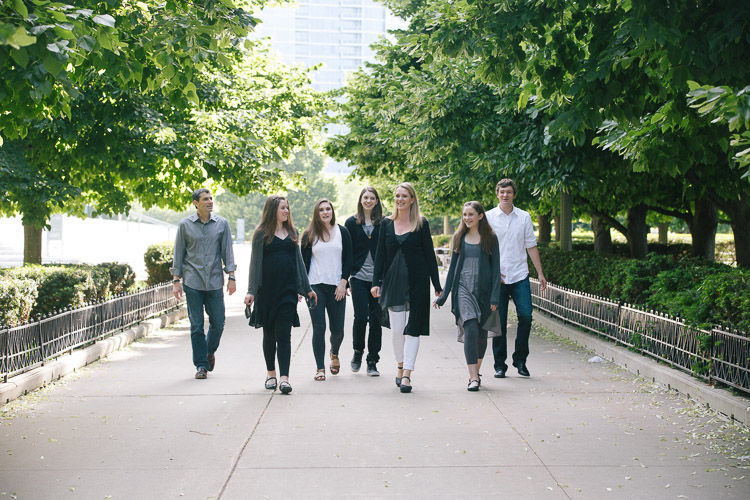
A casual conversation at a networking meeting led to an epic family photoshoot and I gained a good friend too.

How can I build a portfolio of my work?

The length of time you invest in yourself and your photography skills is directly proportional to how long you will take to build your portfolio of work. If you constantly focus on learning and improving yourself, the more confident you will become, and the more opportunities you will find to create work that you are proud of. I have a few general rules that I follow in my photography journey

  • Photograph something every week if not every day – the objective here is to learn new techniques and perfect things I already know with respect to my gear.
  • 10:1 ratio – for every 10 minutes I shoot, I want to produce at least one image that I am proud of.
  • Spend time on personal projects – my mantra here is create for the sake of creation.

For me, this is an easy way to constantly update my portfolio with work that I am proud of, and which also represents my creative style.

Memorable Jaunts DPS Article What you want to know - Wedding Styled Shoot

Creating for the sake of creation is a great way to update your portfolio as well as connect with other vendors and creatives in your space.

This is just a small set of questions that I found helpful when I was starting off on my career in photography. If you have others that have helped you navigate the photography waters, feel free to list them in the comments so others can benefit as well.

If you have different questions that you’ve been wanting to ask, this is the place to do it. Let’s see if we can’t get them answered for you as well.


Editor’s Note: This is one of a series of articles this week that are Open for Discussion. We want to get the conversation going, hear your voice and opinions, and talk about some possibly controversial topics in photography.

Give us your thoughts below on the article above and watch for more discussion topics.

See all the recent discussion topics here:

  • 7 Commonly Accepted Photography Beliefs Debunked
  • Is HDR dead? Some dPS Writer’s Thoughts on this Controversial Topic
  • How to Find your Personal Photographic Style
  • Why You May be Failing to Reach Your Potential as a Photographer
  • To Process or Not To Process? Let’s Discuss
  • How much do you process your images? – a dPS POLL
  • Does the Camera Matter? SLR versus Mirrorless versus Smartphone
  • Natural Light Versus Artificial Light: Which is Better?
  • How Limitations Can Help You Grow as a Photographer
  • Brand Name Versus Third-Party Photography Gear: Which is better?

googletag.cmd.push(function() {
tablet_slots.push( googletag.defineSlot( “/1005424/_dPSv4_tab-all-article-bottom_(300×250)”, [300, 250], “pb-ad-78623” ).addService( googletag.pubads() ) ); } );

googletag.cmd.push(function() {
mobile_slots.push( googletag.defineSlot( “/1005424/_dPSv4_mob-all-article-bottom_(300×250)”, [300, 250], “pb-ad-78158” ).addService( googletag.pubads() ) ); } );

The post Everything you Always Wanted to know about a Career in Photography but were Afraid to Ask by Karthika Gupta appeared first on Digital Photography School.


Digital Photography School

 
Comments Off on Everything you Always Wanted to know about a Career in Photography but were Afraid to Ask

Posted in Photography


The 6 Most Important Things You Need to Know about Lightroom’s Develop Module

15 May

Lightroom is powerful, but it’s also complex and has a steep learning curve. If you feel overwhelmed by all the options, there’s great value in taking a simple approach and learning to use the tools that are most useful first. Leave the more advanced features until you have more experience.

With that in mind, I’ve put together this list of the six most important things you need to know about Lightroom’s Develop module. Learn these and you will be well on the way to Lightroom mastery.

1. Backup your catalog regularly

This is the most crucial thing to set up, as everything you do to your photos in the Develop module (not to mention metadata changes like Collections, flags and keywords) is stored in the catalog. It would be a disaster to lose your catalog (and consequently all your hard work) to hard drive failure, so you need to make sure that Lightroom is backing it up regularly to an external hard drive.

To do so, go to:

  • For Windows users: Edit > Catalog Settings > Back up catalog
  • For Mac users: Lightroom > Catalog Settings > Back up catalog

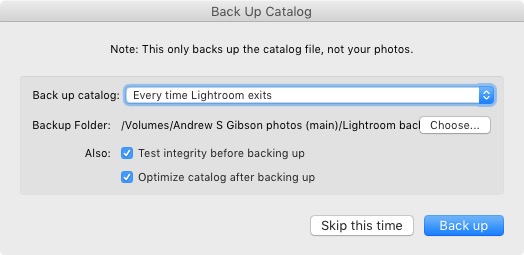
I have mine set to: Every time Lightroom exits – some photographers find that Once a week, when exiting Lightroom is enough.

When you exit Lightroom, a dialog window appears that shows you where Lightroom is going to save the backup Catalog. Click Choose to change the location if you need to. Note: this is the only time you can select the destination where the backup will be saved.

Make sure the Test integrity before backing up and Optimize catalog after backing up boxes are both ticked. This slows down the back up process, but it’s worth it because it helps ensure that your catalog remains free from corruption, and is optimized for speed.

Lightroom Develop module

Please note: The Catalog doesn’t contain any of your photos. Backing up your Catalog doesn’t back up your photos, only the information that Lightroom contains about them. Photo backups need to be managed separately.

2. Profile is the most important setting in the Develop module

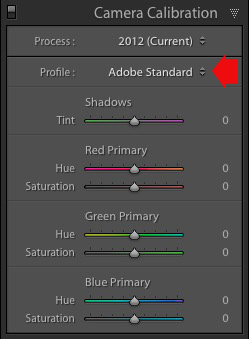
The Profile menu is tucked away in the Camera Calibration panel, at the bottom of the right-hand panels in the Develop module. The default profile setting is Adobe Standard (circled below). This profile was created specifically for your camera by Adobe. Pick that one for accurate colors.

You will also find the color profile settings specific to your camera (Landscape, Portrait, and so on). You can pick one of these if you prefer the look to Adobe Standard.

Lightroom Develop module

The profile affects both color and contrast, so from a practical point of view it’s important to select the right one, before you start adjusting contrast and white balance in the Basic panel. Get the profile right, and it makes all subsequent processing steps much easier. Get it wrong, and it makes them more difficult.

For example, if you apply a profile intended for landscape photos to a portrait, then you could end up with over-saturated colors and unnatural skin tones. Then you might try and fix that by playing with the Basic panel sliders or other color controls. This approach rarely works, it’s far better to select the most appropriate profile from the start.

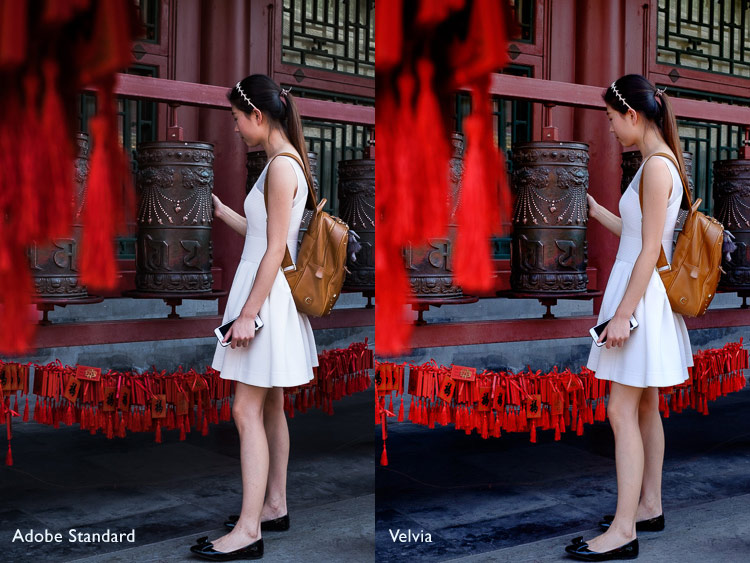
These two photos show the difference between the Adobe Standard and Velvia profiles on a Fujifilm X-T1 camera. The Velvia profile saturates colors, the Adobe Standard profile looks more natural.

Lightroom Develop module

3. Use Lens Corrections to correct distortion and eliminate chromatic aberrations

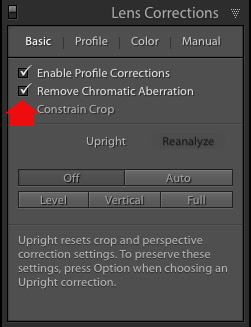
No lens is perfect, and most have at least a little distortion and chromatic aberration. One of the benefits of digital photography is that you can eliminate these in the processing stage, so they are not the problem they once were. Go to the Basic tab in the Lens Correction panel, select Enable Profile Corrections and Remove Chromatic Aberration in order to do so.

Lightroom Develop module

This comparison shows the result on a photo taken with a zoom lens producing barrel distortion.

Lightroom Develop module

Lightroom Develop module

4. You can carry out 80% of your processing in the Basic panel

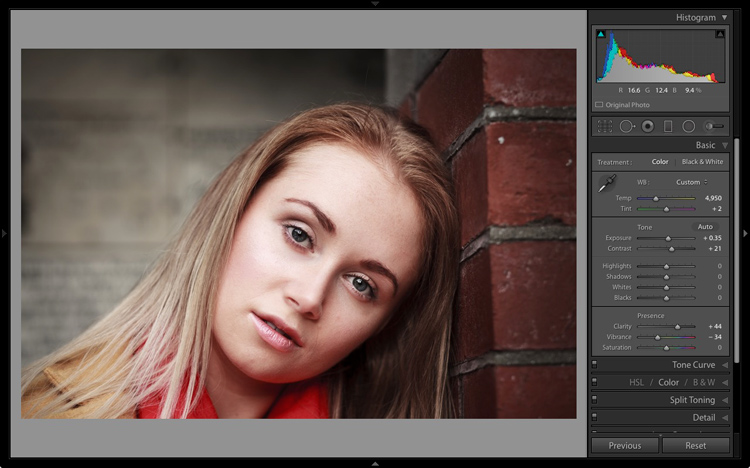
Once you have selected a Profile, and applied Lens Corrections, you can go to the Basic panel to start making any adjustments required to the photo’s brightness, contrast, and color.

The sliders in the Basic panel are extremely powerful. Take the time to get to know what each one does, and how the settings affect your images. Once you get the hang of these sliders it’s quite possible that you can do all of your global adjustments (those that affect the entire image) here, and not have to touch the Tone Curve or HSL / Color / B&W panels at all.

This photo is a good example. Virtually all the processing was done in the Basic panel, made possible by selecting the most appropriate profile first. The only additional thing I did was add a vignette using the Effects panel.

Lightroom Develop module

My article Steps for Getting Started in the Lightroom Develop Module goes into this in more detail.

5. Learn to use local adjustments wisely

It wasn’t so long ago that many professional photographers would send their negatives to master printers who used dodging, burning, and other fancy darkroom techniques, to create a far better print than the photographer ever could. These local adjustments – those applied to only part of the image, rather than all of it – are often vital for bringing the best out of your Raw files in Lightroom.

Lightroom has three tools for making local adjustments – the Adjustment Brush, Radial Filter and Graduated Filter. They allow you to selectively adjust brightness, contrast, and other tone and color settings. Each tool has its own idiosyncrasies, so take the time to get to know each one in turn.

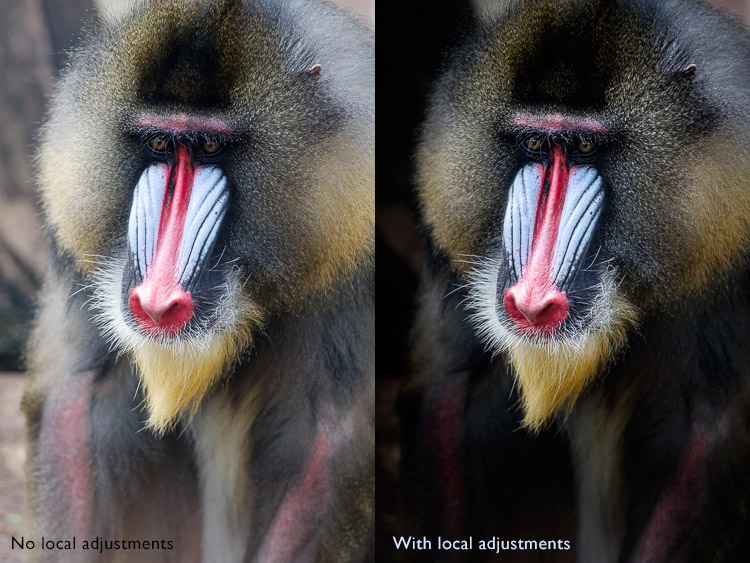
This example shows the difference that local adjustments make. I used a combination of all three of Lightroom’s tools to turn the image on the left, into the one on the right.

Lightroom Develop module

6. Don’t overlook the Clarity slider

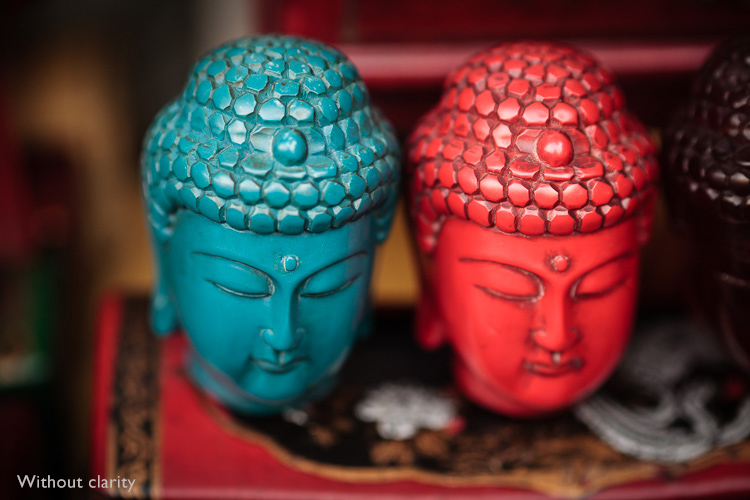
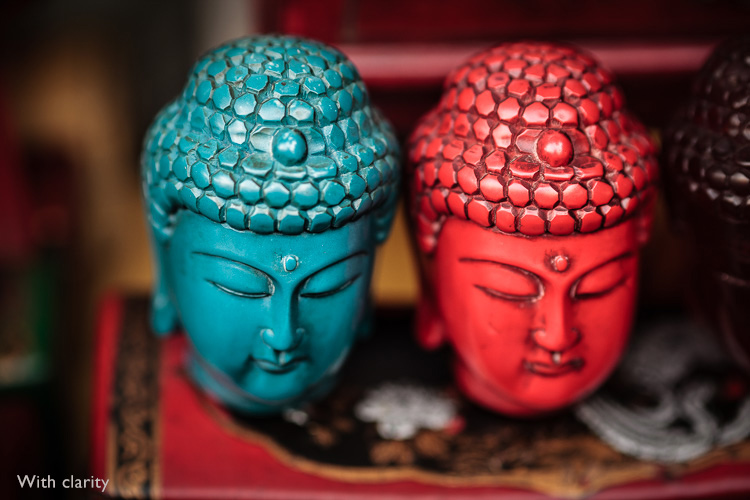
The Clarity slider is extremely useful as both a local, and global adjustment. It’s primary use is to enhance texture, and it does so by increasing edge contrast (the spots where dark and light areas meet). You do have to be careful not to overuse it, but judicious applications of texture enhancement can help bring the best out of any photo. Clarity is also an ideal tool for enhancing black and white images, which often rely on texture to add impact.

The following photos show the effect of adding Clarity. I used the Radial filter to apply Clarity to the Buddha heads to bring out the texture.

Lightroom Develop module

Lightroom Develop module

These six items are not a comprehensive list of what you can do in Lightroom’s Develop module, but they will certainly get you started, and simplify the process of learning to use it.

What do you think are the most important tools to master in the Develop module? Do you agree with my selection? Please let me know in the comments below. And if you want to learn more about Lightroom then please check out my Mastering Lightroom ebooks.

googletag.cmd.push(function() {
tablet_slots.push( googletag.defineSlot( “/1005424/_dPSv4_tab-all-article-bottom_(300×250)”, [300, 250], “pb-ad-78623” ).addService( googletag.pubads() ) ); } );

googletag.cmd.push(function() {
mobile_slots.push( googletag.defineSlot( “/1005424/_dPSv4_mob-all-article-bottom_(300×250)”, [300, 250], “pb-ad-78158” ).addService( googletag.pubads() ) ); } );

The post The 6 Most Important Things You Need to Know about Lightroom’s Develop Module by Andrew S. Gibson appeared first on Digital Photography School.


Digital Photography School

 
Comments Off on The 6 Most Important Things You Need to Know about Lightroom’s Develop Module

Posted in Photography


5 Uncomfortable Truths About Photography

28 Mar

There is a lot of hype about photography, it’s a booming hobby practiced by huge numbers of people around the world. With the prevalence of high quality images from our phones, and widely available, inexpensive dedicated cameras, it’s no wonder the art is so popular. But it isn’t all roses, and there are some uncomfortable things it’s best just to understand from the beginning.

Here are five truths about photography:

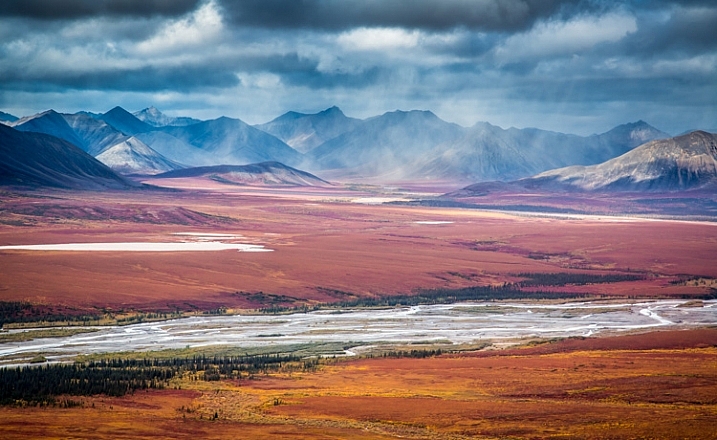
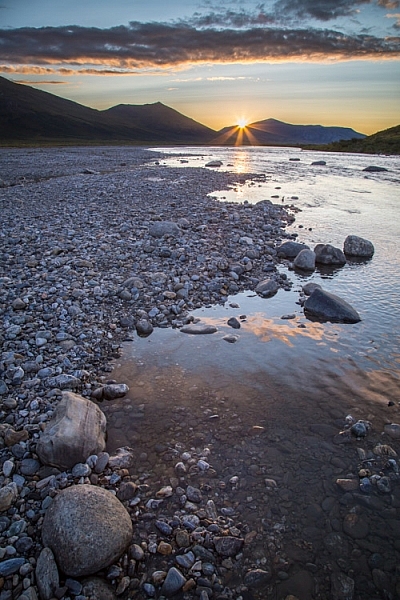
AK-NoatakPreserve-KellyRiver-1083-320

1. More gear won’t make you a better photographer

Don’t get me wrong, I love camera gear. New bodies, lenses, and accessories are fun and exciting, but they won’t magically make you better at photography. To be a better photographer you need to learn how to find images. The gear can help you capture them, but the finding part is up to you.

Whenever I’m thinking of buying a new piece of gear, I ask myself, “Is my current gear holding me back?” Sometimes the answer is yes. It could be that the lens I’ve been using for night photography is too slow to get the detail I need, or the limitations of my current body are preventing me from blowing up the final shot to the size and detail required by a client. In such cases, I almost always have a specific image that I want to make, but can’t, due to my equipment.

More often though, the answer to whether my gear is holding me back is no. The actual reason I want a new piece of gear is that it is shiny. I may lust over new camera stuff, but if that gear won’t improve my photography in a very tangible way, I don’t buy it.

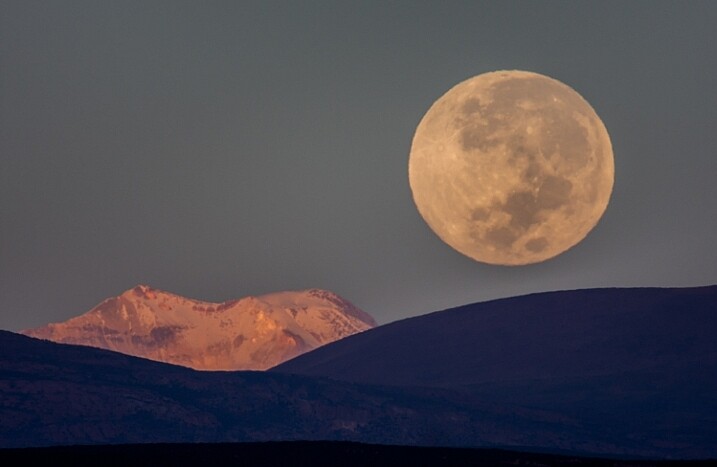
Some images require certain equipment. Without a big telephoto, this shot of the full moon over the Andes would have been impossible.

Some images require certain equipment. Without a big telephoto, this shot of the full moon over the Andes would have been impossible.

Remember that good photography comes from your heart and your mind, not your wallet.

2. There is no “knack”

AK-NoatakPreserve-KellyRiver-1083-469

Some people take to photography quickly, others more slowly, but everyone has to learn. Photography is an art, not a gift.

A few times, I’ve been told by people looking at one of my images, “You have such a gift.” I know they are being kind, that they are offering a compliment, but I can’t help feeling insulted. I want to say, “It’s not a gift! I worked my ass off to make that image! That shot is the result of years of effort, of early mornings, and hours of travel, of study and practice, tens of thousands of failed and deleted shots, and thousands of dollars in equipment. Nothing about that image was given to me, I earned it.”

Of course, I don’t say that. Instead, I smile as though they’ve just said the nicest thing, and say thanks.

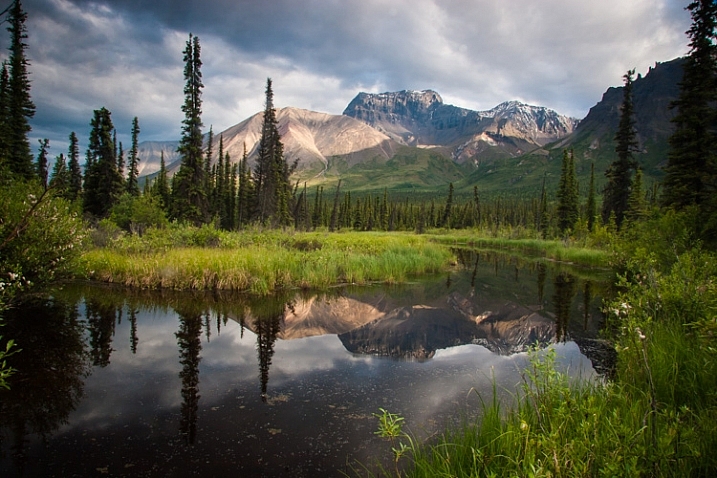
AK-WragellStEliasPark-NabesnaRoad-July2006-10

Photography can be learned. With practice you can see the way lines and light interact to create a pleasing image. Or how those elements can become jumbled, resulting in a photo that just doesn’t work. With time and effort, you get better at recognizing the difference. It’s a process I work on every day.

So no, photography is not a knack – it’s work.

3. You’ve got to be patient

I spent 20 minutes hand holding a big lens to make this image, as I waited for an albatross to turn in profile over the waves.

I spent 20 minutes hand holding a big lens to make this image, as I waited for an albatross to turn in profile over the waves.

Yeah, lots and lots of patience.

I’ve guided hundreds of photographers into wild locations to make images. Sometimes we’ve arrived at a site, and the light has been perfect, or the wildlife is waiting in the perfect place, as though they’d been staged there. But that is rarely the case. More often, we have to wait, and wait… and wait.

The pages of magazines are filled with spectacular images, timed to perfection. But those didn’t just happen. The images were made because the photographer knew how to be patient.

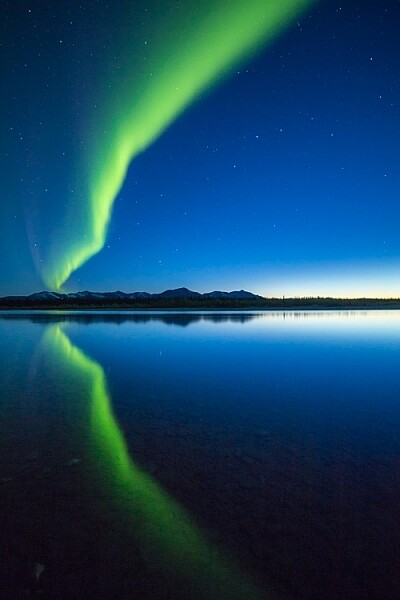
Few things are so hit and miss as photographing the aurora borealis. (There are lot of misses.)

Few things are so hit and miss as photographing the aurora borealis (there are lot of misses).

The best images all require time and effort.

This is a hard reality for many of my clients (students) to swallow. They just want the photo to be there, though it rarely is. To be honest, I’m not very good at patience. I like to move and explore, but it’s the times where I force myself to wait and sit silently, that I often walk away with something good.

4. There is nothing wrong with being an amateur

AK-BrooksRange-BairdMtns-aerial-31Jul-12

Being an amateur does not mean you are any less talented than a professional photographer. In fact, in many cases, I’d say it is just the opposite. You see, professionals spend much (most even) of their time doing the dirty work: invoicing, marketing, tip-tapping away at the computer, and much less time actually making and working with images. The images we professionals shoot are often those made for clients, not those we make for ourselves. Inherently, photos made for others are not as good as those we are passionate about. Amateurs can shoot whatever they please, and that means they are making photos that matter to them.

Skill and artistic sensibilities are not the sole territory of professionals. Some of the finest photographers I know do not make their living from it.

AK-ANWR-Kongakut-108094-731

And equipment! Here is the biggest irony: pros often can’t afford the latest and best gear. With the exception of the very top people in the industry, we pros aren’t millionaires, or anywhere close. Out of our meagre incomes have to come our mortgage, food, computers, software fees, travel, and yes, camera equipment. When I made the transition to full-time freelancer, that new reality hit me like a falling piano. Science fiction writer John Scalzi once wrote that you shouldn’t consider leaving your day job until you are making TWICE your normal income with your writing (or in this case photography). It’s good advice.

So yeah, there is nothing, NOTHING wrong with being an amateur.

AK-GAAR-AIR-1073-615

5. Postprocessing is a tool, not a crutch

I’m not the first to say it, but I’m going to repeat it, there is no un-suck filter. If your image stinks when it goes into Photoshop or Lightroom, it’s going to stink when it comes out, no matter how much you crop it, add contrast, or saturate.

This image took a lot of work in post-processing, but it was a solid image going in. Nothing in Lightroom will make a bad image good.

This image took a lot of work in post-processing, but it was a solid image going in. Nothing in Lightroom will make a bad image good.

For the love of god, don’t over-process your images. What matters in an image is the way it speaks to the viewer, that the photo means something. Make your image meaningful, and you won’t ever have to rely on post-processing to be successful.

Sunset over the Noatak River, Gates of the Arctic National Park, AK USA.

Conclusion

In the end, what really matters about photography is not the final image, but the process of making it. So forget about the shiny new gear, practice the art, be patient, don’t get caught up in labels, and make your best image in the camera. Everything else is details.

Do you have anything else you’d add to this list? Please share in the comments below.

googletag.cmd.push(function() {
tablet_slots.push( googletag.defineSlot( “/1005424/_dPSv4_tab-all-article-bottom_(300×250)”, [300, 250], “pb-ad-78623” ).addService( googletag.pubads() ) ); } );

googletag.cmd.push(function() {
mobile_slots.push( googletag.defineSlot( “/1005424/_dPSv4_mob-all-article-bottom_(300×250)”, [300, 250], “pb-ad-78158” ).addService( googletag.pubads() ) ); } );

The post 5 Uncomfortable Truths About Photography by David Shaw appeared first on Digital Photography School.


Digital Photography School

 
Comments Off on 5 Uncomfortable Truths About Photography

Posted in Photography


CP+ 2016: Features you need to know about on the Nikon D5/D500

03 Mar

CP+ 2016: Features you need to know about on the D5/D500

Nikon is starting off the year strong with the announcement of the D5 and D500, the KeyMission 360, and the DL compacts announced for CP+ 2016. We got our hands on the D5 and D500 and have been very impressed by our initial, informal testing. AF is much improved, as are ergonomics. We’re working on a video to demonstrate what we consider to be ground-breaking AF performance, but in the meantime we thought we’d also put together a slideshow highlighting some new things we found while digging through the D5 and D500 menus, and give you an idea of the extensive customization options available.

CP+ 2016: Features you need to know about on the D5/D500

First off is the autofocus menu, where you’ll note a couple of new features. You can now turn face detection on and off during viewfinder AF-C shooting, with the ‘3D-tracking face-detection’ option. Helpfully, Nikon’s new 180k-pixel RGB metering sensor is more than capable of discerning a face – even the eye of a face.

3D-tracking gains a ‘3D-tracking watch area’ customization, with options for a ‘Normal’ or ‘Wide’ watch area. We believe this affects how wide of a search region the camera should look over when tracking a subject around the frame. Frankly, the default setting has always worked so remarkably well that we’re not sure what switching it from its default (‘Normal’) will do, but we’re curious to put it to the test soon.

CP+ 2016: Features you need to know about on the D5/D500

‘Focus tracking with lock-on’ gains some new customization. Previously, this option just had a setting of 1 to 5, with higher numbers biasing toward ‘sticking’ to a subject rather than being distracted by a different object that passes in front of it. Nikon has now broken this setting down to allow you to separately customize how long the camera should wait before refocusing to a subject that passes in front of your initially acquired subject, and how erratic the movement of your subject is. 

It’s unclear if ‘Subject motion’ refers to how erratic an object switches between approaching and receding motion, vs. how erratic the subject is in terms of X-Y movement around the frame. We’ll investigate this once we have one in for testing, but the tailoring should help the user adapt the camera to a wider range of shooting scenarios.

CP+ 2016: Features you need to know about on the D5/D500

While this isn’t new, we though it worth pointing out that Nikon tends to offer four different settings for release vs. focus priority in AF-C (continuous).

Release prioritizes ‘taking the shot’ over focus, while ‘focus’ prioritizes acquiring focus before releasing the shutter. Focus+release prioritizes focus for the 1st shot, prioritizing release for later frames, while release+focus prioritizes firing the shutter for the 1st shot, but requiring focus before release for subsequent shots.

CP+ 2016: Features you need to know about on the D5/D500

The D500 can illuminate the focus screen red, but you can turn this off if you so desire. Unfortunately, the camera can only flash the point(s) red when either selecting them, activating an AF point, or when focus is acquired. It cannot keep focus points lit red as you track a subject or fire a burst. That’s reserved for Nikon’s flagship…

CP+ 2016: Features you need to know about on the D5/D500

… the D5 (and its recent predecessors). Unlike the D500, the D5 can continuously keep AF points lit red, which helps you see the active point as the camera follows a subject around the frame in, say, 3D-tracking mode.

You can even adjust the level of bright red they glow, in 4 steps. Seeing one red AF point stick to your subject like glue even as it moves around in your composition is, frankly, somewhat magical. Stay tuned for a video of it in action.

CP+ 2016: Features you need to know about on the D5/D500

With all the complex AF modes and customizable buttons on the D5, it’s helpful that Nikon has finally adopted a visual way to assign button function. And the number of customizable functions per button is impressive. The D5 allows you to customize the Pv, Fn1, and Fn2 buttons on the front of the camera where your right hand fingers rest, an additional vertical Fn button right behind the shutter button on the vertical grip, and finally a Fn3 button to the left of the LCD screen.

The Pv, Fn1, Fn2, and Fn3 buttons are highly customizable in that they can be assigned to any one of 24 or so different functions, or any of a number of functions (6, if we counted correctly) that have different levels of granularity that you can adjust by holding the custom button while turning a dial. The Fn3 button is a bit more limited, and the AF-ON button is reserved for AF and AE functions. We’ll spell out all the assignable options for these buttons in the D500 slides to follow, as they’re largely the same (save for features unique to the D5, like LAN, or 14 fps lockup). One significant difference, though, is that the joystick on the D5 is not customizable, while on the D500 you can assign exactly what pressing this joystick (called the ‘sub-selector’) down does.

Helpfully, you can change the behavior of these buttons during movie recording by customizing their functions specifically for movie shooting.

CP+ 2016: Features you need to know about on the D5/D500

The D500’s custom control assignment is a bit less complex than the D5’s, because it has fewer customizable buttons. On the other hand, unlike the D5, its ‘sub-selector’ AF joystick is customizable (we’ve set it to change image area in conjunction with a dial, as you see highlighted in yellow above), so it’s no slouch when it comes to customizability.

The Pv and Fn1 buttons are on the front of the camera, for easy access with your right hand as it grips the camera. The Pv button is up top and can generally be activated easily by your middle finger, with the Fn1 button accessible by your ring or pinky finger. Given their ease of access, and ability to be used in conjunction with the rear thumb dial, these two buttons are highly customizable. The new sub-selector retains all customization options of the Pv and Fn1 buttons as well, while adding two more. The Fn2 button, to the left of the LCD screen, is less customizable, likely because it’s less used during shooting. The AF-ON button is reserved for AF/AE functions.

Before we dive deep into all the customization options available for these buttons, for those prone to accidentally or inadvertently changing settings, you always have the option to assign a button to ‘None’, essentially deactivating it.

CP+ 2016: Features you need to know about on the D5/D500

With all this button customization, you’re probably wondering what you can or cannot assign to various buttons. Let’s start off with the AF-ON button, because it has a particular feature that might just be game-changing if you love Nikon’s ‘3D tracking’ as much as we do.

AF-ON can be assigned to any of the options shown above, as well as ‘AE lock (Hold)’ and ‘AF lock only’ (on the 2nd page of this menu, not shown). But here’s what we’re most excited about: the ability to assign the AF-ON button to ‘AF-area mode’ or ‘AF-area mode + AF-ON’. It’s a quick way to instantaneously switch between your selected AF-area mode (Single, d25, d72, d153, Group-area, Auto-area, 3D) by momentarily holding down the AF-ON button. 

The option to couple the AF-area switch with AF-ON means the following: a half-depress of the shutter engages AF with your typical AF-area mode, say 3D-tracking. But let’s say you’re now faced with a situation where things are happening so fast that you don’t even have the time to place your selected AF point over your intended subject to start tracking it. Instead, you just want the camera to find, say, the nearest bird or human face by itself and track it. What do you do? Click next…

CP+ 2016: Features you need to know about on the D5/D500

Assign the AF-ON button to ‘AF-area mode + AF-ON’ and select ‘Auto-area AF’ within this sub-menu. That way, when you hold down the AF-ON button, the camera will switch to ‘Auto-area’ as long as you have it held down, focusing on the nearest object or detected face and tracking it. This makes for versatile switching between your two most-used AF-area modes.

I actually found it most useful to assign AF-ON to ‘AF-area mode + AF-ON’ with Single-point AF, highlighted above. That way, I keep 3D-tracking engaged as the default AF mode (in AF-C), always defining my subject by initiating AF on it. The camera then tracks it as it moves or as I recompose, but if I ever want the camera to stop moving AF points automatically to track, and instead just freeze the AF point while still continuously focusing on the subject if it approaches or recedes, I just hold down the AF-ON button (while keeping the shutter button half-depressed). Want the camera to continue tracking the subject exactly where it left off? Just let go of the AF-ON button while keeping the shutter half-depressed, and the camera starts tracking the subject around the frame again. 

CP+ 2016: Features you need to know about on the D5/D500

The camera remembers your subject, such as this gentleman’s eye at the Nikon booth at CP+ (please excuse the low, through-the-viewfinder, iPhone video screenshot). The camera tracked his eye until I wanted it to stop moving the AF point – but only momentarily – re-engaging the tracking of his eye when I laid off the AF-ON button.

Previously, 3D-tracking – though class-leading in terms of subject tracking – was somewhat limited by the following: when I got the composition I wanted, and there was no more subject movement, I’d often want the camera to stop tracking in the X-Y plane, but continue tracking in depth (refocusing if the subject or photographer approaches or recedes). I couldn’t do that – if I wanted the AF point to momentarily stop moving while in 3D tracking, I’d have to engage AF-Lock, which’d mean the camera would stop focusing entirely. Now, though, I can use the AF-ON button to momentarily stop only the X-Y tracking. There isn’t a camera in the world, save for the D5 and D500, that can provide this robust functionality.

There is still no way to assign a button to instantly switch between AF-S and AF-C, but with the reliability of Nikon’s 3D tracking, I would leave this cameras in AF-C pretty much permanently, assigning one of the customizable buttons to ‘AF lock’ in the rare instances I don’t want the camera to focus (for example, recomposing such that the subject is outside of the AF area).

CP+ 2016: Features you need to know about on the D5/D500

You’re probably tired of hearing about AF by now. Let’s look at the other customizations possible with the Fn1, Pv, and sub-selector buttons. This and the next 3 slides show all the available customizations on the D500 for these three buttons, with the sub-selector also assignable to ‘select center focus point’ (a quick way to reset to center) and ‘highlight active focus point’ (red). For reasons that are obvious, Nikon is expecting you to assign the sub-selector to AF point-related functionality.

Oops, I thought I was going to stop talking about AF… As Barney often says, I’m absolutely irrepressible.

CP+ 2016: Features you need to know about on the D5/D500

This is the 2nd page of assignable options to the Fn1, Pv, and sub-selector buttons.

CP+ 2016: Features you need to know about on the D5/D500

This is the 3rd page of assignable options to the Fn1, Pv, and sub-selector buttons.

We think it’s very cool that you can momentarily trip the camera into a different metering mode – though this is nothing new for Nikon. It’s helpful that Nikon’s spot-metering is linked to the selected AF point on nearly every one of their cameras, and highlight-weighted metering allows one to expose for the highlights and recover shadows in post-processing (given the extensive latitude most Nikon cameras have). And on a related note – remember that you can permanently bias any of the metering modes +/- 1 EV, in 1/6 EV increments on most Nikon DSLRs (it’s an option under the metering menu).

CP+ 2016: Features you need to know about on the D5/D500

… and the final and fourth page of assignable options to the Fn1, Pv, and sub-selector buttons. Well, not exactly, since the 5th page has a ‘None’ option, and all of these options are a bit shifted for the sub-selector button because it has two additional functions listed on the 1st page. But now I’m just being pedantic.

A very useful assignment is ‘Access top item in MY MENU’. It’s a quick way to access one of your most used menu items after you assign to the top of MY MENU. Again, available on previous Nikons, but worth reiterating. This is how I, for example, quickly bias the minimum shutter speed the camera will use in Auto ISO mode.

CP+ 2016: Features you need to know about on the D5/D500

Here is a list of 6 out of 7 functions you can assign to the Fn1 button if you desire to operate it in conjunction with a dial (the 7th, on the next menu page, being ‘Photo shooting menu bank’. The same list of options is available if you with to operate the Pv button with a dial. Note that if you do this, you can’t assign any of the previous actions in the past 4 slides. You either use the Fn1 and Pv (and sub-selector) buttons as single button press actions, or as actions triggered in combination with a dial. The latter is more limited, for obvious reasons.

The sub-selector button has three fewer options when used in conjunction with the dial…

CP+ 2016: Features you need to know about on the D5/D500

… when using the sub-selector (pressing it downward centrally) in combination with a dial, you don’t get ‘1 step spd/aperture’ (which adjust shutter speed and aperture in 1 EV increments, instead of 1/3 EV) or ‘Active D-Lighting’ or ‘Exposure delay mode’.

CP+ 2016: Features you need to know about on the D5/D500

As we’d mentioned earlier, the Fn2 button to the left of the LCD screen is less customizable, probably because it’s less ergonomically useful during shooting. The Fn3 button in a similar position on the D5 has a few more features because of things like LAN connectivity on the D5.

CP+ 2016: Features you need to know about on the D5/D500

Now that you have a good idea of the extensive customization available on the D5 and D500, as well as some of the new features that enhance AF ergonomics and functionality, we turn to one last feature that shooters may find useful: an electronic front-curtain shutter (EFCS). This was first introduced on the Nikon D810, and we’re happy to see it continue in Nikon’s lineup.

EFCS initiates exposure electronically, foregoing the mechanical shutter, which ensures no camera-induced shake during an exposure. The exposure is ended mechanically, ensuring that rolling shutter is not an issue.

EFCS is limited though: above certain shutter speeds (we’d guess around 1/1000 or 1/2000 or so), EFCS becomes unreliable, if not outright unavailable. Furthermore, Nikon continues to offer this as a mirror-up only mode, which is a shame. It means you have to switch the camera’s drive mode to mirror-up, press the shutter button once to lock up the mirror and shutter, and press the button again to initiate the exposure electronically. That means you can’t really use it in typical shooting scenarios. Especially when you consider that the 2nd button press can induce motion, which means you may wish to introduce an exposure delay…

CP+ 2016: Features you need to know about on the D5/D500

… and unfortunately, the same exposure delay options are available as before. We would’ve loved to see the introduction of 1/2s, 1/4s, and 1/8s which, when coupled with EFCS, would automatically trigger the electronic shutter after the pre-specified delay.

In other words, EFCS should’ve been implemented like this: press the shutter button to lift up the mirror and shutter, then after the pre-specified delay time – say 1/2s – the camera would automatically start the exposure electronically. As it is, just like on the D810, you’ll have to press the shutter button once, then press it again to initiate the delay, after which the exposure is started. With a long lens, your entire composition will have shifted by now. And this method is often required in conjunction with certain VR lenses to ensure no mirror/shutter-induced shake is present in a certain range of shutter speeds (typically 1/60s – 1/125s).

That said, these roughly ~21MP cameras are unlikely to be as sensitive to mirror induced shake as the higher resolution D810, so users probably don’t have to worry much about these issues at all. Still, best practices are best practices, and we hope Nikon is listening.

CP+ 2016: Features you need to know about on the D5/D500

Introduced on the D810, but now with its own menu option, is ‘Monitor color balance’. This allows you to tune the color of the LCD on your camera’s screen. Some pros might find this useful in their workflow, to ensure the screen is a better judge of output color. But as long we’re seeing this sort of tailoring for color – might we expect true ICC color management in future camera displays? We certainly hope so.

We hope you’ve learned a few things about the new features available on the D5 and D500. The extensive feature-set and customization will prove invaluable for working pros and enthusiasts alike. We weren’t able to get a look at automated AF Fine Tune, unfortunately, but it’ll be the first thing we look at when we get our hands back on these cameras. Suffice it to say we’ve walked away incredibly impressed by these cameras, particularly by what they offer both in terms of AF capability and ergonomics. These cameras are likely to be second to none in their ability to track moving subjects and focus on them, even during 10-12 fps bursts. But don’t take our word for it – we’ve tried it, and will be releasing a video soon showing it in action.

Stay tuned.

Articles: Digital Photography Review (dpreview.com)

 
Comments Off on CP+ 2016: Features you need to know about on the Nikon D5/D500

Posted in Uncategorized