RSS
 

Archive for March, 2019

Polarr Online Photo Editor Review

15 Mar

The post Polarr Online Photo Editor Review appeared first on Digital Photography School. It was authored by Glenn Harper.

It’s hard to evaluate photo-editing software without comparing it to Photoshop. You tend to have preconceptions about what it should be capable of and how it should behave – even how it should look. In terms of functionality, many programs will struggle to compete against Adobe. In this Polarr online photo editor review, you’ll find out what you can get for free. Or not much more than free.

Polarr image editor review

The colorful interface of Polarr. You can create specific effects under “Toning” by setting the hues of shadows and highlights.

Online photo editors work in your browser. They can be sophisticated, but the days of some of them (namely, flash-based programs) are numbered. Adobe will stop supporting flash in 2020, so anything that runs off it is likely to vanish or wither away.

Modern online editors are written in HTML5 code. They load quickly, but they also tend to be more basic than flash-based equivalents. Polarr is different. You can use Polarr online in a browser, or you can download it for offline use. There’s also an app for your phone.

Good first impressions

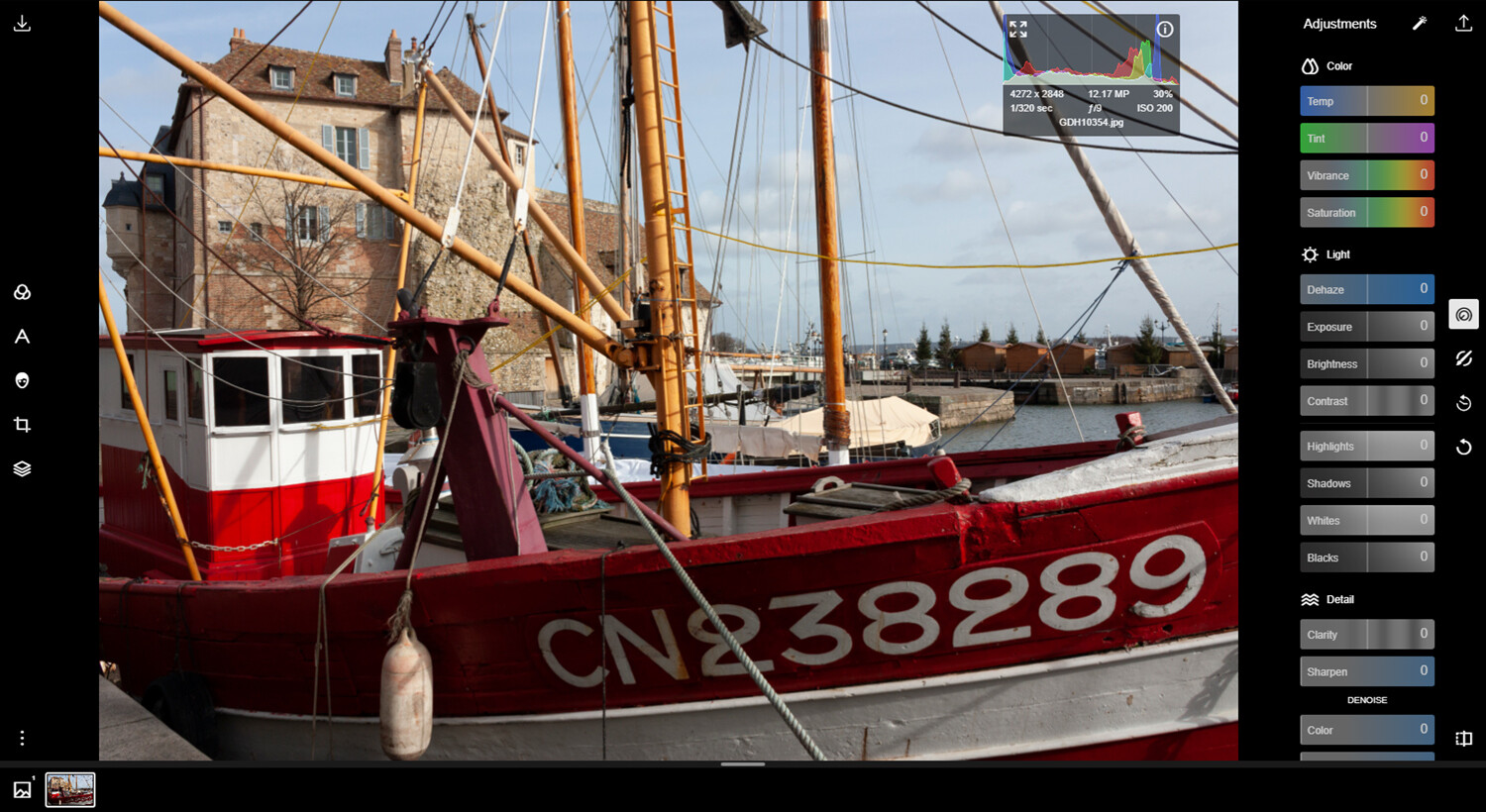
One of the best things about Polarr is its design. It doesn’t try to be Photoshop, and it’s intuitive to use. With filters on the left and most of the tonal and color tools on the right, there are shades of Lightroom about it, but it has a look of its own. You open Polarr, and you want to use it – or at least I did.
Polarr Image Editor review

A favorite Polarr feature of mine is its histogram. It’s neater than any other I’ve seen in online editors. It shows a colors histogram by default, which you can expand into separate RGB histograms. In the absence of a clipping display, it’s useful to see what your edits are doing to the image. You can drag the semi-opaque histogram wherever you want in the frame.

Not-so-good things about Polarr

Like most browser editors I know of, you can’t open hefty 16-bit files in Polarr. You’re limited to editing 8-bit JPEGs. This isn’t bad as long as the quality of the JPEG is high and it hasn’t been saved many times before. However, theoretically, you must submit to a lower-quality workflow.

A more limiting aspect of Polarr is that it exports everything in an sRGB color space. This might be a constraint of its coding, but it’s less than ideal if you want to print your files on an inkjet. For the web and online photo labs, it’s fine. In mitigation, it does embed a profile when saving, which some rival products neglect to do. You do know where you stand with it.

Who’s it for?

Polarr has one or two shortcomings, but it’s still a program with a lot of depth. Who would use it? Anyone looking for the following:

  • A free or cheap alternative to Photoshop and other costly pixel editors
  • Includes built-in special effects and retouching tools so you don’t have to learn complex editing methods or buy plug-ins
  • Auto image enhancer often a good quick fix for eye-catching web pictures
  • Intuitive to use, especially if you are familiar with sliders in other programs
  • No big downloads required and quick startup
  • Aesthetically pleasing user interface
  • Ideal for editing images for web or online labs
  • Backed up by an extensive library of online tutorials at Polarr Wiki
  • Option for more complex edits with the Pro version (subscription based, but low cost).
Polarr imaage editor review

The Polarr Wiki website has had a lot of work put into it and includes many written and video tutorials.

Editing with Polarr

Polarr is nice to look at – clean and colorful – but how is it in use? I set out to learn what it could do. If I couldn’t do things the same way I can in Photoshop, what workarounds could I find? Polarr is sophisticated, so I was confident I could perform the most basic processing tasks and more.

Auto Enhance

I never shy away from hitting “auto” or “auto enhance” buttons in editing programs, because sometimes they give you a better starting point. In Polarr, Auto Enhance is aggressive with the Dehaze slider, and that tends to block shadows. You can tweak the result, of course, with the shadows, blacks and contrast sliders for instance. Auto-enhance does work well with flat, hazy images and can create eye-catching results in a single click.

Ploarr image editor review

This was a flat-toned file that has been made quite dramatic by Polarr’s auto enhance feature. The shadows have started to clip, but not anywhere important in this case.

Color and Tone Adjustments in Polarr

Leaving the auto settings and moving onto manual adjustments, Polarr offers Lightroom-style color and tonal controls (the latter called “Light”). It has Temp and Tint sliders for white balance, but no auto-white-balance tool to outrank your eyesight. A Vibrance slider boosts color without clipping.

When adjusting tone, Polarr offers highlights, shadows, whites and blacks sliders, which you move to achieve a full tonal range while watching the histogram(s). This replace a levels adjustment. Whites and blacks adjust large areas on either side of mid-tones. Highlights and shadows adjust only the brightest or darkest parts of the image.

Polarr image editor review

Some basic editing in Polarr (original shown in inset – not part of software). Balancing the exposure a little, warming the color temp and adding some vibrance.

Again, the controls in Polarr are neatly laid out and colored according to their function. The controls haven’t been arbitrarily renamed, so you quickly know what things do if you’ve used other editors. Being mildly obsessive about detail, I miss the clipping display and being able to correct color by numbers (which is what auto-white-balance tools basically do). However, Polarr still has much to offer.

Polarr Curves

Polarr’s curves are modishly minimalistic, and they’re useful for some basic color correction. You have a composite RGB curve for adding contrast, and then there are the separate red, green, and blue (RGB) curves.

Polarr image editor review

Not the finished result, but you can see how the color neutralizes as the histograms align. The left-hand picture is typical of artificial lighting. A blue histogram leaning to the left indicates yellow.

Used in conjunction with the RGB histograms, you can use RGB curves to remove color casts. You do this by adjusting any necessary curves so that the histograms roughly align with each other.

You can place a point in the middle of the curve and pull it up or down, or for shadows and highlights, place a point in the bottom or top corner and pull it along the outer axis. Polarr gives you the input and output RGB values while you work.

Sharpening in Polarr

Sharpening always strikes me as a bit of a dark art in that; whatever method you use, there’ll always be experts out there espousing a better way. In Polarr, you get a clarity slider that sharpens mid-tones and generally adds punch to images (easy to overdo) and a very basic sharpening slider with no radius control. The sharpening might be smarter than I’m giving it credit for, but there aren’t numerous fancy ways to sharpen in Polarr. I’m doubtful that that matters.

Other features and effects

Other useful features I haven’t yet mentioned include an elegant crop tool, a spot-removal tool with heal and clone modes, and distortion correction. Spot removal was a bit frustrating at first with my laggy browser, but it works.

Polarr photo editor review

I made the inset darker so you can just about see the original dust spot, which has been cloned over by the right-hand circle.

Polarr also includes film filters, a text tool with various graphics, and a face retouch tool with skin smoothing for flattering portraits. Plus, you’ll find grain, diffuse, pixelate and fringing effects. You can also add frames to your pictures.

Polarr image editor review

One of Polarr’s film filters (M5) looks suspiciously like the teal-orange “movie” effect, which you either love or hate. Once I latched onto that, I started seeing it everywhere (Outlander, recently). Therapy is ongoing.

Pro Version

The Pro version of Polarr is subscription based, but it’s at a price you may not balk at. The Pro features are cleverly integrated into the free version, except you can’t save a photo that includes Pro edits. A pop-up appears asking if you want to upgrade or try the feature. What are the features?

Masks

The chief advantage of Polarr Pro is the inclusion of masks for localized adjustments. They include radial, gradient, color, brush, depth and luminance masking tools. These are all ways to select specific parts of the image for editing, and they work well.

Polarr image editor review

Masking a bronze equestrian statue for some localized editing. Overlapping edges can be tidied up later.

You can use the brush tool if you want to manually select an area for better control. This includes an optional “Edge Aware” aid that, if used carefully, helps avoid overlapping edges when you’re painting areas in for selection. Brush size, compare, hardness, flow, feathering, erase, view mask and invert options are also present with masks.

Polarr image editor review

In this picture, I’ve brought detail out in a near-silhouetted statue. Of course, I can alter shadows without masking, but other edits like clarity, contrast, exposure and saturation are usually universal.

Overlays

Whether with a mask or separately, you have the option of inserting an overlay effect. That might be your own added background or one of the many included ones (e.g., clouds, sky, weather, backdrops). This is all good stuff for people that like to experiment and create digital composites. A choice of blending modes helps you achieve the effect you’re after.

Polarr image editor review

The sky in this photo was a little washed out, so I’ve dropped one of the more subtle Polarr skies in as an overlay.

Noise reduction

In Polarr, you can’t mask off sharpening in large single-tone areas. So, if your images are noisy and you think the noise will show in the final result, the Pro version offers color and luminance Denoise sliders. These are universal edits that don’t currently combine with masks.

Polarr image editor review

The denoise tool is part of the Polarr Pro offering. Here you can see a before and after with quite a lot of luminance noise reduction applied to the right.

Summary

Aside from the sRGB constraint and occasional lag (perhaps my sluggish PC), I enjoyed Polarr. The sRGB thing may be universal among browser editors, and if you think of Polarr as a way of prepping photos for online labs or the web, it’d be hard to beat. Polarr is uncommonly pretty, which seems superficial, but the attention paid to aesthetics invites use. I’d love to know what you think!

The post Polarr Online Photo Editor Review appeared first on Digital Photography School. It was authored by Glenn Harper.


Digital Photography School

 
Comments Off on Polarr Online Photo Editor Review

Posted in Photography


Sigma updates firmware for multiple EF mount lenses, EF-E converter and one F mount lens

14 Mar

Sigma has released new firmware updates for a number of its Canon EF mount lenses as well as its Canon EF-E converter and a single Nikon F mount lens.

For the Canon EF mount lens included in the update, the firmware mainly addresses compatibility with Canon’s in-camera Lens Aberration Correction feature to ensure corrections match the characteristics of each lens and errors don’t appear when the feature is enabled.

The firmware updates also improve functionality with select EF lenses when used on an EOS R camera with Canon’s EF-EOS R adapters. Below is a list of EF mount lenses that have firmware updates; a detailed list of the updated functionality of each lens can be found in the press release below:

  • SIGMA 30mm F1.4 DC HSM | Art for CANON EF Mount
  • SIGMA 24-70mm F2.8 DG OS HSM | Art for CANON EF Mount
  • SIGMA 60-600mm F4.5-6.3 DG OS HSM | Sports for CANON EF Mount
  • SIGMA 120-300mm F2.8 DG OS HSM | Sports for CANON EF Mount
  • SIGMA 150-600mm F5-6.3 DG OS HSM | Contemporary for CANON EF Mount
  • SIGMA 85mm F1.4 DG HSM | Art for CANON EF Mount

Sigma has also updated the firmware for its MC-11 EF-E adapter to improve functionality and compatibility with the aforementioned Sigma EF lenses. Specifically, it improves the image stabilization functionality when used with the Sony a9 and a7 III when the in-camera image stabilization is set to ‘AUTO.’

Lastly, Sigma has updated the firmware for its 150-600mm F5-6.3 DG OS HSM lens for Nikon F mount, improving the stability of the image in the viewfinder for more accurate compositions.

All of lenses can be updated with Sigma’s Optimization Pro tool alongside the Sigma USB Dock.

Press release:

Firmware update for SIGMA’s interchangeable lenses for CANON EF mount

Thank you for purchasing and using our products. We would like to announce that a new firmware update for SIGMA’s interchangeable lenses for CANON EF mount listed below is now available.

This firmware allows compatibility with Canon’s in-camera Lens Aberration Correction function to enable correction matching the optical characteristics of each lens. It also corrects the phenomenon that abnormal images appear or operation errors occur when the function is enabled. In addition, it improves the functionality. Furthermore, there is an improvement to the phenomena particular to some lenses when they are used in combination with the Canon “EOS R” and their “Mount Adapter EF-EOS R”, or “Control Ring Mount Adapter EF-EOS R”. This was previously reported in our announcement of January 16th, 2019.

For customers who own the SIGMA USB DOCK and applicable products listed below, please update the firmware via SIGMA Optimization Pro. Before updating the firmware using the SIGMA USB DOCK, please ensure to update SIGMA Optimization Pro to Ver. 1.5.0. or later..

SIGMA 30mm F1.4 DC HSM | Art for CANON EF Mount Update

  • It has ensured compatibility with Canon’s in-camera Lens Aberration Correction function, which enables correction matching the optical characteristics of the attached lens. *
  • It has corrected the phenomenon that abnormal images appear or operation errors occur when Canon’s in-camera Lens Aberration Correction function is enabled.
  • It has improved the AF accuracy when the lens is used with Live-View mode.
  • When the lens is used in combination with the Canon “EOS R” and their “Mount Adapter EF-EOS R”, or “Control Ring Mount Adapter EF-EOS R”, it has become compatible with EOS R’s “1.6x (Crop)” to be set automatically as well as with “Scene Intelligent Auto Mode”.

SIGMA 24-70mm F2.8 DG OS HSM | Art for CANON EF Mount Update

  • When the lens is used in combination with the Canon “EOS R” and their “Mount Adapter EF-EOS R”, or “Control Ring Mount Adapter EF-EOS R”, it has corrected the phenomenon whereby restarting the camera does not work when the lens is taken off the camera while the lens’s OS function is in operation.
  • When the lens is used in combination with the Canon “EOS R” and their “Mount Adapter EF-EOS R”, or “Control Ring Mount Adapter EF-EOS R”, it has corrected the phenomenon whereby it may stop the focus driving from infinity to closer focus distance while shooting video with AF.
  • When the lens is used in combination with the Canon “EOS R” and their “Mount Adapter EF-EOS R”, or “Control Ring Mount Adapter EF-EOS R”, it has corrected the phenomenon whereby it may occasionally show overexposure when narrowing down the aperture from F8 while shooting.

SIGMA 60-600mm F4.5-6.3 DG OS HSM | Sports for CANON EF Mount Update

  • When the lens is used in combination with the Canon “EOS R” and their “Mount Adapter EF-EOS R”, or “Control Ring Mount Adapter EF-EOS R”, it has corrected the phenomenon whereby restarting the camera does not work when the lens is taken off the camera while the lens’s OS function is in operation.

SIGMA 120-300mm F2.8 DG OS HSM | Sports for CANON EF Mount Update

  • It has ensured compatibility with Canon’s in-camera Lens Aberration Correction function, which enables correction matching the optical characteristics of the attached lens. *
  • It has corrected the phenomenon that abnormal images appear or operation errors occur when Canon’s in-camera Lens Aberration Correction function is enabled.
  • It has improved the AF accuracy when the lens is used with the SIGMA MOUNT CONVERTER MC-11 EF-E.

SIGMA 150-600mm F5-6.3 DG OS HSM | Contemporary for CANON EF Mount Update

  • It has improved the stability of the image in the viewfinder, making it easier to confirm composition, thanks to the updated control algorithm of the Optical Stabilizer.

SIGMA 85mm F1.4 DG HSM | Art for CANON EF Mount Update

  • When the lens is used in combination with the Canon “EOS R” and their “Mount Adapter EF-EOS R”, or “Control Ring Mount Adapter EF-EOS R”, it has corrected the phenomenon whereby it may occasionally show overexposure when narrowing down the aperture from F8 while shooting.

* Compatible Canon camera models:EOS R**, EOS-1DX mark II, EOS 5Ds,EOS 5DsR, EOS 5D Mark IV, EOS 6D mark II, EOS 80D, EOS 8000D(EOS Rebel T6s, EOS 760D), EOS 9000D(EOS 77D), EOS Kiss x8i(EOS Rebel T6i, EOS 750D), EOS Kiss x9i(EOS Rebel T7i, EOS 800D), EOS Kiss x9(EOS Rebel SL2, EOS 200D)

** When the Digital Lens Optimizer is switched [OFF], but “Peripheral illumination correction”, “Chromatic aberration correction” and “Distortion correction”, located within the in-camera Lens Aberration Correction function is switched [ON], the appropriate corrections can be achieved in accordance with the optical characteristics of each lens.


SIGMA Mount Converter MC-11 EF-E Update

  • It has optimized the peripheral illumination correction data when it is used in combination with the SIGMA 18-300mm F3.5-6.3 DC MACRO OS HSM | Contemporary for Canon EF mount.
  • It has become compatible with the SIGMA 30mm F1.4 DC HSM | Art for CANON EF mount, that has the latest firmware Ver.2.00.
  • It has become compatible with the SIGMA 24-70mm F2.8 DG OS HSM | Art for CANON EF mount, that has the latest firmware Ver.2.03.
  • It has become compatible with the SIGMA 60-600mm F4.5-6.3 DG OS HSM | Sports for CANON EF mount, that has the latest firmware Ver.1.01.
  • It has become compatible with the SIGMA 120-300mm F2.8 DG OS HSM | Sports for CANON EF mount, that has the latest firmware Ver.2.00.
  • It has become compatible with the SIGMA 150-600mm F5-6.3 DG OS HSM | Contemporary for CANON EF mount, that has the latest firmware Ver.2.01.
  • It has become compatible with the SIGMA 85mm F1.4 DG HSM | Art for CANON EF mount, that has the latest firmware Ver.2.02.
  • It has improved the compensation effect when it is used in combination with the Sony a9, Sony a7III and specific lenses*, and their in-camera image stabilization adjustment is set to AUTO. It has been set to achieve the same effect as when it is adjusted manually.
  • It has improved the accuracy of exposure when it is used with dedicated flashes manufactured by SONY.

SIGMA 150-600mm F5-6.3 DG OS HSM | Contemporary for NIKON F Mount Update

  • It has improved the stability of the image in the viewfinder, making it easier to confirm composition, thanks to the updated control algorithm of the Optical Stabilizer.

Articles: Digital Photography Review (dpreview.com)

 
Comments Off on Sigma updates firmware for multiple EF mount lenses, EF-E converter and one F mount lens

Posted in Uncategorized


Your Guide to Photography User Agreements

14 Mar

The post Your Guide to Photography User Agreements appeared first on Digital Photography School. It was authored by Darina Kopcok.

Copyright and image usage can be a complex and confusing arena even for experienced photographers.

When you shoot for a client, you not only need a contract outlining the deliverables, but you also need a user or licensing agreement. You also need a user agreement if a brand or organization comes across one of your images on the Internet and wants to use it in some way.

User Agreements by Darina Kopcok-DPS

So what exactly is a user agreement and why do you need one?

A user agreement is a type of contract in which you as the photographer grant specific usage rights to a client or collaborator. They may only use the image within the bounds of this agreement.

Under most copyright laws, photography is as protected as any other artwork. In photography, you’re not “selling” your image or giving up your copyright. You’re giving someone a license to use the images for a specific purpose and time frame. In effect, you’re the “lender,” and they are the “borrower.” This is basically what happens when someone purchases stock photography.

The two types of licenses

There are two types of licenses: exclusive and non-exclusive.

An exclusive license does not allow the photographer to license the image or images to other third parties during the duration of the agreement.

A non-exclusive license allows the photographer to license the same image to other third parties under separate agreements during the same time frame.

Clients often want an exclusive license to ensure the images created for their brand don’t appear elsewhere. In some cases, so they don’t end up being used by their competitors.

However, be aware that they should be required to pay a premium for this exclusivity. This is why usage rates can go very high, depending on the client and their visibility in the marketplace.

When you give exclusivity to a client, it prohibits you from earning more income from your images by licensing it to other third parties, or through stock photography.

For example, I license my images through Offset, a division of Shutterstock. They offer high-quality stock photography for a much higher price point than microstock agencies.

I make a decent side income from being a contributor with them, without having the thousands of images required by other agencies to make stock photography worthwhile. Since most of my commissioned clients want exclusive usage, I don’t submit the images I license to them to stock also. Instead, I submit non-similar rejects from the shoot and even shoot specifically for my stock portfolio.

User Agreements by Darina Kopcok-DPS

What should go in the user agreement?

When you’re writing up a user agreement and setting your price, it’s crucial you consider the end use of the image and the visibility of the brand using it.

Licensing an image to a nationwide restaurant chain should have a different price and terms than the mom-and-pop taco joint down the street.

One example of how the details of a user agreement can become critical is when you’re dealing with a start-up or a growing small business.

If you provide licensing for several years or in perpetuity (forever ongoing), what happens if that business suddenly takes off and gains extensive exposure? Your image will become worth a lot more, but you won’t see an extra penny if you’ve given perpetual usage away.

The rule for user agreements is the wider the audience for the image, the more the image is worth to the brand.

When faced with a client who has good prospects to grow, keep your licensing period shorter and track when it expires via a spreadsheet.

The user agreement should also specify whether the license is exclusive or non-exclusive, and describe its intended use.

I don’t recommend granting unlimited use for an image; otherwise, a brand can use it across every conceivable platform – in advertising, on billboards and for product licensing.

Be very specific about how they can use your images. More and more clients are asking for universal and unlimited rights. If this is the case, they should be prepared to pay for it.

Specify the time frame in which the licensee is allowed to use the image. If they want to use the image beyond this time frame, they will have to purchase another license from you.

Another important tip is don’t provide a user agreement until the images have been paid for in full. Let the client know this policy and state on your invoice that the images cannot be used publicly until you have received payment in full.

User-Agreements-Darina Kopcok-DPS

Educate your clients

As with other types of contracts, a user agreement protects you as the creator of an image. It also prevents misunderstandings between you and a client that can lead to bad feelings and legal hassles if someone feels their expectations haven’t been met.

Unless a client has worked with photographers before, they may not understand the ins-and-outs of copyright law or why they need to sign a user agreement. Educating the client is vital.

If someone is questioning your contracts, they likely are not understanding the process.  A local small business or startup brand may need your help in understanding the transaction.

User-Agreements-Darina Kopcok-DPS

Conclusion

When negotiating a user agreement, it’s important to communicate with self-confidence and to recognize your work has value to your clients.

At the same time, remaining respectful and professional can lead to building a mutually beneficial relationship – with more opportunities and income down the line.

If you have any other licensing and user agreement info you’d like to share, please do so in the comments section.

The post Your Guide to Photography User Agreements appeared first on Digital Photography School. It was authored by Darina Kopcok.


Digital Photography School

 
Comments Off on Your Guide to Photography User Agreements

Posted in Photography


A Beginner’s Guide to Stunning Close-Up Photography

14 Mar

The post A Beginner’s Guide to Stunning Close-Up Photography appeared first on Digital Photography School. It was authored by Jaymes Dempsey.

Do you want to take incredible close-up photos?

Here’s the truth: Capturing incredible close-up photos doesn’t have to be hard. In fact, it can be extremely easy – if you know what to do.

In this article, you’ll discover the secrets to gorgeous close-up photography. You’ll learn about the required gear (Hint: You probably have everything you need!). You’ll learn the tips and tricks for stunning images (and you’ll love trick number 3).

Bottom line? I’ll make sure that you leave with the know-how to take truly beautiful close-up images.

Let’s get started.

Step 1: Pick any camera and lens for close-up photography

First of all, the big question: Do you need expensive, specialized gear for close-up photography?

The short answer?

No.

You can capture incredible close-up images with almost any camera & lens combination.

Because here’s what you need for stunning close-up photography:

A camera (any modern DSLR or mirrorless camera will do just fine). 

A lens that allows you to focus close to your subject (more on this in a moment). 

That’s it.

You don’t need a tripod. You don’t need a focusing rail. You just need a camera and a lens.

Now: What counts as a close-focusing lens?

First, for a technical answer (that you’re free to ignore): I like lenses that give the subject a magnification of (at least) 0.20-0.25.

But here’s the thing:

Most lenses will actually get you pretty close to your subject – if you give them the opportunity.

So don’t worry too much about your lens choice. Just use what you have.

If you want to make sure you’re getting as close as possible, I recommend you test out a few of your lenses. Then pick the one that focuses closest.

Now, for a brief aside:

If you want to get especially close to your subject, then you can invest in a macro lens.

A macro lens isn’t necessary for close-up photography. But it does let you focus extremely close.

A great inexpensive option is the Tokina 100mm macro (for Nikon and for Canon).

Once you have a good close-up photography set-up, it’s time for the next step…

Step 2: Start with flowers for some stunning close-up photos

Close-up photography is thrilling.

And there are tons of subjects out there, just waiting to be photographed.

But if you’re a beginner, I recommend you start with one particular subject…

Flowers.

Flowers are easy to get ahold of. They’re not a super challenging subject. And you can capture some stunning close-up flower photos.

You can shoot flowers indoors or outside.

But I recommend you start outside.

This is for two reasons:

First: Natural light is stronger than artificial light. Which means you’ll be able to get brighter, colorful photos without much difficulty.

Second: Being out in nature is a great part of the close-up photography experience.

But, if it’s winter where you live? Don’t despair.

You can still take some great close-up photos of flowers.

Just buy a bouquet of flowers at your local supermarket.

Then you’ll be ready to do some close-up photography.

Is there a particular flower that you should start with?

I’d suggest you start with some bright, colorful flowers. I’d also suggest you start with flowers that are large.

Roses are a great choice.

Tulips are another option.

Once you have your flowers, it’s time for the next step…

Step 3: Find the best light for stunning close-up photography

You need to be careful about your lighting choices.

Because amazing close-up photography requires good light.

What do I mean by good light?

You want to portray the colors of your subject. And you want to portray some beautiful details (e.g., the curves of the flower petals).

This gives you a few lighting options:

First, you could use cloudy light.

Cloudy light is soft and diffused. This means that it will capture nice, saturated colors. You’ll also be able to portray some nice detail.

Just try to shoot toward the middle of the day. Otherwise, the sky might get too dark. And you need a lot of light for close-up photography.

Second, you could shoot on a sunny day. This will give you plenty of light for stunning close-up photography.

But be careful: The light on a sunny day can be very harsh.

So if you do choose to shoot on a sunny day, take photos in the early morning or late afternoon. That’s when the light is soft and golden.

(These times are often referred to as the “golden hours.”)

If you’re shooting inside, I’d recommend you go with the same set of options. Shoot on a cloudy afternoon or on a sunny morning/evening.

But make sure you place your subject near a window. Otherwise, you won’t have enough light to capture gorgeous details!

Step 4: Follow these close-up photography secrets to get amazing photos

You know how to select the perfect gear. You know how to find the best subjects. And you know how to choose the best light.

It’s time for you to actually take some close-up photos.

But how do you get the best photos possible?

Here are a few tricks you can use…

Shoot on a level with your subject for the most compelling photos

In close-up photography, it’s important you choose a great angle.

You want to portray your subject in a way that shows off its shapes and colors. And you want to take an intimate portrait – one that brings the viewer into the subject’s world.

That’s why I recommend that you shoot on a level with your subject.

What do I mean by this?

Simply position your camera so that it’s ‘eye-to-eye’ with your subject. You want to feel like you’re looking straight at the subject.

Only then should you take the shot.

You’ll probably have to crouch down low to capture this angle. You might even have to lie on the ground.

But…

…It’ll be worth it, in the end.

Shoot toward the sky for the best backgrounds

The best close-up photos have simple, uniform backgrounds.

Simple backgrounds don’t take away from the subject. Instead, they emphasize it.

So here’s a trick for some nice, simple backgrounds:

Get down low, so that you’re on the same level as your subject.

Look through your camera.

Then scoot around the subject, paying careful attention to the background.

Does the sky appear behind your subject?

If so, then that’s the photo you should take!

If not, you can try getting even lower. But don’t go too low – you want to remain as level with your subject as possible.

This works best on cloudy days. Your subject will have a nice, white background.

But you can use the sky as a background on sunny days, too. Just be careful not to shoot into the sun (because that will cause unwanted flare effects).

Use manual focus to portray the little details

Here’s your final close-up photography secret:

Use manual focus.

Why is this?

Manual focus allows for incredible precision when focusing.

And when you’re shooting at high magnifications, you need to focus as precisely as possible.

Here’s why:

In close-up photography, your depth of field is limited.

(The depth of field is the amount of the photo that’s actually in focus).

You can get the petal of a flower in focus, but then the stem will be blurry.

Or you can get the stem of the flower in focus, but then the stem will be blurry.

So you have to ask yourself:

What do I want to get in focus? What do I want to emphasize in this photo? 

And then make sure you focus on that.

Unfortunately, lenses don’t autofocus well at high magnifications.

So you need to use manual focus, instead.

Start by switching your lens from autofocus (A, AF, or M/A) to manual focus (M or MF). There will be a switch on your lens body.

Then carefully roll the focusing ring between your fingers.

When focusing manually, don’t try to rush. Slow down. Glide from focus point to focus point.

You’ll quickly get the hang of it.

And you’ll be taking incredible close-up photos in no time!

Taking stunning close-up photos: The next step…

If you’re looking to take stunning close-up photos, I have good news for you:

You’re almost there.

You have the gear.

You have the knowledge.

You know how to find good light.

You know how to find strong backgrounds.

And you know how to focus carefully.

All that’s left…

…is to get out there and start shooting.

Do you have any close-up photos that you’re proud of?

Share them in the comments!

The post A Beginner’s Guide to Stunning Close-Up Photography appeared first on Digital Photography School. It was authored by Jaymes Dempsey.


Digital Photography School

 
Comments Off on A Beginner’s Guide to Stunning Close-Up Photography

Posted in Photography


OPPO teases Reno device, shows 10x zoom samples

14 Mar

OPPO has been talking about its 10x periscope smartphone zoom lens for what seems like an eternity but now we are finally seeing some action after all the talk. The Chinese brand will be launching its new OPPO Reno line of devices on the 10th of April and has been teasing some information ahead of the event.

We’ve seen an allegedly official image of the device that shows the triple-camera with 48MP main module and 10 x periscope zoom on the rear posted on the social network Weibo. Other specs are so far largely unknown but it seems there will be models with Snapdragon 710 and 855 chipsets and a large 4,000+ mAh battery.

$ (document).ready(function() { SampleGalleryV2({“containerId”:”embeddedSampleGallery_3942518271″,”galleryId”:”3942518271″,”isEmbeddedWidget”:true,”selectedImageIndex”:0,”isMobile”:false}) });

The company has also posted a number of images combining an image captured with the wide-angle camera with an inlay from the 10x zoom. The images are not full size, so aren’t any useful for judging image detail, but they do give you a pretty good idea of the range of focal lengths that the camera will be covering. And if the samples are anything to go by 2019 might be the year in which the long range smartphone zoom will be taking off.

Articles: Digital Photography Review (dpreview.com)

 
Comments Off on OPPO teases Reno device, shows 10x zoom samples

Posted in Uncategorized


Think Tank Photo launches Vision shoulder bags for DSLR and mirrorless gear

14 Mar

Think Tank Photo has unveiled its new Vision series of shoulder bags, including the Vision 10, Vision 13 and Vision 15. The new line is designed to accommodate mirrorless and DSLR cameras alongside ‘pro-sized’ lenses and lens hoods, according to the company. The bags feature a padded divider system that can be customized to meet individual needs, as well as pockets for tablets and laptops.

The Vision 10 bag is the smallest of the series, offering enough interior space for a single standard-size camera body with either a short zoom or wide lens attached alongside another lens or two and a 10-inch tablet; there’s also space for a detached 24-70mm lens. Alternatively, this bag can hold a mirrorless camera kit that includes three or four lenses.

Vision 10 Insert

The Vision 13 offers a bit more space, including enough room for both a 10-inch tablet and a 13-inch laptop, as well as up to a 70-200mm detached lens. The Vision 15 offers the most space with room for a standard size camera body with an attached 24-70mm lens, up to four extra lenses, and a flash, as well as a 10-inch tablet and up to a 15-inch laptop. There’s also room for a 70-200mm detached lens.

All three bags feature exterior fabric with a water-repellent DWR coating and polyurethane underside coating, as well as YKK RC Fuse zippers, 420D velocity nylon, 350G 3D air mesh, 3-ply bonded nylon thread, 500D 2-tone polytech weave nylon tarpaulin, and antique-plated metal hardware. The bags’ interior includes a 200D liner and PU-backed Nylex liner, 3-ply bonded nylon thread, a rain cover, and removable foam dividers.

$ (document).ready(function() { SampleGalleryV2({“containerId”:”embeddedSampleGallery_3389363237″,”galleryId”:”3389363237″,”isEmbeddedWidget”:true,”selectedImageIndex”:0,”isMobile”:false}) });

Other features include padded non-slip shoulder straps, dedicated phone pocket, luggage handle pass-through, water bottle pocket, and a reinforced top handle.

The Vision bags are available through Think Tank Photo now at the following prices:

  • Vision 10: $ 109.75
  • Vision 13: $ 129.75
  • Vision 15: $ 139.75

Articles: Digital Photography Review (dpreview.com)

 
Comments Off on Think Tank Photo launches Vision shoulder bags for DSLR and mirrorless gear

Posted in Uncategorized


Facebook, Instagram goes down for select users around the world

14 Mar

Facebook and its accompanying platform of applications — including Instagram — have been and continue to be down for a number of users around the globe today.

Both Facebook and Instagram load normally for users, but neither platform appears to be updating feeds properly and also won’t allow users to post. DPReview tested its accounts and can confirm both Facebook and Instagram were having issues at the time of writing and posting this article.

Facebook has addressed the issue, ironically enough, on Twitter, saying:

While there have been rumors the attack is due to a DDoS attack, Facebook has said that isn’t the case.

Articles: Digital Photography Review (dpreview.com)

 
Comments Off on Facebook, Instagram goes down for select users around the world

Posted in Uncategorized


How to Tell Stories with Architecture Photography

14 Mar

The post How to Tell Stories with Architecture Photography appeared first on Digital Photography School. It was authored by Charlie Moss.

At first glance, it might seem like architecture photography is all about prestige projects, glittering corporate headquarters, and well-paid specialist photography gigs. However, there can be much more to architectural photography if you look a little deeper.

The Radcliffe Science Library, Oxford © Charlie Moss

Architecture is a vast and diverse field. It basically means the design and construction of buildings or the style in which a building is built. Styles vastly differ from country to country, even from town to town. Very local architecture that is heavily inspired by the local conditions and traditions is known as “vernacular architecture” – and that is the kind of built environment that inspires me most in my architectural photography.

On weekends, it is quite common to find me out and about with a camera in The Cotswolds – the beautiful area of England that is on my doorstep. There I seek out beautiful examples of buildings crafted from Cotswold Stone – the local building material. The stone itself varies in color from beautiful honey to a rich golden hue, and it’s these variations that tell you where you are!

Head a little further south, and you’re in the city of Oxford, famous for its prestigious university. The story of the city and the university is told through its architecture and is a vernacular architectural photographer’s dream. It’s here in Oxford that I’ve based this article on architectural photography, but hopefully, you’ll find it full of tips and tricks for shooting any of your surroundings or those you visit on a trip.

1. Do some research

Schools Quadrangle, Oxford, and a door on Parks Road, Oxford. © Charlie Moss

Before you grab your camera bag and walk out of the door, the first thing you’re going to want to do is a little research. See if you can read up on the most important buildings in the place you’re heading out to. Then see if you can work out why they’re considered the most important.

Look at images of the place that other people have already taken and see if you can pick out any themes. Other photographers might have had some smart ideas for locations – no harm in making a note to check them out while you’re there too. Is there a predominant style of architecture? A set of repeating motifs? Or perhaps a common building material? If there does seem to be patterns in the buildings, ask yourself why that might be and see if you can get to the bottom of what they could perhaps mean.

In Oxford, there is a long-running fight over which architecture styles best reflect buildings dedicated to learning and research. Are the Roman and Greek inspired Classical style buildings the most appropriate because of their obvious connection to ancient civilization? Alternatively, are the tall, soaring, pointed towers of Gothic architecture better for a university because it seems to be reaching ambitiously skywards towards God? The designers and patrons of the city have argued this backward and forwards for many centuries now, so it is the perfect place to tell stories about the architecture!

If nothing else, think of some themes that you might like to shoot while you’re out with your camera. I can never seem to resist a good photograph of a door, and nor can many other people judging from the subject’s popularity on Instagram.

2. Look for contrast

The Radcliffe Science Library, Oxford © Charlie Moss

Images that juxtapose different but related buildings or themes can be very powerful when you’re photographing architecture. Well-considered juxtapositions of images can show both positives and negatives about architecture. In the first image above of the Radcliffe Science Library, I’ve tried to capture the contrast between the ancient Headington Stone used in the original Victorian library building, and the modern glass extension.

Both materials express different ideas about what it means to study science, and so together they tell the story of what science has become over the last two hundred years. The reflection of the tree brings the two together – reminding us that science is all around us and not just found in libraries and laboratories.

If you can capture scenes like this all in the same image then that is great, but do not be afraid to place two or more images next to each other as I did above in the images of Keble College.

3. Plan to shoot a series

Keble College Chapel reflected in the Beecroft Building, Oxford, and Keble College, Oxford © Charlie Moss

Creating diptychs and triptychs in photography is as old as the medium itself. Setting out to specifically capturing two or three images that work together (and could perhaps be mounted together as prints) is a fantastic way to tell a story.

It might be that you plan these images specifically to be a series while doing your research, but often you might make connections while you’re out and about. The best tip I can give to you is to write down the connections that you’ve made while shooting in a notebook; otherwise, you’re bound to forget them while editing!

The two images above were a happy accident. I didn’t realize that there was a brand new physics building constructed in the last twelve months, and it perfectly reflects the chapel of the college across the road. This juxtaposition of science and religion is quite powerful, but also I enjoyed the way that the facade of the new building draws inspiration from the old. The tall rectangular windows of the new Beecroft building seem almost to be a modern version of the tall rectangular windows in Keble College built around a hundred and fifty years ago.

If you see an interesting image that wasn’t on your original itinerary, then stop and take a few minutes to photograph it. Don’t be so focused on your research that you miss unexpected gems – they might turn out to be some of the best photographs of your trip.

4. Bring the architecture to life

Bikes in Oxford. © Charlie Moss

Regardless of how spectacular the buildings themselves might be, it is how the inhabitants of the city use the architecture that’s important. In Oxford, the primary mode of transport is the bicycle. There simply isn’t enough room in this medieval city for cars, and so pedal-power is far more efficient.

Every street and building has space for parking bikes – and if it doesn’t – the cyclists soon find somewhere to put them! To photograph the city of Oxford without photographing the bikes would be to miss out on a large part of what makes the place come alive.

Think of how you can show the life that lives alongside the architecture in your images. It could be something as iconic as a bright yellow taxi in front of the iconic Flatiron building in New York. Alternatively, it might be as simple as a reflection of a busy city street in a brilliant local coffee shop.

Try to capture what makes the place you’re photographing unique, both in the buildings and in what is happening around them.

5. Shoot the icons

The Radcliffe Camera, Oxford, with All Souls College, Oxford in the background. © Charlie Moss

While you’re focusing on the details and the hidden stories, don’t forget to tell the big stories too! Iconic architecture is iconic for a reason, so don’t keep it off your itinerary. The important thing is, once again, to find the story that you want to tell and try to capture that.

The above image shows the Classical versus Gothic war of architecture in Oxford in a single shot. The front building is the Radcliffe Camera, an historically significant library built in the English Palladian style inspired by the classical temples of the ancient Greeks. Behind its defensive wall is the soaring tower of All Souls College built in the Gothic style. You couldn’t get two more contrasting buildings in the same shot if you tried.

These contrasts and histories are the keys in photographing architecture. If you can seek out the interesting stories to tell, you’ll have no problem shooting great images.

The post How to Tell Stories with Architecture Photography appeared first on Digital Photography School. It was authored by Charlie Moss.


Digital Photography School

 
Comments Off on How to Tell Stories with Architecture Photography

Posted in Photography


Meet the Insta360 EVO, a foldable camera that shoots 3D 180º video and 360º 5.7K video

13 Mar

Insta360 has launched EVO, a cube-style camera that shoots 360-degree and stereoscopic 3D 180-degree video footage and stills thanks to its unique folding design.

The camera features the same 5.7K video resolution and 18-megapixel still resolution as the Insta360 One X, as well as Insta360’s six-axis FlowState stabilization technology. In fact, the camera as a whole has similar specs to the One X as a whole, including F2.2 apertures on both lenses, various exposure modes in video and stills, Bluetooth 4.0, 5Ghz Wi-Fi and a microSD card slot with a maximum storage of 128GB.

But the internal specs are where the similarities end. Unlike the One X, the EVO doesn’t have any integrated LCD display. Instead, the camera features a hinged design that enables the cameras to capture a full 360-degree image when the lenses are facing opposite directions or stereoscopic 3D 180-degree images when the EVO is folded out with the lenses facing the same direction.

The camera itself has only a few buttons and ports on it, including a power button and a button for switching between various shooting modes and settings. On the side of the camera is the microSD card slot and a micro USB slot (unusual Insta360 didn’t opt for a USB Type-C port instead).

Since the EVO doesn’t have a screen of its own, the camera is dependent on an Insta360 EVO app to compose the images, change the settings and overall control the camera with more finesse than the limited on-device controls. The app will be available in the iOS App Store and Google Play Store.

The EVO is currently available for order on Insta360’s website and B&H for $ 419.99.

Insta360 has also announced Insta360 VR, a new app for Oculus Go, HTC Vive Focus and Samsung Gear VR that will allow users to connect an EVO camera to a headset for simple wireless playback of the stereoscopic 3D 180-degree video or 360-degree video.

For phones that don’t have stereoscopic playback capabilities, Insta360 has also announced Holoframe, a specialized phone display cover that will enable standard smartphones to view photos and videos in 3D with the naked eye. In its press release, Insta360 says ‘It’s simple, mind-blowing and feels like magic.’

The HoloFrame is available for iPhone X/Xs, iPhone X Max and iPhone XR for $ 29.99 from Insta360’s online shop.

Articles: Digital Photography Review (dpreview.com)

 
Comments Off on Meet the Insta360 EVO, a foldable camera that shoots 3D 180º video and 360º 5.7K video

Posted in Uncategorized


Waterproof buying guide updated for 2019

13 Mar

Fed up with winter and packing for a trip somewhere warm? We’ve updated our waterproof camera buying guide so you can be sure your scuba selfies look their best.

The Ricoh WG-50 and Fujifilm FinePix XP130 have been removed to make way for their successors – the WG-60 and XP140 – and Ricoh’s step-up WG-6 model has also been added. Our top recommendations, however, have not changed; we still think that the Olympus TG-5 is the best of the bunch.

Read our 2019 Waterproof Camera
Buying Guide

Articles: Digital Photography Review (dpreview.com)

 
Comments Off on Waterproof buying guide updated for 2019

Posted in Uncategorized