RSS
 

Archive for March, 2019

Review: Yongnuo 50mm f/1.8 lens for Canon – At just US$50 could this be the most affordable “nifty fifty”?

18 Mar

The post Review: Yongnuo 50mm f/1.8 lens for Canon – At just US$ 50 could this be the most affordable “nifty fifty”? appeared first on Digital Photography School. It was authored by Kunal Malhotra.

The 50mm f/1.8 lens, or as we call it, the ‘Nifty Fifty,’ is one of the most widely used lenses in the market. This is usually the first lens a modern digital camera owner desires to purchase after the kit lenses.

The reasons why this is the most popular lens are fairly simple – the first being affordability, and the second, the ability to produce pleasing bokeh.

In terms of affordability, the Yongnuo 50mm f/1.8 lens is ideally the cheapest Nifty Fifty. Priced at less than US$ 50, this is less than half of the Canon variant and works on APS-C as well as full-frame cameras.

However, the Yongnuo lens for Nikon costs around US$ 70 as it includes the focus motor. I recently bought one for my Canon 5D Mark iii, so I thought of sharing my views about this lens.

Build quality and ergonomics

The Yongnuo 50mm f/1.8 lens looks exactly like the Canon 50mm f/1.8 lens (discontinued version). The plastic used in the Yongnuo lens feels a bit cheaper though. Surprisingly, the rubber grip is smooth, and the ‘AF and MF’ switch is similar to Canon.

The construction of the lens consists of 6 elements in 5 groups and has 7 diaphragm blades – the same as the Canon variant. This Yongnuo lens is light to carry as it weighs only 120g – 40g lighter than its competitor. Overall the lens looks and feels good at this price point.

Focus speed and accuracy

I have been using this for almost a month now, during the day as well as night time. The focus speed is a bit slow as the lens hunts for focus, especially in low light conditions. If you are shooting stationary subjects, then it is fine, but if you want to nail the focus swiftly, then you might be disappointed.

Though the focus speed is not that fast, the accuracy is fairly good. It takes time to focus but when it does the focus is accurate. I would not recommend this lens for video shooters as it messes a lot with the focus. However, if you are a hobbyist and casually shoot portraits or still objects, this lens can do the job.

Sharpness and Image Quality

Before clicking photos using the Yongnuo 50mm f/1.8, I had much less expectation from this lens. To my surprise, this lens produced amazing sharpness and image quality. I did not compare it side by side with its competitor lens, but I am sure it is on par with it.

The few image samples that you see are all shot at an event during the sunset/evening time. The images are tad sharp, and the colors also look natural. I had done a test on vignetting performance, and at f/4 it was almost gone. This lens worked for me when I was shooting stationary subjects as well as when shooting performing artists at an event.

For me, the bokeh shape was a bit unpleasant at f/1.8, and I’m not sure exactly why. I used this lens at f/2.8 and achieved sharp and crisp images with minimum vignetting and shallow depth of field effect.

Conclusion

This lens by Yongnuo is for someone who has just started with photography or has a tight budget but still wants to achieve the f/1.8 look at 50mm. The focus speed is something that might irritate you, but once it focuses the image quality is quite impressive. I would suggest this lens to someone who shoots still subjects or portraits without much movement. If you are a wedding, event or a professional portrait photographer, you might be disappointed.

Have you used this lens? What are your thoughts?

The post Review: Yongnuo 50mm f/1.8 lens for Canon – At just US$ 50 could this be the most affordable “nifty fifty”? appeared first on Digital Photography School. It was authored by Kunal Malhotra.


Digital Photography School

 
Comments Off on Review: Yongnuo 50mm f/1.8 lens for Canon – At just US$50 could this be the most affordable “nifty fifty”?

Posted in Photography


How to Improve Your Photography by Changing Perspective

18 Mar

The post How to Improve Your Photography by Changing Perspective appeared first on Digital Photography School. It was authored by Simon Ringsmuth.

Sometimes I find myself stuck in a bit of a photographic rut, and it seems like no matter what I do I just can’t quite find interesting subjects to take pictures of or compelling scenes to capture. Even worse, when I do think I’ve stumbled across something that would make a good picture, I’ll start clicking away only to be disappointed with the results.

One trick I’ve learned over the years to dig myself out of these pits is to change my perspective. By looking at familiar subjects from a different angle, or under a different light, I often find myself seeing it almost for the first time. It’s a fun exercise and doesn’t involve much effort. It can transform even the most boring scene or bland subject into something worth photographing and framing.

There is any number of ways you can change your perspective on things to get a good photo. I’m going to examine four of my favorite techniques and show you an example of each one. Hopefully, this gives you some ideas to try out on your own and start turning the mundane into something magical.

Look at the lighting

Not long ago I was walking around a pond near my work with my Fuji X100F when I stumbled across the following scene. As you can see, it really wasn’t much to look at whatsoever. I noticed two brown leaves among a sea of dull green leaves, but nothing stood out to me as photo-worthy.

A few minutes later the sun poked out from behind the clouds. I decided to take a look at this same scene from a slightly different perspective, and with a bit of a change in lighting as well.

Instead of shooting from above with the sun behind me, I shot from below with the sun behind my subject.

That simple change made a massive difference.

The result is one of my favorite leaf photos I have ever taken.

One morning in May, I used the same technique to get this shot of a butterfly.

I put myself in such a position that the sun would be behind this particular butterfly. It not only gave an incredible glow to its wings but made the dew on the grass glow and sparkle in a way that makes the scene seem almost magical.

Normally, I incline to take pictures like this with the sun behind me, not behind my subject. However, this was a good reminder that sometimes creative lighting choices yield amazing results.

You cannot overstate the effect that lighting has on your photos. Even the word photograph itself means to draw with light. Even so, I often think of lighting in terms of formal portraits or other contrived situations. It doesn’t immediately cross my mind to alter the lighting when I’m trying to capture casual shots in an interesting manner.

The next time you feel a bit of a slump coming on, try looking at everyday items and situations from a different perspective. A perspective where the light is altered, and see how it changes everything right before your eyes.

Another tip is to try creating your own lighting, like in the shot below. It is nothing more than a jar of pasta in my kitchen that I set on top of a flashlight. However, the result was something interesting and unexpected that brought a big smile to my face.

On a similar note, this purple vortex was shot using pretty much the same principle. It might look like something out of a movie or painting, but it’s just a plastic bottle with some purple water that I lit with a flashlight.

The original setup is far less dramatic and quite boring – not the type of scene that seems ideal for an interesting photo. However, with a bit of light manipulation, even scenes like this can result in a magical picture.

Get closer

When I first started taking pictures, I didn’t realize how much I could change the impact of my images by moving myself around a bit. Sometimes I would end up moving to shoot a subject or a scene from a different angle. However, the proverbial light bulb really lit up when I realized how moving closer to my subjects could have resulted in such a dramatically different outcome. This has come in to play when taking pictures for clients – such as this one that I shot at 190mm with an aperture of f/4.

The picture is fine on its own. However, when I moved closer, I found the resulting image more intimate and personal. It was almost like I had caught the two in a bit of a private moment. I shot this image at 150mm with an f/4 aperture. While the focal length was shorter, the image feels more comfortable and natural because I was physically closer to the couple.

I didn’t zoom in to get this shot – I zoomed out. But, I moved a lot closer to them. Not only did this give me a more personal picture, but it also helped the couple feel more comfortable with me. Instead of being remote and distant, I was now able to talk and joke with them. This enabled them to let down their guard and smile a bit more naturally.

Of course, the converse of this is true as well. Sometimes you might find that moving farther away can give you a better shot. The point is that a simple change in perspective can profoundly impact your pictures. Also, if you are working with people, it can change the entire mood and tone of the photo session as well.

Re-frame your subject

When you don’t want to move back and forth but you want to kick your pictures up a notch or two, try moving your subject around. Such that they are in a slightly different spot with slightly different surroundings. Take this photo from a maternity session as an example. The expectant mother is in a garden leaning against a brick outcropping.

Like the couple in the earlier example, this picture is fine on its own, but it feels like it’s missing something. By moving my subject to a nearby flower bed and shooting a similar photo, we were able to add an entirely different dimension to the photo. As a result, I captured an image that feels much more personal and intimate despite a similar pose and expression.

A simple re-framing of the subject, and even adding foreground and background elements, can have a huge impact on the resulting images and the story you want to tell or emotions you are trying to convey. This works with more than just people too, such as this image of the moon. It’s not bad. The subject is sharp and in focus. However, the picture isn’t all that compelling. It’s just a big white circle against a black background. As a result, the image is somewhat lifeless and uninteresting.

Now contrast that image with another one that I captured months later just after sunset. This time I composed my shot so there would be some tree branches in the foreground. This simple compositional decision made the final image far more compelling than just a shot of the moon in the sky with nothing else around it.

Above and below

There is one final tip that can help make your pictures a lot more interesting (or just more fun to look at). Examine your subject or the scene from a vantage point that’s either much higher or lower than you might be accustomed. That may involve climbing up on a ladder or crouching down to the ground. The more creative you can get, the more compelling your results can be.

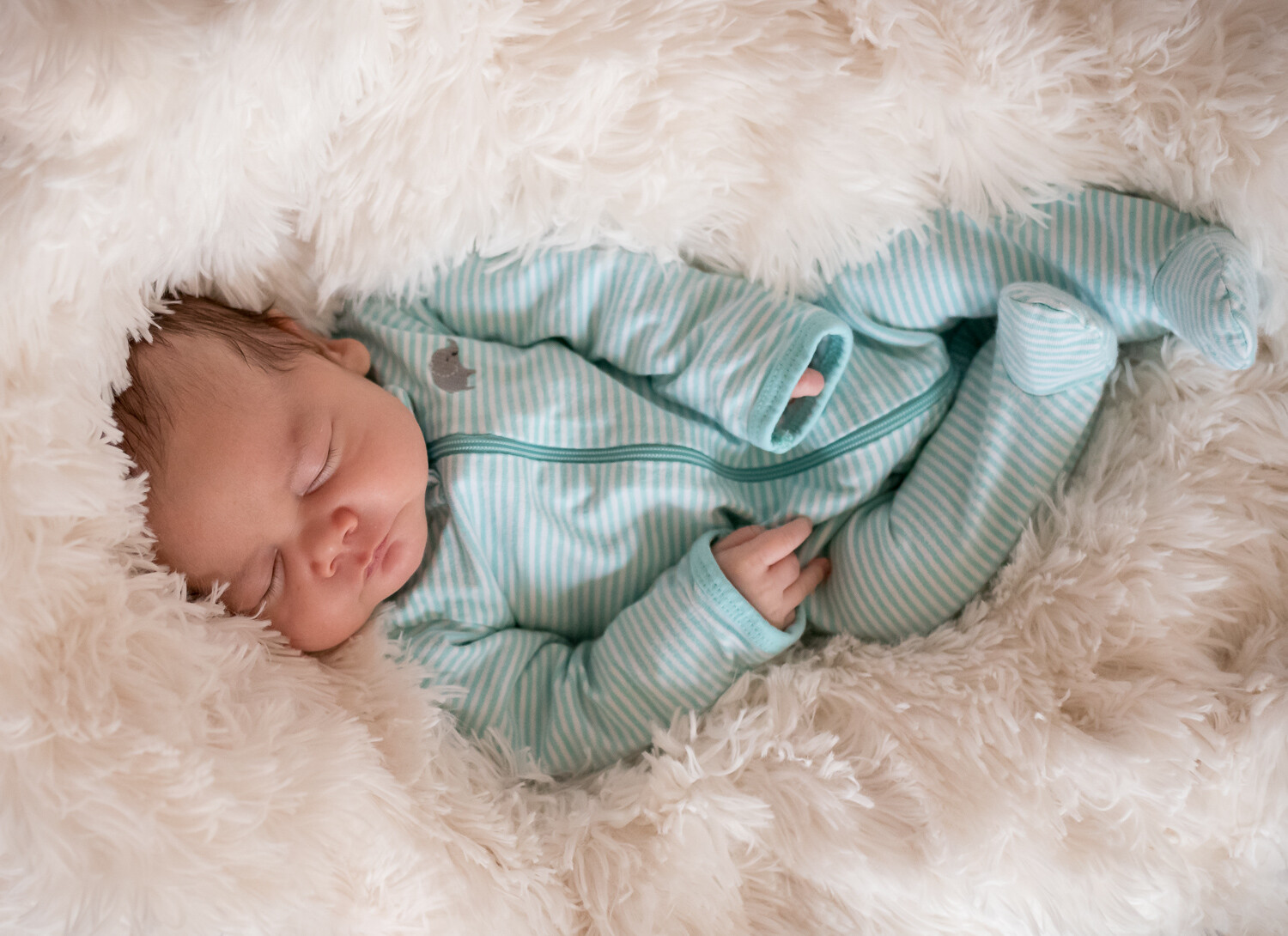
These two shots are the same sleeping infant. However, I took one from a very low angle and the other from directly above. Neither one is better or worse than the other, and that’s not the point. Instead, both pictures showcase the same subject in different ways. Thus, they convey different meanings to the viewer.

The same scene from a different angle feels more personal and intimate, even though almost nothing about the baby has changed.

On a similar note, I did a family photo session for some clients recently where they wanted a picture of all their hands together. After discussing some ways to accomplish this, we decided to shoot the hands from above. It involved a tall ladder, and all the family members crowded around a tree stump. They were thrilled with the result.

It all came about because I shifted my vantage point to directly above instead of my normal inclination to take photographs from my eye level.

Finally, one more example involves nothing more than a washing machine that my father had rigged to run with the lid open. I held my camera directly above to get this picture of the spin cycle in action.

While it may not be as special as an infant or three generations of hands together, it’s an interesting image of a familiar situation made possible by shifting perspectives.

Hopefully, these images give you a sense of what’s possible by changing a few simple things with your photography. You don’t need expensive gear or fancy studio setups to accomplish some interesting results. Often you just need to adjust your viewpoint or find ways to use the light differently.

I’d love to see some of your examples and read your tips on this same idea. If you have any thoughts or images about this, please share them in the comments below!

The post How to Improve Your Photography by Changing Perspective appeared first on Digital Photography School. It was authored by Simon Ringsmuth.


Digital Photography School

 
Comments Off on How to Improve Your Photography by Changing Perspective

Posted in Photography


NASCAR teams up with DroneShield to bring down unwanted drones at racing events

18 Mar

It’s not just countries and federal agencies getting tough on drones, unruly or otherwise. According to a report from TechCrunch, NASCAR, the sanctioning body of multiple stock-car racing series in the United States and abroad, has struck a deal with anti-drone technology company DroneShield to help shoot down rogue drones at specific venues.

According to the report, DroneShield will be present at NASCAR-sanctioned events held at Texas Motor Speedway in Fort Worth, Texas. This includes events for the Monster Energy NASCAR Cup Series and other feeder stock-car series throughout the 2019 season. Below is a promotional video captured and shared by DroneShield showing off its new DroneGun product:

In an email announcing the news, DroneShield CEO said ‘We are proud to be able to assist a high-profile event like this […] We also believe that this is significant for DroneShield in that this is the first known live operational use of all three of our key products – DroneSentinel, DroneSentry and DroneGun – by U.S. law enforcement.’

DroneShield Sentry (left), DroneShield Sentinel (right).

Despite being the first time its trifecta of products are being used, this isn’t the first time DroneShield has been used at major sporting events. DroneShield technology was used at the 2018 Winter Olympics in PyeongChang, South Korea, as well as at the Commonwealth Games in Brisbane, Australia most recently.

Articles: Digital Photography Review (dpreview.com)

 
Comments Off on NASCAR teams up with DroneShield to bring down unwanted drones at racing events

Posted in Uncategorized


Widen your window: a message to landscape photographers

17 Mar

If there’s one thing landscape photographers obsess over more than gear, it’s light. And often, we fall into the trap of treating light as a zero-sum game – either a sunset is amazing or it’s a complete fizzer. This all-or-nothing mindset is detrimental to our growth as photographers and the work we can produce.

Instead, when we approach our time in the field with a richer appreciation for the subtle, ever-changing interplay between light and landscape, we foster greater opportunities for creative expression.

Expectations create limitations

Early in my landscape photography journey, I would fixate on burning sunrises and sunsets. Almost obsessively, I would track the clouds each day, searching for the signs of a promising explosion of color. While every month or two the heavens would align, more often than not, the sky either fizzled out or failed to produce the color I had hoped for.

By tying our time in the field to ‘great light’, we limit our opportunities

Chasing idealized visions of light, I’d either a) go out anticipating perfect conditions, only to be disheartened when it didn’t materialize, or b) I wouldn’t go out at all if there weren’t signs of a banger on the way. I’m not sure which was worse. Both mindsets have been harmful to my development as a photographer. In hindsight, internalizing the concept of ‘perfect light’ falling across each scene was an unrealistic expectation—one that set me up for disappointment and hampered the images I took.

By tying our time in the field to ‘great light’, we limit our opportunities. Opportunities to grow in versatility. Opportunities to better experience landscapes and compose scenes. Opportunities to expand, refine and execute on our photographic vision.

Go out earlier, stay out later

If you’re the kind of person who, like I was, predominantly shoots 20 minutes either side of sunset (or sunrise), then consider widening your capture window. That is, arrive on location an hour earlier, and continue taking images well into twilight.

This enables you to gain a more rounded understanding of the key elements of the scenes unfolding before you. Exploring locations without looming time pressures offers you the freedom to discover compelling compositions. Compositions that may not present themselves to others who simply arrive at the car park 10 minutes before sunset.

Time is a limited resource, particularly so for some more than others

(Note: This emphasis on time is understandably more difficult for people traveling or working another full-time job—people like me. Time is a limited resource, particularly so for some more than others. If that’s you, then reflect on your priorities. Do you want to capture a collection of good images from multiple locations? Or is your preference for a handful of great images—images that you’d be proud to add to your portfolio?)

Additionally, expanding your capture window forces you to experience the landscape under ever-changing lighting conditions. Over a one hour period on sunset, a scene can change from golden side light, to indirect light from colorful clouds overhead, to soft, yet moody, blue light before dusk arrives. Sometimes a burning sky can be too overwhelming, commanding all the attention in an image, while softer light during twilight may better emphasize the mid-ground and foreground elements.

Challenge yourself

By allowing yourself more time, you can still reserve a window for your ideal composition later in the shoot. Having that composition safely scheduled away opens up new opportunities to create images you not only previously overlooked, but may have entirely not thought possible.

Furthermore, this mindset needn’t – and shouldn’t – apply to sunrise/sunset scenes. Challenge yourself to head out during non-ideal conditions. When time allows, explore landscapes in the middle of the day, after (or for those more adventurous, during) rain or even under moonlight.

Without a colorful sky acting as a crutch to make the scene interesting, how else might you compose it make it compelling? For seascapes, try shooting handheld and getting even closer to the action. For forest scenes, consider shooting with a telephoto lens to really focus in on the subject and remove all distractions. While it’s approaching cliche, experiment by adding a human element to your image for an enhanced sense of scale and place. And when all else fails, shoot abstract – capture intimate details that hone in on key elements of the landscape.

Final thoughts

This article shouldn’t be treated as a prescriptive guide – nor would I want it to be. Each of us has our unique way of seeing and capturing the world around us. That’s one of the reasons so many landscape photographers are passionate about their craft. It’s a medium for personal expression.

Rather, I’m sharing this article to encourage you to expand the scope of your photography and of your potential as an artist. To broaden your view of the images you can (and hopefully will want) to create. To open up new possibilities for your creative vision.


Mitch Green is a Melbourne based Travel and Landscape photographer. He can be found via his website, through Instagram, or down by the beach at 5am waiting for sunrise.

Articles: Digital Photography Review (dpreview.com)

 
Comments Off on Widen your window: a message to landscape photographers

Posted in Uncategorized


A Beginners Guide to Taking Portraits of Elderly Clients: Part 1 – Preparation and Rapport

17 Mar

The post A Beginners Guide to Taking Portraits of Elderly Clients: Part 1 – Preparation and Rapport appeared first on Digital Photography School. It was authored by Clinton Moore.

1 - Taking Portraits of Elderly Clients

You often hear it said that outstanding photography is about storytelling. An image may not have perfect lighting ratios or razor sharpness, but if it connects with you that can be all that matters.

Working with elderly clients can be the ultimate storytelling journey as these folks have experience in spades!

In this first of a two-part series on working with elderly clients, we’ll explore the practical and rapport building aspects of creating a story through the click of a shutter. Part two focuses on lighting and posing techniques.

How old is old?

2 - Taking Portraits of Elderly Clients

Remember that there is a spectrum of seniors. Most do not think of themselves as frail or grizzled. Get to know your stereotypes and your subject.

One place where your point of view can get in the way of a great image is generalizations around age. You’ve fallen into this trap the minute you conceptualize your client as “old” or “elderly.”

They tend to hate these terms. Can you blame them?

It’s important to step back and remember that there is a spectrum of the elderly. A 65-year-old is probably going to be at a different place in their life, both physically and mentally, to a 90-year-old. This includes everything from their health and mobility to their attitude about what they desire in a portrait.

Just try getting a 90-year-old to go for a brisk walk down the beach at dusk as you do in your standard family portraits.

Step back and remember that you need to get to know where your client is at before you even pick up your camera. After all, age is a state of mind.

Rapport building

Older clients tend to take a bit more time to photograph. They’ve been around the block a few times, and they want to get to know you a bit first. Also, they’re generally not trained models looking for a glamour shot for their Instagram feed.

For them, a photograph is an event, not an addiction.

3 - Taking Portraits of Elderly Clients

Older generations may only have had one formal photograph in their lives. Don’t assume they will be comfortable around the camera just because they’re there.

Communicate their way

You may be used to connecting through a world of emails and social media, but this isn’t always the case for older clients. For many older clients, their first instinct will be to pick up the phone (and we’re not even talking about a cell/mobile half the time!).

So be sure to place your phone number prominently on your website and any other form of marketing. This creates a sense of trust that you’re not going to just run off with their money.

Of course, many older clients do have email but may likely hold you to a higher standard of communication than you are used to on social media. Make sure you address them formally (i.e. “Dear John”), don’t use modern abbreviations or slang, and please check your spelling and grammar!

Creating comfort

When shooting a portrait, comfort should be your number one priority regardless of your client’s age. However, for older clients, you may have to do a little more than just making bad jokes from behind the lens.

Take the time to meet with your client before the shooting date. Sit down with them and be willing to share a bit of your personal story. This means more than just your shooting style. Tell them about where you come from, your family, or your interests.

This old school type of business approach might seem a little strange if you’re used to more modern online interactions. However, for older clients, it builds trust.

Try to keep in mind that older generations didn’t grow up with cameras being thrust in their face every second of the day. So your first job is really to make them feel safe. It’s entirely possible that the photo shoot was the idea of their children, and the client themselves may not be entirely on board.

So be sure to make them feel comfortable. Communicate your process and timeline clearly, and then stick to it!

4 - Taking Portraits of Elderly Clients

Sitting down with your client can be the most interesting part of the whole process. Take the time to do it right.

Understand their goal

Who paid for the shoot? One of the tough parts about working with older people is that they may not actually be the client!

If their children are footing the bill, understand what they want from the session in addition to the older persons desired outcomes. Often this is going to be a case of compromise. This highlights the importance of communication and preparation.

Now assuming the older person is your client, the first step is to determine how they want to be portrayed. While this should be standard practice regardless of age, there are a few areas here that can trip you up.

If they’re quite old, this portrait could be the photo destined for the tombstone. No one will say it out loud, but people may be thinking it. As such, family members might have differing, but strong opinions about how things should look.

Keep in mind that some clients might want to be photoshopped back into their 20s, whereas others may proudly want their wrinkles on display. As always communication is vital!

Be careful about imposing your ideas of old age photography onto the session. Try to avoid the cliché shots of the serious or delirious old person. Instead, let their personality shine.

5 - Taking Portraits of Elderly Clients

Avoid the clichéd shots and post-processing that portray older subjects as worn or child-like. Let their personality lead your images.

Get out of their face

Want to make an 80+-year-old client feel immediately uncomfortable? Get right up in their face with a lens. Aside from the fact that it’s probably not going to give a very flattering look, it can feel intimidating.

They may also not be over the moon about being surrounded by multiple light stands, softboxes, flags, and reflectors.

During your initial consultation, find out what level of gear will allow them to feel comfortable. If that means just the natural light through a window, then work with that.

Posed versus candid photographs

One of the most important initial questions pre-shoot is whether the client wants posed or candid shots.

While the client’s wishes should mostly steer this decision, you need to take a few factors into account.

Client’s who are experiencing dementia, particularly frontal dementia, may struggle with a posed photo shoot. Frontal dementia affects a person’s ability to plan and organize. So your usually simple instructions such as “open your eyes and smile on the count of three,” may quickly descend into chaos.

That said, if you’re doing a family shoot, a little bit of this chaos (provided no one gets too embarrassed) can be a great natural ice-breaker.

When in doubt ask yourself what style of shoot will best allow the client’s personality to shine through. A shot of grandpa tinkering away in his workshop might be infinitely more valuable than a stale headshot for the family.

6 - Taking Portraits of Elderly Clients

Sometimes the best photograph won’t be the perfectly lit, composed and exposed image. A family snapshot can be infinitely more iconic if it captures your subject’s personality.

Length of sessions

When shooting significantly older clients, keep sessions as short as possible.

The process of having to concentrate on a range of different instructions can be quite fatiguing. There’s also a good chance that their preparation for the shoot started well before you arrived.

As mentioned before, clients suffering with dementia can also experience a phenomenon called “sundowning” which is a tendency to become more confused towards the end of the day.

See again the importance of making sure you know your client before you organize anything?

7 - Taking Portraits of Elderly Clients

Jot down everything you can during your pre-consultation to create a fleshed-out idea of your client and their needs.

Mobility and location of sessions

Although a 60-year-old client can probably go anywhere you can think of; a 90-year-old client can’t. Something as small as a flight of stairs can pose a massive hurdle to a significantly older client.

Plan where you are going beforehand and give your client plenty of time to get there.

Asking them to cross a park to get to a beautiful spot you usually take your clients could end up taking more time than you had intended for the entire shoot.

As you can see, the minute you leave the client’s home, things get a bit more complicated. However, don’t let that discourage you from venturing outdoors. Just do the groundwork beforehand and make sure everyone involved is on the same page.

8 - Taking Portraits of Elderly Clients

Be realistic about the areas an older person can access. A few steps may as well be a mountain for some. It never hurts to send your assistant to check it out first.

Conclusion

Working with older clients is a delightful experience. Their sincerity is hard to miss. To ensure you have the best chance at a successful shoot, take the time to prepare more than just your lighting diagrams. Focus on understanding the client’s goals and personality. Collaborate with the family where necessary, and make their comfort your number one priority.

Next time we’ll be looking at some ideas around lighting and posing older clients.

Do you have any other tips you’d like to share? If so, please do so in the comments section.

The post A Beginners Guide to Taking Portraits of Elderly Clients: Part 1 – Preparation and Rapport appeared first on Digital Photography School. It was authored by Clinton Moore.


Digital Photography School

 
Comments Off on A Beginners Guide to Taking Portraits of Elderly Clients: Part 1 – Preparation and Rapport

Posted in Photography


Zenit announces ridiculously fast 50mm F0.95 fully-manual lens for Sony full-frame cameras

17 Mar

Zenit has announced a 50mm F0.95 manual lens for Sony full-frame cameras.

The Zenitar 0.95 | 50, as it’s called in Zenit’s branding, is fully manual without any electronics inside. It features a fast aperture and an impressive 14-blade diaphragm that Zenit claims provides perfectly round bokeh.

The lens is constructed of nine elements in eight groups and constructed entirely of glass and metal. Considering the metal construction and massive optical elements, it shouldn’t come as a surprise that the lens weighs quite a bit for its focal length, 1.1kg / 2.43lbs.

Below is a gallery of sample images captured with the lens:

$ (document).ready(function() { SampleGalleryV2({“containerId”:”embeddedSampleGallery_7529586030″,”galleryId”:”7529586030″,”isEmbeddedWidget”:true,”selectedImageIndex”:0,”isMobile”:false}) });

The lens is set to be released in Russia next week for a price of 50K ruble, which converts to roughly €680 or $ 770 USD. There’s no mention of an international release timeframe for the time being.

Articles: Digital Photography Review (dpreview.com)

 
Comments Off on Zenit announces ridiculously fast 50mm F0.95 fully-manual lens for Sony full-frame cameras

Posted in Uncategorized


Hasselblad launches new cable release, battery charging hub for X1D

16 Mar

Hasselblad has introduced a cable release for its X1D medium format rangefinder-style camera alongside a new USB double battery charger. The Release Cord X is 90cm/36in long and triggers the shutter in single shot and continuous modes, and controls the camera via its microphone socket.

Dual slots on the Battery Charging Hub allow for two batteries to be charged simultaneously and for the camera to be powered via the USB C connector. The hub can be plugged into the AC power supply to charge batteries and the camera, or it can be fed from a portable power bank. The hub is compatible with both battery varieties the camera takes, but charges the newer 3400mAh models 25% more quickly – in 2 hours 18 minutes for one and 2 hours 48 minutes for two. The older 3200mAh model takes 3 hours.

Batteries can be checked via the LED panel that monitors the charging process as well as providing a quick levels readout for partially charged units.

The Hasselblad Release Cord X will cost €69 / $ 80 / £64 / JPY¥9360 excl. VAT. / CNY¥629 incl. VAT, and the Battery Charging Hub will be €129 / $ 155 / £115 / JPY¥17460 excl. VAT / CNY¥1199 incl. VAT. For more information see the Hasselblad website.

Press release:

{pressrelease}

Hasselblad X system expands with Release Cord X and Battery Charging Hub

Hasselblad proudly expands its photographic tool kit for the X System with the introduction of the new Release Cord X and Battery Charging Hub. With Hasselblad’s full commitment to the development of the X System, these two new accessories alongside the introduction of the newest XCD Lenses greatly expand the creative capabilities of the revolutionary mirrorless medium format X1D-50c.

The Hasselblad Release Cord X allows for remote shutter actuation, an invaluable tool when eliminating shake or vibration is paramount. A durable cloth-wrapped 90cm (36 in.) cable connects to the X1D-50c’s microphone input port and the remote’s simple single button operation allows photographers to keep vibration to a minimum. When autofocus is enabled on the camera, a single action swiftly starts autofocus and then releases the shutter. Holding the button down when in Continuous Capture mode allows for multiple frames to be captured, whilst setting the camera in Manual Focus mode allows for Release Cord X to fire the shutter without delay. Its durable metal construction matches the adventurous endeavours of Hasselblad’s X System users and its slim, ergonomic design fits comfortably in the hand. For seamless functionality, the X1D should be updated to the latest 1.22 firmware available at My Hasselblad.

The Hasselblad Battery Charging Hub makes it possible for a Hasselblad photographer to streamline the battery charging process, allowing X1D photographers to go further with their creative pursuits. Its dual slots support the simultaneous charging of two batteries while an integrated USB Type-C connector supports mains power via an included power supply or from common external USB battery banks (sold separately). Front-facing LEDs indicate status and capacity when charging, or users can use the Battery Charging Hub to check battery levels simply by inserting a battery and pressing a single button. The Battery Charging Hub supports both first-generation 3200mAh X System batteries and current 3400mAh batteries, the latter of which support quick-charging up to 25% faster than the former. This equates to a completely replenished single battery in 2 hours 18 minutes, or dual batteries in 2 hours 48 minutes. First-generation 3200mAh batteries recharge completely in approximately 3 hours and completed charging cycles are indicated by an audible chime in either situation. With a durable metal construction and compact design, the Battery Charging Hub is posed to simplify a critical aspect of photography and ensure that maximum creative vision can be achieved.

The Hasselblad Release Cord X is available to purchase with an MSRP of €69 / $ 80 / £64 / JPY¥9360 excl. VAT. / CNY¥629 incl. VAT.

The Hasselblad Battery Charging Hub is available to purchase with an MSRP of €129 / $ 155 / £115 / JPY¥17460 excl. VAT / CNY¥1199 incl. VAT.

{/pressrelease}

Articles: Digital Photography Review (dpreview.com)

 
Comments Off on Hasselblad launches new cable release, battery charging hub for X1D

Posted in Uncategorized


How to Edit and Retouch Images Using Capture One Pro

16 Mar

The post How to Edit and Retouch Images Using Capture One Pro appeared first on Digital Photography School. It was authored by Carl Spring.

Before and after split screen of edit

Whilst we all flock to Photoshop for our retouching, Capture One now has a lot of great tools. But is it possible to do a full image edit including retouching? More so, if it is, should you do it and avoid Photoshop altogether?

To find out, I closed Photoshop and settled myself down for a full edit using only Capture One Pro. Lets go through the process and see what I learnt.

Annotate

Capture One’s built-in annotation tools make it easy to plan your retouching for your images. A variety of colors can easily be added to the image should you wish. I really like this tool. It allows you to make simple notes on screen. While it may look like I am practicing my abstract expressionism, I am actually highlighting what I want to improve. In this case, the red is for retouching and yellow is for exposure issues. I love this tool! So far so good.

The annotate tool is great for making notes before you start the edit.

Colour balance

When the image comes into Capture One, the first thing is to get a good neutral color balance. I always start by letting Capture One get me into the ballpark via the Auto tool in White Balance. While not perfect, it gives a good starting point.  I then tweak the color to taste. In most cases, it is only a small tweak from the auto white balance to get a starting point I am happy with.

Exposure

Continuing with the basics, next up is exposure. It always pays to get as close as you can in-camera, and this case required very little. For this image, I pushed up the exposure just under 0.5 stops and added a slight amount of contrast and saturation to my taste. All that was left was a slight highlight recovery to take away the worst of the hot spots. The worst highlights will be taken care of in the next step (and first layer) Luma masking.

Layer One: Luma Mask

New in Capture One 12 is Luma masking. I love this tool! It is such a great time saver for masking highlights. I use it here to mask out the highest highlights in the image and then use the High Dynamic Range sliders to pull back the highlights. Subtly is the key here. I only want to take the harshness out of the bright spots.

An image showing the luma mask in Capture One Pro 12

Possibly my favourite tool in Capture One 12. The Luma mask

Layer two (and three and four): Blemish Retouching

Trying to do any amount of blemish retouching in Capture One soon tells you that it wasn’t designed for this task. The system is clunky. You sample using the alt key (the same way as Photoshop); however, you cannot resample a different area on the same layer. Instead, you need to create a new layer and a new sample. I ended up using 3 layers merely to do basic spot removal (and this wasn’t even going as far as I would in Photoshop). Capture One isn’t effective for any serious blemish removal. I tried this process out on another image to see if it fared better, but it was worse. It got to the point where I just gave up. Yes, it works for simple items, but in the future, blemishes will be worked on in Photoshop only.

Layer five: Skin smoothing

The Skin Smoothing tool is a super-great way to improve skin with a simple mask and a couple of sliders. I use this tool all the time when editing wedding photography. It gives a great effect with such little effort.

The first step is to create a mask using a new layer and the Brush tool. Make sure you leave out areas of detail, such as the eyes and lips. You can then refine the mask to get it more accurate. I tend to use a number between 100-150 for most situations. After this, I go back in with the brush and erase tools until I am happy with the mask. A little tip here is to change the mask color from the default of red when working with people. It just makes the mask stand out more against the skin.

Next, the special sauce. A.K.A The Clarity tool. Just go to the clarity section, choose Natural as the clarity type and slide the numbers into the negatives. I generally find the sweet spot for this technique to be between -60 to -70. Much more than this and it can become a little fake. It comes down to the image you are working on. Simply adjust the sliders until you are happy with the result.

This on its own has a massive difference on the image, but when you add in the Color Editor tool, it takes this to another level.

Layer five continued: Skin Colour

The ability to work with color so precisely is one of Capture One’s greatest strengths. Editing skin tone is a great way to make your model’s skin glow. You can find this tool located in the Color Editor section. To start, click the icon and sample a skin tone. Next, you work with the two sections of this tool, Amount and Uniformity. The amount sliders are to get a skin tone that you are happy with. You then move onto the uniformity sliders to even out the skin tone through the whole face. As with much retouching, it is easy to go over the top. My tip for this is to do the edit, then take a break for a couple of minutes and come back. You instantly see if the image is over done and you can dial back accordingly.

We now have an even, soft skin tone through the image. This layer has made a huge difference to our image. It’s now time to finesse the details.

Capture One screen grab showing mask and colour tools

As you can see, the combination of the clarity slider and the Skin colour editor has really made a difference. The blue mask, maybe not so flattering.

Layer six: Teeth

The teeth need to be slightly whitened. This is as simple as a mask, followed by reducing the saturation. Again, don’t take it down to zero – it will look weird. Take it down just enough so that the teeth look naturally white. In this image, the sweet spot was -51. I then pushed the exposure just slightly to give a whiter smile. But again, as with all retouching, less is more.

Layer seven: Eyes

You sense a theme yet? I created another mask for the eyes. This time I added a very slight bump in exposure and some clarity to give them a subtle pop that was missing before.

Layer eight: The top

The red top the model wore in this shoot was just too bright. Using a combination of a mask and the color editor, I was able to easily reduce the red tone to something less overpowering.

Capture One screen shots showing before and after the colour editor

Toning down the red top means it is not quite as powerful in the image.

Layers nine and ten: The Hair

As the old saying goes; in for a penny, in for a pound. Having worked on the heal and clone layers for basic spot removal, this was going to be something that I was unsure would work. However, with a lot of trial and error, I produced something that was okay. Would I do it again? No. But, I did manage to improve the hair significantly from the previous state.

I ended up using a clone layer for one side of the hair and a heal layer for the other. Again, editing like this shows the limitations of Capture One for high-end retouching. However, after some trial and error, it did an okay job.

Layer eleven: Colour Grade

I generally don’t color grade images heavily – if at all. I usually prefer a natural look. But for this tutorial, I added a color grade. To do this, you add a new fill layer and add your grading there. This also allows you to reduce the effect by opacity or simply turn it on or off quickly to give different looks.

For this image, I decided to use Capture One’s excellent film grain emulations to add some soft grain. Next, I spent some time with the Color Balance tools pulling the shadows into the blues and highlights slightly into the orange. Finally, I used the levels to give a slightly faded look to the final color grade. That’s it. It’s done!

Final photo after retouching

The final edit.

What did I learn?

Well, it is possible to do a full retouch in Capture One. However, in reality, it is clunky and nowhere near as powerful as Photoshop.

The worst part of this was the blemish removals. It was painful to use for more than a couple of blemishes in an image. Also when trying this on another image to remove an eyelash, it was impossible to get it to give a pleasing result.

The standout of this edit is a process I use all the time: the Skin Smoothing and Skin Color combination. These two tools can quickly take care of many skin problems you may see. As a wedding photographer, this is a powerful tool. I can make a bride’s skin look glowing, quickly and easily without the need to round trip to Photoshop. To give you an example, check out this before and after using only this combination. You can achieve quick, simple and powerful results in just a couple of minutes.

A comparison of before and after skin reoutching in Capture One

Such a vast improvement only using two tools.

Conclusion

In general, the color tools in Capture One are amazing, and as well as working well on the skin, they were great for color grading the final image. My regular workflow for an image like this would be a trip to Photoshop for the skin, then back into Capture One for color grading.

Overall, Capture One did give a good final result, but at the cost of time and with some frustration.

Can Capture One Pro do a full edit with retouching? It can – kind of.

Would I recommend it? No.

It’s just not quite precise enough to be able to use regularly for this type of edit. That skin trick though is gold!

Do you use Capture One for your retouching? What are your experiences?


The post How to Edit and Retouch Images Using Capture One Pro appeared first on Digital Photography School. It was authored by Carl Spring.


Digital Photography School

 
Comments Off on How to Edit and Retouch Images Using Capture One Pro

Posted in Photography


How to safely operate a drone in urban areas

16 Mar
Photo by Kara Murphy

Just a few weeks ago, a drone crashed through a window on the 27th floor of a building in Chicago. Last year, a tourist was apprehended for flying in downtown Manhattan, in the heart of New York City, where UAV operations are strictly prohibited. The month before, a remote pilot avoided disaster when his DJI Phantom 3 drone plummeted 36 stories from where it was inspecting a crack that formed on a window of San Francisco’s Millennium Tower. It crashed on the sidewalk, missing pedestrians by inches.

When operated properly, drones are capable of capturing angles and gathering critical data in areas that helicopters and small planes can’t access. Launching a drone in crowded spaces poses two key potential risks: signal loss caused by magnetic field interference, and drifting caused by wind tunnels lurking between high-rise buildings.

In the US*, drones can be flown in cities, where it is legal under 14 CFR Part 107 rules, which allow the operator to fly more than 400 ft. AGL (above ground level) as long as the drone remains within 400 ft. of a building, or with the proper Certificate of Waiver or Authorization (COA) from the FAA. However, doing so requires the remote pilot-in-command to conduct a thorough risk assessment, identify potential hazards, and establish a set of emergency procedures to ensure the safest outcome possible.

Calibrate the compass before heading downtown

The most foolproof way to prevent a fly-away, and ensure location accuracy during flight, is to calibrate your drone’s compass. Locate an open field, roughly 15km (10 miles) away from where a flight in a heavily-congested area is planned; avoid parking structures with metal guardrails and cell phone towers, and remove watches and metal jewelry as even the slightest bit of magnetic interference will disrupt this critical procedure.

Always make sure to calibrate your drone’s compass before flying in congested or urban environments.

Photo by Kara Murphy

Once at the calibration site, follow the procedure for calibrating your drone’s compass. With minimal interference it will account for magnetic declination, which will allow it to operate with a higher degree of accuracy.

Make sure multiple flight modes are enabled

Most consumer-grade drones are equipped with intelligent flight modes and stabilization systems to ensure smooth, steady flights. On DJI drones there are three main flight modes — P-Mode (Position), A-Mode (Attitude), and S-Mode (Sport) — that can be accessed directly using the remote control. Both Position and Sport Mode rely on GPS and Glonass to hold the drone’s position in the air.

While most flights can be conducted in Position Mode, as it allows the drone to hover in place and easily return home, there will be times when signal interference is severe. Attitude, or ATTI Mode, which retains altitude but causes the drone to drift with the wind, is the only option for flying where signals are compromised. And, since part 107 rules allow a pilot to operate up to 400 feet (120 meters) above the topmost part of a structure, encountering strong winds is inevitable.

DJI controllers feature a hardware toggle to quickly switch between Position, Attitude, and Sport modes.

Note: although GPS is disabled in ATTI mode, the GPS module still locates the drone in the background, meaning that someone can’t use ATTI mode to circumvent restricted flight zones.

Switching from P-Mode to A-Mode is as simple as a flip of the switch on the controller. This shortcut can be accessed when Multiple Flight Modes are enabled in the DJI Go App. If the drone can no longer operate in Position or Sport Mode, it will automatically default to ATTI Mode. It’s always preferable to initiate this transition instead of being taken by surprise when the drone activates ATTI Mode on its own.

Practice flying in ATTI mode

As a general rule, you should never fly between tall buildings with GPS enabled. Numerous signals between buildings cause interference and create a substantial margin of error in the compass, setting the drone off course. The worst case scenario a pilot can encounter when flying in a congested area is relying on Position Mode, which stabilizes the drone and makes controlling it practically effortless, only to have the drone default to ATTI mode when the signal is inevitably lost.

Attitude, or ATTI Mode, is the only option for flying where signals are compromised.

Guiding a drone that drifts with the wind is difficult and requires hours of preparation. Practicing in a large, open field with few trees and obstacles is the best method for learning how to maintain control of a drone when it won’t automatically hover in place. The first time ATTI mode is activated, the drone will immediately drift, and it startles even the most seasoned pilots. Don’t be caught off guard, learn how to handle the drone so it can be expertly guided on its intended path.

Identify the Minimum Obstacle Clearance Altitude

When flying near tall structures, a drone may lose its connection or run critically low on battery power earlier than expected. The Return to Home feature will automatically activate and, assuming the compass is calibrated properly, the drone will fly back to the remote pilot.

Creating a safe flight path requires a pilot to identify the height of the tallest structure in the area, and then add a margin of roughly 3m (10 ft) to ensure the drone clears every last obstacle. The Minimum Obstacle Clearance Altitude (MOCA) can be determined several ways.

Identifying the height of the tallest building is imperative to ensuring you don’t collide during any part of your flight.

Photo by Kara Murphy

I personally looked up the information online for a group of buildings I was photographing in San Francisco. Contacting a building manager is another option. For smaller, lesser-known structures where information isn’t readily available, flying with the gimbal pitch set to level, and elevating to the point where the obstacle crosses the horizon is another method for determining MOCA.

Creating a safe flight path requires a pilot to identify the height of the tallest structure in the area.

Enabling obstacle avoidance sensors is an additional recommended precautionary measure. However, sensors can’t always identify reflections or shiny surfaces. This is why establishing MOCA and setting the Return to Home Altitude accordingly is imperative.

Attach prop guards

Prop guards are an effective tool for preventing a crash should a drone bump into a wall. They aren’t 100 percent foolproof, which is why the above steps need to be taken, but it helps to have them in place. They add weight to the aircraft, which will deplete battery life at a slightly faster rate, and practicing with them attached so you can make necessary adjustments is highly recommended. Depending on the model of the drone, obstacle avoidance systems may be disabled with the use of prop guards.

Keep the drone within close range

A complex job that requires navigating a congested area needs to be supported by a visual observer to help keep watch of the drone and maintain visual line of sight. Typically, flying a maximum distance of 500m (1600 ft) from your location is acceptable, however, in a crowded area, it’s preferable to keep the drone within closer proximity; 150-250m (approx. 500-800 ft) is ideal if you’re flying at an altitude that exceeds 120m (400 ft).

Before heading into an area with tall buildings and narrow corridors, practice flying in ATTI Mode in a wide open, nearby park.

Photo by Dale Baskin

Launch in Position Mode until the drone has cleared the pilot, crew, and any major nearby obstacles, such as a bridge or traffic light, that might impact the flight in its initial stages. Alternate to ATTI mode and continue ascension. When the drone drone returns, and is in close enough range, switch back to Position Mode to facilitate a sturdy landing.

The take away

Drones save time, money, and effort when operated properly, and can be very useful for things like building or tower inspections. Learning how to safely conduct flights in challenging environments is essential if you plan to fly in congested areas like a city center. Taking the time to do so provides an extra layer of safety, and if you’re flying for your business, gives you a potential leg up on the competition.

As pilots, it’s our responsibility to be prepared in order to keep the skies – and our urban areas – safe. And really, you don’t want to be that person who shows up on the news for not doing so.


*Rules and regulations vary by country. Make sure you know, and follow, the regulations for your particular location.

Articles: Digital Photography Review (dpreview.com)

 
Comments Off on How to safely operate a drone in urban areas

Posted in Uncategorized


Twitter wants you to tweet more photos, makes its in-camera app easier to access

16 Mar

Twitter has announced a change to its iOS app in an apparent move to encourage the tweeting of photos. The in-app camera has received a redesign and can now be opened by simply swiping left from your Twitter timeline screen.

Once the camera has opened you can tap on the virtual shutter button to capture a still image or hold down to record video. There is also quick access to Twitter’s livestreaming feature. Location information and captions are overlaid onto photos and videos captured within the app and you can choose from a range of overlay colors.

Overall the new feature isn’t a groundbreaking change but it shows that Twitter is aiming to compete more closely with Instagram and other image-focused social media apps, most of which offer equally direct access to the camera app.

Articles: Digital Photography Review (dpreview.com)

 
Comments Off on Twitter wants you to tweet more photos, makes its in-camera app easier to access

Posted in Uncategorized