RSS
 

Archive for March, 2019

How to Use Textures to Create Compelling Photographs

19 Mar

The post How to Use Textures to Create Compelling Photographs appeared first on Digital Photography School. It was authored by Glenn Harper.

Adding textures to photos is a fun way of creating new pictures. In some respects, it’s not very different to printing your photos onto textured paper or choosing frames for them (or both), except the images needn’t leave your computer. You can do this with photos you’ve already taken, though often it’s best to create them with this treatment in mind.

Adding textured backgrounds to photos

Cracked earth photo in the background.

Choosing your photos

You can add textures to almost any type of picture, but this method works well with simple photos where there isn’t a lot of fussy detail. Ideally, you need a sizeable single-tone area that allows the background to come through. Otherwise, you can use a simple texture with a complex photo – the important thing is that the two photos do not fight.

Adding textured backgrounds to photos

A harmless subject, despite appearances.

You can apply this treatment to portraits, landscapes, still lifes, or just about any genre. With still life, you’re at a particular advantage because you can take very simple pictures of subjects against plain backgrounds and then attempt to create something interesting later with a textured background.

Adding textured backgrounds to photos

Melding photos together is not a purist’s approach to photography, but you need only ask yourself one question: do you like the result? Adding a texture to a background is like putting two pieces of a jigsaw puzzle together. Do the two parts suit each other? A beneficial side effect of creating these pictures is that you’ll start noticing and shooting all kinds of textures to use with your photos.

Adding textured backgrounds to photos

Splodges of paint in the background.

Finding and photographing textures

You can create your own backgrounds quite easily by photographing textures around the home. For instance, try capturing textured paper, sandpaper, fences, walls, wood grain, baking trays, tiles, canvas, painted surfaces, rusting surfaces or concrete. Mid-tone textures with contrasting colors or details tend to work better than monotonous dark or bright surfaces.

Adding textured backgrounds to photos

Silhouetted trees against a blue painted background.

Try screwing up pieces of paper and then flattening them out for backgrounds. You can even use a scanner for paper backgrounds, which has the advantage of holding them flat while still recording the folds and creases.

Adding textured backgrounds to photos

The same silhouetted trees against brown paper. I wanted to avoid distracting contrast in the paper, so the processing holds off on highlights.

If you want to try this technique and don’t have any texture photographs in your library, you can always grab some to practice with from free photo websites (e.g. https://www.freeimages.com).

Adding textured backgrounds to photos

A French WW1 Croix de Guerre medal, originally shot against a white card background.

Another possibility is to use the in-built textures offered within image editing programs. Photoshop CC has this to a limited extent. There’s also a good textures section in ON1 Effects (standalone or filter plugin) that offers a lot of choice.

Adding textured backgrounds to photos

In Photoshop CC you can reveal the “Texture” filter under preferences. It only works on 8-bit images. This is the Canvas texture.

Photoshop Technique (or similar)

To blend textures into backgrounds, you need an editing program that has layers and blending modes. The second usually comes with the first. In brief, you just need to drag one photo on top of the other and adjust the blending mode between the layers to suit. Sometimes you might need to tweak opacity.

Here’s a more precise workflow:

  1. Open the two images you intend to merge (i.e. subject and textured background).
  2. Ensure that the texture image is the same size as the main photo or slightly larger. If it is much larger (e.g. a full-sized file layered onto a web image), it will appear less sharp.
  3. Using the move tool in Photoshop, drag the texture image onto the main photo. This automatically creates a second layer (“Layer 1”).
  4. Try the various layer blending modes in your layers palette until you find one that suits the image. “Overlay” is one that often works well.
  5. Adjust opacity to taste. If you want to strengthen the effect rather than fade it, you can duplicate Layer 1.
  6. Merge the layers (Ctrl + E) or Flatten Image.

You can do this the other way round and drag the main image onto the texture, but then the opacity slider becomes less useful. You ideally want to be able to fade the texture effect rather than the main photo. Also, if the texture file is larger, having that one on top avoids the need to crop the image afterwards.

Adding textured backgrounds to photos

Using the Brush Tool

Another thing you can do with your textures is to selectively paint parts of the effect out of or into the picture. You might do this if, for instance, you want to create the illusion that an object within the photo is resting on a textured background without being part of it.

Adding textured backgrounds to photos

Using a ON1 Effects texture I’ve created henna-type markings on the hand and used the brush tool to remove the same pattern from the watch.

To do this, you need to create a layer mask on “Layer 1” (your texture photo). Then, making sure the brush foreground color is black – visible in the tools palette – you use the brush tool at 100% opacity to selectively paint the texture out. Hitting “X” lets you paint detail back in again if you get clumsy.

Alternatively, you can do the opposite and create a black layer mask, painting texture into the picture with a white brush.

Harmony

I mentioned earlier choosing textures and photos that suit each other. So, what might that mean? Ultimately, you get to decide what goes well with what, but some textures intrinsically suit some subjects. For instance, old books generally go better with leather, paper or card textures than they do with a brick wall. Metallic objects might go well with rust or oxidation.

Adding textured backgrounds to photos

Another ON1 Effects texture (rice paper).

With human subjects, you might want to infer something else altogether, like cracks for old age or the passing of time. Be careful who you use that on! The bolder the texture is, generally the more limited it is in its potential. You can use paper and canvas textures on almost anything because of their photographic and artistic connection and their unobtrusiveness.

Express yourself

Any picture you produce on a computer rather than in camera will likely attract a degree of cynicism. That’s just the way photography is. But it’s not always healthy to be confined by your chosen craft and feel like you’re not doing anything new. Blending photos in Photoshop is creative, fun and even a little beneficial, since an eye for juxtaposition is a valid photographic skill.

Adding textured backgrounds to photos

Antique Vaseline pots against an old baking tray surface.

Get ready for the strange looks you’ll receive when you begin photographing plain walls and fences. Use a tripod for extra eccentricity ….

Feel free to share your creations in the comments section below.

The post How to Use Textures to Create Compelling Photographs appeared first on Digital Photography School. It was authored by Glenn Harper.


Digital Photography School

 
Comments Off on How to Use Textures to Create Compelling Photographs

Posted in Photography


Is the Leica Q2 right for you?

19 Mar

Is the Leica Q2 right for you?

Leica recently announced the Q2, a 47MP rangefinder-style digital camera with a super-sharp, fixed 28mm F1.7 lens. It’s a heck of a lot of fun to shoot with – if you can afford the $ 4995 price tag – but is it right for you? Based on our time with the camera, and its specifications, we’ve examined how well-suited it is for common photography use-cases, including:

  • Candid and Street photography
  • Travel photography
  • Family and Moments photography
  • Landscape photography
  • Portrait photography
  • Video

Leica Q2 for Street photography

Leica cameras have been associated with street photography as well as photojournalism for generations, so it shouldn’t come as much of a surprise that the Q2 is well-suited for capturing candids. Its 28mm F1.7 Summilux lens is not only impressively sharp, it’s also stabilized for hand-held shooting, in low light.

The camera offers two ways to set an autofocus area, either via the touchscreen or the rear four-way directional pad: whichever you choose, point movement and overall AF responsiveness is excellent. There is no touchpad AF option when using the Q2 with your eye to the finder, though, only the directional pad.

If you’re more of a purist, go ahead and manual focus: the focus ring is well damped and really quite pleasing to turn. The camera offers two focus assist tools: Auto Magnification and Focus Peaking (available in a variety of colors) – one, both or neither can be turned on. There’s also a hyperfocal scale on the lens barrel.

The 28mm F1.7 Summilux lens is not only impressively sharp, it’s also stabilized for
hand-held shooting

Being neither seen nor heard is important for street photographers. The Leica Q2’s leaf shutter is nearly silent and its electronic shutter is completely silent, though you may encounter some rolling shutter. The former can sync with a flash up to 1/2000 sec. There’s no in-camera flash, but a strobe can be attached to the Q2’s hotshoe.

The Q2 has a new 3.68MP OLED electronic viewfinder that’s a major improvement in terms of detail and color over its predecessor, which used a field sequential-type display. Its 3″ 1.04-million dot rear touch display is also lovely to compose with, but the lack of screen articulation limits your ability to compose from the hip.

28mm can sometimes be too wide, especially in instances when ‘zooming with your feet’ isn’t possible. For these moments the Q2’s ‘Digital Frame Selectors’ or ‘crop modes’ are quite handy. The camera offers 35mm (30MP file), 50mm (15MP file) and 75mm (6.6MP file) crop options. When selecting one you’ll still see the full 28mm field of view, just with corresponding frame line for the crop you’ve chosen. If shooting Raw+JPEG, the former saves a full-resolution file with the crop applied, the later will be a cropped-in file.

Back to IntroPhoto by Carey Rose

Leica Q2 for Travel photography

When it comes to travel photography, you want a camera that’s not going to let you down. Battery life, weather-sealing, versatility of focal length and low light capability are all factors worth considering: after all, this might be your one chance to get that shot.

Overall, the Q2 has solid battery life. It’s rated 370 shots per charge (CIPA), but as usual our experience suggests you’ll likely be able to get closer to double that number, depending on how you shoot. Unfortunately, the Q2 has no ports, so there’s no in-camera charging: you’ll have to pack the charger in your bag.

One of the most significant upgrades the Q2 received was the addition of weather and dust-sealing. It’s officially IP52 rated which means it should be able to tolerate some drizzle and/or encounters with particulate matter.

The Q2’s biggest detractor from being the ultimate travel camera is its lack of zoom

The Q2’s biggest detractor from being the ultimate travel camera is its lack of zooming capability. Sure the 35mm, 50mm and 75mm in-camera crop options are handy, but the latter is fairly low resolution: 6.6MP. So if you have any desire to shoot at a truly telephoto focal length, the Q2’s not for you.

On the other hand, the Q2’s lens should have you covered in low light. The 28mm F1.7 Summilux is fast and darn sharp, even wide open. And the camera’s new 47MP sensor should offer a good deal of dynamic range for shadow lifting – but further testing is needed to confirm this.

But at the end of the day, what’s the point of traveling if you can’t upload and share your photos? The Q2 offers low power Bluetooth to keep your device paired so you can easily transfer photos via WiFi as needed. The only down side here is the Q2’s default JPEG profile is somewhat lackluster, so you may want to run your image through a favorite mobile editing app before posting. No word yet on whether you can transfer DNGs.

Photo by Scott Everett

Leica Q2 for Family and Moments photography

One of the most important questions to ask yourself when shopping for a camera to capture special moments is, ‘Will this camera make me want to reach for it when heading out the door? Will I want to bring it along?’

We think the Leica Q2 fits the bill well – it looks gorgeous and is not too big nor is it too heavy. Plus it should be able to stand up to some abuse thanks to its magnesium alloy body and moisture/dust-resistant construction.

The combination of excellent manual focus and fast/accurate autofocus gives you versatility to take your time or speed things up

We also feel the combination of an excellent manual focus experience and fast/accurate autofocus gives you versatility to take your time and compose, or speed things up. That being said, other cameras on the market offer highly-reliable tracking/Face Detect modes that will essentially remove focus from the equation, if you so desire. These cameras are generally easier to use and are a better option if you’re a novice looking for a family/moments camera.

We’re also not terribly impressed by the Q2’s rendition of skin tones in out-of-camera JPEGs, they tend to look neutral and unsaturated to the point of being unflattering – for best results we suggest processing Raw files. If you’re not comfortable working with Raws, there are other cameras with lovely JPEG engines that will suit you better.

Photo by Scott Everett

Leica Q2 for Landscape photography

A rangefinder-style digital camera may not be your first thought when considering a camera for landscape work, but the Q2’s impressively sharp lens (corner-to-corner), compact size and high resolution sensor make it a fine option. Furthermore, we hope its base ISO of 50 gives an advantage over the competition when it comes to dynamic range (but again, more testing is needed to confirm).

The Q2’s impressively sharp lens, compact size and high resolution sensor make it solid choice for landscape

And as previously mentioned, the camera has some degree of dust and moisture resistance – it also offers good battery life. There are however some ergonomic considerations for landscape shooters, namely, the lack of a flip-out screen. It’s also nearly impossible to open the card or battery door with the camera mounted on a tripod. Additionally, the lack of light-up buttons may make adjusting settings a challenge in the dark.

Leica Q2 for Portrait photography

28mm is obviously not a traditional portrait focal length, and if you’re a stickler for shooting portraits with such, well, the Q2 really doesn’t make much sense. But for those willing to bend the rules, 28mm and 35mm (via the ‘Digital Frame Selector’) can easily be used for photojournalism-style environmental portraits, like the one above. The Q2 also offers 50mm and 75mm crop modes, but at resolutions of 15MP and 6.6MP, respectively.

If you’re a stickler for shooting portraits with a traditional portrait focal length, the Q2 really doesn’t make much sense

A top flash sync speed of 1/2000 sec also makes this camera a good choice for daylight portrait work using strobes. However the lack of an Eye AF mode means you’ll need to move a focus point over your subject to maintain a sharp image – or use manual focus.

Leica Q2 for Video

You might think it’s a little silly to include video as a use case for a rangefinder-style camera, but don’t be too quick to chuckle – the Q2 shoots stabilized DCI or UHD 4K/30p footage though a ridiculously sharp lens capable of delightful manual focus pulls. Plus, you can easily tap to focus. It’s also capable of Full HD shooting at 120p for slow-motion clips and its new base ISO of 50 could translate to less need for an ND filter when shooting in bright light.

The Q2 shoots stabilized 4K/30p footage though a ridiculously sharp lens capable of delightful manual focus pulls

While you’re probably not going to win the Fort Lauderdale International Film Festival with a movie filmed on the Q2, it should be more than usable for run-and-gun style shooting. Just don’t get too fancy because there are no ports of any kind – that’s right, no headphone, microphone, HDMI or even USB connection.

The Wrap

Ultimately, if you don’t mind the Leica Q2’s fixed lens and touchscreen, it is a great choice for a wide variety of photographic disciplines including street, travel and family photography. It also makes a handy all-in-one landscape camera. And while its 28mm lens can be used for wide angle ‘environmental portraits,’ it’s probably not the right choice for most portrait photographers. Same goes for videographers: its footage is usable, but other cameras will suit you better.

Of course, more testing is needed to know exactly how the Q2 lines up to its competition. For now, read our Leica Q2 First Impressions, and we look forward to publishing a full review soon.

Articles: Digital Photography Review (dpreview.com)

 
Comments Off on Is the Leica Q2 right for you?

Posted in Uncategorized


Profoto prepares to sue Godox over alleged A1 light patent infringement

19 Mar

Swedish lighting company Profoto is preparing to file a patent infringement lawsuit against Godox, according to Fotosidan. The complaint targets the newly listed Godox V1, which Profoto alleges is in violation of multiple patents it filed for its own A1 light. The Profoto A1 round head flash was launched in September 2017, a year before Godox introduced its cheaper V1 alternative at Photokina 2018.

The Profoto A1 costs $ 995 USD; though pricing information for the Godox V1 hasn’t been revealed, the product is expected to be cheaper than Profoto’s model. The Godox V1 sports a number of similarities with the A1, including a round head design, Fresnel lens, magnetic modifier mount, and LED modelling lights.

Speaking to Fotosidan, Profoto CEO Anders Hedebark said the company spoke with Godox about its V1 light during Photokina 2018, and that it has continued to reach out to Godox in the months since. Profoto has filed seven patents related to its A1, which spent four years in development.

‘We spend a lot of time and money on development and will protect our investments,’ Hedebark said, also warning that manufacturers and other companies may face lawsuits if they market the Godox V1. ‘It feels like we have an obligation to act.’

Articles: Digital Photography Review (dpreview.com)

 
Comments Off on Profoto prepares to sue Godox over alleged A1 light patent infringement

Posted in Uncategorized


Nikon is now bundling its FTZ mount adapter with Z6, Z7 cameras sold in the US

19 Mar

As first reported earlier this week, The Nikon FTZ mount adapter will now be included for free with the purchase of all Z6 and Z7 cameras in the United States.

Nikon’s FTZ mount adapter usually retails for around $ 250 on its own and cost just $ 150 when bundled with the Z6 or Z7 camera, but now it’s being offered free of charge at multiple retailers, including Adorama (Z6, Z7), B&H (Z6, Z7) and Amazon (Z6, Z7).

A screenshot of the deal as seen on Adorama.

Again, this deal is limited to the United States for the time being. DPReview has contacted Nikon to see where else, if anywhere, this deal is being offered. The article will be updated accordingly if DPReview gets a response.

Articles: Digital Photography Review (dpreview.com)

 
Comments Off on Nikon is now bundling its FTZ mount adapter with Z6, Z7 cameras sold in the US

Posted in Uncategorized


9 Creative Architecture Photography Techniques for Amazing Photos!

19 Mar

The post 9 Creative Architecture Photography Techniques for Amazing Photos! appeared first on Digital Photography School. It was authored by Simon Bond.

It’s great to get a technically sound photo, and architecture photos demand this. Getting the technical side of your photo correct should be your first priority, but beyond that, it’s worth experimenting. In this article, you’ll learn about some creative photography techniques, and how you can apply these to your architecture photography. Whether you adopt any of these for your work will be at your discretion, but having extra options for your photography is never a bad idea. So read on to find out which creative architecture photography techniques you could apply.

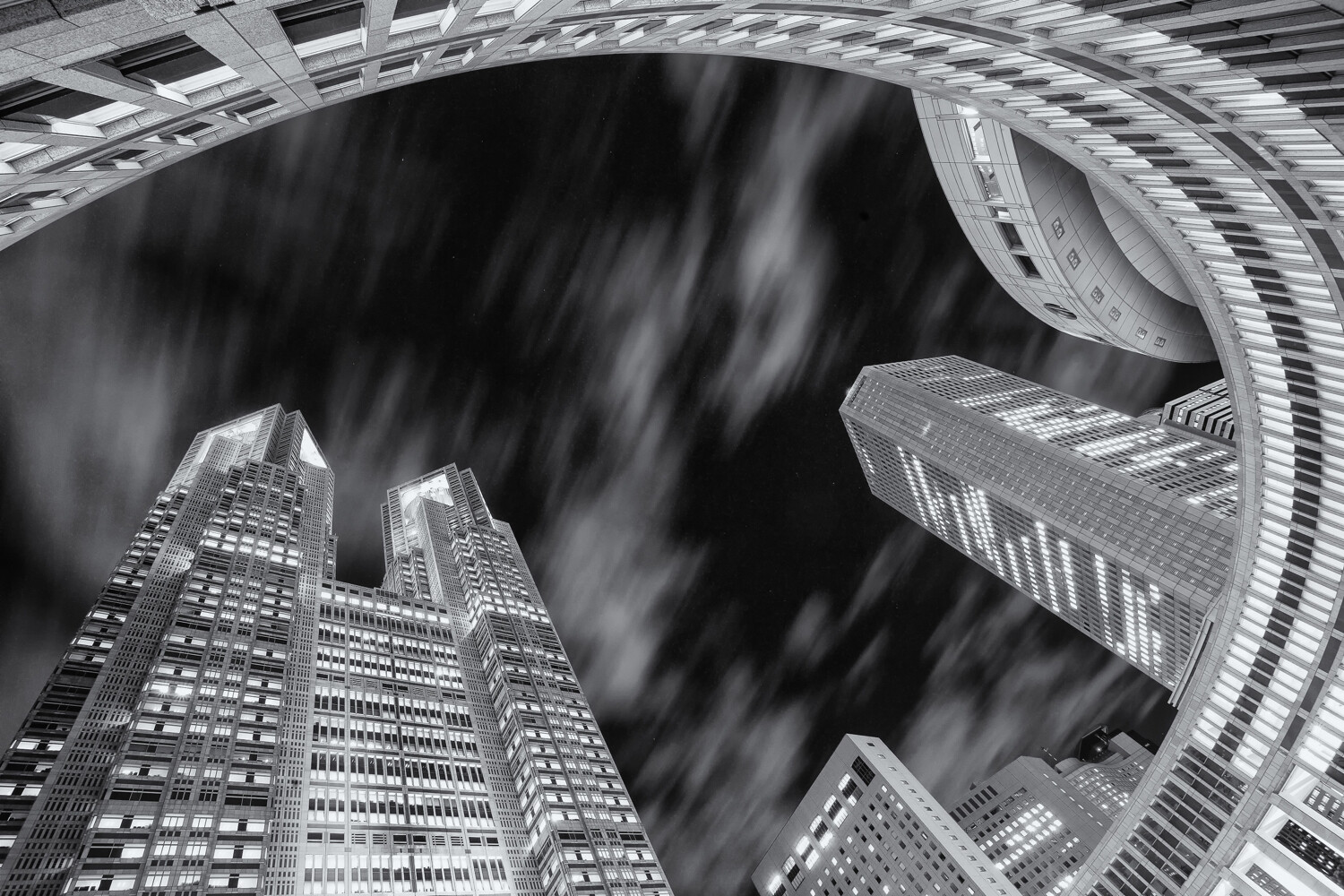
This photo of the Tokyo metropolitan government building has used a worm’s eye view, and a wide-angle lens.

1. A different perspective

Many architecture photos are taken at eye level. In other words, a standing composition from street level or an elevation that brings you level with the building if that’s available. This is far from the only way to photograph architecture though. Using extreme perspectives like worms eye or birds eye views can give dramatic results.

  • Worms eye view – This is likely to be the easiest perspective to achieve and works best when photographing taller structures. You can use this to emphasize interesting ceiling features or to take photos of skyscrapers from the base of the building. If you happen to be surrounded by tall buildings that are close to each other, you can use this perspective to fill the sky.
  • Birds eye view – To get this type of angle, you’ll first need to find a way of getting above the structure you’re photographing. With the advent of drone photography, this has now become a lot easier to achieve. No drone? No problem. You can always find a tall building to photograph from or, if you’re lucky, a hot air balloon ride!

2. Infrared photography

You can change the nature of your creative architecture photography, without needing to use extreme perspectives. One of the best ways to do this is by using infrared photography. This will change your image into more of a dreamscape. This style of photography works much better outdoors, and in places where there is some vegetation. Through some post-processing, you’ll create an image where photosynthesizing plants are white, and the sky is dark. Architecture then forms a powerful focal point within your infrared photo. There are some excellent guides on this style of photography. You have three main choices when it comes to carrying out this style. You can convert your camera for infrared, use an infrared filter, or you can produce this effect through post-processing.

Infrared photography is a great technique to experiment with.

3. Light painting

One of the most creative photography techniques out there is light painting. Through the use of light painting techniques and styles, you can customize the way you photograph architecture. The trick is knowing where and how to apply this to your photograph because not all architecture lends itself to every technique. Perhaps it’s impossible to gain access to the area of the structure in which you’d like to light paint? Perhaps light painting will be too big a distraction and detract from the architecture itself. When you can use light painting to form a leading line to the architecture, or perhaps to frame the architecture, you’ll be on the right lines. There are various tools you can use. Below is a selection.

  • A torch – The simplest of light painting tools. This can be used to create patterns in front of the camera, or perhaps to light up a section of the architecture you wish to photograph.
  • A light source on a string – Repeating patterns work well in photography, and spinning a light source on a string will provide this repetition. You could also use this to create a light orb, and strategically place the orb in front of your architecture.
  • LED light sticks – In recent years products like the pixelstick and the magilight have really revolutionized light painting. These excellent tools can be used to create bespoke light paintings in front of the architecture you’re photographing.

In this photo a pixelstick has been used to light paint around the pagoda.

4. Kinetic light painting

Light paintings’ cousin is kinetic light painting. The technique also requires a tripod, but this time you move the camera rather than the light source. Once again, this can be quite experimental, and not all locations are well served by this photography style. The two main types of kinetic light painting are the zoom burst and camera rotation.

  • Zoom burst – This technique works well with tall buildings, from a distance, and where they’re lit up with lots of interior building lights. You’ll need to set the camera on a tripod, with a lens that can zoom. A kit lens works very well for this, or perhaps a 24-70mm lens. You begin the photograph at the longer focal length, and then zoom out. You can read more about this technique here.
  • Camera rotation – This time you rotate your camera around a tripod head. It works well with tall buildings, where you have a worms eye view. Once again, you can read more about how to do this by reading this guide.

This is a single photo of the Tokyo Skytree. It’s straight out of the camera, and has used kinetic light painting.

5. Refraction photography

You can also use refraction photography with a crystal ball for creative architecture photography. That’s because the fisheye-like properties of the glass ball will capture the entire piece of architecture you intend to photograph. There are tricky aspects you need to handle including the upside-down image within the ball, and centering the architecture within the ball. Providing you can find a good place to position the ball, you’ll be able to use this technique to produce a unique photo of a building or sculpture.

This location is a popular place to photograph St Paul’s cathedral in London. The addition of a crystal ball gives this image another perspective.

6. Detail photos

The main focus of architectural photography is to capture the whole scene. That’s not always needed though, and you can find great detail photos by using lenses of longer focal length. These photos might not work on their own but would certainly add to a selection of photos of one particular piece of architecture. You’ll need to look out for details in the roofing, lines of repeating architecture like arches in a church, or ornate decorations on a wall. Then look to focus in on this particular area. Look to light the detail photo well by either choosing the correct time of day for the sun or using an external flash.

Detail photos of architecture are always worth taking.

7. Digital blending

A process known as digital blending allows you to get perfect pictures. The technique is great for getting technically perfect photos, but you can push beyond that and get more creative. One of the main advantages of this is the ability to photograph towards a sunset sky, and then to balance light across the scene so your architecture doesn’t become too silhouetted. The technique requires you to use a tripod for best results and to take a set of bracketed images. You’ll then need to use luminosity masks to blend the bracketed images in post-processing.

In this photo digital blending is used to ensure the roof windows aren’t blown out.

8. Contrast

Contrast is a broad term, and can be interpreted in several ways. You can use any of these interpretations for more creative architecture photography. Let’s look at some of the ways contrast can be applied.

  • Light and shadows – The most obvious when it comes to photography is to use the light in your photo. You can use this to accentuate areas of interest on the architecture, by using shadows to show detail points.
  • Colors – In some cases, you can play colors off against each other. Obviously, you can’t move architecture, so you’ll need to be creative about how you add opposite colors that contrast with it.
  • Old and new – Old architecture surrounded by new can make an effective photo. Think of a church or temple surrounded by modern skyscrapers.

Framing is a potent photographic technique, which draws the eye to the main subject.

9. Framing

Look to frame the architecture you’re photographing. An arched doorway is a great way to frame your main subject. You could introduce the framing yourself, by holding something in front of the camera. You can use gaps in a fence as a way of framing your photo.

Which creative architecture photography technique will you use?

There are many ways to add creativity to your photography. You’ve now learned about some of the best creative architecture photography techniques. Are any of these techniques you’ve tried before? Which of these ideas will you try? We’d love to see the results of your photography from the past, and anything you might take in the future. As always please share your thoughts and photos in the comments section of this article.

The post 9 Creative Architecture Photography Techniques for Amazing Photos! appeared first on Digital Photography School. It was authored by Simon Bond.


Digital Photography School

 
Comments Off on 9 Creative Architecture Photography Techniques for Amazing Photos!

Posted in Photography


Photo Mechanic 6 will launch March 25 with faster speeds, new UI and 64-bit support

19 Mar

Photo ingesting software Photo Mechanic is about to receive a major update in the form of Photo Mechanic 6. This update follows the last major update, version 5, released way back in 2012.

According to Camera Bits, the company behind the software, Photo Mechanic 6 will be faster, offer 64-bit compatibility, have an ‘intuitive and compact’ user interface and support for selecting specific images to ingest.

Photo Mechanic is billed as a faster alternative to catalogue-based software like Lightroom, enabling photographers to quickly ingest, tag, cull, view, oragnize, and export images. Among the product’s features is support for ingesting images while shooting with a tethered camera, copying files from more than one card simultaneously, using saved GPS tracking logs to geotag photos and more.

Photo Mechanic 6 will be released on March 25. Existing customers who are eligible for an update will be able to purchase the new version for $ 89 USD; a new product license will cost $ 139 USD.

Articles: Digital Photography Review (dpreview.com)

 
Comments Off on Photo Mechanic 6 will launch March 25 with faster speeds, new UI and 64-bit support

Posted in Uncategorized


ZTE’s next flagship phone might come with a sideways-sliding camera

18 Mar
Image: Notebook Italia

Last year we witnessed the appearance of upwards-sliding mechanisms and hole-punch displays on smartphones, both technologies designed to conceal the front camera and maximize the screen-to-body ratio.

Now it looks like Chinese manufacturer ZTE has come up with a modified version of the sliding mechanism. If the images posted by Italian publication Notebook Italia are genuine, the company’s upcoming high-end model Axon S will feature a sideways-sliding mechanism that hides both front and rear cameras.

Image: Notebook Italia

The advantages of the latter aren’t quite clear (as no additional display surface is freed up) but the feature definitely results in a design that makes the Axon S stand out from the crowd.

Labels on the device indicate the three cameras on the rear will include a 48MP primary unit and a 19MP secondary tele lens with 5x optical zoom. The primary camera will have an adjustable (F1.7-2.4) aperture and the tele camera module comes with an F3.8 aperture. The specifications of the third camera aren’t quite clear.

Image: Notebook Italia

We don’t know if or when the Axon S will be released or how much it will cost, but the device could be something to look forward to, both from a design and camera specification point of view.

Articles: Digital Photography Review (dpreview.com)

 
Comments Off on ZTE’s next flagship phone might come with a sideways-sliding camera

Posted in Uncategorized


Canon issues advisory for new super-telephoto lenses, promises firmware fix soon

18 Mar

Canon has issued a product advisory for its new super-telephoto lenses, the EF 400mm F2.8L IS III and the EF 600mm F4L IS III.

Canon says the two lenses might experience a ‘phenomenon where the exposure may flicker slightly if recording a movie with the camera shooting mode set to M or Av in combination with select cameras.’

According to the press release, an upcoming firmware update (version 1.0.8) will fix the issue with the affected cameras. In the meantime, Canon says there are two ways to avoid this problem:

  1. When shooting movies, set the camera’s shooting mode to P or Tv mode.
  2. When using the lens alone or with the EXTENDER EF 2x, set the exposure setting step to 1/2 or 1/1 with the camera’s custom function, even if the camera shooting mode is M or Av.

DPReview will update this article accordingly when the new firmware is released.

Articles: Digital Photography Review (dpreview.com)

 
Comments Off on Canon issues advisory for new super-telephoto lenses, promises firmware fix soon

Posted in Uncategorized


How Mark Rothko’s Paintings Can Inspire Your Photography

18 Mar

The post How Mark Rothko’s Paintings Can Inspire Your Photography appeared first on Digital Photography School. It was authored by Megan Kennedy.

I first encountered a painting by Mark Rothko when I was a uni student, perusing the National Gallery of Australia. Seeking the wisdom of abstract expressionists like Lee Krasner, Clyfford Still and Hans Hofmann, I was somehow completely unaware of Rothko’s renowned canvases. So when I came across #20,1957 I was instantly mesmerized. In the reverent light of the gallery, the cells of the painting seemed to shift under my gaze, bleeding and retracting at once. And when I looked away, the after-image formed a striking hollow into the gallery surrounds.

I felt meditation and calm, but I also felt something I couldn’t quite put my finger on. The ineffable. #20,1957 was like nothing I’d ever come across before.

My reaction to the Rothko painting wasn’t unique. Audiences around the world have reported a deep emotional experience when viewing Rothko’s work. Rothko hoped that in viewing his paintings, others would be drawn into a deep meditative state, a state of vulnerability and receptivity that he himself entered into while creating his artworks.

Today, Rothko’s motivations and techniques continue to inform not only painting but visual arts as a whole.

Mark Rothko

Born in Dvinsk, Russia (now Daugavpils, Latvia) on September 25, 1903, Mark Rothko (born Marcus Rothkowitz) immigrated to the USA with his family in his youth. Inspired to take up art in the autumn of 1923, he began his artistic career painting urban life, portraits, nudes and landscapes. His portrayal of architectural space leaned on abstract compositional techniques, exploring the relationship between the painting and the viewer, an aspect that would play a critical role in his future works.

In the early 1940’s, Rothko shifted from painting the figurative to the symbolic, exploring themes such as prophecy, ancient myths, archaic ritual and the unconscious. Inspired by the surrealist method of automatic drawing, Rothko began to delve into more abstracted imagery, graduating almost entirely to abstraction by the late 1940’s. Unimpeded by the figurative or symbolic, Rothko stained the canvas with diluted oil paint, rendering shapes and forms with soft, indistinct edges, some outlined by luminous white halos.

Mark Rothko, No. 3 No. 13 1949, MOMA
No. 3 No.13, 1949 photo credit: Sharon Mollerus on Flickr

Rothko’s arrived at his signature style in the 1950’s. His expanses of graduated tones and ethereal light seemed to suspend vibratious squares and rectangles upon active planes of color. Toward the end of the 1950’s, Rothko began to paint in an increasingly darker, more restricted pallet.

Mark Rothko (1903-1970)
No. 9 (Dark over Light Earth/Violet and Yellow in Rose), 1954 photo credit: G. Starke on Flickr

In 1964, Rothko received a commission for a series of paintings for a non-denominational chapel in Huston, Texas – a space that was ideal for immersion in his stark, contemplative canvases. Unveiled in 1971, the paintings took 6 years to complete. However, sadly, Rothko never saw the culmination of the space. He committed suicide in his studio on February 25, 1970. He was 66.

Mark Rothko (1903-1970)
Black on Dark Sienna on Purple, 1960 photo credit: G. Starke  on Flickr

Making photos inspired by the art of Mark Rothko

Painting and photography are two different mediums, I know. There is a significant separation between the paintbrush and the camera (although there are some commonalities too). Creating photographic work inspired by Rothko’s paintings isn’t about mimicry, it’s about trying out different styles and techniques. While this article discusses ways to approach photography that reflects Rothko’s paintings, you don’t have to end up with an exact copy of Black on Dark Sienna on Purple, 1960 (I sure didn’t!).

Through the elements and principals of art and design, Rothko created work that communicates beyond seeing. Using the same principals, photographers can create work inspired by Rothko that challenges the viewer and plays with the concept of photography and visual arts.

Using color

When described solely as a colorist Rothko said, “if you are only moved by color relationships, you are missing the point.” Rothko used color as a path to realizing the unseen. Looking beyond the event of color as an optical phenomenon, Rothko constructed oscillating visions driven by our innate conceptions of color.

Like Rothko, photographers use color as a tool to convey an image beyond seeing. Our associations with color stem from experience and instinct. Emphasizing color over literal subject matter doesn’t just convey color relationships; it communicates emotion and ineffability.

Capturing photography imbued with color is simple enough, but may require a little exploration. Look for flat planes of solid or graduated color. Seemingly dull urban surfaces like doors, walls or panels come to life within the camera frame. Try to include as little objective evidence as possible, articulating the emotional charge of color without the disturbance of other visual detritus.

The color in this image breaks up space, conveying meaning through our inherent associations

Unfocused photography

Another way to exemplify color is through unfocused photography. Rothko created a visual vibration within his paintings by blurring the edges of his colors and forms. This effect can be re-imagined by unfocusing your camera lens (turn off Auto Focus first) before taking a photograph. Unfocused photography creates a painterly quality that emphasizes color over subject matter. Rather than taking pin-sharp photos, unfocused photography frees the edges of the components that make up a scene, creating a unique movement throughout the image.

Unfocused photography emphasizes color, creating a unique movement throughout the image

Rothko’s abstract expressionism

Although Rothko himself shrugged off classifications, his work is generally categorized as abstract expressionist. Developed in New York in the 1940’s, abstract expressionism refers to a movement of predominantly non-representative painters. Neither completely abstract nor completely expressionist, abstract expressionism encompassed a wide variety of styles and techniques. Overall however, the practitioners of abstract expressionism stood united in their desire to reinvent the nature of painting.

Abstract expressionism is understood today to be divided into two camps – the action painters and the color field painters. Considered a member of the latter, Rothko prioritized austere beds of color over the wild, diacritic mark. Rothko’s serene blocks generate an emotional aura predominately through shape, form, color and line. It’s these basic precepts that have translated into abstract photography.

Like abstract painting, abstract photography operates independently from depicting the objective. As a result, abstract photographers emphasize the non-objective, peeling back the literal to expose the bare bones of an image. Beyond language, abstraction investigates the visual, discards the literal and charges an image with potentiality.

Aerial photography cultivates abstraction through distance. Abstract macro photography closes in on a subject to reveal often unseen planes. Like Rothko’s paintings, what you exclude from a photograph is just as important as what you include. Turning your lens to strong shapes, forms, colors, textures and lines cultivates imagery that cuts through to the essence of visual language.

Abstract photography operates independently from depicting the objective

Movement

Through extensive layering, blending and blurring, Rothko manipulated hard-edged structures of color into stark, yet softly transcendent forms.

Intentional camera movement (ICM) uses the same principals of movement within a photograph. Through motion, ICM reduces a subject to shape, form, color, and line, creating an abstracted study of movement and light. Similar to painting, ICM involves the physical movement of the camera during an exposure. Also, like Rothko’s actions documented in the strokes of a brush, ICM creates an artwork that is visibly, inextricably linked to the experience of the photographer.

To take an ICM photograph, first, turn off autofocus and, if you have it, image stabilization. Set your camera to Shutter Priority, adjust your exposure time to around 1/2 of a second and turn your ISO down to the lowest setting on your camera. The longer your shutter speed, the more a subject will blur.

Point your camera at a subject, depress the shutter and physically move the camera. Once the shutter closes, review the result on your LCD screen. Your movement will register as blurred lines within the image.

The nature of ICM is that it is both simple and experimental – it takes some adjustment to perfect. Explore different combinations of subject matter, time of day, focus, shutter speed, aperture, and movement to create an image you’re happy with. Moreover, don’t forget to wear your camera strap!

Conclusion

Saying once that “the most interesting painting is one that expresses more of what one thinks than of what one sees,” Rothko shifted the way art is made and observed. Now, with the advent of digital photography, we have new ways to communicate visually.

However, Rothko’s reflections on the human spirit continue to resonate as a vital pause amongst visual loudness. Through his use of color, abstract expressionism and movement, Rothko’s work transcend artistic mediums, informing and inspiring contemporary practice today.

The post How Mark Rothko’s Paintings Can Inspire Your Photography appeared first on Digital Photography School. It was authored by Megan Kennedy.


Digital Photography School

 
Comments Off on How Mark Rothko’s Paintings Can Inspire Your Photography

Posted in Photography


Panasonic Lumix S1R sample galleries updated

18 Mar

$ (document).ready(function() { SampleGalleryV2({“containerId”:”embeddedSampleGallery_9627273872″,”galleryId”:”9627273872″,”isEmbeddedWidget”:true,”selectedImageIndex”:0,”isMobile”:false}) });

Now that our Panasonic Lumix S1R has final firmware, we’re pressing ahead with our full review – but not before getting in some shooting time. Take a look at how the S1R deals with a variety of situations in our sample gallery, and we have to admit, we’re kind of smitten with the out-of-camera JPEGs (there are some Raw conversions too, of course). Head to the end of the gallery to see some samples of the S1R’s incredible 187MP multi-shot mode.

You can also click below to check out our pre-production sample gallery from the launch event in Barcelona last month.

See our Panasonic Lumix S1R
sample gallery

See our pre-production Panasonic
Lumix S1R sample gallery

Articles: Digital Photography Review (dpreview.com)

 
Comments Off on Panasonic Lumix S1R sample galleries updated

Posted in Uncategorized