RSS
 

Archive for June, 2017

NASA ortbiter snaps aerial photo of lonesome Mars Curiosity rover

23 Jun
The bright blue dot at the center of this photo by NASA’s Mars Reconnaissance Orbiter is actually NASA’s Curiosity Mars rover, going about its lonely mission on the Red Planet. © Photo courtesy of NASA/JPL-Caltech/Univ. of Arizona

No human photographer could capture this aerial photograph. That’s because this image is literally out of this world – it was captured by NASA’s Mars Reconnaissance Orbiter on June 5th, and shows the Mars Curiosity Rover as it traverses the red planet, approximately 241,500,000 miles away from where I sit typing this right now.

It’s hard to spot, and you have to look really closely, but there’s a small blue dot in the very middle of the photograph above. This closer crop might help:

There, amid the Martian landscape, you can actually see the Curiosity rover as it trekked along the northwestern flank of Mount Sharp, on its way to ‘Vera Rubin Ridge.’

The photograph was taken by the NASA Lunar Reconnaissance Orbiter using its High Resolution Imaging Science Experiment (HiRISE) camera, which captures a red band, blue -green band, and an infrared band, combining these together to form an RGB image. Because of this, the photograph is not a so-called ‘true color’ image, and the orbiter appears bluer than it actually is.

Oh, and if you’re curious, you can actually see what Curiosity was seeing when this photo was captured. The rover was using its Mast Camera to shoot these photographs of the Martian landscape while its picture was taken.

Articles: Digital Photography Review (dpreview.com)

 
Comments Off on NASA ortbiter snaps aerial photo of lonesome Mars Curiosity rover

Posted in Uncategorized


Lighting 103: Greg’s Assignment: Results

23 Jun

Reporting in from our last assignment, in which you were asked to shoot a portrait in three different ways: clean white light, warm/cool light, and warm/cool light with the shadows muddied up with a little green. I did this one along with you—twice—and learned a lot in the process.

Which brings up a valuable point. You can read about this stuff all you want. But until you actually get off your ass and do it, you're not going to learn it.

In other words, learning to use color in your lighting is just like anything else. Read more »
Strobist

 
Comments Off on Lighting 103: Greg’s Assignment: Results

Posted in Photography


Radbahn Berlin: 6-Mile Sheltered Bike Path to Run Under City Train Line

23 Jun

[ By WebUrbanist in Architecture & Cities & Urbanism. ]

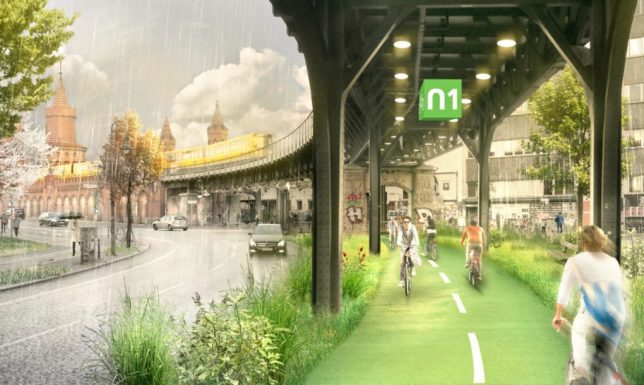
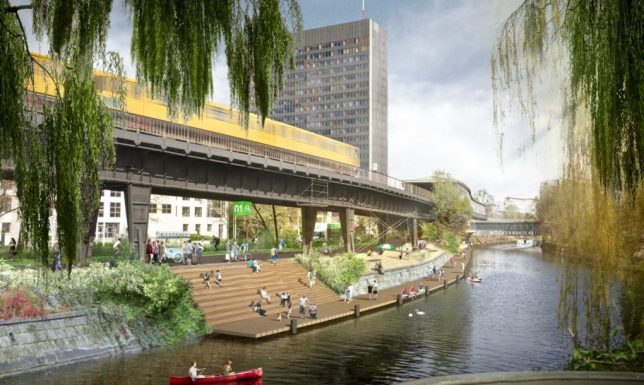
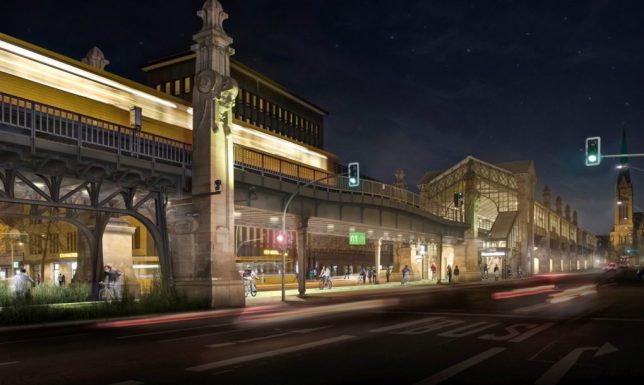
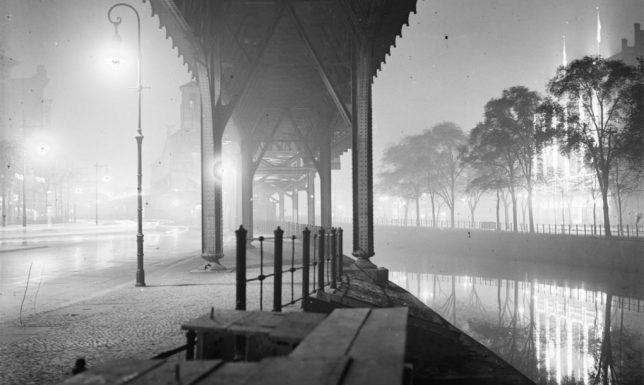
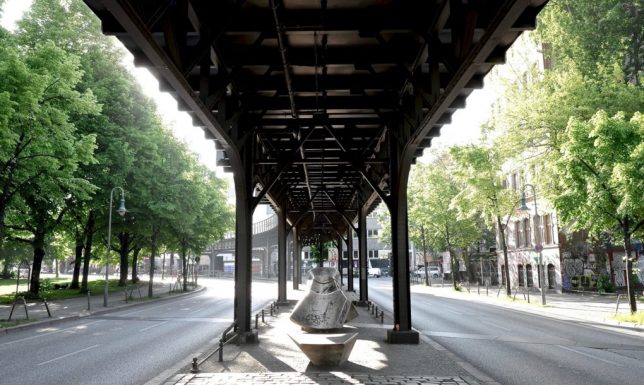
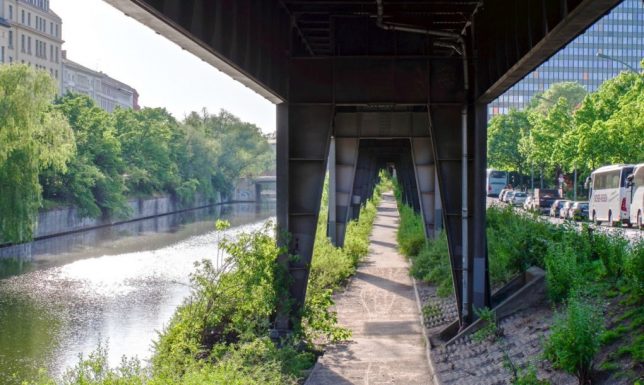
A long unused strip of space weaving through Berlin is set to become a bicycling boulevard, sheltered by the tracks above and lined with bike service stations, recreation areas and food trucks. This latest rails-to-trails project has six miles of space to work with, connecting major roads and multiple neighborhoods. Completely disused aside except as illegal parking and intermittent strips of sidewalks and seating, the area below the U1 line is ripe for rehabilitation.

As in other cities with similar programs, the Radbahn aims to serve not only as a traffic corridor and green trail but also to activate adjacent spaces. Pocket parks and commercial vendors are expected to spring up along the route, and side extensions can bring bikers down to adjacent waterways and other natural features.

Meanwhile, riders can enjoy a rain-free experience (it rains over 100 days per year in Berlin). Cyclists looking to take the train can also park their ride in sheltered spaces below the rails near stations. The minimum width and consistent coverage of the tracks above provide for a sufficiently wide trail from start to finish, while studies have shown that train noise below tracks is reduced as compared to adjacent space.

Per the proposal, the goal is “revitalize the former space along the iconic U1 line to a pulsating urban artery. It thereby acts as a playground for modern mobility, innovation and leisure activities.” In typical German fashion, the project designers and engineers have already extensively documented and mapped opportunities throughout the route, which you can explore in greater depth by visiting their website.

Share on Facebook


[ By WebUrbanist in Architecture & Cities & Urbanism. ]

[ WebUrbanist | Archives | Galleries | Privacy | TOS ]


WebUrbanist

 
Comments Off on Radbahn Berlin: 6-Mile Sheltered Bike Path to Run Under City Train Line

Posted in Creativity


7 Tips for Finding Inspiration When You’re Stuck

23 Jun

Artists are funny creatures and many of us struggle with creativity. Working out what we want to do, how to stand apart from others. What is really needed is to find your muse, or in other words, finding inspiration.

It is a rare artist that doesn’t need inspiration to work. For the rest of us, we need help and we need to find what will inspire us to create our work.

7 Tips for Finding Inspiration When You're Stuck

One of my very first responses to the environment, the idea of cities becoming unlivable and animals taking them over.

1 – Movies and television

Movies are just moving images and they can provide a lot of inspiration. Think about the locations where they are shot. You can find new places in the world to take photos. Through films like Lord of the Rings, I have decided that I want to travel to other places and see them.

Look at the way they are filmed and processed. The angles they use can give you great ideas, but sometimes the processing is even better. Pay attention to what they do in the films and how color is used, and what special effects are done.

The Matrix has been a great inspiration to me and how they used color in the films. When they are in the Matrix it is different than when they are out of it. You can see that there is a lot of yellow in the highlights, while they have put blue and green into the shadows. In the other parts, there is almost no color at all. With a film like this, you don’t have to like the story to find inspiration, it is about the special effects. See what you can learn, and use in your own work.

Television shows can be just as inspirational and often it will be the least likely place that helps you. Recently I was watching, don’t judge me, Project Runway. My mind was racing after watching several series. The way they had to come up with a concept, work out how to do it, design and construct it, then finally present it. It was amazing, and throughout watching it, I started thinking about my own work. For the first time in ages, I find myself feeling incredibly inspired to do new work.

7 Tips for Finding Inspiration When You're Stuck

Dark lanes, creepy shadows, almost no color, were all inspiration from movies that have shown up in my photography.

2 – Fine Art

Painters from the past really were early image manipulators and we can learn a lot from looking at what they did. Look at the colors in their paintings and how they used them to emphasise what they saw in the scene. Find out what methods they used to add drama to their images, along with the lighting.

It doesn’t have to be just painters from the past, you can also look at modern ones as well. But also look at what other artists are doing, printmakers, drawers, and sculptors. They are potentially good sources of inspiration. It may not be specifically the work they are doing, but their motivations for doing what they do. If you find out why they work it may give you clarification for your own.

It is so important to find artists whose work you love and read about them. Make it your mission to find out where they get inspiration, why they do what they do. You don’t want to copy them, but you can get something from them. Often if there is an artist that I love I will look at their work, decide what aspect of it I like, then go away and start my own.

Painter Edward Hopper has been a big influence on my work. I think what he paints is incredible and while my work is nothing like his, what I get from his work is the sense of drama. It is like he is creating scenes everywhere. He puts people in his paintings, which I never do, but I do like to imitate that sense of drama.

7 Tips for Finding Inspiration When You're Stuck

Like movies, paintings can control the light and create moody images.

3 – World Events and History

There is a wealth of information available on what has happened in the past and is occurring now. Watching what is happening in the present can give you a lot of inspiration. You will find many artists who have used politics and world events to get ideas for expressing themselves. It is often their way of responding to what is going on around them. They will use their art to lend their voice to what is happening.

There are many artists that do this and one that I thought of first was an Australian artist, George Gittoes. His work is really raw and quite confronting, but he has created it in response to what he had seen in many war torn countries. That may not be what you are interested in doing, but he is inspirational in that he isn’t afraid to show the devastation that has happened in the places he has visited.

This website showcases The 50 Most Political Art Pieces of the Past 15 Years.

7 Tips for Finding Inspiration When You're Stuck

II created this image was in response to the world changing and how they want to put a freeway through this area.

4 – What happens in your day to day and memories

It can sound a little weird, but what you do every day can be very important in finding your muse. The trick is to be observant. Look to see what you can observe and what you could use in your work. It could be the area you live in, the architecture, you just never know until you look around.

I was going over a bridge once and one of the people I was with looked at me and said, “You’re trying to work out how to photograph that aren’t you?” She was right, that is exactly what I was thinking about. For me Melbourne is most definitely my muse. It is the base, my blank canvas for everything I want to do.

7 Tips for Finding Inspiration When You're Stuck

The bridge where I was trying to work out how to do a shot in my head. This is what I ended up creating.

5 – Environment

The environment can be more than just what you see around you. As many in the world become more concerned with what is happening environmentally, it can be political, but it doesn’t always have to be. You can help highlight what is happening in various places by photographing them.

You see a lot of photographers that photograph abandoned places. The images can show you how much a place deteriorates once no one is using them, or they can be a reflection on our society and how everything is changing.

7 Tips for Finding Inspiration When You're Stuck

The environment and the impact of coal on it is a big reason to photograph power stations. They look amazing, but they are destroying the world we live in.

6 – Social Media and Instagram

There are so many platforms for social media and they are all flooded with images. One in particular that shows a lot is Instagram. You can find images there that cover so many topics. You can pick the ones you are interested in and follow them. They will give you ideas and fill your head with inspiring images. There are many other sites that will do that, but being able to just flick or scroll through them quickly on Instagram is amazing.

You can look for images that have certain appeal by searching certain hashtags. For example, you could look for #moody, #environment, or even #inspiration.

I find it really inspiring, perhaps not for my fine art work, but as a location finder it can be brilliant. I’ve discovered a lot of places in Melbourne while scrolling through hashtags in Instagram.

7 Tips for Finding Inspiration When You're Stuck

A few months back someone had an amazing shot of Flinders Street Station at sunset, and I was inspired to see if I could do something similar. Mine isn’t the same, but I still got something interesting.

7 – Peers

There is nothing more satisfying than having a group of like-minded peers that you can talk to and go out and take photos with. Having people in your circle who have the same passion and understand what you are trying to achieve is really important. People think that artists have to work on their own, and perhaps for the most part they do, but peers are essential.

When I was studying I was surrounded by people that I could discuss ideas with and get inspiration. When I left school it was hard to get that same interaction and is something that I have really missed. Slowly over the years, I’ve found new people to hang out with. We go out and take photos together, discuss our plans and ideas, and help one another.

Another aspect of hanging out with peers is watching how they create their own work and what drives them. While you shouldn’t copy them (if you do you may find you are no longer one of their peers) you can watch and learn. See if there is anything they do that could help you with your own work.

7 Tips for Finding Inspiration When You're Stuck

I went to Craig’s Hut with a friend and we both got a very similar shot. I saw her processed image and it inspired me to do mine. In the end mine looked completely different, but that’s okay. 

In the end

These are all tips that have helped me to get to where I am in my art practice. There is no reason why they can’t help you as well. Opening yourself up to finding inspiration around you can help you create some amazing images.

Where do you find your inspiration? Has something inspired you so much that you went on to do some amazing work? Please share with us what your inspirations are, from this list or from your own.

The post 7 Tips for Finding Inspiration When You’re Stuck by Leanne Cole appeared first on Digital Photography School.


Digital Photography School

 
Comments Off on 7 Tips for Finding Inspiration When You’re Stuck

Posted in Photography


How to Boost your Lightroom Performance and Improve Speed

22 Jun

Are you running out of space on your hard drive? If you’re both a prolific photographer and a Lightroom user the answer may be yes. A hard drive that’s close to being full is bad news because it slows down Lightroom and just about every other application that you use on your computer. So how can you boost your Lightroom performance and make your computer run faster?

Luckily, there are ways to both minimize the amount of hard drive space Lightroom uses and to free up some space that is being used unproductively. As a result, Lightroom will run faster, as well as your entire computer usually.

So, how much spare hard drive space is required for Lightroom?

Ideally, you need at least 20% of your hard drive space to be free. If you have a 1TB drive, that means you should aim to keep at least 200GB free. If you have a smaller drive, such as the 256GB solid state drive I have on my iMac, then you need less. In my case, I need to keep at least 50GB free to keep Lightroom happy.

So, here are some tips to help improve Lightroom performance:

1. Store all your photos on an external hard drive

This has nothing to do with Lightroom per se, but it’s important because your photos are likely to take up a lot of hard drive space (especially if you shoot in Raw). The best approach is to use a separate hard drive for your photos, either an external drive or another internal drive added to your computer (if this is possible on your machine).

For example, my Raw photos take up 1.96TB of hard drive space. I keep them on a 3TB external hard drive like the one shown below.

How to Boost your Lightroom Performance and Improve Speed

It’s important that the hard drive on which your photos are saved also has at least 20% of its space free. Otherwise, it might slow Lightroom down as well.

It’s good practice to use the external drive for photos and Lightroom catalog backups and nothing else. That means it won’t get cluttered up with other files. It’s easier to backup to other hard drives.

2. Save fewer LR catalog backups

It’s important to backup your Lightroom catalog regularly in case it becomes corrupted or the hard drive it is saved on fails.

Many photographers recommend that you set up Lightroom to backup the catalog every time you exit the program. The only problem is that the hard drive space occupied by those catalog backups can soon add up to a considerable amount.

It’s less of an issue in Lightroom 6 and Lightroom CC, which compress the backup catalogs than it is with older versions of Lightroom. But even compressed backups take up a lot of hard drive space. For example, my backup folder currently has six backups in it and is 2.94GB in size.

There are two steps to take to minimize this problem:

1. Save catalog backups on an external hard drive. The same one you use to store your photos is ideal.

Each time you quit Lightroom the Back Up Catalog window appears. Click the Choose button to select the folder where you want it to save the Catalog backups. NOTE: this is the only time this option appears!

Also worth noting is that you want to save your backups on an external drive anyway because if your main hard drive crashes, both your main catalog and all the backups are gone. That is not good and defeats the purpose of having backups.

How to Boost your Lightroom Performance and Improve Speed

2. Delete old backups. You don’t need to keep anything older than the two most recent catalog backups.

I deleted my four oldest backups and freed up nearly 2GB of hard drive space. It may not sound like much if you have a 1TB or larger hard drive, but it does make a difference on a 250 GB solid state drive.

It may be tempting to move your catalog to an external drive, but this will slow Lightroom down. It’s best to keep the working catalog on your internal hard drive.

3. Keep an eye on the Preview Cache

If you go to Lightroom > Catalog Settings (Mac) Edit > Catalog Settings (PC) and click on File Handling you will see something like this.

How to Boost your Lightroom Performance and Improve Speed

Lightroom gives you a lot of useful information about how it uses hard drive space here. First, it tells you the size of your Preview Cache. This is where Lightroom stores all the previews it builds which enable you to view your photos in the Library module.

As you can see, my Preview Cache is currently 36GB, which is a large chunk of a 250GB hard drive. It’s less of an issue if you have a bigger hard drive.

How to Boost your Lightroom Performance and Improve Speed

If your Preview Cache is too large, there are some tips for reducing its size in the next two sections.

4. Regularly delete 1:1 Previews

Of all the Library module previews Lightroom uses the 1:1 Previews take up the most space. But they are essential for zooming into your photos at 100%, which is why many photographers build them.

You can manage 1:1 Previews by setting Automatically Discard 1:1 previews to After 30 Days. You can also set it to After One Week or After One Day. Just pick the one that works best for you. Avoid the Never option, otherwise, your Preview Cache will grow out of control.

How to Boost your Lightroom Performance and Improve Speed

Set your File Handling Preferences in the Catalog Settings to automatically delete 1:1 Previews after 30 days.

There’s another way to delete 1:1 previews:

1. Go to the Catalog panel in the Library module and click on All Photographs.

How to Boost your Lightroom Performance and Improve Speed

2. Go to Edit > Select All (or click CMD/CTRL+A for the keyboard shortcut).

3. Go to Library > Previews > Discard 1:1 Previews (click the Discard option in the next window).

There are a couple of things you should be aware of, though:

  • Lightroom doesn’t delete the 1:1 previews from the Preview Cache right away. There is a delay, so in case you change your mind you can use the Undo function. You may have to wait a day or so to see the benefit.
  • Lightroom only deletes 1:1 previews that are at least double the size of your Standard previews.

5. Build Standard Previews that aren’t too large

You can set the Standard preview size in your Catalog Settings as well. If you select Auto Lightroom sets the smallest size required for your monitor resolution. You can also set Preview Quality to Medium or Low to reduce the space the previews take up.

How to Boost your Lightroom Performance and Improve Speed

6. Build fewer or dump Smart Previews

The Catalog Settings also show you the amount of space occupied by Smart Previews. If that is too large, you can delete them.

How to Boost your Lightroom Performance and Improve Speed

  1. Go to the Catalog panel in the Library module and click on All Photographs.
  2. Go to Edit > Select All.
  3. Go to Library > Previews > Discard Smart Previews (click the Discard option in the next window).

7. Regularly dump the Camera Raw Cache

Lightroom creates more previews to use in the Develop module when you process your photos. These previews are saved in the Camera Raw Cache.

You can set the maximum size of that cache by going to File Handling in Preferences. The larger the number you set the more hard drive Lightroom’s Develop module previews will potentially take up. But, Lightroom may run slower if you set it too low – so you need to find a balance between too big and too slow. Try around 20GB to start with and see how you go.

How to Boost your Lightroom Performance and Improve Speed

You can delete the Develop module previews by clicking the Purge Cache button. It’s probably a good idea to do this every now and then to free up hard drive space. The last time I did it I gained over 20GB of space (see below).

How to Boost your Lightroom Performance and Improve Speed

If you edit or view video files in Lightroom you can also gain space by purging the Video Cache (below).

How to Boost your Lightroom Performance and Improve Speed

Conclusion

Lightroom is essential for most photographers but it can use up a lot of hard drive space. The tips in this article let you take back control of your hard drive. Any questions? Let me know in the comments below.


If you’d like to learn more about Lightroom, then please check out my popular Mastering Lightroom e-books.

The post How to Boost your Lightroom Performance and Improve Speed by Andrew S. Gibson appeared first on Digital Photography School.


Digital Photography School

 
Comments Off on How to Boost your Lightroom Performance and Improve Speed

Posted in Photography


Now we know: Sony a9 is sharper than we thought

22 Jun

To make a long story short, we’ve re-shot our studio scene shots of the Sony a9 with the FE 85/1.8 lens, and they’re much sharper. We apologize for misleading any of our readers, but it’s a long story – see below. To jump to the images, just click the button, but we do encourage you to read the full text as well.

The Long Story

You may have noted on the studio scene page of our Sony a9 review that we admitted to having quite a bit of difficulty focusing the camera with the new Sony 85mm F1.8 lens in magnified live view. The maximum magnification (x9.4) on the camera LCD made it very difficult to fine tune the 85/1.8 precisely. Multiple AF-S attempts yielded shots varying in sharpness, and we were often able to attain better results manually focusing. But the only way to check each shot was to shoot tethered and check each shot magnified on a monitor. Of course, every time we thought we’d nailed focus, we’d try nudging the camera or focus ring just a bit to make sure we couldn’t do any better, and then realize we’d fallen off a bit.

And so the search began again and again, with the quest for perfect focus ending up a bit of a fool’s errand. We finally tuned focus to what we thought was reasonable (we look for maximum aliasing in the central Siemens stars, and color aliasing in the text), and shot our entire studio and dynamic range tests.

Subsequently, we got lots of complaints about the a9 being soft.

The Lens Factor

Was it the lens? This is the first Sony FE camera we’ve shot without the stellar Zeiss 55mm F1.8. We’ve had a long-standing policy of shooting with an on-brand 85mm equivalent lens per-system, to maintain equal distance from camera to target, something that allows for all images to be rendered with equal perspective. With Sony’s recent release of the razor sharp FE 85/1.8, we thought we’d stick to our policy and give it a try.

But we don’t blindly switch lenses for a system; we first verify:

  1. The new lens is at least as sharp as the previous one.
  2. The lens transmission (also accounting for the aperture at F5.6) is not so different as to affect noise comparisons.

Our initial testing showed equivalent sharpness between the 55 and 85mm F1.8 lenses on even a high-resolution a7R II (see below). Furthermore, DXO verified similar levels of sharpness between the 85 and 55 F1.8 lenses (which both perform better than Sony’s 85/1.4 GM, surprisingly). And while we don’t have a way of directly measuring lens transmission, we measured signal:noise ratio of a few grey patches in our scene with the two lenses on the same camera body, and found them to be within 1/6 to 1/10 EV of one another. That meant the new lens would not make the a9 look better, or worse, in Raw noise comparisons compared to if we were to use the Zeiss 55mm F1.8 at F5.6.

Sony 85mm F1.8 at F5.6 (left) vs. Sony 55mm F1.8 at F5.6 (right). Shot on a7R II

Some Friendly Help

While plowing ahead with other aspects of the review, a message from forum expert Jack Hogan turned up in my inbox showing this:

Long-time forum member and all-round expert Jack Hogan did a quick MTF analysis per color channel based off of the slanted edges in our scene. Uh-oh. Looks like the red channel is focused better than the green channel, yielding a calculated MTF50 of only 945 line pairs per picture height (equiv. to a 5.4MP image if weighting sharpness, or MTF50).

Importantly, the green channel should have the highest MTF.

It was now clear that focus was the underlying issue with our studio shots. Not a bad lens. Not a strong anti-aliasing filter. But simply the fact that the lens was not optimally focused: if it were, the green channel would have the highest MTF.

So we sat down one day and spent the entire day shooting many, many runs of our studio scene, slowly moving a macro rail (rather than coursely adjust focus on the lens) between each run. From these shots, we picked the (centrally) sharpest runs. While our copy of the 85/1.8 appears slightly decentered (the left is softer than the right), the results now are much more in line with where things should be:

Jack Hogan re-analyzed some of our new studio shots of the a9, and the green and blue channels now have the highest MTF, not the red channel. The calculated MTF50 of 1125 lp/ph (equiv. to a 7.6MP image if weighting sharpness, or MTF50), which is a 19% increase in linear resolution over our previous results.

A side benefit of analyzing properly focused shots is an ability to estimate the strength of the anti-aliasing filter, which appears to kick in around 0.744 cycles per pixel (the first minimum in the MTF curve). For comparison, the D5’s anti-aliasing filter kicks in around 0.748 cycles per pixel according to Jack’s analysis of our studio scene shots. Meaning the a9’s AA filter is fairly typical.

Have a look at our updated images, and our updated image quality analysis based off of our new results:


Editor’s note:

As camera sensor and lens resolutions are becoming astronomically high, tiny little differences become visible in pixel-peeping. And that’s precisely what our studio scene allows you to do.

Our studio scene isn’t perfect, but it can be helpful. It has its caveats though. For example, because we don’t control for lens transmission from brand-to-brand, or any shutter speed inaccuracies, we state that noise comparisons are only accurate to within 1/3 EV. Trying to extrapolate differences smaller than that from high ISO shots of our studio scene is meaningless: margins of error are real.

The same goes for sharpness. The reality of lenses and mounts is that there is copy variation – in both. Therefore, we urge you to make sharpness comparisons largely from the center of the scene, which removes the lens (as much as it can anyway) from the equation. The rest of the scene is useful for assessing color, detail retention and noise at high ISO in JPEG and Raw, respectively, and other subjective attributes. And keep in mind common sense things: the lock of hair is well above the plane of optimal focus, and different lenses can have field curvature which either helps or hurts the sharpness of this lock. It’s important to keep these sorts of things in mind when pixel-peeping our scene.

This time, with the a9, we take full responsibility for a non-optimally-focused set of shots. But the process has also been a learning experience for us: depending on a lens’ electromechanical coupling and the magnification of the live feed, it can be extremely difficult to take test shots that stand-up to the level of scrutiny our image comparison tool demands. And there are the practical issues mentioned above around taking one shot, checking it, and repeating the process – returning to the position of optimal focus is nearly impossible. The results of visually checking which shot is sharpest can even vary from tester to tester. I can assure you though: we are constantly working on methods to improve these processes.

That said, it’s important to keep things in perspective: in the real world it’s unlikely you’d have seen the sharpness ‘issues’ we had with our initial a9 run (that otherwise appeared so drastic in our studio scene). Why? Because (1) you don’t typically view images at 100%, (2) there will at least be a plane of maximum sharpness (which in our case, unfortunately wasn’t our studio scene on our first run), and (3) your lens and shooting aperture will have far more impact on subject sharpness than which 24 MP sensor was used to shoot it.

To our readers: we offer our sincere apologies, and wish you happy shooting!

Articles: Digital Photography Review (dpreview.com)

 
Comments Off on Now we know: Sony a9 is sharper than we thought

Posted in Uncategorized


Hands-on with the Fujinon MK50-135mm T2.9 cine lens

22 Jun

Hands-on: Fujinon MK50-135mm T2.9 cine lens

The Fujinon MK50-135mm T2.9 cinema lens is the second in Fujifilm’s new line of MK lenses designed for Super 35 and APS-C cameras. MK lenses are designed to appeal to the emerging production market, offering features and quality typically associated with more expensive cinema lenses at a price point that’s attractive to budget-conscious cinematographers. The MK lenses are based on Fujifilm’s excellent Cabrio line of cinema lenses (which cost $ 15K and up), and share the same coatings as well as a similar mechanical build, but at a cost just under $ 4,000 they’re more accessible to a lot of users.

I reviewed the first MK lens, the MK18-55mm T2.9, a few months ago and really liked it. Since the two lenses are designed to work as a set, they’re basically indistinguishable except for focal length, so if you want to read my detailed thoughts on how the MK lenses perform I recommend reading my earlier review, which for all practical purposes applies to both lenses.

Hands-on: Fujinon MK50-135mm T2.9 cine lens

If you’re not yet familiar with the MK cine lenses, you may be surprised to learn that they use Sony E-mount. Why? Fujifilm wants to address the growing market of independent filmmakers, small production houses, and other professionals who use the Super 35 and APS-C formats. Sony has a huge presence in this market thanks to cameras like the FS7, FS5, and even a-series mirrorless, and many users of these cameras adapt other lenses, such as Canon EF-mount, to their cameras.

What about Fujifilm’s own mirrorless cameras? The company has announced plans to release MK lenses in X-mount later this year so that Fujifilm shooters can take advantage of them as well.

Hands-on: Fujinon MK50-135mm T2.9 cine lens

When I tested the MK18-55mm lens earlier this year, I did so with a Sony FS7, a Super 35mm camera mounted on a shoulder rig with rails, a follow focus, and an accessory EVF. However, Fujifilm emphasizes that the MK lenses are also designed for use on similarly sized APS-C sensors, so this time I decided to go that route. Unfortunately, during our short window of time with the lens I didn’t have access to a rig for a full setup, so I was limited to basic tripod and handheld use.

When mounted the Sony a6500, it’s easy to see how large the MK50-135mm is compared to the diminutive camera. While it’s technically possible to shoot this combination handheld, it’s not terribly practical thanks to its large size and all mechanical controls.

The great news is that the video I captured looked beautiful, and the lens appears to deliver the same quality that we saw on the MK18-55mm.

Hands-on: Fujinon MK50-135mm T2.9 cine lens

I also tried using the MK50-135mm with the full frame Sony a7R II in Super 35mm mode. The size mismatch is a bit less obvious than with the a6500, however it’s no more practical for shooting handheld. That’s not necessarily a bad thing – chances are good that if you’re considering this type of lens, you’re planning to rig it in some way.

In fact, this lens works very well with both the a6500 and a7R II (in Super 35 mode), and would be a great lens to pair with either of them. With a basic set of rails and a follow focus, the setup would work just as effectively as with a dedicated video camera.

Hands-on: Fujinon MK50-135mm T2.9 cine lens

One of the reasons for using cinema lenses is that they often come in matched sets, and this is the case with the MK lenses. The MK18-55mm and MK50-135mm are physically identical, including T2.9 iris, gearing, dimensions, and even weight (right down to the gram). They’re also matched optically, meaning they can be interchanged seamlessly without changing the look of the resulting footage.

Why are matched lenses important? In a cine setup the lens is often mounted on rails, and likely has attachments such as a follow focus or matte box. Ideally, you don’t want to have to readjust every accessory each time you change lenses, and having physically matched lenses means you can swap them in and out very quickly without needing to readjust everything. The MK lenses are so similar that I would have a difficult time telling them apart without seeing the zoom range printed on the lens barrel.

Hands-on: Fujinon MK50-135mm T2.9 cine lens

When it comes to build quality, the MK50-135mm is very solid thanks to its all metal construction. As with most cinema lenses, it’s completely mechanical, and every movement feels well damped. It’s a pleasure to use and gives one the sense of using a high quality piece of precision equipment.

Hands-on: Fujinon MK50-135mm T2.9 cine lens

One thing that sets the MK50-135mm apart from most still photo lenses is the large 200 degree focus rotation angle. This offers a lot more precision than you’ll get with the shorter focus throw of a DSLR lens, or the unpredictability of focus-by-wire, so it’s easy to make very fine adjustments as your subject moves. The lens includes very precise distance marks, in both English and metric units. This is particularly helpful if you have a separate focus puller who is following the action in a blocked scene.

Hands-on: Fujinon MK50-135mm T2.9 cine lens

The MK50-135mm also has a parfocal design, meaning it can maintain precise focus while adjusting the focal length. As still photographers, we don’t usually worry about this capability since it’s easy to refocus after zooming. In contrast, when shooting video you may actually intend to zoom while recording, and you want to maintain focus on your subject through the entire transition. Losing focus during a zoom can ruin the shot.

I was really impressed with the parfocal performance on the first MK lens, and the MK50-135mm performed to the same standard.

Hands-on: Fujinon MK50-135mm T2.9 cine lens

Another common property of cinema lenses is that they resist breathing, a phenomena that causes the lens’s field of view to change slightly when focus is adjusted. This becomes particularly important when you’re doing something like racking focus between two subjects; you don’t want the field of view of the scene to change when you do this as it can be very distracting. The MK50-135mm suppresses lens breathing very effectively, which is not surprising given that the MK18-55mm did so as well.

Hands-on: Fujinon MK50-135mm T2.9 cine lens

Based on a couple days of use, I really like the Fujinon MK50-135mm lens, which – not surprisingly – is the same conclusion I came to after testing the MK18-55mm version. They’re both beautiful pieces of equipment that are a joy to use, and which deliver excellent results. The fact that there are now two of them spanning the entire 18-135mm range makes me want the set even more. If you’re a videographer using an E-mount camera, it’s really tough to go wrong with these lenses.

The MK lenses should also appeal to Fujifilm X-mount users. In particular, we found the Fujifilm X-T2 to be a credible 4K video camera, especially since it’s capable of outputting F-Log gamma over its HDMI port. We don’t yet know the exact release date for the X-mount versions, but Fujifilm tells us it will be later this year, and we saw prototypes at NAB in April.

The MK50-135mm T2.9 will be available in E-mount in mid-July for a price of $ 3,999, which is just slightly higher than the $ 3,799 MK18-55mm.

Articles: Digital Photography Review (dpreview.com)

 
Comments Off on Hands-on with the Fujinon MK50-135mm T2.9 cine lens

Posted in Uncategorized


How to Create and Shoot Night Portraits

22 Jun

If you limit your portrait photography to daylight, you’re missing out on a chance to get some really cool people photos. Whether you just want something better from your camera automatically, or you want complete control of the light in the scene, there’s something in this article for you. Read on to get some tips to help you create and shoot night portraits.

Get off Automatic Mode

If you’re using your camera in Automatic mode, you’ll find one of two things will happen. With the flash off, you get a really blurry photo because the camera needs a longer exposure time at night. Or with the flash turned on, the camera restricts the shutter speed and while your subject is well lit by the flash (but is flatly lit), the background has gone black. It’s a lose-lose situation, especially if you want to mix a photo of your subject with a cool background.

How to Create and Shoot Night Portraits - automatic mode

With Auto Flash, the background gets rendered quite dark, and even fully black later in the night.

Night Scene Mode

Fortunately, most cameras have a set of helpful scene modes. On the command dial, there are modes like M for Manual and P for Program (or professional as some of my buddies like to joke). But you’ll also find a series of picture icons, like a mountain or a sprinter. The one you want here is the Night Scene mode (you may have to go into your menu to find it). It usually has the moon or a star with a person. This mode allows for a longer exposure, but your flash fires as well.

Night scene mode.

Set the mode and remember that because you’ll have a longer exposure, you need to hold the camera steady. Your flash will freeze the subject, but they need to stay still for the shot as well, to avoid going transparent. You’re not shooting ghosts here! Sometimes this mode will be called Slow Synchro instead of Night Scene Mode.

How to Create and Shoot Night Portraits - slow synchro or night scene mode

Slow Synchro/Night Scene mode exposes for both the flash and the background, although it can result in image blur from camera shake.

Moving to Manual

When I shoot nightclub portraits, I’m emulating this mode, but I have the camera set for Manual control. I use an aperture and shutter speed on the camera so the background scene looks good, maybe a little under exposed, then I use an automatic flash on-camera to capture my portrait.

How to Create and Shoot Night Portraits

A nightclub shot taken with the camera set to Manual mode, with exposure set to expose for the background. A mix of high ISO and a large aperture helped prevent camera shake. The flash was in TTL mode, setting flash exposure was set automatically.

Let’s look at how you can take even more control now. As you probably tell from how Night Scene mode works, you’re effectively taking two shots in one picture. The first is of your subject, the second is of the background.

Lighting the Subject

For complete control of light on your subject, you need to use a light that’s off-camera. This doesn’t have to be a flash. In fact, it can even be a street light, something we can touch on later in the article. It can also be a continuous light that you’ve brought with you, like an LED or video light. But before this, we’ll look at using flash.

To get your flash off-camera, you need a trigger to fire it. If you have a flash like the Godox V850II, it has a receiver built-in, so you just need a trigger like the XT-16 or the X1. The same applies to the Cactus RF60X flash paired with the V6II trigger. You’ll also need a light stand or someone to hold the flash and aim it for you. To get an idea of where you can point the flash to achieve great lighting, check out my article on lighting positions. If you want to control the look of the light, have a look at this article 4 Value Speedlight Modifiers that Won’t Break the Bank.

The Background

The background just needs a longer exposure to render on the sensor. If you want to avoid blurring your background, use a tripod. Even with a tripod, you can opt to use a higher ISO to make the shutter speed shorter.

How to Create and Shoot Night Portraits

This shot was in Manual mode, and the exposure was set for the background. The off-camera flash was set to manual and was dialed up or down as needed to suit the exposure for the background.

Getting the shot

The first step you need to make is how much of the shot you want in focus. A wide aperture like f2/.8 means the background will go out of focus, but you can use a shorter shutter speed to expose the background. When using flash, the shutter speed isn’t important for the subject, so you should get the subject flash exposure right first.

Set your aperture and your ISO first, 400-800 should be fine. If you’ve got a prime lens, you can even try wider aperture’s which will give a creamy out of focus background. The shutter speed can be anything below 1/200th (or your camera’s sync speed, which will be in your camera manual). Tip: If you can’t focus properly, use your phone flashlight to illuminate the face enough to focus, then switch the lens to manual focus.

Aim your flash at the subject at a low power like 1/32 or 1/16. Take a shot and check it. Firstly, if the subject is too bright, turn the flash power down. Alternatively, if they’re too dark, turn it up. Finally, if it’s still too bright at the lowest flash setting, move the flash further away from the subject.

This image was shot at 1/250th, which is the sync speed of the camera. Flash power is tied to the aperture below the sync speed of the camera, so you can safely open up the shutter speed to add more light in the background. 

With that working, you probably have a black background, like the image above. Have no fear, you’re only halfway there. Next, bring your shutter speed down. If you’ve got live view on your camera, use it. Make sure it’s set to Exposure Simulation or Preview Mode On. As you lower the shutter speed (make it slower), you’ll see more and more of the background. When you’re happy with how the background looks, you’re ready to shoot.

This lighter image was shot at 1/30th. Notice that the flash exposure on the subject is the same in both pictures. Both shots are at ISO 1600 and f/4.0. As a final note, the subject was completely dark, so to focus I had him use his phone to light his face. I used autofocus to lock focus, then switched to manual and indicated he should stay still.

If your shutter speed is really slow, like 1/15th of a second or below, encourage your subject to stay still so they aren’t blurred in the image.

Background Ideas

Your background can be an interesting building, a bridge or even just a street. For a really cool look, find somewhere with loads of lights. By using a really shallow aperture these look fantastic out of focus.

Bokeh background

Using Continuous Light

If you bring a something to light your subject other than a flash, there’s a different juggling act that needs to happen. First, you’ll probably need a higher ISO. For these shots, set your background exposure first and then introduce the light on the subject.

In the image below I brought in a $ 35 Godox LED video panel. The panel has both brightness and white balance controls from Tungsten to Daylight. It gives a nice soft quality of light and looks natural. Even better is that what you see in the viewfinder is what you’ll get when you shoot, not like flash, where you’re always guessing.

How to Create and Shoot Night Portraits - LED panel

Using an LED panel instead of a flash can be a great option. You can see the shot in the viewfinder and focus easily.

If your light doesn’t have a brightness control, you can move it closer or away from your subject to change the intensity on the subject instead. This applies to using a street light as well. If your subject is bright compared to the background, move them further away from the light to get a better balance.

How to Create and Shoot Night Portraits

Street lights can also be used for night portraits.

For this shot, I used a street light across the road as my key light. I moved my subject until I could see a triangle of light on the side of the face opposite the light. A slight tilt of the head helped as well. I chose this spot so I had the railway bridge and cars in the distance out of focus, but the background still retained interest.

Shooting with Style

To go the whole hog, you could get someone to do hair and makeup, as well as getting really stylish clothes to make the shot look even better. You can just use friends and clothes borrowed their wardrobe, but it makes it look properly professional.

How to Create and Shoot Night Portraits

Here’s a selection of night portraits that I’ve done and details about how they were made.

How to Create and Shoot Night Portraits

The band, Drown, photographed for The Thin Air Magazine. Here I used the Godox AD360 with a 120cm Octa box off to camera right. This post-sunset scene was exposed to capture a good exposure for the clouds, then the flash was set to expose the band correctly. Without flash, the band would have been silhouetted

How to Create and Shoot Night Portraits

This photo doesn’t contain a background, but I wanted to create the feel of a busy road. I used two bare-bulb speed lights to give the effect of passing cars lighting from the front and back. In reality, we were on an empty road with no traffic. The backlight was positioned as both a rim light and to add flare.

How to Create and Shoot Night Portraits

I’ve been doing a series of portraits with a red tulle skirt, so it’s appropriate that I include them here. This was shot using a speed light and a 120cm Octa box. The light was off to camera left to create a loop lighting pattern. I’ve balanced the flash and ambient light to get this exposure. There is a mistake in it though. I really should have used a CTO gel (Color Temperature Orange), or at least a half CTO gel to warm up the color of the flash a little. The flash can look quite blue when shot against tungsten lighting, especially the sodium vapor lights in the background here.

Get out there and try some night portraits

Nothing here will make any difference if you don’t get out there. If you’ve got no gear, you should start with a battery powered LED work light or even one of the Godox LEDP 120C panels (make sure you get a battery as well). Get your camera off automatic too, and give yourself more control!

The post How to Create and Shoot Night Portraits by Sean McCormack appeared first on Digital Photography School.


Digital Photography School

 
Comments Off on How to Create and Shoot Night Portraits

Posted in Photography


The Photographer’s Emphemeris will launch a 3D app for iOS on June 27

22 Jun

The Photographer’s Ephemeris, a tool that helps photographer’s plan landscape photos by providing lighting information about locations, will soon receive a new 3D upgrade. Over the weekend, the company announced plans to launch a new product called the Photographer’s Ephemeris 3D for iOS, a ‘visualize tool’ that allows users to view the effects of sunlight on a landscape anywhere in the world using 3D topographical models.

According to the Photographer’s Ephemeris, the new 3D iOS app enables users to simulate the presence of the sun, moon, and Milky Way in any given landscape during a certain period of time. The simulation presents ‘actual topography’ that shows how the sun’s light will look spread across the land, as well as where the moon and Milky Way will be located for nighttime photography. The simulations are available in time frames ranging from days to years in the future.

The 3D iOS app launched in New Zealand and Ireland yesterday, but won’t arrive for everyone else until June 27. The application can be used on any device running iOS 10, though more powerful devices will show greater detail in the simulations. The app will be priced at $ 19.99, $ 30.99 AUD, €21,99 EURO and £19.99 GBP. The company says it plans to offer a pro subscription in the future with, among other things, full offline support. It is unclear whether the company plans to launch an Android version.

Via: Photographer’s Ephemeris

Articles: Digital Photography Review (dpreview.com)

 
Comments Off on The Photographer’s Emphemeris will launch a 3D app for iOS on June 27

Posted in Uncategorized


Should You Switch from Photoshop to Affinity Photo?

22 Jun

If you are considering the switch from Photoshop to Affinity Photo, you might wonder how it will affect your photo editing workflow. And how will just a tiny loss in features (for a big drop in price) affect your options for photo editing? Keep on reading to find out how your workflow will change, what you will miss and what Continue Reading

The post Should You Switch from Photoshop to Affinity Photo? appeared first on Photodoto.


Photodoto

 
Comments Off on Should You Switch from Photoshop to Affinity Photo?

Posted in Photography